

I’ve added a "click to chat" button to a lot of WordPress sites. The first try was a hand-coded wa.me/ deep-link glued into the footer with a fixed-position <a> tag. It worked for about a week, then the client asked for Messenger too, then SMS for the receptionist’s phone, then "can we also email leads automatically?". Each new channel was another snippet of code, another conditional that almost worked on mobile, another forgotten edge case where the button covered the cart button on checkout.
I tried Tawk.to next. The hosted widget is free and the agents are decent, but the load weight always felt heavy on a marketing page and it pulls every visitor into Tawk’s own dashboard. Tidio is the polished version of that idea, with better automation, but it’s a paid SaaS that runs another company’s JavaScript on every page. Crisp is great if you want the full helpdesk-plus-chatbot product, but you don’t actually want a whole helpdesk just to expose a phone number and a WhatsApp link.
What I really wanted was small. A WordPress plugin that adds a floating button, asks visitors which channel they prefer, and gets out of the way. No SaaS account. No third-party JavaScript. No dashboard I have to log into. Chaty Pro by Premio is the plugin that finally landed in that exact spot.
This is a long walk through what it does, where it shines, where it grumbles, and what the developer-facing surface looks like once you crack the zip open. The Chaty Pro download on GPL Times installs on a clean WordPress site in under a minute, so if you want to click around the wizard as you read, that’s the quickest way.
Table of Contents
- What Chaty Pro actually is
- The 14 channels Chaty supports, and which 4 you actually need
- Installation and the first five minutes
- Walkthrough: building a real multi-channel widget
- Conditional display: where most chat widgets get it wrong
- Triggers: timing the popup without being a jerk
- WhatsApp click-to-chat: what the deep-link actually does
- Front-end: what visitors see and how heavy it really is
- Analytics: useful, but you’ll still want GA4
- Chaty vs Tidio vs Tawk.to: when each one wins
- GDPR and chat widgets: the boring but necessary part
- Developer reference: tables, options, AJAX, filters
- Performance, compatibility, and gotchas
- Pricing and licensing
- FAQ
- Final thoughts
What Chaty Pro actually is
Chaty Pro is a WordPress plugin built by Premio, an Israeli plugin shop that also makes Poptin (popups) and Chatway (live chat). The free version of Chaty is on the WordPress.org repo with 80,000+ active installs, and Pro adds more channels, conditional display rules, triggers, custom CSS, agent assignments, and analytics.
The whole product is one floating button on your site. Visitors click it. The button explodes into a vertical cluster of channel icons. Each icon is a real link to that channel: WhatsApp deep-link, Messenger m.me URL, Telegram username, mailto: for email, tel: for phone, sms: for SMS, and so on. There’s no in-browser chat window for those channels. The visitor’s own apps handle the conversation. If you want a bot that actually answers questions on your own site instead of bouncing people out to WhatsApp or Messenger, that’s a different tool: an on-site chatbot like WPBot Pro.
That last sentence is important. Chaty is a launcher, not a chat client. WhatsApp messages happen in the visitor’s WhatsApp app (or web.whatsapp.com on desktop). Messenger conversations happen on Facebook. You don’t get a unified inbox inside WordPress. If a unified inbox is what you actually need, you want Tidio or Crisp, not Chaty. The trade-off is that Chaty stays small, fast, and free of monthly fees, because nothing has to be hosted or routed through a third-party server.
Premio also bundles its own optional live chat product called Chatway. It shows up as one of the channels in the Chaty channel list, with its own setup wizard. You can use it or ignore it. The rest of Chaty works perfectly without ever touching Chatway.
The 14 channels Chaty supports, and which 4 you actually need
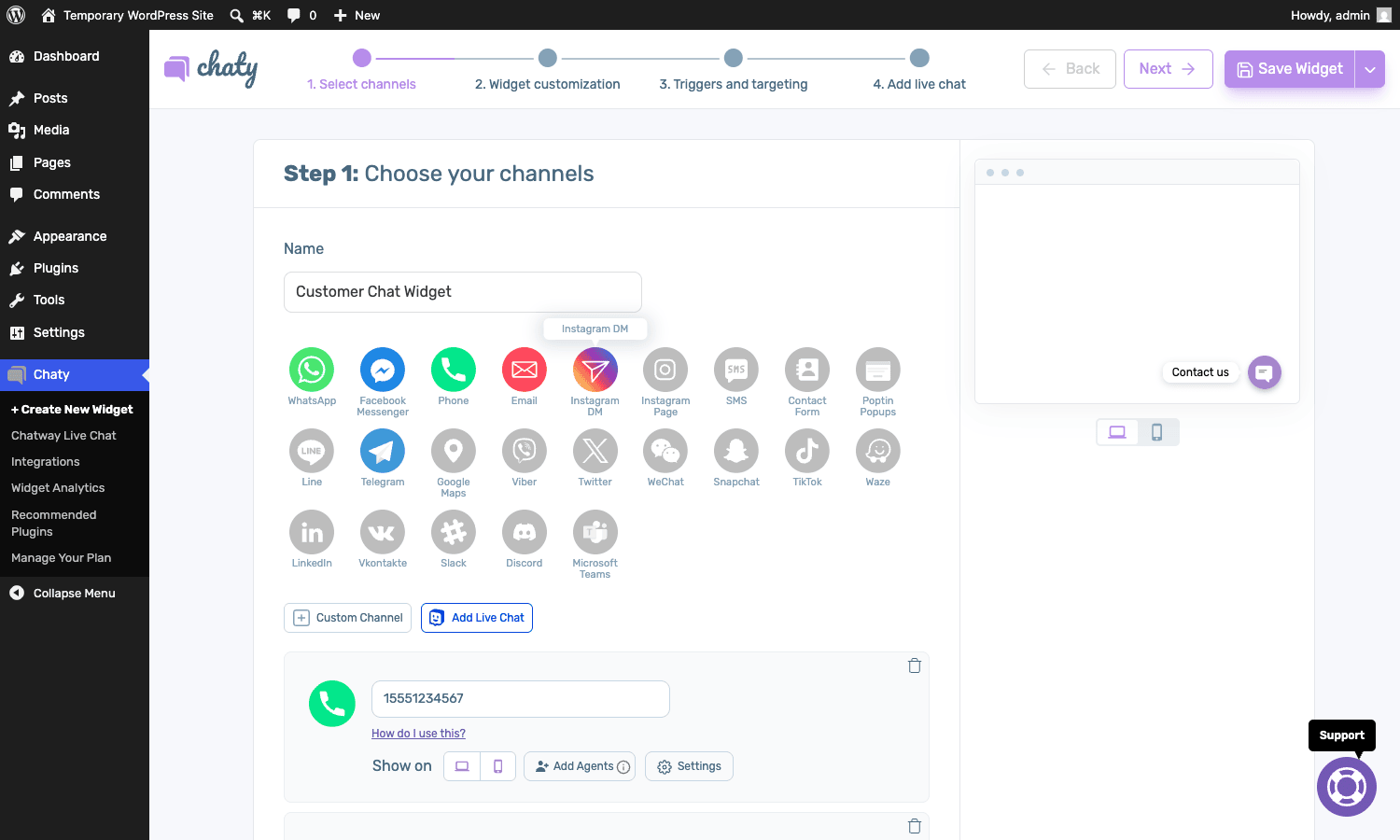
The official channel list is huge. WhatsApp, Facebook Messenger, Instagram DM, Instagram Page, Phone, Email, SMS, Telegram, Viber, Line, WeChat, Snapchat, TikTok, Waze, Twitter, LinkedIn, Vkontakte, Slack, Discord, Microsoft Teams, Google Maps, Poptin Popups, an in-built Contact Form, and a Custom Link slot you can use five times for anything else. Then Chatway sits on top of that as a 25th option for true live chat.
Don’t enable them all. Be honest with yourself: a vertical stack of 14 round icons covering the right side of every page is not a user-friendly chat widget, it’s a billboard. From what I’ve seen on real client sites, the four channels that actually get clicked are:
- WhatsApp if you’re in any country where WhatsApp is the default messenger. That’s most of the world outside the US. For a Brazilian, Indian, Spanish, or Middle Eastern audience, WhatsApp will be 70 to 90 percent of all chat clicks.
- Messenger for B2C sites with a Facebook page. Older audiences click this; younger audiences increasingly don’t.
- Phone for service businesses where someone’s going to book an appointment. Plumbers, dentists, salons, locksmiths. The
tel:link auto-dials on mobile, which is exactly what you want. - Email as the catch-all for everyone who doesn’t want to chat right now. A
mailto:with a pre-filled subject line is still the highest-converting "I’ll think about it" channel for most B2B.
That’s it. Four channels. Maybe add SMS if your audience skews older or your CRM only handles SMS. Maybe add Telegram if you sell to a tech audience. Past five icons, click-through rate per icon drops off a cliff because the visitor can’t scan them all without thinking, and a chat button that requires thinking has already failed.
Chaty makes it easy to over-do this, so apply restraint at the channel-selection step. The plugin does not stop you from picking 12.
Installation and the first five minutes
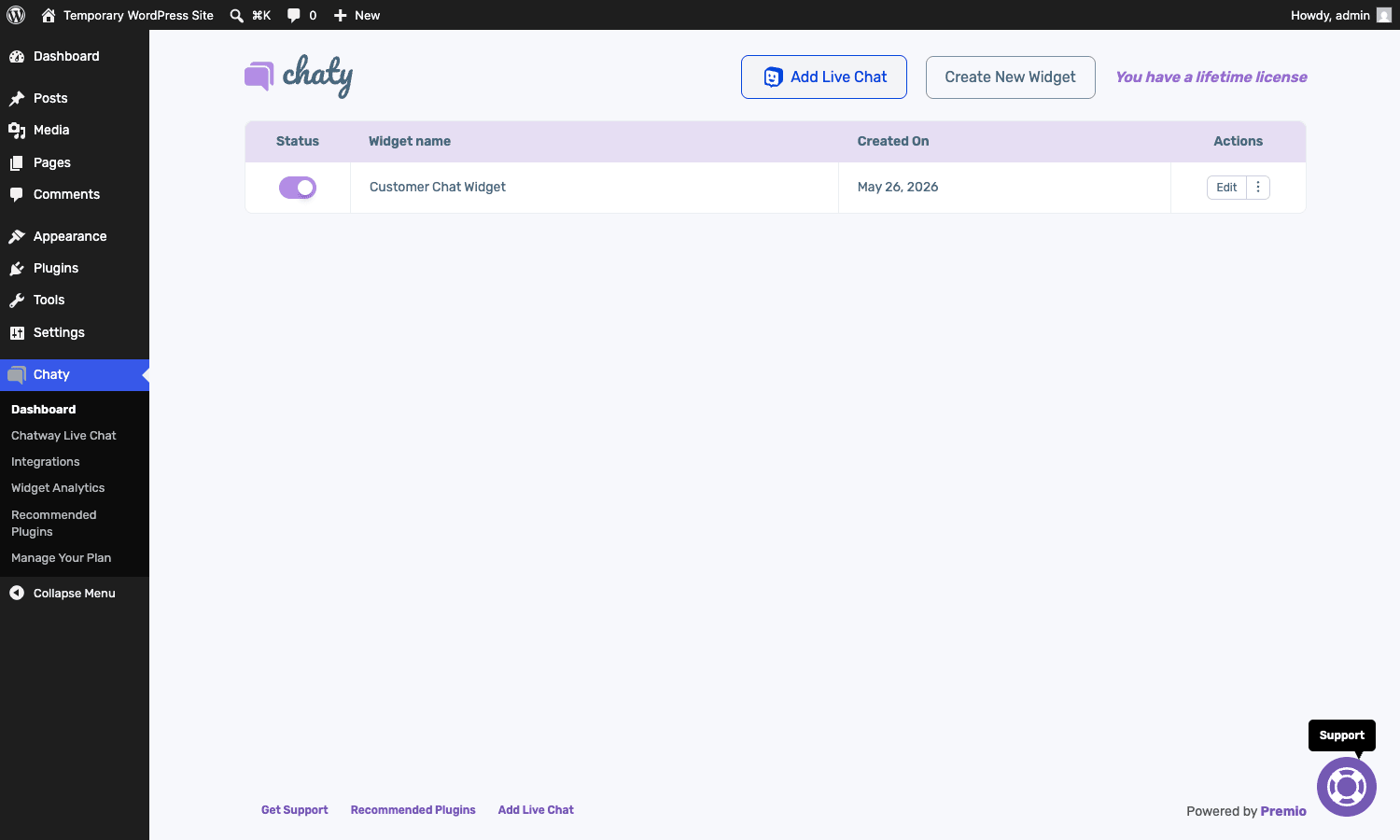
Install Chaty Pro the way you’d install any WordPress plugin. Upload the zip from Plugins -> Add New -> Upload Plugin, activate, and the plugin drops a new top-level "Chaty" menu in the admin sidebar. The menu has seven items: Dashboard, Create New Widget, Chatway Live Chat (Premio’s own live chat upsell), Integrations, Widget Analytics, Recommended Plugins, and Manage Your Plan. The Pro license is checked against go.premio.io on activation; the GPL Times download has its license callback short-circuited locally so you get the lifetime feature set without the cloud round-trip.
The first time you land on the Dashboard, the widget list is empty and you see a giant "Create Widget" CTA. Click it and Chaty drops you into a four-step wizard:
- Pick your channels and fill in the destination per channel.
- Customize the icon, position, color, and welcome message.
- Set triggers and display rules.
- Add live chat (Chatway) if you want it. You can skip this step entirely.
Five minutes is genuinely all it takes for a basic install. Pick three channels, type a phone number, type an email, type a WhatsApp number, save. The widget is on the front-end immediately, no theme edits, no shortcode, no widget area. That speed is one of the reasons Chaty has 80k+ installs on the free repo.
Walkthrough: building a real multi-channel widget
Let’s build a useful widget end-to-end. Imagine you run a small e-commerce store with one location, a sales WhatsApp number, a Messenger page, a sales email, and a phone the store manager actually answers.
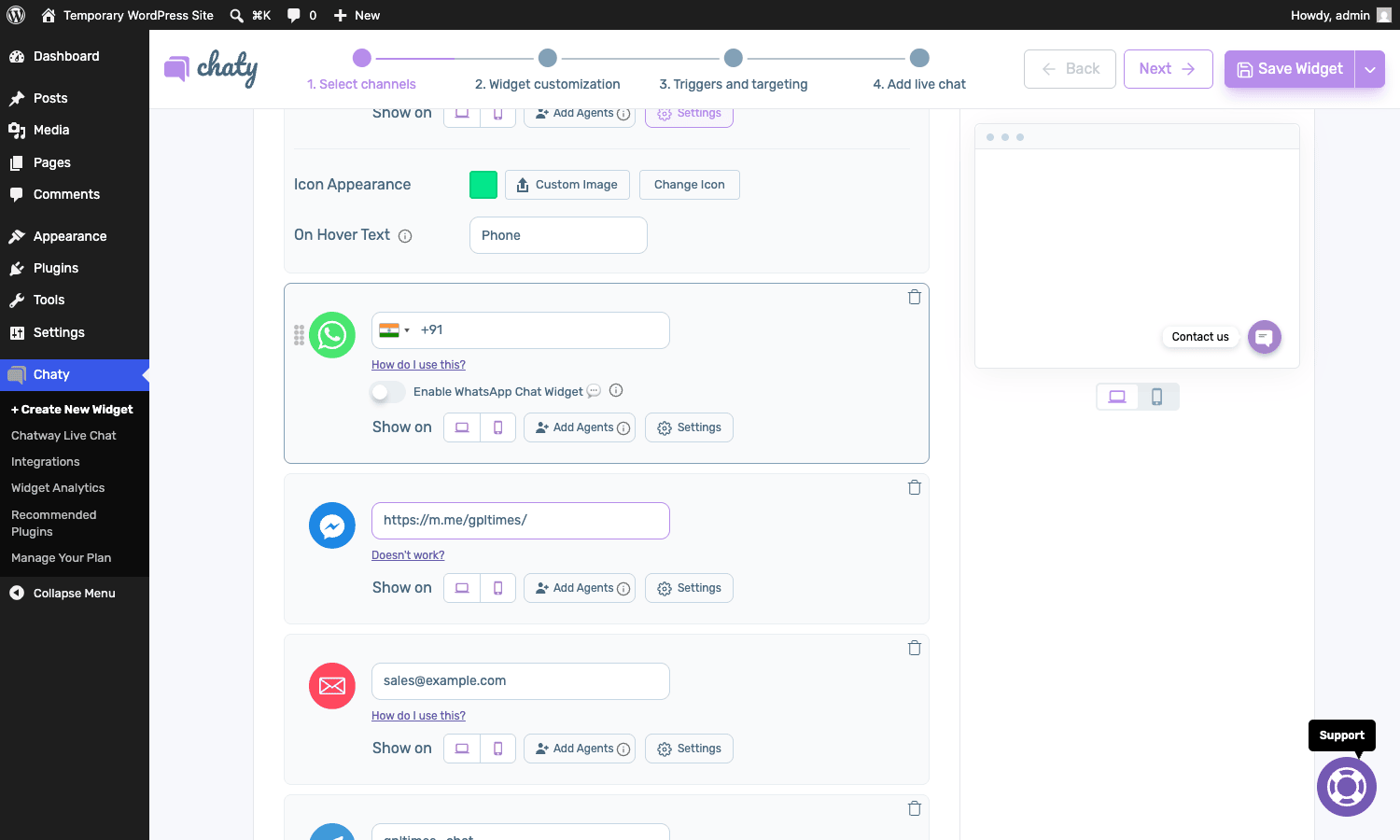
Step 1: pick your channels. Click each channel icon to add a row. Each row has a single field (the destination), a "Show on" device toggle (desktop / mobile / both), an "Add Agents" button (for round-robin between multiple WhatsApp numbers), and a Settings gear that expands into per-channel options: Icon Appearance (channel color), Custom Image (upload your own SVG), Change Icon, and On Hover Text (the label visitors see).
You can drag the channel rows to reorder. Chaty respects the order at render time and produces icons in that exact vertical stack.
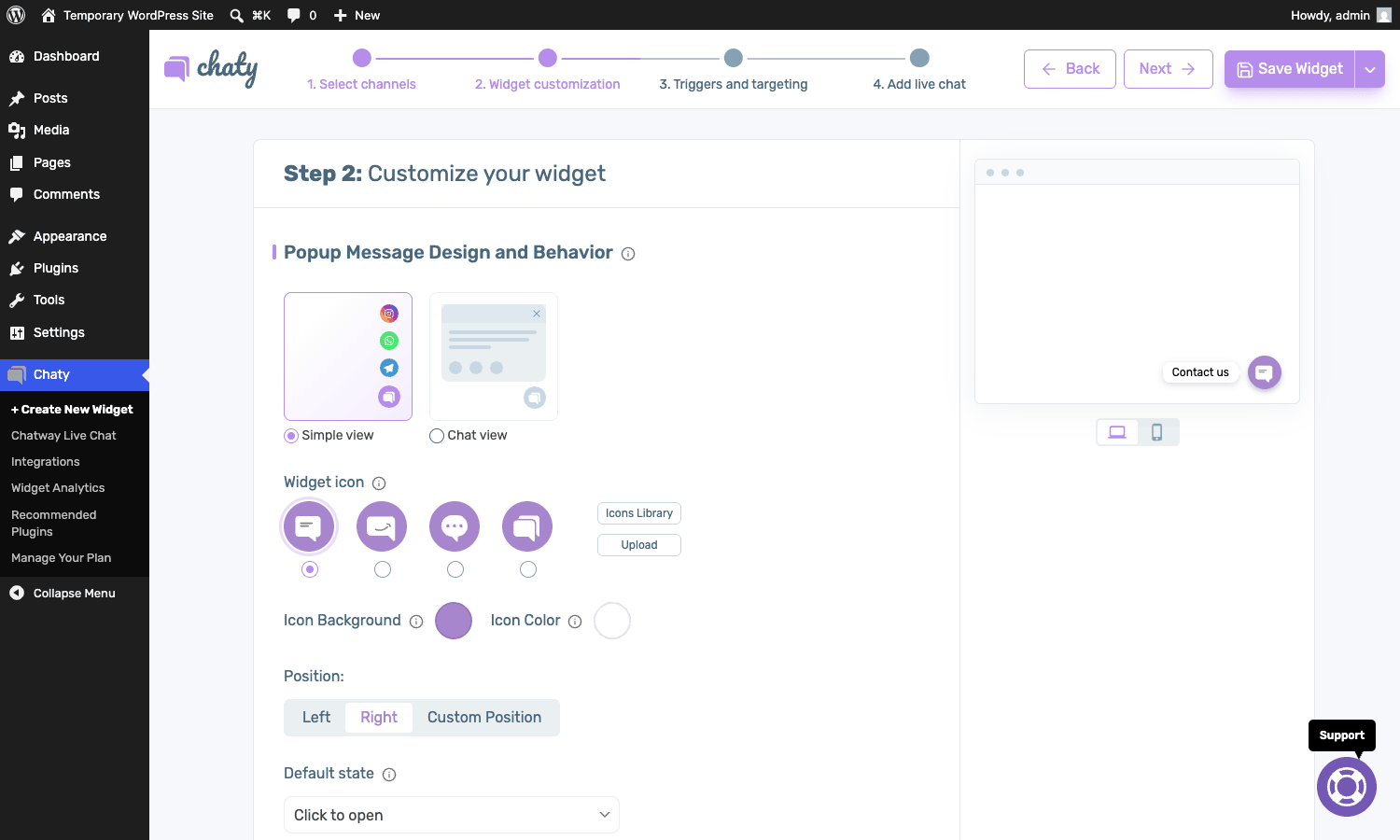
Step 2: customize. Step 2 is the design pass. You pick Simple view (just the channel cluster) or Chat view (channels plus a small text snippet that looks like an incoming message bubble). Then you choose one of four built-in widget icons, or upload your own. Then a position: bottom-left, bottom-right, or a custom pixel offset. The icon background and icon color are color-picker pairs. There’s also a Default state dropdown for choosing whether the cluster opens on click, hover, or starts open.
The colour picker is a slight gotcha. It outputs hex codes that look fine in the admin preview but occasionally render different than a CSS-variable-driven theme on the front-end, especially if your theme uses HSL or color-mix(). If you care about exact brand colors, set them via the plugin and then add an extra layer of CSS in your theme that targets .chaty-channel.WhatsApp-channel-link svg if needed.
Step 3: triggers and targeting. This is the most important step and the one most users skip. We’ll dig into it next.
Step 4: live chat. Skip it unless you want Chatway. Save.
Conditional display: where most chat widgets get it wrong
Most chat widgets are dumb about where they appear. You install Tawk.to, the chat bubble appears on every URL of your site, including the cart, the checkout, the thank-you page, the privacy policy. On the cart page especially it’s actively bad: the cart button at the bottom-right of the screen is now hidden behind a chat bubble, conversion drops by a measurable amount, and you don’t notice for weeks because nobody complains, they just bounce.
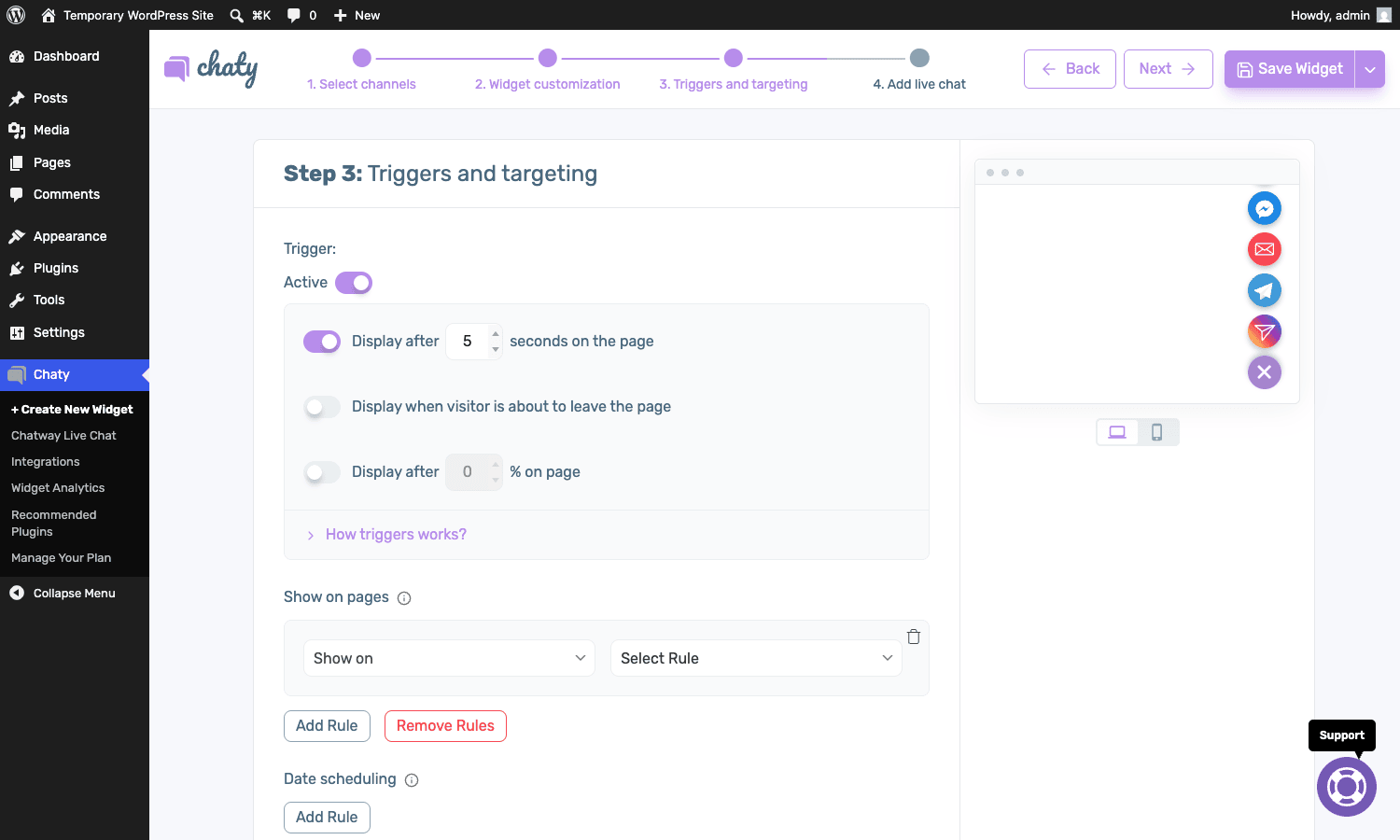
Chaty’s conditional display system is one of the few in this category that gets it right out of the box. In Step 3 of the wizard you get five separate rule groups, each independent:
- Show on pages. Add as many rules as you want. Each rule is a dropdown ("Show on" / "Hide on") and a target dropdown ("Home page", "All pages", "Specific pages", "Categories", "Post types", "Custom URL contains"). Pick "Hide on" + "Cart page" + "Checkout page" and you’ve fixed the conversion-killer above.
- Date scheduling. A start date and an end date. Useful for Black Friday banners or temporary holiday-hours messages.
- Days and hours. A grid of days and time ranges. If your support team only answers between 9 and 5 on weekdays, hide the chat widget at all other times so visitors aren’t told to wait. Or, better, swap to an email-only widget after hours.
- Traffic source. Show the widget only if the visitor came from a specific UTM source. Brilliant for paid-traffic landing pages where you want the widget on Google Ads visitors but not organic.
- Hide on devices. Toggle the whole widget off on desktop or off on mobile.
There’s one annoyance: each rule group only matches against a single rule chain, not arbitrary boolean logic. You can’t write "show on cart page AND between 9-5 AND only for Google Ads traffic" as one combined rule, you’d have to set those across three separate rule groups, and each rule group is an AND with the others. That’s enough for 95% of cases, but if you have complex marketing logic you’ll hit the limit.
Triggers: timing the popup without being a jerk
Triggers in Chaty control when the widget appears, separately from where. Three triggers are built in:
- Display after N seconds on the page. Default is 0. Setting it to 5 or 10 gives visitors a chance to read your hero section before the widget shows up. I’d argue this should never be 0, ever, because instant-show widgets feel pushy.
- Display when visitor is about to leave the page. This is exit-intent: a mouse move toward the top of the browser triggers the open state. It’s been shown to boost conversion in some studies and to be perceived as annoying in others. On a content site I’d skip it; on a sales page I’d test it.
- Display after N% on page (scroll trigger). Wait until the visitor has scrolled past 30% of the page before showing. Better than the time trigger for long-form content because it correlates with reading intent.
There’s also a related toggle: Auto-hide widget after N seconds. After the widget opens, it’ll auto-close after a few seconds if the visitor doesn’t interact. Useful if you opened it via exit-intent.
The triggers panel writes its config to a single PHP-serialized array stored as a row of WP options like chaty_trigger_on_time1, chaty_trigger_time1, chaty_trigger_on_exit1, chaty_trigger_on_scroll1, chaty_trigger_on_page_scroll1. The 1 suffix is the widget index. The frontend reads them into a JSON blob and hands them to the widget’s JS for evaluation.
WhatsApp click-to-chat: what the deep-link actually does
The WhatsApp icon in Chaty is the most-clicked icon on most installs, so it’s worth understanding what the link actually is. When a visitor clicks it, Chaty’s frontend renders:
https://wa.me/15551234567?text=URL-encoded-welcome-message
That’s the official WhatsApp Click to Chat API URL. The wa.me short link is owned by WhatsApp and is the safest format because WhatsApp detects whether the visitor is on mobile (open the WhatsApp mobile app, prefilled with your number) or desktop (open web.whatsapp.com and start a new conversation with your number). The ?text= parameter pre-fills the message box so the visitor doesn’t have to type "hi".
A few things to know:
- The number must include country code. Chaty’s UI nudges you toward this with a country flag dropdown, but if you manually type
15551234567it expects E.164 format without the+. Get this wrong and the click opens an "Invalid Phone Number" error in WhatsApp. - Don’t put the WhatsApp number in plain text anywhere on your site. Spam bots scrape it. Your phone will get spam-called in a week. Chaty obfuscates the number client-side through the click handler so it’s not in the rendered HTML.
- Pre-set the welcome message. The default is empty. Setting something like "Hi, I have a question about [page title]" pre-fills the visitor’s keyboard with friendly context. Higher reply rate, lower friction.
- WhatsApp Business vs personal numbers both work. If you’re running a real business, sign up for WhatsApp Business (free) so the chat opens to your business profile (logo, hours, address) rather than a personal name and a stock avatar.
For Messenger the equivalent URL is https://m.me/<page-username> and Chaty silently rewrites facebook.com/<page> to the m.me form because that one is mobile-app-friendly. For Telegram it’s https://telegram.me/<username>. For Viber, viber://pa?chatURI=.... Each protocol has its quirks, and Chaty hides almost all of them behind a single-field UI.
Front-end: what visitors see and how heavy it really is
This is what visitors see when they click the widget. The trigger button (with the chat icon) sits in the bottom-right, the way Tawk.to, Intercom, and every other live chat widget does. Click it and the channel icons cascade upward in a vertical column.
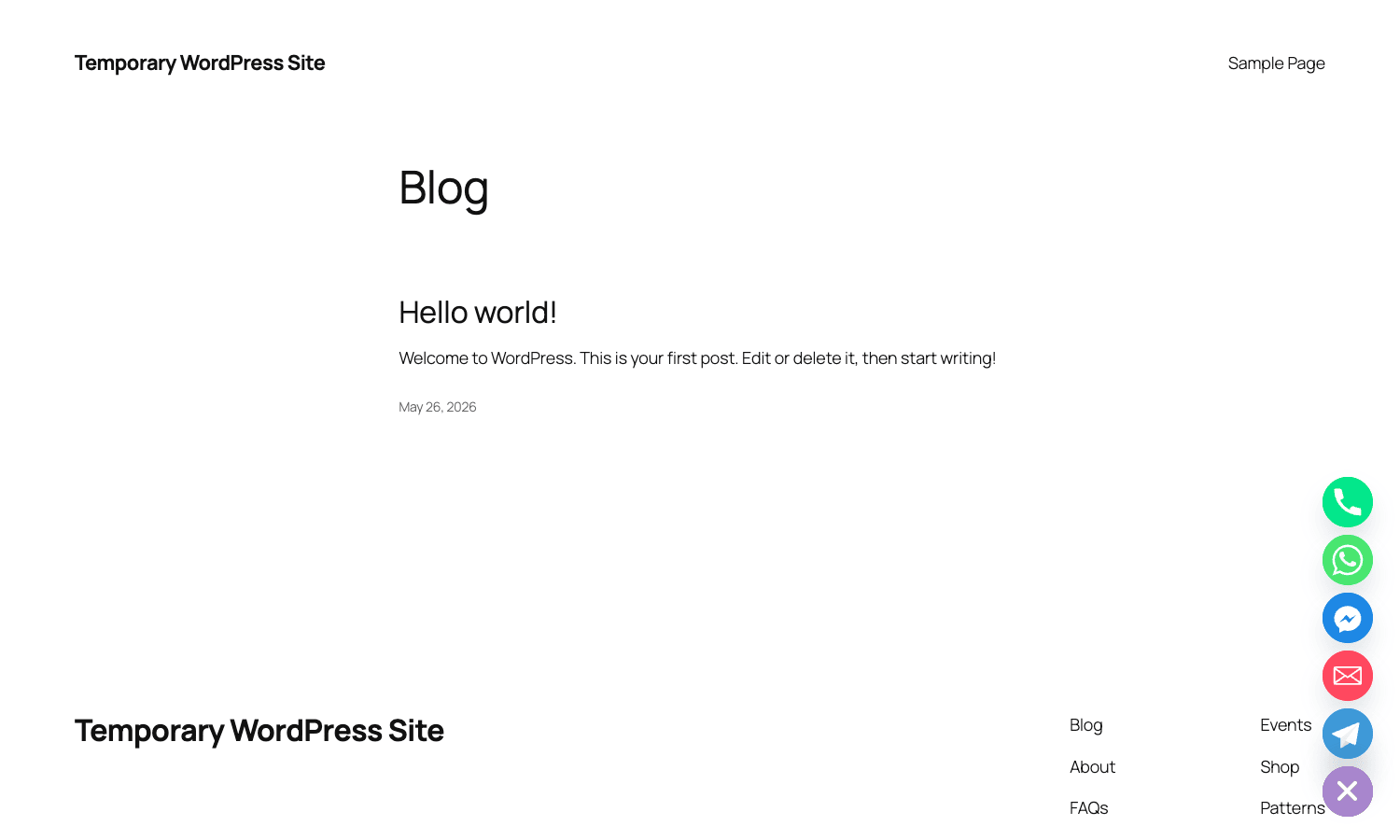
Performance-wise the widget is light. The bundle (chaty.js, chaty.css, and inline SVGs) lands around 25 to 30 KB gzipped. There’s one AJAX call to admin-ajax.php on first page load to pull the widget config, then nothing until the visitor clicks. Compare that to Tawk.to (around 250 KB, multiple third-party connections) or Intercom (around 700 KB) and Chaty is, by orders of magnitude, the lightest option in this category.
The icons themselves are inline SVGs, not icon-font glyphs or image sprites. That means no extra network requests, sharp rendering on retina, and you can target individual channel icons with CSS if you want to customize them.
The widget container is appended to the <body> after DOMContentLoaded. It does not block the first paint. On a Core Web Vitals scorecard it has near-zero impact on LCP and basically none on CLS (Chaty reserves a fixed-position element off-screen until it animates in, so layout doesn’t shift).
One real-world gotcha: the welcome popup (the small "Contact us" or custom message bubble) renders as soon as the widget is initialized. If you set the time trigger to 0, the welcome message can pop up before the page is fully interactive, which both looks janky and steals click focus from a hero CTA. Always set the time trigger to at least 3 seconds, and on slow pages bump it to 5 or 7.
Analytics: useful, but you’ll still want GA4
Chaty’s built-in analytics is at Chaty -> Widget Analytics. The dashboard shows a per-channel table with three columns: Visitors (how many unique sessions saw the channel icon), Unique Clicks (how many of those sessions clicked it), and Click-rate (the ratio). You can filter by date range and toggle "Collect Analytics Data" on or off.
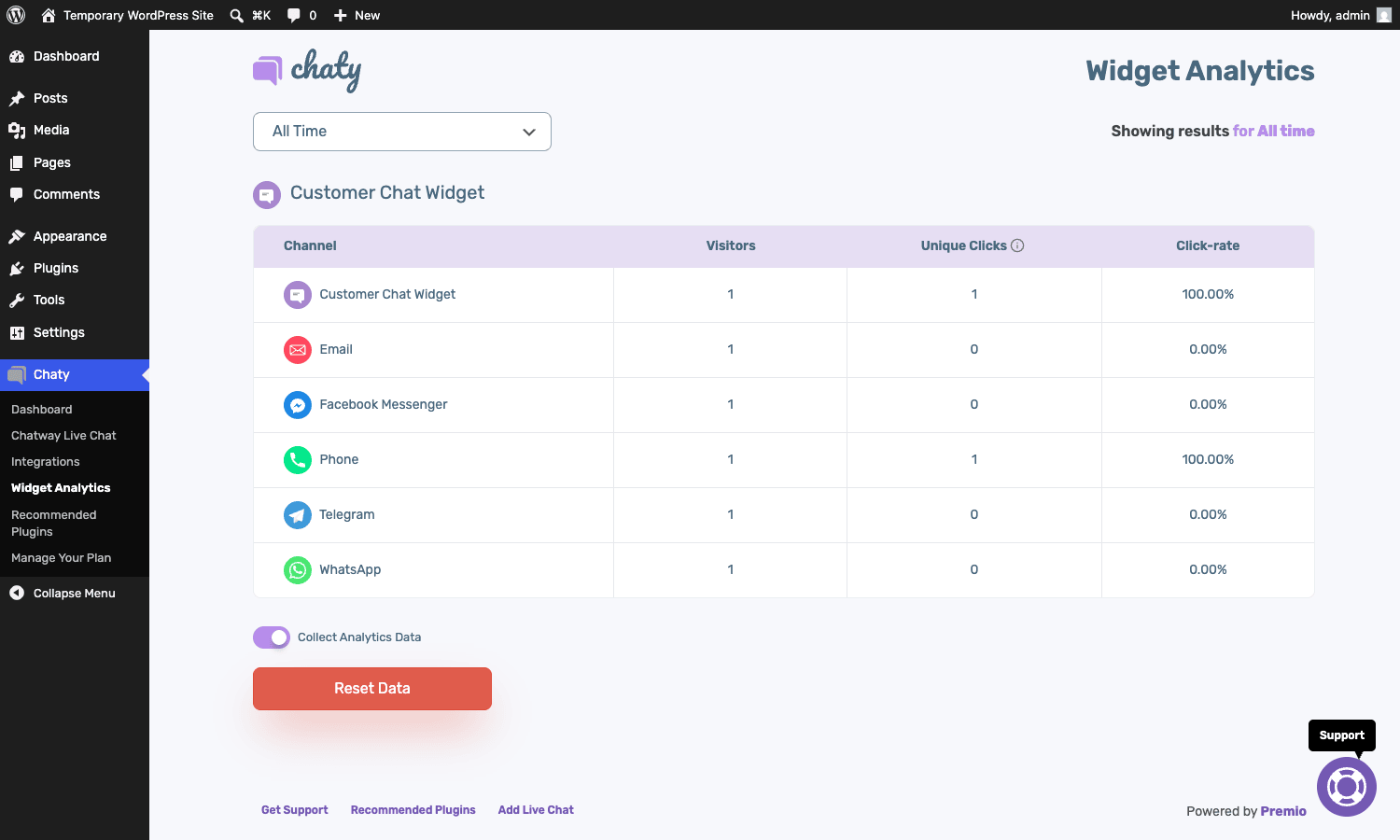
The data is stored in a custom table called wp_chaty_widget_analysis. Each row is a widget-channel-day tuple with no_of_views, no_of_clicks, is_widget (whether the row tracks the trigger button or a specific channel), and analysis_date. The collection happens via two AJAX actions, update_chaty_widget_views and update_chaty_channel_click, both available to logged-out visitors via the _nopriv variant.
For most sites this is enough to answer "is anyone actually using my chat widget?". What it can’t do is attribute a click to a downstream conversion (a purchase, a form fill, a phone call). For that you need GA4. The standard recipe:
// In Google Tag Manager, set a trigger on click of any.chaty-channel a element,
// fire a GA4 custom event "chat_click" with parameters {channel: dataLayer.chatChannel}.
document.addEventListener('click', function(e) {
 var link = e.target.closest('.chaty-channel a');
 if (link) {
 var ch = link.className.match(/chaty-(\w+)-channel/);
 window.dataLayer = window.dataLayer || [];
 window.dataLayer.push({event: 'chat_click', chatChannel: ch? ch[1] : 'unknown'});
 }
}, true);
Then in GA4 you mark chat_click as a conversion and tie it back to your sessions. Chaty’s own analytics is fine for a quick health check; GA4 is the source of truth.
Chaty vs Tidio vs Tawk.to: when each one wins
If you’re shopping for a chat solution, the choice usually comes down to three contenders.
- Chaty wins when you want a multi-channel launcher, no SaaS account, fast page load, GDPR simplicity, and your audience already uses WhatsApp / Messenger / Telegram. Best for service businesses, e-commerce stores, agencies in WhatsApp-heavy regions, and anyone who doesn’t need staffed live chat.
- Tawk.to wins when you want free live chat with real agents, in-dashboard conversation history, file uploads, canned responses, and you’re willing to accept the heavier script and the third-party data flow. Best for small startups that want hands-on customer support but can’t pay for it.
- Tidio wins when you want polished live chat, a built-in chatbot, email automation, and a single inbox tying chat + Messenger + Instagram together. Best for B2C e-commerce that values automation. The trade-off is the monthly fee (around $29 and up).
Crisp and Intercom sit further up that spectrum: they’re full helpdesk products with knowledge bases, multi-agent workflows, and CRM tie-ins. They cost real money.
You can also combine. A common pattern I’ve seen: Chaty as the front-door launcher (cheap, fast, multi-channel), plus a separate tool inside Chaty’s Chatway slot or a back-office helpdesk for the actual ticket workflow. The two tools don’t conflict because Chaty is a launcher and Chatway / your helpdesk is the conversation layer.
GDPR and chat widgets: the boring but necessary part
Most articles about chat widgets skip this section because it’s not fun. It is, however, the part that gets sites fined.
Chaty itself doesn’t set cookies by default. Its analytics tracking writes a row to the database keyed off the widget-channel-day, not a visitor identifier, so there’s no persistent user tracking for cookie-banner purposes. That makes Chaty one of the easier-to-defend chat widgets under GDPR.
What does have a GDPR implication is the moment a visitor clicks WhatsApp, Messenger, or any third-party channel. At that point they leave your site and start a conversation on a Meta-owned (or Telegram-owned, etc.) service, which has its own data-processing terms. The visitor’s IP, phone number, and message content go to that third party. You don’t have to gate the click behind a consent banner because the visitor is initiating the action, but you should mention "Clicking these chat options will start a conversation on a third-party service" in your privacy policy.
A few specific recommendations:
- Add a line to your privacy policy: "We use Chaty Pro to provide chat options. Chaty itself does not set cookies. Clicking a chat channel (WhatsApp, Messenger, etc.) will start a conversation on that third party, governed by their own privacy policy."
- If you load Chaty inside a Google Tag Manager container, that DOES trigger consent rules under GDPR, so set its trigger to fire only after marketing consent.
- If you enable Chaty’s contact-form channel, it stores leads in
wp_chaty_contact_form_leadstable. Treat that table like any other personal-data store: include it in data-export and data-deletion workflows for GDPR / CCPA right-to-access requests.
For non-EU audiences this section matters less, but the privacy-policy bullet is still worth adding because it’s polite and protects you against US state laws like CCPA and CPRA.
Developer reference: tables, options, AJAX, filters
Here’s what’s worth knowing if you’re going to extend Chaty in code.
Custom tables
On activation, Chaty creates two custom tables:
CREATE TABLE wp_chaty_widget_analysis (
 id bigint(11) NOT NULL AUTO_INCREMENT,
 widget_id int(11) NULL,
 channel_slug varchar(50) NULL,
 no_of_views int(11) NOT NULL DEFAULT '0',
 no_of_clicks int(11) NOT NULL DEFAULT '0',
 is_widget tinyint(1) NOT NULL DEFAULT '0',
 analysis_date bigint(20) NOT NULL DEFAULT '0',
 PRIMARY KEY (id)
);

CREATE TABLE wp_chaty_contact_form_leads (
 id bigint(11) NOT NULL AUTO_INCREMENT,
 widget_id int(11) NULL,
 name varchar(100) NULL,
 phone_number varchar(100) NULL,
 email varchar(100) NOT NULL,
 message text NOT NULL,
 custom_field varchar(256) NULL,
 ref_page text NOT NULL,
 ip_address varchar(256) NOT NULL DEFAULT '0',
 created_on datetime,
 PRIMARY KEY (id)
);
The first table is the per-channel analytics counter. The second stores leads submitted through Chaty’s built-in contact form channel.
Options storage
Widgets are not custom-post-types and not custom-table rows. They are WordPress options, one row per widget per setting, with the widget index appended. So for widget #1 you’ll find rows like:
cht_widget_title1 -> Customer Chat Widget
cht_widget_status1 -> 1
cht_widget_size1 -> 54
cht_widget_font1 -> ''
cht_widget_language1 -> ''
chaty_trigger_on_time1 -> yes
chaty_trigger_time1 -> 5
chaty_trigger_on_exit1 -> no
That’s a lot of wp_options rows for a single widget. Chaty stores around 80 to 100 options per widget. They’re all autoload=yes by default, which means every page request loads them, which adds memory overhead even on a cached site. If you run more than three or four widgets, consider patching the option-creation calls to add_option($key, $value, '', 'no') so they’re not autoloaded.
AJAX endpoints
Chaty exposes a handful of admin-ajax.php actions. The ones a developer is most likely to care about:
update_chaty_widget_views(alsonoprivvariant): increments the view counter when a visitor sees the widget.update_chaty_channel_views(alsonopriv): increments the per-channel view counter.update_chaty_widget_click(alsonopriv): increments the trigger-button click counter.update_chaty_channel_click(alsonopriv): increments the per-channel click counter.chaty_front_form_save_data(alsonopriv): saves a contact-form submission into the leads table.
If you want to capture every chat click and forward it to your CRM or marketing automation tool, hook on those AJAX actions:
add_action( 'wp_ajax_nopriv_update_chaty_channel_click', 'forward_chaty_click_to_crm', 5 );
add_action( 'wp_ajax_update_chaty_channel_click', 'forward_chaty_click_to_crm', 5 );

function forward_chaty_click_to_crm() {
 $widget_id = isset( $_POST['widget_id'] )? (int) $_POST['widget_id'] : 0;
 $channel_slug = isset( $_POST['channel_slug'] )? sanitize_text_field( $_POST['channel_slug'] ) : '';

 if ( $widget_id && $channel_slug ) {
 // Forward to your CRM, FluentCRM, ActiveCampaign, webhook, etc.
 wp_remote_post( 'https://your-crm.example.com/webhooks/chaty-click', array(
 'body' => array(
 'widget_id' => $widget_id,
 'channel' => $channel_slug,
 'ref_page' => isset( $_SERVER['HTTP_REFERER'] )? esc_url_raw( $_SERVER['HTTP_REFERER'] ) : '',
 'event_time' => current_time( 'mysql' ),
 ),
 'timeout' => 5,
 'blocking' => false,
 ) );
 }
 // Don't return here, let Chaty's own handler also run and update its counter.
}
That hook runs at priority 5, before Chaty’s own counter, so the request always happens even if Chaty’s handler short-circuits.
Useful filters
There’s only one front-end filter worth knowing about:
// Disable Chaty's defer attribute on the front-end script (default: true).
add_filter( 'add_defer_to_chaty', '__return_false' );
The defer attribute is on by default, which is the right choice for performance. The only reason to turn it off is if you’re seeing JS ordering issues with another plugin that depends on Chaty being ready synchronously.
Beyond that, the developer surface is small. Chaty does not expose a deep catalog of hooks and filters the way ACF or WPForms does. Most customization happens in the admin UI or via CSS overrides. If you need finer control, you’ll be hacking AJAX endpoints (above) or overriding the inline SVGs.
Custom CSS
Chaty Pro has a "Custom CSS" textarea under the design step. Common patches that I find myself writing on every install:
/* Bump the trigger button shadow for better contrast on light backgrounds */.chaty-channel.chaty-cta-main {
 box-shadow: 0 6px 24px rgba(0, 0, 0, 0.18)!important;
}

/* Move the cluster up so it doesn't overlap a sticky cart bar */
@media (max-width: 768px) {
 #chaty-widget-_1.chaty-widget {
 bottom: 70px!important;
 }
}

/* Hide the WhatsApp icon entirely from logged-in admin users (to stop accidentally messaging your own number while testing) */
body.logged-in.chaty-channel.Whatsapp-channel-link {
 display: none!important;
}
The selectors are stable across Chaty versions. The _1 suffix is the widget index, so if you’ve got multiple widgets, update accordingly.
Performance, compatibility, and gotchas
A few things that are worth knowing before a real deploy.
Caching plugins are fine. Chaty’s frontend is static JS + CSS with one AJAX call for config. Both WP Rocket and W3 Total Cache handle Chaty correctly. The widget initializes per visitor, not per cached page, so the cached HTML is fine. If you’re aggressively delaying JavaScript with WP Rocket’s "Delay JavaScript execution", add chaty to the exclusion list so the widget doesn’t wait for user interaction to load (which defeats the trigger system).
Page builders. Chaty is added globally to wp_footer() regardless of which builder rendered the page. Elementor, Bricks, Divi, Oxygen, Beaver Builder, classic editor pages, Gutenberg pages, WooCommerce pages, all of them get the widget. There’s no per-template setup needed.
Multilingual. Chaty has a Widget Language setting per widget. You can create one widget per language and use the "Show on pages" conditional rule with WPML / Polylang URL patterns to show the right language widget per page. That works but it’s clumsy. A cleaner pattern is one widget with the welcome message left blank, then localize the welcome message at runtime via JavaScript based on <html lang="...">.
WooCommerce checkout. Always always always add a "Hide on cart" and "Hide on checkout" rule. Visitors at the checkout step do not want a chat widget overlaying the submit button. If they’re stuck, they’ll bounce. The conversion math is brutal on this.
RTL. Chaty’s UI defaults to LTR but supports RTL via a dir="rtl" body attribute. The widget mirrors automatically. Tested on Hebrew and Arabic, no issues.
Mobile vs desktop. Treat them as different products. On desktop the widget hovers in the bottom-right, doesn’t move when the page scrolls, and is mostly fine. On mobile, the widget can overlap the iOS sticky bottom bar or Android’s gesture-nav indicator. The "Show on" device toggle per channel is your friend here. For example, show Phone only on mobile (where tel: actually does something useful), and show Custom Link only on desktop.
Pricing and licensing
Chaty Pro is sold by Premio with three pricing tiers: Pro (3 sites), Pro Plus (10 sites), and Agency (50 sites). All tiers include the same features; the only difference is the license-server site count. There’s a 14-day money-back guarantee.
The free version (chaty on WordPress.org) keeps the basics: 9 channels, single widget, no triggers, no conditional display, branding watermark on the widget. You’ll outgrow it within a week if you take chat seriously.
Chaty Pro is also available as a GPL download on GPL Times with the full Pro feature set unlocked, including triggers, conditional display, all channels, and analytics. The license callback is short-circuited locally so the plugin doesn’t phone home, which also means it works fine on staging or air-gapped sites where the original Premio license servers wouldn’t be reachable.
If you’re using Chaty alongside an email-marketing setup, the natural pairing is FluentCRM Pro. Chaty captures the chat click event, you hook into the AJAX action to push the contact to a FluentCRM list, and the rest of the lifecycle (welcome email, drip campaign, segmentation) runs through FluentCRM. Same idea pairs nicely with WPForms for the contact-form channel if you want a more polished form than Chaty’s built-in one.
If WhatsApp specifically is the only channel you care about, the standalone WhatsApp Chat WordPress plugin is a single-channel alternative. It’s lighter than Chaty and the per-button customization is finer, but you give up the multi-channel cluster, the triggers, and the conditional display rules.
FAQ
Why isn’t the WhatsApp icon showing on mobile?
99% of the time it’s the "Show on" device toggle on the WhatsApp channel row, set to desktop-only. Open the widget edit screen, scroll to the WhatsApp row, click the phone icon in "Show on" so both desktop and mobile are highlighted, save. If that doesn’t fix it, check Chaty’s Conditional Display "Hide on devices" rule isn’t excluding mobile.
Can I hide Chaty on the cart and checkout pages?
Yes, and you should. Go to Step 3 of the widget editor, scroll to "Show on pages", click Add Rule, set the first dropdown to "Hide on", set the second to "Cart page", then Add Rule again for "Checkout page". Save. This is the single most impactful conditional rule for a WooCommerce store, because a chat widget overlapping a checkout button is a measurable conversion killer.
How do I track Chaty clicks in GA4?
Chaty’s own analytics counts clicks per channel but doesn’t push to GA4. The cleanest path is a Google Tag Manager click trigger fired on any element matching .chaty-channel a, with a GA4 custom event called chat_click and a channel parameter pulled from the link’s class name. See the "Analytics" section above for the code. Then mark chat_click as a conversion event in GA4 admin.
Why does the welcome message pop up before the page is interactive?
Because the trigger time is set to 0 (default). Open the widget editor, go to Step 3, set "Display after X seconds on the page" to at least 3 seconds. On slow pages, bump it to 5 or 7. The default of 0 is a UX bug Premio should fix; until they do, set it manually on every new install.
Does Chaty work with caching plugins?
Yes. WP Rocket, W3 Total Cache, LiteSpeed Cache, and WP Super Cache all play nicely with Chaty. The frontend script loads from a static URL, the config comes through admin-ajax.php which most caching plugins exclude from caching by default. If you’re using WP Rocket’s "Delay JavaScript execution" feature, exclude chaty so the widget doesn’t wait for user interaction (which would defeat its own triggers).
Can I use Chaty with a multilingual site?
Yes, two ways. The lazy way: create one widget per language, then use the "Show on pages" conditional with a Custom URL pattern that matches the language slug (e.g. "URL contains /en/" or "/fr/"). The cleaner way: one widget, blank welcome message, and inject localized text via a JavaScript snippet based on <html lang>. WPML, Polylang, and TranslatePress all coexist with Chaty.
Does the contact form channel store leads in WordPress?
Yes, in the wp_chaty_contact_form_leads table. View them from Chaty -> Contact Form Leads. Each lead has name, email, phone, message, the page they were on, and a timestamp. For GDPR compliance, include this table in your data-export and data-deletion workflows.
Can I customize the channel icons?
Yes. In the Channel detail panel (the gear icon on each channel row), there’s a "Custom Image" upload and a "Change Icon" picker. The upload accepts SVG and PNG. The picker shows four built-in alternate icons per channel. You can also override the icon entirely with CSS by targeting .channel-icon-<Slug> in the Custom CSS box.
Final thoughts
If you’re running a WordPress site that needs a "click to chat" button and you don’t want a full live-chat / helpdesk product, Chaty Pro is the right answer. It’s the most polished version of the multi-channel launcher pattern I’ve used, it’s fast, it doesn’t lock you into a SaaS, and the conditional display system is good enough to actually solve the cart-overlap problem that kills conversion on lazier widgets.
What I keep coming back to is how small it is. Chat widgets in this category tend to grow into something the original spec didn’t ask for: a chatbot, a knowledge base, a CRM integration, a video chat. Chaty has resisted that drift. It does one thing (render a floating button that launches the visitor’s preferred channel) and it does it well.
The downsides are real but small. The free version has a watermark you’ll want to remove. The conditional display rules can’t compose into complex boolean logic. The color picker occasionally clashes with theme variables. The analytics is basic and you’ll still want GA4. None of these are reasons not to use it; they’re just things to know.
For most WordPress sites that have a phone number and a WhatsApp number and want to make both clickable in a non-ugly way, this is the plugin. Set the trigger to 5 seconds, hide it on cart and checkout, pick three or four channels (not fourteen), and let it do its job.