

Tables in WordPress are usually a small headache. You either fight Gutenberg’s core table block (no styling, no sorting, no formulas), or you paste raw HTML, or you reach for a heavy data-grid plugin that wants you to think in databases instead of cells. WP Table Manager picks a different lane. It drops a real spreadsheet straight into wp-admin, the kind with column letters down the top, row numbers down the side, a formula bar, cell colors, and an =SUM that actually adds things up.
This review walks the plugin from both ends. The first half is for editors who just want to publish a clean, sortable price list or schedule without writing CSS. The second half is for developers who need to know what hooks fire when, how Google Sheets sync is scheduled, what the MySQL data source actually does, and whether the plugin plays nicely with WPML, Elementor, and Gutenberg.
Table of contents
- What WP Table Manager is
- Core features
- The spreadsheet editor, in plain English
- Themes, custom CSS, and styling
- Importing and syncing data: Excel, CSV, Google Sheets, MySQL
- Charts from your table data
- Installation and first table
- Embedding a table in a post or page
- Permissions: who can do what
- Real-world use cases
- Developer reference
- Performance, compatibility, and gotchas
- How WP Table Manager compares to other table plugins
- Pricing and licensing
- Frequently asked questions
- Final thoughts
What WP Table Manager is
WP Table Manager is a premium WordPress plugin from Joomunited, a Brussels-based studio that’s been shipping content-management tools for Joomla and WordPress for over a decade (they’re the same folks behind WP Media Folder and WP File Download). The plugin turns the WordPress admin into something that looks and behaves like a stripped-down Google Sheets. You create tables, fill cells, paint them, write formulas, generate charts, and then drop them into any post, page, or theme template with a shortcode or a Gutenberg block.
What separates it from the rest of the table-plugin pile is the editor surface. Most table plugins ask you to define columns, then add rows one at a time, then style the result through some abstracted "settings" tab. WP Table Manager skips that and gives you a live grid. Click cell B3, type a number, hit Tab, type the next number, write =SUM(B3:B10) somewhere, color it yellow, done. If you’ve ever taught a non-technical client to update a price table, you’ll appreciate this. They already know spreadsheets. They don’t know HTML.
The plugin lives at wp-admin/admin.php?page=wptm under its own top-level menu. There’s no shortage of features under the hood (more on those in the developer section), but the spreadsheet is what sells it to editors. The screenshots throughout this piece come from the WP Table Manager plugin running on a fresh sandbox install.
Core features
Here’s the short version of what’s in the box:
- Spreadsheet editor inside wp-admin. Real cells, real column letters, drag-to-resize, drag-to-fill, undo/redo, AJAX auto-save.
- Cell formulas.
=SUM,=AVERAGE,=MIN,=MAX,=COUNT,=COUNTIF,=IF,=CONCAT, and the usual math/string suspects. - Per-cell formatting. Background color, border, font family and size, alignment, number formatting, date/currency formatting.
- Theme presets and custom CSS. Six built-in themes, plus per-table custom CSS for anyone who wants pixel-level control.
- Conditional formatting. Color a cell or row based on its value (less than 100 turns red, contains "paid" turns green, that kind of thing).
- Charts. Generate bar, line, pie, doughnut, radar, and polar-area charts from a selected range of cells. The chart updates when the table updates.
- Multiple data sources. Standalone spreadsheet, MySQL database table, Google Sheets URL, or wrapping entries from Gravity Forms / Ninja Forms / Formidable Forms.
- Frontend rendering. Sortable columns, paginated, search-filterable, responsive (stack / scroll / hide-columns), with optional download buttons (Excel, CSV, PDF, JSON, Print).
- Folders. Tables are organized into categories that act like folders, so the admin doesn’t turn into a wall of 80 untitled tables.
- Page-builder integrations. Gutenberg blocks (Table + Chart), Elementor widget, Divi module, WPBakery shortcodes, Avada/Fusion shortcodes, Beaver Builder module, Bricks element.
- Front-end editing. Optionally let logged-in users edit cells directly from the published post (great for shared price sheets and internal dashboards).
- Role-based permissions. Granular per-role caps for who can create/edit/delete tables and categories, including a separate switch for database-table access.
- Excel and CSV import/export. Two-way: drop an
.xlsxin, push table data out. - WPML compatible. Tables are translatable as standard posts via the WPML connector.
That’s a lot of surface area. The rest of the article digs into the bits most people actually use.
The spreadsheet editor, in plain English
Open a table and you land on the editor view. There’s a top menu (Table / Theme / Format / Import & Sync / Chart) with dropdowns underneath, a formatting toolbar (bold, italic, color, alignment, the usual), a formula bar marked fx, and the spreadsheet itself with row numbers down the left and column letters across the top. If you’ve used Google Sheets or Excel, you know how to use this.
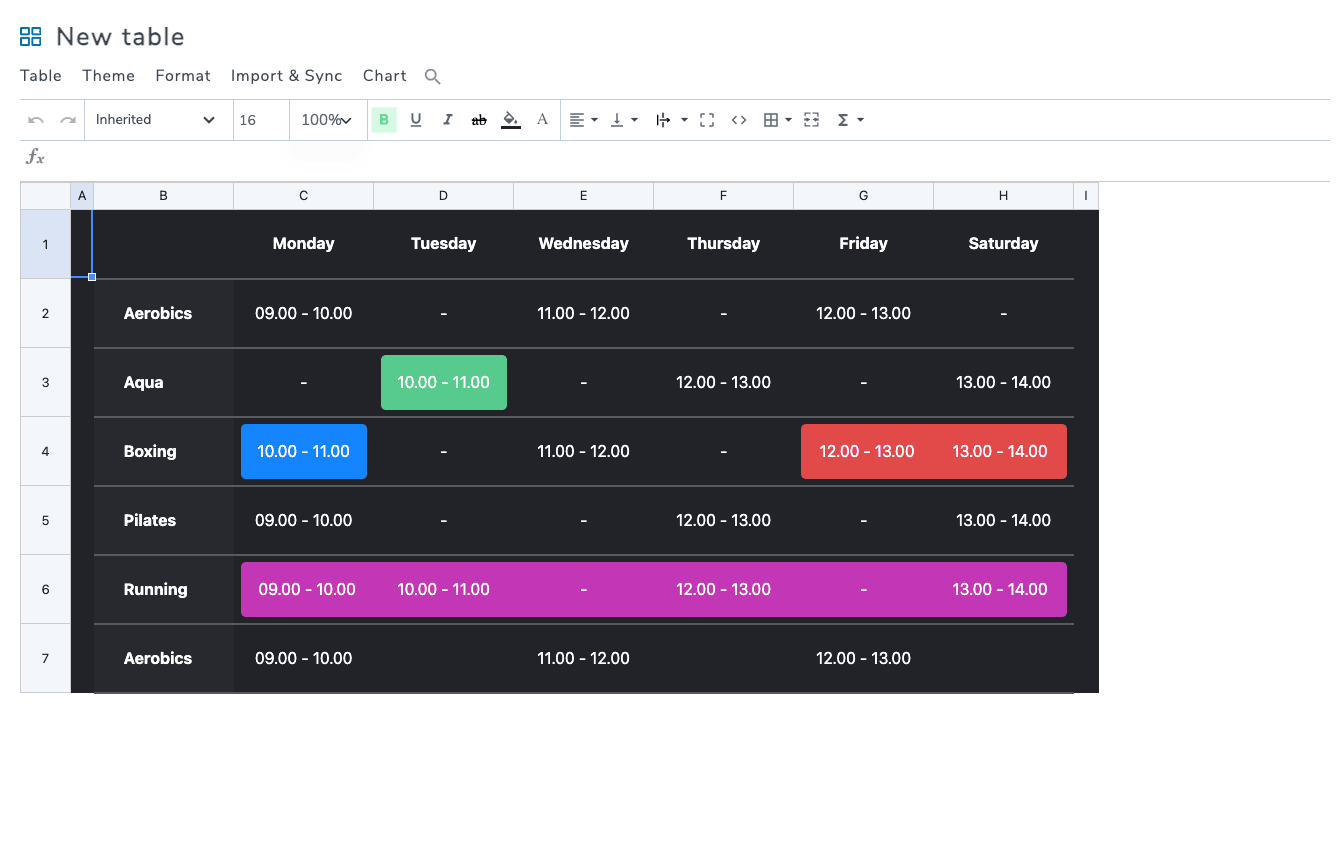
The demo table above is a gym class schedule. Notice the colored highlight cells (blue, green, pink, red), the dark header row, the bold day names. Every one of those is a few clicks: select cells, click the color picker in the toolbar, pick a color. No CSS file to edit.
A few editor behaviors worth knowing:
- Auto-save runs after every change. There’s no "Save" button to remember. If you make a mistake, the undo button next to the toolbar walks back as many steps as you’ve taken in this session.
- Cells accept HTML. You can drop an
<img>or an<a>into a cell and it renders on the frontend. Useful for product tables where each row needs a thumbnail. - Formulas use the spreadsheet syntax.
=SUM(B2:B10)adds the range.=AVERAGE(C2:C50)averages it.=IF(D2>100, "yes", "no")does the conditional. The plugin recalculates on save. - Drag-to-fill works the same as Excel. Select a cell, grab the little square at the bottom-right corner, drag down. Numbers increment, text repeats, formulas re-anchor.
- Right-click on a row or column gives you insert / delete / hide / resize options.
- The formula bar at the top shows the raw cell content (formula or value) while the cell itself shows the computed result.
The smartest design decision is what isn’t here. There’s no "advanced mode" toggle, no separate "design view," no schema editor you have to fill out before adding data. You open the table and start typing. Everything else (formatting, theming, exporting, charting) is layered on top of that base behavior, accessible from the top menu when you need it and invisible when you don’t.
Themes, custom CSS, and styling
Under Theme → Theme selection there’s a modal with around a dozen pre-built table designs. Default minimalist, dark, blue, the "Premium" pricing-table look, the task-list look, etc. Click one and your table adopts it instantly.
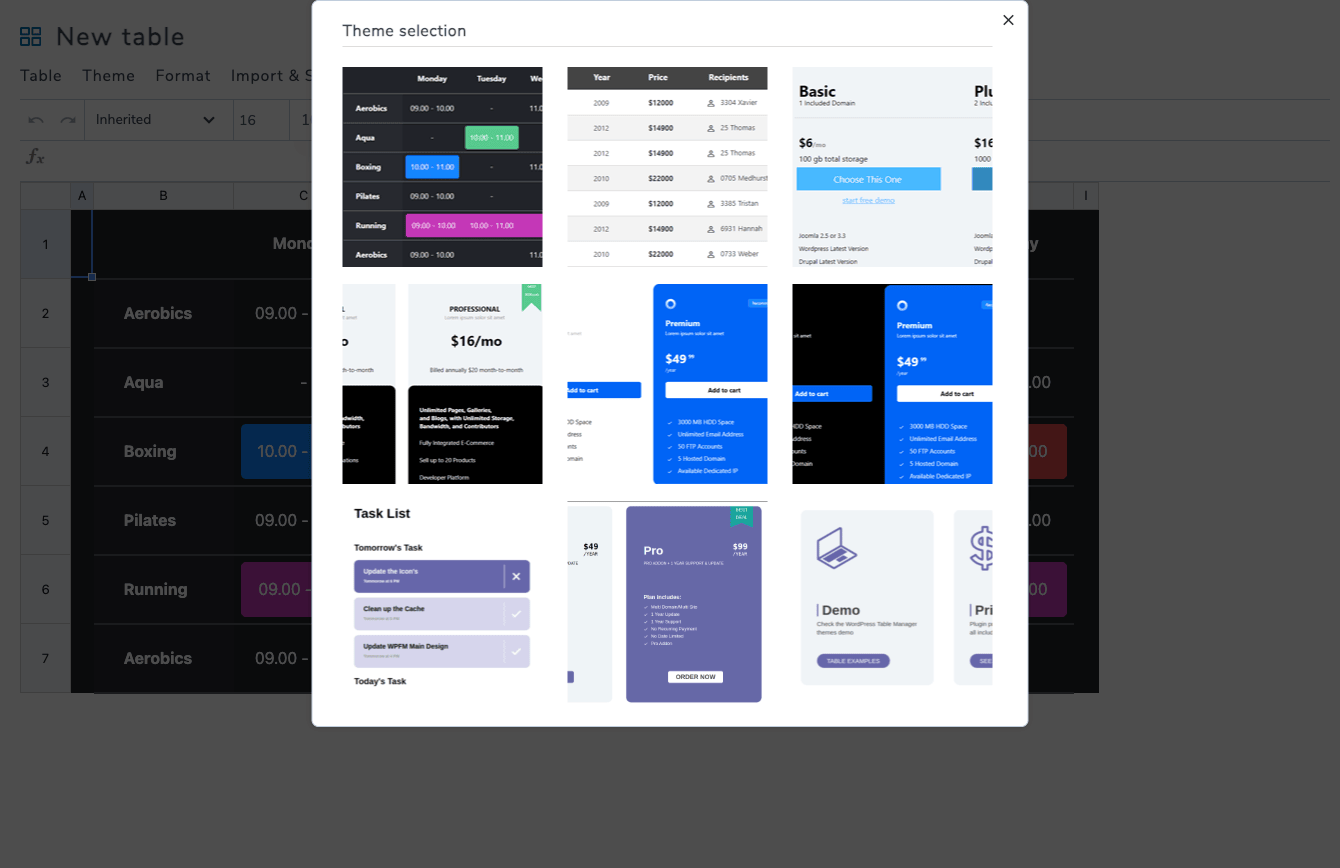
Themes set defaults: header background, alternating row colors, font, border radius, etc. They don’t lock you out of per-cell overrides, so you can pick a clean blue theme and then paint specific cells whatever color makes sense for your data.
If none of the presets work, Format → Format options opens a styling panel where you can hand-set every default for the current table. And if even that isn’t enough, Table → Custom CSS lets you write your own selectors. The plugin scopes the CSS to the current table’s container, so changes don’t bleed into the theme.
A nice touch: the plugin generates a per-table CSS file at upload time and enqueues only that file on pages that show the table. So a frontend page with one table doesn’t load styling for the other 40 tables sitting in admin.
Importing and syncing data: Excel, CSV, Google Sheets, MySQL
This is where WP Table Manager starts to feel less like a styling toy and more like a serious tool. There are four import/sync paths.
Excel and CSV upload
Drop an .xlsx, .xls, .ods, or .csv file in via the Import & Sync → Excel file menu and the plugin parses it, including cell formatting (background colors, bold, alignment), into a fresh WP Table Manager spreadsheet. It’s a one-time import, after that, the WP table is the source of truth.
Filters that come into play here: wptm_rewrite_column_width_when_read_file (lets you tweak column widths the importer guessed wrong) and wptm_adjust_font_size (lets you override imported font sizes if your Excel theme uses something weird).
Google Sheets
The most useful feature for live data. Open your Google Sheet, share it with "Anyone with the link can view," copy the URL, paste it into Import & Sync → Google Sheets, pick the sheet tab, hit Fetch data. The WP table now mirrors that sheet.
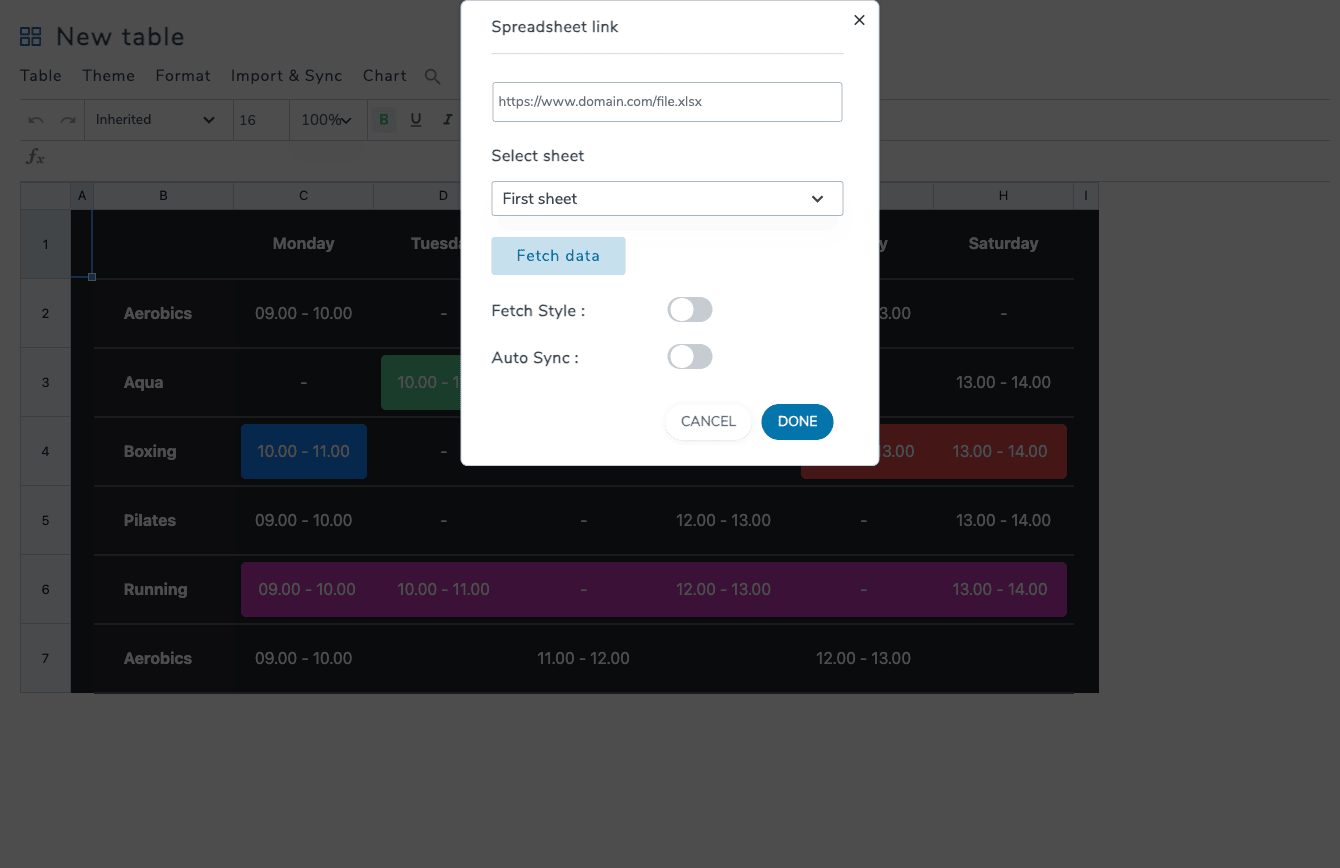
The Auto Sync toggle is the important one. Flip it on and the plugin schedules a WP-Cron job (wp_schedule_event) that re-fetches the sheet on a configurable interval. You can also tell it to fetch the styling too (cell colors, fonts) or just the values. By default WP-Cron in WordPress fires when someone visits the site, which means a low-traffic site can lag behind the Google Sheet for hours. If that matters, swap to a real server cron (the Sync Method setting in Configuration lets you pick "Crontab url" instead of "Use Ajax"), point a server cron at the URL the plugin gives you, and you’ll get reliable five-minute refreshes.
There’s a filter for the periodicity: wptm_rewrite_sync_periodicity lets you change the cron schedule programmatically without touching the UI.
MySQL data source
A separate panel (under Table → Data Source) lets you turn a WPTM table into a live read of an arbitrary MySQL table. You drop in a SELECT query, pick which column is the primary key (for row identification on insert/edit/delete), and the table renders that query result every time it’s loaded.
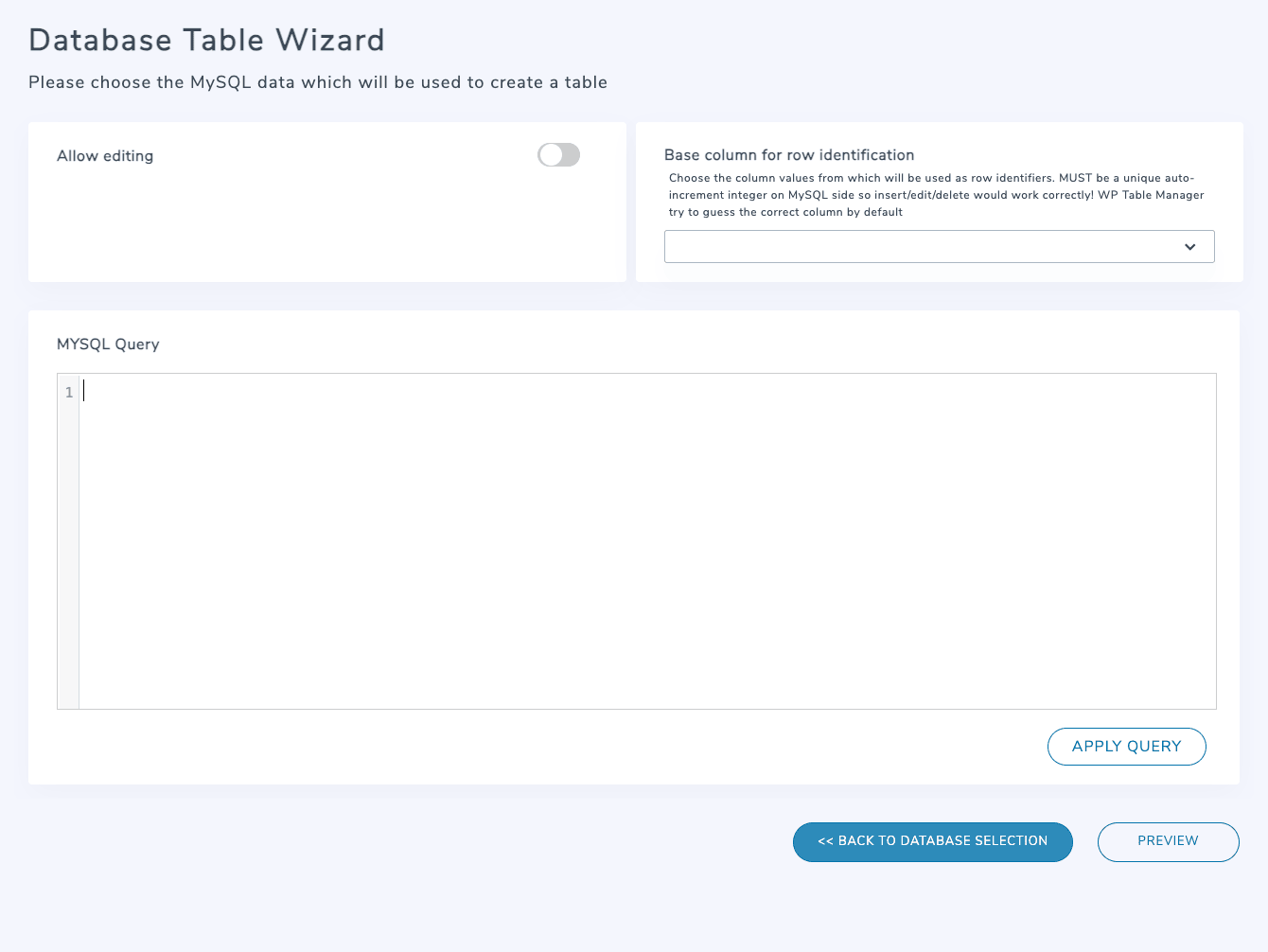
The "Allow editing" toggle is the interesting bit. Turn it on and frontend (or admin) edits to cells get written back to the MySQL table via UPDATE statements. Turn it off and the table is read-only. The plugin uses $wpdb for everything, so it respects whatever DB credentials WordPress is configured with, meaning you can point it at any table the WordPress DB user has access to. The filter wptm_before_generate_mysql_based_query lets you modify the query before it runs, which is the right place to inject extra WHERE clauses, joins, or LIMIT bumps for performance.
Form-plugin entries
Three additional table types wrap entries from popular form plugins: Gravity Forms, Ninja Forms, and Formidable Forms. Pick the form, pick which fields show up as columns, and WP Table Manager renders the entries as a managed, styled, paginated table. This is genuinely useful for admin dashboards where you want non-technical staff to scan submitted entries without learning the form plugin’s own UI. (We’ve reviewed Gravity Forms extensively and the WPTM wrapper is a friendlier read-only view of its entries table.)
Charts from your table data
Pick a range of cells with numeric data, open Chart → Create chart from data, choose a type (bar, line, pie, doughnut, radar, polar area), and the plugin builds a Chart.js-based chart that lives alongside the table. You can have multiple charts per table, embed them independently with their own shortcode, and they redraw automatically when the underlying cells change.
The chart UI is intentionally simple. You’re not building Tableau dashboards here. You’re turning rows of numbers into a clean visualization that a marketing team can drop into a page without learning Visualizer or another dedicated chart plugin. For most "monthly sales by quarter" or "expenses by category" use cases it’s exactly the right level of complexity.
Installation and first table
- Buy or download the plugin zip.
- In wp-admin, go to Plugins → Add new → Upload plugin and upload the zip.
- Activate it. You’ll see a new top-level menu item: WP Table Manager.
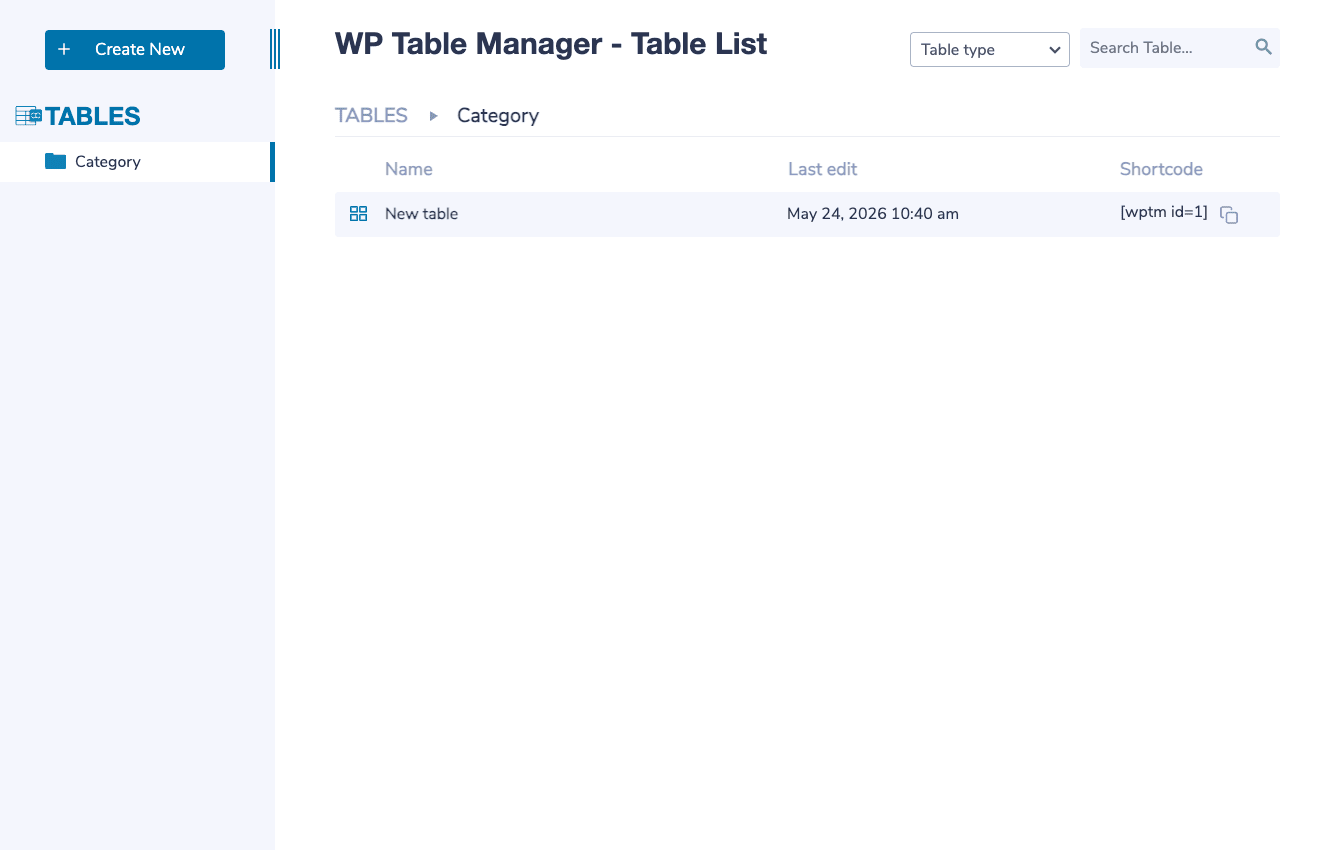
- Click it. The plugin creates a starter category folder and an empty demo table for you.
- Click the demo table to open the spreadsheet editor.
- Start typing.
The plugin self-registers its DB tables on activation ({prefix}wptm_tables, {prefix}wptm_categories, {prefix}wptm_charts, {prefix}wptm_charttypes, {prefix}wptm_styles), so there’s no setup wizard to skip past. You can immediately create another table, import an Excel file, or sync a Google Sheet.
For configuration that affects the whole plugin (export format, sync method, alternating-row color palette, "load plugin on frontend" toggle, etc.) go to WP Table Manager → Configuration:
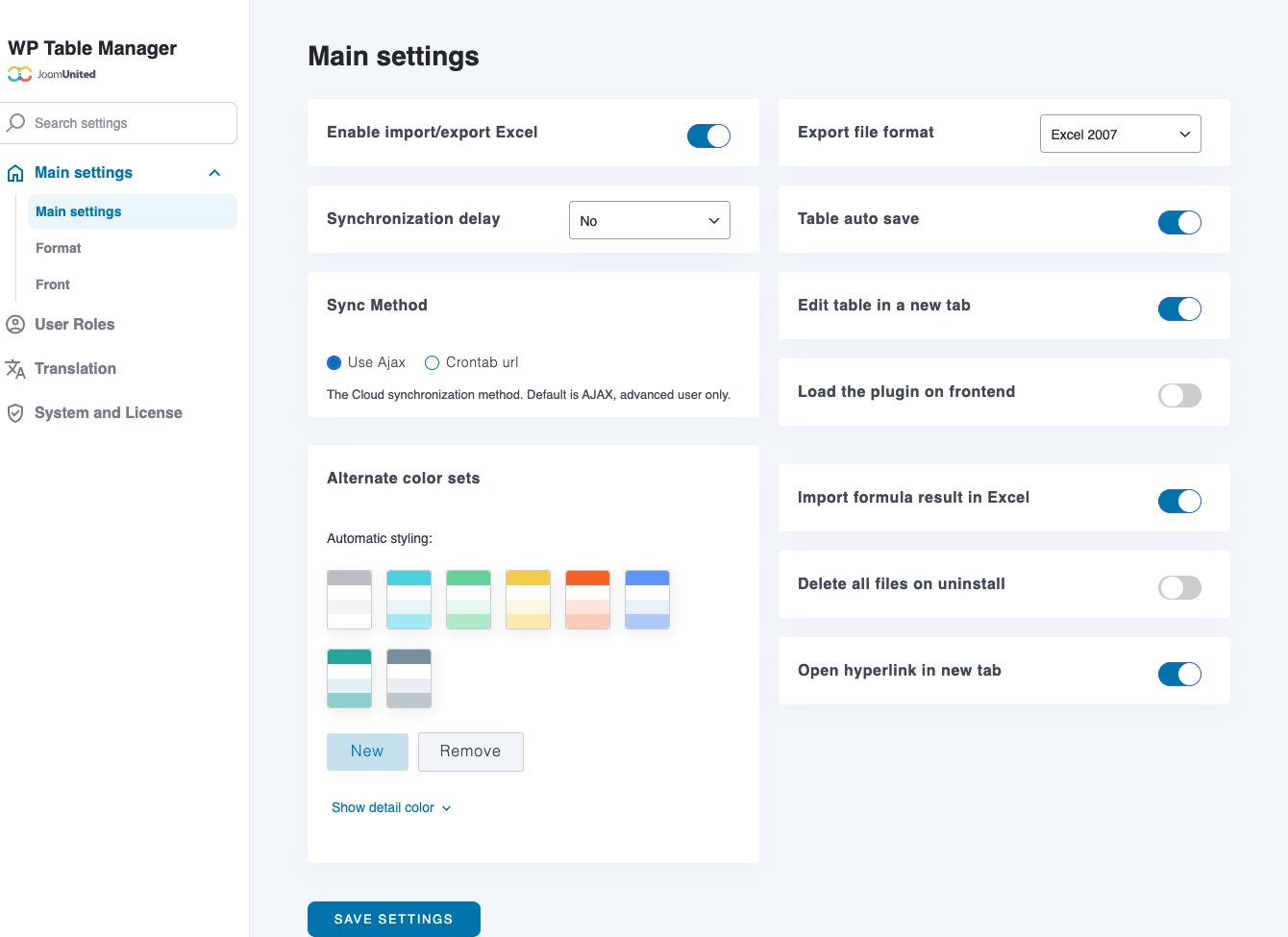
The defaults are sensible. The one switch worth knowing about is "Load the plugin on frontend." Leave it OFF unless you actually display tables, and the plugin’s CSS/JS won’t load on pages without a table. The plugin is smart enough to enqueue per-table CSS only on pages that include the shortcode, but the master toggle is a nice belt-and-braces option for sites that use WPTM only in admin contexts.
Embedding a table in a post or page
Three flavors depending on your editor:
Gutenberg
The plugin registers two blocks: WP Table Manager (for tables) and WP Table Manager Chart (for charts). In the post editor, open the block inserter, search "WP Table," pick the block, and a placeholder appears:
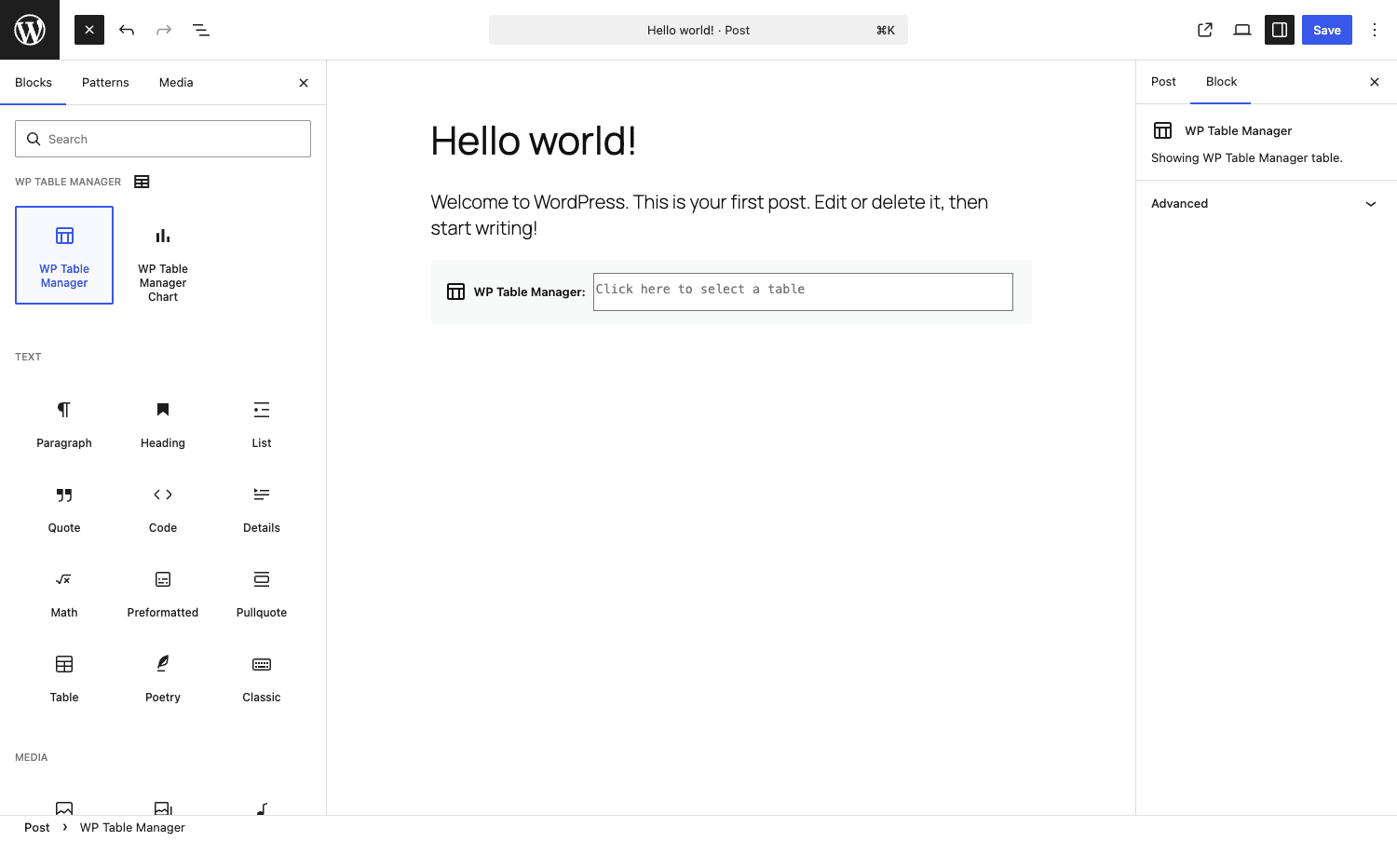
Click "Click here to select a table" and a typeahead lets you pick from your existing tables. The block renders a live preview in the editor.
Shortcode
The classic option, works everywhere:
[wptm id=1]
Drop that into the Classic Editor, a text widget, a Custom HTML block, an ACF text field, an Elementor Text widget, anywhere WordPress runs do_shortcode(). The number is the table ID, which the plugin shows in the tables list and in the editor toolbar.
For charts, the shortcode is the same with a different ID. You’ll see the right shortcode at the top of the chart panel.
Page-builder modules
- Elementor: a "WP Table Manager" widget (and a chart widget) shows up in the widget panel. Drag, pick your table from the dropdown, done.
- Divi: a "WP Table Manager" module appears in the Divi module list. Same flow.
- WPBakery, Avada, Beaver Builder, Bricks: dedicated modules/shortcodes for each.
The frontend output is the same regardless of how the table got there: a <table> element wrapped in a responsive container, with DataTables-style sorting/pagination/search on top if those options are enabled.
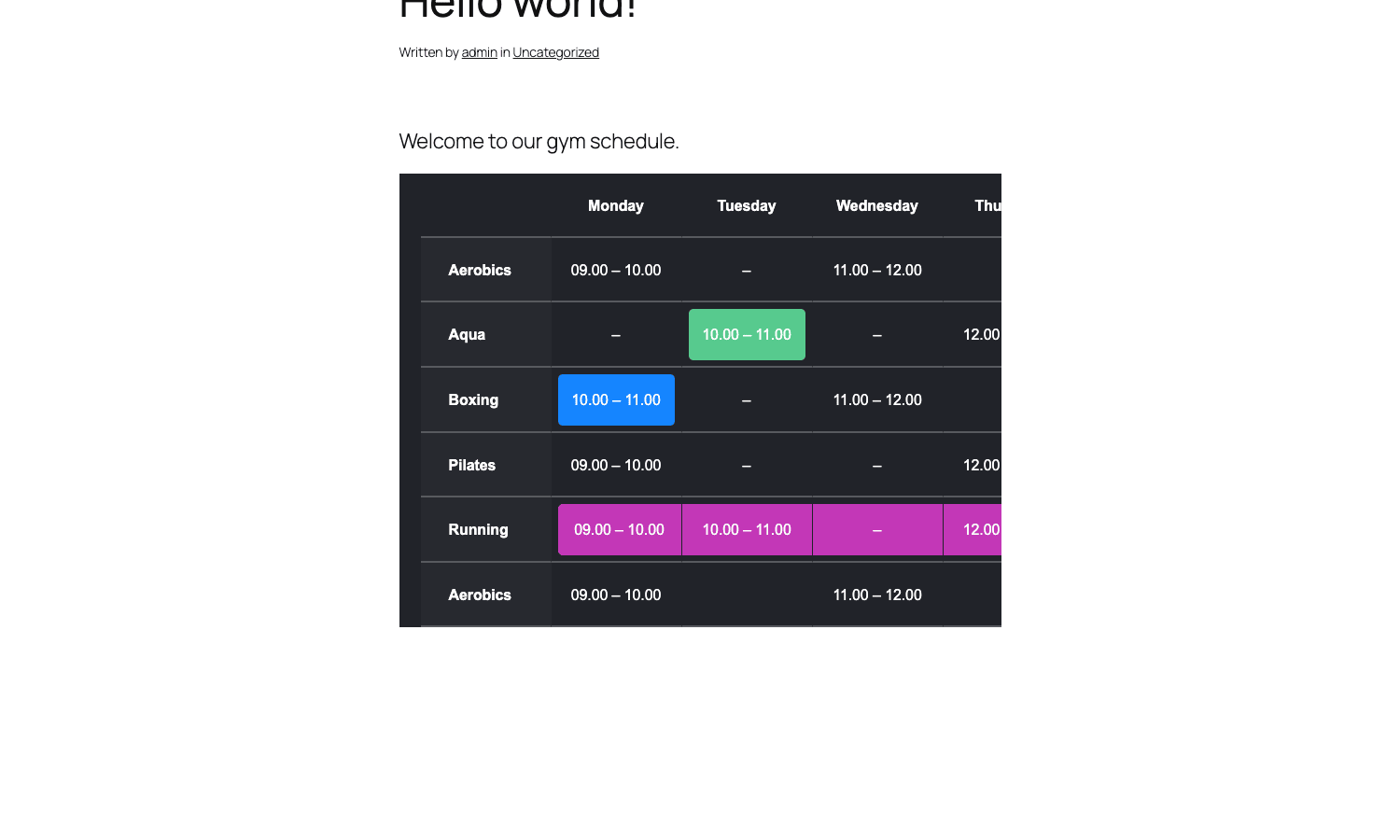
The frontend table inherits the styling you set in admin. Colors, borders, fonts, alignment all carry over, plus the responsive mode you picked (this one is in scroll mode, which keeps the cells at their natural width and lets the user swipe horizontally on mobile).
Permissions: who can do what
Out of the box, Administrators and Editors get all WPTM capabilities. Authors, Contributors, and Subscribers get nothing. Under Configuration → User Roles you can flip individual switches for any role:
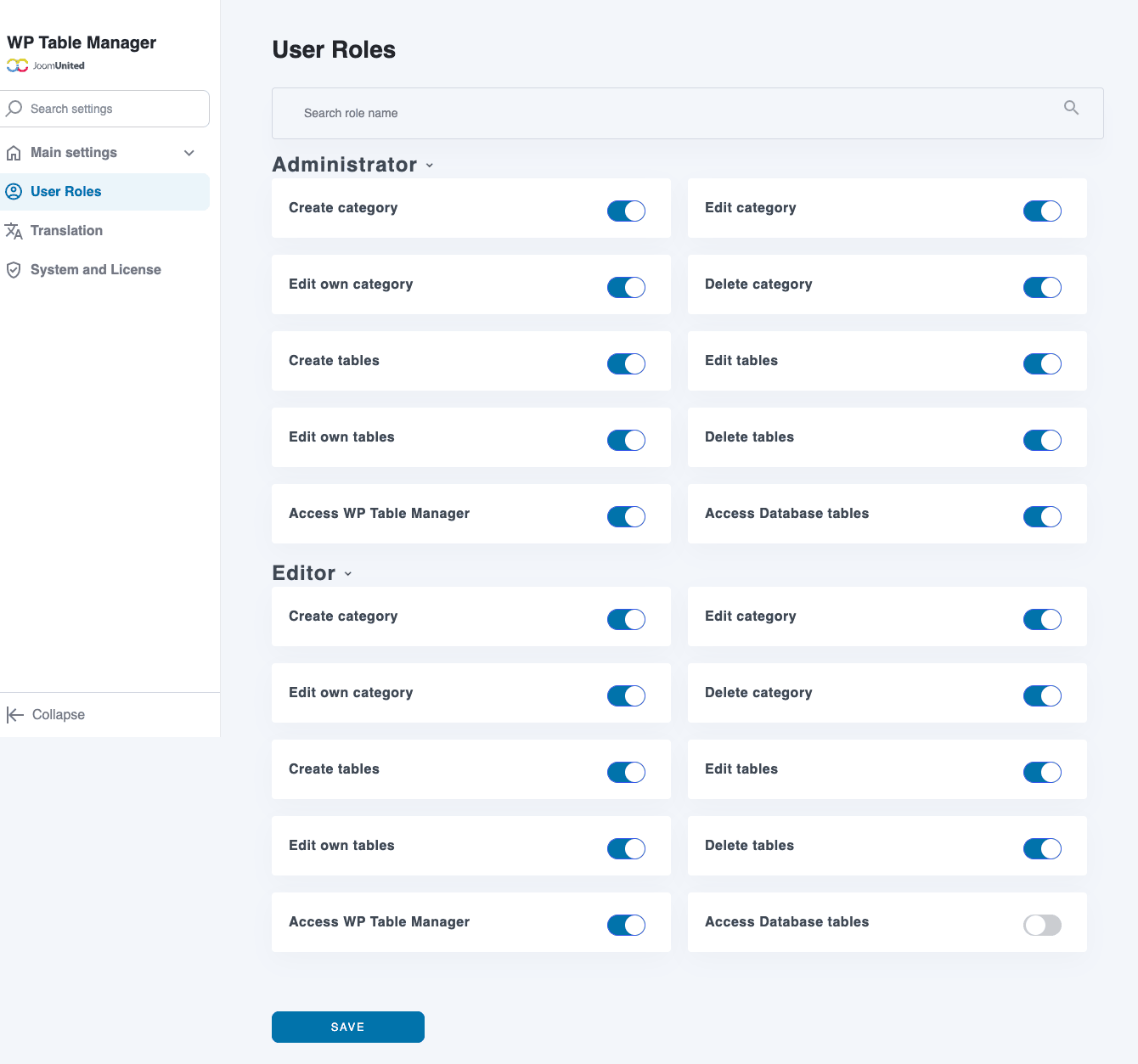
The granular capabilities are:
wptm_create_category,wptm_edit_category,wptm_edit_own_category,wptm_delete_categorywptm_create_tables,wptm_edit_tables,wptm_edit_own_tables,wptm_delete_tableswptm_access_category(required to see the WPTM admin menu at all)wptm_access_database_table(separate switch, lets a role create MySQL-backed tables, security-sensitive since it accepts raw SQL)wptm_edit_gravity_tables,wptm_edit_ninja_tables,wptm_edit_formidable_tables(for the form-plugin integrations)
The "own" capabilities are the useful pattern: give your authors wptm_create_tables and wptm_edit_own_tables only, and they can build their own tables without touching anyone else’s. The capability checks happen in the controllers, not just the UI, so users without the cap genuinely cannot edit other tables via admin-ajax even if they craft the request manually.
There’s also a per-table access setting (Table → Table access) that lets you whitelist specific roles for a single table, regardless of the global config. Handy for the "this pricing sheet should only be edited by the sales team" case.
Real-world use cases
A few patterns we’ve seen this plugin used for:
- Restaurant menus and price lists. Edit prices in a real spreadsheet, watch them update on the frontend. The custom CSS option lets the table match the restaurant’s brand colors without an Elementor template.
- Gym/yoga class schedules. The demo above. The dark theme + colored highlights are exactly the use case the default sample table is built for.
- Specification tables for product pages. Drop into a WooCommerce product description via shortcode or block, get a sortable, mobile-responsive spec sheet with one row per attribute. Pairs well with Elementor Pro for laying out the rest of the product page.
- Internal dashboards backed by MySQL. Read-only views of a custom plugin’s tables, formatted with the right colors and aggregations, embedded into a private admin-only page. Replaces a half-finished custom reporting screen with about ten minutes of configuration.
- Live Google Sheets dashboards. Sales team updates a Google Sheet, the WordPress site shows it on a partner-portal page within five minutes. No deployment, no API key, no glue code.
- Event tickets / pricing tiers. Bar across the top is the tier name, rows are features, colored cells indicate inclusion. Custom CSS makes it look like a pricing page rather than a database table.
- Read-only views of form submissions. Show a finance team the latest expense reports without giving them access to Gravity Forms or Ninja Forms.
- Comparison tables. "Plan A vs Plan B vs Plan C," "Vendor 1 vs Vendor 2," etc. The conditional-formatting feature lets you auto-highlight the better number in each row.
The common thread: anything where a non-technical editor needs to maintain tabular content over time. If the data is static and updated once a year, you don’t need this plugin. If it changes weekly, you do.
Developer reference
The plugin exposes a sensible set of filters and a couple of actions. All public hooks use the wptm_ prefix. No REST routes are registered, everything goes through admin-ajax.php with action=wptm_*.
Filter: change the Google Sheets / MySQL sync schedule
By default the sync runs hourly. To change that:
add_filter( 'wptm_rewrite_sync_periodicity', function( $config ) {
    // Run every 15 minutes instead of hourly.
    $config['recurrence'] = 'fifteen_minutes';
    return $config;
} );

// Don't forget to register the custom interval.
add_filter( 'cron_schedules', function( $schedules ) {
    $schedules['fifteen_minutes'] = [
        'interval' => 15 * MINUTE_IN_SECONDS,
        'display'  => 'Every 15 minutes',
    ];
    return $schedules;
} );
The plugin reschedules its cron event on the filtered config. Useful for sites where the Google Sheet changes often.
Filter: hide tables from specific user roles
wptm_hide_show_tables runs when the admin list is built. It receives the array of tables and the current user role. Return a filtered array.
add_filter( 'wptm_hide_show_tables', function( $tables, $role ) {
    // Authors only see tables in category 5 (their team's folder).
    if ( $role === 'author' ) {
        return array_filter( $tables, function( $t ) {
            return (int) $t->id_category === 5;
        } );
    }
    return $tables;
}, 10, 2 );
Filter: modify a MySQL-backed table’s query before execution
wptm_before_generate_mysql_based_query gets the table data object before the SQL runs. This is the right place to inject a WHERE clause based on the current user, or to switch the query for a different schema.
add_filter( 'wptm_before_generate_mysql_based_query', function( $table_data ) {
    $user_id = get_current_user_id();
    if ( $user_id && isset( $table_data->params->query ) ) {
        // Append a per-user filter to existing query.
        $table_data->params->query .= sprintf( ' AND author_id = %d', $user_id );
    }
    return $table_data;
} );
Filter: mutate cells before save
wptm_before_saving_table_changes fires before any cell edit is persisted. Use this to sanitize, validate, or audit.
add_filter( 'wptm_before_saving_table_changes', function( $changes, $id_table ) {
    error_log( sprintf( 'WPTM table %d updated by user %d: %s',
        $id_table,
        get_current_user_id(),
        wp_json_encode( array_keys( (array) $changes ) )
    ) );
    return $changes;
}, 10, 2 );
Filter: inject custom CSS per shortcode render
wptm_short_code_add_custom_css lets you append CSS just before the table HTML is output. Scoped to that table’s container.
add_filter( 'wptm_short_code_add_custom_css', function( $css ) {
    // Add a print-only override.
    $css .= '@media print { .wptmtable { background: #fff !important; color: #000 !important; } }';
    return $css;
} );
Filter: add data attributes to the rendered table
Useful for hooking custom JS to specific tables on the frontend.
add_filter( 'wptm_add_attribute_for_table_on_frontend', function( $attrs, $table_id ) {
    $attrs['data-wptm-id']  = $table_id;
    $attrs['data-analytics'] = 'pricing-table';
    return $attrs;
}, 10, 2 );
Filter: customize the HTML one last time
wptm_html_render gives you the final rendered HTML and the table object. Last-mile transforms go here.
add_filter( 'wptm_html_render', function( $html, $table ) {
    // Wrap the table in a custom div for theme-specific styling.
    return '<div class="my-theme-table-wrapper" data-id="' . esc_attr( $table->id ) . '">' . $html . '</div>';
}, 10, 2 );
Action: react after import or sync
Two actions fire when WP Table Manager finishes refreshing a table’s data: one for Excel/CSV imports, one for Google Sheets / MySQL re-syncs. Hook them to invalidate caches, send notifications, etc.
add_action( 'wptm_after_update_table_when_import', function( $id_table ) {
    // Bust object cache for any custom report that depends on this table.
    wp_cache_delete( 'my_report_' . $id_table, 'reports' );
} );

add_action( 'wptm_after_update_table_when_sync', function( $id_table, $source_url, $sync_type ) {
    // Slack notify on Google Sheets refresh.
    if ( $sync_type === 'google_sheet' ) {
        wp_remote_post( SLACK_WEBHOOK, [
            'body' => wp_json_encode( [
                'text' => sprintf( 'WPTM table %d re-synced from %s', $id_table, $source_url ),
            ] ),
        ] );
    }
}, 10, 3 );
Database schema
Five tables, all prefixed with the WordPress $wpdb->prefix:
{prefix}wptm_tables, table metadata, content (stored as serialized cell array), styling, params blob.{prefix}wptm_categories, folder hierarchy.{prefix}wptm_charts, chart definitions tied to a table.{prefix}wptm_charttypes, registry of available chart types.{prefix}wptm_styles, saved theme presets.
Direct DB reads with $wpdb are fine for read-only reporting. For writes, use the plugin’s admin-ajax actions so the cache and chart redraws stay in sync.
Custom capabilities reference
For role-management plugins (like User Role Editor or Members), the WPTM caps you can assign are:
wptm_access_category(gates the admin menu)wptm_create_category,wptm_edit_category,wptm_edit_own_category,wptm_delete_categorywptm_create_tables,wptm_edit_tables,wptm_edit_own_tables,wptm_delete_tableswptm_access_database_tablewptm_edit_gravity_tables,wptm_edit_ninja_tables,wptm_edit_formidable_tables
Shortcode signatures
Public shortcodes registered by the plugin and its page-builder integrations:
[wptm id="X"], render table or chart by ID (main public shortcode).[wptm_chart_shortcode id="X"], WPBakery wrapper.[wptm_table_shortcode id="X"], WPBakery wrapper.[wptm_table id="X"],[wptm_chart id="X"], Avada/Fusion wrappers.
All resolve to the same render path.
Frontend JS hooks
The plugin uses a DataTables-compatible script for sorting/search/pagination. If you need to extend it (custom column formatters, a "freeze first column" tweak, etc.), the rendered tables get a stable .wptmtable class plus per-table IDs, so jQuery-style hooks like:
jQuery( document ).on( 'wptm_table_rendered', function( e, tableId ) {
    // Your custom column formatter.
} );
… work after the plugin’s render fires.
Performance, compatibility, and gotchas
A few real-world things to know.
Frontend CSS is per-table. The plugin generates a CSS file per table at wp-content/uploads/wptm/<id>_<timestamp>.css and enqueues only that file. Page weight stays sensible even on a site with 100 tables. The downside: the filename’s timestamp changes on every edit, so any CDN caching it will pick up the new copy automatically (good) but you’ll accumulate stale files in wp-content/uploads/wptm/ over time (also good, since the bundled cron can clean them).
Big tables are slow to edit. The editor loads the full cell payload into the browser. A 500-row table is fine; a 5000-row table starts to drag. For genuinely large datasets, prefer the MySQL data source mode, that streams a paginated SELECT and only loads the visible page into the browser. The wptm_minimum_rows_ajax filter controls the threshold above which extra rows lazy-load via AJAX (default 50).
Google Sheets sync needs the sheet to be public. "Anyone with the link can view" is the minimum. The plugin reads the sheet via Google’s published-data endpoint, not via OAuth or service-account auth, so private sheets won’t work. If you need private-sheet access, you’ll need to publish a stripped-down public version or use the MySQL data source instead.
WP-Cron is the default scheduler. On low-traffic sites this means sync delays, WP-Cron only fires when someone visits. Either switch to "Crontab url" in Configuration and add a real server cron, or accept the lag.
The plugin escapes user-typed cell HTML. Cells can contain HTML (links, images), but the plugin runs wp_kses_post semantics on save. So you can’t drop in a <script> tag or arbitrary HTML, which is correct security behavior. If you genuinely need raw HTML per cell (probably a sign you should use a different tool), the wptm_before_saving_table_changes filter is where you’d loosen that.
Responsive modes are not magic. "Stack" mode collapses each row into a vertical list on mobile, which works well for 3 to 6 column tables. For a 12-column comparison matrix, "scroll" mode (which lets users swipe horizontally) is better than fighting it into a stack. There’s also a "hide columns" mode that drops less-important columns on small screens.
It plays nicely with caching. Static page caches store the rendered HTML, including the table, so cached pages serve fine. The sorting/search/pagination JS runs client-side after page load, no AJAX on initial render.
Multilingual setup. With WPML installed and the WPML String Translation module active, table text is translatable. With WPML configured correctly, each language gets its own translated version of the table. Polylang has partial support via its compatibility shim.
Page builder integrations are real, not just shortcode wrappers. The Elementor and Divi widgets show a live preview in the page builder, not just the placeholder text. So you can drag the widget around, see your actual table, and lay out the surrounding content with confidence.
How WP Table Manager compares to other table plugins
There are several table plugins in the WordPress ecosystem. They overlap, but they don’t compete for exactly the same use case.
- wpDataTables is the closest competitor. Both render sortable, filterable, mobile-friendly tables. wpDataTables is more data-source heavy (it shines when you’re pulling from CSV, JSON, XML, Google Sheets, or SQL queries) and has a stronger chart engine. WP Table Manager wins on editor UX: typing into a real spreadsheet beats wpDataTables’ column-by-column setup wizard for editorial workflows. Pick wpDataTables if "the data lives in a CSV or query result and the layout is mostly automatic." Pick WP Table Manager if "an editor needs to paint specific cells and write
=SUMformulas." - Ninja Tables Pro focuses on column-based table builders with a strong Gutenberg integration. It’s lighter-weight than WP Table Manager and faster to set up for simple use cases. It doesn’t have a spreadsheet editor, you add rows through a column-form interface, and it has no MySQL data source. Pick Ninja Tables for marketing tables (comparison, pricing). Pick WP Table Manager when you need formulas or live data sync.
- TablePress (free) is the granddaddy. Reliable, lightweight, no spreadsheet UI. It accepts JS plugins, has a developer-friendly hook system, and ships a real cell editor that’s somewhere between a textarea and a spreadsheet. Pick TablePress for static tables on a tight budget. Pick WP Table Manager when you outgrow TablePress’s styling or need MySQL/Google Sheets sync.
- Visualizer is chart-first, not table-first. If you mostly need a bar/line/pie chart and the underlying table is secondary, Visualizer is the better tool. WP Table Manager’s charts are good enough for most cases but Visualizer has more chart types and finer per-chart controls.
- WP Data Access Premium is a different category of plugin. It exposes raw MySQL tables in wp-admin for CRUD editing. WP Table Manager’s MySQL data source is a presentation layer on top of an existing table. WP Data Access is a database GUI. Use WP Data Access for editing, WP Table Manager for displaying.
- Posts Table Pro by Barn2 is the WooCommerce-focused option, with native filters for products, categories, ACF fields, etc. If your tables are mostly "list of products in custom layout," it’s the more specialized tool. WP Table Manager is the better generalist.
The short version: WP Table Manager owns the editorial-spreadsheet niche. If your client wants to maintain tabular content the way they’d maintain a Google Sheet, this is the plugin.
Pricing and licensing
WP Table Manager is sold on a yearly subscription model on Joomunited’s site, with tiered pricing depending on how many domains you want to use it on (single site, multiple sites, unlimited). They also have a "Joomunited bundle" subscription that includes WP Table Manager along with WP Media Folder, WP File Download, WP Meta SEO, and the rest of their plugin lineup, a sensible deal if you’re already eyeing more than one of their products.
The GPL-licensed copy is available from WP Table Manager on GPL Times. Same code, same updates, no per-site cap. The free version on the WordPress.org repo (wp-table-manager-lite) gives you the basic spreadsheet editor without the MySQL / Google Sheets / chart features, which is enough to evaluate the editor UX before committing.
Frequently asked questions
Does WP Table Manager work with the block editor?
Yes. The plugin registers two Gutenberg blocks: "WP Table Manager" (for tables) and "WP Table Manager Chart" (for charts). Both show a live preview in the editor and a typeahead picker for choosing the table.
Can I use the plugin alongside Classic Editor?
Yes. The shortcode [wptm id="X"] works in any editor, including Classic, ACF text fields, widget text areas, and theme template files via do_shortcode().
Does the Google Sheets sync need OAuth or API keys?
No. The sheet must be shared as "Anyone with the link can view." The plugin reads it via Google’s published-data endpoint. The trade-off is that private sheets won’t work without publishing a public version first.
How fast does Auto Sync run?
By default WP-Cron schedules it hourly. You can change the interval in code via the wptm_rewrite_sync_periodicity filter. On low-traffic sites, WP-Cron only fires when someone visits, so the practical lag can be much larger than the scheduled interval, switching to a real server cron (the "Crontab url" sync method in Configuration) fixes that.
Will it handle a 10,000-row table?
The spreadsheet editor will struggle. Use the MySQL data source mode instead: it streams a paginated SELECT and only loads the visible page into the browser. For genuinely large datasets, this is the right pattern.
Does it support translations and multilingual sites?
Yes. With WPML and the WPML String Translation module active, table content is translatable per language. Polylang has partial support.
Can frontend visitors edit cells?
If you enable Front-end Editing on a per-table basis under Table → Front-end editing, logged-in users with appropriate capabilities can edit cells directly from the published page. Useful for internal dashboards and team-maintained tables.
How does it compare to TablePress?
TablePress is free and great for static tables. WP Table Manager has a real spreadsheet editor, formulas, charts, MySQL/Google Sheets sync, conditional formatting, and per-cell styling. If TablePress meets your needs, stay there. If editors keep asking for "can I just paint this cell yellow," it’s time to switch.
Are there REST API endpoints?
No. All admin operations go through admin-ajax.php actions prefixed with wptm_*. There’s no public REST namespace, which makes integrations with headless setups awkward but keeps the security model simple.
Final thoughts
Most WordPress table plugins try to solve the "I have data, I want a fancy table" problem. WP Table Manager solves a different and more common problem: "my client wants to maintain tabular content themselves, without help, and they only know spreadsheets." That’s a UX win, not a feature win, and it’s the reason this plugin keeps its place in the market against free alternatives.
The MySQL and Google Sheets data sources push it from "fancy table editor" into "lightweight data-presentation layer," which is where most of the long-term value sits. Building a one-off price table is easy in any plugin. Building a sales dashboard that auto-refreshes from a Google Sheet, with role-based access, formatted output, and a conditional-formatting rule that flags overdue invoices red, that takes a couple of clicks here and a couple of days in most stacks.
If you’ve spent any time training non-technical editors on table plugins and felt them slump at the column-setup-wizard stage, this is the plugin to try.