

You have data. A pricing comparison spreadsheet, a directory of staff with locations, an inventory of products, a list of upcoming events, customer survey results, a sortable schedule of TV shows, a leaderboard of API providers ranked by uptime. WordPress’s default editor gives you exactly one tool to display it: an HTML table with no sorting, no filtering, no pagination, no responsive mobile view, no charts. You can dress it up with CSS, but you can’t make it interactive.
wpDataTables (from Melograno Ventures) is the WordPress plugin that turns any data source into a real interactive table: sortable columns, instant search, pagination, mobile-responsive layouts, inline editing, conditional cell formatting, and 4 chart rendering engines layered on top of the tables. 9 different input sources (CSV upload, Excel, Google Sheets, JSON, XML, PHP array, MySQL query, manual builder, WordPress posts). It’s been on CodeCanyon since 2014 and has sold 30,000+ licenses, the kind of tenure that means edge cases are mostly worked out.
This is a walkthrough of what wpDataTables actually does, the table builder wizard with all 9 input sources, the chart engines, real-world use cases beyond "just display a table", how it compares to TablePress and Ninja Tables, and the developer hook API.
Quick decision guide: do you need wpDataTables?
Use wpDataTables if you:
- Need tables backed by Google Sheets that auto-refresh when the sheet changes
- Want users to filter and sort columns on the front end
- Need inline editable tables (admins can edit cells from the live page)
- Want to chart the table’s data (4 chart engines: Google Charts, Highcharts, Chart.js, ApexCharts)
- Need to query MySQL or your WordPress posts and render them as tables
- Have large datasets (10K+ rows) and need server-side processing for performance
Use TablePress (free) instead if you:
- Only need static tables with basic sort/search
- Don’t have data in Google Sheets or external databases
- Don’t need charts or inline editing
Use Ninja Tables instead if you:
- Want a more modern UI (Vue-based) and don’t mind a smaller integration ecosystem
- Prefer the WPManageNinja product family (already use Fluent Forms or FluentCRM)
Stick with HTML tables in Gutenberg if you:
- Have less than 10 rows of data
- Don’t need sorting, filtering, or interactivity
Table of contents
- What wpDataTables actually does
- Pricing reality check
- Step 1: Install and tour the dashboard
- Step 2: The 9 ways to create a table
- Step 3: Build a table from a Google Sheet (most common pattern)
- Step 4: Build a chart from your table
- Step 5: Configure global Settings
- Step 6: Permissions and team workflows
- Step 7: Embed tables and charts in posts
- Conditional formatting, filtering, and editor mode
- Real-world recipes (3 setups)
- wpDataTables vs TablePress vs Ninja Tables
- Performance considerations
- 10 common gotchas
- Developer reference: hooks and filters
- FAQ
- Final thoughts
What wpDataTables actually does {#what-it-does}
Four core capabilities, in priority order:
-
Render interactive tables. Sortable column headers, instant search box, pagination, mobile responsive collapsing, multiple page sizes, count of total rows, "Showing 1 to 25 of 1247 entries" indicator.
-
Pull data from 9 sources. No need to copy-paste data manually. wpDataTables can read CSV files, Excel files, Google Sheets (live), JSON files, XML files, PHP arrays, MySQL queries, manual entry through admin UI, or WordPress posts/CPTs.
-
Render charts. Take any table (or table column) and visualize it as a line chart, bar chart, pie chart, scatter plot, area chart, donut chart, etc. Choose between 4 rendering libraries: Google Charts (free, no extra dependencies), Highcharts (license required for commercial use beyond free tier), Chart.js (free, open source), ApexCharts (free, modern look).
-
Make tables editable. Front-end inline editing for logged-in admins. Click a cell, edit, press Enter. Saves directly to MySQL. Critical for internal team workflows (sales price lists, inventory tracking, status boards).
The combination of (1) + (2) is the most common use case. The combination of (3) + (4) is what differentiates wpDataTables from simpler table plugins.
Pricing reality check {#pricing}
wpDataTables is sold on CodeCanyon (Envato) as a one-time purchase:
- Regular License: $59 one-time, includes 6 months of support, free updates for life
- Extended License: $295 one-time (only needed for SaaS/end-user resale)
- Premium support extension: $17.63 for 6 more months of support
There’s no annual renewal. CodeCanyon pricing is one-time, lifetime updates. This makes wpDataTables one of the cheapest plugins per "lifetime value" in the WordPress paid plugin space.
There’s no free version on WordPress.org. The cheapest way to try is buying the regular license. You can refund within 30 days if it doesn’t fit.
On the GPL Times store, wpDataTables is included in the GPL membership along with all its addons (Gravity Forms integration, Report Builder, Powerful Filters). If you’re already a member, install and skip the CodeCanyon purchase.
What you lose on the GPL-licensed version: CodeCanyon’s official update channel and 6-month support. Updates have to be manual. For most agency users, this is fine; the plugin is mature and doesn’t need frequent updates.
Step 1: Install and tour the dashboard {#step-1-install}
Install path: WP Admin -> Plugins -> Add New -> Upload Plugin -> upload wpdatatables.zip -> Activate. wpDataTables adds a new top-level wpDataTables menu in the WP admin sidebar with sub-items: Dashboard, Browse Tables, Create a Table, Browse Charts, Create a Chart, Settings, Permissions, Get Help, Addons, Getting Started.

The dashboard has four widgets:
- Welcome panel: Create a Table / Create a Chart shortcuts. Also a "Show me tutorials" link to the video onboarding.
- Tables / Charts counters: how many tables and charts you have. Click View tutorials to learn more.
- Settings: live PHP/MySQL system info with green checks. Useful for confirming server requirements (PHP 7.4+, MySQL/MariaDB, Zip extension, cURL extension).
- Need help: link to wpDataTables support ticket system.
The dashboard is intentionally minimal. The action lives in Create a Table and the table editor.
Step 2: The 9 ways to create a table {#step-2-table-sources}
Click Create a Table in the sidebar. This is the entry point that opens the table creation wizard.

The 9 source options, in detail:
1. Create a simple table from scratch
The simplest option. Type the data into a built-in spreadsheet UI. Good for: small static tables you’d otherwise write as HTML.
Pros: zero external dependencies. Cons: not source-of-truth; the data only lives in the plugin’s database. Hard to update at scale.
2. Create a data table linked to an existing data source
The most powerful option. Connect to:
- Excel (.xls,.xlsx) – upload a file. Updates require re-upload.
- CSV – upload a file. Same.
- Google Spreadsheet – paste a public sheet URL. Updates live whenever the sheet changes (the killer feature).
- SQL query – write a
SELECTstatement against your WP database (or separate DB connection in Settings). - XML – upload an XML file.
- JSON – upload a JSON file.
- Nested JSON – JSON with multiple levels of nesting (flattens into table).
- PHP array – reference a PHP file that returns an array. Most advanced; useful for computed data.
- Serialized PHP array – similar to PHP array but stored as a serialized string.
For each source, you pick the connection and then map columns. Pros: data stays in the source-of-truth (your sheet, your database). Updates are automatic. Cons: requires a working data source URL/file.
3. Create a data table manually
Define columns (name, type, width, alignment), then enter data row by row through the admin UI. Hybrid between option 1 and option 2.
Pros: full control over column types (number, date, image, link). Cons: same as option 1.
4. Create a data table by importing data from a data source
One-time import. Pull data from an Excel/CSV/JSON, but store it in the wpDataTables database instead of linking. After import, you edit through the wpDataTables UI, not the source.
Pros: you can edit the table inline (with the editable feature). Cons: data becomes static; no auto-sync with the source.
5. Generate a query to the WordPress database
Query the WP database (wp_posts, wp_users, wp_options, custom tables) and render the results.
Pros: incredibly powerful for "show me all customers who signed up this month with their order totals." Cons: requires SQL knowledge.
6. Generate a query to the MySQL database
Query any MySQL database (your WordPress DB or a separate MySQL connection configured in Settings).
Pros: combine multiple WordPress sites’ data into one table (with separate DB connections set up). Cons: same SQL caveat.
7. Build a WP Post Table
Visual UI for "show me all posts of type X with these columns." Behind the scenes it’s a WP_Query that wpDataTables renders.
Common use: a frontend "all blog posts in a category" or "all WooCommerce products" table. Specify columns: title, date, author, custom fields, etc. Filter by taxonomy.
8. Build a WooCommerce Table
Pre-configured WP Post Table for the product post type with pre-mapped WC fields (price, stock, SKU, sale price). Best for a custom product listing page.
9. Create a data table linked to an IvyForms Form
If you use IvyForms (a free WP form plugin from the same team), this auto-builds a table from form submissions. Less common.
Step 3: Build a table from a Google Sheet (most common pattern) {#step-3-google-sheets}
The #1 use case I’ve seen: you have an internal spreadsheet on Google Sheets that needs to be embedded on a public page. Maybe it’s pricing, schedule, leaderboard, inventory. You want non-technical team members to edit Google Sheets directly, and have the WordPress page auto-update.
Setup:
- In Google Sheets, click File -> Share -> Anyone with the link -> Viewer. Copy the share URL.
- In wpDataTables, click Create a Table -> Create a data table linked to an existing data source.
- Type: Google Spreadsheet.
- Paste the share URL.
- wpDataTables fetches and displays a preview of the first sheet.
- Click Next -> map columns (auto-detected from your headers) -> set column types (string, integer, float, date, link, image, etc).
- Save.
You now have a table at, say, table ID 5. Embed in any page with the shortcode [wpdatatable id=5].
Refresh interval:
- Default: live (every page load fetches from Google).
- Recommendation: set to 5 minutes under the table settings for lower API cost.
For private Google Sheets: you’ll need to configure Google Spreadsheet API credentials in Settings -> Google Spreadsheet API settings. Generate OAuth credentials in Google Cloud Console, paste here.
What this is worth: I’ve shipped this pattern on agency sites where the client edits their pricing in Google Sheets weekly, and the WordPress page reflects updates within minutes. Total dev time after initial setup: zero.
Step 4: Build a chart from your table {#step-4-charts}
Once you have a table, you can chart its data. Click Create a Chart in the sidebar.
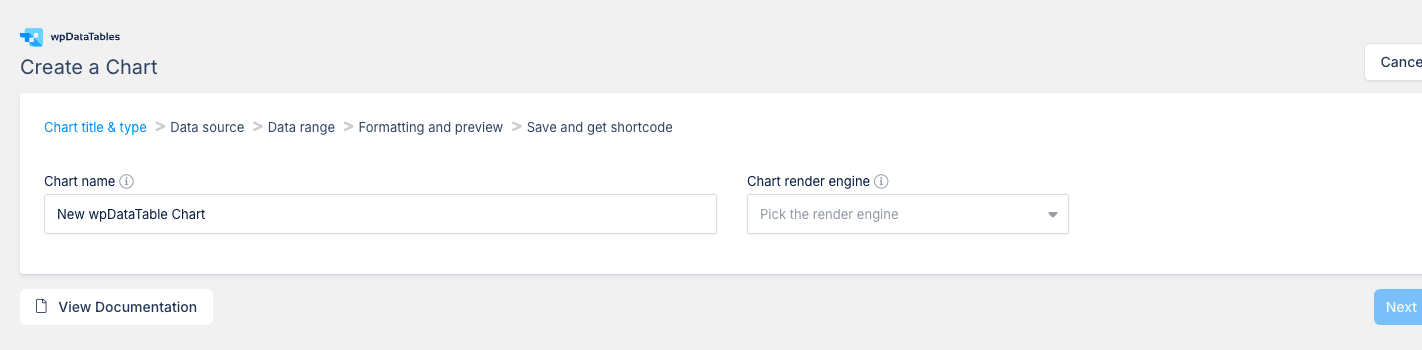
The wizard is 5 steps:
Step 1: Chart title & type
- Chart name: internal name (e.g. "Monthly Revenue").
- Chart render engine: pick from Google Charts, Highcharts, Chart.js, or ApexCharts. Each has different chart type options.
The 4 chart engines compared:
| Engine | Chart types | License | Look |
|---|---|---|---|
| Google Charts | 18+ types | Free | Clean Google aesthetic |
| Highcharts | 25+ types | Free for non-commercial; paid for commercial | Polished, traditional |
| Chart.js | 8 types | MIT (free) | Modern flat |
| ApexCharts | 30+ types | MIT (free) | Modern, animated |
For commercial sites, recommend ApexCharts (free, modern, most chart types) or Google Charts (free, easy).
Step 2: Data source
- Pick an existing wpDataTable as the data source (must already exist).
- OR build a new table inline.
Step 3: Data range
- Map columns to chart axes:
- X-axis: usually a category column (Month, Region, Product Name).
- Y-axis (Series): one or more numeric columns (Revenue, Count, Average).
- Filter rows: only chart subset of data (e.g. "only rows where Status = Active").
Step 4: Formatting and preview
- Title, subtitle, axis labels.
- Color scheme, font, border, shadow.
- Animations.
- Tooltip format.
- Legend position.
- Responsive behavior.
- See live preview as you tweak.
Step 5: Save and get shortcode
- Save the chart.
- Copy the shortcode (e.g.
[wpdatachart id=3]). - Paste into any page or post.
The chart updates whenever the underlying table updates. So if your table is linked to a Google Sheet, the chart auto-updates too.
Step 5: Configure global Settings {#step-5-settings}
Click Settings in the wpDataTables sidebar.

The settings are spread across 8 tabs. Key settings:
Main settings tab (the one you’ll touch most):
- Interface language: defaults to English. wpDataTables ships with translations for 30+ languages.
- Date format / Time format: the format used for date/datetime columns in tables.
- Parse shortcodes: whether the plugin processes WordPress shortcodes inside cell values. Off by default; turn on if your data includes shortcodes.
- Base skin: Light or Dark. Sets the default visual theme.
- Number format: thousands separator and decimal separator. Critical for European locales (15.000,00 vs 15,000.00).
- Render advanced filter: where to render the filter row. In the footer (default) or above the table.
- Decimal places: how many decimals to show on numeric columns.
- CSV delimiter: defaults to comma. Set to semicolon for European CSVs.
- Tablet width / Mobile width: pixel breakpoints for responsive collapse. Default 1024px tablet, 480px mobile.
- Align numbers: align numeric columns right (typographic best practice).
- Sum / Min / Max / Average functions labels: customize the label shown when you use aggregate footer functions.
- Include full bootstrap front-end / back-end: whether to load Bootstrap CSS. Default on; turn off if your theme already loads Bootstrap (avoid duplicate).
- Remove Getting Started page: hides the welcome page.
- Include Google fonts: load Google fonts for the table UI. Default on; turn off for GDPR or to avoid third-party requests.
- Loader visibility: show a spinner while tables load.
Separate DB connection tab: configure additional MySQL databases to query (not just the WP database). Useful for connecting to external analytics or legacy databases.
Color and font settings tab: customize the colors and fonts for tables and charts globally.
Custom JS and CSS tab: add custom code that runs on every page with a wpDataTable.
Google Spreadsheet API settings tab: paste your Google Cloud Console OAuth credentials here if you use private Google Sheets.
Cache settings tab: enable caching for queried tables (significant performance boost for MySQL/SQL tables).
Activation tab: license activation (skip on GPL-licensed version).
Charts tab: chart-specific defaults (default render engine, default color palette).
Step 6: Permissions and team workflows {#step-6-permissions}
Click Permissions in the sidebar.
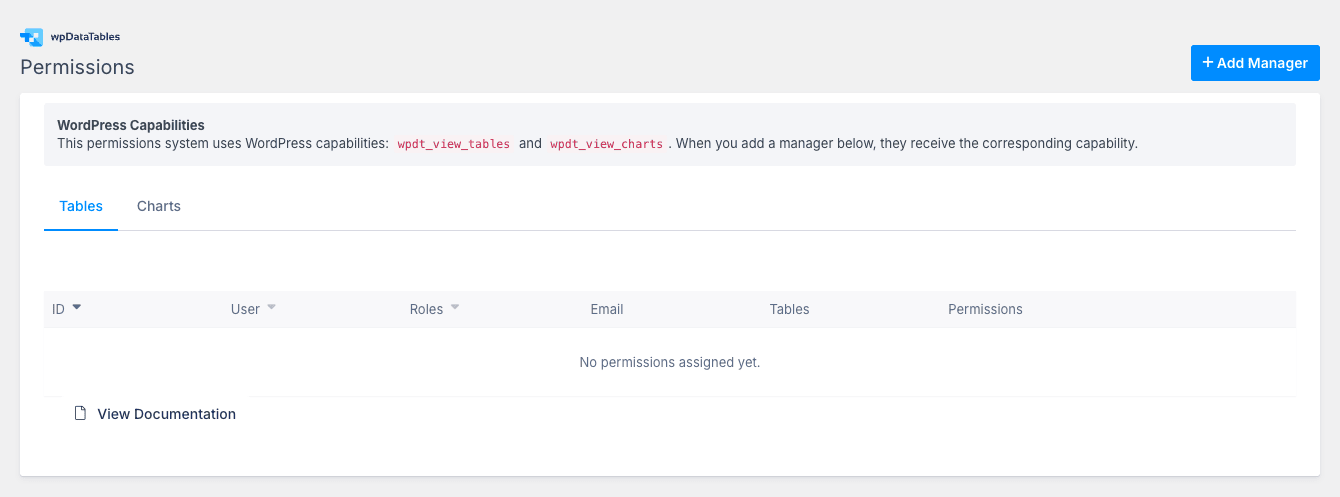
The permissions system has two layers:
Layer 1: WordPress capabilities
When you add a "Manager" to a table, they get wpdt_view_tables and wpdt_view_charts capabilities. This adds the wpDataTables menu to their admin sidebar.
Layer 2: Per-table managers
Add specific users as managers of specific tables. They can view, edit, delete that table; not others. Useful for:
- Inventory: the warehouse team manages the inventory table only.
- Pricing: the sales team manages the pricing table only.
- Employees: HR manages the employee directory only.
To set up:
- Click Add Manager.
- Pick the user.
- Pick which tables they manage.
- Save.
This is what makes wpDataTables work in multi-user environments. Without per-table permissions, every team member would have access to every table (security risk).
Step 7: Embed tables and charts in posts {#step-7-embed}
Three ways to embed:
Method 1: Shortcode
[wpdatatable id=5]
[wpdatachart id=3]
Paste anywhere: post, page, custom post type, widget area. Works in Gutenberg’s Shortcode block or Classic editor.
Method 2: Gutenberg block
wpDataTables ships a custom Gutenberg block. In the editor, add new block -> wpDataTables Block -> pick the table from a dropdown -> renders inline preview.
Visual advantage: you see the table in the editor without previewing the post.
Method 3: PHP function call
echo do_shortcode('[wpdatatable id=5]');
For custom theme templates. Useful for showing a specific table on a CPT’s single-{post-type}.php template.
Conditional formatting, filtering, and editor mode {#advanced}
Beyond the basics, three features power most real-world wpDataTables sites:
Conditional formatting
In the table editor, click a column -> Conditional formatting. Define rules like:
- "If value < 100, color cell red."
- "If status = ‘Active’, color background green."
- "If date < today, italic and gray."
The rule operators include: equals, not equals, greater than, less than, between, contains, starts with, in list. Format options: background color, text color, bold, italic, custom CSS class.
This is what turns a sortable spreadsheet-like table into an actual dashboard.
Filtering and front-end controls
Per column, you can enable:
- Sortable: clickable header to sort.
- Searchable: included in the table’s search box.
- Filterable: dropdown or input filter per column.
- Aggregation: footer shows SUM/AVG/MIN/MAX/COUNT.
Front-end users get:
- Single search box for keyword search.
- Per-column filters (dropdown or input).
- Sort by any column.
- Pagination with configurable page size.
- "Export to CSV / Excel / PDF / Print" buttons (configurable).
Editor (inline edit)
Per table, enable Editor in the table’s settings. Permissions: admins only, editors+, custom.
When enabled, logged-in users with permission see Edit buttons in cells. Click, type, press Enter, saved. No page reload.
This is what makes wpDataTables a real internal tool, not just a display widget. Sales teams manage prices, support teams manage status lists, etc.
Real-world recipes (3 setups) {#recipes}
Recipe 1: Live pricing table from Google Sheets
Goal: Marketing maintains pricing in Google Sheets; the public pricing page reflects updates within 5 minutes.
Setup:
- Pricing manager creates a Google Sheet with columns: Tier, Price, Features, CTA Link.
- Sets sharing to "Anyone with link, Viewer".
- wpDataTables: Create Table -> Google Sheets -> paste URL.
- Configure columns: Tier (string), Price (formatted currency), Features (formatted as bullet list), CTA Link (rendered as button via Link column type).
- Set refresh interval to 5 minutes (in table settings).
- Add the shortcode to the /pricing/ page.
Result: pricing manager edits the sheet, hits Save, public page updates within 5 minutes.
Recipe 2: Internal inventory dashboard
Goal: Warehouse team views and updates inventory levels from a single front-end page.
Setup:
- wpDataTables: Create Table -> Manual entry -> columns SKU, Product Name, Quantity, Reorder Point, Location.
- Enable Editor mode for this table.
- Permissions: Add warehouse team users as Managers of this table.
- Conditional formatting: if Quantity < Reorder Point, color row red.
- Embed shortcode on a private /warehouse/ page (restricted to warehouse role via Ultimate Member or any other access plugin).
Result: warehouse team edits quantities inline. Low stock items are visually flagged. Permissions ensure only warehouse can edit.
Recipe 3: WooCommerce custom product table
Goal: A "Bulk Order" page that lists all products in a table with quantity inputs, "Add to Cart" buttons, and filterable categories.
Setup:
- wpDataTables: Create Table -> Build a WooCommerce Table.
- Auto-pulls columns: SKU, Name, Image, Price, Stock Status, Category.
- Add Quantity column (input type).
- Add Add to Cart column (renders WC add_to_cart_url).
- Enable filters on Category, Stock Status.
- Embed shortcode on /bulk-order/ page.
Result: B2B customers can filter products by category, set quantities, add multiple to cart in one click. Common pattern for wholesale storefronts.
wpDataTables vs TablePress vs Ninja Tables {#comparison}
| Feature | wpDataTables | TablePress (Free) | Ninja Tables Pro |
|---|---|---|---|
| Manual entry | Yes | Yes | Yes |
| CSV / Excel import | Yes | Yes | Yes |
| Google Sheets (live) | Yes | No | Yes |
| MySQL query source | Yes | No | Limited |
| WP Post query source | Yes | No | Yes |
| WooCommerce table | Yes | No | Yes |
| Sortable columns | Yes | Yes | Yes |
| Searchable | Yes | Yes | Yes |
| Pagination | Yes | Yes | Yes |
| Mobile responsive | Yes | Limited | Yes |
| Conditional formatting | Yes | No (paid extension) | Yes |
| Charts | Yes (4 engines) | No | Limited |
| Inline editing | Yes | No | Yes |
| Server-side processing (large datasets) | Yes | No | Limited |
| Per-table permissions | Yes | No | Yes |
| Export (CSV/Excel/PDF) | Yes | Limited | Yes |
| Gutenberg block | Yes | Yes | Yes |
| WP-CLI | Limited | No | No |
| One-time price | $59 | Free | $59-$179/yr |
| License model | One-time | Free | Annual |
| Active installs | ~30K+ | 800K+ | ~100K |
Pick wpDataTables if you need MySQL queries, Google Sheets live sync, or 4-engine chart variety, AND prefer one-time pricing.
Pick TablePress for free, basic tables. Most popular tables plugin (800K+ installs). No charts, no MySQL, no Google Sheets sync. But free.
Pick Ninja Tables Pro for a modern Vue-based admin UI and the WPManageNinja ecosystem (Fluent Forms / FluentCRM integration), with annual pricing.
Performance considerations {#performance}
For small tables (under 100 rows):
- Client-side rendering (default). Fast.
- Page load adds ~80KB CSS + ~150KB JS (DataTables.js + dependencies).
- No noticeable TTFB impact.
For medium tables (100-1,000 rows):
- Still client-side. JS pagination keeps render snappy.
- ~50ms additional TTFB on first page load.
For large tables (1,000-100,000 rows):
- Enable Server-side processing in the table settings. Critical.
- Pagination becomes server-side; only the current page of data is sent to the browser.
- TTFB depends on database query speed, typically 100-300ms for SELECT with index.
For huge tables (100K+ rows):
- Server-side processing required.
- Add database indexes on filtered/sorted columns.
- Consider object caching (Redis/Memcached).
- Schedule cache rebuild via cron for SQL-query-based tables.
Common performance pitfalls:
- Disabling server-side processing on a 10K-row table. The browser receives 10K rows, runs out of memory.
- Linking to a Google Sheet with refresh interval = 0 (live). Every page load hits Google API. Quota issues. Set 5 minutes minimum.
- Loading Bootstrap twice (theme + wpDataTables). Disable in Settings.
Pair wpDataTables with WP Rocket for page-level caching of the rendered output, and Perfmatters Script Manager to load wpDataTables assets only on pages with tables.
10 common gotchas {#gotchas}
-
Google Sheet must be "Anyone with link" Viewer. Restricted sheets won’t work without OAuth credentials. Configure in Settings -> Google Spreadsheet API settings if you need private sheets.
-
Refresh interval = 0 is "every request". This rate-limits you against Google API quickly. Set 5 minutes (300 seconds) minimum.
-
Date columns require ISO format or wpDataTables’s own format. Inconsistent date formats in your source data (mixing "Jan 5, 2026" with "2026-01-05") break sorting. Standardize.
-
wpDataTables disables itself on Google Sheets format change. If you add a column to your sheet, wpDataTables doesn’t auto-detect; you have to re-map columns in the table settings.
-
Server-side processing requires the source to be a database query. CSV/Excel/JSON files always load client-side. Convert to MySQL table for server-side processing on large datasets.
-
Editor (inline edit) bypasses validation. Whatever a user types goes into the database. Add custom validation via the developer hooks if you need email format / numeric range / etc.
-
The "Browse Tables" admin page can be slow with 100+ tables. Use the Folders feature (grouping tables) and the search to navigate.
-
The wpdt_view_tables capability grants access to ALL tables. Per-table permissions narrow it back down. Make sure to set both layers.
-
Conditional formatting rules don’t apply to Editor mode. Cells edited via Editor render plain. The rules only apply to read-only display.
-
Cache settings affect SQL-source tables. If you enable caching with a 24-hour TTL and your SQL data changes hourly, you’ll see stale data. Tune TTL to your update frequency.
Developer reference: hooks and filters {#developer-reference}
wpDataTables exposes 100+ hooks. The most useful:
Add custom column from PHP
add_filter('wpdatatables_add_default_columns', function($columns, $table_id) {
 if ($table_id === 5) {
 $columns[] = [
 'orig_header' => 'profit_margin',
 'title' => 'Profit %',
 'type' => 'float',
 'formula' => '(price - cost) / price * 100',
 ];
 }
 return $columns;
}, 10, 2);
Filter rows before render
add_filter('wpdatatables_custom_prepare_output_data', function($data, $table_id) {
 if ($table_id === 5) {
 $current_user = wp_get_current_user();
 // Only show rows assigned to current user
 $data = array_filter($data, function($row) use ($current_user) {
 return $row['assigned_to'] === $current_user->user_login;
 });
 }
 return $data;
}, 10, 2);
Validate edited values before save
add_filter('wpdatatables_before_save_row', function($row, $table_id) {
 if ($table_id === 5 && isset($row['price'])) {
 if ($row['price'] < 0) {
 return new WP_Error('invalid_price', 'Price cannot be negative.');
 }
 }
 return $row;
}, 10, 2);
Add custom cell formatter
add_filter('wpdatatable_cell_include_formatting', function($value, $column, $row) {
 if ($column->orig_header === 'status') {
 $colors = ['active' => 'green', 'pending' => 'orange', 'inactive' => 'red'];
 $color = $colors[$value]?? 'gray';
 return "<span style='color: $color; font-weight: bold;'>". esc_html($value). "</span>";
 }
 return $value;
}, 10, 3);
Modify SQL query before execution
add_filter('wpdatatables_before_get_table_metadata', function($metadata, $table_id) {
 if ($table_id === 5) {
 // Add a WHERE clause to filter by current user role
 $current_role = wp_get_current_user()->roles[0]?? '';
 $metadata['content'].= " AND role = '$current_role'";
 }
 return $metadata;
}, 10, 2);
Hide/show columns conditionally
add_filter('wpdatatables_columns_from_arr', function($columns, $table_id) {
 if (!current_user_can('manage_options')) {
 // Non-admins don't see the internal_notes column
 $columns = array_filter($columns, function($col) {
 return $col['orig_header']!== 'internal_notes';
 });
 }
 return $columns;
}, 10, 2);
Custom action after row save
add_action('wpdatatables_after_save_row', function($row, $table_id) {
 if ($table_id === 5) {
 // Sync to external system
 wp_remote_post('https://external-system.example.com/sync', [
 'body' => json_encode($row),
 ]);
 }
}, 10, 2);
FAQ {#faq}
Is wpDataTables free?
No. There’s no WordPress.org free version. Buy on CodeCanyon ($59 one-time) or get via the GPL Times membership.
Does wpDataTables work with WooCommerce?
Yes. The "Build a WooCommerce Table" source auto-pulls WC products. Common use case for bulk-order pages and custom catalogs.
Can I use wpDataTables to display Google Analytics data?
Indirectly. Export your GA data to a Google Sheet (using GA’s Sheets connector), then point wpDataTables at the sheet. Updates automatically as GA refreshes.
Does wpDataTables support multiple languages?
Yes. The plugin ships with translations for 30+ languages. Front-end strings are translatable via standard __().
Can I cache wpDataTables output?
Yes. Settings -> Cache settings for plugin-level caching. Page-level caching (WP Rocket, LiteSpeed) also works fine.
What’s the difference between linking to a Google Sheet and importing?
Linking = live sync with the sheet. Updates whenever the sheet changes. Importing = one-time copy into wpDataTables’ database. Edit through wpDataTables UI thereafter, not the source.
Can users edit tables from the front end?
Yes, with Editor mode enabled. Logged-in users with permission can click cells, edit, save inline.
Does wpDataTables support multisite?
Yes. License covers one network as one install on the CodeCanyon license.
Can I export tables to PDF or Excel?
Yes. Export buttons (CSV, Excel, PDF, Print, Copy) are configurable per table.
Does wpDataTables work with Gutenberg?
Yes. Native Gutenberg block plus shortcode support.
Can wpDataTables show charts on mobile?
Yes. Chart engines are responsive. ApexCharts and Chart.js handle mobile especially well.
Is wpDataTables compatible with Elementor / Divi / Beaver Builder?
Yes. Embed via shortcode in any page builder.
How do I display only certain rows from a large database?
Add a WHERE clause to your SQL query OR use the wpdatatables_custom_prepare_output_data filter to filter in PHP.
Can I theme the table to match my site colors?
Yes, via Settings -> Color and font settings, OR via Custom CSS in the table’s settings, OR via your theme’s CSS targeting .wpDataTables class.
What happens to my tables if I uninstall wpDataTables?
Default: stays in the database. Add wpdt_delete_on_deactivate to true in code to delete on uninstall.
Can I migrate from TablePress to wpDataTables?
Manually. Export TablePress tables to CSV, import into wpDataTables. The plugins don’t have a direct migration tool.
Does wpDataTables affect SEO?
Tables are server-side rendered (initial page load shows the first page of data without JS). Sortable / filterable columns enhance UX without hurting SEO. Charts are JS-only, so chart contents aren’t indexed.
Final thoughts {#final-thoughts}
wpDataTables is the WordPress table plugin to install when "I need to display data" is more than a one-row, hand-coded HTML table. The 9 source options mean you don’t have to copy-paste data, the 4 chart engines mean you don’t need a separate charts plugin, and the inline editor mode turns the plugin into a lightweight internal-tool builder.
It’s not the right plugin if you only need a static 5-row table; TablePress (free) is fine for that. It’s not the right plugin if your team is committed to the WPManageNinja stack; Ninja Tables fits there. And it’s not the right plugin if your data lives in a real BI tool (Looker, Tableau, Metabase); use those native embeds.
But for "I have a Google Sheet I want public" or "I want my team to edit a price list inline" or "I need to chart MySQL data" the answer is wpDataTables. The one-time CodeCanyon pricing makes it cheap-per-lifetime, the plugin is mature, and the developer hooks let you customize the hard cases.
Pair wpDataTables with WP Rocket for page caching (tables included), Perfmatters Script Manager to load wpDataTables assets only on pages with tables, and Ultimate Member or your security plugin to restrict access to internal tables.