

Most WordPress form plugins stop at "collect data and email it somewhere." Formidable Forms is built around a different question: what if your forms were also the back-end of a small application? Submissions become entries, entries become Views, Views feed a directory or a calculator or a calendar, and the whole thing lives inside WordPress without writing a custom plugin.
This guide walks through Formidable Forms the way I’d actually use it on a real site. We’ll cover the builder for novices, then drop into Views, calculations, repeaters, applications, hooks, filters, and the gotchas that show up once the form starts being load-bearing. By the end, you should be able to decide whether Formidable is the right tool for what you’re building, and have a starting point for the code if you’re a developer.
Table of contents
- What is Formidable Forms?
- Key features
- How it works for users
- Installation and setup
- The form builder, field by field
- Views: where Formidable pulls ahead
- Applications: pre-built data tools
- Real-world use cases
- Developer reference
- Performance, compatibility, and gotchas
- Pricing and licensing
- FAQ
- Final thoughts
What is Formidable Forms?
Formidable Forms is a WordPress form builder from Strategy11, the same team that makes the BerqWP and a few other widely used WordPress products. The free version is a competent form plugin that handles contact, registration, and survey forms. The Pro version (sold as Formidable Forms Pro, with the Elite tier as the top SKU) turns the plugin into something closer to a low-code application framework: you build forms, the submissions are queryable entries, and you display those entries through a feature called Views that supports grid layouts, calendars, tables, maps, and "Classic" custom templates.
That last part is what separates Formidable from most competitors. If you want a quote-of-the-day form on Gravity Forms or WPForms, you collect the entries and then need a separate plugin (or custom code) to put them back on the front end. Formidable was designed around that loop. Submit, store, query, render, edit, delete – all in one plugin, no add-ons required for the basic flow.
Strategy11 has been shipping Formidable since 2010, so the codebase has had time to grow features that newer entrants don’t have yet. The trade-off is that some of the UI feels a little dense (the Settings screen has nine vertical tabs the first time you open it), but the depth is there if you need it. The official Formidable knowledge base is exhaustive and worth bookmarking before you start; almost every question you’ll have on day one has a doc page.
Key features
Here’s the short version of what you get with Formidable Forms Pro, grouped by what they’re actually for.
- Drag-and-drop builder with 30+ field types. Text, paragraph, dropdown, radio, checkboxes, email, phone, URL, number, name (with first/middle/last sub-fields), date, time, file upload, rich text, signature, star rating, slider, toggle, image options, hidden, password, captcha, page break, section header, HTML, embed-form, AI, and the payment-specific fields (product, total, quantity, coupon, credit card).
- Visual Views. A separate query-and-render layer that takes any form’s entries and displays them on the front end. Grid, calendar, table, map, classic (free-form template), and ready-made application templates.
- Repeaters and nested forms. You can drop one form inside another so a "Job Application" form can collect three previous-employment blocks without you knowing how many up front.
- Lookup fields with cascading dropdowns. The classic "country, state, city" chain, or "product, model, color" chain. Lookup pulls values from another form’s entries, so it’s also useful for pricing tables.
- Conditional logic everywhere. Field visibility, form actions, default values, validation messages, view filtering, calculation conditions.
- Calculations. Use the math shortcode or a calculation field to compute totals, discounts, scores, BMI, mortgage payments. Combine with conditional logic for tiered pricing.
- Front-end editing. Logged-in users can edit their own entries via Views. Useful for member directories, classifieds, and any "let users manage their own profile" scenario.
- Payment fields. Built-in Stripe Lite integration plus full Square, Stripe, PayPal, and Authorize.net via add-ons. The product/total/quantity field combo handles taxes, shipping, and coupons without a separate plugin.
- Application templates. Pre-built bundles that combine forms + Views + pages: business directory, support tickets, event registration with calendar, real estate listings, scholarship application, asset tracker, and 30+ more.
- Email and integration actions. Multiple email notifications per form, MailChimp, ActiveCampaign, ConvertKit, HubSpot, Salesforce, Twilio SMS, Slack, Zapier, and WP-as-a-CRM integrations.
- Spam protection. Built-in honeypot, JavaScript spam check, Stop-Forum-Spam integration, Akismet, and reCAPTCHA/hCaptcha support.
- GDPR-conscious storage controls. Per-form toggle for "do not store entries," IP-address logging, automatic entry cleanup on a schedule, and data export hooks.
How it works for users
The mental model for Formidable is simpler than the feature list suggests. You build a form. People submit it. Each submission is an entry. Entries are rows of data you can email, store, display, edit, and delete. Optionally, you wrap a View around those entries to render them somewhere on the site.
That’s the loop. Once you internalise it, every Pro feature is just a variation on one of those four nouns – more field types in the form, smarter actions when the entry is created, better filters and templates on the View. The Settings tabs that look intimidating on day one are mostly "what to do when an entry is created" (Actions & Notifications), "who can see and edit entries" (Form Permissions), and "where does this form live in the site IA" (Form Landing Page, Form Scheduling).
If you’ve used Gravity Forms or Fluent Forms before, the form builder will feel familiar. If you’ve never used a Pro form plugin, the closest mental model is a database table where each column is a form field and each row is a submission. Formidable is just a tool for designing that table, collecting rows for it, and showing the rows back to people.
Installation and setup
Both the free Formidable Forms plugin and the Pro upgrade need to be installed and active. Pro on its own doesn’t do anything; it extends the free plugin.
- Upload the free Formidable Forms plugin from the Plugins -> Add New Activate.
- Upload the Formidable Forms Pro zip on top of it. Activate.
- Open Formidable -> Forms in the WordPress admin. The first time, you’ll see a short onboarding wizard. You can skip it.
- Click + Add New to create your first form. Pick "Blank Form" if you want to start clean, or "Contact Us" to start from a template.
That’s the entire setup. There’s no API key step unless you want to connect Stripe, MailChimp, or another integration, and those each have their own connect button under Formidable -> Global Settings -> Connectors.
The form builder, field by field
The builder is split into two columns: a field palette on the left and a live preview on the right. To add a field, you drag it from the palette into the preview, or click it.
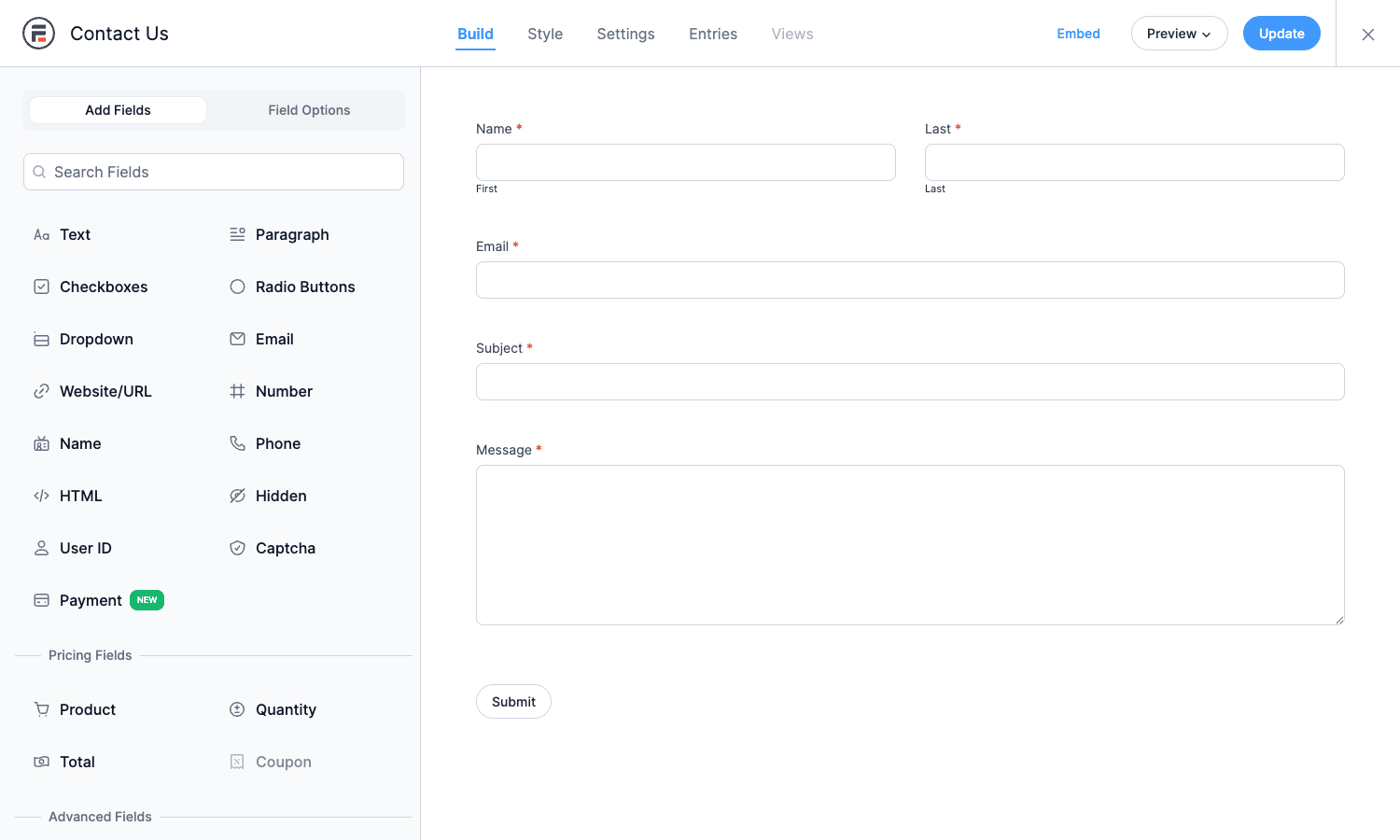
The field palette is grouped: Basic (text, paragraph, checkboxes, dropdown, radio, email, URL, number, name, phone, HTML, hidden, user ID, captcha, payment), Pricing (product, total, quantity, coupon), and Advanced. Scroll down and the Advanced section is where the Pro fields live.
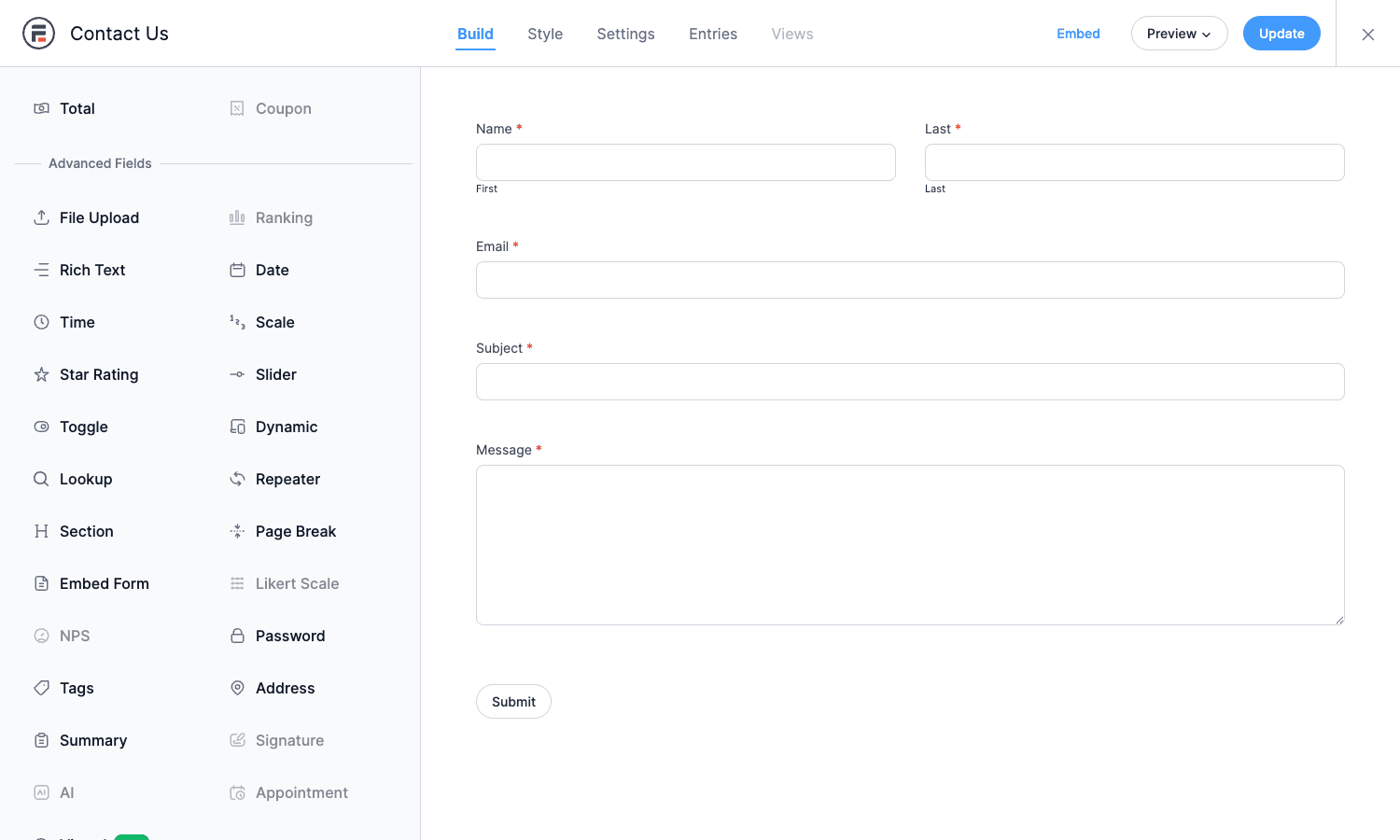
The fields that earn the Pro upgrade by themselves: File Upload (multi-file with preview and front-end-readable URLs), Repeater (a form inside a form, so the user can add as many rows as they need), Lookup (cascading dropdowns whose options come from another form’s entries), Date (with min/max, blackout dates, and locale-aware formatting), Signature (drawn or typed e-signature; the addon stores it as a PNG), Rich Text (a small WYSIWYG, useful for forum-style applications), Star Rating, Slider, Toggle, NPS (the 0-10 net-promoter scale), Tags (free-form multi-select that auto-completes from previous entries), Section (group fields visually), Page Break (multi-page forms with progress bar), and Embed Form (drop one form into another at runtime).
Each field has three tabs of options on its right-hand panel: General (label, description, required, default value, options for choice fields), Options (conditional logic, calculations, dynamic default values from URL or user meta), and Advanced (custom CSS class, HTML field-wrapper template, validation message overrides). The defaults are sensible, so most fields you can drop in and move on.
A few power-user details worth knowing on day one. Every field has a field key, which is what shortcodes reference. The first field gets name, the second email, and so on. You can rename keys under the field’s Advanced tab. Field IDs (integers) are stable across renames, so if you reference fields by ID in a hook handler you won’t break when somebody renames the key.
Form settings
Click Settings in the top toolbar and you get the configuration screens for everything that happens around the form: General (titles, AJAX submission, spam protection), Actions & Notifications (emails, MailChimp, Stripe, WP post creation), Form Permissions (who can submit and edit), Form Scheduling (open and close dates, max submissions, login required), Form Landing Page (one-form-per-URL standalone hosting), Conversational Forms (Typeform-style one-question-at-a-time mode), Form Abandonment (save partial entries), and Customize HTML (override the default markup wrapper around the form).
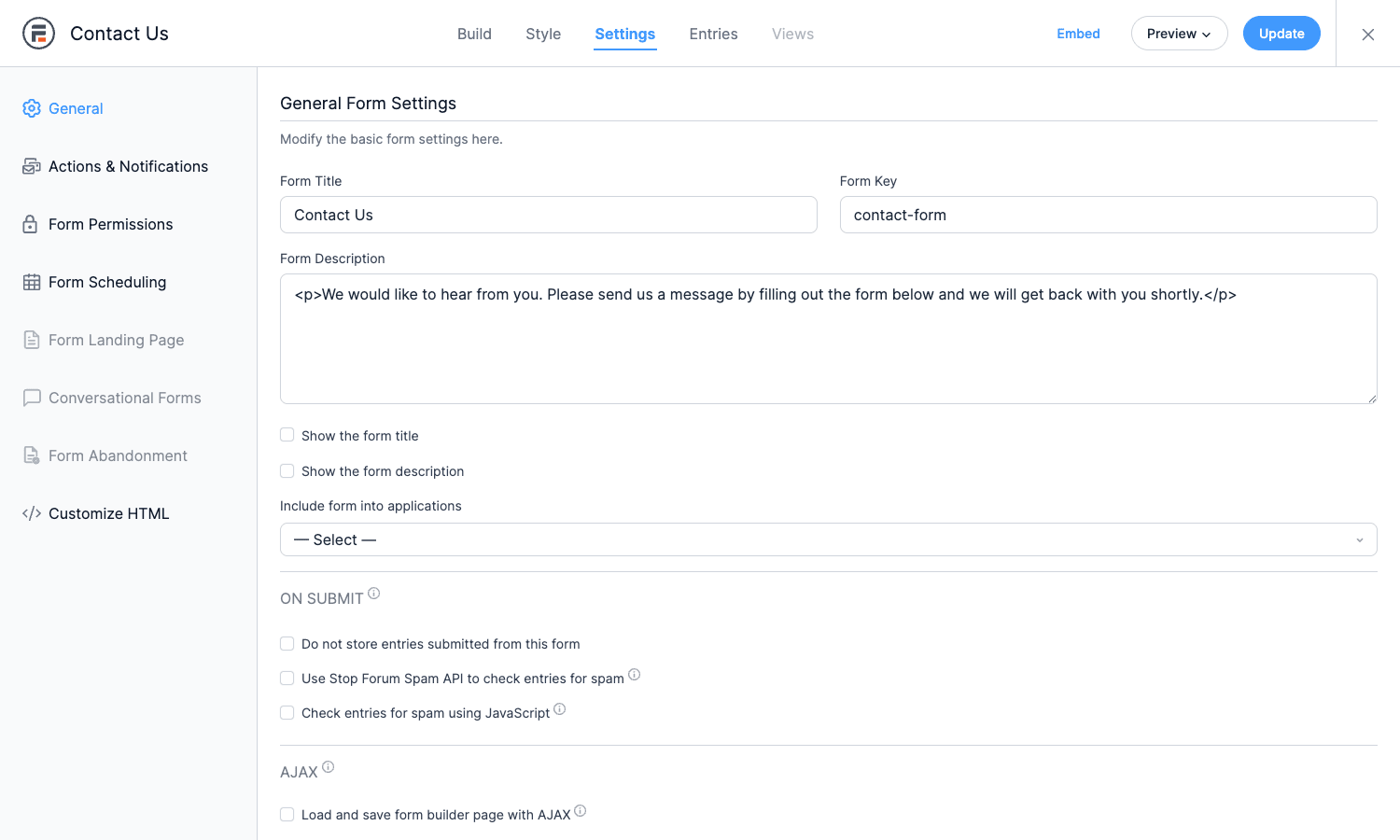
Two things people miss on first read. Form Scheduling is how you make a form auto-close after a deadline (event signups, scholarship applications, contest entries). And the Form Landing Page option turns the form into its own URL without you having to create a WordPress page, which is the right tool for Typeform-style funnels and standalone surveys.
Conditional logic and calculations
Conditional logic in Formidable is rule-based: "show field X when field Y equals Z." You can chain rules with AND/OR, and the same engine drives field visibility, action triggers (only send the MailChimp action if the user opted in), validation, and dynamic defaults.
Calculations live under the Options tab on Number, Total, and most text/textarea fields. Syntax is plain math with field IDs: [3] * [4] multiplies field 3 by field 4. You also get a small library of functions – [round], [abs], [ceil], [floor], [max], [min], [sum], and date math like [date_add (date, n_days)]. The math runs client-side while the user is filling the form (instant preview) and server-side on submit (authoritative), so a tampered client can’t break your totals.
Views: where Formidable pulls ahead
Views are the part of Formidable that most people don’t realise exists. Build a form. Collect entries. Now display those entries on the front end with whatever template you want.
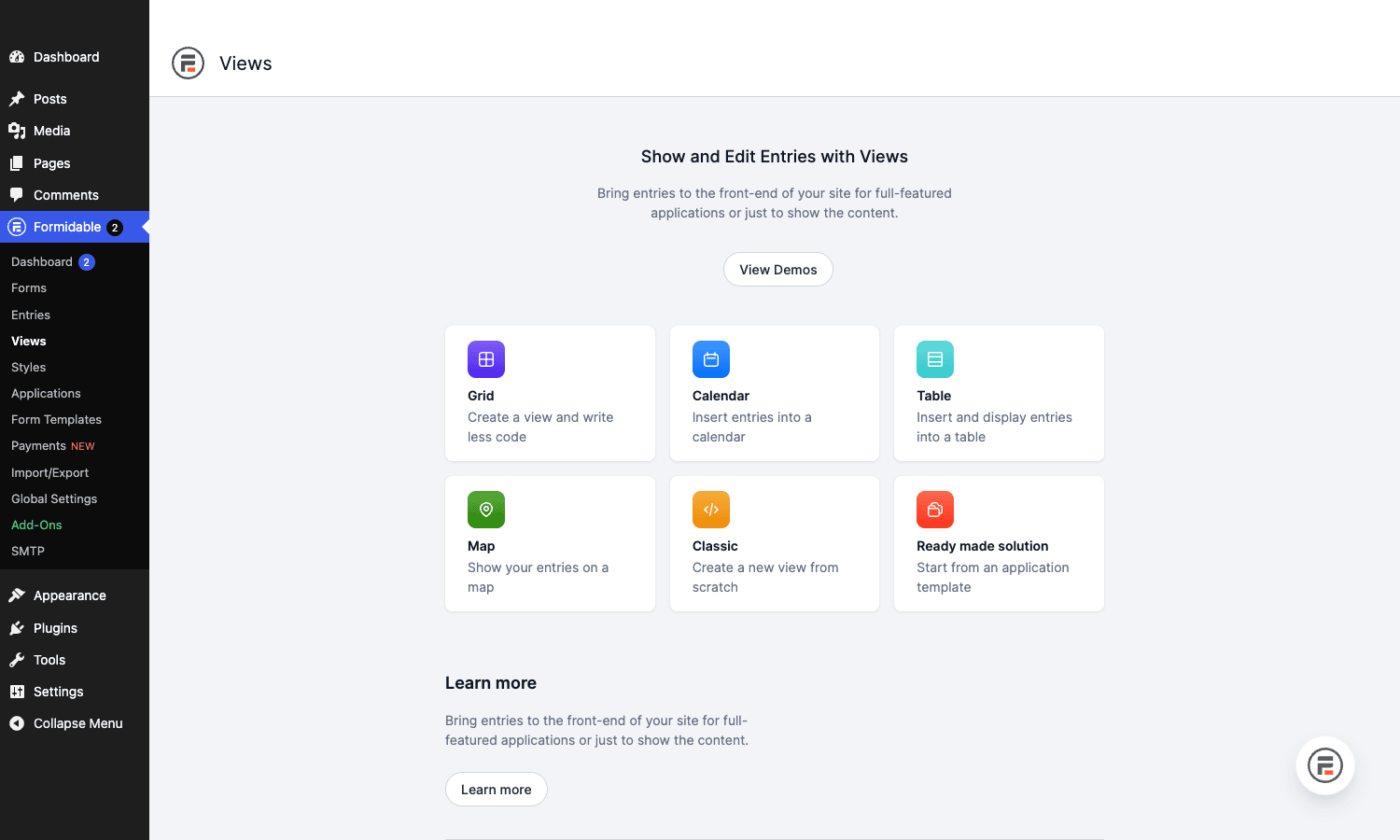
The six starting points cover most needs. Grid is a responsive card layout, good for directories and job boards. Calendar maps a date-field entry onto an actual calendar widget. Table is the dense sortable spreadsheet view you’d want for a member roster. Map plots address-field entries on a Google Map. Classic is the do-anything mode where you write HTML/shortcode templates by hand. Ready-made solution is the application-template path (more on that below).
Inside a View you control: which form it queries, which entries (filters: by field value, by user, by date, by entry status), how they’re sorted, how many per page, the wrapper HTML, the per-entry HTML template, and an optional empty-state template if the View has no results.
Two important pieces. First, Views are shortcode-driven, so you can drop a [display-frm-data id=42] anywhere – inside a regular post, inside Elementor or Divi, inside a sidebar widget. Second, Views handle the front-end edit and delete flow if you enable it under Form Permissions. So you can build a "members can edit their own listing" feature without touching code.
The shortcodes Views generate for you – [frm-entry-edit-link], [frm-entry-delete-link], [frm-show-entry], [frm-field-value], [frm-search] – are the same shortcodes you’d use to build a Classic view by hand. So once you’re comfortable with the Visual editor, you can graduate to writing custom layouts that mix WordPress queries, form data, and shortcodes from other plugins.
Calculations and aggregations in Views
Views also expose [frm-stats], [frm-math], and [frm-graph] shortcodes. These run aggregate queries: "total revenue across all entries this month," "average star rating for product X," "count of users in California." Pair this with a Chart block (Formidable Chart, ships with Pro) and you have a basic reporting dashboard without spinning up a separate BI tool.
Applications: pre-built data tools
Applications are Formidable’s killer feature for non-developers. An Application is a bundle of forms, Views, and pages that together make a small SaaS-like tool inside WordPress.
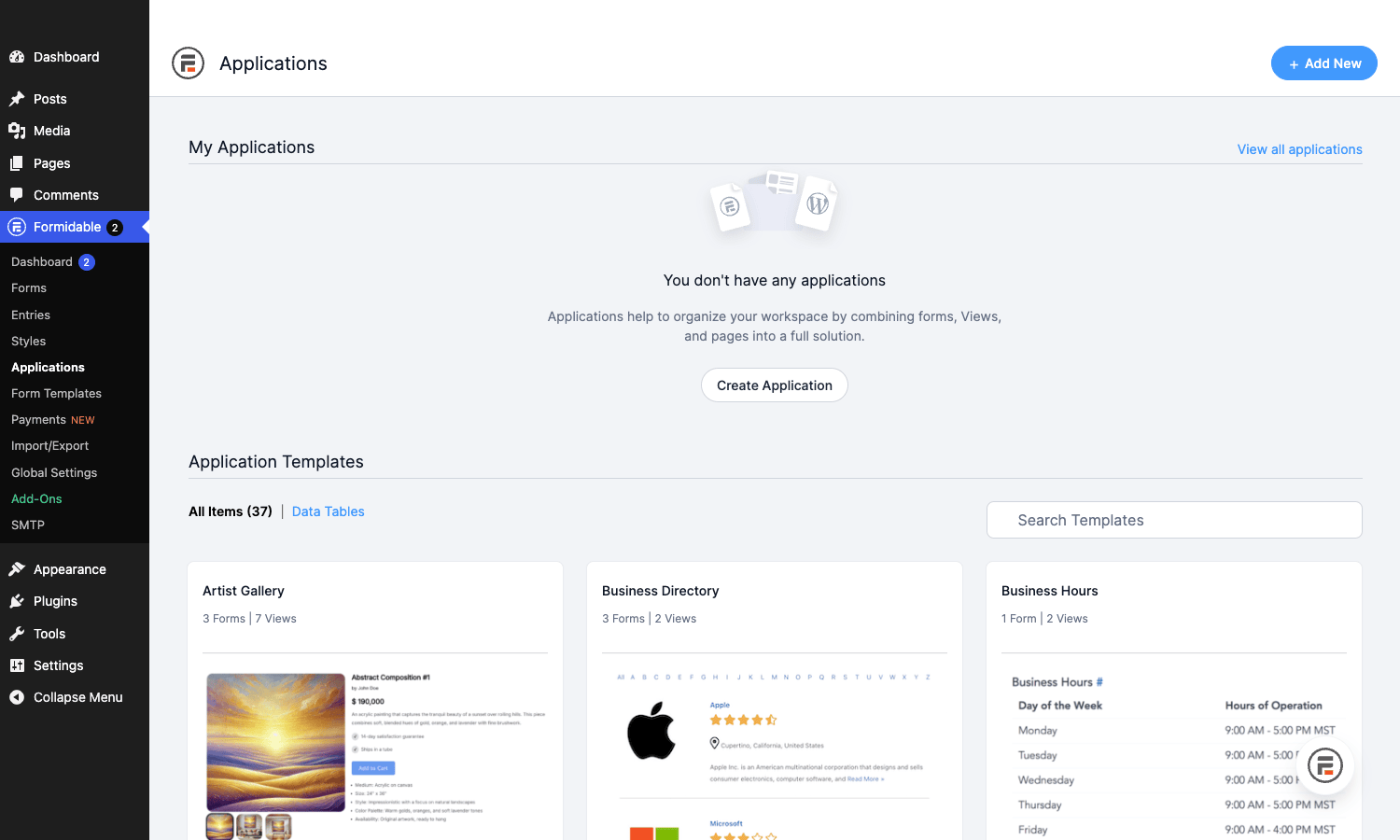
The gallery ships with 37+ templates: Business Directory, Artist Gallery, Real Estate Listings, Asset Tracking, Project Management, Help Desk, Inventory, Scholarship Application, Investor Pitches, Customer Service Tickets, Polling, Event Calendar, Job Board, and so on. Each one installs a full set of forms, views, and pages – the entire structure your site needs to run that tool.
The way I use applications is as a head start, not as the final shape. Pick the template that’s closest, install it, then strip out fields you don’t need and add the ones you do. The View templates are usually the most valuable part: they’re hand-crafted Classic views with HTML and styling that take a long time to build from scratch.
Real-world use cases
Here’s where Formidable fits well, and where I’d reach for something else.
Built-in directory or marketplace
You want a "find a contractor" directory where each contractor fills out a form to list themselves, the listing appears as a card on a search page, and the contractor can come back and edit their own listing. This is a one-evening build with Formidable: a Listing form (with Address, Phone, Logo upload, Services tags, Description), a Grid View with field filters in the sidebar, and a Form Permissions setting that lets the original submitter edit. No code.
Application form with admin review workflow
Scholarship applications, grant submissions, RFP responses. Form Scheduling auto-closes the form on the deadline. Form Actions email the admin team on submission. Front-end Views with an Entry Status filter (Submitted, Under Review, Approved, Rejected) let admins move applications through stages without entering the WP backend. Add a frm-entry-update-field shortcode and reviewers can change status from the front end.
Calculator-driven lead capture
Mortgage payment, freight quote, tax estimate, BMI. The form does the calculation client-side as the user types, and submission stores the inputs + result + their email for follow-up. The Math shortcode and calculation field handles the work; you can show conditional copy ("You qualify for our Gold tier") based on the calculated value.
Multi-step quote builder
Page break fields turn a form into a wizard. Combine with conditional logic to skip pages the user doesn’t need, with a calculation field that updates the running total, and with a Stripe field on the final page for instant checkout. This is the use case where Formidable feels less like a form plugin and more like a low-code app framework.
Membership-style edit-my-profile pages
Logged-in members see their own entry in a View, with edit and delete links. Update Form Permissions to "only logged-in users can submit and only the entry owner can edit." This pattern shows up in classified-ad sites, freelancer directories, and community sites where each member maintains their own card. It would be a multi-day MemberPress-plus-custom-PHP project; with Formidable plus a Membership plugin, it’s a couple of hours.
Where I’d pick something else
If you’re building a truly transactional store with cart, variations, and shipping rules, use WooCommerce. Formidable’s payment fields are great for "one product, one price, optional add-ons" but they’re not a replacement for a real cart.
If your forms are purely conversational and you want a guided one-question-at-a-time UX, Formidable’s Conversational Forms mode covers basic cases, but Typeform-style polish is still easier with a dedicated tool.
And if you need deep, complex email marketing automation tied to form submissions, consider pairing Formidable’s form-action to MailChimp with a real CRM. Or build your CRM inside WordPress itself using FluentCRM Pro, which integrates with Formidable through its built-in connector and gives you tag-based segmentation, drip emails, and automation funnels that Formidable’s form actions alone don’t.
Developer reference
If you’re going to extend Formidable, the surface area is wide but well-documented. The plugin exposes a thousand-plus hooks and filters across the free and Pro plugins. Here’s a tour of the ones I reach for most.
File and folder structure
After install, the Pro plugin lives at wp-content/plugins/formidable-pro/. Inside, classes/controllers/ holds the main controllers (FrmProFormsController, FrmProEntriesController, FrmProFieldsController, FrmProFormActionsController, FrmProNestedFormsController, FrmProLookupFieldsController, FrmProApplicationXMLController). The free plugin’s classes are at wp-content/plugins/formidable/classes/ and that’s where you’ll find the main FrmFormsController, FrmEntriesController, and so on. Most filters fire from both, so when in doubt, search across both directories.
Pro-specific shortcodes
[frm_set_get param=email default=""]
[frm-condition field=email equals="vip@example.com"]VIP content[/frm-condition]
[formresults id=42 fields="1,2,3" limit=10]
[frm-search form=42]
[frm-entry-links form=42]
[frm-entry-edit-link id=[id]]Edit your entry[/frm-entry-edit-link]
[frm-entry-delete-link id=[id]]Delete[/frm-entry-delete-link]
[frm-entry-update-field id=[id] field=status value=approved]Approve[/frm-entry-update-field]
[frm-field-value field_id=3 entry=42]
[frm-show-entry id=42]
[frm-stats id=3 type=average]
[frm-math][3] + [4] - [5][/frm-math]
[frm-graph fields=3 type=pie]
Free-plugin shortcodes you’ll use alongside these: [formidable id=42] to embed the form, [display-frm-data id=42] to render a View, and [frm-field-value] inside form-action templates to inject field values into emails.
Actions and filters you’ll actually use
// Run code after an entry is created. Useful for syncing to external systems.
add_action( 'frm_after_create_entry', function( $entry_id, $form_id, $args ) {
 if ( 42!== (int) $form_id ) {
 return;
 }
 $entry = FrmEntry::getOne( $entry_id, true );
 do_my_external_sync( $entry );
}, 10, 3 );

// Run code only for a specific form (avoids the form_id check above).
add_action( 'frm_after_create_entry_42', function( $entry_id, $args ) {
 do_my_external_sync_for_form_42( $entry_id );
}, 10, 2 );

// Block deletion of entries the current user doesn't own.
add_action( 'frm_before_destroy_entry', function( $entry_id, $entry ) {
 if ( get_current_user_id()!== (int) $entry->user_id &&! current_user_can( 'manage_options' ) ) {
 wp_die( 'You can only delete your own entries.' );
 }
}, 10, 2 );

// Customise the upload folder per form so each form's uploads are isolated.
add_filter( 'frm_upload_folder', function( $folder, $args ) {
 return 'frm-form-'. (int) $args['form_id'];
}, 10, 2 );

// Override file validation. Reject files over 5 MB even if WP allows more.
add_filter( 'frm_validate_file', function( $errors, $field, $args ) {
 if ( isset( $args['file']['size'] ) && $args['file']['size'] > 5 * 1024 * 1024 ) {
 $errors[ 'field'. $field->id ] = 'Files must be 5 MB or smaller.';
 }
 return $errors;
}, 10, 3 );

// Modify dynamic content (used by [frm-field-value], email actions, View templates).
add_filter( 'frm_content', function( $content, $form, $entry ) {
 return str_replace( '[user_role]', implode( ', ', wp_get_current_user()->roles ), $content );
}, 10, 3 );

// Change the WP post created by a Create Post action before insert.
add_filter( 'frm_new_post', function( $new_post, $args ) {
 if ( 42 === (int) $args['form']->id ) {
 $new_post['post_status'] = 'pending';
 }
 return $new_post;
}, 10, 2 );
Per-action triggers
The FrmProFormActionsController fires two dynamic hooks every time an action runs: frm_trigger_{action_type}_action and frm_trigger_{action_type}_{event}_action. So if you want to do something every time the MailChimp action runs on create, hook frm_trigger_mailchimp_create_action. The action types are the same as the type slug you see in the Actions & Notifications screen: email, wppost, mailchimp, stripe, paypal, square, twilio, zapier, and any add-on actions.
add_action( 'frm_trigger_email_create_action', function( $form_action, $entry, $form ) {
 // Append a custom header to every notification email this form sends.
 add_filter( 'wp_mail', function( $args ) {
 $args['headers'] = (array) ( $args['headers']?? array() );
 $args['headers'][] = 'X-Formidable-Form: '. FrmAppHelper::sanitize_value( 'sanitize_title', $form->name );
 return $args;
 });
}, 10, 3 );
Working with entries programmatically
Formidable’s entry API is the cleanest part of the plugin. The free plugin exposes a small set of classes (FrmEntry, FrmEntryMeta, FrmForm, FrmField) that are stable and worth knowing. The plugin’s source-level hook reference is documented via the action and filter calls inside the codebase itself, and the WordPress Plugin Handbook on hooks is the right starting point if you’re new to extending plugins through actions and filters.
// Look up an entry with its meta values loaded.
$entry = FrmEntry::getOne( $entry_id, true );
$email = $entry->metas[ $email_field_id ];

// Query entries by field value.
$matching = FrmEntry::getAll(
 array( 'fi.field_key' => 'email', 'meta_value' => 'user@example.com' ),
 '',
 50, // limit
 true // include meta
);

// Create an entry from code (for example, on a custom REST endpoint).
$entry_id = FrmEntry::create( array(
 'form_id' => 42,
 'item_meta' => array(
 1 => 'Aarav',
 2 => 'Mehta',
 3 => 'aarav@example.com',
 ),
));

// Update an entry's meta.
FrmEntryMeta::update_entry_meta( $entry_id, $field_id, '', 'new value' );
The same classes drive the REST endpoints (via the free plugin’s FrmAPIController if you have REST enabled). For most use cases, the PHP API is more convenient because you don’t fight with auth. If you want to register your own REST endpoints that interact with Formidable data, the standard WordPress REST API handbook covers the registration side and you can call into FrmEntry::create from your callback.
Gutenberg blocks
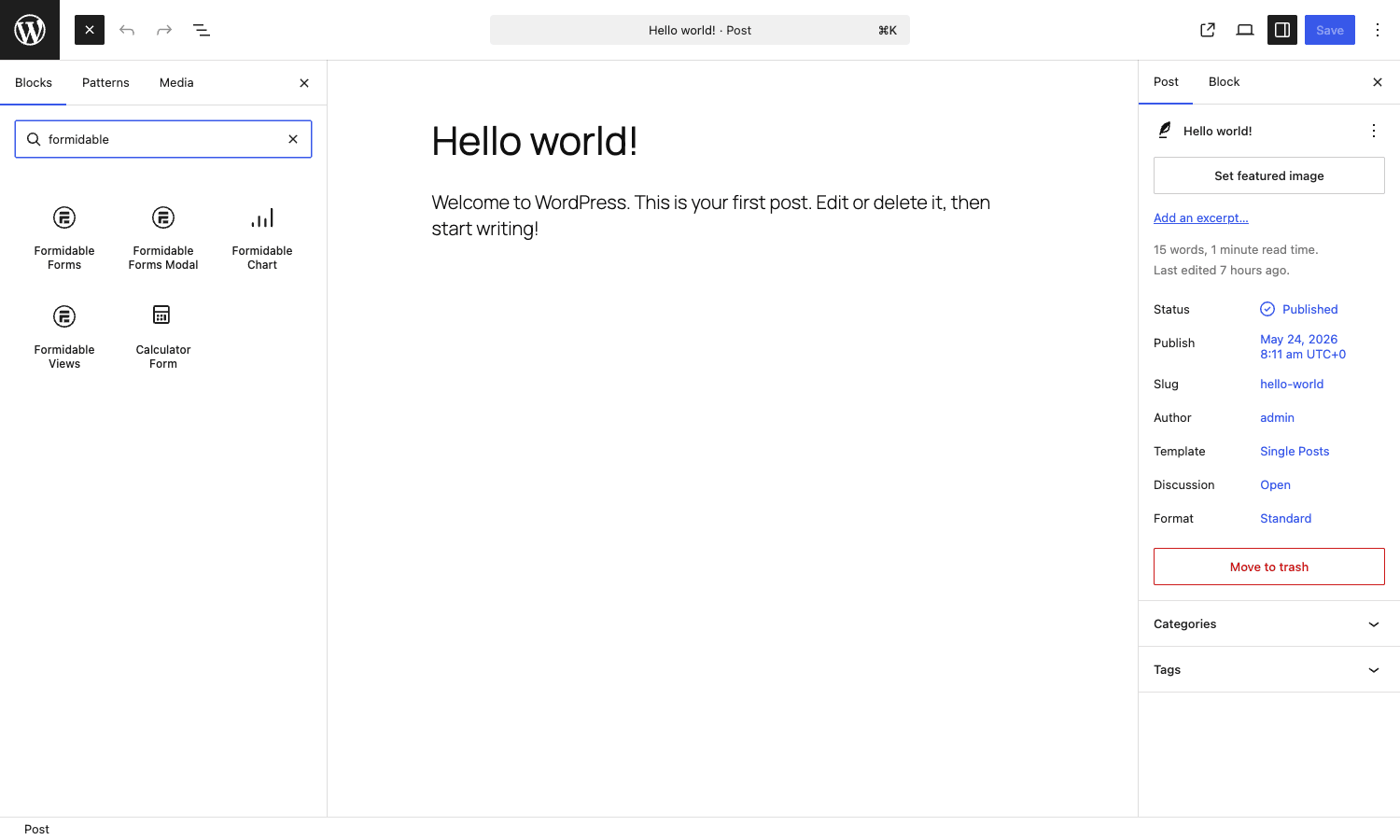
Pro registers five blocks via FrmProSimpleBlocksController::register_block_type:
- Formidable Forms – drop a form into a post.
- Formidable Forms Modal – same, but pops up in a modal.
- Formidable Chart – chart of view data (line, bar, pie, doughnut).
- Formidable Views – render a View.
- Calculator Form – calculator widget that pre-fills from a form.
If you’re using a page builder like Elementor or Divi, the same widgets ship as widgets there too, or you can drop the shortcodes anywhere.
A note on entry meta storage
Formidable stores entry meta in two tables: wp_frm_items (the entry row) and wp_frm_item_metas (one row per field per entry). This is denormalized intentionally – it lets the plugin query "give me every entry where field 3 = ‘California’" without joining a third table. The downside is that if you have a form with 50 fields and 100,000 submissions, you have five million rows in wp_frm_item_metas. The plugin handles this fine, but if you’re planning a high-volume application, build a custom index on wp_frm_item_metas for field_id, meta_value(20) to keep queries fast.
Performance, compatibility, and gotchas
A few real-world notes from running Formidable on busy sites.
Front-end CSS is heavier than you’d expect. The default stylesheet is 90+ KB unminified because it includes the Visual Views styles, datepicker, signature canvas, and the styler. If you’re not using Views on a page, you can dequeue the views stylesheet conditionally. The plugin enqueues per-form on pages with the form shortcode, so a homepage without a form should be clean.
AJAX submit is opt-in per form. Find it under Settings -> General -> "Load and save form builder page with AJAX." Turn it on for any form that’s embedded in a page where you don’t want a full reload after submit. Off by default for backwards compatibility.
Conditional logic runs server-side too. This is important. A user can edit your HTML and unhide a hidden field, but if you have conditional logic on it, the server-side check will refuse to save the value. So you can use conditional logic for security-adjacent things like "hide the admin-only field from non-admins" and trust it.
Spam control is layered. The honeypot is on by default. JavaScript spam check is on by default. Stop-Forum-Spam is opt-in. If you want hard spam protection, layer all three plus reCAPTCHA v3, and accept that a non-trivial fraction of submissions will get scored as spam. Check the Entries screen for entries with status "Spam" periodically; legitimate users sometimes get flagged.
File uploads need attention. By default, uploads are publicly accessible at their direct URL. If you collect resumes, ID documents, or anything sensitive, turn on file protection in the field’s options (Pro feature). Protected files require a logged-in user with permission to view the entry. Unprotected files are just there.
Stripe Lite is for simple use cases. The built-in Stripe integration is fine for one-product sales and donations. For subscriptions or complex pricing, get the full Stripe addon, or push the form to WooCommerce Subscriptions for the recurring billing layer.
Page builders sometimes double-load assets. If you’re using Elementor or Divi to embed a form, you may see the form’s CSS loaded twice (once by the builder’s widget, once by the form shortcode). Mostly harmless, but it’s worth checking your network tab if performance matters.
Multisite is supported, but Views can be tricky. Views query their own site’s entries by default. If you want a cross-site directory, you’ll need to write a custom Classic view template that pulls from the network’s tables directly.
Pricing and licensing
Formidable Forms Pro ships in three tiers from Strategy11 – Basic, Plus, and Elite – with the Elite tier unlocking Views, applications, and most of the integration add-ons. The Elite SKU is the one most people end up needing because the Views feature is paywalled to it.
On gpltimes.com, you can pick up the full Formidable Forms Pro Elite build through the Formidable Forms Pro product page. It includes Views, applications, the calculator/chart features, the Pro field types, and the API hooks documented above. Drop the zip on top of an active Formidable Forms install, activate, and the Pro features light up without you needing to wire up a license dialog. The plugin is GPL, so you can install it on as many sites as you actually own.
FAQ
Do I need to install free Formidable Forms before Pro?
Yes. Pro is an extension that calls into the free plugin’s classes. Activating Pro without the free plugin will show a "compatible version of Formidable Forms is required" notice. Install free first, then Pro.
Can I import entries from another form plugin?
Yes, via Formidable -> Import/Export. The plugin reads CSV files (with a column for each field) and Formidable’s own XML format. Migrating from Gravity Forms is a CSV export from Gravity, a column-mapping step on import, and you’re done. Migrating from Gravity Forms or Fluent Forms is the same flow – export there, import here, map columns. The form fields themselves don’t migrate (only entries), so you’ll rebuild the form in Formidable first.
Does Formidable work with WPML or Polylang?
Yes, with the Formidable WPML or Polylang add-on. The free plugin’s labels and field options are translatable through standard string-translation. Submitted values stay in the language they were submitted in.
How do I expose form data through a REST API?
The free plugin’s REST API can be enabled via a setting (Global Settings -> General -> API). Once enabled, /wp-json/frm/v2/entries returns entries you can query, with auth via WordPress application passwords. The same data is also available through the PHP API (FrmEntry::getAll) which is faster if you’re calling it from the same site.
Can users edit their own entries on the front end?
Yes. In the form’s Settings, enable "Allow Front-End Editing" and pick which role(s) can edit. In a View, add the [frm-entry-edit-link] shortcode. The link opens an edit form pre-filled with the entry’s values; submit saves over the original.
Does Formidable have a payment-cart feature for multi-product checkout?
Sort of, via the Coupon and Quantity fields plus calculations, but a true multi-line-item cart is outside the form plugin’s scope. For that, use WooCommerce and pair Formidable with it for the long-form data collection part (custom-order forms, intake questionnaires, post-purchase surveys).
Are Formidable’s hooks stable across major versions?
The free plugin’s main hooks (frm_after_create_entry, frm_before_destroy_entry, frm_validate_entry, frm_content) have been stable since the early 2.x days. Pro hooks change slightly more often, but Strategy11 publishes a changelog with deprecations and the plugin keeps backward-compatible shims for a few versions.
Why does the View show a "No entries" message when I have entries?
Almost always a permissions or filter issue. By default, Views show entries with status "Submitted." If you’ve turned on entry approval and your entries are stuck at "Draft," they won’t appear. Check the View’s filters: any filter that references the current user’s ID will hide entries when an admin is logged in too.
Does Formidable support cron jobs or scheduled actions?
The plugin uses WP-Cron for scheduled cleanup of old entries (configurable per form). It also has a scheduled-action hook (frm_daily_event) that fires once a day, which you can hook into for nightly export jobs.
If you’re shopping in this category and want a form plugin built around a tree-based element editor for complex multi-step forms, our Quform walkthrough covers the closest alternative.
Final thoughts
The hardest thing about Formidable is the first hour. The admin UI is dense, the Settings screen has nine vertical tabs, and the documentation pages assume you already know whether you want a Grid View or a Classic View. Once you push through that and build a real form with real Views, the conceptual model clicks and the rest of the plugin starts feeling consistent.
The reason I keep coming back to Formidable for client work isn’t the form builder. It’s the second half of the loop. Almost every other WordPress form plugin treats entries as fire-and-forget data: collect, email, forget. Formidable treats them as live records, and Views are the renderer. That changes what’s possible. A real-estate listing site, a job board, a help desk, a community directory, a content review workflow – those projects normally need a custom plugin, a membership system, or a separate SaaS. With Formidable Pro plus a decent theme, they’re a configuration job.
For developers, the hook surface is generous without being chaotic. The class structure is consistent (FrmProEntriesController for entries, FrmProFieldsController for fields, FrmProFormActionsController for actions). If you’ve written WordPress code for a year, you can read the source and figure out where to extend in an afternoon. And because the database schema is two tables with a clear shape, you can drop down to raw SQL when you need to.
If you’re shopping for a WordPress form plugin and you can already imagine wanting to display the submissions somewhere on your site – on a directory page, a calendar, a map, a "my account" dashboard – Formidable is probably the answer. If you only need email notifications and never want to look at the data on the front end, a lighter plugin will do. But the moment your form becomes a small application, Formidable is the cheapest, most flexible way to get there.