

If you run a food blog, a craft site, a wedding-planning site, or anything else that lives or dies by Pinterest traffic, you have probably had the same fight with WordPress that I have. Pinterest’s algorithm wants tall 2:3 portrait images. Your blog post, the hero image, the Facebook card, the Open Graph preview, all want a 1.91:1 landscape shot. You can’t have both at full quality, in the same place, without one of them looking weird. Tasty Pins is the plugin that finally fixes that.
It lets you upload a separate Pinterest pin image for each post, hides it from the page, and serves it to Pinterest’s crawler and the "Save" button so the right image gets pinned every time. It also adds a custom Pinterest description per image (different from the alt text), per-image and per-post pin blocking, a hover "Pin it" button, a Pinterest Follow Box, a banner CTA, and full rich-pin Open Graph markup. It is made by WP Tasty, the same team behind Tasty Recipes and Tasty Links, and it has been the de-facto answer to Pinterest-on-WordPress for years.
In this post I want to walk through every panel, every meta field, every filter, and every weird edge case I hit during a long writing session with the plugin loaded on a real WordPress install.
Table of Contents
- What Tasty Pins actually solves
- Core features at a glance
- Installation and the first five minutes
- Pin Buttons settings explained
- Follow Box: the Pinterest follow CTA widget
- Pinterest Banner: the in-content sticky CTA
- Converters: migrating from Mediavine Grow or Social Warfare
- The per-post meta box: hidden pin images and default text
- Per-image Pinterest attributes in the media library
- How no-pin actually works on the frontend
- Open Graph and rich pins
- Real-world use cases
- Developer reference
- Performance, compatibility, and gotchas
- Pricing and licensing
- Frequently asked questions
- Final thoughts
What Tasty Pins actually solves
Let’s start with the problem first, because if you have not run into it you might think this plugin is overkill.
Pinterest’s discovery surface, which is huge if you write the kind of content people pin, prefers a tall image. The official guidance is a 2:3 aspect ratio, so 1000×1500 pixels is a fairly safe size. Wider images get cropped in the home feed, smaller ones get downranked in search.
WordPress, on the other hand, is built around 1.91:1 landscape for everything that isn’t a thumbnail. The Featured Image template slot expects landscape. Open Graph for Facebook and Twitter expects landscape. Most theme heroes expect landscape. And visually, a 1000×1500 portrait image stuffed at the top of a recipe card looks like a tower in the middle of the page.
You can solve this three ways:
- Use a landscape hero and accept worse Pinterest ranking. Most blogs do this and lose traffic they could have had.
- Use a portrait hero and accept worse visual flow. A small number of food sites do this and the layout suffers.
- Use a separate hidden portrait image that only Pinterest sees. This is what Tasty Pins does.
The plugin handles four jobs that come out of that third option:
- Upload and store a portrait pin image per post, so it never appears in the article but exists in the page source for Pinterest’s crawler to find.
- Serve the right image to the Pinterest "Save" button, the browser extension, and a right-click "Save to Pinterest", so the visitor pins the portrait version even when they click on the landscape hero.
- Attach a Pinterest-specific description per image, not the same as your alt text, so the pinned image shows up in Pinterest search with proper keywords.
- Mark certain images as un-pinnable so things like author avatars, decorative icons, and stock photos do not get accidentally saved by someone hitting Save All.
That is the whole job. Everything else in the plugin: hover buttons, Follow Box, banner, converters, hooks, are convenience features on top of those four.
Core features at a glance
- Hidden Pinterest images per post. Upload a portrait pin image that does not render on the page but exists in the HTML so Pinterest sees it.
- Custom Pinterest descriptions per image. A
data-pin-descriptionattribute lets you write up to 500 characters that Pinterest pulls when the image is pinned. Independent of the alt text, which keeps your screen-reader copy clean. - Custom Pinterest titles per image. Up to 100 characters of a Pinterest-specific title.
- No-pin rules. Block pinning per image, per post, or globally (avatars, certain post types, certain pages).
- Hover "Pin it" button on every eligible image, configurable position, shape, color, label, and minimum image size.
- Follow Box widget that overlays a customizable Pinterest follow CTA on your post.
- Pinterest Banner that floats a Pinterest-branded Save banner in-line in your content.
- Rich Pin Open Graph metadata so when someone pins your article the title, description, and image come from your post data, not from whatever Pinterest decides to grab.
- Hidden-image fullpage mode for the Pinterest crawler, so it indexes your portrait image even if the page itself does not render it visibly.
- Re-pin a specific Pin ID if you already have a viral pin you want to keep getting saves on instead of starting fresh.
- Block-editor integration that adds Pinterest attributes to
core/imageand gallery blocks. - Integrations with Yoast SEO, Rank Math, Elementor, Divi, Thrive Architect, Convert Pro, LiteSpeed Cache, and the rest of the WP Tasty plugin family.
Installation and the first five minutes
Installation is a normal WordPress upload-and-activate. Once the plugin is live you get a top-level WP Tasty menu in the admin sidebar with Tasty Pins as one of the children. If you already use Tasty Recipes, Tasty Links, or Tasty Roundups, they all live in the same menu, which is one of the nicer things about the WP Tasty family. You don’t end up with five different top-level admin items.
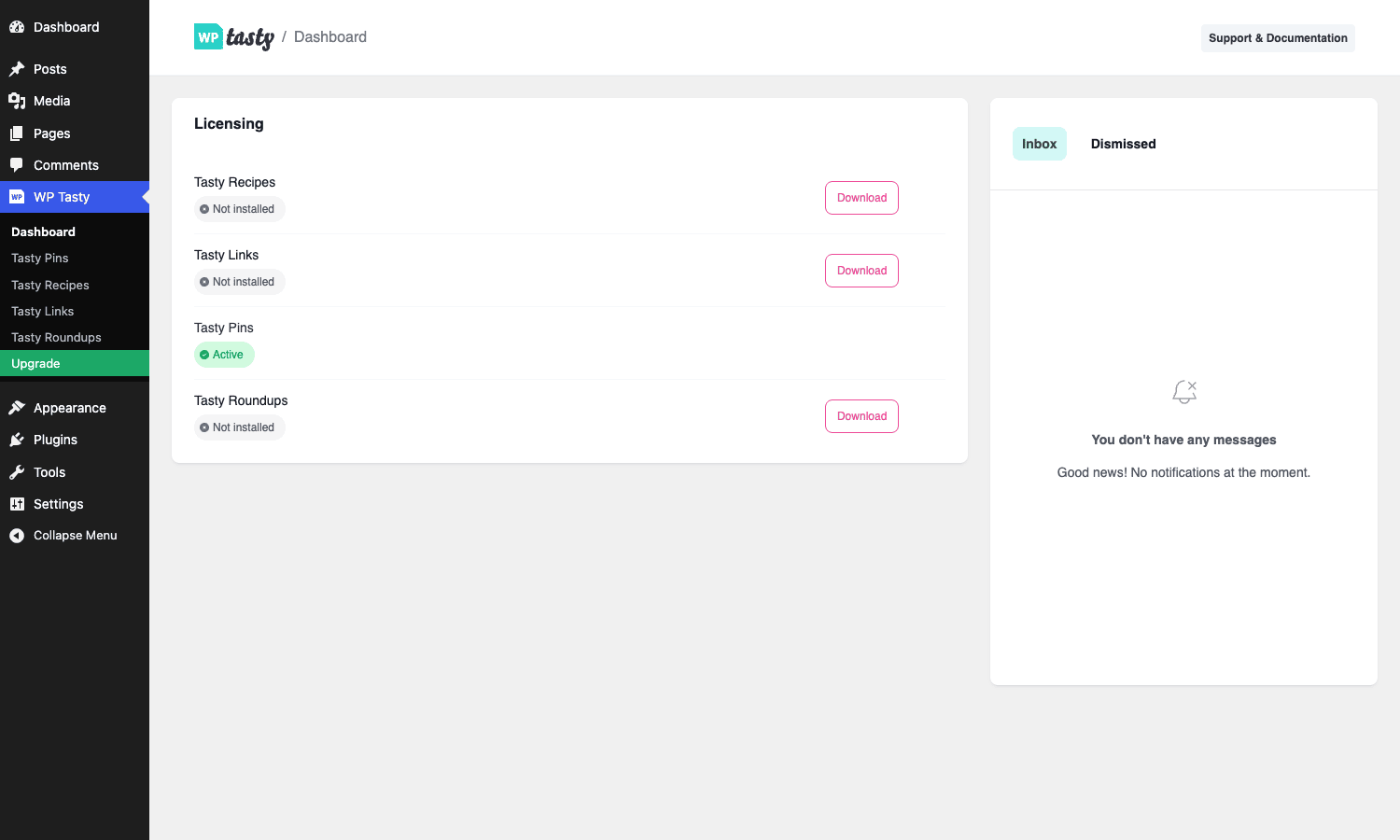
Open WP Tasty -> Tasty Pins and you land on the Pin Buttons tab. That is the first thing to configure. Turn the toggle on, pick a button position, pick a shape, pick a color that matches your brand, and decide whether you want a custom label or the default "Save" wording. The defaults are sensible if you don’t want to think about it.
Then move through the tabs in order: Pin Buttons, Follow Box, Banner, Converters, Get Started. Each tab does one thing. Save Changes is a single button in the top right that commits whatever tab you’re on.
Once that is done the plugin is essentially "on". Every post you publish from then on can have its own hidden pin image, its own custom Pinterest text, and its own banner override. You configure those per-post on the post-edit screen.
Pin Buttons settings explained
This is where you control the floating hover button that appears on every image. The full settings list:
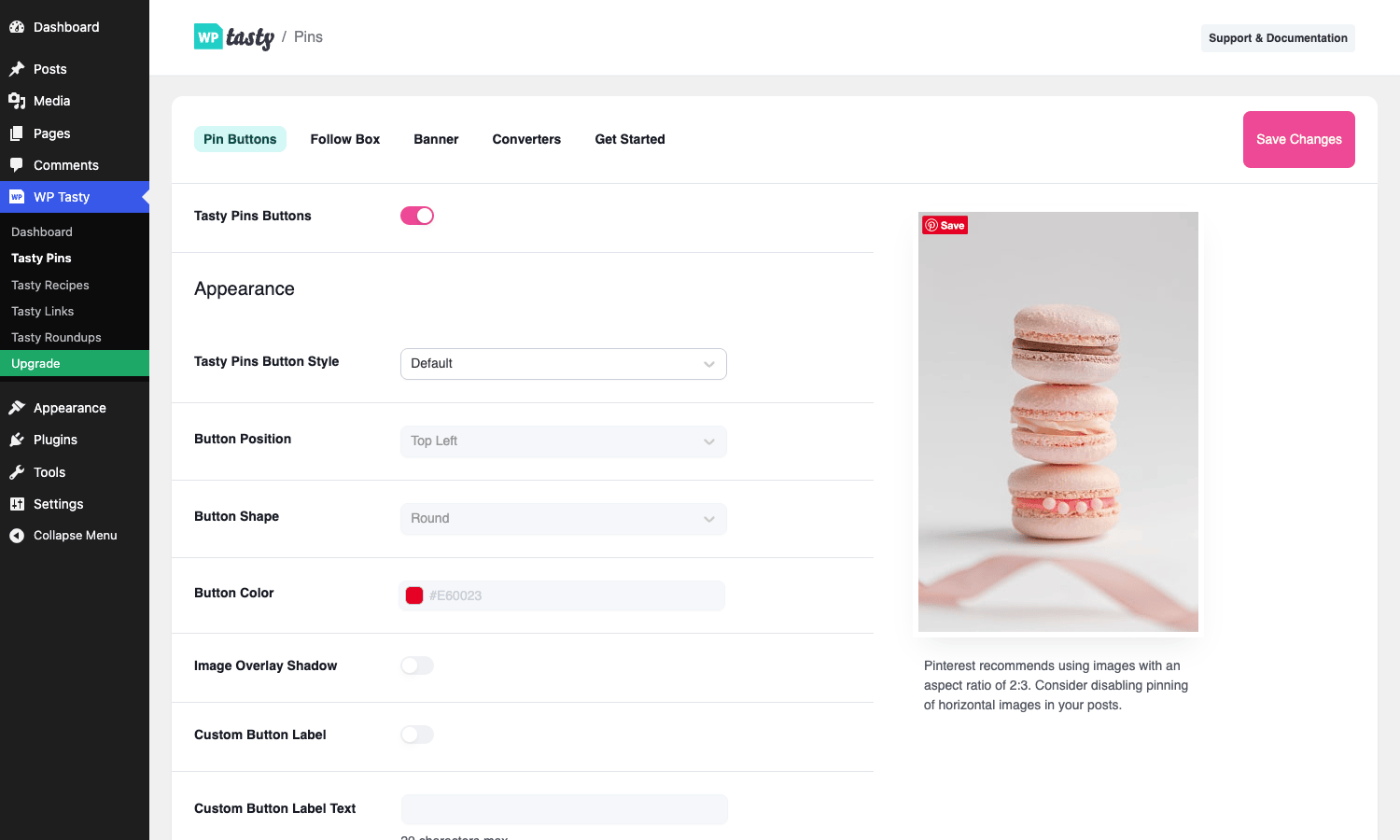
- Tasty Pins Button Style. Default uses Pinterest’s own
pinit.jsbutton. There is also a custom style that lets you control the look more directly. - Button Position. Top Left, Top Right, Bottom Left, Bottom Right, or Center. I run Top Left because it doesn’t conflict with theme captions which usually sit at the bottom.
- Button Shape. Round or Rectangular.
- Button Color. Custom hex picker. Pinterest red (
#E60023) is the default and the safe choice. Branded sites sometimes switch to their own primary color. - Image Overlay Shadow. A subtle dark overlay on the image when you hover, to make the button pop. Off by default.
- Custom Button Label. If toggled on, you can change the text from "Save" to anything else. Up to 20 characters. "Pin it", "Save Recipe", "Pin for later" are common.
- Minimum Image Width / Height. Stops the button from showing on tiny images (icons, social-share buttons, etc). Defaults to a safe 100×200.
The settings here apply globally. You can override on a per-post basis with the tp_pinterest_disable_banner and tp_pinterest_force_pinning post meta from the editor.
Follow Box: the Pinterest follow CTA widget
The Follow Box is a small Pinterest-branded card that overlays on the page (configurable trigger) and asks the reader to follow your Pinterest account.
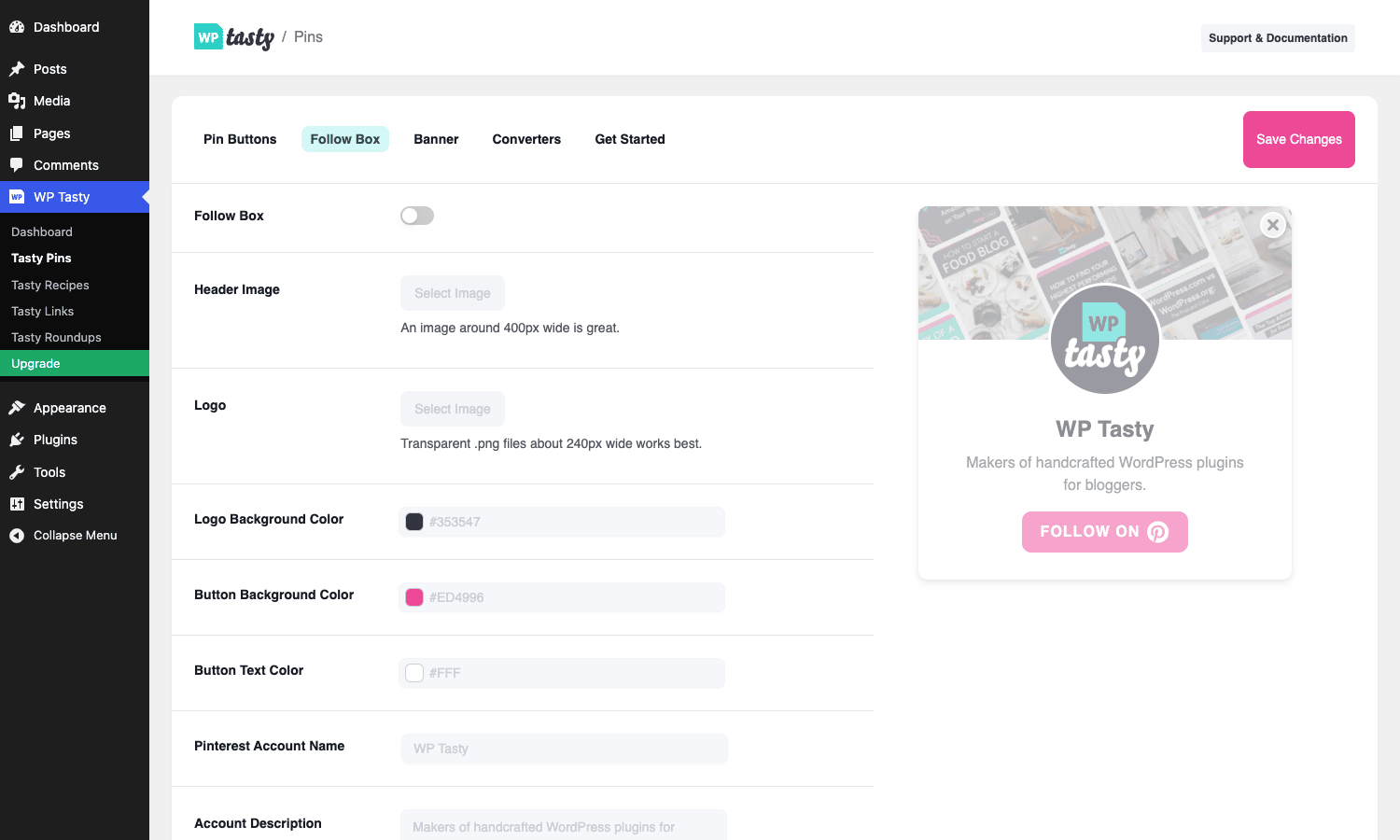
Configuration is mostly cosmetic:
- Header Image (around 400px wide). This goes across the top of the box. Pick something that screams "Pinterest" – a mosaic of pins works.
- Logo (around 240px wide). A transparent PNG of your brand mark.
- Logo Background Color, Button Background Color, Button Text Color. Self-explanatory.
- Pinterest Account Name and Account Description. Your handle and a one-sentence pitch for why to follow you. Default text in the demo is "Makers of handcrafted WordPress plugins for bloggers." Yours should be specific to your niche.
The live preview on the right of the settings page updates as you type, which is a small detail I appreciate. Most settings pages don’t do this.
When enabled, the Follow Box shows up on posts after a configurable scroll or time trigger and stays dismissed if the reader closes it. The Mustache template that renders it is in templates/follow-box.php if you want to peek at the source.
Pinterest Banner: the in-content sticky CTA
The Banner is different from the Follow Box. Where the Follow Box is about getting Pinterest followers, the Banner is about getting the current post pinned. It overlays a Pinterest-branded "Pin this…" prompt over a featured image, usually triggered on hover or after a scroll threshold.
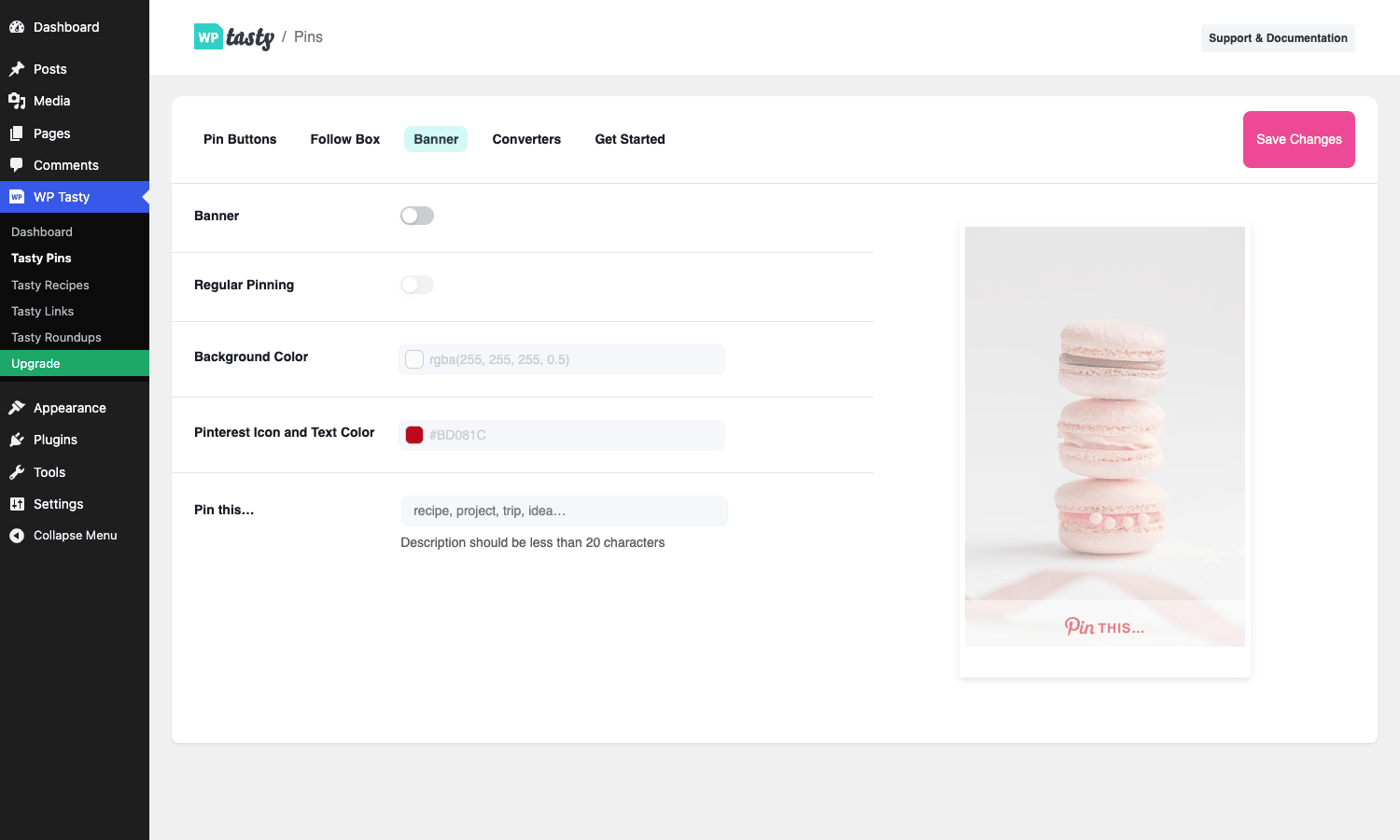
Settings:
- Banner toggle.
- Regular Pinning toggle (whether to also leave the normal hover button on).
- Background Color (with alpha, so you can make it semi-transparent).
- Pinterest Icon and Text Color.
- Pin this… field, max 20 characters. "recipe", "project", "trip", "idea", short and punchy. Whatever you put here gets composed into the banner: "Pin this recipe".
A nice detail: the banner can be disabled on a per-post basis. The post-edit meta box has a "Disable Pinterest banner for this post" checkbox, which sets tp_pinterest_disable_banner post meta. Useful for posts where the banner would clash with your layout (sponsored content, brand collabs, etc.).
Converters: migrating from Mediavine Grow or Social Warfare
If you previously used Mediavine Grow (now retired) or Social Warfare’s Pinterest image override, Tasty Pins has a one-click converter that walks your posts and moves the per-post hidden-image metadata over to its own format.
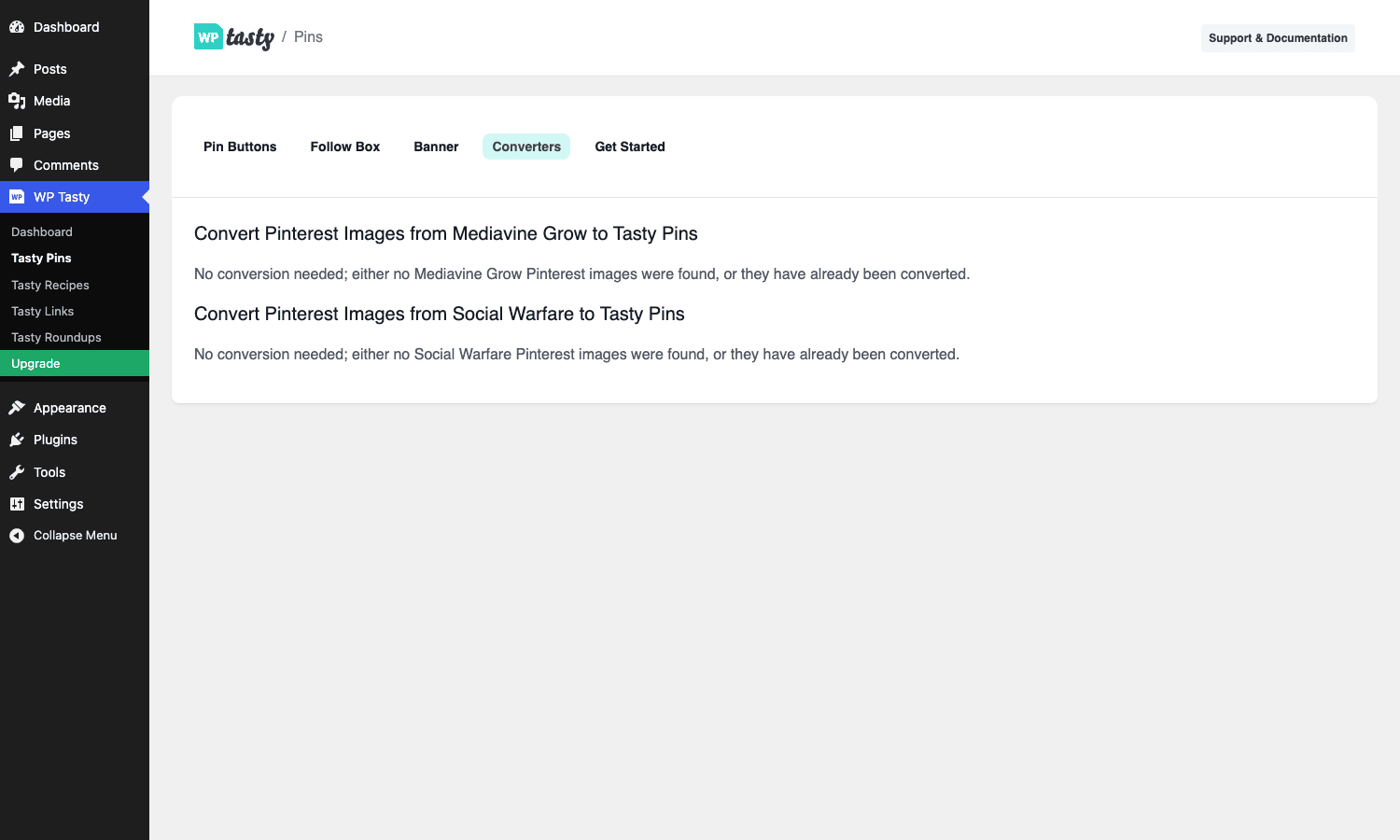
On a clean install this tab just shows "No conversion needed". On a site that previously had Mediavine Grow or Social Warfare’s Pinterest features active, the converter will detect saved meta values and offer to copy them across. The actual matching logic lives in inc/converters/. It is a one-time job: run it, verify a handful of posts, then deactivate the old plugin.
If you are coming from jQuery Pin It Button on Image (the older free plugin), there is no built-in converter because that plugin stored very little per-post data. You’ll set things up fresh.
The per-post meta box: hidden pin images and default text
This is the panel that does the real work. It lives on the Edit Post screen and gets injected after the title via edit_form_after_title. On a Gutenberg install it shows up under the post content; on Classic Editor it sits at the top, right under the title.
It has three sections:
Pinterest hidden images
A media picker that lets you attach one or more images that should be pinnable but not visible. These get rendered into the page as display: none images with data-pin-url and data-pin-description attributes. The Pinterest crawler still sees them in the HTML, indexes them, and uses them when the Pin button is clicked.
Why multiple images? Some sites make several pin variations per post (different angle, different overlay text) so they can A/B test which one Pinterest’s algorithm pushes. The Force Pinning toggle above the picker forces those images to be pinnable even if you have global no-pin rules turned on for the page.
Default Pinterest Title
A text field, up to 100 characters. Whatever you put here is used as the fallback Pinterest title for any image in the post that doesn’t have its own per-image title.
Default Pinterest Text
A textarea, up to 500 characters. Same idea as the title: fallback Pinterest description for any image without its own.
The reason both of these exist is that you usually don’t want to set per-image title and description for every single image. Most posts have one or two "money shots" you want pinned. The default values cover the rest, and you only set per-image overrides on the images you actively want Pinterest to push.
Per-image Pinterest attributes in the media library
The other place Tasty Pins adds fields is the Edit Media screen for individual attachments. Open any image in the media library and you’ll see three new fields:
- Pinterest Title (
tp_pinterest_title). Per-image override of the default title. - Pinterest Description (
tp_pinterest_text). Per-image override of the default text. This becomes thedata-pin-descriptionattribute on the rendered image. - Repin from URL (
tp_pinterest_repin_id). If you already have a popular pin for this image and want to keep saves going to that pin instead of creating a new one, paste the existing pin’s URL or ID here.
These are also exposed via the WordPress REST API. The plugin registers a tasty_pins field on the attachment resource, so you can read these values from anywhere that talks to wp/v2/media/<id>. The field is read-only via REST; writes happen through the admin UI.
How no-pin actually works on the frontend
Pinterest’s pinit script reads the data-pin-nopin attribute on any <img> and skips it when generating the Save button. Tasty Pins automates this in a few different places:
- Avatars. Any image that comes from
get_avatar()getsdata-pin-nopin="nopin"injected so people don’t accidentally pin your author headshot. This is on by default and can be turned off with thetasty_pins_nopin_avatarsfilter. - Per-page rules. Settings let you block pinning on entire post types (e.g., "no pinning on Pages") or specific URLs.
- Per-block rules. The block editor adds a
pinterestNoPinboolean attribute tocore/imageandcore/galleryblocks. If set, every image in that block gets the no-pin attribute on render. - Per-image rules. Individual images in the media library can be marked no-pin.
When the page is rendered, Tasty Pins runs a regex pass over the content and adds data-pin-nopin="nopin" to any image flagged by the above rules. Pinterest’s script then ignores those images. The plugin also handles a few edge cases the regex would miss, including images inside galleries and images dropped in via Elementor or Divi shortcodes.
Open Graph and rich pins
This is the part most people skip and then wonder why their pin previews look bad.
When someone pins a page from your site, Pinterest’s crawler hits the URL and reads the Open Graph meta tags to figure out the title, description, and image to attach to the new pin. By default, your SEO plugin (Yoast, Rank Math, AIOSEO) writes those tags using the post title, the meta description, and the post’s featured image. The featured image is landscape, so Pinterest’s pin ends up as a cropped, landscape-ish thing that performs poorly.
Tasty Pins fixes this in two ways:
-
Open Graph override. When Tasty Pins has a hidden pin image for the post, it filters Yoast’s, Rank Math’s, or AIOSEO’s
og:imageto point at the portrait pin image instead. There are dedicated integration files (inc/integrations/class-yoast.php,class-rankmath.php) that hook into each SEO plugin’s filter API. So you get all the SEO benefits of Yoast or Rank Math plus the right image for Pinterest. -
Fullpage Pinterest crawler mode. For sites that don’t want to rewrite Open Graph globally, Tasty Pins can also serve a dedicated "Pinterest-only" version of the page at a special URL. When the Pinterest bot User-Agent hits that URL, it gets a minimal HTML page with just the pin image and the OG tags. The template lives in
templates/opengraph.php. Thetasty_pins_add_open_graph_tagsfilter controls whether this fires.
If you use Tasty Pins together with Schema Pro or Rank Math’s schema generator, the pin image also flows into the ImageObject field of any Recipe or Article schema, which helps with Pinterest’s Rich Pins indexing (richer card display in the Pinterest feed with title, author, ingredients for recipes, etc.).
For a deeper SEO setup that includes structured data for recipes and articles, the WP Tasty family pairs well with Tasty Recipes for recipe schema, or with Schema Pro if you publish a wider mix of content.
Real-world use cases
Here are five concrete situations where Tasty Pins actually pays off, with the specific config I’d use for each.
1. A food blog publishing weekly recipe posts
This is the textbook use case. Hero image is a 1.91:1 landscape shot of the finished dish. Hidden pin image is a 1000×1500 portrait collage with overlay text ("EASY CHOCOLATE BABKA – 90 MIN") because Pinterest’s algorithm gives extra weight to images with readable text overlay. The Pin Buttons hover is on. The Banner is on with caption "Pin this recipe". Avatars and ad-block images are auto-set to no-pin. Tasty Pins integrates with Tasty Recipes so the recipe-card image also gets the pin treatment, and rich-pin schema flows through Rank Math.
2. A craft / DIY blog
Same shape as the food blog. The pin image is usually a "before / after" or a "step-by-step photo collage" with bold serif text overlay. The Repin from URL field is more useful here because craft posts often go viral months after publishing and you want all new saves to feed into the original viral pin’s score instead of fragmenting.
3. A travel blog
Travel pins skew toward dramatic landscapes (waterfall, sunset, beach) cropped to portrait with a destination name overlay. The Pinterest description is heavily keyword-loaded here ("10 best things to do in Lisbon for first-time visitors / cheap eats / beaches / Lisbon travel guide / what to do in Lisbon weekend") because Pinterest doubles as a travel search engine.
4. A weddings / event blog
Pinterest is the dominant top-of-funnel for wedding planning. Bridal sites usually need three pin variations per post: one focused on the venue, one on the decor, one on the dress. Tasty Pins’ multi-image hidden picker handles this natively: select three portrait images, write a different description per image, and Pinterest visitors get to pick which one resonates.
5. An ecommerce blog driving traffic to product pages
If you run a Shopify or WooCommerce-backed content blog, Pinterest is a high-intent channel. Use Tasty Pins on blog posts but turn off auto-pinning on Pages (so checkout and account pages don’t get pinned). Use Repin from URL on long-tail evergreen content. Pair the Banner with a strong product-CTA caption.
Developer reference
If you ship a custom theme or maintain a multi-site network of food blogs, the filter and hook surface is where Tasty Pins gets really useful. Here are the most important extension points.
Filter: control whether avatars get the no-pin attribute
By default, Tasty Pins flags every avatar (anything that comes through get_avatar()) as nopin. If your theme renders the author headshot somewhere you specifically want pinnable, turn this off.
add_filter( 'tasty_pins_nopin_avatars', '__return_false' );
Default: true.
Filter: change which image size is used for pin images
When Tasty Pins serves the pin image to Pinterest, it asks WordPress for the full size by default. If you’ve registered a custom Pinterest size in your theme (e.g., 1000×1500), you can switch to it:
add_action( 'after_setup_theme', function () {
    add_image_size( 'pinterest', 1000, 1500, true );
} );

add_filter( 'tasty_pins_full_image_size', function () {
    return 'pinterest';
} );
This way Tasty Pins serves the cropped 1000×1500 version, not the raw full-size upload. Saves bandwidth and avoids Pinterest re-cropping you.
Filter: skip loading pinit.js entirely
If you bundle your own pin button JS or you use a different social-sharing plugin for the button while only using Tasty Pins for the hidden image and OG override, you can stop the plugin from enqueueing Pinterest’s hosted pinit.js:
add_filter( 'tasty_pins_load_pinit_js', '__return_false' );
The hidden-image and Open Graph features still work.
Filter: customize the hidden image markup
If you want to wrap the hidden image in a specific div, add a custom class, or add lazy-load attributes, hook the HTML filter:
add_filter( 'tasty_pins_hidden_image_html', function ( $html, $attachment_id ) {
    return '<div class="my-hidden-pin">' . $html . '</div>';
}, 10, 2 );
Filter: change the OG image conditional
By default, Tasty Pins only injects its Open Graph image tag when the post has a hidden pin image set. If you want to force-inject (e.g., always override the featured image with a fallback brand image), use:
add_filter( 'tasty_pins_add_open_graph_tags', function ( $should_add, $image_id ) {
    return true;
}, 10, 2 );
Filter: set a minimum image size for the hover button via JS
The Settings UI gives you a server-side minimum size that filters which images render the button at all. There is also a JS-side filter that gives more dynamic control (e.g., based on viewport):
add_filter( 'tasty_pins_enable_javascript_minimum_image_size', '__return_true' );
Action: hook into the Follow Box render
If you want to fire an analytics event when the Follow Box renders (track impressions, etc.):
add_action( 'tasty_pins_follow_box_rendered', function () {
    // Push to dataLayer, fire a pixel, log to a CRM, whatever.
} );
Reading per-image Pinterest fields server-side
You can read Tasty Pins data on any image directly from the post meta. The meta keys are stable:
$image_id   = 42;
$pin_title  = get_post_meta( $image_id, 'tp_pinterest_title', true );
$pin_text   = get_post_meta( $image_id, 'tp_pinterest_text', true );
$repin_id   = get_post_meta( $image_id, 'tp_pinterest_repin_id', true );

echo esc_html( $pin_title );
Useful when you want to render a custom share button somewhere outside Tasty Pins’ rendered HTML.
Reading per-image Pinterest fields via REST
The plugin extends the WP REST attachment resource. So a GET to /wp-json/wp/v2/media/42 returns:
{
  "id": 42,
  "title": { "rendered": "Chocolate babka" },
  "tasty_pins": {
    "pinterest_title": "Easy chocolate babka",
    "pinterest_text": "Soft, chocolate-swirled bread...",
    "pinterest_repin": ""
  }
}
That’s handy if you build a Gatsby or Next.js frontend and want to pull pin data alongside images.
Block-editor attributes
The block-editor bundle adds these attributes to core/image and core/gallery:
pinterestText(string)pinterestTitle(string)pinterestRepinId(string)pinterestNoPin(boolean)
If you build a custom block that extends core/image, those attributes will already be on it. You can read them from the block save HTML or surface them in your own InspectorControls.
Filter: change the URL query arg key for OG fullpage
The fullpage Pinterest crawler mode uses a query arg to identify which image to serve. The key defaults to tp_image_id but can be renamed:
add_filter( 'tasty_pins_image_id_key', function () {
    return 'pin_image';
} );
Useful if you have a conflicting plugin or want a more semantic URL.
Performance, compatibility, and gotchas
A few things I noticed while running Tasty Pins on a live site.
Hidden images add page weight, but it’s small. Each hidden image is a thumbnail in the markup with display: none. The browser still downloads the image source (if Pinterest’s pinit script needs to read it for the Save button), so it does add to total page weight. The actual rendered size is small because tasty_pins_hidden_image_thumbnail_size defaults to thumbnail (150×150 in default WP). If you’re chasing a Lighthouse score, pair this with a caching plugin like WP Rocket for lazy loading and deferred third-party scripts.
pinit.js is a third-party script. It loads from assets.pinterest.com and runs on every page. The tasty_pins_load_pinit_js filter lets you skip it if you don’t need the hover button (you might keep just the hidden image and OG features).
LiteSpeed Cache integration. If you use LiteSpeed, Tasty Pins automatically tells LSCache to not cache responses for the Pinterest bot. This means the bot always sees fresh content but does mean you should be aware that Pinterest’s user-agent will hit your origin every time. Most sites won’t notice but if you’re on a tight server budget, watch the logs.
Avatar no-pin can conflict with custom avatar plugins. If you use a plugin like Simple Local Avatars or WP User Avatar, the no-pin attribute may or may not be applied depending on whether they use get_avatar() under the hood. The tasty_pins_nopin_avatars filter is the escape hatch.
Gutenberg block-attribute filter does not add InspectorControls. The block-editor JS bundle only registers the Pinterest attributes on core/image and core/gallery; it does not add a UI for setting them inside the block inspector. The per-image fields are configured in the media library Edit Media screen, not in the post editor block sidebar. Worth knowing because the experience feels a bit disconnected at first.
Cache plugins and OG overrides. If you use full-page caching (WP Rocket, LiteSpeed, W3 Total Cache), the Open Graph override needs to be in place when the page is cached. If you change a hidden pin image and the cached page is stale, Pinterest may pick up the old image until the cache flushes. Flush after edits.
Multi-pin per post. The plugin supports multiple hidden images per post. When Pinterest’s Save button is clicked, the user gets a chooser to pick which image to pin. This is huge for A/B testing pin designs but the chooser only appears in the Save flow; the regular hover button pins the first image silently. Plan accordingly.
Compatibility. Tested with Yoast SEO and Rank Math (full OG integration), Elementor and Divi (image-block detection inside builder shortcodes), Thrive Architect, Convert Pro, Tasty Recipes, LiteSpeed Cache. The integration files are individual classes in inc/integrations/ if you want to read how each is wired up.
Pricing and licensing
Tasty Pins ships as a single Pro build. WP Tasty doesn’t publish a free version on WordPress.org with a stripped feature set. The official store offers Tasty Pins as a single-plugin license or as part of the Tasty Plus bundle (which also includes Tasty Recipes, Tasty Links, and Tasty Roundups). Pricing changes from time to time so check the WP Tasty store for the current numbers.
GPL Times stocks Tasty Pins as a GPL-licensed copy, so the entire feature set above is available without per-feature gating. If you’re already running other WP Tasty plugins on your blog and want the full Pinterest workflow without juggling licenses, this is the simplest route.
Frequently asked questions
Does Tasty Pins automatically generate the portrait pin image for me?
No. You still need to design the portrait pin (in Canva, Photoshop, Figma, or whatever) and upload it. Tasty Pins handles the WordPress side: storing it, attaching it to the post, hiding it from view, and serving it to Pinterest. It does not auto-resize your landscape hero into a portrait pin.
Will visitors see the hidden pin image?
No. The image is rendered with display: none inline, so it’s in the page source but the browser doesn’t paint it. Screen readers may or may not announce it depending on the screen reader and how the page is structured, which is why Tasty Pins is careful to use empty alt text on hidden images by default.
Does the hidden image affect Core Web Vitals?
Marginally. The image source is still loaded (the browser fetches the file even if it’s hidden, because the <img> tag has an src), so it counts toward total page weight. The hidden image is a thumbnail by default which keeps it small, but if you’re chasing perfect Lighthouse scores you’ll want a caching plugin to lazy-load it. See the Performance section.
What’s the difference between Tasty Pins and Social Warfare’s Pinterest image override?
Social Warfare lets you set a custom Pinterest image per post (one image, no description override). Tasty Pins gives you multiple hidden images per post, per-image Pinterest descriptions and titles, the Repin from URL feature, the Follow Box, the Banner, no-pin rules, Open Graph rich-pin metadata, and integrations with SEO plugins to override the OG image. Social Warfare’s strength is multi-network social sharing; Tasty Pins is Pinterest-first.
Can I use Tasty Pins with Yoast SEO Premium?
Yes. The two plugins coexist cleanly. Tasty Pins detects Yoast SEO Premium and filters Yoast’s Open Graph image so the pin image takes priority when set. You get Yoast’s SEO features (sitemap, schema, focus keyword analysis) plus Tasty Pins’ Pinterest-specific overrides without conflict. Same story with Rank Math SEO Pro.
Does it work with Gutenberg or only the Classic Editor?
Both. The per-post meta box renders on both Gutenberg and Classic. The block-editor bundle adds Pinterest attributes to core/image and gallery blocks. Per-image titles and descriptions are managed via the media library Edit Media screen, not via block inspector controls.
How do Rich Pins work with Tasty Pins?
Tasty Pins writes Open Graph metadata (og:title, og:description, og:image, og:type) on every post. Pinterest reads those tags when the post is pinned and turns them into a Rich Pin (a pin with extra metadata pulled from your site). For Recipe Rich Pins, you need a recipe schema plugin like Tasty Recipes (which Tasty Pins integrates with directly) or Rank Math’s recipe schema. Article Rich Pins work out of the box.
Can I track which Pinterest pin came from which image?
Tasty Pins itself doesn’t ship analytics. For tracking you’d pair it with Pinterest’s own conversion tag, or with MonsterInsights Pro for general Pinterest traffic in Google Analytics, or with the Pinterest Business analytics dashboard. The Repin from URL field is the simplest way to consolidate saves into a single pin you can track in Pinterest Analytics.
Does Tasty Pins work for non-food blogs?
Absolutely. The plugin is named after food because that’s where most of WP Tasty’s audience lives, but the features are useful for any niche where Pinterest drives traffic: travel, weddings, DIY, crafts, parenting, fashion, home decor, gardening. Anything where users save inspiration for later.
Final thoughts
Tasty Pins is one of those plugins that is exactly as deep as it needs to be. It doesn’t try to be a full social-sharing suite, it doesn’t try to compete with Social Warfare Pro on multi-network share buttons, and it doesn’t try to replace your SEO plugin. It does exactly one thing: make WordPress posts work well on Pinterest, by solving the portrait-vs-landscape conflict and giving Pinterest the metadata it actually wants.
The architecture is clean. Each Pinterest concern (hidden images, descriptions, no-pin, OG overrides, hover button, banner) is a separate, hookable feature you can turn on or off. The integration files for Yoast, Rank Math, Elementor, Divi, Thrive, and LiteSpeed live as standalone classes in inc/integrations/, so when a new SEO plugin or page builder comes along the surface for adding support is small. The filter list is short and the hook names are clear. The block-editor bundle is small and focused.
For anyone running a content site that targets Pinterest as a primary traffic source, this is the path of least resistance. You’ll spend maybe ten minutes configuring the global settings, and then five seconds per post setting a hidden image and a description. The rest of the work, OG injection, crawler detection, schema flow, no-pin rules, happens silently in the background.
If you publish recipes, also look at how it stacks with Tasty Recipes for the schema side, and Tasty Links for affiliate-link management. They’re all by the same vendor and they share the WP Tasty admin menu, which keeps your dashboard tidy. For broader SEO control, pair it with Rank Math SEO Pro or Yoast SEO Premium since Tasty Pins integrates with both. And if you also run an Instagram Feed Pro or Custom Facebook Feed Pro embed in your sidebar, the Follow Box gives you a Pinterest equivalent that fits in the same visual style.
For more on Pinterest’s own image guidelines, the Pinterest image best practices guide is short and worth reading. For the "Save" button mechanics that the hover button uses under the hood, see the Pinterest Save button developer docs.