

For years I handed clients a WordPress admin that was held together with five separate plugins and a bloated functions.php. A menu editor here. A white-label plugin there. A disable-comments plugin because the comment column kept confusing people. Another plugin just to hide the dashboard welcome panel. It worked, until a client updated something and one of those five plugins fell over and took the menu with it.
WP Adminify Pro is the plugin I wish I’d reached for back then. It folds the menu editor, the login designer, the white-label branding, the dashboard widgets, the comment killer, and a stack of security and cleanup toggles into a single settings panel built by Pixar Labs (the team you’ll see branded as Jewel Theme inside the admin). This is a long, honest walk through what it does, where it shines, where it’s overkill, and the developer hooks worth knowing.
If you build sites for clients, the pitch is simple: one plugin to make the admin look like yours instead of WordPress’s, and to lock it down so a client can’t wander into a settings page they shouldn’t touch.
Table of Contents
- What WP Adminify Pro actually is
- The module and toggle model
- The drag-and-drop Admin Menu Editor
- Login Customizer (Loginfy)
- White Label and the agency features
- Custom dashboard widgets
- Custom Admin Pages
- Custom Admin Columns
- Dark mode and dashboard skins
- Disable comments, hide notices, clean the admin bar
- Security and performance toggles
- Media folders, replace media, and redirects
- Developer reference: hooks and filters
- Troubleshooting the problems people actually hit
- Compatibility: hosting, multisite, page builders
- Don’t white-label so hard your client can’t get help
- WP Adminify vs Admin Menu Editor Pro vs White Label CMS vs Ultimate Dashboard
- Pricing and licensing
- FAQ
- Is WP Adminify Pro worth it?
What WP Adminify Pro actually is
WP Adminify Pro is an admin-experience suite for WordPress built by Pixar Labs at wpadminify.com. Instead of touching the front end of your site, it reshapes the part of WordPress that you and your clients log into every day: the dashboard, the left menu, the login screen, the toolbar, the post list tables, and the comment system.
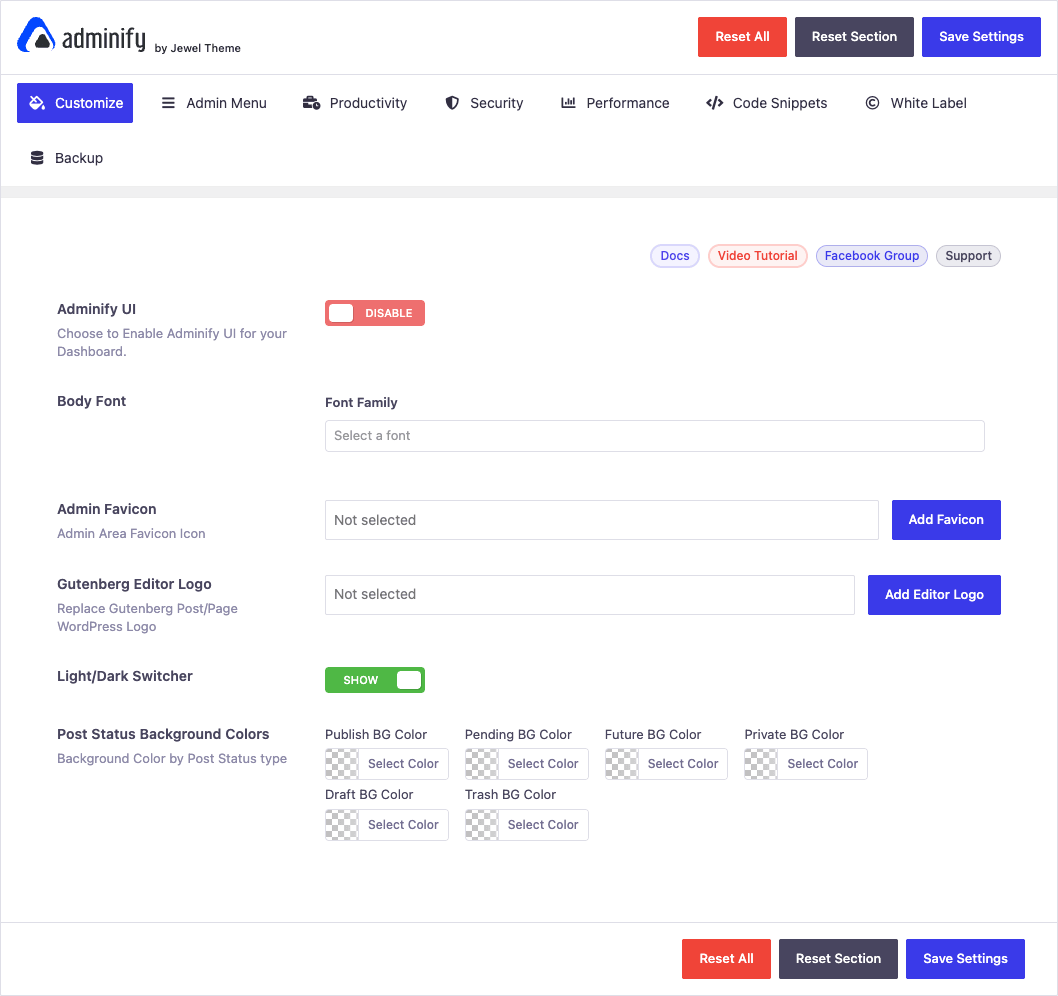
The vendor groups everything under one menu item called Adminify, and the settings live at Adminify -> Settings. Open it and you get eight top tabs: Customize, Admin Menu, Productivity, Security, Performance, Code Snippets, White Label, and Backup.
I’ll be honest up front about who this is for. For a solo blogger running one site, WP Adminify Pro is more than you need. You’re not white-labeling anything for a client, and the menu only has so many items to reorder. The plugin earns its place when you hand sites to other people. Agencies, freelancers building for clients, membership-site owners who give editors a locked-down dashboard, anyone who wants the WordPress admin to stop looking like WordPress. That’s the sweet spot.
The other thing it is: a consolidation play. Every module here exists as a standalone plugin somewhere on the WordPress.org repo. Admin Menu Editor. White Label CMS. Ultimate Dashboard. Disable Comments. Adminimize. WP Adminify rolls them into one codebase so you install once, configure once, and update once. Whether that trade is worth it depends on how many of those single-purpose plugins you’d otherwise be stacking. We’ll get to the math.
The module and toggle model
Here’s the design decision that makes WP Adminify either great or annoying, depending on your taste: almost everything is a toggle.
Open the Productivity tab and you see the clearest version of this. Each feature is a switch. Folders, Admin Pages, Dashboard & Welcome Widget, Post Types Order, Menu Duplicator, Post Duplicator, Custom Admin Columns, Media Settings, Widgets Removal. Flip one on and its options appear. Flip it off and the code path goes quiet.
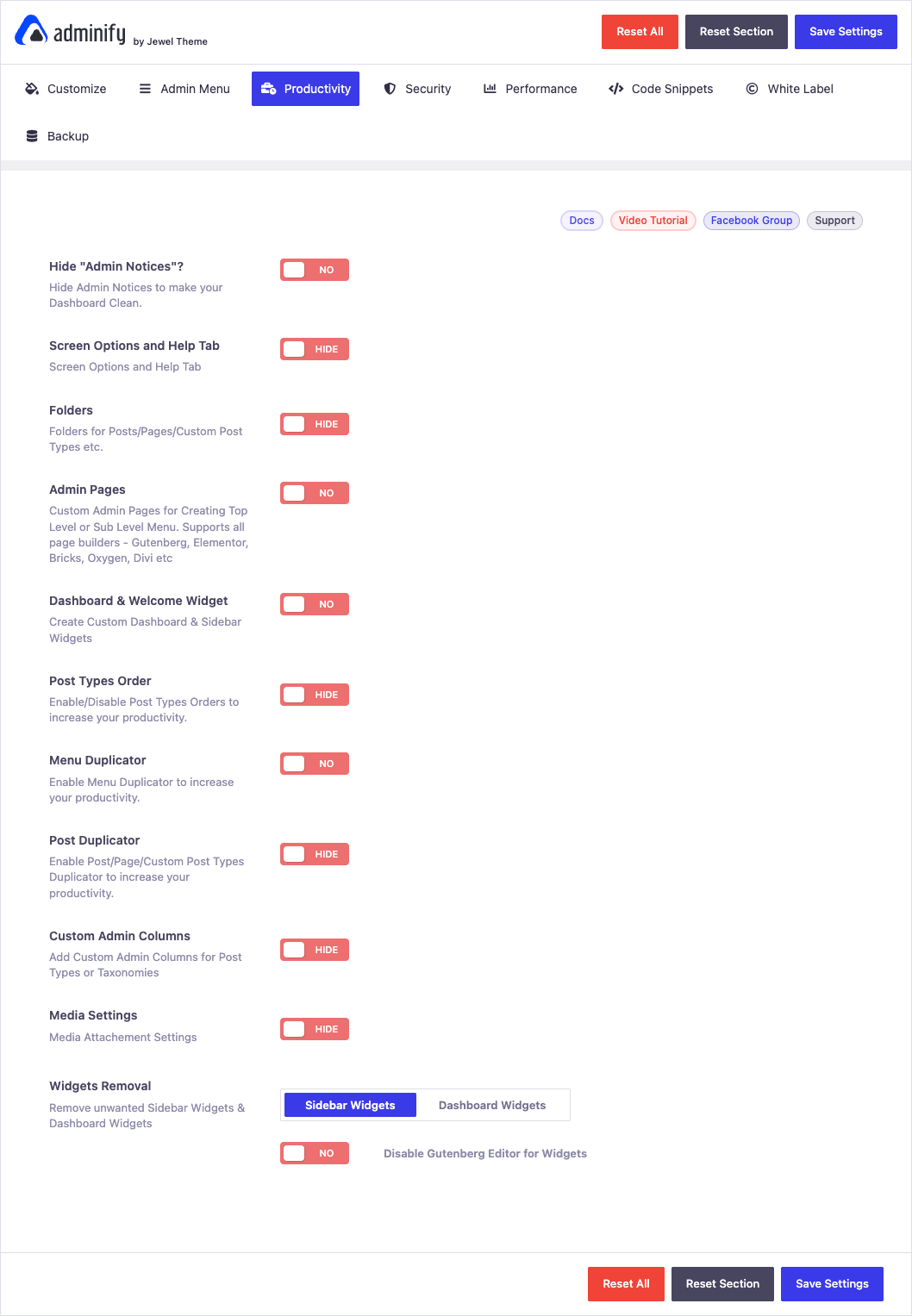
I like this for two reasons. First, you don’t pay a performance cost for modules you don’t use, because the disabled ones don’t load their hooks. Second, it keeps the settings page from drowning you. A membership site that only needs comment disabling and menu hiding can leave the other dozen toggles off and never think about them.
The downside is discoverability. Because features hide until toggled, a new user can stare at the Productivity tab and miss that "Folders" is actually a media-library folder system, or that "Admin Pages" lets you build entirely custom dashboard screens. The labels are terse. You learn what’s in here by flipping switches, and that takes a session or two.
One more note on the model. WP Adminify keeps its own assets confined to admin-facing pages. So when the vendor says it won’t slow your site, that’s literally true for visitors. The front end never loads Adminify’s CSS or JS unless you’ve explicitly added a front-end behavior (a head cleanup, a feed disable). Your store’s page speed is untouched.
The drag-and-drop Admin Menu Editor
This is the module I open first on every new client build, and it’s the one most people buy the plugin for.
Go to Adminify -> Settings -> Admin Menu and you land on the Menu Editor sub-tab. Every top-level admin menu item shows up as a draggable card: Dashboard, Posts, Media, Pages, Comments, Adminify, Appearance, Plugins, Tools, Settings. Grab the dotted handle, drop it where you want, done.
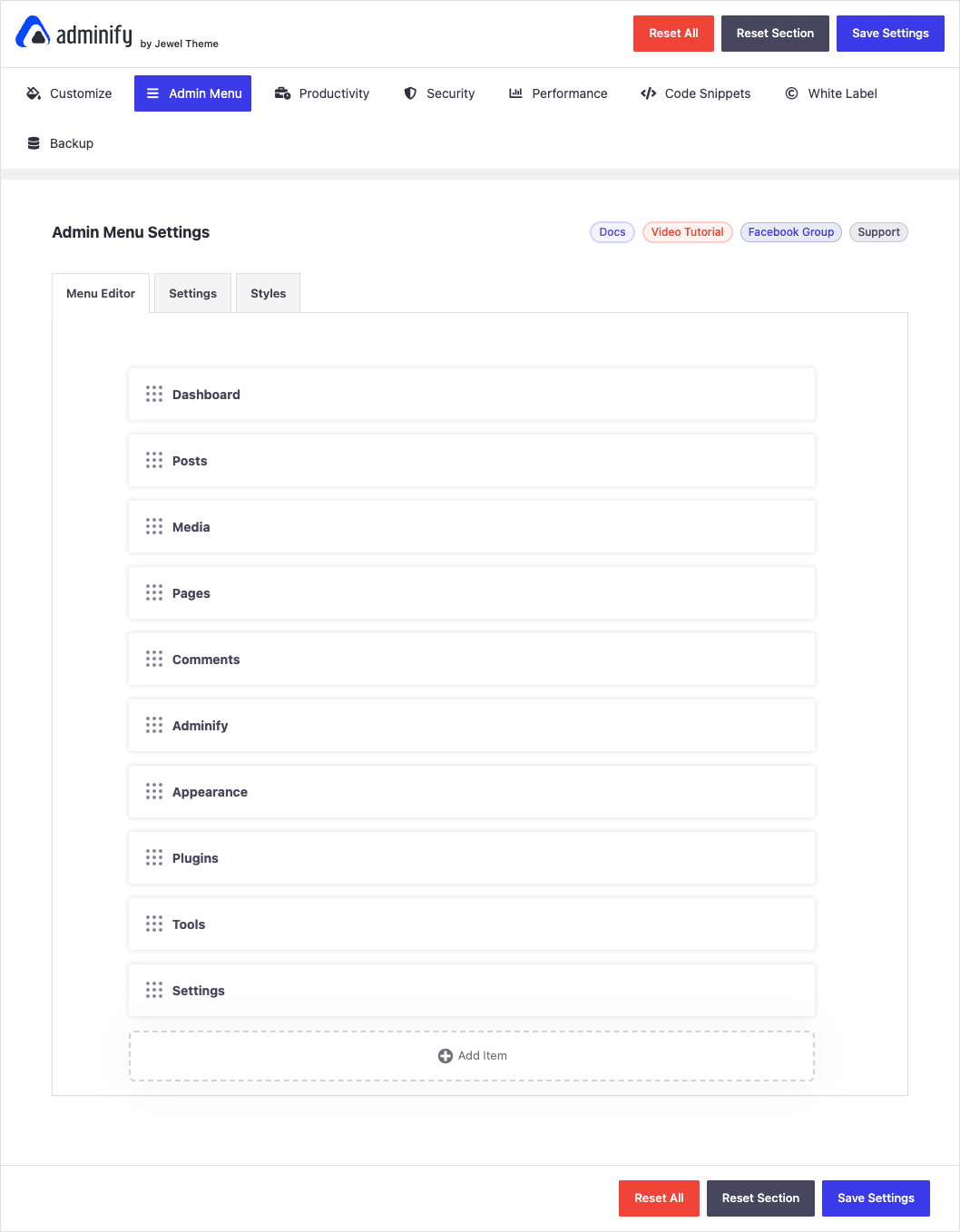
What you can do per item:
- Reorder top-level menus and their submenus by dragging.
- Rename any item. "Posts" becomes "Articles", "Media" becomes "Files", whatever language your client speaks.
- Hide menus and submenus, with the important option to hide per user role. This is the difference between a clean editor dashboard and a client who calls you because they deleted a plugin.
- Custom icons. Assign any Dashicon or upload an SVG. The icon picker is searchable.
- Separators. Add a horizontal divider to group related items so the menu reads in sections rather than one long list.
- New items. Add a custom menu entry that links to an internal admin page, an external URL, or a page-builder page. You can set it to open in a new tab.
The Settings sub-tab controls behavior (collapse rules, which roles the editor applies to), and the Styles sub-tab is where the menu styling lives: colors, hover states, spacing, and a horizontal menu layout if you want the admin nav across the top instead of down the side.
A word of caution that the UI doesn’t shout loudly enough: hiding a menu and restricting a menu are different things. Hiding only removes it from view. A user who knows the URL can still load the page. If you genuinely need to block access, you pair the menu hide with a real capability check (or the role-based visibility), not just the visual hide. More on that failure mode later, because it bites people.
If you’ve used Admin Menu Editor Pro before, this will feel familiar. WP Adminify’s editor covers the same core ground (reorder, rename, hide, icons, per-role) inside a suite that also does login branding and white-label, where Admin Menu Editor does the menu and stops there.
Login Customizer (Loginfy)
The login screen is the first thing a client sees, and by default it’s the WordPress logo linking to wordpress.org. For an agency build that’s a missed branding chance.
WP Adminify’s login designer is called Loginfy, and in the premium suite it’s available as one of the bundled addons (you’ll see it in Adminify -> Addons alongside Admin Bar Editor, RoleMaster Suite, Activity Logs, and the rest).
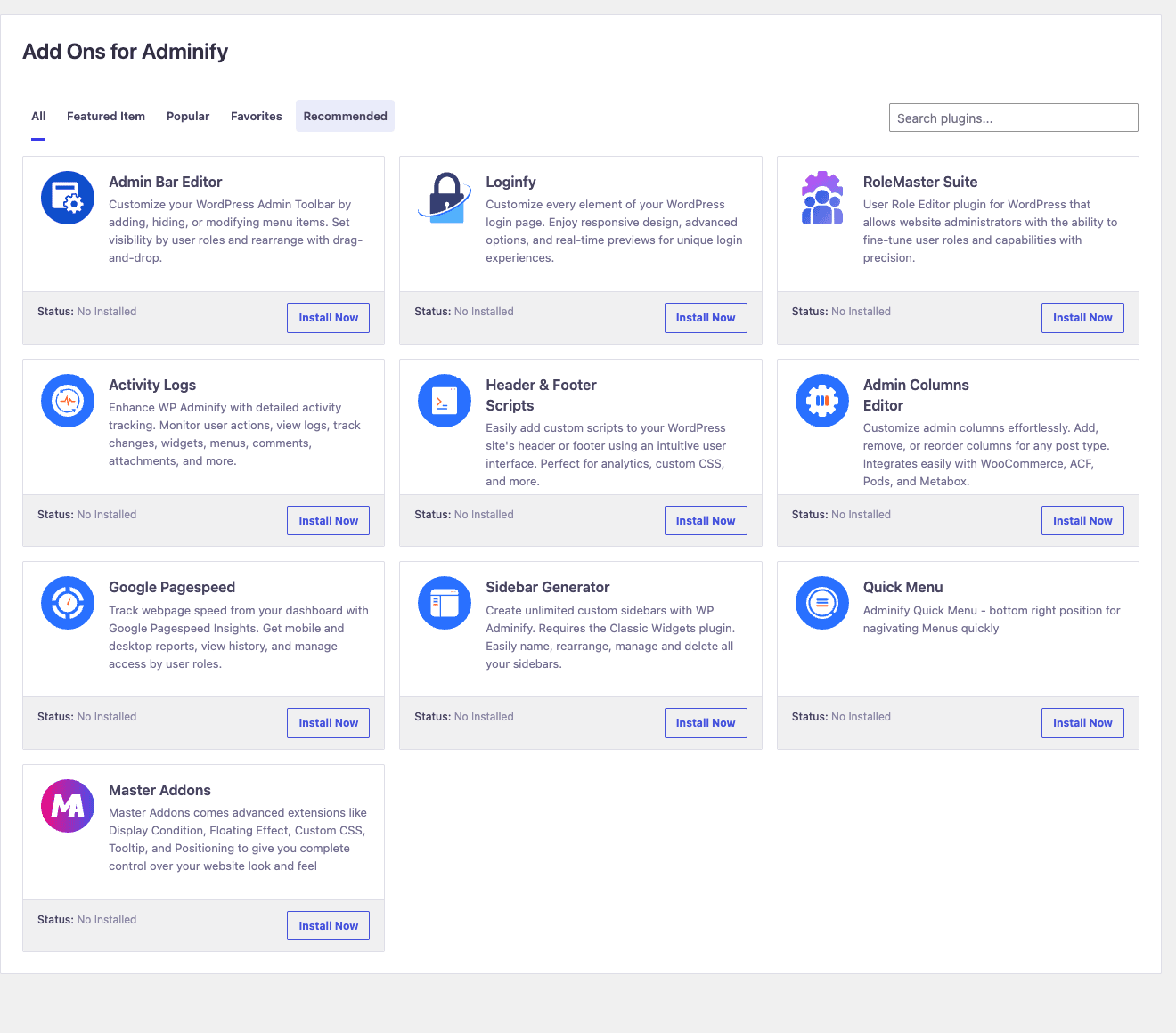
Loginfy lets you:
- Upload a custom logo for the login form (and fix the logo link so it points at the client’s site, not wordpress.org).
- Set a background: solid color, gradient, a single image, or a slideshow.
- Style the form itself: width, background color, border radius, and shadow.
- Recolor and relabel the submit button.
- Drop in custom CSS for anything the controls don’t cover.
It ships with a few starter templates so you’re not designing from a blank canvas. The result is a login page that matches the client’s brand instead of WordPress’s. Small touch, big perception difference when you’re charging agency rates.
White Label and the agency features
If the menu editor is the most-used module, white-label is the one that justifies the price for client work. This is where WordPress stops looking like WordPress.
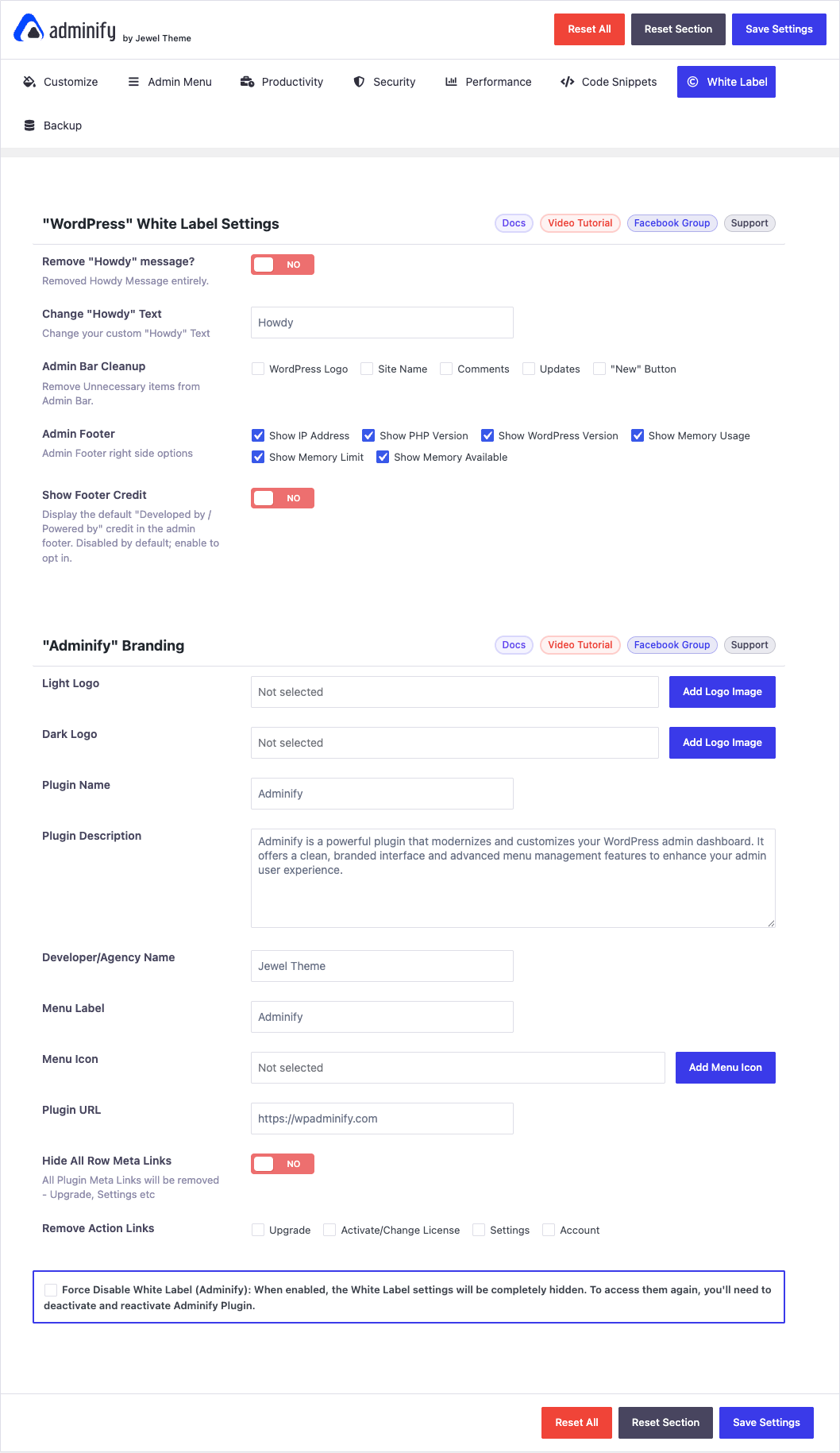
The White Label tab splits into two halves. The first, WordPress White Label Settings, strips and rebrands core chrome:
- Remove the "Howdy" message or change its text to anything you like.
- Admin Bar Cleanup: remove the WordPress logo, the site name, the comments bubble, the updates counter, and the "+ New" button from the top toolbar.
- Admin Footer: replace the "Thank you for creating with WordPress" footer and choose which right-side info shows (IP address, PHP version, WordPress version, memory usage and limit, available memory). Handy for support, or hide it all for clients.
- Show Footer Credit: an optional "Powered by" line, off by default.
The second half, Adminify Branding, white-labels the plugin itself. This is the clever bit. You can:
- Set a light and dark logo that replaces the Adminify logo in the admin.
- Rename the plugin entirely. Change "Adminify" to "Acme Tools" in the plugins list, the menu, and the description. A client browsing their plugins list never sees the word Adminify.
- Change the Developer/Agency Name, the Menu Label, the Menu Icon, and the Plugin URL so it links to your agency.
- Hide all row meta links (Upgrade, Activate License, Settings, Account) so clients can’t poke at licensing.
There’s even a "Force Disable White Label" option, and pay attention to the fine print on it: once you fully hide the white-label settings, the only way back in is to deactivate and reactivate the plugin. Don’t lock yourself out.
This combination, rebranded plugin plus rebranded admin chrome plus custom login, is the whole agency value proposition. The client logs into a dashboard that looks bespoke. If you’ve reached for WPMU DEV’s Ultimate Branding for this in the past, WP Adminify covers the same branding surface and adds the menu editor and dashboard tools in the same plugin.
Custom dashboard widgets
The default WordPress dashboard is a graveyard of widgets nobody reads: WordPress news, Quick Draft, At a Glance, Activity. WP Adminify lets you clear those out (under Productivity -> Widgets Removal) and replace them with widgets that actually help the client.
The custom dashboard widget builder can render five kinds of content, each confirmed in the plugin’s code:
- An RSS feed widget (pull in your agency blog or a support feed).
- A video embed (a "start here" walkthrough for new clients).
- A script widget (raw HTML/JS, for an embedded form or status board).
- A shortcode widget (drop any plugin’s shortcode straight onto the dashboard).
- An icon widget (a styled link block with an icon, good for "Contact Support" buttons).
For a client handoff this is gold. The first thing they see after login can be a welcome video and a "Need help? Email us" block instead of WordPress news from a blog they don’t follow. I usually pair a video widget with a shortcode widget pointing at a contact form, and remove every default panel.
Custom Admin Pages
This is the feature most people don’t realize is in here. Turn on Admin Pages under Productivity and WP Adminify registers a custom post type (adminify_admin_page under the hood) that lets you build entire admin screens with the block editor or your page builder.
So you can create a top-level or sub-level menu item that opens a page you designed in Gutenberg, Elementor, Bricks, Oxygen, or Divi, rendered right inside the WordPress admin. A "Getting Started" page. A "Brand Assets" download page. An internal documentation hub for the client’s team. The page builder you already use builds it; Adminify mounts it in the menu.
The submenu position is filterable (it defaults to slot 6), and the capability required to manage these pages runs through a filter too, so a developer can open them up to editors instead of admins. It’s a genuinely flexible way to ship client-facing documentation without coding a settings page by hand.
Custom Admin Columns
List tables in WordPress are useful but stingy with what they show. WP Adminify’s Custom Admin Columns module (toggle it under Productivity) lets you add, remove, and reorder the columns on any post type or custom post type’s list view.
The headline ability is showing custom field values as columns. Got an ACF "Author Bio" field, a MetaBox price, a Pods rating? Surface it as a sortable column in the post list. For WooCommerce, you can show SKU, stock status, price, or weight directly in the products table so you’re not opening each product to check stock.
If you live in WordPress list tables all day and need the deepest column tooling (sorting, filtering, inline edit, smart filters across dozens of integrations), the dedicated Admin Columns Pro is still the more powerful tool, and we cover it in our Admin Columns Pro walkthrough. WP Adminify’s column editor is the convenient, good-enough version bundled with everything else. For most client sites it’s plenty.
Dark mode and dashboard skins
On the Customize tab you get the visual side of the admin. WP Adminify ships pre-built dashboard skins (Light, Dark, Gradient, and a Glass morphism look), an Adminify UI toggle that applies the plugin’s restyled dashboard, and a body-font picker.
The piece I actually use is dark mode with a per-user preference. Each user can flip a Light/Dark switcher in the admin bar and the choice sticks for their account, so your night-owl editors get dark mode without forcing it on everyone. There’s also a scheduling option: set the admin to switch to dark mode automatically between, say, 8pm and 7am.
The Customize tab also holds smaller touches: a custom admin favicon, a replacement logo for the Gutenberg editor’s top-left corner, and post-status background colors so draft, pending, scheduled, and trashed posts get color-coded rows in the list view. None of these are essential. They’re the kind of polish that makes a handoff feel finished.
Disable comments, hide notices, clean the admin bar
A cluster of modules exists purely to remove noise, and on client sites this is half the value.
Disable Comments (Security tab) switches comments off globally or per post type. When you disable them, existing comments get hidden on the front end too, the comment menu item disappears, and the discussion settings stop nagging. For a brochure site that never wanted comments, this is one toggle instead of the separate Disable Comments plugin a lot of us have installed a hundred times.
Hide Admin Notices (Productivity tab) is the one that earns gratitude. Every plugin you install thinks its upgrade nag deserves the top of your dashboard. Adminify can collect those notices out of the main view so the dashboard stays clean. It moves them rather than nuking them entirely, so they’re recoverable, but the day-to-day admin stops looking like a billboard.
Admin Bar Cleanup (under White Label) trims the toolbar: drop the updates counter, the comments bubble, the "+ New" dropdown, or the WordPress logo. Combined with hiding Screen Options and the Help tab (another Productivity toggle), you get an admin bar that shows the client only what they need.
Security and performance toggles
WP Adminify is not a security plugin, and I want to be clear about that before listing what it does. It won’t scan for malware, it won’t firewall bad requests, and it shouldn’t replace a real tool like Wordfence or Solid Security. What it offers is admin hardening and cleanup.
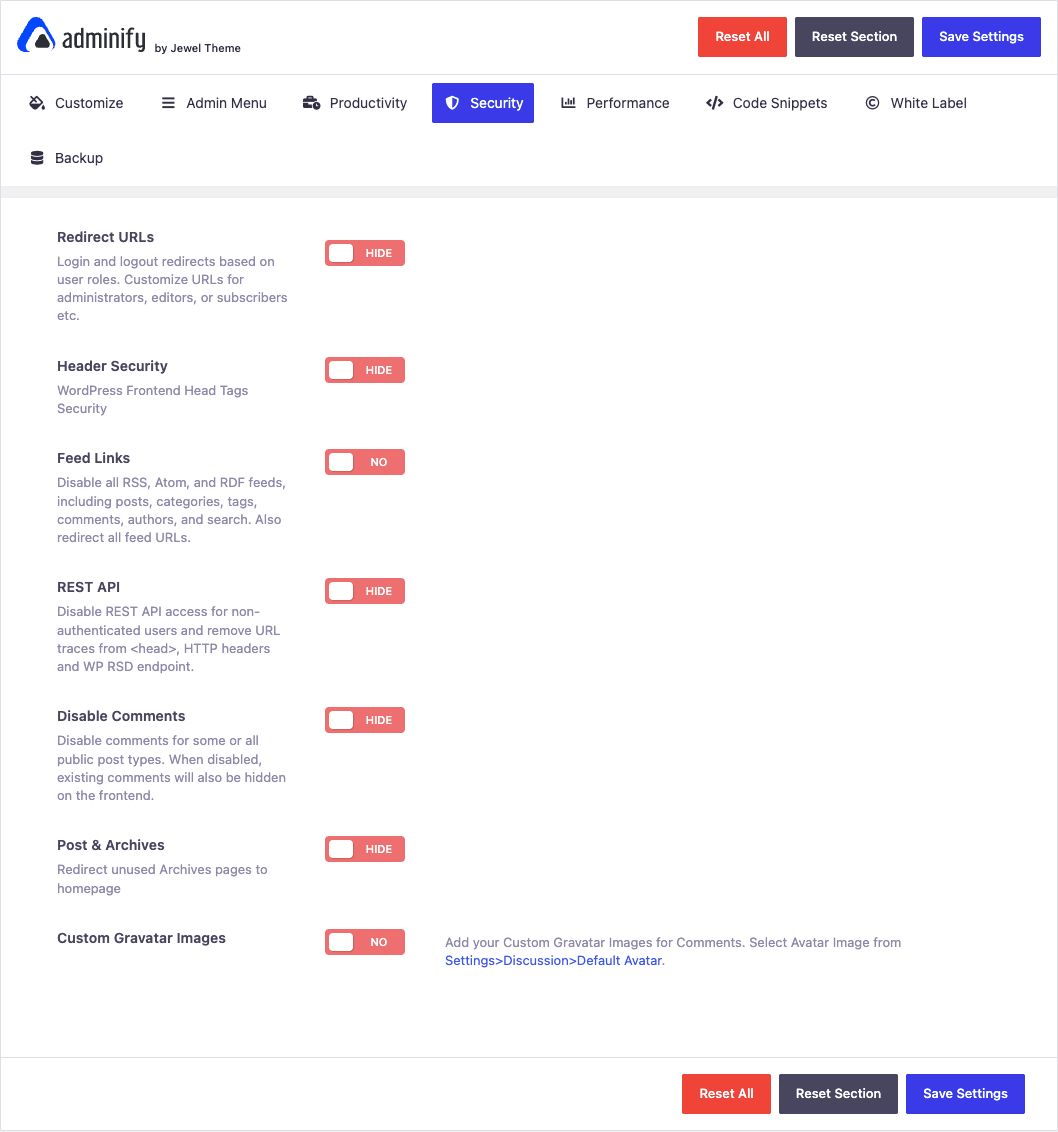
On the Security tab:
- Redirect URLs: role-based login and logout redirects. Send subscribers to their account page, editors to the posts list, admins to the dashboard.
- Header Security: strip front-end head tags (RSD, WLW Manifest, shortlinks, the generator tag) that leak information or just clutter the source.
- Feed Links: disable RSS, Atom, and RDF feeds across posts, categories, tags, authors, and search, and redirect feed URLs.
- REST API: block REST access for unauthenticated users and remove the REST URL traces from
<head>, HTTP headers, and the WP RSD endpoint. - Post & Archives: redirect unused archive pages to the homepage.
- Custom Gravatar Images: set a custom default avatar.
There’s also a change-the-login-URL control and a login-attempt limiter to reduce brute-force exposure, plus username-change tooling that fires a developer hook when a username is changed.
The Performance tab leans toward front-end cleanup:
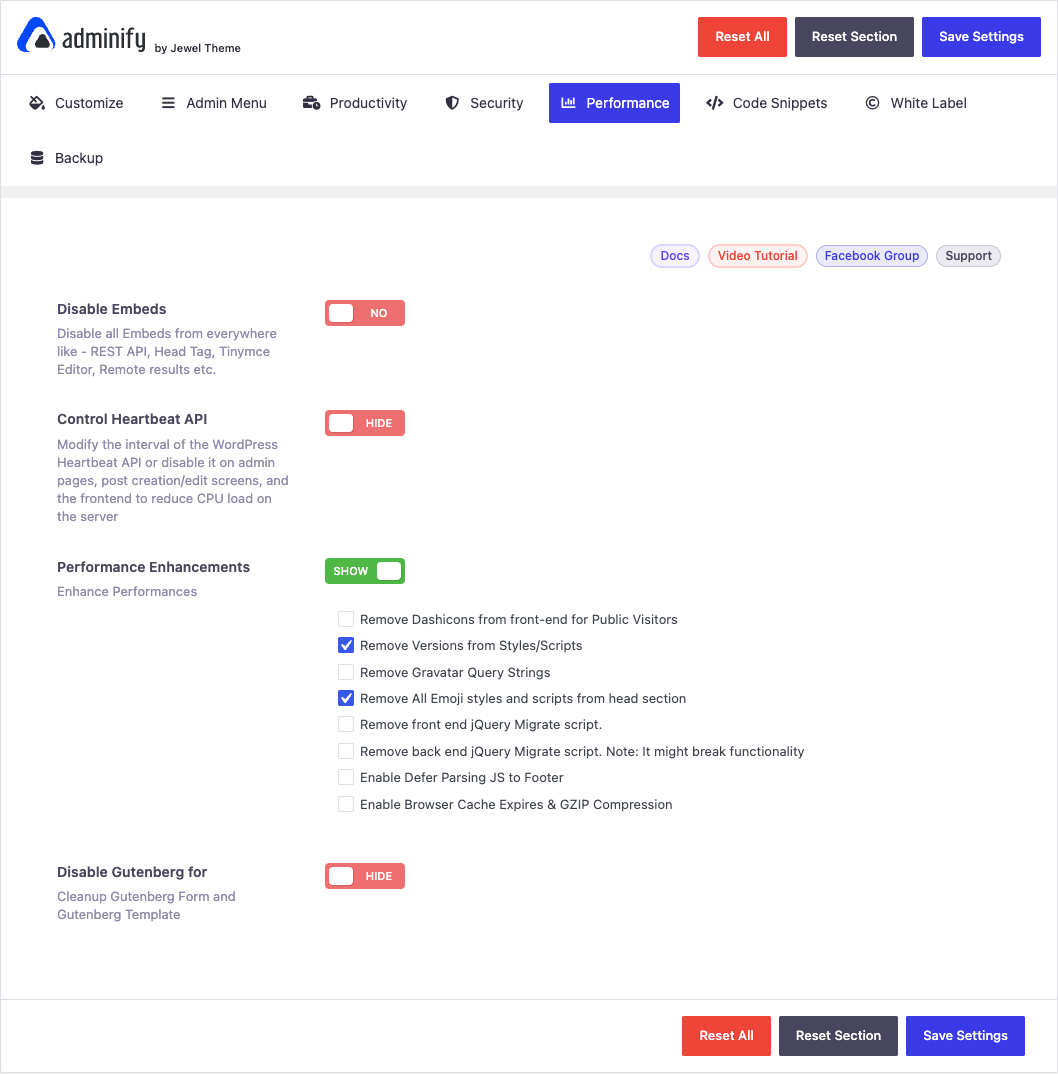
- Disable Embeds (oEmbed everywhere: REST, head, TinyMCE).
- Control Heartbeat API: throttle or disable the WordPress heartbeat per area (admin, post editor, front end) to cut CPU on cheap hosts.
- Performance Enhancements: remove version query strings from styles/scripts, strip emoji scripts, remove jQuery Migrate (front or back end), defer JS to the footer, and enable browser cache expiry plus GZIP via server rules.
- Disable Gutenberg per post type if a client’s workflow is Classic-Editor only.
These overlap with what a dedicated performance plugin does. If you’re already running WP Rocket or Perfmatters, let those own GZIP, heartbeat, and head cleanup, and leave Adminify’s performance toggles off to avoid double-handling. Adminify’s job here is admin UX, not being your cache layer.
Media folders, replace media, and redirects
Three smaller modules round out the suite.
Media Folders (the "Folders" toggle under Productivity) adds a drag-and-drop folder tree to the media library so you can organize uploads instead of scrolling an endless grid. Folders show up inside the Elementor media picker and the Classic Editor popup too, which is the part that makes them actually usable mid-edit.
Replace Media lets you swap any image or file in place while keeping its original URL and attachment ID. If a client sends a corrected logo, you replace the file and every page that referenced it updates, no broken links, no re-inserting. This alone saves the "why is the old logo still showing" support ticket.
Redirect URLs (the module, distinct from the login redirects) is a small redirect manager for setting up 301s without a separate redirects plugin. It’s not a full-featured redirect tool, but for a handful of moved-page redirects it does the job inside the same admin.
Developer reference: hooks and filters
WP Adminify is mostly point-and-click, but it exposes a real set of hooks for developers who want to extend or gate its behavior. Everything below is in the plugin source. Note the prefix: the internal hooks use pxlbsadminify, which trips people up the first time.
Filter the capability that gates Adminify features
Many of Adminify’s gates (including the custom Admin Pages post type’s capabilities) pass through one filter. Change manage_options to something else and you can open features to editors:
add_filter( 'pxlbsadminify_capability', function ( $cap ) {
    // Let editors manage Adminify-built Admin Pages, not just admins.
    return 'edit_pages';
} );
Move the Admin Pages submenu position
Custom Admin Pages mount at submenu slot 6 by default. Override it:
add_filter( 'pxlbsadminify_submenu_position', function ( $position ) {
    return 2; // push the Admin Pages link higher in the menu
} );
Restrict which roles see a custom Admin Page
add_filter( 'pxlbsadminify_admin_page_user_roles', function ( $roles ) {
    $roles[] = 'shop_manager'; // expose Admin Pages to WooCommerce shop managers
    return $roles;
} );
Swap a menu icon programmatically
The menu icon for any item runs through a filter, and there’s a per-icon variant keyed by the icon slug:
add_filter( 'pxlbsadminify_menu_icon', function ( $icon ) {
    return 'dashicons-analytics';
} );
Hook the admin menu before Adminify renders it
If you build a horizontal admin nav or post a custom menu, these filters hand you the live $menu and $submenu arrays:
add_filter( 'pxlbsadminify_adminmenu_menu', function ( $menu ) {
    // Remove a stray third-party menu item before Adminify lays it out.
    foreach ( $menu as $key => $item ) {
        if ( isset( $item[2] ) && 'some-plugin-slug' === $item[2] ) {
            unset( $menu[ $key ] );
        }
    }
    return $menu;
} );
There’s a sibling pxlbsadminify_adminmenu_submenu for submenus and pxlbsadminify_post_menu that fires after the menu is assembled.
Add a menu separator with custom markup
The menu editor’s separators pass through a filter so you can control their attributes:
add_filter( 'pxlbsadminify/menu_editor/add_separator', function ( $name_attr, $separator ) {
    // Tag separators with a data attribute for custom CSS targeting.
    return $name_attr . ' data-agency-sep="1"';
}, 99, 2 );
Control multisite settings cloning
When you copy Adminify’s settings from one site to another in a network (the Backup tab), the list of option modules to copy is filterable. Use it to exclude site-specific settings from a bulk push:
add_filter( 'adminify_clone_blog_options', function ( $modules, $from, $to, $exclude ) {
    // Never overwrite the destination site's white-label logos.
    return array_diff( $modules, array( 'white_label' ) );
}, 10, 4 );
Action hooks
Two action hooks are worth wiring into:
// Fires after Adminify finishes loading. Safe place to register your own modules.
add_action( 'pxlbsadminify_loaded', function () {
    // your bootstrap here
} );

// Fires when a username is changed via Adminify's user-security tooling.
add_action( 'pxlbsadminify_username_changed', function ( $old, $new ) {
    error_log( "Adminify renamed user {$old} to {$new}" );
}, 10, 2 );
Dashboard widget render hooks
The custom dashboard widget types each fire a render action, so you can post-process or wrap their output:
add_action( 'pxlbsadminify_dashboard_widgets/render_rss_feed', function ( $value ) {
    // inspect or augment the RSS widget payload before it renders
}, 5 );
There’s a matching render_video, render_script, render_shortcode, and render_icon for the other widget types.
A note for developers: WP Adminify does not register any public shortcodes, and it doesn’t add custom REST routes (it can remove some, like the Gutenberg block routes, but it doesn’t expose its own). So don’t go looking for an adminify/v1 namespace. Its extensibility is hooks, filters, and the adminify_admin_page custom post type, not an API surface.
Troubleshooting the problems people actually hit
Every admin-customization plugin causes the same handful of headaches. Here are the real ones and the exact fix.
You white-labeled too hard and can’t find the Adminify settings. If you used the "Force Disable White Label" option, the settings panel is genuinely hidden. The only documented way back is to deactivate and reactivate the plugin from Plugins. If you also renamed and hid the plugin’s row meta, find it by its renamed name in the plugins list. The fix is in the plugin source’s own warning text, so read that toggle’s description before you flip it.
You hid a menu item you now need back. Menu hides live in the Admin Menu editor. Go to Adminify -> Settings -> Admin Menu -> Menu Editor, find the item (hidden items are marked, not deleted), and un-hide it. If you somehow can’t reach the Adminify settings because you hid that, disable the plugin temporarily, fix the toggle, reactivate.
A menu is hidden but the client still reached the page. That’s expected. Hiding is visual only. To actually block access you need the role-based visibility set correctly, or a real capability check. Don’t treat the menu hide as a security boundary.
Settings won’t save. This is almost always a server limit. Adminify stores a lot of options in a single serialized blob, and a low PHP max_input_vars (the default 1000 is too low for big menu trees) silently drops fields on save. Raise max_input_vars to 3000 in php.ini or ask your host. A low post_max_size can do the same on the menu editor.
Conflict with another admin-menu or white-label plugin. Running WP Adminify alongside a second menu editor (Admin Menu Editor, Adminimize) means two plugins fighting over $menu and $submenu. The menu will flicker or order unpredictably. Pick one. The whole point of a suite is that you uninstall the single-purpose plugins it replaces.
Freemius license or activation trouble. WP Adminify uses the Freemius SDK for licensing and updates. If updates don’t appear or a feature says it’s locked, the license connection is the culprit. Validating a license pings Freemius with your site URL and environment details. On a GPL install you generally ignore the licensing prompts and the Pro modules still run, but if a feature gates itself, that’s the Freemius layer.
Fatal error on activation with an old PHP version. The plugin requires PHP 7.4 or newer. On a host still serving PHP 7.2 you’ll get a white screen. Bump PHP in your hosting panel.
Compatibility: hosting, multisite, page builders
Hosting and PHP. PHP 7.4 minimum, and it’s tested against current WordPress. It runs fine on shared hosting since it only loads on admin pages, though the settings-save limit (max_input_vars) is the one shared-host gotcha to watch.
Multisite. White-label and most modules work network-wide, and the Backup tab’s settings-clone feature (with the adminify_clone_blog_options filter) is built for pushing a consistent admin config across a network of sites. If you run a multisite agency setup, this is one of the stronger reasons to pick Adminify over single-site tools.
Page builders. The Custom Admin Pages module explicitly supports Gutenberg, Elementor, Bricks, Oxygen, and Divi for building admin screens, and Media Folders surface inside the Elementor media picker. If you build with Elementor or Bricks, those integrations are first-class, not afterthoughts.
WooCommerce. Custom Admin Columns supports WooCommerce product fields (SKU, stock, price, weight), and disabling comments respects WooCommerce reviews as a separate concern, so you won’t accidentally kill product reviews when you disable blog comments.
Known conflicts. The predictable one is any other admin-menu or white-label plugin, for the reason above. Beyond that, a second plugin that aggressively rewrites the dashboard (some all-in-one admin themes) can clash with Adminify’s UI skin. Turn off the Adminify UI toggle if you’re keeping a different admin theme.
Don’t white-label so hard your client can’t get help
Here’s a mistake I’ve made, so you don’t have to. On an early agency build I went all in on white-label. I renamed every plugin, hid all the update notices, stripped the version numbers from the footer, removed the plugins-list row meta, and disabled the WordPress news widget. The dashboard looked beautifully, completely bespoke.
Then the client emailed: "the contact form stopped working." I asked which plugin handles the form. They had no idea, because I’d renamed it to "Acme Forms" and hidden its details. I asked what version of WordPress they were on. They couldn’t tell me, because I’d hidden the footer that shows it. I asked if there were pending updates. They couldn’t see any, because I’d hidden every update notice.
What should have been a five-minute fix turned into a screen-share where I logged in myself to find out what I’d hidden from my own support process. The aggressive white-label didn’t just hide WordPress from the client. It hid the diagnostic information I needed to help them.
The lesson: white-label for polish, not for blackout. Keep the footer’s WordPress and PHP version visible (or at least visible to admins). Don’t hide all update notices, hide the promotional nags and keep the security ones. When you rename a plugin, keep a private map of what’s actually installed. And never hide your own "Need help?" widget. The whole reason you white-label is to look professional to the client. A professional can still answer "what broke and why" in under a minute. Over-hiding trades a prettier dashboard for slower support, more billable confusion, and a client who trusts you less when something inevitably breaks. Money and trust both leak out of that trade. White-label the chrome. Keep the diagnostics.
WP Adminify vs Admin Menu Editor Pro vs White Label CMS vs Ultimate Dashboard
The honest way to evaluate WP Adminify is to compare it against the single-purpose plugins it consolidates, because that’s the real decision: one suite, or a stack of focused tools?
Admin Menu Editor Pro is the gold standard for the menu alone. It does reorder, rename, hide, per-role visibility, and drag-and-drop better and deeper than anyone, with finer permission controls. It costs roughly $39 per year for a single site, and it does exactly one thing: the menu. No login customizer, no white-label, no dashboard widgets. If menu management is your only need, it’s the sharper tool.
White Label CMS is a free, long-standing plugin focused on branding: login logo, dashboard panels, footer text, hiding menu items. It’s genuinely good and costs nothing. But it has no drag-and-drop menu editor, no custom admin pages, no media folders, and no dark mode. It’s branding, and that’s the edge of its scope.
Ultimate Dashboard Pro specializes in replacing the WordPress dashboard with custom icon widgets and tidying the admin. Its Pro tier runs around $89 to $99 per year. It’s excellent at the dashboard, weaker on menu editing and login branding.
WP Adminify Pro bundles all of those jobs plus more (media folders, replace media, custom admin columns, security and performance toggles, scheduled dark mode) into one plugin, with single-site pricing that starts in the same neighborhood as one of those specialists.
The math that matters: to match WP Adminify with specialists you’d stack roughly three to five plugins. Admin Menu Editor Pro ($39/yr) plus Ultimate Dashboard Pro ($89/yr) plus White Label CMS (free) plus a comments plugin plus a media-folders plugin. That’s $128 per year in licenses for the paid two alone, against a single WP Adminify license, plus five plugins to update and five potential conflict surfaces instead of one. WP Adminify replaces five-ish single-purpose plugins with one codebase. The trade-off is that each individual module is good rather than best-in-class. For agency volume, one good suite usually beats five best-in-class tools you have to maintain separately.
Pricing and licensing
WP Adminify sells in tiers, priced by the number of sites you can activate on. The structure is the usual single-site, multi-site, and unlimited/agency ladder, with the higher tiers unlocking the full addon roster (Loginfy, RoleMaster Suite, Activity Logs, and the rest) and priority support. There’s a free version on the WordPress.org repo that covers basic white-labeling (logo, footer, admin bar) and a stripped menu editor, which is enough to evaluate the workflow before committing.
Licensing runs through Freemius, which handles activation and automatic updates. That’s worth knowing because it’s the layer that occasionally needs attention if updates stop appearing.
The version on GPL Times is the full WP Adminify Pro suite, the same premium codebase with every module unlocked, delivered through the GPL store. If you want to wire up a client dashboard and test the white-label and menu modules on a real install before you commit to the vendor’s per-site pricing, that’s the fastest path to a working copy of every Pro feature.
FAQ
Does WP Adminify slow down the WordPress admin or my site?
Your front end is untouched, because Adminify only loads on admin pages. The admin itself can feel slightly heavier if you turn on the full Adminify UI skin plus several modules, since that’s extra CSS and JS on the dashboard. The fix if you notice lag is to leave the Adminify UI toggle off and only enable the modules you use. The toggle model means disabled modules don’t load.
Will hiding a menu item lock me out of it permanently?
No. Hidden items are marked, not deleted, and you un-hide them from the Menu Editor. The only way to truly lock yourself out is the "Force Disable White Label" option, and even that is recoverable by deactivating and reactivating the plugin. Hiding a menu is also purely visual, so it isn’t a security control, just a tidiness one.
Does it work on multisite, and can I white-label a whole network?
Yes. White-label and most modules operate network-wide, and the Backup tab can clone Adminify’s settings from one site to others, which is exactly the workflow for branding a network consistently. There’s a developer filter (adminify_clone_blog_options) to control what gets copied so you don’t overwrite per-site logos.
Is WP Adminify a security plugin? Can it replace Wordfence?
No, and don’t treat it as one. Its security tab does admin hardening (login URL change, login attempt limiting, REST and feed restrictions, head cleanup), which reduces some exposure, but it doesn’t scan for malware or firewall traffic. Keep a real security plugin like Wordfence or Solid Security for that job. Adminify’s tools are complementary, not a replacement.
What happens to my site if I uninstall WP Adminify?
Your menu reverts to its default order, the login screen goes back to the WordPress default, white-label branding disappears, and any custom admin pages you built (the adminify_admin_page posts) are no longer rendered as menu items. Your actual content (posts, pages, products) is never touched, because Adminify only changes admin presentation and behavior, not your data. Custom admin columns also revert to the WordPress defaults.
Can I give editors access to Adminify features without making them admins?
Yes, through the pxlbsadminify_capability filter. It governs the capability check on Adminify’s gated features (including the custom Admin Pages CPT), so you can switch manage_options to a capability an editor has. That’s the clean way to let non-admins manage specific admin pages.
Does the GPL version get updates?
The GPL version is the same Pro codebase. Updates run through Freemius, and on a GPL install you typically ignore the license prompts while the Pro modules keep working. If a specific feature gates itself behind a license check, that’s the Freemius layer rather than the plugin’s own logic.
How is this different from just editing functions.php?
You can hand-code remove_menu_page(), a custom login CSS file, and wp_dashboard_setup tweaks yourself. The difference is maintenance and reuse. A point-and-click config you can export and clone across a network of client sites beats a functions.php you have to copy, edit, and debug per site, especially when a non-developer on your team needs to make a change. The suite trades a little overhead for a config anyone can manage.
Does it conflict with Elementor, Bricks, or Divi?
No, it complements them. The Custom Admin Pages module is built to render screens from those builders inside the admin, and Media Folders show up in the Elementor media picker. The only real conflicts are with other admin-menu or white-label plugins doing the same job, so don’t run two of those at once.
Is WP Adminify Pro worth it?
It depends on what you do with WordPress, and I’ll give you the straight version.
If you run a single personal site, skip it. You don’t need white-label, your menu is short, and the free version’s branding controls are already more than enough.
If you build sites for other people, WP Adminify Pro is an easy yes. The combination of a drag-and-drop menu editor, a real login designer, full white-label branding (chrome and the plugin itself), custom dashboard widgets, and a settings-clone tool for multisite is exactly the toolkit a client handoff needs, in one plugin you install and update once. The fact that each module is "good" rather than "best-in-class" stops mattering when the alternative is babysitting five separate plugins. The one discipline it asks of you is restraint: white-label for polish, not for blackout, so you can still support what you’ve built.
Set up a client dashboard with it, hide what they don’t need, brand what they see, and the WordPress admin finally stops looking like WordPress. For agency work, that’s the whole game. You can spin up the full WP Adminify Pro suite from GPL Times and try every module on a real install to see which ones earn a spot in your default client config.