

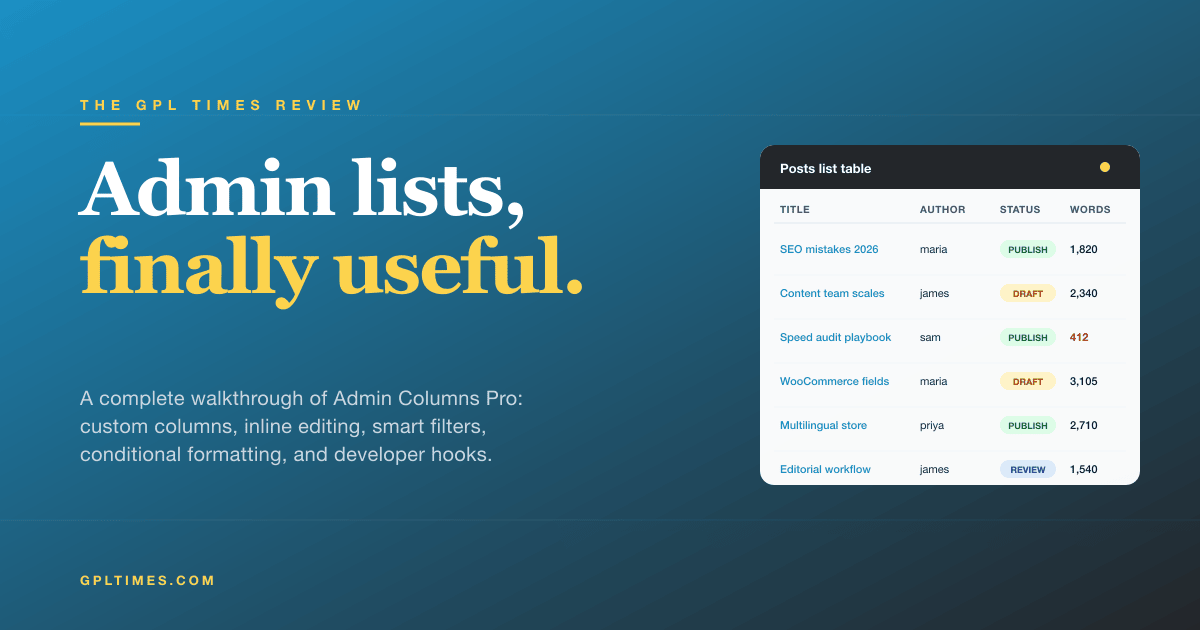
The WordPress admin has shipped with the same six post columns since the first version most of us remember. Title, Author, Categories, Tags, Comments, Date. That layout was fine when blogs had twelve posts. It stops being fine the moment you run a shop with three thousand products, or a content team with a real editorial pipeline, or a membership site where customer support needs to find one specific user fast. Admin Columns Pro is the plugin that fixes this without making you write a single line of manage_posts_columns. It is also, quietly, one of the most useful WordPress plugins I have ever installed.
This is a long review because the plugin does more than its name suggests. You will learn how to add useful columns to any list table, edit values in place without opening a single post, filter by anything that isn’t already filterable, export to CSV, and (for developers) tap into the same API the plugin uses for itself. I would call this the missing admin UI for WordPress, and I am not sure that is an exaggeration.
Table of contents
- What Admin Columns Pro actually is
- Why the default WordPress admin is rough
- Key features at a glance
- Installation and first run
- Customizing your first list table
- Inline editing and bulk editing
- Smart Filters and Saved Filters
- Table Views: one screen, many roles
- Conditional Formatting: surface what matters
- Export to CSV without an export plugin
- Real-world recipes I keep reusing
- Developer reference: hooks, filters, and integrations
- Performance, compatibility, and gotchas
- Pricing and where to get it
- FAQ
- Final thoughts
What Admin Columns Pro actually is
Admin Columns Pro replaces the default WordPress list tables (Posts, Pages, Users, Media, Comments, custom post types, taxonomies, WooCommerce orders and products, and so on) with a configurable version. It does this by reusing the same screens you already know, then giving you a UI that says "you can drop any of 90+ column types in here, drag them around, set widths, and turn each one into an editable, sortable, filterable, exportable field."
The plugin is built by AdminColumns.com, a Dutch team that has been shipping it since 2011. Version 7 is a full rewrite of the admin UI in React and Tailwind, which you can feel the moment you load it. Saves are instant. Drag handles are smooth. The sidebar layout makes sense. The previous version was already great. This one stops feeling like a plugin and starts feeling like part of WordPress.
There is a free version on the WordPress.org repository called Admin Columns which gives you the basic column-picker. The Pro version is where the real work happens: inline editing, bulk editing, smart filters, table views, conditional formatting, CSV export, and a long list of add-ons (ACF, JetEngine, Toolset, Pods, Meta Box, WooCommerce, BuddyPress, Gravity Forms, Yoast SEO, The Events Calendar, Ninja Forms, and a few more). If you only use the free version, you have my permission to be smug about the value, but you are also missing the parts most people install it for.
Why the default WordPress admin is rough
Here is the part of the article where most plugin reviews pretend the problem doesn’t need explaining. It does.
The default WordPress posts list shows you the title, the author, categories, tags, comment count, and the date. There is no column for word count. No column for featured image thumbnail. No column for ID. No column for the post’s slug. No column for last modified date, separate from publish date. No column for SEO score (Yoast or Rank Math both add one, but the rest of your fields stay invisible). No column for any ACF field. No way to bulk-edit anything except the few fields WordPress hard-coded into quick edit.
The users list is worse. You get username, name, email, role, and post count. That is it. If you are running a membership site and want to see when someone last logged in, what their billing city is, or which subscription level they belong to, you are out of luck unless you write code or install a plugin per metric.
The WooCommerce products list is closer to useful, but the moment you want to see stock value, variation counts, or SKUs in a sortable column, you are filtering through the wp_postmeta table by hand.
Admin Columns Pro does not invent these columns from nothing. It exposes them. Every field WordPress already stores, plus every field your other plugins store, plus every custom field, is a candidate column. You drag what you need to the table and save. That is the whole pitch.
Key features at a glance
- 90+ built-in column types for posts, pages, users, comments, media, taxonomies, and standard WordPress fields. Featured image, post ID, slug, word count, last modified, character count, attached media, parent page, sticky status, comment count breakdown, password protection flag. The list is long and most of it is "things I have wanted for years."
- Inline editing turns any column into an editable cell. Click the value, type the new one, hit enter. Saves over AJAX. Works with text, dropdowns, checkboxes, dates, and even taxonomies.
- Bulk editing lets you select rows and change a single field across all of them. Set 200 posts to "draft" or reassign their author or push a category onto everything in one keystroke.
- Smart Filters sit above the table and let you filter by any column you have added, combine filters, and save the result as a named view.
- Saved Filters are bookmarked filter combinations. "All draft posts by Maria modified this week" becomes a button.
- Table Views are multiple column layouts for the same screen. The shop manager and the editor can see two completely different posts lists from the same install, scoped by role.
- Conditional Formatting colors cells based on their value. Stock below 5? Red. SEO score under 60? Orange. Order total over $500? Green.
- Quick Add is an inline form at the top of the list that creates a new post (or user, or term) without leaving the screen.
- Sorting and resizable columns work on everything you add, including custom fields and meta values.
- CSV export of any list table, respecting the current filters and the visible columns. No "export plugin" needed.
- Add-on integrations for ACF, JetEngine, Toolset, Pods, Meta Box, WooCommerce, BuddyPress, Gravity Forms, Yoast SEO, The Events Calendar, Ninja Forms, and more. Each one exposes its plugin’s fields as columns.
- Storage on the filesystem (optional) instead of
wp_optionsfor sites with strict performance budgets or version-controlled settings. - Developer API with documented actions and filters, a column class you can extend, and a REST-friendly storage layer.
That is a lot of features. The next sections show how they hang together.
Installation and first run
If you grabbed the plugin from Admin Columns Pro on GPL Times, you have a single ZIP. The free Admin Columns plugin (from WordPress.org) is bundled inside, so you do not install both. Just upload the Pro ZIP via Plugins > Add New > Upload Plugin and activate.
On activation, you get a link in Settings > Admin Columns in the WordPress sidebar. Open it and you land on the columns editor. The first thing you see is the Posts list screen, pre-populated with the six default WordPress columns. That is your starting point.
The plugin runs only in wp-admin (there is a literal if ( ! is_admin() ) return; at the top of the main file), so it adds zero front-end load. No CSS, no JS, no extra queries on a public page. That matters for performance budgets and I respect that they ship it that way.
Below is the columns editor with the default Posts setup. The icons in each row turn editing, bulk editing, export, smart filtering, regular filtering, and sorting on or off for that column. The chevron on the right expands the column to reveal its settings.
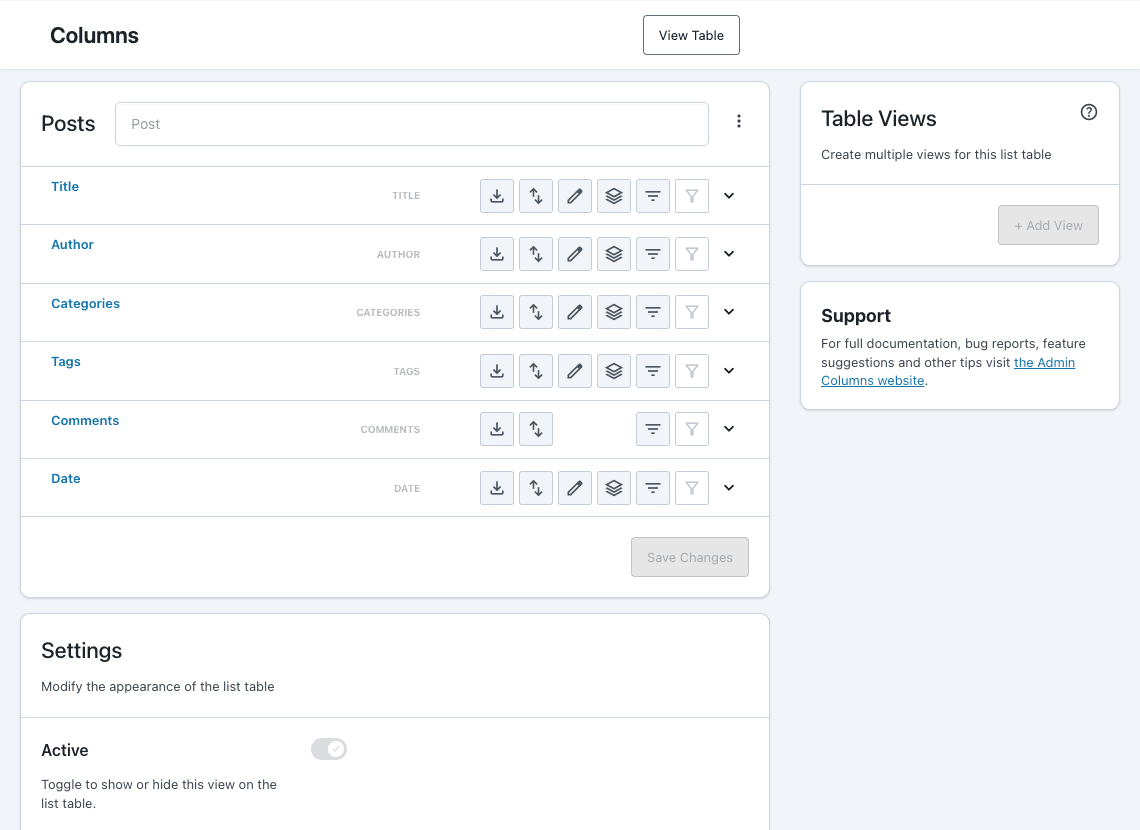
You configure each list screen individually. The dropdown at the top of the panel switches between Posts, Pages, Users, Comments, Media, custom post types, and any taxonomy or third-party screen the add-ons expose. WooCommerce orders gets its own panel. BuddyPress members get one. Each has its own column set, its own filters, and its own table views.
Customizing your first list table
Expanding a column gives you the full editor for it. This is where the plugin earns its name. Below is the Title column expanded with its options visible.
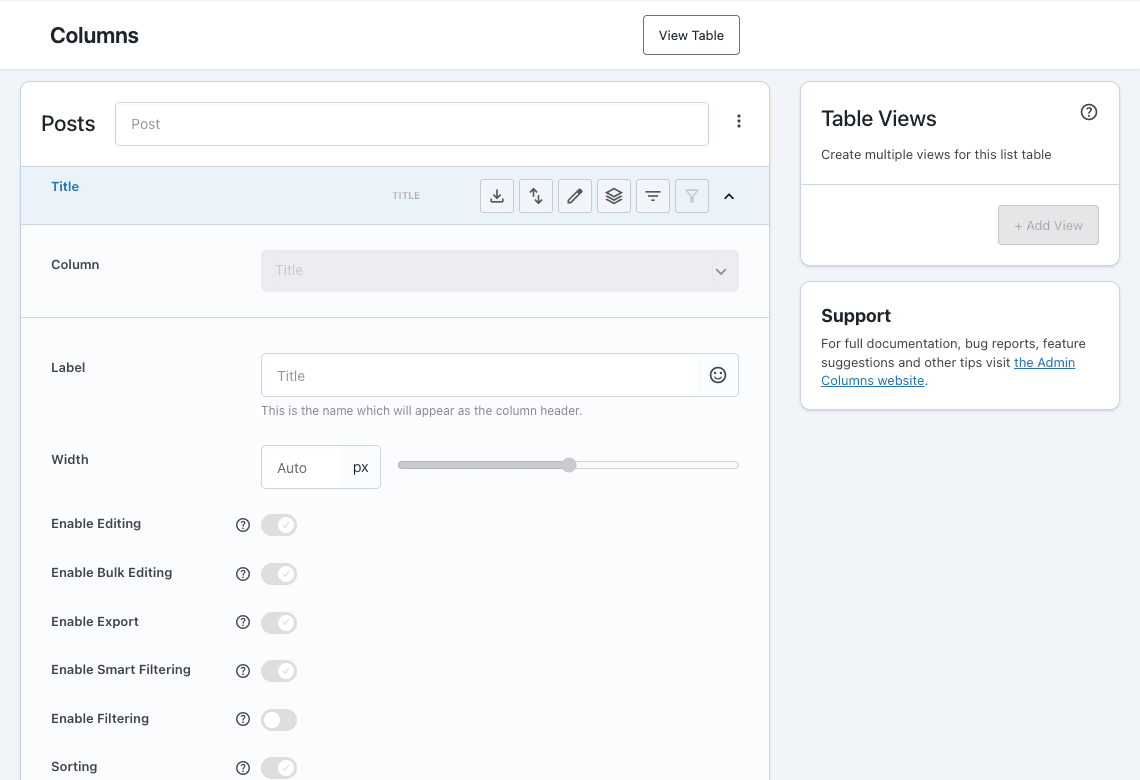
A few things to notice. Column is the data type, and that dropdown is where most of the magic lives. Open it on a posts table and you get over fifty options: Author, Categories, Tags, Comments, Date, Date Published, Last Modified, Featured Image, ID, Slug, Page Template, Sticky Status, Post Format, Word Count, Character Count, Status, Excerpt, Content, Attachments, Custom Field, Path, Word Count Difference, Permalink, Title Length, Author Name, Author Avatar, Author First Name, Author Last Name, Author Display Name. On users tables you get Username, Email, First Name, Last Name, Nickname, Display Name, Role, Posts (count), Comment Count, Registered Date, Last Login (with the Pro Login add-on), Avatar, Description, Website, ID, plus any user meta field. Each is a class in the codebase that knows how to render itself, sort itself, edit itself, and export itself.
Label is what shows in the table header. You can use any text, including emoji. There is a small emoji picker built in if you want a 📅 next to your Date column.
Width is either Auto or a fixed pixel value. The slider sets the width and the table respects it. This matters more than it sounds. When you put twelve columns on a list, controlling which ones get more horizontal space is the difference between a usable layout and a horizontal-scroll nightmare.
The toggles below are per-column feature switches:
- Enable Editing turns inline editing on for this column. Click the value in the table to edit it.
- Enable Bulk Editing adds the column to the bulk-edit panel that opens above the table when rows are selected.
- Enable Export includes this column in CSV exports.
- Enable Smart Filtering adds the column to the Smart Filters bar above the table.
- Enable Filtering adds a per-column filter dropdown in the column header (the classic WordPress-style filter).
- Sorting makes the column header clickable to sort.
You will not turn all of these on for every column. The fun part is realizing you can. I tend to enable editing on titles, slugs, statuses, dates, and ACF fields. I enable export on everything I might need to spreadsheet later. I enable smart filtering on anything I might need to slice by.
The lower half of the same admin page is the table-level settings. Below is what you see when you scroll past the columns list.
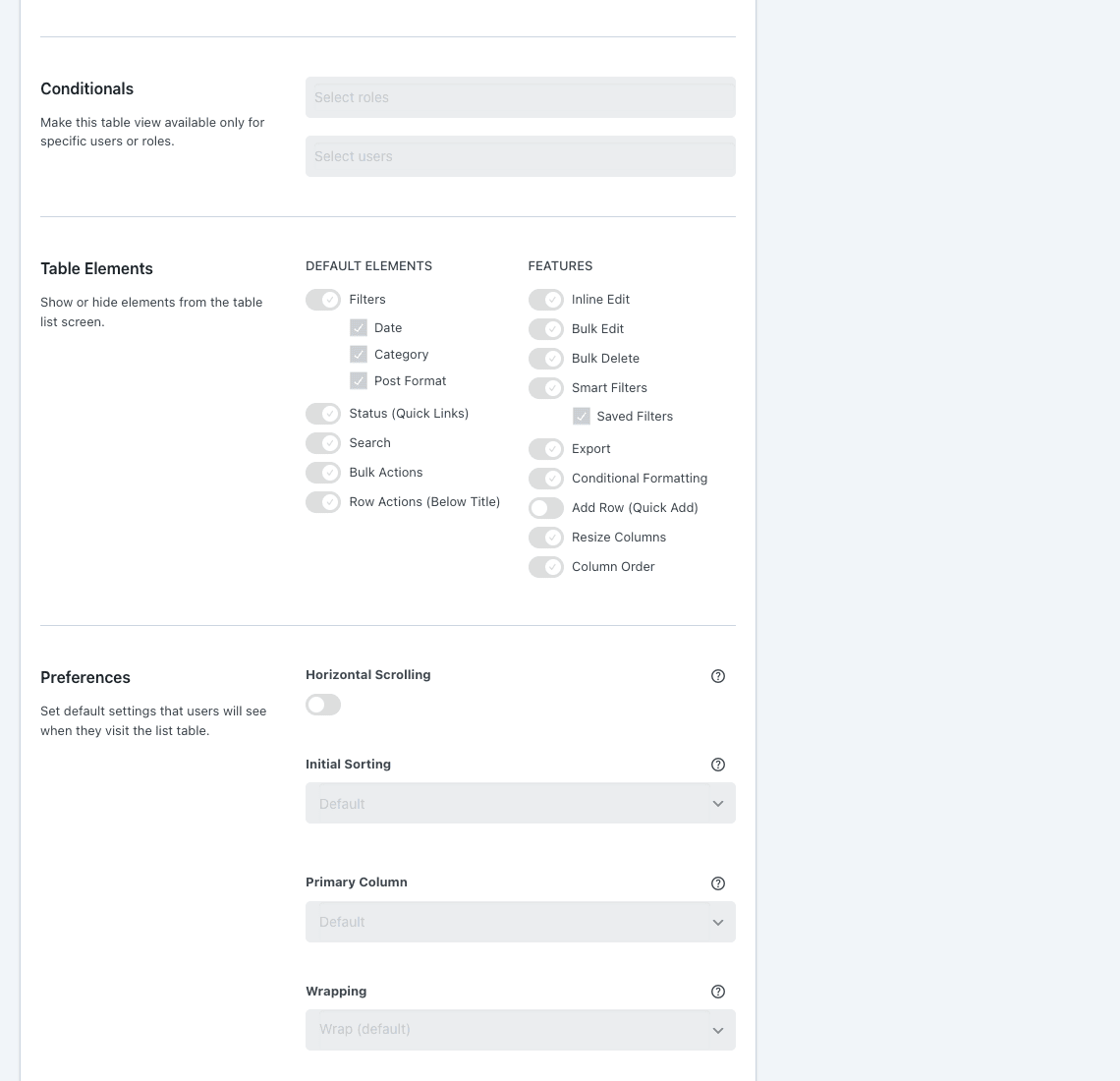
Here you decide which WordPress-native elements stay (Filters, Status quick-links, Search, Bulk Actions, Row Actions under the title) and which AC features are on for this table (Inline Edit, Bulk Edit, Bulk Delete, Smart Filters, Saved Filters, Export, Conditional Formatting, Quick Add, Resize Columns, Column Order). Preferences below them set Horizontal Scrolling, the Initial Sorting, the Primary Column (the one that shows quick links under it), and how cells wrap their content.
I want to highlight Horizontal Scrolling specifically. If you add many columns, the default WordPress behavior is to crush each cell or wrap text awkwardly. Turning on Horizontal Scrolling locks a sticky title column and lets the rest scroll sideways. It is the single thing that makes the WooCommerce products list bearable when you have inventory data, SKUs, attributes, and SEO scores in one view.
Inline editing and bulk editing
This is the feature people install Admin Columns Pro for, even if they tell themselves it was for the columns. Once you enable inline editing on a column, clicking the cell turns it into a control. Text becomes an input. Categories become a multi-select with a search field. Status becomes a dropdown. Featured Image opens the media library. Hit return or click outside and it saves via AJAX. No reload. No "Update post" click. No leaving the list page.
Below is the posts list with several custom rows. I added a handful of posts so the table feels lived-in instead of showing a single "Hello world" row. With inline editing enabled, every visible value is a click away from edit.
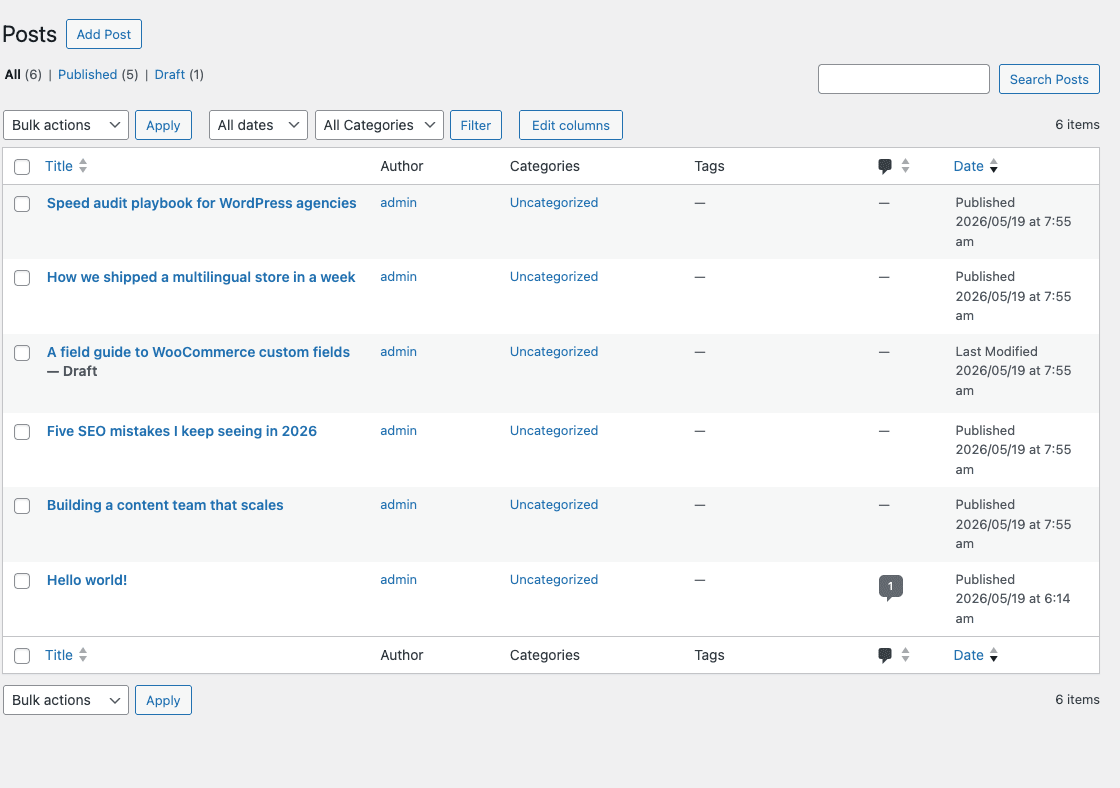
Bulk editing works on the same principle but for multiple rows at once. Select rows, click Bulk Edit, and a panel slides down where you pick which column to change and what to set it to. Apply runs the change against every selected row in a single batch. Move 200 posts from "draft" to "pending review." Reassign 50 customer accounts to a different role. Replace the category on 80 products without clicking each one.
A note on what this is and is not: WordPress core has bulk-edit too, but it is limited to a fixed set of fields (categories, tags, author, comments allowed, status, sticky). AC’s bulk edit can change anything that has a column, which means custom fields, ACF fields, taxonomies, custom post statuses, and so on.
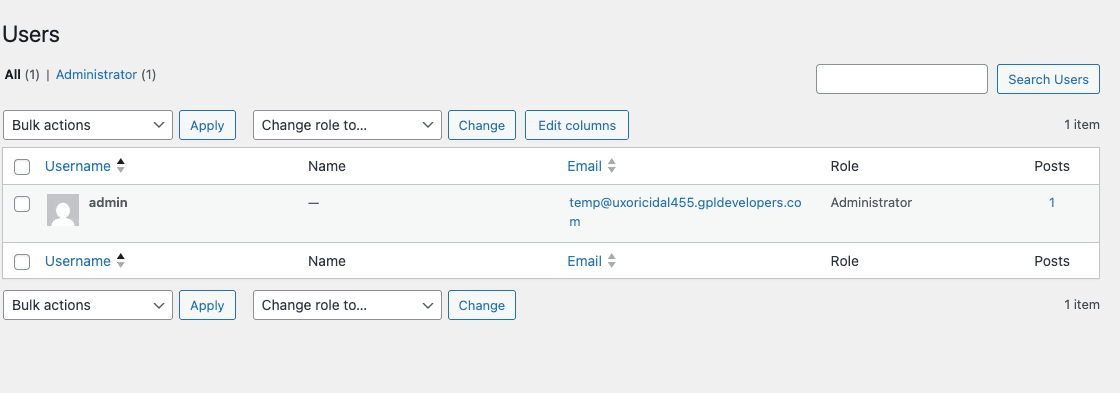
The users list is the place this hits hardest for me. The default users list is so thin it might as well not exist. With AC, I get user role, registration date, last login, post count, and any ACF or custom field on the user object, all editable in place. The screenshot below is the basic AC-enabled users list. Add any of the user meta you actually care about and this becomes the customer-support panel you have been faking with spreadsheets.
Smart Filters and Saved Filters
WordPress’s built-in filter dropdowns are limited (status quick-links, categories on posts, dates on most screens, and that is roughly it). Smart Filters is AC’s answer.
Once enabled per column, Smart Filters add a bar above the table where you can pick any column and define a condition. "Author is Maria." "Word count greater than 1500." "Last modified within 7 days." "Status is one of: pending, draft." "Custom field region equals EU." Combinations are AND-ed by default and you can stack as many as you need. The query is built server-side and runs against the database, so it stays fast even with thousands of rows.
Saved Filters take a configured Smart Filter combination and bookmark it as a named view. "Draft posts modified this week" is one click. "Subscribers in the EU who haven’t logged in for 60 days" is another. You can save filters per user (your private bookmark) or per role (everyone with the editor role sees this preset). For a content team this changes how the morning starts. You stop saying "let me build that filter again." You click the button.
A subtle thing I appreciate: filters live in the URL. Send the link to a teammate, they see the same filtered view. That is how proper applications work and how WordPress never quite did until now.
Table Views: one screen, many roles
A Table View is a saved column layout for a single list screen. You can have a "Default" view that everyone sees, an "Editor" view scoped to users with the editor role, and a "Customer support" view scoped to a specific user. Each view has its own column selection, its own widths, its own enabled features.
The use case is what makes this powerful. Most admin teams have at least two perspectives on the same data. An editor wants to see SEO score, last modified, status, and word count. The shop manager wants to see SKU, stock, price, and total sales. Without table views you pick one set and force everyone into it. With table views you serve both and the right one auto-loads based on who is logged in.
Add View is the button in the Table Views card on the right of the columns editor. Click it, name the view, set its conditionals (roles, specific users), then build the column layout. The view appears as a selector at the top of the table.
In practice I use one view per major role: Editor, Author, Shop Manager, Customer Support. The default view is the admin’s everything-on-one-screen layout for when I want to debug.
Conditional Formatting: surface what matters
Conditional Formatting is "color this cell if its value matches a rule." Stock below 5 becomes red. Order total above $500 becomes green. SEO score below 60 becomes orange. Empty featured image becomes yellow. Posts older than a year with no comments fade to gray. You define a rule per column with operators like equals, contains, starts with, greater than, less than, between, is empty, is not empty. The cell (or the whole row, if you pick row-level) takes on the color.
This is one of those features that looks like a gimmick until you use it once. The first time you scan a list of 800 orders and your eye instantly catches the 12 that are "Failed" because they are red, you stop thinking of it as cosmetic. It is information density done right. The admin shows you the exceptions without you searching for them.
I usually configure it on stock, payment status, post status, SEO score, and modification date. The pattern is the same: pick the column, click the conditional-format icon, add a rule.
Export to CSV without an export plugin
There are dozens of export plugins for WordPress and most of them are heavy. AC’s export is built in. Once you enable export on the columns you want, an Export button appears above the list. Click it, the current filters are honored, and you get a CSV download with exactly the columns that are visible.
This solves the "I need to send my client a list of all subscribers who signed up in March" problem in about ten seconds. Filter to March, hit Export, attach the CSV. The export respects the smart filters, so you do not need a separate filter UI for the export step.
For large tables (tens of thousands of rows) the export batches automatically. You can hook into the batch size via acp/export/exportable_list_screen/num_items_per_iteration if you need to tune memory.
Real-world recipes I keep reusing
Here are concrete setups I have rolled out on real client sites. They give a flavor of what the plugin does in context, beyond the "look, columns!" demo.
Recipe 1: A content team admin that doesn’t suck
The default WordPress posts list shows almost no editorial signal. For a small newsroom or a marketing team, I drop the following columns onto Posts: Featured Image, Title, Author, Word Count, Last Modified, Status, Categories, SEO Score (Yoast or Rank Math, if installed), and Comment Count. I enable inline editing on Status and Categories. I enable smart filtering on Author, Word Count, Last Modified, Status, and Categories. I save two views: "Editor backlog" (status equals draft or pending) and "Needs an update" (last modified more than 6 months ago, status is publish). Conditional formatting paints SEO Score below 60 orange and word count below 600 yellow.
After fifteen minutes of setup the team stops asking "where do I find the draft posts assigned to me" and starts shipping.
Recipe 2: Customer support panel for a membership site
On a membership site running WooCommerce Memberships or Restrict Content Pro, I extend the Users list with: Avatar, Username, Display Name, Email, Role, Membership Level, Membership Status, Last Login, Registration Date, City. I add a Table View scoped to the "support" role. Inline editing is on for Membership Level, Membership Status, and City. Smart filtering is on for Membership Level, Membership Status, Last Login, Registration Date. Saved filter: "Inactive members" (last login more than 30 days, status is active).
What used to be five tabs of admin pages is now one screen. The support agent can find, edit, and bulk-update without opening individual user profiles.
Recipe 3: WooCommerce shop manager view
The default WooCommerce products list is okay, but it hides inventory and pricing in places that need clicks. I add: Featured Image, SKU, Stock Status, Stock Quantity, Price, Sale Price, Total Sales, Categories, Last Modified, Visibility. Inline edit on Stock Status, Stock Quantity, Price, Sale Price. Conditional formatting paints Stock Quantity red below 5 and yellow below 20. Smart filtering on Stock Status, Categories, Total Sales. Saved filter: "Low stock" (quantity less than 10, status equals publish).
The shop manager opens that view in the morning, fixes restock issues in place, and is done. Total time saved: I would guess half an hour a day for a busy store, and a lot of "wait, did we ever restock those?" conversations avoided.
Developer reference: hooks, filters, and integrations
Admin Columns Pro is one of the more developer-friendly plugins I work with. The codebase is namespaced (AC for the free core, ACP for the Pro layer), uses dependency injection via PHP-DI, and exposes everything through actions and filters with consistent names. If you have written a manage_posts_columns filter by hand, this whole API is going to feel like a relief.
Adding a custom column with PHP
The recommended way to register a new column type is to extend the \AC\Column class. Here is a minimal example that adds a "Reading time" column to posts based on word count divided by 200.
add_action( 'ac/column_types', function( \AC\ListScreen $list_screen ) {
 if ( $list_screen->get_meta_type() !== 'post' ) {
 return;
 }
 $list_screen->register_column_type(
 new class extends \AC\Column {
 public function __construct() {
 $this->set_type( 'reading_time' );
 $this->set_label( 'Reading time' );
 $this->set_group( 'custom' );
 }
 public function get_value( $post_id ) {
 $content = get_post_field( 'post_content', $post_id );
 $words = str_word_count( wp_strip_all_tags( $content ) );
 $minutes = max( 1, (int) ceil( $words / 200 ) );
 return sprintf( _n( '%d min', '%d min', $minutes ), $minutes );
 }
 }
 );
} );
The new column appears in the Column dropdown for any posts list. Save it onto a table and it renders for every row. You did not write a single manage_posts_columns or manage_posts_custom_column filter and you do not need to. AC took care of registering both, of cascading the column to all the post types, and of giving you a UI to configure it.
Hooking into save events
If you want to react to an inline-edit save (for example, to push a webhook when a stock value changes), ac/editing/saved is the action you want.
add_action( 'ac/editing/saved', function( $column, $entity_id, $new_value, $old_value ) {
 if ( $column->get_type() !== 'wc-stock' ) {
 return;
 }
 if ( (int) $new_value < 5 ) {
 wp_remote_post( 'https://hooks.example.com/low-stock', [
 'body' => wp_json_encode( [
 'product_id' => $entity_id,
 'new_stock' => $new_value,
 ] ),
 ] );
 }
}, 10, 4 );
The action fires after a successful inline-edit save, with the column object, the row’s entity id, the new value, and the previous value. You can mirror updates into another system, log changes, or trigger workflows.
Pre-save validation
If you want to block a save before it happens, ac/editing/before_save runs first and lets you return early or short-circuit by throwing.
add_action( 'ac/editing/before_save', function( $column, $entity_id, $new_value ) {
 if ( $column->get_type() === 'column-post-title' ) {
 if ( strlen( $new_value ) > 80 ) {
 wp_send_json_error( [ 'message' => 'Title is too long (max 80 chars).' ] );
 }
 }
}, 10, 3 );
This is how I enforce title-length rules and a small set of editorial rules at the database level rather than relying on the user to remember.
Adjusting the post types AC manages
By default AC manages every public post type plus a few utility ones. If you have an internal post type you do not want to expose in the admin columns editor, filter ac/post_types.
add_filter( 'ac/post_types', function( array $post_types ) {
 return array_diff( $post_types, [ 'internal_log', 'job_runs' ] );
} );
Tuning quick add
Quick Add is the inline new-post form at the top of the list. ac/quick_add/saved fires after a successful save and is useful for setting taxonomies or default meta on the new post.
add_action( 'ac/quick_add/saved', function( $post_id, $post_type ) {
 if ( $post_type === 'post' ) {
 wp_set_post_categories( $post_id, [ 1 ] );
 update_post_meta( $post_id, '_quick_added', '1' );
 }
}, 10, 2 );
Storage path for the column config
By default AC stores list-screen configurations in the database (wp_options, with the key ac_preferences_*). For sites that want their column config in version control (so a git pull deploys both the code and the column layout), you can switch the storage to a filesystem directory.
add_filter( 'acp/storage/file/directory', function() {
 return WP_CONTENT_DIR . '/uploads/admin-columns';
} );
Drop a .json file per list screen in that directory and AC reads it on boot. The same filter controls the filesystem location. There is also acp/storage/file/directory/writable to keep files read-only in production.
A handful of useful filters
The list below is the filters I have found myself reaching for. There are dozens more (grep -rEn "apply_filters\(" admin-columns-pro/ if you want the full list), but these are the ones with high real-world value.
ac/column/types: change the column types available for a screen.ac/horizontal_scrolling/enable: force horizontal scrolling on or off globally.ac/sticky_column/enable: control whether the first column stays pinned during horizontal scroll.ac/editing/post_statuses: restrict which post statuses can be set via inline edit.ac/editing/bulk/show_confirmation: disable the bulk-edit confirmation dialog if your team finds it noisy.ac/filtering/cache/seconds: change the cache TTL for filter dropdown options (handy when you have a lot of terms).ac/export/exportable_list_screen/num_items_per_iteration: tune the export batch size.acp/conditional_format/formats: register a custom conditional-formatting rule type.acp/select/formatter/post_title: change how post titles render in filter dropdowns.acp/storage/file/directory: set the filesystem storage path for column configs.
The integrations (ACF, JetEngine, Toolset, Pods, Meta Box) each add their own column type registrations and their own filters. The pattern is consistent: ac/acf/*, ac/jet/*, and so on.
REST and CLI
AC does not ship a public REST API for column management, but it does respect WordPress’s REST endpoints for the data behind columns. If you need to query AC’s saved layouts programmatically, the ListScreenRepository class in the ACP\ListScreen namespace is the entry point. It is plain PHP and works fine from a WP-CLI command.
$repo = \AC\ContainerWrapper::instance()->get( 'ACP\ListScreen\Storage' );
$screens = $repo->find_all();
foreach ( $screens as $screen ) {
 WP_CLI::log( $screen->get_key() . ': ' . $screen->get_title() );
}
This is the same call AC uses internally to list saved layouts in the UI. You can use it to build a deployment check that ensures every expected layout exists on a fresh install.
Performance, compatibility, and gotchas
A long-running concern with admin enhancements is "what does this cost on every page load?" Admin Columns Pro is careful here. The plugin is wrapped in is_admin() so nothing loads on the front end. Inside the admin, the heaviest queries are the ones the list table would already run, with a few extra JOINs on wp_postmeta or wp_usermeta when you ask for a custom field column. The render layer batches meta lookups via update_meta_cache so you do not get an N+1 nightmare on a 50-row list.
The Smart Filters layer queries the database directly with prepared statements and caches the dropdown option lists for the duration of ac/filtering/cache/seconds (default 300). If you have a custom-field column with 10,000 distinct values, you might want to disable filtering on that column or raise the cache TTL.
Compatibility-wise, AC plays well with the big plugins. The official add-ons cover ACF, JetEngine, Toolset, Pods, Meta Box, WooCommerce, BuddyPress (now BuddyBoss-compatible), Gravity Forms, Yoast SEO, The Events Calendar, and Ninja Forms. I have used it alongside JetEngine, FacetWP, and Yoast SEO Premium without conflicts.
A few gotchas worth knowing about:
- Block editor side effects. If you enable inline edit on the post title, the value updates instantly in the list but a stale block editor tab still shows the old value until you reload. Not a bug, but worth mentioning when you onboard a team.
- Custom post types need re-registering AC. If you register a post type via
initaction priority 11 or later, AC may miss it on first boot. Move your registration to priority 10 or earlier. - WooCommerce HPOS. The WooCommerce add-on supports the High-Performance Order Storage tables in current versions. If you are on an older AC version that predates HPOS, your orders list with AC might show no rows until you upgrade.
- Multisite storage. By default AC stores config per site. There is a network-wide option via
acp/storage/file/enable_for_multisite. If you run dozens of subsites and want one layout shared across all, that flag is the one you want. - Caching plugins. Page caches do not touch the admin so they are not a concern. Object caches (Redis, Memcached) are fine. Persistent object caches actually help here because AC reads its config once per request.
Pricing and where to get it
AdminColumns.com sells the plugin in tiers. The Pro tier covers one site and excludes the integration add-ons. The Business and Developer tiers include the add-ons (ACF, JetEngine, Toolset, Pods, Meta Box, WooCommerce, BuddyPress, and so on) and let you use the plugin on more sites. License renewals are annual.
There are separate listings for each add-on (the ACF add-on, the WooCommerce add-on, and a handful of others) so you only need to grab the ones that match your stack. Buy once, install everywhere your business needs, no per-site license check.
If you are running a single-site project, the official one-site Pro tier is the cleanest route. If you are an agency or a developer who builds admins for clients, the GPL version on GPL Times is the cost-effective option that does not constrain how many installs you can deploy.
FAQ
Is Admin Columns Pro compatible with the latest WordPress?
Yes. The plugin tracks every recent WordPress release. The current major version requires PHP 7.4 and WordPress 5.9 minimum, which most managed hosts meet by default.
Will it slow down my admin?
No, in normal usage. AC reuses the queries the WordPress list table would already run, adds a small number of meta joins when you display custom-field columns, and caches filter options. Front-end pages are untouched.
Can I use it without writing code?
Absolutely. The entire feature set, including custom-field columns, conditional formatting, smart filters, and table views, is configurable from the UI. Code is for the cases you want to register a column type that does not exist out of the box.
Does it work with Advanced Custom Fields?
Yes, via the ACF add-on. Every ACF field (text, number, image, repeater, flexible content, relationship, post object) becomes a column type. Repeater fields render the count and a tooltip showing the first row. Image fields render the thumbnail. Relationships render the linked post title and link to its edit screen.
Can I bulk-edit custom fields?
Yes. Any column you add (including ACF, JetEngine, custom meta) can be enabled for bulk editing. Select rows, click Bulk Edit, choose the column, set the value, apply.
Does it support custom post types?
Yes, automatically. Any public custom post type appears in the list-screen dropdown in the AC editor. You can also include private ones via the ac/post_types filter.
Does inline editing trigger save hooks like save_post?
Yes. AC routes inline saves through the standard WordPress functions (wp_update_post, update_post_meta, wp_update_user, etc.), so all the usual hooks fire. Your save_post action sees inline saves the same way it sees block editor saves.
Can I export to formats other than CSV?
CSV is the built-in export format. The hook acp/export/exporter_csv/delimiter lets you change the delimiter (for example to a semicolon for European locales). For other formats (XLSX, JSON) you can pair AC’s export with a plugin like WP All Import Pro or write a small custom exporter that hooks ac/export/data.
Does it work on Multisite?
Yes. Each subsite has its own column configuration by default. For network-wide layouts, set acp/storage/file/enable_for_multisite to true and store config on the filesystem.
What happens when I deactivate the plugin?
Your admin lists revert to the default WordPress columns. Your saved column configurations stay in the database (or on disk if you use file storage) so reactivating restores everything. Nothing destructive happens.
Final thoughts
I am not in the habit of describing plugins as "the missing UI for WordPress" because the phrase gets thrown around too easily, but Admin Columns Pro earns it. The default admin lists were designed for a blog with a handful of posts. Most WordPress installs today are not that. They are membership sites, online stores, content hubs, intranets, marketing sites with hundreds of CPT entries, and so on. The default lists make every one of those workflows harder than it needs to be.
AC fixes that with a UI that takes ten minutes to learn and a developer API that does not get in your way. If you run anything more complex than a personal blog, the time it saves you in the first week pays for the plugin many times over. If you build sites for clients, it is one of the few plugins where I now consider it baseline kit, the same way I consider WP Rocket, Yoast SEO Premium, and ACF Pro baseline kit.
Install it on a staging copy this week, point it at your busiest list screen, and add five columns you have always wished were there. You will not go back.