

WooCommerce shows your catalog as a wall of big product cards. That’s perfect for browsing and miserable for buying twenty things at once.
WooCommerce Product Table, by Barn2, swaps that grid for a searchable, sortable, filterable table where a customer can type a SKU, set a quantity, and add several items to the cart without a single page reload. If you run a wholesale store, a restaurant menu, a parts catalog, or any shop where people already know what they want, that one change can cut a multi-page checkout flow down to a single screen. This review walks the whole plugin: what it does, the shortcode and every parameter worth setting, the column system, the order-form mode, the developer hooks, and the places it can bite you.
I built a real order form on a sandbox to write this, with products, prices, sale badges, and the front-end table you’ll see in the screenshots. So this isn’t a feature-list recap. It’s what the plugin actually feels like to set up and ship.
Table of Contents
- What WooCommerce Product Table does
- Grid versus table: when each one wins
- The shortcode and the table builder
- The columns system in depth
- Custom fields, taxonomies, and attributes as columns
- Filters and the search box
- Quantities, add to cart, and the order-form mode
- Variations: dropdowns or separate rows
- Sorting, pagination, and lazy load
- Images, lightbox, and media
- Design, widgets, and where the table can appear
- Real-world setups
- Don’t dump 5,000 products into one table without lazy load
- Developer reference: hooks, filters, and column syntax
- Troubleshooting the common problems
- Compatibility and performance
- Pricing and licensing
- WooCommerce Product Table versus the default shop and other table plugins
- FAQ
- Is it the right tool for your store?
What WooCommerce Product Table does
WooCommerce Product Table is a plugin from Barn2 that renders your WooCommerce products as an interactive data table instead of the standard shop grid. Each product becomes a row. Each piece of product data (image, name, SKU, price, stock, an add-to-cart control) becomes a column. The table is powered by the DataTables JavaScript library under the hood, which is where the instant search, click-to-sort headers, and pagination come from.
You drop it onto any page with the [product_table] shortcode, or build a saved table in the admin and insert that. On the front end the customer gets a search box, optional filter dropdowns, sortable column headers, and per-row quantity boxes plus add-to-cart buttons. Adding to the cart happens over AJAX, so nobody leaves the page.
Here’s the table I built on the sandbox. Search box up top, sortable Image / Name / SKU / Price / Buy columns, quantity pickers, struck-through sale prices, and a running "Showing 10 products" count at the bottom.
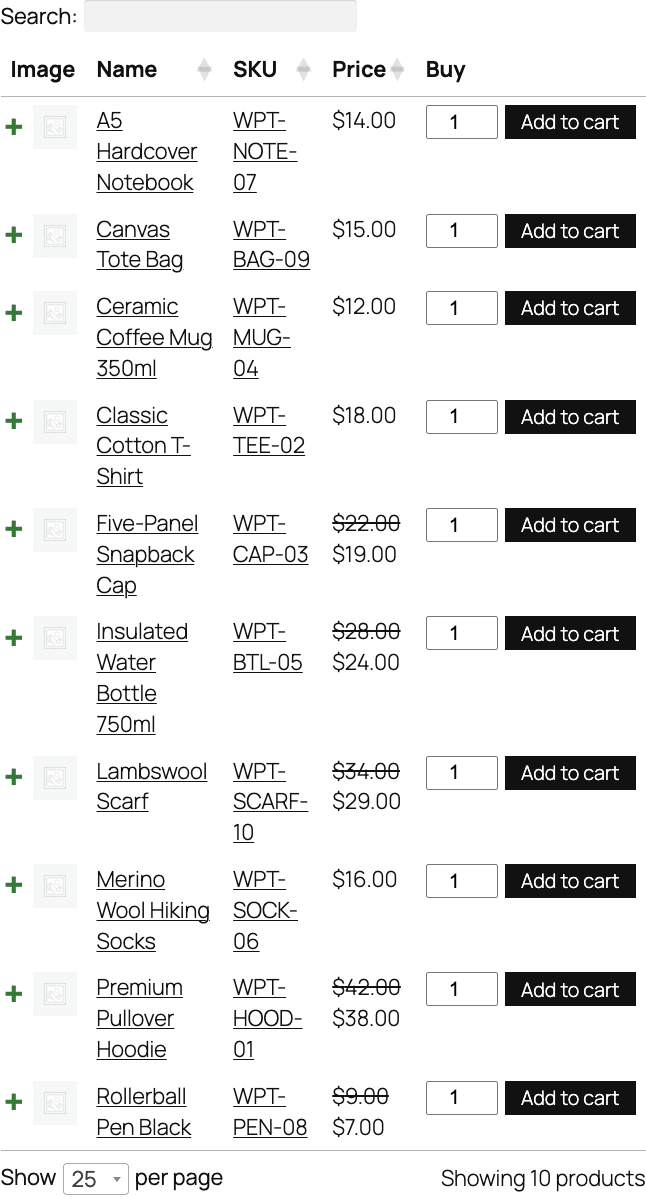
That’s the whole pitch in one image. A customer can scan the list, sort by price, type "merino" to filter, set quantities on three rows, and add them all in one go. Compare that to the default shop, where buying three items means three product pages, three add-to-cart clicks, and at least one trip to the cart.
Barn2 has been making this plugin for years, and it shows in the polish: theme compatibility shims for dozens of themes, integrations with the plugins people actually pair it with (Product Add-ons, Wholesale Pro, YITH Request a Quote), and a settings surface that’s deep without being a mess.
Grid versus table: when each one wins
I want to be honest up front, because the wrong layout actively hurts sales.
The grid is for discovery. Big images, "you might also like", impulse buys. If your customer doesn’t know exactly what they want yet, the grid sells them on it. A boutique selling twelve hand-poured candles should stay on the grid.
The table is for known-item buying. Wholesale buyers reordering stock. A cafe owner picking this week’s pastries. A mechanic looking up a part number. These people want a spreadsheet, not a lookbook, and every extra click between them and the cart is friction they resent.
So WooCommerce Product Table is not a universal upgrade to the shop page. It’s the right tool when your customers buy by name or SKU and buy in volume. For a catalog of 8 to 8,000 SKUs where people repeat-order, it’s close to essential. For a 12-product impulse-buy store, it’s the wrong call. I’ll come back to this in the anti-pattern section because it’s the single biggest mistake I see people make with it.
The shortcode and the table builder
There are two ways to put a table on a page, and they overlap.
The shortcode. The simplest version is just:
[product_table]
That renders every published product with the default columns (image, name, summary, price, buy). You can override any setting inline:
[product_table columns="image,name,sku,stock,price,buy" quantities="true" category="hoodies" rows_per_page="25"]
Every option is a shortcode attribute, and there are a lot of them. The plugin reads its defaults from Table_Args, and anything you don’t pass falls back to that default. So you only ever write the attributes you want to change.
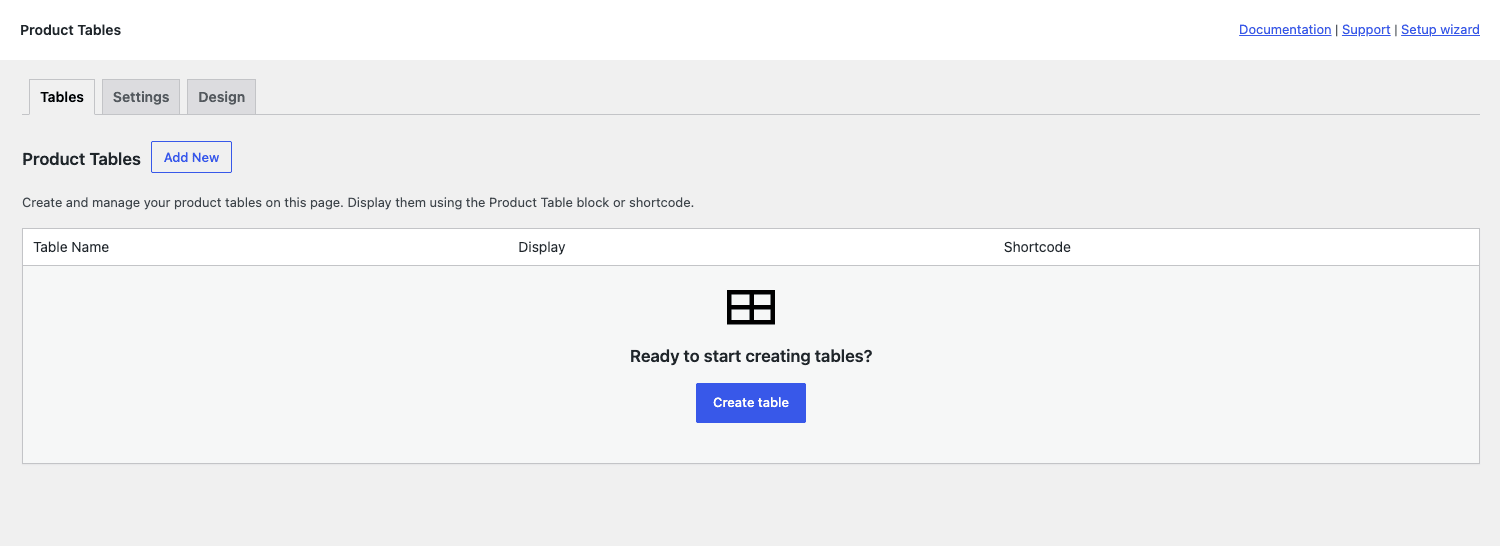
The table builder. In a recent major release Barn2 moved the global settings into a visual builder under Products -> Product Tables. Instead of memorizing attributes, you click through a seven-step wizard (Create, Content, Columns, Add to Cart, Performance, Search & Sort, Ready) and it generates a saved table with its own shortcode like [product_table id="42"].
The first step asks for a name and whether the table goes on a normal page (via block or shortcode) or replaces a shop/category archive.
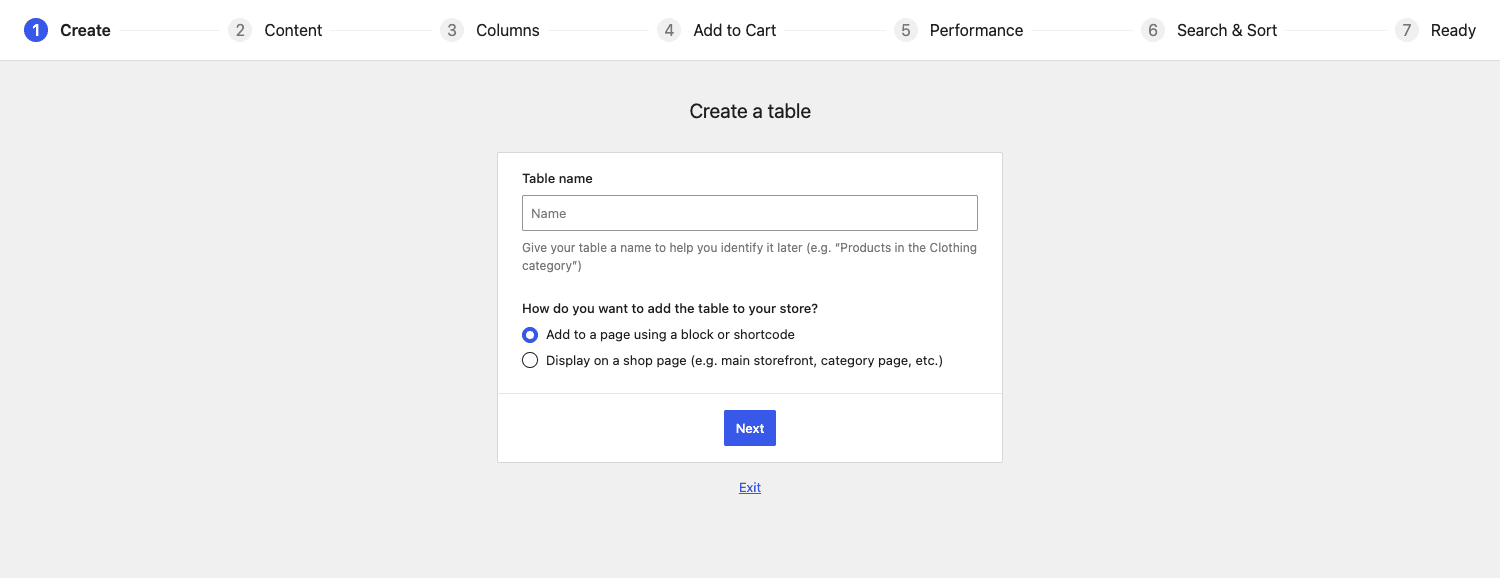
If you’d rather not touch the editor at all, that second placement option lets the table take over the main shop page, product categories, tags, attribute archives, custom taxonomy archives, and search results, each toggled separately. So you can keep the grid on the front shop and switch only category pages to tables, or the reverse.
My honest take: the builder is the friendlier path for most people, but I still reach for the raw shortcode when I want a one-off table with a couple of overrides on a single page. The two coexist. A saved builder table is just a stored set of the same arguments the shortcode accepts.
Installation and the settings that matter
Installation is the boring part. Upload the zip under Plugins -> Add New -> Upload, activate, enter your license key, and you’re ready. There’s a setup wizard link in the top corner of the Product Tables admin if you want a guided first table. Then drop [product_table] on a page and view it.
Beyond the marquee options there’s a long tail of settings worth knowing, because the defaults won’t suit every store. Here are the ones I actually change, with their defaults.
responsive_display(child_row). How the table behaves on narrow screens.child_rowcollapses lower-priority columns into an expandable row under each product; set it tomodalto pop the hidden columns into a lightbox instead. On a buy-heavy table the modal often reads better on phones.responsive_control(inline) andpriorities. These decide which columns drop first when space runs out. Give the columns you care about a high priority so the buyer never loses the price or the add-to-cart on mobile.hide_header(false) andsticky_header(false). Hide the heading row entirely for a print-style list, or make it stick to the top of the viewport on long tables so buyers always see which column is which.show_footer(false). Repeat the headings at the bottom of a long table.page_length(bottom),pagination(bottom), andtotals(bottom). Position the "show N per page" selector, the page numbers, and the product-count text above or below the table. On a tall order form I often move pagination totopso buyers don’t have to scroll to page two.paging_type(numbers). Numbered pages, or simpler previous/next controls.links(all). Which columns link to the single product page. Set it tofalsefor a self-contained order form where you never want the buyer to leave the table, or name specific columns likename,image.description_length(15). Word count for thesummarycolumn before it trims. Bump it up for menus where the description sells the dish.status(publish),category,exclude_category,tag,term,include,exclude. The query controls. Show one category, exclude another, or pass a hand-picked list of product IDs withinclude="12,15,21".diacritics_sort(false). Turn on accent-insensitive search and sort, which matters for non-English catalogs where "café" and "cafe" should match.no_products_messageandno_products_filtered_message. Custom text for an empty table and for a search that returns nothing, so buyers get a helpful message instead of a blank space.
You won’t touch most of these on a simple table. But when a client says "can the table stick the header" or "can it stop linking to the product page", the answer is yes, and it’s a one-attribute change.
The columns system in depth
Columns are the heart of the plugin. You set them with the columns attribute as a comma-separated list, and the order you write them is the order they appear.
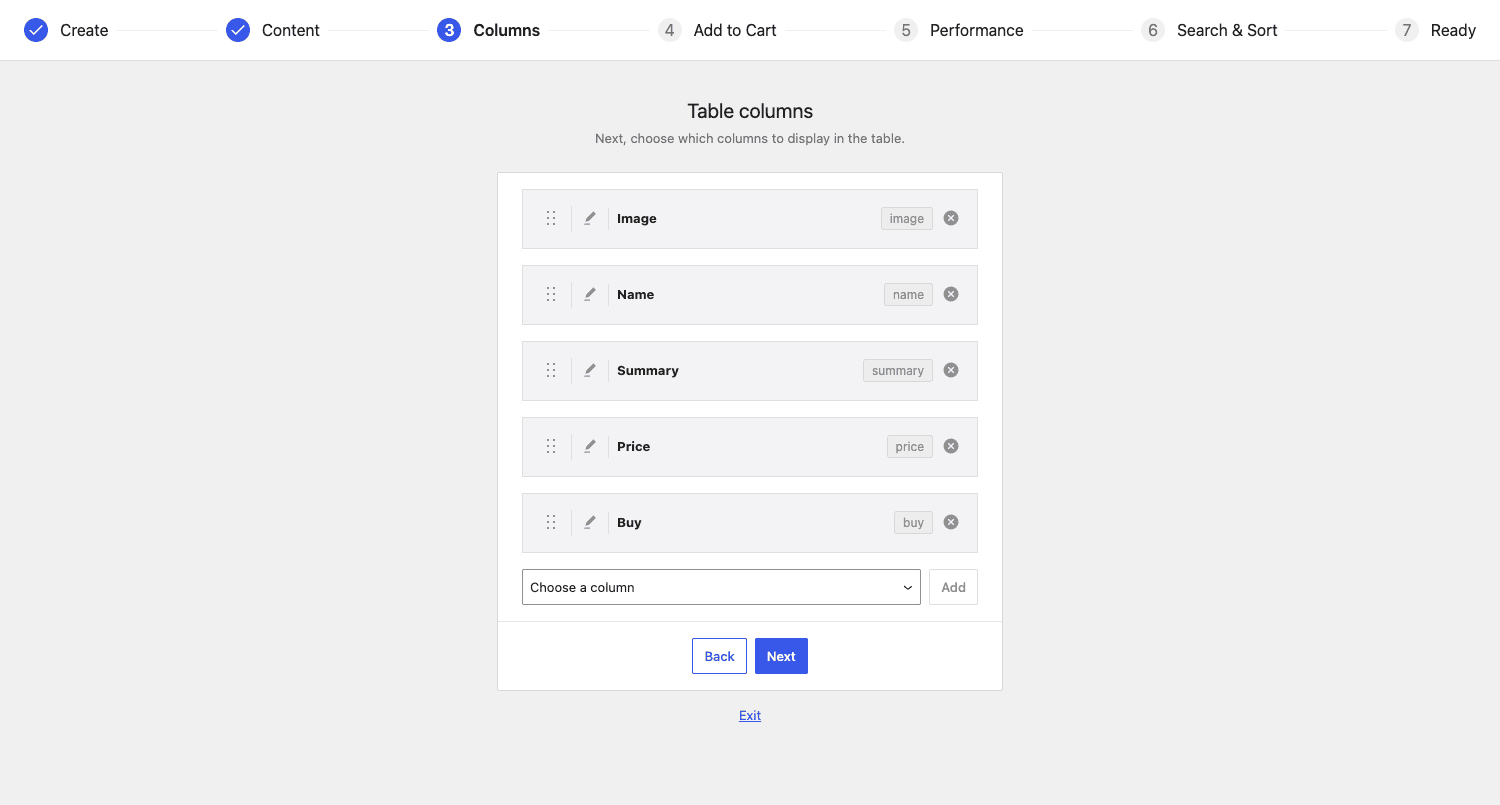
In the builder, each column is a draggable row with its column key shown on the right (image, name, summary, price, buy), an edit pencil for advanced settings, and a remove button. The "Choose a column" dropdown adds more.
Here are the built-in column keys, all confirmed in the source:
imagethe product thumbnail, sized by theimage_sizeoption (default70x70). Opens a lightbox by default.nameproduct title, linked to the single product page unless you turn links off.skuthe SKU. Sortable and searchable, even when lazy load is on.priceformatted price, with sale prices struck through. The screenshot shows this in action.stockstock status or quantity. You can control how much detail shows.summarythe short description, trimmed todescription_lengthwords (default 15), falling back to the main description if there’s no short one.categoriesandtagsthe product’s terms, each linked to its archive.reviewsthe star rating.weightanddimensionsfrom the Shipping tab of the product.authorthe post author, handy for multi-vendor catalogs.totala running line total (quantity times price), which updates live as the buyer changes quantities. This pairs with the order-form mode.idthe raw product ID.buythe add-to-cart control (quantity box, variation selectors, and button). This is the one that turns a catalog into a store.buttona simpler "add to cart" or "view product" button without the quantity machinery.
A few of these have old aliases that still work for backward compatibility: add-to-cart maps to buy, short-description and excerpt map to summary, rating maps to reviews, title maps to name. If you inherit an old shortcode using those names, it won’t break.
You can also merge several data points into one cell using a pipe. Writing name|sku in a single column slot stacks the name and SKU together, which is great for keeping a wide table narrow on mobile.
Custom fields, taxonomies, and attributes as columns
This is where the plugin pulls ahead for catalogs with structured data. Three prefixes let you surface almost any product data point as a column.
cf:for a custom field.cf:_brandshows the value of the_brandpost meta. Works with ACF fields too, including date and repeater fields.tax:for any taxonomy.tax:brandshows terms from a custombrandtaxonomy.att:for a product attribute.att:colorshows the Color attribute. (Global attributes can also be written astax:pa_color, which the plugin treats the same way.)
So a columns list for an electronics catalog might be:
[product_table columns="sku,name,att:voltage,cf:warranty,stock,price,buy"]
The att:voltage and cf:warranty columns render the attribute and the custom field as proper sortable, searchable columns. That’s the feature that lets you build a genuine parametric "find the right part" table without a separate filter plugin.
One caveat from the source and the changelog: custom-field columns are sortable and searchable even under lazy load, but a few combinations (sorting a cf: date field, for instance) have specific behaviors that have been patched over several releases. If a custom field doesn’t sort the way you expect, it’s almost always a data-format issue (the stored value isn’t a clean number or a recognized date), not a plugin bug.
Filters and the search box
The instant search box sits above the table and filters rows as you type. By default it matches across the visible columns. With lazy load on, it also searches the SKU specifically, which matters for parts catalogs.
On top of free-text search you can add filter dropdowns. Set filters="true" (the default) and the plugin adds dropdowns for the relevant taxonomies. You can also name them explicitly:
[product_table filters="categories,att:color,tax:brand"]
A nice touch: the dropdowns show only the options that actually appear in the current table, and they refresh after a search so you never see a filter value that returns zero rows. That behavior was refined across several releases and it’s the kind of detail that separates a real product from a weekend plugin.
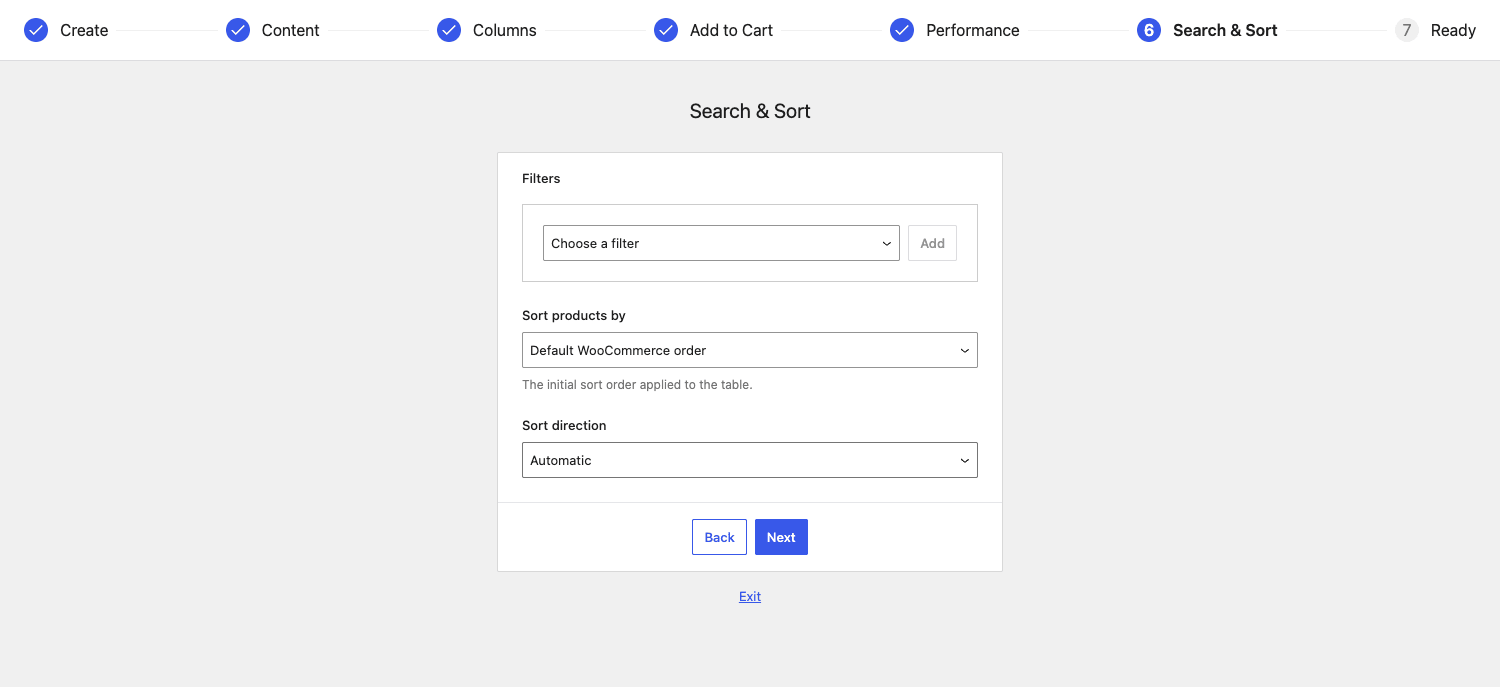
There’s also a search_on_click option (on by default). With it enabled, clicking a category or tag in a cell runs a search for that term instead of navigating away. It keeps the buyer inside the table. The reset_button option adds a one-click "clear all filters and search" control, which auto-hides itself when there’s nothing to reset.
You can turn the search box off entirely with search_box="false" if you want a static, print-style catalog.
Quantities, add to cart, and the order-form mode
This is the feature that makes WooCommerce Product Table a wholesale and B2B favorite.
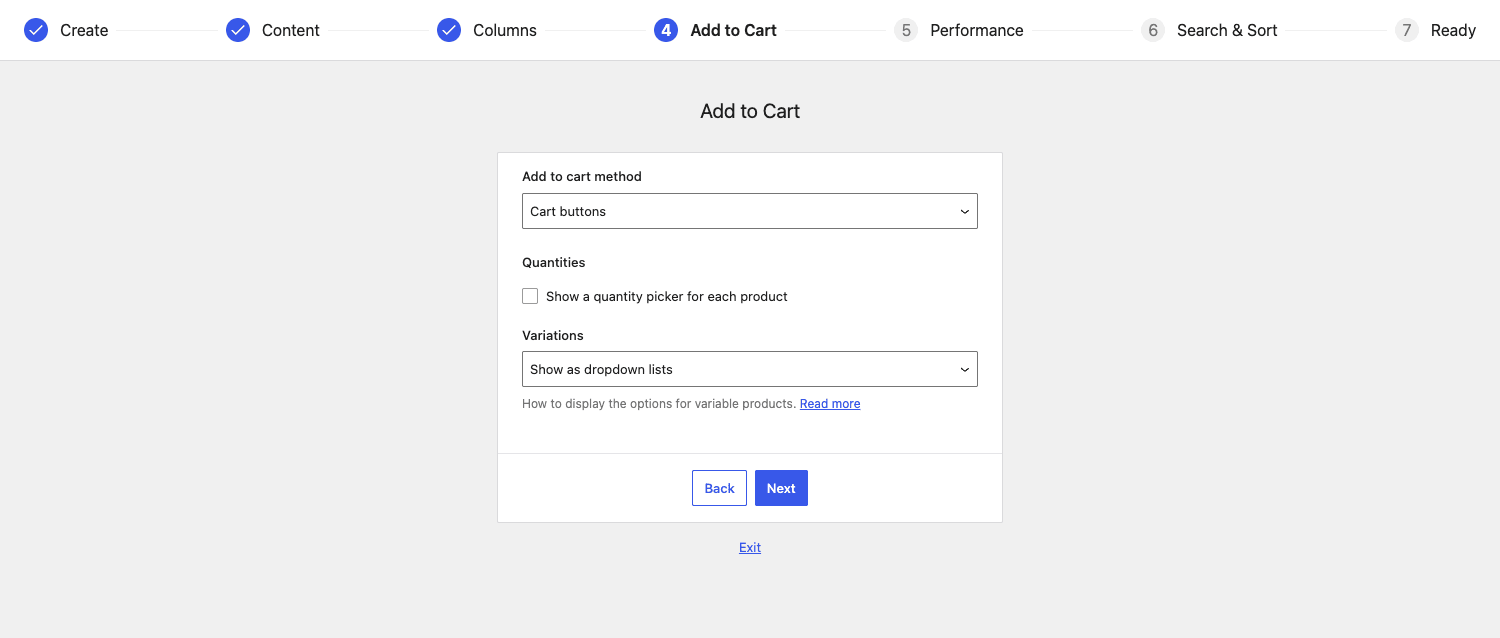
The cart_button option (and the builder’s "Add to cart method" dropdown) has three modes:
buttona plain add-to-cart button per row. Click, it adds one, done.- Checkboxes each row gets a checkbox. Tick several rows, then hit one "Add Selected to Cart" button. This is the order-form mode.
- Both buttons and checkboxes together.
Turn on quantities="true" and every row gets a quantity picker. Now combine quantities with checkboxes and you have a true order form: the buyer sets quantities on five rows, ticks all five, clicks Add Selected to Cart once, and all five land in the cart in a single AJAX request. The add_selected_button option controls where that button sits (top, bottom, both, or false), and display_select_all_link adds a "select all" shortcut.
If you add the total column, each row shows quantity times price and a sub-total appears next to the multi-add button, recalculating live as quantities change. For a wholesale buyer building a $4,000 reorder, seeing the running total before they commit is exactly the reassurance they want.
The whole thing runs over AJAX by default (ajax_cart="true"), so nothing reloads. You can disable AJAX if a theme or another plugin conflicts, and the table falls back to standard form submission.
Variations: dropdowns or separate rows
Variable products get two display modes, set with the variations option.
dropdownone row per parent product, with the variation attributes as dropdown selectors inside the Buy column. The buyer picks size and color in the row, then adds to cart. Compact.separateeach variation gets its own row. A T-shirt in five sizes and three colors becomes fifteen rows, each with its own SKU, price, stock, and add-to-cart. This is what wholesale buyers usually want, because they’re ordering specific SKUs in specific quantities.
Separate variations interact with a few other settings. Lazy load is disabled automatically when you use separate variations, because the plugin has to expand the variation matrix server-side. The variation_name_format option controls how the row name reads when variations are split out (the full product name plus the variation, or just the variation). If a variable product has attributes that aren’t used for variations, those still render correctly as attribute columns. It’s fiddly territory and Barn2 has shipped a steady stream of fixes here over the years, so use a current release.
Sorting, pagination, and lazy load
Every column header is clickable to sort, ascending or descending. You set the initial order with sort_by (default menu_order, the WooCommerce catalog order) and sort_order. The sort-by dropdown in the builder lists the full set: default WooCommerce order, ID, name, date published, date modified, popularity (sales), average rating, price, SKU, and any custom field via cf:.
Pagination is client-side by default. The rows_per_page option (default 25) sets the page length, with a "Show N per page" selector the buyer can change. product_limit (default 500) caps how many products the table loads at once in standard mode.
Lazy load is the big performance lever. With lazy_load="true", the table fetches rows from the server one page at a time over AJAX, instead of loading every product into the page on first paint. The builder’s Performance step explains this plainly: enable it if you have many products or slow loads. The trade-off is that lazy load disables a few things (you can’t have separate variations, and some client-side behaviors change), so it’s a deliberate choice for large catalogs, not a default. For a 50-product table, skip it. For a 5,000-product table, it’s the difference between a usable page and a frozen browser tab.
There’s also a cache option that stores the generated table data so repeat visitors don’t regenerate it from scratch. It’s off by default and clearable from the settings page.
Images, lightbox, and media
The image column shows the product thumbnail, and by default clicking it opens a PhotoSwipe lightbox (lightbox="true"). The image_size option takes either a named WooCommerce image size or explicit dimensions like 70x70. The plugin is smart about picking the smallest available source image for the size you ask for, so you don’t ship a 2000px image into a 70px cell.
Because cells render product content, you can also surface audio and video. If a product’s data includes an audio or video shortcode (common for music stores selling tracks, or course catalogs), the table renders the player inline. There’s an enable_fitvids behavior to keep embedded videos in proportion. Set shortcodes="true" to let shortcodes inside product content (or custom fields) actually execute in the table rather than print as text.
Design, widgets, and where the table can appear
Styling lives on the Design tab, and it’s more thorough than I expected.
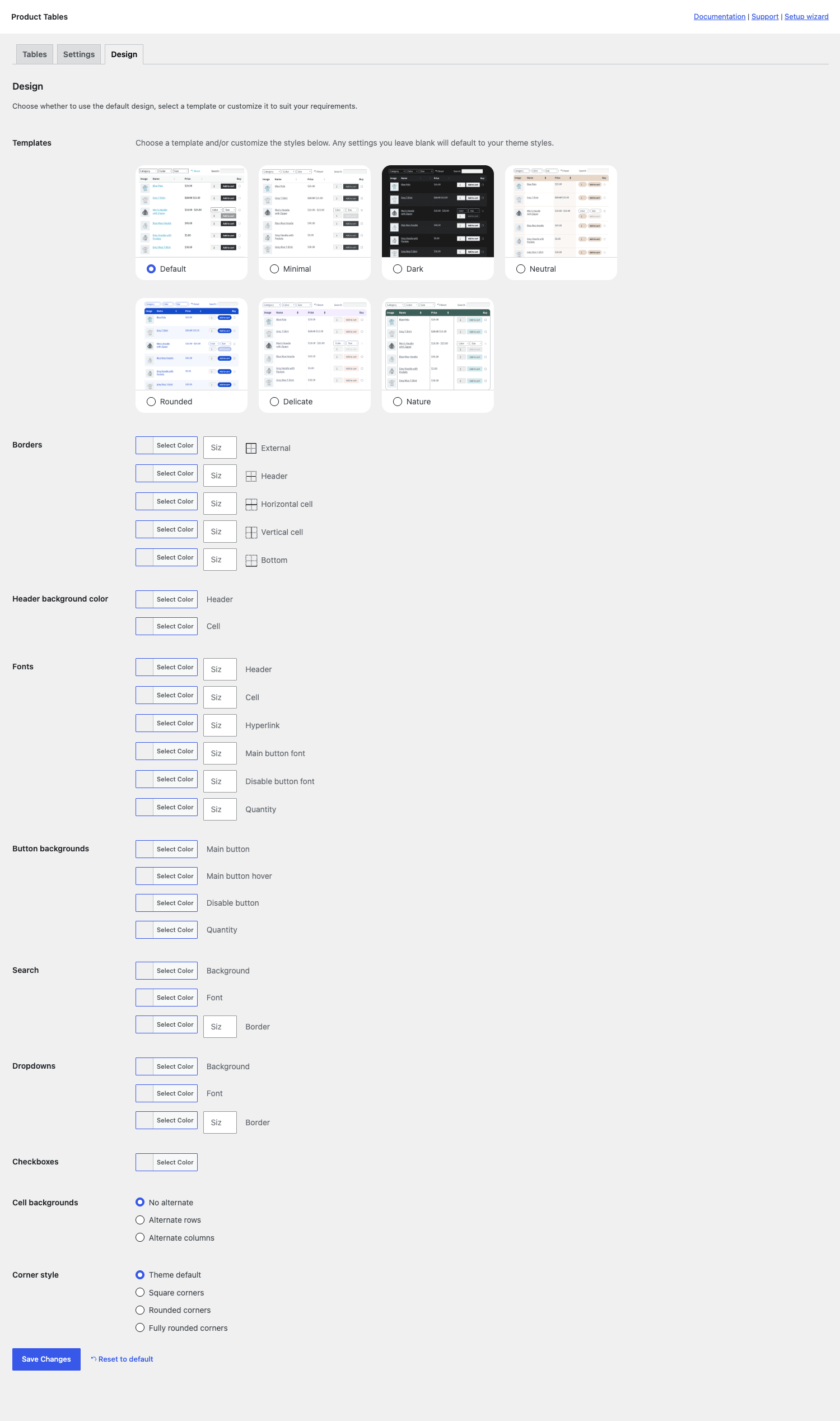
You get a row of pre-built style templates (Default, Minimal, Dark, Neutral, Rounded, Delicate, Nature) and then granular controls under them: border colors and widths per edge, header background, fonts for headers and cells, button background and hover, search and dropdown styling, checkbox color, cell background (plain, alternate rows, or alternate columns), and corner style (square, rounded, fully rounded). For most stores the templates are enough. For brand-strict sites, the granular controls mean you rarely have to drop into custom CSS.
Beyond the shortcode and the editor block, the plugin ships five widgets: a Product Table widget (drop a table into a sidebar or block area), plus an Attribute Filter, Price Filter, Rating Filter, and Active Filters widget. Those filter widgets let you build a layered-nav style sidebar that filters the table next to it, the way the standard WooCommerce shop sidebar filters the grid. Widgets work on any page, not just shop pages, since a recent update.
And as covered above, a table can replace the main shop, category, tag, attribute, taxonomy, and search-results templates, each independently. So the plugin reaches every surface where products normally appear.
Real-world setups
A few concrete configurations I’ve actually used or would reach for.
Wholesale order form. Separate variations, quantity boxes, checkboxes, the total column, and a category filter. Pair it with WooCommerce Wholesale Pro (also by Barn2, so the integration is first-party) to hide prices from guests and show wholesale pricing to logged-in trade accounts. The buyer logs in, sees their pricing, sets quantities across dozens of SKUs, and submits one order.
[product_table columns="sku,name,att:size,stock,price,total,buy" variations="separate" quantities="true" cart_button="checkbox" add_selected_button="top"]
Restaurant or cafe menu. Image, name, summary, price, and a buy button, filtered by category (Starters, Mains, Drinks). Customers scan, filter to "Drinks", and order. No giant product cards, just a clean menu.
Parts or SKU catalog. SKU, name, an attribute column or two (att:voltage, att:fitment), stock, price, buy. The instant SKU search is the whole point: a mechanic types a part number and the row appears.
Audio or course list. Name, an inline audio preview from a custom field, price, buy. The table plays previews in place, which is a much better experience than a grid of identical play-button cards.
Previously purchased products. The user_products="true" option shows only products the current logged-in user has bought before, which makes a fast reorder page for repeat customers.
Don’t dump 5,000 products into one table without lazy load
Here’s the failure mode I see most, and it costs real money in lost sales.
Someone installs the plugin, points a table at their entire 5,000-product catalog with [product_table], leaves lazy load off, and loads the page. In standard mode the plugin renders every product into the HTML on first paint, then hands the whole lot to DataTables to paginate client-side. On a catalog that size that’s a multi-megabyte page, several seconds of parse and layout time, and a browser tab that can hit hundreds of megabytes of memory before it’s interactive. On a phone it can freeze the tab outright. Your buyer sees a spinner, assumes the site is broken, and leaves.
The fix is built in and takes one attribute. Turn on lazy_load="true" and the table fetches 25 rows at a time over AJAX. First paint drops from "the entire catalog" to a single page of results. Search and sort run server-side against the database instead of against a giant in-memory table, so they stay fast as the catalog grows. The product_limit cap (default 500) is your safety net in standard mode, but for anything in the thousands, lazy load is not optional.
The cost of getting this wrong is not abstract. A page that takes eight seconds to become interactive loses the majority of mobile visitors before the table even appears, and those are exactly the high-intent buyers you built the order form for. Spend the thirty seconds to enable lazy load, test on a real phone, and confirm the first page paints fast. Reduce rows_per_page if a single page still feels heavy because of large images. Treat any table over a few hundred rows as a performance decision, not a default.
Developer reference: hooks, filters, and column syntax
The plugin is namespaced (Barn2\Plugin\WC_Product_Table), declares WooCommerce HPOS compatibility, and exposes a large set of wc_product_table_* filters and actions. Everything below is confirmed in the source.
Change the table arguments globally. The wc_product_table_args filter receives the merged argument array before a table renders, so you can force defaults site-wide.
add_filter( 'wc_product_table_args', function ( $args ) {
    $args['rows_per_page'] = 50;
    $args['lazy_load']     = true;
    return $args;
} );
Add a CSS class to the table. The wc_product_table_custom_class filter passes the empty class string and the table object.
add_filter( 'wc_product_table_custom_class', function ( $class, $table ) {
    return $class . ' my-wholesale-table';
}, 10, 2 );
Add a class to each row, e.g. flag out-of-stock rows. wc_product_table_row_class passes the current classes and the $product.
add_filter( 'wc_product_table_row_class', function ( $classes, $product ) {
    if ( ! $product->is_in_stock() ) {
        $classes[] = 'is-backorder';
    }
    return $classes;
}, 10, 2 );
Modify the product query. wc_product_table_query_args filters the WP_Query args, and there are dedicated wc_product_table_meta_query and wc_product_table_tax_query filters for the meta and tax clauses.
add_filter( 'wc_product_table_query_args', function ( $query_args, $table ) {
    $query_args['meta_query'][] = [
        'key'     => '_featured',
        'value'   => 'yes',
        'compare' => '=',
    ];
    return $query_args;
}, 10, 2 );
Filter the final product list after the query runs, with wc_product_table_get_products.
add_filter( 'wc_product_table_get_products', function ( $products, $table ) {
    return array_filter( $products, function ( $product ) {
        return $product->get_price() > 0;
    } );
}, 10, 2 );
Customize a single column’s output. There’s a per-column data filter for every built-in column: wc_product_table_data_name, wc_product_table_data_price, wc_product_table_data_sku, wc_product_table_data_image, wc_product_table_data_stock, wc_product_table_data_buy, wc_product_table_data_categories, wc_product_table_data_summary, and so on.
add_filter( 'wc_product_table_data_name', function ( $name, $product ) {
    if ( $product->is_on_sale() ) {
        $name .= ' <span class="sale-flag">Sale</span>';
    }
    return $name;
}, 10, 2 );
Change a column heading, width, or sortability with the dynamic per-column filters wc_product_table_column_heading_{column}, wc_product_table_column_width_{column}, and wc_product_table_column_sortable_{column}.
add_filter( 'wc_product_table_column_heading_sku', function () {
    return 'Part #';
} );
Open product links in a new tab with wc_product_table_open_products_in_new_tab, or change the minimum search length with wc_product_table_minimum_search_term_length.
add_filter( 'wc_product_table_open_products_in_new_tab', '__return_true' );
Action hooks fire around the lifecycle: wc_product_table_before_get_table / after_get_table, wc_product_table_before_get_data / after_get_data, wc_product_table_before_product_query / after_product_query, wc_product_table_before_add_to_cart and before_add_to_cart_multi (the multi-select submit), and wc_product_table_hooks_before_register / after_register for registering custom column data classes.
add_action( 'wc_product_table_before_add_to_cart_multi', function () {
    // runs before a multi-row "add selected to cart" submission
} );
Template functions. If you’d rather render a table in PHP than via shortcode, the plugin exposes wc_get_product_table() (returns the HTML) and wc_the_product_table() (echoes it), both accepting the same argument array as the shortcode.
echo wc_get_product_table( [
    'columns'     => 'sku,name,price,buy',
    'category'    => 'spare-parts',
    'lazy_load'   => true,
] );
For deeper customization the plugin ships overridable templates in its /templates directory (including archive-product.php), which you copy into your theme to edit, the standard WooCommerce template-override pattern.
Troubleshooting the common problems
The table is empty / "No products found". Almost always the query is too narrow or there are no products. Check that products are published and visible, and that any category, tag, term, or cf attribute on the shortcode actually matches existing data. A typo’d category slug returns nothing silently. Drop to a bare [product_table] to confirm the table itself works, then add filters back one at a time.
Add to cart does nothing. This is usually an AJAX or theme conflict. Open the browser console and look for a JavaScript error. If another plugin or the theme deregistered selectWoo or the cart scripts, the table can’t bind its handlers. As a quick test, set ajax_cart="false" to fall back to standard form submission; if that works, the issue is the AJAX layer fighting something else on the page.
The table is slow or the tab freezes. You’re in standard mode with too many products. Enable lazy_load="true", lower rows_per_page, and shrink image_size. See the anti-pattern section above.
A custom-field column shows nothing. The cf: key has to match the meta key exactly, including any leading underscore. cf:brand and cf:_brand are different fields. For ACF, use the field’s underlying meta key. If the value shows but won’t sort, the stored format isn’t a clean number or recognized date.
Variations behave oddly. If separate variations show out-of-stock rows you didn’t expect, or filters miss values, make sure you’re on a current release; this area has had a long tail of fixes. Remember lazy load is disabled with separate variations by design.
Filter dropdown shows irrelevant options. By default filters show only options present in the table, but if you’ve hard-coded a filters list, you’re overriding that smart behavior. Either let it auto-detect or make sure your named filters apply to the products you’re showing.
Quantity plus/minus buttons missing in my theme. Some themes add their own quantity UI that clashes. Barn2 ships compatibility shims for many themes (Astra, Avada, Divi, Flatsome, GeneratePress, Woodmart, Enfold, and more). If yours isn’t covered, the wc_product_table_enable_quantity_button_handler behavior and theme integration layer are where to look.
Compatibility and performance
The plugin needs WordPress 6.1 or newer, PHP 7.4 or newer, and WooCommerce. It declares HPOS (High-Performance Order Storage) compatibility, so it’s safe with the new WooCommerce order tables. It’s been tested against current WooCommerce releases on an ongoing basis.
Theme compatibility is a genuine strength. Barn2 maintains an integration layer with specific fixes for the themes people actually use with WooCommerce. Page builders are covered too: there’s explicit support for Bricks, Beaver Builder, Divi, and Elementor-based setups, because the table often lives inside a builder layout.
It plays well with the plugins you’d expect to pair it with: WooCommerce Product Add-ons, Quick View Pro, YITH WooCommerce Request a Quote (add a "request a quote" column instead of add-to-cart for B2B), YITH Wishlist, All Products for WooCommerce Subscriptions, Variation Swatches, SearchWP (for better relevance on large catalogs), and Wholesale Pro. Multilingual is handled via a bundled WPML config file, so strings and table content translate cleanly on WPML sites.
On caching: page caching plugins are fine because the table’s interactivity is JavaScript and AJAX, which run after the cached HTML loads. The plugin’s own cache option is separate (it caches the generated table data), off by default, and clearable from the settings page.
Pricing and licensing
Barn2 sells WooCommerce Product Table as an annual license, tiered by the number of sites it covers (a single-site tier up to an agency/unlimited tier), with all features included at every tier. There’s no feature gating between tiers; the difference is purely how many installs the key activates and the length of support and updates. Renewals continue support and updates, and the plugin keeps working if you let a license lapse, you just stop getting updates.
The GPL angle: WooCommerce Product Table is licensed GPL-3.0, which is why it’s available on GPL Times. If you want to put a real order form on a staging copy and click through every column and filter before committing, the WooCommerce Product Table download on GPL Times gives you the full plugin with the documentation intact. It’s the same code Barn2 ships, delivered through the GPL store.
WooCommerce Product Table versus the default shop and other table plugins
Let me put real numbers on the comparison, because "it’s faster" is a hand-wave.
Versus the default WooCommerce shop. Say a wholesale buyer wants ten different products. On the default grid that’s ten product pages and ten add-to-cart actions, plus navigation between them, call it 20-plus clicks and ten page loads minimum. With WooCommerce Product Table in checkbox mode, it’s: set ten quantities, tick ten boxes, click "Add Selected to Cart" once. That’s around 11 interactions and zero full page reloads (the multi-add is a single AJAX request). For a repeat-order buyer doing this weekly, the time saved compounds fast.
Versus theme "list view" toggles. Many WooCommerce themes offer a grid/list toggle. But a theme list view is still the shop loop: no instant search, no client-side sort, no per-row quantity-plus-checkbox order form, no custom-field columns. It changes the layout, not the buying flow. WooCommerce Product Table replaces the flow.
Versus other product-table plugins. The category has a handful of players. The practical differences come down to depth: the number of column types (this plugin exposes 16-plus built-in columns plus cf:, tax:, and att: for unlimited custom columns), the order-form mode (quantities plus multi-select plus a live sub-total, which not every competitor does), lazy load that handles catalogs into the thousands of rows server-side, and the breadth of first-party integrations. On price, expect a single-site annual license in the rough ballpark of other premium WooCommerce extensions (typically in the low-to-mid double-digit-to-three-figure dollar range per year depending on tier), so the decision is rarely about a few dollars; it’s about which one covers your column types, your variation handling, and your catalog size without fighting you.
FAQ
Does WooCommerce Product Table replace my shop page?
Only if you want it to. By default you add tables to specific pages with a shortcode or block. There’s a separate option to take over the main shop, category, tag, attribute, taxonomy, and search-results templates, each toggled independently. So you can run tables everywhere, nowhere but a few landing pages, or a mix (grid on the front shop, tables on category pages).
Can I build a wholesale or B2B order form with it?
Yes, that’s its sweet spot. Combine quantity boxes, checkboxes, the "Add Selected to Cart" button, and the total column, and pair it with Wholesale Pro to gate pricing behind login. Buyers set quantities across many SKUs and submit one order. The honest trade-off is that the order-form mode shines for known-item buyers and adds nothing for a discovery-led boutique.
Can I show custom fields or product attributes as columns?
Yes. Use cf: for custom fields (including ACF), tax: for taxonomies, and att: for attributes. So att:voltage and cf:warranty become real sortable, searchable columns. The catch is the key has to match exactly, and the stored value has to be a clean number or date for numeric/date sorting to work.
How does it perform with thousands of products?
Fine, if you enable lazy load. In standard mode it renders every product into the page and lets the browser paginate, which falls over past a few hundred rows on mobile. With lazy_load="true" it fetches 25 rows at a time and runs search and sort server-side, so it scales into the thousands. The product_limit default of 500 is a guardrail for standard mode.
How are variable products handled?
Two ways. variations="dropdown" keeps one row per product with attribute selectors in the cell. variations="separate" gives each variation its own row with its own SKU, price, and stock, which wholesale buyers usually prefer. Separate variations disable lazy load by design, so very large variable catalogs need a content strategy.
Is the table responsive on mobile?
Yes. Columns collapse based on priority into a child row or a modal on small screens, controlled by the responsive_display and priority options. You can merge columns (like name|sku) to keep things tight. Test on a real phone, especially with images, because that’s where heavy tables struggle.
Will it work with my caching plugin?
Yes. Page caching caches the HTML; the table’s search, sort, and AJAX cart run client-side afterward, so they’re unaffected. The plugin’s own data cache option is separate, off by default, and you can clear it from the settings page if stale data ever shows.
Does it support multiple languages?
Yes, via a bundled WPML configuration. Table content and strings translate on WPML sites. For other multilingual setups, the standard gettext translation files apply.
Can I customize it in code?
Heavily. There’s a large set of wc_product_table_* filters and actions (query args, per-column output, row classes, headings, widths), plus wc_get_product_table() / wc_the_product_table() template functions and overridable templates in the theme. See the developer section above.
What’s the difference between the buy and button columns?
buy is the full add-to-cart control with quantity box and variation selectors, the one that makes the table a store. button is a simpler single button (add to cart or view product) without the quantity machinery, for when you just want a call to action.
Is it the right tool for your store?
WooCommerce Product Table does one thing extremely well: it turns a catalog into something people can buy from fast. For wholesale, B2B reorders, restaurant menus, parts lookups, large catalogs, and audio or course lists, it’s close to the default choice, and the depth of the column system plus the order-form mode is why. I came away impressed by how much is configurable without code, and how the smart-filter and lazy-load details show years of real-world iteration.
It is not a blanket upgrade to the shop page. Put it in front of discovery-led shoppers and you’ll dampen the impulse buys the grid is good at. Match it to known-item buyers, though, and it removes the friction that was quietly costing you orders. Decide which kind of store you’re running first, then let the layout follow.
If you want to feel the difference for yourself, install WooCommerce Product Table from GPL Times, point a table at a category, switch on quantities and checkboxes, and try buying five things at once. The single-screen checkout flow makes the case better than any feature list can. For more on the plugin itself, Barn2’s official Product Table documentation and the WooCommerce docs cover the WooCommerce side, and the table engine is built on the well-known DataTables library.