

Most WordPress sites don’t need a page builder. They need a theme that already does the things people install builders for, without dragging in 400 KB of widget JavaScript to render a heading and a button. That’s a contrarian opinion in 2026, when the default advice is still "install Elementor and a starter template," but I’ve rebuilt enough bloated sites to believe it.
Blocksy is the theme I keep reaching for when I want that, and Blocksy Companion Premium is the plugin that turns it from "a nice fast theme" into a genuine site-design system. The header and footer get drag-and-drop builders. Content blocks let you drop anything anywhere on the site by condition. WooCommerce gets layout controls most stores pay an extra plugin for. And it all renders without a builder runtime sitting in front of your markup.
This is a long, honest walkthrough. What the Premium companion adds over the free version, where every feature actually lives (it’s split across two places, which trips up newcomers), the full developer surface with real hooks pulled from the source, and where I think it falls short.
Table of Contents
- What Blocksy Companion Premium actually is
- The two places Premium features live
- The Extensions manager: toggle what you need
- Starter Sites: the one-click demo import
- The Header and Footer builders
- Content Blocks and the Display Conditions engine
- The Advanced (mega) menu
- Custom post types and integrations
- WooCommerce Extra: the store layer
- Typography, custom fonts, and GDPR font hosting
- Color palettes and dark mode
- Custom code, white label, and agency features
- The Gutenberg dynamic-data blocks
- Developer reference: hooks, filters, conditions, and CLI
- Don’t enable every extension just because it’s there
- Blocksy Premium vs GeneratePress Premium vs Kadence Pro
- Troubleshooting the problems people actually hit
- Compatibility and hosting notes
- Pricing and licensing
- FAQ
- Is it worth it?
What Blocksy Companion Premium actually is
Two things ship as a pair here, and it helps to keep them straight.
Blocksy is the theme, free on the WordPress.org repository and built by CreativeThemes. It’s what’s sometimes called a "native" theme, meaning it renders your site using the theme’s own PHP templates and a tightly scoped CSS file, not a drag-and-drop canvas that ships JavaScript to the browser. You configure it through the WordPress Customizer. It’s fast out of the box, it works with the block editor, and on its own it’ll happily run a blog, a brochure site, or a small shop.
Blocksy Companion is the plugin. There’s a free companion (also on WordPress.org) and the Premium companion, which is the one we’re walking through. The companion is what unlocks the heavier features: the full header and footer builders, content blocks, the conditions engine, the WooCommerce layout suite, white labeling, and a stack of extensions you toggle on as needed.
One detail catches a lot of first-timers, and it’s right there in the plugin header: the companion "runs and adds its enhancements only if the Blocksy theme is installed and active." The plugin is inert without the theme. Activate it next to Astra or GeneratePress and nothing happens. That’s by design, not a bug, and I’ll come back to it in troubleshooting because it generates more support questions than anything else.
The honest positioning: this is not an Elementor competitor. It competes with theme-plus-companion combos, the GeneratePress Premium and Kadence Pro school of WordPress. The pitch is "you don’t need a page builder for most of what you build." For a marketing site, a blog, or a store with a conventional layout, that pitch holds up well. For pixel-pushed bespoke landing pages with parallax and complex animation, you’ll still want a builder or the block editor handling those pages. Knowing which side of that line your project falls on is most of the buying decision.
The two places Premium features live
Here’s the thing nobody tells you on day one, and it’s the single biggest source of "where is that setting?" confusion. The companion’s power is split across two completely different screens.
The WordPress Customizer (Appearance, then Customize) is where the visual structure lives. Header builder, footer builder, color palette, typography, the Performance panel, General Options (layout, buttons, breadcrumbs, forms), and per-content-type controls for blog posts, single posts, categories, pages, author pages, and search. If you’re changing how something looks or lays out, it’s almost always in the Customizer.
The Blocksy admin menu (a top-level "Blocksy" item in your dashboard) is where the management lives. It has the Extensions manager (the on/off grid for every extension), Content Blocks, your account, and Starter Sites. If you’re turning a feature on or building a reusable block of content, it’s here.
So a typical "add a sticky promo bar above my header" task touches both: you create the bar as a Content Block in the Blocksy admin menu, then you might reference it as an item inside the Header builder in the Customizer. Once that split clicks, the whole product makes sense. Until it does, you’ll spend ten minutes hunting for a panel that’s on the other screen.
The Extensions manager: toggle what you need
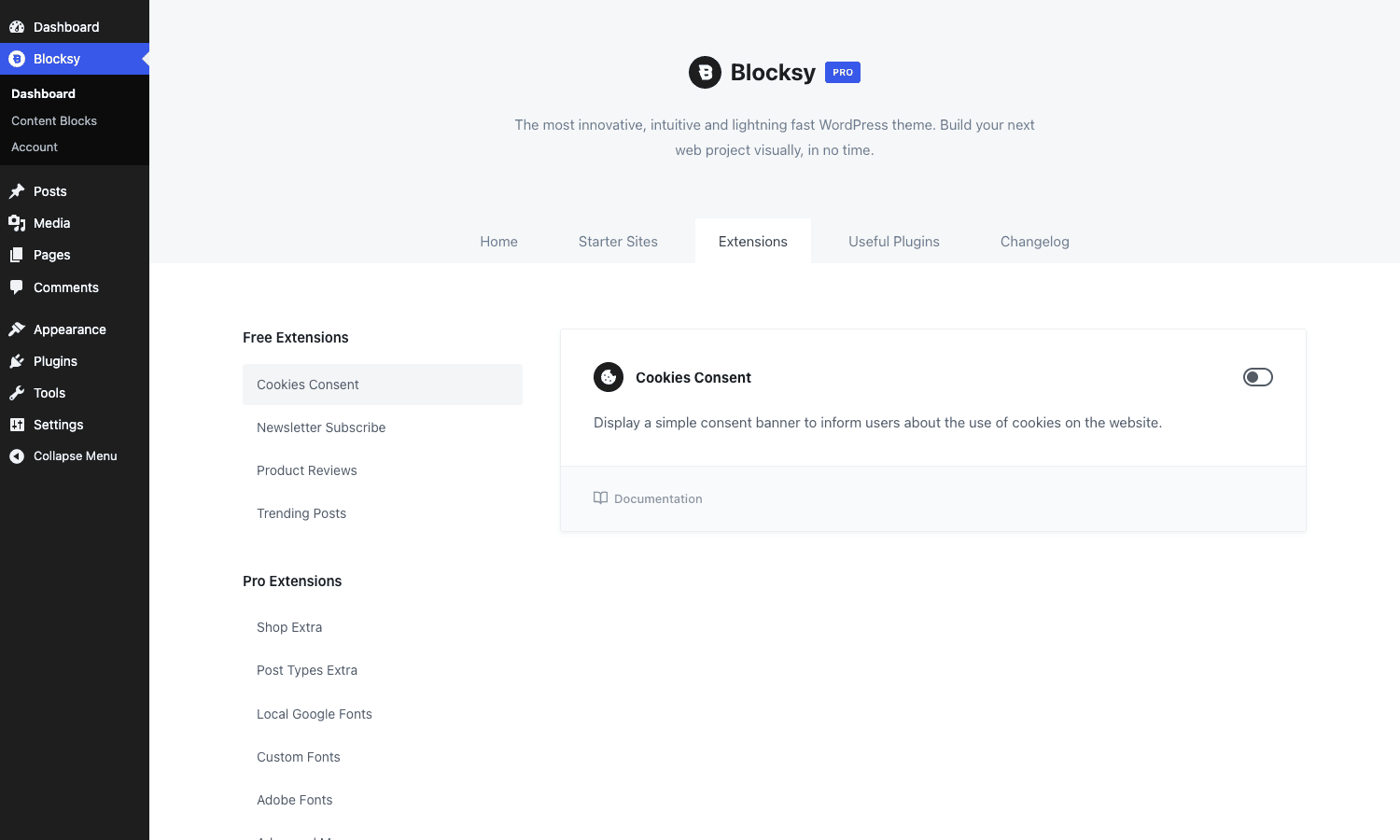
Blocksy’s model is modular. Rather than loading every feature on every site, the companion ships extensions you switch on individually from Blocksy, then Extensions. The grid splits into Free and Pro.
The free extensions are: Cookies Consent (a simple consent banner), Newsletter Subscribe (an opt-in form that connects to Mailchimp or MailerLite), Product Reviews (multi-criteria, advanced reviews), and Trending Posts (a most-viewed widget).
The Pro extensions are the meat:
- Shop Extra (
woocommerce-extrain the source). The big one. Quick view, wishlist, product comparison, filters, swatches, a floating cart, waitlist and back-in-stock notifications, advanced reviews, and a long list of store-specific layout pieces. More on this below. - Post Types Extra. A custom post type creator with extra layout and filtering options, read-time, and taxonomy customization.
- Local Google Fonts. Downloads Google Fonts to your server so no request ever hits Google, which matters for GDPR.
- Custom Fonts. Upload your own font files and use them in the typography controls.
- Adobe Fonts (Typekit). Pull in fonts from an Adobe Fonts project.
- Advanced Menu (
mega-menuin the source). The mega-menu builder. - Color Mode Switch. Dark mode with a front-end toggle.
- Custom Code Snippets. Add CSS, JavaScript, and PHP-free header/footer code with a real code editor.
- Multiple Sidebars. Register custom widget areas and assign them by condition.
- Shortcuts Bar. A quick-access bar in the admin for jumping to common Blocksy panels.
- White Label. Rebrand the theme and hide pieces of the UI for client handoffs.
Each card has a toggle and a Documentation link. The design intent is that you enable only what a given site uses. That’s a real performance lever, not marketing fluff, because a disabled extension doesn’t register its hooks, enqueue its assets, or run its queries.
Starter Sites: the one-click demo import
This is the feature most people meet first, and it deserves its own walkthrough. Under the Blocksy admin menu sits a Starter Sites library: a catalog of professionally designed demo sites you can import whole, so you start from a finished layout instead of a blank theme.
The importer is more than a content dump. When you pick a starter site, it works through a sequence in framework/features/demo-install: a required-plugins step that pulls in and activates whatever the demo depends on (WooCommerce for a shop demo, a forms plugin for a contact demo), a content installer that brings in the posts, pages, and media, and an options import that restores the theme options, Customizer settings, and widget areas so the colors, header, and footer match the preview exactly. There is a child-theme helper and an install-finish step that wires up menus and the front page.
The detail worth knowing: starter sites ship in per-builder variants. The same design can be imported in a Gutenberg flavor, an Elementor flavor, or a Brizy flavor, so you choose the editing experience you want rather than inheriting whatever the demo author used. If you change your mind, the bundled content eraser resets the import so you can start over cleanly, and there is a plugins uninstaller for the dependencies it brought in.
One honest caveat: a starter site can install third-party plugins you did not choose deliberately. Read the required-plugins list before you import on a production site, because "one click" can mean three new plugins active that you now own. On a fresh install it’s a genuine head start. On an established site, import into staging first.
The Header and Footer builders
This is where the "you don’t need a builder" pitch proves itself, and it’s worth seeing rather than reading about.
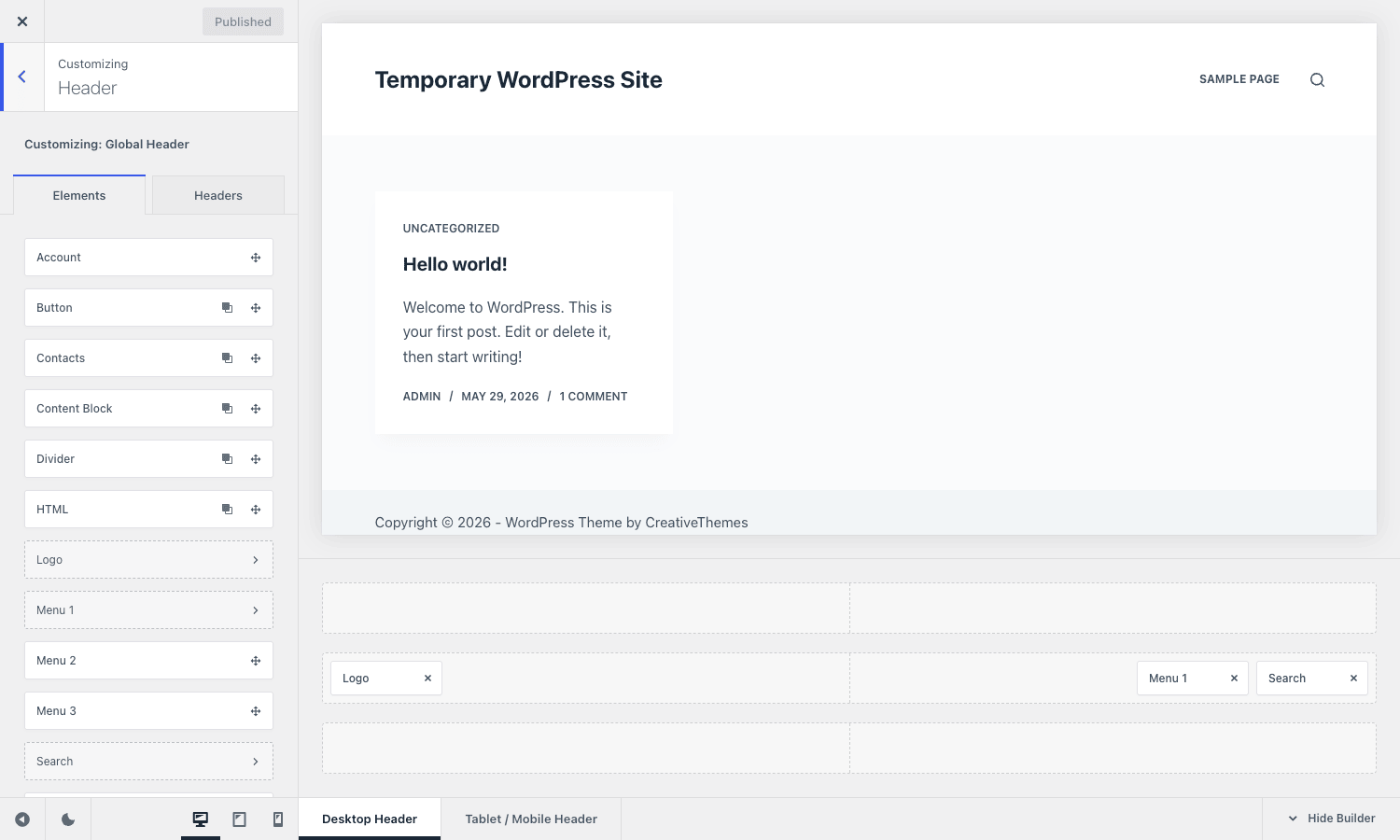
Open the Customizer and the Header section drops a builder panel along the bottom of the screen with three rows: a top row, a main row, and a bottom row. On the left you get an Elements palette. You drag items into rows, click an item to open its style controls, and the preview updates live. The free theme gives you the core items: Logo, three menus, Search, Account, Button, and HTML. The Premium companion adds more header items, and I’ve confirmed each in the source under framework/premium/features/premium-header/items/:
- Content Block. Drop any content block straight into a header row. This is how you put a custom megabar, a notification strip, or an entirely hand-designed header section into the structure.
- Contacts. A phone/email/address block with icons.
- Divider. A vertical separator between items.
- Language Switcher. For multilingual setups.
- Menu 3 (a tertiary menu, on top of the two the free version gives you).
- Secondary Mobile Menu. A separate menu for the mobile off-canvas.
- Search Input. An always-visible search field, distinct from the search icon.
- Widget Area 1. A drop-in widget zone inside the header.
The footer builder works the same way, with its own Elements palette. The free items cover Logo, Footer Menu 1, Copyright, Search Box, Socials, HTML, and Widget Area. Premium adds Footer Menu 2 (premium-footer/items/menu-secondary), so you can run two distinct footer menus, which I use constantly for splitting "company" and "legal" links.
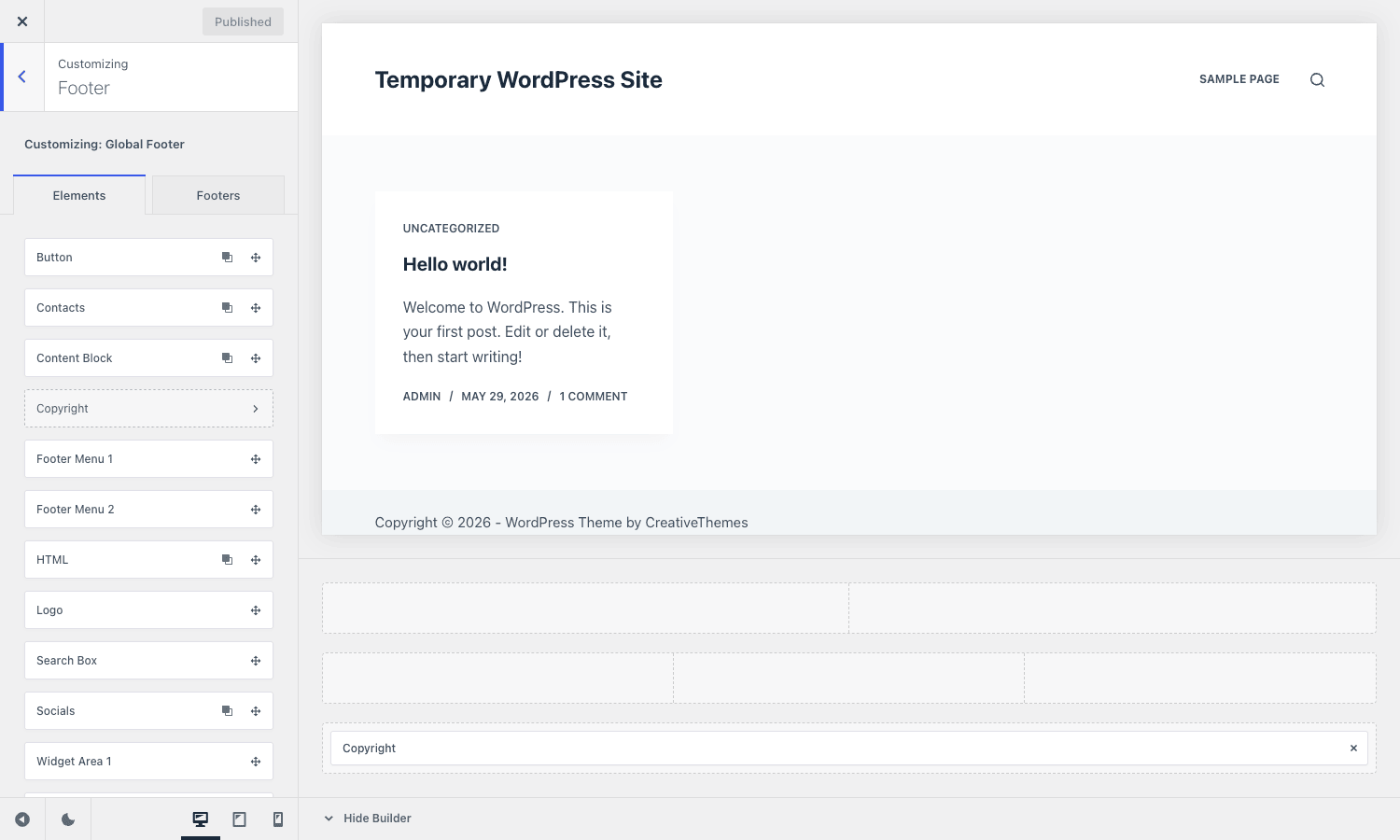
Both builders support multiple saved header and footer designs that you assign by condition, which loops directly into the conditions engine below. You can have one header for the shop, another for the blog, and a stripped-down one for landing pages, all without touching code. Compared to dropping an Elementor "Theme Builder" header (which then ships the full Elementor frontend bundle to render a logo and a menu), this is dramatically lighter on the page.
Content Blocks and the Display Conditions engine
If I had to name the single feature that makes Premium worth the upgrade, it’s this one.
A Content Block is a reusable chunk of content (built in the block editor) that you can place anywhere on the site without editing a template. They live under Blocksy, then Content Blocks, as a ct_content_block custom post type. When you create one, you pick a type, and the type list (confirmed in content-blocks/admin-ui.php) is:
- Custom Content/Hooks (
hook). Inject the block at a specific WordPress or Blocksy action hook, at a priority you choose. - 404 Page. A custom not-found page.
- Header. A fully custom header design (beyond the row builder).
- Footer. A fully custom footer.
- Archive. A custom archive/loop layout.
- Popup and single template types for modals and templated singular content.
The hook type is the powerful one. Blocksy ships a hooks manager (content-blocks/hooks-manager.php) that exposes dozens of WordPress and Blocksy hook locations: wp_head, wp_body_open, blocksy:head:start, blocksy:head:end, blocksy:header:before, archive hooks, and many more. You design a block, choose a hook and priority, and it renders there. Want a trust-badges strip right before the single-post content on every post in one category? That’s a hook content block with a condition, and you never opened a .php file.
Which brings us to the engine that ties it all together: Display Conditions. Every content block, every alternate header, and every alternate footer gets assigned a set of conditions that decide where it appears. The rules system lives in framework/features/conditions/, and reading the rules/ directory tells you exactly how granular it gets. The confirmed rule groups are:
- Basic and Pages/Posts rules: entire site, front page, all singulars, specific posts or pages, all of a post type.
- CPT rules: target any custom post type or a specific entry.
- Archive/Loop rules: blog index, post-type archives, taxonomy archives.
- Date/Time rules: schedule a block to appear or disappear between dates.
- Localization rules: target by language (it knows about multilingual setups).
- User Auth rules: logged-in, logged-out, or specific user roles.
- WooCommerce rules: shop, cart, checkout, product pages, product categories.
- bbPress rules, search results, 404, and a Custom group that developers can extend.
Each condition can include or exclude. So "show this CTA to logged-out visitors, on all blog posts, except the ones in the ‘free’ category, between Black Friday and Cyber Monday" is a handful of clicks. That’s the kind of targeting people install dedicated plugins for, and Blocksy bakes it into the same UI that places headers and footers.
I’ll be honest about the trade-off here, because it’s a real one: content blocks and their conditions are stored as the companion’s own post type and meta. They are not portable in the way a plain page is. If you ever leave Blocksy, those blocks don’t come with you in any usable form. That’s not unique to Blocksy (every theme-companion combo has the same lock-in), but it’s worth understanding before you build your entire site’s chrome out of content blocks.
The Advanced (mega) menu
The Advanced Menu extension (the mega-menu extension in the source) upgrades any WordPress menu item into a mega panel. You enable it from Extensions, then a "Mega Menu" toggle appears on each menu item in Appearance, then Menus. Turn it on for a top-level item and you can drop a content block into the dropdown, set the panel to full-width or a fixed width, and control columns.
Under the hood it’s smart about performance. The mega menu content is loaded on a "slight mouse move" trigger and cached with a persistence key (blocksy:mega-menu:persistence-key-components, a filter you can hook into), so the heavy panel markup isn’t rendered into every page’s initial HTML. For a navigation-heavy store this keeps the first paint lean while still giving you a rich dropdown on hover.
Custom post types and integrations
The Post Types Extra extension is a no-code custom post type and taxonomy creator. You define a CPT (labels, slug, supports, archive behavior) from the Blocksy UI instead of hand-writing a register_post_type() call. The extension also adds, per its features/ directory: a filtering module for CPT archives, read-time display, a related slideshow, and taxonomy customization options.
On top of that, Premium ships custom post type integrations (framework/premium/features/custom-post-type-integrations/) plus a clone CPT helper and a custom-post-type renderer. The practical payoff is that a CPT you create gets the same layout controls in the Customizer that built-in post types get: card layouts, archive columns, single-entry structure. That’s the part most CPT plugins skip, and it’s the reason a "Portfolio" or "Team" post type on Blocksy looks designed rather than like raw WordPress output.
WooCommerce Extra: the store layer
If you run WooCommerce, Shop Extra is the reason to go Premium. It’s the single richest extension in the plugin, and the source’s woocommerce-extra/features/ directory is a long list. I’ll group the confirmed ones so it’s clear what you actually get:
Conversion and merchandising
- Quick View (
quick-view). A product preview modal from the shop grid, with its own set of hooks (blocksy:woocommerce:quick-view:title:before,:price:after,:summary:before, and so on) for inserting custom content. - Wishlist (
wish-list). Save-for-later, with a wishlist page. - Compare (
compare). Side-by-side product comparison. - Swatches (
swatches). Color and image swatches for variable products instead of dropdowns. - Custom Badges (
custom-badges) and Sale Countdown (product-sale-countdown) for urgency. - Stock Scarcity (
stock-scarcity) messaging ("only 3 left"). - Size Guide (
size-guide) modals. - Brands (
brands) and an Affiliate product type.
Cart and checkout
- Floating Cart (
floating-cart) and Off-canvas Cart (offcanvas-cart). - Added-to-cart Popup (
added-to-cart-popup). - Cart Suggested Products (
cart-suggested-products) and a Shipping Progress bar (shipping-progress) that hook intoblocksy:woo:cart:cart-totalsandblocksy:woo:checkout:order-review. - Cart Reserved Timer (
cart-reserved-timer) to hold stock. - Custom Thank-You Page (
custom-thank-you-page).
Catalog and product page
- Filters (
filters) and Off-canvas Filters (offcanvas-filters) for ajax product filtering. - Product Gallery (
product-gallery) layout options and a Related Slideshow (related-slideshow). - Custom Tabs (
custom-tabs) on the product page. - Advanced Reviews (
advanced-reviews), the multi-criteria review system. - SKU Search (
sku-search) and Recently Viewed Products (recently-viewed-products).
Waitlist and back-in-stock
This one deserves its own mention because it’s a paid plugin on its own elsewhere. The product-waitlist feature lets customers sign up to be notified when an out-of-stock product returns. The scheduler fires blocksy_waitlist_send_back_in_stock_notification when stock returns, and you can tune cleanup of unconfirmed signups via the blocksy_waitlist_remove_not_confirmed_time filter (it defaults to daily).
A caveat from my testing: all of this depends on WooCommerce being active. The companion only registers the Shop Extra surface when WooCommerce is present, so on a non-store install these options simply won’t appear. That’s correct behavior, but it surprises people who toggle the extension on a site without WooCommerce and wonder why nothing changed.
Typography, custom fonts, and GDPR font hosting
Typography on Blocksy is genuinely deep, and it lives in the Customizer under Typography.
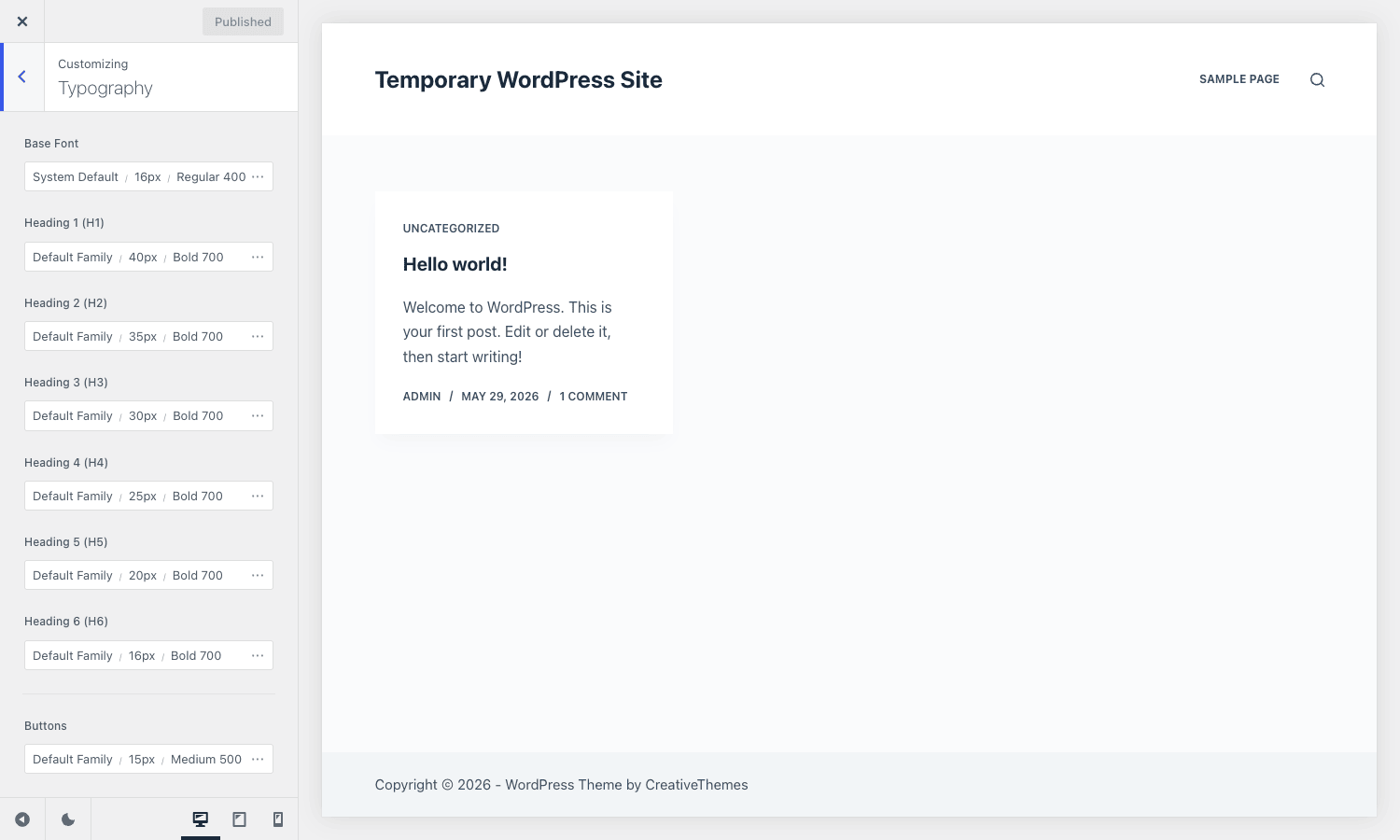
You set a Base Font, then independent controls for each of H1 through H6, plus buttons. Each control exposes family, size, weight, line height, letter spacing, and transform, and each is responsive (separate desktop, tablet, and mobile values). The default H1 is 40px Bold, scaling down to H6 at 16px, and you override any of them. Premium’s performance-typography and extend-core-typography-options features add finer-grained controls and extend typography options into the block editor.
Fonts come from three places, each its own extension:
- Google Fonts are available by default. With the Local Google Fonts extension on, the companion downloads the font files to your server and serves them locally. No request ever reaches
fonts.googleapis.com, which is the thing GDPR rulings in the EU have flagged. - Custom Fonts lets you upload your own
.woff2files and they appear in every font picker. - Adobe Fonts (Typekit) pulls in fonts from an Adobe project ID.
For a privacy-conscious or EU-facing site, the Local Google Fonts extension alone justifies a chunk of the price. Doing the same thing by hand (download fonts, host them, rewrite the @font-face declarations, strip the Google enqueue) is a fiddly afternoon.
Color palettes and dark mode
Blocksy’s color system is built on a global palette. You define up to eight palette colors once, then map them to roles across the theme.
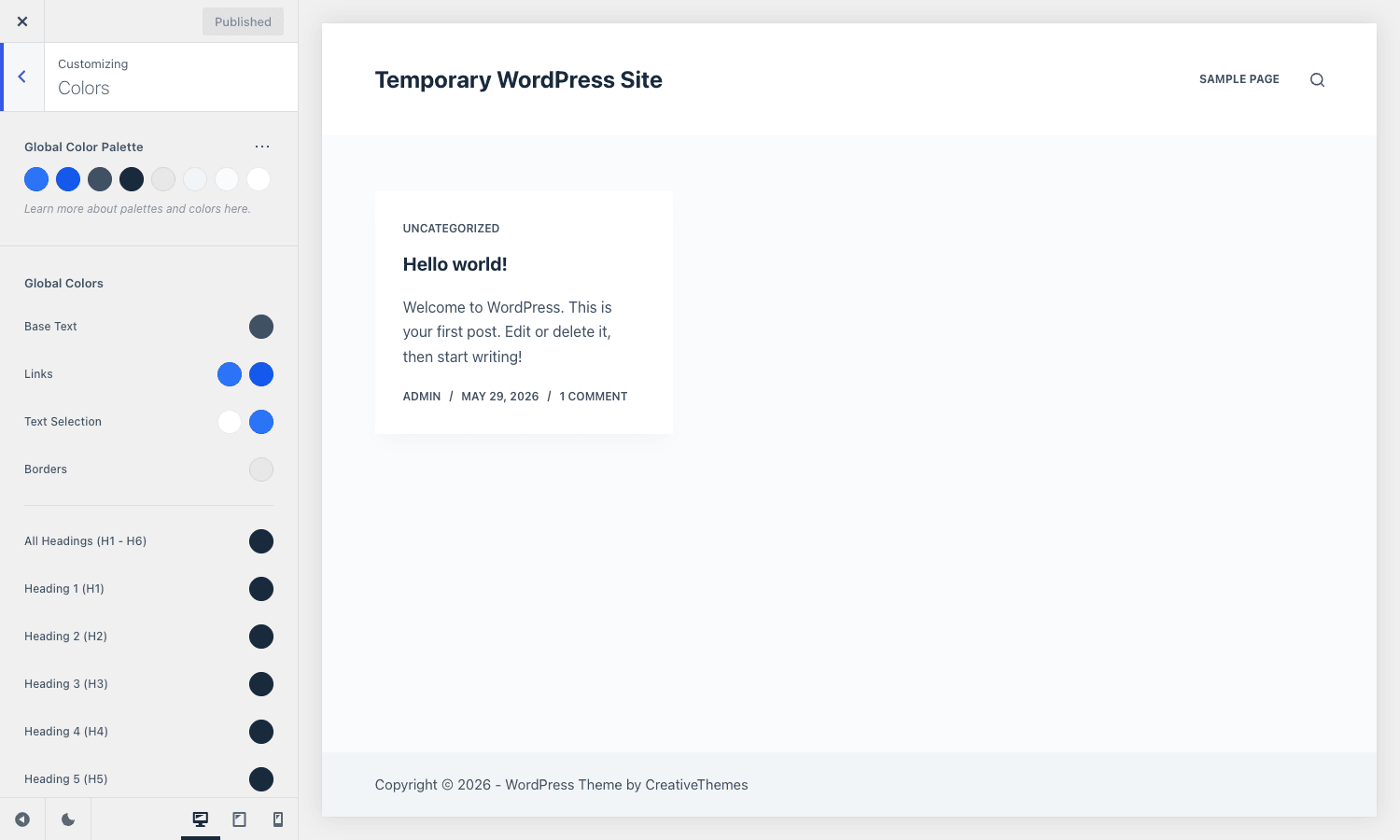
In the Customizer’s Colors section you set the palette swatches, then assign them to Base Text, Links, Text Selection, Borders, and per-heading colors. Change a palette color once and it cascades everywhere it’s referenced. Developers can register additional palettes programmatically through the blocksy:options:colors:palette:palettes filter, which I’ll show in the developer section.
Dark mode is the Color Mode Switch extension. Enable it and you get a front-end toggle plus a separate set of palette values for dark mode. The implementation is clean: it hooks the same palettes filter to inject a dark variant, so your dark theme is a real palette swap, not a CSS invert() hack. You can place the toggle as a header item or let it follow the visitor’s system preference.
Custom code, white label, and agency features
The Custom Code Snippets extension adds a snippets manager with a real code editor (the code-editor premium feature provides the syntax-highlighted editor). You can add CSS, JavaScript, and head/footer markup snippets scoped by condition, which is far safer than editing theme files and survives theme updates. Access is gated by a capability, so you can keep it admin-only.
White Label is the agency feature. From its settings (blocksy_ext_white_label_settings) you can rebrand the theme’s name and screenshot in the Appearance, then Themes screen, and hide pieces of the Blocksy UI (including the option to hide the plugins tab). When you hand a site to a non-technical client, they see "Acme Theme" instead of Blocksy, with no upsell prompts. It’s not a full reseller license, but it’s enough to make a handoff look bespoke.
There’s also a clutch of quieter Premium features worth naming so you know they exist: Maintenance Mode (a coming-soon/maintenance template that takes over the front end via template_include), Import/Export of theme options, Copy Options (copy settings between elements), Captcha Tools for the login/register modals, Socials management, Media Video handling, Taxonomy Search, and Local Gravatars (the "Store Gravatars Locally" toggle in the Performance panel that caches avatars on your server instead of hitting Gravatar on every comment).
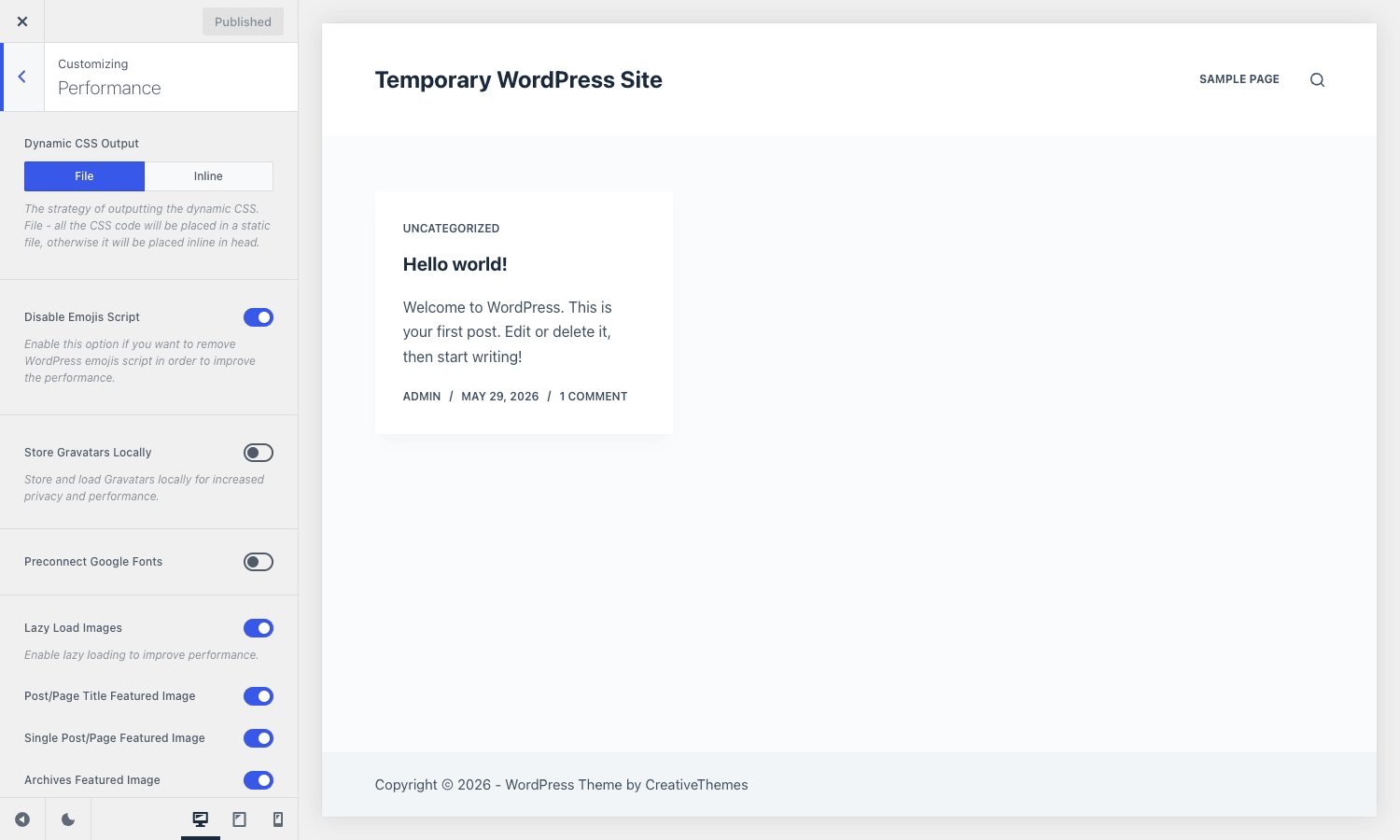
That Performance panel is worth a pause. Dynamic CSS Output lets you choose File (a static cached stylesheet) or Inline (in the head). File is better for caching; inline saves a request on small sites. You also get Disable Emojis Script, Preconnect Google Fonts, Lazy Load Images, and toggles for featured-image rendering. These are the small levers that keep a Blocksy site genuinely fast, and they’re the reason the page weight comparison later in this article lands where it does.
The Gutenberg dynamic-data blocks
Here’s a surface people miss entirely. The companion ships its own Gutenberg blocks under static/js/editor/blocks/, and three of them form a real dynamic-content layer for the block editor: Dynamic Data, Query, and Tax Query (alongside utility blocks like About Me, Breadcrumbs, Contact Info, Post Template, Socials, and Share Box).
The Dynamic Data block pulls field values (post meta, author info, dates, custom fields) into the editor without a builder. The Query and Tax Query blocks let you build custom loops, the kind of "show the latest 6 posts in this taxonomy as cards" layout you’d normally reach for a builder’s posts widget to do. Combined with content blocks, this means you can build templated, data-driven layouts in native Gutenberg and place them by condition. It’s not as visual as Elementor’s dynamic tags, but it ships no extra frontend runtime, and that’s the whole point of this product.
Developer reference: hooks, filters, conditions, and CLI
Blocksy is more developer-friendly than its "no-code theme" reputation suggests. Everything below is pulled directly from the companion source, with the file it lives in noted.
Add a custom display-condition rule
The conditions engine is extensible. framework/features/conditions/rules/custom.php exposes a filter that lets you register your own rule. Each rule needs an id and a title, and may include a has_text_field flag or a choices array:
add_filter( 'blocksy:conditions:rules:custom', function ( $rules ) {
    $rules[] = [
        'id'             => 'is_member',
        'title'          => __( 'Active Member', 'my-textdomain' ),
        'has_text_field' => false,
    ];

    return $rules;
} );
Your rule then appears in the "Custom" group of the conditions picker for content blocks, headers, and footers. You pair it with code that resolves whether the rule matches for the current request.
Register a custom color palette
The Color Mode Switch extension uses this filter, and so can you. Add a palette to the palette picker:
add_filter( 'blocksy:options:colors:palette:palettes', function ( $palettes ) {
    $palettes[] = [
        'id'     => 'ocean',
        'color1' => [ 'color' => '#006466' ],
        'color2' => [ 'color' => '#065A60' ],
        'color3' => [ 'color' => '#7F8C9A' ],
    ];

    return $palettes;
} );
Customize the login/register modals
Blocksy’s account item can open a login/register modal instead of a separate page. The modal exposes action hooks at blocksy:account:modal:login:start and :end (and matching register and lostpassword variants), plus filters on the field attributes. The post-login redirect is filterable with three arguments:
add_filter(
    'blocksy:account:modal:login:redirect_to',
    function ( $redirect_to, $requested_redirect_to, $user ) {
        if ( in_array( 'subscriber', (array) $user->roles, true ) ) {
            return home_url( '/dashboard/' );
        }

        return $redirect_to;
    },
    10,
    3
);
Hook into the cart and checkout
The Shop Extra cart and checkout templates fire their own actions so you can inject content without overriding templates:
add_action( 'blocksy:woo:cart:cart-totals', function () {
    echo '<p class="cart-note">Free returns within 30 days.</p>';
} );

add_action( 'blocksy:woo:checkout:order-review', function () {
    echo '<p class="checkout-note">Orders ship same-day before 2pm.</p>';
} );
The Quick View modal exposes a parallel set: blocksy:woocommerce:quick-view:title:before / :after, :price:before / :after, :summary:before / :after, and :add-to-cart:after.
Back-in-stock waitlist
The waitlist scheduler fires an action when stock returns, and a filter controls cleanup timing:
add_action( 'blocksy_waitlist_send_back_in_stock_notification', function ( $waitlists ) {
    // Mirror the notification to your CRM, log it, etc.
    error_log( 'Back-in-stock fired for ' . count( $waitlists ) . ' waitlists' );
} );

add_filter( 'blocksy_waitlist_remove_not_confirmed_time', function () {
    return 'weekly'; // default is 'daily'
} );
Dynamic CSS regeneration
When you change anything that affects the generated stylesheet, the companion fires blocksy:dynamic-css:refresh-caches. You can trigger it yourself after programmatic option changes:
do_action( 'blocksy:dynamic-css:refresh-caches' );
Other useful extension points
blocksy_companion_fs_loadedfires once the Freemius layer has loaded, a safe place to run code that depends on license state.blocksy:header:items-pathslets you register a directory of custom header items.blocksy:mega-menu:persistence-key-componentslets you add variables to the mega-menu cache key (handy when content varies by user or language).blocksy:hooks-manager:woocommerce-archive-hooksregisters additional hook locations for content blocks on shop archives.
WP-CLI
The companion registers a wp blocksy command (framework/cli.php). The confirmed subcommands:
# Extensions
wp blocksy extension list
wp blocksy extension activate custom-fonts
wp blocksy extension deactivate custom-fonts

# Tools (e.g. regenerate dynamic CSS)
wp blocksy tool list
wp blocksy tool run regenerate_dynamic_css

# Starter sites
wp blocksy demo list
wp blocksy demo install <demo-name>

# License + widgets
wp blocksy license activate <your-license-key>
wp blocksy widgets drop
The tool registry is itself filterable through blocksy_cli_tools, so you can register your own wp blocksy tool run entries for site-specific maintenance. That’s a nice touch for agencies scripting deploys.
Don’t enable every extension just because it’s there
Here’s the failure mode I see most often, and it’s the exact opposite of what makes Blocksy good.
The Extensions grid has fifteen-plus toggles, and the natural instinct on a fresh install is to flip them all on "so I have them ready." Don’t. Every enabled extension registers its hooks, enqueues its CSS and JavaScript, and in the case of Shop Extra and the conditions-heavy features, runs database queries on page load. The entire reason you chose a native theme over a page builder was to keep the page lean. Turning on Wishlist, Compare, Filters, Floating Cart, Sale Countdown, and Stock Scarcity on a five-product shop loads a stack of frontend assets to serve features your customers will never touch. You’ve reinvented the bloat you were trying to avoid, just with a different logo on it.
I’ve audited Blocksy sites that were slower than the Elementor sites they replaced, purely because someone enabled the whole extension grid and never measured. The cost is real and it’s measurable: each store extension adds its own script and stylesheet, and a few of them register AJAX endpoints and cron events. On a slow shared host, that’s the difference between a 1.2-second and a 2.5-second load. It also costs you time later, because a site with every feature on is a site where you can’t reason about what’s affecting what when something breaks.
The discipline is simple. Enable an extension when a page actually uses it, then check the page weight in your dev tools network tab before and after. If you turned on Compare and your store has no compare button anywhere, turn it back off. Treat the grid as a menu you order from, not a buffet you load up.
Blocksy Premium vs GeneratePress Premium vs Kadence Pro
These three are the real comparison set: native theme plus a premium companion, all positioned against page builders. I’ve shipped sites on all three, so here’s the honest breakdown with numbers rather than adjectives.
Page weight and speed. This is the category’s whole pitch, and all three are good. A bare Blocksy or GeneratePress page lands around 10 to 25 KB of CSS plus a small JS file, versus an Elementor page that routinely ships 250 to 400 KB of CSS and JavaScript before you add a single widget. Kadence sits slightly heavier than the other two because its block library loads more by default, but we’re still talking tens of KB, not hundreds. On a clean install, all three comfortably hit 90-plus Lighthouse performance scores where a default Elementor page struggles to clear 70 on mobile.
Licensing cost. Pricing shifts, so treat these as ballpark. GeneratePress Premium runs around 60 USD per year for unlimited sites, and famously offers a one-time lifetime option (historically near 250 USD). Kadence Pro bundles theme and blocks in tiers that have run roughly 130 to 220 USD per year depending on the add-on pack. Blocksy Premium sits in a similar band, usually a personal tier around 50 to 70 USD per year and an unlimited-sites/agency tier higher up, with a lifetime option that has been offered around 200 to 250 USD. The rough order: GeneratePress cheapest for the simplest needs, Blocksy and Kadence comparable in the middle, all three far cheaper than stacking Elementor Pro (around 99 USD per year for one site) on top of a theme.
Feature surface. Header/footer builders: Blocksy gives you three-row builders with conditional headers plus the premium items listed above; GeneratePress has Elements (a hook-based system) that’s more developer-leaning and less drag-and-drop; Kadence has a solid header builder too. WooCommerce depth is where Blocksy pulls ahead: Shop Extra’s 30-plus store features (quick view, waitlist, swatches, filters, floating cart, compare, and the rest) outnumber what GeneratePress’s WooCommerce module or Kadence’s WooCommerce add-on ship by a wide margin. If your project is a store, Blocksy’s store layer is the most complete of the three out of the box.
Where each wins. GeneratePress if you want the absolute lightest base and a hook-first, developer-oriented workflow. Kadence if you live in the block editor and want a deep block library bundled in. Blocksy if you want the most generous out-of-the-box feature set, the best WooCommerce layer, and a more visual builder experience, while still keeping the lean page weight. None of them is a page builder, and that’s the point. If you need freeform pixel design, you’d pair any of them with Elementor Pro or the block editor for specific pages.
Troubleshooting the problems people actually hit
The companion is installed but nothing changed. This is the number-one issue, and it’s the design I flagged at the top. The companion only runs when the Blocksy theme is the active theme. Go to Appearance, then Themes, and activate Blocksy. If you’re running a child theme of Blocksy, that’s fine, the companion detects the parent. Running it next to any other theme does literally nothing.
A Premium setting isn’t in the Customizer. Most Premium features are extensions that ship disabled. If you don’t see Shop Extra options, the mega-menu toggle, dark mode, or local fonts, go to Blocksy, then Extensions, and enable the relevant extension first. The Customizer and admin panels only render once the extension is on.
A content block isn’t appearing. Nine times out of ten it’s a condition mismatch. Open the block and check its Display Conditions: an "include" rule that’s too narrow, or a stray "exclude" rule, will silently hide it. Remember conditions are include/exclude, so a single exclude on "the whole site" overrides everything. Also confirm the block is Published, not Draft, because a draft block won’t render even with perfect conditions.
Fonts or typography changes aren’t applying. This is usually caching. Blocksy generates a dynamic CSS file, and if you have a caching or optimization plugin, the old stylesheet can stick around. Regenerate it with wp blocksy tool run regenerate_dynamic_css (or fire blocksy:dynamic-css:refresh-caches), then purge your page cache. If you switched the Performance panel’s Dynamic CSS Output between File and Inline, regenerate after the switch.
WooCommerce features don’t show up. Shop Extra requires WooCommerce to be active. The companion won’t register store options on a non-store site. Install and activate WooCommerce, then re-check the Customizer.
White Label hid something I need. White Label settings are stored in an option; if you locked yourself out of a UI piece, the settings are reachable from the White Label extension panel, and worst case you can clear blocksy_ext_white_label_settings via WP-CLI or the database.
A header item or content block breaks the layout. When dragging items into the header builder, an item placed in a row that has no width can collapse. Click the row and check its layout/spacing settings. For content blocks injected at a wp_head-area hook, make sure the block contains only valid head content (styles, meta), not visible markup, or it’ll render in the wrong place.
Compatibility and hosting notes
The companion requires WordPress 6.5 or newer and PHP 7.0 or newer, per the plugin header, though I’d run PHP 8.1 or higher for performance and security regardless. The Blocksy theme must be active for any of it to work.
It’s built around the block editor and plays well with Gutenberg, and its own dynamic-data, query, and tax-query blocks slot into native editing. It also coexists with page builders if you want one for specific pages: you can run Elementor or the block editor for landing pages while Blocksy handles the global header, footer, and templates. WooCommerce support is first-class through Shop Extra. For multilingual, the conditions engine has explicit localization rules and the source references both WPML and Polylang-style language detection, so per-language headers and content blocks work.
On specific integrations, the companion carries real code for the tools people actually pair it with, not just generic compatibility. ACF fields are readable through the Dynamic Data block, so a custom field shows up in your layout without extra glue. It works as the theme layer alongside Elementor, Brizy, and Beaver Builder if you want a builder for certain pages while Blocksy owns the global header, footer, and templates. Multilingual is handled through WPML and Polylang (plus TranslatePress-style detection), which feed the language-switcher header item and the localization condition rules. And it stays out of the way of a dedicated SEO plugin like Rank Math, so you can let the SEO plugin own meta output.
That said, you may not need a separate plugin for the basics. Blocksy ships a built-in OpenGraph meta toggle (with Facebook page URL and app ID fields) and a Google Analytics 4 field where you drop your measurement ID and the theme injects gtag.js. For a small site those two cover the "social preview plus traffic numbers" need without a third plugin; on a content site you’ll still want a full SEO plugin, in which case turn the theme’s OpenGraph option off so the two don’t both write tags.
On hosting, Blocksy is light enough to run comfortably on budget shared hosting, which is part of its appeal. The Local Google Fonts and Local Gravatars features reduce external requests, which helps on hosts with slow outbound connections. For multisite, the companion activates per-site as you’d expect; the license covers a number of sites depending on your tier rather than network-wide magic.
A practical caching note: because Blocksy generates dynamic CSS, pair it with a page cache that knows to invalidate when you regenerate styles. It works fine alongside the major caching plugins, just remember to purge after big Customizer changes.
Pricing and licensing
Blocksy follows the familiar theme-companion model. The theme is free. The free companion (on WordPress.org) gets you a meaningful baseline: the header/footer builders’ core items, the conditions basics, and a few extensions. The Premium companion is a paid, Freemius-licensed plugin that unlocks the full extension grid, all the premium header/footer items, content blocks with the complete conditions engine, the WooCommerce Extra suite, white labeling, custom code, and the rest of what this article covers.
Tiers generally break down as a personal/single-tier for one or a few sites, a professional tier for more sites, and an agency/unlimited tier with white label aimed at people building for clients. There’s typically a lifetime option alongside the annual plans. The agency tier is the one to look at if you hand sites to clients, because White Label and the higher site count are what make a client-services workflow practical.
Blocksy Companion Premium is on GPL Times, which is the quickest way to get the full Premium plugin onto a staging install and click through every panel as you read this, rather than trialing feature by feature.
FAQ
Does Blocksy Companion Premium work without the Blocksy theme?
No, and this is the most important thing to understand before you buy. The plugin’s own description says it "runs and adds its enhancements only if the Blocksy theme is installed and active." Activate it next to any other theme and it does nothing at all. You need both the Blocksy theme (free) and the Premium companion. The upside is that the theme is genuinely free and good, so you’re not paying twice.
What’s the actual difference between the free and premium companion?
The free companion gives you a working baseline: the core header/footer builder items, basic conditions, and a handful of extensions. Premium unlocks the full extension grid (Shop Extra, mega menu, color mode, local fonts, white label, and more), the premium header items (Content Block, Contacts, Divider, language switcher, extra menus), content blocks with the complete conditions engine including date/time, user-role, and WooCommerce rules, and the entire WooCommerce Extra store suite. If you only need a fast theme with a simple header, free is plenty. The moment you want conditional content, a real store layer, or client white labeling, you need Premium.
Is it faster than building the same site with Elementor?
In almost every case, yes, and measurably. A native Blocksy page ships tens of KB of CSS and a small JS file, where a comparable Elementor page ships 250 to 400 KB before custom widgets. The reason is structural: Blocksy renders through PHP templates and dynamic CSS, while a builder ships a frontend runtime to interpret its layout. That said, "faster" assumes you don’t enable every extension. A Blocksy site with the entire grid switched on can erase its own advantage, which is exactly why the discipline matters.
How deep is the WooCommerce support, really?
Deeper than most theme-companion combos. Shop Extra includes quick view, wishlist, product comparison, ajax filters and off-canvas filters, variation swatches, a floating and off-canvas cart, sale countdowns, stock scarcity messaging, size guides, custom badges, custom product tabs, advanced multi-criteria reviews, recently viewed products, and a back-in-stock waitlist with email notifications. Several of those are sold as standalone paid plugins elsewhere. The honest caveat: it’s a layout and conversion layer, not a replacement for WooCommerce subscriptions, bookings, or complex tax logic, which you’d still add separately.
Can I do dynamic content without a page builder?
Yes, that’s a genuine strength. The companion ships Dynamic Data, Query, and Tax Query blocks for the native block editor, so you can pull in post meta and custom fields and build custom loops without a builder’s dynamic tags. Combined with content blocks placed by condition, you can assemble templated, data-driven layouts in Gutenberg. It’s less visual than Elementor’s dynamic tags, but it adds zero frontend runtime.
Does dark mode actually work or is it a gimmick?
It works properly. The Color Mode Switch extension adds a front-end toggle and a separate set of palette values for dark mode, implemented through the same palette filter the rest of the theme uses. So dark mode is a real color swap, not a CSS invert() filter that mangles images and shadows. You can place the toggle in the header and optionally have it follow the visitor’s system preference.
Can I rebrand it for clients?
Yes, via the White Label extension on the agency tier. You can rename the theme and replace its screenshot in the Appearance, then Themes screen, and hide parts of the Blocksy UI so a client sees your brand rather than CreativeThemes’ and isn’t shown upsell prompts. It’s not a full reseller arrangement, but it’s enough to make a handoff feel bespoke.
What happens to my site if I stop using Blocksy?
This is the lock-in question, and the honest answer is that some things don’t travel. Content blocks, conditional headers and footers, and the layout settings are stored as the companion’s own post types and theme options. They won’t render under a different theme, and there’s no clean export into another theme’s format. Your actual content (posts, pages, products) is standard WordPress and stays fine. So build your articles and products as normal WordPress content, and understand that the chrome (headers, footers, content blocks) is Blocksy-specific. That’s true of every theme-companion combo, but it’s worth knowing before you commit your whole design to content blocks.
Is the GPL Times copy the same as buying from CreativeThemes?
It’s the same Premium plugin files. You get the full feature set and can activate the extensions and use everything described here. The difference is the delivery channel and the licensing/support relationship with the original vendor. For testing the full product on a staging site, it’s the fastest path; for a mission-critical production store you’ll want to weigh ongoing vendor support and updates.
Is it worth it?
If your project is a blog, a marketing site, or a conventional WooCommerce store, and you’d rather not ship a page builder’s runtime to every visitor, Blocksy Companion Premium is one of the best buys in the WordPress theme world right now. The header and footer builders are genuinely good, the content blocks plus conditions engine is the kind of feature you don’t appreciate until you’ve used it, and the WooCommerce Extra suite quietly replaces a small stack of paid plugins.
It’s not magic, and it’s not for everyone. It’s inert without the Blocksy theme, the conditions and content blocks tie you to Blocksy specifically, and the temptation to enable every extension can erase the performance edge that’s the whole reason to choose it. Go in with the discipline to enable only what you use, measure your page weight, and lean on the conditions engine, and you get a fast, flexible site without a builder sitting in the critical path.
For developers, the hooks, conditions filter, palette filter, and wp blocksy CLI commands mean you’re never boxed in by the no-code surface. For site owners, the Customizer-plus-content-blocks workflow is approachable once the two-screens model clicks. That combination, a no-code surface that doesn’t trap developers, is rarer than it should be, and it’s what makes this one easy to recommend.