

A flat shipping fee is a guess, and most of the time it’s a wrong one.
Core WooCommerce gives you exactly three shipping options: flat rate, free shipping, and local pickup. None of them care how heavy the box is, how many items are in the cart, or where the customer lives beyond the zone you put them in. So you pick one flat number and live with the consequences. Charge $8 and you lose money the moment someone buys a 40 lb dumbbell set. Charge $25 and you watch the light-order shoppers abandon their carts at checkout. That gap, between what shipping actually costs you and what one flat fee charges, is exactly where Flexible Shipping earns its place. It’s a WooCommerce plugin from Octolize that replaces that single guess with a rules table: charge by weight, by order value, by item count, by shipping class, or any combination, all inside the shipping zones you already use.
I’ve set up shipping on a lot of WooCommerce stores, and the flat-rate trap catches almost everyone at least once. This is a long, honest walk through what Flexible Shipping does, how the rules engine actually thinks, the settings I’d change first, the gotchas that block checkout if you’re not careful, and a full developer reference with the hooks worth knowing. Whether you run a one-person shop or build stores for clients, by the end you’ll know exactly when this plugin is the right tool and when it isn’t.
Table of Contents
- What is Flexible Shipping?
- How shipping methods and zones fit together
- Building your first cost rule
- Conditions: weight, price, and beyond
- Costs, per-unit charges, and the maximum cap
- Special actions: stop and cancel
- Free shipping thresholds and the cart nudge (LFFS)
- Tax, the method logo, and DIM factor
- The five paid add-ons
- Who it’s for: four real setups
- Flexible Shipping vs the alternatives
- Don’t make these shipping mistakes
- When checkout shows no shipping method
- Developer reference: hooks and filters
- Free vs Pro
- FAQ
- Final thoughts
What is Flexible Shipping?
Flexible Shipping is a table-rate, conditional shipping plugin for WooCommerce, built by Octolize (the team formerly known as WP Desk). It comes in two pieces that work together: a free base plugin called Flexible Shipping, available on the WordPress.org repository, and the paid Flexible Shipping PRO extension that layers advanced conditions, free-shipping nudges, and a set of add-ons on top. Pro requires the free base. You install both, activate both, and they run as one.
The free version’s own description sums up the core idea cleanly: "Create additional shipment methods in WooCommerce and enable pricing based on cart weight or total." Pro then "extends the free version by adding advanced pro features." That’s the honest split, and I’ll come back to exactly where the line falls later.
Here’s the mental model. WooCommerce ships with a handful of built-in shipping method types. Flexible Shipping adds one more, a method whose internal id is flexible_shipping_single, that you drop into any shipping zone. But instead of asking you for a single number, that method opens a rules engine. Each rule looks at the cart, decides whether it applies, and contributes a cost. The plugin runs the rules top to bottom and returns the total as the shipping rate the customer sees at checkout.
It requires WooCommerce and PHP 7.4 or newer. That’s it for dependencies.
One thing worth saying up front, because it sets expectations: Flexible Shipping is a rule-based calculator, not a live carrier-rate integration. By default it does not phone UPS or FedEx for a real-time quote. You define the logic once, and it computes from your rules. For a lot of stores that’s actually the feature, not a limitation, because rule-based rates are predictable and don’t depend on a carrier API being up.
How shipping methods and zones fit together
Skip this section if you already know how WooCommerce shipping zones work. If you don’t, the next two minutes will save you a lot of confusion, because Flexible Shipping lives entirely inside this structure.
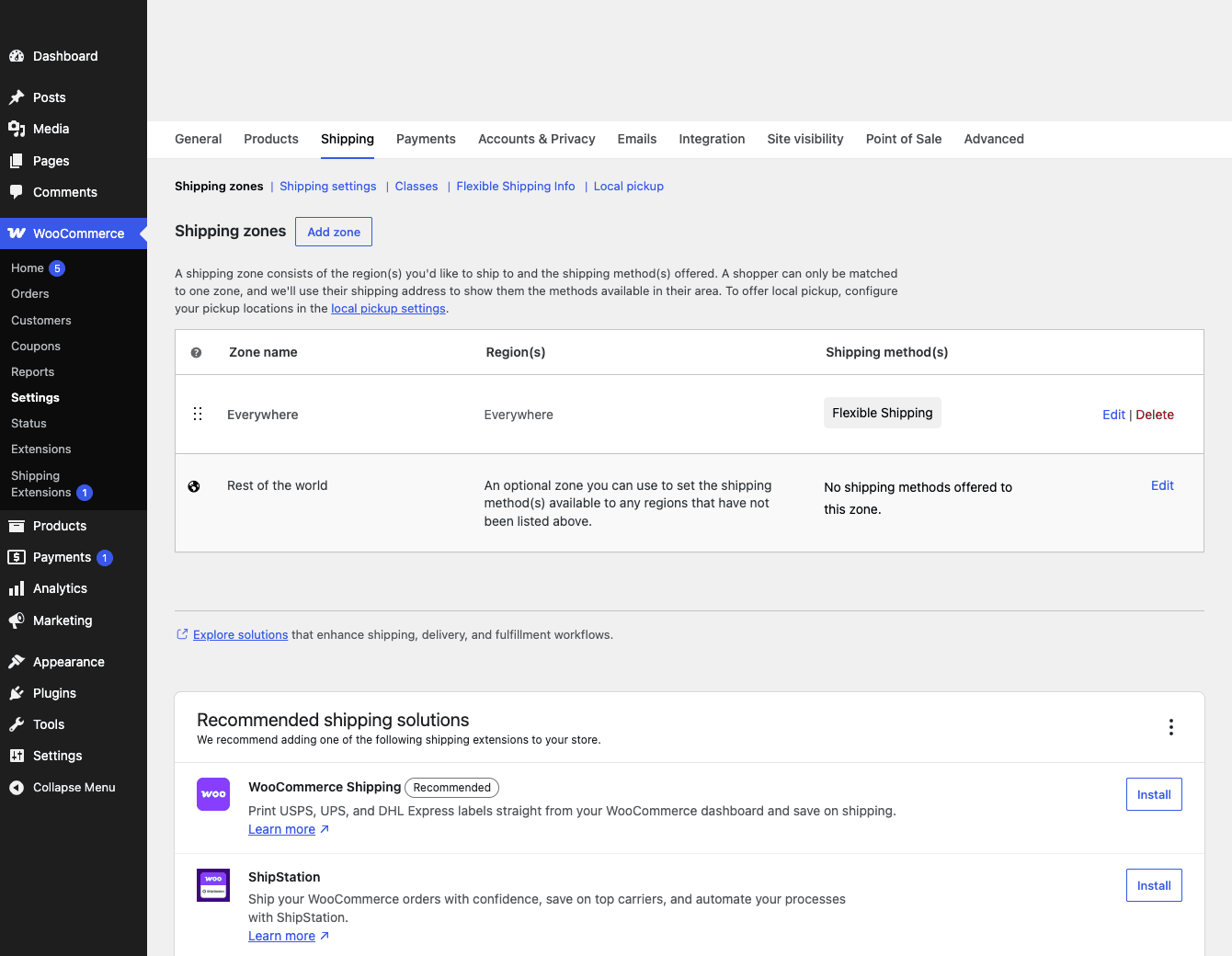
WooCommerce organizes shipping around zones. A zone is a set of regions (countries, states, postcodes) plus a list of shipping methods available to anyone in that region. A customer’s address matches exactly one zone, and they see only the methods inside it. So you might have a "Domestic" zone with two methods and a "Rest of World" zone with one.
Flexible Shipping doesn’t replace that. It plugs into it. You go to WooCommerce » Settings » Shipping, pick a zone, click Add shipping method, and choose Flexible Shipping from the list. Now that zone has a Flexible Shipping method sitting alongside (or instead of) the built-in flat rate. Each zone can have its own Flexible Shipping method with its own rules, which is how you charge different logic for domestic versus international without any code.
The key idea: the rules you write are scoped to one method in one zone. They don’t leak across zones. That’s a good thing, because a customer in Germany should never be evaluated against your US weight brackets.
In the free base you get a single Flexible Shipping method per zone. Pro lifts that so you can run multiple methods in the same zone, which is how you offer "Standard," "Express," and "Bulky item surcharge" as separate choices the customer picks between.
There’s no separate page to set up, no shortcode to paste, no custom post type to learn. If you can find your shipping zones, you can find Flexible Shipping. That’s deliberate, and it’s one of the things I genuinely like about it. The plugin meets you where WooCommerce already put you.
Building your first cost rule
Open the Flexible Shipping method and the screen that matters is the Shipping Cost Calculation Rules table. This is the engine. Everything else on the page is configuration around it.
The table has three columns: Conditions, Costs, and Special action. Each row is one rule. Reading a row left to right, it says: when the cart matches these conditions, add this cost, then optionally take this special action.
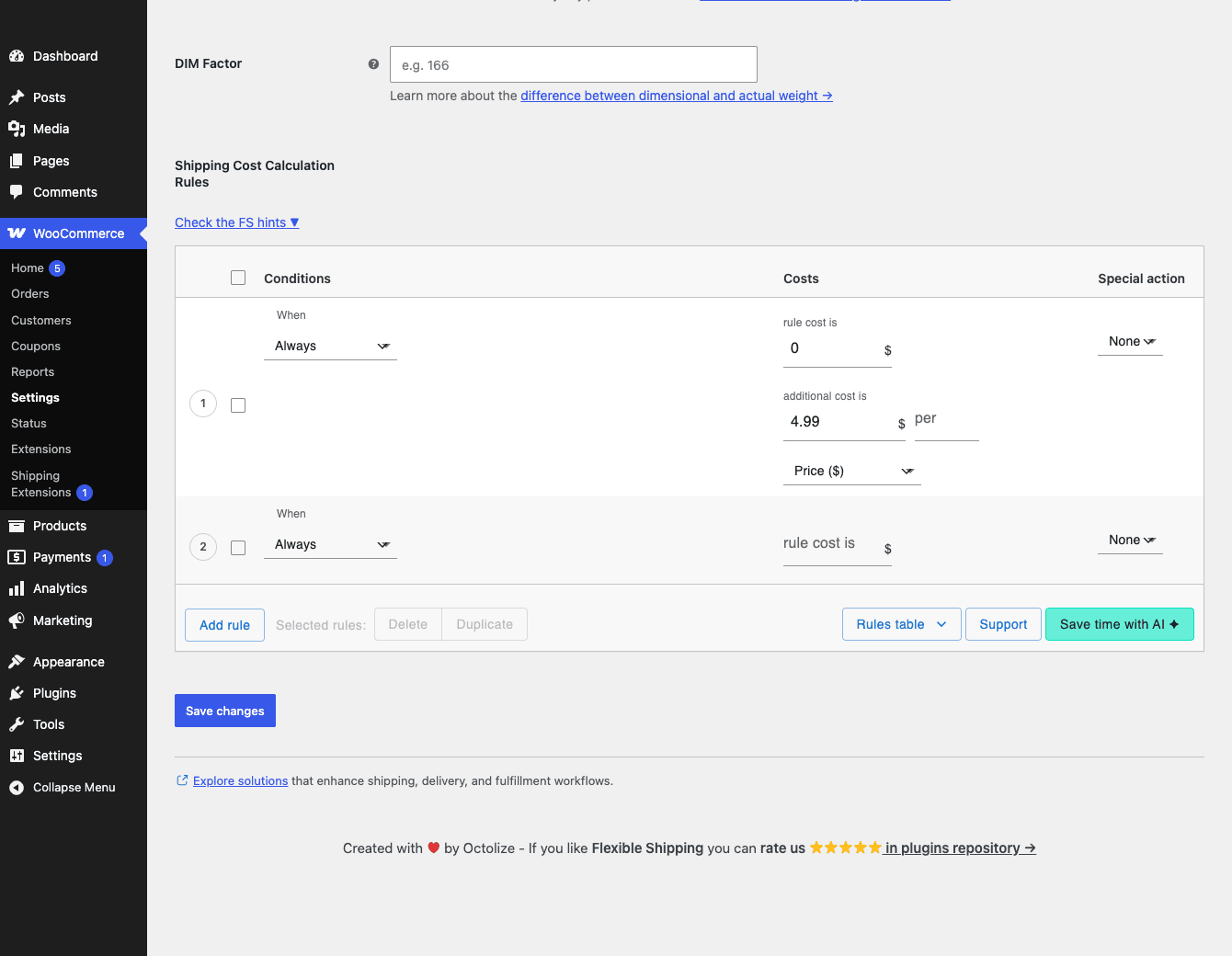
Let’s build the simplest useful rule, a weight-based bracket. Say small orders cost $5 to ship and heavier ones cost more.
- Add the first rule. Click Add rule. In the Conditions column, choose to base it on Weight, and set the range, for example 0 to 5 (kg or lb, whatever your store uses). In the Costs column, enter 5. You’ve just said "carts up to 5 in weight cost $5 to ship."
- Add a second rule. Click Add rule again. Set Weight from 5 to 20, and a cost of 10. Now mid-weight orders charge $10.
- Add a catch-all. Click Add rule a third time. This time set the condition to Always (no range), with a cost of, say, 25. This is your safety net, and it matters more than it looks. If a cart somehow doesn’t match either bracket, this rule still gives it a rate. Without a catch-all, a non-matching cart shows no shipping option and checkout stalls.
Each rule also supports Duplicate and Delete, which sounds trivial but saves real time once you have a dozen brackets and only want to tweak one number across several of them.
The order of rules is part of the logic, not just cosmetic. Flexible Shipping evaluates rules top to bottom, and the special actions (covered below) can stop or cancel that chain partway. So a rule that’s meant to be a fallback belongs at the bottom, and an override belongs near the top. Drag your rules into the order you actually want them evaluated.
That’s the whole loop. Add rules, define when each applies, set what each costs, arrange them sensibly. Almost every shipping policy you can describe in a sentence maps onto this table.
Conditions: weight, price, and beyond
The Conditions column is where the "conditional" in conditional shipping lives. A condition answers the question "does this rule apply to the current cart?"
In the free base, you get two condition types plus the always-on option:
- Price. The cart total (order value) falls within a min to max range. This is how "free shipping over $75" or "$3 surcharge on orders under $20" gets built.
- Weight. The total cart weight falls within a range. The classic table-rate use case, and the one that fixes the heavy-goods margin problem.
- Always. No condition. The rule always applies. Your fallback.
That’s genuinely it for the free version, and I want to be straight about that because it’s easy to assume the free plugin does more than it does. If you only ever needed weight-based or order-total brackets, the free base would carry you.
Pro extends the list of what you can base a condition on. It adds conditions like item count (number of products in the cart) and shipping class (so a "Bulky" class can carry its own surcharge), plus more. Under the hood this is done through a filter named flexible_shipping_method_rule_options_based_on, which means the set of available condition types is itself extensible. A developer can register an entirely custom condition type, and we’ll look at how in the developer section.
Shipping class deserves a callout because it’s the one people reach for most after weight. WooCommerce lets you tag products with a shipping class (you might have "Standard," "Fragile," "Oversized"). A Pro condition can match on that class, so a single oversized item triggers a surcharge rule no matter what else is in the cart.
Tip: combine conditions on a single rule when you need precision. "Weight over 20 and destination zone is rural" is two conditions on one rule, and only carts meeting both will match. That’s how you stop a broad rule from catching orders it shouldn’t.
Costs, per-unit charges, and the maximum cap
A rule’s Costs column is more capable than a single number. Each matching rule contributes two things that add together:
- A fixed rule cost. The flat amount for matching the rule. In our weight example that was the 5, 10, and 25.
- An additional cost charged per unit. On top of the fixed cost, Pro lets you add a charge per Price or per Weight. So a rule can say "$10 base, plus $1.50 for every kilogram." That per-unit charge is what makes a rate scale smoothly with a heavy cart instead of jumping in clunky brackets.
Per-unit additional cost is a Pro feature, and it’s one of the more useful ones. Real shipping cost rarely steps cleanly at 5 kg and 20 kg. It climbs gradually. A per-weight additional cost models that climb without you defining fifty tiny brackets.
Heads-up: the Maximum Cost cap is your insurance policy against a runaway per-unit charge. If you say "$2 per kilogram" and someone orders a 200 kg pallet, that’s $400 of shipping, which is almost certainly not what you meant. Set a Maximum Cost on the rule (or the method) and the charge stops climbing past the ceiling you choose. I treat a max cost as non-optional on any rule that uses per-unit pricing.
Here’s a quick table of how the pieces combine on one rule:
| Piece | What it does | Example |
|---|---|---|
| Rule cost | Flat charge for matching the rule | $10 |
| Additional cost (per weight) | Adds a charge for each unit of weight | $1.50 / kg |
| Maximum cost | Caps the total this rule can charge | $60 ceiling |
A 12 kg order on that rule charges $10 + (12 × $1.50) = $28. A 60 kg order would compute to $100 but the cap holds it at $60. That’s the whole arithmetic, and it’s easy to reason about, which I value when a customer emails asking why their shipping cost what it did.
Special actions: stop and cancel
The third column, Special action, controls what happens to the rule chain after a rule matches. There are three settings:
- None. The default. The rule contributes its cost and evaluation continues to the next rule.
- Stop. Stop evaluating further rules. The cost calculated so far becomes the final rate. Useful when a high-priority rule should be the final word and you don’t want lower rules adding to it.
- Cancel. Cancel this shipping method entirely for the current cart, so the customer doesn’t see it as an option.
Cancel is the sharp one, so handle it with care. A real use is "if the cart contains a hazardous-class item, cancel the standard method" so that customers are pushed toward a method that can actually carry it. But cancel a method without leaving the customer another valid option in the zone, and you’ve just blocked their checkout. More on that failure mode shortly, because it’s the single most common way people break their own store with this plugin.
Note: Stop and Cancel only make sense once you understand rule order. They act on "the rules evaluated so far," so where a Stop rule sits in the table changes what it does. This is why I said earlier that order is logic, not decoration.
Free shipping thresholds and the cart nudge (LFFS)
Free shipping is the carrot most stores want to dangle, and Flexible Shipping handles it as a first-class feature in Pro rather than something you bolt on.
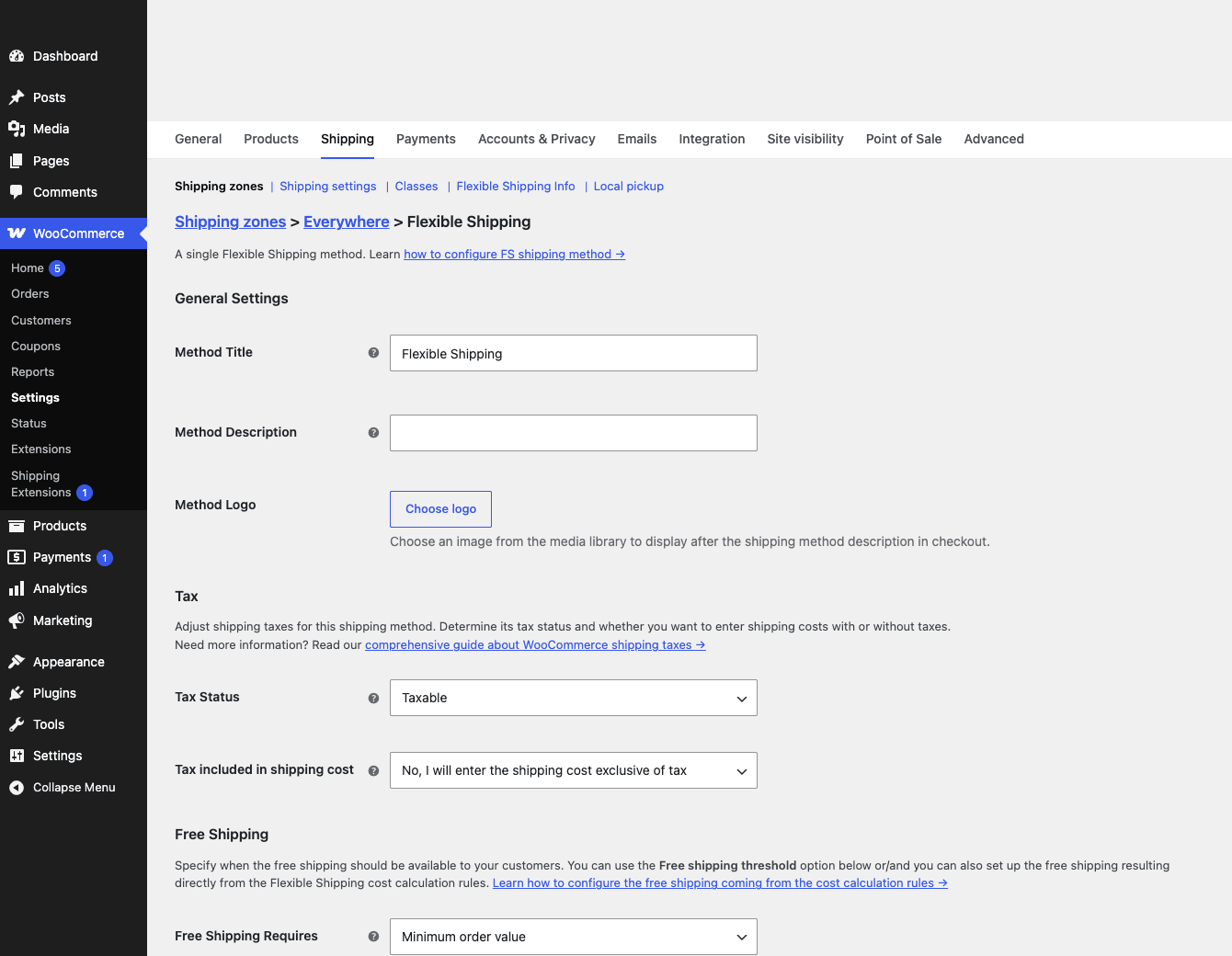
In the method’s Free Shipping settings you set what free shipping requires, typically a minimum order value (the free shipping threshold), and optionally whether a coupon can unlock it. Set the threshold to $75 and any cart at or above $75 ships free, while everything below pays the rules-based rate.
The part that earns its place, though, is the "Left for free shipping" (LFFS) notice and progress bar. This is the cart nudge you’ve seen on good stores: "Spend $12 more for free shipping," often with a little bar that fills as the cart grows. Flexible Shipping renders this automatically once you’ve set a threshold, and you can customize the wording. It’s a genuine conversion lever. Telling a shopper they’re $12 away from free shipping is one of the cleaner ways to lift average order value without discounting anything.
You also get a Free Shipping Label, so the method can read "Free Shipping" at checkout instead of "$0.00," which reads better to customers.
Tip: the LFFS notice text is filterable, so if "Spend X more for free shipping" doesn’t match your brand voice, a developer can rewrite it (see the developer section for the exact filter). You’re not stuck with the default phrasing.
If you run a WooCommerce storefront on something like the Flatsome theme, the LFFS bar slots into the cart and checkout templates without any styling work, since it renders through WooCommerce’s standard notice and cart hooks.
Tax, the method logo, and DIM factor
A few more method-level settings round out the configuration, and each one quietly prevents a support ticket.
Tax handling. The method has a Tax Status (Taxable or None) and a "Tax included in shipping cost" option. These interact with WooCommerce’s own tax settings, and getting them wrong is a real way to over- or undercharge. If your store prices include tax, you’ll usually want shipping to behave consistently with that. Decide this once, deliberately, rather than leaving it on a default you didn’t choose.
Method logo. Pro lets you attach a logo image to the method, which shows up next to the method name at checkout. Small touch, but a carrier logo (or your own brand mark) makes a shipping option feel more trustworthy than a bare line of text. For stores offering several methods, distinct logos help customers tell them apart at a glance.
DIM factor (dimensional weight). This is the one that confuses people, so here’s the plain version. Carriers often bill bulky-but-light packages by dimensional weight, not actual weight, because a big box of pillows takes up truck space a heavy small box doesn’t. The DIM factor is a divisor: you take the package volume and divide by the factor to get a billable weight. Flexible Shipping lets you set a DIM factor so your weight-based rules charge on dimensional weight when that’s higher than actual weight. If you sell anything large and light, this stops you from quietly losing money on every shipment.
Heads-up: DIM factor only matters if your products have real dimensions entered. WooCommerce stores length, width, and height per product. If those fields are empty, there’s no volume to compute, and the DIM factor does nothing.
The five paid add-ons
Beyond Pro itself, Octolize sells a set of separate add-ons that extend Flexible Shipping for specific needs. These are distinct products, not bundled into core Pro, so reach for them only when you actually hit the matching need:
- Locations. Per-location or multi-warehouse rates. If you ship the same order from different warehouses depending on stock, this calculates rates per origin location.
- Import / Export. Move your shipping rules in and out as CSV. Genuinely valuable once you have a big rules table, because editing fifty brackets in a spreadsheet beats clicking through the admin, and it makes cloning a setup across stores trivial.
- Box Packing. Packs cart items into defined boxes before calculating, so your dimensional rates reflect how items actually fit together rather than summing each item’s volume. The accurate-but-fiddly option for stores where packing efficiency moves the cost.
- Distance Based Shipping Rates. Calculates rates by the distance between your store and the customer, using Google Maps. Useful for local delivery where "how far" is the real cost driver.
- Multi Vendor. Per-vendor shipping rates for marketplaces. If you run a multi-vendor store on something like Dokan or WCFM, each vendor can define their own Flexible Shipping rules and the cart splits shipping accordingly.
Heads-up on the Distance add-on: it depends on a Google Maps API key, and Maps billing is usage-based. A busy store hammering the distance calculation on every cart update can run up a Google bill you didn’t budget for. Cache where you can and watch the API usage for the first month.
Who it’s for: four real setups
Rules tables are abstract until you see them mapped onto a real store. Here are four setups I’ve either built or watched someone build.
The furniture store shipping heavy items. If you sell sofas, weight beds, or anything that fills a pallet, a flat rate is financial self-harm. You set Weight conditions with a per-weight additional cost and a Maximum Cost cap. A 5 kg cushion ships cheap, a 60 kg dining set charges its real cost, and the cap stops a freak order from quoting an absurd number. This is the textbook reason Flexible Shipping exists.
The store offering free shipping over a threshold. You sell mid-priced goods and want to push average order value up. You set a $75 free-shipping threshold, turn on the LFFS progress bar, and let the "$12 more for free shipping" nudge do the persuading. Below the threshold, weight rules keep you from losing money on shipping while the customer is still deciding whether to add one more item.
The multi-zone international store. You ship domestically and to a handful of countries with very different costs. You create separate WooCommerce zones, and each gets its own Flexible Shipping method with its own rules. Domestic uses cheap weight brackets, international uses higher per-weight pricing, and a customer only ever sees the rules for their region. No code, no plugin juggling.
The marketplace using the Multi-Vendor add-on. You run a marketplace where each seller fulfills their own orders. With the Multi Vendor add-on, every vendor sets their own Flexible Shipping rules, and a cart spanning three vendors splits shipping into three calculations. That’s a setup core WooCommerce simply can’t do on its own.
Flexible Shipping vs the alternatives
The honest comparison is against two things: doing nothing (core WooCommerce) and the official paid option (WooCommerce Table Rate Shipping). Here are the numbers that actually separate them.
| WooCommerce core | Flexible Shipping | WC Table Rate (official) | |
|---|---|---|---|
| Built-in method types | 3 (flat, free, pickup) | adds 1 rules-based method | adds 1 rules-based method |
| Conditional rules | 0 | unlimited rules per method | unlimited rules per method |
| Free-tier conditions | n/a | 2 (Price, Weight) | none (paid only) |
| Per-unit additional cost | no | yes (per price / per weight) | yes |
| Free-shipping progress nudge | no | yes (LFFS bar) | no built-in |
| Paid add-ons | n/a | 5 (Locations, Import/Export, Box Packing, Distance, Multi-Vendor) | n/a |
Against core WooCommerce: core gives you 3 shipping method types and 0 conditional rules. You get one flat number per method and that’s the ceiling of the logic. Flexible Shipping adds a rules engine with as many conditional rules as you care to write. That’s not "more flexible" hand-waving, it’s the difference between 0 conditions and an unbounded table of them. In practice that means you can charge $4.99 for parcels up to 2 kg and $8.99 up to 10 kg, instead of one flat $6.00 that loses money above 5 kg and overcharges below it. The free tier costs $0 to prove the model works before you pay for Pro.
Against the official WooCommerce Table Rate Shipping: both do table-rate logic well. The differences I’d weigh are: Flexible Shipping has a genuinely usable free tier with 2 condition types (Price and Weight), so you can validate the approach before paying anything, whereas the official extension is paid from the start. Flexible Shipping also ships the LFFS free-shipping progress bar in Pro, and a lineup of 5 separate add-ons for niche needs. The official extension is a single product with no add-on layer. Neither does live carrier rates by default; both are rule-based calculators.
If you want to dig into how WooCommerce structures shipping zones and methods generally, the WooCommerce shipping documentation is the canonical reference, and the Flexible Shipping docs cover the rule-by-rule specifics.
Don’t make these shipping mistakes
I’ve cleaned up enough broken shipping setups to know the failure modes are predictable. Here are the ones that cost real money and trust.
Don’t ship heavy or bulky goods on a single flat rate. This is the original sin. One flat fee on a catalog with varied weights guarantees you lose margin on every heavy order and overcharge every light one. The light-order overcharge is the quiet killer, because the customer doesn’t complain, they just abandon the cart and you never know. Weight conditions with a per-weight additional cost fix both ends at once.
Don’t run a method without a fallback "Always" rule. This is the most dangerous mistake in the plugin, and it’s the one I see most. Flexible Shipping computes a rate only if a rule matches the cart. If no rule matches, the method offers no rate, and if that was the only method in the zone, WooCommerce shows "no shipping methods available" and the customer cannot complete checkout. They don’t email you. They leave. Always keep a catch-all "Always" rule (or a Maximum Cost on the method) so every cart gets some rate.
Don’t set a free-shipping threshold without checking your margin on heavy items. "Free shipping over $50" sounds great until someone orders a $52 cart of cast-iron cookware that costs you $30 to ship. You just shipped at a loss to win a sale you’d have made anyway. Pair any free-shipping threshold with weight rules, a shipping-class exclusion for heavy goods, or a Maximum Cost so the free-shipping promise can’t wipe out the order’s profit.
The thread running through all three: a shipping rule you didn’t test is a checkout you can’t trust. Put a few odd carts through before you go live.
When checkout shows no shipping method
This is the support ticket Flexible Shipping generates more than any other, so it gets its own section.
The symptom: a customer reaches checkout and sees "No shipping methods were found for your address," or your Flexible Shipping method simply doesn’t appear. Checkout is blocked.
The usual causes, in the order I’d check them:
- No matching rule and no fallback. The cart didn’t satisfy any rule’s conditions, and there’s no "Always" rule. Add a catch-all. This is the fix nine times out of ten.
- The address falls outside every zone. WooCommerce matched the customer to a zone with no methods, or to no zone at all. Check that your zones actually cover the regions you sell to, and consider a "Rest of World" catch-all zone.
- A Cancel action fired. A rule with the Cancel special action removed the method for that cart, and there was no other method to fall back to. Either soften the rule or add a second method in the zone.
- Rule order produced an unexpected Stop. A Stop action higher in the table ended evaluation before the rule you expected to match ever ran. Re-read the table top to bottom as WooCommerce does.
- Weight or dimensions missing on products. A weight-based rule can’t match a cart whose products have no weight set. Make sure your products carry the data your rules depend on.
Note: WooCommerce caches shipping rates per session. After you change a rule, an existing test session may keep showing the old rate. Empty the cart and re-add an item, or test in a fresh incognito window, before you conclude a change didn’t work.
The meta-lesson is the same as the anti-pattern section: build the fallback first, then layer your specific rules on top. A method that always returns something never blocks a checkout, even when your clever rule has a bug.
Developer reference: hooks and filters
Flexible Shipping is built to be extended through WordPress hooks rather than a public API, and the surface is reasonable once you know where to push. Two honest caveats first, because they shape how you integrate:
There is no public REST API. The plugin registers exactly one internal REST route for its own admin screen, not a consumable API. Don’t build an integration expecting a flexible-shipping/v1 namespace to query rates from, because it isn’t there. You integrate through WooCommerce’s shipping-method hooks and the filters below.
There is no WP-CLI. No wp flexible-shipping commands exist. Manage it through the admin or through the import/export add-on for bulk rule work.
With that set, here are the hooks I’d actually reach for. Each signature below is verified against the source.
Add a custom condition type
The set of "based on" options (the condition types you can choose in a rule) is itself a filter. In the free base it returns None, Price, and Weight, and Pro adds more. You can register your own.
add_filter( 'flexible_shipping_method_rule_options_based_on', function ( $options ) {
    // $options is e.g. array( 'none' => 'None', 'value' => 'Price', 'weight' => 'Weight' )
    $options['order_item_count'] = __( 'Items in cart', 'your-textdomain' );
    return $options;
} );
That filter takes one argument, the options array. Registering the option is the first half; you’d then hook into the rule-matching logic to evaluate your new type, but the entry point starts here.
Convert values for multi-currency stores
If you run WPML or a multi-currency plugin, a threshold you entered in your base currency needs converting for a shopper paying in another. Flexible Shipping exposes a single-argument filter for exactly this.
add_filter( 'flexible_shipping_value_in_currency', function ( $amount ) {
    // Return $amount converted to the active currency.
    return my_currency_converter( $amount );
} );
This is the seam to hook your currency plugin into, so a "$75 free-shipping threshold" becomes the right number in euros or pounds rather than a literal 75 of whatever currency is active.
Filter the generated rate id
When Flexible Shipping hands a rate to WooCommerce, it generates a rate id. You can filter it, which is occasionally needed when another plugin keys off the rate id.
add_filter( 'flexible_shipping_method_rate_id', function ( $id, $shipping_method ) {
    return $id . '_custom';
}, 10, 2 );
Two arguments: the id and the shipping method object.
Rewrite the "Left for free shipping" notice
The LFFS nudge text is filterable, so you can match it to your brand voice.
add_filter( 'flexible_shipping_free_shipping_notice_text', function ( $notice_text, $missing_amount ) {
    return sprintf( 'Add %s more and we cover the shipping!', wc_price( $missing_amount ) );
}, 10, 2 );
Two arguments: the current notice text and the missing amount still needed to qualify.
Adjust the conditions registered for a rule
The conditions attached to a rule pass through a single-argument filter, which lets you programmatically add or alter what a rule checks.
add_filter( 'flexible_shipping_rule_conditions', function ( $conditions ) {
    // Inspect or modify the conditions array for a rule.
    return $conditions;
} );
React when a method is saved
There’s an action that fires after a Flexible Shipping method’s settings are saved, handy for clearing your own caches or syncing rules elsewhere.
add_action( 'flexible_shipping_method_updated', function ( $instance_id ) {
    // The method instance just saved. Clear a transient, log a change, etc.
    delete_transient( 'my_shipping_cache_' . $instance_id );
} );
One argument: the method’s instance id.
What else is there
Beyond the hooks above, the source exposes several more filters worth knowing by name even without a code example: flexible_shipping_rule_cost_fields and flexible_shipping_rule_additional_cost (the cost-field surface of a rule), flexible_shipping_special_actions (the None/Stop/Cancel set), flexible_shipping_method_settings (the method’s settings schema), flexible_shipping_prices_include_tax and flexible_shipping_shipment_class (tax and class handling), and flexible_shipping_integration_options plus flexible_shipping_add_shipping_options. On the action side there are several shipment- and manifest-related hooks (flexible_shipping_checkout_shipment_created, flexible_shipping_shipment_status_updated, flexible_shipping_manifest_status_updated, and a few rendering hooks) that back the fulfillment features some add-ons use. If you need one of those, grep the source for the exact signature before wiring it up rather than assuming the argument list. WordPress’s own hooks documentation is the reference if you’re new to filters and actions generally.
Free vs Pro
Here’s the clean line, since "is the free version enough?" is the question everyone actually has.
The free Flexible Shipping base gives you: one Flexible Shipping method per zone, conditions based on Price or Weight, and basic cost rules. That’s a real, usable table-rate plugin. If your shipping policy is "charge by order total" or "charge by weight in a few brackets," the free version handles it and you never need to spend a cent.
Flexible Shipping PRO adds: more condition types (item count, shipping class, and others via the extensible options filter), per-unit additional costs (per price or per weight), the free-shipping threshold with the LFFS progress bar, the method logo, the Maximum Cost cap, the Stop and Cancel special actions, multiple methods per zone, and the ability to layer on the five paid add-ons.
You reach for Pro the moment you need any of: a free-shipping nudge, per-unit pricing that scales smoothly, conditions beyond price and weight, or more than one method in a zone. For most growing stores that moment comes fast, because the free-shipping progress bar alone tends to pay for the upgrade in lifted order value.
Pro is a yearly Octolize license. If you’d rather get it through the GPL store, Flexible Shipping PRO is available on GPL Times with the full plugin and its documentation, so you can wire up real weight-and-price rules on your own store and see the rates compute before committing to anything.
FAQ
Is the free version of Flexible Shipping enough for my store?
Often, yes. The free base does table-rate logic by Price or Weight with as many rules as you want, which covers a large share of real stores. You’ll outgrow it when you need a free-shipping progress bar, per-unit pricing, conditions beyond price and weight, or multiple methods in one zone. Start free, upgrade when you hit one of those walls.
Why does my checkout say "no shipping methods available"?
Almost always because no rule matched the cart and there was no fallback. Add an "Always" catch-all rule so every cart gets a rate. The other causes are an address that falls outside your zones, a Cancel special action firing with no backup method, or a weight rule that can’t match because products have no weight set. Work through those in that order.
Does Flexible Shipping fetch real-time rates from UPS or FedEx?
No, not by default. It’s a rule-based calculator: you define the logic and it computes from your rules. That’s intentional, because rule-based rates are predictable and don’t break when a carrier API goes down. If you specifically need live carrier quotes, that’s a different category of plugin, though Flexible Shipping’s predictability is the feature for many stores.
Can I charge different shipping per product or per shipping class?
Per shipping class, yes, with Pro, by adding a shipping-class condition to a rule so a "Bulky" class carries its own surcharge. There’s no literal per-single-product rule, but shipping classes are the WooCommerce-native way to group products and price them, which gets you the same outcome with far less maintenance than a rule per SKU.
Does it work with WPML or a multi-currency plugin?
Yes, and there’s a dedicated filter, flexible_shipping_value_in_currency, for converting threshold and cost values into the active currency. If your multi-currency setup isn’t converting a free-shipping threshold correctly, that filter is where a developer hooks the conversion in.
Can I use it on a multi-vendor marketplace?
Yes, with the separate Multi Vendor add-on, which lets each vendor define their own Flexible Shipping rules so a multi-vendor cart splits shipping per seller. It’s built for Dokan and WCFM-style marketplaces. Without that add-on, the core plugin calculates one rate for the whole cart, which isn’t what a marketplace wants.
Will it conflict with my other shipping plugins?
It can, if two plugins both try to own shipping in the same zone. Flexible Shipping is a shipping method you add to a zone, so it coexists with WooCommerce’s built-in methods fine. The friction comes when you run a second table-rate or carrier-rate plugin alongside it and both inject methods. Pick one engine per zone, and disable overlapping methods so customers don’t see duplicate or contradictory rates.
How do I offer free shipping over a certain amount?
Set a free-shipping threshold (a minimum order value) in the method’s Free Shipping settings, and turn on the LFFS progress bar so customers see how close they are. Just check your margin on heavy items first, because a flat "free over $50" can ship a heavy order at a loss. Pair it with weight rules or a max cost if you sell anything bulky.
Can I bulk-edit or move my rules between stores?
Yes, with the Import/Export add-on, which moves the rules table in and out as CSV. Once you have more than a handful of brackets, editing them in a spreadsheet is far faster than the admin, and it makes cloning a configuration across multiple stores a copy-paste job.
Does it support dimensional weight?
Yes. Set a DIM factor on the method and it computes a dimensional weight from your products’ length, width, and height, charging on whichever weight is higher. It only works if your products actually have dimensions entered, so fill those fields in first or the DIM factor has nothing to compute from.
Final thoughts
Flexible Shipping does one job and does it without drama: it turns WooCommerce’s single flat number into a rules table that reflects what shipping actually costs you. The model is clean once it clicks. A method lives in a zone, the method runs a top-to-bottom table of rules, each rule has conditions, costs, and an optional special action, and the result is the rate your customer sees.
The free base is more useful than most "free" tiers, genuinely covering price and weight brackets, and Pro adds the things you’ll want the moment your catalog gets varied: per-unit pricing, more conditions, the free-shipping nudge that quietly lifts order value, and a max cost to keep any rule from quoting something absurd. The five add-ons are there for the specific edges (locations, distance, box packing, marketplaces, bulk CSV) rather than padding the core.
My one real caution is the same one I’d give anyone: build the fallback rule first. A Flexible Shipping method without an "Always" catch-all is a checkout waiting to break, and a broken checkout is invisible until your sales quietly dip. Get the safety net in, then write the clever rules on top of it. Do that, and this is one of the most dependable shipping setups you can put on a WooCommerce store.