


A site that flew with twenty posts can crawl once it has two thousand of them, a dozen plugins, and a homepage that queries half the database on every load. That’s the moment most owners go looking for a caching plugin, and W3 Total Cache is one of the first names they hit. It’s the plugin that doesn’t hide anything from you: every cache layer is a separate switch, and that is both the appeal and the trap. This article walks through each of those layers, the storage engines behind them, the developer API, and the parts that will bite you if you flip everything on at once.
I’ve set up a lot of caching over the years, and W3TC is the one I reach for when I want control rather than a single magic button. By the end you’ll know what each layer does, when to turn it on, when to leave it off, and how to drive the whole thing from code.
Table of Contents
- Caching in plain English
- Who W3 Total Cache is for
- Getting started: the Setup Guide and the Performance menu
- The cache layers, one at a time
- Disk, Redis, or Memcached: picking a storage engine
- Don’t switch on every layer at once and push it live
- Fragment caching and the developer API
- W3 Total Cache vs WP Rocket
- Pricing and licensing
- FAQ
- Final thoughts
Caching in plain English
Skip ahead if you already know how page caching works. If you don’t, the next few paragraphs make everything else click.
WordPress is a database-driven CMS. That phrase sounds dry, but it’s the whole reason your site gets slow. Every time someone opens a page, the server runs PHP, PHP asks MySQL for the post, the theme and every active plugin run their hooks on that content, and only then does the finished HTML get sent to the browser. That entire chain runs on every single visit, even when nothing on the page has changed since the last one.
A cache short-circuits that chain. Instead of rebuilding the page from scratch, the server keeps a copy of the result and hands that copy to the next visitor.
Static HTML is the big win. The first time a page is requested, W3TC can save the finished HTML to a file. The second visitor gets that file straight off disk: no PHP, no MySQL, no theme, no plugins. That’s what "page cache" means, and it’s why a cached page can be served in milliseconds instead of the half-second-plus a cold PHP request often takes on shared hosting.
Here’s the honest framing, though. Caching doesn’t make WordPress faster. It sidesteps WordPress. How much you actually gain depends on your server, the cache backend you pick, and how heavy your site was to begin with. A page already served from a file won’t get dramatically faster by adding three more cache layers. I’ll keep coming back to that, because W3TC makes it very easy to add layers that do nothing for you (or worse).
There’s more than one kind of cache, and that’s the part W3TC leans into harder than almost any other plugin. Page cache stores whole pages. Object cache stores the results of internal WordPress lookups. Database cache stores query results. Browser cache tells the visitor’s browser to keep static files locally. Each one targets a different slice of the work, and W3TC gives you a separate screen for every one.
Who W3 Total Cache is for
W3 Total Cache is a performance suite, not a single-purpose toggle. It was originally built by Frederick Townes under the W3-EDGE name and is now maintained by BoldGrid. The free core has well over a million active installs, which makes it one of the most-deployed performance plugins on the planet. The paid tier is W3 Total Cache Pro.
The plugin’s whole personality is granularity. Where some caching plugins give you one "optimize my site" button, W3TC hands you the entire control panel. Every cache layer is configured on its own, and each one can point at a different storage backend. That is a real differentiator, and it’s also why W3TC has a reputation for being intimidating.
So who should reach for it?
The developer or agency who wants control. If you know what a database cache is, if you’re running Redis or Memcached, if you want to write the exact browser-cache headers yourself, W3TC is built for you. The granular screens are a feature, not a chore.
The site owner on decent hosting who’s willing to read. You don’t have to be a developer, but you do have to be the kind of person who reads what a setting does before flipping it. W3TC will happily let you break your own site, and it won’t hold your hand on the way.
The budget-conscious site owner. The core is free and genuinely capable. You can run page cache, browser cache, and minify on the free version and get most of the everyday wins without paying anything.
Who I’d point elsewhere? If you want to install a plugin, click "optimize", and never think about it again, the granular model will frustrate you. That reader is better served by something opinionated. We’ll get to that in the WP Rocket comparison, and I’ll be fair about where each one wins.
Getting started: the Setup Guide and the Performance menu
When you activate W3TC, it adds a top-level Performance menu to your WordPress admin, and it offers a Setup Guide wizard on first run. I’d actually recommend stepping through the wizard the first time, which is not advice I give for every plugin. The Setup Guide tests what your server supports (it can probe for an object-cache backend, for example) and switches on the layers that make sense before dropping you into the full settings.
After the wizard, everything lives under Performance in the admin sidebar. The first stop is Performance » General Settings, the master switchboard for the whole plugin. Every cache layer has an on/off toggle here plus a dropdown to choose its storage engine. Think of this page as the breaker panel: you flip layers on here, then visit each layer’s own screen to fine-tune it.
Tip: there’s a "Preview mode" button near the top of General Settings. Turn it on and your changes apply only to a preview of the front end (via a ?w3tc_preview request), not to live visitors. It’s the single best habit to form with this plugin, because it lets you confirm a setting didn’t break anything before real traffic sees it. I’ll nag about this again in the anti-pattern section, because it’s that important.
One more thing worth knowing up front. W3TC writes rules into your .htaccess (on Apache and LiteSpeed) or generates config you paste into nginx. Most of the time it manages this for you, but if you’re on nginx and something isn’t caching, that’s the first place to look.
The cache layers, one at a time
This is the heart of W3TC, and the heart of this article. Each layer is a separate feature with its own admin screen. Here’s the lay of the land before we walk through them:
| Layer | What it caches | Turn it on when | The catch |
|---|---|---|---|
| Page Cache | The full HTML of a page | Almost always, first | Logged-in / dynamic pages need care |
| Minify | CSS, JS, HTML bytes and requests | After page cache, in manual mode | Auto + combine can break a theme |
| Database Cache | SQL query results | Only with Redis/Memcached | On Disk it can be slower than off |
| Object Cache | Internal WP lookups | Only with Redis/Memcached | On Disk it can be slower than off |
| Browser Cache | Headers for the visitor’s browser | Almost always | Bad expiry values can serve stale assets |
| CDN | Static files from an edge network | When you have a CDN | Setup + URL rewriting fiddliness |
| User Experience | Lazy load, deferred scripts | For image-heavy pages | Lazy-loading the LCP image hurts it |
Now let’s open each one.
General Settings: the master switchboard
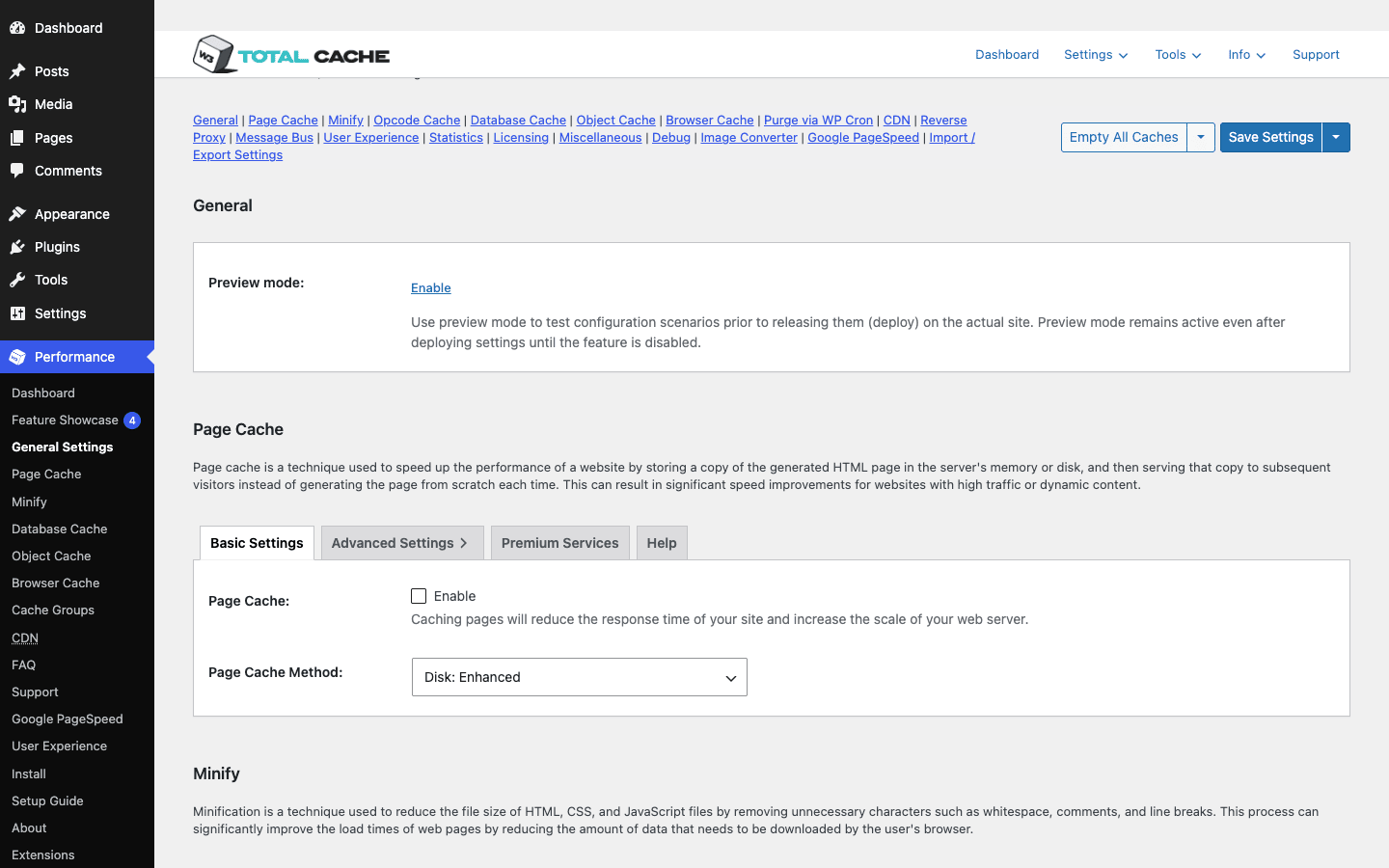
Everything starts here. Performance » General Settings lists every cache layer with an enable checkbox and a storage-engine dropdown. Page Cache, Minify, Database Cache, Object Cache, Browser Cache, CDN, User Experience: they’re all on this one page, each with its own row.
What it does: it’s the toggle board. It does not fine-tune anything; it just decides which layers are active and where each one stores its data.
When to enable a layer here: one at a time, never all at once. The pattern that keeps you out of trouble is: enable Page Cache, save, test the site, then move to the next layer. The General Settings page is also where you turn on Preview mode and where the "Empty all caches" button lives.
The catch: the engine dropdown on each row is the most consequential choice on the page, and it’s easy to skim past. Setting Database Cache or Object Cache to "Disk" when you don’t have a real in-memory backend is the classic W3TC mistake. More on that in the storage-engines section, because it deserves its own discussion.
Page Cache: the layer that matters most
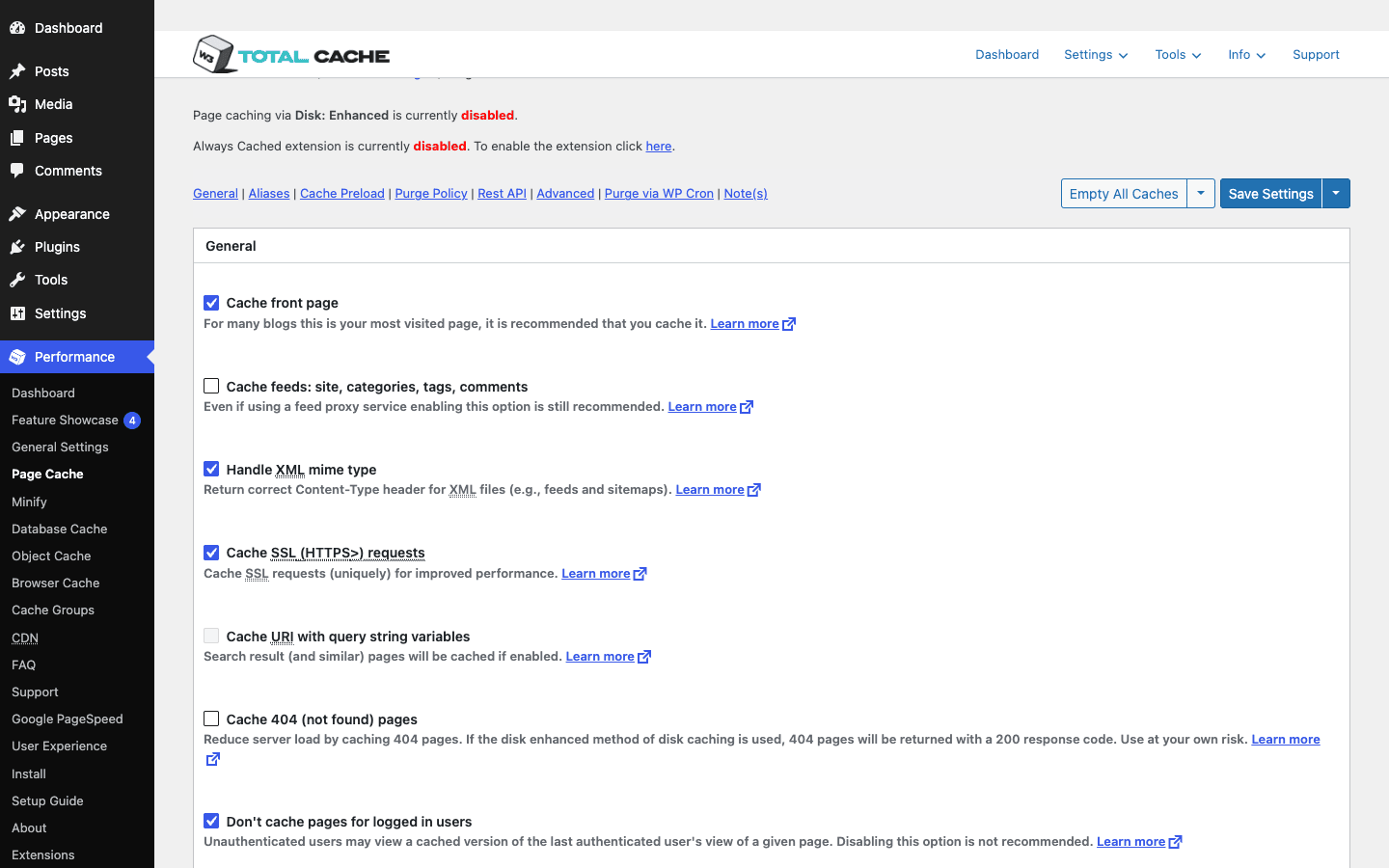
If you only ever enable one layer, make it this one. Performance » Page Cache is where the static-HTML magic happens. It turns the whole PHP-plus-database render into a flat file that the server can hand out without touching WordPress at all.
What it does: caches the generated HTML of your pages and posts. On a cache hit, the visitor gets the saved file. On a miss, W3TC builds the page once, stores it, and serves the stored copy from then on.
The screen gives you a long list of what to cache and how:
- Cache front page and cache feeds are usually safe to leave on for a content site.
- Cache SSL (HTTPS) requests should be on for any modern site, since basically everything runs over HTTPS now.
- Cache 404 pages is off by default, and I’d usually leave it off unless you’re getting hammered by bots hitting dead URLs.
- Cache REST API can help if your front end leans on the WP REST API, though it’s one to test carefully because stale API responses cause subtle bugs.
- Don’t cache pages for logged-in users is on by default, and you should think very hard before turning it off. (The anti-pattern section explains exactly why.)
There’s also a purge policy that controls which pages get cleared when you publish or update a post (the post itself, the homepage, archives, feeds), and a cache preload option that crawls your site to warm the cache so the first real visitor doesn’t hit a cold page.
The catch: anything personalized must not get cached and served to the wrong person. Carts, account pages, and any "Hi, [name]" greeting are dynamic by nature. W3TC excludes the obvious ones, but if you build something custom, you own the responsibility of telling the cache to skip it. That’s where the w3tc_can_cache filter in the developer section comes in.
Minify: fewer bytes, fewer requests
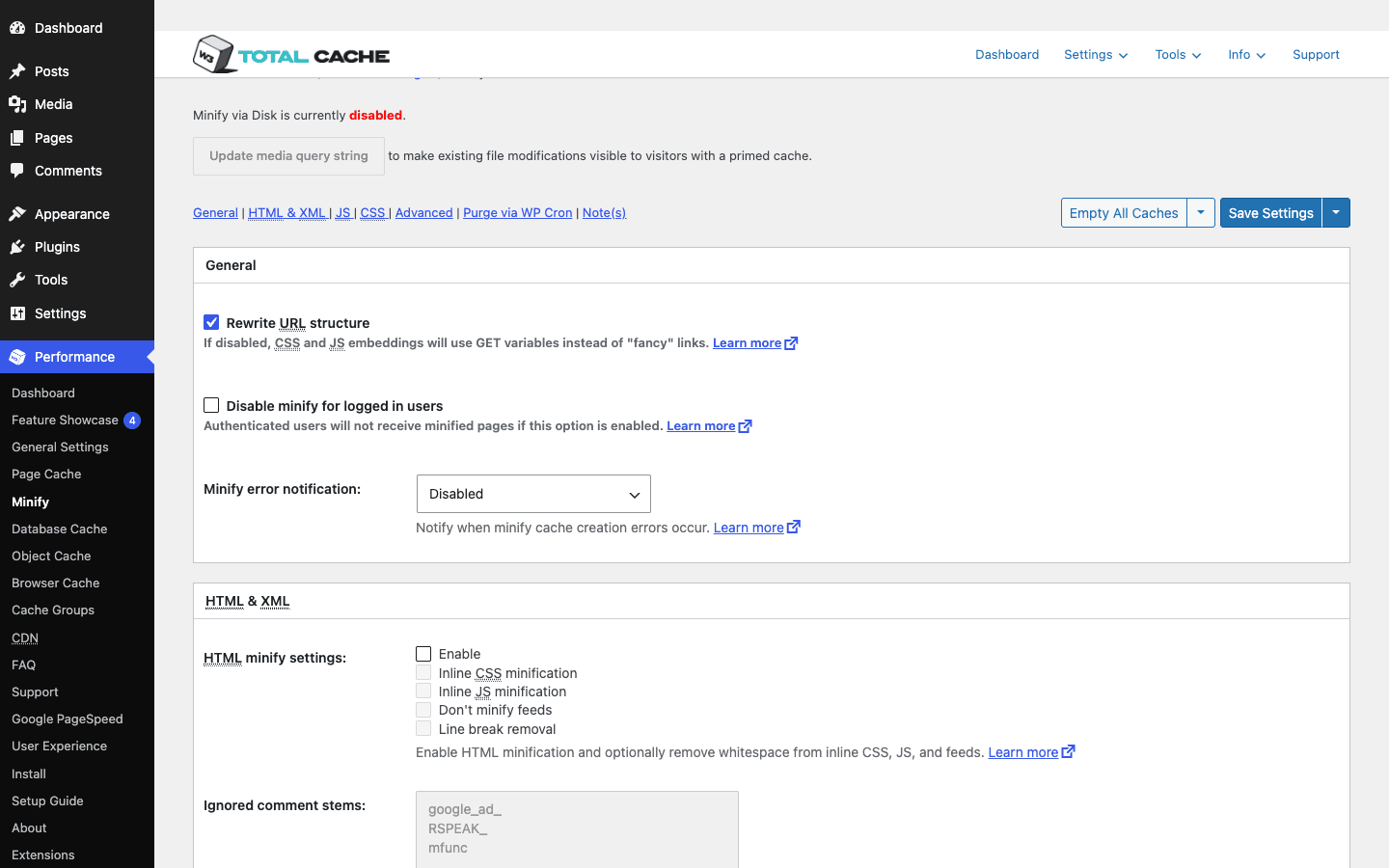
Performance » Minify strips the whitespace and comments out of your CSS, JavaScript, and HTML, and can combine multiple files into fewer requests. Smaller files plus fewer round trips usually means a faster paint, at least in principle.
What it does: minifies (removes unneeded characters) and optionally combines CSS and JS. It can inline small CSS/JS, defer non-critical scripts, and minify the HTML output too.
There’s a critical choice at the top: Auto mode versus Manual mode.
- Auto mode tries to find and minify every stylesheet and script for you. Convenient, and also the single most common way to white-screen a theme with this plugin.
- Manual mode makes you specify exactly which files to include and in what order. More work, far safer.
Heads-up: combining files changes the order in which CSS and JS load, and order matters. If your theme’s stylesheet expects a dependency to load first and minify reshuffles it, layouts break and scripts throw errors. With HTTP/2 and HTTP/3, the "combine" win is also smaller than it used to be, because the browser can fetch many files in parallel anyway.
When to enable it: after page cache is confirmed working, and I’d start in manual mode (or at least test Auto in Preview mode before it touches live traffic). Minify is where caution pays off the most.
Database Cache: query results in a box
There’s no separate screenshot for this one because the screen is short and the real decision is the engine, not the toggles. Performance » Database Cache stores the results of SQL queries so WordPress doesn’t have to re-run the same lookups over and over.
What it does: caches database query results so repeated queries can be served from the cache instead of hitting MySQL again.
The catch, and read this twice: with the engine set to Disk, the database cache can be slower than no cache at all. You’re trading a fast database read for a disk read plus the overhead of managing cache files, and on shared hosting that disk is often slow and shared with other tenants. Database cache only reliably pays off when it’s backed by an in-memory store like Redis or Memcached, where reads are genuinely faster than hitting MySQL.
So my honest take: leave Database Cache off unless you have Redis or Memcached. On a typical shared host with the engine on Disk, it’s a layer that adds risk without adding speed.
Object Cache: the internal lookups
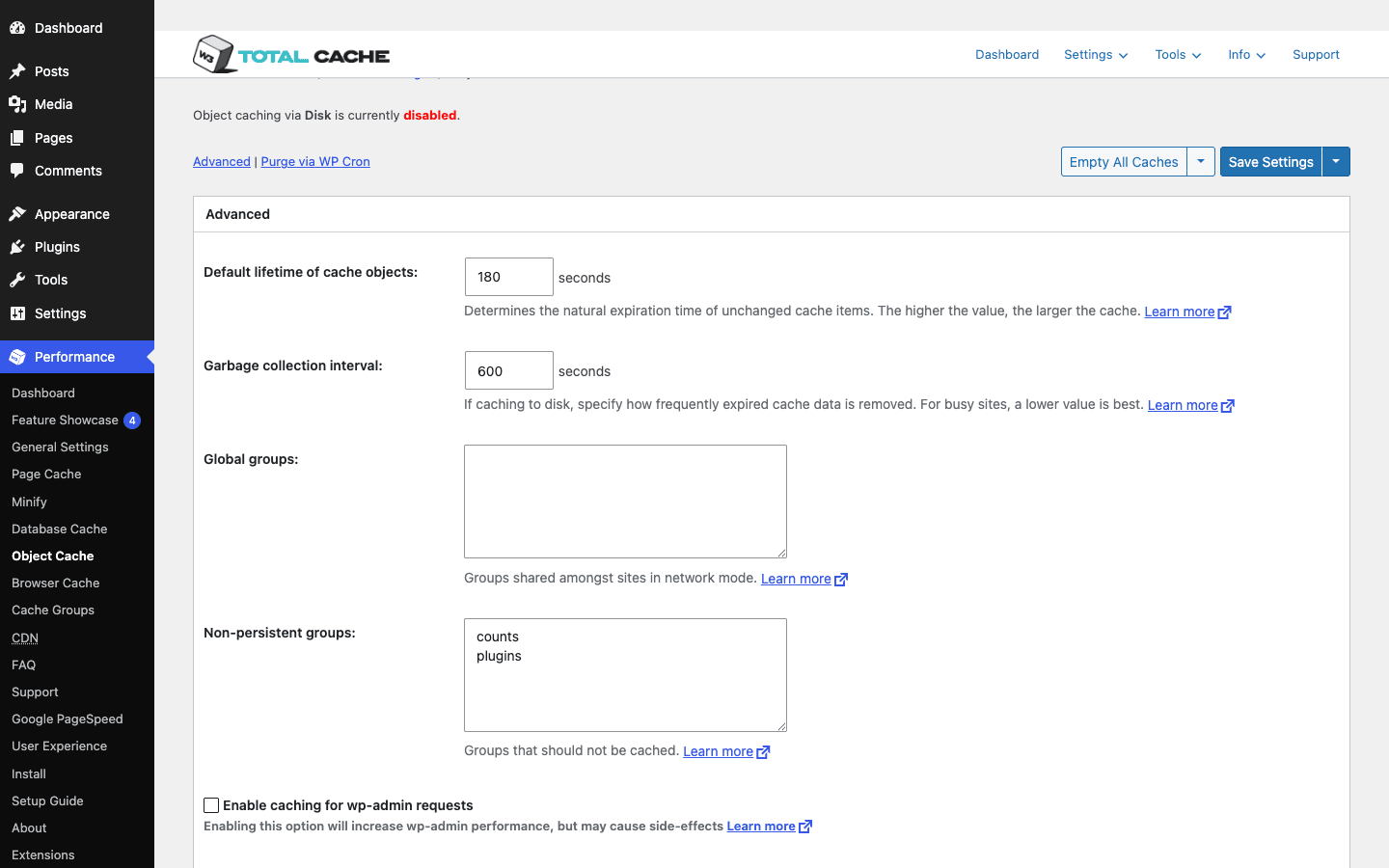
Performance » Object Cache caches WordPress’s internal "object" lookups, the small repeated results that WordPress computes during a request (option values, term lookups, user meta, and so on).
What it does: it provides a persistent object cache. Without one, WordPress’s object cache only lasts for a single page load. With W3TC’s object cache pointed at a persistent backend, those results survive between requests.
The screen exposes a default object lifetime (180 seconds out of the box), a garbage-collection interval (600 seconds), control over global and non-persistent cache groups, and an option to cache objects in the WordPress admin too.
The catch is the same as Database Cache, and it’s the single most misunderstood thing about W3TC. A persistent object cache on Disk can be slower than having none, because you’ve turned cheap in-memory work into disk I/O. Object cache is brilliant on a VPS with Redis. It’s a liability on cheap shared hosting backed by Disk.
I’ve put the Object Cache screen in the storage-engines section deliberately, because the engine choice is the feature here. Caching the wrong thing on the wrong backend is how people end up convinced "W3TC made my site slower". It didn’t. The Disk engine on bad hosting did.
Browser Cache: telling the browser to keep things
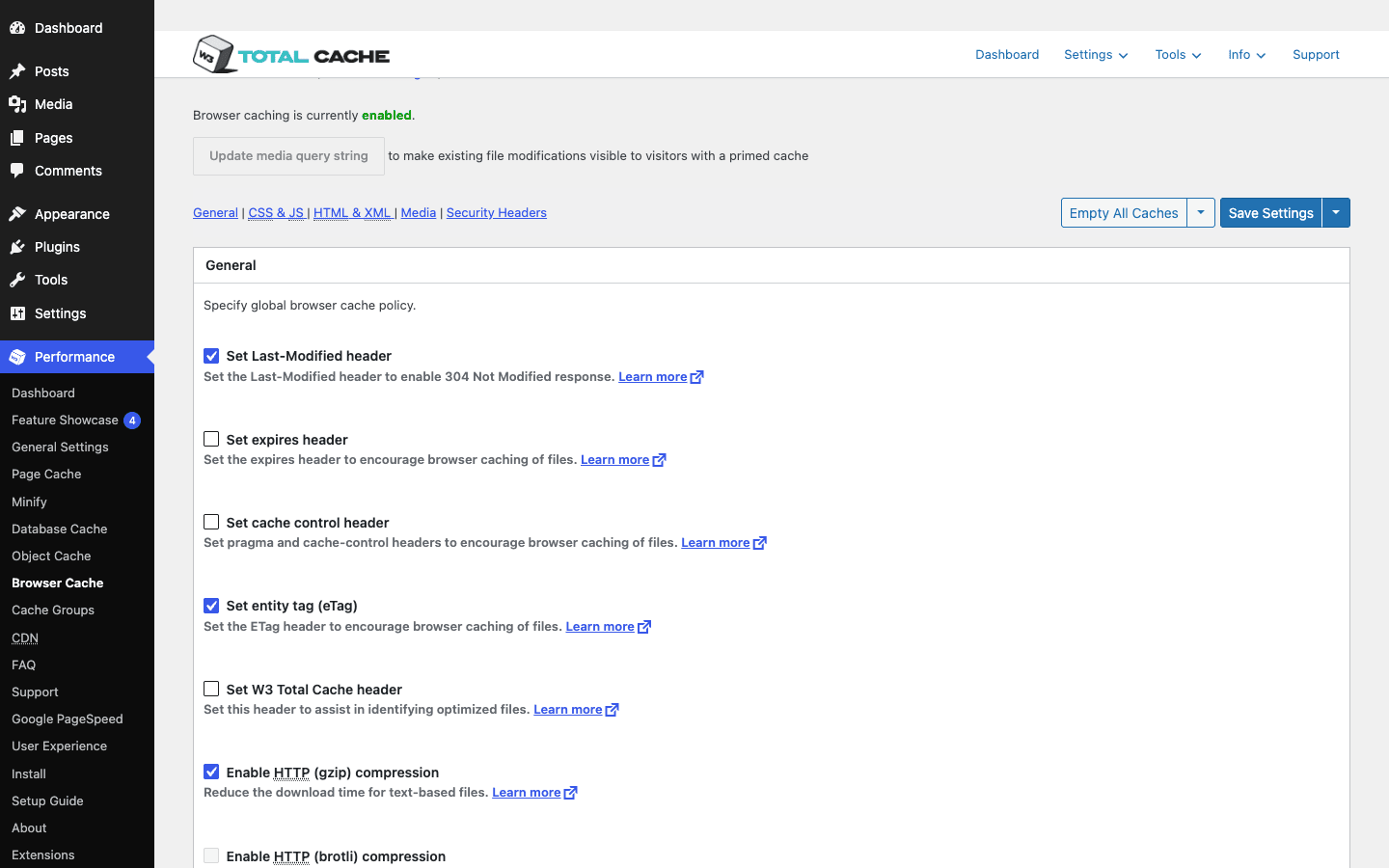
Performance » Browser Cache doesn’t cache anything on your server. It sets HTTP headers that tell the visitor’s browser to hold on to static files (images, CSS, JS, fonts) so a returning visitor doesn’t re-download them.
What it does: it manages cache-related response headers: Last-Modified, Expires, Cache-Control, and ETag. It can also turn on gzip and Brotli compression, and add a set of security-related headers.
This is one of the easiest wins in the whole plugin and one of the safest. For a returning visitor, the difference between re-downloading your CSS bundle and reading it from local cache is the difference between a network round trip and nothing at all.
The catch: set your expiry too aggressively and you can serve a stale CSS or JS file to returning visitors after you’ve changed it. W3TC handles cache-busting for its own minified files, but if you point long expiry headers at assets you change by hand, append a version query string when you update them so browsers fetch the new copy.
Tip: the compression toggles (gzip / Brotli) here are pure upside on most hosts. Compressed text assets are dramatically smaller on the wire, and every modern browser supports it.
CDN: pushing static files to the edge
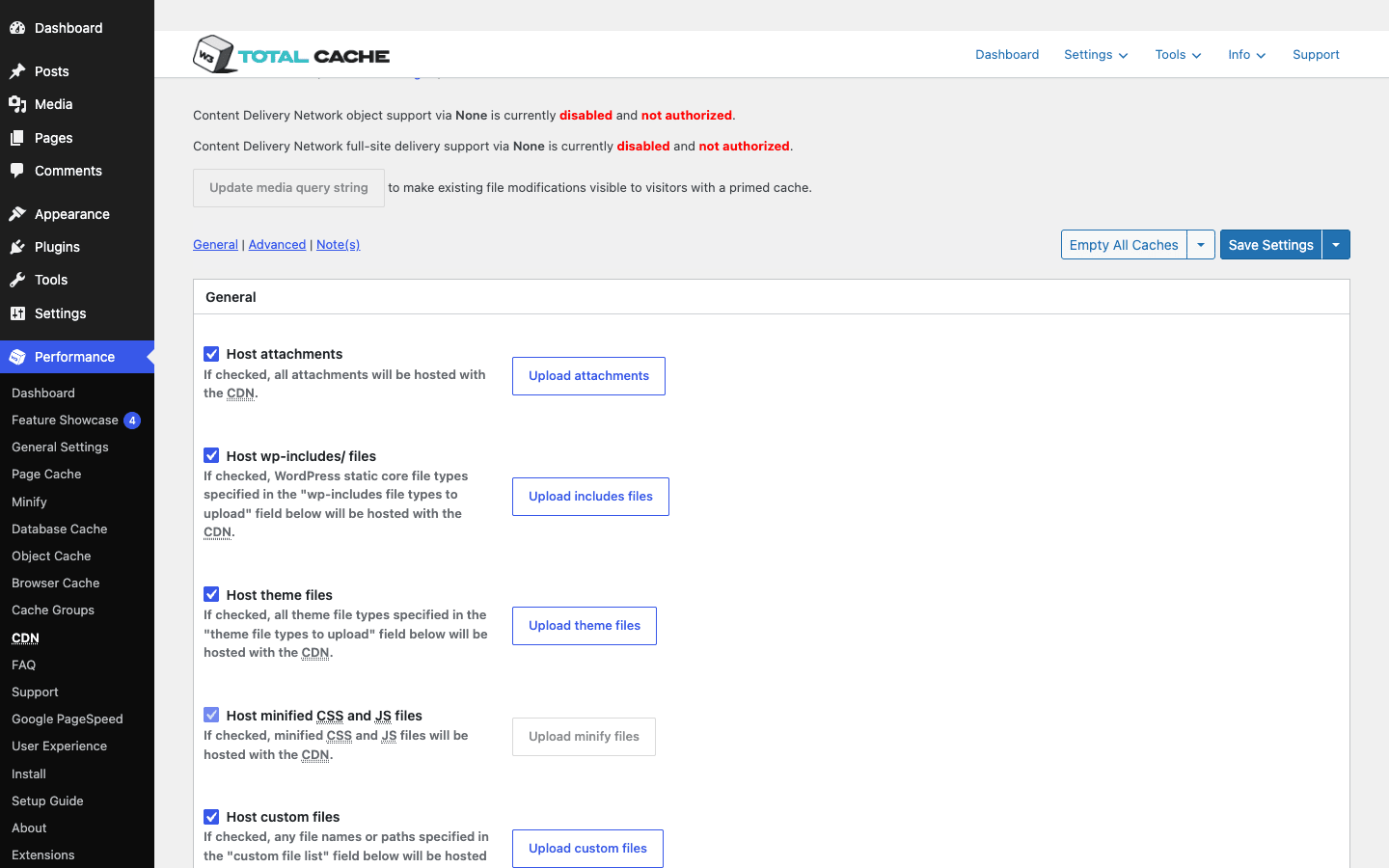
Performance » CDN rewrites the URLs of your static files so they load from a content delivery network instead of your origin server. A CDN keeps copies of your files in data centres around the world, so a visitor in Sydney gets your logo from a nearby edge node rather than from your host in Frankfurt.
What it does: it offloads attachments, wp-includes files, theme files, and minified files to a CDN host, rewriting their URLs in your page HTML. W3TC supports the generic mirror / pull / push CDN modes, plus direct integrations including Bunny CDN, Amazon CloudFront, and Rackspace. (Bunny is the partner W3TC features most prominently in the current UI.)
When to enable it: when you actually have a CDN and an audience that isn’t all in one city. A small local-business site serving one region won’t see much from a CDN. A media-heavy site with a global audience will.
The catch: CDN setup is the fiddliest part of W3TC for most people. You have to get the CNAME right, make sure the CDN is pulling from the correct origin, and confirm the rewritten URLs actually resolve. Mixed-content errors and broken image URLs are the usual first-attempt failures, so test in Preview mode and check the page source before going live.
User Experience: lazy load and deferred scripts
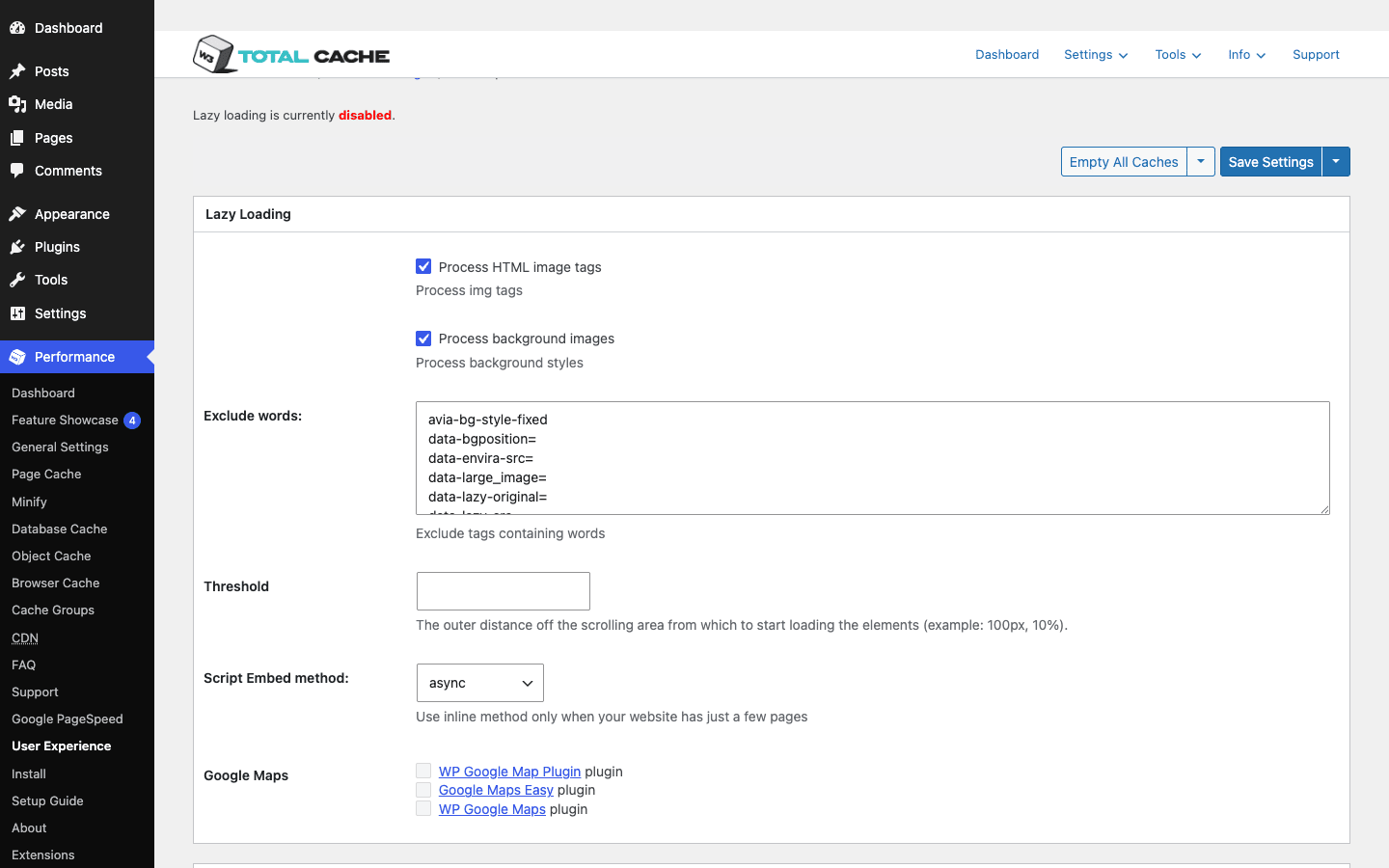
Performance » User Experience is W3TC’s home for the front-end loading tricks that target what a visitor actually perceives as speed. It’s the layer that’s grown the most in recent updates.
What it does: it can lazy-load images and background images (so images below the fold only load as you scroll to them), defer scripts, defer Google Maps, and work toward eliminating render-blocking CSS.
Lazy loading is the headline here, and it’s a genuine bandwidth saver on long, image-heavy pages. A reader who never scrolls to the bottom never downloads the images down there.
The catch, and it’s a real one: never lazy-load your largest above-the-fold image, usually the hero. That image is almost always your Largest Contentful Paint element, and deferring it makes your LCP score worse, not better. Most lazy-load implementations skip the first image or two for exactly this reason, but if you have a big custom hero, exclude it explicitly and test. Lazy loading is a below-the-fold tool.
Extensions: integrations and the Pro extras
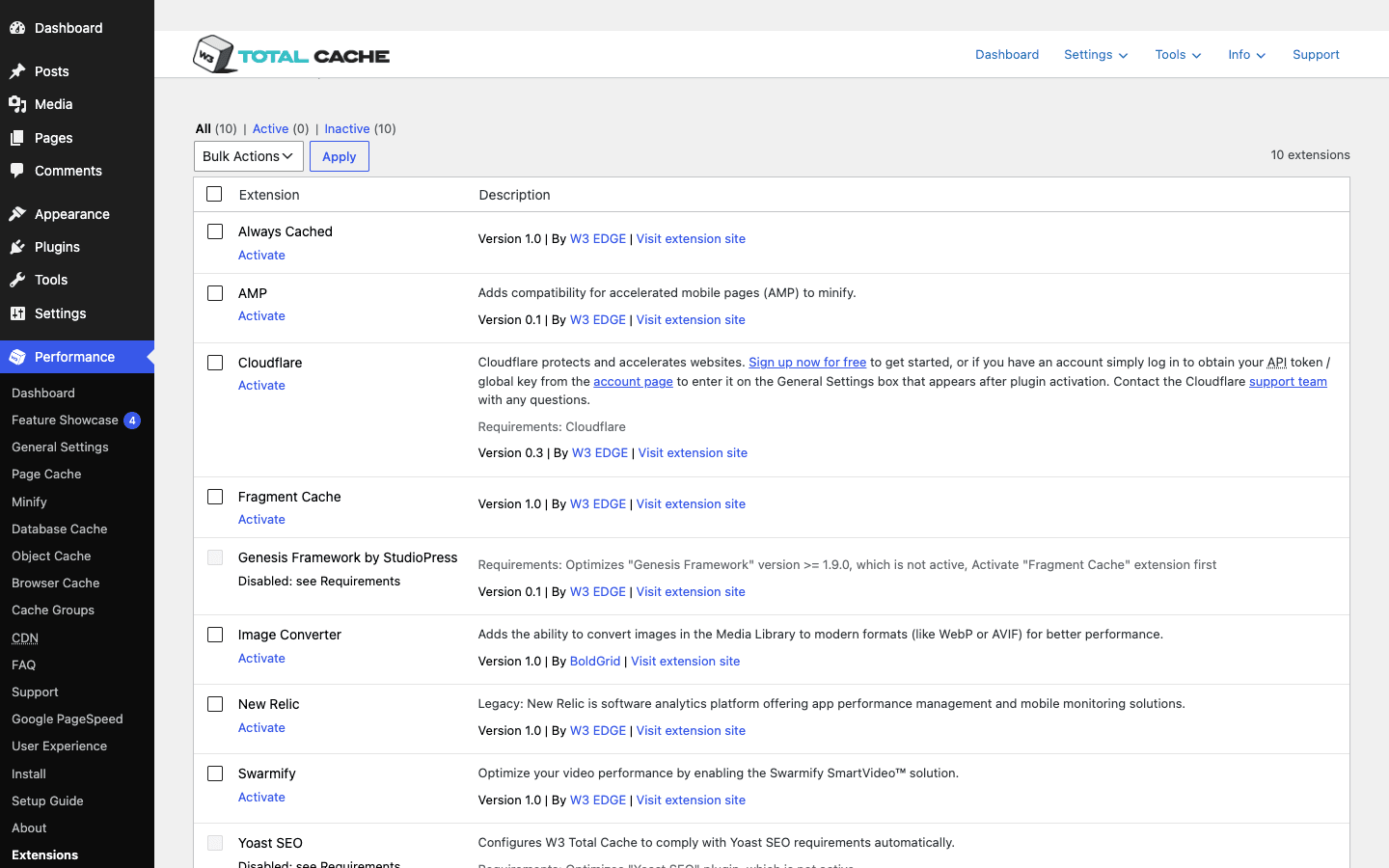
Performance » Extensions is where W3TC plugs into outside services and where several Pro features live. It’s a list of modules you activate individually rather than a settings screen of its own.
What it does: it hosts integration extensions. The Cloudflare extension lets W3TC clear Cloudflare’s cache and read its analytics. There are extensions for things like AMP and New Relic, and the Fragment Cache support that the developer API hooks into sits in this part of the plugin too.
Where this shines: if you run Cloudflare in front of your site, the Cloudflare extension means one "purge" action can clear both W3TC’s cache and Cloudflare’s edge cache, instead of you logging into two dashboards. That kind of integration is exactly what you want from a suite.
The catch: extensions vary in depth, and some of the more advanced ones (and the fragment-cache machinery) are tied to W3 Total Cache Pro. Don’t assume every extension you see is fully wired up on the free core; check what your license includes.
Disk, Redis, or Memcached: picking a storage engine
This is the section that separates people who get value out of W3TC from people who quietly make their site worse with it. W3TC doesn’t just cache; it lets you choose where each layer stores its data, and that choice matters enormously.
Out of the box, W3TC supports a wide range of storage engines: Disk (file), Disk: Enhanced (file_generic), Redis, Memcached, APC/APCu (apc), plus older options like eAccelerator, XCache, WinCache, and an nginx-plus-Memcached mode. Not every engine works everywhere. An engine only functions if your server actually has that module installed, and a fresh demo sandbox can’t prove any of them work on your specific host. You have to check what your hosting supports.
Here’s the practical breakdown.
Disk and Disk: Enhanced store cache as files on your server’s filesystem. For Page Cache, this is great, and Disk: Enhanced is specifically designed to let the web server serve those cached HTML files directly without even loading PHP. Page cache on Disk: Enhanced is the standard, recommended setup for most sites, including shared hosting.
Redis and Memcached are in-memory stores. They keep data in RAM, which is dramatically faster to read than a disk file, and they’re built for exactly the kind of small, frequent lookups that Object Cache and Database Cache generate. This is where W3TC’s multi-engine support earns its place: a disk-only caching plugin simply can’t do this.
Now the honest, load-bearing point: Object Cache and Database Cache on Disk can be slower than no cache at all. Think about what those layers do. They store thousands of tiny results. Reading thousands of tiny files off a shared, possibly-slow disk, and managing their expiry, can cost more than just letting WordPress and MySQL do the work. On an in-memory engine, those same reads are genuinely faster than the original query. On Disk, especially on cheap shared hosting, you’ve often added overhead for nothing.
So the rule of thumb I actually use:
- Page Cache: Disk: Enhanced. Works everywhere, fast, safe.
- Browser Cache: not a storage choice, it’s just headers. Always on.
- Object Cache and Database Cache: only enable them if you have Redis or Memcached. If you’re on shared hosting with no in-memory backend, leave both off. Disk is not a substitute here.
Persona check. A blogger on shared hosting should run page cache on Disk: Enhanced, browser cache on, and leave object/database cache off entirely. An agency running a VPS with Redis installed should absolutely turn on object and database cache pointed at Redis, where they’ll genuinely speed up an admin-heavy or WooCommerce site. A busy WooCommerce store on managed hosting often has Redis available; that’s where W3TC’s object cache becomes a real asset, because WooCommerce hammers the options table and user meta on every request.
If you want to trim the work your site does before it ever reaches the cache, a script manager like Perfmatters pairs nicely with any cache: it disables plugin bloat per page so there’s less to cache in the first place. And if your slowness is partly a bloated database (years of revisions, expired transients, orphaned meta), a cleanup tool like WP-Optimize addresses the cause rather than caching the symptom.
Don’t switch on every layer at once and push it live
This is the mistake, and I’ve watched smart people make it. W3TC’s General Settings page tempts you to tick every checkbox, set a few engines, hit save, and call it done. Don’t. Three things go wrong, each with a real cost.
Minify white-screens your theme. Auto mode with combine enabled reshuffles the load order of your CSS and JS. If your theme depends on a specific order (most do), the page renders unstyled or scripts throw errors. The cost is a broken front end your visitors see while you bisect which file did it: lost trust, lost sales, an hour of your evening.
Object or Database Cache on Disk makes the site slower. Pointing those layers at Disk on shared hosting trades fast in-memory work for slow disk I/O. The site feels worse after you "optimized" it and you waste time chasing a phantom. They only pay off with Redis or Memcached.
Page cache leaks logged-in content. Enable "cache pages for logged in users" carelessly and W3TC can serve one user’s cached page (their name, their account, their cart) to the next visitor. That’s not a slowdown, that’s a data-exposure incident and a genuine privacy problem.
The honest fix is boringly simple:
- Enable one layer at a time, Page Cache first. Save, hard-refresh the front end in a logged-out browser, click around, confirm nothing broke.
- Use Preview mode for anything risky, and keep Minify in Manual mode until you’ve verified it on your theme.
- Only enable Object/Database Cache with Redis or Memcached, and leave logged-in caching off unless you have a real reason.
Slow and tested beats fast and broken. Verification takes two minutes; skipping it can cost you an evening and your visitors’ trust.
Fragment caching and the developer API
Here’s where W3TC stops being a settings panel and starts being a tool you can program. The public API is documented and stable, and it’s a genuine reason developers pick W3TC. If you maintain a custom site, this is the part worth bookmarking.
Flushing the cache from code
The most common thing you’ll do programmatically is clear the cache after your own code changes something. W3TC exposes a clean set of flush functions with predictable signatures.
// Clear every cache layer at once.
w3tc_flush_all();

// Flush a single post (and its related archives).
// Signature: w3tc_flush_post( $post_id, $force = false, $extras = null )
w3tc_flush_post( 1234 );

// Flush one specific URL.
w3tc_flush_url( 'https://example.com/pricing/' );

// Flush a named cache group.
w3tc_flush_group( 'product-feed' );
A realistic example: say you pull product data from an external API on a cron job and write it into a post. WordPress doesn’t know the content changed, so the cached page stays stale. Flush just that post after the update:
add_action( 'my_plugin_after_product_sync', function ( $post_id ) {
    // We rewrote this post's content from the external feed,
    // so clear its cached HTML and let it rebuild on next visit.
    w3tc_flush_post( $post_id );
} );
If you only want to clear a specific layer rather than everything, W3TC gives you per-layer flush functions too:
w3tc_pgcache_flush();      // page cache only
w3tc_dbcache_flush();      // database cache only
w3tc_minify_flush();       // minified CSS/JS bundles
w3tc_objectcache_flush();  // object cache only
Reaching for the narrow function instead of w3tc_flush_all() matters on a busy site. Flushing everything means every page has to be regenerated from cold, which spikes server load right when you didn’t want it. Flush the post you changed, not the whole site.
w3tc_can_cache: the master switch in code
This is the filter I reach for most. w3tc_can_cache decides whether W3TC caches the current request. Return false and the page is served fresh, every time, no caching.
add_filter( 'w3tc_can_cache', function ( $can_cache ) {
    // Never cache a request that carries our preview token,
    // even for logged-out users.
    if ( isset( $_GET['live_preview'] ) ) {
        return false;
    }
    return $can_cache;
} );
That’s the programmatic equivalent of the "don’t cache this" checkboxes in the UI, but with the full power of PHP behind the decision. Any condition you can express in code (a custom cookie, a query flag, a feature toggle) can keep a page out of the cache.
Reacting to a flush
W3TC fires action hooks when caches are cleared, so you can react. Two of the most useful are w3tc_flush_all and w3tc_flush_post.
// Warm a critical page back up immediately after a full flush,
// so the first real visitor doesn't hit a cold cache.
add_action( 'w3tc_flush_all', function () {
    wp_remote_get( home_url( '/' ), array( 'blocking' => false ) );
} );

// Log which posts were flushed, for debugging stale-content reports.
add_action( 'w3tc_flush_post', function ( $post_id ) {
    error_log( 'W3TC flushed post ' . $post_id );
} );
These hooks are how other plugins integrate with W3TC’s cache, and how you keep your own caching layers in sync with W3TC’s.
Fragment caching: caching part of a dynamic page
Fragment caching is one of W3TC’s more distinctive abilities (and a feature associated with the Pro tier). The idea: sometimes a page is dynamic overall, but contains one expensive chunk that doesn’t change often. Page cache is all-or-nothing, so it can’t help you there. Fragment caching can cache just that chunk.
Picture a sidebar widget that runs a heavy query (top-selling products this month, say) on a page that’s otherwise personalized and can’t be page-cached. You register a fragment group, then wrap the expensive output in fragment-cache calls so the widget’s HTML is cached while the rest of the page stays live.
Conceptually it looks like this (treat the exact arguments as per the W3TC API):
// Register a fragment group with an expiration, hooked to relevant events.
w3tc_register_fragment_group( 'bestsellers_widget', array( 'save_post' ), 3600 );

// Then, where you render the expensive widget:
if ( function_exists( 'w3tc_fragmentcache_start' ) ) {
    if ( ! w3tc_fragmentcache_start( 'bestsellers', 'bestsellers_widget' ) ) {
        render_bestsellers_widget(); // the expensive bit
        w3tc_fragmentcache_end( 'bestsellers', 'bestsellers_widget' );
    }
}
When the fragment is cached, w3tc_fragmentcache_start short-circuits and prints the stored HTML; when it isn’t, you render it once and w3tc_fragmentcache_end stores it. You flush a fragment group with the corresponding w3tc_fragmentcache_flush_group call. It’s a precision tool: most sites never need it, but when you have an expensive widget on an uncacheable page, nothing else in the WordPress caching world does this as cleanly.
Reading the config
If your code needs to know how W3TC is set up, w3tc_config() returns the configuration object:
$config = w3tc_config();
$page_cache_enabled = $config->get_boolean( 'pgcache.enabled' );
That’s handy when an integration needs to behave differently depending on whether a given layer is active.
WP-CLI
W3TC registers WP-CLI commands under w3-total-cache (with w3tc and total-cache as aliases), which is exactly what you want for deploy scripts and cron. The flush commands are the bread and butter:
# Clear every cache after a deploy.
wp w3-total-cache flush all

# Same thing, using the short alias.
wp w3tc flush all

# Flush a single post or a single URL.
wp w3-total-cache flush post --post_id=1234
wp w3-total-cache flush post --permalink=https://example.com/pricing/
Wire wp w3-total-cache flush all into the tail end of your deploy pipeline and you’ll never again ship a CSS change that’s hidden behind a stale cache. For everyday content edits, the per-post flush is gentler on the server than flushing everything.
If you’re newer to writing WordPress hooks and filters, the official WordPress developer handbook is the best free reference for how add_action and add_filter actually work.
W3 Total Cache vs WP Rocket
This is the comparison everyone wants, so let me be fair to both. I like WP Rocket a lot and I like W3TC a lot, for different reasons and different people. They sit at opposite ends of the same spectrum: opinionated-and-automatic versus granular-and-manual.
Let’s put real numbers on the table instead of hand-waving.
| W3 Total Cache | WP Rocket | |
|---|---|---|
| Price to start | Free core (Pro adds extras) | Paid only, around $60/yr for a single site, per WP Rocket’s pricing |
| Admin surface | Around 16 settings screens | Around 8 tabs |
| Storage engines | 6+ (Disk, Disk: Enhanced, Redis, Memcached, APC, more) | Disk only |
| Cache after activation | You enable layers yourself | On automatically with sensible defaults |
| Learning curve | Steep, granular | Gentle, guided |
A few things stand out from that table.
W3TC is free to start; WP Rocket is paid from day one. WP Rocket has no free tier at all. W3TC’s core handles page cache, browser cache, and minify for nothing. If budget is the deciding factor, that’s a real difference, not a small one.
W3TC exposes far more surface. Around sixteen settings screens versus roughly eight tabs. That’s not automatically a point in W3TC’s favour, more screens means more to learn and more to misconfigure, but if you want to control the exact browser-cache headers or run a different engine per layer, you need those screens.
Storage engines are W3TC’s structural advantage. Six-plus engines versus disk only. WP Rocket caches to disk, full stop, and for most sites that’s genuinely fine. But if you have Redis or Memcached and want a real persistent object cache, W3TC can use it and WP Rocket can’t. For a database-heavy WooCommerce store on a VPS, that’s the difference-maker.
Some wins are identical on both. A returning visitor benefits from browser-cache headers either way, which can cut the bytes re-downloaded on a repeat view by 80% or more, and gzip or Brotli compression shrinks CSS and JS by roughly 70% on the wire no matter which plugin sets it. Those gains come from HTTP itself, not from the plugin’s logo, so they don’t tip the decision between the two.
Now the other side, because this isn’t a hatchet job.
WP Rocket wins on ease, by a mile. You install it, and page cache, browser cache headers, and GZIP are on with sensible defaults before you’ve touched a setting. Most of its wins come from decisions someone else already made well. For the reader who wants "fast" without a learning curve, that’s worth paying for.
WP Rocket’s defaults are safer. It auto-excludes carts and checkout, it detects managed hosts and disables conflicting features, and it’s harder to shoot yourself in the foot with. W3TC will let you make every mistake in the anti-pattern section above; WP Rocket guards more of those doors by default.
I won’t tell you one is faster than the other, because I don’t have benchmark numbers from a controlled test and anyone who quotes you a flat "X is faster" without their methodology is guessing. A well-configured page cache from either plugin turns your dynamic pages into static files; the real-world difference depends far more on your server, your backend, and your config than on the plugin’s logo. Pick W3TC for control and a free start. Pick WP Rocket for hands-off ease. Both are good.
Pricing and licensing
W3 Total Cache uses a free-core-plus-paid-Pro model. The core plugin is free on WordPress.org and is genuinely capable on its own: page cache, browser cache, minify, and the basic CDN modes are all there at no cost. That’s unusual for a plugin this deep, and it’s a big part of why W3TC has the install base it does.
W3 Total Cache Pro is the paid tier. Per the vendor, Pro adds the more advanced pieces: fragment caching, full-site delivery CDN, REST API caching, lazy-loading for Google Maps, the render-blocking-CSS work, and caching statistics and analytics. I’ll be careful here, because the exact line between free and Pro shifts between releases and I don’t want to state a feature boundary as gospel that turns out to have moved. Treat the Pro list as "the advanced extras per BoldGrid", and confirm the current split on the official site before you decide.
On price specifically, I’m not going to quote you a hard dollar figure as fact, because plugin pricing changes and I’d rather you check than trust a number that’s gone stale. The model is what matters: a free core that does most everyday jobs, and a paid Pro subscription for the advanced features. If you’ve decided you want Pro, W3 Total Cache Pro on GPL Times is the GPL-licensed route to the full plugin. WordPress’s GPL license requires the PHP portion of any plugin to be redistributable, and the GPL store distributes it that way, which is a friendlier fit if you run a lot of sites and don’t want to track per-site activations.
| Tier | Who it’s for | What you get |
|---|---|---|
| Free core | Most blogs and small sites | Page, browser, minify, basic CDN, all engines |
| W3 Total Cache Pro | Power users, agencies, stores | Fragment cache, full-site CDN, REST caching, stats |
A fast site is more than caching, by the way. Even the best cache config can’t fix multi-megabyte images. Pairing W3TC with an image optimizer like Smush Pro covers the other half of the equation, since caching serves your images faster but doesn’t make them smaller.
FAQ
Is W3 Total Cache free?
Yes, the core plugin is free on WordPress.org and it’s not a crippled trial. Page cache, browser cache, minify, and the basic CDN modes all work on the free version, which is enough for most blogs and small business sites. W3 Total Cache Pro is a separate paid tier that adds the advanced features like fragment caching and full-site CDN delivery.
Is W3TC hard to set up, and will it break my site?
It’s more involved than one-button plugins, and yes, it can break your site if you flip everything on at once. The danger spots are Minify (which can scramble your CSS/JS load order) and pointing Object or Database Cache at the Disk engine on shared hosting. The fix is discipline: enable one layer at a time, test the front end after each, and use Preview mode for anything risky. Set up carefully, it won’t break anything; set up carelessly, it absolutely can.
W3 Total Cache vs WP Rocket: which should I pick?
Pick W3TC if you want granular control, a free starting point, or a real Redis/Memcached object cache. Pick WP Rocket if you want sensible defaults that work automatically and you’d rather not learn what a database cache is. W3TC has more screens (around sixteen) and more engines (six-plus); WP Rocket has fewer tabs (around eight), disk-only caching, and a much gentler learning curve. Neither is universally faster; it depends on your setup.
Do I need Redis or Memcached to use W3 Total Cache?
No, you can run page cache and browser cache perfectly well without them, and those two layers deliver most of the everyday speed gains. You only need Redis or Memcached if you want to turn on Object Cache or Database Cache, because on the Disk engine those layers can actually be slower than leaving them off. No in-memory backend? Leave object and database caching off and you’ve lost nothing important.
Will W3 Total Cache speed up my site on its own?
It removes a major bottleneck, but it’s not a magic switch. Page cache turns PHP-and-database work into a static HTML file served in a fraction of the time, and minify cuts bytes and requests. How much you actually gain depends on your server, the cache backend, and how heavy your site was to begin with. A site that’s slow because of giant unoptimized images or render-blocking third-party scripts won’t be fully fixed by caching alone; those need addressing separately.
Disk or Memcached for the cache, what’s the difference?
Disk stores cache as files on your server; Memcached (and Redis) store it in RAM. For page cache, Disk: Enhanced is the right, recommended choice and works everywhere. For object and database cache, the in-memory engines win clearly because they read faster than the database query they’re replacing, whereas Disk often adds I/O overhead that cancels out the benefit on shared hosting.
Is W3 Total Cache Pro worth paying for?
It depends on whether you need what’s behind the paywall. The free core already covers page, browser, and minify caching, which is most of the win for a typical site. Pro makes sense if you specifically want fragment caching for expensive dynamic widgets, full-site CDN delivery, REST API caching, or the caching statistics. For a simple blog, the free core is usually plenty; for an agency or a heavy store, the Pro extras can be worth it.
Does W3 Total Cache work with my host and with Cloudflare?
Mostly yes, with a caveat. On Apache and LiteSpeed it manages .htaccess rules itself; on nginx it generates config you may need to add to your server setup, which is the most common "why isn’t caching working" cause. It has a dedicated Cloudflare extension that lets you purge Cloudflare’s edge cache from inside WordPress, so the two work well together. If your host already does aggressive server-level caching, coordinate the two so you’re not double-caching.
Can I use W3TC with a page builder like Elementor or Divi?
Yes. The thing to watch is Minify, since builders ship a lot of their own CSS and JS, and combining or reordering it is where breakage happens. Keep Minify in Manual mode (or test in Preview), confirm the builder’s pages render correctly, and you’ll be fine. Page cache and browser cache work without any special handling.
How do I clear the cache after I publish a post?
W3TC clears the relevant pages automatically when you publish or update a post, based on your purge policy (typically the post, the homepage, archives, and feeds). You can also clear everything manually with the "Empty all caches" button under Performance, or from the command line with wp w3-total-cache flush all. For programmatic flushing in your own code, w3tc_flush_post( $post_id ) clears just one post.
Final thoughts
W3 Total Cache is the caching plugin for people who want to see the machinery. Every layer is a switch, every switch has an engine, and nothing is hidden from you. That openness is its best quality and its biggest risk, in equal measure. Handled with a little patience (one layer at a time, test after each, the right engine for each job) it gives you a level of control no one-button plugin can match, and it does it on a free core that already covers most sites.
My honest summary: run page cache on Disk: Enhanced and browser cache on every site, add Redis-backed object and database cache when you have a VPS that supports it, keep Minify on a short leash, and lean on the flush API and WP-CLI to keep everything in sync from your own code. Do that and W3TC quietly does its job for years.
If you’ve decided W3TC is your tool and you want the full plugin, you can get W3 Total Cache Pro through GPL Times and configure every layer described above on a real install. Set up Page Cache first, rebuild the cache, watch your front end stay intact, then add the next layer. That methodical first hour is what separates a faster site from a broken one. For the deeper performance picture, the official BoldGrid W3 Total Cache page and the WordPress developer handbook are the best places to keep reading.