

If you book calls for a living, you know the email loop by heart. "What time works for you?" "How about Tuesday at 2?" "Sorry, I’m booked then, Wednesday?" "Wednesday’s bad, Thursday morning?" Three days and six emails later you’ve agreed on a slot that one of you forgets to put on the calendar. Consultants, coaches, salons, agencies, support teams, recruiters, anyone whose week is a grid of meetings lives this every single day. FluentBooking exists to kill that loop. It’s a self-hosted scheduling plugin for WordPress, the Calendly idea but running on your own site, where you publish a booking page, an invitee picks a free slot, and the meeting just appears on both calendars.
This is a long, honest look at FluentBooking: what it is, how its calendars and event types fit together, how to build your first bookable meeting, why connecting your real calendar is not optional, and the developer hooks underneath. Whether you just want to stop trading emails or you want to wire bookings into a CRM, by the end you’ll know exactly what this plugin does and where it bites.
Table of Contents
- What is FluentBooking?
- Key features
- How FluentBooking works: calendars, event types, and bookings
- Building your first event type
- Availability schedules: your real working hours
- Connecting your calendar (and why it matters)
- Don’t share a booking link before you connect your real calendar
- The Fluent suite advantage
- Who FluentBooking is for: five real setups
- FluentBooking vs Calendly (and vs Amelia)
- Developer reference: hooks, filters, and shortcodes
- Pricing and licensing
- FAQ
- Final thoughts
What is FluentBooking?
FluentBooking is a WordPress appointment scheduling plugin built by WPManageNinja, the team behind FluentCRM, Fluent Forms, Fluent Support, Fluent Boards, FluentSMTP, and FluentCart. If you’ve used a hosted tool like Calendly or Cal.com, the model will feel instantly familiar. You define the meetings you’re willing to take, FluentBooking publishes a public page for each one, and people book themselves into your open slots without ever emailing you.
The difference is where it runs. Calendly is software-as-a-service: your booking data lives on their servers and you pay per user, per month. FluentBooking runs inside your own WordPress install. The bookings sit in your database, the booking pages live on your domain, and there’s no per-seat meter ticking. For a lot of WordPress site owners that single fact is the whole pitch.
It comes in two flavors. There’s a free core on the WordPress.org plugin repository that covers calendars, event types, availability, and the public booking page. Then there’s FluentBooking Pro, the paid tier, which adds the advanced scheduling features (team and round-robin, group events, payments, SMS reminders, and the deeper integrations). The Pro tier is what we’re walking through here, and it’s available as GPL on GPL Times if you want every panel unlocked while you read along.
A quick note on expectations before we go deeper. I went into this expecting a thin "me too" Calendly clone, the kind of plugin that does the happy path and falls over the moment you ask it about timezones or buffers. FluentBooking is more serious than that. The data model is clean, the hook surface is real, and it clearly inherits the engineering habits of the Fluent suite. It isn’t perfect, and I’ll be specific about the rough edges, but it earns a proper look.
Key features
Rather than parrot the feature grid, here’s what actually changes how your week runs.
- Public booking pages. Every event type gets its own shareable link with a Calendly-style date picker. Invitees pick a slot in their own timezone, fill in a couple of questions, and they’re booked. No account required on their end.
- Two-way calendar sync. Connect Google Calendar, Outlook, Apple Calendar, or Nextcloud and FluentBooking both reads your existing events (so it never offers a slot you’re busy in) and writes the new booking back. This is the single most important feature, and we’ll come back to why.
- Built-in video conferencing. Generate a Google Meet, Microsoft Teams, or Zoom link automatically on every booking, so the meeting URL is in the confirmation before anyone has to think about it.
- Multiple event types per calendar. A "30 Minute Intro Call", a "15 Minute Quick Question", a "60 Minute Strategy Session", each with its own duration, location, and questions.
- Reusable availability schedules. Define your working hours once ("Weekday Mornings"), then point any event type at that schedule instead of redefining hours every time.
- Team and round-robin scheduling. A Team calendar can route an incoming booking to whoever is free, which is how support teams and agencies share an inbox of meetings.
- Group events. One host, many invitees, for webinars, office hours, or online classes.
- Buffer times. Pad a few minutes before and after each meeting so you’re not sprinting from one call straight into the next.
- Paid bookings. Charge for a session at the moment of booking, with an optional coupon module on top.
- SMS reminders via Twilio. Cut no-shows by texting invitees ahead of the meeting, not just emailing them.
- Booking questions. Add custom fields to the booking form so you walk into the call already knowing what it’s about.
- A real developer API. Slash-namespaced action and filter hooks plus a handful of shortcodes, so you can react to a new booking or embed a calendar anywhere.
Some of that is in the free core and some is Pro. The advanced scheduling (team and round-robin, group events, payments, SMS, the coupon module) sits in Pro, per the vendor, and I’d confirm the exact split on the official site since it does shift between releases.
How FluentBooking works: calendars, event types, and bookings
Before you touch a single setting, it pays to understand FluentBooking’s three-layer model, because everything in the admin maps onto it. Get this and the rest of the plugin stops feeling like a maze.
Here’s the shape of it.
| Concept | What it is | Real example |
|---|---|---|
| Calendar | A container that belongs to a host (one person) or a team | "Priya’s Calendar" or "The Sales Team" |
| Event Type | A bookable kind of meeting inside a calendar | "30 Minute Intro Call" |
| Availability | A reusable schedule of bookable hours | "Weekday Mornings, 9 to 12" |
| Booking | A single confirmed appointment an invitee made | "Tue 10:30, Sam Lee, intro call" |
Read it top to bottom and the whole tool clicks. A Calendar is the owner of your bookings, tied either to a single host (a WordPress user) or to a team. Inside that calendar you create one or more Event Types, where each event type is a flavor of meeting you’re happy to take. Each event type points at an Availability schedule that says when it can be booked. And when an invitee actually picks a slot, FluentBooking writes a Booking. That’s it. Calendar, event type, booking, with availability feeding the middle.
You start by creating a calendar. From the Calendars screen you click + New and a drawer slides in asking what kind of calendar this is: a Host calendar (one person), a Team calendar, or a One-off Event. Pick Host, choose which WordPress user owns it, and then choose the event-type template you want to start with.
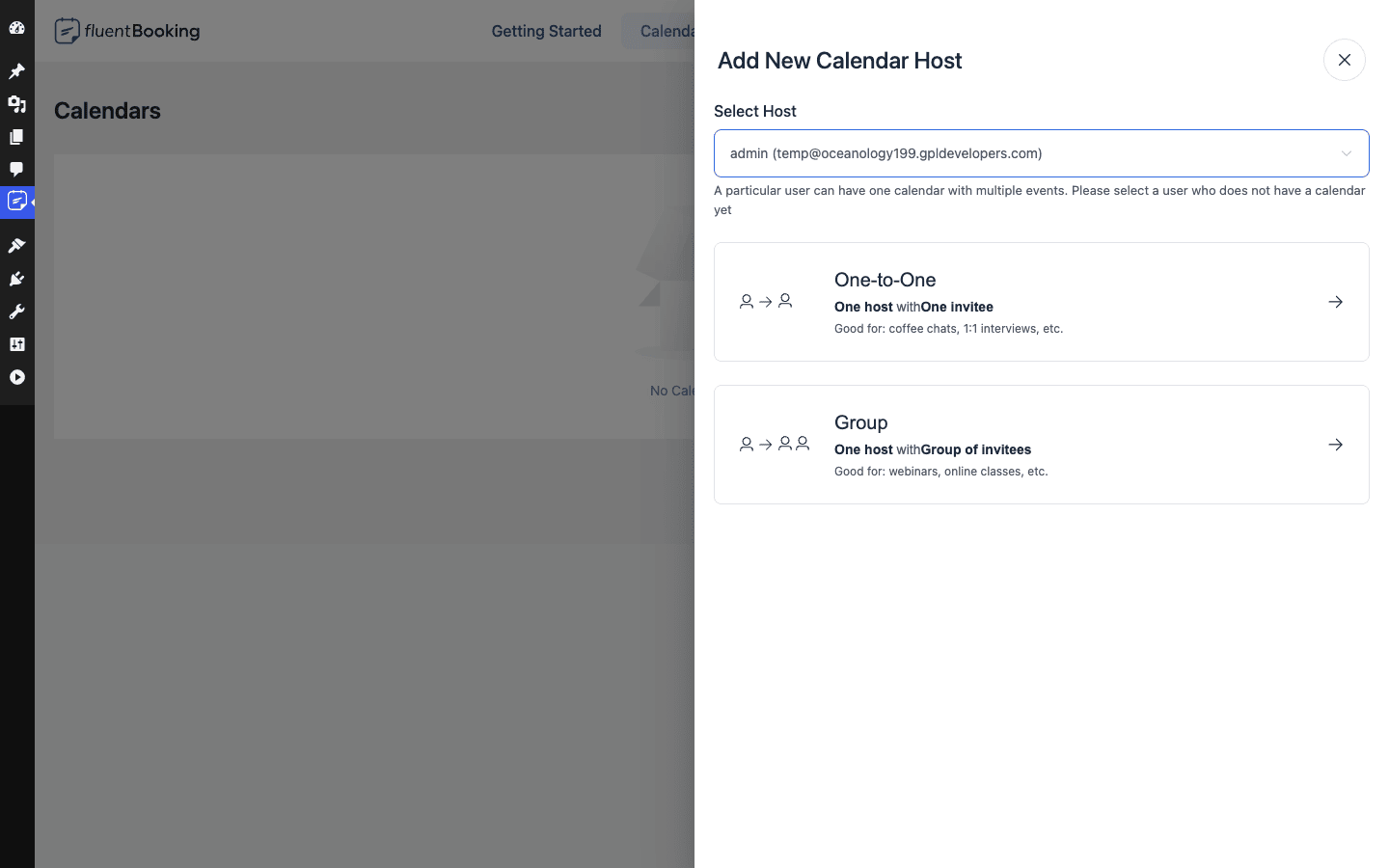
That last choice is the fork that trips up first-timers, so let me be clear about it.
- One-to-One is one host and one invitee. This is the bread and butter: coffee chats, 1:1 interviews, intro calls, consultations. The host is you, the invitee is whoever booked.
- Group is one host and a group of invitees sharing the same slot. Think webinars, online classes, or open office hours where ten people can grab the same Thursday-at-4 session.
Heads-up: the kind of calendar (Host vs Team) and the event template (One-to-One vs Group) are separate decisions, and you make them in that order. A Team calendar with a One-to-One event is how round-robin works, the booking lands on whichever team member is free. Group events and team scheduling are Pro features, so on the free core you’re working with single-host One-to-One bookings, which honestly covers most solo consultants just fine.
The Calendly comparison is fair here, but I’ll flag one real difference. Calendly leans hard into the individual user. FluentBooking’s "Calendar owns event types" structure feels a little more like a system you administer, which is great when you’re running bookings for a whole team and slightly more clicks when you’re a single freelancer who just wants one link. Neither is wrong. It’s a question of whether you think in "my link" or in "our calendars".
Building your first event type
This is where you actually create something bookable, and it’s the screen you’ll spend the most time in. After you pick One-to-One, FluentBooking drops you into the event-type editor (titled "Add One-to-One Booking Type"). Don’t let the number of fields put you off. The first three are the only ones that are truly required, and the rest are sensible defaults you can tune later.
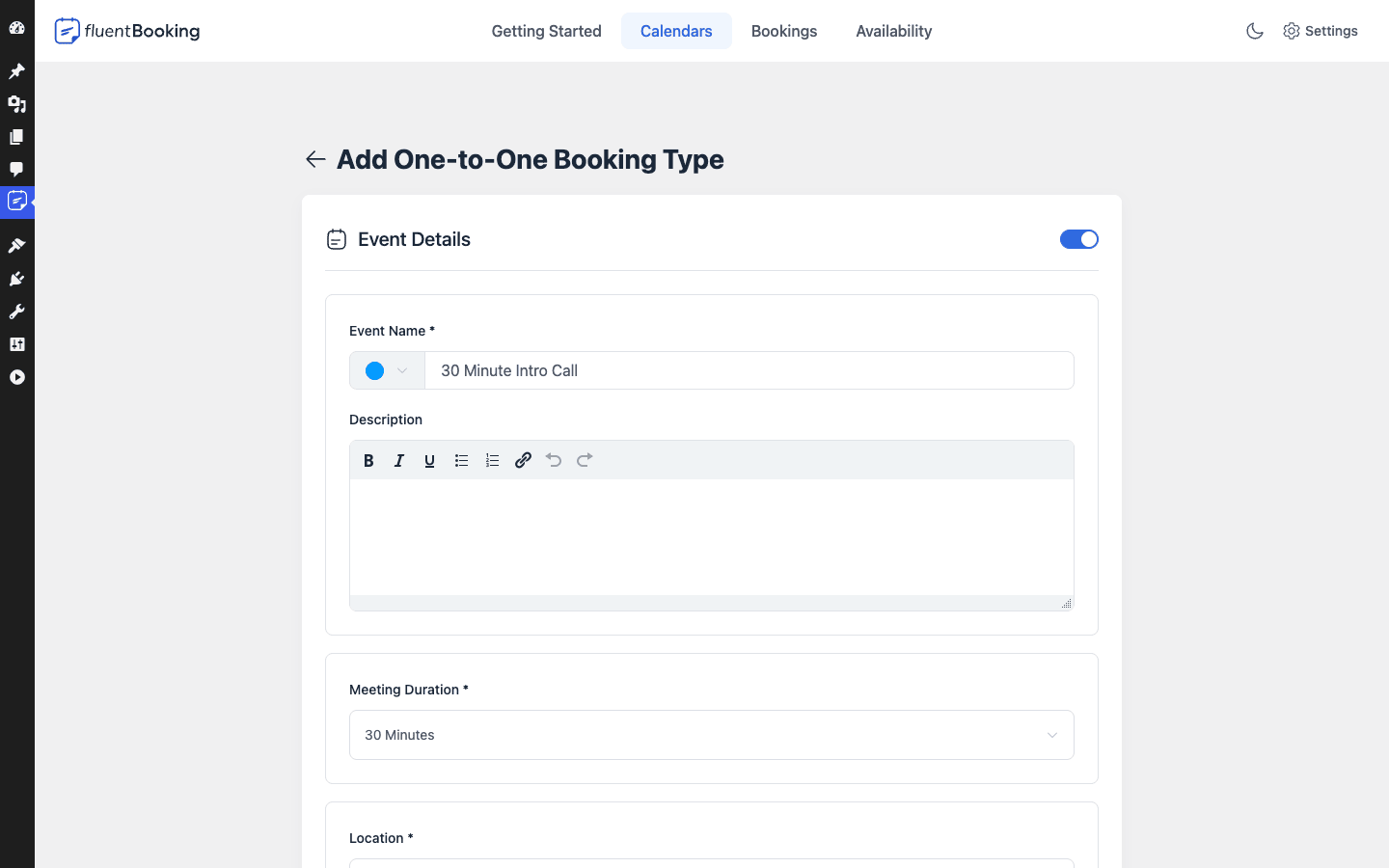
Walk through it top to bottom.
- Event Name. What invitees see on the booking page. Be concrete. "30 Minute Intro Call" beats "Meeting" every time, because the name sets the expectation for length and purpose before anyone clicks.
- Description. A rich-text field for the details: what to prepare, what you’ll cover, a link to a pre-read. This shows on the public page next to the date picker, so treat it as your pitch for why the slot is worth booking.
- Meeting Duration. How long the slot is, for example 30 Minutes. On Pro you can offer multiple durations on one event type (a 15, a 30, and a 60), and the invitee chooses, which is a genuinely nice touch for "quick question vs deep dive" calls.
- Location. Where the meeting happens. This is the conferencing choice: a generated Google Meet, Microsoft Teams, or Zoom link, an in-person address, a phone call, or a custom location. Pick this thoughtfully, because it’s what populates the meeting link in the confirmation email. The create wizard wants a location set before it will finalize the event, so you can’t skip past it.
Scroll down (and into the Pro features) and you get the controls that turn a basic slot into a real scheduling workflow: the availability schedule this event uses, buffer times before and after, a date range that caps how far out people can book (a rolling "next 30 days" stops someone booking you in March), minimum notice so nobody grabs a slot ten minutes from now, and booking questions, the custom fields added to the form so you arrive at the call already knowing the context. There’s also the notification, confirmation, and redirect handling for what happens after someone books.
Once you save, the event has a public booking page with its own link, and this is the bit I want to describe carefully because there’s no screenshot of it here (the demo sandbox I tested in started empty, so I couldn’t seed a live booking page or a populated bookings list to capture). The public page is the Calendly-style experience your invitees see: your event name and description on one side, a calendar of selectable dates on the other, and once they pick a date, the open time slots for that day in their timezone. They choose a slot, answer your booking questions, confirm, and they’re booked. They get a confirmation email with the meeting link, you get notified, and the appointment lands on your synced calendar.
On the admin side, every confirmed appointment shows up in a bookings management list, where you can see who booked what, filter by event type or status, and cancel or reschedule from one screen. The point to take away is that the booking page is the invitee-facing front door and the bookings list is your back-office view of everything that came through it.
Tip: create one throwaway event type first, just to see the booking page render, before you carefully craft your real ones. It takes about two minutes and it makes the abstract "event type" concept concrete in a way no settings screen can.
Availability schedules: your real working hours
Availability is the quiet feature that separates a scheduling tool that respects your life from one that doesn’t. In FluentBooking an Availability schedule is a reusable, named definition of your bookable hours ("Configure times when you are available for bookings"), and you manage them under My Schedules and All Schedules.
The reusable part is what makes this smart. You define "Weekday Mornings" once as Monday to Friday, 9 AM to 12 PM, and then any event type can point at it. Change the schedule later and every event using it updates at once. If you’d rather, an event type can carry its own bespoke hours, but for most people a couple of shared schedules ("Mornings", "Afternoons", maybe "Fridays only") cover everything.
On Pro you also get date overrides and recurring availability, so you can block out a specific Friday for a conference without touching your weekly pattern, or open a one-time burst of extra slots before a launch. That’s the kind of thing you don’t think you need until the week you do.
One honest caveat. The first time you open FluentBooking the availability list is empty, so a brand-new event type has nowhere to be booked until you create at least one schedule. It’s an obvious step once you know it, but it’s the kind of thing that makes a first-timer think "why are there no slots on my booking page?". Create a schedule early.
Connecting your calendar (and why it matters)
Here’s the feature that turns FluentBooking from a fancy form into an actual scheduling assistant: calendar connections. You’ll find them under Settings, which is also home to the rest of the plugin’s integrations and global options.
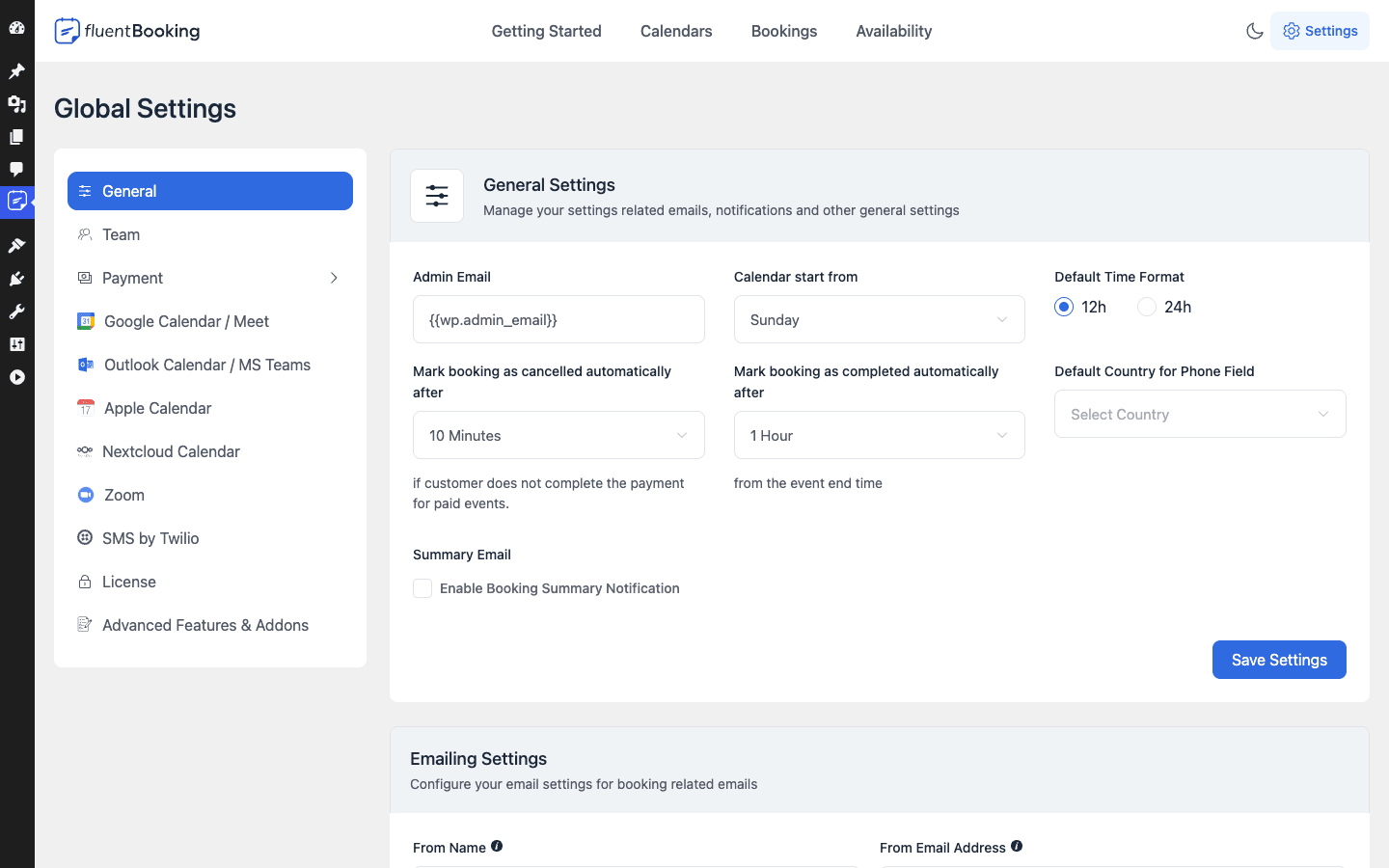
The integration list covers the connections that matter, and they fall into three buckets:
- Calendar sync (two-way): Google Calendar, Outlook Calendar, Apple Calendar, and Nextcloud Calendar. These are the four native calendar connections, and "two-way" is the operative word. FluentBooking reads your existing events to check for conflicts, and it writes new bookings back so the appointment shows up on your normal calendar automatically.
- Video conferencing: Google Meet (via Google), Microsoft Teams (via Outlook), and Zoom. Connect one and FluentBooking generates a fresh meeting link on every booking, so you’re never pasting Zoom URLs by hand.
- Communication and money: SMS by Twilio for text reminders, and the Payment settings for charging at the time of booking.
The same Settings area holds the global housekeeping: the admin email, your calendar start day, the default time format (12-hour or 24-hour), how long after the end of a meeting it auto-marks as completed, how quickly an unpaid booking gets auto-cancelled, the default country for the phone field, and your from-name and from-email for outgoing booking emails. There’s also a Team screen for managing hosts and a License screen for the Pro key. Nothing exotic, but it’s all in one place, which I appreciate.
Now, why does the two-way calendar connection matter so much that I keep harping on it? Because a scheduling tool that can’t see your real calendar is just a slot machine that doesn’t know you’re busy. Connect Google or Outlook and FluentBooking will refuse to offer a slot you already have a dentist appointment in. Skip the connection and it will cheerfully offer it, and you’ve recreated the exact double-booking problem you installed the plugin to solve. Which brings us neatly to the thing you must not do.
Don’t share a booking link before you connect your real calendar
Let me save you an embarrassing morning. The most common way people get burned by any scheduling tool, FluentBooking included, is sharing a booking link before connecting the calendar that holds their real commitments.
The failure mode: FluentBooking can only prevent a double-booking if it can see your existing events, and conflict checking is powered by the two-way sync. Grab the public link and send it to a client without first connecting Google, Outlook, Apple, or Nextcloud, and the plugin has no idea what’s on your calendar. It offers slots you’re busy in. A client books your 10 AM, you’re already in your team standup, and now two people expect you in two places. That’s not a bug. That’s a calendar with no awareness of your life.
Two siblings live in the same family. One is no buffer time, so bookings stack back-to-back and you finish a hard call with a stranger already in the next Zoom room and zero seconds to breathe. The other is timezone mishandling, where an invitee books what they see as "2 PM" in their zone and you, never checking the behavior, show up an hour off while they sit in an empty room assuming you flaked.
The cost is real: a missed meeting, a client staring at an empty video call, and the "they no-showed me" hit you adopted the tool to avoid. Trust is hard to win back, even from an accidental no-show.
The fix is a five-minute checklist. Connect your calendar (or calendars) for two-way conflict checking before you share any link, set sensible buffers on every event type, confirm the timezone behavior, and test-book your own link once from an incognito window so you see what an invitee sees. Do that and this class of disaster simply goes away.
The Fluent suite advantage
This is where FluentBooking pulls ahead of a standalone booking plugin, and it’s the reason I’d recommend it specifically to people already living in the WPManageNinja world. FluentBooking is a member of the Fluent suite, a family of sibling plugins from the same vendor that are built to talk to each other. From the Advanced Features & Addons page you can see the modules and the recommended companions.
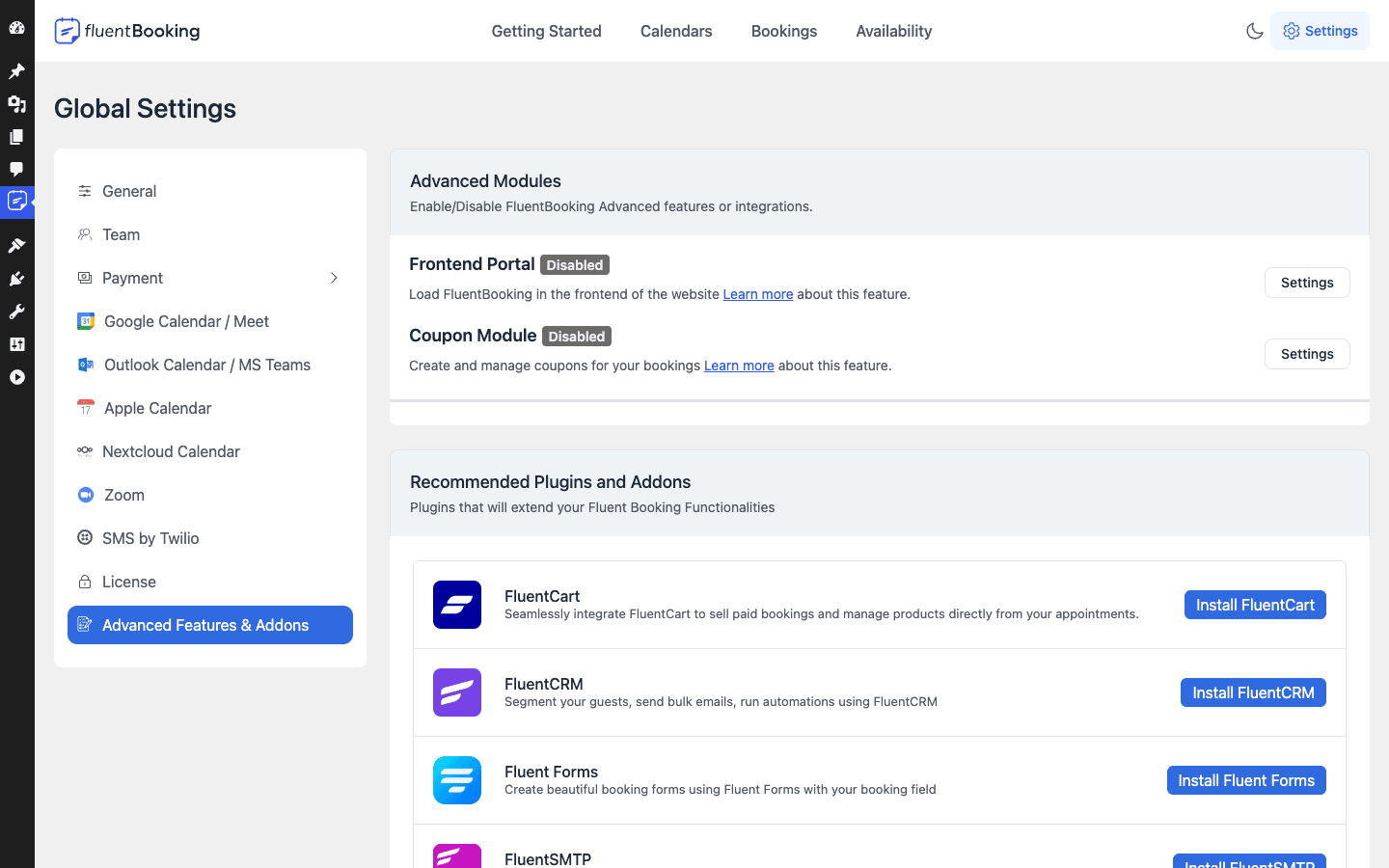
That page has two halves. The top half is FluentBooking’s own advanced modules, each a toggle (both ship disabled by default):
- Frontend Portal. Loads FluentBooking on the front end of your site rather than only in the WordPress admin, so hosts can manage their schedule without ever seeing the dashboard. Useful when your "hosts" are staff you don’t want poking around wp-admin.
- Coupon Module. Adds coupon support for paid bookings, so you can run a discount on a paid session.
The bottom half is "Recommended Plugins and Addons", with one-click install buttons for the siblings that pair with booking:
- FluentCRM. This is the big one. Push everyone who books a call straight into your CRM as a contact, tagged by which event they booked, and your follow-up sequence runs itself. A discovery call booking can drop the person into a "warm lead" automation without you lifting a finger.
- Fluent Forms. The forms plugin from the same team. If you already collect leads with Fluent Forms, the two share the same design language and the same data home.
- FluentCart. For selling, which dovetails with paid bookings when you want a fuller cart and checkout around your sessions.
- FluentSMTP. The deliverability layer. Booking confirmations and reminders are transactional email, and FluentSMTP makes sure they actually land in the inbox instead of spam. This pairing matters more than it sounds, because a confirmation email in the spam folder is a no-show waiting to happen.
Where this shines: if you run FluentCRM already, the booking-to-CRM handoff is the kind of thing you’d otherwise build with a webhook and a prayer. Here it’s a native connection. The catch: if you’re not in the Fluent world at all, this advantage is mostly potential rather than something you’ll feel on day one. A solo coach with no CRM gets a perfectly good standalone booking tool, but the suite synergy is the reason to pick FluentBooking over a rival rather than a generic feature.
Who FluentBooking is for: five real setups
Specs are abstract. Here’s what FluentBooking looks like in five real working lives.
The independent coach. You sell 60-minute coaching sessions and a free 15-minute discovery call. You make two event types, connect Google Calendar so you’re never double-booked against your kid’s pickup, and turn on paid bookings for the 60-minute session so payment happens at booking. The discovery call feeds FluentCRM, so every lead is tagged and gets your nurture sequence. You stop quoting your availability in DMs.
The salon or clinic. You run a Team calendar with three stylists. A One-to-One event on a Team calendar with round-robin means a client books "a cut and color" and FluentBooking routes it to whoever’s free. Buffers between appointments give each stylist cleanup time. SMS reminders via Twilio cut the no-shows that quietly eat a service business alive.
The agency. Your sales team shares a "Book a demo" link on the website. Round-robin spreads demos across the team so no one rep drowns. Booking questions ask company size and current stack, so the rep walks into the call already briefed. The booking lands in your CRM as an opportunity.
The support team. You offer "Book a 30-minute support session" to customers on a plan. A Team calendar routes the session to an available engineer, the booking questions capture the ticket number and the problem, and the engineer shows up knowing what they’re walking into instead of starting cold.
The recruiter. You’re scheduling 20 first-round interviews this week. You publish one link, candidates self-select slots inside your real availability, and Google Calendar two-way sync means an interview you accept elsewhere instantly closes that slot for candidates. The back-and-forth email that usually eats a recruiter’s Monday simply doesn’t happen.
See yourself in one of those? The common thread is the same: a published link, your real availability, and no email loop.
FluentBooking vs Calendly (and vs Amelia)
This is the comparison most people actually care about, so let me be fair to all three rather than cheerleading. Calendly is the category king and it’s genuinely excellent. The honest question isn’t "which is best", it’s "which trade-off fits you". Three numbers frame the whole decision: Calendly’s paid tiers run roughly $10 to $15 per user per month (per their pricing), FluentBooking ships 4 native two-way calendar syncs against a single one-time license, and a 10-seat team paying $12 per seat per month is around $1,440 a year on Calendly versus one FluentBooking license. Hold those in mind as we go.
| Factor | FluentBooking | Calendly | Amelia |
|---|---|---|---|
| Hosting model | Self-hosted on WordPress | SaaS (their servers) | Self-hosted on WordPress |
| Free tier | Full free core on WordPress.org | Limited free plan | Free version available |
| Cost model | One license (free core + paid Pro) | Per user, per month | One license |
| Native two-way calendar syncs | 4 (Google, Outlook, Apple, Nextcloud) | Google, Outlook, iCloud, Office 365 | Google, Outlook |
| Data ownership | You own it (your DB) | Calendly owns it | You own it |
| WordPress / CRM integration | Native (Fluent suite) | Via Zapier / native app | Native to WordPress |
Now the numbers and the nuance.
Cost. This is the headline difference. Calendly’s paid tiers run roughly $10 to $15 per user, per month, per Calendly’s published pricing, and it’s a recurring per-seat charge that scales with your team. FluentBooking flips that: a free core plus a one-off (annual or lifetime) license for Pro, with no per-seat meter. If you’re a solo user the gap is modest. If you’re a ten-person sales team, ten seats of a SaaS subscription versus one WordPress license is a very different annual number.
Free tier. FluentBooking’s free core is genuinely usable for a single host: calendars, event types, availability, and a public booking page, all free. Calendly’s free plan is real but capped (one event type historically, limited features). For a freelancer who needs one booking link and nothing fancy, FluentBooking’s free core is the more generous starting point.
Calendar integrations. FluentBooking ships four native two-way calendar syncs (Google, Outlook, Apple, Nextcloud). Calendly covers the major ones too. The Nextcloud option is the interesting outlier, because if you’re self-hosting your calendar already (the kind of person who picks self-hosted booking), having Nextcloud as a first-class option is a nice match of philosophy.
Where Calendly wins, and I won’t pretend otherwise. Calendly is more polished, the booking flow is buttery, and it’s zero-maintenance because someone else runs the servers, patches the security, and absorbs the traffic spikes. With FluentBooking, you own the uptime. If your WordPress host falls over, your booking page falls over with it. That’s the real cost of self-hosting, and it’s not nothing.
Where FluentBooking wins. Data ownership (your bookings never leave your database), no recurring per-seat fee, and native integration with WordPress and the Fluent suite. If your business already runs on WordPress, keeping bookings inside the same install instead of syncing from a third-party SaaS is a meaningful simplification.
And Amelia? It’s the other big self-hosted WordPress booking plugin, and it leans more toward the services-and-staff, appointment-business model (salons, clinics) with a heavier focus on employees, services, and a polished front-end booking wizard. FluentBooking leans toward the Calendly-style per-host meeting-link model and the Fluent-suite integration. If you think "I have services and staff and a storefront", look hard at Amelia (and BookingPress is in the same neighborhood). If you think "I have meetings and I want a link", FluentBooking is the closer fit. I want to be careful here: I’m comparing positioning and the verified feature surface, not benchmarking raw speed, because I don’t have controlled timing numbers and I’m not going to invent them.
Developer reference: hooks, filters, and shortcodes
Here’s where FluentBooking earns developer trust, and it’s the part that pushed my opinion from "decent plugin" to "I’d build on this". WPManageNinja’s plugins all share a slash-namespaced hook convention (you’ll recognize it if you’ve extended FluentCRM or Fluent Forms), and FluentBooking follows it. The hooks read like fluent_booking/some_event, which is a small thing that makes grepping a codebase pleasant.
A word on the integration surface, stated accurately so you don’t build on a wrong assumption. FluentBooking does register a small fluent-booking REST namespace, but the admin app talks to the server mostly through WPManageNinja’s own application framework (its internal router), not through a large public REST content API. So the primary, dependable extension surface is the fluent_booking/* hook API plus the shortcodes. Don’t plan an integration around a full public REST CRUD API for bookings, and equally don’t assume there’s no REST at all. Build on the hooks.
The data model, in one sentence
Under the hood it’s Calendar (a host or a team) → CalendarSlot (an event type) → Booking, with reusable Availability schedules feeding the event types. If you ever query the tables directly, those are the models you’re looking for (the plugin also has BookingHost, BookingActivity, BookingMeta, and Staff models around the edges).
The hook you’ll use most: reacting to a new booking
When a booking is confirmed, FluentBooking fires fluent_booking/after_booking_scheduled. This is the hook for doing something when a new appointment comes in: push the booker to a CRM, fire a webhook to your own service, notify a Slack channel, write a row to an external system. It passes three arguments, and there’s a quirk worth knowing: the first and third arguments are both the booking, and the second is the calendar event.
add_action( 'fluent_booking/after_booking_scheduled', function ( $booking, $calendarEvent, $bookingAgain ) {
    // $booking and $bookingAgain are the same Booking model.
    // $calendarEvent is the event type (CalendarSlot) that was booked.

    $payload = [
        'name'       => trim( $booking->first_name . ' ' . $booking->last_name ),
        'email'      => $booking->email,
        'event'      => $calendarEvent->title,
        'starts_at'  => $booking->start_time,
        'booked_via' => 'fluentbooking',
    ];

    wp_remote_post( 'https://example.com/webhooks/new-booking', [
        'body'    => wp_json_encode( $payload ),
        'headers' => [ 'Content-Type' => 'application/json' ],
        'timeout' => 15,
    ] );
}, 10, 3 );
Note the , 10, 3 on add_action: you must declare three accepted arguments to receive the calendar event. Miss that and $calendarEvent arrives as null, which is a classic two-minutes-of-confusion bug.
Reacting to reschedules and new events
When an invitee moves their appointment, fluent_booking/after_booking_rescheduled fires with the new booking, the previous booking, and the calendar event, so you can diff old against new (handy for re-syncing an external calendar entry or logging the change).
add_action( 'fluent_booking/after_booking_rescheduled', function ( $existingBooking, $previousBooking, $calendarEvent ) {
    error_log( sprintf(
        'Booking %d moved from %s to %s',
        $existingBooking->id,
        $previousBooking->start_time,
        $existingBooking->start_time
    ) );
}, 10, 3 );
There’s also fluent_booking/booking_schedule_completed, which passes the booking and its calendar event (two arguments) once the schedule is completed, and fluent_booking/after_create_event, which fires with the calendar and the newly created slot (two arguments) when a new event type is created.
add_action( 'fluent_booking/after_create_event', function ( $calendar, $createdSlot ) {
    // Mirror a freshly created event type into your own analytics, for example.
    do_something_with_new_event( $calendar->id, $createdSlot->id );
}, 10, 2 );
A fluent_booking/before_booking action also exists if you need to run logic just before a booking is processed, alongside lower-level hooks around calendar creation, booking-meta updates, and availability schedule changes (fluent_booking/after_create_calendar, fluent_booking/availability_schedule_created, and friends).
Filtering the booking form fields
The filter you’ll reach for most is fluent_booking/booking_fields, which lets you customize the fields on the booking form per event type. It receives the current fields array and the calendar slot (the event type), so you can add, remove, or tweak questions conditionally.
add_filter( 'fluent_booking/booking_fields', function ( $fields, $calendarSlot ) {
    // Add a "company" field only on the sales-demo event type.
    if ( $calendarSlot && 'book-a-demo' === $calendarSlot->slug ) {
        $fields['company'] = [
            'type'        => 'text',
            'label'       => 'Company name',
            'required'    => true,
        ];
    }
    return $fields;
}, 10, 2 );
Other filters worth knowing by name: fluent_booking/admin_menu_items (adjust the admin menu), fluent_booking/accepted_currencies (the currency list for paid bookings), fluent_booking/available_slots_for_view (massage which slots render), fluent_booking/auto_create_calendar, and fluent_booking/booking_export_columns (shape the columns on a bookings export). Treat the exact arguments on the lesser-used ones as something to confirm in the source before you depend on them, since I’ve only verified signatures for the main ones above.
Shortcodes: embedding booking anywhere
You don’t have to send people to the hosted booking page. FluentBooking registers shortcodes so you can embed booking right inside a normal WordPress page or post. The main one is [fluent_booking_calendar], which drops a booking calendar or event onto the page.
[fluent_booking_calendar id="123"]
The full set of registered shortcodes is [fluent_booking_calendar], [fluent_booking], [fluent_booking_lists], [fluent_booking_receipt], and [fluent_booking_team]. So you can build a fully on-brand booking page inside your own theme, show a team’s combined availability, or render a receipt after a paid booking, without ever sending the invitee to a separate hosted page. For most people the embed shortcode is the one that matters: it means your booking flow lives on your site, in your design, not on a third-party domain.
Pricing and licensing
FluentBooking follows the now-familiar WPManageNinja two-tier model: a free core and a paid Pro.
The free core lives on the WordPress.org plugin repository and is genuinely functional rather than a crippled teaser. You get calendars, event types, reusable availability, the public booking page, and basic calendar connection. For a solo consultant who wants one booking link with Google Calendar conflict checking, the free core can carry you a long way.
FluentBooking Pro is the paid upgrade, and it adds the advanced scheduling that teams and businesses need: team and round-robin scheduling, group events, multiple durations, buffer times and advanced availability, paid bookings with the coupon module, SMS reminders via Twilio, recurring availability and date overrides, redirect-after-booking, webhooks and automation, and the deeper Fluent-suite integration. I want to be upfront that the exact line between free and Pro shifts between releases, so treat that as "Pro is the advanced-scheduling and payments tier, per the vendor" and confirm the current split on the official site rather than quoting me feature-by-feature.
On price, I’m deliberately not going to print a hard dollar figure as fact, because WPManageNinja’s pricing changes and the last thing you want is a stale number. The model is what matters: a one-time-ish license (annual or lifetime depending on the plan) rather than a per-seat monthly meter. That single structural fact is the financial reason a lot of teams choose self-hosted booking over a SaaS seat count.
If you want the Pro tier with everything unlocked, FluentBooking Pro is on GPL Times, delivered as the full GPL package so you can switch on team scheduling, payments, and the advanced availability while you evaluate it on a real install.
FAQ
Is FluentBooking free?
Partly. There’s a genuinely usable free core on WordPress.org that covers calendars, event types, availability, and the public booking page for a single host. FluentBooking Pro is the paid tier and adds team and round-robin scheduling, group events, payments, SMS reminders, and the deeper integrations. So you can start free and upgrade when you outgrow it, rather than paying on day one.
Is FluentBooking really a Calendly alternative, or just "Calendly-ish"?
It’s a real alternative for the core job: publish a link, let people self-book inside your real availability, auto-create the meeting. The honest trade-off is polish and maintenance. Calendly’s flow is more refined and it’s zero-maintenance because it’s hosted for you. FluentBooking gives you data ownership and no per-seat fee, but you own the hosting and uptime. For most WordPress-based businesses that’s a trade worth making; for someone who wants the slickest possible flow with zero upkeep, Calendly still has an edge.
Do I have to connect Google or Outlook for it to work?
Technically no, the booking page works without it. Practically, yes, you should. Without a connected calendar, FluentBooking can’t see your existing commitments, so it can’t prevent double-bookings, which is the main reason to use a scheduling tool at all. Connect Google, Outlook, Apple, or Nextcloud before you share any link. This is the one corner you genuinely should not cut.
Can invitees pay when they book?
Yes, on Pro. You can charge for a session at the moment of booking through the Payment settings, and there’s a Coupon module for running discounts on paid bookings. The auto-cancel-after setting also cleans up bookings where payment wasn’t completed in time, so you’re not left holding ghost slots.
Does it do team and round-robin scheduling?
Yes, on Pro. You create a Team calendar and FluentBooking can route an incoming booking to whichever team member is available (round-robin). This is how agencies share a "book a demo" link and how a salon spreads appointments across staff. The free core focuses on single-host bookings, so team scheduling is a Pro reason to upgrade.
Will FluentBooking double-book me?
Only if you don’t connect your calendar. Conflict checking depends entirely on the two-way calendar sync. Connect Google, Outlook, Apple, or Nextcloud and FluentBooking reads your existing events and hides any slot you’re already busy in. Skip the connection and it has no way to know you’re busy, so it will offer those slots. Set buffer times too, so you’re not landing back-to-back calls with no breathing room.
Does it integrate with FluentCRM?
Yes, and it’s the standout reason to pick it if you’re already in the Fluent suite. You can push people who book into FluentCRM as contacts and trigger automations off the booking, so a discovery call can drop a lead straight into a nurture sequence. It pairs the same way with Fluent Forms, FluentCart for selling, and FluentSMTP for making sure your confirmation emails actually reach the inbox.
Can I embed the booking calendar on a page instead of using the hosted link?
Yes. FluentBooking registers shortcodes, and [fluent_booking_calendar] drops a booking calendar or event right into any page or post, so the booking flow lives on your own site in your own design. There are also shortcodes for lists, receipts, and team views. This is a nice edge over sending everyone to a separate hosted domain.
Is FluentBooking Pro worth it over the free core?
It depends on whether you’re solo or a team. A single consultant who just needs one link with calendar conflict checking can genuinely run on the free core for a long time. The moment you need team or round-robin scheduling, group events, paid bookings, SMS reminders, or the deeper automation, Pro is where those live, and the one-time-style license (versus a recurring per-seat SaaS fee) is what makes it attractive for a growing team.
What happens to my bookings if I stop paying for Pro?
Your bookings live in your own WordPress database, so the data is yours regardless. The free core keeps running. You’d lose access to the Pro-only features (team scheduling, payments, SMS, and so on), but you don’t lose the booking records themselves the way you might worry about with a SaaS account lapsing. That data permanence is a quiet benefit of self-hosting.
Final thoughts
After living in FluentBooking’s admin for a while, my take is this: it’s a serious self-hosted answer to Calendly that’s at its absolute best when you’re already a WordPress and Fluent-suite shop. The calendar-event-type-booking model is clean, the availability schedules are properly reusable, the four two-way calendar syncs do the one job that actually matters (no double-bookings), and the hook API is real enough that you can wire bookings into a CRM or a webhook without fighting the plugin.
It’s not flawless, and I’d be lying if I said otherwise. The empty-on-install experience means a first-timer has to know to create an availability schedule before anything bookable appears, and the "Calendar owns event types" structure is a hair more administrative than Calendly’s individual-first feel. And the suite advantage, which is the real reason to choose it, is mostly untapped if you don’t use the other Fluent plugins. None of that is a dealbreaker. It’s the honest shape of the tool.
If your business runs on WordPress, you’re tired of the booking-email loop, and you’d rather own your data and pay once than rent seats forever, FluentBooking is an easy plugin to recommend. Connect your real calendar, set your buffers, test-book your own link once, and then go publish a booking page that does the scheduling so you can get back to the actual work. You can pick up FluentBooking Pro from GPL Times and have every event type, integration, and the developer hooks ready to put on a live site today.
For the official source material, the FluentBooking site has the vendor’s feature breakdown, the free core on WordPress.org is the fastest way to kick the tires, and the hooks above follow standard WordPress plugin API conventions if you want to dig into how the actions and filters fire.