

WordPress out of the box gives you a title and a big content box, and that’s about it. The moment you need real structured data, a price, a star rating, a map location, a "related author" link, you hit the default Custom Fields panel, which is one ugly key/value textarea where you type price in one box and 49.99 in another and hope you spelled the key right. Meta Box exists to make that whole mess go away. It is a custom-fields and custom-content framework that lets you define proper fields, attach them to any post type, and pull the values into your templates with one clean function call.
This is a long, honest walkthrough of how Meta Box actually works, both the no-code builder a beginner can click through in an afternoon and the developer API I reach for when I’m registering fields in a plugin. Whether you’re setting up your first custom post type or you’ve been hand-writing add_meta_box() callbacks for years, by the end you’ll know exactly which parts of this thing earn their place on a site.
Table of Contents
- What is Meta Box?
- Why structured content matters (in plain English)
- Your first field group: the no-code builder
- The field types are the whole point
- Build custom post types and taxonomies without code
- Relationships: connect posts to posts, users, and terms
- Custom tables: when postmeta is not enough
- Front-end forms and Views
- Developer reference: the Meta Box API
- Don’t stuff 50 fields into postmeta and wonder why your site crawls
- Meta Box vs ACF
- Performance, compatibility, and gotchas
- Pricing and licensing
- FAQ
- Final thoughts
What is Meta Box?
Meta Box is a custom fields and custom content framework for WordPress, built by the team at MetaBox.io. At its simplest it lets you create custom fields, a text input for a subtitle, an image uploader for a cover photo, a date picker for an event, and bind them to a post, page, user, term, or settings screen. From there it grows into a full content toolkit: custom post types, custom taxonomies, post-to-post relationships, settings pages, front-end submission forms, Gutenberg blocks, and REST output. It is the main alternative to Advanced Custom Fields, and to Pods and Toolset.
Here is the part that trips people up, so let me be clear about it early. There are two things sold under the Meta Box name.
The free core (the plugin literally called "Meta Box" on the WordPress.org repository) is the field engine. It ships the field types and the rendering logic, and it is code-first. In the free core you register your fields in PHP through a filter. There is no visual builder. If you’re a developer who’s happy in a functions file, the free core alone is genuinely useful and costs nothing.
Meta Box AIO ("All In One") is the one we’re walking through. It bundles the free core plus every premium Meta Box extension into a single plugin. The extensions add the visual builder, the no-code custom-post-type screen, relationships, settings pages, Views, front-end forms, blocks, custom tables, REST, and a long list of integrations. The whole pitch of AIO is "one license, every extension," and you can pick up Meta Box AIO on GPL Times when you want the full set without buying each piece separately.
So the honest framing is this. Free Meta Box is a developer’s code-first toolkit. Meta Box AIO turns it into a full no-code-plus-pro-code content framework that a non-developer can drive from the admin and a developer can still extend in PHP. Most of this article assumes you have AIO, because the builder and the extensions are what make it approachable.
One thing it is not: a theme or a page builder. Meta Box stores and exposes data. It does not design your front end for you. How that data gets displayed is up to your theme templates, a [rwmb_meta] shortcode, an MB View, or a block. I’ll come back to this, because it’s the single most common misunderstanding about the plugin.
Why structured content matters (in plain English)
Skip this section if you already build custom post types in your sleep. If you don’t, the next couple of minutes will explain why anyone bothers with a plugin like this at all.
Say you run a book review site. Every review needs a book title, an author, a cover image, a rating out of five, the publication year, and an Amazon link. With stock WordPress you have two bad options. You can shove all of that into the main content editor as plain prose, which means it’s unstructured, you can’t sort by rating, and every post is formatted slightly differently. Or you can use the default Custom Fields box, type out keys by hand, and pray nobody on your team typos raiting instead of rating.
The catch with the default box: custom fields in core WordPress are just untyped strings. There’s no date picker, no image uploader, no dropdown of valid values, no validation. A "rating" field happily accepts the word "banana." On a site with more than one editor, that falls apart fast.
Meta Box fixes this by giving every field a type. A rating becomes a number field with a min and a max. A cover becomes an image field that opens the media library. A publication date becomes a real date picker. The editor sees labeled, validated inputs instead of a wall of key/value boxes, and you, the developer, get the value back in a predictable shape.
Here’s the mental model. Meta Box is three layers:
- Definition. You describe a field group: what fields it has, what types they are, and where it should appear (which post type, in the sidebar or below the content).
- Storage. When someone saves the post, Meta Box writes the values to the database. By default that’s the
wp_postmetatable, the same place core custom fields live, so nothing is locked away in a proprietary format. - Output. In your theme (or a View, or a block) you call a function to read the value back and print it wherever you want.
That’s the whole thing. Everything else, the 40-plus field types, the relationships, the front-end forms, is built on top of those three ideas.
Your first field group: the no-code builder
Let’s build something real. We’ll add the book-review fields from the example above.
Getting Meta Box onto a site is a one-liner, so I won’t dwell on it: upload the AIO zip under Plugins » Add New » Upload Plugin, activate it, and you’ll see a new Meta Box entry in the WordPress admin sidebar. That menu is your home base. It holds Dashboard, Post Types, Taxonomies, Custom Fields, Settings Pages, Relationships, Views, Tools, Extensions, and License.
Before you build anything, glance at the Extensions screen (Meta Box » Extensions). This is where AIO shows its hand: every bundled extension sits here with an on/off toggle, and you can filter the list by All, Premium, Free, Popular, Data, UI, Integration, Admin, or Frontend.
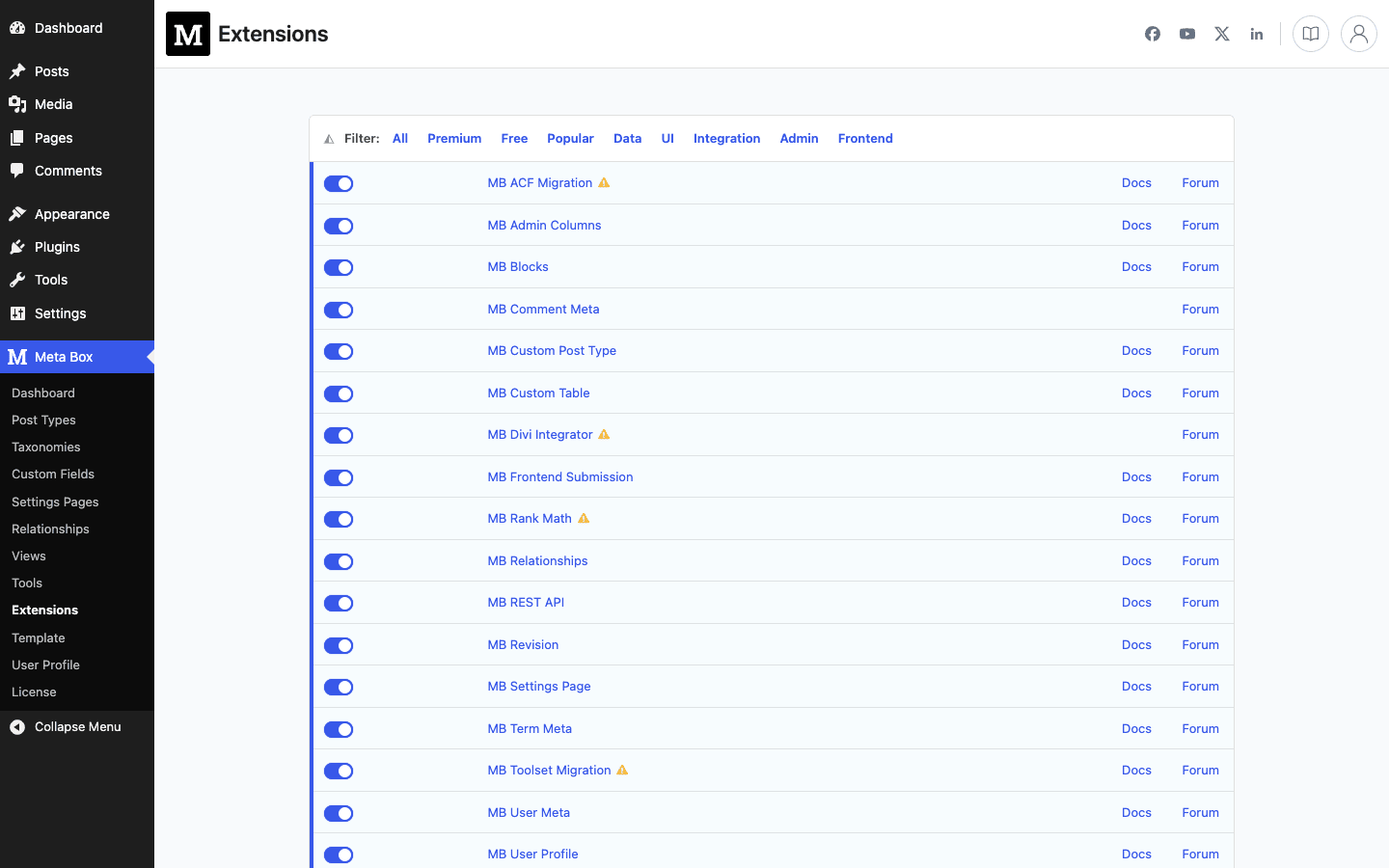
Tip: leave everything on while you’re learning. Each extension is just a feature, and an inactive one you might need (like MB Custom Table or MB Frontend Submission) is one toggle away. Later, on a production site, you can switch off the ones you genuinely don’t use to keep the admin lean. There are more than thirty of them, so don’t feel you have to understand each one on day one.
Now the builder itself. Go to Meta Box » Custom Fields » Add New. You give the group a title (I’ll call mine "Book Details"), then click + Add Field, which opens a categorized picker, and start dropping in fields.
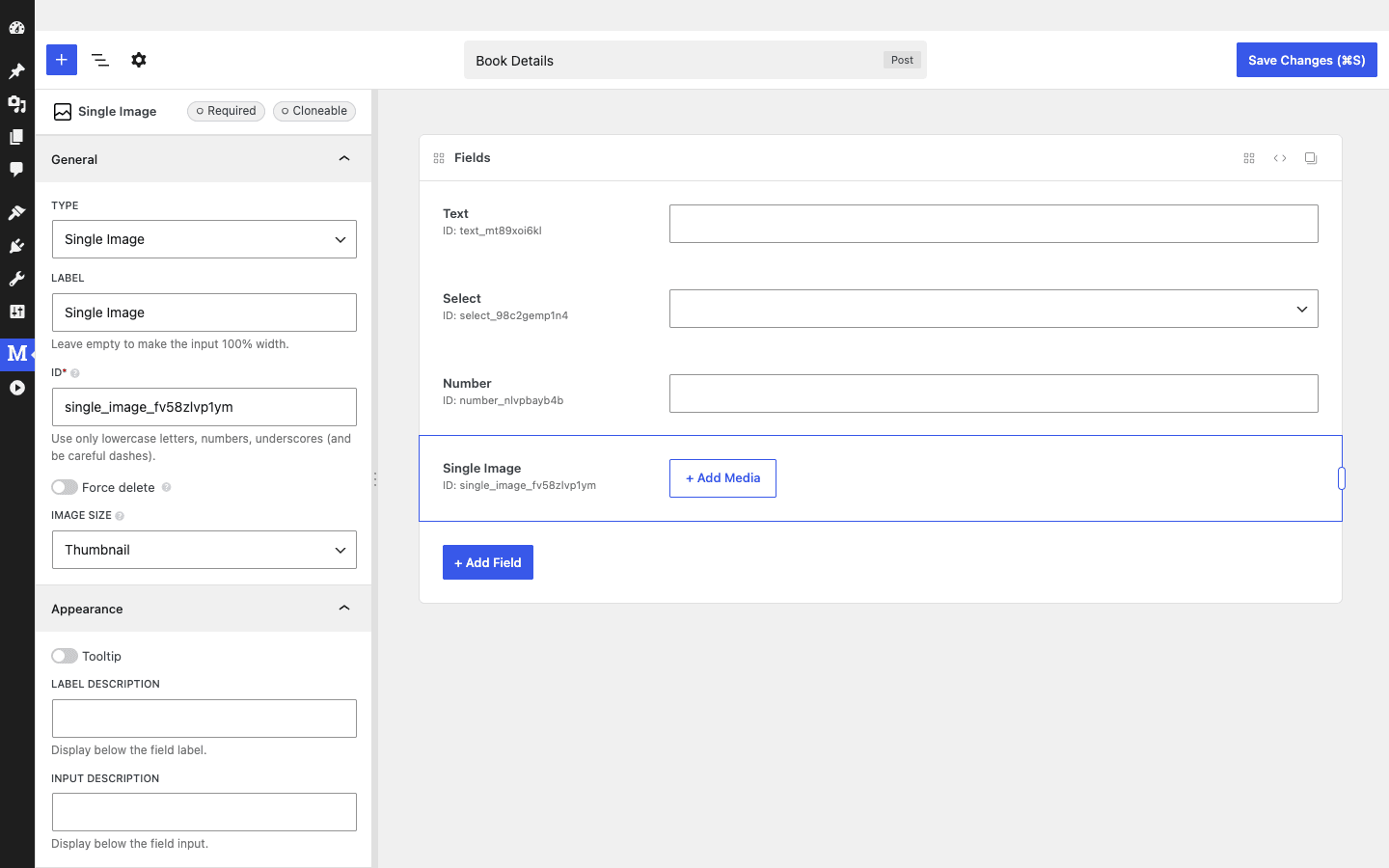
For each field you set a Label (what the editor sees, e.g. "Rating") and an ID (the database key, lowercase with underscores, e.g. book_rating). Meta Box auto-generates an ID from the label, which is handy, though I usually rename it to something clean and predictable because that ID is what I’ll type in my templates later. Field-specific options appear in the left panel as you go: an image field lets you pick an image size and toggle "Force delete," a number field takes a min and max, and so on.
Below the fields you set the group’s Location: which post type it attaches to (Post type = Post, in our case), with Advanced Rules if you want it to appear only for, say, a specific page template. Then there’s Position (After content or Side), Priority (High or Low), and a Style setting with two options: the standard look shows the familiar metabox border, while the borderless option blends the fields straight into the editor. Hit Save Changes and the fields show up the next time you edit a post.
That’s it. No code. The builder generates the same configuration you’d otherwise hand-write in PHP, which is the second half of this article.
Heads-up: if you only installed the free core, you won’t see the Custom Fields builder at all, because the visual builder is the premium MB Builder extension. On the free core you register groups in code (covered below). This is the single biggest "wait, where is it?" moment for people who grab the free plugin expecting ACF-style UI. AIO includes the builder, so on AIO you get both paths.
The field types are the whole point
If I had to name the one reason I reach for Meta Box over a hand-rolled metabox, it’s the field types. The core ships more than forty of them, and they cover almost everything you’d otherwise wire up yourself.
Click + Add Field in the builder and you get a searchable picker grouped into categories. Here’s that picker:
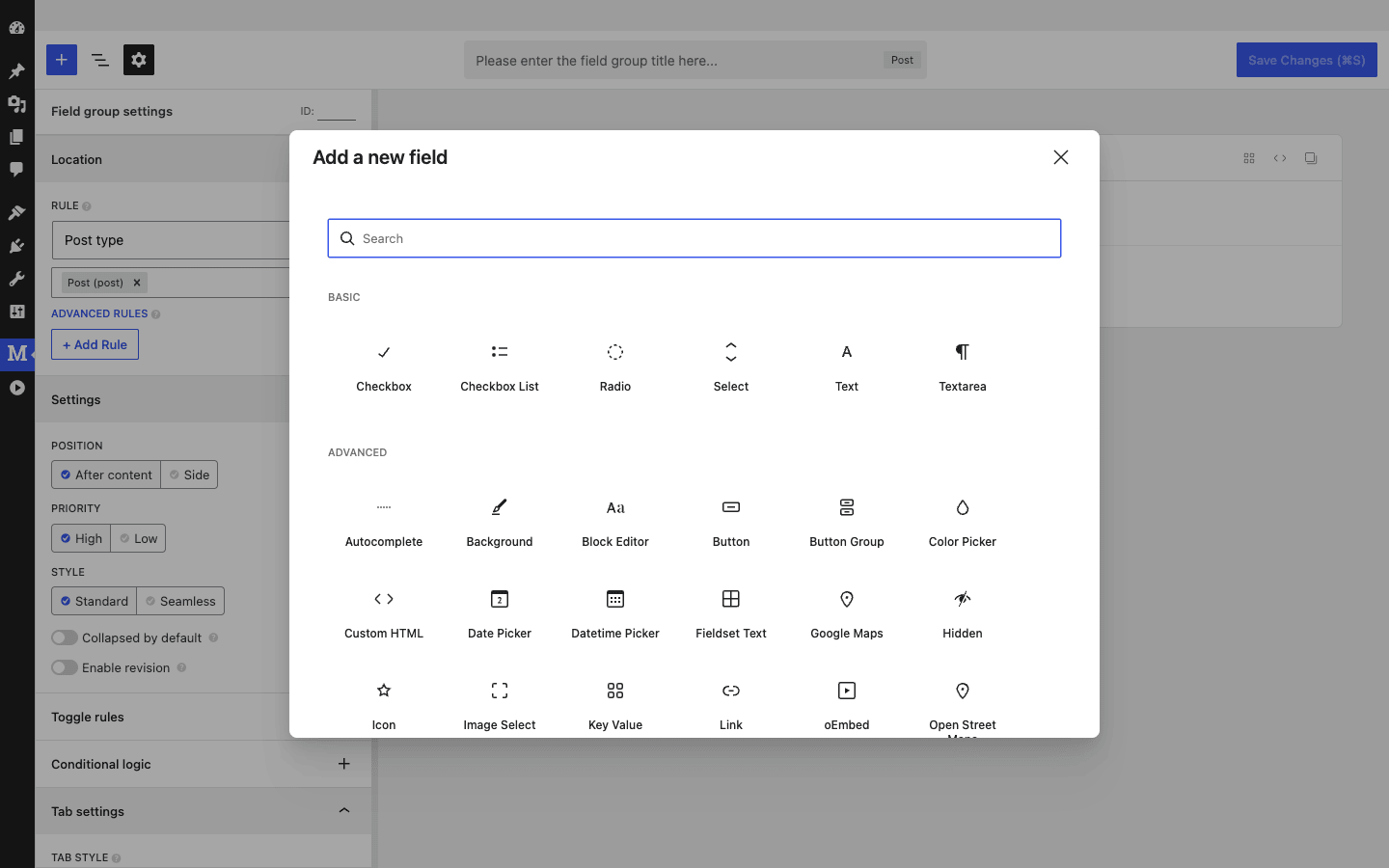
The Basic group is what you’d expect: Text, Textarea, Number, Checkbox, Checkbox List, Radio, Select. The Advanced group is where it gets interesting. A quick tour of the ones I actually use:
- Image Advanced and Single Image. Drag-and-drop uploaders backed by the WordPress media library. Image Advanced handles a sortable gallery of many images; Single Image is exactly one. Both store attachment IDs, so you keep full access to image sizes.
- Select Advanced. A Select2-style dropdown with search, much nicer than the plain Select once you have more than a handful of options.
- Date and Datetime. Real date pickers with a calendar widget and configurable formats. No more "type the date as a string and hope."
- Color. A color picker that returns a hex value. Handy for per-post accent colors.
- Google Maps and OpenStreetMap. Two map fields. The
maptype uses Google Maps; theosmtype uses OpenStreetMap if you’d rather not deal with a Google Maps API key. Both let an editor drop a pin and store coordinates. (There’s a companion Geolocation extension that can auto-fill a map from an address field.) - Post and Taxonomy. Pick an existing post or a term from a dropdown. The Post field is the lightweight cousin of full Relationships, good for a simple "featured post" picker.
- User. Pick a WordPress user. Perfect for a "reviewed by" byline.
- Key Value. Repeatable key/value pairs, for arbitrary spec sheets where you don’t know the keys in advance.
- Switch. A toggle that returns a boolean. Cleaner than a checkbox for a single on/off.
- WYSIWYG. A full TinyMCE editor as a field, for rich text that isn’t the main content.
- oEmbed. Paste a YouTube or Twitter URL and it stores and renders the embed.
- File Advanced. Like Image Advanced but for any file type, sortable, multi-file.
- Group. This one’s special. It lets you nest fields inside a repeatable group, so "Book chapters" can each have a title, a page count, and a summary, and the editor can add as many as they like. The Group field is the MB Group extension, and it’s the feature I’d miss most if it vanished.
There are more (range, slider, button group, icon picker, video, custom HTML, heading and divider for layout, a sidebar picker, and so on), but you get the idea. The breadth is the selling point. Whatever the content shape, there’s usually a field type that fits, and you’re not falling back to a plain text box and parsing strings.
A small criticism: with this many types, the picker can feel like a lot the first time you open it. I’d have liked a "recently used" row at the top. In practice you settle into the same eight or ten types per project and the rest fade into the background.
Build custom post types and taxonomies without code
Custom fields are half the story. The other half is custom content types. A book review site doesn’t just need fields on a post, it arguably needs a "Book" post type that’s separate from your blog posts, with its own admin menu and its own archive.
For years the standard way to do this was to hand-write a register_post_type() call with a couple dozen arguments, get the labels slightly wrong, and reload until it looked right. Meta Box’s MB Custom Post Type extension turns that into a form. Go to Meta Box » Post Types » Add New and you fill in tabs instead of arguments.
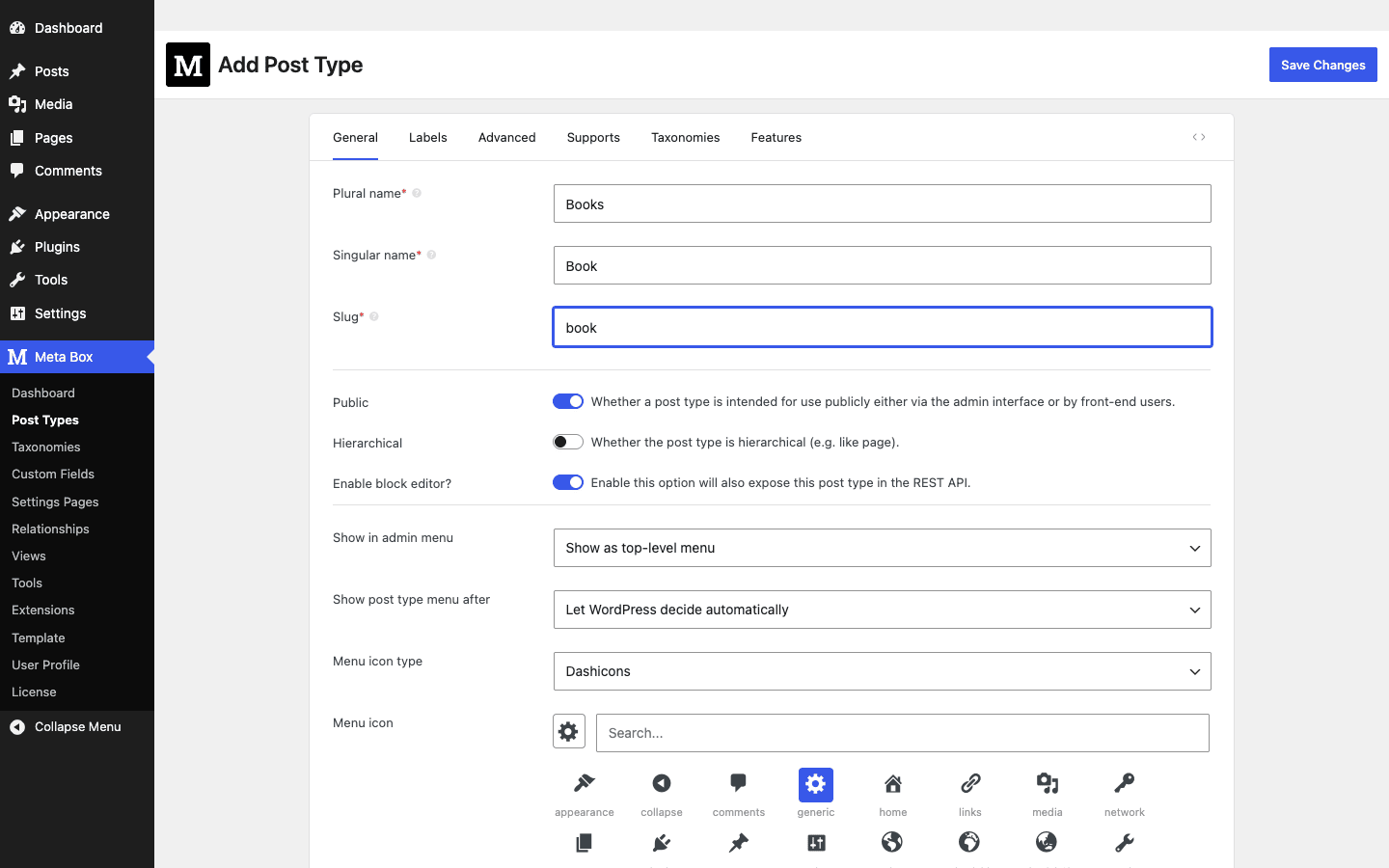
The tabs map cleanly to what register_post_type() wants:
- General. Plural name, Singular name, and Slug (the three required fields), plus the Public toggle, Hierarchical (on for page-like types, off for post-like ones), the admin menu position, and a Dashicons picker for the menu icon. There’s also an Enable block editor? toggle, and the helper text is worth reading: "Enable this option will also expose this post type in the REST API." That single switch decides whether your post type uses the block editor and whether it’s queryable over
wp/v2. Good to know before you flip it. - Labels. Every label string ("Add New Book," "All Books," "No books found") so the admin reads naturally instead of "Add New Post" everywhere.
- Advanced. The fiddly registration args: rewrite slug, query var, capability type, menu position, REST base, and the like.
- Supports. Which core features the type gets (title, editor, thumbnail, excerpt, comments, custom fields, revisions).
- Taxonomies. Attach existing taxonomies to the type right here.
- Features. Extra toggles the extension layers on.
Hit Save Changes and the post type registers immediately. No file edits, no FTP, no remembering whether it’s has_archive or 'has_archive'.
The Taxonomies screen (Meta Box » Taxonomies) works the same way for categories and tags of your own, "Genre" and "Publisher" for our books, with the same General/Labels/Advanced structure.
Where this matters: for a non-developer building, say, a staff directory or a property listings site, this is the difference between "I can do this myself" and "I need to hire someone." For a developer, it’s a fast way to scaffold a type and then, if you want, export it to PHP and check it into version control. You’re not locked into clicking forever. More on the export-to-code path in a moment.
I do have one mild gripe. Because the UI exposes nearly every register_post_type() argument, the Advanced tab can feel intimidating to the exact non-developer audience that benefits most from a no-code builder. The defaults are sensible, so you can ignore most of it, but a "simple / advanced" view toggle would soften the first impression.
Relationships: connect posts to posts, users, and terms
Here’s a problem the default WordPress data model handles badly: connecting two pieces of content. Our Book has an Author. The Author is its own post (with a bio, a photo, a website). You want, on the book page, a link to the author, and on the author page, a list of all their books. That’s a many-to-many relationship, and core WordPress has no real concept of it.
The MB Relationships extension adds exactly this. You define a relationship with an id, a from side, and a to side, and Meta Box gives both posts a meta box for picking the connected items, plus an API to query the connections in your templates.
A relationship can connect:
- Posts to posts (Book to Author).
- Posts to users (Project to the team members assigned to it).
- Posts to terms (a featured product to a specific category).
The connections are stored in a dedicated relationships table, not crammed into postmeta as a comma-joined string, which keeps the queries clean and indexable. I’ll show the registration and query code in the developer section, because this is one place where seeing the API makes it click.
Persona check: if you run a recipe site, this is how "this recipe uses these ingredients (each an ingredient post)" works. If you run a real-estate listings site, it’s how a listing connects to its agent. If you run a film database, it’s how a movie connects to its cast. Any time the answer to "are these two things related?" is yes, Relationships is the tool.
Custom tables: when postmeta is not enough
By default, every Meta Box field is stored in wp_postmeta, the same table core uses. For most sites that’s completely fine. But wp_postmeta has a structural weakness that bites at scale, and Meta Box ships an answer.
The weakness: wp_postmeta is a tall, narrow "key/value" table. Each field on each post is one row (sometimes more, for fields that store arrays). A post type with thirty fields across ten thousand posts is suddenly three hundred thousand rows. Worse, when you want to sort or filter posts by a custom field, WordPress runs a meta_query, which joins wp_postmeta back onto itself once per field condition. Those joins get slow, and the table gets big.
The MB Custom Table extension lets you store a field group in its own dedicated database table instead. One row per post, one column per field. That changes everything for large datasets:
- Reads are faster because there are no self-joins; the values are columns on one row.
- Sorting and filtering by a field is a plain
ORDER BYorWHEREon an indexable column, not ameta_querygymnastics routine. - The
wp_postmetatable stays small, which keeps the rest of your site (everyget_post_metacall anywhere) quicker too.
The trade-off is that data in a custom table isn’t visible to plugins that expect everything in wp_postmeta, so you weigh that per project. I’ll tie this directly to the anti-pattern section below, because "should I use a custom table?" is one of the most consequential decisions you’ll make on a data-heavy Meta Box site, and getting it wrong is exactly how sites end up slow.
Front-end forms and Views
Two extensions handle the "I don’t want my users in the WordPress admin" case, and the "I don’t want to write theme template code" case.
MB Frontend Submission lets logged-in (or even anonymous, if you allow it) users create and edit posts from the front end of your site, using the field groups you already built. You drop a shortcode on a page:
[mb_frontend_form id="your-field-group-id"]
and that field group renders as a public form. A classifieds site uses this so sellers can post listings without ever seeing wp-admin. A directory site uses it so members can edit their own profiles. The same fields, the same validation, just rendered out front. The main attribute is id (the field group to render); there are others for tuning behavior, but id is the one you can’t skip.
MB Views solves the display side. Instead of editing your theme’s single-book.php to print field values, you build a View in the admin (Meta Box » Views) that mixes HTML with field placeholders, then output it with a shortcode:
[mbv id="your-view-id"]
Views can render a single field, loop a relationship, or template a whole archive, all without touching theme files. For agencies handing a site to a non-technical client, this is gold: the client never has to open a .php file. For me, I still often prefer writing template code directly, but on sites where the theme is a moving target (or there’s no child theme set up), Views keeps the display logic in the database where it survives theme switches.
Note: Views and Frontend Submission are both AIO extensions. If you’re on the free core, you’d build the front end with rwmb_meta() in your own templates instead, which is perfectly fine and what a lot of developers do.
Developer reference: the Meta Box API
This is the part I care about most, and it’s where Meta Box pulls ahead for anyone who writes code. Everything the builder does, you can do in PHP, and on serious projects I usually do, because code-defined field groups live in version control, deploy with the rest of the site, and can’t be accidentally edited away in the admin.
A quick note on registration philosophy first: register your field groups and post types in a plugin, not your theme. Content structure should outlive a theme switch. A small site-specific plugin (or an mu-plugin) is the right home. I’ll come back to this in the anti-pattern section because it matters more than people think.
Registering a field group in code
The whole field engine hangs off one filter: rwmb_meta_boxes. You hook it, push a field-group array onto the list, and return the list. Here’s our Book Details group as code:
add_filter( 'rwmb_meta_boxes', function ( $meta_boxes ) {
    $meta_boxes[] = [
        'title'      => 'Book Details',
        'post_types' => [ 'book' ],
        'context'    => 'normal',
        'priority'   => 'high',
        'fields'     => [
            [
                'name' => 'Rating',
                'id'   => 'book_rating',
                'type' => 'number',
                'min'  => 0,
                'max'  => 5,
                'step' => 0.5,
            ],
            [
                'name' => 'Cover image',
                'id'   => 'book_cover',
                'type' => 'single_image',
            ],
            [
                'name' => 'Published',
                'id'   => 'book_published',
                'type' => 'date',
            ],
            [
                'name' => 'Buy link',
                'id'   => 'book_buy_url',
                'type' => 'url',
            ],
        ],
    ];

    return $meta_boxes;
} );
That’s the entire pattern. Every field is an array with at least a name, an id, and a type, plus whatever options that type supports. The Builder UI produces exactly this structure under the hood, and on AIO you can build a group in the UI and then export it to PHP, which is a great way to learn the field options without memorizing them.
Reading values in a template
Once values are saved, three functions cover almost every output need:
// Get a single field's value.
$rating = rwmb_get_value( 'book_rating' );

// Get a value with options, or for a specific post.
$cover_id = rwmb_get_value( 'book_cover', [], $post_id );

// Echo a value directly (handy in templates).
rwmb_the_value( 'book_buy_url' );
rwmb_meta( $key, $args = [], $post_id = null ) is the lower-level workhorse, it can return a single field or, given a group’s key, the whole group’s data. rwmb_get_value( $field_id, $args = [], $post_id = null ) returns one field’s value, and rwmb_the_value( $field_id, $args = [], $post_id = null, $echo = true ) echoes it. A realistic single-book.php snippet:
<article>
    <h1><?php the_title(); ?></h1>

    <?php
    $cover = rwmb_get_value( 'book_cover' );
    if ( $cover ) {
        echo wp_get_attachment_image( $cover, 'large' );
    }

    $rating = rwmb_get_value( 'book_rating' );
    if ( $rating ) {
        printf( '<p class="rating">Rated %s / 5</p>', esc_html( $rating ) );
    }

    rwmb_the_value( 'book_published' );
    ?>
</article>
There’s also rwmb_set_meta( $object_id, $key, $value, $args = [] ) for writing a value programmatically, useful in importers, and a handful of helpers like rwmb_get_field_settings(), rwmb_get_object_fields(), rwmb_get_registry(), and rwmb_get_storage() for when you need to introspect what’s registered.
Useful hooks
Two actions fire around a field group’s render and are the easiest way to wrap custom markup around your fields:
// Runs before a field group renders. Receives the field-group object.
add_action( 'rwmb_before', function ( $field_group ) {
    echo '<div class="my-fields-wrapper">';
} );

add_action( 'rwmb_after', function ( $field_group ) {
    echo '</div>';
} );
Both rwmb_before and rwmb_after receive the field-group object as their single argument, so you can branch on which group is rendering. There are dynamic variants scoped to a specific group (the pattern is rwmb_before_{group_id} and the matching rwmb_after_{group_id}), so you can target one group without a conditional, just substitute your group’s id into the hook name.
For save-time logic, rwmb_after_save_post runs once a post’s Meta Box fields have been saved, which is the right place to recalculate a derived value or sync to an external system:
add_action( 'rwmb_after_save_post', function ( $post_id ) {
    $rating = rwmb_get_value( 'book_rating', [], $post_id );
    // e.g. update a "top rated" flag, ping a search index, etc.
} );
There’s a matching rwmb_before_save_post, plus rwmb_field_registered, rwmb_enqueue_scripts, and rwmb_enqueue_block_editor_assets for the asset and registration lifecycle. On the filter side, beyond the big rwmb_meta_boxes, you’ll find rwmb_meta, rwmb_get_value, rwmb_field_class, rwmb_meta_box_settings, rwmb_admin_menu, and rwmb_google_maps_url, along with dynamic per-type and per-field normalize filters (rwmb_normalize_{type}_field and rwmb_normalize_{field_id}_field, plus the global rwmb_normalize_field) for surgical tweaks.
Relationships in code
Register a relationship on init, then query it where you need the connected items:
add_action( 'init', function () {
    MB_Relationships_API::register( [
        'id'   => 'books_to_authors',
        'from' => 'book',
        'to'   => 'author',
    ] );
} );
The id, from, and to keys are the documented shape, from and to are the two post types you’re connecting. To list a book’s authors on the book template:
$authors = MB_Relationships_API::get_connected( [
    'id'   => 'books_to_authors',
    'to'   => get_the_ID(), // current book
] );

foreach ( $authors as $author ) {
    printf( '<a href="%s">%s</a>', get_permalink( $author ), esc_html( $author->post_title ) );
}
MB_Relationships_API also exposes add(), delete(), has(), get_relationship(), get_all_relationships(), and set_post_query() for managing and querying connections programmatically. Swap to for from in get_connected() and you walk the relationship the other way (all books by an author).
Shortcodes
Three shortcodes cover the common front-end needs:
[rwmb_meta]                          render a field's value anywhere
[mb_frontend_form id="group-id"]     a front-end create/edit form
[mbv id="view-id"]                   render an MB View
There’s also [mb_frontend_dashboard] and [mb_relationships], plus dynamic user-profile shortcodes ([mb_user_profile_*]) from the User Profile extension.
REST API
Let me be precise here, because there’s a myth that Meta Box doesn’t do REST. It does, through the MB REST API extension. That extension uses register_rest_field to attach your custom fields to the standard wp/v2/<post_type> endpoints, so a request to, say, /wp-json/wp/v2/book/123 returns your Meta Box fields alongside the core post data. It also registers a dedicated meta-box/v1 REST namespace via register_rest_route for Meta Box-specific endpoints. So if you’re building a headless front end or a mobile app, your fields are first-class REST citizens. (And remember that "Enable block editor?" toggle on the post type screen, flipping it also exposes the post type to REST, which is the other half of getting your data out over the API.)
Gutenberg blocks
The MB Blocks extension lets you build custom Gutenberg blocks out of Meta Box fields, and the headline detail is that you don’t write any React. You define a block much the way you define a field group, declaring its fields, and Meta Box handles the editor UI and the rendering. For teams that want bespoke editor blocks (a styled "book card" block an editor can drop into any post) without standing up a JavaScript build pipeline, this is a genuinely pragmatic path. I’m describing it at a high level on purpose, the exact block-registration call is in the extension’s docs, and that’s the authoritative place to copy it from.
Don’t stuff 50 fields into postmeta and wonder why your site crawls
This is the mistake I see most often on Meta Box sites, because it works fine right up until it doesn’t.
Don’t model a data-heavy content type as fifty postmeta fields and then act surprised when the admin list and the archive crawl. You build a "Property" post type with price, bedrooms, bathrooms, square footage, year built, an agent, photos, latitude, longitude. Forty fields. Then the client imports eight thousand listings, and wp_postmeta holds hundreds of thousands of rows. Build a "filter by price and bedrooms, sort by newest" archive and WordPress runs a meta_query that joins wp_postmeta onto itself several times, and those self-joins on a huge table turn a fast page into a slow one.
The cost shows up in three places. The admin posts list gets sluggish because sortable columns query postmeta. Archive and filter queries slow down because meta_query joins don’t scale. And the bloated table drags on every meta read site-wide, because postmeta is shared. A cache like WP Rocket hides the symptom, but the first uncached request still pays.
The honest fix:
- Use the MB Custom Table extension for any field group on a large, query-heavy type. One row per post, indexable columns, plain SQL instead of
meta_query. Highest-impact decision on a data-heavy site. - Be selective about what becomes a field. If you never query by an attribute, it can live in a grouped field or the content.
- Register groups in a plugin, not the theme, so the structure is version-controlled and a theme change can’t orphan your data.
Decide this on day one. Migrating a live, populated content type from postmeta to a custom table later is doable but it’s a data migration, and data migrations are where weekends go to die.
Meta Box vs ACF
You can’t write about Meta Box without the ACF comparison, because for most people these two are the finalists. I’ve shipped real sites on both, so here’s a fair read rather than a fan post. (We’ve also covered Advanced Custom Fields in its own walkthrough if you want the ACF side in depth.)
Both follow the same business model: a capable free core on WordPress.org, plus a paid tier that unlocks the advanced pieces. Both store to wp_postmeta by default. Both have excellent documentation and large communities. So where do they actually differ?
| What you’re comparing | Meta Box (AIO) | Advanced Custom Fields |
|---|---|---|
| Field types out of the box | More than 40 | Around 30 |
| Code-first registration | Yes, native (rwmb_meta_boxes filter), first-class |
Yes, via acf_add_local_field_group() |
| No-code builder | Yes (MB Builder, premium) | Yes (in core and Pro) |
| Custom database tables | Yes, built in (MB Custom Table) | Not built in; needs a separate add-on |
| Architecture | More than 30 modular extensions you toggle | Pro is one bundle; extra add-ons are third-party |
| Post types / taxonomies UI | Yes, built in (MB Custom Post Type) | Yes, in recent versions (or via CPT UI) |
| Storage at scale | One row per post in a custom table | N rows in wp_postmeta per field (no native custom tables) |
A few specifics worth calling out beyond the table. On field-type breadth, Meta Box wins: more than 40 types versus roughly 30, which is about a 33% larger default toolkit, and some Meta Box types (OpenStreetMap as a Google-free map, the dedicated Key Value field) simply aren’t in ACF’s default set. On storage at scale, Meta Box’s built-in custom tables are a real architectural advantage: a 40-field listing is 1 row in a custom table versus up to 40 rows in wp_postmeta, roughly a 97% reduction in rows for that content type. ACF can reach a similar result but only with a separate paid add-on, whereas with Meta Box it’s one of the extensions already in AIO. On modularity, Meta Box’s 30-plus toggleable extensions mean you load only what you use, on a lean site you might switch on as little as 20% of them; ACF Pro is more of a single bundle. On price model, both start from a free core, then Meta Box sells annual and lifetime bundles while ACF Pro is a per-site annual license, so check current numbers on each vendor’s site before deciding.
Where ACF is genuinely better: its field-group editing UI is, to my eye, a little more polished and friendlier for a first-timer, and its sheer ubiquity means more themes, more Stack Overflow answers, and more developers who already know it. ACF’s Flexible Content field also has a devoted following for page-building-style layouts. Neither tool is a bad choice. If you’re a developer who values field-type breadth, native code-first registration, and custom tables, Meta Box edges it. If you want the most polished UI and the biggest community, ACF is hard to beat.
And if you’re coming from a different stack entirely, note that Meta Box ships migration extensions for both Toolset Types and ACF, so moving an existing field setup over isn’t a from-scratch rebuild. It also has a FacetWP integrator so your custom fields can power faceted search and filtering, which closes the loop on the "filter by price and bedrooms" example above.
Performance, compatibility, and gotchas
A grab-bag of things I’ve run into, the stuff that doesn’t fit neatly anywhere else but that you’ll be glad to know in advance.
It’s lightweight by default. Meta Box loads its field assets only on screens where a field group actually appears, so it’s not dragging the editor down on every admin page. The free core in particular is small. The weight comes from how many extensions you enable and how heavy your field groups are, not from the plugin sitting there.
The free-core-versus-AIO confusion is the number one support issue. Someone installs the free "Meta Box" plugin from wp.org, goes looking for the Custom Fields builder, and it’s not there because the builder is a premium extension. If a tutorial says "click Add New under Custom Fields" and you don’t see it, you’re on the free core. AIO includes the builder.
Custom tables and third-party plugins. Data stored in an MB Custom Table is not in wp_postmeta, so any plugin that expects to read your fields from postmeta (some import/export tools, some search plugins) won’t see them unless it specifically integrates with Meta Box. Plan around it.
Multilingual. For translating custom field values you’ll lean on a multilingual plugin; Meta Box documents integration with WPML, where you mark which fields are translatable. It’s not automatic, you configure per-field translation behavior, but it works.
Maps need an API key. The Google Maps field needs a Google Maps JavaScript API key, and Google’s billing model means heavy map usage can cost money. If you just want a pin and don’t want a billing account, use the OpenStreetMap (osm) field instead, it’s the same drop-a-pin experience with no key.
Gutenberg. Meta Box works with the block editor; field groups render below or beside the block canvas just as they did in the classic editor, and MB Blocks lets you build actual blocks from fields. If your post type has the block editor enabled, remember that also exposes it to REST.
Caching. None of this changes your caching story much, fields are read at render time like anything else, but if you build heavy relationship or custom-table queries on archives, cache those pages and consider object caching for the queries.
Pricing and licensing
Meta Box’s model is the familiar freemium one, and it’s worth understanding before you buy anything.
The free core on WordPress.org is genuinely free and genuinely useful if you’re comfortable registering fields in PHP. It’s the field engine and the field types, no visual builder, no extensions. Plenty of developers run production sites on the free core alone.
The premium side is sold as bundles. The vendor’s lineup has historically included tiered bundles (entry-level through to the everything bundle), with both annual and lifetime options. Meta Box AIO is the all-extensions package, the one that includes the visual builder, custom post types UI, relationships, settings pages, Views, front-end submission, blocks, custom tables, REST, and the full integration set in a single plugin.
I’m not going to quote exact dollar figures as gospel, because vendor pricing shifts and I’d rather you check the current numbers than trust a stale review. As a rough shape, expect the entry premium bundle to sit at a modest annual price and the AIO/lifetime option to be a larger one-time figure, around the typical "premium WordPress plugin" range per the vendor’s pricing. Confirm on metabox.io before you commit.
| Tier | Roughly who it’s for | What you get |
|---|---|---|
| Free core | Developers happy in code | Field engine, more than 40 field types, code-first registration |
| Entry premium bundle | Single small site | Core plus a subset of extensions and the builder |
| Meta Box AIO | Agencies, multi-site builders, "I want everything" | Free core plus all 30-plus extensions in one plugin |
On GPL Times, Meta Box AIO is available under the GPL, which is the straightforward way to get the entire extension set in one download and try every builder and feature on a real install. The plugin is GPL-licensed by design, so that’s all above board.
FAQ
Do I need the paid version, or is free Meta Box enough?
It depends on whether you write code. The free core gives you the full field engine and more than forty field types, but registration is code-only, there’s no visual builder, no custom post type UI, no relationships, no Views. If you’re a developer building in a plugin, free can genuinely be enough. If you want to click your fields together in the admin or you need relationships, custom tables, or front-end forms, you need the premium extensions, and Meta Box AIO is the bundle that includes all of them.
Meta Box or ACF, which should I pick?
Both are excellent and neither is a wrong answer. Pick Meta Box if you value field-type breadth (40-plus vs roughly 30), native code-first registration, and built-in custom tables for performance. Pick ACF if you want the most polished builder UI, the largest community, and the broadest theme support. If you’re a code-first developer on a data-heavy site, I lean Meta Box; if you’re handing a site to a non-technical client and want the friendliest editor, ACF is a safe bet.
Will my fields slow down my site?
A handful of fields on normal post counts, no. The risk is real only at scale: dozens of fields across thousands of posts stored in wp_postmeta, queried with meta_query for sorting and filtering. That’s slow because of how postmeta joins work, not because of Meta Box itself. The fix is the MB Custom Table extension, which stores those fields in a dedicated, indexable table. Design for it early on large datasets.
Does Meta Box have a REST API?
Yes. The MB REST API extension exposes your custom fields on the standard wp/v2 post endpoints (so they appear alongside core post data) and adds a dedicated meta-box/v1 namespace. Combined with enabling the block editor on a post type (which also exposes it to REST), Meta Box is a solid fit for headless WordPress and mobile apps.
Does it work with the Gutenberg block editor?
Yes. Field groups render in the block editor just as they do in the classic editor, and the MB Blocks extension lets you build custom Gutenberg blocks out of Meta Box fields without writing React. If your post type has the block editor enabled, your fields appear below or beside the canvas.
If I switch away from Meta Box later, am I locked in?
Mostly not, with one caveat. By default Meta Box stores values in wp_postmeta, the same place core custom fields live, so the raw data stays in standard WordPress tables and another plugin can read it. The caveat is data you put in an MB Custom Table, that lives in a dedicated table, so you’d need to migrate it out if you left. Field definitions themselves are Meta Box-specific (as they are with any field plugin), but your saved content isn’t trapped in a proprietary blob.
Is Meta Box beginner-friendly?
With AIO, mostly yes, the field builder and the post-types UI are approachable and you can build a real content type without code. The honest caveat is that the no-code screens expose nearly every underlying WordPress argument, so the Advanced tabs can feel like a lot at first. The defaults are sensible, so a beginner can ignore most of it. The free core, by contrast, is not beginner-friendly at all, since it’s code-only.
Can I migrate from ACF or Toolset?
Yes. Meta Box bundles an MB ACF Migration extension and an MB Toolset Migration extension specifically for bringing existing field setups across, so you’re not rebuilding from scratch. As with any migration, test on a staging copy first and verify your values came over before pointing your live templates at the new fields.
How do I show field values on the front end without editing theme files?
Use MB Views. You build a View in the admin that mixes HTML with field placeholders and output it with the [mbv] shortcode, no .php editing required. Alternatively, the [rwmb_meta] shortcode prints a single field’s value inline. Developers who’d rather work in templates use rwmb_get_value() and rwmb_the_value() directly.
Can users submit content from the front end?
Yes, with the MB Frontend Submission extension. Drop the [mb_frontend_form id="..."] shortcode on a page and the field group you built renders as a public create/edit form. It’s how classifieds, directory, and listing sites let users post without ever touching wp-admin.
Final thoughts
After living in Meta Box on a few projects, here’s where I land. The field types are the reason to start, more than forty of them means you almost never fall back to a plain text box and string parsing, and the breadth genuinely saves time. The reason to stay is the developer story: code-first registration through a single filter, a clean reading API, real post-to-post relationships, and custom tables for when postmeta would buckle. That combination, approachable in the UI, serious under the hood, is rare.
It isn’t flawless. The free-core-versus-AIO split confuses newcomers, and the no-code screens lean a little developer-brained, exposing arguments a true beginner doesn’t want to see. But none of that is a dealbreaker, and the moments I reach for Meta Box, when I need to build a custom post type with structured fields and query it fast, it’s exactly the right tool.
If you’re weighing it up, the easiest way to judge is to install it and build the very thing you’re stuck on. Spin up a post type, add a field group, wire one relationship, and see how the API feels in your templates. Meta Box AIO on GPL Times gives you the whole extension set to do exactly that, so you can build a real content type end to end before you decide it’s the framework your site should stand on. For the official docs and the full field-option reference, metabox.io and the Meta Box documentation are the canonical sources, and the free core on WordPress.org is there if you want to kick the tires in code first. When you start writing template code, the WordPress developer reference is worth keeping open alongside it.