

Picture the moment a small WordPress site outgrows its menu. You started with Home, About, Blog, Contact. Then a Shop link arrived, then Services, then a couple of landing pages, and now the top bar has eleven items that wrap onto a second line, with a single flat dropdown that buries thirty links under one word. Visitors can’t find anything, and you’re scared to add the page you actually need. That is exactly the wall UberMenu is built to knock down.
This is a long, honest walk through what UberMenu does, how to build a real mega menu with it without touching theme code, the parts that bite if you ignore them, and a full developer reference with the filters and shortcodes worth knowing. Whether you run a store and just want the navigation to stop embarrassing you, or you’re a developer who wants to force a submenu type in code, by the end you’ll know exactly how this plugin works.
Table of Contents
- What is UberMenu?
- What you actually get
- How it works (for site owners)
- Building the mega submenu (the payoff)
- Putting real content inside your menu
- The mobile menu, and why it makes or breaks you
- Styling, skins, and the Customizer
- Where a mega menu earns its place
- Developer reference
- UberMenu vs Max Mega Menu vs the default WordPress menu
- Don’t turn your mega menu into a dumping ground
- Mobile, speed, and the things that bite
- Pricing and licensing
- FAQ
- Final thoughts
What is UberMenu?
UberMenu is a premium WordPress mega-menu plugin made by SevenSpark, the studio run by developer Chris Mavricos. It plugs into WordPress’s own menu system, the one you already use under Appearance » Menus, and turns a plain dropdown into a full mega menu: multi-column panels, content boxes, icons, badges, descriptions, and a proper mobile mode. It has been sold on CodeCanyon for years and remains one of the two names people reach for when they outgrow a theme’s default navigation.
Here’s the thesis the whole plugin is built around. A WordPress menu is, by default, a flat list of links. You can nest items, but the output is a vertical dropdown stacked under whatever you hover. That works for a brochure site with five pages. It falls apart the moment you have categories, sub-categories, featured products, and a search box that all deserve to live in the navigation. UberMenu takes that same menu structure and lets it breathe sideways into organized columns, so a visitor sees the whole shape of your site in one glance instead of scrolling a thin column of text.
The important detail: UberMenu is self-contained. It does not need a free wordpress.org base plugin, and it does not depend on anything else. It hooks into the native menu system, so you keep using the screen you already know. The version you get from UberMenu on GPL Times is the same full plugin SevenSpark ships on CodeCanyon, delivered as GPL, with the official UberMenu documentation still applying.
A quick honesty note before we go deeper. UberMenu is powerful, and powerful tools give you enough rope to make a mess. I’ll point out the places where the defaults are sensible and the places where you can absolutely ruin your own navigation if you’re not careful.
What you actually get
Rather than copy the feature list off the sales page, here’s what genuinely changes how your navigation behaves once UberMenu is running.
- Mega submenus. A top-level item can open into a wide, multi-column panel instead of a thin dropdown. You choose full-width (the panel spans the whole page) or aligned (it sits under the item). This is the headline feature, and it’s the one that makes a busy site usable.
- Flyout and tabbed submenus. Not every item needs a mega panel. You can leave some items as a normal styled flyout dropdown, and you can build tabbed submenus where each tab swaps the visible content. Mixing types in one menu is fine.
- Content inside menus. This is the part people underestimate. A menu item can hold a search box, a recent-posts list, a Google Map, an image, or any WordPress widget. Your navigation can do real work, not just point at pages.
- WooCommerce cart in the menu. UberMenu ships shortcodes that drop live cart info and a cart link straight into the menu, plus filters for product price and sale badges if you want a product-driven menu.
- Icons, badges, and descriptions. Each item can carry an icon, a "New" or "Sale" badge, and a short description line under the label. Used sparingly, these make a menu scannable. Used heavily, they make it noisy.
- A real responsive mode. Below a breakpoint you set, the menu collapses to a toggle button (the hamburger) that opens a vertical, tappable mobile menu with expandable sections. This is configurable, not an afterthought.
- Skins plus granular styling. UberMenu ships CSS skins and a Style Customizations panel, and it hooks into the WordPress Customizer for live-preview tweaks to colors, borders, and typography without writing CSS.
- Multiple configurations. You can run more than one UberMenu config, one per menu location, so your main nav and your footer mega menu can have totally different settings.
- WPML and WooCommerce integration. Multilingual menus work through UberMenu’s WPML filters, and the WooCommerce hooks let you build a store-aware menu.
That’s the surface. The rest of this guide walks through each piece in the order you’d actually meet it while building a menu.
How it works (for site owners)
Setup is genuinely quick, so I’ll fold it into one breath: upload the plugin zip under Plugins » Add New » Upload Plugin, activate it, then assign UberMenu to one of your theme’s menu locations. That last step is the whole trick, and it deserves a proper look.
UberMenu gives you two ways to attach itself to your site.
Automatic Integration is the path most people want. You go to the UberMenu control panel, pick the menu location your theme already registered (Primary, Header, whatever your theme calls it), and UberMenu takes over the output for that location. Under the hood it hooks the wp_nav_menu_args filter to intercept the menu and render its own markup instead. The win is that you don’t edit a single theme file, and it works with any theme that registers a classic menu location.
Manual Integration is for everything else. You can place a menu anywhere with the [ubermenu] shortcode, drop the UberMenu widget into a widget area, or call it in PHP. This is the route for block themes (full-site-editing themes don’t always expose a classic menu location for automatic integration to grab) and for custom placements like a mega menu inside a specific page section.
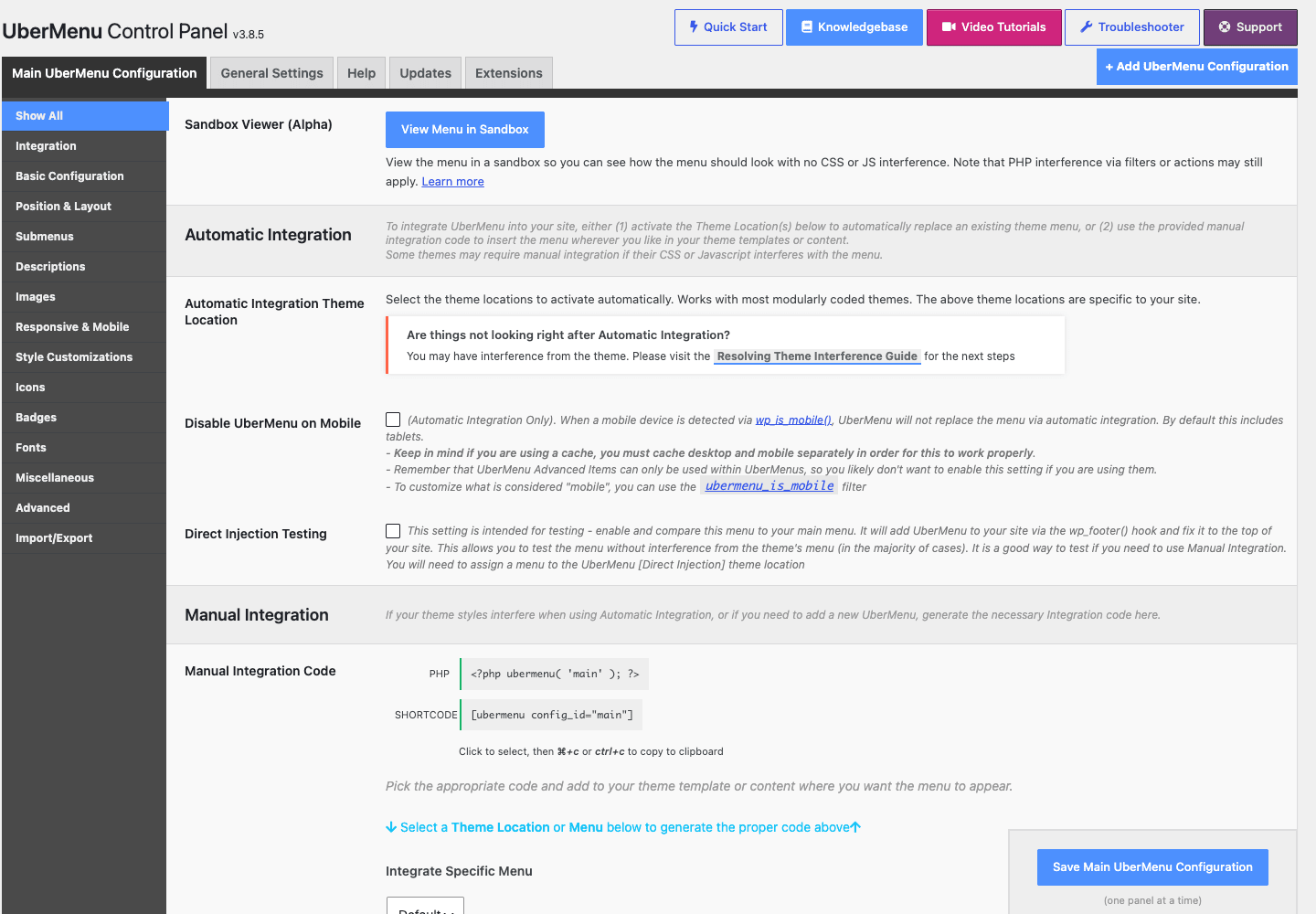
The control panel lives at Appearance » UberMenu. The left navigation is your map of everything the plugin can do, and it’s worth reading once so you know where things live: Integration, Basic Configuration, Position & Layout, Submenus, Responsive & Mobile, Style Customizations, Icons, Badges, Descriptions, Images, Fonts, Miscellaneous, Advanced, and Import/Export. There’s also a Customizer button that opens the live-preview styling tools. You don’t need to touch most of these on day one. Integration, Submenus, Responsive & Mobile, and Style Customizations are where the real decisions get made.
Tip: You can have multiple UberMenu configurations, one per menu location. So if you want a heavy mega menu in the header and a lighter one in the footer, you create two configs and assign each to its location. They don’t share settings, which is exactly what you want.
Once UberMenu owns a location, you build the actual menu the normal way, in Appearance » Menus. Add your pages, posts, categories, and custom links, then drag them into the parent/child structure you want. Here’s where UberMenu changes the game: every menu item now has an UberMenu Item Settings panel (a custom modal you open from the item). That panel is where you set the Submenu Type (mega, flyout, tabbed, or none), the layout and alignment, column width, item layout, icons, badges, descriptions, images, and dynamic content like terms or recent posts. The menu structure is plain WordPress. The behavior is all UberMenu.
You might be wondering whether this means learning a whole new menu builder. It doesn’t. If you can use the WordPress Menus screen, you already know 80 percent of UberMenu. The new part is one settings modal per item.
Building the mega submenu (the payoff)
Let’s get to the thing you came for. To turn a top-level item into a mega menu, open its UberMenu Item Settings and set Submenu Type to Mega. The moment you do that, that item’s children stop stacking as a thin dropdown and start laying out as a grid.

That screenshot is a Shop item opening a full-width mega panel with its items arranged across a grid. In the DOM that panel carries the ubermenu-submenu-type-mega and align-full_width classes, which is just UberMenu telling the browser "this is a full-width mega submenu." You get to choose between full-width (spans the page, great for stores and big sites) and aligned (sits neatly under the item, better for a tidier nav).
There are three submenu types worth knowing, and you can mix them in a single menu:
| Submenu type | What it looks like | Best for |
|---|---|---|
| Mega | A wide multi-column grid panel | Stores, big category trees, content-rich nav |
| Flyout | A standard styled dropdown column | Simple parent/child links, About » Team |
| Tabbed | A panel where tabs swap the content | Lots of grouped content in limited space |
The layout inside a mega panel is a row-and-column grid. You can build it with the per-item layout controls in the settings modal, or you can drop layout shortcodes directly into a menu item’s content: [ubermenu-col] defines a column and [ubermenu-colgroup] groups columns into a row. (UberMenu also accepts the aliases [wpmega-col] and [wpmega-colgroup] if you’ve used an older setup.) For most people the visual controls are enough; the shortcodes are there when you want pixel control over a complex panel.
Heads-up: A full-width mega submenu spans the page width regardless of where its parent item sits in the bar. That’s a feature, not a bug, but it surprises people who expect the panel to hug the item. If you want the panel under the item, use the aligned option instead of full-width.
Persona check. If you run a large online store, the mega submenu is where you finally show shoppers your whole category tree (Men, Women, Kids, Sale) with featured products and a search box, all in one panel, instead of making them hunt through a thin dropdown. That is the single biggest reason stores buy this plugin.
Putting real content inside your menu
This is the feature that separates UberMenu from "make my dropdown wider." A menu item isn’t limited to links. You can put working content in it, and UberMenu ships a set of shortcodes for exactly that.
[ubermenu-search]drops a live search box into the menu. Handy when search is a primary action, like on a docs site or a big store.[ubermenu-recent-posts]pulls a recent-posts list into a column, so your mega menu doubles as a "latest from the blog" teaser.[ubermenu-map]embeds a Google Map, which is genuinely useful for a single-location business that wants the address one click from anywhere.[ubermenu_image_portal]places image content in the menu, for those visual category panels stores love.[ubermenu_toggle]and[ubermenu_mobile_close_button]give you custom control over the responsive toggle and the mobile close button.
You can also drop any standard WordPress widget into a menu item through the item settings, so a newsletter form, a promo block, or a custom HTML widget can live in your navigation.
For WooCommerce stores there are two shortcodes I reach for constantly: [ubermenu_woocommerce_cart_info] shows live cart info (item count, total) and [ubermenu_woocommerce_cart_url] outputs the cart link. Put those in the menu bar and shoppers carry their cart with them on every page without you building a custom header.
Note: Content in menus is the most overused feature in the plugin. A search box and a recent-posts column add value. A map, three widgets, six images, and a contact form in one panel turn navigation into a cluttered landing page. More on that in the anti-pattern section, because it matters more than any setting.
The mobile menu, and why it makes or breaks you
A mega menu that looks gorgeous on a desktop can be a disaster on a phone if you ignore the mobile side. UberMenu does not ignore it, but it does expect you to configure and test it.
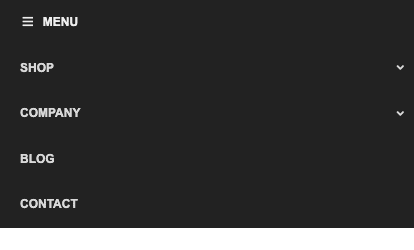
Below a breakpoint you set, the menu collapses into a responsive toggle, the familiar hamburger button labeled MENU by default, and tapping it opens a vertical mobile menu with expandable sections. Everything about that behavior lives under Responsive & Mobile in the control panel: the breakpoint at which the menu switches to mobile mode, the toggle text and icon, and how submenus expand. The toggle markup itself is filterable for developers (more on the ubermenu_toggle_class and ubermenu_toggle_html_atts filters later), so you can match it to a custom header.
The reason this section matters so much: on most sites today, more than half your traffic is on a phone. If your mobile menu is broken, the majority of your visitors get the broken experience, not the polished desktop one you spent an afternoon building. Set the breakpoint to match your theme, then open the site on an actual phone and tap through every section. A hover-only interaction that works with a mouse does nothing on a touchscreen, and that’s the classic way a "finished" mega menu quietly fails for half its audience.
Styling, skins, and the Customizer
UberMenu gives you three layers of styling, and you can stay entirely out of CSS if you want.
Skins are ready-made CSS packs that ship with the plugin (they live in the plugin’s assets/css/skins folders). Pick one as a starting point so the menu doesn’t look raw, then adjust from there. Developers can register their own skin packs through the ubermenu_skin_packs filter, which is the clean way to ship a branded skin without editing core files.
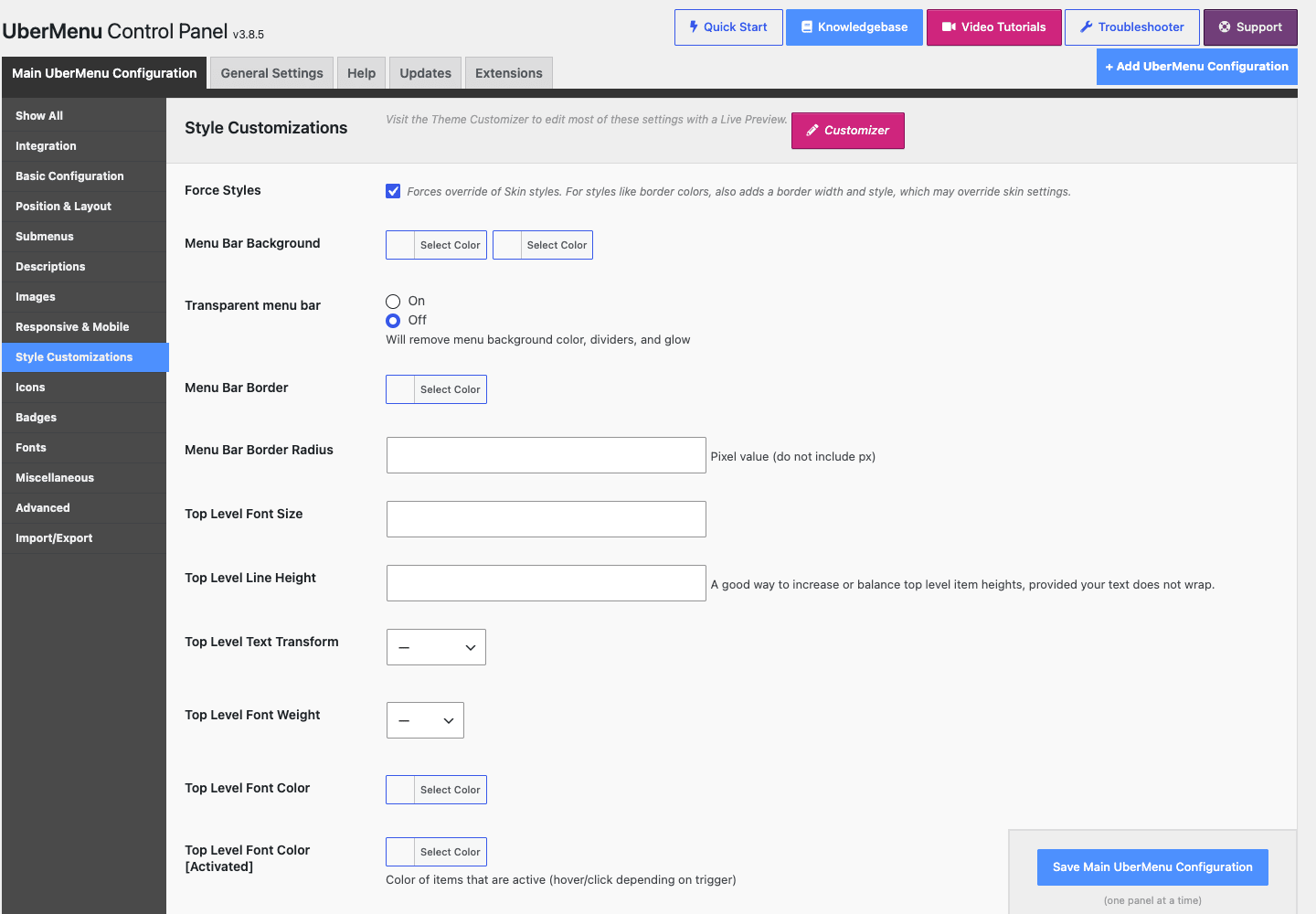
Style Customizations is the no-code control panel for the details. As the screenshot shows, you get the menu bar background, border, and radius, a transparent menu bar option, and top-level typography (font size, line height, text transform, weight, color, and the activated/hover color). These are the settings that make the menu feel like part of your site instead of a bolt-on.
The Customizer gives you the same kind of control with a live preview. You change a value, you see it update on the real site immediately, which is far less frustrating than save-refresh-save-refresh.
One setting deserves a callout. Force Styles tells UberMenu to override your theme’s existing menu CSS with its own. The catch: if your theme styles its menu aggressively, leaving Force Styles off can make UberMenu look half-themed and broken; turning it on can override styling you actually wanted to keep. There’s no universal right answer. Toggle it, look at the result, and pick the one that fights your theme less.
If you’ve used a theme like Astra Pro, you already know how opinionated theme menu styling can be. Expect to spend a little time deciding who wins, the theme or UberMenu, on the menu bar.
Where a mega menu earns its place
Not every site needs a mega menu. A five-page brochure site is better off with a plain dropdown. Here’s where the investment actually pays off.
A large online store. This is the textbook case. When you sell across dozens of categories, a mega submenu lets a shopper see Men, Women, Kids, Accessories, and Sale all at once, each with sub-categories, a featured image, and a search box. Pair it with the WooCommerce cart shortcodes and the navigation does real selling. If you’ve outgrown your theme’s menu on a store, this is the upgrade.
A university or large institution. Universities have a brutal navigation problem: Admissions, Academics, Research, Campus Life, Athletics, each with twenty sub-pages. A flat menu is hopeless. A grouped mega menu with tidy columns and section headers is how big institutional sites stay usable, and UberMenu’s column grid is built for exactly this.
A multi-service business. If you run a multi-service business (say a contractor offering roofing, plumbing, electrical, and remodeling), a mega menu lets you surface every service plus a "Get a Quote" call to action and your service-area map in one panel. Visitors find the service they need without three clicks.
A content publisher. Magazines and large blogs use mega menus to expose their category structure and recent articles together. The [ubermenu-recent-posts] content shortcode turns the menu into a discovery surface, not just a directory.
The common thread: a mega menu earns its place when you have more navigation than a thin dropdown can show without burying things. If your menu fits comfortably in a normal dropdown, you don’t need this plugin, and that’s an honest thing for a review to say.
Developer reference
Here’s where UberMenu surprises people. It’s a focused plugin (79 PHP files), not a sprawling framework, but it exposes a real developer surface: roughly 57 unique ubermenu_ filters and a handful of actions, plus the shortcodes, the widget, and a config accessor. No marketing inflation here, it’s dozens of filters, not hundreds, and they’re the right ones.
There is no REST API and no WP-CLI command. Don’t go looking for wp ubermenu commands or a /ubermenu/v1 route, because they don’t exist. The extension model is filters, shortcodes, the ubermenu_op() accessor, and the widget. That’s it, and for a navigation plugin that’s the right surface.
Force a submenu type in code. The ubermenu_submenu_type filter lets you override an item’s submenu type programmatically, which is handy when you want a specific item to always render as a mega panel regardless of its saved setting.
add_filter( 'ubermenu_submenu_type', 'mysite_force_mega', 10, 4 );
function mysite_force_mega( $submenu_type, $item, $depth, $args ) {
    // Force menu item 42 to always use a mega submenu.
    if ( isset( $item->ID ) && 42 === (int) $item->ID ) {
        return 'mega';
    }
    return $submenu_type;
}
Override a menu item’s UberMenu settings. The ubermenu_item_settings filter passes the item’s settings array and the item id, so you can change per-item config without opening the settings modal.
add_filter( 'ubermenu_item_settings', 'mysite_item_settings', 10, 2 );
function mysite_item_settings( $settings, $item_id ) {
    if ( 42 === (int) $item_id ) {
        $settings['align'] = 'full_width';
    }
    return $settings;
}
Add attributes to a menu link. The ubermenu_anchor_attributes filter lets you add or change the HTML attributes on a menu item’s anchor, which is how you’d attach a data- attribute, a tracking hook, or a rel value.
add_filter( 'ubermenu_anchor_attributes', 'mysite_anchor_atts', 10, 4 );
function mysite_anchor_atts( $atts, $item_type, $item_id, $object ) {
    $atts['data-track'] = 'mainnav-' . $item_id;
    return $atts;
}
Filter the rendered item title. The ubermenu_menu_title filter gives you the title plus the menu, config, and args context, so you can append a label or transform the text at render time.
add_filter( 'ubermenu_menu_title', 'mysite_menu_title', 10, 4 );
function mysite_menu_title( $title, $nav_menu_id, $config_id, $args ) {
    if ( 'Sale' === $title ) {
        $title .= ' <span class="hot">!</span>';
    }
    return $title;
}
Change default config values. The ubermenu_settings_defaults filter takes the defaults array and lets you ship your own baseline configuration in code, which is useful when you maintain the same UberMenu setup across several sites.
add_filter( 'ubermenu_settings_defaults', 'mysite_um_defaults' );
function mysite_um_defaults( $defaults ) {
    $defaults['responsive_breakpoint'] = '959';
    return $defaults;
}
Read a setting in code. When you need to know what a config is currently set to, use the ubermenu_op() accessor. It reads an UberMenu option from a given config section with an optional default.
// Read the responsive breakpoint from the 'general' section.
$breakpoint = ubermenu_op( 'responsive_breakpoint', 'general', '959' );
Beyond those, there are plenty more filter names worth knowing by name even though I won’t guess their exact argument lists: ubermenu_row_atts (row markup attributes), ubermenu_icon_custom_class (icon classes), ubermenu_dp_custom_taxonomies (the source for dynamic-terms items), ubermenu_custom_item_layout_data (custom layouts), ubermenu_settings_panel_fields and ubermenu_settings_panel_sections (extend the control panel itself), the ubermenu_wpml_* family (multilingual behavior), and the ubermenu_woocommerce_* family (ubermenu_woocommerce_product_price, ubermenu_woocommerce_sale_badge_content, and more). The toggle markup is filterable too, through ubermenu_toggle_class and ubermenu_toggle_html_atts.
The shortcodes and widget. The [ubermenu] shortcode places a configured menu anywhere, which is your integration path on block themes. The layout shortcodes ([ubermenu-col], [ubermenu-colgroup]) build column structures inside a mega panel. The content shortcodes ([ubermenu-search], [ubermenu-recent-posts], [ubermenu-map], [ubermenu_image_portal]) inject working content. And the UberMenu_Widget widget lets you place a menu in any widget area without code.
A few public helpers round out the surface for theme developers: ubermenu_get_menu_items_data(), ubermenu_get_menu_item_data( $item_id ), and ubermenu_get_item_layouts() give you programmatic access to the menu data UberMenu has assembled, which is handy if you’re building something custom on top of the configured menu.
If you’re a developer comparing extension models, this is a cleaner surface than a page builder’s. A builder like Elementor Pro gives you a nav widget you configure visually, but UberMenu’s filter set lets you control the menu output from a theme or a small plugin, which is the right approach when you maintain many sites that all share one navigation pattern.
UberMenu vs Max Mega Menu vs the default WordPress menu
The honest comparison most buyers want is UberMenu against the other flagship mega-menu plugin and against doing nothing. Here’s how I’d frame it.
| Default WP menu | Max Mega Menu | UberMenu | |
|---|---|---|---|
| Mega submenus | No | Yes | Yes (full-width, grouped, tabbed) |
| Content in menus | No | Limited (widgets) | Search, posts, maps, images, WooCommerce cart |
| Styling control | Theme only | Theme editor in admin | Skins + Customizer + Style Customizations |
| Pricing model | Free | Free core, paid Pro add-on | One-time purchase, no recurring fee |
| Best for | Small sites | Sites that want a clean free start | Content-rich sites that want full control |
A few measurable points to ground that table.
Pricing model. This is the clearest difference and the one that tilts the decision for a lot of buyers. UberMenu is a one-time CodeCanyon purchase, typically in the rough tens-of-dollars band for a regular license, with no annual renewal. Max Mega Menu has a free core, but its Pro features sit behind a recurring license you pay every year to keep updates. Over a few years, a one-time license is the cheaper line item, and you should weigh that against how often you’ll actually want new features.
Page weight. A mega menu is not free. The CSS, JavaScript, and any images you place in it load on every page the menu appears on, which is every page. In practice that’s often 30 KB to 60 KB of added assets for a styled menu, and it climbs fast if you stuff images and widgets into the panels. Both plugins carry this cost; the difference is how much you choose to put in the menu. This is real, and it’s the main thing to keep honest about.
Mobile reach. More than 50% of your visitors typically arrive on a phone, so the responsive mode isn’t a nice-to-have, it’s the experience the majority will get. Both plugins ship a responsive toggle. The deciding factor is which one you’ll actually configure and test, not which spec sheet is longer.
I won’t pretend one plugin wins on every axis. If you want the lowest-friction free start, Max Mega Menu’s free core is a fair place to begin. If you want the deepest content-in-menu features, the broadest styling controls, and a one-time price, UberMenu is the stronger pick. Both are mature, both are widely used, and both will outperform the default WordPress menu the second your navigation gets complicated.
Don’t turn your mega menu into a dumping ground
Here’s the part of the review that comes from watching this go wrong, not from the feature list. Two failure modes show up over and over, and both are easy to avoid once you’ve named them.
The first is the overstuffed mega menu. Because UberMenu lets you put everything (columns, images, widgets, recent posts, a map) into one submenu, people do. A navigation menu quietly becomes a cluttered landing page that overwhelms visitors instead of guiding them. Good navigation is about helping someone find one thing fast. A wall of sixty links across six columns does the opposite, and it buries the three links that actually matter under fifty-seven that don’t. It also loads all that markup, CSS, and every menu image on every page, which slows the one element on the site that every single visitor touches. Decide the few paths most visitors actually need, and design the menu around those. Restraint is the feature here.
The second is desktop-only thinking. A mega menu that looks gorgeous on a wide screen can be a broken, un-tappable mess on a phone, where more than half your traffic probably lives. UberMenu has a genuine responsive mode (the toggle and the mobile menu), but it needs configuring and testing. Set the breakpoint, check that submenus expand with a tap rather than a hover that a touchscreen can’t perform, make sure tap targets are big enough for a thumb, and confirm the menu doesn’t shove content around or cause layout shift as it loads. The cost of skipping this is lost mobile conversions you’ll never see in a desktop preview, because the visitor bounced before you ever knew there was a problem. Build the menu, then open it on a real phone before you call it done. Every time.
Mobile, speed, and the things that bite
A few realities to plan around before you ship.
Theme compatibility. Automatic integration works with any theme that registers a classic menu location, which is most themes. Block themes (full-site-editing) are the exception: they don’t always expose a classic location for UberMenu to attach to. The fix is straightforward, use the [ubermenu] shortcode or the widget for manual placement, but it’s worth knowing before you assume the automatic toggle will find your nav.
Theme styling conflicts. Your theme already styles its menu, and so does UberMenu. When they disagree, you get a half-themed menu. The Force Styles setting exists exactly for this, but it’s a blunt instrument: on, UberMenu wins and overrides; off, your theme wins and UberMenu may look unstyled. Expect to spend a little time picking the winner, and lean on the Customizer’s live preview so you’re not guessing.
Page weight, honestly. I’ll say it again because it matters: the menu’s CSS and JS load on every page, and every image you add to a panel is another request on every page. A lean text-based mega menu costs you very little. An image-heavy one with widgets in every column adds real weight to your most-loaded element. Keep menu images optimized and sized correctly, don’t overload the panels, and cache your pages so the HTML around the menu isn’t rebuilt on every request. A caching plugin like WP Rocket won’t shrink the menu’s own assets, but it will keep the rest of the page fast so the menu’s weight is the only thing you’re managing.
Mobile testing. Covered above, and I’m repeating it on purpose. The single most common UberMenu mistake is shipping a desktop menu and never opening it on a phone. Do the phone test.
WooCommerce and WPML. Both are first-class. The cart shortcodes and product filters mean a store menu can be genuinely useful, and the WPML filters handle multilingual menus. If you run either, you’re in supported territory.
Pricing and licensing
UberMenu is sold as a one-time purchase on CodeCanyon under a regular license. There’s no annual subscription, no recurring renewal to keep the plugin working, which is increasingly rare in the WordPress space and a real point in its favor if you dislike subscription creep. You buy it, you own that license, you keep using it.
GPL Times provides UberMenu as GPL: the same full plugin SevenSpark ships, delivered through the store with its documentation. If your top navigation has outgrown a plain dropdown and you want to lay out categories, content, and a search box in one organized panel, UberMenu is the tool that gets you there using the WordPress menu screen you already know.
FAQ
Will UberMenu work with my theme?
Almost certainly, if your theme registers a classic menu location, which most do. UberMenu uses automatic integration to take over that location’s output without editing theme files. The honest caveat is styling: your theme’s existing menu CSS can clash with UberMenu’s, and you’ll use the Force Styles toggle plus the Customizer to decide who wins. Budget a little time for that, especially with heavily styled themes.
Does it work with block themes and full-site editing?
Yes, but through a different door. Block themes don’t always expose a classic menu location for automatic integration to grab. In that case you place the menu manually with the [ubermenu] shortcode or the UberMenu widget. It works, it’s just a manual step instead of a one-click location assignment.
Will it slow my site down?
It adds weight, and you should be clear-eyed about that. UberMenu loads its CSS and JavaScript on every page the menu appears on, plus every image you put into a panel. A lean, text-based mega menu costs very little. An image-heavy one with widgets in every column adds real KB to your most-loaded element. Keep menu images optimized, don’t overstuff the panels, and cache your pages.
Does it work on mobile and touch devices?
Yes. Below a breakpoint you set, the menu collapses into a hamburger toggle that opens a tappable vertical mobile menu. The important part is that it needs configuring and testing, not just enabling. Hover-only interactions don’t work on touch, so confirm submenus expand on tap and that tap targets are big enough. Always test on a real phone.
Can I put a contact form or widget in the menu?
Yes. A menu item can hold any WordPress widget, so a newsletter form, a custom HTML block, or a promo widget can live in your navigation. UberMenu also ships dedicated content shortcodes for a search box, recent posts, a Google Map, and images. Just resist the urge to put all of them in one panel.
UberMenu vs Max Mega Menu, which should I pick?
Both are mature flagship plugins. Max Mega Menu has a free core, so it’s the lower-friction starting point if you want to try a mega menu without spending anything. UberMenu wins on content-in-menu depth, styling control, and its one-time pricing model versus Max Mega Menu’s recurring Pro license. If you know you want the full feature set and prefer paying once, UberMenu is the stronger long-term value.
Is it a one-time purchase or a subscription?
One-time. UberMenu is sold under a CodeCanyon regular license with no recurring fee, which is the opposite of the subscription model many WordPress plugins have moved to. You’re not on a renewal clock to keep the plugin running.
Will it conflict with my theme’s existing menu styling?
It can, and this is the most common friction point. Your theme styles its menu, and UberMenu has its own styles, so they sometimes fight. The Force Styles setting lets UberMenu override the theme’s menu CSS, but it’s all-or-nothing, so test both states. The Customizer’s live preview makes this far less painful than save-and-refresh guessing.
Can I run more than one mega menu on the same site?
Yes. UberMenu supports multiple configurations, one per menu location, and each config has its own independent settings. A heavy header mega menu and a lighter footer menu can coexist with completely different layouts and styling.
Does it support WooCommerce and multilingual sites?
Yes to both. UberMenu ships WooCommerce shortcodes for live cart info and a cart link, plus filters for product price and sale badges, so a store menu can be genuinely functional. For multilingual sites, the WPML integration filters handle translated menus.
Final thoughts
UberMenu does one job and does it without asking you to abandon the WordPress menu screen you already know. That’s the thing I keep coming back to. You don’t learn a new menu builder; you add a settings modal to the items you already have and decide which ones open into mega panels. For a store drowning in categories, a university with a sprawling site map, or any business whose top nav has quietly become unusable, that’s the right shape of tool.
The two things that separate a great UberMenu setup from a bad one have nothing to do with the plugin and everything to do with restraint. Don’t cram everything into one panel, and don’t ship a menu you’ve only ever seen on a desktop. Get those right and you’ve got navigation that genuinely helps people find things, which is the entire point.
It’s not the tool for a five-page site, and it won’t magically make a bloated menu fast. But for the moment your navigation outgrows a flat dropdown, UberMenu is one of the two names worth your money, and the one-time price makes it easy to recommend over a subscription rival when the feature depth is what you’re after.