

A shopper finds your store, adds a hoodie to the cart, and lands on the checkout. Then they meet a wall of stacked form fields, a billing section above the shipping section, a coupon box that yanks their eye away from the buy button, and your full site header still hovering at the top with five menu links begging them to leave. They hesitate. They get a text. They never come back. That last screen, the one between a full cart and a paid order, is where WooCommerce quietly bleeds the most money, and CheckoutWC exists to stop it.
This is a long, honest walk through what CheckoutWC actually does, how to set it up without breaking a single sale, where it genuinely moves the needle, and a real developer reference with the hooks worth knowing. Whether you run a one-product store or you’re a developer wiring up a custom flow, by the end you’ll know exactly what this plugin replaces and what it leaves alone.
Table of Contents
- What is CheckoutWC?
- Why the stock checkout leaks sales
- What you actually get
- How it works (for store owners)
- One page or multi-step: the steps you choose
- The mobile checkout (where most carts die)
- The conversion features that earn their place
- The Distraction Free Portal and how the checkout renders
- Where CheckoutWC moves the needle
- Developer reference: hooks, templates, settings
- CheckoutWC vs the default checkout vs a funnel builder
- Don’t push it live without test-ordering first
- Speed, conflicts, and the things that bite
- Pricing and licensing
- FAQ
- Final thoughts
What is CheckoutWC?
CheckoutWC is a WooCommerce plugin from Kestrel that replaces your default cart, checkout, thank-you, and order-pay pages with conversion-optimized, mobile-first templates. Instead of editing WooCommerce’s checkout template by hand or stitching together three field-editor plugins, you pick one of its ready-made designs, tune it in a visual editor, and CheckoutWC takes over those pages for you.
The thesis behind it is simple and, in my experience, correct: the stock WooCommerce checkout was built to be functional, not persuasive. It works, but it asks the shopper to think too much at the exact moment you want them to stop thinking and pay. CheckoutWC’s whole job is to remove that friction. Fewer visible fields, a cleaner single-column flow, an order summary that stays in view, and a layout that holds up on a phone.
It’s worth being precise about scope, because people get this wrong. CheckoutWC is not a funnel builder. It doesn’t build custom landing pages or post-purchase one-click upsell funnels the way a dedicated funnel tool does. It rebuilds the checkout experience itself and the pages immediately around it. That’s a narrower, deeper job, and it’s the right job for most stores that already get traffic but lose people at the final step.
The short version: if your products are fine and your traffic is fine but your checkout still feels like a tax form, this is the category of plugin you want. You can install CheckoutWC from GPL Times and have it running over your existing checkout in a few minutes.
Why the stock checkout leaks sales
Skip this section if you already know your checkout is the problem. If you’re not sure, here’s the part nobody likes to confront.
Cart abandonment is brutal and it’s normal. Across the wider industry, the average documented cart-abandonment rate sits somewhere around 70% according to Baymard Institute’s ongoing research, which aggregates dozens of separate studies. Read that again. Roughly seven of every ten people who add something to a cart leave without buying. Some of that you can never recover (window shoppers, price comparison, surprise shipping costs). But a meaningful slice of it is pure friction: a checkout that’s too long, too cluttered, too slow on mobile, or too distracting.
The default WooCommerce checkout contributes to that friction in ways that feel small individually and add up fast:
- It shows every field at once in a tall, two-column block that looks like paperwork.
- The billing fields come first, even though shoppers think about where the package is going (shipping) before who’s paying.
- The coupon link sits right at the top, training careful shoppers to open a new tab and go hunt for a code, which is a classic exit point.
- It renders inside your theme, so your header, footer, menus, popups, and any heavy theme CSS all load on the one page where you want zero distractions.
- On mobile, those two columns collapse into one very long scroll, and the order summary disappears off-screen.
None of that is WooCommerce being bad. It’s WooCommerce being neutral. CheckoutWC takes an opinionated position instead, and that opinion is shaped by what actually converts.
What you actually get
Rather than dump the marketing list, here’s what genuinely matters on a real store.
- Five checkout design templates. Default, Groove, Futurist, Glass, and Copify. Each is a real, self-contained design (its own layout, header, footer, and styling), so you’re choosing a finished look, not building one from a blank canvas. The demo I tested ran the Groove template, a clean multi-step design with a dark order-summary sidebar.
- A visual Checkout Editor. A live editor with a real desktop, tablet, and mobile preview on the right and control panels on the left. You change a color or toggle a step and watch the preview update. No code, no guessing.
- One-page or multi-step checkout. A single toggle decides whether shoppers see everything on one screen or move through clean steps (Information, Shipping, Payment). You don’t rebuild anything to switch.
- A slide-out side cart. A mini-cart that slides in when someone adds a product, so they can review or edit without leaving the page they’re on.
- Order bumps. Pre-purchase upsells shown on the checkout itself ("Add gift wrapping for $4?"), including bumps that can appear after the shopper clicks Place Order.
- Express checkout buttons. Apple Pay, Google Pay, and PayPal express buttons at the top of checkout, surfaced from a supported WooCommerce payment gateway, so returning shoppers can pay in one tap.
- Trust badges. A row of credibility badges (secure payment, guarantees) near the buy button.
- Cart editing at checkout. Shoppers can change quantities or remove an item right in the order summary, without bouncing back to the cart page.
- Abandoned cart recovery. Cart tracking plus recovery emails and a report tab, so the people who do leave get a nudge to finish.
- A/B testing. Split-test two checkout variations against each other and let conversion data, not opinion, pick the winner.
- Local pickup. A pickup-location flow for stores that let customers collect in person, with a shortcode to print the chosen location.
- A full checkout field editor. Add, remove, and reorder checkout fields, hide optional fields, add an international phone field, and turn on address autocomplete.
That’s a lot, and the temptation is to switch everything on at once. Don’t. The features that move conversion the most (a clean template, the right step layout, a good mobile experience) are the boring ones. The flashy extras (order bumps, A/B testing) are worth real money too, but only after the foundation is solid.
How it works (for store owners)
Setup is genuinely the easy part, which is why I’m not giving it its own long section. You install CheckoutWC, activate it, and it takes over your checkout immediately with a sensible default template. WooCommerce has to be active first (it’s a hard requirement), but if you’re reading this you already have WooCommerce running. There’s no migration step, no rebuilding your product pages, no shortcode to paste. Your existing products, gateways, and shipping zones keep working.
The real work happens in the Checkout Editor, and this is where you’ll spend your time.
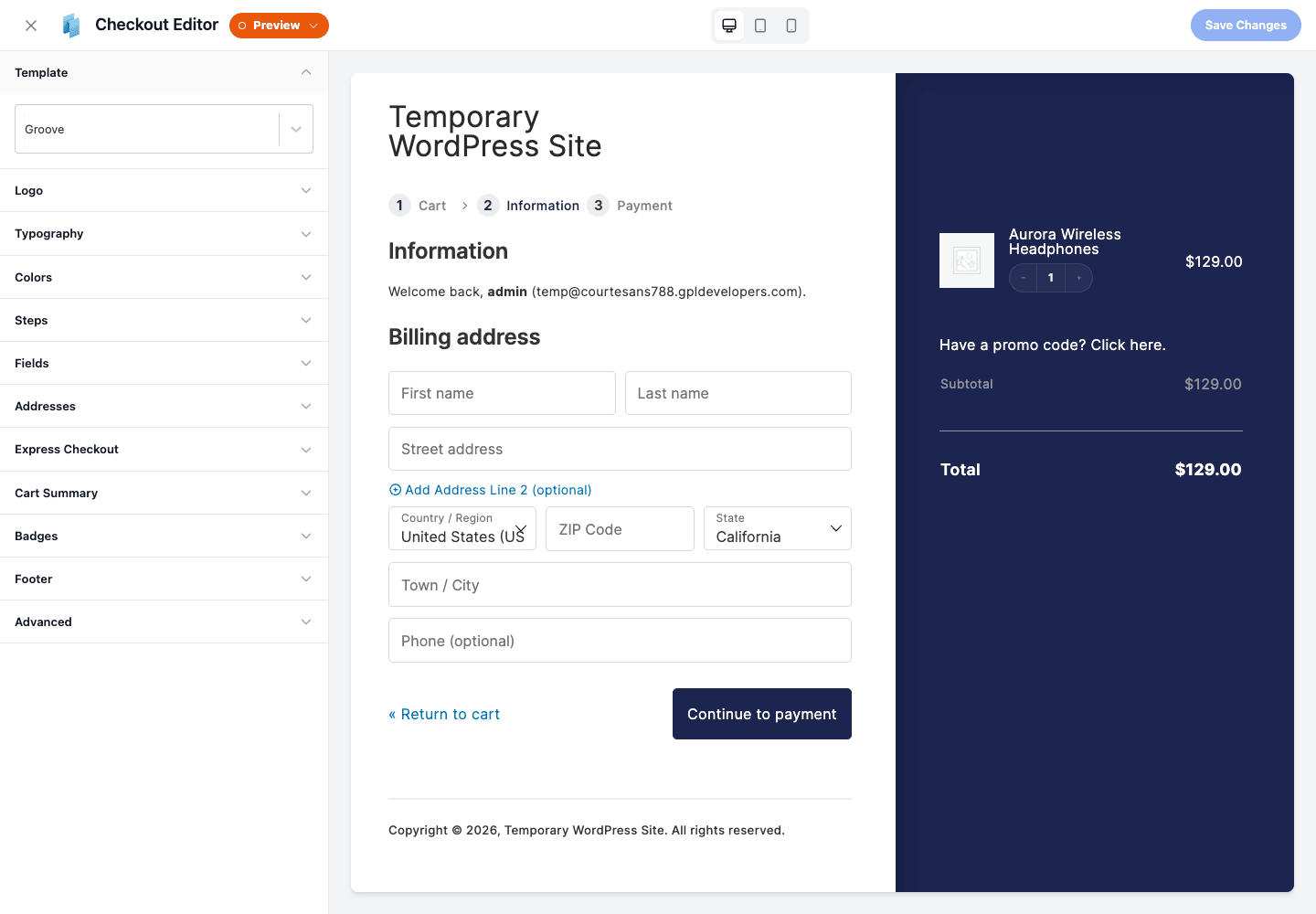
You open it from WordPress Admin » CheckoutWC » Checkout Editor (labeled "Customize Your Checkout"). The screen splits in two: a live preview on the right that renders your actual checkout, and a stack of control panels on the left. Click anything on the left, watch it change on the right. It’s the right model for this kind of work, because checkout design is the kind of thing you have to see to judge.
Here’s the path I’d take on a fresh store:
- Pick your template first. Open the Template panel and try each of the five. Switching is instant in the preview, so flip through Default, Groove, Futurist, Glass, and Copify and see which fits your brand. This is the single biggest visual decision, so make it before you fiddle with anything small.
- Drop in your logo. The Logo panel sets the brand mark at the top of the checkout. The preview will show it immediately, so you can check the sizing.
- Set typography and colors. The Typography and Colors panels let you match your brand. Colors are split by section (Body, Buttons, Breadcrumbs, Cart Summary, Header, Footer), which sounds fiddly but takes about two minutes once you know your hex codes. Get the Buttons color right first, since that’s the one shoppers’ eyes follow.
- Choose your steps. The Steps panel decides one-page versus multi-step. More on that below, because it’s an important call.
- Tune the fields. The Fields and Addresses panels are where you remove clutter. This is powerful and a little dangerous, so we’ll come back to it.
- Add the extras. The Express Checkout, Cart Summary, Badges, and Footer panels handle express buttons, the order summary, trust badges, and the checkout footer. The Advanced panel holds the architectural settings (we’ll get into those).
Tip: the live preview needs a published, in-stock product to render a realistic checkout. If your preview looks empty, that’s usually why, not a bug. Publish one simple product and the preview fills in.
That’s the entire onboarding. Pick a template, brand it, decide your steps, trim your fields, ship it. No separate "wizard," no week-long learning curve.
One page or multi-step: the steps you choose
This is the decision people overthink, so let me make it concrete.
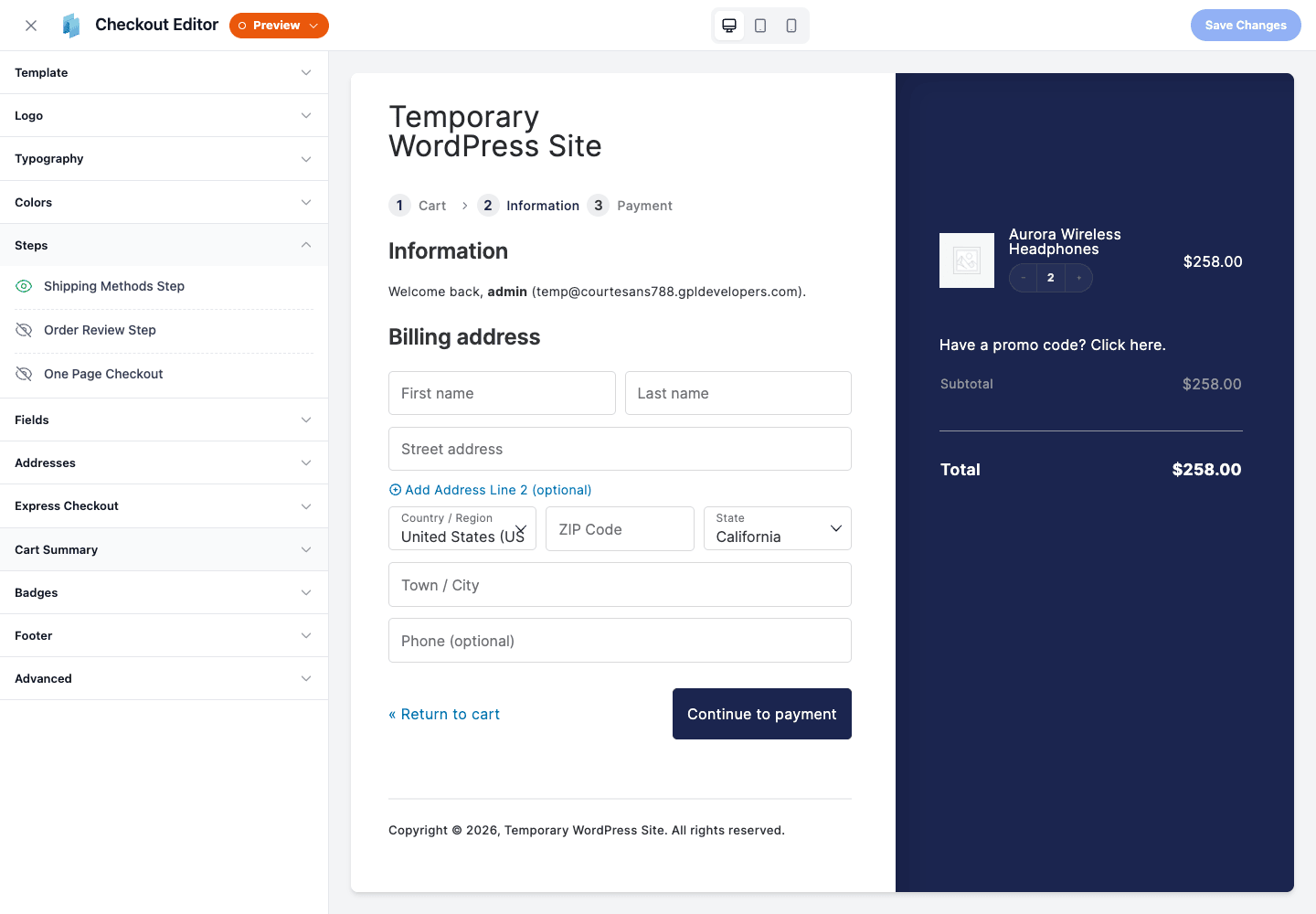
The Steps panel gives you three toggles that, together, shape the whole flow:
- Shipping Methods Step puts shipping selection on its own step.
- Order Review Step adds a dedicated review screen before payment.
- One Page Checkout collapses everything onto a single screen.
Leave One Page Checkout off and you get a multi-step flow: the shopper moves through Information, then Shipping, then Payment, with clear progress. The default Groove preview runs this way, and it’s a strong default for physical-goods stores where shipping genuinely matters and the form would otherwise feel long.
Turn One Page Checkout on and you get a single screen with everything visible. Fewer clicks, no step transitions, and the shopper can see the whole commitment at once.
So which one? Here’s the honest answer: it depends on what you sell.
| Your store | Better default | Why |
|---|---|---|
| Physical goods with real shipping | Multi-step | Shipping choice deserves its own beat; the form is shorter per screen |
| Digital goods, no shipping | One page | No shipping step means a single screen is genuinely faster |
| High average order value | Multi-step | Bigger commitments tolerate (and sometimes benefit from) a considered pace |
| Single low-cost impulse product | One page | Speed wins; every extra click is a chance to lose them |
You might be wondering whether one-page checkout is automatically better because it has fewer clicks. It isn’t. For a store with complex shipping, cramming everything onto one screen can actually feel more overwhelming, not less. The right move is to pick a sensible default from the table, then let the A/B testing feature settle the argument with your own data instead of mine.
The mobile checkout (where most carts die)
If you only fix one thing about your checkout, fix the phone. Most stores now take the majority of their traffic on mobile, and the default WooCommerce checkout on a small screen is a long, lonely scroll where the order total vanishes the moment you start typing.
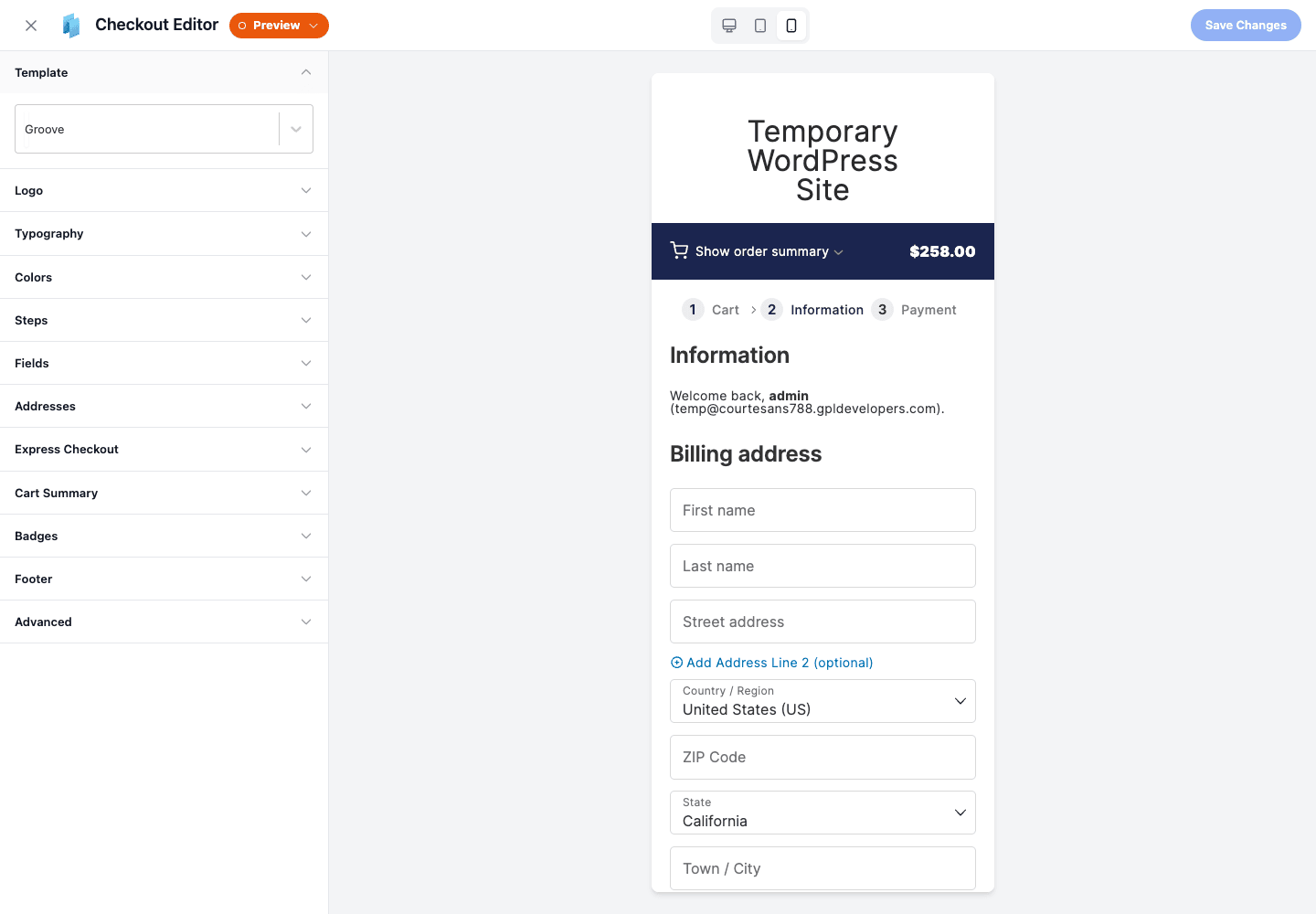
CheckoutWC’s templates are mobile-first, and you can see exactly what shoppers will see by switching the preview to the mobile view. The layout collapses to a single clean column, the fields are sized for thumbs, and the order summary stays accessible instead of floating away. On the multi-step templates the steps keep the form short per screen, which is far kinder on a phone than one endless scroll.
Heads-up: preview the mobile view before you finalize anything. A template that looks balanced on desktop can have a button or a badge that crowds on a narrow screen, and the only way to catch it is to look. This is a thirty-second check that saves you from a launch-day surprise.
That dark order-summary sidebar on desktop (Groove’s signature look) reflows sensibly on mobile rather than dominating the screen. It’s a small touch, but the order summary being permanently in view is one of those quiet trust signals that keeps a nervous buyer from second-guessing the total.
The conversion features that earn their place
The template and the flow do the heavy work. These features are where you squeeze out the extra few percent, and a few of them are worth real money on the right store.
Order bumps are the standout. These are pre-purchase upsells shown right on the checkout (think "Add a 2-year warranty for $9" with a checkbox). CheckoutWC lets you control how many bumps appear per location and even show bumps in the modal after the shopper clicks Place Order, which is a high-intent moment. You manage them under a Manage Bumps tab. Used with restraint, one well-chosen bump can lift average order value without adding a single visitor. Used greedily, three bumps on one screen just annoy people, so pick one good offer.
Express checkout puts Apple Pay, Google Pay, and PayPal express buttons at the top of the checkout. For a returning shopper on their phone, this turns a two-minute form into a single tap and a Face ID prompt. The catch: these buttons depend on a supported WooCommerce payment gateway being active and configured. In the demo sandbox there was no compatible gateway, and CheckoutWC honestly told me so with a "No supported gateways detected" message rather than showing dead buttons. So this is a real feature, but it only lights up when your payment setup supports it.
The side cart is a slide-out mini-cart that appears when someone adds a product. They can review, change quantities, or remove items without a full page load, then jump to checkout. It keeps momentum, which on an impulse-buy store is the whole game.
Cart editing at checkout is the small mercy that quietly saves orders. If a shopper realizes at the last second they wanted two instead of one, they fix it right there in the order summary instead of backing out to the cart page (where a surprising number of people just leave instead of returning).
Trust badges add a row of credibility marks near the buy button. They’re not magic, but for an unknown brand asking for a card number, a "secure checkout" signal in the right spot reduces the flinch.
Abandoned cart recovery is the safety net for the carts you still lose. CheckoutWC tracks carts, sends recovery emails, and gives you a report tab to see what’s working. There’s an optional SendWP integration for transactional email delivery if you want it (that’s a separate third-party service, entirely optional). One important dependency: recovery emails rely on a properly configured WP-Cron. The demo flagged WP-Cron specifically, so if your recovery emails never send, that’s the first thing to check.
A/B testing lets you split-test checkout variations and let the data decide. This is the feature I’d reach for instead of arguing about one-page versus multi-step. Run both, watch the numbers, keep the winner.
Local pickup handles the in-person-collection flow for stores that offer it, complete with a [cfw_order_pickup_location_info] shortcode to print the customer’s chosen pickup location on confirmations.
The field editor is where you trim the form down. You can add, remove, and reorder checkout fields, hide optional ones, add a proper international phone field, and switch on address autocomplete so a shopper types three characters and picks their address from a dropdown. If field editing is genuinely the only thing you need and a full redesign feels like overkill, a focused tool like the WooCommerce Checkout Field Editor does that one job. CheckoutWC bundles the field editing into the larger redesign, which is the better deal if you also want the template, the steps, and the conversion features.
If your conversion lever is incentives rather than layout, pairing this with something like WooCommerce Smart Coupons for store credit, gift cards, and BOGO offers covers the discount side that CheckoutWC deliberately doesn’t try to own.
The Distraction Free Portal and how the checkout renders
This is the most important architectural detail in the whole plugin, and it’s tucked away in the Advanced panel under a setting called the Template Loader. Pay attention to it, because it explains both why CheckoutWC is fast and the single biggest gotcha you’ll hit.
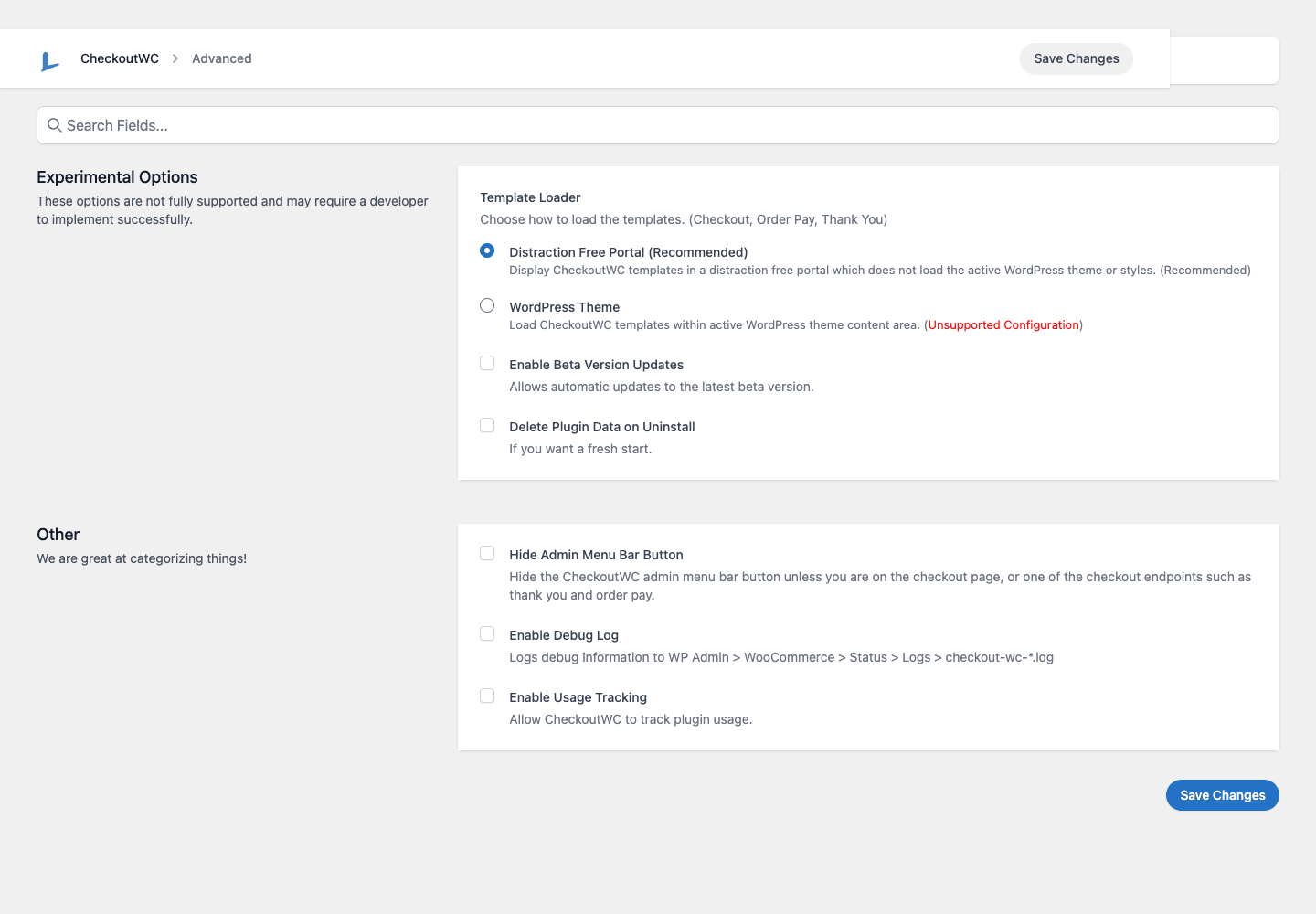
There are two modes:
Distraction Free Portal is the default and the recommended one. In this mode, CheckoutWC renders the checkout in its own portal that does not load your active WordPress theme or its styles at all. No theme header, no theme footer, no menu, no theme CSS or JS. Just the checkout. This is the headline "why it converts" mechanism, and it does two things at once: it removes every distraction from the page, and it makes the page lighter because all that theme weight simply isn’t there.
WordPress Theme mode loads the checkout template inside your theme’s content area instead. The plugin labels this one "(Unsupported Configuration)" right in the UI, which tells you everything about how Kestrel wants you to run it. Use the portal.
The gotcha, and it’s a real one: because the Distraction Free Portal doesn’t load your theme, any checkout styling or scripts you added at the theme level do not carry over. That custom CSS you wrote to tweak the old checkout? Gone, on the new one. Any theme-specific checkout customization? Not applied. This catches people on launch day. The fix isn’t a workaround, it’s a mindset shift: you style the checkout inside the Checkout Editor now, not in your theme. Once that clicks, the portal is the right choice for nearly every store.
The Advanced panel holds a few other switches worth knowing: Enable Beta Version Updates (opt into pre-release builds, leave off for production), Delete Plugin Data on Uninstall (clean removal), Hide Admin Menu Bar Button, Enable Usage Tracking, and Enable Debug Log. That last one is your friend when something misbehaves: turn it on and CheckoutWC writes to WooCommerce » Status » Logs in a checkout-wc-*.log file you can read or hand to support.
Where CheckoutWC moves the needle
Features are abstract until you picture a real store. Here’s where this plugin pays off, in the language of the people running those stores.
If you run a fashion store, your traffic is mostly mobile and mostly impulse. A shopper sees a jacket on Instagram, taps through, and you have about a minute before the moment passes. CheckoutWC’s mobile-first template plus express checkout (Apple Pay in one tap) is exactly the tooling for that window. Add a single order bump (matching scarf, gift wrap) and you nudge average order value without buying a single extra click of traffic.
If you sell digital goods, there’s no shipping, so a multi-step flow is just clicks for the sake of clicks. Turn on One Page Checkout, hide every field a download doesn’t need (no shipping address, no phone if you don’t use it), and the form shrinks to email plus payment. For a $12 ebook, every removed field is a removed reason to bail. The field editor is the lever here.
If you run a high-AOV store, say furniture or electronics where orders run into the hundreds, trust is the thing carrying the buyer’s decision. The dark, considered order summary, trust badges near the buy button, a multi-step flow that doesn’t rush a big decision, and abandoned cart recovery to follow up on the carts that stall while someone "thinks about it." Bigger purchases get abandoned and recovered more than small ones, so that recovery email is worth far more here than on a cheap impulse buy.
If you run a local shop with online ordering, the local pickup flow lets customers choose "collect in store," and the pickup-location shortcode prints exactly where to go on the confirmation. You skip shipping entirely for those orders and give locals a reason to buy from you instead of a faceless marketplace.
The common thread: CheckoutWC doesn’t bring you new visitors. It converts more of the ones you already paid to get here. That’s usually the cheapest growth lever a store has, because the traffic is already bought and paid for.
Developer reference: hooks, templates, settings
Now the part developers actually came for. CheckoutWC is unusually deep here, and the way you extend it is probably not what you expect coming from a typical settings-plugin.
The numbers first, because they set expectations. CheckoutWC exposes roughly 290 unique cfw_ filters and about 140 cfw_ actions across its own code (the namespace is Objectiv\Plugins\Checkout), and the official CheckoutWC developer docs are the reference to keep open while you work. That sounds enormous, and it is, but the bulk of those are template content-injection action hooks: each meaningful region of the checkout, thank-you, and order-pay templates fires a *_start / *_end (or before/after) action so you can echo your own markup into the page without editing a template file. That’s the core mental model. You don’t fork the template; you hook into it.
The hooks with confirmed signatures
A few hooks have known, dependable signatures. Start with these.
cfw_replace_form is a filter that returns a boolean deciding whether CheckoutWC replaces the WooCommerce checkout form on the current request. This is your master on/off switch per page. Want to keep the native checkout on one specific page while CheckoutWC handles the rest? Return false there.
// Keep the native WooCommerce checkout on a specific page,
// let CheckoutWC handle everything else.
add_filter( 'cfw_replace_form', function ( $replace ) {
    if ( is_page( 'wholesale-checkout' ) ) {
        return false;
    }
    return $replace;
} );
cfw_billing_address_heading is a simple, single-argument filter over the billing section heading. Perfect when "Billing address" isn’t the language your store uses.
// Relabel the billing heading.
add_filter( 'cfw_billing_address_heading', function ( $heading ) {
    return 'Payment details';
} );
cfw_thank_you_content is an action on the thank-you page that passes four arguments: the order, the order statuses, a show-downloads flag, and the downloads. Use it to drop a custom message, a survey, or a referral prompt onto the order-received page.
// Add a post-purchase nudge to the thank-you page.
add_action( 'cfw_thank_you_content', function ( $order, $order_statuses, $show_downloads, $downloads ) {
    if ( $order && $order->get_total() > 100 ) {
        echo '<p class="cwc-vip">Thanks for the big order. Use code FRIEND10 to share 10% with a friend.</p>';
    }
}, 10, 4 );
The template content-hook pattern
Beyond those, you’ll mostly work with the content-injection families. These are name-based regions, and the idiom is the same across all of them: find the region you want, hook its *_start or *_end action, echo your markup. The checkout families include cfw_checkout_main_container_start / cfw_checkout_main_container_end, cfw_checkout_before_order_review, cfw_checkout_cart_summary, cfw_checkout_tabs, cfw_checkout_form, cfw_output_fieldset, cfw_footer_content, and cfw_shipping_bar_data. There are parallel cfw_thank_you_* and cfw_order_pay_* families for the thank-you and order-pay templates.
// Inject a reassurance line at the top of the checkout container.
add_action( 'cfw_checkout_main_container_start', function () {
    echo '<div class="cwc-promise">Free returns within 30 days. No questions asked.</div>';
} );
A note on discovery: because these are content hooks rather than data-transform filters, treat them as injection points and don’t assume an argument list you haven’t confirmed. If you need data inside one of them, pull it from WooCommerce directly (WC()->cart, wc_get_order(), the global $order where the template provides it) rather than guessing at hook parameters. That keeps your code working across template changes.
Reading settings in code
When your customization needs to respect what the merchant configured in the editor, read the setting instead of hardcoding. CheckoutWC gives you a friendly wrapper:
// Branch on a CheckoutWC setting the merchant chose in the editor.
$one_page = cfw_get_setting( 'enable_one_page_checkout' );

if ( $one_page ) {
    // adjust your injected markup for the one-page layout
}
cfw_get_setting( 'setting_key' ) is the wrapper; under the hood it’s reading from the settings manager (SettingsManager::instance()->get_setting( 'setting_key' )), but the wrapper is what you want in template and hook code.
Template overrides
If hooks aren’t enough and you genuinely need to restructure a region, CheckoutWC supports the standard WooCommerce-style template override. Copy the relevant part out of the plugin’s templates/<template-name>/ directory (for example the Groove template’s content.php) into your child theme, and your copy wins. Heads-up: the usual override caveat applies. A copied template is now frozen at the version you copied, so when CheckoutWC updates its templates you have to manually reconcile your copy. Reach for hooks first and only override a template when you truly can’t express the change through a content hook.
Shortcodes
Two shortcodes ship with the plugin. [checkoutwc_cart] renders the CheckoutWC cart (useful if you want the styled cart on a custom page), and [cfw_order_pickup_location_info] prints the customer’s chosen local-pickup location.
About the REST API
CheckoutWC registers a set of REST routes, and it’s important to be precise about what they’re for. This is an internal admin/editor REST API: it’s what powers the visual Checkout Editor and saves your template, design, and field configuration. It is not a public store-data API for reading orders or products from an external app. If you’re building an integration, the developer surface you want is the hook system, the template overrides, and cfw_get_setting(), not the editor’s internal routes. (Those routes live under the plugin’s own checkoutwc/v1 namespace and are permission-gated for the editor, so they aren’t a public store-data API you’d build against.)
No WP-CLI
One thing to set expectations on: CheckoutWC ships no WP-CLI commands. There’s no wp cfw or wp checkoutwc. Management lives entirely in the admin UI plus the hooks and settings API above. If you’re scripting deployments, configure it through the editor and version your customizations as a small companion plugin built on the hooks.
CheckoutWC vs the default checkout vs a funnel builder
People shopping for "a better checkout" usually conflate three different tools. Here’s where each one fits, with the trade-offs that actually decide it.
| Default WooCommerce checkout | CheckoutWC | A funnel builder (e.g. CartFlows) | |
|---|---|---|---|
| What it owns | The checkout, plainly | The full checkout experience and surrounding pages | The whole funnel: landing, checkout, upsells |
| Design control | Theme + custom code | Visual editor, 5 templates | Page-builder templates |
| One-page checkout | No (without code) | Yes, one toggle | Yes |
| Post-purchase 1-click upsells | No | Pre-purchase order bumps | Yes, dedicated one-click funnels |
| Renders without the theme | No | Yes (Distraction Free Portal) | No (renders in the theme) |
| Recurring cost | Free | Per-year license | Per-year license |
The default checkout costs nothing and is perfectly serviceable for a store that converts fine. If you’re not losing sales at the last step, you don’t need anything here. But "free" stops being free the moment friction is costing you orders. With the average cart-abandonment rate sitting near 70% (per Baymard Institute research), recovering even a handful of those carts a month dwarfs any per-year license fee.
CheckoutWC is the right pick when the checkout itself is your problem. Its differentiator is the Distraction Free Portal rendering the page without your theme, which neither the default checkout nor a typical funnel builder does, and that’s a genuine page-weight win: dropping your theme’s CSS and JS from the checkout means fewer kilobytes (a heavy multipurpose theme can pile 150 KB to 300 KB of CSS and JavaScript onto a checkout that the portal simply drops) and fewer requests on the page that matters most, though the exact savings depend entirely on how heavy your theme is.
A funnel builder like CartFlows is a different scope entirely. It builds whole sales funnels (a custom landing page, then checkout, then a true one-click post-purchase upsell where the buyer doesn’t re-enter card details). If your growth plan is "send paid traffic to a dedicated offer and maximize order value with post-purchase upsells," that’s a funnel builder’s job, not CheckoutWC’s. The two aren’t really competitors; plenty of stores run a funnel tool for campaigns and CheckoutWC for the everyday store checkout.
The deciding question: are you trying to fix the checkout your existing traffic already hits (CheckoutWC), or build dedicated campaign funnels with post-purchase upsells (funnel builder)? Answer that and the choice makes itself.
Don’t push it live without test-ordering first
Do not flip CheckoutWC on and push it live without test-ordering every payment and shipping method first. CheckoutWC replaces your checkout, so the new template now stands between every single shopper and a completed order. When it breaks, it breaks silently, and silent is the expensive kind. Two failure modes bite hardest.
A broken path to payment. If a payment gateway’s fields render wrong on the new template, or a shipping method doesn’t appear, or you hid a field a gateway actually needed, customers hit a dead end at the final step. They don’t email or open a ticket, they just leave, and your logs show nothing. You will not catch this in the editor preview, because the preview uses placeholder data, not a live gateway. The only way to find it is to place a real test order with each gateway and each shipping method, on desktop and on a phone.
One-page and hidden-fields side effects. Switching on one-page checkout and hiding "optional" fields feels like a pure win. But hide a field that tax or shipping calculation quietly depends on (or that a gateway requires) and you break the totals or the order itself. The same trap lives in the Distraction Free Portal: because it doesn’t load your theme, any checkout styling or script you added at the theme level is simply gone, which can blindside you on launch day.
The fix is non-negotiable. Before launch, place a test order with each gateway, each shipping method, and a coupon. Confirm the thank-you page renders, the order-confirmation email arrives, and the tax and shipping totals are correct. Then do it again on mobile. It costs twenty minutes and protects every sale after. Skip it and you can lose a week of revenue before anyone notices the checkout broke.
Speed, conflicts, and the things that bite
CheckoutWC’s performance story rests almost entirely on the Distraction Free Portal we covered earlier: by rendering the checkout without your theme, the page ships fewer assets than a theme-rendered checkout would. I’m not going to throw a fabricated millisecond number at you from a throwaway sandbox, because the real figure depends on how bloated your theme is. A heavy multipurpose theme with a dozen scripts will see a bigger drop than a lean one. The mechanism is sound regardless: fewer CSS and JS requests on the checkout page is a real win on a page where every distraction and every kilobyte counts.
That said, the same JS-driven nature that makes the checkout feel app-like is also where the conflicts live.
The big one: aggressive JavaScript optimization. CheckoutWC’s checkout is a JS-driven template, and caching or optimization plugins that combine, defer, or delay JavaScript can break it if they touch CheckoutWC’s own scripts. If your checkout suddenly stops responding after you turn on a "delay JS" or "combine JS" feature, that’s almost certainly the cause. The fix is to exclude CheckoutWC’s scripts from those optimizations. If you run WP Rocket for caching, add CheckoutWC’s scripts to its delay-JS and combine exclusions and test the checkout again. The rule of thumb on any store: never let an aggressive JS optimizer loose on the checkout without test-ordering immediately after.
Plugin overlap. Anything else that also rewrites the checkout can collide with CheckoutWC. Other checkout-field editors, some funnel or checkout plugins, and aggressive "optimize my checkout" tools all want to own the same template. Run one checkout owner, not two. If you adopt CheckoutWC, retire the other checkout-rewriting plugins rather than layering them.
Caching the checkout itself. Make sure your page cache excludes the cart, checkout, and my-account pages. WooCommerce normally handles this, but a misconfigured cache that serves a stale checkout to everyone is a classic foot-gun, CheckoutWC or not.
WP-Cron and recovery emails. As mentioned, abandoned cart recovery leans on WP-Cron. On hosts with a broken or disabled cron, recovery emails silently won’t fire. If you’re relying on that feature, set up a real server cron hitting wp-cron.php on a schedule rather than trusting the default visitor-triggered cron.
Note: turn on the debug log (Advanced panel) the moment anything looks off. The checkout-wc-*.log under WooCommerce » Status » Logs is usually the fastest path to the actual cause, and it’s the first thing support will ask for.
Pricing and licensing
CheckoutWC is sold as an annual license. The lowest tier covers a small number of sites, and the higher tiers raise the site count and unlock the fuller feature set; the demo I tested was running a CheckoutWC Agency plan with room for many activations, which is the tier aimed at people running stores for clients. The pricing model is the standard premium-WooCommerce-plugin shape: you pay per year for updates and support, and the license tier scales with how many stores you’re running it on.
GPL Times provides CheckoutWC Pro under the GPL license, which is the full-featured tier with every conversion feature unlocked. The most direct way to put a real CheckoutWC checkout in front of your own products and judge the conversion lift for yourself is to grab CheckoutWC from GPL Times and run the Checkout Editor against your live catalog. The features that matter most (the templates, the steps, the field editor, the portal) are all there to evaluate against your actual storefront rather than a marketing demo.
A practical note on licensing: like most premium plugins, an active license is what entitles you to ongoing updates. The checkout you already configured keeps running if a license lapses, but you stop receiving new versions and fixes, which on a piece of software that sits between every shopper and every order is not a place you want to fall behind.
FAQ
Will CheckoutWC slow my site down?
Generally the opposite, on the checkout page specifically. The Distraction Free Portal renders the checkout without loading your theme’s CSS and JS, so that one page is usually lighter than the theme-rendered default. The honest trade-off is that CheckoutWC’s checkout is JS-driven, so if you run aggressive JavaScript combine/defer/delay optimizations you must exclude CheckoutWC’s scripts or the checkout can break. Configure that once and you get a lighter, working checkout.
Does it work with my payment gateway?
For standard WooCommerce gateways, yes, because CheckoutWC works through WooCommerce’s own payment system. The nuance is express checkout: the Apple Pay / Google Pay / PayPal express buttons only appear when a supported gateway is active and configured. If your gateway isn’t supported for express, you still get the full styled checkout, just without the one-tap express buttons. This is exactly why you test-order with your actual gateway before launch.
Will it conflict with my theme’s checkout styling?
This is the one to understand up front. With the Distraction Free Portal (the default), your theme is not loaded on the checkout, so any checkout CSS or scripts you added at the theme level will not apply. That’s by design, it’s what keeps the checkout fast and focused, but it surprises people on launch day. You restyle the checkout inside the Checkout Editor instead of in your theme. It’s a different workflow, not a missing feature.
Can I use one-page checkout safely?
Yes, but with one caution. One-page checkout is a single toggle and works well, especially for digital goods with no shipping. The risk isn’t the toggle, it’s combining it with hidden fields: if you hide a field that tax, shipping, or a gateway actually needs, you can break the totals or the order. Turn it on, then test-order with a real product, a coupon, and your live gateway before trusting it.
Does it replace the cart page too?
Yes. CheckoutWC styles the cart, checkout, thank-you, and order-pay pages, not just the checkout. There’s also a slide-out side cart and a [checkoutwc_cart] shortcode if you want the styled cart on a custom page. So the whole purchase path gets the consistent treatment, not just the final screen.
What happens if my license lapses?
Your currently configured checkout keeps working; the plugin doesn’t switch off. What you lose is access to updates and support. Because CheckoutWC sits in the most critical path on your store, running an unsupported, un-updated version long-term is a real risk (a future WooCommerce update could eventually need a CheckoutWC fix you can’t get). Keep it current.
Is it better than the new WooCommerce checkout block?
They solve overlapping problems differently. WooCommerce’s own checkout block is a modernized native checkout that lives inside your theme and is free. CheckoutWC is an opinionated, conversion-focused redesign with templates, one-page/multi-step control, order bumps, express checkout, abandoned cart recovery, A/B testing, and the theme-free portal rendering. If you want a cleaner native checkout at no cost, the block is reasonable. If you want the conversion-optimization toolkit and the distraction-free rendering, that’s CheckoutWC’s territory.
Do I need a separate field-editor plugin alongside it?
No. CheckoutWC includes a full checkout field editor (add, remove, reorder, hide optional fields, international phone, address autocomplete), so for most stores it replaces a standalone field editor entirely. A dedicated tool like the WooCommerce Checkout Field Editor only makes sense if field editing is the single thing you need and you don’t want the rest of the redesign.
Will it work with my page builder?
The checkout itself is CheckoutWC’s templates, not your page builder, so you design it in the Checkout Editor rather than in Elementor or Bricks. Your product pages, landing pages, and the rest of your site stay on whatever builder you use. CheckoutWC just owns the cart-to-confirmation path.
Can I A/B test changes before committing?
Yes, that’s a built-in feature. Rather than argue about one-page versus multi-step or which template converts better, you split-test variations and let real conversion data from your own store decide. I’d use this instead of trusting any generic "best practice," because the right answer genuinely depends on your products and your shoppers.
Final thoughts
After spending real time in the Checkout Editor, the thing I keep coming back to is that CheckoutWC is honest about what it is. It doesn’t promise to bring you traffic. It doesn’t pretend to be a funnel builder. It takes the one screen where WooCommerce stores leak the most money and rebuilds it into something a shopper can move through without flinching, then hands you the levers (templates, steps, fields, order bumps, express pay) to tune the rest.
The Distraction Free Portal is the part that genuinely won me over, because it’s a real architectural decision rather than a cosmetic one. Rendering the checkout without your theme is both why it’s fast and why you’ll restyle it in the editor instead of your CSS file. Make peace with that trade and it’s the right default for almost every store.
Would I run it on a store that’s already converting beautifully? Probably not, and CheckoutWC would tell you the same. But if you’ve ever watched your analytics show a healthy add-to-cart rate collapse at the checkout step, this is the category of fix that returns its cost faster than almost anything else you can install. Trim the form, free the page from the theme, test-order every gateway, and let the recovered sales do the talking.