


Here is the thing nobody tells you when you fall in love with a page builder: it only edits the page. Drag, drop, style, save, and the result is gorgeous. Then you scroll up to your header and down to your footer, and those still came from your theme. Open a single blog post and the template is the theme’s. Open the shop archive and that’s the theme’s too. Cornerstone is the one I keep coming back to precisely because it refuses to stop at the page. It builds the header, the footer, the post template, the archive, and the WooCommerce shop, all from the same live editor.
This is a long, honest walk through what Cornerstone actually is, how you use it as a site owner, the part that genuinely sets it apart (the theme builder), and a full developer reference with the element API, the hooks, the shortcodes, and the CLI command worth knowing. Whether you run an agency, freelance on client sites, or just want more control than a theme’s customizer gives you, by the end you’ll know exactly where Cornerstone shines and where it bites.
Table of Contents
- What is Cornerstone?
- What you actually get
- How it works (for site owners)
- More than a page builder: the theme builder
- Global design and dynamic content
- Who Cornerstone is really for
- Developer reference
- Cornerstone vs Elementor vs Oxygen vs the block editor
- Don’t build your whole site in Cornerstone without an exit plan
- Speed, lock-in, and the things that bite
- Pricing and licensing
- FAQ
- Final thoughts
What is Cornerstone?
Cornerstone is a front-end, live visual site builder for WordPress, made by Themeco (the team at theme.co). It’s a Vue-based editor that renders your page exactly as visitors will see it, and lets you edit that page inline while it’s rendering. No abstract back-end form, no "preview in a new tab" round trip. You click the headline, you type, it changes.
If the name sounds familiar, that’s because Cornerstone is the engine behind Themeco’s well-known X and Pro themes. For years it shipped bundled inside those themes as their building tool. The product sold standalone, the one Cornerstone on GPL Times delivers, is that same engine packaged as a plugin you can run on any theme. It doesn’t need X or Pro. It doesn’t need a free base plugin from the WordPress repository. It’s self-contained, which already puts it ahead of a few "Pro" builders that fall over in a sandbox because their free half is missing.
Here’s the framing that matters, and it’s the whole reason I picked Cornerstone for a review. Most tools in this category call themselves "page builders" and they’re being honest about it. They build the page content. Cornerstone calls itself a "site builder," and the difference is not marketing fluff. It registers its own template system on top of WordPress so that your header, footer, single-post layout, archive layout, and WooCommerce templates all become things you design visually, in the same editor you use for a landing page. That’s a meaningfully larger surface than a page-only tool, and it’s worth understanding before you decide whether it fits.
The short version: a page builder gives you better pages. A site builder like Cornerstone gives you a better site, theme layer included, at the cost of going deeper into one vendor’s way of working.
What you actually get
Rather than dump the marketing feature list, here’s what’s actually in the box and why each piece matters.
- A live front-end builder. You edit on top of the real rendered page, not in a back-end approximation. What you see is what ships. The canvas is editable inline and the structure lives in a tidy right-hand panel.
- Around 80 elements. A deep set of drag-in elements covering layout (Section, Row, Column, Div, Grid, Block Grid) and content (Headline, Text, Button, Image, Icon, Icon List, Alert, Pricing Table, Accordion, Tabs, and the Looper for dynamic content). There’s also a set of classic X/Pro elements carried over from the theme lineage. You will not run out of elements for a normal site.
- A theme builder. This is the differentiator. Custom Headers, Footers, Single layouts, Archive layouts, and WooCommerce product and shop templates, all designed in the same visual editor. More on this below because it deserves its own section.
- A global design system. Define your type scale, colors, and fonts once in the Globals editor, and every element inherits them. Change your brand blue in one place and the whole site updates.
- Dynamic content via Looper. A repeating-content system that pulls posts, products, or custom fields into a template and loops a design over them. This is how you build a blog grid or a product listing that isn’t hand-placed.
- Reusable Templates and Global Blocks. Save a section once, reuse it everywhere, and (for global blocks) edit it in one place to update every instance. Agencies live on this.
- An element API for developers. Register your own custom elements with their own controls and templates, so a custom block your client needs becomes a first-class citizen in the builder, not a code snippet they can’t touch.
Where this shines: the gap between "I styled a nice page" and "I built a coherent site" is exactly the header, footer, and templates. Cornerstone closes that gap inside one interface. That’s the pitch, and it largely delivers.
How it works (for site owners)
Let’s walk the actual flow, because the live builder is the thing you’ll spend your hours in. Getting started is genuinely the boring part: install Cornerstone, activate it, and edit any page with Cornerstone from the post list or the admin bar. There’s no wizard to sit through and no free base to chase. That’s the entire install note, on purpose.
Once you open a page in the editor, the screen splits into a canvas and a panel.
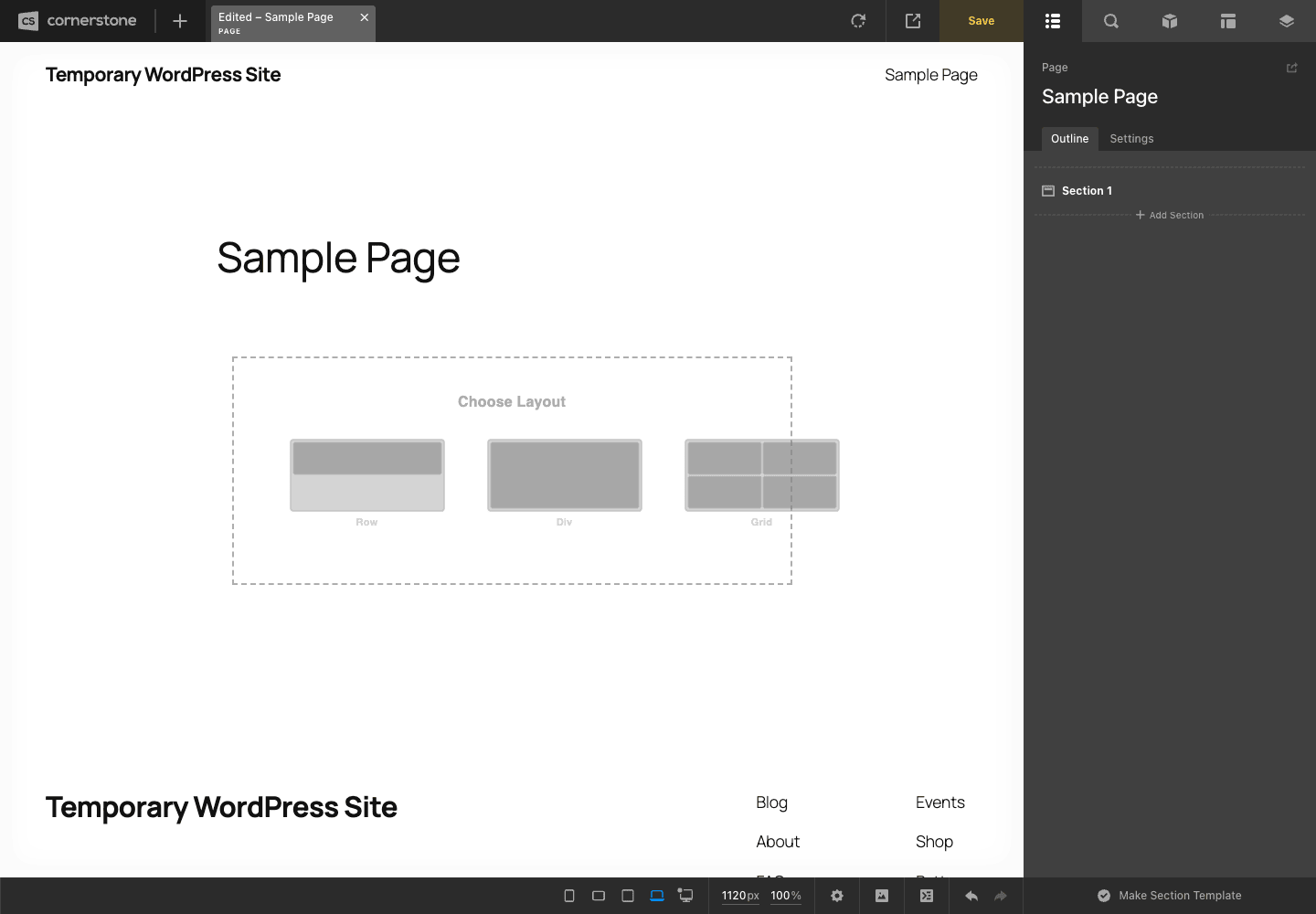
The canvas is the page itself. It renders live, and you click straight into it to edit text, swap images, or select an element to style. The top bar holds Save, undo and redo, the device-size toggles, and the panel switchers. A bottom bar gives you zoom and device controls so you can check a layout at phone width without leaving the editor.
The right panel is where the structure lives, and it switches between four views:
- Outline shows the page as a tree. Sections contain Rows, Rows contain Columns, Columns contain elements. You can drag items around the tree to re-order or re-parent them, which is far less fiddly than nudging things on the canvas when a layout gets deep.
- Settings is the inspector. Select any element and this panel shows its controls: spacing, typography, colors, borders, background, and whatever is specific to that element. This is where most of your time goes.
- Library is the element list plus your saved templates and Themeco’s template collection. You drag from here onto the canvas.
- Globals opens the site-wide design system (covered in its own section below).
Here’s the building rhythm once you know it. You add a Section, then choose its inner layout: a Row of columns, a Div, or a Grid. The screenshot above catches exactly that moment, the layout picker offering Row, Div, and Grid. You drop elements into that layout, then select each one and style it in the Settings inspector. Want it responsive? Switch the device toggle to tablet or phone and adjust the value for that breakpoint only; the desktop value stays put.
Tip: lean on the Outline panel early. On a real page with a dozen nested containers, dragging in the tree is the difference between a two-minute re-layout and ten minutes of misclicks on the canvas.
You might be wondering whether all this front-end rendering makes the editor sluggish. On a modest page it’s snappy. On a very heavy, deeply nested page it slows down, same as every live builder, because it’s rendering the actual page plus the editor chrome. That’s a nudge toward keeping your structure lean, which I’ll come back to in the anti-pattern section.
More than a page builder: the theme builder
This is the section that justifies the title. Open the Create panel from the builder and look at the choices.
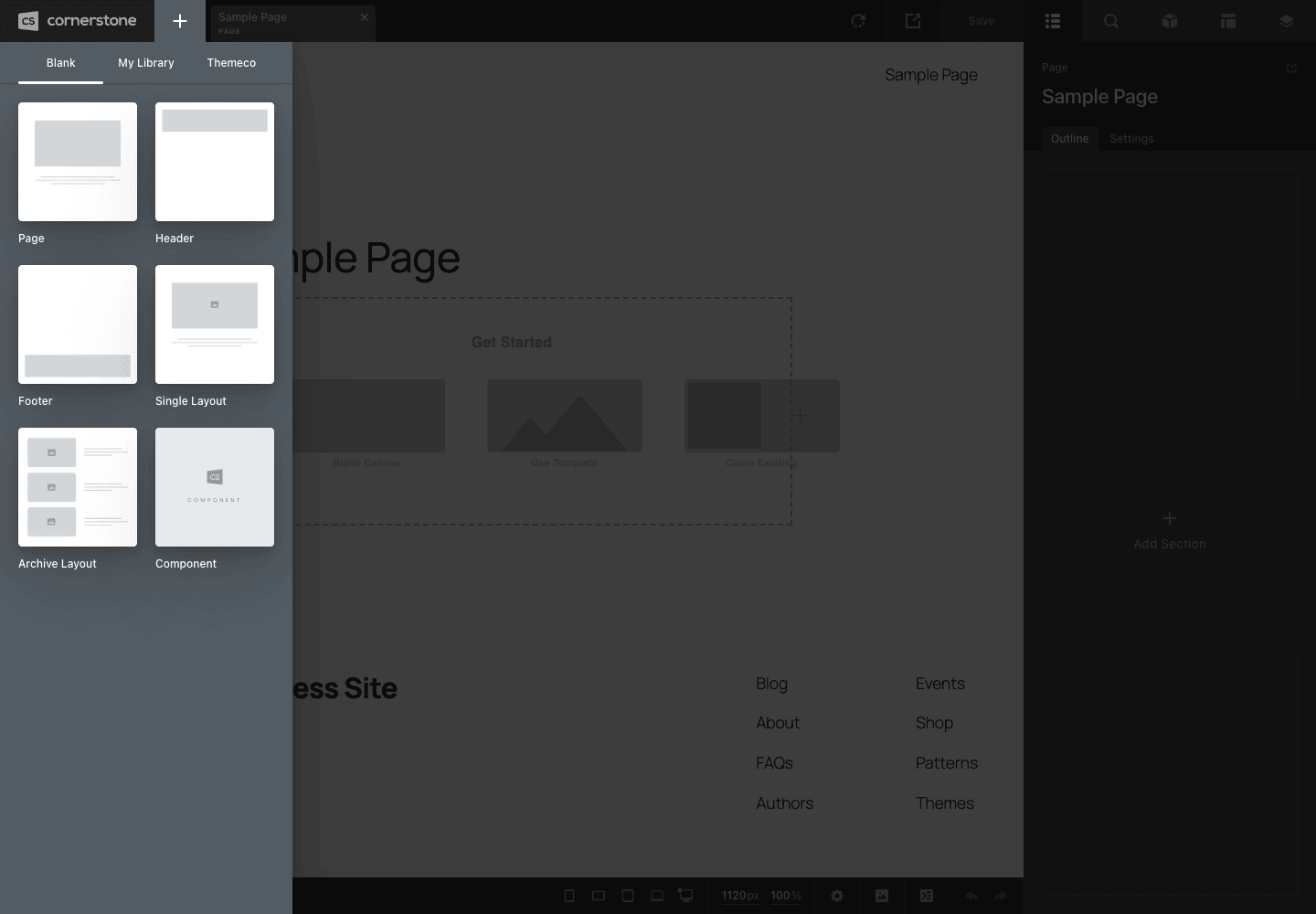
A page-only builder gives you one option here: a page. Cornerstone gives you six, and that list is the entire argument for calling it a site builder instead of a page builder. You can create a Page, a Header, a Footer, a Single Layout, an Archive Layout, or a Component, plus a tab for your own saved library and Themeco’s templates.
Under the hood, each of those is a real custom post type that Cornerstone registers, and knowing the names helps when you’re debugging or querying the database:
cs_headerstores your custom headers. Design a header visually, assign it conditionally (this header on the shop, that header on the blog), and it replaces whatever your theme would have output.cs_footerdoes the same for footers.cs_layout_singleis a single-post or single-page template. Build the layout for how an individual post renders, with the title, content, meta, and whatever else, as a visual design instead of a PHP template file.cs_layout_archiveis the archive and blog-listing template. This is where Looper earns its place, looping your post design across the query.cs_layout_single_wcandcs_layout_archive_wcare the WooCommerce equivalents: the single product template and the shop or category archive template. If you sell, you can redesign the product page and the shop grid without touching a WooCommerce template override.cs_global_blockholds reusable global blocks, andcs_templatepluscs_user_templateshold saved templates.
Stop and sit with that for a second, because it’s easy to skim past. The header, footer, blog template, single-post template, product page, and shop page are usually the parts of a WordPress site you either accept from your theme or edit in PHP. Cornerstone turns all of them into visual, conditional designs in the same editor you use for a sales page. For an agency handing a site to a non-technical client, that’s the whole game: the client can tweak the footer without a developer, and nobody has to FTP into a template file.
Heads-up: because Cornerstone owns the theme layer, it’s effectively replacing your theme’s templating for any layout you build. On a classic theme that’s clean. On a block (FSE) theme, Cornerstone provides its own header, footer, and layout system rather than driving the WordPress Site Editor. Both work, but you should know you’re choosing Cornerstone’s system over the native one, not layering on top of it.
Global design and dynamic content
A site builder without a global design system is a trap, because you’d end up styling every element by hand and then re-styling all of them when the brand color changes. Cornerstone avoids that with its Globals editor.
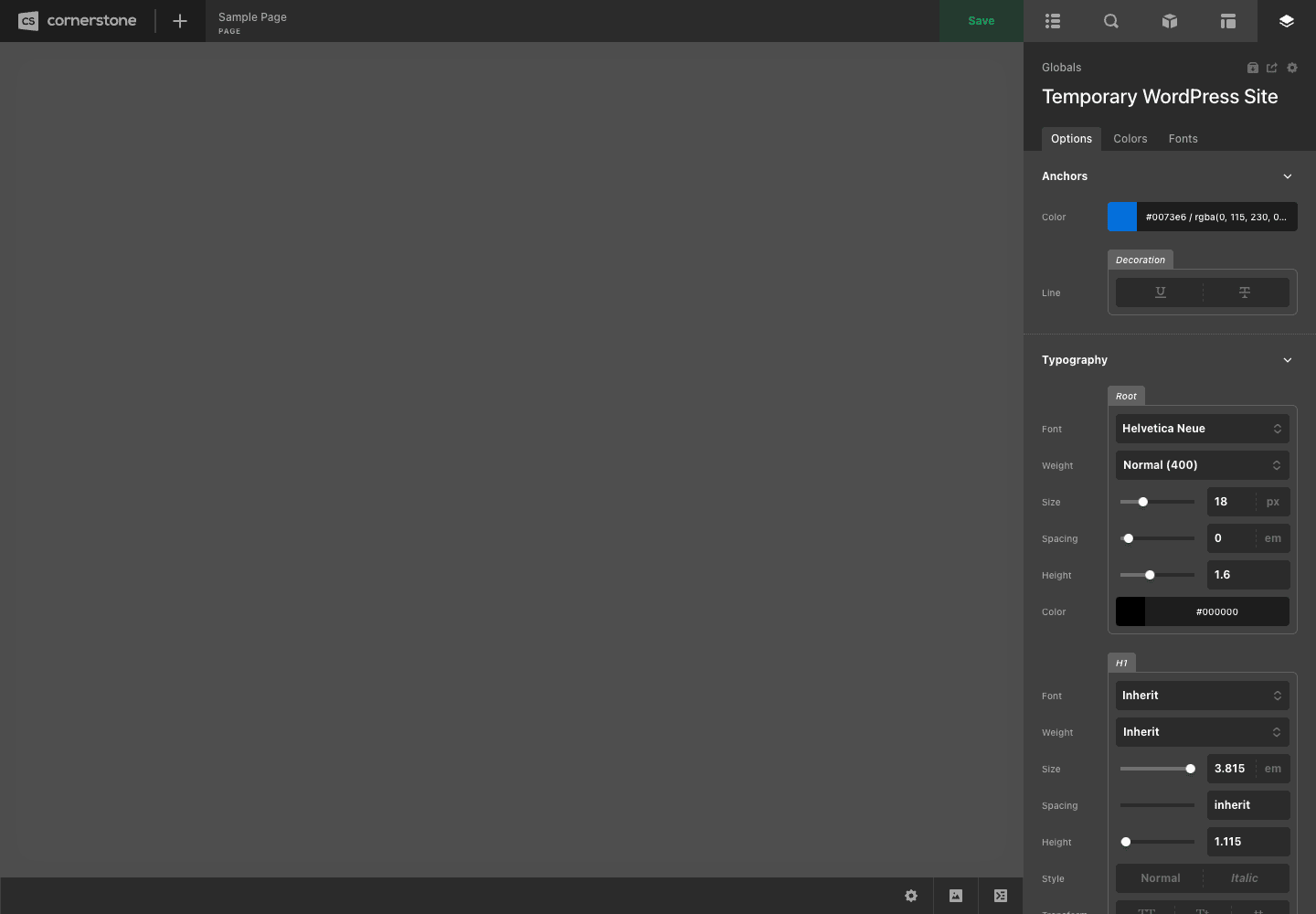
Open Globals (it’s also reachable as the builder’s Theme Options) and you get tabs for Options, Colors, and Fonts. Typography is defined per role: a Root setting plus H1 through the rest, each with its own font, weight, size, letter-spacing, line-height, and color. You set your anchor (link) color here too. Define this scale once and every Headline and Text element inherits it, so your site looks consistent without you babysitting each element.
The payoff is maintenance. When a client says "make the body text a touch bigger and the brand blue slightly darker," you change two global values instead of hunting through forty pages. That’s the difference between a site you can maintain and a site that fights you.
Dynamic content runs through Looper. Looper is Cornerstone’s repeating-content engine. You build a single design (a card with an image, title, and excerpt), wrap it in a Looper, point the Looper at a query (latest posts, a product category, a custom post type), and Cornerstone repeats that design across the results. Pair Looper with dynamic-content parameters and a single element can pull its text or image from the current post’s fields, which is how you build a single-post template that works for every post, not just the one you designed it on. If you’ve used dynamic tags in other builders, this is the same idea, with the loop built in.
Who Cornerstone is really for
Cornerstone is powerful, but it isn’t for everyone. Here’s where I’d actually reach for it, framed as the people I see using it well.
If you run an agency, Cornerstone is a strong fit. You build a header, footer, and template set once, save the reusable blocks, and reproduce a consistent site for client after client. The one-time licensing (more on that below) is friendlier to an agency’s margins than a per-site annual subscription, and the global design system means a junior can update a client’s brand colors without breaking the layout. The theme builder is the selling point here: clients get a fully custom site, not a themed template with a few page tweaks.
If you’re a freelancer on a client site, the appeal is handing over something a non-technical owner can actually maintain. The footer, the contact section, the pricing table all become things they can edit in a visual canvas without calling you for a footer typo. That reduces your support burden, which is the real cost on small projects.
If you’re a developer who wants control, Cornerstone is more interesting than it looks from the outside. The element API lets you register custom elements with proper controls, so the bespoke component your client needs becomes a real builder element rather than a shortcode they’ll break. You keep the visual editing experience for the client while owning the implementation. That’s a genuinely nice split of responsibilities.
Where I’d hesitate: if you only need a couple of nicer landing pages on an otherwise fine theme, Cornerstone is more tool than you need, and a lighter page-only builder will get you there with less commitment. The value of Cornerstone is the theme builder. If you’re not going to use it, you’re paying for range you won’t touch.
Developer reference
This is the part most reviews skip, so let’s actually go through Cornerstone’s developer surface honestly, including where it’s strong and where the marketing oversells.
The element API
The headline extension path is the element API. You register a custom element with cs_register_element(), giving it a type and an options array that defines its controls and template:
add_action( 'cornerstone_register_elements', function () {
    cs_register_element( 'my_callout', array(
        'title'   => 'Callout',
        'group'   => 'content',
        'builder' => 'my_callout_builder_callback', // inspector controls are composed here (cs_compose_controls)
        'render'  => 'my_callout_render_callback',
    ) );
} );
The exact options array is richer than this skeleton, but the entry point is real: cs_register_element( $type, $options ) is how a custom element gets into the builder with its own inspector controls. Once registered, your element behaves like any built-in one: draggable from the Library, stylable in Settings, responsive across breakpoints. If you’re new to registering things in WordPress, the WordPress developer handbook is the canonical reference for the hooks this builds on. There’s also a lower-level register_element(). For a client component you want to be both visually editable and locked to your implementation, this is the path.
Shortcodes (the rendering layer)
Every Cornerstone element renders as a shortcode under the hood. The plugin registers 84 of them, and they’re worth knowing because they explain how your content is stored and how it can leak. The layout ones are [cs_section], [cs_row], [cs_column], and the content ones include [cs_text], [cs_block_grid], [cs_icon_list], [cs_pricing_table], [cs_alert], and [cs_responsive_text], alongside the X-lineage [x_accordion] and the rest of the [x_*] family.
You can drop a [cs_*] shortcode into classic content directly if you want a single element without opening the builder, though in practice you’ll build in the editor. The thing to internalize: your page content is stored as these shortcodes plus the layout structure Cornerstone understands. That’s normal for a builder, and it matters for the exit-plan discussion below.
Hooks and filters
Cornerstone exposes a large hook surface: roughly 280 unique cs_ and cornerstone_ filters plus around 100 actions across the codebase. I want to be straight with you about this number, because "hundreds of hooks" can be misleading. Many of these are internal and niche, not a curated public extension API the way some builders document a tidy list. The headline extension paths are the element API, the shortcodes, and the template system; the filters are there for finer control when you need to reach into a specific behavior.
A few real filter names, mentioned by name so you know they exist (I’m deliberately not inventing argument signatures for these):
cs_is_previewlets you check whether you’re currently inside the builder preview, useful for skipping logic that shouldn’t run while editing.cs_query_limittouches query limits for dynamic content.cs_css_post_process_colorhooks into color output during CSS generation.cs_render_looper_is_virtualis part of the Looper dynamic-content engine.
The honest takeaway: you’ll spend most of your developer time in the element API and templates, and reach for the filters occasionally when you need to bend a specific rendering or query behavior.
REST API
Cornerstone registers a small REST surface under the themeco namespace. Be clear about what this is: it’s a builder-internal API the editor uses to save and load layouts, not a public content or data API for external apps to consume. If you came hoping to drive Cornerstone from a headless front end through a documented REST contract, that’s not what this is. Treat it as plumbing for the editor.
WP-CLI
Unlike a lot of plugins, Cornerstone does ship a WP-CLI command under the wp cs namespace, handy for maintenance like regenerating cached CSS from the command line during a deploy. I won’t pretend to enumerate every subcommand, but the point stands: there is a wp cs command, so you can script some Cornerstone housekeeping rather than clicking through the admin. For an agency with a deploy pipeline, that’s a small but real convenience.
Cornerstone vs Elementor vs Oxygen vs the block editor
You’re almost certainly comparing Cornerstone against the obvious names, so let’s do it with real differences instead of hand-waving. The single biggest one is licensing math, and it’s worth a table.
| Tool | Scope | Licensing | Theme layer |
|---|---|---|---|
| Cornerstone | Site builder | One-time purchase | Builds headers, footers, single + archive + WooCommerce templates |
| Elementor Pro | Page + theme builder | Per-year subscription | Theme Builder builds templates, header, footer |
| Oxygen | Site builder | One-time (historically) | Replaces the theme entirely; builds everything |
| Block editor | Page content + FSE | Free, built in | FSE themes edit templates natively in the Site Editor |
The money difference is the headline. Cornerstone is a one-time purchase. Elementor Pro is a subscription you renew every year, so a builder that costs you say $59/yr on the entry tier is roughly $295 across five years, while a one-time tool is paid once. Over the life of a client site that’s a real gap in total cost of ownership, and it’s the main reason agencies running dozens of sites gravitate toward one-time tools.
On scope, Cornerstone and Elementor Pro are closest. Both build the page and the theme templates. Oxygen goes further by disabling the theme entirely and making you build literally everything, which is more control and more rope. The newer Breakdance sits in similar territory to Oxygen with a friendlier editor. The block editor with a full-site-editing theme covers templates natively and for free, but with a different (and to my eye, less designer-friendly) editing model.
On weight, every visual builder loads its own CSS and JS on the front end. Cornerstone generates per-element CSS and caches it, which keeps things reasonable, but a deeply over-nested page can easily carry 30% to 50% more markup than the same layout built lean. The builder asset footprint is in the same rough ballpark as Elementor’s, tens of kilobytes of builder CSS and JS before your own content, so don’t expect any of these tools to be featherweight. The honest framing is mechanism, not a benchmark race: more nesting and more elements means more weight, in every one of these tools.
My read: if you want the theme-builder scope without an annual bill, Cornerstone is the value pick. If you want the biggest community and template marketplace, Elementor Pro wins on sheer size. If you want total control and don’t mind building everything yourself, Oxygen or Breakdance. If your needs are modest and you like native, the block editor is already installed.
Don’t build your whole site in Cornerstone without an exit plan
This is the one warning I’d give a friend before they commit a client to Cornerstone. Two failure modes are specific to a builder this powerful, and both cost real money if you ignore them.
Lock-in by shortcode. Every Cornerstone element is stored as a [cs_*] or [x_*] shortcode in your content, plus a layout structure only Cornerstone understands. That’s fine while Cornerstone runs. The day you deactivate it, whether for a redesign or a handoff to a client on a different stack, your beautifully built pages turn into walls of raw shortcodes, and your custom headers, footers, and templates simply stop rendering. This is the cost of any deep builder, but Cornerstone goes further than most because it also owns your theme layer. Go in with eyes open: choosing Cornerstone is a long-term commitment to the Themeco way of working, not a plugin you casually swap out next year. If a client might leave, price the migration into the project, because someone will pay for it later.
Death by nesting. Because you can drop a Row inside a Column inside a Div inside a Section endlessly, people do, and a simple page becomes a ten-level-deep tree that ships bloated markup and slow CSS. The fix is discipline: use the fewest containers that achieve the layout, lean on the global design system instead of styling every element by hand, and check the page weight on a real device, not just your fast laptop. A page builder makes a slow, over-nested page just as easy to create as a fast, clean one. The tool won’t stop you, so you have to stop yourself. The reader who skips this is the one who emails me in six months asking why their "simple" homepage scores badly on mobile.
Speed, lock-in, and the things that bite
Let’s talk performance and the practical gotchas without pretending a visual builder is free.
Front-end weight. Like every builder, Cornerstone loads its own CSS and JS on the front end. It generates per-element CSS and caches it; the Settings page has a Cache panel that explains elements remember the CSS generated when they were last saved, with a Clear Cache button when you need to force a regenerate. If a styling change isn’t showing up after you save, clearing that cache is the first thing to try. The mechanism is sound, but it doesn’t erase the basic truth that more elements and more nesting means more bytes.
Pair it with caching. Because Cornerstone is generating and serving styled markup, you’ll want a page cache in front of it for production. WP Rocket is the easy pairing: page caching plus the file optimization and lazy loading that take the edge off a builder-heavy front end. This isn’t a Cornerstone flaw, it’s true of any visual builder, but it’s worth stating plainly so you budget for it.
Theme compatibility. Cornerstone works with any theme and brings its own header, footer, and template system. On a classic theme that’s clean. On a block/FSE theme, remember you’re choosing Cornerstone’s layout system over the native Site Editor, not stacking on top of it. WooCommerce is supported through the dedicated single-product and shop-archive template types, so a store is a first-class use case, not an afterthought.
The CSS cache catching you out. The most common "why isn’t my change showing" moment is the per-element CSS cache holding an old version. Save, then clear the cache from the Settings panel if needed. Combine that with a page cache and a CDN and you can have two or three layers of caching between your edit and the visitor, so when something looks stale, clear from the inside out.
Heads-up: test your most-nested page on an actual phone before launch. The editor feels fine on a fast desktop; the front end on a mid-range phone over mobile data is the real test, and it’s where over-nesting shows up.
Pricing and licensing
Cornerstone is sold as a one-time purchase on CodeCanyon, and Themeco also offers it through a theme.co membership that bundles it with their themes and support. The one-time model is the headline: you’re not renewing a subscription every year to keep the editor working, which is a different total cost than the subscription page builders it competes with. I’m not going to quote a hard price here because it moves and dates the article, but the structural point holds: one-time, not annual.
GPL Times provides Cornerstone under the GPL, which is the same code you’d get from the official channel, delivered through the GPL store with the documentation intact. If you want to try the theme builder on a real install before you commit a client project to it, picking up Cornerstone from GPL Times lets you design a header, a footer, and a single-post template on a staging install and see whether the workflow clicks for you. That hands-on test is worth more than any feature list, because the only question that matters is whether you enjoy building this way.
FAQ
Cornerstone vs Elementor, which should I pick?
Pick Cornerstone if you want theme-builder scope (headers, footers, templates) under a one-time license and you’re fine committing to the Themeco way of building. Pick Elementor Pro if you want the largest template marketplace and community, and you don’t mind an annual subscription. They overlap heavily on capability; the real fork is licensing model and community size, not raw features.
Do I need the X or Pro theme to use Cornerstone?
No. Cornerstone is the engine inside X and Pro, but the standalone plugin runs on any theme. It brings its own header, footer, and template system, so it doesn’t depend on a Themeco theme to function. That said, X and Pro are tuned to work with it, so they’re a natural pairing if you want the smoothest experience.
Will Cornerstone slow my site down?
It can if you let it. Like every visual builder, it loads its own CSS and JS, and a deeply nested page ships heavier markup. The honest answer is that a clean, shallow layout paired with a page cache performs fine, while a ten-level-deep page will drag on mobile regardless of the builder. Cornerstone caches its generated CSS to help, but discipline in your structure matters more than any single setting.
What happens to my pages if I deactivate Cornerstone?
Your content reverts to the raw [cs_*] and [x_*] shortcodes it was stored as, which render as visible shortcode text rather than your design, and any custom headers, footers, and templates stop rendering entirely. This is the lock-in trade-off of any deep builder. It’s not a reason to avoid Cornerstone, but it is a reason to treat the choice as a long-term commitment and to budget for migration if a project might move off it later.
Does Cornerstone work with WooCommerce?
Yes, and properly. It registers dedicated template types for the single product page and the shop or category archive, so you design your product layout and shop grid visually instead of overriding WooCommerce template files in PHP. If you run a store, this is one of the stronger reasons to use a site builder over a page-only one.
Can Cornerstone build my header and footer?
Yes, that’s the headline feature. From the Create panel you make a custom Header or Footer as a visual design, assign it conditionally (different header on the shop than on the blog if you want), and it replaces your theme’s output. This is exactly the part page-only builders leave to your theme.
Is Cornerstone a one-time purchase?
Yes. It’s sold as a one-time CodeCanyon license (Themeco also bundles it in a theme.co membership), rather than an annual subscription. Over the life of a site, that’s a meaningfully different cost than the subscription builders it competes with, which is a large part of its appeal to agencies running many sites.
Does Cornerstone work with block (FSE) themes?
It runs, but understand the relationship. Cornerstone provides its own header, footer, and layout system rather than driving the WordPress Site Editor. On a block theme you’re effectively choosing Cornerstone’s templating over the native full-site-editing one for any layout you build. Both work; just don’t expect them to merge into a single editing surface.
Can developers add custom elements?
Yes, through the element API. You register a custom element with cs_register_element( $type, $options ), defining its controls and template, and it becomes a first-class draggable element with its own inspector. This is the clean way to give a client a bespoke component they can place and style visually while you keep control of the implementation underneath.
Is there a command-line tool?
Yes. Cornerstone ships a wp cs WP-CLI command for maintenance tasks like regenerating cached CSS, which is useful in a deploy pipeline. It’s not a sprawling CLI, but it exists, so you’re not forced into the admin for every housekeeping job.
Final thoughts
After spending real time with it, my view of Cornerstone is simple: it’s not the tool you reach for to polish one landing page, and it’s exactly the tool you reach for when you want to design an entire site, theme layer and all, from one visual editor. The header, footer, single-post, archive, and WooCommerce templates becoming visual designs is the feature, and almost nothing else in this space treats that scope as the default rather than a bolt-on.
The trade-offs are honest ones. You commit to the Themeco way of working, your content lives as shortcodes you’d have to migrate off someday, and the builder gives you enough freedom to make a slow page if you’re careless. None of that is disqualifying. It’s the price of a tool that does this much.
If you build sites for clients and you’re tired of fighting your theme’s header.php or paying an annual fee for the privilege of a theme builder, Cornerstone is worth a serious look. Put it on a staging install, design a header and a single-post template, and see if the workflow fits the way you actually work. That’s the only test that counts.