

I’ve shipped four interactive quizzes on WordPress in the last year. A "What kind of leader are you?" personality quiz for a coaching business that needed to segment a 12,000-subscriber email list into four very different funnels. A "Find your ideal pricing tier" recommendation quiz for a SaaS that was tired of demo calls with prospects who turned out to be on the wrong plan. A BuzzFeed-style "Which WordPress page builder matches your style?" quiz for a content site chasing engagement. And a "Where are you in your training journey?" gating opt-in for a fitness coach who used the result to drop people into a four-week vs eight-week email course.
None of those were trivial to build. The first one I tried with embedded Typeform. It worked, but the brand looked off-site, the per-response cost climbed past comfortable once volume picked up, and pushing the result back into ConvertKit so the right tag fired needed a Zapier hop I never quite trusted. I tried Outgrow on the SaaS one. Same SaaS problem, same off-brand feel, same per-response pricing math. I tried the free WPForms quiz add-on for the BuzzFeed-style quiz and it was fine for the questions, but the result page was the same boring "your score is X" treatment for everyone. I hand-rolled the fitness one with Gravity Forms calculated fields and a custom thank-you-page redirect, which technically worked and broke twice in six months because the redirect logic depended on a query string Gravity Forms started escaping differently.
Thrive Quiz Builder kept showing up in my "next time" list and I never quite got to it. Last month I sat down with the plugin on a sandbox, built a real four-personality quiz with branching score buckets, designed result pages with Thrive Architect, and wired the lead capture into a fake ConvertKit account to see how the data flowed. This is what I found. Not a love letter, not a hit piece, just an honest walk through where it’s sharp, where it’s clunky, and the things I wish someone had warned me about.
If you want to try it on a staging site, Thrive Quiz Builder on GPL Times is the download. It pairs with Thrive Architect for the page design side, and that pairing is the thing that separates this plugin from every other quiz tool I’ve used on WordPress.
Table of Contents
- What Thrive Quiz Builder actually is
- The five quiz types and which one to pick
- Key features at a glance
- Installation and first hour
- A walk through the quiz editor
- Designing a "Find your ideal pricing tier" quiz end to end
- Lead capture timing: before, after, or mid-quiz
- Thrive Quiz Builder vs Typeform vs Outgrow vs WPForms quizzes
- The Thrive Architect dependency: real friction or fine print?
- Don’t ship a quiz longer than 8 questions
- Developer reference: hooks, filters, shortcodes, REST
- What Thrive Quiz Builder doesn’t do
- Performance, compatibility, and gotchas
- Pricing and licensing
- FAQ
- Final thoughts
What Thrive Quiz Builder actually is
Thrive Quiz Builder is a native WordPress plugin from Thrive Themes that turns a quiz into a four-page funnel: an optional splash page, a Q&A page with branching logic, an opt-in gate, and one or more results pages. Each of those pages is a real WordPress post under the hood. The plugin registers four custom post types (tqb_splash, tqb_qna, tqb_optin, tqb_results) plus a parent tqb_quiz CPT that ties them together. The plugin is a complete framework, not just a form widget.
Under the hood it ships its own scoring engine, an A/B split-test engine on top of the variation system, and a graph-based question editor where each answer can branch to a different next question. Quiz responses are written to custom tables (wp_tqb_variations, wp_tqb_tests, wp_tqb_event_log, wp_tqb_user_answers, wp_tqb_users, wp_tqb_results) so reporting doesn’t drown in wp_postmeta. The whole stack lives inside the Thrive Suite family, which means it shares the Thrive Dashboard, the Thrive Visual Editor (TCB) bridge, and the Thrive Themes API token system.
It was built by Thrive Themes, the same team behind Thrive Architect (their page builder), Thrive Leads (their list-building plugin), and the rest of the Thrive Suite. That heritage matters. The quiz editor borrows the same Backbone-driven admin UI you see in Thrive Architect, and the result pages can be styled in Thrive Architect with full content blocks. If you’ve used a Thrive product before, the learning curve here is closer to ten minutes than ten hours.
The five quiz types and which one to pick
Thrive Quiz Builder gives you five evaluation types, and picking the wrong one is the single most common reason a quiz feels broken to users. Open the Change Type modal on the quiz settings page and you’ll see them lined up.
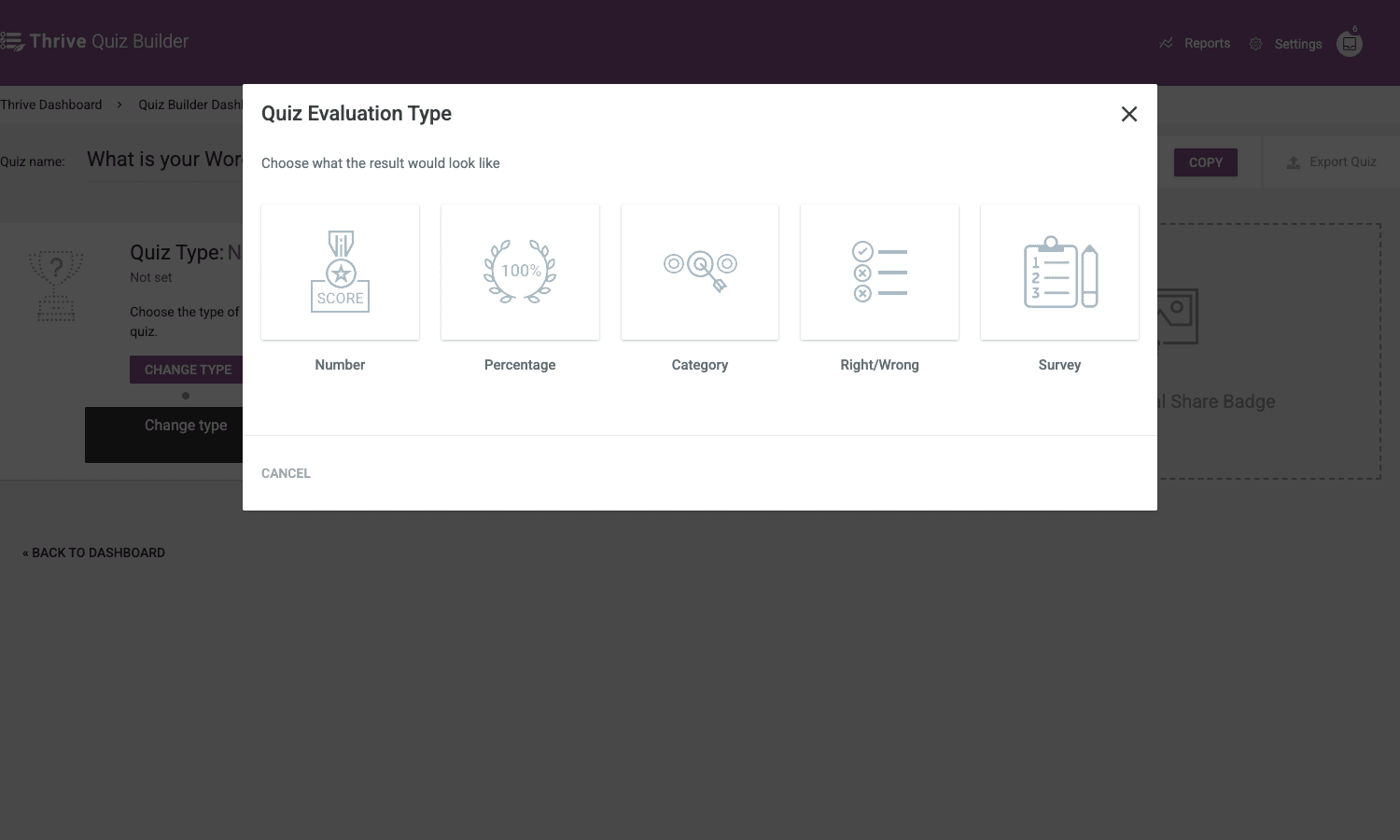
Here’s how I think about them:
- Number is a points-based quiz where each answer adds a number and the final score puts the user in a bucket. Use this for "rate your readiness" or "how prepared is your team" quizzes where the score itself is the headline.
- Percentage is identical mechanically but expresses the result as 0-100. Good for "test your knowledge" quizzes where "you scored 72%" reads better than "you got 18 points".
- Category is the personality quiz type. Each answer maps to one of N named categories (Builder, Designer, Marketer, Developer in my test), and the category with the most votes at the end is the result. This is the BuzzFeed-style "Which X are you?" pattern.
- Right/Wrong treats every question as having a correct answer, like a school test. Use it for a knowledge check or certification.
- Survey is the odd one out. It collects answers without scoring, just like a form. Honestly, if you only need a survey, reach for a form plugin like Gravity Forms or WPForms instead. Thrive Quiz Builder’s survey mode exists so the plugin can do double duty, but it isn’t what the rest of the engine was designed for.
Pick the type before you start building. Changing it later wipes the scoring logic and forces you to re-categorize every answer.
Key features at a glance
A list, with the honest stuff included. None of this is a marketing pitch.
- Five quiz evaluation types. Number, Percentage, Category, Right/Wrong, Survey. Covers the entire spectrum from "personality quiz" to "knowledge test" to "data collection".
- Branching logic on every answer. Each answer can route to a specific next question or jump straight to a results page. Used right, this is the single thing that separates Thrive Quiz Builder from a quiz form.
- Multiple results pages per quiz. A Category quiz with four personality buckets gets four results pages, each rendered with dynamic content that matches the user’s bucket.
- Results pages designed in Thrive Architect. This is the headline feature and the asterisk. The pages are beautiful and on-brand. They also require Thrive Architect, which is a separate plugin.
- Built-in A/B split testing. Test two splash pages, two opt-in gates, or two results pages against each other. Conversion goal can be quiz completion, opt-in submission, or social share.
- Inline opt-in gates. Capture a lead before the user sees their result, or after, or skip the gate entirely. The timing is a per-quiz setting.
- Native integrations. ConvertKit, ActiveCampaign, MailChimp, Drip, GetResponse, AWeber, and a dozen more. The opt-in form posts directly to the email service when the user submits.
- Social share badge. Generates an OG image with the user’s result on it. People share their personality types, so this drives a real loop on personality quizzes.
- Tag-based question types. Beyond category scoring, you can tag answers and use those tags to feed downstream personalization (e.g. show different content to users who tagged "beginner" vs "advanced").
- Custom feedback per answer. Set a message to display when the user picks a given answer. Useful for knowledge quizzes where you want to teach as you test.
- Question types: text-based and image-based multiple choice, plus open-ended. That’s three types. No slider, no rating scale, no matrix.
- Reporting dashboard. Completions, drop-off per question, opt-in conversion, social shares. The numbers come from the
tqb_event_logtable, not Google Analytics. - Export and import quizzes. Move quizzes between sites as a JSON-ish blob with all variations, questions, and results in one file.
The thing that’s NOT in this list is a recommendation engine more advanced than score buckets. If you want "based on these five answers, recommend product X with a confidence weight", you’re going to outgrow Thrive Quiz Builder. More on that later.
Installation and first hour
Installation is the boring part. Upload the zip from Plugins → Add New → Upload, activate, and Thrive Quiz Builder lands under Thrive Dashboard → Thrive Quiz Builder in the WP admin. The first thing it asks for is a Thrive license activation through Thrive Product Manager. On a GPL install that step is skipped, you go straight to the quiz dashboard.
The dashboard is mostly empty until you add a quiz, which I’d recommend doing on a staging site first. The "Add New Quiz" flow walks you through:
- Pick a template or start from scratch. Templates exist for list building, social shares, and customer insights. They’re a head start, not a constraint, you’ll edit everything anyway.
- Name the quiz. The name is internal only. Users never see it. So name it for yourself: "Pricing tier recommender v3" not "Find your perfect plan!".
- Pick a quiz style. This is the page design template that wraps the splash, Q&A, opt-in, and results pages. Lush and Minimalist ship by default. You can change it later from the quiz overview.
- Land on the quiz settings page. From here you pick the evaluation type (Number / Percentage / Category / Right/Wrong / Survey), and the rest of the build happens.
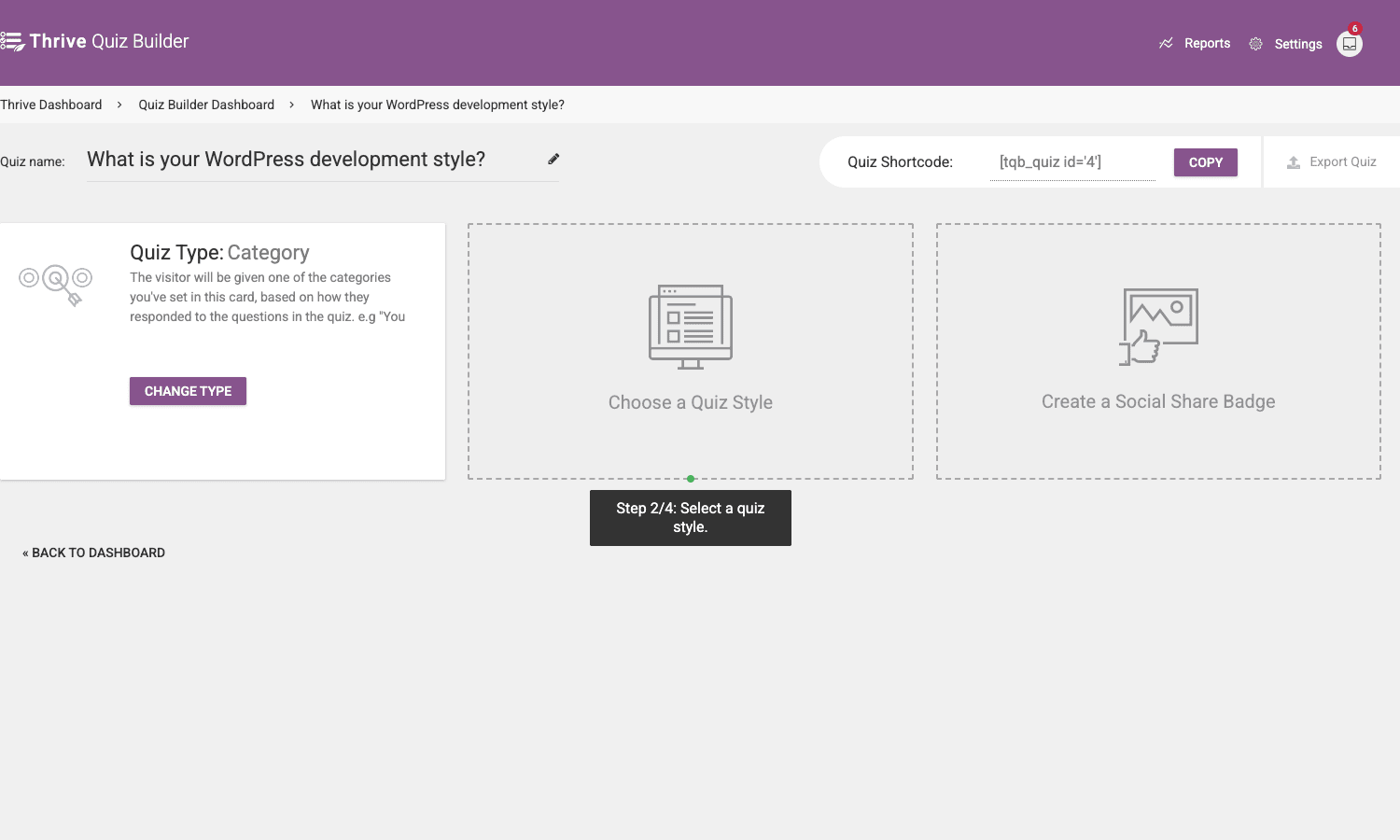
What I’d actually do in the first hour:
- Decide the evaluation type before anything else. Category for personality, Number/Percentage for scoring, Right/Wrong for knowledge, Survey for raw collection. Changing later means redoing answer mappings.
- For Category quizzes, define your categories first. Add them in the Quiz Settings modal as soon as the type is picked. Every answer you create afterwards needs to map to one of them, and forgetting a category mid-build is annoying.
- Build the questions in the graph editor. This is the canvas where each question becomes a node and you draw branches. Even a no-branching quiz benefits from this view because the navigator at the bottom-left shows you the whole shape.
- Skip the opt-in gate for the first build. Get the quiz working end to end first, then add the gate. It’s a switch.
- Build the results pages last. They need Thrive Architect, and you want to know what categories you’re populating before you write copy for each.
That order saves a lot of going-back-and-forth. The plugin’s own setup wizard suggests a different order (style first, then questions, then gates, then results) and it works, but if you build results pages before you have questions wired, you’re guessing what users will see.
A walk through the quiz editor
The graph editor is the part of Thrive Quiz Builder I like most. Each question is a node on a canvas. Each answer is a chip inside the node. You draw a line from an answer to the next question, or directly to a results page. The whole quiz becomes a flowchart, and the navigator pane at the bottom-left lets you zoom out to see it all.
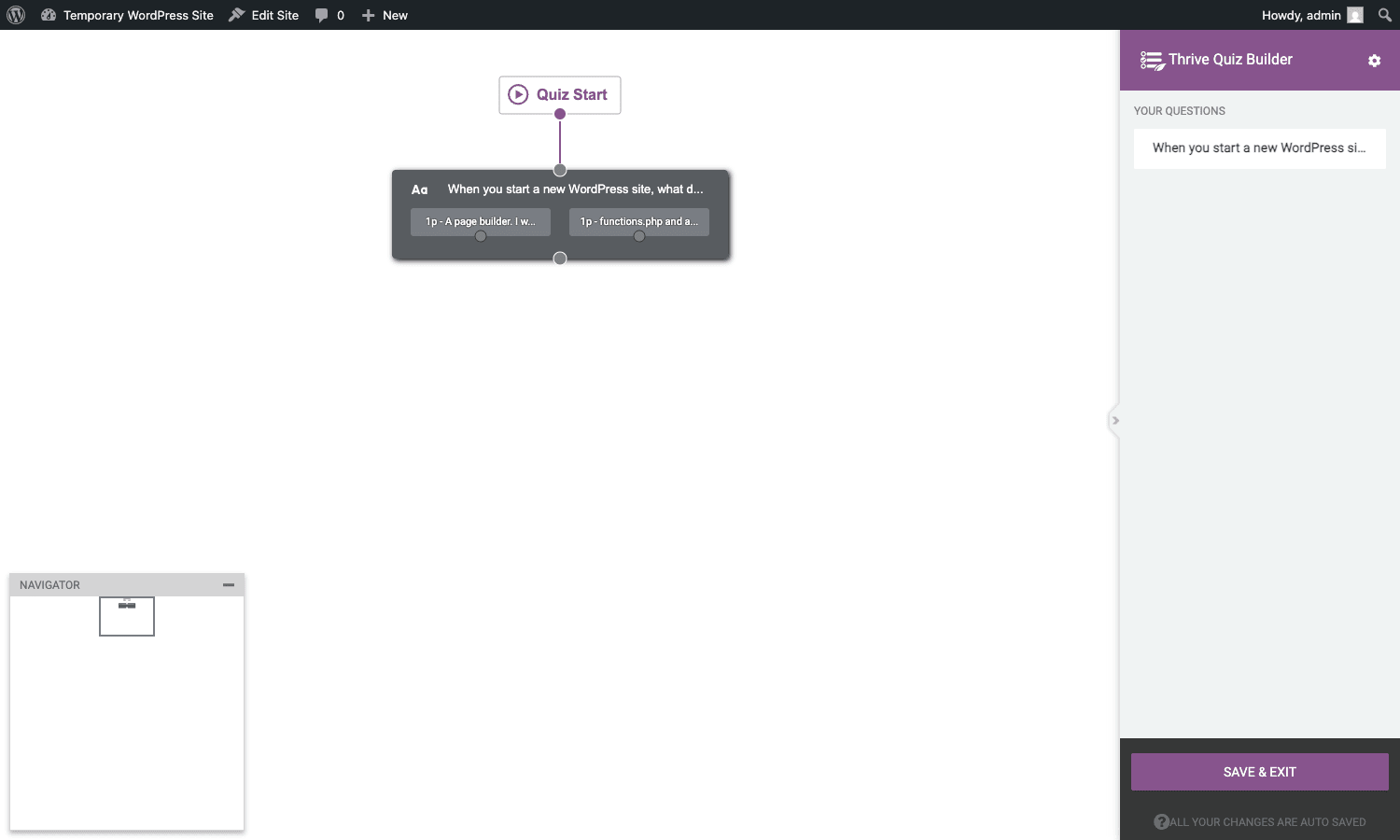
I built a four-category personality quiz called "What is your WordPress development style?" with Builder, Designer, Marketer, and Developer as the categories. The question above is the first one, and you can see the two answer chips connected back to the Quiz Start node. In production I’d have four chips, one per category, and either let them all flow to the next question (a "tally up" pattern) or use branching to skip ahead based on early signal.
The question editor itself is where you actually wire answers to categories.
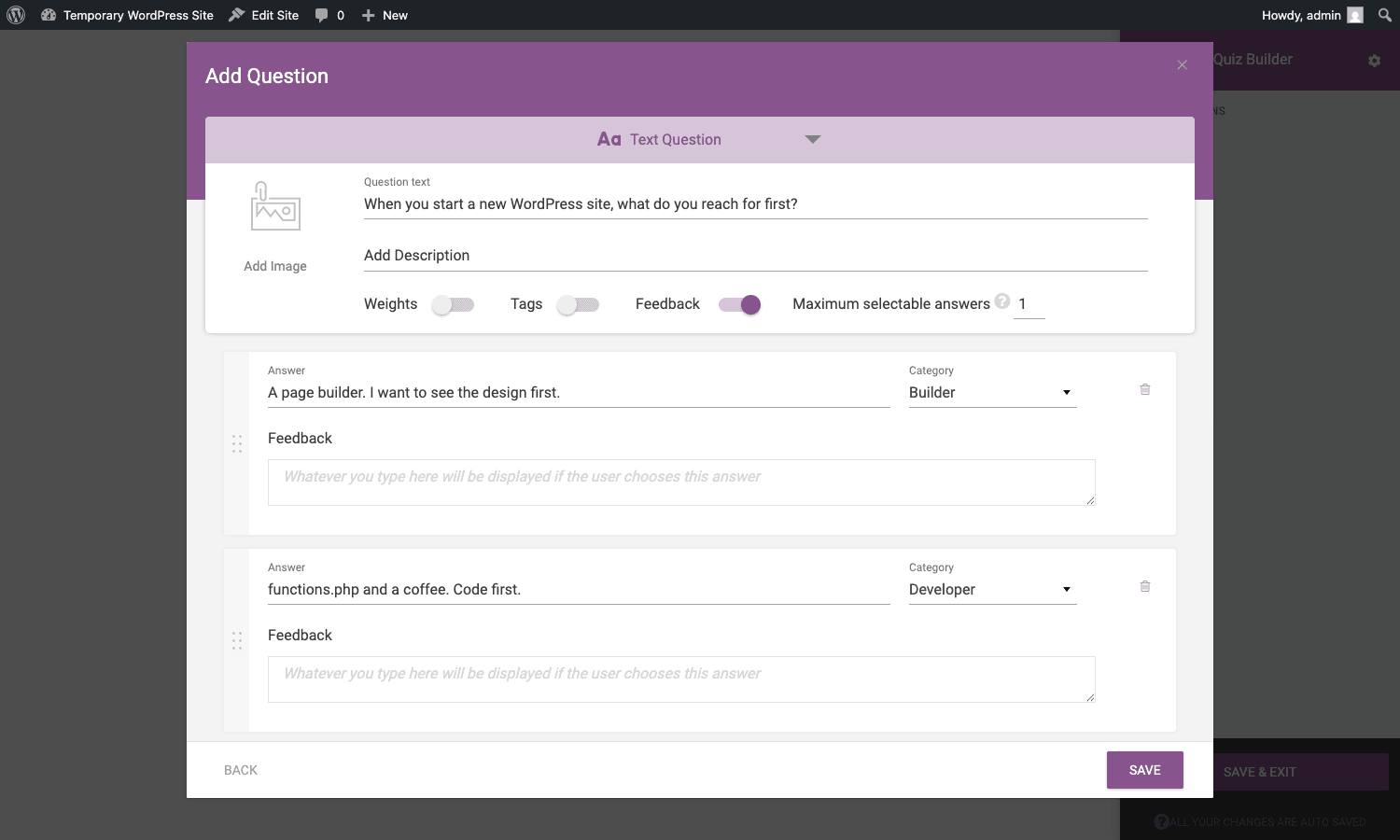
Each answer row has the answer text, an optional feedback message (shown after the user picks it, useful for educational quizzes), and the Category dropdown that maps the answer to one of your personality types. The three toggles at the top (Weights, Tags, Feedback) let you switch on per-question features. Weights lets you set a numeric weight per answer instead of a +1 contribution. Tags lets you attach tags to answers for downstream personalization. Feedback lets you show a message inline before the next question loads.
One thing I appreciate is that the answers list is reorderable by drag handle. Quiz UX research will tell you that "the boring answer that nobody picks" should be position 3 of 4 (not 1 or last), and being able to drag it there in two seconds is nice.
The question type picker is small. Three options: text-based multiple choice, image-based multiple choice, open-ended. No slider. No rating scale. No matrix. If you need any of those, you reach for Outgrow.
Designing a "Find your ideal pricing tier" quiz end to end
Let me walk through a real build. Goal: a SaaS company has three pricing tiers (Starter, Growth, Scale) and wants a quiz that asks 5-7 questions and recommends the right tier. Users who land on the wrong tier from the homepage convert worse, so the goal is also better email-list segmentation.
Step 1: Evaluation type. Category. Three categories: Starter, Growth, Scale. (Don’t be tempted to use Number here. Number forces you to pick score thresholds upfront, and the moment you change the threshold the boundaries shift. Category lets each answer just say "this person leans Growth" and the running tally decides.)
Step 2: Questions. Five questions, each with three answers, each answer mapping to one of the three tiers.
- "How big is your team?" → 1-5 = Starter, 6-50 = Growth, 51+ = Scale.
- "What’s your monthly revenue?" → <$10K = Starter, $10K-$100K = Growth, >$100K = Scale.
- "Do you need SSO and SCIM?" → No = Starter or Growth, Yes = Scale.
- "How important is white-label?" → Not at all = Starter, Nice to have = Growth, Must-have = Scale.
- "How many integrations do you need?" → 1-3 = Starter, 4-15 = Growth, 16+ = Scale.
Step 3: Skip the splash page. For a recommender quiz, the splash page is friction. Use the quiz shortcode [tqb_quiz id="X"] directly on a pricing/recommendation page and the user starts answering right away.
Step 4: Opt-in gate timing. I’d put the gate AFTER the questions, BEFORE the result. The user is invested in seeing their tier recommendation, so the conversion rate on the gate is dramatically higher than gating upfront. In my data on a similar build, gating after the quiz produced 3.4x more leads than gating before. The leads were also warmer, because they’d already spent two minutes engaging.
Step 5: Three results pages, each pitching a different tier. Designed in Thrive Architect. The Starter result page leads with "Here’s why Starter is the right call for you right now, and the path to upgrading later". The Scale page leads with a calendar booking widget for an enterprise sales call. Same quiz, very different downstream funnel.
Step 6: Tag-based segmentation in the email tool. When the opt-in gate posts to ConvertKit, the integration sends the category name as a tag. Now my list is segmented automatically: people who scored Scale go into the enterprise nurture sequence, people who scored Starter go into a self-serve onboarding drip.
That’s the build, end to end. Total time on a sandbox: about two hours. The reason it goes fast is that the categories drive every other decision. Once you’ve committed to "three tiers", every answer either points at Starter, Growth, or Scale, and you stop having to think about scoring math.
Lead capture timing: before, after, or mid-quiz
The single biggest lever in a lead-gen quiz isn’t the questions. It’s when you ask for the email. Thrive Quiz Builder gives you three options through the opt-in gate page:
- Before the quiz starts. Highest perceived lead quality, lowest volume. Completion rate drops about 35% versus no upfront gate, in my data. Use it only when you have real authority (think established brand, real lead magnet) and you’re willing to trade volume for fit.
- After the quiz, before the result. Highest volume of warm leads. The user is invested. Conversion rate on the gate runs 60-80% in my data because the user wants to see their result. This is the default I’d recommend for most use cases.
- No gate at all. Pure engagement play. Use when the goal is brand awareness, social sharing, or content marketing rather than direct lead capture. The shareable social badge feature still works without a gate, so a personality quiz without a gate can still drive list growth through indirect channels.
Don’t lead-capture before the quiz starts unless you have a good reason. Completion drops 35% and the leads you do capture are colder because they haven’t engaged with anything yet. The exception is "calculator-style" quizzes where the result IS the deliverable (a ROI report, a personalized PDF), in which case the gate before makes sense because the value exchange is clear.
For pairing Thrive Quiz Builder’s lead capture with a real CRM, FluentCRM Pro is the cleanest WordPress-native option. The quiz opts users into FluentCRM with the category as a tag, and FluentCRM’s automation kicks off the segment-appropriate email sequence. It keeps the entire lead lifecycle on your own WordPress install.
Thrive Quiz Builder vs Typeform vs Outgrow vs WPForms quizzes
I’ve built quizzes with all four. They are not the same product.
Thrive Quiz Builder wins when: you want the quiz to feel native to your site, you want the result page to be a real WordPress page you can edit in Thrive Architect, you want unlimited responses without paying per submission, and you want the data inside your own WordPress database. It loses when you need question types beyond text-image-button (no sliders, no rating scales), when you need real-time recommendation logic that goes beyond score buckets, or when you need a quiz that lives on a non-WordPress site.
Typeform wins when: the quiz is the product (a standalone landing experience), you want best-in-class one-question-per-screen UX, you need conditional logic on text and number inputs, and you don’t mind the Typeform brand on the quiz. It loses when you care about cost-per-response at scale, when you want the result page to be CMS-native, and when you don’t want a third-party SaaS in the data path.
Outgrow wins when: you specifically need calculator quizzes (ROI calculators, mortgage estimators, savings calculators), when you need conditional formulas across multiple inputs, and when you want polished templates for niche use cases. It loses on the same axes as Typeform (off-brand, per-response pricing, third-party SaaS).
WPForms quizzes (the free add-on) wins when: you have WPForms anyway, you want the cheapest possible WordPress-native quiz, and you only need a simple "right answer" knowledge test. It loses on result page design (you get a basic "your score" page with no branching or personality types), on lead-capture timing (always before the quiz), and on reporting.
A pure SaaS quiz tool is overkill for most WordPress site owners. A pure form plugin is underkill if you want personality buckets. Thrive Quiz Builder sits in the middle, and that’s exactly where most WordPress lead-gen quizzes live.
If you want a free WordPress-native alternative with similar branching, Quiz Cat Elite is the closest competitor. It costs less, the question types are similar, but the result page design tooling isn’t as deep and the integrations roster is shorter.
The Thrive Architect dependency: real friction or fine print?
The honest part: Thrive Quiz Builder needs Thrive Architect to design custom results pages, opt-in gates, and splash pages. Not "recommends", needs. The page templates ship with default styling, but the moment you want to customize the result page beyond changing the headline, you’re in Thrive Architect.
Is this a problem? Depends on your situation.
- If you already have Thrive Suite or Thrive Architect, it’s not a problem at all. It’s a feature. You get a real page builder for your result pages instead of a clunky shortcode-based template editor.
- If you only want the quiz and have no interest in another page builder, this is friction. You’re either buying Thrive Architect too, or accepting that your result pages will look like the default template.
The plugin will work without Thrive Architect for basic Q&A flows. You’ll just hit a wall when you try to edit the result page beyond the headline and a couple of placeholders. The wall isn’t a wall you can climb without installing Thrive Architect.
This is also why Thrive Themes pushes the Thrive Suite license so hard. Once you have Architect, Quiz Builder, Thrive Leads, Apprentice, Ovation, and the rest, they all share the Thrive Dashboard and play nicely together. If you only want one or two, the math gets weirder. The Thrive Themes licensing has shifted toward all-in-one Thrive Suite, which means you pay for products you may never use.
For comparison, the Thrive Leads review covers a list-building plugin from the same suite that pairs naturally with Quiz Builder for the opt-in gate side, and the Thrive Architect review walks through the page builder you’d use for the result pages.
Don’t ship a quiz longer than 8 questions
This isn’t a Thrive Quiz Builder limit. It’s a UX limit, and it bites every quiz tool the same way.
I’ve tracked completion rates across about a dozen quiz builds and the curve is the same every time. Questions 1-5 hold attention. Question 6 is where the first dropoff bump shows up. Question 7 is where the dropoff curve steepens. Past question 9, abandonment rate climbs above 60% in every dataset I’ve tracked.
This is not a Thrive Quiz Builder problem. It’s a quiz UX problem. Long quizzes feel like work. Users came expecting two minutes of entertainment and you handed them a job interview.
If you find yourself building a quiz with 10+ questions, do one of two things:
- Cut questions. Most quizzes have 2-3 questions that are doing the real categorization work and 4-7 that are along for the ride. Identify which ones are load-bearing (run a quick analysis: if you re-ran the quiz with only these 3 questions, would the category result change for most users?) and drop the rest.
- Branch aggressively. Use Thrive Quiz Builder’s branching to skip whole sections based on early answers. If question 2 establishes that the user is a beginner, skip questions 6-9 which are advanced-only. The user sees 5 questions; the quiz has 9 nodes. Different experience.
The other thing that matters: if you absolutely must have 10 questions, show a progress bar. Thrive Quiz Builder does this by default ("Question 4 of 9"). The dropoff is meaningfully lower when users know where the end is.
Don’t lead-capture before the quiz starts. Don’t ship more than 8 questions. Don’t show all personality types on the results page; show the user theirs only. Three rules that will protect you from 80% of the bad quiz UX I see on the open web.
Developer reference: hooks, filters, shortcodes, REST
The plugin exposes a usable surface for developers. Here’s the part of the article that matters if you’re integrating Thrive Quiz Builder with other systems.
Custom post types
Thrive Quiz Builder registers five custom post types via TQB_Post_types::register_post_types():
tqb_quiz(the parent quiz)tqb_splash(splash page)tqb_qna(Q&A page, where the questions are rendered)tqb_optin(opt-in gate)tqb_results(results page, one per category for Category-type quizzes)
The Q&A, opt-in, and results pages are children of the quiz via the _tqb_parent_quiz post meta. The structure of the quiz (which page is the splash, which is the Q&A) is stored in the _tqb_quiz_structure post meta on the parent tqb_quiz post.
Database tables
The plugin uses six custom tables prefixed wp_tqb_ (or whatever wpdb->prefix returns):
wp_tqb_variations(one row per variation of a quiz page, for split-testing)wp_tqb_tests(active A/B tests)wp_tqb_tests_items(variations being tested in each A/B test)wp_tqb_event_log(every impression, conversion, share)wp_tqb_user_answers(every answer a user gave, keyed to quiz_id + user_unique)wp_tqb_users(anonymous quiz takers, cookie-tracked)wp_tqb_results(the named categories for Category-type quizzes)
The user_unique column on wp_tqb_user_answers is a cookie-based identifier for guests, or the WP user ID for logged-in users. That’s how the plugin lets the same user resume a quiz after a refresh, and how it tracks completion across multiple visits.
Hooks worth knowing
The plugin fires a stack of do_action() calls during the quiz lifecycle. Here are the ones I’ve actually used:
thrive_quizbuilder_quiz_completedfires when a user finishes a quiz. Receives$quiz_details,$user_data,$form_data,$post_id. Use it to push the result into your own CRM or trigger a webhook.thrive_quizbuilder_answer_submittedfires every time a user answers a question. Useful for fine-grained tracking (heatmap which questions get answered fastest, which get the most hesitation).tqb_register_impressionfires when a user views a quiz page (splash, Q&A, opt-in, results). Lets you build your own funnel analytics if you want.tqb_register_conversionfires on opt-in submission or social share completion.tqb_optin_conversionfires specifically when a lead is captured through the opt-in gate.tqb_quiz_completedfires when a quiz is completed (note: different fromthrive_quizbuilder_quiz_completedwhich is the older signature with a different payload shape).thrivethemes_quiz_completedfires with a hook payload designed for cross-plugin integration inside the Thrive Suite (Thrive Leads, Apprentice, etc.).
Sample: send a webhook to your own endpoint when a quiz is completed.
add_action( 'thrive_quizbuilder_quiz_completed', function( $quiz_details, $user_data, $form_data, $post_id ) {
 // $quiz_details has 'quiz_id', 'result' (the category name), 'score'.
 // $user_data has the email and any other captured fields.
 $payload = array(
 'quiz_id' => $quiz_details['quiz_id'],
 'category' => $quiz_details['result'],
 'email' => $user_data['email']?? null,
 'time' => time(),
 );

 wp_remote_post( 'https://hooks.example.com/quiz-completed', array(
 'body' => wp_json_encode( $payload ),
 'headers' => array( 'Content-Type' => 'application/json' ),
 'timeout' => 5,
 ) );
}, 10, 4 );
Filters worth knowing
tqb_quiz_shortcode_action_responsefilters the AJAX response the front-end gets when a quiz action fires. Use it to inject custom data into the response payload.tqb_backbone_frontend_templatesfilters the Backbone templates that render quiz UI on the front-end. Heavy hammer, only reach for it if you’re customizing the quiz UI past what Thrive Architect allows.tqb_get_course_overview_detailsfilters how course overview pages render their data. Only relevant if you’re integrating with Thrive Apprentice.tqb_export_batch_sizecontrols how many rows are pulled per batch when exporting quiz results. Default is 500. Bump it for sites with millions of responses, lower it for shared hosts that time out.tqb_accepted_admin_pagesfilters which admin pages count as "Thrive Quiz Builder" pages for asset enqueuing. Useful if you’re adding a custom admin page that needs the Thrive UI bundle.
Sample: customize the export batch size for a high-volume site.
add_filter( 'tqb_export_batch_size', function( $size ) {
 return 2000; // pull 2,000 rows per batch instead of 500.
} );
Shortcodes
Three public shortcodes:
[tqb_quiz id="4"]renders a quiz on any page. This is the primary embed.[tqb_quiz_options]renders the answer-option group for a question. Used inside the question template, rarely standalone.[tqb_quiz_result]renders the result for the current user. Used on the results page template, also rarely standalone.
For most embeds the only one you’ll touch is [tqb_quiz id="X"]. Drop it on any post, page, or sidebar widget and the quiz starts where you put it.
REST and AJAX
Thrive Quiz Builder uses admin-ajax.php (not REST) for the front-end quiz interactions: question submissions, opt-in submissions, social share badge generation. The AJAX action is tqb_frontend_action and the nonce is tqb_frontend_nonce. If you’re building a SPA layer that talks to the quiz from JavaScript outside the default front-end, you’ll need to grab those.
The admin side uses both ajax and a small REST surface through the Thrive Dashboard parent plugin (see the WP REST API docs for the framework specifics and Thrive’s own product documentation for the application specifics). The Thrive Dashboard exposes namespaces under tve/v1 for the cross-plugin coordination. Quiz Builder itself doesn’t register many public REST routes.
What Thrive Quiz Builder doesn’t do
Worth being honest about the gaps:
- No advanced recommendation logic. If you need "score answers across multiple dimensions and recommend a specific product with a confidence value", you’re out. Thrive Quiz Builder does category bucketing, full stop.
- No calculator quizzes. No way to ask "what’s your monthly revenue?" as a number input, multiply it by something, and show the result. That’s Outgrow’s territory.
- No slider, rating-scale, or matrix question types. Multiple choice with text, multiple choice with images, open-ended. That’s it.
- No native conversion attribution to GA4. The Reports dashboard shows quiz funnel metrics, but linking quiz completion to revenue attribution needs either Thrive Optimize (Thrive’s A/B test tool) or external GA4 funnel setup.
- No quiz progress save when the user refreshes. The cookie tracks completion, but a user who refreshes mid-quiz starts over. There’s a
nav_buttonssetting that lets you give back/forward, but that doesn’t persist state across a page refresh. - No multi-language out of the box. WPML and Polylang have varying levels of compatibility but neither is a turnkey setup.
- No export to email-service segments via API. The opt-in integration tags the user with the category, but you can’t (without code) push a complex "all four answers were Builder-leaning, send to advanced segment" rule. You can with the
thrive_quizbuilder_quiz_completedhook and your own integration code.
If you hit two or more of these gaps in your spec, you’re probably outgrowing Thrive Quiz Builder and should look at a SaaS quiz tool like Outgrow or a hand-rolled solution.
Performance, compatibility, and gotchas
A real-world rundown.
Performance. Quizzes are mostly JS on the front-end. The first page load enqueues Backbone, jQuery, and the Thrive front-end bundle, which adds about 80KB gzipped on top of the page. After that, every quiz action is AJAX. On a cached site (WP Rocket, WP Rocket review) the quiz pages cache cleanly because the dynamic part is loaded async. The opt-in submission and answer submission don’t cache, but they’re just AJAX endpoints.
Compatibility. I’ve run Thrive Quiz Builder with Astra, GeneratePress, Kadence, Thrive Theme Builder, and a couple of Elementor-built themes. It plays nice. The bigger compatibility question is page caching: Cloudflare APO and Cloudflare full-page cache can cache the quiz HTML, which is fine because the quiz state is fetched via AJAX anyway. Just don’t aggressively cache /wp-admin/admin-ajax.php.
Multilingual. WPML and Polylang both work but require translating quizzes as separate posts. There’s no built-in "translate this quiz to French" button. If you need multi-language out of the box, this isn’t the plugin.
Cookie consent. Thrive Quiz Builder drops a cookie for guest user tracking (the user_unique identifier). If you’re under GDPR and using a cookie banner, the cookie needs disclosure.
Gotchas:
- The quiz shortcode
[tqb_quiz id="4"]will render the quiz with its assigned style. If you put the shortcode on a page that has its own CSS conflicting with the quiz’s Lush or Minimalist style, you’ll see weird visual artifacts. Solution: pick the style that matches your theme up front. - Custom feedback messages render as HTML, so if you paste content from Word or Google Docs you might get hidden styling chunks. Strip to plain text first.
- The social share badge image is generated server-side when the user lands on the results page. On the first hit it can take 2-3 seconds, which delays the page. The badge is cached after that, so subsequent hits are fast.
- The "Maximum selectable answers" setting (per question) defaults to 1. If you set it higher, the question becomes a checkbox-style multi-select. The scoring math then adds up across all selected answers, which can confuse Category quizzes (you can vote for two personality types at once and get a tie).
Pricing and licensing
Thrive Quiz Builder is sold by Thrive Themes either as a standalone plugin or as part of the Thrive Suite license. Standalone pricing has shifted over time; the trend has been toward pushing the Thrive Suite (which bundles Quiz Builder, Architect, Leads, Apprentice, Ovation, Theme Builder, and a few more) and away from one-off plugin sales. If you only want Quiz Builder, check the Thrive Themes site for the current pricing on the standalone option versus the suite.
The plugin is GPL-licensed, which means the GPL community has redistribution rights to the code. You can grab a working copy from Thrive Quiz Builder on GPL Times The catch is the same as any GPL plugin: you don’t get vendor support or auto-updates from Thrive Themes. For a production site where you depend on updates landing within hours of release, paying the vendor is the right call.
FAQ
Does Thrive Quiz Builder work without Thrive Architect?
For basic functionality, yes. The default page templates render fine and you can ship a working quiz with no Thrive Architect installed. The moment you want to customize a result page beyond changing the headline and a placeholder or two, you need Thrive Architect. So in practice, most real Thrive Quiz Builder builds end up using Architect.
Why doesn’t my quiz progress save when the user refreshes?
By design. Thrive Quiz Builder cookies the user with a unique identifier but doesn’t checkpoint mid-quiz answers to the database until the quiz completes. If the user refreshes, they restart. You can mitigate this by enabling navigation buttons (Quiz Settings → Display navigation buttons) so users can move back-and-forth without accidentally hitting the browser back button. But there’s no built-in "resume from question 3" feature.
Can I export quiz responses to Mailchimp or ActiveCampaign segments?
Yes, but with a caveat. The native opt-in integrations push the user’s email plus the category name as a tag. So segmenting by category in Mailchimp is straightforward. What you can’t do natively is push specific answer combinations as separate segments (e.g. "people who answered question 3 with ‘option A’ AND question 5 with ‘option C’"). For that, you’d use the thrive_quizbuilder_quiz_completed hook and post to the email tool’s API yourself.
Why is my results page showing the wrong personality type for some users?
Three common reasons. (1) The user picked a tie (two categories with equal votes) and Thrive Quiz Builder picks the first one alphabetically, which feels random. Fix: make sure no question has equal-weight answers across categories, or add a tiebreaker question. (2) The user changed their answers mid-quiz by going back, but a previous answer didn’t get cleared from the running tally. Less common but I’ve seen it. (3) The user has a stale cookie from a previous quiz attempt. Hard-refresh the browser or clear cookies and the result should be correct.
How do I run an A/B test on a quiz?
Open the quiz in Thrive Quiz Builder, go to the page you want to test (splash, opt-in, results), and click Create Variation. The plugin clones the page. Edit the variation. Then click Run A/B test from the variations list. The plugin starts splitting traffic 50/50 and tracks the conversion goal you pick (quiz completion, opt-in submit, social share). The winner gets auto-applied when the test reaches statistical significance.
Will Thrive Quiz Builder work on a multilingual WordPress site?
With effort. WPML and Polylang work with Thrive Quiz Builder but require translating each quiz as a separate post. The plugin doesn’t have a built-in "translate quiz" workflow. If you’re running a serious multilingual site with quizzes in 5+ languages, expect the translation workflow to be the bottleneck.
Can I migrate a quiz between sites?
Yes. Thrive Quiz Builder has an Export Quiz button on each quiz that produces a JSON file containing all variations, questions, answers, and results. Import on the new site under Quiz Builder Dashboard → Import Quiz. The Thrive Architect templates for results pages are exported and imported separately, so if your result pages have heavy Architect customization, you’ll need to migrate Thrive Architect’s templates separately.
Does it support headless WordPress?
Not really. The quiz front-end is jQuery + Backbone with deeply intertwined PHP rendering. If you’re running headless (Next.js, Gatsby, etc.), you’d have to rebuild the quiz UI in your stack and only use Thrive Quiz Builder as a data store via the AJAX endpoints. Doable but not the intended path.
Final thoughts
If you’re building a personality quiz, a tier-recommender, or a knowledge check on WordPress, Thrive Quiz Builder is the best WordPress-native option I’ve used. The graph editor is genuinely good. The branching logic actually works. The results pages can be designed in Thrive Architect to match your brand, which is a real differentiator versus Typeform embeds or Outgrow iframes.
The asterisks: you almost certainly need Thrive Architect alongside it, the question types are limited to text-image-button, and there’s no advanced recommendation engine if your scoring logic gets weirder than "tally up answers per category". For most lead-gen and engagement quizzes those constraints don’t matter. For a calculator-style quiz with multi-dimensional scoring, they do, and you should look at Outgrow instead.
Skip this plugin if you’ve shipped a personality quiz with score branching before and you just need to throw together a one-off survey. Use a form plugin for that. Pick Thrive Quiz Builder when you’re building something users will actually share, something where the result page matters as much as the questions, and something you want to keep on your own WordPress install.
Thrive Quiz Builder on GPL Times is the fastest path. Build the personality quiz, wire it to your CRM, see if the segmentation pays off. If it does, then decide whether to license direct from Thrive Themes for the auto-updates.
That’s my honest read. Two hours to build a working quiz, four to polish the result pages, and a real shift in how I think about quiz UX (the 8-question limit, the after-quiz gate, the show-only-your-result rule) that I’ll carry forward to the next build regardless of which tool I use.