

I’ve run a WordPress site with eighteen thousand attachments. Not a typo. A small publisher I helped for three years kept uploading hero images, contributor headshots, and ad creatives, and every time someone needed to reuse the hero from a feature last August, finding it took five minutes of scrolling and squinting at thumbnails. We tried HappyFiles, which got close but felt limited the second you needed nested folders. We tried FileBird, which was solid, the natural competitor, and it shipped. We even tried filename prefixes in ALL CAPS like AGENCY-CLIENT-2024-HERO.png, which works for about eight weeks and then everyone forgets the convention. The native WordPress filter dropdown? It filters by month, year, and file type. Past five hundred uploads that’s a wall.
Real Media Library is the plugin I ended up keeping. This is a long walk through how it actually works, where it shines, where the Pro licensing gets confusing, and a developer section with the hooks, filters, and REST endpoints worth knowing.
Table of Contents
- What Real Media Library actually is
- Why a flat WordPress media library breaks past a few hundred uploads
- Real Media Library vs FileBird vs HappyFiles: when each one wins
- Key features that move the needle
- Installation and the first ten minutes
- Virtual folders vs Real Physical Media: when to upgrade and when not to
- The Gutenberg media picker integration
- Bulk-move 5,000 attachments from a flat library: a practical workflow
- Don’t enable Real Physical Media on a production site without a backup
- Developer reference: hooks, filters, REST
- What Real Media Library doesn’t do (and when you reach for a DAM instead)
- The Devowl.io product family
- Performance, compatibility, and the gotchas
- Pricing and licensing
- FAQ
- Final thoughts
What Real Media Library actually is
Real Media Library is a folder organizer for the WordPress media library, made by devowl.io, a small German plugin shop based out of Bavaria. The same team builds Real Cookie Banner, Real Physical Media, and a handful of other "Real"-prefixed plugins. The plugin header on this build lists Author: devowl.io and the product page sits on the devowl.io site.
The pitch is simple. WordPress ships with a flat media library, one big pile of attachments filterable only by month and mime type. Real Media Library lets you create folders, drag attachments into them, nest folders inside folders, sort each folder however you want, and have all of that show up in the Gutenberg media picker. It’s the missing organizational layer that should arguably ship with WordPress core but doesn’t.
Under the hood it does NOT use a WordPress taxonomy. (FileBird does. That’s a real difference.) Real Media Library creates its own custom MySQL tables (wp_realmedialibrary, wp_realmedialibrary_posts, wp_realmedialibrary_meta) and a recursive stored function called wp_realmedialibrary_childs. Folders live in wp_realmedialibrary with a parent_id column for the hierarchy. The mapping of attachment to folder lives in the pivot table wp_realmedialibrary_posts, with an isShortcut flag so a single attachment can appear in multiple folders without being copied. That’s the architectural choice that lets the plugin be fast on big libraries and lets a single image live in both Brand assets and Hero images without duplicating the file.
If you’re hunting for the GPL-licensed version, Real Media Library is in the GPL Times store. One download, the full Pro plugin, drop it in /wp-content/plugins/, activate.
Why a flat WordPress media library breaks past a few hundred uploads
Skip this section if you’ve already organized a WP media library with folders before. If you haven’t, two paragraphs will save you a frustrating afternoon.
The native media library is a WP_Query over the attachment post type with a couple of filters bolted on top. The filters are mime type, month, and "attached to a post". That’s it. There’s no folder concept, no tags on attachments that show up as filters by default, no per-attachment categorization. Search exists but searches title and filename only.
Past four or five hundred attachments this becomes painful. Past five thousand it’s actively destructive: you stop reusing existing images because finding them is harder than just uploading a near-duplicate. I’ve seen sites with three versions of the same logo, all uploaded by different authors who couldn’t find the original. Folders solve the discovery problem. Drag-and-drop solves the "fixing the mess after the fact" problem. Together they turn the media library from a dumping ground into something closer to a Dropbox folder you can actually browse.
Real Media Library vs FileBird vs HappyFiles: when each one wins
This is where most reviews stay vague. Here’s the honest version.
FileBird is the most popular WordPress media folder plugin and the closest competitor. It uses a custom WordPress taxonomy (nt_wmc_folder) to store folders, which means folders are core-taxonomy-managed (rename-via-term-update, queryable with WP_Term_Query, indexed by core). Migration between sites is easier because terms export with the standard WordPress exporter. The free version is generous. UI is fast. Pro adds sort options, color labels, and a media-list filter.
When FileBird wins: small to medium libraries (under 5,000 attachments), sites already using term-based tooling, agencies that move sites between hosts often and want clean exports, and budget-conscious shops where the free version is enough. FileBird is available through GPL Times if you want to compare the two side by side on the same staging install.
HappyFiles is the third option, made by the same team as Bricks Builder. Lightweight, no React in the admin (which keeps the JS bundle small), works on posts and products too. The free version is barely-restricted. It’s the right pick if you care about Lighthouse scores on the admin and want folders on more than just attachments.
When HappyFiles wins: you want folders on posts/products as well as media, you’re already a Bricks user, or you want the lightest possible admin footprint.
Real Media Library wins on everything that involves a lot of attachments, nested folders, custom ordering, and the Gutenberg media picker. The drag-and-drop is the smoothest I’ve used in a WP media plugin: instant feedback, Cmd+Z undo, multi-select drag with a folder hover-highlight. Custom order per folder (the "Reorder" mode) is built in and the order persists in the database. Shortcuts (one attachment in many folders without duplication) are a Pro feature that nothing else does this cleanly. And the Real Physical Media add-on actually moves files on disk if you want filesystem mirroring, which is rare. The plugin also handles WPML out of the box (folder-tree-per-language) which neither FileBird nor HappyFiles do as cleanly.
When Real Media Library wins: 5,000+ attachments, multilingual sites, agencies handling many brands per WordPress install, or any setup where you want to nest folders three or four levels deep. Also when you’ll be using the Gutenberg block editor heavily, because that picker integration is where Real Media Library is most noticeably ahead.
I run all three on different sites. They’re all good. Real Media Library is the one I install when the library is going to grow.
Key features that move the needle
Skipping the marketing list, here’s what actually matters day to day.
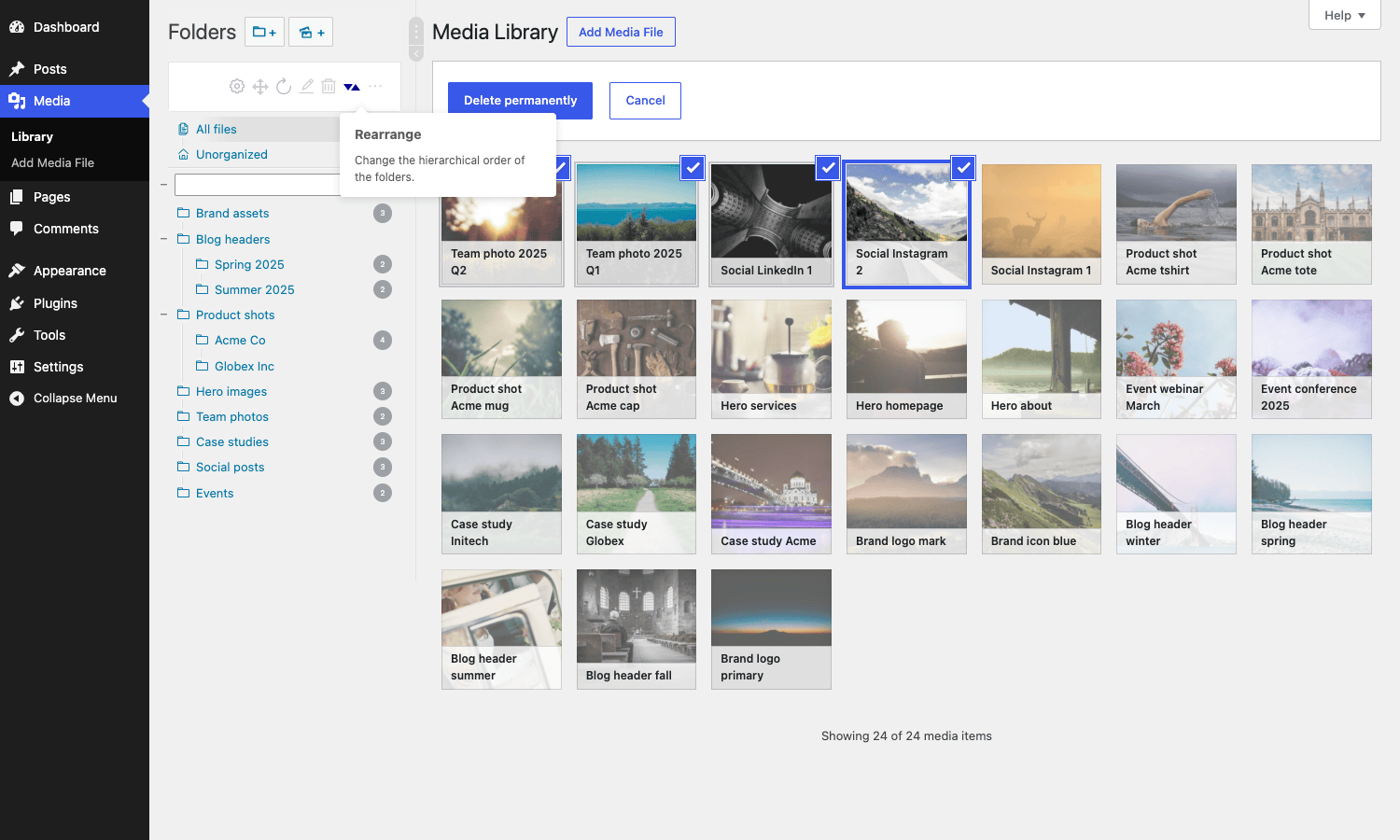
- True drag-and-drop folder tree. Click and drag an attachment from the grid view into a folder in the sidebar. The drop animation is instant, the count badge updates, Cmd+Z undoes it. Drag multiple selected attachments at once. Drag a folder onto another folder to nest it. This is the one thing that has to feel right or the whole plugin fails, and it feels right.
- Custom order per folder. Each folder has an
order_indexcolumn so you can drag attachments into the exact order you want them. Useful when a[folder-gallery]shortcode is rendering the folder on the front end. - Shortcuts (attachment in many folders). A Pro feature that creates a pivot-table reference instead of duplicating the file. Same
wp_postmeta, same WordPress attachment ID, just visible under two folders. Saves disk space and keeps edits in sync. - Default startup folder per user. Per-user, not per-site. Each editor sets their own. The setting lives in user-meta and is read by the JS bootstrap.
- Gutenberg media picker integration. The Add Media modal in the block editor shows the folder tree in the sidebar. Writers don’t have to leave the editor to find an image, which is more important than it sounds.
- Folder-meta editor. Right-click a folder, edit meta, write a note, tag it. The Pro version exposes a
folder.metaREST endpoint so you can plug in custom fields. - Auto-folder rules. Pro feature. "Any upload from this user role goes to this folder by default." Or "any upload made while editing a post in the Events category lands in the Events folder." Useful for multi-author sites.
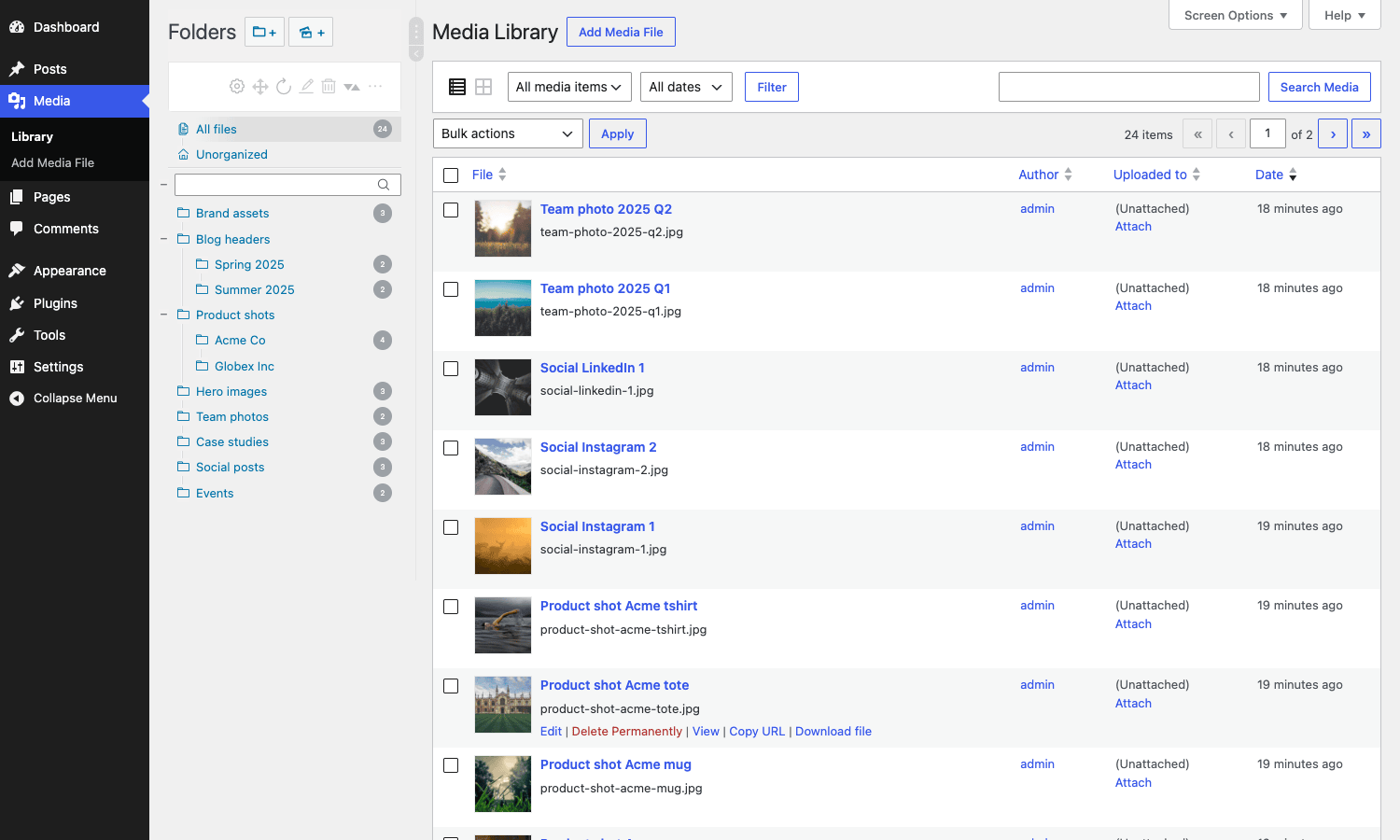
- List view AND grid view both work. Most folder plugins only style the grid. Real Media Library injects the tree into the list view too, with a column filter and per-row drag handles.
- REST API with 14 endpoints under
/wp-json/realmedialibrary/v1/. Tree, folders, attachments, bulk move, hierarchy reorder, user settings, content counts, sortables. Documented in the source with full apiDoc annotations. - WPML compatibility. Folder trees can be per-language. The plugin uses
wpml_active_languages,wpml_is_translated_post_type, andwpml_object_idfilters directly. - Real Physical Media bridge. If you also install the Real Physical Media Pro add-on (separate purchase), the virtual folder tree mirrors to the filesystem and physically moves files to match.
Installation and the first ten minutes
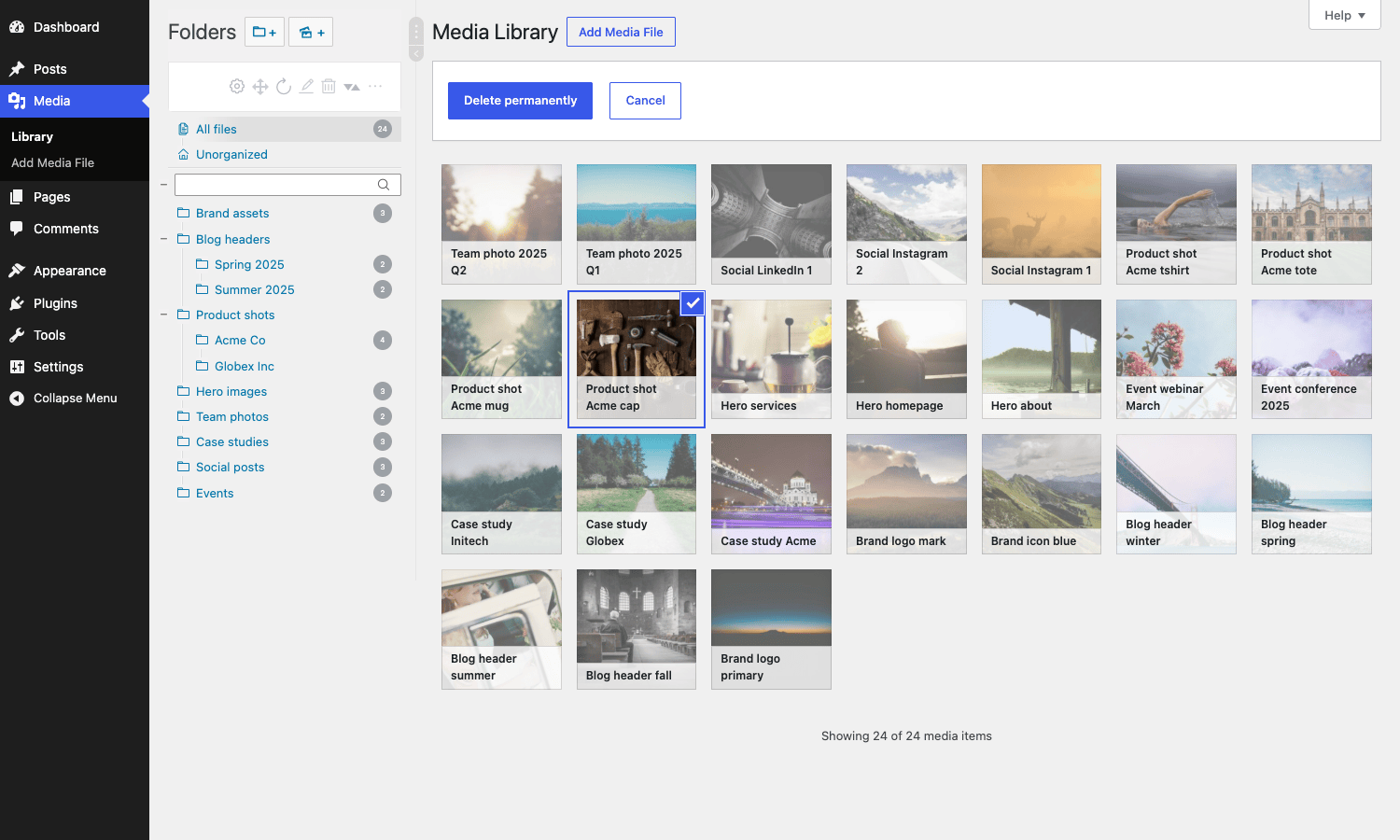
Drop the plugin zip into wp-content/plugins/, activate, done. There’s no setup wizard. You land back on the media library and there’s a new sidebar on the left with a single "Unorganized" pseudo-folder that holds everything that was already in the library.
Three things to do in the first ten minutes:
- Click the New Folder button (top-left of the sidebar) and create your top-level folders. Don’t overthink this. Start with five to seven categories that match how your team thinks:
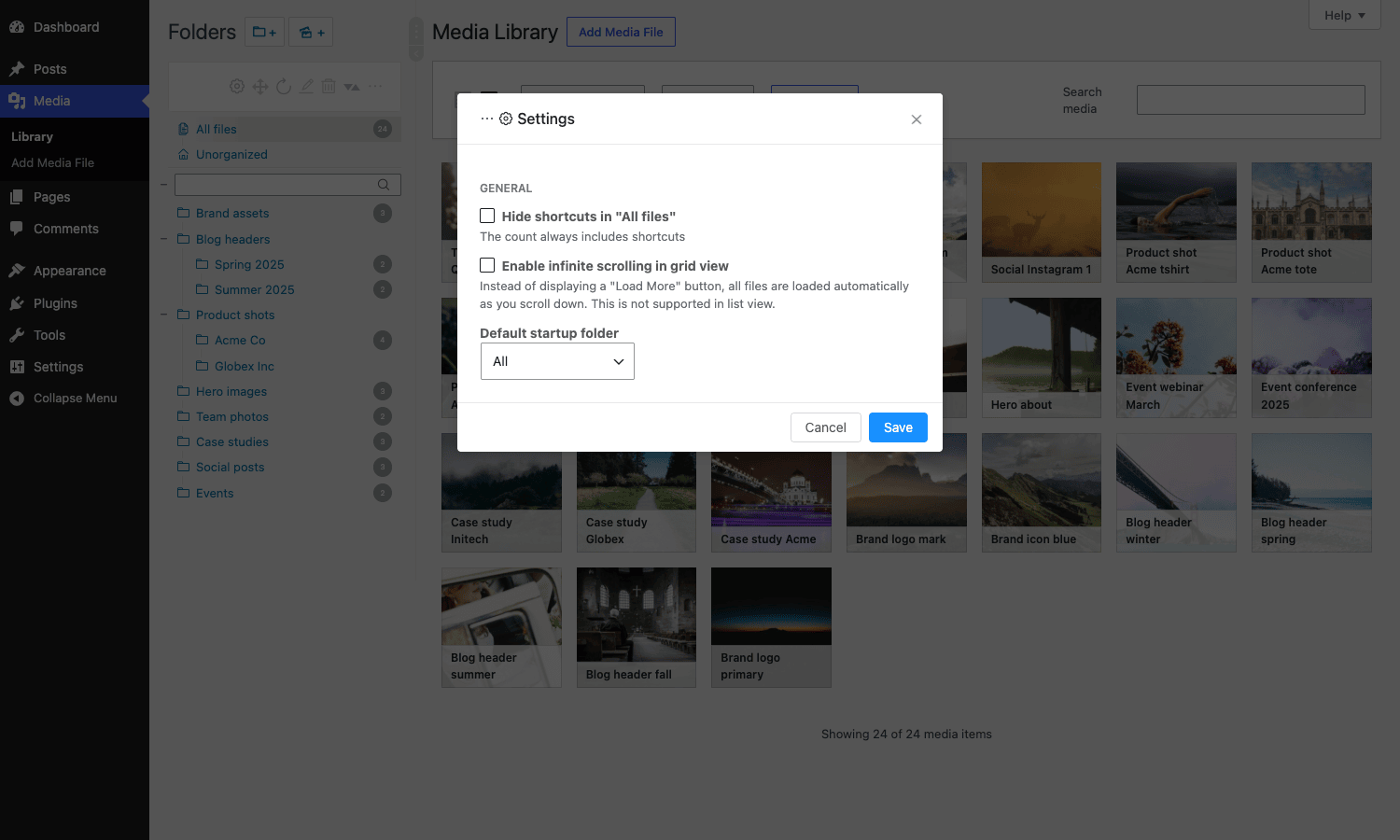
Brand assets,Blog headers,Product shots,Hero images,Team photos. You can rename, merge, and reorganize later. - Enter the settings dialog (cog icon in the toolbar). Two checkboxes matter on day one. "Enable infinite scrolling in grid view" is on by default and you probably want it. "Hide shortcuts in All files" is a personal preference. The "Default startup folder" dropdown lets each user pick where the media library opens for them.
- Drag attachments into folders. If you have under a thousand, just do it manually in bulk-select mode. If you have more, see the bulk-move workflow section below.
That’s the whole setup. There’s no API key to enter, no domain to license against, no cloud account. The license activation in the index file (the XXXXXXXX-XXXX... placeholder) is GPL-licensed keeping the plugin in "activated" state so the UI doesn’t nag for a license key on every screen.
Virtual folders vs Real Physical Media: when to upgrade and when not to
This trips up new users. There are TWO products with similar names.
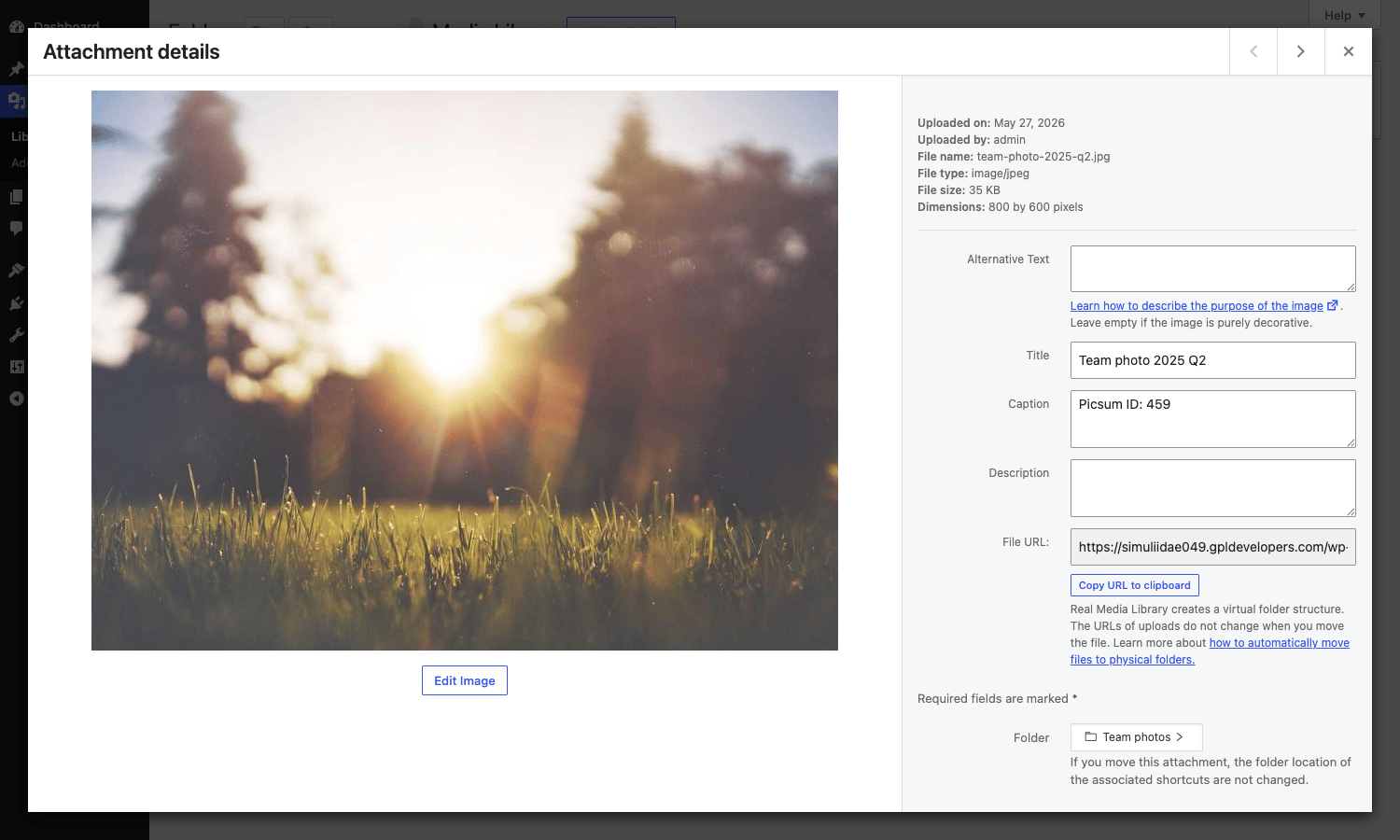
Real Media Library (this plugin) is virtual folders. The folder hierarchy is metadata in the database. The actual files on disk stay in their year/month upload directories (wp-content/uploads/2026/05/). Moving an attachment between folders changes one pivot-table row. No disk I/O. No image URL changes. Instant.
Real Physical Media (a separate Pro add-on) turns the virtual folders into physical folders on the filesystem. If you move team-photo-q1.jpg from Unorganized to Team photos, the file physically gets renamed from /wp-content/uploads/2026/05/team-photo-q1.jpg to /wp-content/uploads/team-photos/team-photo-q1.jpg. And the URL changes everywhere. The plugin updates _wp_attached_file meta, runs a search-replace on _wp_attachment_metadata, and (if you enable it) on post_content too.
When you want virtual folders only: 95% of sites. The folder tree is in the admin, your team browses it, your editors find images, and the on-disk structure stays whatever WordPress decided. URLs are stable. Backups are predictable. CDN cache keys don’t bust.
When you want Real Physical Media too: you ALSO need the on-disk structure to mirror the folder tree (compliance reasons, FTP-based workflows, designers wanting to grab files via SFTP and expecting them in client-name/2025/ folders). Or you’re feeding files into a static-site build that walks the filesystem.
Don’t enable Real Physical Media on day one. Run virtual folders for a couple of weeks first. Get comfortable with the workflow. Then, on a staging copy of the site, install Real Physical Media and watch what happens to a single attachment URL. Test that change in your CDN cache, in any hardcoded references, in any RSS feed consumers. Then plan the production rollout.
The Gutenberg media picker integration
Real Media Library does one thing in the block editor that most folder plugins don’t: it injects the folder tree into the Add Media modal. So when a writer is inside the block editor, hits Add Image, and the media picker pops up, the same folder tree they see in the standalone media library is there in the sidebar. They click Hero images, the picker filters to those three attachments, they pick one, done.
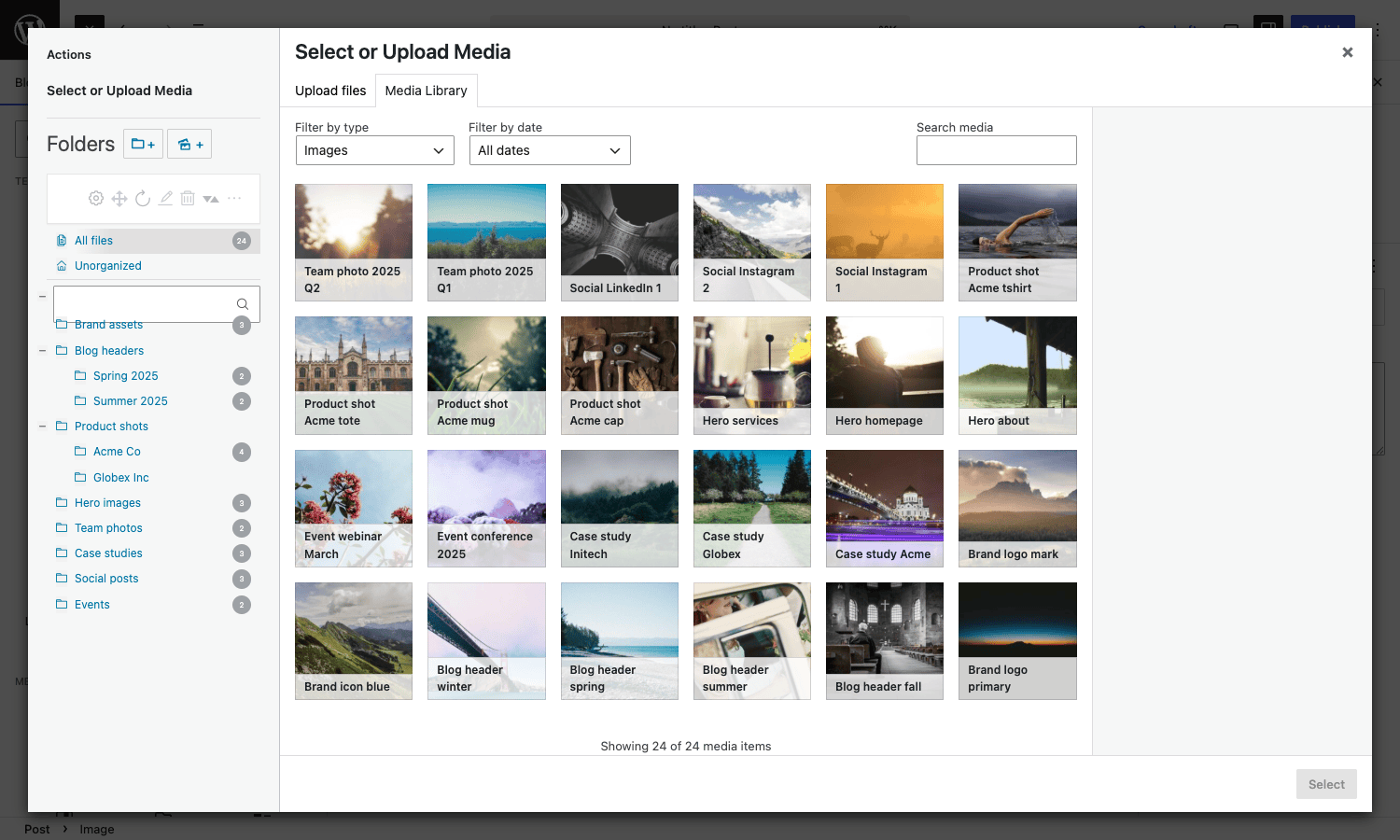
This sounds trivial. It is not. Most folder plugins only style the standalone media library and leave the block-editor picker alone, which means writers see ALL attachments in the picker even though the standalone library is neatly foldered. You end up with a workflow where the editor still has to scroll through everything. Real Media Library fixes that surface and it’s the single feature I’d point to if someone asked me what to test in the demo.
The picker integration also shows the folder counts in the sidebar, so writers can see at a glance "yeah, Blog headers has 12 images" without clicking. And it remembers the last folder the user was in, so if a writer just inserted from Hero images and opens the picker again, they land on Hero images.
The Classic Editor media modal works too, with the same tree. So does the WooCommerce product image picker. So does the Customizer’s image upload. Every place WordPress opens its media frame, the tree shows up. Including ACF Image fields, Yoast’s social image picker, Elementor’s image control, and Divi’s media modal.
Bulk-move 5,000 attachments from a flat library: a practical workflow
Here’s the situation you’ll probably hit. You install Real Media Library on an existing site with thousands of attachments already uploaded. They all sit in Unorganized. You need to sort them.
Don’t try to drag 5,000 attachments in one go. The browser will fight you and the AJAX batch endpoint has a server-time-limit. Do this instead.
- Filter the media library by a sensible bucket first. Date is the easiest. Filter to "October 2024" first. That’s maybe 300 attachments.
- Enter bulk-select mode (the top toolbar in grid view). Click each attachment that should go to the same folder. Or use Shift+Click to select a range. Or "select all" if all 300 belong in one folder.
- Drag the selected batch into the target folder in the sidebar. Watch the count badge update. The "Moved 47 attachments" toast confirms.
- Repeat per month-bucket. Boring but predictable. A site with 5,000 attachments takes maybe two hours of mostly-clicking.
If you’re a developer, the faster path is WP-CLI plus a small custom script. Real Media Library doesn’t ship WP-CLI commands directly, but it exposes wp_rml_move( $folder_id, $attachment_ids ) as a global helper function. You can write a one-shot script that batches WP_Query results into folders by author or by post-attached-to or by any filter you want.
// Bulk-move all attachments uploaded by user_id 5 to folder_id 12
$ids = get_posts([
 'post_type' => 'attachment',
 'post_status' => 'inherit',
 'posts_per_page' => -1,
 'author' => 5,
 'fields' => 'ids',
]);

if ( function_exists( 'wp_rml_move' ) ) {
 wp_rml_move( 12, $ids );
}
Run that via wp eval-file move-script.php and you’re done in seconds. Don’t try to call wp_rml_move with 50,000 IDs at once; the underlying SQL does an IN (...) clause and MySQL has a max_allowed_packet cap. Batch in chunks of 1,000.
Don’t enable Real Physical Media on a production site without a backup
This deserves a section by itself because I’ve seen it go wrong twice.
Real Physical Media renames files on disk to match folder hierarchy. When you move hero-homepage.jpg from Unorganized to Hero images, the file physically moves from /wp-content/uploads/2026/05/hero-homepage.jpg to /wp-content/uploads/hero-images/hero-homepage.jpg. That’s a URL change.
WordPress is generally fine with this. It updates _wp_attached_file post meta, regenerates the metadata array, and the function wp_get_attachment_url() returns the new URL everywhere. The block editor re-reads from the attachment ID, so blocks update automatically.
What breaks: hardcoded URLs. Specifically:
- Image URLs hardcoded in post content as raw
<img src="...">(not through a block or shortcode). The block editor stores image references both as block attributes (which update) AND as raw HTML inside the block (which doesn’t auto-update). After moving a file you might need to run awp search-replaceon post_content to fix old URLs. - CSS background images pointing at
/wp-content/uploads/2026/05/hero-homepage.jpgfrom a theme stylesheet or customizer CSS. Those won’t update because they live outside WordPress’s media metadata. - CDN caches. Cloudflare/Bunny/Fastly are caching the old URL with a long max-age. Even after the physical move, visitors get the cached 404 for a while.
- External feeds. RSS subscribers, image-syndication services, Open Graph scrapers that already cached the old URL will keep referring to it.
The Pro setting "Update URLs in post content automatically" mitigates (1) but doesn’t touch (2) (3) (4). You need to actively plan for those.
Before enabling Real Physical Media on production:
- Take a full backup. Files AND database.
- Run on staging first. Clone the production site to a staging URL, enable Real Physical Media, watch what changes.
- Run a search-replace on post_content as a separate WP-CLI step:
wp search-replace 'old-path' 'new-path' wp_posts --dry-runfirst, then without--dry-run. - Purge your CDN cache after the rollout.
- Plan it for low-traffic window.
If any of those steps sounds like a problem, just don’t enable Real Physical Media. Virtual folders solve the discovery problem perfectly well without touching files on disk.
Developer reference: hooks, filters, REST
Real Media Library exposes a deep developer surface. Here’s the cheat sheet.
Action hooks (do_action)
RML/Activatefires when the plugin is activated.RML/Folder/Created(args:$folder_id, $parent_id) fires after a new folder is created.RML/Folder/Predeletion(args:$folder_id) fires before folder deletion. Returnfalsefrom a filter to prevent the delete.RML/Folder/Deleted(args:$folder_id) fires after a folder is deleted.RML/Folder/RenameandRML/Folder/Renamed(args:$folder_id, $new_name, $old_name) fire around a rename.RML/Folder/OrderBy(args:$folder_id, $orderby) fires when a folder’s sort order is applied.RML/Item/Move,RML/Item/Moved,RML/Item/MoveFinished(args:$attachment_id, $to_folder_id, $from_folder_id) fire around a single attachment move.RML/Item/DragDrop(args:$attachment_ids, $to_folder_id) fires after a drag-and-drop completes.RML/Count/UpdateandRML/Count/Resetfire when folder counts are recalculated.RML/Creatable/Registeris where you register a custom folder type (think "this folder is a collection, not a regular folder").
Example: send a Slack notification every time a new folder is created.
add_action( 'RML/Folder/Created', function( $folder_id, $parent_id ) {
 $folder_name = wp_rml_get_object_by_id( $folder_id )->getName();
 $message = sprintf( 'New media folder created: %s', $folder_name );
 wp_remote_post( 'https://hooks.slack.com/services/XXX/YYY/ZZZ', [
 'body' => wp_json_encode([ 'text' => $message ]),
 'headers' => [ 'Content-Type' => 'application/json' ],
 ]);
}, 10, 2 );
Filter hooks (apply_filters)
The filter list is long. The ones I’ve actually reached for:
RML/Tree/Parsedlets you modify the parsed folder tree before render. Useful for hiding folders from non-admin users.RML/Tree/CountAttachmentslets you adjust per-folder counts (e.g. only count published attachments).RML/Folder/QueryArgslets you modify the underlying SQL clause when fetching folder contents.RML/Validate/Create,RML/Validate/Delete,RML/Validate/Renamelet you block operations conditionally.RML/User/Settings/ContentandRML/User/Settings/Saveextend the per-user settings dialog with custom fields.RML/Localizemodifies the JS localized data sent to the admin React app.
Example: hide a "Private" folder from users who aren’t admins.
add_filter( 'RML/Tree/Parsed', function( $tree ) {
 if ( current_user_can( 'manage_options' ) ) {
 return $tree;
 }
 return array_filter( $tree, function( $node ) {
 return $node['name']!== 'Private';
 });
});
Example: prevent deleting any folder whose name starts with [locked].
add_filter( 'RML/Validate/Delete', function( $result, $folder_id ) {
 $folder = wp_rml_get_object_by_id( $folder_id );
 if ( $folder && strpos( $folder->getName(), '[locked]' ) === 0 ) {
 return new WP_Error( 'rml_locked', 'This folder is locked and cannot be deleted.' );
 }
 return $result;
}, 10, 2 );
REST endpoints
All under /wp-json/realmedialibrary/v1/. The most useful ones:
GET /treereturns the full folder tree as a nested JSON structure (id, name, parent, children, count).POST /folderscreates a folder. Body:{ name: "Foo", parent: -1, type: 0 }.PUT /folders/{id}renames or updates a folder.DELETE /folders/{id}deletes a folder.PUT /hierarchy/{id}moves a folder within the tree.PUT /attachments/{id}assigns one attachment to a folder.PUT /attachments/bulk/movebulk-moves many attachments. Body:{ ids: [1,2,3], to: 5, isCopy: false }. Note the parameter isto, notfid.GET /folders/content/countsreturns the count per folder ID.GET /usersettings/PUT /usersettingsreads/writes per-user RML preferences.
Auth is the standard WordPress REST API nonce (X-WP-Nonce header). The endpoints check the upload_files capability, so contributors can’t move other people’s attachments by guessing IDs.
Example: a quick fetch from the WordPress admin JS console that returns the tree.
fetch( '/wp-json/realmedialibrary/v1/tree', {
 credentials: 'include',
 headers: { 'X-WP-Nonce': rmlOpts.restNonce }
}).then(r => r.json()).then(console.log);
Helper functions
These are global PHP functions defined by the plugin:
wp_rml_create( $name, $parent_id = -1, $type = 0 )creates a folder.wp_rml_get_object_by_id( $id )returns a folder object.wp_rml_get_by_absolute_path( $path )returns a folder by its slash-separated path (e.g.'product-shots/acme-co').wp_rml_move( $folder_id, $attachment_ids, $isShortcut = false, $isCopy = false )is the bulk-move primitive.wp_rml_get_attachment_folder( $attachment_id )returns the folder an attachment is in.
These are stable across versions and what the rest of the plugin uses internally too.
What Real Media Library doesn’t do (and when you reach for a DAM instead)
Folder plugins are not Digital Asset Management systems. Here’s where Real Media Library stops.
- No asset versioning. You can’t have "logo-v1.svg" and "logo-v2.svg" linked as versions of the same asset. They’re just two separate attachments.
- No keyword tags or metadata search. Folders are the only categorization. There’s no "tag this asset with
winter, blue, heroand find all winter+blue assets". A proper DAM does. - No approval workflow. Anyone with
upload_filescapability can move anything. No "this asset is pending review by the brand manager" workflow. - No expiry or licensing tracking. If an image is licensed for a year, Real Media Library won’t remind you when the license is up.
- No usage tracking across the site. It won’t tell you "this image is used on 14 posts and 3 widgets". The native
wp media regeneratedoes some of this, plugins like Media Cleaner do more, but Real Media Library is folder-only. - No external storage. Files still live on your WordPress server (or wherever your
WP_CONTENT_DIRis). No S3 sync, no Google Drive integration. (You can pair it with WP Offload Media or similar, and the virtual folder tree continues to work.)
When you need those things you reach for a real DAM (Bynder, Brandfolder, Cloudinary’s MediaLibrary) and use its WordPress plugin to surface assets in the editor. Real Media Library is the right answer for "WordPress is my DAM and the team is small" cases. For 50,000 assets across multiple sites with brand-approval workflows, it’s not the right tool.
The Devowl.io product family
Worth knowing because the licensing gets confusing fast. Devowl.io (the German team behind this plugin) sells:
- Real Media Library (this plugin) is virtual folders for media.
- Real Physical Media Pro adds filesystem mirroring on top of Real Media Library.
- Real Thumbnail Generator Pro regenerates thumbnails per-folder. Useful when you change image sizes in your theme and don’t want to regenerate everything.
- Real Cookie Banner is a separate product, a GDPR-style cookie consent banner. Their flagship privacy tool.
- Real Category Library is a folder-style organizer for posts (not media). Same UI metaphor, applied to the posts editor.
Each is a separate purchase. There’s no bundle that includes all of them at a discount, which is a small irritation. Figuring out which one you need takes a Wiki crawl on devowl.io. For most sites, you want Real Media Library only. The others are situational.
Performance, compatibility, and the gotchas
Honest performance notes after running this on a few real sites.
Folder-tree initial render takes 50-150ms on a library with 50 folders. Past 500 folders it slows to 300-500ms because the tree component renders all nodes (no virtualization). I haven’t hit a site with that many folders in practice; if you have, you might be over-foldering.
Bulk-move 1,000 attachments at once takes 4-8 seconds on a typical shared host. The AJAX call goes to one endpoint and does a single UPDATE query, so it scales linearly with the number of IDs. Past 5,000 in one call I’d batch.
Initial admin load adds ~200-300ms because of the React bundle the plugin loads. Not huge, noticeable on slow machines. The bundle is code-split by route so the block editor doesn’t load the standalone-library code unless you open the picker.
Compatibility:
- WooCommerce: works. Product image picker shows the tree.
- ACF: works on Image fields, Gallery fields, File fields.
- Yoast SEO: works. The social image picker shows the tree.
- Elementor: works. Image controls show the tree.
- Divi Builder: works since the Divi 5 fix in mid-2026. Earlier Divi 5 frontend-editor builds had a bug where the tree didn’t render in the frontend modal; that’s fixed in current builds.
- WPML: works. You can have a different folder tree per language if you want, though most teams use one shared tree.
- Polylang: works.
- FiboSearch: works since the recent compatibility fix.
- Multisite: works. Folders are per-site by default. You can’t share a folder tree across the network out of the box.
Gotchas I’ve hit:
- The "Order Files" custom-order feature only works site-wide, not per-folder. The toggle is global. Surprising omission.
- After deleting a top-level folder with children, the children become orphaned root folders. They don’t get auto-deleted. You have to clean them up.
- Bulk-uploading 100 files at once and then bulk-moving them sometimes fails the move with a "folder not found" error. The fix is to wait 2-3 seconds after the upload finishes before initiating the move. I think it’s a race with the count-recalculation.
- The "Reset" tools under settings (Reset order, Reset count, Reset slugs) are destructive. Reset Order specifically wipes all custom orders. There’s a confirm dialog but it’s easy to misclick.
Pricing and licensing
Real Media Library is sold from devowl.io directly. There’s also a free Lite version on the WordPress.org plugin repository (slug real-media-library-lite) which gives you the folder tree, drag-and-drop, and Gutenberg integration. The Pro tiers add custom order, shortcuts, the [folder-gallery] shortcode, Auto-folder rules, and multisite support. Pricing changes over time so I won’t quote numbers, but it’s an annual license per-site or per-multisite.
The Pro licensing is multi-tiered in a way that gets confusing fast. Real Media Library Pro is one product. Real Physical Media Pro is a separate product you add on. Real Thumbnail Generator Pro is a third. Pricing each independently means a team that wants all three pays three separate annual fees. Figuring out which you need is a 10-minute Wiki crawl on devowl.io because the marketing copy overlaps a lot.
Real Media Library is on GPL Times. One download, the full Pro features, no per-site activation server pinging your install. Drop it in /wp-content/plugins/, activate, and the folder sidebar shows up. Use the same canonical link to point internal users to a working build for staging or sandboxing.
FAQ
Why doesn’t my block editor show the folder tree in the Add Media modal?
First check the plugin is active on the same site. Then verify the user has the upload_files capability (contributors don’t by default, editors and authors do). If both are true, clear your browser cache; the React bundle is aggressively cached and an old version may not include the picker integration. If the tree still doesn’t show, check the browser console for JS errors. Real Media Library’s React tree fails closed: any error in the bundle hides the sidebar.
Can I move physical files on disk too, not just virtual folders?
Yes, but only with the separate Real Physical Media Pro add-on. Real Media Library by itself is virtual folders only. The files stay in /wp-content/uploads/YYYY/MM/. Don’t enable Real Physical Media on production without a backup and a search-replace plan; see the dedicated section above.
Does Real Media Library work with WP-CLI?
It doesn’t register dedicated WP-CLI commands. But it exposes the helper functions (wp_rml_create, wp_rml_move, wp_rml_get_object_by_id) as globals, so you can use them inside wp eval or wp eval-file. The REST API is also fully usable via wp rest if you prefer that path. For bulk operations on big libraries, wp eval-file is the way to go.
How does it handle multisite, per-site or network-wide folders?
Per-site by default. Each WordPress install in the network has its own wp_realmedialibrary tables (prefixed with the blog ID). You can’t share a folder tree across the network out of the box. If you need a shared tree, you’re outside what the plugin supports natively and need a custom hook.
Why is my folder tree slow on a media library with 50,000 attachments?
The tree itself is fine; it’s the count-per-folder query that gets slow. Real Media Library caches counts in transients and recalculates them on writes (move, delete, etc.). If a transient expires during a heavy page load, the recalculation can spike. Two options: increase transient lifetime via the RML/Tree/CountAttachments filter, or run Reset Count under settings, which forces a one-shot full recount and warms the cache. Past 50k attachments I’d also consider whether you really need 200 folders or whether 20 broader folders would do.
Does it work with WP Offload Media / S3?
Yes. Real Media Library is virtual folders only, so it doesn’t care where the actual files live. Pair it with WP Smush Pro for compression, WP Offload Media for S3 sync, and the folder tree continues to work because it’s metadata-only.
Can I export the folder tree to import on another site?
The Pro version has an Export/Import panel under settings that produces a JSON export of the folder structure (and the attachment-to-folder mapping). On the destination site, import the JSON and the tree is recreated. The actual attachment files need to migrate separately (via wp media import or any standard WP migration tool); Real Media Library only handles the structure.
What happens if I deactivate the plugin?
The custom tables stay. The folders, the pivot table, the metadata, all preserved. The UI disappears. Reactivating restores everything. If you uninstall (delete, not just deactivate), the uninstall.php script removes the tables and you lose the folder structure. The actual attachments are not touched in either case.
Final thoughts
Real Media Library is the WordPress folder plugin I keep installing. The drag-and-drop feels right, the Gutenberg picker integration is the killer feature, the developer hooks are deep, and the German team behind it ships small bug fixes weekly. The Pro licensing is more confusing than it needs to be and the "Order Files" site-wide-only design is a real omission, but those are minor next to the things it gets right.
If you’re running a content site with more than a few hundred attachments and your writers spend any time hunting for images, this plugin pays back the install time within a week. If you’re under 500 attachments, the free Lite version is probably enough. If you need filesystem mirroring, the Pro plus Real Physical Media combo is the path, but plan that rollout carefully.
The folder model is virtual, the moves are instant, the architecture is clean, and after running it on three production sites for over a year I haven’t had to debug a single data-loss issue. That’s a high bar most WordPress plugins don’t clear.