

I’ve shipped a lot of WordPress forms in the last decade. Quote forms for design agencies with five conditional branches. Newsletter signups on publisher sites where Mailchimp would not stop double-opting people. Wholesale-account applications on WooCommerce stores. An enterprise build where the form had to hand-off to an on-prem CRM over REST. And then the usual contact pages with three fields and a submit button.
I keep picking my form plugin for each job the same way: who pays the smallest tax for the thing this client actually needs. Gravity Forms is solid but the admin loads slow on busy servers and the add-on grid is overwhelming for clients I hand off to. WPForms Pro has the prettiest editor in the category but it feels locked into Awesome Motive’s upsell ladder. Formidable Forms goes deep but the learning curve punishes anyone who just wants a quote form. Fluent Forms is clean and fast but you spend the rest of your life seeing "Fluent" branded everywhere in the admin. And Contact Form 7 is fine until someone asks for conditional logic and you write a 30-line shortcode that no one on the team will ever touch again.
Quform sits in a corner of the market that gets less coverage. It’s a CodeCanyon-era plugin from a small UK studio called ThemeCatcher, built by Ross Heyes, and it’s been quietly shipping releases for over a decade. The angle I keep coming back to: the entire form is a tree of nestable elements (Field inside Column inside Row inside Group inside Page), not a flat list of fields. That sounds nerdy, and it is, but it’s also the reason multi-step forms with conditional groups feel sane to build in Quform when they feel like a war in some other plugins.
This post is a long walk through what Quform does, where it earns its place, and where I’d reach for something else instead. Whether you’re trying to pick a form plugin for an agency project or you’re a developer who wants the hook map before committing, by the end you’ll know exactly what you’re getting.
Table of Contents
- What is Quform?
- Why the element tree matters more than it sounds
- Key features at a glance
- Installation and the first hour
- Building a multi-step form with conditional logic: a real walkthrough
- Notifications, confirmations, and email templates
- The entries system: where Quform quietly wins
- Quform vs Gravity Forms vs WPForms vs Formidable: when each one wins
- Developer reference: hooks, filters, shortcodes, JS API
- Quform’s JS API: the under-documented escape hatch
- Anti-patterns: things I see people do that bite them later
- The CodeCanyon licensing question: is pay-once-own-forever actually a win?
- Performance, compatibility, and gotchas
- What Quform does not ship (and when you reach for Gravity Forms anyway)
- Pricing and licensing
- FAQ
- Final thoughts
What is Quform?
Quform is a premium WordPress form builder plugin from ThemeCatcher, a small UK shop run by Ross Heyes. It’s been on CodeCanyon since the early 2010s and has quietly climbed into the "top form builders by sales" list there. It does the things you expect a form builder to do: lets you build forms in a drag-and-drop admin, render them on the front end via a shortcode ([quform id="1"]), validate submissions, send notification emails, and store entries in the database for you to review later.
The product description on the plugin’s Plugin: header is one line: "The Quform form builder makes it easy to build forms in WordPress." That’s it. No mission statement. No "the world’s best". That fits ThemeCatcher’s whole vibe.
What’s distinctive: instead of a flat list of fields you drop into a form, Quform’s editor is a tree. Every element can contain other elements. A Page contains Groups, Groups contain Rows, Rows contain Columns, Columns contain Fields. That tree maps almost 1-to-1 to the HTML output and to the conditional-logic model. Once you internalize it, you stop fighting your form plugin every time a client asks for "can we make this two columns on desktop, one on mobile, and only show this group when they pick option B".
The plugin ships with the standard set of field types: Text, Textarea, Email, Select, Checkboxes, Radio Buttons, Multi Select, File Upload, Date, Time, Name, Password, HTML, Hidden, CAPTCHA, reCAPTCHA, Honeypot, Submit, plus the structural ones (Page, Group, Row, Column). The list looks short next to Gravity Forms’ 30+ types, but in practice you’ll use 8 of these on 90 percent of forms and the structural elements do more work than they look like they should.
Quform on GPL Times That’s the easiest way to get a working copy on a staging site if you want to walk through this article hands-on.
Why the element tree matters more than it sounds
Most WordPress form builders give you a flat list of fields. You drag a field in, you drag another field in, you arrange them top to bottom. Layout (two columns, three columns) usually comes from a separate setting on the field itself, like "field width: 1/2".
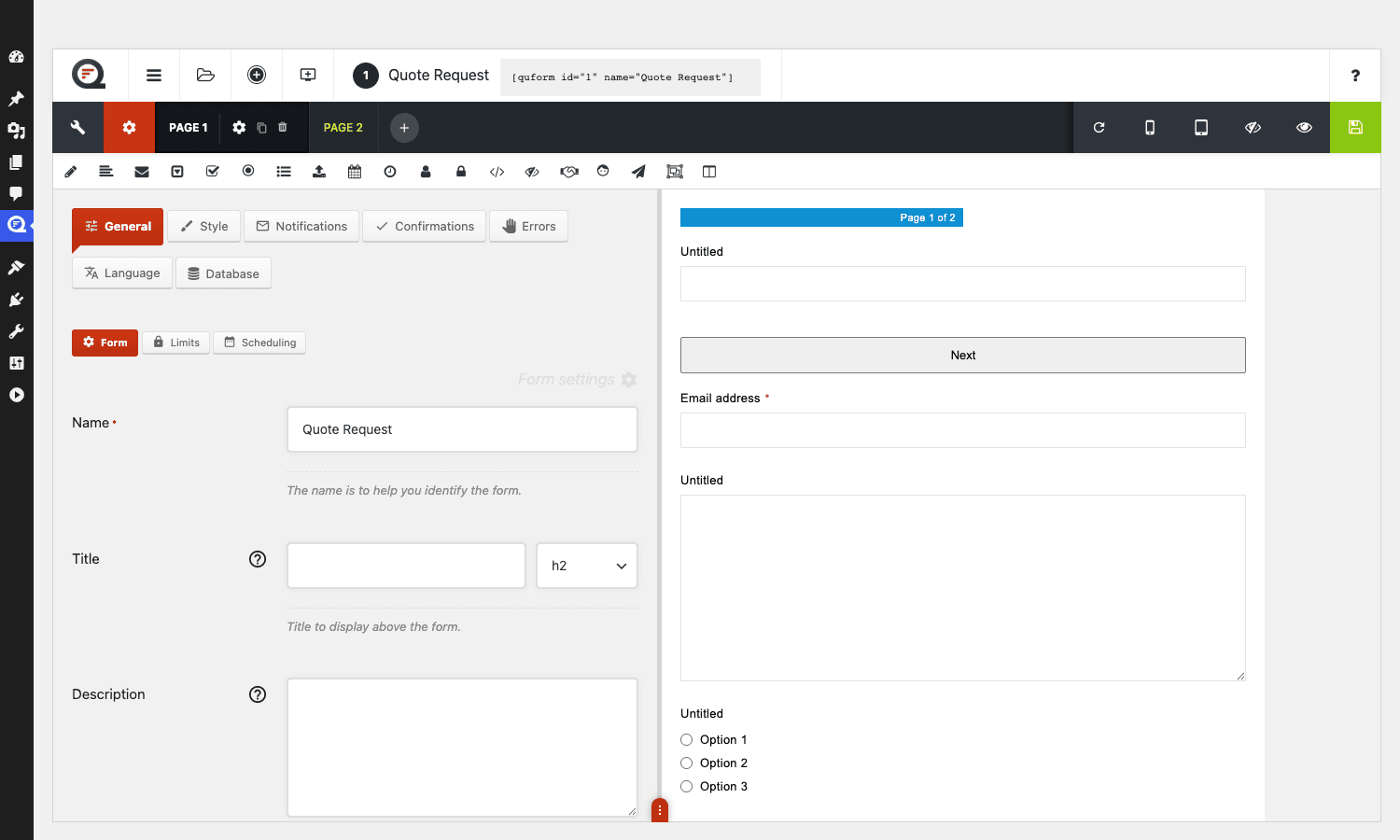
Quform doesn’t work like that. The structural elements (Group, Row, Column) are themselves elements you drag in, and you nest fields inside them. So a typical "Name + Email side by side, then Message below" form is built as:
Page
 Row
 Column (1/2)
 Name
 Column (1/2)
 Email
 Textarea (Message)
 Submit
You can see this in the editor: every element has its own card with a drag handle, a settings cog, and a duplicate button. The card you drop another card into becomes its parent.
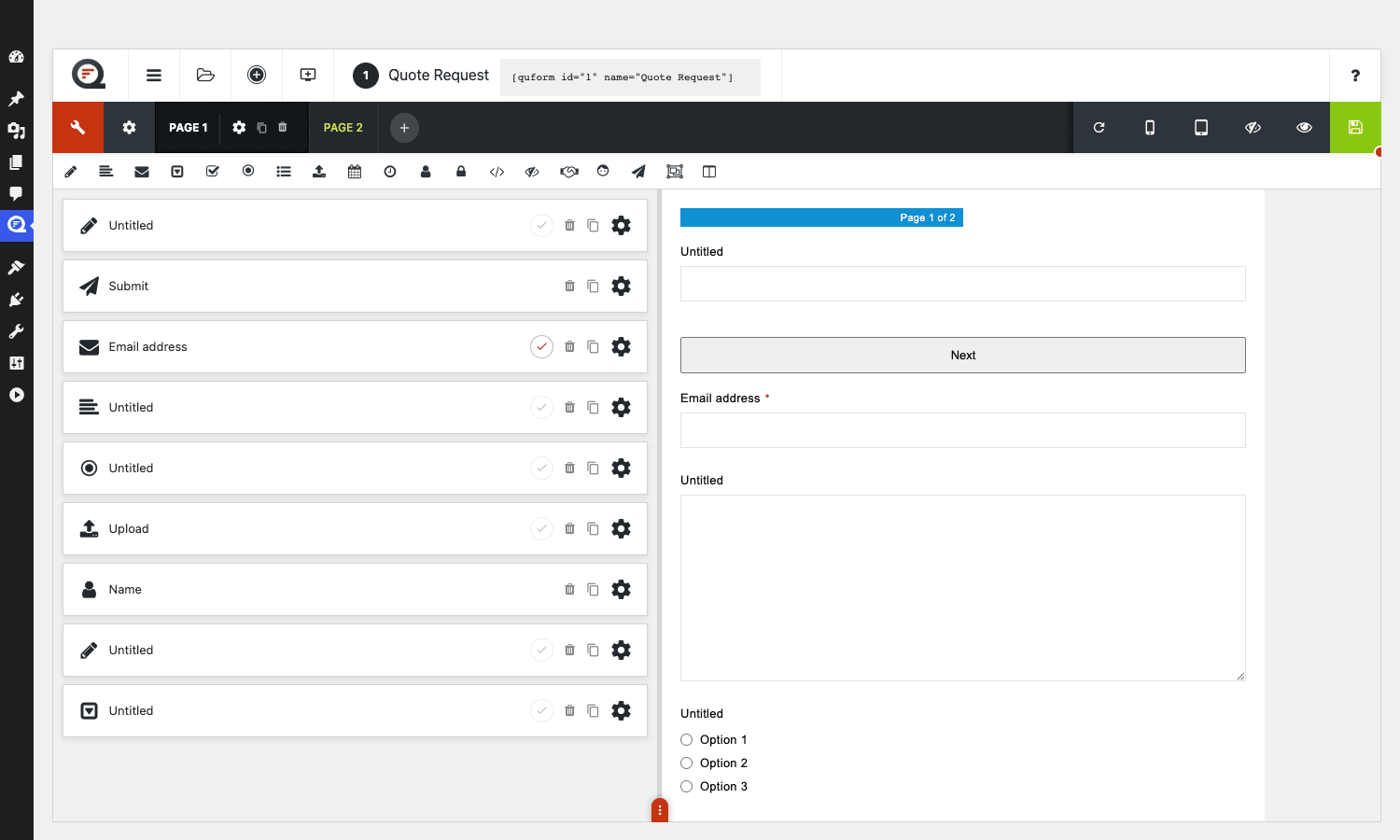
Why does this matter? Three reasons.
Conditional logic is per-element, and elements include containers. Want to show a whole "Branding details" section only if "Project type = Branding"? You wrap the section in a Group, attach the logic to the Group, and every field inside is hidden or shown together. In flat-list builders you usually have to attach the same logic to every individual field.
Multi-step is just a Page element. Adding a second page is literally clicking the "+" next to the page tabs. There’s no separate "enable multi-step" toggle that rewires the whole form. A page is an element. Two pages is two elements.
Layout is structural, not a per-field property. Width 1/2 + 1/2 = a Row with two Columns. Three across = three Columns. The output mirrors the editor.
The cost: you have to think about your form structure before you start dragging. Beginners sometimes find themselves with seven fields in seven nested Groups for no reason because they kept dropping things into the wrong card. That’s a real learning curve. But the ceiling is much higher.
Key features at a glance
Rather than dump the marketing list, here are the parts that move the needle on a real WordPress site.
- Element-tree builder. Page, Group, Row, Column, Field. Nest however you want.
- Multi-step forms. Add a new Page element, get a new step. With a progress bar by default.
- Conditional logic. Show / hide rules per element, including containers. Multiple rules with AND / OR.
- File uploads with drag-and-drop, multi-file, AJAX upload, MIME filtering, max-size and max-count limits.
- reCAPTCHA v2 / v3 and Cloudflare Turnstile built-in. Plus an old-school image CAPTCHA and a Honeypot field for low-stakes spam.
- Save & Resume for long forms. Lets users save their progress and return via an emailed link.
- Entry limits and scheduling. Stop accepting submissions after N entries or after a specific date.
- Database storage of entries with a real schema. More on this below because it’s underrated.
- Email notifications with token replacement (
{element|short_label}), multiple notifications per form, conditional logic per notification. - Confirmation messages and redirects. Per-form or conditional.
- JS API with per-element callbacks and lifecycle events. The hidden weapon.
- PHP hooks and filters for almost every meaningful step of the request.
- Bootstrap-friendly themes. A handful of out-of-the-box styles (light, dark, minimal, hollow, underlined, simple, react, bootstrap).
- Entries CSV export and per-entry edit / delete / mark-as-read.
- Form import / export as JSON. Useful for moving forms between staging and prod.
- Multilingual via WPML / Polylang. Forms are translatable via a string-translation flow.
What it doesn’t ship out of the box: a Stripe payment field, native CRM connectors (Mailchimp, HubSpot, ActiveCampaign), partial entries / abandoned-cart capture as a first-class feature, a "form analytics" dashboard like the one Gravity Forms ships. Some of that you can build via the JS API and wp_mail hooks. Some of it pushes you toward Gravity Forms or WPForms. I’ll come back to it.
Installation and the first hour
Installation is the boring part. Upload the plugin zip via Plugins -> Add Plugin -> Upload Plugin, activate, and Quform creates its five custom database tables (wp_quform_forms, wp_quform_entries, wp_quform_entry_data, wp_quform_entry_labels, wp_quform_entry_entry_labels) and a sessions table for Save & Resume. No "setup wizard" the way Yoast or WPForms ships one, which I’m secretly grateful for.
Your first hour with Quform should be this:
- Forms -> Add New. Name your form. You land in the editor.
- Click each of the element-type icons in the toolbar to read the tooltip and understand what’s available. There are 19 of them. Don’t drag yet.
- Drag a Row in, then drop two Columns inside it. Resize the columns (1/2 + 1/2). This is your spatial grammar.
- Settings -> Global tab. Set the default "from" email address to something on the site’s domain, otherwise notifications will land in spam from a
wordpress@yourdomain.comsender.
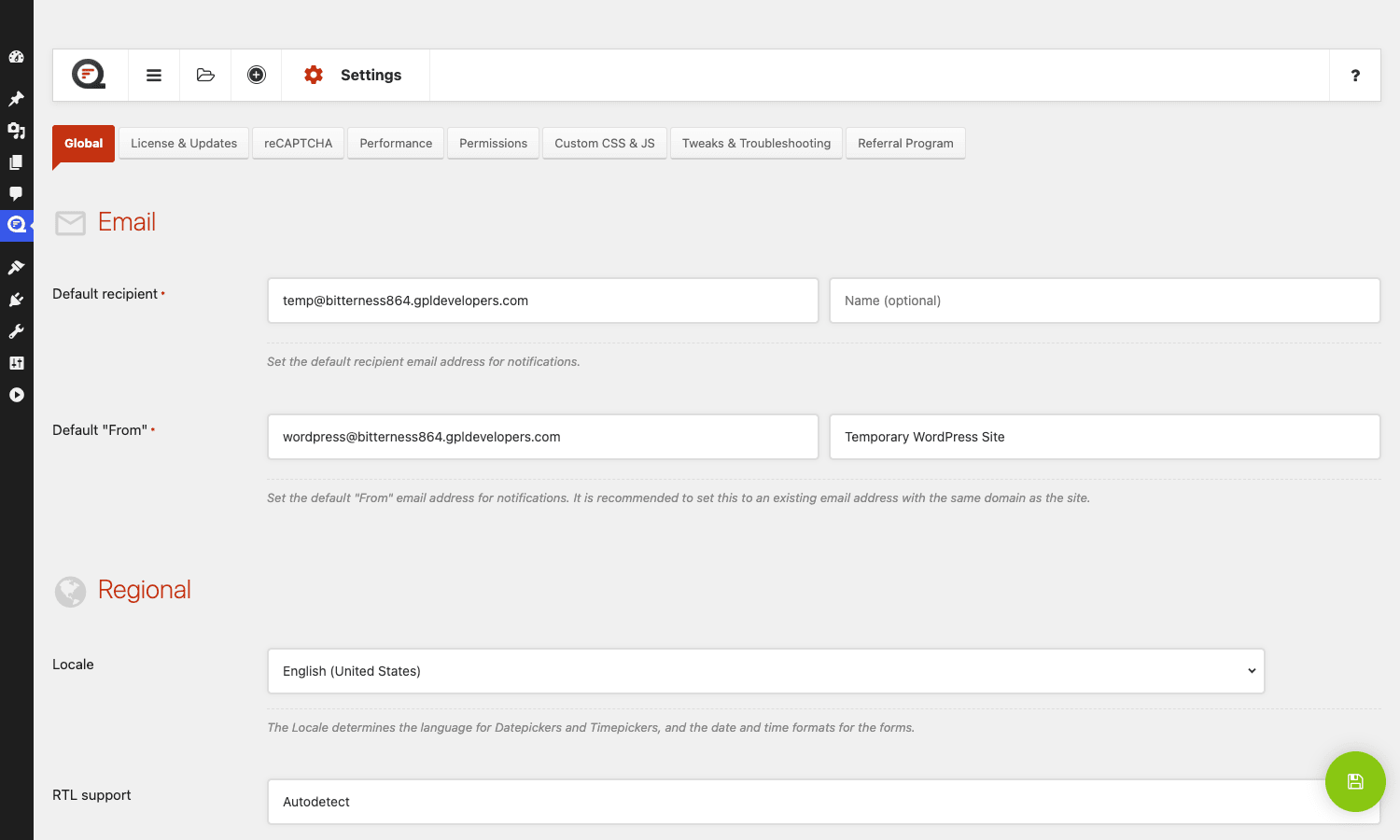
- Settings -> reCAPTCHA tab. Drop in your site key and secret key. Without this, the reCAPTCHA field can’t render.
- Settings -> Permissions tab. If you’re handing this to a non-admin user, grant them the
quform_view_entriescapability. Quform ships its own capabilities map; it doesn’t piggyback onmanage_options. - Build one throwaway test form. Save it, drop the shortcode on a draft page, submit it once, check the entry shows up under Forms -> Entries.
After this hour you’ll have the muscle memory to actually start building real forms.
Building a multi-step form with conditional logic: a real walkthrough
Let me walk through a real form I’ve shipped to two agency clients now. It’s a "Request a Quote" form for a web design / branding studio with three pages: contact details, project scope, project description. With one conditional rule: if the visitor picks "Branding" as project type, show a "Branding details" group on page 2 with extra fields.
Page 1 is contact details. Drop a Row with two Columns, put a Name in the first column and an Email in the second. Below the Row, drop a Text field for "Company name" and another for "Phone" (or a Name+Phone combo Group, depending on how strict you want the data).
Page 2 is project scope. Add a new Page (click the "+" next to the Page 1 tab). On Page 2, drop a Radio field for "Project type" with four options (Website, Web App, Branding, Other). Below it, drop a Select field for "Budget range" and another for "Timeline".
Now the conditional bit. Drop a Group element on Page 2 below the existing fields. Inside the Group, drop two Text fields ("Brand name preferences", "Existing brand assets URL"). Click the Group’s settings cog, switch to the Logic tab, toggle Enable conditional logic, and add a rule: "Show this field if Project type is Branding".
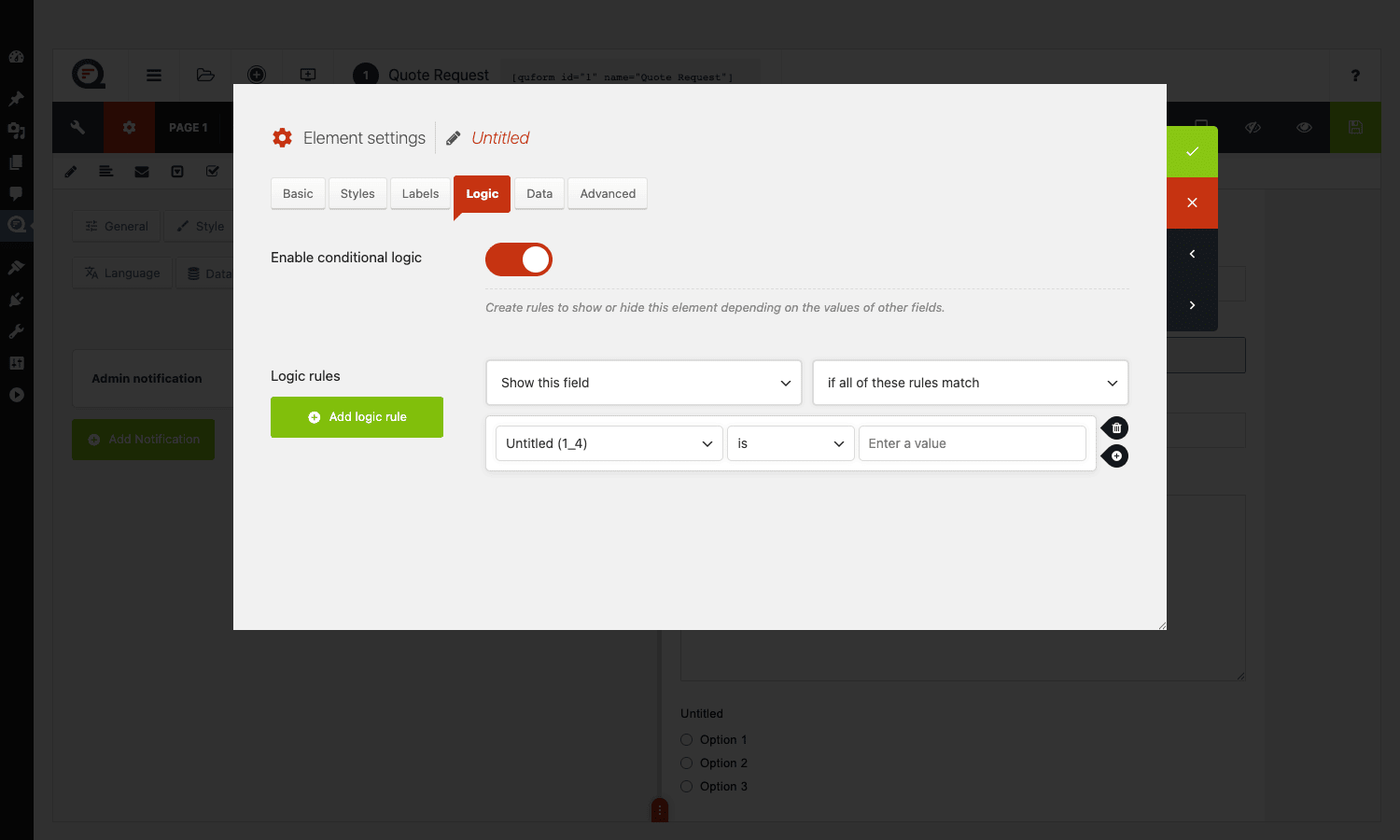
The whole Group, including both fields inside it, will now only render when the visitor picks Branding. The fields stay validated even when hidden (Quform unsets the values from the submission if the parent is hidden), so your entry data stays clean.
Page 3 is project description. Drop a Textarea ("Tell us about your project"), a File Upload ("Attach logos, wireframes, anything visual"), a reCAPTCHA, and that’s it. The Submit element is already there by default at the end of the form.
Save the form. Drop the shortcode on a page ([quform id="1" name="Quote Request"]). Visit the page. You should see Page 1 with a progress bar at the top, a Next button at the bottom, and the form moving cleanly between steps when you fill in valid data.
That’s a working multi-step conditional form in maybe 15 minutes. The same form in Contact Form 7 would be most of a weekend.
Notifications, confirmations, and email templates
When a form is submitted, Quform sends notifications (emails to admins or to the form submitter) and shows a confirmation (a thank-you message or a redirect). Both are configured per-form, both support conditional logic, and you can have multiple of each.
The notification editor lives under the form settings cog -> Notifications tab. There’s a default "Admin notification" pre-configured with New submission from {form_name} as the subject and a basic HTML template using token replacement. Tokens look like {element|short_label} for field values and {form_url}, {user_ip}, {submitted_at} for metadata. You can drop those tokens into Subject, From Name, To, Reply-To, and the body.
The HTML email template is a textarea with a token reference dropdown, not a visual editor. If you write HTML, this is fine, and you can get real branded emails out of it. If you don’t, it’s frustrating. There’s no "drag a header block, drag a logo" interface like Mailchimp campaigns have. You’re hand-writing the markup or pasting in a template from a third-party HTML email designer.
Confirmations support three types: a message that replaces the form, a redirect to a URL, or no message at all (handy when you’re using AJAX-only and handling the response in JavaScript). Each confirmation can have its own conditional logic, so "if the user picked Enterprise, redirect to /enterprise-thanks/, otherwise show the inline message" is a single config, not custom code.
The entries system: where Quform quietly wins
This is the bit I think Quform handles better than most of its competitors, and almost nobody talks about it.
Most form plugins store submissions as serialized PHP or JSON inside a single meta_value blob attached to a custom post. Gravity Forms does this. So does WPForms. The trade-off: blob storage is fast to write and easy to fetch all at once, but it’s awful to query. "Give me all submissions where field 4 is ‘Branding’" turns into "fetch every entry, deserialize, filter in PHP". On a form with 10,000 entries that’s a thousand-query slog or a wpdb->get_results that pulls 50MB of meta and parses every row.
Quform uses three real relational tables instead. The form definition lives in wp_quform_forms as a single longtext config (fair enough, the form definition is shaped like a tree). But each submission becomes one row in wp_quform_entries plus one row per submitted value in wp_quform_entry_data. The schema for entry data is:
CREATE TABLE wp_quform_entry_data (
 entry_id int UNSIGNED NOT NULL,
 element_id int UNSIGNED NOT NULL,
 value mediumtext,
 PRIMARY KEY (entry_id, element_id),
 KEY element_id (element_id)
)
So "all entries where element_id = 4 and value = ‘Branding’" is a one-JOIN SQL query with an indexed lookup. On 10,000 entries that’s a few milliseconds. On 500,000 it’s still fast.
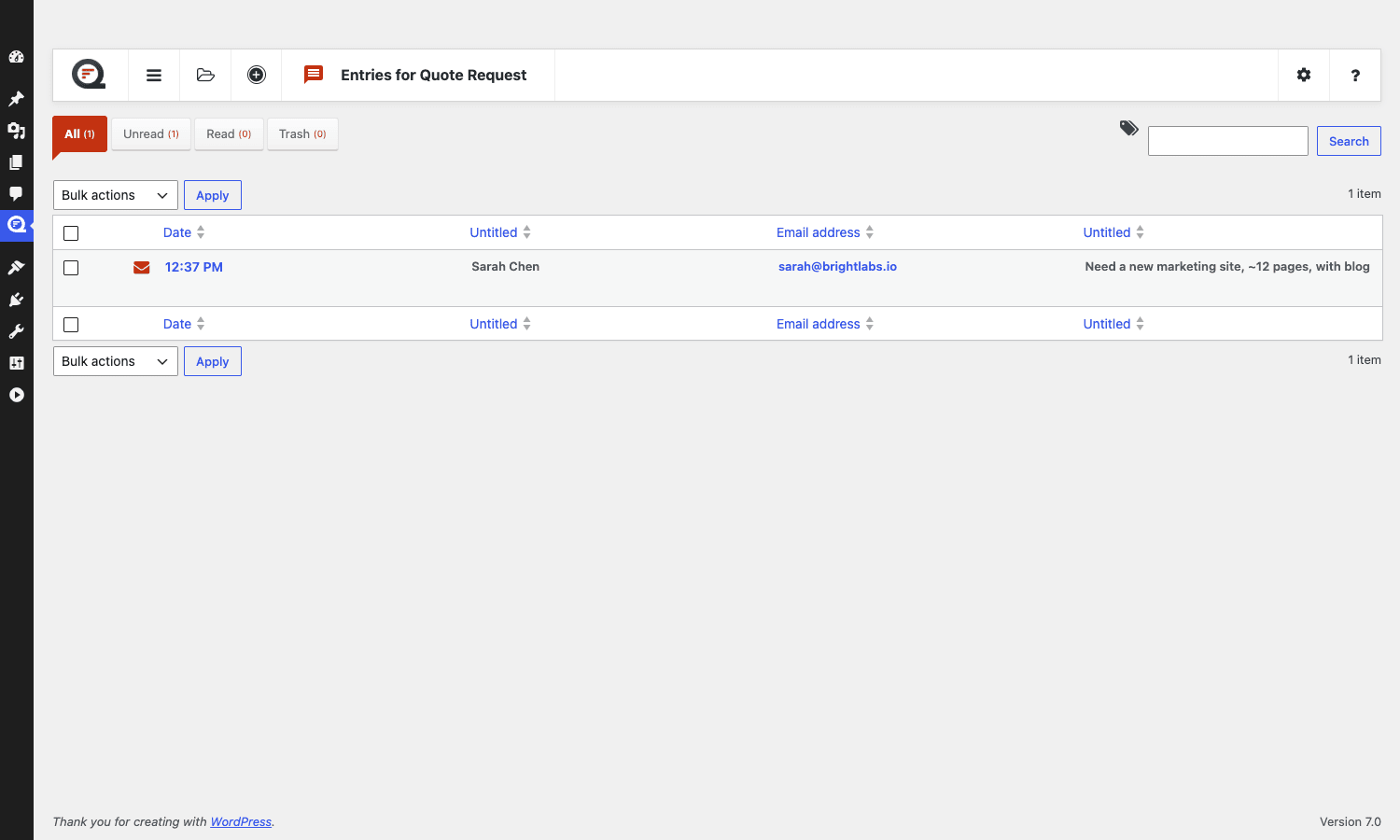
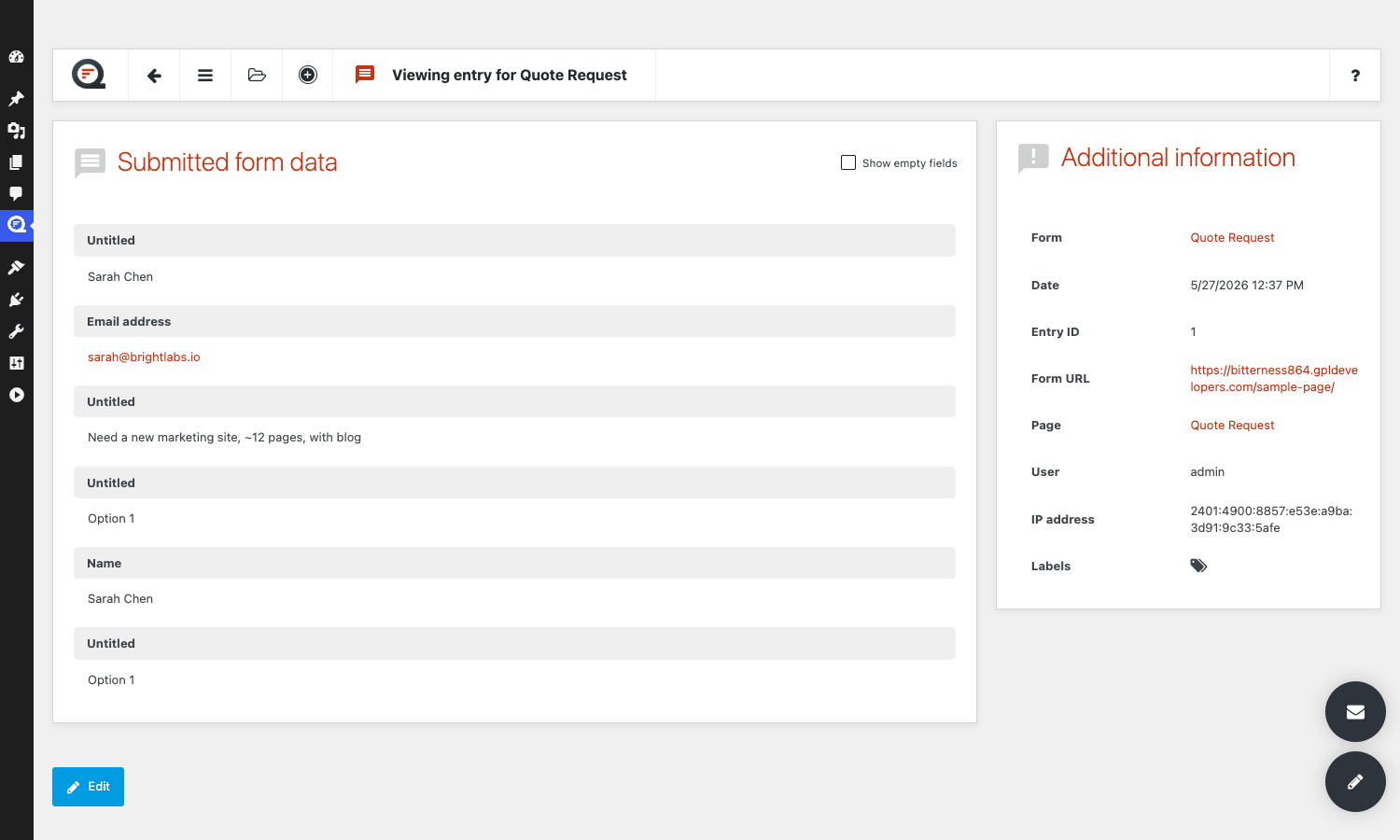
The entries admin is a standard WordPress list-table layout with date, dynamic columns (you pick which fields show as columns in the form settings), status (unread / read / trash), and bulk actions. You can filter by status, by date range, by entry label. You can click into an entry and see all submitted values laid out cleanly with the form metadata (form URL, referring URL, IP, user, timestamp) in a side panel.
Entry labels are like a per-entry tag system. Create labels at the form level (e.g. "Qualified", "Spam", "Needs follow-up"), tag entries from the list view, filter by label later. Useful when you’re triaging quote requests by hand. The labels live in their own table (wp_quform_entry_labels) with a join table (wp_quform_entry_entry_labels), again indexed.
Export to CSV is built in. The "include unsubmitted fields" toggle is the kind of small thing you only appreciate after you’ve fought with another plugin that doesn’t have it.
Quform vs Gravity Forms vs WPForms vs Formidable: when each one wins
This is the question every WordPress developer asks at the start of a project. Let me be honest about it.
Pick Quform when: you’re building complex multi-step forms, you want the element-tree architecture (especially conditional groups), you prefer a pay-once CodeCanyon license over recurring SaaS pricing, you don’t need a built-in payment field, and you’re comfortable doing email integrations with wp_mail filters rather than vendor add-ons. Quform’s also a good pick if you care about clean SQL-queryable entry data.
Pick Gravity Forms when: you need the breadth of integration add-ons (Stripe, PayPal, Mailchimp, ActiveCampaign, HubSpot, Salesforce, Zapier are all first-party add-ons), you want the most field types out of the box, your team already knows it. Gravity has been the safe-default enterprise pick for over a decade and the add-on marketplace is genuinely deep. I have a longer Gravity Forms walkthrough here if you want to compare them feature-by-feature.
Pick WPForms Pro when: you want the prettiest editor, you’re handing the site to a client who needs to build their own forms without thinking, you don’t mind being inside the Awesome Motive suite and its 47 cross-promotions. WPForms is the WordPress equivalent of Apple design. Beautiful but opinionated.
Pick Formidable Forms Pro when: you need to build front-end content with form data (Views), you want calculations and formulas inside form fields (think "show subtotal as the user picks options"), or you’re building a small CRM out of forms. Formidable’s Views feature is unique to it.
Pick Fluent Forms Pro when: you want speed and a low-overhead admin, you’re already using FluentCRM for email (the Fluent suite is best when used together), or you’ve outgrown free Contact Form 7 and want a no-drama upgrade.
Pick WS Form Pro when: you want a deeply WordPress-native feel and you care about accessibility (WS Form’s WCAG handling is the strongest in this category I’ve tested).
I’d put Quform third or fourth in popularity but second or third in "form architecture I respect most". The tree-based editor + queryable entries combo isn’t matched by anyone except, arguably, Formidable.
Developer reference: hooks, filters, shortcodes, JS API
Quform exposes a lot of extension points. I counted while writing this: dozens of do_action calls and dozens more apply_filters calls, with many of them coming in two flavors (generic + form-specific via _FORMID suffix).
Shortcodes
Five shortcodes ship out of the box.
[quform id="1" name="Contact"] // Render form by ID
[quform_popup id="1" name="Contact"] // Render as popup
[quform_entry_limit id="1"] // Print the configured entry limit
[quform_entry_count id="1"] // Print current entry count
[quform_entries_remaining id="1"] // Print remaining entries
The last three are how you build the "Only 12 spots left, claim yours" UX without writing custom queries.
The actions you’ll actually use
quform_pre_display_FORMID fires before a form renders. Use it to inject conditional fields, change the form config on the fly, or pre-fill values based on the logged-in user.
add_action( 'quform_pre_display_1', function ( $form ) {
 if ( is_user_logged_in() ) {
 $user = wp_get_current_user();
 $form->setValue( 'quform_1_3', $user->user_email );
 }
} );
quform_post_send_notification_FORMID fires after a notification is sent. Use it to POST to a CRM, log to a remote service, or trigger a webhook. (Use quform_pre_send_notification to mutate the email before it goes out.)
add_action( 'quform_post_send_notification_1', function ( $notification, $form ) {
 $entry_data = $form->getEntryData();
 wp_remote_post( 'https://crm.example.com/api/leads', [
 'body' => wp_json_encode( $entry_data ),
 'headers' => [ 'Authorization' => 'Bearer '. CRM_TOKEN ],
 ] );
}, 10, 2 );
quform_form_saved_FORMID fires when a form is saved in the admin. Useful for clearing custom caches that depend on form config.
quform_settings_saved fires when the global Quform settings page is saved. Useful for syncing a setting to another option store.
The filters you’ll actually use
quform_element_visible_IDENTIFIER lets you override whether an element renders for a specific request. Useful for "show this field only to logged-in editors":
add_filter( 'quform_element_visible_email', function ( $visible, $element, $form ) {
 return current_user_can( 'editor' )? $visible : false;
}, 10, 3 );
quform_notification_mailer_config_NOTIFICATION_ID lets you mutate the email config (SMTP, headers, attachments) just before sending. Pair it with wp_mail overrides if you’re using a transactional service.
quform_confirmation_redirect_url_CONFIRMATION_ID lets you compute the redirect URL based on entry data instead of hard-coding it:
add_filter( 'quform_confirmation_redirect_url_1', function ( $url, $confirmation, $form ) {
 $tier = $form->getValue( 'quform_1_5' ); // tier dropdown
 return home_url( '/thanks/'. sanitize_title( $tier ). '/' );
}, 10, 3 );
quform_upload_path_FORMID controls where uploaded files land. The default puts them under wp-content/uploads/quform/<formid>/<entryid>/. Override it if you want per-user folders.
quform_entry_count lets you fake the entry count for entry-limit purposes. Niche but useful if you have a sister system also creating entries (e.g. event signups via Stripe webhooks).
quform_filename_NAME (deprecated, use quform_upload_filename_IDENTIFIER) rewrites uploaded filenames. Stick a UUID prefix on every upload so two visitors can’t both upload cv.pdf and collide.
REST and AJAX
Quform doesn’t register WordPress REST routes (register_rest_route returns no matches in the source). It uses admin-ajax (wp-admin/admin-ajax.php?action=quform_form_submit) for form submission, which still works fine. If you need a true REST endpoint for headless submission, wrap Quform’s submit handler in your own register_rest_route callback and call the Form Controller directly from there.
Quform’s JS API: the under-documented escape hatch
This is the part of Quform almost no one talks about, and it’s where the plugin gets really fun if you write JavaScript.
Every Quform form on the page registers itself on the Quform global. You can get a reference to it like this:
var form = Quform.theForm("contact_form");
Once you have the form object, you have full access to the form’s state machine. You can subscribe to events (init, pageChange, beforeSubmit, afterSubmit, success, error), set values programmatically, jump between pages, trigger validation, and re-render any conditional logic.
A real example: I needed to fire a Google Analytics event when a user moved from page 1 to page 2 of a quote form, with the project type as a custom dimension. Three lines:
Quform.theForm("quote_form").on("pageChange", function (e, data) {
 if (data.toPage === 2) {
 var projectType = Quform.theForm("quote_form").getValue("project_type");
 gtag('event', 'form_step_complete', {
 step: 'project_type',
 value: projectType,
 });
 }
});
Try doing that in Contact Form 7 without writing a plugin.
Another one: I wanted to pre-fill the email field on a popup form when a user opens it from a "Get a callback" CTA that already knew their email (because they’d subscribed earlier). Two lines:
document.addEventListener('open-callback-popup', function () {
 Quform.theForm("callback").setValue("email", localStorage.getItem('user_email'));
});
The JS API is documented inside the plugin’s js/quform.min.js file and in ThemeCatcher’s support docs, but it’s not front-and-center on the product page. If you’re building anything that needs custom form behavior, this is where you’ll spend most of your time.
The honest criticism: the API surface isn’t as polished as React Hook Form or Formik. You’re calling methods on a form object that was designed for the plugin’s internal use. Method names like quform-form-submit aren’t always intuitive. But everything you need is there, and once you find it, it works.
Anti-patterns: things I see people do that bite them later
Three traps I’ve seen repeatedly. If you avoid these you’ll dodge most of the support tickets Quform users open.
Don’t ship a long multi-step form without Save & Resume on a public-facing page. Quote forms, job applications, insurance quotes, anything with more than 8 fields on more than 2 pages, will have users hit "I’ll finish this later" and never come back. With Save & Resume enabled, a user can email themselves a unique link from inside the form. They click the link from their inbox tomorrow morning and the form is exactly where they left it, with their entered values restored. The configuration lives under the form-settings cog -> General -> Save & Resume. It’s off by default. Turn it on for any form that takes more than 90 seconds to fill in honestly. The first time you ship a long form without it and watch your funnel show 67% drop-off on page 3, you’ll get the lesson the expensive way.
Don’t trust the default 8 MB file-upload limit on shared hosting. Quform’s File Upload element has its own max-size config, but PHP’s upload_max_filesize and post_max_size are the real ceiling. On a typical shared host that’s 8 MB or 16 MB. Set Quform’s limit to whatever you actually want (say, 50 MB for "send us your design files"), then check php -i | grep max on the server, and bump those values in php.ini or via .user.ini if needed. Otherwise the form silently rejects files over the server limit and the user gets a generic "Upload failed" without explanation. I’ve watched a client lose three job applicants this way before noticing.
Don’t hand-edit the email-template HTML in production without staging it first. Quform’s email-template editor is a plain textarea. There’s no preview, no client-side validation, no "send me a test". If you paste in malformed HTML, the email still sends, but Gmail and Outlook silently strip or hide chunks of it (especially <style> blocks and image tags without alt text). The first you’ll know is when the admin gets a notification email that looks like one giant unstyled paragraph, or when a client tells you the booking confirmation email is blank. Always test on a staging form first. Send yourself the notification. Open it in Gmail, Apple Mail, and Outlook web. Then push it to production.
The CodeCanyon licensing question: is pay-once-own-forever actually a win?
Quform is sold on CodeCanyon with the old Envato Regular License model: one purchase per single end-product, lifetime updates included with the purchase, optional 12-month extended support add-on. You don’t pay annually. There’s no SaaS subscription. There’s no auto-license-check that nags you for renewal.
In the modern WordPress plugin market this is unusual. Gravity Forms, WPForms, Formidable, Fluent Forms, WS Form all use annual subscription pricing with auto-renew and feature-tier gates. Quform is one of the few full-featured form builders left that you can buy once and own forever.
What you get with this model:
Win: the cost-of-ownership math is simple. You pay once, the plugin is yours. No "your license expired, please renew to get the latest version" emails six months in. No risk that a future renewal price hike kills the project’s margin.
Win: the plugin doesn’t phone home to a license server on every admin page load. Some SaaS-licensed form plugins make 1-2 license-validation requests per WP-admin page view. On a busy admin, that’s measurable latency. Quform doesn’t do this.
Loss: the vendor’s incentive to keep shipping aggressive new features is lower. ThemeCatcher does keep shipping releases, but the cadence is "every few months a meaningful update", not "every other week a new add-on". If you want the plugin to be on the bleeding edge of every new spec, you’ll be happier with one of the subscription-based options.
Loss: the support model is a separate purchase. Lifetime updates are included; lifetime support is not. You can extend support past the initial 6 months for a fee, or rely on ThemeCatcher’s docs and forums. For a developer this is fine. For a non-technical user it’s worth budgeting.
Is the model right for you? For an agency that ships a form once per project and doesn’t need vendor hand-holding, yes, easily. For an in-house team that wants the vendor on speed-dial, you probably want a subscription-based plugin instead so support is bundled.
Performance, compatibility, and gotchas
Quform’s front-end footprint is moderate. On a clean WordPress install with one Quform shortcode on the page, the plugin enqueues:
quform.min.js(~80 KB minified)styles.min.css(~50 KB minified) plus one theme stylesheet (light / dark / minimal / etc., ~10 KB)- jQuery (already in WordPress core), jQuery UI for date / time pickers
- Select2 stylesheet and JS for enhanced selects
- qTip for tooltips
It’s not lightweight by 2026 standards (no React, no native-only). If you’re squeezing every kilobyte for Core Web Vitals on a marketing page that doesn’t actually need a form, conditionally enqueue or load the form via AJAX after a click.
There’s a caching consideration worth knowing. Quform’s preview admin page is quform.preview, served via admin-ajax. The CSS and JS bundles version-bump via the plugin version constant. If you’re running WP Rocket or any other page cache, the form HTML caches fine (the dynamic bits are JS-rendered or AJAX-submitted), so you don’t need to add Quform to the cache-exclusion list. Just don’t put the form on a page where you’re also doing logged-in pre-fill via PHP (that would need exclusion).
WordPress version support: plugin header says "Requires at least: 5.2, Requires PHP: 7.1". In practice it works fine on WordPress 6.x and PHP 8.x. I’ve run it on PHP 8.2 production without warnings.
Multilingual: WPML and Polylang are both supported via string-translation registration. Forms are translatable element-by-element through the standard WPML string-translation flow. Multilingual forms still write to the same wp_quform_entries table, with the source language captured in the entry metadata.
Block editor: there’s no native Gutenberg block. You insert forms via shortcode in a Shortcode block (or in classic editor). For most sites this is fine. If you want a "Forms" block that lets editors pick a form from a dropdown in Gutenberg, you’ll need to write one (or use a generic Shortcode-block plugin).
Page builders: the shortcode works in Elementor, Bricks, Divi, Beaver Builder. There’s no first-party widget for any of them. Drop a Shortcode element / widget and paste [quform id="1"] in.
What Quform does not ship (and when you reach for Gravity Forms anyway)
Honest list of things Quform doesn’t do out of the box, and the workarounds.
Stripe / PayPal payment fields. No native payment processing. If you need a form that takes money, either build it via the JS API (call Stripe Elements from a button-click event) or pick Gravity Forms / WS Form / WPForms Pro instead. For donation forms specifically, GiveWP is a better answer than any form plugin.
Native CRM integrations. No Mailchimp / ActiveCampaign / HubSpot / Salesforce add-ons. Workaround: use quform_post_send_notification_FORMID to fire a webhook to Zapier / Make, or directly POST to the CRM’s REST API. This is fine for one or two integrations, painful if you have ten.
Partial entry capture (saving an entry the moment the user starts typing, before they hit submit). Gravity Forms ships this as a feature. Quform’s Save & Resume is similar in spirit but requires user action (they have to click "Save"). If you want true silent abandoned-cart-style capture, you’ll need to roll it via the JS API + a custom REST endpoint.
Form analytics dashboard. Quform shows you submission counts and timestamps in the Entries view but doesn’t visualize submission rate over time, conversion funnel on multi-step forms, or per-field drop-off. Gravity Forms has a basic analytics add-on. WPForms has a sleeker one. If you need this, integrate with Google Analytics via the JS API (see the example in the JS API section above).
Repeater fields. Gravity Forms and Formidable have "add another row" repeater inputs. Quform doesn’t have this as a first-class feature. You can fake it with conditional fields, but it’s awkward for collecting truly variable-length lists.
For 80 percent of WordPress forms, Quform handles everything you need. For the remaining 20 percent (payments, deep CRM integration, repeaters, analytics) you’ll either build custom code or pick a different plugin.
Pricing and licensing
Quform on CodeCanyon is priced as a one-time purchase plus an optional support extension. The pricing is roughly in the same band as a single-year Gravity Forms Basic license, except you pay once and you’re done. Updates are lifetime. The "extended" 12-month support is an upsell, but the plugin’s docs cover the common cases.
The GPL distribution model: every WordPress plugin licensed under the GPL (which Quform, like every WordPress plugin sold on CodeCanyon, is) can legally be redistributed. The Quform GPL download from GPL Times is the same Pro zip you’d buy from CodeCanyon, with documentation intact, delivered through our store. The license key built into the zip activates against ThemeCatcher’s update server. You get the plugin, the updates, and the dashboard with no version number gated behind a separate purchase.
If you’re using Quform on a single client site and you want the vendor’s official paid support, buy direct from CodeCanyon.
FAQ
Why isn’t my Quform form sending emails?
Nine times out of ten this is a WordPress wp_mail problem, not a Quform problem. WordPress’s default wp_mail() uses the server’s mail() function with a wordpress@yourdomain.com From address, which Gmail and Outlook routinely reject as spam. Fix it with an SMTP plugin (WP Mail SMTP, FluentSMTP, Post SMTP) configured against a real transactional service (SendGrid, Postmark, Mailgun, Brevo). Then test by submitting a form and checking the email server’s send log. If the email leaves the server but doesn’t arrive, your DNS records (SPF, DKIM, DMARC) aren’t set up correctly.
Can Quform handle 10,000 entries without slowing the admin?
Yes. Because entry data is in a normalized table (wp_quform_entry_data) with indexes on entry_id and element_id, the entries list-table pages by entry row and is fast. I’ve personally run Quform installs with 50,000+ entries on the same form without noticeable slowdown. The one bottleneck to watch: if you have 30 columns showing in the list view, each row triggers a small lookup per column. Trim the visible columns to the ones you actually need (Quform lets you toggle this in form settings) and it stays snappy.
Does Quform have a Stripe payment field?
No. Quform does not ship a native Stripe (or PayPal) payment field. For payment forms you’d either build it via the JS API (using Stripe Elements as a custom field) or pick a form plugin that bundles payments natively, like Gravity Forms with its Stripe add-on or WS Form Pro.
How do I export Quform entries to Mailchimp?
Two options. Manual: export the entries to CSV from Forms -> Entries -> Bulk Actions -> Export, then import that CSV into Mailchimp. Automated: use the quform_post_send_notification_FORMID action to POST the submission to a Zapier / Make webhook that creates a Mailchimp subscriber, or to call Mailchimp’s REST API directly with the submitted email. If you’d prefer a plugin that ships native Mailchimp sync, Fluent Forms Pro and Gravity Forms both do.
Why does my multi-step Quform form lose data when the user refreshes the page?
By default, Quform stores in-progress multi-step data in browser sessionStorage. Sessionstorage clears on page reload. The fix is to enable Save & Resume in form settings, which writes a snapshot to the server (wp_quform_sessions table) on each page transition. With that on, a refresh or a back-button doesn’t wipe the form. If you don’t enable Save & Resume, train your users not to refresh mid-form (good luck).
Is Quform GDPR-compliant?
Quform doesn’t store anything you don’t ask it to. The privacy posture is "you collect what your form asks for, you delete it when you no longer need it". There’s a quform_entry_view_info_table_end action you can hook into to add custom GDPR notices in the entry view. There’s also a per-form "Save form data" toggle: turn it off and Quform sends the notification email but never writes the entry to the database. Useful for forms where you legally cannot retain the submission server-side.
Does Quform work with caching plugins like WP Rocket?
Yes, with no special configuration. The form HTML is cacheable because it’s static markup. The form’s behavior (validation, AJAX submission, conditional logic) is JavaScript-driven and works against the cached HTML. The only case where you’d need to add Quform to a cache-exclusion list is if you’re using server-side conditional rendering (e.g. showing different fields to logged-in users via quform_pre_display_FORMID). In that case, exclude the page from the page cache for logged-in users.
Can I migrate from Contact Form 7 / Gravity Forms / WPForms to Quform?
Not directly. There’s no official import-from-CF7 tool. You rebuild the forms manually. The good news is forms are usually quick to rebuild (5-15 minutes for typical ones), and the form structure in Quform’s editor is intuitive enough that "translating" a CF7 shortcode field-by-field is straightforward. Entries (historical submissions) don’t migrate.
Final thoughts
Quform is one of those plugins that doesn’t show up in every "Top 10 WordPress Form Plugins of 2026" listicle, but quietly does its job on production sites running for years. ThemeCatcher hasn’t tried to turn it into an upsell ladder. It’s been a stable, focused tool from the same author since the early 2010s.
Where it shines is exactly what its architecture suggests: complex multi-step forms with conditional logic, especially when those conditions hide whole groups of fields. The element-tree editor genuinely makes complex layouts easier to model. The JS API gives developers a clean escape hatch for custom behavior. The relational entries storage means high-volume sites don’t fall apart.
Where it lags is the integration grid (no native CRM connectors, no Stripe field, no Mailchimp toggle), the email-template editor (textarea, no visual builder), and the admin UI (functional but 2015-era, not modern WP admin). If those things are deal-breakers for your project, the other plugins in this category will serve you better.
For an agency shop, a developer building a complex client form, or a publisher who values pay-once licensing over recurring SaaS, Quform earns a spot in the toolkit. The architecture either clicks for you immediately or it doesn’t. If it does, you’ve found your form plugin.