

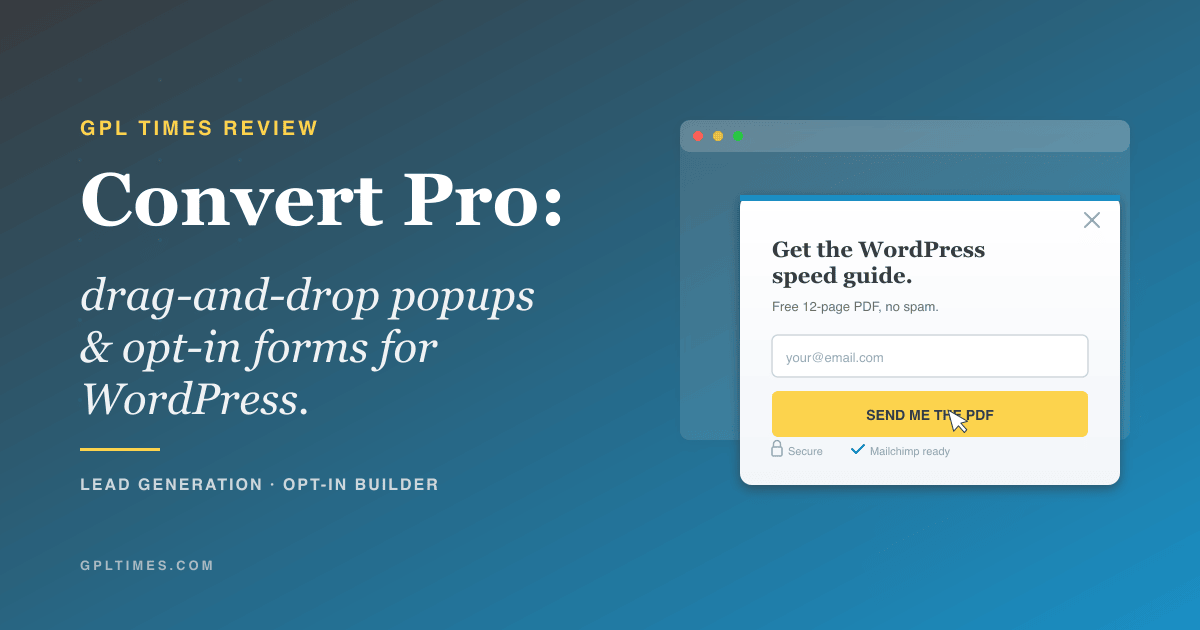
If you’ve been running a WordPress site for any length of time, you’ve probably watched a perfectly good visitor land on a post, read the whole thing, and leave without ever giving you an email address. That’s the gap Convert Pro tries to close. It’s a popup and opt-in form builder from Brainstorm Force, the same team behind the Astra theme, Spectra, and CartFlows. You can build modal popups, slide-ins, info bars, full-screen overlays, inline forms, and welcome mats with a visual editor, then aim them at the right visitors using a long list of display rules. This review walks through what it actually does, how to set it up, how to wire it to your email service, the developer hooks and filters it exposes, and where it sits next to alternatives like Bloom, Hustle, and Thrive Leads.
Table of contents
- What is Convert Pro?
- Key features
- The eight module types explained
- How it works for users
- Installation and setup
- Building your first popup step by step
- Display rules and targeting
- Email service integrations
- A/B testing and analytics
- Real-world use cases
- Developer reference
- Performance, compatibility, and gotchas
- Pricing and licensing
- Convert Pro vs Bloom vs Hustle vs Thrive Leads
- Frequently asked questions
- Final thoughts
What is Convert Pro?
Convert Pro is a premium WordPress plugin from Brainstorm Force (full product details and pricing on the official Convert Pro site) that lets you create on-site marketing assets without writing code. Popups, slide-ins, top bars, full-screen overlays, welcome mats, inline forms, sidebar widgets, and before/after auto-injected blocks: all of them get built in a single drag-and-drop editor that runs inside the WordPress admin.
The plugin is sold in two pieces. The core "Convert Pro" plugin handles the editor, the popups, the display rules, and the analytics. A companion "Convert Pro Addon" plugin handles the third-party connections to email services (Mailchimp, ConvertKit, ActiveCampaign, and so on). They’re delivered together and you usually run both, but the split is real, and the core plugin alone is perfectly usable if you only want to collect entries inside WordPress.
Convert Pro registers a custom post type called cp_popup for each popup you build. That gives you per-popup capability mapping (the cp_popup capability type means you can let editors manage popups without giving them full WordPress admin), per-popup analytics, and the usual WP query hooks if you ever want to list popups programmatically.
Key features
- Eight module types in one plugin. Modal popups, slide-ins, info bars, full-screen overlays, welcome mats, inline forms, sidebar widgets, and a before/after auto-insertion block. You don’t need a separate plugin for each format.
- Drag-and-drop visual editor. The editor is a true canvas, not a settings panel. You drag in headings, paragraphs, images, form fields, countdowns, custom shapes, and HTML, then style each element with controls right next to it.
- Cloud template library. Hundreds of professionally designed templates organized by goal (lead magnet, webinar registration, sale announcement, newsletter signup, contact form, exit prevention). The templates load from Brainstorm Force’s CDN and you can import any of them with one click.
- Display rules with real depth. Target popups by page, post type, category, tag, URL pattern, search referrer, user role, login state, device type, country, cookie state, repeat visits, and how many pages a visitor has viewed in the current session.
- Triggers that match user intent. Show on page load, after a delay, after a scroll percentage, after inactivity, on exit intent, on click of any CSS selector, or after a specific number of page visits.
- Built-in A/B testing. You can clone a popup, change one variable, and let Convert Pro split traffic between the two variants. Analytics tracks impressions, conversions, and conversion rate per variant.
- First-party analytics dashboard. Per-popup impressions, conversion count, conversion rate, and a daily chart. Nothing leaves your site, no third-party script required.
- Email service integrations. Direct connectors to Mailchimp, ConvertKit, ActiveCampaign, AWeber, GetResponse, Drip, MailerLite, Brevo (Sendinblue), Constant Contact, HubSpot, Klaviyo, Keap (Infusionsoft), MailPoet, Mautic, iContact, Sendy, Pabbly Email Marketing, plus Zapier and SureTriggers for everything else.
- Antispam built in. A configurable honeypot field, MX domain validation on submitted email addresses, and optional Google reCAPTCHA on a per-popup basis.
- Geolocation targeting. Bundled MaxMind GeoLite2 database lets you target visitors by country without calling an external API.
- WordPress capability-aware. Custom
cp_popupcapability type means you can grant popup management to editors or authors without giving them administrator access. - WPML and Polylang compatibility. Each popup is a post, so it translates like any other post.
- REST and Abilities API endpoints. The plugin exposes its own internal abilities (used by Brainstorm Force’s MCP / AI-assistant integration), and developers can hook into them.
The eight module types explained
Each module type maps to a class in framework/types/. Knowing which one to pick saves you a lot of trial and error.
- Modal popup (
CP_Modal_Popup). The classic centered lightbox with a dim overlay behind it. Use for high-intent calls to action like newsletter signup at the right moment, lead magnet delivery, or exit-intent offers. - Slide-in (
CP_Slide_In). Smaller box that animates in from a corner, usually bottom-right. Less disruptive than a modal, useful for "Hey, want the PDF?" kinds of prompts triggered partway through a scroll. - Info bar (
CP_Info_Bar). A horizontal bar pinned to the top or bottom of the viewport, sometimes called an announcement bar or hello bar. Good for site-wide promotions, free shipping notices, or cookie consent. - Full-screen overlay (
CP_Full_Screen). Covers the entire viewport. Use sparingly. Works well for high-stakes moments like an exit-intent offer on a checkout page or a gated registration flow. - Welcome mat (
CP_Welcome_Mat). A full-screen overlay that lives at the top of the page, then the visitor scrolls past it to reach the actual content. Often used as a soft splash for new visitors. - Inline (
CP_Inline). Embedded directly inside post or page content via shortcode. Use for in-context CTAs at the end of a blog post or inside a sidebar block. - Widget (
CP_Widget). A standard WordPress widget you drop into any sidebar area. Useful on classic themes that still rely on widget areas. - Before/after content (
CP_Before_After). Auto-injects the popup at the top or bottom of post content based on rules, with no shortcode required. Great for "Subscribe at the end of every post" without touching templates.
Most sites end up using two or three of these in combination. A common pattern: an info bar for a site-wide promo, an inline opt-in at the end of every blog post, and an exit-intent modal on conversion pages.
How it works for users
Once Convert Pro is installed, you’ll see a new "Convert Pro" top-level menu in WordPress admin. The main view is a grid of all the popups you’ve built, with a live/disabled toggle and impression and conversion counts next to each.
To create a popup, click "Create New." Convert Pro asks you to pick a module type, then offers you a starting point: blank canvas, or one of the cloud templates. Pick a template and you land inside the visual editor with everything pre-styled. From there it’s drag, drop, edit text, change colors, set the trigger and display rules, and hit "Activate."
The editor is the heart of the user experience. It’s not a list of fields like the old WordPress widget admin. Each element on the canvas is interactive: click a heading and you get typography controls. Click an image and you get sizing and link options. Click a form field and you get options for label, placeholder, required state, validation, and which email service field it maps to.
For visitors, popups appear based on the rules you set: maybe on the 20-second mark, maybe after they’ve scrolled past 60% of an article, maybe only when they’re about to leave (exit intent), maybe only on the second visit. They see the popup, fill the form (if there is one), submit, and either a thank-you message appears in place or they get redirected somewhere of your choosing. Subscriber data goes to your email service, gets recorded in Convert Pro’s internal analytics, and triggers any post-submit hooks you’ve attached.
Installation and setup
Upload convertpro.zip first, activate it, then upload convertpro-addon.zip and activate that as well. The Addon plugin is what lights up the ESP integrations and a few advanced features, so it’s worth running both even if you only plan to use the core editor today.
After activation, click "Convert Pro" in the admin sidebar. You’ll land on the dashboard. The first thing to do is set a few things in Convert Pro -> Settings:
- General: pick a default font, set the "user inactivity time" (used by the inactivity trigger), and decide whether you want the "Powered by Convert Pro" credit link in the footer of popups. Disable that if you’re white-labeling.
- Email templates: customize the HTML used in admin notification emails (the email you get when someone subscribes, not the email the subscriber gets).
- Add-ons: enable the modules and integrations you want. Disabling unused ones (like Mautic if you’re on Mailchimp) keeps the front-end JS leaner.
- Google reCAPTCHA: paste your v2 or v3 site key and secret key if you want CAPTCHA available as a form field.
That’s the global setup. Per-popup configuration happens inside each popup’s editor.
Building your first popup step by step
Here’s a concrete walkthrough so you can see exactly what you’re working with. Let’s build an exit-intent modal that offers a free PDF download in exchange for an email address.
Convert Pro -> Create New. Pick "Modal Popup" as the module type.- Choose a template. Filter the cloud library by "Lead Magnet" goal and pick something with an image on the left and a form on the right. Click "Import."
- The editor opens with the imported template loaded on the canvas. Click the heading and change it to something specific: "Stop guessing at WordPress speed. Grab the 12-page PDF."
- Click the subheading and rewrite it. Click the image placeholder and upload your PDF cover image.
- Click the email field. In the right panel, set the placeholder to "your@email.com" and toggle "required" on. Map it to "Email" in the connected service.
- Click the submit button. Change the label to "Send me the PDF." Pick a strong color from your brand.
- Top toolbar: "Connect." Pick your email service from the dropdown. Authenticate. Pick the list or audience you want this popup to add subscribers to. Save.
- Top toolbar: "Configure." This is the rules panel. Set:
- Display on: posts only, category "WordPress."
- Display to: all visitors.
- When to display: trigger = exit intent.
- Cookie: hide for 14 days after closure.
- Top toolbar: "Activate" toggle to ON.
- Top toolbar: "Save & Publish."
Open one of your WordPress posts in an incognito window, read down the page, move your mouse toward the browser’s address bar, and the popup fires. Submit a real email and check both your email service dashboard (subscriber added) and Convert Pro’s "Analytics" panel (conversion logged).
That whole flow takes about ten minutes the first time and two or three minutes once you’re used to it.
Display rules and targeting
This is where Convert Pro. Anyone can show a popup; the trick is showing the right one to the right visitor at the right time.
Where to display
- Site-wide (default): every page.
- Posts: with optional filter by category, tag, author, or specific post ID.
- Pages: with optional filter by page ID or template.
- Custom post types: WooCommerce products, LearnDash courses, Easy Digital Downloads downloads, anything else you’ve registered.
- Archives: category archives, tag archives, search results, author archives, the blog homepage, date archives.
- URL include/exclude: glob-style patterns like
/blog/*or exact URLs. You can stack multiple include and exclude rules.
Who to display to
- Logged-in versus logged-out visitors (the most common toggle, since you usually don’t pitch newsletter signup to existing subscribers).
- User role: administrators, editors, subscribers, customer (WooCommerce), specific custom roles.
- Referrer source: search engines (any), specific search engines (Google, Bing), specific referrer domains. Useful for greeting visitors from a guest post or podcast with a tailored message.
- Device: desktop, tablet, mobile, or any combination.
- Country: via the bundled MaxMind GeoLite2 database. You can target US-only offers, hide GDPR popups from non-EU visitors, or do regional pricing.
When to display
Trigger options are the rules for moment, not just place.
- On page load: fires immediately. Use only when the offer is the whole point of the page.
- After N seconds: most common for soft opt-ins. 20-30 seconds is a sweet spot for blog posts.
- After N percent scroll: better than time because it ties to engagement. 60% scroll on a long post means the reader is committed.
- After inactivity: fires when the user stops interacting for N seconds. Catches people who got distracted but stayed on the tab.
- On exit intent: fires when the cursor moves above the viewport (toward the address bar or tab strip). Desktop only by design; mobile doesn’t have a usable exit-intent signal.
- On click: fires when the visitor clicks any CSS selector you specify. Use this to make a custom "Subscribe" link or button trigger the popup instead of navigating somewhere.
- After page visits: fires only on the visitor’s Nth pageview in the current session. Excellent for not pestering first-time visitors. (This was the rule fixed in a recent point release after a bug where the counter wasn’t decrementing correctly.)
Frequency and cookies
- Show once per session versus always.
- Hide for N days after close so visitors who dismiss the popup don’t see it again on their next visit.
- Hide after conversion for X days, or permanently. Subscribers should not see the same opt-in three months later.
The cookie logic is browser-cookie based, not server-side, so an aggressive incognito user can still see the popup again on the same machine. That’s normal for this category of plugin.
Email service integrations
The Addon plugin ships connectors for the big email service providers (ESPs). The list as of writing includes:
- Mailchimp
- ActiveCampaign
- ConvertKit
- AWeber
- GetResponse
- Drip
- MailerLite
- Brevo (the rebrand of Sendinblue)
- Constant Contact
- HubSpot
- Klaviyo
- Keap (formerly Infusionsoft)
- MailPoet (works alongside the MailPoet Premium install on the same site)
- Mautic (self-hosted automation)
- iContact
- Madmimi
- Sendy (self-hosted)
- Pabbly Email Marketing
Plus two general-purpose escape hatches:
- Zapier: send subscribers to any of Zapier’s 6,000+ apps via webhook.
- SureTriggers: Brainstorm Force’s own automation platform, similar idea, native integration.
And a couple of advanced options:
- Custom HTML form: paste raw form HTML from any service that doesn’t have a direct integration. Mailchimp’s classic embed form works here, as does any vendor’s hand-rolled HTML.
- WordPress users: register submitted emails as actual WordPress users (subscriber role by default), useful if you’re running a members site.
The connection UI lives under Convert Pro -> Settings -> Connect. You authenticate once per service (API key, OAuth, or username/password depending on the service), and the saved connection becomes available in every popup’s Connect dropdown. Mapping is straightforward: Convert Pro detects the available fields in the destination service and lets you map them to fields in your popup.
If you’re sending subscribers to FluentCRM, the right path is usually still the FluentCRM Pro plugin’s own native integration (FluentCRM treats Convert Pro as a known source), rather than a webhook bridge.
A/B testing and analytics
Built-in split testing is rare in this category, and Convert Pro does it well. To run a test:
- Open the popup you want to test.
- Click the "A/B Test" tab in the editor toolbar.
- Click "Create Variant." Convert Pro duplicates the popup into a "variant B."
- Edit variant B with the one change you want to test. Different headline, different button color, different image, different offer copy. Change one thing per test or your results won’t tell you anything.
- Set the traffic split (50/50 is the default).
- Activate and let it run.
The Analytics tab shows impressions and conversion rate for each variant side by side. When variant B clearly beats variant A (or vice versa), you mark the winner and Convert Pro routes 100% of future traffic to it.
The first-party analytics dashboard tracks:
- Impressions: number of times the popup was displayed.
- Conversions: number of successful form submissions or button clicks.
- Conversion rate: conversions divided by impressions, displayed as a percentage.
- Daily chart: stacked bar chart of impressions and conversions across the last 30 days.
Nothing leaves your site. The data sits in the WordPress database, which is good for GDPR posture and bad for cross-site aggregation. If you want to pull popup performance into Google Analytics or MonsterInsights, you can add a custom event tracker in the popup’s custom HTML element.
Real-world use cases
A few patterns I’ve seen sites use Convert Pro for effectively.
Newsletter growth on a content blog. Inline opt-in at the bottom of every post (the "before/after content" module type), plus a soft slide-in that fires on the third pageview ("you’ve been reading a few articles, want them in your inbox?"). The slide-in converts at 2-3x the inline form, but the inline catches readers who’d never engage with a popup. Both running together captures more emails than either alone.
Lead magnet for a service business. Exit-intent modal on the homepage and the services page that offers a free PDF guide. Mapped to ConvertKit so each subscriber drops into a 7-email nurture sequence. Conversion rate on this kind of setup tends to land between 2% and 6% of visitors.
Sale announcement on a WooCommerce store. Info bar at the top of every page during a promo: "Free shipping this week, code FREESHIP." Time-targeted so it disappears automatically when the promo ends. Drives nothing measurable on its own but lifts checkout completion by single-digit percent during the campaign window.
Pre-launch waitlist. Welcome mat on the homepage for everyone who isn’t logged in: "Launching March 1. Get on the list." Mapped to Mailchimp, hidden after conversion (cookie), and gone for everyone on launch day.
Course platform "enrollment closing" warning. Slide-in on the course sales page that fires on the second visit and says "Enrollment closes Friday." Cookie-based suppression so it shows once per visit max. Convert Pro’s "after N visits" trigger is the magic here.
Win-back for inactive WordPress users. Modal that targets logged-in users with the subscriber role who haven’t visited in 90+ days (combined with a custom cookie). Asks if they want a digest of what they’ve missed. Goes back to MailPoet to send a re-engagement email.
The point is that Convert Pro covers enough of the targeting matrix to express most of what you’d actually want to do. The plugin doesn’t dictate strategy; it just gives you the components.
Developer reference
This is the part most reviews skip. Convert Pro exposes a generous set of hooks for developers who need to customize behavior beyond what the UI offers.
Custom post type and capabilities
Every popup is a cp_popup post. The capability type is cp_popup, which means WordPress generates these caps:
edit_cp_popup,edit_cp_popups,edit_others_cp_popupspublish_cp_popupsread_cp_popup,read_private_cp_popupsdelete_cp_popup,delete_cp_popups,delete_others_cp_popups
You can grant a custom role only popup management without touching anything else:
add_action( 'admin_init', function() {
 $role = get_role( 'editor' );
 if ( $role ) {
 $role->add_cap( 'edit_cp_popups' );
 $role->add_cap( 'edit_others_cp_popups' );
 $role->add_cap( 'publish_cp_popups' );
 $role->add_cap( 'delete_cp_popups' );
 }
} );
A recent point release fixed a bug where the author role couldn’t manage popups even with the right caps. If you’re still on an older build, force-add the caps as above.
The shortcode
Convert Pro registers [cp_popup id="N"] to render an inline popup anywhere shortcodes work: post content, widgets, template files via do_shortcode(). The function is cp_render_popup() in includes/common-helper-functions.php.
echo do_shortcode( '[cp_popup id="42"]' );
Use this inside template files to drop an inline opt-in into a specific theme location.
Hook reference: do_action
The render lifecycle of a popup fires several hooks you can attach to.
Action: before any popup renders
add_action( 'cp_before_popup', function() {
 // Inject your own opening HTML before every Convert Pro popup.
 echo '<div class="my-popup-wrapper">';
} );
Action: inside the popup wrapper, before content
add_action( 'cp_before_popup_content', function( $style_id ) {
 // Add a custom announcement at the top of this specific popup.
 if ( 42 === (int) $style_id ) {
 echo '<div class="my-banner">Limited time offer</div>';
 }
} );
Action: after a form is submitted
This is the most useful hook for integrations. It fires whether the submission succeeds or fails.
add_action( 'cpro_form_submit', function( $response, $post_data ) {
 if ( $response['status']!== 'success' ) {
 return;
 }

 $email = isset( $post_data['contact-email'] )? sanitize_email( $post_data['contact-email'] ) : '';
 $name = isset( $post_data['contact-name'] )? sanitize_text_field( $post_data['contact-name'] ) : '';
 $popup_id = isset( $post_data['style_id'] )? (int) $post_data['style_id'] : 0;

 if (! $email ) {
 return;
 }

 // Log to your own analytics, fire a webhook, write to a custom table, whatever.
 error_log( "Convert Pro signup: $email from popup #$popup_id" );
}, 10, 2 );
Action: extend the admin settings tabs
add_action( 'cp_after_advanced_settings_content', function() {
 echo '<div class="cp-section"><h3>My custom settings</h3>';
 echo '<p>Custom HTML here.</p></div>';
} );
Action: extend the auto-update process
add_action( 'cp_pro_before_update', function() {
 // Back up your popup configuration before an auto-update runs.
 wp_schedule_single_event( time() + 1, 'my_popup_backup_cron' );
} );
Filter reference: apply_filters
Filter: override the rendered popup ID
add_filter( 'cpro_call_to_action_id', function( $style_id ) {
 // Show a different popup to subscribers vs visitors.
 if ( is_user_logged_in() && current_user_can( 'subscriber' ) ) {
 return 99; // ID of the "exclusive subscriber" popup.
 }
 return $style_id;
} );
Filter: change the credit link text
The "Powered by Convert Pro" credit at the bottom of popups can be replaced with your own text:
add_filter( 'cppro_credit_text', function( $default ) {
 return 'Powered by Yourbrand';
} );
Filter: extend the available entry animations
add_filter( 'cp_entry_animations', function( $animations ) {
 $animations['my-custom-bounce'] = 'My Custom Bounce';
 return $animations;
} );
// Pair with a CSS rule on.cpro-form-wrapper.my-custom-bounce in your theme.
Filter: customize the post-submit redirect URL
add_filter( 'cpro_set_url_cookie_for_subscribers', function( $url, $popup_id, $email ) {
 // Send VIP-list subscribers to a different thank-you page.
 if ( $email === 'vip@example.com' ) {
 return home_url( '/vip-thanks/' );
 }
 return $url;
}, 10, 3 );
Filter: extend or sanitize geolocation responses
If you’re using the geolocation targeting and want to add your own IP lookup provider, filter the response of a specific service:
add_filter( 'convert_pro_geolocation_geoip_response_ipapi', function( $country_code, $body ) {
 $data = json_decode( $body, true );
 return isset( $data['country_code'] )? sanitize_text_field( $data['country_code'] ) : $country_code;
}, 10, 2 );
Helper functions worth knowing
cp_get_live_popups( $type = 'all' )returns an array of active popups, optionally filtered by module type. Useful for sidebar widgets that need to list "all active info bars."CP_V2_Popups::get_instance()is the main popup manager singleton.CP_V2_Popups::get_all()returns every popup regardless of state.CP_CUSTOM_POST_TYPEis the constant for the post type slug.
Abilities API endpoints
In a recent release the plugin added registrations for the new WordPress Abilities API (the foundation for first-party MCP / AI-assistant integration). These are exposed when the optional Abilities API plugin is also active:
convertpro/get-plugin-inforeturns version, popup counts, addon status, and key settings flags.convertpro/get-statusreturns memory usage, reCAPTCHA configuration state, geolocation availability, and template cache info.convertpro/get-hookslists the developer hooks the plugin exposes (the same ones documented above).convertpro/refresh-popup-htmlrebuilds the cached HTML for a popup.convertpro/search-contentsearches popups by title, status, or module type.convertpro/list-template-categoriesreturns the cloud template categories.convertpro/get-popup-configure-rulesreturns the display rules JSON for a popup.convertpro/get-popup-connect-settingsreturns the ESP connection settings for a popup.
These are registered via wp_register_ability(). If you’re building an admin tool that talks to popups programmatically, this is where to look.
REST endpoints
The optional NPS survey feature added in a recent release registers two REST routes for collecting feedback. Look in lib/nps-survey/ if you want to see them in action.
Performance, compatibility, and gotchas
The big question with any popup plugin is "does it slow my site down." Convert Pro is reasonable here, but it’s not zero-cost.
- Front-end JavaScript: one Convert Pro JS file is enqueued on every page where a popup could fire, plus a per-popup payload. On a page with one active info bar, total JS payload is around 60-80 KB minified and gzipped. On a page with a modal popup with a complex form, it’s closer to 120 KB. That’s heavier than a static landing page, lighter than running a full marketing automation stack.
- HTTP requests: zero extra requests at runtime. Popup HTML is embedded inline. The plugin does call your ESP’s API once per form submission (Mailchimp, ConvertKit, etc.), but that happens server-side after the visitor has already gotten their confirmation, so it doesn’t block the UI.
- Page render: popups are added to the DOM hidden, so they don’t cause CLS (Cumulative Layout Shift). The display animation is CSS-driven.
- Caching: works fine with page caches like WP-Optimize Premium or any other major caching plugin. Popups don’t insert per-user dynamic content into cached pages by default (cookies are read client-side).
- WPML and Polylang: every popup is a translatable post. You build the English version, duplicate-translate into other languages, and Convert Pro picks the right one based on the visitor’s language.
- WooCommerce: there’s specific support for displaying popups based on cart contents, completed purchase, and product page targeting.
- Gutenberg: full support. Popups don’t need a block to render; you use the existing module types. But you can still embed an inline popup with the
[cp_popup]shortcode inside a Shortcode block. - Page builders: works with Elementor, Beaver Builder, Bricks, and the Astra/Spectra Gutenberg stack. Popups are theme-agnostic.
Common gotchas
- The "powered by" credit link is on by default. Disable it in Settings -> General if you don’t want it on every popup. Easy to miss.
- Exit intent is desktop only. Mobile browsers don’t have a reliable exit-intent signal. Convert Pro will quietly switch to "after N seconds" on mobile when you’ve selected exit intent as the trigger. Configure that fallback explicitly so you know what’s happening.
- Cookie suppression is browser-based. Visitors who clear cookies or use incognito will see the popup again. Expected behavior, but worth telling your team.
- The addon plugin is required for ESP integrations. Core Convert Pro alone won’t show third-party ESP options in the Connect tab. If your Mailchimp option is missing, check that Convert Pro Addon is also active.
- GeoLite2 database can age out. The bundled GeoLite2 country database gets updated with plugin releases, but if you’re on a static install, plan to update the plugin every few months for the freshest country data.
- Custom HTML elements are sanitized. If you paste a
<script>tag into a Custom HTML element, it gets stripped. Use the dedicated tracking-pixel field for analytics tags. - Welcome mat and exit intent conflict. If a visitor lands on a page with a welcome mat AND an exit-intent modal both configured, the welcome mat shows on load and the exit-intent modal fires on exit. They don’t fight each other but they can feel like a lot. Use one or the other on the same page.
Pricing and licensing
Convert Pro is sold from convertpro.net as an annual subscription. The retail license includes updates and support and runs in the low three figures per year. There’s also a lifetime "all-access" bundle that includes Convert Pro and the rest of the Brainstorm Force ecosystem (Astra Pro, Spectra Pro, CartFlows, and others).
GPL Times’ Convert Pro listing, you get the same code base as a retail license, free to install on as many sites as you maintain. For most agency and freelance use, that trade-off is worth it.
The Convert Pro Addon comes in the same bundle.
Convert Pro vs Bloom vs Hustle vs Thrive Leads
Most teams shopping for a popup builder also consider three or four other plugins. A quick comparison of where each one sits.
- Convert Pro: drag-and-drop visual editor, eight module types, deep targeting, A/B testing, large ESP integration list. Best if you want one plugin that does everything popup-shaped on a WordPress site without writing CSS.
- Bloom: opt-in-focused, no info bars, no full-screen overlays. Templates are gorgeous (Elegant Themes’ design pedigree shows). The editor is more "settings panel" than "canvas." Best if you only care about email capture and you’re already in the Divi/Elegant Themes ecosystem (full breakdown in our Bloom review).
- Hustle Pro by WPMU DEV: similar feature scope to Convert Pro (popups, slide-ins, info bars, inline forms), good free version, slightly less polished editor. Best if you’re already running other WPMU DEV plugins and want unified support.
- Thrive Leads: the most aggressive feature set, with SmartLinks (different popup for different referrers), SignupSegue (multi-step opt-ins where step 2 is on the destination page), and the most thorough A/B testing UI in the category. Steeper learning curve, more powerful for sites doing high-volume list building.
If the priority is "I want a polished visual editor and one plugin that does popups, slide-ins, info bars, and inline forms with a long list of ESP integrations," Convert Pro is hard to beat. If you’re building a list-building machine and need split-URL testing and multi-step funnels, look at Thrive Leads. If you’re already on the Brainstorm Force stack (Astra, Spectra, CartFlows), Convert Pro slots in naturally and the ESP integration list is the strongest of the four.
A common companion is also Popup Builder which sits more in the freemium "I want a simple popup, not a marketing automation platform" niche. Different tool, different shape, often used on smaller sites; see our Popup Builder walkthrough for the detail.
Frequently asked questions
Does Convert Pro work without the Addon plugin?
Yes, the core editor and popup rendering work fine without the Convert Pro Addon. You lose third-party ESP integrations (Mailchimp, ConvertKit, etc.), but you can still build popups, collect form entries to a CSV, send submission notifications by email, and use the analytics dashboard. Most sites run both plugins.
Can Convert Pro handle multiple popups on the same page?
Yes. There’s no hard limit. The plugin defers popup HTML rendering and triggers each one independently. Just don’t stack three overlapping modals or visitors will leave.
Does it work with WPML or Polylang?
Yes. Each popup is a cp_popup post and translates like any other post. The render layer respects the active language and picks the right translation.
Does Convert Pro slow down my site?
It adds 60-150 KB of JavaScript to pages where a popup is active. That’s noticeable but not catastrophic. The plugin doesn’t insert anything dynamic into cached pages, so it plays well with a full-page cache like WP Rocket or WP-Optimize. If you only need an info bar on the homepage, set the display rules tightly so the JS doesn’t load everywhere.
How does the A/B testing work statistically?
Convert Pro does straight traffic splitting (50/50 by default) and tracks impressions and conversions per variant. It does not compute statistical significance for you. For low-traffic tests, run for at least a week and look for a clear gap (more than a few percentage points of conversion rate). For higher-traffic tests, the gap will become obvious within a few thousand impressions.
Can I export my subscriber list out of Convert Pro?
Yes. Each popup that collects entries stores them in the WordPress database and you can export to CSV from the Analytics tab. If you’ve connected an ESP, subscribers are also pushed to that service in real time.
What happens to my popups if I deactivate Convert Pro?
The cp_popup post type registration goes away, so popups don’t render on the front end, but the posts themselves stay in the database. If you reactivate, everything comes back. Switching to a different popup plugin means rebuilding from scratch; popup designs aren’t portable across plugins.
Does it support GDPR consent?
Yes, you can add a consent checkbox to any form (required or optional), and ESP integrations like Mailchimp respect the consent state when subscribing. For full GDPR posture you’ll still want a separate consent management plugin to handle cookie consent across the whole site.
Will Convert Pro work with my custom theme?
Yes. Convert Pro injects its own HTML and CSS at the body level. It doesn’t depend on any theme template files. It works on classic themes, block themes, Astra, Hello (Elementor), Bricks, GeneratePress, and the default Twenty themes.
What’s the difference between Convert Pro and Spectra Pro?
Spectra Pro is a Gutenberg block plugin from the same vendor. It’s for building page layouts inside the post/page editor. Convert Pro is for popups and opt-in forms that fire on top of pages. Different scopes; many sites run both.
Can developers extend it without forking?
Yes, that’s the point of the hook reference above. The plugin exposes around 60 actions and filters, custom capabilities, and a small Abilities API surface. You can change form behavior, add custom display rules, override the popup template, or swap the credit text without touching the plugin code itself.
Does it support multi-step forms?
Partially. You can chain forms by setting up two popups and using the success action of popup A to trigger popup B. There’s no "wizard" UI like Thrive Leads’ SignupSegue, but it’s possible to build with the existing hooks.
Final thoughts
Convert Pro sits in a sweet spot. It’s deeper than the freemium popup plugins (Hustle free, MailOptin free, Popup Builder community), narrower and friendlier than the conversion-focused powerhouses (Thrive Leads, OptinMonster), and it slots cleanly into the Brainstorm Force ecosystem if you’re already running Astra or Spectra.
What I like most is the editor. The drag-and-drop canvas with per-element controls is genuinely faster than every settings-panel popup plugin I’ve used. Want a button color changed? Click the button, pick a color, done. Want to swap the email field for a phone field? Drag in the phone field, drag out the email field. The cloud template library cuts the cold-start time on a new popup down to about two minutes.
The targeting layer is the other thing that earns the plugin a place. Most popup plugins get you "show on these pages, after this many seconds." Convert Pro adds device, referrer, country, user role, repeat visit count, and cookie state on top of that. You can express almost any "show this offer to this segment at this moment" idea you can think of.
The gotchas are real but small. Mobile exit intent doesn’t exist, the addon plugin is required for ESPs, and the front-end JS is heavier than a static landing page. Nothing here is a deal-breaker, all of them are normal for this category, and the developer hook surface gives you escape hatches for anything the UI doesn’t cover.
If you’ve been hand-rolling popups with theme functions or relying on a free plugin that maxes out at "modal with a Mailchimp form," Convert Pro will feel like an upgrade in every direction.GPL Times’ Convert Pro page, install both the core and addon, spend twenty minutes in the editor, and see if it clicks. For most WordPress sites that take email capture seriously, it does.