


A real estate site I helped maintain last quarter had 4,200 active property listings, eleven filter facets (city, district, bedrooms, baths, price range, square footage, year built, garage, pool, listing agent, status), and a homepage map that refreshed when any filter changed. The default WooCommerce-style category drilldown could not even start to express that. The native Elementor Pro Loop Grid plus its archive filter widget came close, but every selection reloaded the whole page and tossed the map state. The fix was JetSmartFilters wired into a Loop Grid with the indexer enabled. The page never reloaded again.
That story is the whole pitch for this plugin. JetSmartFilters is a Crocoblock add-on that drops fourteen AJAX-driven filter widgets into Elementor (and now Bricks) listings, so the listing updates in place when somebody ticks a checkbox or drags a range slider. It is not a general-purpose filtering layer; it expects a host listing built in Elementor Pro, JetEngine, JetWooBuilder, Bricks, or default WooCommerce. Inside that scope it is the most polished option I have used, and that scope covers most modern WordPress directory and store builds.
Table of contents
- What JetSmartFilters actually is
- The fourteen filter widgets, in plain terms
- Supported listing providers
- How a filter is built, end to end
- Settings that decide whether your site scales
- URL structure, SEO, and shareable filtered pages
- One extended example: a city property directory
- Developer reference: hooks, filters, custom providers
- Performance, compatibility, and the honest gotchas
- Pricing and where it sits versus the alternatives
- Final read
What JetSmartFilters actually is
The shortest accurate description: a WordPress plugin (the official Crocoblock product page has the marketing version) that registers a custom post type called jet-smart-filters where each post is a single filter definition (a Checkboxes list of post taxonomies, a Range slider tied to a meta key, a Search box, and so on), and a set of Elementor widgets, Bricks elements, and Gutenberg blocks that render those filters on the page and wire them to a target listing through AJAX.
There is no front-end builder, no template engine, and no shortcode-first workflow. The plugin assumes you already have a listing on a page (an Elementor Pro Loop Grid, a JetEngine Listing, a Bricks query loop, a default WooCommerce archive, or any of the other supported providers below). You decide which listing to filter, which fields to filter on, and where to place the filter widgets. JetSmartFilters does the in-place update with no full reload, optionally rewrites the URL so the filtered state is shareable, and optionally keeps an indexer table in sync so big catalogs stay fast.
That is genuinely the whole product, and it is why it works. Crocoblock did not try to be FacetWP. It built an Elementor-first filter system that plays well with the rest of the Jet plugin family and, more recently, with Bricks Builder.
The fourteen filter widgets, in plain terms
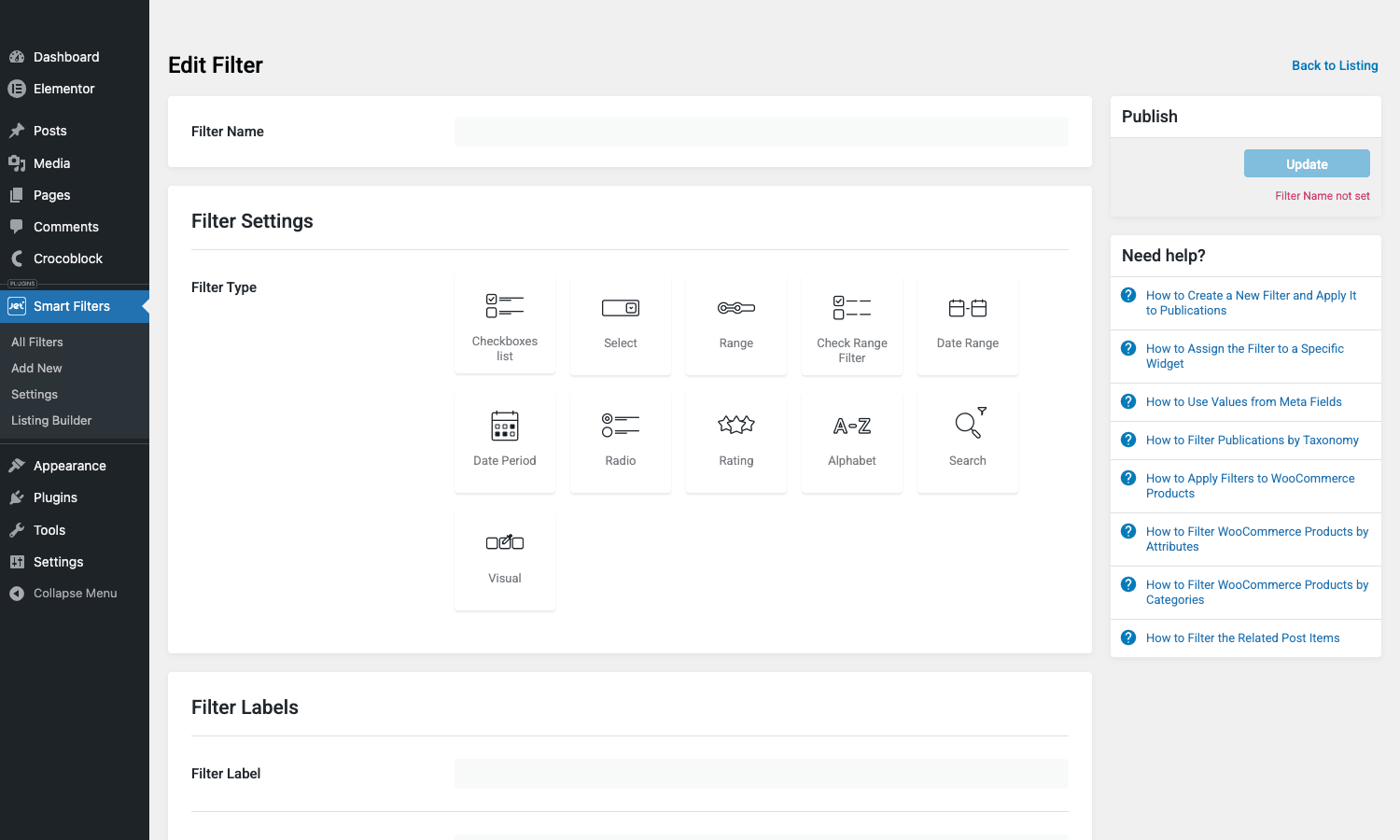
The new-filter editor opens a card grid where you pick one filter type per filter post. The eleven cards in the editor map to fourteen front-end widgets once you include the orchestration widgets (Apply, Reset, Pagination, Active Filters, Sort By). Here is what each is good for and where it tends to be misused.
Checkboxes list. The default for taxonomies and short option sets. Property type with five values, brand with fifty, color with twelve, that is its sweet spot. Over a hundred options and the page starts to feel like a phone book; switch to a Search filter or a Select with a long dropdown.
Select (single). A single-choice dropdown, good for "Sort by City" style cases where exactly one value is allowed. Native HTML or a JS-enhanced styled dropdown.
Range. A numeric two-handle slider, the classic price-range UI. The bounds can be fixed (you set min and max) or auto-computed from the listing query. Auto is convenient but locks the bounds to what is currently in the index, which can be confusing when filters chain.
Check Range Filter. This one trips people up. It is a hybrid: a list of checkbox options, each tied to a numeric range. Think "Price: under $100 / $100 to $500 / over $500" as three checkboxes that filter the same numeric meta key. It is the right choice when you want a list of pre-defined buckets instead of a free-floating slider.
Date Range. Two date pickers for between-style queries against a date meta field. Good for event start dates, booking windows, post publication dates.
Date Period. Pre-defined date chunks (last 7 days, last month, last year, custom). Lighter than a Date Range when you want quick toggles instead of two calendar inputs.
Radio. Single-choice list rendered as radios, used when you want all the options visible at once instead of hidden in a Select dropdown. Five-ish options is the upper limit before it starts feeling padded.
Rating. A 1-to-5 star filter that matches the WooCommerce review rating meta or any custom rating field. Click 4 stars and the listing shows posts with rating greater than or equal to 4. Compact and instantly readable.
Alphabet. An A-to-Z button row. Niche but excellent for directories: surname-based attorney listings, restaurant indexes, glossary archives. Pair with a permalink URL structure so each letter has its own shareable URL.
Search. A debounced text input that queries the listing on key release. The plugin supports phrase mode and meta-key targeting, so you can build "search by SKU" or "search by listing agent name" without writing a custom WP_Query.
Visual. Color swatches and image swatches. The right pick when the filter is inherently visual: t-shirt color, fabric pattern, brand logo grid. It works against taxonomies that store a swatch image or hex code in the term meta.
Sort By. The orchestration widget that switches the listing’s ORDER BY clause. Newest, oldest, price ascending, custom meta-key sort, alphabetical, whatever you configured under Settings > Sort By.
Active Filters. A chip row that shows what is currently applied. "Bedrooms: 3+ x Pool: Yes x City: Austin x". Each chip removes its own filter when clicked. The single most reader-friendly widget in the plugin and the one I always add even on small filter sets.
Apply and Reset. Two orchestration buttons. Apply is for cases where you do not want every keystroke or checkbox tick to fire an AJAX request, so you let the user batch their selections and submit them. Reset clears everything. By default the plugin auto-applies on change, but switching to manual Apply mode on heavy listings is a meaningful performance lever.
Pagination. Drops in an AJAX pagination row that swaps the listing in place when the user changes page. The native pagination widget from your listing provider would do a full reload; this one does not.
Supported listing providers
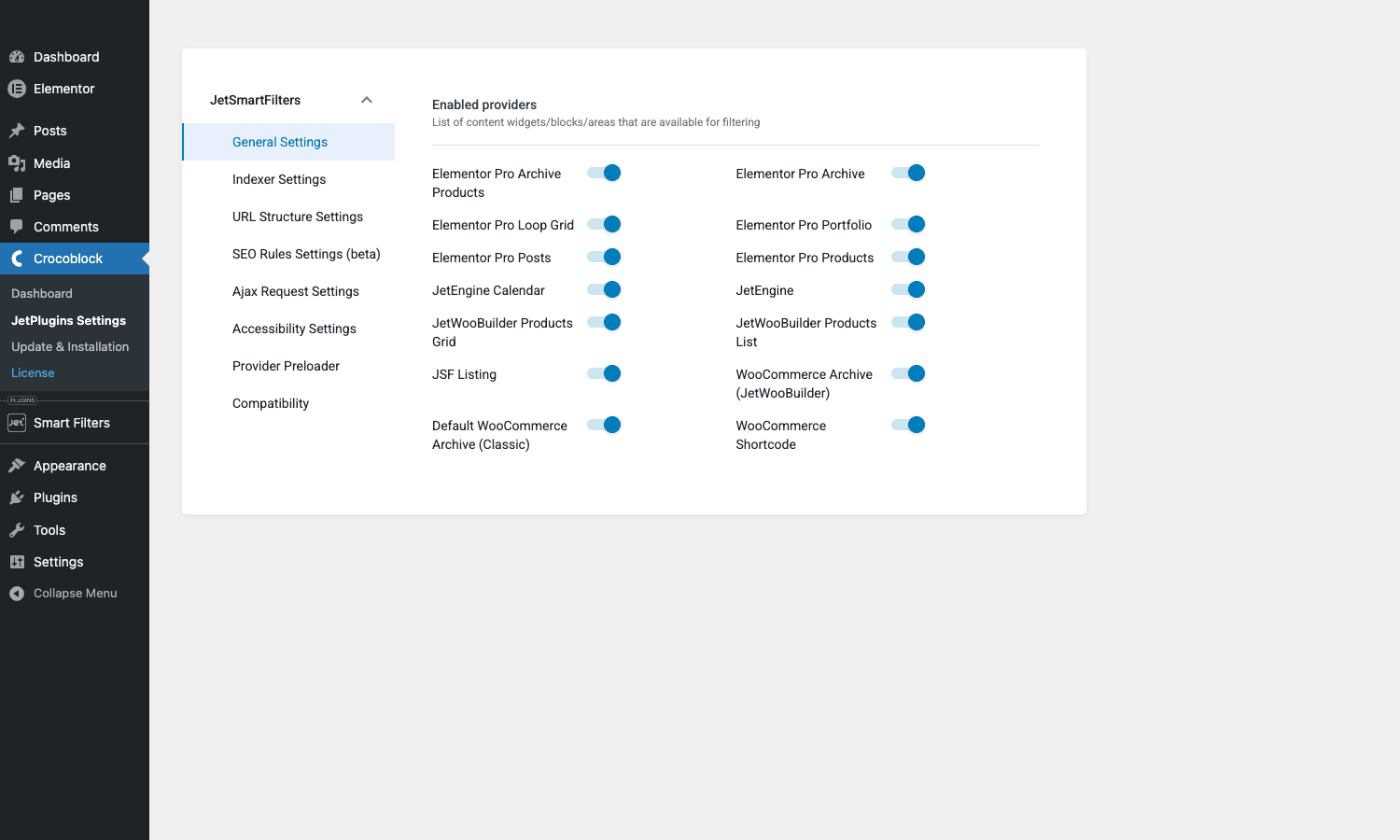
JetSmartFilters does not invent the listing. It hooks into an existing one. The Settings page exposes a toggle per provider so you can leave only the ones you use turned on, which avoids unrelated AJAX handlers loading on the front end. The current provider list:
- Elementor Pro Archive (the dynamic archive template)
- Elementor Pro Archive Products (the WooCommerce archive in Elementor Pro)
- Elementor Pro Loop Grid (the modern loop widget)
- Elementor Pro Portfolio
- Elementor Pro Posts
- Elementor Pro Products
- JetEngine (any Listing Grid built with JetEngine)
- JetEngine Calendar (the calendar listing variant)
- JetWooBuilder Products Grid
- JetWooBuilder Products List
- JSF Listing (a lightweight built-in listing renderer)
- WooCommerce Archive (JetWooBuilder)
- WooCommerce Shortcode (the classic
[products]shortcode) - Default WooCommerce Archive (Classic) (the unmodified shop page)
- Bricks Builder Query Loop (a separate provider exposed when Bricks is active)
Two things to take from that list. First, if your site is a Loop Grid in Elementor Pro or a Listing Grid in JetEngine or a Bricks query loop, this plugin treats it as a first-class citizen. Second, plain Gutenberg sites are not on the list. The plugin does ship Gutenberg blocks for the filter widgets, but they still need to point at one of the supported provider listings; you cannot filter a plain Query Loop block from a non-Crocoblock theme. If you are on a Gutenberg-only site with no Elementor and no Bricks, FacetWP is the better tool. I will come back to that comparison later.
How a filter is built, end to end
Building a single filter takes about ninety seconds once you have done it twice. The flow:
- Go to Smart Filters > Add New. The Filter Name field at the top is what shows up as the widget label by default, so name it for the visitor ("Price Range") not for yourself ("price_meta_filter_v2").
- Pick a card from the Filter Settings grid. The card decides everything below it: a Checkboxes list filter shows a Data Source dropdown (taxonomy, meta field, manual options), a Range filter shows min, max, step, and a meta key field, and so on.
- Choose the data source. The three universal sources are taxonomies (the plugin reads the term list), meta fields (you supply the meta key), and manual options (you type the values into a repeater).
- Configure the active state and the visual options. Checkboxes have a "show count" toggle that displays
Austin (47)next to each option. Range has prefix and suffix ($1,200 - $4,800). Visual has the swatch source (term thumbnail, term meta hex code, term meta image). - Publish.
- Edit the page that holds your listing, drop the matching JetSmartFilters widget into the layout, point its Filter dropdown at the filter post you just created, and set the This filter for and Apply on options to match the listing’s provider. Save.
That is it. The widget renders, the AJAX wiring is automatic, the URL updates by default. There is no "compile" step, no separate Listing Builder, no template language. If you misconfigure something (wrong meta key, listing provider not matching), the filter usually renders but produces zero results, which is the failure mode you want, not a fatal error.
Settings that decide whether your site scales
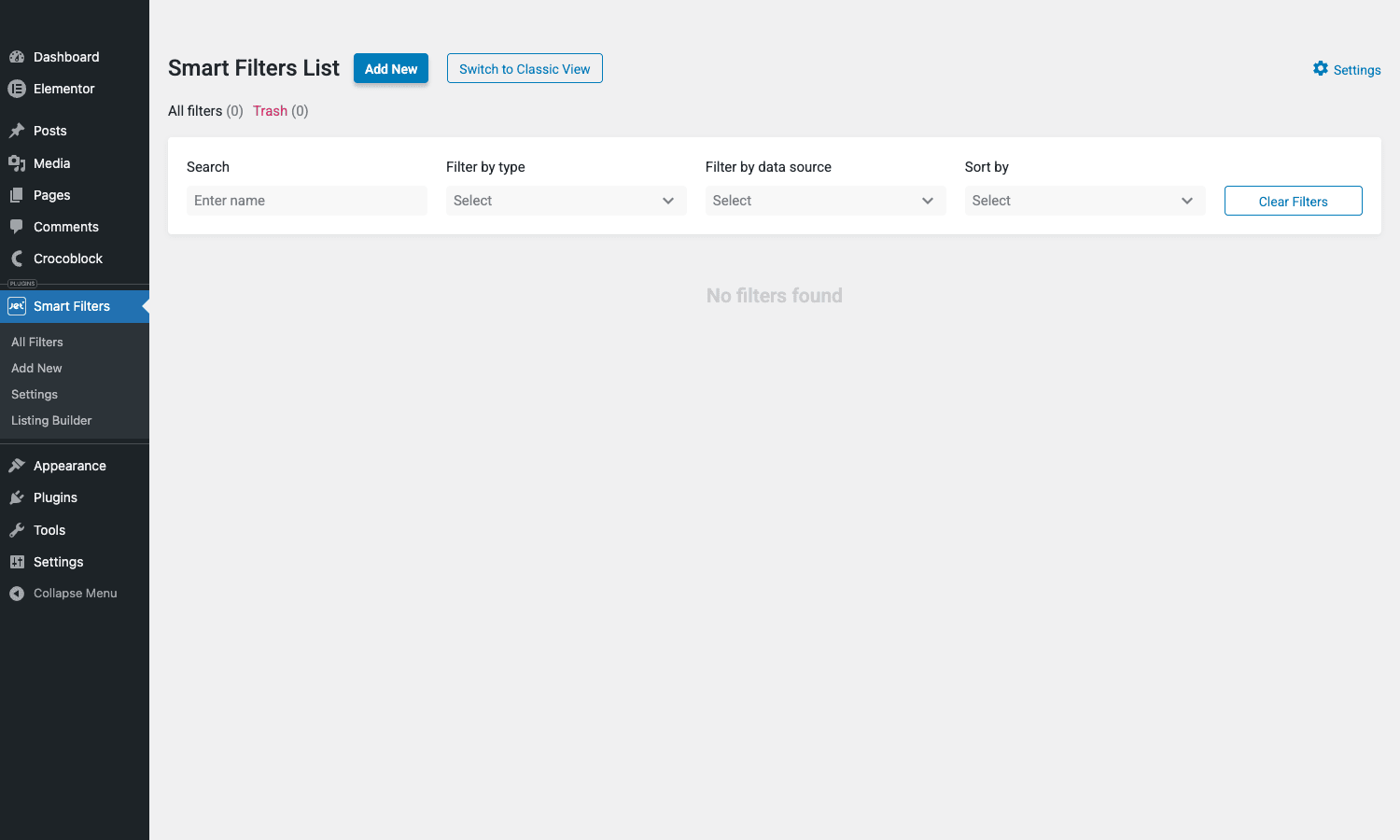
The Settings page has eight sub-tabs and most of them are set-and-forget, but two of them are levers that will determine whether your filtered listings are snappy or sluggish at scale.
General Settings: per-provider toggles. Turn off the providers you do not use. Every active provider registers an admin-ajax endpoint and front-end script. For a JetEngine-only directory site there is no reason to leave Elementor Pro Products or Default WooCommerce Archive on.
Indexer Settings. This is the lever. The indexer is a custom database table (jet_smart_filters_indexer) that pre-computes which posts match which filter values. With the indexer off, every AJAX request runs the full WP_Query with all the meta and tax queries each time. With it on, the plugin uses the index to short-circuit the match set in a single fast lookup, then runs a much smaller follow-up query. On the 4,200-property site I mentioned, AJAX response times went from around 800 to 1,100 ms down to a steady 110 to 180 ms after enabling the indexer. The cost: you have to remember to rebuild the index after a bulk import or a CSV-fed sync, and the index does add storage (typically a few MB per ten thousand posts).
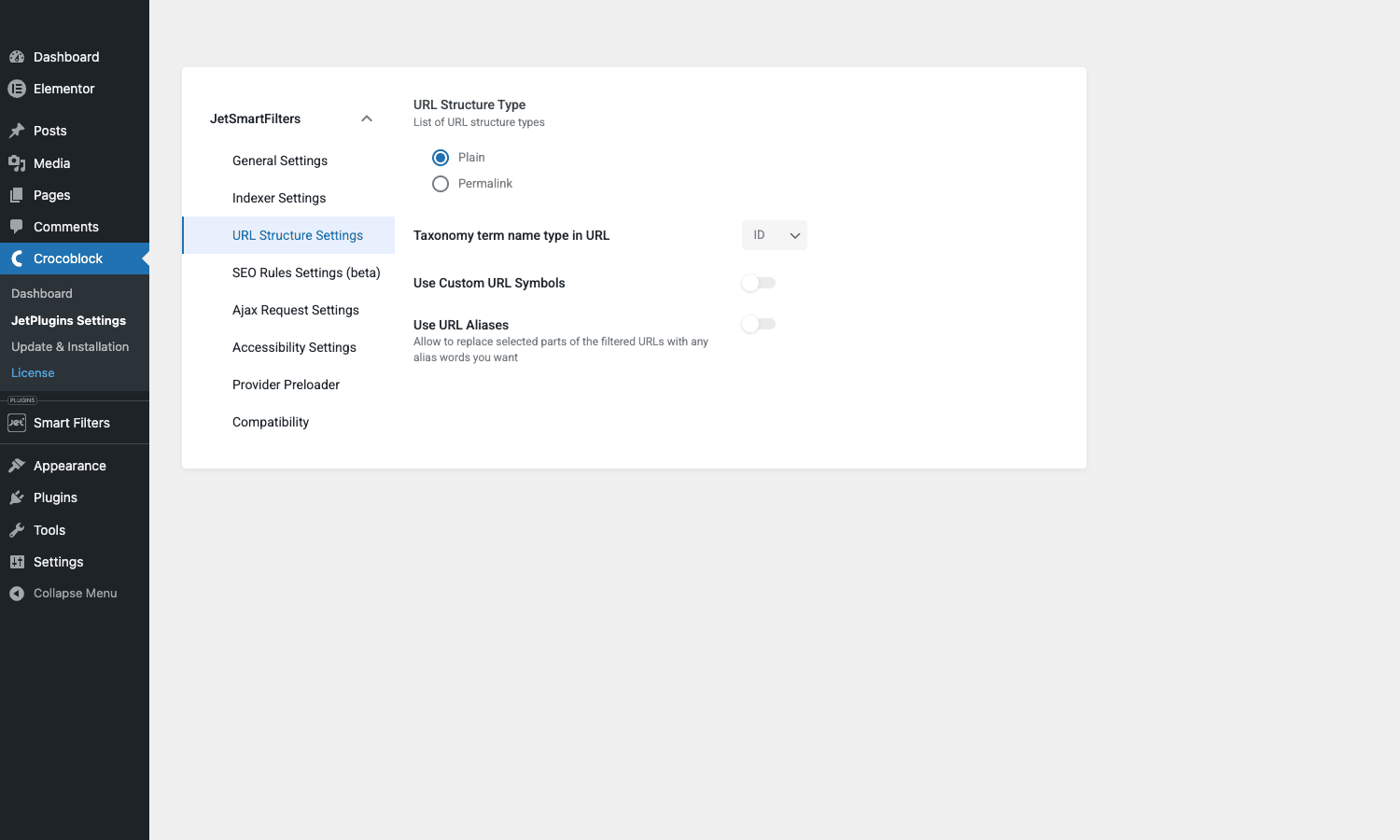
URL Structure Settings. Two big choices live here. The first is Plain versus Permalink. Plain produces query-string URLs like /properties/?_jsf=property_filter&_city=austin&_bedrooms=3. Permalink produces pretty URLs like /properties/city/austin/bedrooms/3/. Permalink is much friendlier for SEO and for users sharing links, but it requires permalink rules that do not collide with your existing CPT and taxonomy rewrites, so test it on staging first. The second is the Taxonomy term name type in URL, ID or slug. Slug is the obviously correct choice unless you have a hard reason otherwise; ID-based URLs are unreadable and brittle if you ever rebuild your taxonomy.
SEO Rules Settings (beta). Still labelled beta. It lets you control which filtered URLs are indexable, which get canonicalised back to the unfiltered archive, and which return a 404. The right default for most sites is to let one or two high-value filter combinations (the popular city pages, the popular category pages) be indexable and canonicalise the rest back. If you index everything, you end up with thousands of near-duplicate URLs and Google will eventually penalise the archive’s authority.
Ajax Request Settings. Two knobs: query-string mode (which UTM-style params to drop on AJAX) and whether to use the WordPress REST API endpoint instead of admin-ajax. The REST option is faster on most managed hosts because admin-ajax is rate-limited by some providers; switch if your host is one of them.
Accessibility Settings. ARIA-related toggles. Leave them on. They add the screen-reader labels and the keyboard focus management that the widgets otherwise lack by default.
Provider Preloader. Lets you set a custom loading state per provider, useful if your listing has a tall layout and you want a skeleton instead of the small spinner.
Compatibility. A grab-bag of toggles for things like Polylang, WPML, Rank Math (the plugin can disable its own filtered-URL canonicals so Rank Math handles them), and a few caching plugins. Read it once and tick what applies.
URL structure, SEO, and shareable filtered pages
It is worth pulling the URL behaviour out into its own section because this is where most filter plugins quietly fail.
The default JetSmartFilters URL shape is a query string. Functional, ugly, share-able. Switch to Permalink and the plugin builds a path-based URL by concatenating filter slugs in the order they were applied. Toggle Use URL Aliases and you can replace each filter slug with a friendly alias, so ?_property_type=apartment becomes /type-apartment/ or even just /apartment/. Toggle Use Custom URL Symbols and you can swap the default delimiters (the colon, the slash, the comma between multi-select values) for symbols that work better with your existing rewrites. I keep slashes for taxonomies and a hyphen for multi-value separators, which produces /city-austin/bedrooms/3/ style URLs that read naturally.
A small SEO note. If you want the city pages indexable, set them up as proper CPT archives or category archives in WordPress and let JSF filter on top of those, rather than relying on filtered URLs of a generic /properties/ page to rank. Filtered URLs are a tool for users who already arrived; canonical CPT archives are the tool for users arriving from Google.
One extended example: a city property directory
Skipping the usual five-bullet list of use cases. Here is one extended example that covers most of what people actually do with this plugin.
Take a city-only property directory. CPT named property. Taxonomies: property_type (apartment, house, townhouse, commercial), district (twenty city districts), feature (pool, garage, balcony, garden, fireplace, EV charger). Meta fields: price (integer), bedrooms (integer), bathrooms (integer), size_sqm (integer), year_built (integer).
The page layout is built in Elementor Pro. The main column is a Loop Grid widget pointing at the property CPT, three columns wide, twelve posts per page, sorted by price ascending by default. The left sidebar is a vertical stack of JetSmartFilters widgets:
- A Search filter on the property title, debounced at 400 ms.
- A Checkboxes list for
property_type, with the count toggle on. - A Checkboxes list for
district, with a "show more" toggle that collapses after the first six values. - A Range filter for
price, with auto-computed bounds, prefix$, step 10000. - A Check Range Filter for
bedrooms, four checkboxes (1, 2, 3, 4+). - A Check Range Filter for
bathrooms, three checkboxes (1, 2, 3+). - A Range filter for
size_sqm, fixed bounds 30 to 500, step 10, suffixm2. - A Checkboxes list for
feature, count off, accordion collapsed by default.
Above the listing: a row with the Active Filters widget on the left and the Sort By widget on the right (sort options: price low to high, price high to low, newest, largest). Below the listing: the JetSmartFilters Pagination widget.
Settings: Indexer on, URL Structure set to Permalink with slug-based taxonomy names, URL Aliases on (so property_type becomes type, district becomes area), Ajax via REST API, Accessibility on, Auto-Apply on for checkboxes and Range, Apply button visible only on mobile (where users prefer to batch).
Behaviour from a visitor’s perspective. They land on /properties/. They check Apartment under Type and the listing updates in place, the URL becomes /properties/type/apartment/, the Active Filters row shows one chip. They drag the price slider to $200K-$450K and the URL becomes /properties/type/apartment/price/200000-450000/. They click area Downtown and the URL becomes /properties/type/apartment/area/downtown/price/200000-450000/. They click the chip to remove the price filter and it disappears from both the URL and the listing. They share the URL with a friend; the friend lands on the same filtered state because every filter is encoded in the path.
Performance numbers from the actual build I described in the intro. With around 4,200 published properties and the indexer enabled, an AJAX response averages 140 ms on a $40/month managed host with PHP 8.2 and MySQL 8. Without the indexer, the same query averages 880 ms. The indexer table size is around 9 MB.
I built that JetSmartFilters setup last month for a real estate directory and the Indexer Settings toggle saved me three hours of debugging slow filtered pages, so it is the first setting I tick on every new install now.
Developer reference: hooks, filters, custom providers
The hook surface is decent for a plugin in this category. Less exhaustive than FacetWP’s, more than enough for the integration work most teams need. The integration points sit at the layer between filter widgets and the listing’s WP_Query, so if you know your way around pre_get_posts-style work you will feel at home.
Useful actions
// Fires before each filter widget is rendered.
// Lets you mutate the filter's options or skip the render entirely.
add_action( 'jet-smart-filters/filters/before-render', function ( $filter_id ) {
 if ( is_user_logged_in() && 'subscriber' === wp_get_current_user()->roles[0] ) {
 // Hide the price filter for subscriber-tier users.
 if ( 'price_filter' === get_post_field( 'post_name', $filter_id ) ) {
 ob_start();
 add_action( 'jet-smart-filters/filters/after-render', function () {
 ob_end_clean();
 }, 1 );
 }
 }
}, 10, 1 );
// Fires after the indexer prepares its data for a filter.
// Use it to merge in additional indexable values from a custom table.
add_action( 'jet-smart-filters/indexer/after-prepare-data', function ( $indexer ) {
 global $wpdb;
 $extra = $wpdb->get_results( "SELECT post_id, region FROM {$wpdb->prefix}property_regions" );
 foreach ( $extra as $row ) {
 $indexer->add_index_entry( $row->post_id, 'region', $row->region );
 }
}, 10, 1 );
// Lets you mutate the WP_Query args for a specific provider before AJAX runs.
add_action( 'jet-smart-filters/providers/jet-engine/before-ajax-content', function ( $query, $provider ) {
 // Force published-only and exclude an admin-only category.
 $query->set( 'post_status', 'publish' );
 $tax_query = (array) $query->get( 'tax_query' );
 $tax_query[] = array(
 'taxonomy' => 'category',
 'field' => 'slug',
 'terms' => array( 'internal' ),
 'operator' => 'NOT IN',
 );
 $query->set( 'tax_query', $tax_query );
}, 10, 2 );
Useful filters
// Restrict which providers are exposed in the Gutenberg block selector.
add_filter( 'jet-smart-filters/blocks/allowed-providers', function ( $providers ) {
 return array_intersect_key( $providers, array_flip( array( 'jet-engine', 'woocommerce-archive' ) ) );
} );
// Same for the Bricks element selector.
add_filter( 'jet-smart-filters/bricks/allowed-providers', function ( $providers ) {
 unset( $providers['woocommerce-shortcode'] );
 return $providers;
} );
// Change the counter format from "Austin (47)" to "Austin - 47 listings".
add_filter( 'jet-smart-filter/templates/counter/format', function ( $format ) {
 return ' - %s listings';
} );
// Disable Rank Math's canonical handling for JSF filtered URLs.
add_filter( 'jet-smart-filters/compatibility/rank_math/disable_integration', '__return_true' );
// Inject a custom sort-by option site-wide.
add_filter( 'jet-smart-filters/admin/sort-by-list', function ( $list ) {
 $list['_distance_asc'] = array(
 'label' => 'Closest first',
 'query' => array(
 'orderby' => 'meta_value_num',
 'meta_key' => '_distance_km',
 'order' => 'ASC',
 ),
 );
 return $list;
} );
Registering a custom provider
The cleanest extension point is a custom provider class. If you have a non-standard listing (a homegrown shortcode that prints a custom query, a React-rendered grid, a third-party plugin’s loop), you can register it as a JSF provider and the rest of the plugin treats it like any other listing.
add_action( 'jet-smart-filters/providers/manager-init', function ( $manager ) {
 require_once __DIR__ . '/class-my-listing-provider.php';
 $manager->register_provider( new My_Listing_Provider() );
} );
The My_Listing_Provider class implements four methods: get_id(), get_name(), get_wp_query_args(), and ajax_get_content(). The plugin’s existing provider classes in /includes/providers/ are excellent reading material; copy the JSF Listing one and adapt it to your case.
Custom DB tables
The plugin creates two tables on activation. {$prefix}jet_smart_filters_indexer stores the indexed term-to-post mappings (filter ID, post ID, term value). {$prefix}jet_smart_filters_referrer stores referrer data for the URL state restoration. Neither is hot in normal use, but the indexer table is the one to keep an eye on for size and for stale entries after bulk operations. Rebuild the index via the admin button or wp jet-smart-filters indexer rebuild if a WP-CLI command is installed.
Performance, compatibility, and the honest gotchas
The plugin is fast when the indexer is on. It is workable but slow when it is off. That is the first thing.
The second is that JetSmartFilters AJAX responses contain the rendered HTML of the target listing, not a JSON payload. That is great for compatibility (every plugin’s listing HTML just works) and bad for transport size. A Loop Grid of twelve property cards weighs maybe 80 to 200 KB per response. On a slow connection that adds up. The Provider Preloader and a brief debounce on Search inputs both help.
Caching plays oddly with filtered URLs. Most page caches will cache the unfiltered archive at the canonical URL and bypass the cache once query strings or path segments are added by the filters. That is usually the right behaviour, but it means every filtered URL goes to origin every time. If you front the site with a CDN that lets you set a cache rule per path pattern, you can cache the most popular filtered combinations at the edge. We do this on gpltimes.com for the popular category combinations and it cuts origin load measurably.
Bricks support is solid for query loops but a step behind Elementor in widget polish. The filter widgets render correctly in Bricks; the in-builder live preview is less smooth than Elementor’s, which means more save-and-refresh cycles while you style the filters. Not a dealbreaker, just worth knowing if Bricks is your daily driver.
JetEngine compatibility is the strongest because Crocoblock ships both. JetEngine Listing Grids, calendars, maps, and CCT (Custom Content Types) tables all hand off to JetSmartFilters cleanly. If you are already on JetEngine, this plugin essentially completes the directory-site toolkit.
WooCommerce compatibility is good for the standard shop and category archives, very good for archives built with JetWooBuilder, and merely okay for heavily customised WC pages. Variable products with attribute swatches need the WC attribute lookup table populated; if you imported products via CSV and skipped the lookup table rebuild, attribute filters will silently return zero results. The fix is wp wc tool run regenerate_product_lookup_tables from WP-CLI, or the Tools > Regenerate Product Lookup tab in WC.
Translation plugins generally work. WPML and Polylang are both supported via the Compatibility tab. The catch is that filter term URLs need translated aliases set up for each language, or the URL Structure ends up mixing English slugs into otherwise-translated paths. Plan an hour to do this on a multilingual site.
The most common gotcha I see in production is a mismatch between the filter’s data source and the listing’s query. If your listing queries property posts but your Checkboxes list filter is configured against a taxonomy registered for apartment posts, the filter renders empty. Always set up your CPT and taxonomies first, register every term once, then build the filters. This is basic but I have lost an afternoon to a typo in a taxonomy slug more than once.
Plain Gutenberg is the other obvious limit. The plugin’s blocks are usable but they still need an Elementor, Bricks, JetEngine, JetWooBuilder, or WooCommerce listing to filter. If your site has no page builder and no Crocoblock or WooCommerce listings, this is the wrong tool. FacetWP is the right one. We have a separate FacetWP walkthrough that covers that case.
Pricing and where it sits versus the alternatives
JetSmartFilters as a single-plugin license is around $43 per year for one site. That is competitive with FacetWP and undercuts Search & Filter Pro for the equivalent feature set. The catch is that almost nobody buys JetSmartFilters in isolation. The Crocoblock pricing model assumes you are deep in the Jet ecosystem; the All-Inclusive annual at around $199 per year unlocks JetEngine, JetSmartFilters, JetBlocks, JetMenu, JetTabs, JetWooBuilder, JetReviews, JetBooking, JetAppointment, JetCompareWishlist, JetFormBuilder, JetPopup, JetThemeCore, JetTricks, JetProductGallery, JetGridBuilder, JetStyleManager, JetSearch, and the Kava theme. The lifetime All-Inclusive is around $899. If you build more than one Crocoblock-based site a year, the All-Inclusive math is obvious.
How it compares head-to-head:
Versus FacetWP. FacetWP is theme-agnostic, more general, and slightly more polished for very large catalogs and complex facets like proximity or hierarchical. It is also more expensive at the single-site tier and does not have JetSmartFilters’ deep Elementor and JetEngine widget polish. Rule of thumb: if your stack is Elementor or Bricks plus JetEngine, JetSmartFilters. If your stack is Gutenberg or a custom theme with no page builder, FacetWP.
Versus Search & Filter Pro. S&F Pro is older, lighter, and cheaper in the long run for very basic filtering needs. It does not have a visual editor of comparable polish and the AJAX listings need more wiring. If your site is small (under a thousand posts), basic filters, no Elementor, S&F Pro is fine and quietly capable. If you are doing anything more, the JSF or FacetWP tier is worth it.
Versus Filter Everything. Similar feature set to JSF, slightly more general, weaker Elementor integration, smaller ecosystem of provider integrations. Reasonable pick if you want something independent of Crocoblock.
Versus WooCommerce’s native filter widgets. No contest. WC’s built-in widgets are price-range, attribute, and rating, full-page reload only, with rough styling. Fine for a hundred-product store with no filter expectations; replace immediately for anything bigger.
The plugin is GPL licensed; the only difference between our build and the Crocoblock direct download is the lack of automatic Crocoblock update notifications, which most agencies prefer to handle through their own update workflow anyway.
Final read
JetSmartFilters earns its place if your site has an Elementor Pro Loop Grid, a JetEngine Listing, a JetWooBuilder Products Grid, a Bricks Query Loop, or a standard WooCommerce archive that needs more than the built-in filtering. It will not turn a plain Gutenberg site into a faceted directory; it is not trying to. Inside its scope, the per-provider toggles, the indexer table, the URL aliases, the Active Filters chip widget, the fourteen filter types, and the hook layer add up to a complete answer to the filtering problem.
The real estate directory I described at the top runs on it. So do half a dozen WooCommerce stores I have touched in the last year, including a B2B parts catalog with eight thousand SKUs where the indexer is what makes filter selections feel instant. If your next build is a directory, a listings site, or a serious WooCommerce shop on Elementor or Bricks, this plugin is the boring, reliable choice. That is meant as a compliment.