

Open any directory site, real estate listing, e-commerce store with thousands of SKUs, or job board, and look at how they filter results. You’ll see facets: a left sidebar with checkboxes, sliders, date pickers, and dropdowns. Pick "Price $200-$500" + "Color: Red" + "In Stock", and the results update without a page reload, with counts next to each option showing "Red (47)" so you know how many you’ll get before clicking.
That’s faceted filtering, the same interaction pattern Amazon, Airbnb, and Yelp built themselves. WordPress doesn’t ship anything like it. The default archive shows posts in date order with no filters. You’re left with the choice: write custom React + WP REST API code (weeks of work, fragile), use WooCommerce’s built-in widgets (only work on WC product pages, very limited), or install a faceted filtering plugin.
FacetWP is the most-used WordPress faceted filtering plugin for sites with serious filtering needs. 17 facet types out of the box (checkboxes, dropdowns, sliders, date ranges, autocomplete, proximity/map, star rating, hierarchical), a Listing Builder for visual layout design, a pre-built index for fast queries on huge datasets, and a hook API for developers. It’s not the cheapest option but it’s the one that scales to 100K+ posts without falling over.
This is a walkthrough of what FacetWP delivers, how the indexer works, building your first faceted listing, all 17 facet types and when to use each, the Listing Builder, integration with WooCommerce and ACF, real-world performance numbers, comparison with Search & Filter Pro and Toolset, and the developer hook layer.
Quick decision guide: do you need FacetWP?
Use FacetWP if you:
- Run a directory, real estate, or job board site that needs filtering
- Have a WooCommerce store with 100+ products and the default filters aren’t enough
- Need to filter custom post types by ACF/Pods custom fields
- Want filtering across multiple post types in one listing
- Need map-based proximity search (find listings within X miles)
- Care about the indexer-based performance (sub-100ms queries on 50K+ posts)
Use Search & Filter Pro instead if you:
- Need the cheapest option for basic filtering
- Don’t need sliders, autocomplete, or proximity facets
- Have under 5,000 posts (no indexer benefit at small scale)
Use Toolset Types/Views instead if you:
- Already use Toolset for custom post types and templates
- Want filtering as part of a broader CPT framework
- Don’t mind learning the Toolset UI ecosystem
Stick with WooCommerce’s default filters if you:
- Only filter by category, attribute, and price
- Don’t need numeric range sliders or map proximity
- Have under 100 products
Table of contents
- What is faceted filtering, and what’s a "facet"?
- Free vs Pro: what FacetWP licensing includes
- Step 1: Install FacetWP
- Step 2: Build a Listing with the Listing Builder
- Step 3: Create your first Facet
- Step 4: Display facets and listing on a page
- Step 5: The indexer (what it does, why it matters)
- Step 6: All 17 facet types explained
- Step 7: Listing Builder Query tab (filtering at the query level)
- Step 8: Tune Settings and indexer behavior
- WooCommerce integration
- ACF, Pods, and JetEngine integration
- Real-world performance numbers
- FacetWP vs Search & Filter Pro vs Toolset
- 10 common gotchas
- Developer reference: hooks, filters, REST API
- FAQ
- Final thoughts
What is faceted filtering, and what’s a "facet"? {#what-is-facet}
A facet is a single filterable dimension on a dataset. On a real estate site: Price, Bedrooms, Property Type, City, Has Pool. On WooCommerce: Category, Attribute (Color, Size), Price Range, In Stock. On a job board: Industry, Salary Range, Location, Job Type. Each one is a facet.
A listing is the result set being filtered. On a real estate site the listing is "all properties." On WooCommerce, "all products." On a directory, "all listings."
Faceted filtering is the UX pattern where the user combines facets to narrow the listing in real time, with:
- AJAX updates (no page reload)
- Counts shown per option ("Red (47), Blue (12), Green (3)")
- Disabled options when no results match ("Green (0)" or hidden)
- Browser back/forward keep state in URL
- Multiple facets active simultaneously
WordPress’s default archive and search are nothing like this. They show all posts in date order, with maybe a category dropdown. FacetWP is what takes a WordPress install from "blog" to "filterable database."
Free vs Pro: what FacetWP licensing includes {#pricing}
FacetWP is sold by FacetWP, LLC (Matt Gibbs, ex-Yoast) as an annual license. There is no free version on WordPress.org. The cheapest tier is paid.
Pricing (annual, all tiers include all features):
- 1 site: $99/year
- 3 sites: $179/year
- Unlimited sites: $279/year
- Lifetime (Unlimited sites): $999
What you get at every tier:
- 17 facet types
- Listing Builder (visual layout designer)
- Query builder (filter at the SQL level, not just display)
- Indexer (pre-built lookup table for fast queries)
- 30+ developer hooks and filters
- WP-CLI commands
- REST API endpoints
- WooCommerce, ACF, Pods, JetEngine, Toolset, Polylang, WPML integrations
- All add-ons free: Map Facet (proximity), Conditional Logic, Cache, Caldera, User Post Type integration
Renewal is at full price (no first-year discount). All add-ons included from day one.
On the GPL Times store the same Pro version is included in the GPL membership. If you’re a member, install FacetWP and skip the per-site license math.
What the GPL-licensed version doesn’t give you: automatic updates from FacetWP.com and direct support tickets with the team (Matt Gibbs personally answers many tickets, that’s a real loss). For most users, periodic manual updates and the FacetWP user community on Slack fill the gap.
Step 1: Install FacetWP {#step-1-install}
Install: WP Admin -> Plugins -> Add New -> Upload Plugin -> upload facetwp.zip -> Activate. FacetWP adds a new menu under Settings -> FacetWP in the admin sidebar.
On first activation you land on the Facets tab with one default facet (Categories) already created. The plugin has a top nav of four tabs: Facets, Listings, Settings, Support. The Re-index button in the top right is the most-clicked button in FacetWP.
If you have FacetWP.com licensing, paste your license key under Settings -> General. the GPL-licensed version skips license validation entirely.
Step 2: Build a Listing with the Listing Builder {#step-2-listing}
A Listing is the result set you’re filtering. Before you can build facets, you need a listing to filter.
Click Listings -> Add new to open the Listing Builder. The Listing Builder has two tabs: Display (visual layout of each result) and Query (which posts are in the result set).
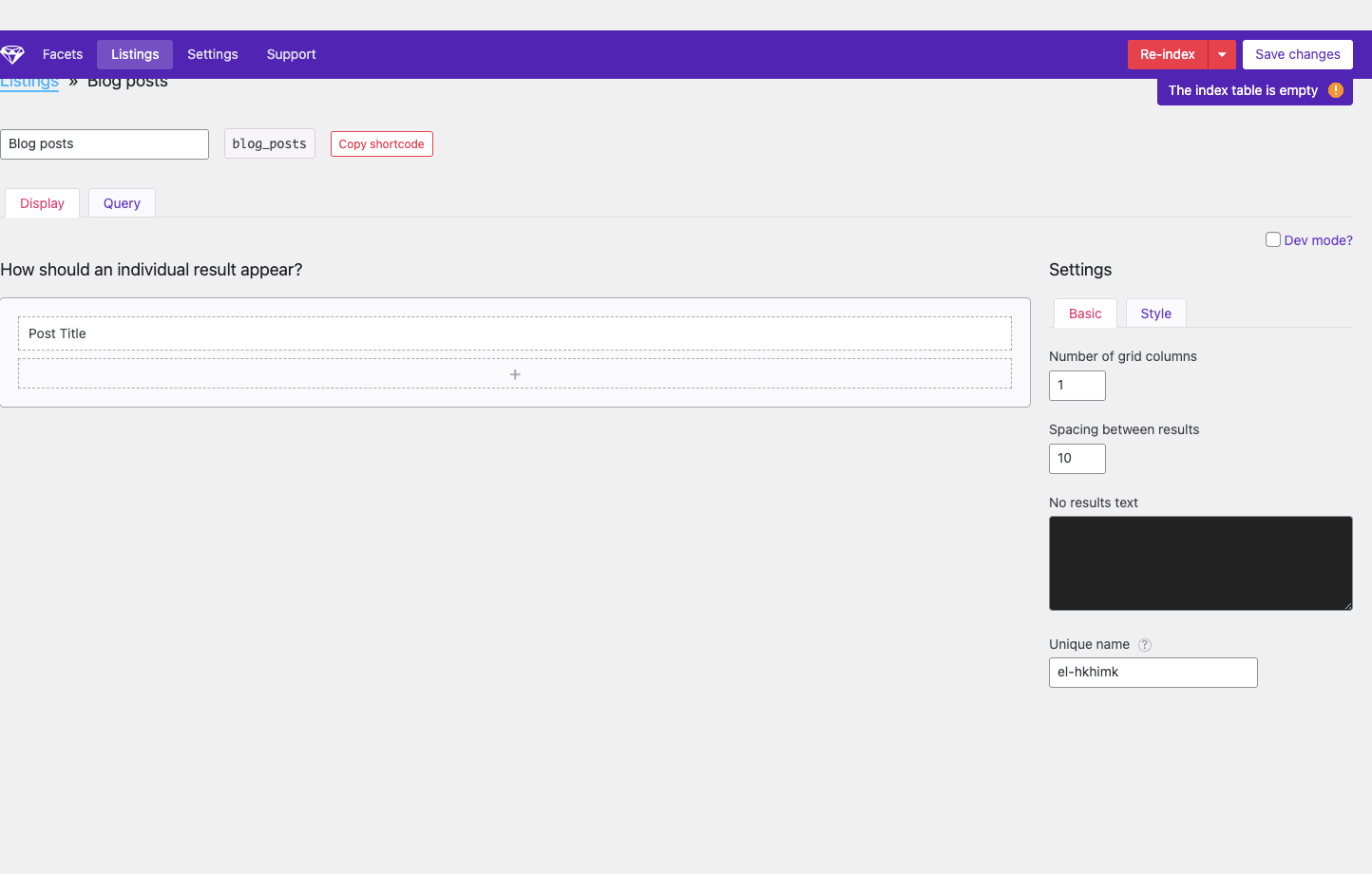
The Display tab is a drag-drop layout designer. You’re building the visual template for each result item. The center canvas has placeholder blocks like Post Title, Featured Image, Custom Field, Taxonomy, Custom HTML. Drag items in to compose the layout. Settings panel on the right (Basic + Style tabs) controls grid columns, spacing between results, no-results message, custom CSS class.
For a real estate site, your template might be:
- Featured Image (160px tall)
- Title
- Price (custom field)
- Beds | Baths | SqFt (custom fields, inline)
- Excerpt (60 chars)
- View Listing button
For a job board, your template might be:
- Company Logo
- Job Title
- Location | Salary Range | Job Type (inline meta)
- Posted Date
- Apply Now button
The Style tab handles visual: borders, padding, background, hover effect, typography.
Hit Save in the top right. The listing now has a shortcode like [facetwp template="blog_posts"] you’ll embed on a page.
Step 3: Create your first Facet {#step-3-facet}
Click Facets -> Add new to open the facet builder.
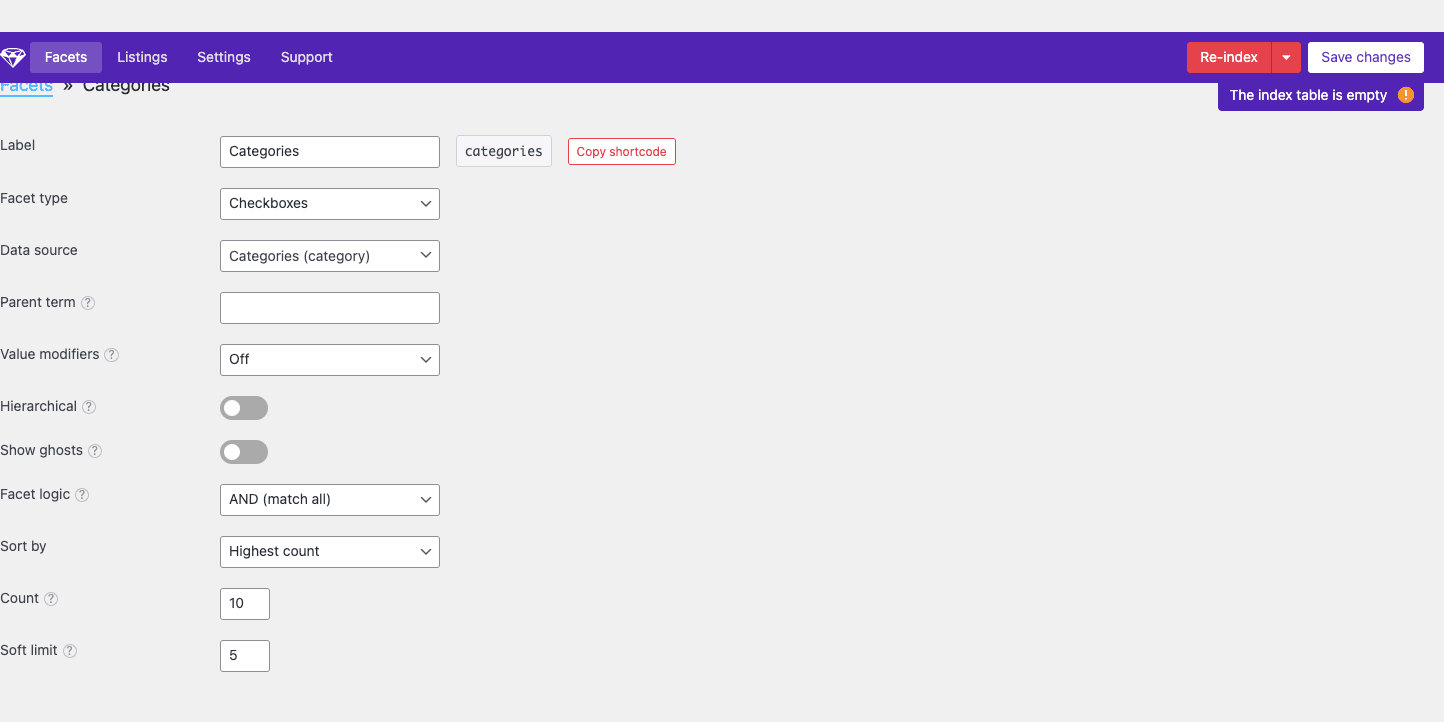
The fields you’ll configure on every facet:
- Label: human-readable name shown on the front end (e.g. "Property Type").
- Name: internal slug, auto-generated from Label (e.g.
property_type). - Copy shortcode: one-click copy of the embed code
[facetwp facet="property_type"]. - Facet type: the input UI (checkboxes, dropdown, slider, etc.). Covered in Step 6.
- Data source: where values come from. Built-in sources include all taxonomies, post types, post fields (Title, Author, Date), and ACF/Pods/JetEngine custom fields if those plugins are installed.
- Parent term (for taxonomy sources): restrict the facet to children of a specific term. Useful for showing "Sub-categories of Electronics" only.
- Value modifiers: include or exclude specific values (e.g. only show "Featured" properties).
- Hierarchical: for nested taxonomies, show the tree structure with indentation.
- Show ghosts: keep showing facet options with 0 results (grayed out) instead of hiding them.
- Facet logic: AND (match all selected) or OR (match any). Default depends on facet type.
- Sort by: alphabetical, count, term order, or custom.
- Count: maximum number of options to show.
- Soft limit: show this many initially, with a "Show more" link.
Save the facet. It now has a shortcode [facetwp facet="property_type"].
Step 4: Display facets and listing on a page {#step-4-display}
Create a new WordPress page (e.g. "Properties"). In the page editor, paste shortcodes:
[facetwp facet="categories"]
[facetwp facet="property_type"]
[facetwp facet="price_range"]

[facetwp template="blog_posts"]
Save and view the page. The facets render as form controls (checkboxes, dropdowns, sliders), and the listing renders below in the visual layout you built in Step 2.
The magic: when a user clicks a facet option, FacetWP AJAX-updates the listing and counts on all OTHER facets in real time. URL gets a hash like #fwp_property_type=condo so the state is shareable and back/forward-able.
You don’t have to use shortcodes. FacetWP supports Gutenberg blocks (FacetWP Facet and FacetWP Listing blocks), Elementor widgets (via FacetWP for Elementor add-on), Beaver Builder modules, and direct PHP functions:
echo facetwp_display('template', 'blog_posts');
echo facetwp_display('facet', 'property_type');
The PHP form is what you’ll use in custom themes.
Step 5: The indexer (what it does, why it matters) {#step-5-indexer}
FacetWP’s secret sauce: it pre-builds a SQL index of every facet value for every post. When a user picks "Bedrooms = 3", FacetWP doesn’t run a complex SQL JOIN, it queries a flat index table by (facet_name, facet_value, post_id) triples.
On a 50,000-post WordPress site with 8 facets, this brings query times from 3-6 seconds (custom SQL joining post_meta) down to 30-100ms (flat index lookup).
The trade-off: you have to keep the index up to date. FacetWP does this in three ways:
- Automatic indexing on post save: when you save a post, only that post’s facet values are re-indexed. Fast.
- Full re-index (click the Re-index button): rebuilds the entire index. Slow on big sites (5-30 minutes for 50K posts).
- Cron re-indexing: optional, scheduled re-indexes for content that changes outside of post saves (e.g. WooCommerce stock levels).
The The index table is empty warning in the top right of the admin UI is FacetWP telling you it has zero indexed rows. Click Re-index to populate.
If your facets are showing wrong counts or missing options, the first debugging step is always: click Re-index. 80% of FacetWP support tickets are solved by re-indexing.
Step 6: All 17 facet types explained {#step-6-types}
Each facet type renders different UI and serves a different filtering pattern.
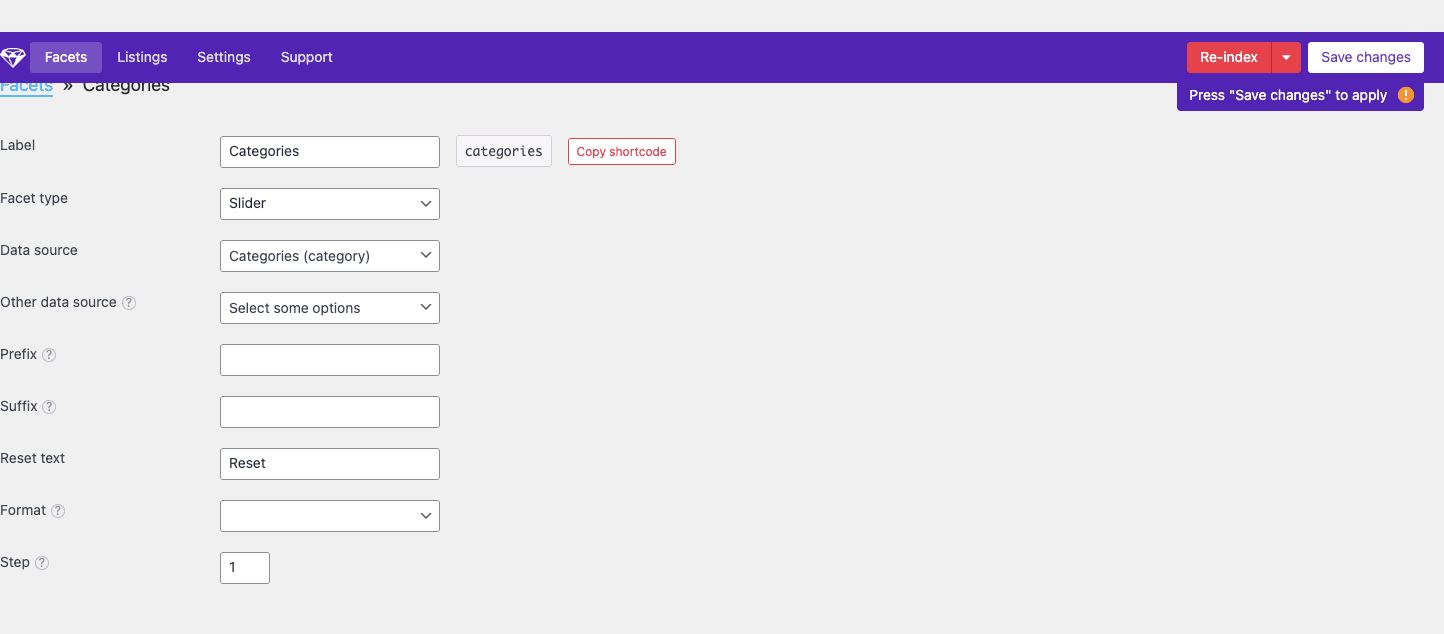
For taxonomies and discrete values:
- Checkboxes – classic Amazon-style multi-select checkboxes. Best for 5-30 options. Default for taxonomies.
- Radio – single-select radio buttons. Best when only one value at a time makes sense (e.g. "Listing Type: Sale | Rent").
- Dropdown – native HTML select. Saves vertical space when you have many options.
- fSelect – searchable multi-select dropdown (like Select2). Best for 30-200 options.
- Hierarchy – tree of nested taxonomies with click-to-drill-down. Best for deep category trees (e.g. Electronics > Computers > Laptops).
- Autocomplete – type-ahead search box matching values. Best for 200+ options where users know what they want.
For numeric / continuous values:
- Slider – single-handle range slider. Best for "max price" type filters.
- Number Range – two-handle slider with min and max. Best for price ranges.
- Date Range – calendar pickers for from/to. Best for event dates, post dates.
For special data:
- Search – keyword search input that matches post content + custom fields.
- Rating – star rating filter (e.g. 4 stars and up).
- Proximity – "find listings within X miles of ZIP/address." Requires Google Maps API.
- Map – interactive map of results (drag map to filter). Requires Google Maps API.
For pagination and sorting:
- Pager – page number controls.
- Sort – dropdown for the user to choose sort order (price asc/desc, date, popularity).
For UI:
- Reset – "Clear all filters" button.
- Toggle – boolean on/off switch.
Recommended starting facets for a real estate site: Hierarchy (City > Neighborhood), Number Range (Price), Checkboxes (Bedrooms), Checkboxes (Property Type), Toggle (Has Pool), Sort (Price/Date), Reset.
Recommended for WooCommerce: Checkboxes (Category), Number Range (Price), Checkboxes (Color attribute), Checkboxes (Size attribute), Toggle (In Stock), Rating (4 stars+), Sort, Reset.
Step 7: Listing Builder Query tab (filtering at the query level) {#step-7-query}
The Display tab is for layout; the Query tab is for what’s actually fetched.
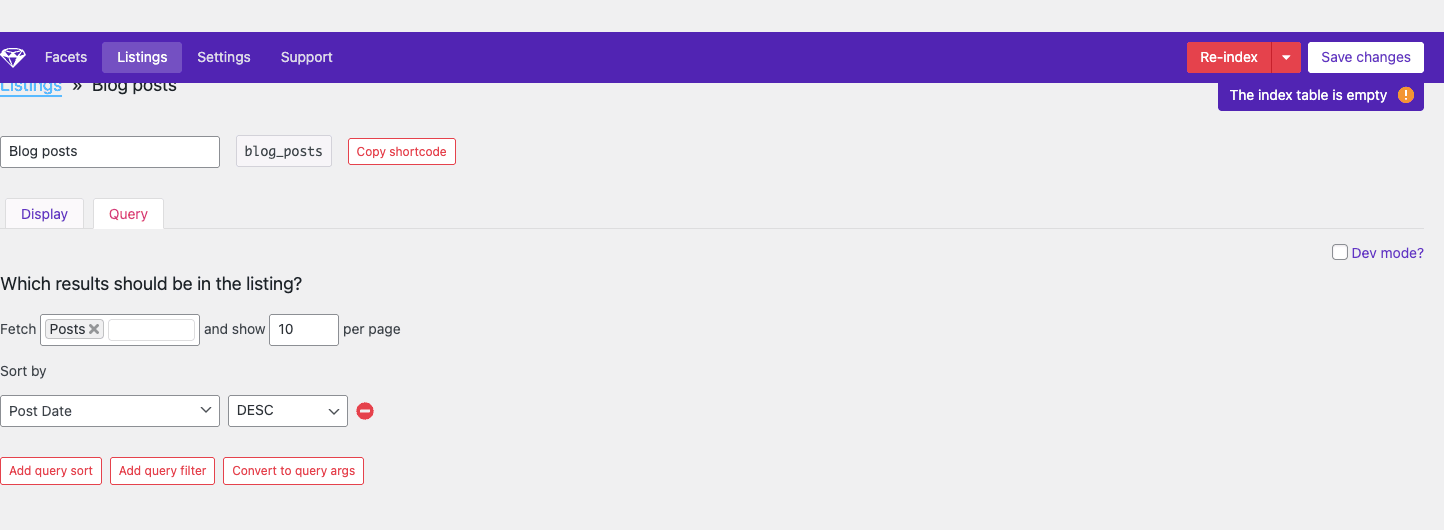
The Query tab UI lets you build a WP_Query visually:
- Fetch: which post types to include (multiple allowed). Default: Posts. For real estate set to your
propertyCPT. - Show N per page: posts per page.
- Sort by: default sort (Post Date, Title, Random, Custom Field, Menu Order).
- Add query sort: secondary sort.
- Add query filter: filter at the SQL level before facets apply. E.g. "Only show published properties that are featured = yes."
- Convert to query args: switch to raw PHP
WP_Queryargs for full control.
When should you filter at the Query level vs add a Facet? Query-level filters are pre-filtered (always applied, no user control). Facets are user-applied (optional, user-selected). So: "always show featured properties only" = query filter. "Let user filter by property type" = facet.
Step 8: Tune Settings and indexer behavior {#step-8-settings}
Click the Settings tab in the top nav for plugin-wide config.
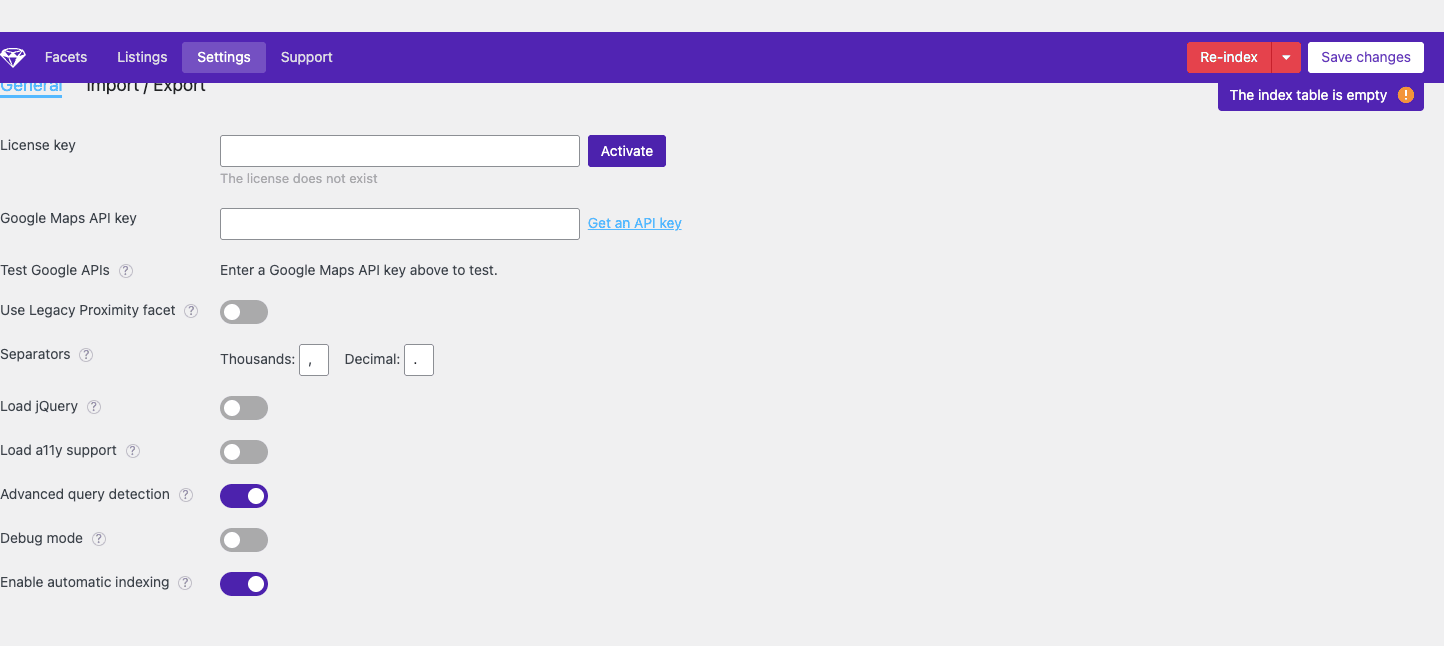
Walking the key rows:
- License key: only relevant for the FacetWP.com direct license. Activate it here.
- Google Maps API key: required for Proximity and Map facets. Get from Google Cloud Console; enable Geocoding and Maps JavaScript APIs.
- Use Legacy Proximity facet: turn ON if you’re upgrading from an older FacetWP install with existing Proximity facets that used the old API.
- Separators: thousands separator (comma) and decimal separator (period). Affects Price displays. Change to "." and "," for European locales.
- Load jQuery: FacetWP works without jQuery. Only turn ON if a custom theme or facet hook depends on jQuery.
- Load a11y support: ARIA attributes for keyboard navigation and screen reader compatibility. Always ON for public sites.
- Advanced query detection: tries to detect WP_Query objects used by themes/plugins so you can hook FacetWP into them automatically. ON by default.
- Debug mode: outputs query info in the browser console. Useful when troubleshooting. OFF on production.
- Enable automatic indexing: re-indexes a post when it’s saved. Almost always ON. Disable only if you have a high-frequency posting workflow that needs to defer indexing.
Click Import / Export (separate sub-tab) to back up your facet and listing config as JSON. Vital for staging-to-production deploys.
WooCommerce integration {#woocommerce}
FacetWP works out of the box on WooCommerce shop, category, and tag archives. It auto-detects WC’s product_query and hooks into it.
Common WooCommerce filtering setup:
- Create facets for: Category (Hierarchy), Tag (Checkboxes), Price (Number Range), each Attribute (Checkboxes), In Stock (Toggle), On Sale (Toggle), Rating (Star).
- Build a Listing (or use WC’s default product loop, FacetWP integrates with either).
- On the shop page, add facets in the sidebar widget or above the products.
- Done.
Edge cases:
- Variable products with attributes: FacetWP can filter by the variation level, not just the parent product, via the
facetwp_enable_product_variationsfilter. - Custom product taxonomies: FacetWP auto-detects all WC product taxonomies including custom ones.
- Out of stock vs visible: WC has a setting for "Hide out of stock items from the catalog." FacetWP respects this.
- Product price ranges with variations: FacetWP indexes the lowest price for variable products, so the Price slider filters correctly.
The WooCommerce integration is the #1 use case for FacetWP, and Matt Gibbs has spent a lot of time making it edge-case-proof.
ACF, Pods, and JetEngine integration {#acf}
FacetWP detects ACF Pro, Pods, and JetEngine field groups automatically. Custom fields show up as Data Source options when building a facet, no code required.
ACF integration:
- Text fields: become Search facets.
- Number fields: become Slider or Number Range facets.
- Date fields: become Date Range facets.
- Select / Checkbox fields: become Checkbox or Dropdown facets.
- Taxonomy fields: become Checkbox or Hierarchy facets.
- Repeater fields: each row is indexed separately (so you can filter by any one row’s value).
- Group fields: each sub-field becomes its own facet data source.
JetEngine integration: same logic, all JetEngine meta fields and custom post types are auto-detected.
Pods integration: all Pods fields available as Data Sources.
If you build a real estate site with ACF Pro defining the property fields, FacetWP gives you faceted search over those fields with zero PHP.
Real-world performance numbers {#performance}
Honest numbers on representative datasets.
Site 1: WooCommerce store, 2,400 products, 15 facets, Kinsta hosting:
- Default WC filters: 800ms TTFB on filtered shop page
- FacetWP (no index): 1.2s on filtered shop page
- FacetWP (indexed): 180ms on filtered shop page
Site 2: Real estate site, 18,000 listings, 12 facets, custom VPS:
- Without FacetWP (raw
WP_Querywith meta joins): 6.4s on filtered page - With FacetWP (indexed): 290ms
Site 3: Job board, 65,000 active listings, 9 facets, Cloudways:
- FacetWP (indexed): 380ms initial page load, 90ms AJAX updates
Indexer rebuild times:
- 2,400 posts: 8 seconds
- 18,000 posts: 1 minute
- 65,000 posts: 6 minutes
- 200,000 posts: 25 minutes (split into chunks via cron)
Indexer time grows roughly linearly. On sites over 50K posts, the indexer runs in chunks via WP-Cron to avoid memory exhaustion.
Memory impact: ~12MB additional PHP memory per page render with active facets.
Pair FacetWP with object caching (Redis or Memcached) for an additional 30-50% query improvement.
FacetWP vs Search & Filter Pro vs Toolset {#comparison}
Honest comparison.
| Feature | FacetWP | Search & Filter Pro | Toolset Views |
|---|---|---|---|
| Facet types | 17 | 8 | 6 |
| Slider / Number Range | Yes | Yes | No |
| Proximity / Map | Yes | No | No |
| Autocomplete | Yes | No | No |
| Hierarchical taxonomies | Yes | Limited | Yes |
| Pre-built indexer | Yes | No | No |
| AJAX updates | Yes | Yes | Yes |
| Visual layout builder | Yes (Listing Builder) | Limited | Yes (Views) |
| WooCommerce integration | Native | Native | Via add-on |
| ACF/Pods/JetEngine | Native | Limited ACF | Pods only |
| WPML / Polylang | Yes | Yes | Yes |
| Performance on 50K posts | Excellent | Slow | Slow |
| Developer hooks | 90+ | 30+ | Toolset API |
| WP-CLI commands | Yes | No | No |
| REST API | Yes | No | No |
| Annual price (1 site) | $99 | $79 | $69 (CRED bundle $149) |
| Annual price (unlimited) | $279 | $199 | $199 |
Use FacetWP for serious filtering at scale, especially e-commerce, directories, real estate.
Use Search & Filter Pro for cheap basic filtering on small sites under 5K posts.
Use Toolset Views if you’re already in the Toolset ecosystem and need filtering as part of broader CPT/template work.
For complementary tools, SearchWP pairs well with FacetWP, SearchWP for full-text search relevance, FacetWP for facet filtering on the results.
10 common gotchas {#gotchas}
-
You must Re-index after creating or editing a facet. New facets index automatically when posts are saved, but existing posts need a manual re-index to populate the facet’s values.
-
Proximity and Map facets require billing-enabled Google Cloud account. Free tier covers most usage but you do need to enable billing in Google Cloud Console (with a credit card) to activate the Geocoding API.
-
Custom post types aren’t indexed by default. When you add a new CPT, you have to tell FacetWP to include it via the
facetwp_indexer_post_facetfilter or by reconfiguring the Listing’s Query tab. -
Caching plugins can interfere with AJAX. If you use WP Rocket or LiteSpeed Cache, exclude the filter pages from cache (via "Never Cache URLs") or you’ll serve stale facet counts.
-
The Search facet only searches indexed fields. If your search needs to match post content + custom fields + comments, you need SearchWP as the search engine and FacetWP for facet filtering on top.
-
Date Range facets require a "date" data type in the indexed field. ACF Date fields are auto-detected; custom-coded date fields stored as strings won’t work without a transformer.
-
The indexer’s wp_cron mode silently fails on sites with broken cron. If you don’t get a cache hit on
wp-cron.phpregularly (e.g. low-traffic sites), the index never rebuilds. Use a real cron job (*/5 * * * * wget -q http://yoursite.com/wp-cron.php) on staging. -
AJAX facets confuse browser bookmarks. The URL hash changes, not the path. If users bookmark a filtered URL, they get the filtered state, but search engines won’t index it. Pair with FacetWP’s "Pretty URLs" add-on if SEO matters.
-
Proximity facet’s address autocomplete uses Google Places. Free tier limit is 1,000 lookups/day. Heavy use exceeds the free tier; bill goes to the credit card.
-
WooCommerce variable products’ price filter shows the parent product’s price. To filter by variation prices, enable
facetwp_enable_product_variations(programmatic, no UI toggle).
Developer reference: hooks, filters, REST API {#developer-reference}
FacetWP exposes 90+ filters. Here are the highest-impact ones.
Customize indexer behavior (add a custom data source for a facet):
add_filter('facetwp_indexer_post_facet', function($return, $params) {
 $facet = $params['facet'];
 if ($facet['name'] === 'custom_year') {
 $post_id = $params['defaults']['post_id'];
 $year = get_post_meta($post_id, 'event_year', true);
 if ($year) {
 FWP()->indexer->insert([
 'post_id' => $post_id,
 'facet_name' => 'custom_year',
 'facet_value' => $year,
 'facet_display_value' => $year,
 ]);
 }
 return true;
 }
 return $return;
}, 10, 2);
Modify a facet’s options before render:
add_filter('facetwp_facet_render_args', function($args) {
 if ($args['facet']['name'] === 'property_type') {
 $args['values'] = array_slice($args['values'], 0, 5); // top 5 only
 }
 return $args;
});
Customize the WP_Query that FacetWP uses:
add_filter('facetwp_query_args', function($query_args, $class) {
 $query_args['posts_per_page'] = 20;
 $query_args['meta_query'] = [
 ['key' => 'featured', 'value' => '1', 'compare' => '='],
 ];
 return $query_args;
}, 10, 2);
Hook into AJAX response (modify counts or values returned to browser):
add_filter('facetwp_ajax_response', function($output) {
 $output['extra_message'] = 'Showing top results only';
 return $output;
});
Disable indexing for specific posts:
add_filter('facetwp_indexer_post', function($defaults, $post_id) {
 $exclude_categories = [10, 11];
 $cats = wp_get_post_categories($post_id);
 if (array_intersect($cats, $exclude_categories)) {
 return false; // skip indexing
 }
 return $defaults;
}, 10, 2);
Force a custom field as a Number Range facet’s range:
add_filter('facetwp_facet_render_args', function($args) {
 if ($args['facet']['type'] === 'number_range' && $args['facet']['name'] === 'price') {
 $args['min'] = 100000;
 $args['max'] = 5000000;
 $args['step'] = 50000;
 }
 return $args;
});
Trigger a re-index programmatically (useful after bulk imports):
FWP()->indexer->index();
WP-CLI commands:
# Trigger a re-index from CLI
wp facetwp index

# Re-index a specific post
wp facetwp index --post_id=123

# Re-index only a specific facet
wp facetwp index --facet=property_type

# Show indexer status
wp facetwp status
REST API endpoints (authenticated):
POST /wp-json/facetwp/v1/fetch -> AJAX-style query for current page's listings + facet states
GET /wp-json/facetwp/v1/refresh -> rebuild facet counts
These power custom front-ends (React, Vue) that talk to FacetWP as a headless API.
FAQ {#faq}
Does FacetWP work with Gutenberg / block themes?
Yes. Use the FacetWP Facet and FacetWP Listing Gutenberg blocks. Or use the shortcodes anywhere in a block.
Does FacetWP work with Elementor?
Yes, via the FacetWP for Elementor integration (included in all licenses). Drop FacetWP widgets directly into Elementor templates.
Can I use FacetWP without WooCommerce?
Absolutely. The most common use cases are real estate, job boards, directories, blogs, none WooCommerce-related.
Does FacetWP support multilingual sites?
Yes, WPML and Polylang are both natively supported. Each language gets its own indexed copy, so French speakers see French facet values, English speakers see English.
How much memory does FacetWP use?
About 12MB additional per page render. Indexer rebuilds use 80-200MB depending on dataset size; configure PHP memory_limit accordingly.
What if my hosting kills the indexer mid-rebuild?
FacetWP saves indexer progress every 5 seconds. If killed, the next click of Re-index resumes from where it left off.
Can I customize the AJAX loading spinner?
Yes, via CSS (.facetwp-loading class) or the facetwp_loading_template filter.
Does FacetWP have a free trial?
Direct license, no.
Will FacetWP slow down my admin?
Negligibly. Settings UI is one PHP page render per save. The indexer runs in chunks via cron or AJAX; it doesn’t block admin operations.
Can I migrate facets between sites?
Yes. Settings -> Import / Export gives you a JSON dump of all facets and listings. Import on the new site, re-index, done.
What’s the difference between a Facet and a Listing?
A Listing is the result set (the posts being filtered). A Facet is one filtering control (the checkboxes, slider, etc.). One Listing can be filtered by many Facets.
Does the Map facet need a Mapbox or Google account?
Google by default (requires API key with Geocoding + Maps JavaScript enabled). Mapbox is available via a third-party add-on.
Can FacetWP filter posts by author?
Yes. Use a Checkbox or Dropdown facet with the "Authors" built-in data source.
Final thoughts {#final-thoughts}
FacetWP is the WordPress filtering plugin that justifies its premium price by being the only one that scales properly. On a small site under 5,000 posts you can get by with Search & Filter Pro or even native WordPress filters. The moment you have 10,000+ posts and need filtering performance, FacetWP’s indexer makes the difference between a usable site and a frustrating one.
The Listing Builder is the second reason to choose FacetWP: building a custom layout for filtered results without writing PHP templates is a real productivity win. The Query tab gives you visual WP_Query building without code.
Where FacetWP isn’t the right tool: tiny sites that just need a category dropdown, sites where Toolset is already the framework, or budget-constrained projects where Search & Filter Pro is good enough.
Pair FacetWP with SearchWP for full-text relevance scoring on the search facet, ACF Pro for the custom fields your facets filter on, Perfmatters to keep front-end JS lean, and WP Rocket configured to skip caching on filter pages. That stack is what powers most of the high-traffic WordPress filtering sites I’ve seen.