

If you have ever wanted a "Properties" post type with bedrooms, bathrooms, and a map field, or a "Members" directory connected to "Events" through a many-to-many relationship, you have two real options on WordPress: write a few hundred lines of PHP, or install a content modeling plugin. Toolset Types is the original visual-UI option from OnTheGoSystems, and it is still one of the best at the "boring" core job of registering post types, fields, and taxonomies. This review walks through what it does, how the admin actually looks, the developer hooks, and how it compares to the usual suspects (ACF Pro, JetEngine, Pods, Meta Box). For how Meta Box itself handles that job, see our Meta Box review.
A quick note before we start: this review focuses on Toolset Types, the free foundation plugin. The full Toolset bundle adds Views (templates and queries), Forms (front-end CRUD), Blocks (Gutenberg blocks bound to fields), and Access (per-role permissions).
Table of Contents
- What Toolset Types does
- Core features
- How it works for users
- Installation and setup
- Creating your first custom post type
- Adding custom fields
- Custom taxonomies and term fields
- Post relationships
- Real-world use cases
- Developer reference
- Performance, compatibility, and gotchas
- Toolset Types vs ACF Pro vs JetEngine vs Meta Box vs Pods
- Pricing and licensing
- Frequently asked questions
- Final thoughts
What Toolset Types does
Toolset Types is a content-modeling plugin for WordPress. It does three jobs:
- Register custom post types through an admin form, with every flag that
register_post_type()accepts and a few that it does not. - Register custom taxonomies the same way, with hierarchical or flat behavior, REST exposure, and admin column support.
- Define custom field groups of more than two dozen field types and attach them to posts, users, or taxonomy terms.
On top of those three, it also handles post relationships (one-to-one, one-to-many, and many-to-many with an intermediate post type), conditional display of fields, repeating field groups, per-field validation rules, and XML import/export of your whole content model. The plugin file lives in types/wpcf.php and registers a top-level "Toolset" admin menu where every panel hangs off admin.php?page=....
The thing that makes Toolset Types interesting is not that it does any one of those jobs better than its competitors. ACF Pro arguably has a nicer field builder. JetEngine has flashier listings. CMB2 is more dev-friendly. The reason to pick Toolset is that the same content model also drives the rest of the suite. Once you have a "Property" post type with fields here, the Views plugin can render a queryable listing of it, Forms can give you a front-end editor for it, Blocks gives you Gutenberg blocks bound to its fields, and Access controls who can edit it. The integration is the product.
But Types on its own is still a perfectly usable CPT + custom fields tool, so let’s look at what you actually get.
Core features
- Custom post type builder with full control of slug, labels, supports flags, admin menu position and icon (full dashicon picker), permalinks, REST exposure, and attached taxonomies and field groups.
- Custom taxonomy builder with hierarchical or flat behavior, admin column toggle, query var, REST exposure, and all 15 label strings.
- Custom field groups for post fields, user fields, and term fields, with assignment rules ("show on this CPT", "show when this other field is X").
- More than two dozen field types: single line, multi-line, WYSIWYG, image, file, date, numeric, URL, email, phone, video, audio, embed, address with Google Maps geocoding, checkbox and checkboxes (multi), radio, select, and reference fields that point to other posts or taxonomy terms.
- Conditional field display: "Only show the address field when the listing type is rental." Built-in, no extra plugin.
- Per-field validation: required, min/max length, regex, numeric range, must-be-a-URL, and friends.
- Repeating field groups: ACF’s repeater equivalent, useful for things like "list of services" inside a parent post.
- Post relationships: one-to-one, one-to-many, and many-to-many. Many-to-many gets its own intermediate post type so you can store data about the relationship itself.
- Importer and exporter: dump your whole content model to XML, restore it on another site. Great for dev to prod.
[types]shortcode for rendering field values anywhere in content or a template.- WPML integration through the bundled wpml-config.xml, so translated post types and field values work out of the box on multilingual sites.
- Cooperates with classic and block editors, including a "Per post" mode where each post can pick its own editor.
How it works for users
The mental model is: define a post type (the kind of thing you are storing), optionally define taxonomies to classify it, define field groups that hold the per-post data, and then write or import posts of that type. The Toolset dashboard ties it all together with a grid view of "what does my site model look like?"
After activation the plugin adds a top-level "Toolset" menu with sub-items for Dashboard, Post Types, Taxonomies, Custom Fields, Relationships, Settings, and Export / Import. Here is the dashboard on a fresh install showing built-in WordPress post types and the actions you can take on each:
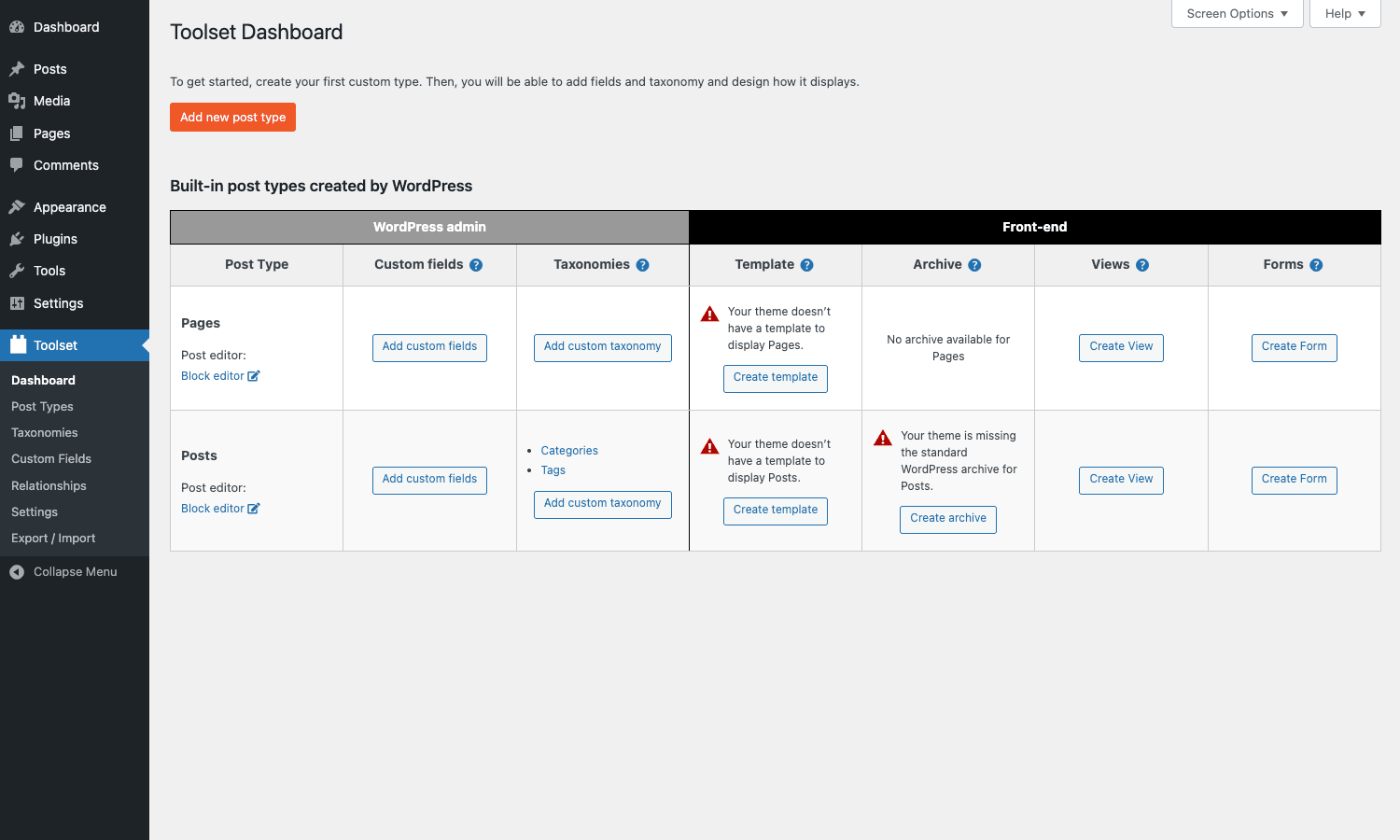
That grid is genuinely useful. Each row is a post type and each column is something you can attach to it (fields, taxonomy, template, archive, view, form). The Custom Fields and Add Custom Taxonomy buttons jump straight into the right editor pre-targeted at that post type. It is the cleanest "where do I start" view I have seen on a content modeling plugin.
Installation and setup
- In WP admin, go to Plugins > Add New > Upload Plugin and pick the zip.
- Click Install Now, then Activate.
- A new Toolset item appears in the admin sidebar. Click it to land on the dashboard.
There is no setup wizard and no required license activation step (the GPL-licensed version does not phone home). On first run the dashboard is empty apart from the built-in WordPress post types. The visible "Help" tooltips on each column header explain what fields, taxonomies, templates, archives, views, and forms do, which is a nice touch if this is your first content modeling plugin.
If you want all of the suite’s features you also need Toolset Views (for templating), Toolset Forms (for front-end editing), Toolset Blocks (for Gutenberg blocks bound to fields), and Toolset Access (for permissions). Each is a separate plugin and each is available on GPL Times. For this article we are looking at Types on its own.
Creating your first custom post type
The Post Types screen lists every CPT on your site, including built-in ones. The interesting column is "Field Groups", which tells you at a glance which post types have custom fields attached. Click Add New to start creating one.
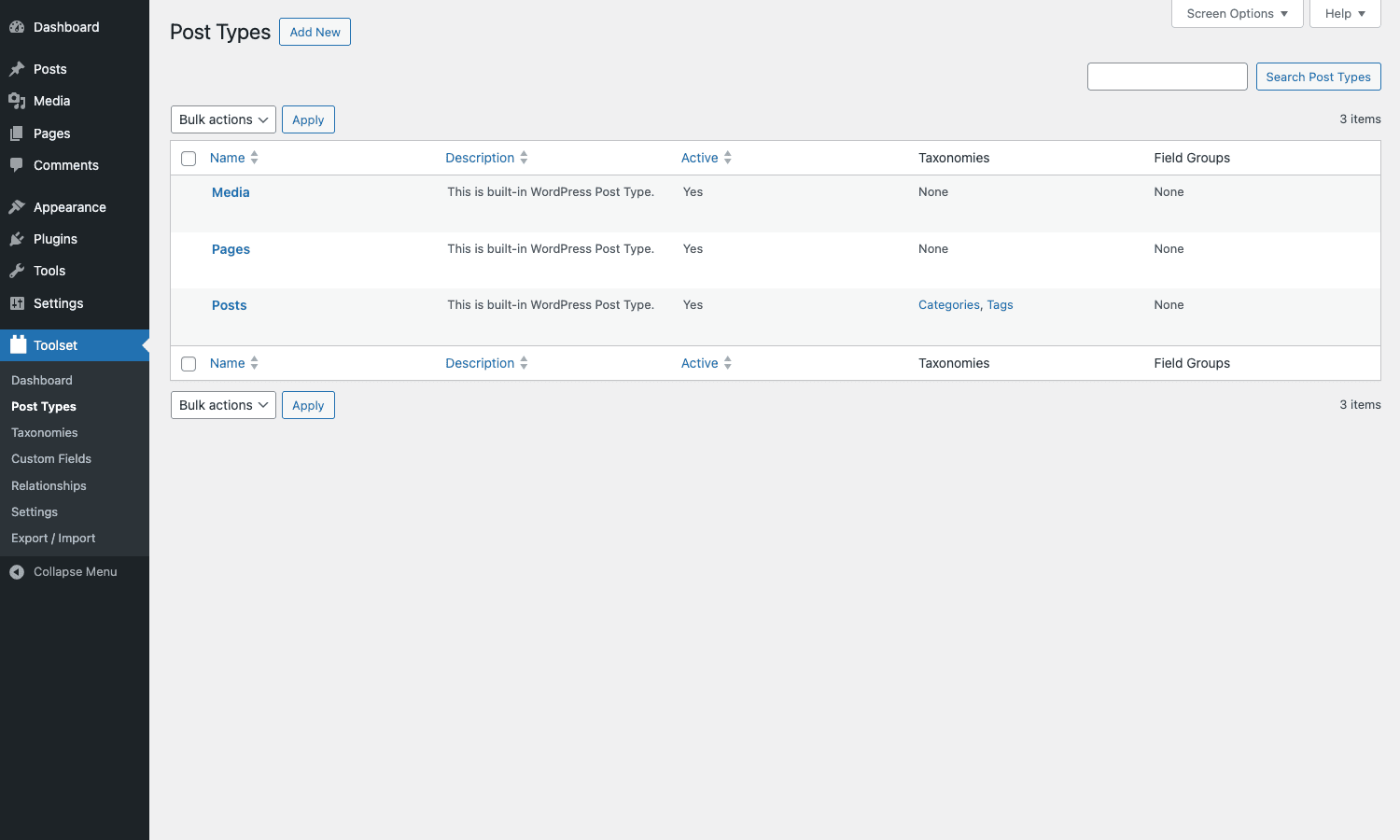
The post-type editor is one of the most thorough I have seen. Every option splits into its own panel (Name, Labels, Taxonomies, Sections to display when editing, Visibility, Permalinks, Admin menu, REST API, Custom field groups). It is more verbose than CPT UI, but it also exposes more (REST controllers, custom rewrite slugs, "show in nav menus", and a built-in dashicon picker).
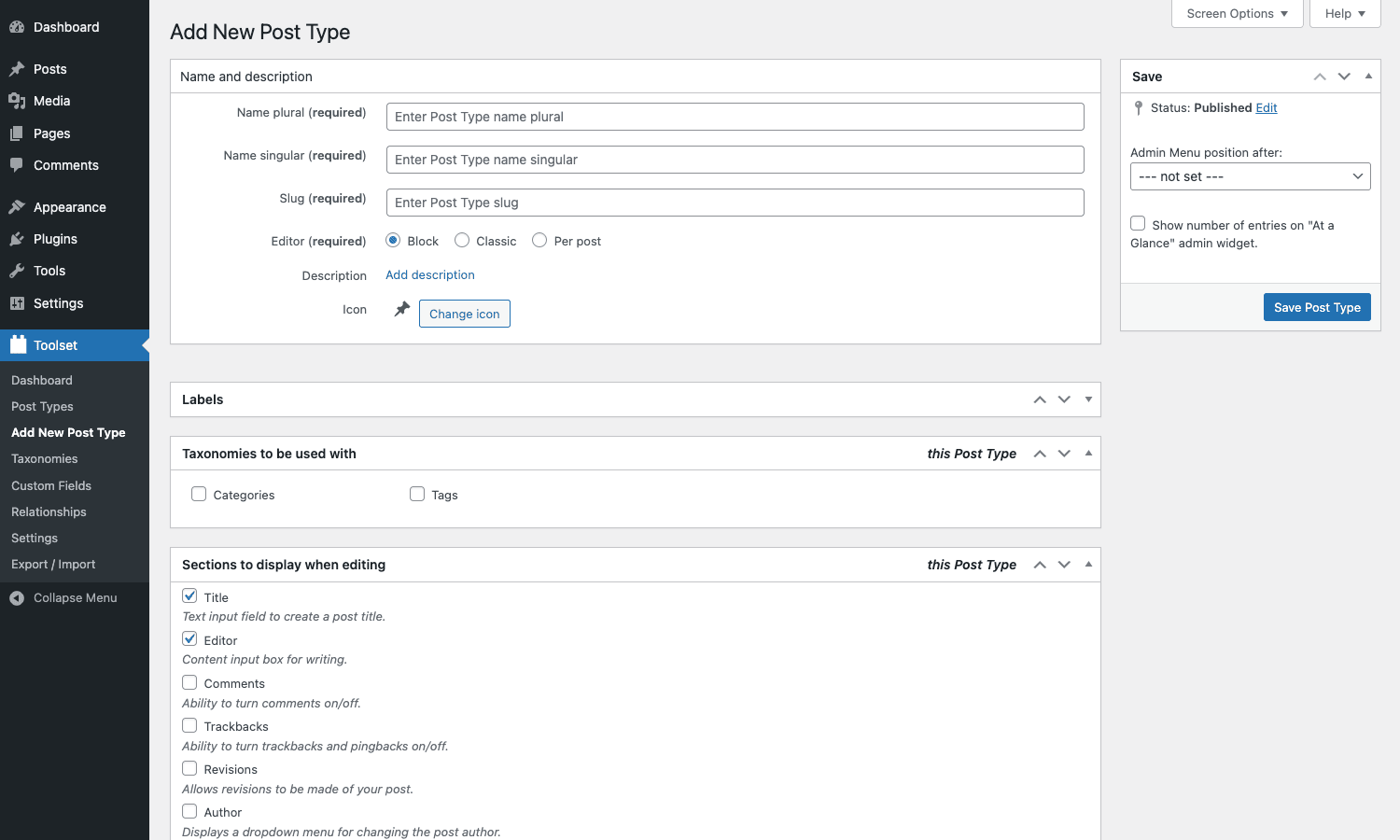
Things to notice on this screen:
- Editor has three options: Block, Classic, or "Per post". The last one is a Toolset-specific feature: each individual post of this type gets to pick its editor on save. Handy if some of your team prefers Gutenberg and some prefers Classic.
- Slug (required) is the rewrite slug, what appears in URLs.
- Icon is a full dashicon picker, no need to remember
dashicons-store. - Sections to display when editing maps to the standard WordPress
supportsarray (title, editor, author, thumbnail, etc.) but with a one-line description next to each so non-developers know what they are turning on.
You scroll further down for Labels (24 string overrides), Visibility (public, show in admin, show in nav menus, show in admin bar), Permalinks (has archive, rewrite, hierarchical), Admin menu (position and icon), REST API (show in REST, REST base, controller class), Taxonomies to attach, and Custom field groups to attach. Save, and you have a new post type.
Adding custom fields
Custom Fields is the screen most people will live in. It is tabbed into Post Fields, User Fields, and Term Fields. Each tab lists existing field groups and a button to add a new one.
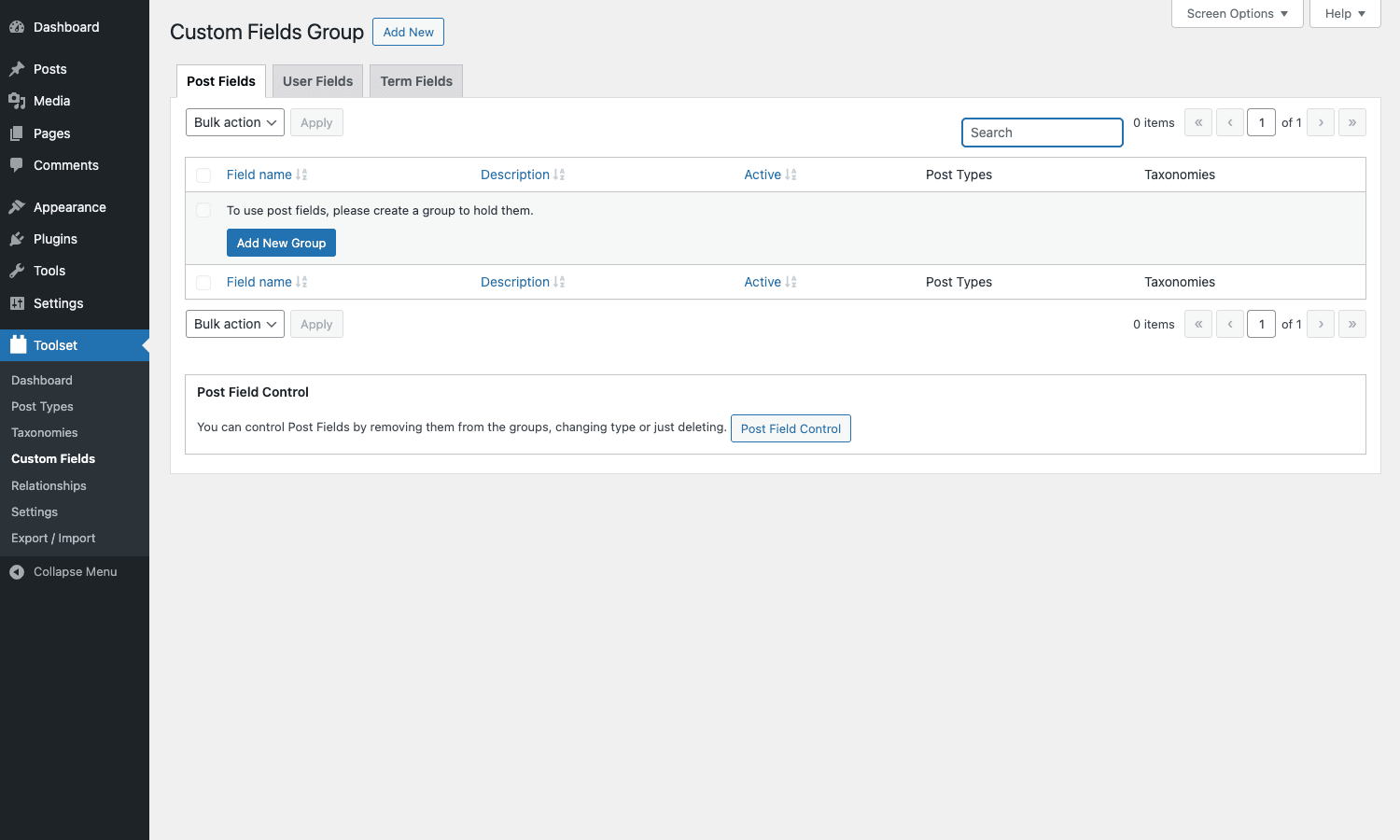
When you create a new field group you pick which post type or taxonomy or user role it applies to, then start dragging in fields. The field picker is a grid of more than two dozen field types:
- Text: single line, multi-line (textarea), WYSIWYG.
- Media: image (with built-in resizing and alt text), file upload, video URL or embed, audio URL or embed, generic oEmbed.
- Structured: date (with calendar picker), numeric (with min/max), URL, email, phone, address with optional Google Maps geocoding, Skype handle, colorpicker.
- Choice: checkbox (single boolean), checkboxes (multi), radio buttons, select dropdown.
- Reference: post reference (link this post to another post of a chosen type), taxonomy reference (link to a term).
Each field gets a slug (used in the database meta key as wpcf-<slug>), a name (the label shown in the editor), an optional description, and field-type-specific settings. For example, a numeric field gets min and max validation and an "input type" switch (text, slider, range). An image field gets sizes, alt text, and "save in media library or as URL" options.
The two features that matter most here are:
Conditional display. Each field has a "Display" tab where you can set conditions like "show this field only when listing_type is rental". The conditional engine evaluates against other fields in the same group, and you can combine multiple conditions with AND/OR. The hooks types_conditional_field and types_conditional_field_trigger let developers extend the rules.
Validation. Each field has a "Validation" tab. Built-in rules cover required, min/max length, regex match, numeric range, must-be-a-URL, must-be-an-email, and "matches another field" (handy for password confirmation in user fields). Custom rules can be added through wpcf_field_pre_save.
Field values are stored as standard post meta with the wpcf- prefix on the meta key. That means anything that reads post meta (Yoast SEO Premium variables, FacetWP indexers, code that calls get_post_meta()) can pick them up without a special bridge. This is one of Types’ big advantages: there is no proprietary database table for field values. (Relationships are different, see below.)
Custom taxonomies and term fields
Taxonomies live under Toolset > Taxonomies. Like post types, the listing shows built-in WordPress taxonomies and any you have added.
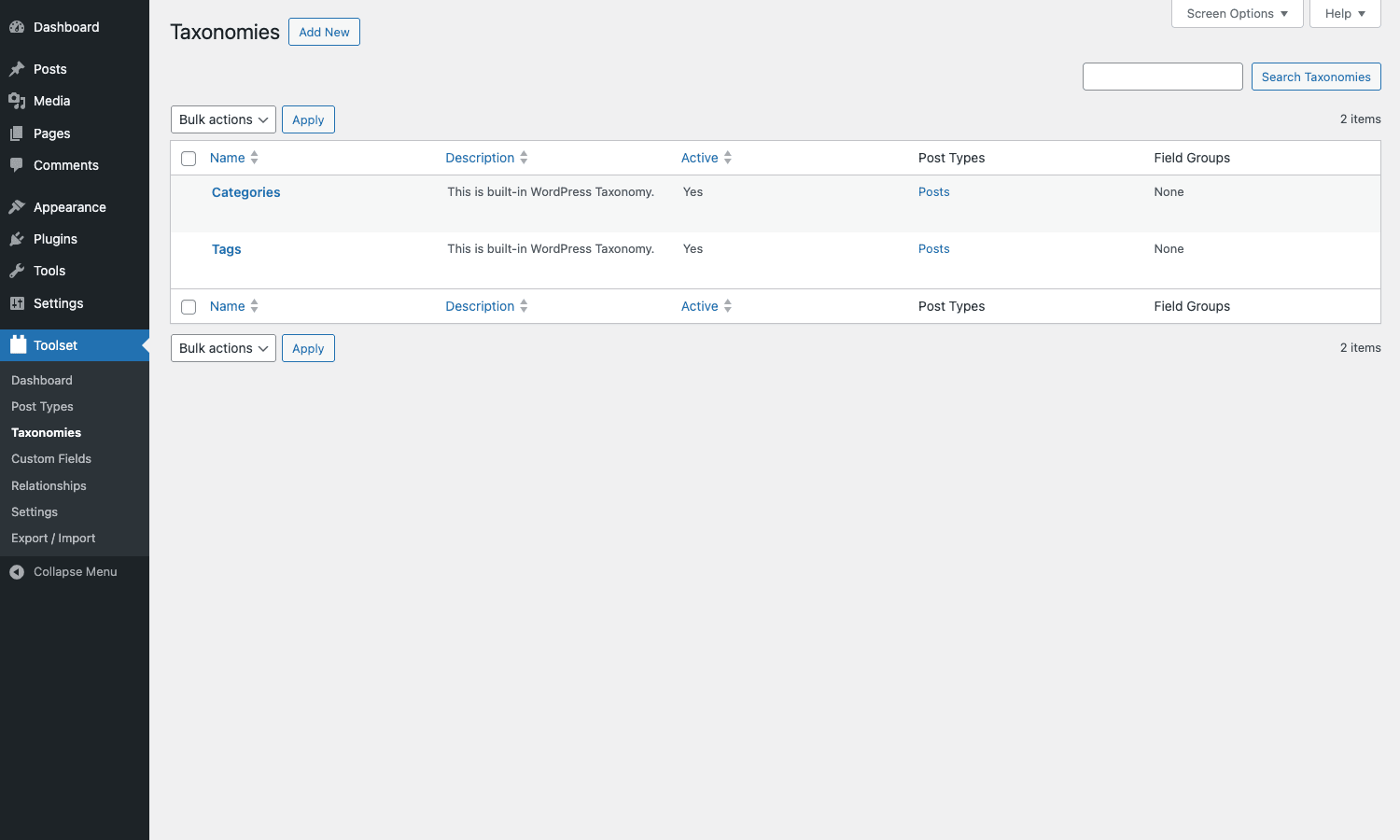
Adding a new taxonomy is a similar form to adding a post type: name, slug, description, hierarchical or flat behavior, which post types it applies to, REST exposure, admin column visibility, query var, rewrite slug, and 15 label strings. You can mark a taxonomy as "categories-like" (hierarchical, exclusive when assigning) or "tags-like" (flat, freeform). The "show in admin column" toggle adds a column to the posts list for that taxonomy with no extra code, which is the kind of small thing you would otherwise hand-write a manage_posts_columns filter for.
Term Fields is the third tab on the Custom Fields screen. You attach a field group to a taxonomy and it shows up on every term edit screen. Useful for adding "color" or "image" fields to a "Category" or to a custom taxonomy like "Brand", which the front-end can then render.
Post relationships
Relationships is where Toolset. Most plugins treat relationships as "a custom field that points to another post by ID". Types treats them as first-class objects.
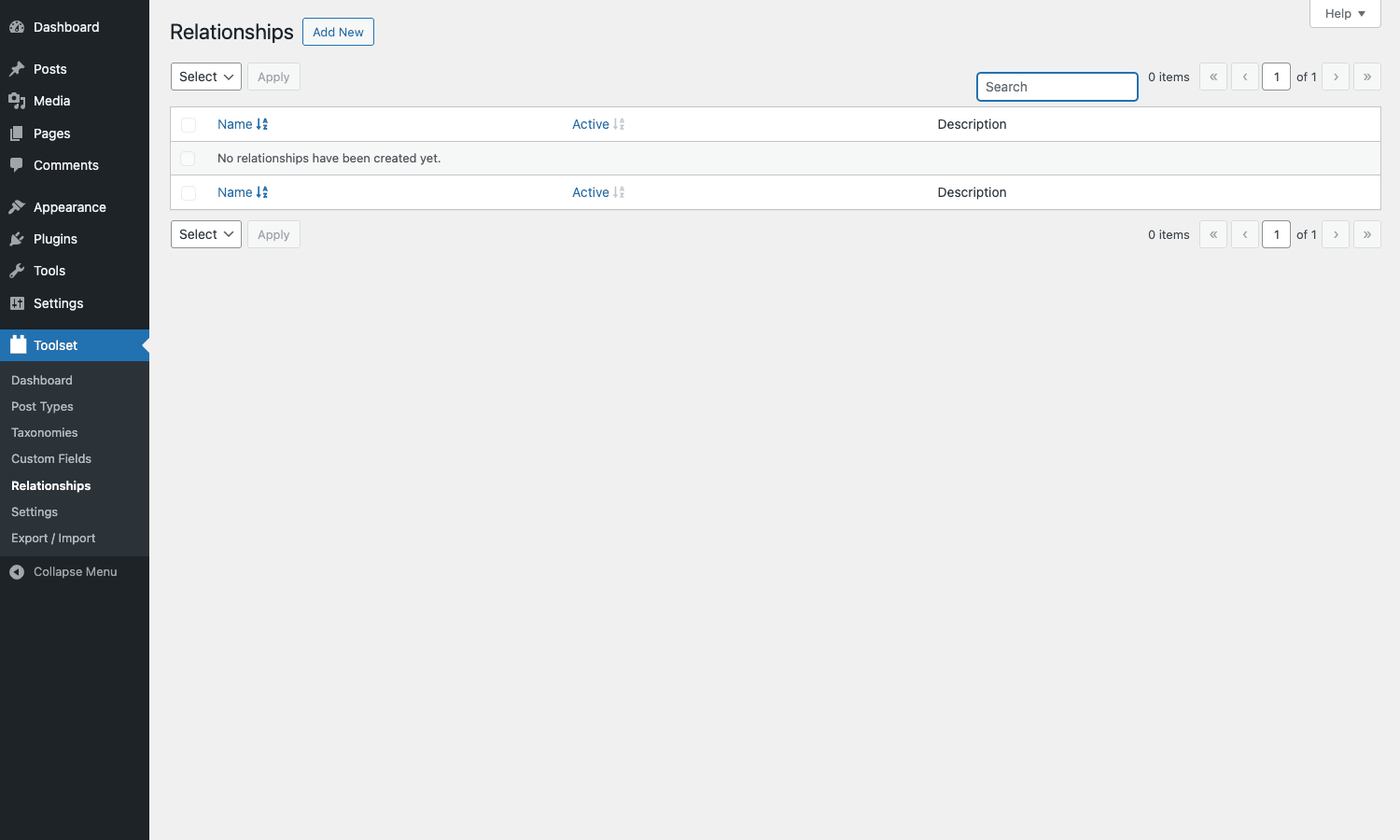
Click Add New and Types asks four things: what is the parent post type, what is the child post type, what cardinality (one-to-one, one-to-many, many-to-many), and optionally what intermediate post type stores the relationship metadata. Internally the plugin creates a wp_toolset_associations table (when m2m is on) plus an intermediate CPT for many-to-many cases. The intermediate post type means you can attach fields to the relationship itself, not just to the parent or child. For example, a "Course-Student" m2m relationship can carry an "Enrolled on" date and a "Grade" field on the join.
In code, related posts are queried with the toolset_get_related_posts() function (or its OO equivalent in the Toolset Common library). The relationship layer is the one part of Types that uses its own database tables rather than standard wp_postmeta, which is the trade-off for performance on large m2m joins.
Real-world use cases
Five concrete scenarios where Toolset Types shines:
-
Real estate or rentals directory. A "Property" CPT with fields for price, bedrooms, area, photos, address (Google Maps), and energy rating. Taxonomies for type (apartment, house, villa) and city. Front-end filtering with FacetWP, listings via Views. The conditional display feature is excellent here: for rental listings you show "monthly price" and "minimum stay", for sale listings you show "asking price" and "year built".
-
Membership site with a directory. A "Member" CPT with a name, bio, photo, skills (taxonomy), social links, and a many-to-many relationship to a "Project" CPT. The intermediate post type holds "role on this project" and "from / to" dates so a member’s profile can render a portfolio.
-
Knowledge base or documentation. A "Doc" CPT with a hierarchical "Section" taxonomy, fields for "last updated by" (user reference), "difficulty", and a "Related docs" repeating field. Term fields on the "Section" taxonomy hold an icon image and a short blurb for the section landing page.
-
Restaurant menu. A "Menu Item" CPT with fields for price, allergens, photo, dietary flags (checkboxes), and a hierarchical "Category" taxonomy. A relationship to a "Restaurant" CPT if you run multiple locations. Add user fields for "Member’s favorite dishes" if you have a loyalty program.
-
Events with sessions and speakers. An "Event" CPT, a "Session" CPT, a "Speaker" CPT, two many-to-many relationships (Event to Session, Session to Speaker). The Session-Speaker join holds "role" (host, panelist) and "time slot" on the intermediate post.
For listings 1, 2, and 5 you would typically pair Types with Views (or Blocks) to render front-end queries. For 3 and 4 you can get a lot done with just Types plus a theme that already knows how to display custom fields via [types] shortcodes or a Theme Builder like Beaver Themer or Elementor Pro’s Theme Builder.
Developer reference
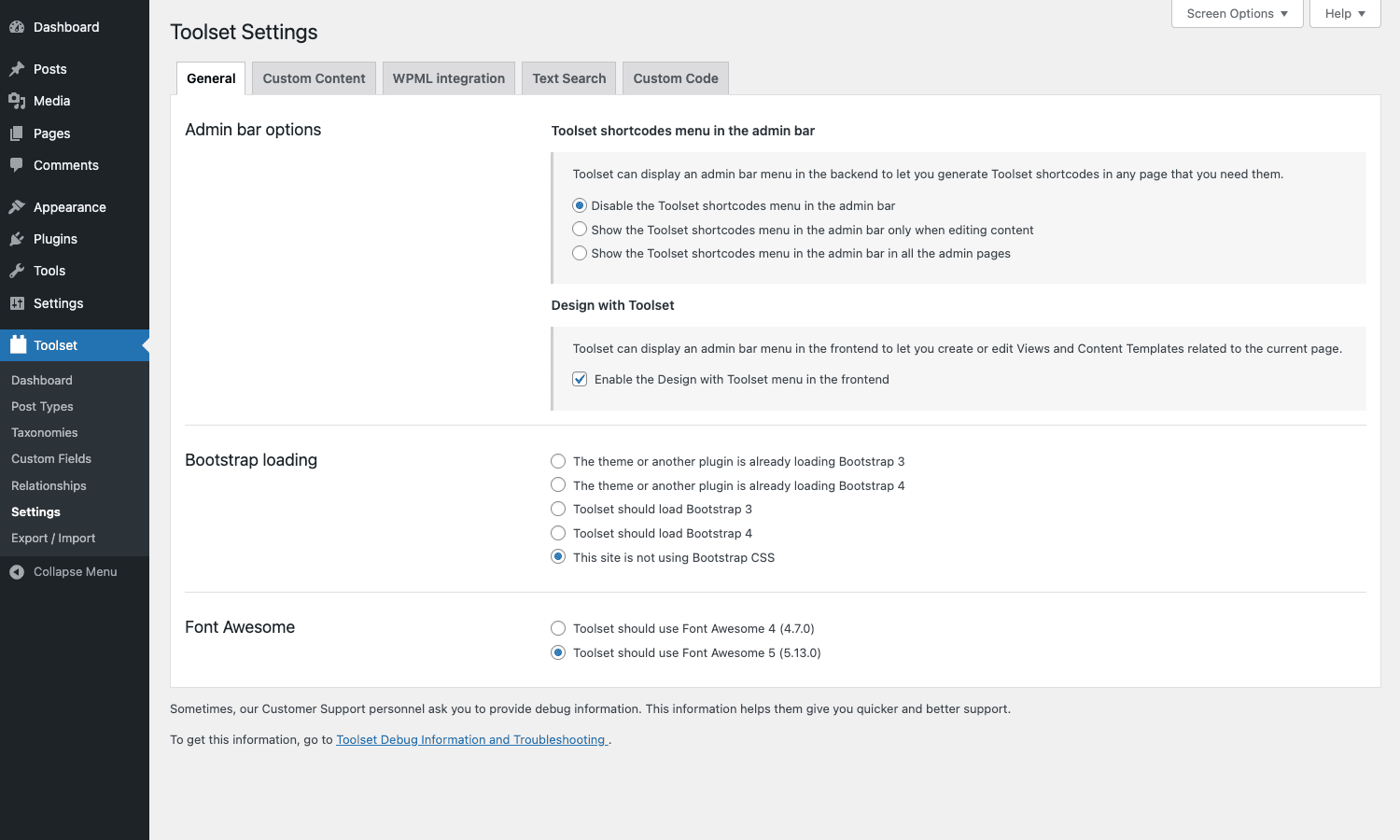
The plugin exposes a generous set of hooks and a programmatic API for everything the UI exposes. Settings live in admin.php?page=toolset-settings.
The actions and filters listed below are the ones I reach for most. The plugin’s full list is bigger, but these cover 90% of customization needs.
Action: react to a field group being saved
When an editor saves a Post Field group, Types fires types_fields_group_post_saved with the group ID. The pattern below logs every save so you can audit changes during development:
add_action( 'types_fields_group_post_saved', function( $group_id ) {
 $group = wpcf_admin_fields_get_group( $group_id );
 error_log( sprintf(
 '[Toolset] Field group %d saved: %s',
 $group_id,
 $group['name']?? 'unknown'
 ) );
}, 10, 1 );
Equivalent hooks exist for user fields (types_fields_group_user_saved) and term fields (types_fields_group_term_saved).
Filter: customize a post type before it is registered
Toolset runs the post type definition through types_post_type just before calling register_post_type(). You can override anything in the args array:
add_filter( 'types_post_type', function( $args, $slug ) {
 if ( 'property' === $slug ) {
 // Force REST on, force the menu icon, expose to GraphQL.
 $args['show_in_rest'] = true;
 $args['menu_icon'] = 'dashicons-admin-home';
 $args['show_in_graphql'] = true;
 $args['graphql_single_name'] = 'property';
 $args['graphql_plural_name'] = 'properties';
 }
 return $args;
}, 10, 2 );
Same idea for taxonomies via types_taxonomy.
Filter: tweak [types] shortcode output
The [types] shortcode (the only one Types ships) reads a field and outputs it. The filter types_field_shortcode_parameters lets you preprocess the attributes:
add_filter( 'types_field_shortcode_parameters', function( $attrs ) {
 // Force a consistent date format for any date field rendered via [types].
 if ( isset( $attrs['format'] ) && $attrs['format'] === 'FIELD_VALUE' ) {
 if ( strpos( $attrs['field']?? '', 'date' )!== false ) {
 $attrs['format'] = 'F j, Y';
 }
 }
 return $attrs;
} );
A typical shortcode call looks like [types field='price' format='%05d'][/types] for the current post or [types field='price' id='42'] for a specific post.
Filter: gate Types pages by capability
By default, Types pages require manage_options. To allow editors to manage field groups but not post types, override the capability check:
add_filter( 'wpcf_capability', function( $cap, $action ) {
 $editor_allowed = array(
 'manage_field_groups',
 'edit_field_groups',
 );
 if ( in_array( $action, $editor_allowed, true ) ) {
 return 'edit_others_posts'; // editor role and up
 }
 return $cap;
}, 10, 2 );
Action: enqueue the [types] shortcode assets on a non-singular page
The shortcode’s CSS and JS only load on screens where Types has detected its own use. For places where Types cannot detect (custom AJAX endpoints, REST templates, fragment caches that include shortcode output) you can force them:
add_action( 'wp', function() {
 if ( is_page( 'embed-widget' ) ) {
 do_action( 'types_action_enforce_shortcode_assets' );
 }
} );
Querying related posts in PHP
For sites with the relationships feature on, the function below returns child posts of a parent:
$children = toolset_get_related_posts(
 $parent_post_id,
 'property-feature', // relationship slug
 array(
 'role_to_return' => 'child',
 'query_by_role' => 'parent',
 'return' => 'post_object',
 'limit' => 50,
 )
);
foreach ( $children as $child ) {
 echo esc_html( get_the_title( $child ) );
}
The toolset_get_related_post (singular) returns one in a one-to-one or one-to-many.
Reading custom field values directly
You do not have to use the [types] shortcode. Because every Types field is stored as standard post meta with a wpcf- prefix, the WordPress core get_post_meta() works:
$price = get_post_meta( $post_id, 'wpcf-price', true );
$bedrooms = (int) get_post_meta( $post_id, 'wpcf-bedrooms', true );
For repeating fields (or any "multiple values" field), pass false for the third arg to get the array.
Programmatic field group definition
If you would rather define groups in code (so they live in version control), the legacy helpers still work:
$fields = wpcf_admin_fields_get_fields_by_group_id( $group_id );
$groups = wpcf_admin_fields_get_groups(); // all post field groups
$cpt = wpcf_admin_post_get_post_type( 'property' ); // CPT definition array
Combine these with the XML import to ship a content model with your plugin or theme.
REST API exposure
When you tick "Show in REST API" on a post type, Types exposes the CPT under /wp-json/wp/v2/<rest_base>/. Field values appear in the meta object on each post, but only if the field’s show_in_rest is also on at the field-group level (use the register_post_meta companion if you need finer control). For headless WordPress builds, this is the path of least friction.
Performance, compatibility, and gotchas
A few things to know before shipping a Types site.
Field storage is standard wp_postmeta. Good for compatibility (everything that reads post meta sees field values), but it means hundreds of fields on hundreds of thousands of posts can produce a fat postmeta table. The same is true of ACF. If you are at the 1M+ row scale, plan on indexing critical fields (FacetWP, SearchWP, or a custom index table) regardless of which plugin you pick.
Relationships use a dedicated table. When you enable m2m through toolset_is_m2m_enabled, Types creates wp_toolset_associations and (per relationship) an intermediate post type. Queries that join across this table are much faster than equivalent wp_postmeta-only solutions, which is why Types is competitive on large directory sites. The trade-off is that you cannot read relationships with get_post_meta(); you go through toolset_get_related_posts().
The [types] shortcode is heavier than get_post_meta(). It applies formatting, handles repeating fields, supports embed types, and runs a small evaluator. If you are in a template loop and you only need a raw value, prefer get_post_meta( $id, 'wpcf-slug', true ). Save the shortcode for content areas where editors can write it.
WPML works out of the box, but only because of bundled config. The wpml-config.xml file at the plugin root tells WPML how to translate Types post types and field values. If you swap Types for ACF you have to wire each field’s translation behavior in WPML’s "Custom Fields Translation" screen, which is more work. For multilingual sites with WPML this is a real time-saver.
Conditional display does not enforce on the API. The conditional display engine hides fields in the editor when a condition is false, but the underlying post meta still exists in the database and is still readable via REST or get_post_meta(). Treat conditional display as a UX feature, not a security boundary. If you need actual access control, pair Types with Toolset Access.
The classic editor "Insert Types fields" button only shows if your editor has the Toolset shortcode menu enabled. This setting is in Toolset > Settings > General > Admin bar options. Default is off; switch to "Show only when editing content" and content editors get a one-click shortcode picker.
Migration from ACF to Types is not automatic. Both plugins store field values in wp_postmeta, but with different meta key prefixes (wpcf- for Types, no prefix or _ for ACF). A small migration script can rename keys, but the field definitions themselves have to be recreated. If you are committed to one of the two, pick early.
Per-post editor mode adds a meta box. When you set "Editor: Per post" on a CPT, every post of that type gets a small "Editor choice" meta box. Tidy on a site where you actually want it, slightly noisy if you forgot you turned it on.
Toolset Types vs ACF Pro vs JetEngine vs Meta Box vs Pods
Where does Types sit in the field?
vs ACF Pro. ACF has the nicer field builder, ACF Blocks for Gutenberg, and the bigger third-party ecosystem (Yoast SEO Premium variables, JetEngine integration, WP All Import support). Types matches it on field types and beats it on built-in post type and taxonomy management (ACF historically pushed you to CPT UI or a custom register_post_type call). Types also has a far stronger relationships system; ACF’s "post object" and "relationship" fields are simpler one-way pointers.
vs JetEngine. JetEngine is part of the Crocoblock suite and is tightly coupled to Elementor, Bricks, or Gutenberg. It is brilliant if you are already deep in Elementor. Types is page-builder-agnostic; it works fine with Elementor Pro, Beaver Builder, Bricks, or a plain block theme. If you are building a Theme Builder-heavy directory with Elementor Pro, JetEngine has shorter setup. If you want the same model to drive Views, Forms, Access, and Blocks on a single suite, Types wins.
vs Meta Box. Meta Box is PHP-config-first; the UI builder requires the paid MB Builder addon. Devs love Meta Box because field definitions live in code. Types’ UI is opinionated but its XML export gives you a deployable artifact, which is the equivalent of "code-defined fields" for most teams. Pick Meta Box if you are happy with PHP arrays for fields. Pick Types if you want non-developers to manage the model.
vs Pods. Pods is the most direct comparison: free, UI-based, does CPTs + fields + relationships. Pods has a slightly more polished modern UI and the "Advanced Content Types" feature (storing data in its own table instead of wp_postmeta). Types has WPML out of the box, a more thorough relationships layer, and the rest-of-the-suite story. If you are building a single site and you do not need WPML or Toolset Views, Pods is fine.
vs CMB2. Not a real comparison. CMB2 is a developer library, no UI. Use CMB2 if you are shipping a plugin and want users to never see a field-config screen.
The honest summary: if you want to invest in one suite that handles content modeling, queries, front-end forms, and access for a site, Toolset is one of three serious options (alongside ACF + a few add-ons, or JetEngine tied to a builder). Types alone is competitive with the others; Types plus Views plus Forms plus Access is a different category of product.
Pricing and licensing
OnTheGoSystems sells Toolset as a bundle (Types, Views, Blocks, Forms, Access, Maps, the lot) on toolset.com, with three tiers (Basic, Inside, Agency) and the usual subscription renewal model. There is no "Types only" plan upstream; even if you only want Types you buy the bundle.
The plugin is GPL-licensed (you can see "License: GPLv2 or later" in the plugin header) which means redistribution is allowed. The GPL Times zip is the same plugin you would get on Toolset’s own download server, with no license-key check stripped out (Types is genuinely free upstream; it is the rest of the suite that needs a subscription).
If you need Views, Blocks, Forms, Access, or Maps, those are sold separately on GPL Times as well. Mix and match. Each plugin’s product page on the store has its own download.
Frequently asked questions
Is Toolset Types still maintained?
Yes. The free plugin is on the WordPress.org plugin directory and the paid suite is actively developed by OnTheGoSystems. Updates ship every few weeks.
Can I use Toolset Types without buying the rest of the suite?
Yes. Types is free upstream and the full feature set (post types, taxonomies, fields, relationships, conditional display, import/export) is in the free plugin. You only need to pay if you want Views, Blocks, Forms, Access, or Maps.
Does it work with Gutenberg?
Yes. You can set the editor mode per post type (Block, Classic, or Per post). Field values rendered through the [types] shortcode work inside block content. For native blocks bound to fields you add Toolset Blocks.
Does it work with Elementor or Beaver Builder?
Yes. The [types] shortcode renders inside any builder, and post type / taxonomy registration is independent of the editor. For tighter integration (loop grids, dynamic content) you typically pair Types with the builder’s own dynamic tags, Elementor Pro, Beaver Themer, or Toolset Views.
Will Toolset Types slow down my site?
Types itself adds very little front-end overhead because field values are stored in standard wp_postmeta and the front-end shortcode is a small renderer. The admin pages do load extra JS for the field group editor. On a site with hundreds of CPTs and field groups, the admin UI is noticeably heavier than a site without; the front end is fine. For very large datasets, plan on indexing critical fields with FacetWP, WP Grid Builder, or a custom index table no matter which plugin you use.
Can I import an XML export from a different site?
Yes. Toolset > Export / Import dumps all Types definitions (post types, taxonomies, field groups, relationships) to an XML file. On the target site, import that XML and Types recreates the same model. The actual post content is not part of the export; for that you use the standard WordPress importer or a tool like WP All Import.
Does Toolset Types work with WPML?
Yes, out of the box. The bundled wpml-config.xml tells WPML how to handle translated post types and field values, so you do not have to configure each field manually in WPML’s translation settings.
Can I migrate from CPT UI + ACF to Toolset Types?
You can recreate the model in Types and write a small script to copy field values from ACF’s meta_key format to Types’ wpcf- prefix. There is no one-click migration. Most teams that switch do so on a new site rather than migrating in place.
Final thoughts
Toolset Types is, in 2026, the second most popular full-fat content modeling plugin for WordPress after ACF Pro, and the only one that comes paired with a complete suite for querying, displaying, and editing the content you model. Used alone, it is a complete CPT + custom fields + taxonomies builder with a strong relationships system, multilingual support, and a sensible XML import/export. Used with Views, Blocks, Forms, and Access, it becomes a small WordPress application platform.
The cost is some additional admin UI weight (the editor screens are more verbose than ACF’s), a slightly steeper learning curve for the relationships layer if you have not built m2m on WordPress before, and the suite-vs-suite decision: once you commit to Toolset you are unlikely to rip it out, the same way teams that commit to ACF tend to stay.
If you are building a custom directory, membership site, real-estate listing, learning platform, or anything else where the content model is more interesting than "blog posts and pages", Toolset Types is one of the three plugins I would shortlist. The other two are ACF Pro plus CPT UI plus a few add-ons, or JetEngine if you are committed to Elementor or Bricks. Of the three, Types is the one that gives you the most for the least number of moving parts when you also need front-end forms and access control.
By the end you will have a working content model for whatever site you wanted to build, and you will know whether it is the right tool for you.