

JetElements is one of the original Crocoblock plugins, and after years of feature additions it has become the widest single-purpose addon pack for Elementor I have on my testing site. It ships somewhere north of forty widgets, ranging from the obvious (Pricing Table, Countdown, Testimonials Carousel) to the genuinely niche (Inline SVG with stroke-draw animation, a Weather widget, OpenStreetMap-backed Advanced Map). If you have ever opened the Elementor widget panel and wished you didn’t have to install five different addon packs to get the bits you actually need, this is the plugin that’s closest to a one-shot answer.
This is a full review of JetElements, the way I’d describe it to two different people: a first-time Elementor user who just wants to drop a pricing table on a landing page, and a developer who needs to know which filter to hook to change the markup of the Services widget’s button. Both audiences are below.
Table of Contents
- What JetElements is
- Who builds it and how it fits the Crocoblock stack
- The full widget inventory
- Section extensions: parallax, visibility, and one-page scrolling
- Installing and activating JetElements
- The Crocoblock dashboard and JetPlugins Settings
- Building a real section: a Pricing block end-to-end
- Five real use cases
- Developer reference: hooks, filters, and the REST API
- Performance, asset loading, and how to keep pages lean
- Compatibility and gotchas
- How JetElements compares to other Elementor addon packs
- Pricing and licensing
- Frequently asked questions
- Final thoughts
What JetElements is
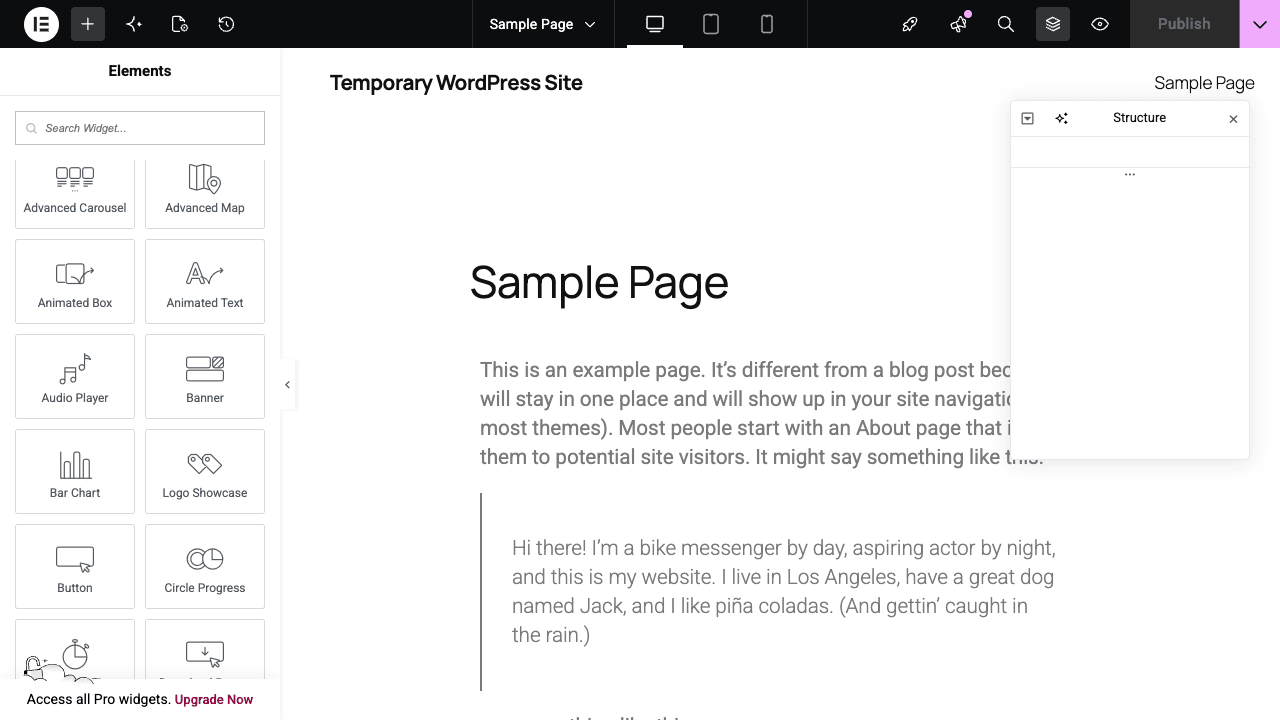
JetElements is a WordPress plugin that registers a large set of custom widgets in the Elementor editor. Once it’s active, the widget panel on the left side of Elementor gets a new "JetElements" category, populated with widgets that don’t exist in core Elementor: a real Pricing Table widget (Elementor’s free version still doesn’t have one), a Countdown Timer with redirect actions, a multi-provider Advanced Map (Google Maps, OpenStreetMap, or Mapbox), Bar Chart and Line Chart widgets backed by Chart.js, Animated Box for hover transitions, an Image Comparison slider, Testimonials Carousel, Subscribe Form with MailChimp integration, and so on.
The widgets share a consistent control panel pattern: Content > Style > Advanced, with the Style tab arranged into normal/hover states wherever it makes sense. Every widget supports the standard Elementor responsive breakpoints, motion effects, custom CSS classes, and Elementor Pro’s display-conditions if you have it installed.
What separates it from "tutorial" addon packs that ship five demo widgets is the depth of controls per widget. The Pricing Table widget alone exposes roughly 80 individual style controls across Header, Price, Features, Action Button, and Tooltips sections. The Posts widget supports nine layouts, an isotope filter, AJAX loading, custom meta callbacks, and integrates with JetSmartFilters if you have it. These are not toy widgets.
Who builds it and how it fits the Crocoblock stack
Crocoblock (originally the studio name was Zemez) is a Ukrainian team that’s been building Elementor addons since 2017. JetElements was their first product. Today Crocoblock sells about twenty Jet-prefixed plugins, and JetElements sits in the middle of that ecosystem as the "general purpose widget pack" while other plugins specialize:
- JetEngine handles custom post types, custom fields, custom taxonomies, and dynamic content.
- JetSmartFilters provides AJAX filters for listings.
- JetMenu builds mega menus visually.
- JetWooBuilder gives you a WooCommerce product-page builder.
- JetBooking adds calendar-based booking.
You can use JetElements alone. Most people do. But if you already own JetEngine or JetSmartFilters, JetElements quietly cooperates with them. The Posts widget reads custom post types that JetEngine defines. The Portfolio widget’s category filter can be replaced by a JetSmartFilters filter. The Animated Box widget can pull its inner content from a JetEngine-defined Elementor template via the REST API. None of this is required, but if you build with the whole stack, the integrations are real.
The full widget inventory
Here’s everything JetElements registers. I’ll split it into logical groups instead of listing alphabetically because that’s how you actually pick a widget.
Layout and grid widgets
- Advanced Carousel. Slick-based carousel with multiple slides, custom arrows/dots, autoplay, vertical mode, and centered-mode. Items can be either plain HTML or a saved Elementor template (so a slide can be a fully designed section).
- Slider. Full-width section slider with image background, headline, button, and Ken Burns effect. Good for hero rotators.
- Posts. Custom posts grid with nine layout presets, isotope filter, AJAX "View more", excerpt/meta controls, sticky-post badges, custom meta callbacks. Replaces Elementor’s basic Posts widget for most real use cases.
- Portfolio. Image-based grid with hover overlays and category filtering. Lighter than Posts, image-first.
- Images Layout. Gallery grid with multiple layouts and lightbox.
- Brands / Logo Showcase. Grid of client/partner logos, optional links and tooltips.
Headers, badges, and microcopy
- Headline. Decorated heading with sub-text, accent color block, divider, and a "before/after" text wrapper for animated split headings.
- Animated Text. Headline where one word swaps through a list of strings (typewriter, slide, fade modes).
- Banner. Image block with overlay title/subtitle and link. Hover transitions.
- Inline SVG. Drop in an SVG and animate its stroke draw and fill on scroll-in.
- Subscribe Form. MailChimp-backed inline subscribe form.
Interactive widgets
- Pricing Table. Header (icon/title/subtitle), Price (currency, period), Features list (with check/cross icons), Action Button, Tooltips. "Featured" preset for the recommended plan.
- Price List. Two-column list with item name, dotted leader, and price. Originally for restaurants/menus, also useful for service price lists.
- Countdown Timer. Days/Hours/Minutes/Seconds with custom labels, evergreen mode (per-visitor expiry stored in localStorage), and post-expiry actions: redirect, show message, hide timer.
- Image Comparison. Before/after slider with vertical or horizontal split.
- Dropbar. Slide-out content panel triggered by a button; useful for inline "Read more" content that doesn’t justify a new page.
- Animated Box. Two-state box: front side and back side, with flip/slide/zoom transitions on hover. Back side can pull from a saved Elementor template.
Data and progress
- Bar Chart, Line Chart, Pie Chart. All backed by Chart.js. Editable data set, custom colors, legend position.
- Progress Bar. Horizontal bar with label, percentage display, animated on scroll-in.
- Circle Progress. Circular variant of Progress Bar.
Timeline widgets
- Timeline (vertical). Items with title, content, date, and icon, arranged in a vertical timeline.
- Vertical Timeline. Newer iteration with more controls.
- Horizontal Timeline. Side-scrolling chronological timeline.
Media
- Video Player. Wraps YouTube, Vimeo, or self-hosted video with a custom thumbnail, play button, and lazyload. Useful when the default Elementor Video widget feels too plain.
- Audio Player. MediaElement.js audio player with custom skin.
- Lottie Animations. Renders Lottie/Bodymovin JSON; can play on scroll, hover, or click.
Maps, weather, and feeds
- Advanced Map. Pick between Google Maps, OpenStreetMap (Leaflet), or Mapbox as the rendering provider. Multiple markers, custom marker icons, info windows, clustering. The Leaflet option means you don’t need a Google API key for simple use.
- Weather. Pulls forecast from OpenWeather (API key required) and displays today + multi-day forecast for a city or lat/lon coordinates.
- Instagram Gallery. Pulls Instagram media; hashtag galleries route through a Crocoblock proxy for stability.
Action widgets
- Button. Beefier replacement for Elementor’s button with hover effects.
- Download Button. Tracks click counts, custom file label, optional file-size display.
Content widgets
- Services. Icon + title + description + button block, commonly used in 3-up "What we do" sections.
- Team Member. Photo + name + role + bio + social links card.
- Testimonials Carousel. Slick-based testimonial slider with photo, name, role, quote, and star rating.
- Table. Editable table with cell-level color overrides; useful for comparison/specs tables built without Excel-paste.
- Scroll Navigation. Right-side floating dots that link to sections; click a dot to scroll-snap to that section. Long landing pages use this.
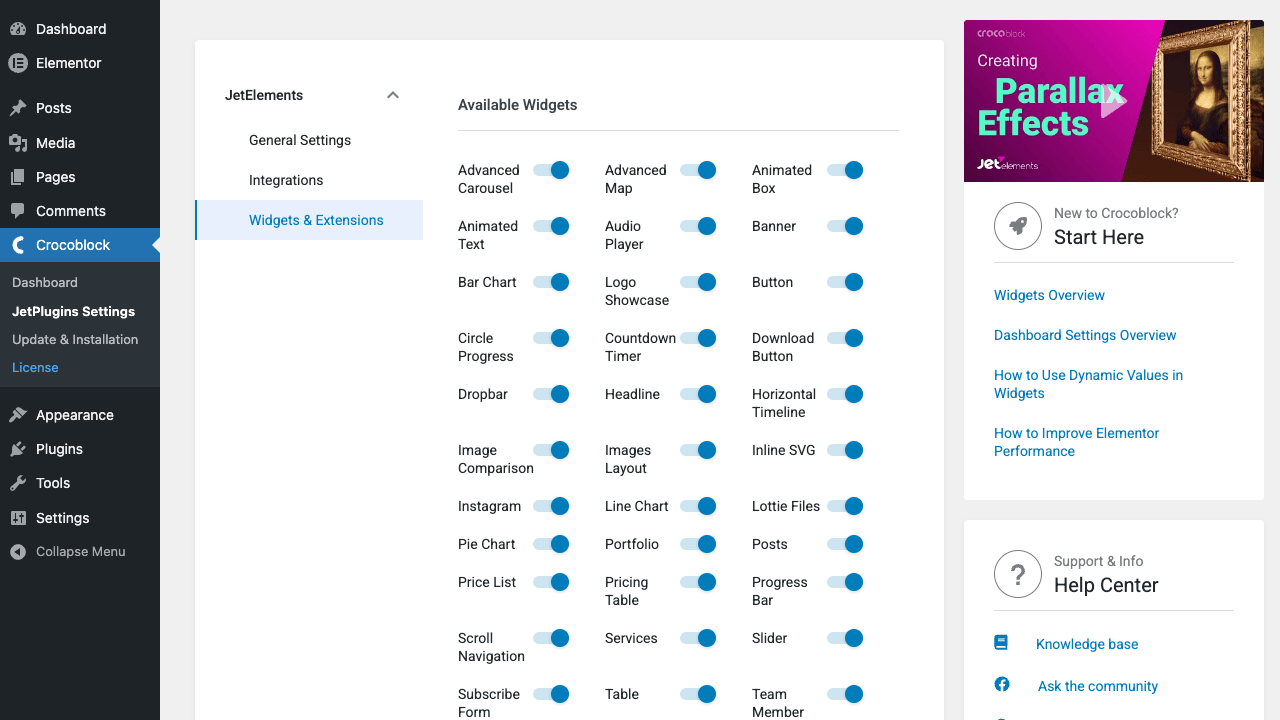
That’s the catalog. You can see the full toggle list and turn off widgets you don’t use:
Section extensions: parallax, visibility, and one-page scrolling
JetElements also extends the existing Elementor Section element. These are not widgets you drag onto the canvas; they show up as new tabs/controls on every section you create.
- Parallax Section. Multi-layer parallax background. You can stack up to four image layers, each with its own move-on-scroll speed and direction. The result is a parallax effect with foreground/background depth, instead of the single-image kind that’s everywhere.
- Section visibility extension. Show or hide a section by device, by user role, by logged-in state, or by language. Lighter than installing a dedicated visibility plugin.
- Custom section transforms. Extra shape-divider styles, gradient backgrounds, and overlay modes.
The Scroll Navigation widget pairs with this; you give each section an ID, drop a single Scroll Navigation widget on the page, and you get a one-page-website feel with floating dot navigation.
Installing and activating JetElements
JetElements is a standard WordPress plugin. Upload the zip via Plugins > Add New > Upload Plugin, activate, and you’re done. The plugin requires Elementor (the free core is enough; Elementor Pro is optional). If Elementor isn’t installed, JetElements will sit dormant and prompt you to install Elementor first.
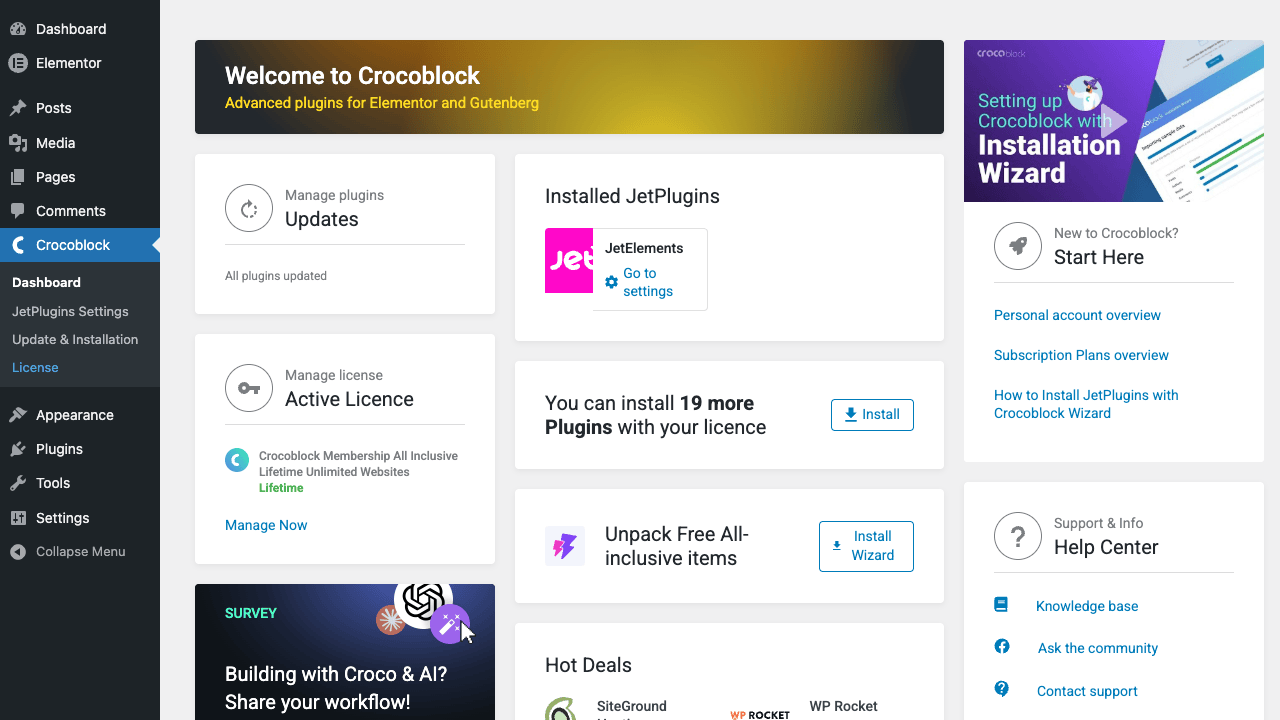
Once active, you’ll see a new top-level menu item called Crocoblock in the WP admin sidebar (this is shared across all Jet plugins, so installing JetEngine later won’t add a second menu). The Crocoblock dashboard shows you what’s installed, what’s available with your license, and links to per-plugin settings.
The very first thing it shows you is a license activation prompt. For a paid Crocoblock license, paste the key from your account at crocoblock.com. For the GPL Times sandbox, the universal demo key from the GPL Times instructions activates the UI so the upsell banners go away. Either way, none of this gates the widgets; JetElements widgets work on a fresh install even without a key. The activation is mostly about hiding the "Get License" prompts and enabling updates from Crocoblock’s update server.
The Crocoblock dashboard and JetPlugins Settings
Under Crocoblock > JetPlugins Settings there’s a per-plugin configuration screen. For JetElements specifically, the configuration is split into three sub-pages.
General Settings
Two things live here:
- SVG images upload status. Allow SVG file uploads to the Media Library (off by default for security; if you use the Inline SVG widget heavily, turn it on).
- Editor Load Level. Controls how many style options each widget’s Style tab loads in the Elementor editor. Set it to "None" if you find the editor sluggish on lower-end machines, "Full" if you want every control available. The frontend output is identical either way; this only affects editor performance.
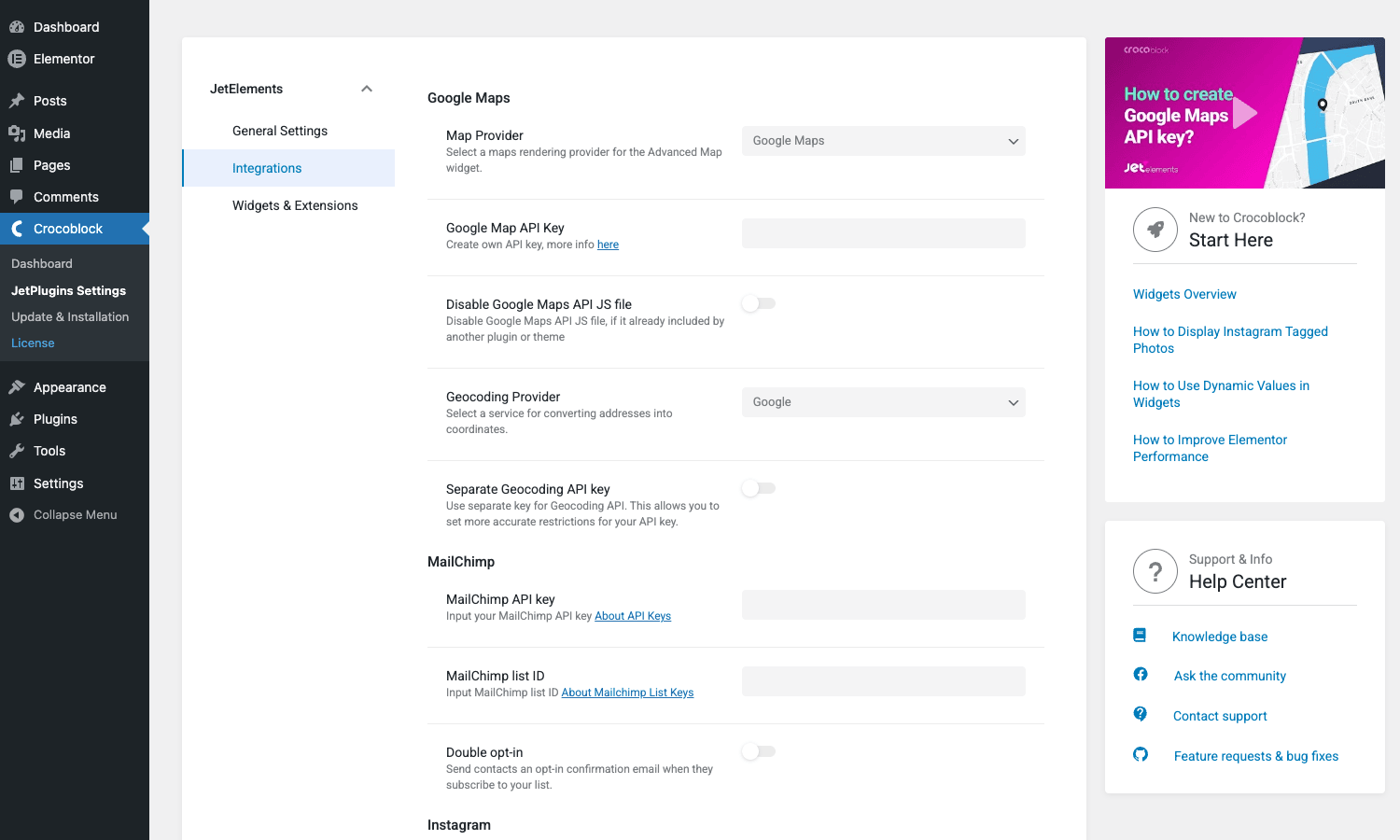
Integrations
This is where API keys live. The fields are organized by service:
- Google Maps. Choose Google Maps, Leaflet (OpenStreetMap), or Mapbox as the default. Paste your Google API key if you go with Google. Separate Geocoding API key field for converting addresses to coordinates.
- MailChimp. API key, list ID, and a double opt-in toggle. The Subscribe Form widget uses these.
- Instagram. API token for the Instagram Gallery widget (account-based fetch). Hashtag fetches route through Crocoblock’s proxy automatically.
- OpenWeather. API key for the Weather widget. The free OpenWeather tier is more than enough for a typical site.
Widgets & Extensions
Per-widget on/off toggles. The default is "everything on", which means every widget gets loaded and registered with Elementor on every page load. For most sites that’s fine, but if you only ever use, say, Pricing Table and Countdown Timer, switching off the other 35 widgets here means:
- JetElements loads less PHP on each request.
- The Elementor editor’s widget panel becomes shorter and easier to scan.
- Your team can’t accidentally use widgets they shouldn’t.
There’s also a section for "Available Extensions" where the Section Parallax Extension can be toggled. Turn that off if you don’t use parallax sections and you save another small JS file from being enqueued.
Building a real section: a Pricing block end-to-end
Walking through one widget is the easiest way to show what working with JetElements actually feels like. I’ll use Pricing Table because it’s the widget most people install JetElements for, and it touches the typical Content > Style > Advanced flow.
- Drop the widget on the page. Open Elementor on any page or post, scroll the widget panel to the JetElements category, find Pricing Table, drag it into a section. You can also have a three-column section and drop one Pricing Table widget into each column to build a typical Pricing page.
- General > Icon and Title. Pick an icon from the icon picker (Font Awesome by default; or upload an SVG if you’ve turned that on in General Settings). Set the title (e.g. "Starter") and an HTML tag (H2 / H3 / H4). Subtitle is optional, sits below the title.
- General > Is Featured? Toggle this on for the "recommended" plan. The widget then renders with a "featured" CSS class that you can style differently in the Style tab (typically a darker background or accent border).
- Price. Currency symbol (left or right), price value (just the number), period ("/mo", "/yr"). The currency, price, and period all get their own font/size/color controls in the Style tab.
- Features. A repeater for the bullet list. Each item has a label, optional badge (e.g. "New"), and an "available/unavailable" toggle that swaps between check and cross icons. Useful for showing what plans don’t include.
- Action Button. Button label, URL, optional icon. Three sizes built in.
- Tooltips. This is the surprising one. Each feature row can have a tooltip with custom HTML content (an explanation, a screenshot, anything). On hover, the tooltip appears next to the row. Great for plans where you want to explain "Includes priority support (response in 4 business hours)" without crowding the row.
Once you’ve built one card, save it as an Elementor Global Widget and reuse it across plans. If you have JetEngine, you can wire the price and feature list to dynamic fields and generate plan cards from a custom post type. But the default static use is what most people will do.
The Style tab is the one that took me the longest to learn the first time around. There are eight collapsible sub-sections (Header, Icon, Title, Subtitle, Price, Features, Action Button, Tooltip), each with normal/hover/featured variants for color, background, border, padding, margin, and typography. It’s verbose, but it means you almost never need custom CSS for the styling.
Five real use cases
These are the situations I see JetElements paying off most often.
1. A SaaS landing page with a pricing block, countdown banner, and feature grid
The traditional SaaS landing page needs three things that pure Elementor doesn’t ship: a real pricing table, a launch-offer countdown, and a feature grid with hover states. JetElements covers all three with Pricing Table, Countdown Timer, and Services widgets. Add a Headline widget for the hero, a Testimonials Carousel for social proof, and you’ve built the page without touching another plugin.
The Countdown Timer’s "evergreen" mode is especially good for SaaS funnels: each visitor sees a personal 48-hour countdown that starts when they first land, regardless of when other people landed. The expiry handler can redirect them to a different (less aggressive) pricing page once their personal timer runs out.
2. A restaurant or local-business site with a menu, map, and hours
Price List handles a restaurant menu cleanly with the dotted-leader styling people expect ("Margherita pizza …….. $14"). Advanced Map drops a marker for the location (and the Leaflet provider option means you don’t have to set up a Google API key for a single-location restaurant). A Headline widget and a Services widget round out the page. Add the Weather widget if you have an outdoor patio and want to flex.
3. An agency portfolio with filtered case studies
The Portfolio widget gives you category filtering out of the box, isotope-style. If you also have JetSmartFilters, you can replace the in-widget filter with a sidebar checkbox panel that filters by service type and project size simultaneously. The Animated Box widget makes a nice "hover-to-reveal-result" treatment for individual case studies, where the back side shows the metrics you achieved.
4. An online course or membership site landing page
A course landing page needs a curriculum, an "as featured in" logo strip, testimonials, an FAQ, and a checkout CTA. JetElements has all of these: Vertical Timeline for the curriculum (lesson by lesson), Logo Showcase / Brands for the press strip, Testimonials Carousel for the social proof, Animated Box for the FAQ (front: question, back: answer), and Button for the CTA. The whole page can be built without leaving JetElements.
5. A multi-section "scrollytelling" page
Stack five or six sections, give each one a unique ID, drop the Scroll Navigation widget on the page, and you get a one-page-site feel with right-side dot navigation that scrolls to each section on click. Each section can use the Parallax Section extension with multi-layer backgrounds. The result is the kind of page that used to require a custom theme.
Developer reference: hooks, filters, and the REST API
Below is what you’ll actually use if you’re customizing JetElements past what the UI exposes. All hooks are namespaced under jet-elements/.
Filter: change the Services widget icon markup
The Services widget wraps its icon in a fixed HTML structure. If you want to add an extra class or wrap the icon in a different element, this filter is the cleanest path.
add_filter( 'jet-elements/services/icon-format', function( $format ) {
 return '<div class="my-services__icon" data-source="jet-elements"><span class="my-services__icon-inner">%s</span></div>';
} );
The same pattern applies to jet-elements/services/name-format, jet-elements/services/description-format, and jet-elements/services/action-button-format.
Filter: customize the Posts widget meta callbacks
The Posts widget has a "meta" field type where you can show post-related data (author, date, custom fields) under each card. Out of the box it supports a fixed list. Adding your own is one filter call.
add_filter( 'jet-elements/posts/meta_callbacks', function( $callbacks ) {
 $callbacks['Reading time'] = 'my_reading_time_callback';
 $callbacks['View count'] = 'my_view_count_callback';
 return $callbacks;
} );

function my_reading_time_callback() {
 $post = get_post();
 $words = str_word_count( wp_strip_all_tags( $post->post_content ) );
 return ceil( $words / 200 ) . ' min read';
}
The label becomes a selectable option in the widget’s meta field repeater.
Filter: tweak the Slick carousel settings for Testimonials, Carousel, Image Comparison
JetElements ships its own Slick options for each carousel widget. If you need to add a non-exposed setting (e.g. accessibility: false, swipeToSlide: true, custom responsive breakpoints), use the per-widget filter:
add_filter( 'jet-elements/jet-testimonials/carousel-options', function( $options, $settings, $widget_id ) {
 $options['swipeToSlide'] = true;
 $options['waitForAnimate'] = false;
 return $options;
}, 10, 3 );
Same filter shape for jet-elements/jet-carousel/carousel-options (Advanced Carousel) and jet-elements/jet-image-comparison/carousel-options.
Filter: disable the default JetElements stylesheet
If you’re building a fully custom theme and want to write all the JetElements styles yourself, this gets the default Crocoblock skin CSS out of the way:
add_filter( 'jet-elements/assets/css/default-theme-enabled', '__return_false' );
You then need to provide your own styles for the JetElements widgets. The class names follow a jet- prefix convention (e.g. .jet-pricing-table, .jet-services__icon) and are documented in the assets/css source.
Filter: hide controls from a specific widget
If you don’t want your team picking a specific control on a widget (say, the "Tooltips" section on Pricing Table because your design forbids tooltips), use the per-widget exclude filter:
add_filter( 'jet-elements/editor/jet-pricing-table/exclude-controls', function( $controls ) {
 return array_merge( $controls, array( 'use_item_tooltip', 'tooltip_text', 'tooltip_options' ) );
} );
The controls disappear from the widget’s panel entirely. Useful for white-label setups where you don’t want clients to touch certain features.
Filter: rewrite the "View More" button in Portfolio
The Portfolio widget’s load-more button is formatted by a filterable template:
add_filter( 'jet-elements/portfolio/more-button-format', function() {
 return '<div class="jet-portfolio__view-more hidden-status"><button type="button" %1$s aria-label="Load more projects">%2$s <span class="dashicons dashicons-arrow-down"></span></button></div>';
} );
The format string takes the same printf-style placeholders the original uses (button attributes + label).
Filter: change the Animated Box back-side template
The Animated Box widget can pull its "back side" from a saved Elementor template. The template ID is filterable, so you can swap templates based on context (the current post’s category, for example):
add_filter( 'jet-elements/widgets/template_id', function( $template_id, $widget ) {
 if ( is_singular( 'product' ) ) {
 return get_field( 'product_card_back_template' ) ?: $template_id;
 }
 return $template_id;
}, 10, 2 );
This is the kind of thing that’s clumsy to do without JetEngine but powerful when you have it.
Action: extend the Advanced Map with a custom tile provider
Out of the box the Advanced Map widget supports Google Maps, OpenStreetMap (via Leaflet), and Mapbox. To add another (say, a private internal map server), hook the providers-registration action:
add_action( 'jet-elements/advanced-map/register-providers', function( $providers_manager ) {
 $providers_manager->register_provider( new My_Custom_Map_Provider() );
} );
The provider class needs to extend the base provider abstraction and implement the JS init handshake. The default Jet_Elements_Advanced_Map_Provider_Google class in includes/class-jet-elements-advanced-map-providers.php is the reference implementation.
Action: wrap the Posts shortcode loop
The Posts widget is also exposed as a [jet-posts] shortcode (so you can use it outside Elementor). Two pairs of actions fire around the loop:
add_action( 'jet-elements/shortcodes/jet-posts/loop-start', function() {
 echo '<div class="my-posts-wrapper">';
} );

add_action( 'jet-elements/shortcodes/jet-posts/loop-end', function() {
 echo '</div>';
} );
The matching loop-item-start / loop-item-end fire around each item.
REST API: jet-elements-api/v1
JetElements registers a small REST namespace at wp-json/jet-elements-api/v1/. The endpoints are mostly internal (settings save, template rendering for Animated Box and Carousel item content), but the namespace is filterable and you can register your own endpoints by hooking the init action:
add_action( 'jet-elements/rest/init-endpoints', function( $rest_api ) {
 require_once 'class-my-custom-endpoint.php';
 $rest_api->register_endpoint( new My_Custom_JetElements_Endpoint() );
} );
Useful when you want a custom endpoint to surface alongside the existing JetElements ones (e.g. a frontend AJAX call that updates a widget’s data without doing two separate REST handshakes).
Filter: register a custom subpage under JetPlugins Settings
If you’re shipping a JetElements add-on plugin and want to add a "My Add-on" tab to JetElements’ settings page, this filter is the entry point:
add_filter( 'jet-elements/settings/registered-subpage-modules', function( $modules ) {
 require_once plugin_dir_path( __FILE__ ) . 'subpage-modules/my-addon-settings.php';
 $modules['my-addon-settings'] = 'My_JetElements_Addon_Settings';
 return $modules;
} );
The subpage module class needs a get_page_slug(), get_section_title(), and a get_localized_config_data() method, matching the pattern used by JetElements’ own General, Integrations, and Widgets & Extensions subpages.
Performance, asset loading, and how to keep pages lean
The honest answer is: JetElements is a sizeable plugin, and if you turn on every widget on every page, you’ll pay for it in page weight. The honest workaround is: the plugin has built-in tooling to make this fine, you just need to use it.
Per-widget CSS/JS chunking
JetElements does not enqueue a single mega-bundle. Each widget has its own CSS/JS file in assets/css/ and assets/js/. Elementor’s asset registration system enqueues only what’s needed per page. If a page has no Countdown Timer, no jet-countdown-timer.css and no jet-countdown-timer.js are loaded.
The Pricing Table widget’s full CSS is around 12 KB minified. Chart.js is around 50 KB gzipped and loads only on pages that use Bar/Line/Pie Chart. The Slick carousel library loads only on pages with Advanced Carousel, Testimonials, or Image Comparison. Leaflet (for OpenStreetMap) loads only when Advanced Map is on the page in Leaflet mode.
Switch off widgets you don’t use
The Widgets & Extensions toggles are the biggest performance lever. Disabling a widget there means:
- The widget’s PHP class is not registered with Elementor.
- The widget doesn’t appear in the editor panel.
- The widget’s CSS/JS aren’t enqueued, ever, on any page.
For a typical landing-page-only use case, you can reasonably disable Posts, Portfolio, Instagram, Weather, Audio Player, all three Charts, and a few others. The Elementor widget panel shrinks to about a dozen widgets and your asset payload drops accordingly.
Editor performance
The Editor Load Level setting in General Settings controls how many style controls each widget renders inside the Elementor panel. Lower it from "Full" to "Middle" or "Basic" if the editor feels sluggish in your environment. The frontend output is unchanged. This is purely an editor-side optimization.
Caching plugins are happy
I’ve used JetElements with WP Rocket, with WP-Optimize Premium, and with Cloudflare’s APO. No specific issues. The chart widgets initialize via JS on DOM-ready, which works fine with delayed JS execution. Lazyload (native or via Perfmatters) plays nicely with the Banner, Slider, Posts, and Portfolio widgets. The only widget I’d recommend you delay-load with care is the Map widget (delaying its JS can make the map appear blank until the user interacts).
Lazyload of Lottie animations
The Lottie widget has its own scroll-trigger option, so animations don’t autoplay above the fold; they kick off only when the section enters the viewport. That’s a meaningful saving on landing pages with multiple animated illustrations.
Compatibility and gotchas
Elementor version
JetElements is built against Elementor’s stable widget API. It works with the free Elementor core and with Elementor Pro. The "Atomic Elements" experiment in newer Elementor versions doesn’t interfere with JetElements widgets; they keep using the classic widget panel.
WPML and Polylang
Strings inside JetElements widgets are translatable through the standard WPML/Polylang integration. The plugin ships wpml-config.xml to declare which fields are translatable, so Pricing Table titles, feature labels, button labels, Testimonials quotes, and Team Member bios are all picked up automatically.
Third-party API dependencies
Three widgets phone home to external services:
- Advanced Map (Google mode). Needs a Google Maps JavaScript API key.
- Weather. Needs an OpenWeather API key.
- Instagram Gallery (hashtag mode). Routes through a Crocoblock proxy because the public Instagram API has changed several times since 2018; the proxy keeps the widget working without each user having to register a new Instagram app every six months.
If the Crocoblock proxy ever goes down, hashtag-mode Instagram galleries break temporarily. The account-based Instagram option uses your own access token and doesn’t depend on the proxy.
MailChimp is the only Subscribe Form provider
The Subscribe Form widget is hardcoded to MailChimp. If you use ConvertKit, MailerLite, ActiveCampaign, or any other provider, you’ll need a different form widget. Essential Addons has a "Login/Register" widget and a generic subscribe widget that supports more providers; or just use the form plugin you already have.
Block editor / Gutenberg
JetElements does not register Gutenberg blocks. It’s Elementor-only. If your site uses a mix of Gutenberg and Elementor (Elementor on landing pages, blocks for blog posts), you’ll want a separate block library like Stackable, GenerateBlocks Pro, Kadence Blocks Pro, or Spectra Pro for the Gutenberg side.
Removing JetElements without breaking pages
Deactivating JetElements does not delete the widget data inside Elementor pages, but the widgets render as empty placeholders ("Widget JetElements Pricing Table not found"). If you migrate off JetElements, you’ll need to swap each section’s widgets for replacements in the editor before deactivating. There’s no automatic conversion path.
How JetElements compares to other Elementor addon packs
The Elementor addon space has at least six serious competitors. Here’s how I think about them next to JetElements.
- Essential Addons for Elementor Pro. 100+ widgets, which is more than JetElements. Essential Addons is broader and shallower; JetElements is narrower (40+ widgets) but each widget has deeper controls. If you only need the widgets and don’t care about the Crocoblock ecosystem, Essential Addons is a slightly better single-purchase value for sheer widget count.
- Premium Addons Pro for Elementor. 36+ widgets, similar scope to JetElements. Premium Addons’ Carousel and Cross-Domain Copy-Paste features are particularly polished. JetElements wins on the Posts widget, Animated Box, and the Parallax Section extension. If you’re choosing between just these two, the deciding factor is usually whether you plan to add more Jet plugins later.
- Happy Addons. Lighter widget set, often described as "Essential Addons but smaller". Fine for simple sites; less depth on per-widget controls than JetElements.
- The Plus Addons for Elementor. Comparable widget count to JetElements, more visual styles, but less integration with the rest of an ecosystem.
- AnyWhere Elementor Pro. A different category – it’s about using Elementor templates anywhere via shortcodes, not adding widgets. Complementary to JetElements rather than competitive.
- Royal Elementor Addons. Newer entrant, smaller team. The widget set is good for the price but the feature pace is slower.
The decision usually comes down to one question: do you want to live in the Crocoblock ecosystem? If you already use JetEngine for custom post types or plan to add JetSmartFilters / JetMenu / JetWooBuilder, JetElements is the natural pick because everything fits together. If you’re using Elementor in isolation and just want "more widgets", Essential Addons or Premium Addons might be a cleaner standalone choice.
Pricing and licensing
JetElements is sold by Crocoblock in two ways:
- Single-plugin license. Around $23/year for one site, with annual renewal for updates and support.
- All-Inclusive subscription. Around $199/year for all twenty-plus Jet plugins, the Kava theme, dynamic content extensions, and unlimited site activations. This is the typical Crocoblock customer because once you’re using two or more Jet plugins, the bundle is cheaper than buying them separately.
If you buy from GPL Times instead, the JetElements package ships under the GPL license. You pay once, install on any number of sites, and you get the full plugin without a Crocoblock account. The universal demo activation key takes care of hiding the upsell banners. You won’t get Crocoblock’s official support tickets, but the WordPress / Elementor community is large enough that you can usually find an answer for any specific question; and JetElements has been stable for years, so you rarely need vendor support for routine use.
The GPL distribution is the same plugin code, licensed under GPL-2.0+ as Crocoblock distributes it. Updates can be pulled from GPL Times when new versions are released.
Frequently asked questions
Does JetElements need Elementor Pro?
No. The free Elementor core is sufficient. JetElements widgets work alongside both the free and Pro editors. A few JetElements widgets (the Posts widget in particular) can use Elementor Pro’s dynamic-tags system if it’s available, but they all have manual-data modes as a fallback.
Can I use JetElements with the Gutenberg / block editor?
No. JetElements is an Elementor-only addon pack. It does not register Gutenberg blocks. If you need similar widgets for the block editor, look at Stackable, Spectra, GenerateBlocks Pro, or Kadence Blocks Pro.
Is the Pricing Table widget responsive?
Yes. Every widget has per-breakpoint controls (desktop / tablet / mobile by default, plus any custom breakpoints you add in Elementor). For Pricing Table specifically, the typical responsive treatment is to stack the cards vertically on mobile and let each card take the full container width, which is the default behavior.
Does the Countdown Timer work for "evergreen" countdowns where each visitor sees their own timer?
Yes. The Countdown Timer has an "evergreen" mode that stores the timer start time in the visitor’s localStorage, so each visitor gets their own personal countdown that starts when they first land on the page. After it expires, you can configure the post-expiry action (redirect to a different URL, show a custom message, or hide the timer entirely).
Can I use OpenStreetMap instead of Google Maps to avoid API keys?
Yes. The Advanced Map widget has a Map Provider dropdown in Integrations settings; switching it to "Leaflet" uses OpenStreetMap tiles which are free and require no API key. The trade-off is that Leaflet doesn’t have Google’s Street View integration or some of Google’s marker clustering algorithms, but for most "show our location" use cases it’s identical.
Are JetElements widgets translation-ready?
Yes. The plugin includes a languages/ folder with .pot files and ships wpml-config.xml to declare translatable strings to WPML and Polylang. Strings inside widgets (titles, button labels, feature labels) are picked up by these multilingual plugins automatically.
How is JetElements different from JetEngine?
They solve different problems. JetEngine builds the data model (custom post types, custom fields, taxonomies, custom listings, dynamic content). JetElements builds the front-end widgets (pricing tables, countdowns, sliders). You can use either without the other. They cooperate when both are installed (JetEngine custom post types can be displayed via JetElements Posts/Portfolio widgets, and the Animated Box widget can pull from JetEngine listings), but neither is a prerequisite for the other.
Can I disable individual widgets to keep the editor clean?
Yes. Under JetPlugins Settings > JetElements > Widgets & Extensions you’ll find a toggle for every widget. Turning a widget off removes it from the Elementor widget panel and prevents its CSS/JS from loading on the frontend. This is the recommended way to slim down JetElements if you only use a subset of the widgets.
Does the Subscribe Form widget work with anything other than MailChimp?
Not natively. It’s hardcoded to MailChimp’s API. If you use a different ESP, install a dedicated form plugin (Fluent Forms, WPForms, Gravity Forms, etc.) and use that instead.
Are there developer hooks to customize widget output?
Yes. JetElements exposes a large set of jet-elements/ filters and actions, covering Slick options for carousels, markup formats for Services and Portfolio widgets, REST API endpoint registration, custom map providers, and per-widget control inclusion/exclusion. The Developer Reference section above walks through the most useful ones with code examples.
Will JetElements slow down my site?
Out of the box, JetElements registers all widgets on every page load. For most sites the impact is small because widget CSS/JS is enqueued only when a widget is used. For a leaner setup, disable widgets you don’t use in Widgets & Extensions, lower Editor Load Level to "Basic" if your editor feels slow, and combine with a caching plugin like WP Rocket or WP-Optimize Premium. Many sites running JetElements get to a 90+ PageSpeed score with no extra work beyond that.
How do I get updates if I bought the GPL version?
GPL Times distributes the JetElements zip as Crocoblock releases new versions. To update, download the latest zip from your GPL Times account and re-upload via Plugins > Add New > Upload Plugin (WordPress will overwrite the existing copy). The Crocoblock dashboard’s "Check For Updates" button is non-functional for GPL installs because there’s no Crocoblock account behind it, which is fine.
Final thoughts
JetElements is the kind of plugin that quietly does most of what you need and stays out of the way. The widgets are well-built, the controls are deep where it counts (Pricing Table, Posts, Animated Map), and the section-level extensions (parallax, visibility, scroll navigation) cover things that often require a separate plugin elsewhere. The per-widget chunking means you don’t pay the full plugin cost on every page.
If I had to pick a single sentence to describe it: JetElements is what the Elementor team would probably build if they expanded the free widget set, except Crocoblock built it first and went deeper in places (Pricing Table tooltips, evergreen Countdown mode, multi-layer parallax) than a generalist team probably would have.
For a single-purpose Elementor site (a landing page, a small business site, a portfolio), JetElements alone is enough. For a Crocoblock-stack site (where you’ve also got JetEngine, JetSmartFilters, JetMenu running), it becomes the front-end widget layer that ties the data plumbing to the rendered page.