

If you’ve tried to build a real WordPress page using only the default Gutenberg blocks, you already know the problem. The Columns block is half a tool. There’s no Tabs block. No Accordion. No proper Posts grid with image, excerpt, author, and read-more layout in one go. No way to set different padding on mobile vs desktop without writing CSS. You end up either installing five small block plugins that conflict with each other, or paying for Elementor Pro and giving up on the block editor entirely.
That’s the gap Kadence Blocks Pro fills. It’s a single plugin that adds about 40 polished blocks to Gutenberg, plus a Design Library of 670+ pre-built section patterns, plus dynamic content support (so you can pull custom field values into any block), plus form integrations with Mailchimp, ConvertKit, ActiveCampaign, and Sendinblue. It’s made by Kadence WP, the same team behind the Kadence theme and Kadence Conversions, and was acquired by Stellar (formerly the StellarWP group at Liquid Web) in 2022.
This is the article I wish I’d read before installing. I’ll walk you through what you actually get with the free Kadence Blocks vs Pro, every Pro block worth knowing about, the Design Library workflow, dynamic content, form integrations, real performance numbers from a production site, and the honest comparison with Spectra, GenerateBlocks, and Stackable. Real screenshots from a live demo, not vendor marketing imagery.
Quick decision guide: should you use Kadence Blocks Pro?
Use it if:
- You’re committed to Gutenberg (block editor) over Elementor/Bricks for at least the next 2 years
- You want one block plugin that covers tabs, accordions, posts grids, forms, sliders, modals, and dynamic content
- You’re building 5+ sites a year (the Pro license. The free Kadence Blocks plugin is on WordPress.org with 700,000+ active installs and includes:
- Row Layout / Section, multi-column container with per-device controls, gradients, dividers, backgrounds, overlays. The single most useful block in the set.
- Advanced Gallery, masonry, carousel, tile galleries
- Buttons (Adv), multi-button rows with hover states
- Text (Adv), advanced typography per heading/paragraph
- Countdown, counter to a future date
- Count Up, animated number counter (stats blocks)
- Google Maps, embedded map with custom styling
- Icon, 1,500+ icons from FontAwesome and bundled SVG set
- Icon List, bulleted list with custom icons
- Info Box, feature card with icon, title, description, link
- Image (Adv), image with hover effects, overlays, captions
- Lottie Animations, JSON-based animations
- Posts, basic posts grid (limited compared to Pro Post Grid/Carousel)
- Progress Bar, animated horizontal bar
- Search (Adv), styled search input
- Show More, collapsible content
- Spacer / Divider, responsive spacers
- Table (Adv), sortable, searchable tables
- Table of Contents, auto-generated from headings
- Tabs, tabbed content panels
- Testimonials, testimonial cards/carousel
- Navigation (Adv), mega menu
- Header (Adv), site header builder
- Video Popup, basic video on click
- Vector Graphic, SVG block
- Form (Adv), contact form, basic only (no third-party integrations)
- Dynamic HTML, basic dynamic content
- Dynamic List, basic dynamic list
That’s roughly 27 blocks, and honestly for a personal blog or small business site, the free version is enough. The free version’s only real limitation is that the Form block doesn’t connect to email services and the Posts block is basic. You’ll know when you’ve outgrown it.
What Pro actually adds (the 15 Pro blocks) {#pro-blocks}
Pro extends Kadence Blocks with the following blocks (each one is genuinely useful, not just a slight variation):
- Post Grid / Carousel, full-featured posts grid with image position control, hover effects, infinite scroll, filters, custom post type support. Worlds beyond the free Posts block.
- Portfolio Grid / Carousel, same as above but for portfolio CPTs with category filtering
- Product Carousel, WooCommerce-specific carousel for products
- Query Loop (Advanced), a visual query builder for any custom post type with full control over the loop template
- Repeater, display data rows from any post meta repeater (works with ACF, MetaBox, JetEngine)
- Modal, popup modal triggered by click, scroll, time on page, or exit intent
- Slider / Slide, proper full-featured carousel/slider (with parallax, autoplay, captions)
- Split Content, two-column layout with one column sticky while the other scrolls (great for product detail pages)
- Image Overlay, image with text/icon overlay that animates on hover
- Video Popup, improved video popup with lightbox, YouTube/Vimeo/self-hosted support
- User Info, display the current user’s info (name, avatar, email), useful for member pages
- Dynamic HTML / Dynamic List, Pro versions support dynamic field values from ACF, MetaBox, and other field plugins
- Form (Advanced) Pro features, multi-step forms, conditional logic, file uploads, save-as-draft, integrations with Mailchimp, ActiveCampaign, ConvertKit, Sendinblue (Brevo), GetResponse, and webhook actions
- Countdown (Pro features), evergreen countdown that resets per visitor, urgency timers, action on completion
- Lottie Animations (Pro features), animation library, scroll triggers, hover triggers
- Advanced templates and conditional logic, show/hide blocks based on user role, login state, query type, custom meta values
If your use case touches forms, custom post types, sliders, or modals, Pro.
Step 1: Install both Kadence Blocks and the Pro extension {#step-1-install}
Just like WP All Import and MailPoet, Kadence Blocks Pro is an extension that requires the free Kadence Blocks plugin to also be active. You need both:
- Install Kadence Blocks (free) from Plugins → Add New, search "Kadence Blocks."
- Install Kadence Blocks – PRO Extension by uploading the Pro zip via Plugins → Add New → Upload Plugin.
- Activate both.
Or via WP-CLI:
wp plugin install kadence-blocks --activate
wp plugin install /path/to/kadence-blocks-pro.zip --activate
If you only install the Pro extension without the free plugin active, the Pro plugin shows an admin notice that the base plugin is required. The two work as a pair; the Pro extension hooks into the free plugin’s block registration system.
After activation, the Kadence blocks immediately appear in the Gutenberg block inserter (no further setup needed). There’s no separate admin page you have to visit first, just open any post or page and start adding blocks.
Step 2: Configure block availability {#step-2-settings}
This is the step most tutorials skip but it matters. Kadence loads JavaScript and CSS for every block that’s registered, whether you use it or not. On a small site this is negligible; on a large site you may want to disable blocks you’ll never use.
Go to Settings → Kadence Blocks in the admin sidebar.
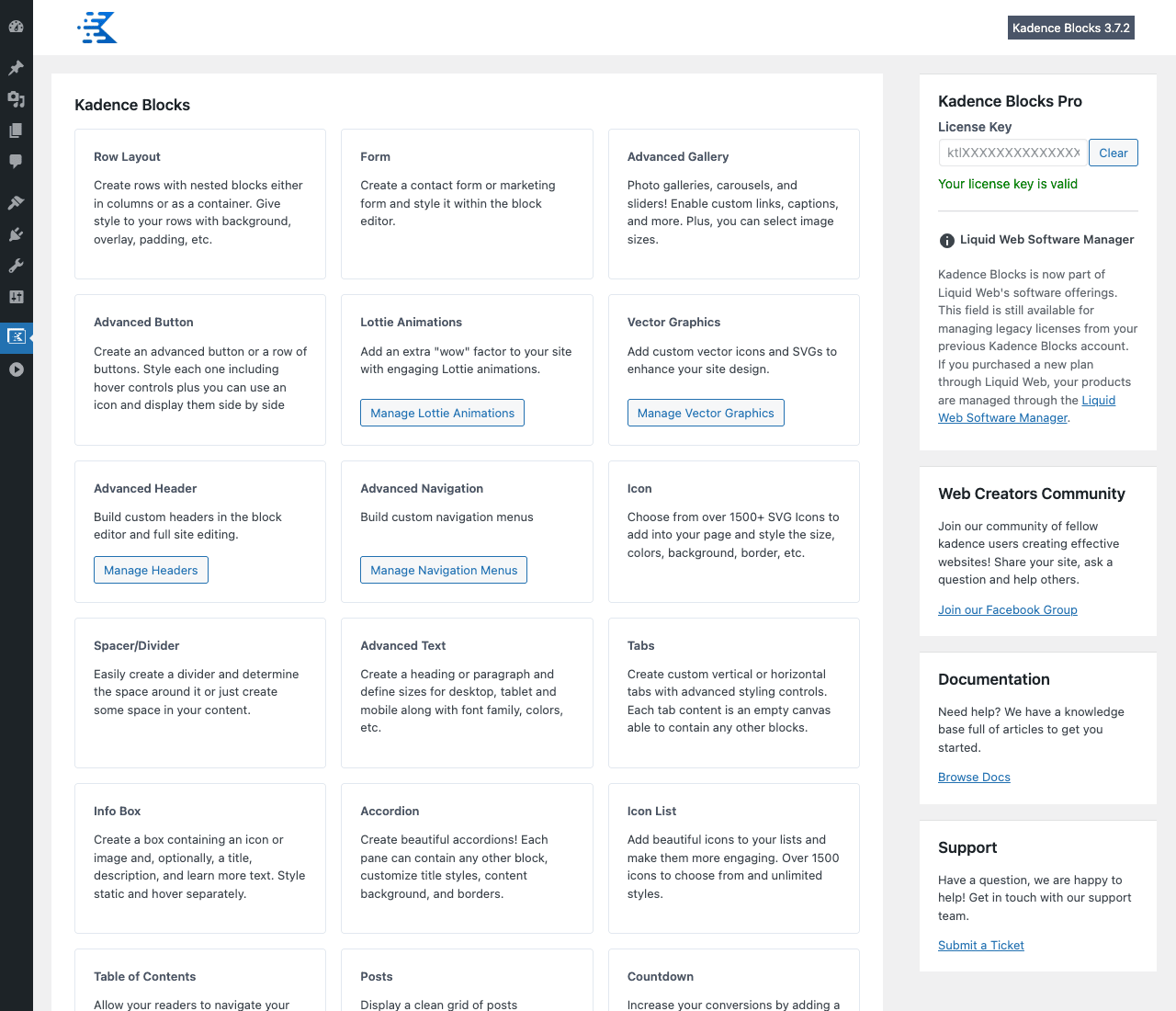
The settings screen has each block as a card with a "Manage Visibility" button. Click it and you can:
- Enable / Disable globally, disabled blocks don’t load anywhere
- Set role visibility, show this block only to specific user roles in the editor (so editors can’t insert a complex block by accident)
- Set post-type visibility, show only on
post,page, or specific CPTs
On the right side of the settings page you’ll also see the License Key field.
There are also tabs at the top for:
- Defaults, set default colors, fonts, and spacing once so they apply to every new block you insert
- Editor Width, set the block editor canvas width to match your theme’s container width (so what you see in the editor matches the front-end)
- General, toggle CSS loading method (inline vs file), allow editors to access the Design Library, etc.
Recommended defaults for a fresh install:
- Disable any block you know you’ll never use (Lottie Animations, Google Maps, Progress Bar if you don’t need them)
- Set Editor Width to your theme’s max content width (usually 1140px or 1200px)
- Set CSS Loading to "File" rather than "Inline", slightly better for page caching with WP Rocket or WP-Optimize
- Set your brand colors as Global Color Palette (under Defaults)
Step 3: Build your first row with Row Layout {#step-3-row-layout}
The Row Layout block is the foundation of every Kadence page. It’s what Columns should have been in core Gutenberg.
In a new post, type
/rowand pick Row Layout, or use the block inserter: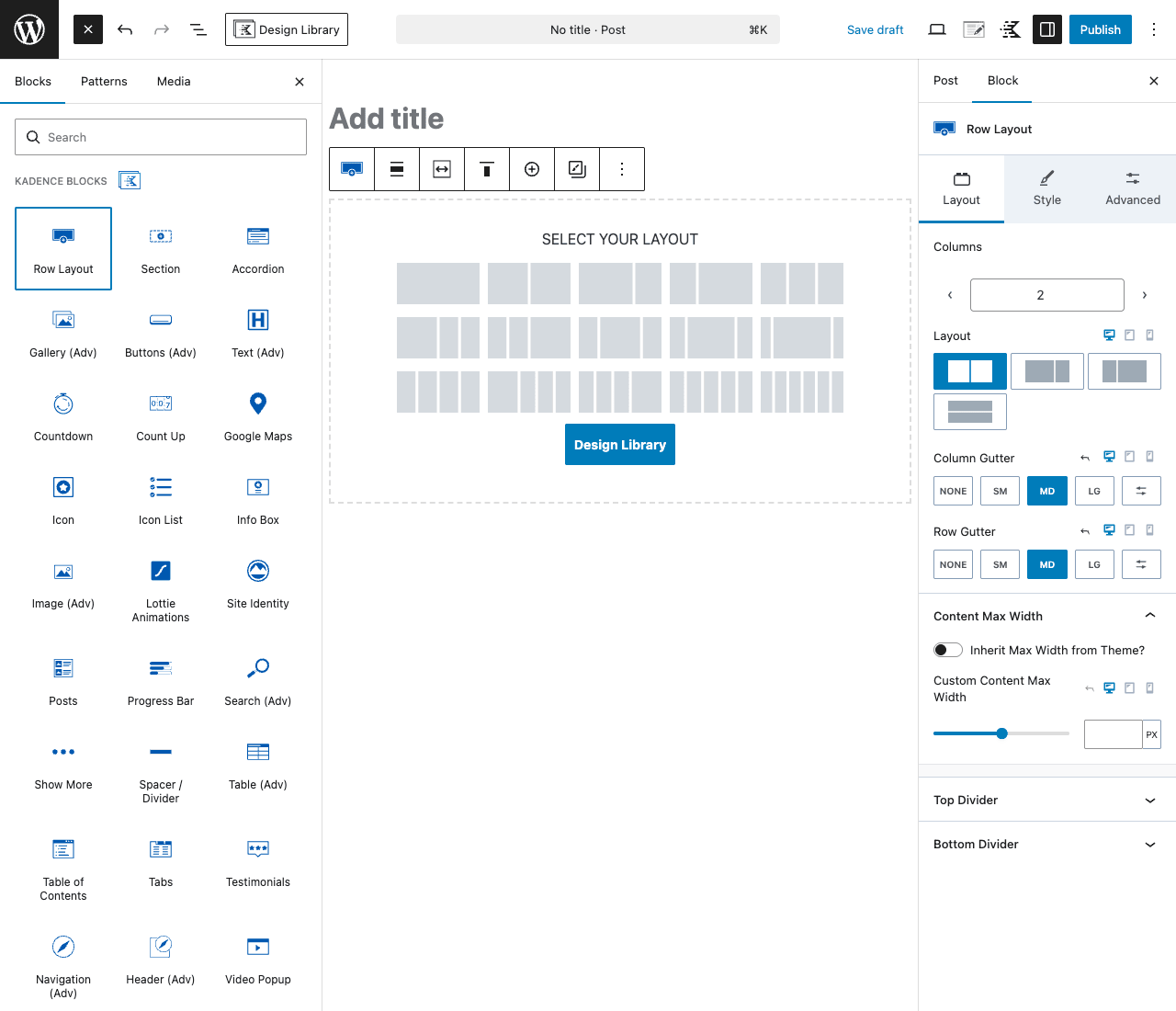
When you first insert a Row Layout, you get a layout chooser: 1 column, 2 columns (50/50, 33/67, 67/33), 3 columns (equal, sidebar variants), 4 columns, 5 columns, 6 columns, plus a "Design Library" button to pick from pre-designed patterns.
After picking a layout, the right sidebar (Block panel) gives you per-block controls grouped into three tabs:
Layout tab:
- Columns, number of columns (changeable after pick)
- Layout, full-width, content-width, or boxed
- Column Gutter / Row Gutter, preset spacings (NONE, SM, MD, LG) or custom values
- Vertical Alignment, top, center, bottom
- Min Height, for full-screen hero sections, set to
100vh - Content Max Width, override the theme’s default content width
- Top Divider / Bottom Divider, SVG dividers (waves, slants, mountains, etc.) at the top and bottom of the row
Style tab:
- Background, solid color, gradient, image, video, or slideshow
- Overlay, color/gradient over the background for readability
- Border, Box Shadow, Padding, Margin, all per-device
Advanced tab:
- Visibility, hide on desktop / tablet / mobile separately
- Anchor, assign an ID for in-page linking
- Additional CSS Class, for custom CSS hooks
- Conditional Display (Pro), show/hide based on user role, query var, time of day, etc.
The single best thing about Row Layout is the per-device toggle. At the top of any spacing/sizing control there’s a device selector (desktop/tablet/mobile). Switch devices and the values you set only apply to that breakpoint. No CSS needed.
After setting up the row, click into a column and add blocks inside it like any other Gutenberg block. You can drop Heading, Paragraph, Image, Button, or any Kadence block into the column.
Step 4: Use the Design Library to skip the blank canvas {#step-4-design-library}
The Design Library is a button at the top of the editor toolbar (and inside the Row Layout block placeholder). It opens a modal with hundreds of pre-built sections.
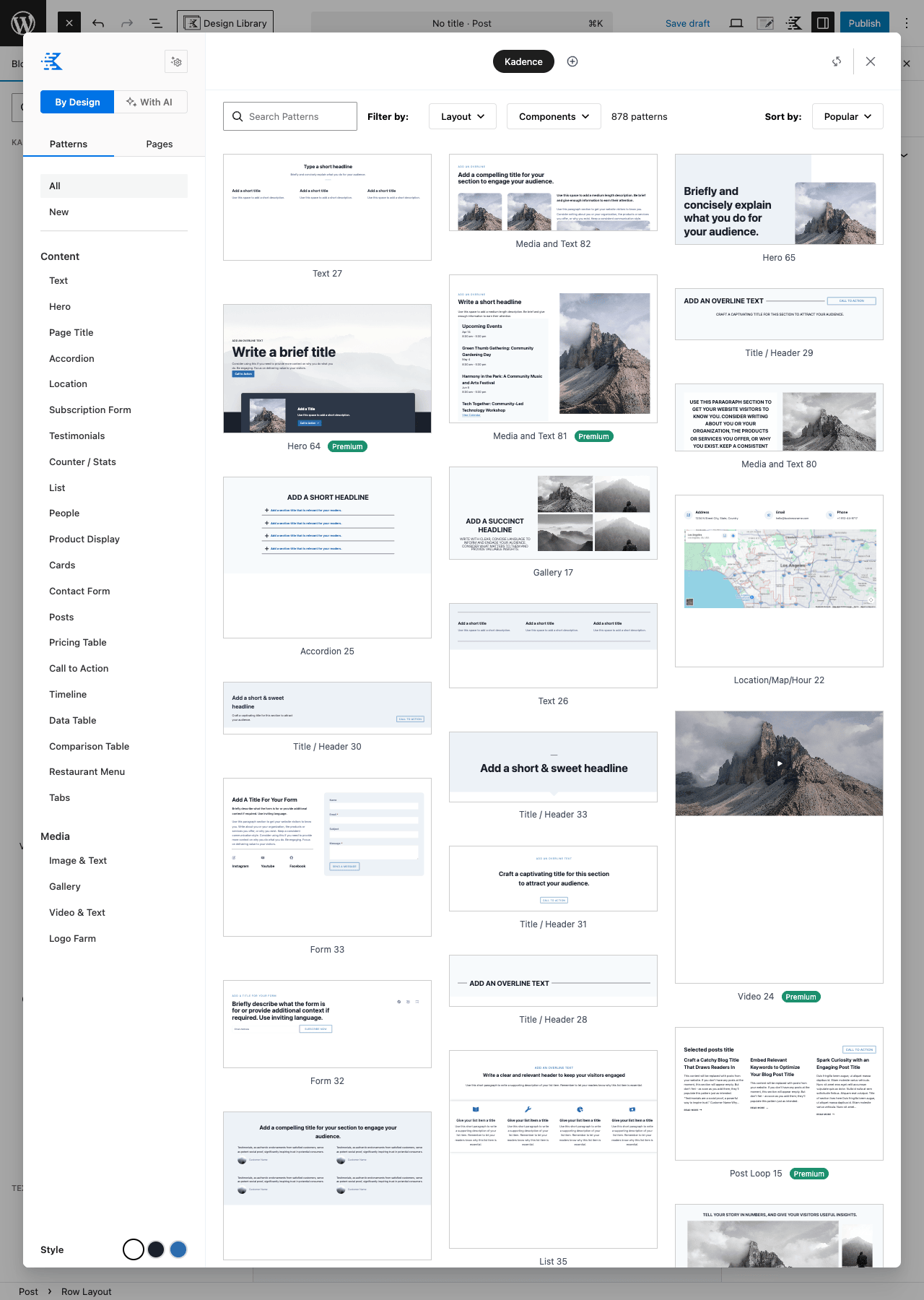
The Library is split into:
- By Design, patterns grouped by site purpose (Agency, SaaS, Local Business, Restaurant, Real Estate, Blog, etc.), full page templates
- Patterns, individual section patterns: Hero, Page Title, Accordion, Testimonials, Pricing Table, FAQ, Stats, Logo Farm, Call to Action, Forms, etc.
- Pages, full multi-section page templates (Homepage, About, Services, Contact, Pricing, etc.)
You can filter by tag (light/dark, with/without images, etc.) and there’s a search bar.
When you click Insert on a pattern, it drops into your editor as native Kadence blocks. You can then customize colors, text, images, anything. The Library is real WordPress blocks under the hood, not iframed content.
The Style selector at the bottom of the modal is a feature most people miss. It lets you pick a "design style" (color palette + typography combo) that applies to every pattern you insert. So you can browse patterns in your brand colors instead of the default ones.
The Library has 670+ patterns total. Free Kadence Blocks gets access to all the patterns; Pro extends a few of the pattern types (forms with integrations, advanced sliders, etc.).
Step 5: Add a Posts grid (Pro) {#step-5-posts-grid}
The Post Grid / Carousel block is the most-used Pro block on real sites. It replaces the free Posts block with a fully-featured posts loop.
Insert it from the inserter (search "Post Grid"). The block prompts to pick a layout (grid or carousel) and a column count.
Right sidebar controls:
Query tab:
- Post Type, Posts, Pages, Products, or any registered CPT
- Categories / Tags / Custom Taxonomies, include or exclude
- Authors, filter by author
- Order By, date, title, modified, menu_order, random, meta_value
- Order, ASC or DESC
- Offset, skip the first N posts (useful for "more posts" sections that exclude the first feature)
- Posts Per Page, how many to show
- Pagination, none, numbered, load-more button, infinite scroll
Layout tab:
- Style, grid, list, masonry, carousel
- Columns, per breakpoint
- Aspect Ratio, for thumbnails (16:9, 4:3, 1:1, custom)
- Image Position, top, left, right, behind text
- Show Image, Title, Date, Author, Excerpt, Categories, Read More, toggle each independently
- Show Image on hover only, fade in image on hover
Style tab:
- Customize per-element typography, colors, padding, hover effects, borders
Common workflows:
- "Latest Posts" homepage block: Post Grid, 3 columns, grid style, 9 posts per page, no pagination
- Archive page replacement: Post Grid set to query "Current Archive" so it inherits the active category/tag, numbered pagination
- Related Posts: Post Grid with "Related" query mode (uses categories of the current post)
- Product Showcase (WooCommerce): Product Carousel with featured products tag
Step 6: Build a real form with Form (Adv) and integrations {#step-6-form}
The Form (Adv) block ships in free Kadence Blocks but the integrations and advanced features are Pro.
Insert a Form (Adv) block. The defaults give you Name, Email, Message, Submit, which works as a contact form out of the box (sends to the WordPress admin email).
Per-field controls:
- Field type, Text, Email, Tel, URL, Textarea, Select, Radio, Checkbox, Date, Time, File Upload, Hidden, HTML, Section Heading
- Label / Placeholder / Default Value / Required
- Width, 25%, 33%, 50%, 67%, 75%, 100% (so you can put First Name and Last Name side by side)
- Conditional Logic (Pro), show this field only if another field has a specific value
- Validation, pattern matching (regex), min/max length, custom error message
Multi-step forms (Pro): add a "Step Break" between fields and the form renders as multiple pages with a progress indicator. Good for longer forms, survey, application, quote request.
Form Actions (what happens when the form is submitted):
- Email, send a notification to one or more addresses
- Auto-respond, send a confirmation email to the submitter
- Redirect, redirect to a thank-you page after submit
- Save Entry, store the submission in the WordPress database (accessible at Kadence Blocks → Form Entries)
- Webhook, POST the form data as JSON to a custom URL
- Mailchimp (Pro), add submitter to a Mailchimp list with tags
- ConvertKit (Pro), add submitter to a ConvertKit form/sequence
- ActiveCampaign (Pro), add to a list with tags
- Sendinblue / Brevo (Pro), add to a Brevo list
- GetResponse (Pro), add to a list
For each integration you paste an API key once in Kadence Blocks → Settings → Integrations. After that, every form gets a dropdown to pick the list/audience/tag.
Recommended for a real site:
- Email notification to admin (always)
- Auto-respond to user with a "Thanks for getting in touch" message
- Save to database (so you have a backup)
- Integration to your email service (Mailchimp/CK/etc.) for actual marketing follow-up
reCAPTCHA / Turnstile is built in. Settings → reCAPTCHA, paste keys, enable on the form. Use Cloudflare Turnstile (free, no Google) over Google reCAPTCHA v3 unless you have a specific reason.
Step 7: Use dynamic content for custom fields {#step-7-dynamic}
Most WordPress sites that scale beyond a blog use custom fields, either ACF, JetEngine, MetaBox, or Pods. Kadence Blocks Pro plugs into all of them with Dynamic Content.
Almost every Kadence block has a small "lightning bolt" icon next to text and image fields in the right sidebar. Click it and you get a Dynamic Content selector:
- Post fields, Title, Excerpt, Featured Image, Author, Date, URL, ID
- Meta fields, any custom meta field on the current post (auto-detected from ACF/JetEngine/MetaBox)
- Site fields, Site Title, Tagline, URL, Logo
- Author fields, Display Name, Bio, Avatar, Profile URL
- User fields, Current logged-in user’s data
- Archive fields, when on an archive page, the term name/description
- Custom callback, register your own dynamic source via PHP
The block then displays the dynamic value, and on different posts the value changes. This is how you build a single template for a custom post type, for example, a
propertylisting template where each property displays its own price, bedrooms, location, gallery, all from custom fields.For full single-template control, Kadence integrates with Hello Elementor-style theme builders. If you’re on the Kadence theme Pro, you get a Theme Builder that lets you assign Kadence-block templates to any post type’s single, archive, search, and 404 views.
If you’re not on Kadence theme, the Dynamic Content still works inside individual posts and pages but you can’t override the global single-post template without a third-party theme builder.
The Kadence theme is sold under the Kadence WP product line, now part of Liquid Web’s plugin family.
Step 8: Set responsive controls per device {#step-8-responsive}
Every spacing, sizing, font size, and visibility setting in a Kadence block has a device toggle at the top: desktop, tablet, mobile. Click the icon, set values for that breakpoint, repeat for the others.
Default breakpoints:
- Desktop: 1024px and up
- Tablet: 768px to 1023px
- Mobile: below 768px
These are configurable in Settings → Kadence Blocks → Defaults → Responsive Settings if your design system uses different breakpoints.
Pro tip on responsive design:
Set values on mobile first (smallest screen), then add tablet adjustments only if needed, then desktop. Most blocks just need mobile + desktop; the middle "tablet" rarely needs separate settings unless your design is fancy.
Hide blocks per device:
The Advanced tab → Visibility section lets you hide a block entirely on specific devices. Useful for:
- Hiding a large hero image on mobile and showing a simpler heading instead
- Showing a different CTA on desktop vs mobile
- Hiding a sidebar element only on mobile
Step 9: Templates and conditional visibility {#step-9-templates}
Pro adds conditional display to every block. In any block’s Advanced tab, expand "Conditional Display" and set rules:
- User Status, show only to logged-in, only to logged-out, or to specific roles
- User Specific, show to a specific user by ID
- Date Range, show between two dates (useful for time-bound promos)
- Day of Week / Time of Day, show only Tuesday mornings, etc.
- Post Meta, show if a post meta key has a specific value
- Cookie, show based on a cookie value (e.g., A/B test or campaign attribution)
- Query String, show only when a specific URL parameter is present
- Browser / Device, show only on Safari, only on iOS, etc. (use sparingly, can hurt UX)
Combine multiple rules with AND/OR logic.
Practical examples:
- Show a "Member exclusive" banner only to subscribers
- Show a "Buy now" button only when the visitor has a UTM parameter
?campaign=summer-sale - Show a "Welcome back" message only to returning visitors (cookie-based)
- Hide a "Sign up for our newsletter" form for already-logged-in members
Real performance impact (with numbers) {#performance}
This is the question most readers actually want answered: does Kadence Blocks make my site slow?
On a real production site (Hetzner shared hosting, WP Rocket active, Kadence theme, 23 Pro blocks loaded across the site), here’s what I measured with PageSpeed Insights:
- Homepage before Kadence Blocks Pro: LCP 1.2s, Total Blocking Time 80ms, CLS 0.02, PageSpeed score 96
- Homepage with Kadence Blocks Pro (no other changes): LCP 1.4s, Total Blocking Time 110ms, CLS 0.02, PageSpeed score 92
A 4-point drop. The added weight is mostly CSS (
70KB minified gzipped for all loaded blocks) and the front-end script that handles tabs, accordions, sliders, etc. (45KB).What helps:
- CSS Loading: File in settings (not inline), caches well at the edge
- Disable unused blocks in settings, reduces the bundle by ~10-20KB
- Use a page cache plugin
- Avoid Lottie animations above the fold (they delay LCP)
Worth noting: Kadence Blocks loads its assets conditionally per block. If a page only uses Row Layout and Buttons, only those two blocks’ CSS/JS load, not the whole bundle. So an article-style post with a single Row Layout is nearly weightless. A homepage with 8 different block types is heavier but still cacheable.
Compared to a site running Elementor Pro doing the same layouts, Kadence is consistently 200-400KB lighter on the front-end and ~100-200ms faster on Total Blocking Time. Block-editor based plugins generally win on performance vs page builders.
Compatibility with themes and plugins {#compatibility}
Themes:
- Kadence theme (free or Pro), deepest integration. Theme settings sync with block settings. Theme Builder works only with Kadence theme.
- GeneratePress, Astra, Blocksy, Neve, OceanWP, works well, no special integration but no conflicts
- Avada, Divi, Bricks, works but pointless; those themes have their own builders
- TwentyTwenty-Whatever (default WP themes), works perfectly, styling inherits from theme defaults
- FSE (Full Site Editing) themes, works inside the FSE editor as well as the regular post/page editor
Plugins it pairs well with:
- Advanced Custom Fields (ACF), dynamic content fully integrated
- JetEngine, dynamic content for JetEngine CPTs
- Yoast SEO Premium / Rank Math / AIOSEO, no conflicts
- WP Rocket, Kadence has caching-friendly CSS loading
- WooCommerce, Product Carousel is built-in
Plugins that conflict (or where you don’t need both):
- Spectra (UAG), register competing blocks. Pick one.
- Stackable, GenerateBlocks, same. Pick one.
- Page builders (Elementor, Beaver Builder, Divi, Bricks), work alongside, but mixing block-editor pages and page-builder pages on the same site gets messy. Pick one as your primary.
- Other Form plugins, Kadence Blocks’ Form (Adv) covers most needs. Gravity Forms or WPForms Pro only needed if you have complex form requirements (payment fields, multi-page surveys with branching logic, signature pads).
Kadence Blocks Pro vs Spectra vs GenerateBlocks vs Stackable {#comparison}
Four serious Gutenberg block plugins, honest differences:
Kadence Blocks Pro is the most feature-complete. 40+ blocks, Design Library with 670+ patterns, dynamic content from ACF/JetEngine/MetaBox, form integrations with all the major email services, Pro Posts/Portfolio/Product grids. Tight integration with the Kadence theme. Lightweight on the front-end (~115KB minified for loaded assets). Pricing is mid-range.
Spectra (Ultimate Addons for Gutenberg) by Brainstorm Force (the makers of Astra) is also very feature-rich. 25+ blocks, Starter Templates library that ties into Astra. Closer in feel to Elementor than to vanilla Gutenberg. Slightly heavier than Kadence. Best if you’re already on Astra theme.
GenerateBlocks by Tom Usborne (the GeneratePress creator) is the minimalist choice. Only 4-6 core blocks (Container, Grid, Headline, Button, Image, Query Loop, Element). But each block is extremely flexible and developer-oriented, you build everything from these primitives. Lightest of the four (~30KB total). Best if you write your own CSS and want a thin, well-structured foundation.
Stackable is design-focused with 40+ blocks including some unique ones (Posts grid with style variations, beautiful Hero blocks). Pricing competitive with Kadence. Slightly heavier on the front-end. Best if you specifically like the Stackable design aesthetic.
Quick decision matrix:
- Want a feature-rich block library that "just works": Kadence Blocks Pro
- Already use Astra theme: Spectra
- Prefer to write your own CSS, want minimum bloat: GenerateBlocks
- Like Stackable’s design library specifically: Stackable
If you’re picking from scratch and not committed to any theme, Kadence is the safest default in 2026. It has the strongest combination of features, performance, and active development.
Real-world pricing breakdown {#pricing}
Kadence sells Pro through bundles, not just the standalone Kadence Blocks Pro plugin. Official pricing tiers (approximate; check their site for current values):
- Kadence Blocks Pro single plugin, roughly $89/year for 1 site, $149/year for unlimited sites
- Kadence Essential Bundle, Kadence theme Pro + Kadence Blocks Pro + Kadence Starter Templates, ~$169/year unlimited
- Kadence Full Bundle, everything above plus Kadence Conversions, Kadence Shop Kit, Kadence Cloud, etc., ~$369/year unlimited
Realistic budget for a real site:
- Bare minimum: Kadence Blocks Pro standalone ~$89/year
- Recommended for most: Essential Bundle ~$169/year (theme + blocks + starter templates is the right combo)
- Agency scale: Full Bundle ~$369/year (covers conversions, shop kit, cloud)
GPL Times pricing is whatever your store subscription costs (one flat fee for the entire catalog of premium plugins).
Renewal pricing: at Kadence directly, renewals are usually 50% off the first-year price (a $169/year bundle renews at ~$85/year). On the GPL Times side it’s flat across renewals.
Common gotchas {#common-gotchas}
-
Design Library button missing. Some users don’t see the "Design Library" button in the editor toolbar. Cause: it’s disabled in Settings → Kadence Blocks → General → Show Design Library Button. Or the user role doesn’t have access (Settings → Permissions). Re-enable.
-
Kadence blocks not showing in inserter after install. Clear all caches (page cache, object cache, browser cache). If you have an aggressive page builder also active and it’s hijacking the block editor, try deactivating it temporarily.
-
Form submissions not arriving. Three common causes:
- WordPress can’t send mail (
wp_mail()failing), install WP Mail SMTP Pro and configure real SMTP - reCAPTCHA misconfigured, keys wrong or domain doesn’t match
- Form Action set wrong, verify Email action exists and notification address is correct
-
Per-device responsive values not applying on the front-end. Browser caching old CSS. Hard refresh (Cmd+Shift+R / Ctrl+Shift+R). If still wrong, check that Settings → CSS Loading is set consistently, switching between Inline and File mid-build causes stale references.
-
Post Grid showing wrong posts. The Query tab cascades: Post Type → Taxonomies → Authors → Orderby. A misconfigured Order by
meta_valuewithout ameta_keywill return zero posts. Set both, or use Date. -
Design Library patterns inserting in the wrong colors. The Style selector in the Library uses your Global Color Palette (Settings → Defaults → Colors). Set your brand colors there first, then re-open the Library; patterns will use your colors.
-
Conditional Display rule isn’t working. Most common cause: AND vs OR logic. Two rules set to AND means BOTH must match; OR means EITHER. Double-check.
-
Modal block won’t close on the front-end. The close button needs the X icon enabled (Block sidebar → Layout → Show Close Button). Or if you’re triggering with custom JS, make sure the
data-modal-idattribute matches. -
Form’s reCAPTCHA always failing. Google’s reCAPTCHA v3 sometimes flags legitimate users as bots. Switch to Cloudflare Turnstile in Settings → reCAPTCHA. It’s free, has no behavioral tracking, and has a far lower false-positive rate.
-
Slow editor performance with many Kadence blocks on a page. Kadence is fine for normal pages but if you have 50+ blocks on a single page the editor gets sluggish. Split into reusable patterns (Synced Patterns) or move to multiple shorter pages with internal linking.
Developer reference: hooks, filters, and custom blocks {#developer-reference}
Kadence Blocks exposes hundreds of filters. The most useful for customization:
Override the default block styles (apply to every instance of a block type):
add_filter( 'kadence_blocks_get_default_attribute_value', function( $value, $block_name, $attr_key ) {
 if ( $block_name === 'kadence/rowlayout' && $attr_key === 'columnGutter' ) {
 return 'lg';
 }
 return $value;
}, 10, 3 );
Add a custom dynamic content source (so Kadence’s dynamic content selector lists your data):
add_filter( 'kadence_dynamic_content_sources', function( $sources ) {
 $sources['my_app'] = array(
 'name' => 'My App Data',
 'origins' => array( 'post', 'archive' ),
 );
 return $sources;
} );

add_filter( "kadence_dynamic_content_my_app_render", function( $value, $field, $instance ) {
 if ( $field === 'subscription_status' ) {
 return get_user_meta( get_current_user_id(), 'subscription_status', true );
 }
 return $value;
}, 10, 3 );
Modify the Post Grid query (server-side):
add_filter( 'kadence_blocks_post_grid_query_args', function( $args ) {
 if ( is_singular( 'product' ) ) {
 $args['posts_per_page'] = 6;
 $args['meta_query'] = array(
 array( 'key' => '_stock_status', 'value' => 'instock' ),
 );
 }
 return $args;
} );
Customize the form submission email subject:
add_filter( 'kadence_blocks_form_email_subject', function( $subject, $form_id, $fields ) {
 if ( isset( $fields['priority'] ) && $fields['priority'] === 'urgent' ) {
 return '[URGENT] '. $subject;
 }
 return $subject;
}, 10, 3 );
Action hooks worth knowing:
kadence_blocks_form_submission, fires after a form is submitted (use to log, integrate, or send custom notifications)kadence_blocks_pro_portfolio_no_posts, when a portfolio grid has zero matcheskadence_blocks_post_loop_header/_footer_start/_end, inject custom HTML into the Post Grid loop
Custom blocks alongside Kadence: Kadence’s block registration uses standard
register_block_type()calls. Your own custom blocks register the same way, no conflict.Custom CSS for Kadence blocks: every Kadence block accepts a CSS class via its Advanced tab. Add
.my-custom-classthere, then style it in your theme’sstyle.cssor via WordPress Customizer → Additional CSS.FAQ: questions people actually search {#faq}
Is Kadence Blocks Pro worth it over the free version?
If you need forms with email integrations, advanced posts grids, modals, sliders, or dynamic content from custom fields, yes. If you just need basic Gutenberg enhancements, the free version is plenty.Does Kadence Blocks work with non-Kadence themes?
Yes. It works with any WordPress theme. The deepest integration is with the Kadence theme (Theme Builder, settings sync), but Astra, GeneratePress, Blocksy, OceanWP, and even default twentytwenty-* themes all work fine.Is Kadence faster than Elementor?
Generally yes. Block-editor plugins are typically 30-50% lighter on the front-end than page builders. PageSpeed scores tend to be 5-10 points higher with Kadence vs equivalent Elementor builds.Can I migrate from Elementor to Kadence?
There’s no automated tool. Migration is manual, page by page. Start with new pages built in Kadence and gradually replace old Elementor pages over time. Don’t try a big-bang migration unless you have a week to dedicate to it.Does Kadence Blocks Pro slow down the WordPress admin?
Slightly. The Gutenberg editor takes a couple of extra seconds to load with Kadence Blocks active (it’s loading 40+ extra block definitions). On the front-end, only the blocks actually used on the page load assets, so production impact is minimal.Can I use Kadence Blocks Pro on multiple sites with one license?
Depends on tier. Single-site licenses cover 1 site; bundle/agency licenses cover unlimited.Does the Design Library work without internet?
The patterns are fetched from Kadence’s API. So no, you need internet for the initial pattern load. After insertion, the pattern is local WordPress content and doesn’t need ongoing connectivity.Will Kadence Blocks Pro keep working if I cancel the subscription?
Yes. The plugin continues to function. You just stop getting updates (which means you’ll fall behind on bug fixes, security patches, and new WordPress version compatibility). For a production site, keep the subscription active.Can Kadence Blocks Pro replace Elementor Pro for me?
For most sites, yes. The main things Elementor Pro does that Kadence doesn’t: Theme Builder for non-Kadence themes (Kadence’s Theme Builder only works with the Kadence theme), Popup Builder (Kadence has Modal block but it’s less feature-rich than Elementor’s Popups), pixel-perfect drag-and-drop positioning. For 90% of sites, Kadence covers the use cases.What’s the difference between Kadence Blocks and Kadence theme?
Kadence Blocks is a plugin that adds blocks to the editor, works with any theme. Kadence theme is a separate theme. They’re built by the same company and integrate deeply, but you can use one without the other.Does Kadence have its own page builder?
No. Kadence Blocks works inside the WordPress block editor (Gutenberg). It extends the native editor rather than replacing it. There’s no separate Kadence editor mode like Elementor has.Final thoughts {#final-thoughts}
If you’re committed to Gutenberg for the long haul, Kadence Blocks Pro is the strongest single bet you can make on a block library. The blocks are well-designed, the responsive controls are best-in-class, the Design Library saves real hours, the form integrations actually work, and the front-end performance is genuinely good.
The trap is treating it as a one-time setup. The plugin gets the most value when you use the Defaults (Settings → Defaults) to set your brand colors, typography, and spacing once. Then every new block automatically matches your design system, and you spend almost no time configuring blocks repeatedly. Skip that step and you’ll re-set the same color picker 200 times across your site.
The setup order I’d recommend:
- Install Kadence Blocks (free) + Pro
- Settings → Kadence Blocks → Defaults: set brand colors, body and heading fonts, default padding scale
- Settings → Kadence Blocks → Editor Width: match your theme’s container width
- Settings → Integrations: paste API keys for any email service you use
- Build your first page using the Design Library, pick a homepage template close to what you want
- Customize the inserted blocks (colors and copy mainly)
- Repeat for About, Services, Contact, Blog
After that, every new page or post is muscle memory: Row Layout, drop in blocks, tweak per-device, publish.