

Most WordPress sites lose email and never notice. Password resets vanish, WooCommerce receipts get marked as spam, and contact-form submissions just… disappear. The default PHP mail() route gets quietly rejected by Gmail, Outlook, and most modern receivers because it has no authentication. Post SMTP takes over wp_mail() and sends everything through a real authenticated mail server (or a vendor API like Gmail, SendGrid, or Brevo), logs every attempt, and tells you the moment something fails.
I’ve been running it on a handful of production sites for years.
Table of contents
- What Post SMTP actually does
- Why default WordPress email keeps breaking
- Key features at a glance
- Walking through the setup wizard
- Picking the right mailer for your host
- The dashboard, day to day
- Email Log: where every send is recorded
- Diagnostic Test for when nothing arrives
- Notifications when delivery fails
- The mobile app
- Real-world use cases
- Developer reference: hooks, filters, REST
- Performance, compatibility, and gotchas
- Pricing and licensing
- FAQ
- Final thoughts
What Post SMTP actually does
Post SMTP is a WordPress mail layer. It replaces the default wp_mail() function with its own pipeline, which knows how to talk to authenticated SMTP servers (TLS or SSL, with username and password), to OAuth-based Gmail and Outlook accounts, and to vendor REST APIs from SendGrid, Mailgun, Brevo, SparkPost, Amazon SES, SMTP2GO, Postmark, Mailjet, and about a dozen others. It logs every email it sends, keeps a full SMTP transcript for every failure, and surfaces both in a dedicated admin area called Email Log.
The plugin started life as Postman SMTP back when Jason Hendriks built it as the first SMTP plugin with Gmail OAuth support. The WP Experts team picked it up, rebranded it as Post SMTP, and turned it into one of the most-installed mail plugins on WordPress.org. The free version is generous: most of the mailers and the Email Log are unlocked out of the box. Pro adds Microsoft 365 OAuth, Amazon SES, backup mailer fallback, advanced notifications (Slack, Teams, Twilio, Pushover, webhook), CSV export of logs, and the new React dashboard.
If you’ve ever used WP Mail SMTP Pro, Post SMTP sits in the same category. The two plugins solve the same core problem with different opinions about which features to give away free.
Why default WordPress email keeps breaking
When PHP’s mail() function hands a message to your server’s local sendmail, three things usually go wrong. First, the sending domain in the envelope doesn’t match the From header, which Gmail interprets as spoofing and silently drops. Second, there’s no DKIM signature, so receivers can’t verify the message came from you. Third, the server’s IP is often on shared blocklists, especially on cheap shared hosts where one rogue tenant burns the reputation for everyone.
You don’t see any of this. WordPress thinks the email was sent because mail() returned true. The user thinks they never got a password reset because nothing arrived. Two weeks later you’re asking yourself why support tickets keep coming in.
Routing through a real SMTP provider fixes all three problems at once: the provider authenticates you against an established sending IP with proper SPF, DKIM, and DMARC alignment, and gives you visibility into every bounce and rejection. That’s what Post SMTP gives you a UI for.
Key features at a glance
- Twenty-plus mailer transports. Generic SMTP, Gmail API, Microsoft 365, SendGrid, Mailgun, Brevo (Sendinblue), SparkPost, SMTP2GO, Postmark, Amazon SES, Mailjet, Mailtrap, Resend, Elastic Email, MailerSend, Maileroo, Sendpulse, Mandrill, Sweego, plus a "Default" fallback that hands back to PHPMailer if you really want to.
- OAuth 2.0 for Gmail (free). The first plugin in the ecosystem to ship this. No app passwords, no "less secure apps" toggle, no manually grabbing an XOAUTH2 token.
- Setup Wizard. A three-step flow that picks the mailer, walks you through credentials, sends a test email, and confirms. Friendly enough for novice users.
- Email Log. Every send is stored as a row with subject, recipients, status, send time, and full SMTP transcript. Click into a row to read the headers and resend.
- Connectivity Test. Detects whether outbound SMTP ports (25, 465, 587, 2525) are open from your host. Saves hours of misdiagnosed firewall issues.
- Failure Notifications. When a send fails, ping admin email, Slack, Teams, Pushover, Twilio SMS, or a generic webhook. Free tier supports admin email and a Chrome extension push.
- Backup Mailer (Pro). Configure a second transport. If the primary fails, retry through the fallback and log both attempts.
- Mobile App. Pair your iOS or Android phone with the site via QR code, get push notifications on every failure, and view recent logs on the go.
- REST API. Two namespaces (
post-smtp/v1and/v2) for the mobile app and for license validation. You can extend with your own routes.
Walking through the setup wizard
Once Post SMTP is activated, the admin dashboard shows a banner that says Post SMTP is not configured and is mimicking out-of-the-box WordPress email delivery. You don’t want that. Click Setup the wizard and you’re walked through picking a mailer.
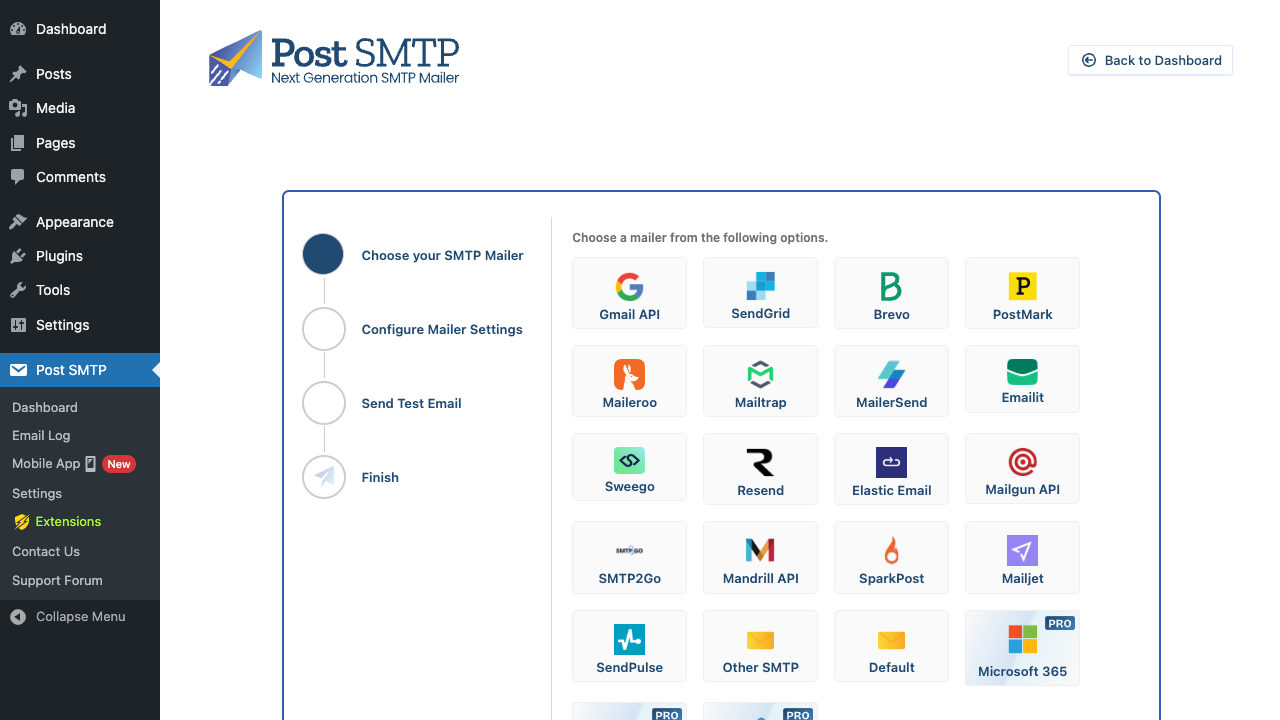
The first screen is a tile grid of every supported transport. Free options include Gmail API, SendGrid, Brevo, Postmark, Mailgun API, Mailtrap, MailerSend, Emailit, Resend, Elastic Email, SMTP2GO, Mandrill, SparkPost, Mailjet, SendPulse, Sweego, Maileroo, plus "Other SMTP" for any host with credentials and "Default" for the PHPMailer fallback. Pro tiles for Microsoft 365 and Amazon SES sit on the bottom row with a PRO badge. Pick one and the wizard expands into vendor-specific fields: API key, region, domain, OAuth client ID and secret, whatever the mailer needs.
The middle step always asks for the From name and From email. Make sure the From email is on a domain you control, because that’s what the receiver will validate against your SPF and DKIM records. The third step sends a test email to an address you choose and shows you the full SMTP transcript inline, so if it fails you see exactly which command the server rejected.
Finish the wizard and the banner on the dashboard turns green. Email is now flowing through your chosen mailer.
Picking the right mailer for your host
This trips up almost everyone. Not all hosts let outbound SMTP through.
If you’re on a managed WordPress host (Kinsta, WP Engine, Pressable, Cloudways), classic SMTP on port 587 usually works fine. Pick Other SMTP in the wizard and enter the credentials your mail provider gave you. The Connectivity Test under Tools is the fast way to confirm which ports are reachable.
If you’re on DigitalOcean, Vultr, Hetzner, OpenShift, or any host that blocks outbound SMTP to fight spam, classic SMTP will hang and time out. Switch to an API-based mailer (Mailgun API, SendGrid, Brevo, Postmark, SES) which talks over HTTPS on port 443 and is never blocked.
If you just want to send from Gmail or a Google Workspace account, pick Gmail API and follow the OAuth flow. You’ll create a Google Cloud project, enable the Gmail API, create an OAuth client, copy the client ID and secret into Post SMTP, and click Grant Permission. After consent, Post SMTP holds a refresh token and sends through your Google account without ever needing your password. This is the single most popular setup on small sites because it works with the Gmail address you already have.
If you want to send through Microsoft 365 or Outlook.com, you’ll need Post SMTP Pro. The flow is similar to Gmail OAuth but uses Microsoft’s Azure AD authority. There’s a post_smtp_office365_tenant_id filter if you need to scope to a single Azure tenant rather than the default common endpoint.
If you’re sending high-volume marketing email (newsletters, drip sequences, abandoned-cart blasts), think twice before using a transactional API like SendGrid or Postmark for all of it. Those are tuned for one-to-one mail with high inbox placement. For bulk newsletter sends, pair Post SMTP for transactional with MailPoet Premium, FluentCRM Pro, Mailster, or the Newsletter plugin for campaigns. Post SMTP becomes the delivery layer for both, and you keep transactional volume away from marketing volume.
The dashboard, day to day
Once configured, the Post SMTP dashboard becomes the at-a-glance health check.
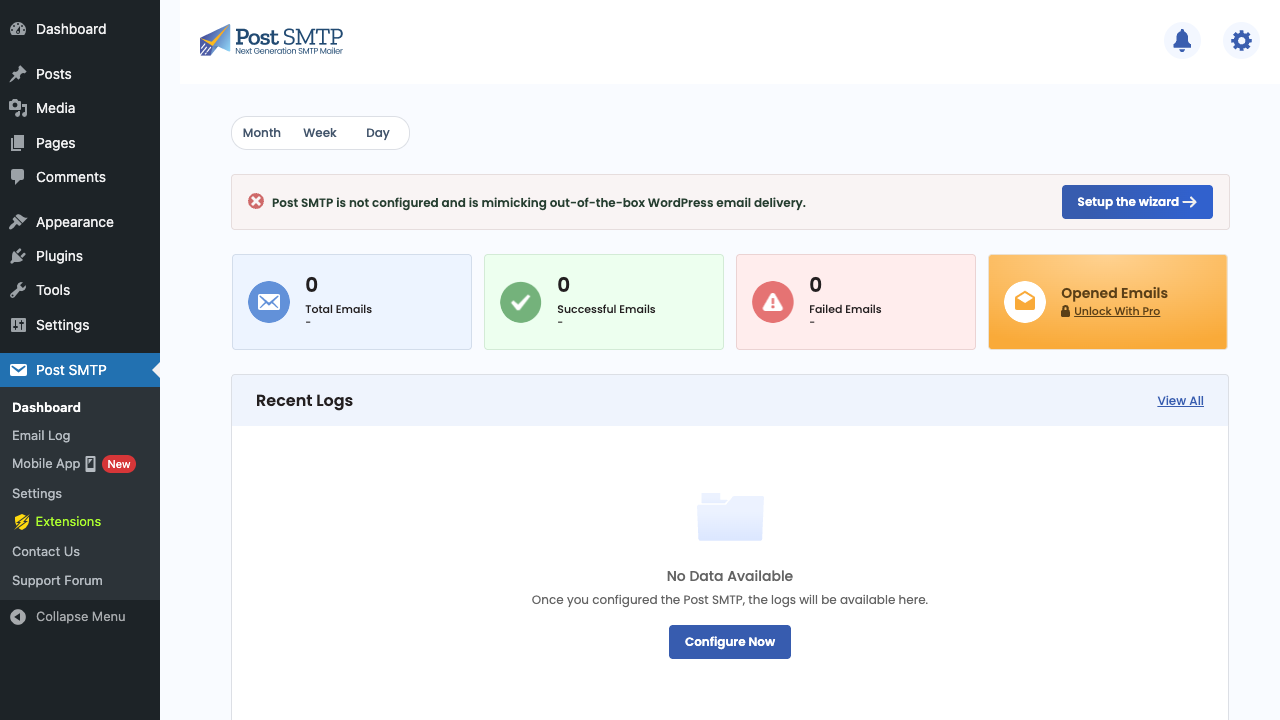
Four counters across the top: Total Emails, Successful, Failed, and (Pro) Opened. A timeframe toggle switches between Month, Week, and Day so you can see today’s traffic separately. The Recent Logs panel under the counters shows the last few sends with subject, recipient, and a green or red status pill. Clicking View All takes you to the full log.
The dashboard is also where the "you have not configured the plugin" warning lives. Once a mailer is set and a test email has gone through, the warning disappears. If it ever reappears it means your credentials got revoked (common after a domain migration or an OAuth token expiry) and you need to reconnect.
The settings cog in the top-right takes you to the full configuration screen, and the bell icon shows recent notification activity.
Email Log: where every send is recorded
This is the panel you’ll spend the most time in. Every email sent through Post SMTP, every plugin, theme, WooCommerce order, password reset, contact-form notification, gets a row here.
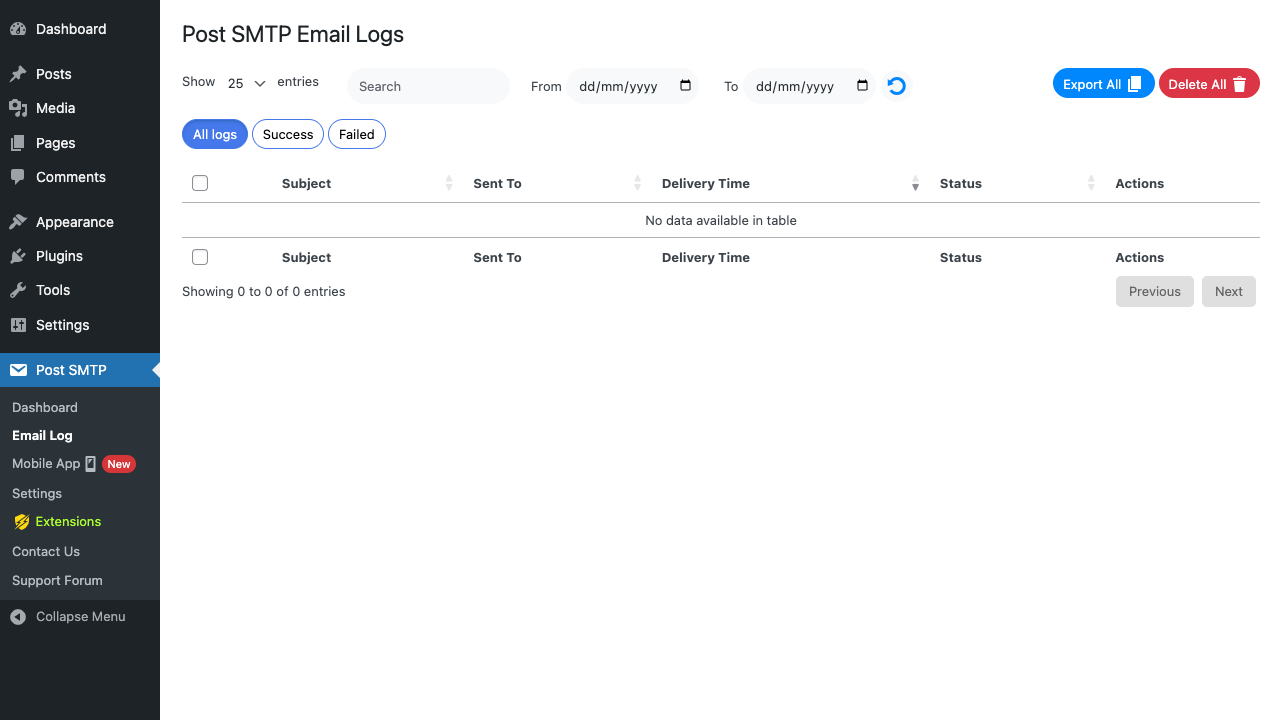
The table shows Subject, Sent To, Delivery Time, Status, and Actions. You can filter by All logs, Success, or Failed, search by recipient or subject, restrict by date range, export the full set to CSV (Pro), or delete the lot. Click into any row and you get a detail view with the full headers, the rendered HTML body, the SMTP transcript line by line, and a Resend button that pushes the same payload through the current transport.
The Resend button alone has saved me dozens of times. A customer says they never got their WooCommerce receipt. Search the log for their email, see the row marked Success, see that it was delivered, but resend anyway so they have one in their inbox right now. Done in 15 seconds.
For developers, every save fires post_smtp_after_email_log_saved with the log ID, so you can shovel a copy into your own monitoring system, Slack channel, or BigQuery table. The two send hooks, post_smtp_on_success and post_smtp_on_failed, both receive the log object, the message, the SMTP transcript, and the transport instance. That’s enough context to build a custom incident response on top of Post SMTP without forking the plugin.
Diagnostic Test for when nothing arrives
When email is broken, the question is usually "where in the chain is it failing." Is it the WordPress side? The mailer side? The DNS? Post SMTP’s Diagnostic Test (under Tools) collects everything in one place.
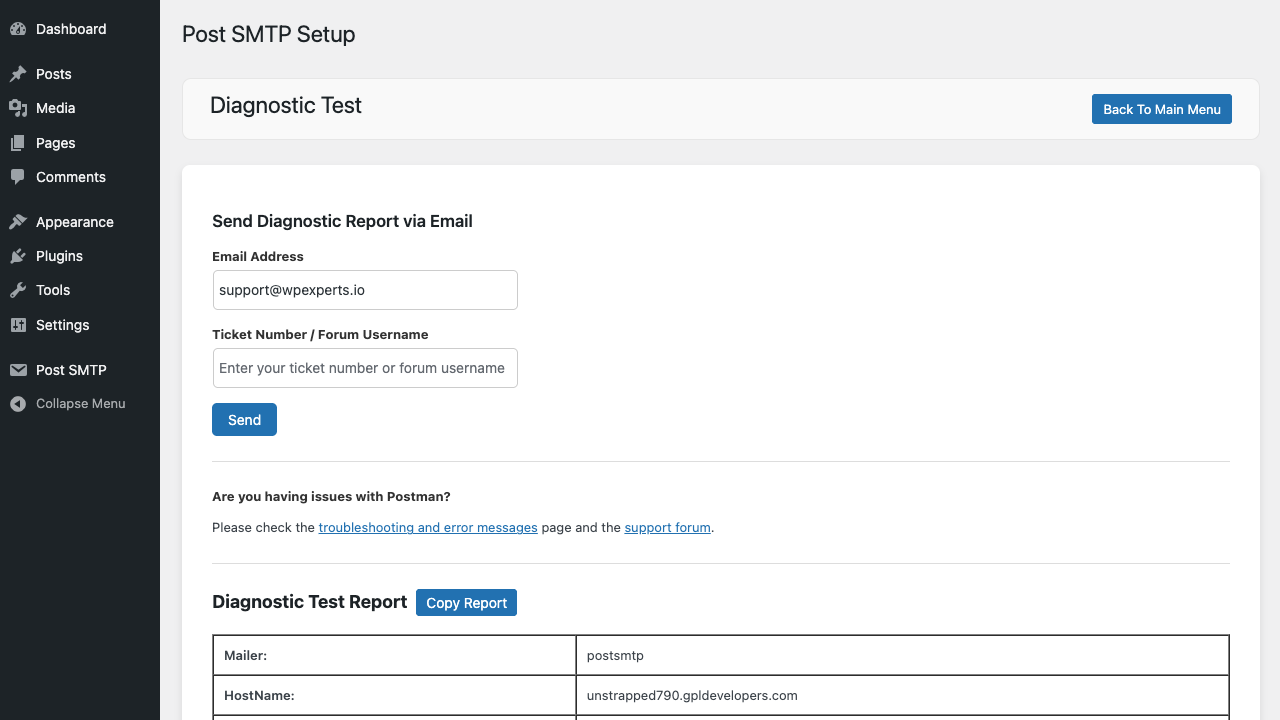
The report includes the host name, the active mailer, the configured From email, the most recent send result, and an SMTP transcript if available. There’s a Copy Report button so you can paste it into a support ticket, and a Send Diagnostic Report via Email field that mails the whole thing to the WP Experts team along with a ticket reference.
Below the report, the Port Tester runs a TCP connect against ports 25, 465, 587, and 2525 from your server out to a known good SMTP host. If they all come back red, your host is blocking outbound SMTP and you need to switch to an API mailer. If 587 is green but 465 is red, that just means your host prefers STARTTLS, which is fine and you can stick with port 587.
This page is also where I send people when they say Post SMTP doesn’t work. Eight times out of ten the actual answer comes from the transcript: an auth failure on a bad password, a DNS lookup failure on a typo in the SMTP host, or a 421 rate limit from the provider.
Notifications when delivery fails
Logs are useless if you don’t check them. Post SMTP has a notifications layer so failures push to wherever you actually pay attention.
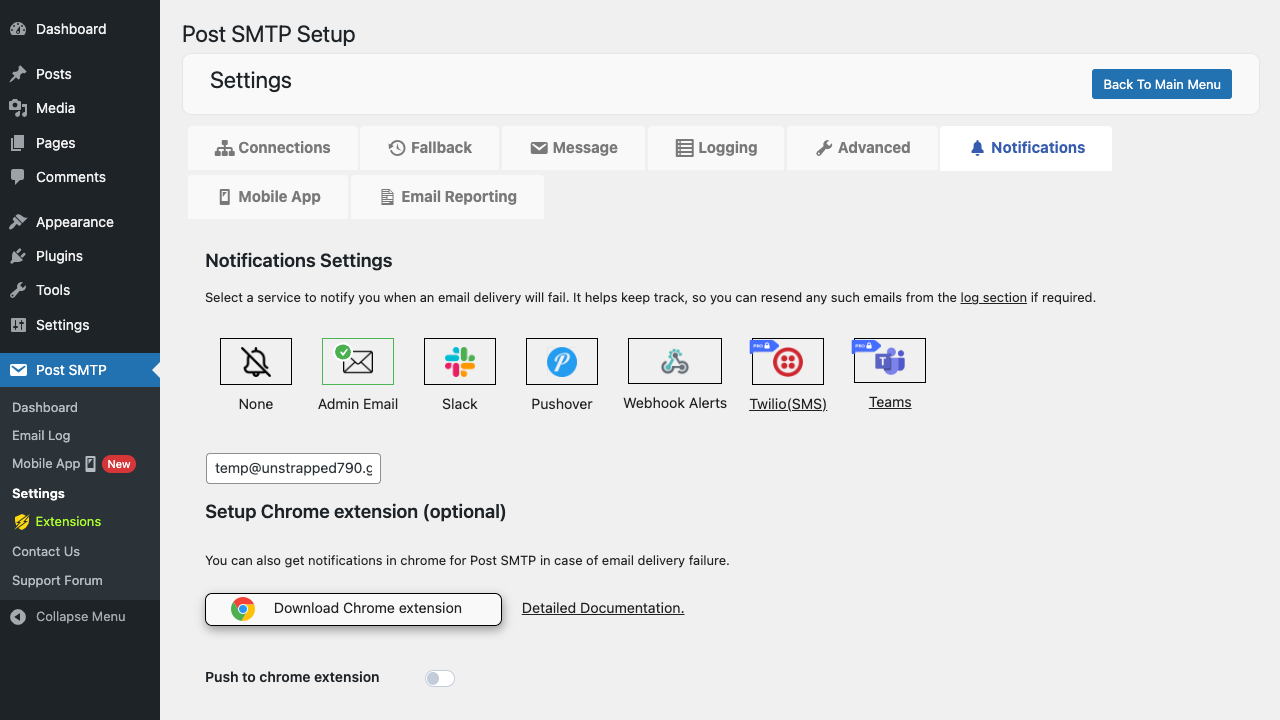
The free tier includes Admin Email (any address you specify) and the Chrome extension push. Pro unlocks Slack (post to a channel via incoming webhook), Pushover (push notification to your phone), generic Webhook Alerts (POST a JSON payload to any URL), Twilio SMS, and Microsoft Teams. You pick one and the next failed send fires a notification within seconds.
I run a Slack webhook into a private #wp-email channel on most client sites. Every failure is a row that the on-call dev can click straight into. It catches things like an OAuth token expiring at 4am, hours before any user would have noticed.
The post_smtp_notification_settings action fires when the notifications page renders, so you can add custom channels by hooking in your own admin UI. If you want to plug in a custom transport entirely, register it through postsmtp_register_transport and the plugin treats it as a first-class mailer in the wizard.
The mobile app
This is the one feature Post SMTP has that no competitor matches. There’s a real iOS/Android app, free on both stores, that you pair with your WordPress site once and then carries the email log and failure pushes around in your pocket.
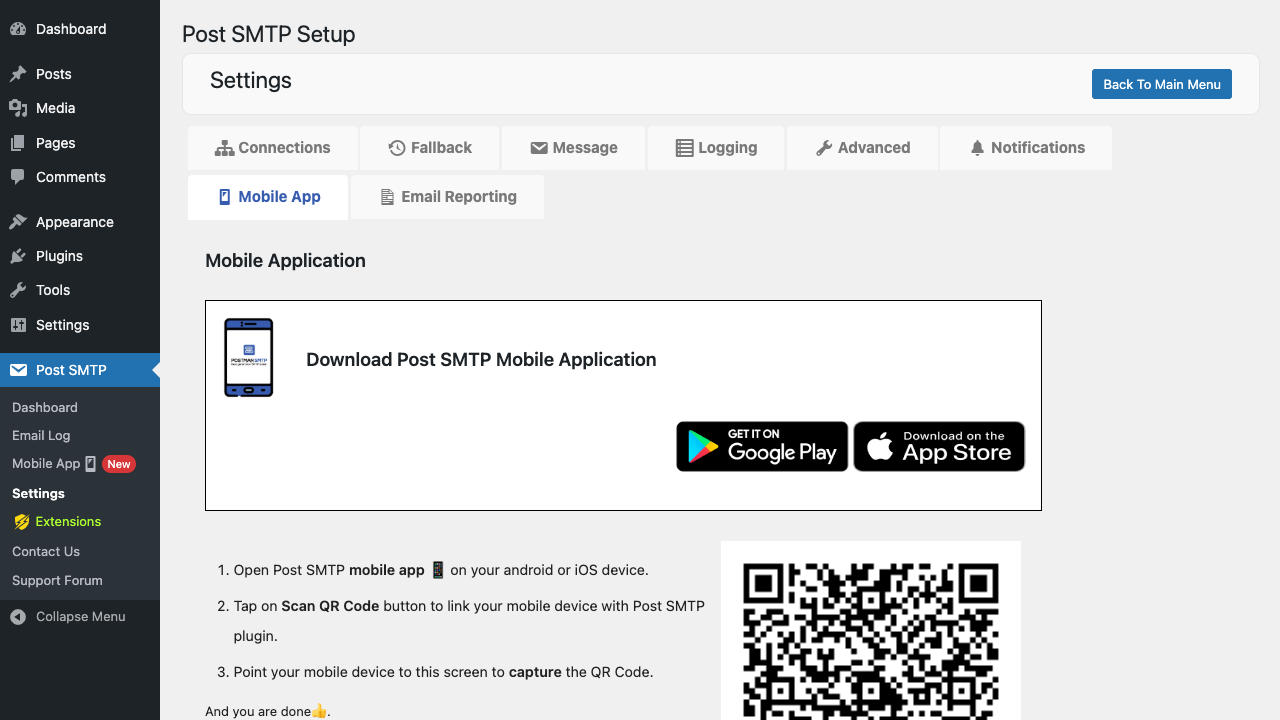
Settings → Mobile App shows a QR code. Open the app, hit Scan, point at the screen, and the site is paired. From the app you can list recent logs, drill into a specific failed send, see the SMTP transcript, and (with Pro) get a push notification the moment any send fails. For agencies running dozens of client sites, you can pair multiple sites in the same app and switch between them with a dropdown.
The pairing flow goes through the REST routes I mentioned earlier. /post-smtp/v1/connect-app exchanges the QR token for a per-device API key. /post-smtp/v1/get-logs and /post-smtp/v1/get-log are the log endpoints. /post-smtp/v1/disconnect-site revokes the device. If you want to build a custom dashboard or integrate with a different monitoring tool, those endpoints are documented in the plugin source and behave exactly like first-class WP REST routes (auth via API key header, JSON responses).
Installation and setup
If you grabbed Post SMTP from the GPL Times product page, you’ll have a zip with the Pro extensions already unlocked. The install is identical to any other plugin:
- In WP admin, open Plugins → Add New → Upload Plugin and pick the zip.
- Activate it. The top-level Post SMTP menu item appears in the left sidebar.
- Click Setup the wizard on the dashboard banner.
- Pick your mailer, enter credentials, send the test email.
- Confirm the test landed. You’re done.
The Connections tab under Settings is where you go back to change mailer or update credentials later.
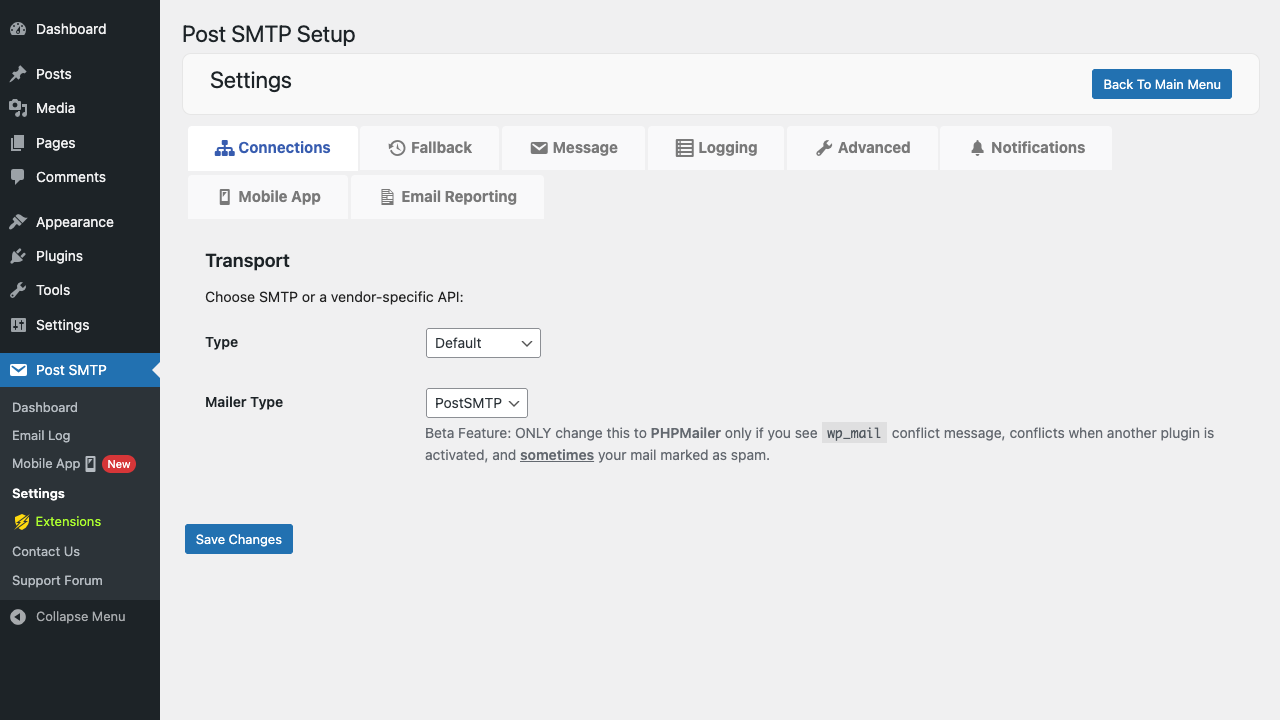
Two important things to set right away: the From Email under the Message tab must be on a domain you control and that has SPF/DKIM/DMARC properly configured, otherwise your messages will still land in spam regardless of which mailer you picked. And the Maximum Log Entries under the Logging tab is set to 250 by default. For a busy WooCommerce site that sends hundreds of order receipts a day, bump it to a few thousand or rotate logs externally.
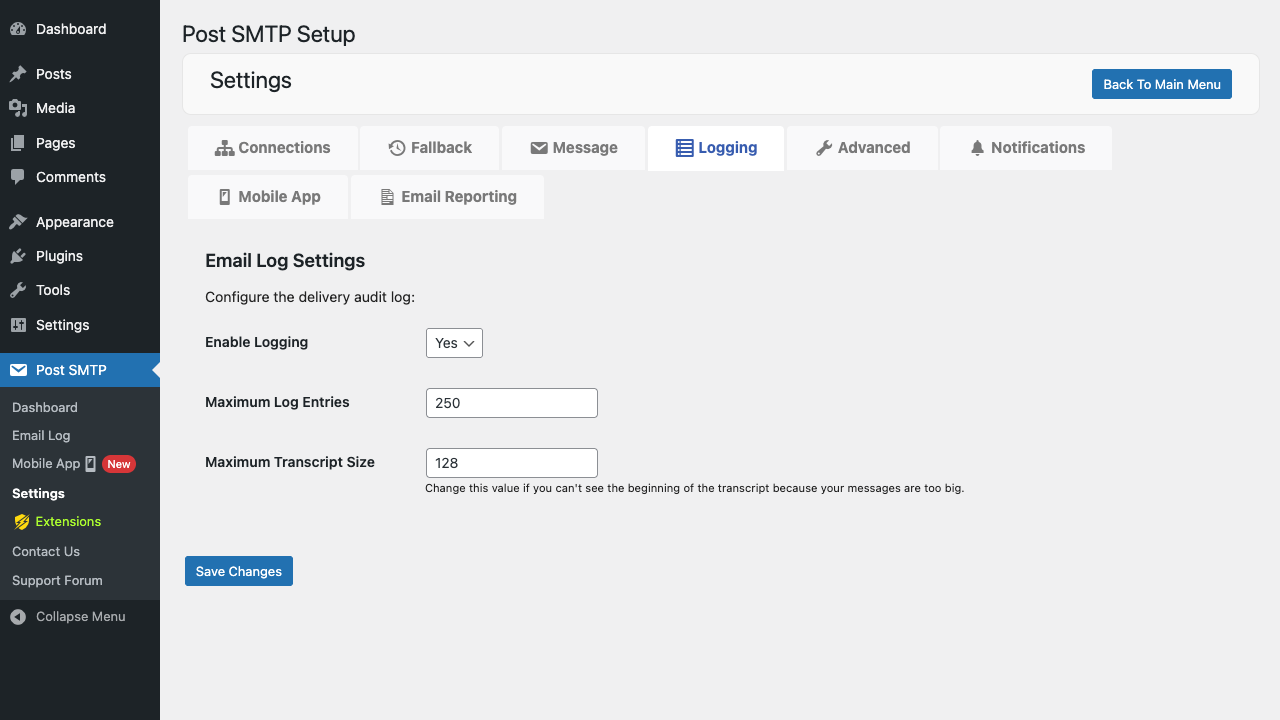
The plugin caps maximum transcript size at 128 KB by default, which is plenty for almost every SMTP exchange. The only time you’d raise it is if you’re sending unusually large messages and your provider’s SMTP server is chatty about it.
Real-world use cases
These are scenarios I keep hitting on client sites where Post SMTP turned out to be the simplest fix.
WooCommerce shop on cheap shared hosting. Order confirmation emails stop reaching Gmail customers. Diagnostic Test shows port 25 reachable, port 587 blocked, and the host’s SMTP relay is on five different blocklists. Switch to SendGrid or Mailgun via API in the wizard, configure SPF and DKIM in the DNS, and delivery jumps from 60% to 99%. Total time: 20 minutes.
Membership site running BuddyBoss and a forum. Activity emails and forum subscription digests stop sending after hitting Gmail’s per-day limit on a Workspace account. Hook in a backup mailer (Pro) pointing at Brevo’s free tier of 300/day, and the second-half-of-the-day overflow rolls through Brevo while the rest still goes via Gmail OAuth.
Agency managing 40 client WordPress sites. Email failures on any of the 40 should ping a shared Slack channel. Install Post SMTP on each, point each at SendGrid with a sub-account API key per client, and configure the Slack webhook in notifications. Each failure now lands in #client-email-failures with the site URL, the failed message, and a link to the Email Log entry. The agency’s on-call rotation handles them inside one Slack channel rather than 40 separate WordPress admins.
Site migrating from staging to production. OAuth tokens are scoped to the original site URL. After cloning staging to production, all Gmail sends fail. Post SMTP’s Connections tab shows the auth error clearly, you click Reconnect, run through the consent screen again, done. Most users would have spent hours debugging "wp_mail returns true but nothing arrives."
Single-author personal blog using Jetpack and a contact form. No money to spend on a third-party SMTP service. Wire Post SMTP to Gmail API (free OAuth), set the daily volume cap at the Workspace limit, and route every comment notification and Jetpack alert through the personal Gmail. Reliable enough, zero ongoing cost.
Multi-site WordPress network. Some sub-sites should send through Mailgun, some through Brevo. Each sub-site gets its own Post SMTP install with its own mailer config (because each site has network: false in the plugin’s bootstrap). For network-wide branding overrides, use the post_smtp_from_name and post_smtp_from_email_address filters scoped per-blog.
Developer reference: hooks, filters, REST
This is where Post SMTP." There are dozens of hooks that let you extend or override behavior cleanly. Here are the ones I reach for most.
Per-environment From address
Set a different From address on staging without touching the settings. Useful when you back up a production database into staging and want to make sure no real user ever gets a staging email.
add_filter( 'post_smtp_from_email_address', function( $email ) {
 if ( defined( 'WP_ENV' ) && WP_ENV === 'staging' ) {
 return 'staging@example.com';
 }
 return $email;
} );

add_filter( 'post_smtp_from_name', function( $name ) {
 if ( defined( 'WP_ENV' ) && WP_ENV === 'staging' ) {
 return 'Example.com (STAGING)';
 }
 return $name;
} );
Disable sending entirely in CI / staging
For automated test runs or local dev, you usually want wp_mail() to no-op rather than actually send. post_smtp_do_send_email short-circuits the send before any transport is invoked, while still letting the rest of WordPress think the mail went out.
add_filter( 'post_smtp_do_send_email', function( $send ) {
 if ( defined( 'WP_TESTS' ) && WP_TESTS ) {
 return false;
 }
 return $send;
} );
Sync every send to an external monitor
Forward each send (success or failure) to a metrics endpoint, an analytics warehouse, or your own incident system. Both hooks receive the log object, the message, the SMTP transcript, and the active transport.
add_action( 'post_smtp_on_success', function( $log, $message, $transcript, $transport ) {
 wp_remote_post( 'https://metrics.example.com/email', array(
 'blocking' => false,
 'body' => array(
 'site' => home_url(),
 'subject' => $message->getSubject(),
 'recipient' => $message->getToRecipients(),
 'transport' => $transport->getSlug(),
 'status' => 'success',
 ),
 ) );
}, 10, 4 );

add_action( 'post_smtp_on_failed', function( $log, $message, $transcript, $transport, $error ) {
 error_log( 'Post SMTP failed: '. $error );
 wp_remote_post( 'https://metrics.example.com/email', array(
 'blocking' => false,
 'body' => array(
 'site' => home_url(),
 'subject' => $message->getSubject(),
 'recipient' => $message->getToRecipients(),
 'transport' => $transport->getSlug(),
 'status' => 'failed',
 'error' => $error,
 ),
 ) );
}, 10, 5 );
Custom Reply-To per email type
You can’t change the global Reply-To per email through the UI, but the filter is global, so use the current hook context or message headers to decide what to return.
add_filter( 'post_smtp_reply_to', function( $reply_to ) {
 // If this email originated from a WooCommerce order, route replies to the shop email.
 if ( did_action( 'woocommerce_email_header' ) ) {
 return get_option( 'woocommerce_email_from_address' );
 }
 return $reply_to;
} );
Sync log entries somewhere safe
Email logs in the database are bounded by the Maximum Log Entries setting. If you need an audit trail you can’t lose, pipe each new log out at insert time.
add_action( 'post_smtp_after_email_log_saved', function( $log_id ) {
 $log = get_post( $log_id );
 //... ship to S3, BigQuery, an external archive, etc.
}, 10, 1 );
Register a custom mailer transport
If you have a niche internal mail relay or a vendor not in the built-in list, you can register a transport class against postsmtp_register_transport. The class must implement Post SMTP’s PostmanModuleTransport interface; the easiest path is to copy PostmanSmtpModuleTransport.php as a template, swap out the SMTP-specific parts for your API calls, and register it.
add_action( 'postsmtp_register_transport', function( $registry ) {
 require_once __DIR__. '/MyCustomTransport.php';
 $registry->registerTransport( new MyCustomTransport() );
} );
The registry then exposes your transport in the wizard tile grid and the Connections dropdown alongside the built-in ones.
REST endpoints
The mobile-app integration exposes a public REST surface. Treat these as a reference for the kinds of operations the plugin supports rather than as a public extension API, but they’re useful if you want to read logs from another system.
POST /wp-json/post-smtp/v1/connect-appexchanges the QR pairing token for a per-device API key.GET /wp-json/post-smtp/v1/get-logs?per_page=50returns a paginated list of recent logs (auth via API key header).GET /wp-json/post-smtp/v1/get-log?id=123returns full detail for a single log.POST /wp-json/post-smtp/v1/disconnect-siterevokes the device.GET /wp-json/post-smtp/v2/get-logsis the newer endpoint with extra metadata.
The plugin checks the device API key on every call, so the endpoints aren’t usable from a logged-out browser. If you want public read access to logs (don’t), you’d need to write a custom REST route in your own plugin and pull from the postman_sent_mail custom post type directly.
Useful constants and reference docs
If you’re new to overriding wp_mail() behavior, the official WordPress reference for wp_mail() is worth reading; Post SMTP follows the same signature so any code that worked against wp_mail() continues to work unchanged. For Gmail-specific gotchas, Google’s Gmail API documentation covers the OAuth scopes Post SMTP requests. The plugin’s own docs live at postmansmtp.com and the freemium repository on WordPress.org has version-by-version changelogs.
Performance, compatibility, and gotchas
Post SMTP is light. The main mailer code only loads when wp_mail() is actually called, the admin pages are gated by capability checks, and the Email Log uses a custom post type which means database growth is bounded by your retention setting rather than by an unbounded custom table.
The biggest performance question is: does logging every email slow down the request? In practice, no. The log row is written after the message is sent, the transcript is small, and the post type is indexed. On sites doing hundreds of emails an hour you might see the postman_sent_mail post type taking a few thousand rows on disk, which is irrelevant for query performance but worth pruning every quarter.
Compatibility
Plays nicely with WooCommerce, Easy Digital Downloads, MemberPress, BuddyBoss, LearnDash, Restrict Content Pro, Gravity Forms, WPForms, Fluent Forms, Contact Form 7 (the plugin ships an explicit CF7 adapter), Ninja Forms, and basically any plugin that respects wp_mail(). If you have a plugin that bypasses wp_mail() to talk to its own mail layer (some old form builders do this), Post SMTP can’t help you with those messages because they never enter the WordPress mail pipeline.
It plays nicely with Wordfence and Solid Security Pro on the security side. Wordfence’s own email alerts route through wp_mail() so they get the same delivery upgrade as everything else.
The plugin’s bundled Freemius SDK pings home for license validation.
Conflict detection
If you have two SMTP plugins active simultaneously (the classic "I installed WP Mail SMTP and Post SMTP at the same time" mistake), Post SMTP detects it and shows a warning at the top of the admin. The conflict-check itself is gated behind apply_filters( 'post_smtp_enable_conflict_detection', true ), so if you really know what you’re doing and want to suppress it, return false. The right answer is almost always to pick one plugin and deactivate the other.
When to NOT use Post SMTP
If you only need to point WordPress at one specific SMTP server with no logging, no failure handling, and no UI bells, you can do it in 10 lines of code in your theme’s functions.php using the phpmailer_init action. That’s lighter than a full plugin. But you lose the log, the diagnostic, the notifications, and the wizard. Almost nobody actually wants that tradeoff.
If you’re sending more than 10,000 emails a day for a true marketing campaign, the transactional model Post SMTP optimizes for isn’t quite the right fit. Use a campaign tool (FluentCRM Pro, MailPoet, Mailster) for the bulk send and keep Post SMTP for the transactional traffic.
Things that have bitten me
- OAuth tokens silently expiring after a site URL change. Post SMTP shows an error on the dashboard once a send fails, but until something actually goes through nothing flags it. After any HTTP-to-HTTPS migration or staging-to-production clone, reconnect the mailer.
- SPF too permissive. Authentication at the SMTP server level (which Post SMTP handles) is necessary but not sufficient. If your domain’s SPF record doesn’t include the sending provider, Gmail will still soft-fail. Always run a
dig TXT example.comafter configuring a new mailer to confirm the provider’s SPF block is in there. - DMARC rejecting everything. A
p=rejectDMARC policy with a misaligned From header will drop messages even if SPF and DKIM pass on the envelope. Match the From domain to whatever your mailer is sending from. - WP_DEBUG_LOG noise. If
WP_DEBUG_LOGis on, Post SMTP writes a fair bit of info-level output. Turn it off in production.
Pricing and licensing
The free version of Post SMTP, available on the WordPress.org plugin directory, covers what 90% of small sites need: classic SMTP, Gmail API OAuth, 17 vendor APIs, Email Log, Connectivity Test, Mobile App, and Admin Email failure notifications. You can run a personal blog or a small WooCommerce store on it without ever buying anything.
Pro starts at around $59 per site per year direct from postmansmtp.com and unlocks Microsoft 365 OAuth, Amazon SES, the React dashboard, backup mailer fallback, Slack/Teams/Twilio/Pushover/Webhook notifications, MainWP child integration, CSV export, longer log retention, and the smart spam blocking digest. There are higher tiers for unlimited sites and lifetime licenses.
GPL Times offers Post SMTP Pro at a deeper discount than the direct license, with the same Pro features unlocked under the GPL. You can grab it from the Post SMTP product page. For most agency and multi-site setups that’s the path of least resistance.
FAQ
Does Post SMTP work with Gmail for personal accounts (not Workspace)?
Yes. The Gmail API option in the wizard works for any Google account, free or paid. You’ll go through the same OAuth flow: create a Google Cloud project, enable Gmail API, create an OAuth client, paste the client ID and secret into Post SMTP, and grant permission. Personal accounts have a roughly 500-emails-per-day soft limit, so it’s fine for small blogs but not for a busy shop.
Will it work if my host blocks outbound SMTP?
Yes, but you have to pick an API-based mailer rather than classic SMTP. Mailgun API, SendGrid, Brevo, Postmark, Amazon SES, and others all talk over HTTPS on port 443, which no shared host blocks. Run the Connectivity Test under Tools first to confirm which ports are actually reachable, and switch transports accordingly.
How do I send a test email after setup?
Open Post SMTP → Settings → Connections, scroll down to the Test Email section, enter your address, and click Send. The full SMTP transcript shows up inline. You can also re-run the wizard from the dashboard and it’ll send the test as part of its third step.
Where are the logs stored, and can I export them?
Logs are stored as a WordPress custom post type called postman_sent_mail, so they live in your wp_posts table just like any other post. The free Email Log page lets you view and delete entries through the UI. Pro adds CSV export and longer retention. Programmatic access is via the standard WP_Query (post_type => 'postman_sent_mail') or the REST endpoints I described in the developer section.
Is Post SMTP compatible with WooCommerce transactional emails?
Yes, fully. WooCommerce’s order, customer note, refund, and admin emails all flow through wp_mail(), which Post SMTP intercepts. There’s no extra configuration needed. The plugin even ships a PostmanWooCommerce.php integration that surfaces WC-specific metadata in the log.
What happens if my mailer goes down mid-day?
In the free version, the message fails and lands in the log as Failed. You get an admin email notification (and optionally a Chrome push). With Pro, you can configure a backup mailer under Settings → Fallback. The plugin retries the failed message through the backup automatically, logs both the primary attempt and the fallback attempt, and only marks Failed if both fail.
Does it support DKIM signing?
Post SMTP doesn’t sign messages itself. It hands the message to your chosen mailer (Gmail, SendGrid, Mailgun, etc.), and the mailer signs the message with its own DKIM key. You set up DKIM by adding a CNAME or TXT record to your domain’s DNS as instructed by the mailer. Once that’s done, every email coming through Post SMTP is properly DKIM-signed on the wire.
Can I have different mailers for different types of email?
Not natively through the UI. The plugin has one active transport at a time (plus a Pro fallback). But you can hack it by using the post_smtp_do_send_email filter to inspect the message and conditionally let it through or redirect via a custom action. For most use cases, run one Post SMTP install for transactional and a separate plugin like FluentCRM or MailPoet for marketing.
Is there a way to retry a single failed message later?
Yes. Open the Email Log, find the row, click the message, and click Resend. The plugin re-fires the message through the current transport. The original log row is updated with the new attempt result.
How do I disable Post SMTP temporarily without losing my settings?
Deactivate the plugin. WordPress falls back to its default wp_mail() and sends will go via PHP’s mail() again. Your settings are stored in the post_smtp_options option and the postman_sent_mail post type, so reactivating restores everything. If you want to keep the plugin active but bypass it (e.g. for a debugging session), use the post_smtp_declare_wp_mail filter and return false.
Will it conflict with other SMTP plugins?
If both are active and both override wp_mail(), only one will actually send the message and the other’s behavior becomes undefined. Post SMTP detects this and shows a warning. The fix is to deactivate the other plugin. If you’ve migrated from WP Mail SMTP, deactivate it, install Post SMTP, run the wizard, and remove the old plugin once you’ve confirmed everything works.
Does it handle email attachments?
Yes. Attachments passed to wp_mail() (like WooCommerce invoice PDFs) are picked up automatically. The Resend Pro feature is the only place where attachment behavior differs: by default the plugin doesn’t re-attach the original files when resending, because the originals may no longer exist on disk. The post_smtp_resend_attachments filter lets you reconstruct the attachment array if you’ve stored copies elsewhere.
Final thoughts
If you’ve spent a single afternoon debugging why your password reset emails aren’t arriving, you already know why Post SMTP exists. The plugin earns its place by turning an invisible broken thing into a visible solvable thing: there’s a UI, there’s a log, there’s a transcript, and there’s a notification when something breaks.
The free version is enough for almost every personal site and small shop. Pro is the right move if you run multiple sites, want Slack/Teams/Twilio notifications, need a backup mailer for high-stakes transactional traffic, or specifically need Microsoft 365 OAuth or Amazon SES support.
Two final pieces of advice. First, after you finish the wizard, send yourself a test email and immediately check the inbox AND the spam folder AND verify the DKIM and SPF checks pass in the message headers. Don’t trust "success" in the WordPress dashboard until you’ve eyeballed the actual delivered message. Second, set up a notification channel that wakes you up, not just an admin email that you’ll never look at. Email delivery only matters when it breaks, and Post SMTP’s job is to make sure you find out before your users do.