

If you sell to people in a specific city, town, or service area, the SEO playbook is different. Generic SEO ranks you for "best WordPress hosting." Local SEO ranks you for "best WordPress hosting in Austin, TX." Or "dentist near me." Or "coffee shop open now." Different signals, different schema, different ranking factors. And if you’re running a WordPress site, the tool most local businesses end up using is Yoast Local SEO Premium, an add-on to the main Yoast SEO plugin that handles the local-specific pieces the core Yoast plugin doesn’t.
This guide walks through what Yoast Local SEO actually does, how it differs from Yoast SEO Premium (they’re two separate plugins, often confused), how to install and configure it for a single-location business, how to set up the multi-location mode for franchises and service-area businesses, how the opening hours and store locator features work on the frontend, the LocalBusiness schema it emits, the developer hooks you’ll want to know about, and the common gotchas.
Both are required.
Table of contents
- What local SEO actually is
- What Yoast Local SEO adds on top of Yoast SEO
- Yoast Local SEO vs Rank Math Local vs AIOSEO Local
- Who should use Yoast Local SEO
- Installing both plugins
- Configuring the Business info tab
- Setting opening hours
- Getting a Google Maps API key
- Maps settings explained
- Switching to multi-location mode
- Creating individual location pages
- Embedding the store locator
- Other useful shortcodes
- The LocalBusiness schema that gets generated
- Developer reference
- Theme integration
- SEO impact and gotchas
- Pricing
- FAQ
- Final thoughts
What local SEO actually is
Local SEO is the subset of search engine optimization aimed at ranking for queries that have a geographic component. Google’s algorithm treats "best running shoes" and "best running shoes Austin" very differently. The first one returns nationwide e-commerce sites; the second one returns local stores plus a Google Maps panel with three local businesses (the "local pack").
To rank in the local pack, search engines need to understand three things about your site:
- Who you are. Name, address, phone number (NAP), category of business, opening hours.
- Where you are. Precise geographic coordinates, the geographic area you serve.
- What you sell or do. Business type (Restaurant, Plumber, Dentist, Hotel, etc.), services offered.
You give Google this information in two ways: through your Google Business Profile (set up directly on Google) and through structured data on your website (LocalBusiness schema in JSON-LD). Yoast Local SEO handles the website side of this.
What Yoast Local SEO adds on top of Yoast SEO
This trips up a lot of people. There are two paid Yoast products:
- Yoast SEO Premium. The main SEO plugin: title/meta editor, internal linking, redirects, breadcrumbs, content analysis, social media previews.
- Yoast Local SEO Premium. An add-on specifically for local-business features. Requires either free Yoast SEO or Yoast SEO Premium to be installed.
The free Yoast SEO does emit some basic local structured data if you have a single-location business and fill in the Organization fields. But it’s limited. The Local plugin adds:
- A dedicated Business info tab with full address, phone, email, business type (90+ subtypes), price range, payment methods accepted, currencies, area served.
- Opening hours with per-day open/close times, multiple sessions per day, "open 24 hours," "closed" toggle, special holiday hours.
- Google Maps integration with API key, custom marker icons, geocoding.
- Multi-location mode that registers a
wpseo_locationscustom post type, so each storefront is its own editable page. - Store locator shortcode that renders an interactive search-by-radius interface.
- Six shortcodes for embedding address, map, hours, logo, and the locator anywhere on the site.
- LocalBusiness JSON-LD schema with proper PostalAddress, GeoCoordinates, OpeningHoursSpecification objects.
- Local sitemap (
/sitemap_locations.xml) for multi-location sites. - WooCommerce integration (with a separate add-on) for shipping by location and store-based pickup.
If you have a single physical address, the free Yoast may be enough for basic structured data. If you have anything more complicated (multiple locations, service areas, opening hours that matter, a store locator), the Local Premium plugin is the right tool.
Yoast Local SEO vs Rank Math Local vs AIOSEO Local
A quick comparison since all three major SEO ecosystems offer a local module.
Yoast Local SEO
- Pros. Deepest LocalBusiness schema implementation. 90+ business subtypes. Mature opening hours UI. Solid multi-location CPT model.
- Cons. Separate paid plugin (requires the main Yoast on top). UI feels older than Rank Math Pro’s.
Rank Math Local SEO
- Pros. Bundled into Rank Math Pro at no extra cost. Modern UI. Comparable feature set for single-location.
- Cons. Less polished multi-location handling. Smaller default schema coverage.
AIOSEO Local SEO
- Pros. Bundled into AIOSEO Pro Elite tier. Clean tab-based UI. Strong opening hours and contact-info features.
- Cons. Smaller business-type catalog than Yoast. Less mature.
If you already use Yoast SEO and want the deepest local features, this plugin is the obvious answer. If you use Rank Math or AIOSEO, their bundled local modules are usually fine without paying separately.
Who should use Yoast Local SEO
Three audiences fit cleanly.
Single-location service businesses
The dentist, the lawyer, the accountant, the plumber. One address, set hours, looking to rank for "[service] in [city]." Single-location mode is set up in ten minutes and you get proper LocalBusiness schema, an opening-hours block, and a Maps embed without writing any code.
Multi-location retailers, franchises, restaurants
A coffee chain with 15 locations. A franchise dentist office. A retailer with stores in three cities. Multi-location mode gives each store its own editable page, separate opening hours per store, individual driving directions, and a unified store-locator search.
Service-area businesses
Plumbers, electricians, home inspectors, mobile services. You don’t have a storefront customers visit, but you serve a specific area. Yoast Local lets you set the area served (counties, cities, ZIP codes) and emits the right schema for service-area businesses, which is different from storefront businesses.
Installing both plugins
You need two plugins. Order matters: install free Yoast SEO first, then Yoast Local SEO Premium.
- Free Yoast SEO from
Plugins -> Add New -> Search "Yoast SEO". Activate. - Yoast SEO Premium (optional but recommended for the content analysis features): upload via
Plugins -> Add New -> Upload Plugin. Activate. - Yoast Local SEO Premium: upload via
Plugins -> Add New -> Upload Plugin -> wpseo-local.zip. Activate.
After activation, the Yoast menu in the WP admin sidebar gets a new "Local SEO" submenu under it. That’s where everything happens.
Configuring the Business info tab
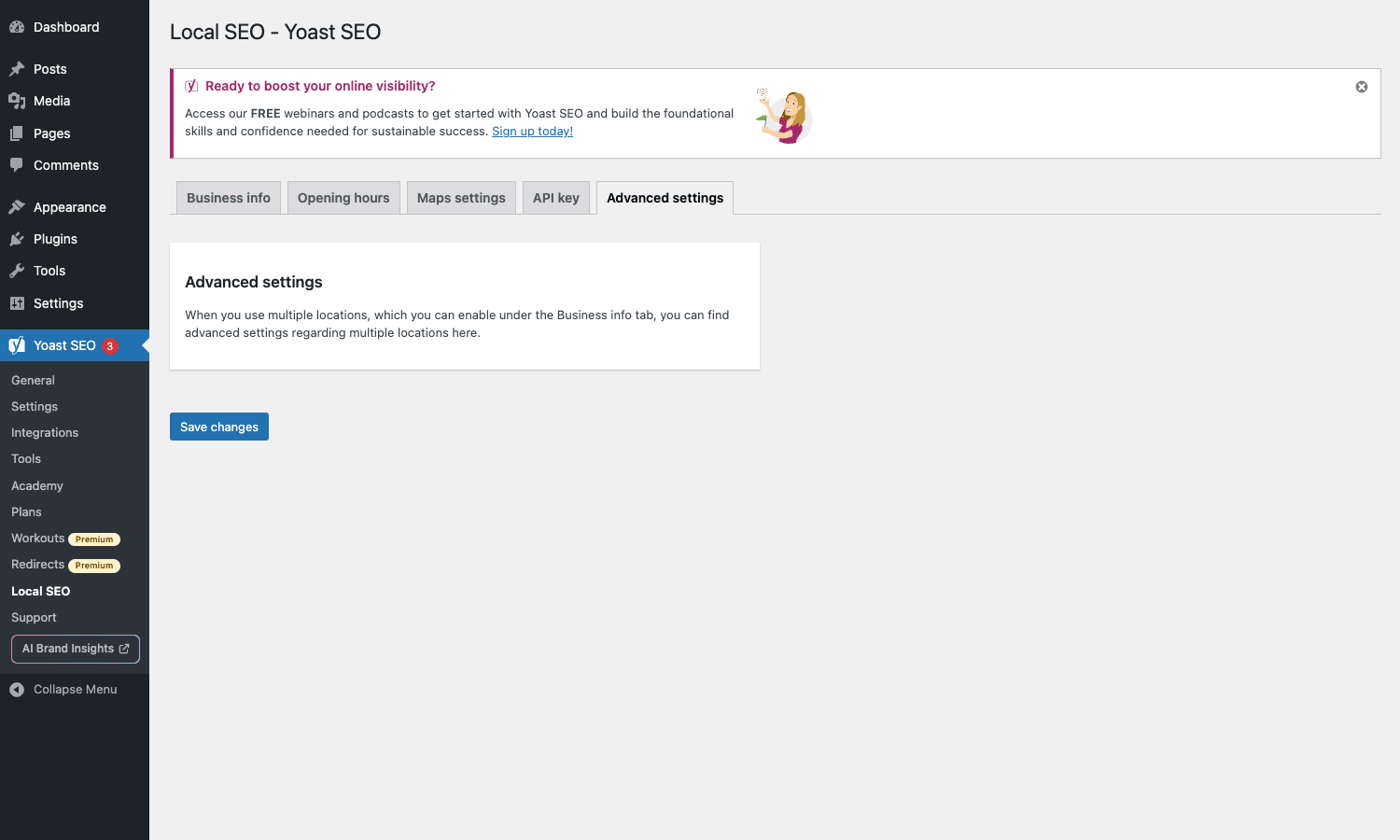
Navigate to Yoast SEO -> Local SEO. Five tabs greet you: Business info, Opening hours, Maps settings, API key, Advanced settings. Start with Business info.
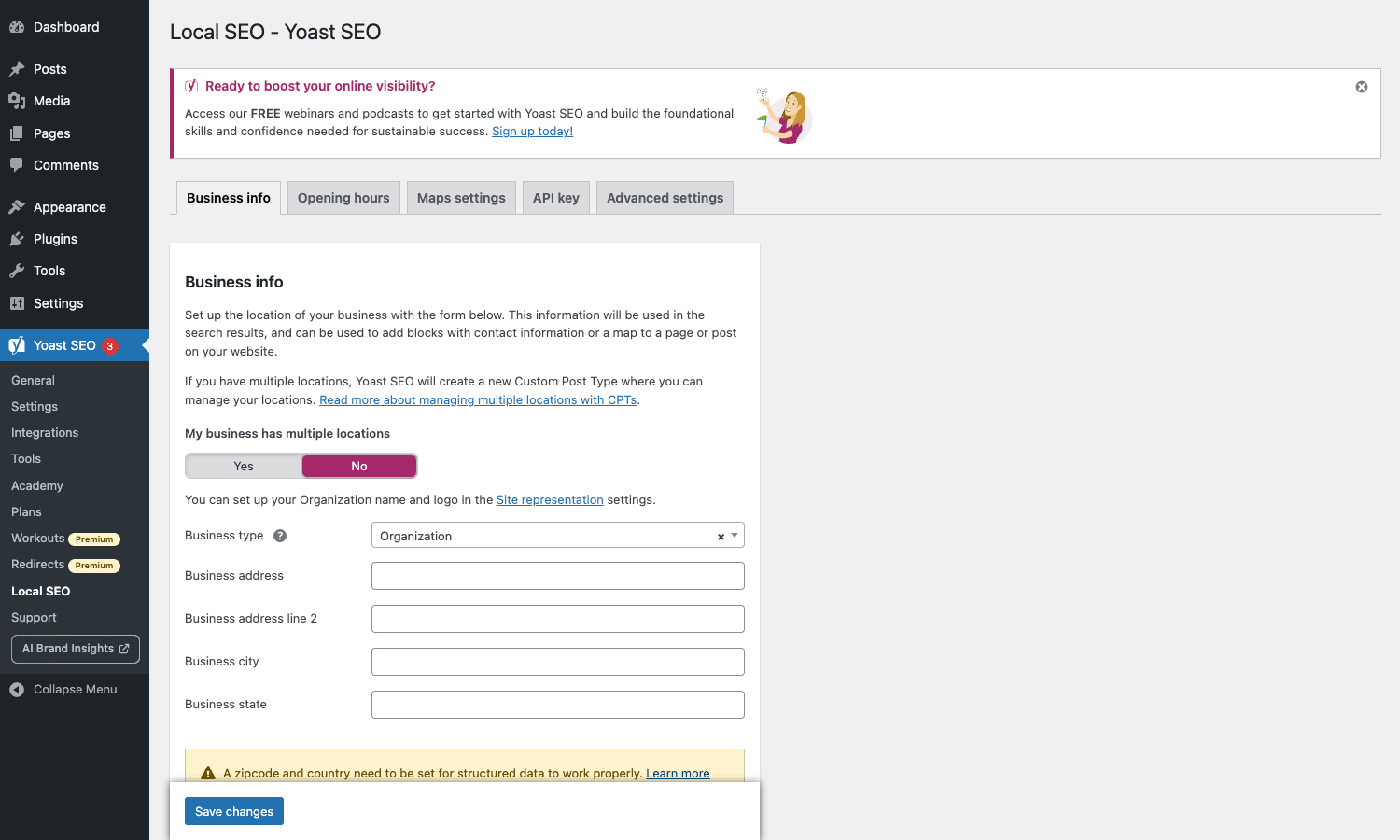
The multi-location toggle
The first decision is "My business has multiple locations." Yes or No. The choice determines everything that follows.
- No (single-location) stores all the business data as plugin settings. Opening hours, address, phone are global. Schema gets emitted on every page.
- Yes (multi-location) registers the
wpseo_locationscustom post type. Each location is a separate post you create. Address and hours are per-location.
You can switch later, but you’ll lose any single-location data when you switch to multi (and vice versa). Decide upfront.
Business type
This is the single most important field for schema. Yoast Local SEO supports 90+ subtypes of LocalBusiness, including:
- General. LocalBusiness (the catch-all).
- Food and drink. Restaurant, BarOrPub, Bakery, Brewery, CafeOrCoffeeShop, FastFoodRestaurant, IceCreamShop, Winery.
- Health and beauty. Dentist, MedicalBusiness, Hospital, Optician, Pharmacy, Spa, BeautySalon, HairSalon, NailSalon.
- Trades. Electrician, Plumber, RoofingContractor, MovingCompany, HVACBusiness, GeneralContractor.
- Lodging. Hotel, BedAndBreakfast, Campground, LodgingBusiness, Motel, Resort, RVPark.
- Retail. Store, ClothingStore, JewelryStore, AutoDealer, BookStore, ComputerStore, ElectronicsStore, FurnitureStore, GardenStore, HomeGoodsStore, HardwareStore, ToyStore.
- Recreation. Library, Museum, Park, SkiResort, StadiumOrArena, ShoppingCenter, TouristAttraction.
- Professional services. AccountingService, AutomotiveBusiness, ChildCare, FinancialService, InsuranceAgency, LegalService, RealEstateAgent, TravelAgency.
Pick the most specific subtype that fits. A "BarOrPub" is more specific than "Restaurant," and more specific schema typically ranks better for relevant queries.
Address fields
Business address, line 2, city, state, ZIP, country. Standard stuff. The plugin warns you at the bottom that a ZIP code and country are required for structured data to work properly: even if your country doesn’t use ZIPs (e.g., Ireland), enter something.
Geocoding (coordinates)
If you have a valid Google Maps API key (configure it under the API key tab, see below), Yoast Local auto-geocodes the address to latitude/longitude. The coordinates are stored on save and emitted in the GeoCoordinates JSON-LD object.
If you don’t have an API key, you can manually enter the lat/lng (find them at https://www.google.com/maps, right-click your location, copy the coordinates).
Optional fields
- Phone number. Click-to-call on mobile.
- Email. Public contact email.
- URL of secondary location. If your main site address and a physical address differ.
- Price range. $ to $$$$. Emitted in schema.
- Accepted payments. Cash, credit card, BTC, etc.
- Currencies accepted.
- Area served. Useful for service-area businesses.
Save and move on.
Setting opening hours
The Opening hours tab is straightforward but has several toggles that matter.
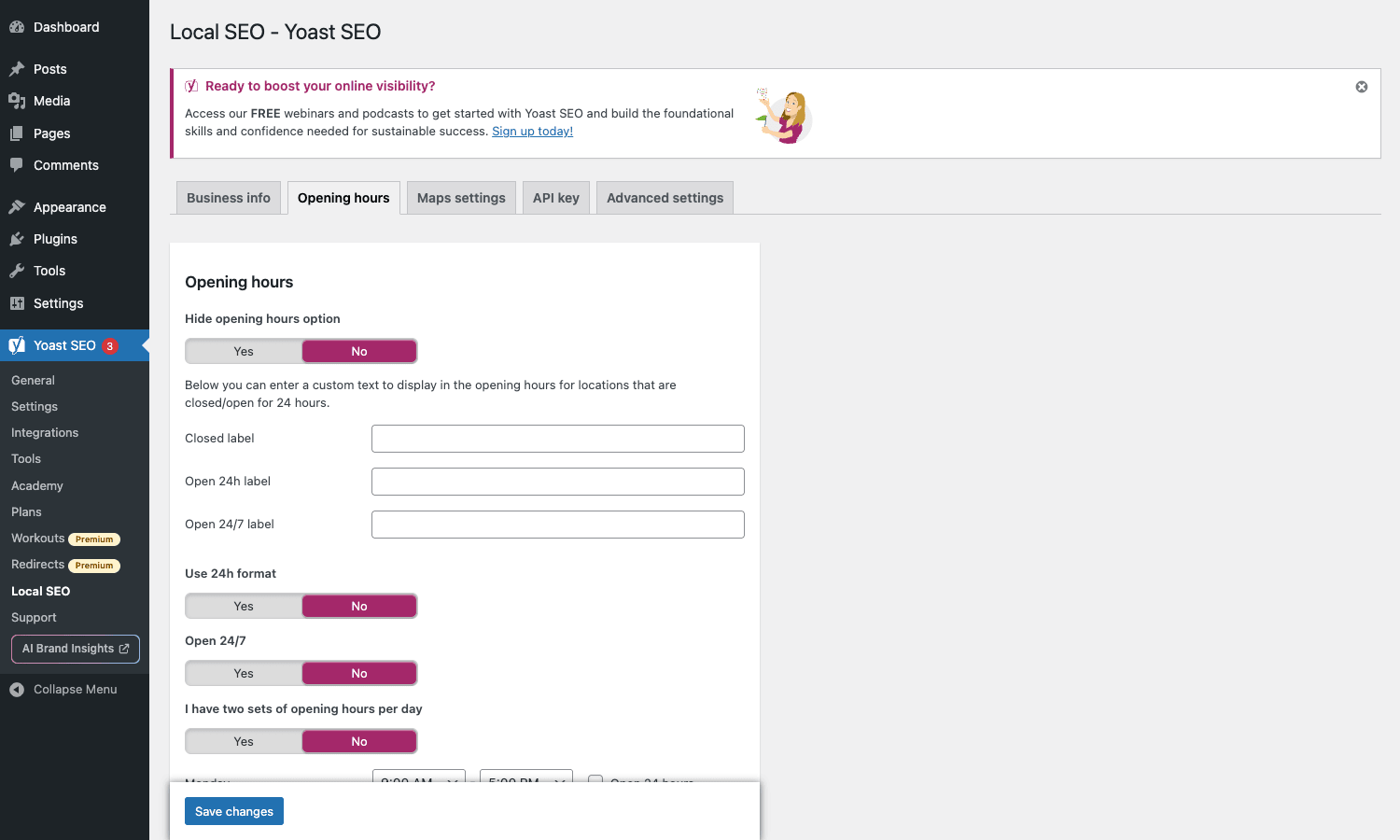
The toggles
- Hide opening hours option. Default No. Set to Yes if you don’t want opening hours shown anywhere (some businesses prefer "Call for hours").
- Closed label. Custom text displayed when a location is marked closed. Default "Closed."
- Open 24h label. Custom text for 24-hour-open days. Default "Open 24 hours."
- Open 24/7 label. Custom text if the business is open 24/7. Default "Open 24/7."
- Use 24h format. Display hours as 14:00 instead of 2:00 PM. Pick whichever matches your region’s convention.
- Open 24/7. Skip the per-day inputs entirely; just show "Open 24/7."
- I have two sets of opening hours per day. For businesses with split hours (e.g., restaurants open for lunch 11-2 and dinner 5-10).
Per-day hours
A row per weekday. Each row has open time, close time, and an "Open 24 hours" / "Closed" checkbox.
Set them. Save. The plugin renders these as an OpeningHoursSpecification array in the LocalBusiness JSON-LD on every page that includes the business info, and you can also embed them visibly anywhere with the [wpseo_opening_hours] shortcode.
Getting a Google Maps API key
You need a Google Maps API key to use any of the map features (geocoding, the embedded map, the store locator).
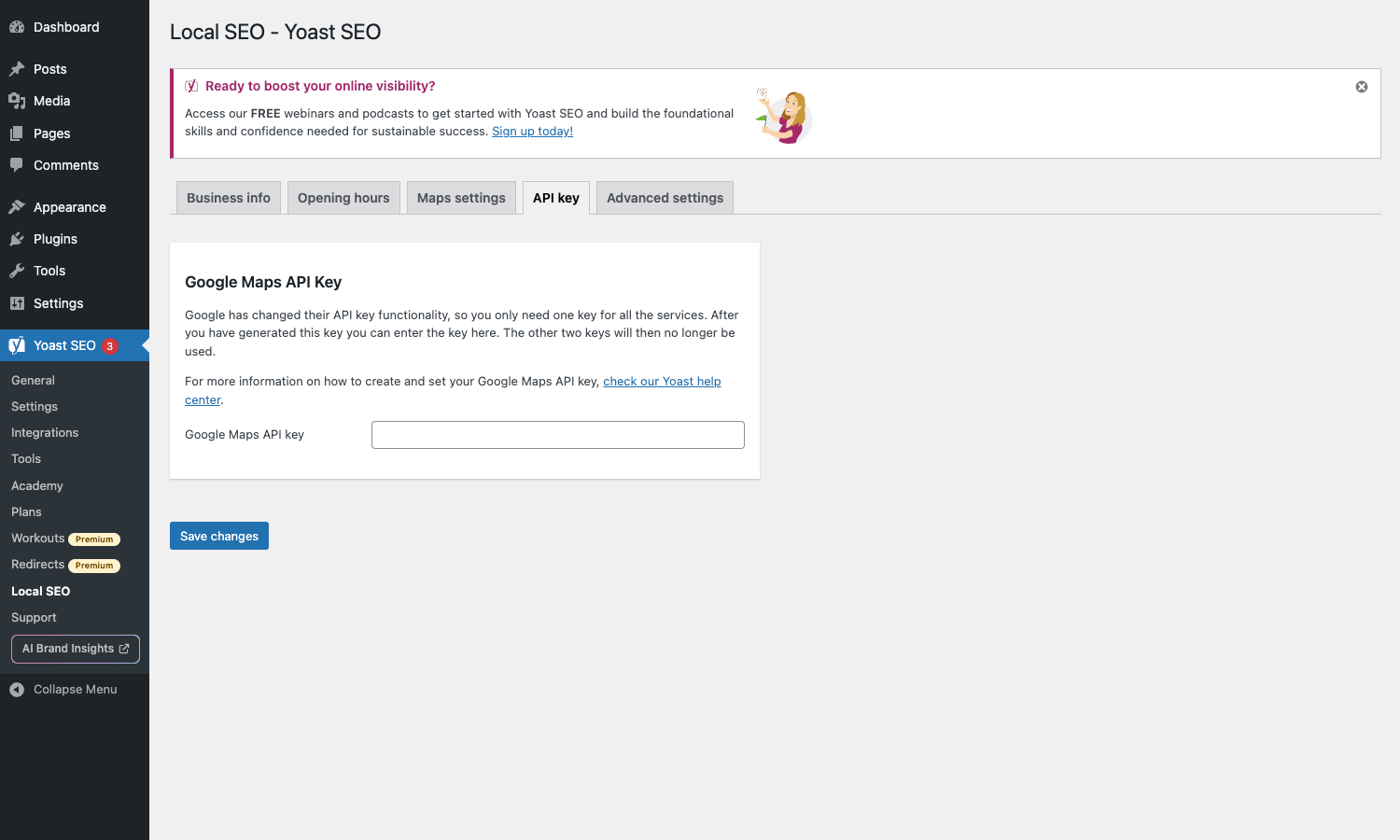
Getting the key
- Go to
https://console.cloud.google.com/. Create a new project (or use existing). - Enable the Maps JavaScript API, Geocoding API, and Places API for the project.
- Go to
APIs & Services -> Credentials. Create a new API Key. - Restrict the key to your domain (under "Application restrictions" -> "HTTP referrers" -> your domain).
- Restrict the key to only the three APIs you enabled.
- Copy the key back into Yoast Local SEO under
Local SEO -> API key. Save.
Billing
Google requires a credit card on file even if you stay under the free tier. The free tier is $200/month of usage, which covers ~28,000 map loads and unlimited geocoding requests for typical small business sites. You won’t hit this unless you have hundreds of thousands of monthly visitors hitting your maps.
If you’re a small business with low traffic, this is effectively free.
Maps settings explained
Local SEO -> Maps settings. Most of the controls only become available after you’ve added an API key.
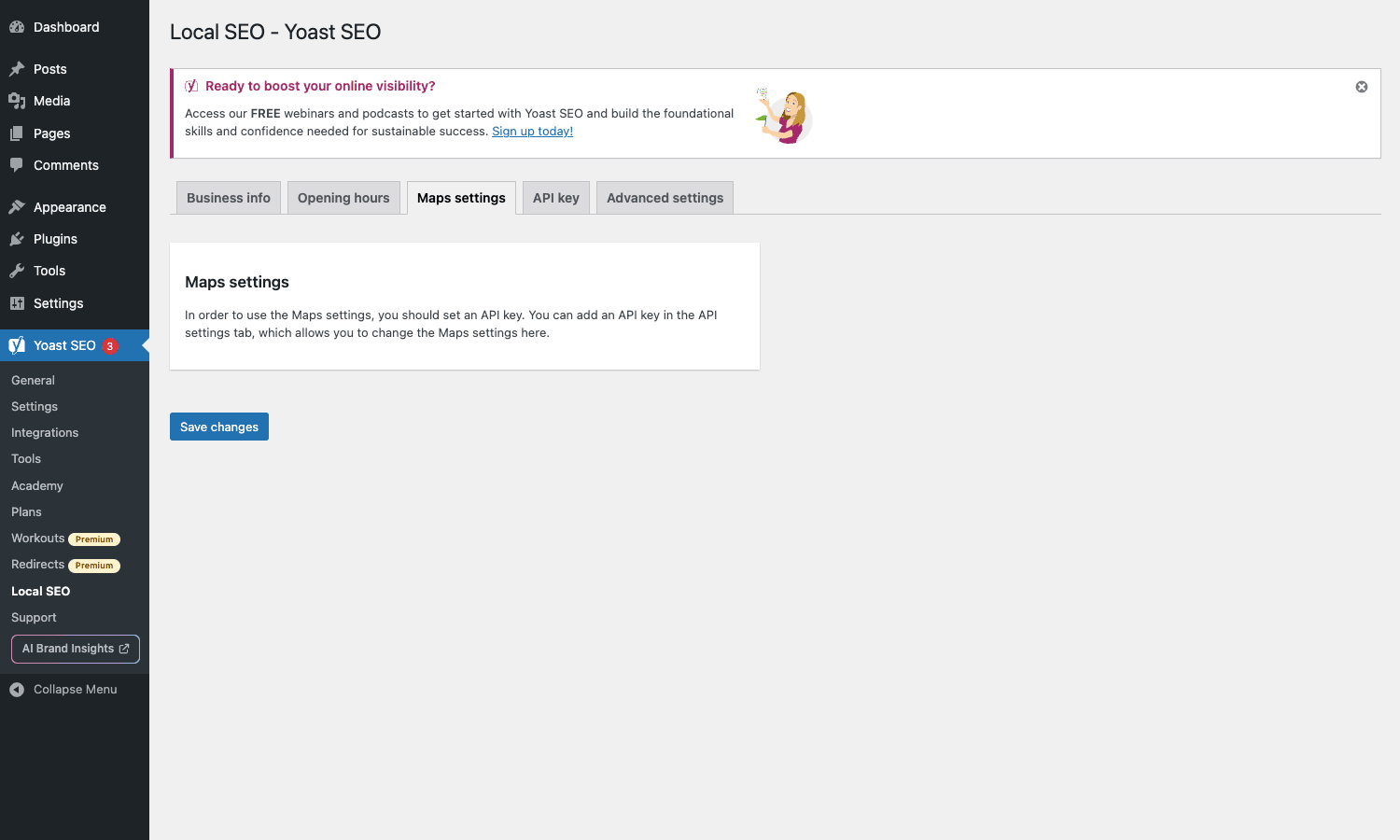
Once enabled, the Maps tab gives you:
- Default zoom level. How zoomed-in your embedded maps appear by default (0 = whole world, 21 = building level).
- Map style. Roadmap, satellite, hybrid, terrain. Most local businesses pick Roadmap.
- Map width / height. Default sizing for embedded maps.
- Show route planner. Whether to include a "Get directions" widget on the map.
- Custom marker icon. Replace the default Google red pin with your own image.
- Cluster markers. If you have many locations close together, cluster them on the map.
For single-location businesses, these defaults are usually fine. For multi-location businesses, the cluster setting and custom marker matter more.
Switching to multi-location mode
This is where Yoast Local SEO. Go back to Business info and toggle "My business has multiple locations" to Yes. Save.
After saving, the WP admin sidebar gains a new submenu item under Yoast: Locations. Click it. You’ll see a familiar WordPress posts-list table, but for a custom post type called wpseo_locations.
What multi-location mode does
- Disables the single-location address fields on the Business info tab.
- Registers the
wpseo_locationsCPT andwpseo_locations_categorytaxonomy. - Adds a new admin menu item: Yoast SEO -> Locations.
- Adds a new sitemap:
/sitemap_locations.xml. - Enables the store locator shortcode (which doesn’t make sense for single-location sites).
You can also categorize locations (wpseo_locations_category taxonomy). Useful for "all locations near Boston" or "service centers vs sales offices."
Creating individual location pages
In multi-location mode, each storefront is a post in the wpseo_locations CPT. Create one per location.
Yoast SEO -> Locations -> Add New. The location editor has the standard WP title and editor (for the location description), plus a sidebar meta box with all the per-location fields:
- Business name (defaults to the post title)
- Business address (street, city, state, ZIP, country)
- Business type (per-location subtype)
- Phone, fax, email
- Opening hours (per-location, overrides the global ones)
- Coordinates (auto-geocoded if an API key is set)
- URL of the location (defaults to the post permalink)
- Custom marker icon (override the global icon for this location)
- Category (taxonomy term)
Save. The location now has its own URL at /locations/<slug>/ and appears on the store locator and in the locations sitemap.
For a five-store coffee chain, you’d create five posts in this CPT, one for each store. Each store can have completely different opening hours, phone, and even business subtype (one is a "CafeOrCoffeeShop", another that serves food might be a "Restaurant").
Embedding the store locator
The store locator is the interactive search-by-radius UI that customers use to find their nearest location. To embed it, create a new page in WordPress (Pages -> Add New), title it "Find a Store" or similar, and add this shortcode to the content:
[wpseo_storelocator radius="50" map_width="100%" max_number_of_results="10" show_filter="1"]
Available shortcode attributes:
radius, search radius in km (or miles, depending on the unit set in Maps settings).map_width, width of the embedded map (e.g., "100%" or "800px").max_number_of_results, limit results count.show_filter, whether to show category filter (1 / 0).show_radius, whether to show the radius selector (1 / 0).oneline_address, display address in one line instead of multiple lines (1 / 0).show_distance, show distance from search point to each result (1 / 0).show_country, include country in result addresses (1 / 0).
Publish the page. Visitors land on it, type their address or postal code, hit Search, and see a map with markers plus a sortable list of locations sorted by distance.
The store locator works without any per-visitor JavaScript dependencies beyond the Maps script. It’s SEO-friendly because the list is rendered server-side too (search-engine bots see all locations on initial page load).
Other useful shortcodes
Yoast Local SEO ships six shortcodes total. Drop these in any page, post, or text widget.
[wpseo_address]
Render the business address in a customizable format.
[wpseo_address show_state="1" show_country="1" show_phone="1" show_email="1"]
Useful in your site footer or contact page.
[wpseo_map]
Embed an interactive Google Map showing the business location.
[wpseo_map width="100%" height="400" zoom="14" show_route="1" show_state="1"]
For multi-location sites, can show all locations on one map with id="all".
[wpseo_opening_hours]
Display the opening hours table.
[wpseo_opening_hours show_open_label="1" show_days="monday,tuesday,wednesday,thursday,friday,saturday,sunday"]
Use in your site footer, contact page, or a "Visit Us" widget.
[wpseo_all_locations]
For multi-location sites, render a list of all locations.
[wpseo_all_locations show_state="1" show_country="1" show_phone="1"]
Useful for a "Our Locations" overview page.
[wpseo_storelocator]
The interactive search (covered above).
[wpseo_local_show_logo]
Render the configured business logo.
[wpseo_local_show_logo]
The LocalBusiness schema that gets generated
This is the under-the-hood payoff. Yoast Local SEO emits valid Schema.org LocalBusiness JSON-LD on every page that includes the business info. Here’s the structure of a typical single-location output:
{
 "@context": "https://schema.org",
 "@type": "Restaurant",
 "name": "The Corner Cafe",
 "image": "https://example.com/cafe-logo.jpg",
 "url": "https://example.com",
 "telephone": "+1-555-123-4567",
 "email": "hello@example.com",
 "priceRange": "$$",
 "address": {
 "@type": "PostalAddress",
 "streetAddress": "123 Main Street",
 "addressLocality": "Austin",
 "addressRegion": "TX",
 "postalCode": "78701",
 "addressCountry": "US"
 },
 "geo": {
 "@type": "GeoCoordinates",
 "latitude": 30.2672,
 "longitude": -97.7431
 },
 "openingHoursSpecification": [
 {
 "@type": "OpeningHoursSpecification",
 "dayOfWeek": ["Monday","Tuesday","Wednesday","Thursday","Friday"],
 "opens": "07:00",
 "closes": "21:00"
 },
 {
 "@type": "OpeningHoursSpecification",
 "dayOfWeek": ["Saturday","Sunday"],
 "opens": "08:00",
 "closes": "22:00"
 }
 ]
}
This is exactly what Google’s local algorithm wants. Run any page on your live site through Google’s Rich Results Test (https://search.google.com/test/rich-results) and you’ll see all of this picked up.
For multi-location sites, each location page emits its own LocalBusiness object specific to that store, plus the homepage emits an Organization that references all locations as subOrganization.
Developer reference
The hook surface is small but covers the customizations that come up most often.
Change the locations CPT slug
wpseo_local_post_type filters the slug of the locations CPT. Default is "locations" (so URLs are /locations/<slug>/). Change to "stores" or "shops" or whatever makes sense for your business.
add_filter( 'wpseo_local_post_type', function() {
 return 'stores';
} );
After changing, flush permalinks (Settings -> Permalinks -> Save) once.
Modify the CPT registration args
wpseo_local_cpt_args filters the array passed to register_post_type(). Useful for changing capabilities, REST exposure, or admin menu placement.
add_filter( 'wpseo_local_cpt_args', function( $args ) {
 $args['rewrite']['with_front'] = false;
 $args['show_in_rest'] = true;
 $args['capability_type'] = 'page'; // use page capabilities, not post
 return $args;
} );
Customize the store locator results
wpseo_local_sl_result filters each row in the store locator search results. Useful for adding extra info to each location’s result card (e.g., a CTA button, a "currently open" indicator).
add_filter( 'wpseo_local_sl_result', function( $html, $location_id ) {
 // Append a "Get directions" button to each result
 $address = get_post_meta( $location_id, '_wpseo_business_address', true );
 $url = 'https://www.google.com/maps/dir/?api=1&destination='. urlencode( $address );
 $html.= sprintf( '<a href="%s" class="get-directions" target="_blank">Get directions</a>', esc_url( $url ) );
 return $html;
}, 10, 2 );
Add custom searchable fields to the store locator
wpseo_local_search_custom_fields lets you make custom meta fields searchable in the store locator. By default, only address fields are searched.
add_filter( 'wpseo_local_search_custom_fields', function( $fields ) {
 $fields[] = '_neighborhood';
 $fields[] = '_district';
 return $fields;
} );
Now visitors can search "Brooklyn" and locations with that neighborhood will surface.
Register custom admin tabs
wpseo_local_admin_tabs lets you add tabs to the Local SEO settings page. Useful when extending the plugin with your own ancillary configuration.
add_filter( 'wpseo_local_admin_tabs', function( $tabs ) {
 $tabs['my_custom'] = [
 'title' => __( 'Custom Settings', 'my-plugin' ),
 'callback' => 'my_render_custom_tab',
 ];
 return $tabs;
} );
Reorder map markers
wpseo_local_custom_marker_order lets you control the order in which location markers appear on a multi-location map. Default is by post date. Override to alphabetical, by category, by distance, etc.
add_filter( 'wpseo_local_custom_marker_order', function( $terms ) {
 usort( $terms, function( $a, $b ) {
 return strcmp( $a->name, $b->name );
 } );
 return $terms;
} );
Disable plugin’s jQuery
wpseo_local_load_jquery controls whether the plugin loads its own jQuery for the store locator. Set false if your theme already loads jQuery globally and you want to avoid double-loading.
add_filter( 'wpseo_local_load_jquery', '__return_false' );
Theme integration
Yoast Local SEO outputs schema in the document head and shortcode markup in the document body. Both inherit your theme’s styles. There’s no separate template to override for most use cases.
For multi-location, the per-location pages render via your theme’s single-wpseo_locations.php template (if it exists), falling back to single.php. Copy single.php to single-wpseo_locations.php in your child theme and customize there.
The locations archive (/locations/) renders via archive-wpseo_locations.php if it exists, then archive.php.
If your theme is FSE/block-based, the same template hierarchy applies via block templates.
For the store locator page itself, you control its layout because you’re embedding the shortcode in a regular WordPress page. Use the page builder of your choice (Brizy, Elementor Pro, or just the block editor) to build a "Find a Store" page with intro copy plus the [wpseo_storelocator] shortcode.
SEO impact and gotchas
The plugin works, but there are a handful of things to watch.
NAP consistency
Local SEO ranking is highly dependent on NAP (Name, Address, Phone) consistency across the web. Your Yoast Local SEO data needs to match exactly what appears on your Google Business Profile, your Yelp listing, Apple Maps, Bing Places, and every directory you appear in. Inconsistent NAP (e.g., "St" on one site and "Street" on another) hurts rankings.
The fix is to set the canonical version on Yoast Local SEO, then update all directories to match. Use a tool like Whitespark or Moz Local to audit and update bulk.
Hours that don’t match Google Business Profile
If your Yoast Local SEO opening hours say one thing and your Google Business Profile says another, Google trusts the GBP. Worse, the discrepancy can lower your trust score. Keep them synced manually, or use Google’s own API to sync (advanced).
Service-area businesses need different schema
If you don’t have a customer-visiting storefront (you’re a mobile plumber, a home inspector, a moving company), use the Service-area business mode (set "Hide address" or use the "Area served" field instead of a street address). Emitting a street address for a business that doesn’t accept customer visits there is a Google guideline violation and can get your local listing suspended.
Schema validation
After setup, validate your schema with Google’s Rich Results Test. Common issues:
- Missing required fields (priceRange is required for Restaurant).
- Phone in wrong format (use +1-555-123-4567 not 555.123.4567).
- ZIP code missing (yes, even if your country doesn’t use one).
- Address line 1 actually contains the city.
Fix anything flagged before you push the site live.
Conflict with other LocalBusiness schema emitters
If you also run Schema Pro or Rank Math with its local module, both will emit LocalBusiness schema. Google sees two, picks one (usually the more recent), and the rest is wasted markup. Pick one provider for the schema.
Easiest fix: if you’re using Yoast Local SEO, turn off the local schema features in any other SEO plugin you have active.
Cache considerations
When you update business info or opening hours, the rendered HTML on cached pages still shows the old data until the cache expires. Most cache plugins (WP Rocket, W3 Total Cache) clear the cache when an option is updated, but verify by checking a cached page after a change.
For the schema specifically, the schema is server-side rendered every request based on plugin settings, so it updates immediately after you save (only the rendered HTML is cached, not the schema generation).
Multilingual sites
For multi-language sites running WPML or Polylang, the Local SEO settings are global (not per-language). You can’t have different opening hours per language; you have different translations of the same opening hours.
For multi-location sites where each location speaks a different language (e.g., a chain with stores in NYC and Paris), the location post can be translated, and each translated location post can have its own per-language content. The address and hours stay shared, but the description, page title, etc., translate.
Pricing
The free Yoast SEO is on WordPress.org at no cost.
Yoast Local SEO Premium is sold by Yoast at around $79/year for single-site, more for multi-site. The license unlocks updates and support.
No per-site fee. Updates are manual (re-download when new versions are released) but the plugin code is identical to the version sold by Yoast.
Also keep in mind: Yoast Local SEO depends on the free Yoast SEO (no charge) or Yoast SEO Premium (separately licensed). You need at least the free Yoast for Local to work.
FAQ
Does Yoast Local SEO require Yoast SEO Premium?
No. The free Yoast SEO (from WordPress.org) is enough. Yoast SEO Premium adds redirects, internal linking, and content analysis features, but Local SEO works on top of either.
Can I use Yoast Local SEO without a Google Maps API key?
Mostly. You can fill in all the business info and emit LocalBusiness schema without a key. What you can’t do without a key is auto-geocode the address, embed an interactive map, or run the store locator. For a basic local-business setup that just needs schema and an address listing, you can skip the API key.
How do I handle locations in different countries?
Multi-location mode handles this fine. Each location post can have its own country in the address field. The schema for each location uses that country’s PostalAddress format.
Will this improve my Google Business Profile ranking?
Indirectly. Yoast Local SEO improves the website-side signals that Google’s local algorithm uses to corroborate your GBP. It doesn’t replace GBP, you still need an active, verified Google Business Profile. But strong website schema + a strong GBP together rank better than just one alone.
Does it work with WooCommerce?
Yes. Yoast Local SEO works alongside WooCommerce out of the box. For deeper integration (shipping by location, in-store pickup with location selector, business-hours cart restrictions), there’s a separate add-on called Yoast Local SEO for WooCommerce sold by Yoast.
Can I customize the look of the store locator?
Yes, with CSS. The locator outputs markup with predictable classes (.wpseo-local-storelocator, .wpseo-local-search, etc.). Override in your theme’s stylesheet to match your design.
Does it support REST API for headless sites?
The locations CPT exposes show_in_rest = false by default. Override via the wpseo_local_cpt_args filter (snippet above) to set it true, and locations become available at /wp-json/wp/v2/wpseo_locations.
Can I import locations from a CSV?
Yes. Use WP All Import or any CSV import tool that supports custom post types and meta. Map your CSV columns to the wpseo_locations CPT and its meta fields. Each row becomes one location.
What’s the difference between single-location and service-area mode?
A single-location business has a physical address customers visit (a storefront, an office, a restaurant). A service-area business doesn’t have a customer-visiting location (a plumber, a mobile dog groomer, a wedding photographer who travels). In Yoast Local SEO, set "Hide address" in the Business info tab and fill in the "Area served" field instead of a street address.
Can I have one address shared across multiple businesses on the same WP install?
Yes. Multi-location mode supports this. Create multiple locations with the same address but different business types or names.
Does the local sitemap submit automatically to Google?
The sitemap is generated at /sitemap_locations.xml. Yoast SEO automatically includes it in your main sitemap index (/sitemap_index.xml). When you submit your sitemap index to Google Search Console, the local sitemap is included.
What happens if I deactivate Yoast Local SEO?
The CPT becomes unregistered (location posts still exist in the database but are inaccessible from the admin UI). The shortcodes stop working. The LocalBusiness schema stops emitting. Reactivating restores everything.
How is this different from Schema Pro for local businesses?
Schema Pro is a generic schema markup tool that can emit any Schema.org type, including LocalBusiness. It’s broader but shallower; you configure the LocalBusiness fields manually. Yoast Local SEO is local-specific: it manages opening hours, store locator, multi-location pages, features Schema Pro doesn’t have. For a single LocalBusiness markup, Schema Pro is enough. For real multi-location management, Yoast Local SEO is the right tool.
Can I add a "Currently open" indicator on the frontend?
Yes, with a small bit of JS. The opening hours data is available in the page’s JSON-LD. Parse it on page load and check against the current time. Some themes have this built-in; for those that don’t, a 10-line script does the job.
What about Apple Maps?
Apple Maps reads its data from Apple Maps Connect, not from your website. Yoast Local SEO doesn’t directly affect Apple Maps. Submit your business directly to Apple Maps Connect (mapsconnect.apple.com) once you’ve finished setting up Yoast Local SEO, so both sources have consistent data.
Does the store locator support international addresses?
Yes. The Geocoding API handles addresses in any country Google Maps supports (which is most). The search input accepts addresses in any language; Google geocodes the input and returns the corresponding lat/lng.
Final thoughts
Local SEO on WordPress is one of the few areas where a paid plugin is genuinely worth it. The free Yoast SEO will emit some structured data, but it won’t give you opening hours, won’t give you multi-location, won’t give you a store locator, and won’t give you the deep business-type schema that helps your local pack rankings.
Yoast Local SEO Premium fills all of those gaps with a reasonably priced add-on. For a single-location business it’s overkill on day one but pays off as you start to optimize for local-pack rankings. For a multi-location business it’s essential, building location pages by hand is tedious, error-prone, and lacks the schema generation that Yoast Local does for you.