

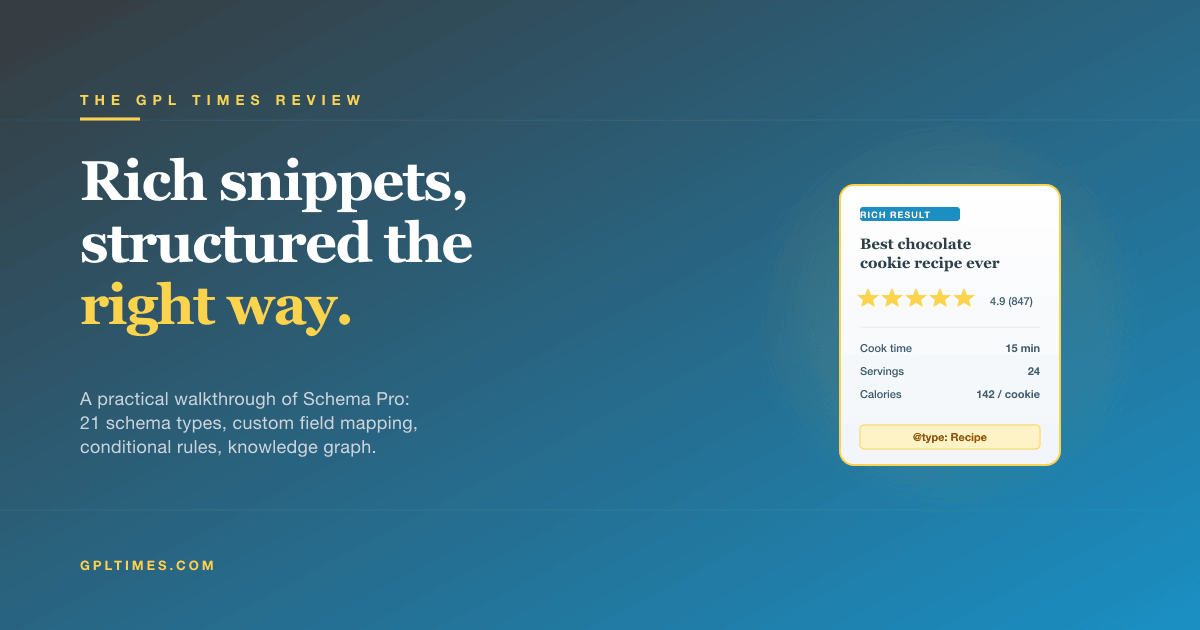
Look at any Google search result that has stars under it ("4.7 of 5"), a recipe with cooking time, an event with a date, a product with a price and in-stock badge, or an FAQ that expands into the SERP. That’s a rich snippet. Behind every rich snippet is a piece of structured data, JSON-LD code embedded in the page that tells Google "this is a recipe, here are the ingredients, here’s how long it takes."
WordPress doesn’t ship structured data out of the box. Your theme might add basic stuff. Yoast and Rank Math add Article and Breadcrumb schema automatically. But once you need Product, Recipe, Event, Job Posting, Course, Software Application, Local Business, or any of the 20+ Google-supported types beyond the obvious two, you’re left with the choice: write JSON-LD by hand (fragile, error-prone), buy each schema type as a separate plugin (expensive), or install a dedicated schema plugin.
Schema Pro (from Brainstorm Force, the team behind Astra and Spectra) is the WordPress plugin that gives you all 20+ schema types in one product. Setup wizard, visual rule builder, custom field mapping, conditional logic, breadcrumb support, social profile knowledge graph, and a JSON-LD output that validates cleanly in Google’s Rich Results Test.
This is a walkthrough of how Schema Pro actually works, the 21 schema types it supports, the setup flow, building your first schema rule, custom field mapping, and how it stacks up against Rank Math’s and Yoast’s built-in schema.
Quick decision guide: do you need Schema Pro?
Use Schema Pro if you:
- Need schema types beyond Article and Breadcrumb (Product, Recipe, Event, Job, Course, etc.)
- Run a recipe blog, real estate site, job board, software directory, or any niche where rich snippets dominate the SERP
- Want to attach schema to existing posts/pages without rewriting them in a structured editor
- Use ACF, Pods, or any custom fields and want those values fed into schema
- Already use Astra/Spectra/Starter Templates from Brainstorm Force (Schema Pro integrates tightly)
Skip Schema Pro if you:
- Only need Article and Breadcrumb schema, Rank Math Pro or Yoast SEO Premium already handle these
- Run an e-commerce store that’s mostly WooCommerce products, WooCommerce + a schema plugin like Schema App or built-in WC structured data is enough
- Already invested in Rank Math Pro and use its schema generator extensively
Run Schema Pro alongside your SEO plugin if you:
- Use Yoast or AIOSEO for SEO (titles, metas, sitemap) and want Schema Pro for the deeper schema set
- This is the most common Schema Pro setup
Table of contents
- What is structured data and why does it matter?
- Schema types Schema Pro supports (all 21)
- Pricing reality check
- Step 1: Install and run the setup wizard
- Step 2: Configure Website Information (knowledge graph)
- Step 3: Add your first schema (Article example)
- Step 4: Configure conditional rules and target locations
- Step 5: Map custom fields into schema
- Step 6: Enable Breadcrumbs schema
- Step 7: Tune Plugin Settings
- Step 8: Test schemas with Google’s Rich Results Test
- Real-world recipes (3 schema setups)
- Schema Pro vs Rank Math vs Yoast
- Performance and SEO impact
- 10 common gotchas
- Developer reference: hooks and filters
- FAQ
- Final thoughts
What is structured data and why does it matter? {#what-is-schema}
Structured data is metadata embedded in your HTML that describes the content for machines. Google reads it, parses what kind of thing your page is about, and (sometimes) rewards you with a richer search listing.
There are three formats: Microdata, RDFa, and JSON-LD. Google strongly prefers JSON-LD (a block of JSON inside a <script type="application/ld+json"> tag in your page head). Schema Pro only outputs JSON-LD.
A simple Article schema looks like this in your page:
<script type="application/ld+json">
{
 "@context": "https://schema.org",
 "@type": "Article",
 "headline": "How to Use Schema Pro",
 "author": {"@type": "Person", "name": "Jane Doe"},
 "datePublished": "2026-05-19",
 "image": "https://example.com/featured.jpg",
 "publisher": {
 "@type": "Organization",
 "name": "Example Site",
 "logo": {"@type": "ImageObject", "url": "https://example.com/logo.png"}
 }
}
</script>
Why it matters:
- Rich results in SERP. Stars, prices, dates, FAQ accordions, recipe times, image badges. These get higher click-through rates than plain blue links.
- AI Overviews and ChatGPT. Generative search engines parse structured data to know which page to cite for a specific question.
- Voice search. Google Assistant prefers pages with explicit Recipe/HowTo schema for "how do I" queries.
- Knowledge Graph. Organization and Person schema feed Google’s knowledge panel on the right side of branded searches.
You can write JSON-LD by hand. For 1-2 schema types on a 5-page site that’s fine. For a site with 500+ posts spanning multiple schema types, you need automation. That’s what Schema Pro is.
Schema types Schema Pro supports (all 21) {#schema-types}
Schema Pro generates all of these. Each has its own dedicated UI for mapping fields.
Content schemas:
- Article – news articles, blog posts.
- WebPage – generic pages.
- Book – book reviews, book sale pages.
- Course – online or in-person courses.
- Review – standalone reviews of products/places/things.
- Recipe – cooking recipes with ingredients and steps.
- How-To – instructional content with steps (note: Google deprecated How-To rich results in 2023; still valid markup but no longer a SERP feature).
- FAQ – frequently asked questions.
- Custom Markup – your own JSON-LD for types Schema Pro doesn’t have a UI for.
Business and people schemas:
- Local Business – storefronts, restaurants, service businesses with a physical address.
- Service – service offerings like consulting, repair.
- Person – personal profile pages.
- Organization – company profile.
Commerce schemas:
- Product – physical or digital products with price, availability, reviews.
- Job Posting – job listings with salary, location, employment type.
- Vehicle Listing – cars, trucks, motorcycles for sale.
- Software Application – apps with version, price, OS.
Media schemas:
- Video Object – embedded videos with duration, thumbnail.
- Image License – copyright info for images.
- Podcast Listing – podcast feeds and episodes.
Special:
- Event – concerts, conferences, dated happenings.
- Movie Carousel – movie series/lists (e.g. "Best films of 2025").
That’s 21 schema types covering every major Google rich result feature. The closest competitor (Rank Math Pro) supports ~16 types. Yoast SEO Premium ships ~6.
Pricing reality check {#pricing}
Schema Pro is sold by Brainstorm Force as an annual or lifetime license.
- Annual license: $79/year (1 site), $149/year (unlimited sites)
- Lifetime license: $249 one-time (1 site), $449 one-time (unlimited sites)
- Sometimes available as part of the Brainstorm Force bundle ($249/year unlimited) which also includes Astra Pro, Spectra Pro, Starter Templates, Ultimate Addons for Elementor/Beaver Builder
Renewal is at 30% off after the first year if you keep the subscription active.
Brainstorm Force often runs lifetime deals. The Lifetime Unlimited Sites tier is a good value if you build many sites.
On the GPL Times store, Schema Pro is included in the GPL membership. If you’re already a member, install and skip the per-site license math.
What you lose on the GPL-licensed version: automatic updates from Brainstorm Force and direct support tickets. Their support is responsive (same team behind Astra), so it’s a real loss for sites that need handholding.
Step 1: Install and run the setup wizard {#step-1-install}
Install path: WP Admin -> Plugins -> Add New -> Upload Plugin -> upload wp-schema-pro.zip -> Activate. Schema Pro adds itself under Settings -> Schema Pro in the WordPress admin sidebar (by default, you can move it under its own top-level menu in plugin settings later).
On first activation you’re dropped into a 4-step setup wizard.
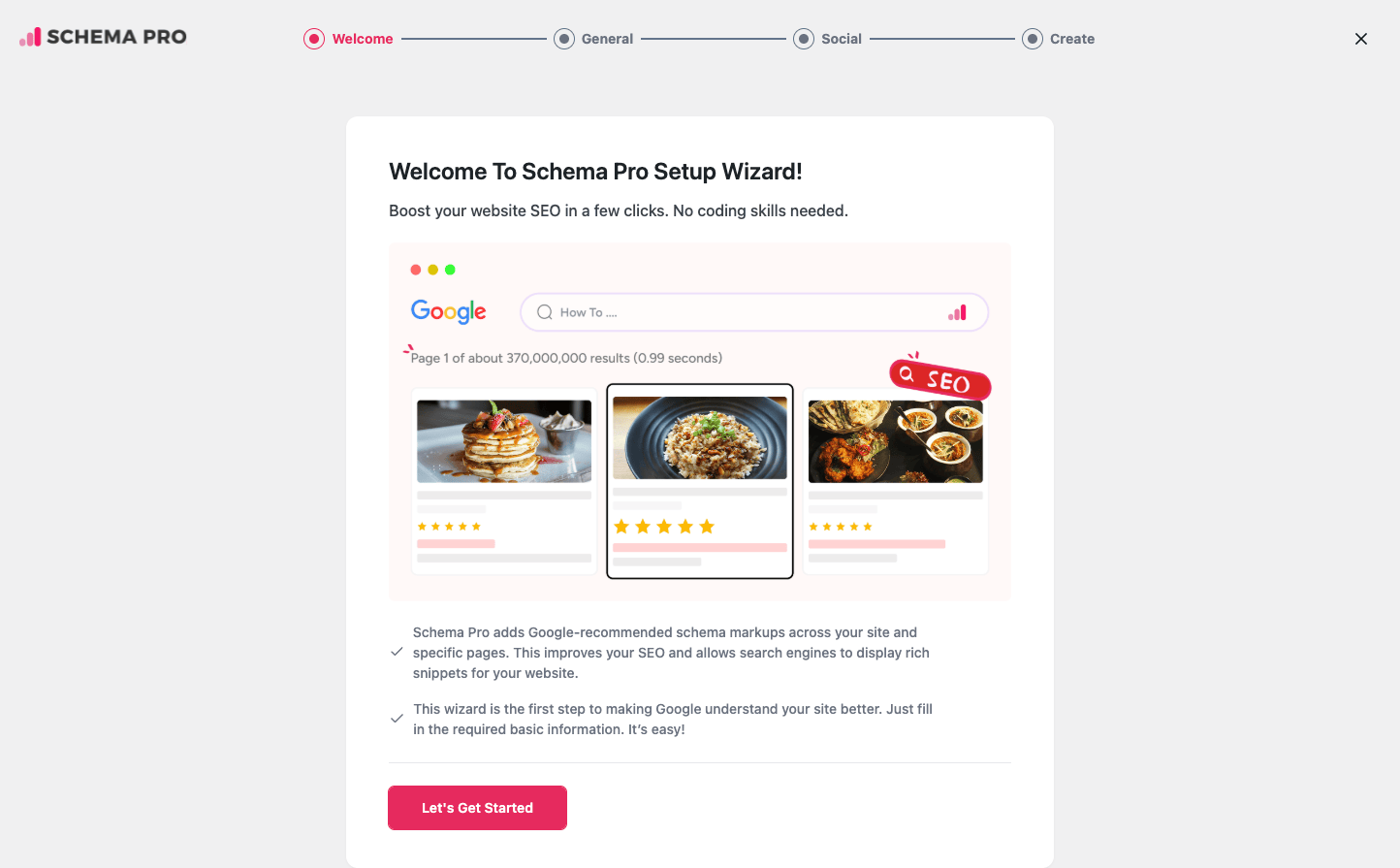
The wizard steps:
-
Welcome – intro screen with a Google search mockup showing the rich snippet payoff. Click "Let’s Get Started".
-
General – tell Schema Pro what your website represents (Organization, Person, Local Business) and upload your logo. This drives the Knowledge Graph schema embedded site-wide.

-
Social – add your social profile URLs (Facebook, Twitter, Instagram, LinkedIn, YouTube, Pinterest, etc.). These feed Google’s
sameAsarray on the Organization/Person schema, which Google uses to confirm your identity across the web. -
Create – the wizard creates the default Article schema rule applied to all your blog posts. You can skip this and configure manually.
You can revisit the wizard anytime by visiting Settings -> Schema Pro -> Welcome (or via the URL hash #onboarding).
Step 2: Configure Website Information (knowledge graph) {#step-2-website-info}
After the wizard, click the Website Information tab in Schema Pro settings.
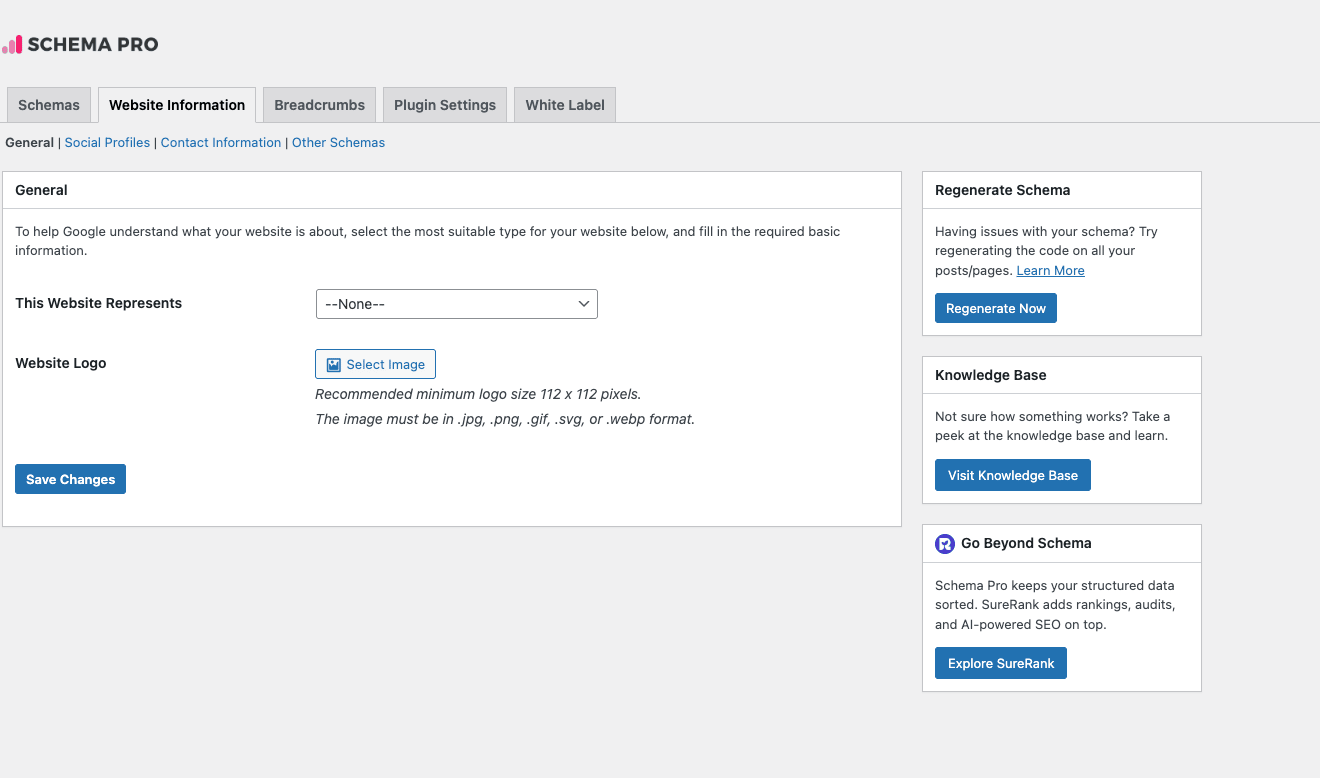
This is what shapes the Knowledge Graph schema that gets injected on every page of your site. Knowledge Graph schema is what enables the right-side panel that appears when someone searches for your brand name.
Four sub-tabs:
General
- This Website Represents: dropdown with Organization, Person, Local Business. Different selections show different downstream fields.
- Website Logo: 112x112px minimum, used in the
logoproperty of the Organization schema.
If you pick Organization:
- Name, About (text), Contact URL, Description.
If you pick Person:
- Name, Bio, Photo (used in personal branding searches).
If you pick Local Business:
- Business Name, Address (street, locality, region, postal code), Phone, Opening Hours, Map URL, Currency, Price Range. This is what creates the rich knowledge panel for local businesses with hours, address, and map embed.
Social Profiles
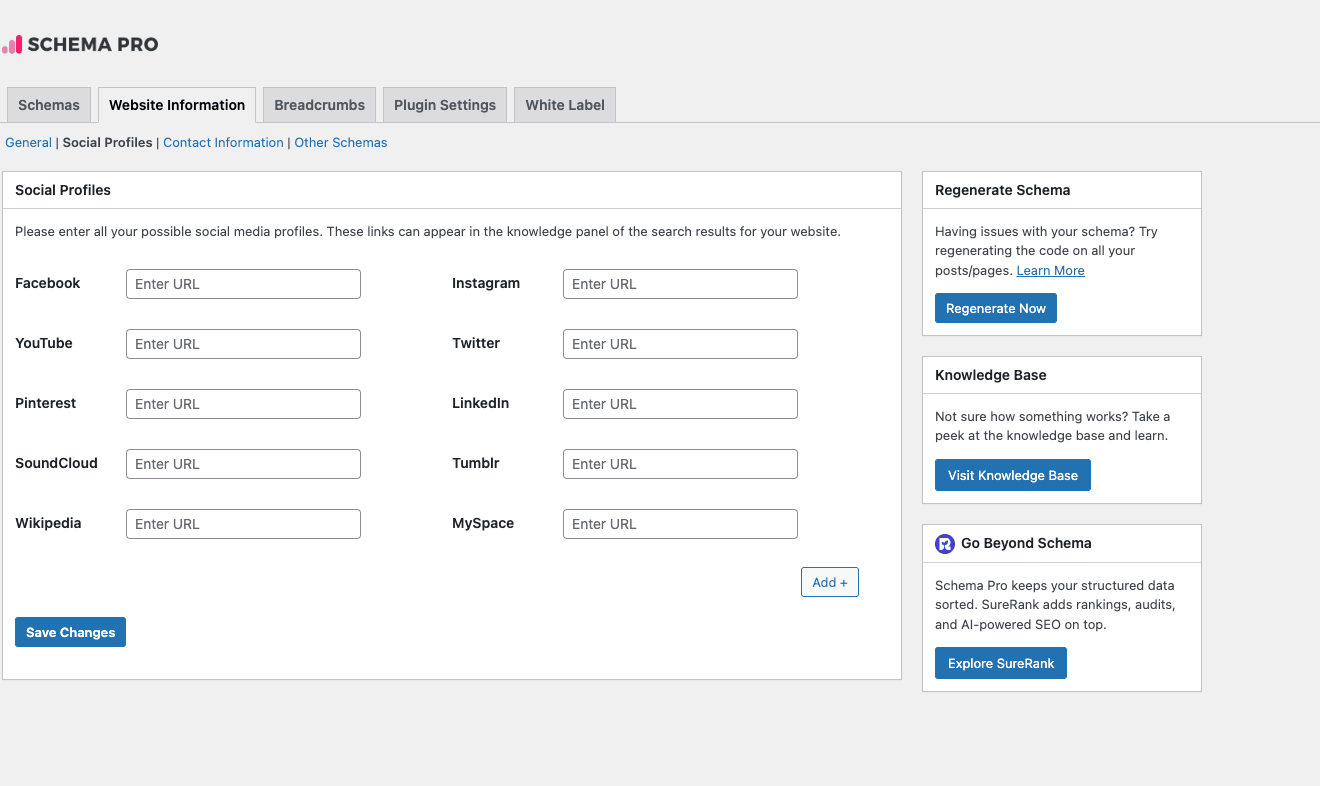
Add every social profile URL you have. Schema Pro includes them in the sameAs array of your site’s Organization schema. Google uses these to verify the same entity across platforms.
The defaults include Facebook, Instagram, YouTube, Twitter, Pinterest, LinkedIn, SoundCloud, Tumblr, Wikipedia, MySpace. Click Add + to add more (e.g. GitHub, Mastodon, Threads, Bluesky).
This is high-use. Fill it out completely. It’s a one-time setup that boosts your branded-search results meaningfully.
Contact Information
Phone, email, fax, and contact page URL. Feeds the contactPoint property.
Other Schemas
Toggles for:
- Enable Person Schema for author archive pages.
- Enable About Page Schema on your /about/ page.
- Enable Contact Page Schema on your /contact/ page.
- Enable Breadcrumb Schema (covered in Step 6).
These are global toggles. Turn on Breadcrumb and About at minimum.
Step 3: Add your first schema (Article example) {#step-3-first-schema}
Click the Schemas tab, then Add New. Schema Pro opens a 4-step builder.
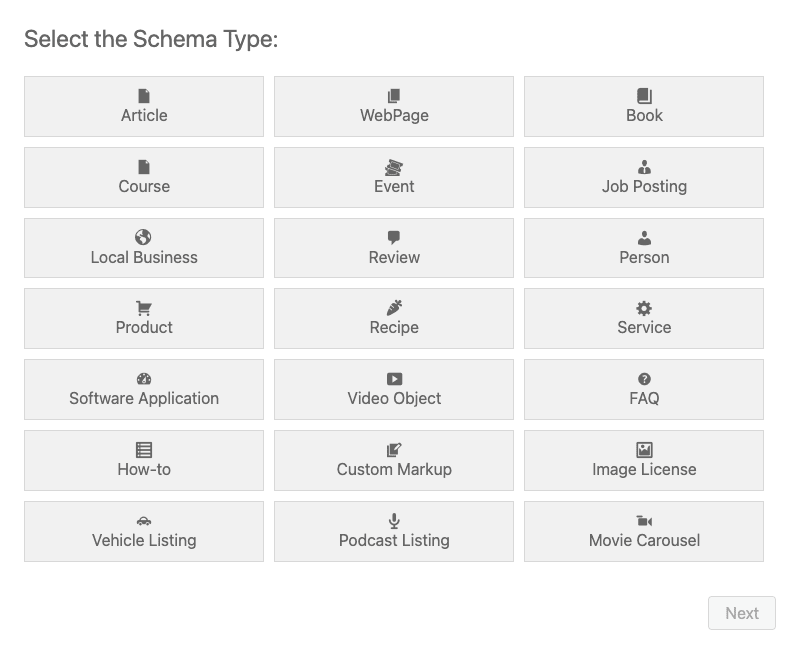
Step 1: Select Schema Type. Pick from the 21 cards. For your blog posts, pick Article. Click Next.
Step 2: Configure Schema. This is the field mapping screen. Schema Pro pre-fills with sensible defaults from WordPress ({{post_title}}, {{post_excerpt}}, {{post_date}}, etc.). For each schema field:
- Some are auto-filled from WordPress (Title -> Post Title, Description -> Post Excerpt).
- Some require explicit input (Image URL, Logo).
- Some pull from custom fields (advanced).
Common Article fields:
- Headline: defaults to
{{post_title}}. Don’t change unless you have a separate "headline" field. - Description: defaults to
{{post_excerpt}}. If your excerpts are empty, set to{{post_meta}}for a custom field. - Author Name: defaults to
{{author_name}}(WordPress user display name). - Date Published:
{{post_date}}. - Date Modified:
{{post_modified}}. - Image: defaults to
{{post_featured_image}}. Set to a custom field if your featured images aren’t set everywhere. - Article Section:
{{post_categories}}or a fixed string. - Keywords:
{{post_tags}}.
Step 3: Target Locations. Where should this schema appear? Options:
- Include: All Posts, All Pages, specific categories, specific tags, specific posts, post type X, taxonomy Y.
- Exclude: same set of choices to exclude after include.
Common patterns:
- "Include All Posts, Exclude Category = News" for a tutorial site where news posts shouldn’t get Article schema.
- "Include Post Type = Recipe" for a recipe site.
- "Include Specific Pages = 12, 14, 17" for hand-picked pages.
Step 4: Complete. Save. The schema is now active on matching pages.
Step 4: Configure conditional rules and target locations {#step-4-rules}
The Target Locations step in Step 3 is where Schema Pro’s flexibility shines. You can build complex rules.
Rule operators:
- Include in: must match for schema to apply.
- Exclude from: must NOT match.
Target options:
- Entire Website
- All Singulars (any single post/page)
- All Archives
- All Posts
- All Pages
- Specific Post Type (Posts, Pages, Custom)
- Specific Category / Tag / Taxonomy Term
- Specific Page ID
- Specific Author
- Front Page
- 404 Page
- Search Results
Multi-rule combinations:
You can have multiple Include rules (OR logic) and multiple Exclude rules (AND logic).
Example: A site with recipes, restaurants, and a regular blog needs different schema:
- Recipe schema: Include "Post Type = Recipe".
- Local Business schema: Include "Page ID = 14" (the restaurant page).
- Article schema: Include "All Posts", Exclude "Post Type = Recipe", Exclude "Category = News".
Schema Pro handles all three rules independently. Each schema gets its own rule set.
Step 5: Map custom fields into schema {#step-5-custom-fields}
The killer Schema Pro feature for ACF/Pods/JetEngine users: map custom field values directly into schema properties.
Example: Real estate site with ACF Property post type.
You have these ACF fields on Property posts:
price(Number)bedrooms(Number)bathrooms(Number)square_feet(Number)property_type(Select: House/Apartment/Condo)address_street,address_city,address_state,address_zip(Text)agent_name,agent_phone,agent_email(Text)
In Schema Pro, create a Product schema (or use Custom Markup for RealEstateListing) targeted at Post Type = Property. Then map fields:
- Name:
{{post_title}} - Description:
{{post_excerpt}} - Image:
{{post_featured_image}} - Price:
{{post_meta:price}} - Number of Bedrooms (custom):
{{post_meta:bedrooms}} - Address:
{{post_meta:address_street}},{{post_meta:address_city}}, etc.
When the page renders, Schema Pro reads the custom fields for that specific post and outputs:
{
 "@type": "RealEstateListing",
 "name": "Beautiful 3BR in Downtown",
 "description": "Spacious home with...",
 "image": "https://example.com/property.jpg",
 "offers": {"price": "450000", "priceCurrency": "USD"},
 "address": {
 "streetAddress": "123 Main St",
 "addressLocality": "Anytown",
 "addressRegion": "CA",
 "postalCode": "90210"
 }
}
This is the difference between writing schema by hand for every property listing (impractical at scale) and automating it (Schema Pro reads from the database).
The custom field syntax is {{post_meta:field_name}}. For ACF Repeater fields, use {{post_meta:repeater_field}} and Schema Pro will iterate.
Pre-populated WordPress merge tags Schema Pro supports:
{{post_title}},{{post_url}},{{post_excerpt}},{{post_content}}{{post_date}},{{post_modified}}{{post_featured_image}},{{post_thumbnail}}{{author_name}},{{author_email}},{{author_url}},{{author_image}}{{post_categories}},{{post_tags}}{{post_meta:custom_field_name}}for any custom field{{post_id}}
Step 6: Enable Breadcrumbs schema {#step-6-breadcrumbs}
Click the Breadcrumbs tab in Schema Pro settings.
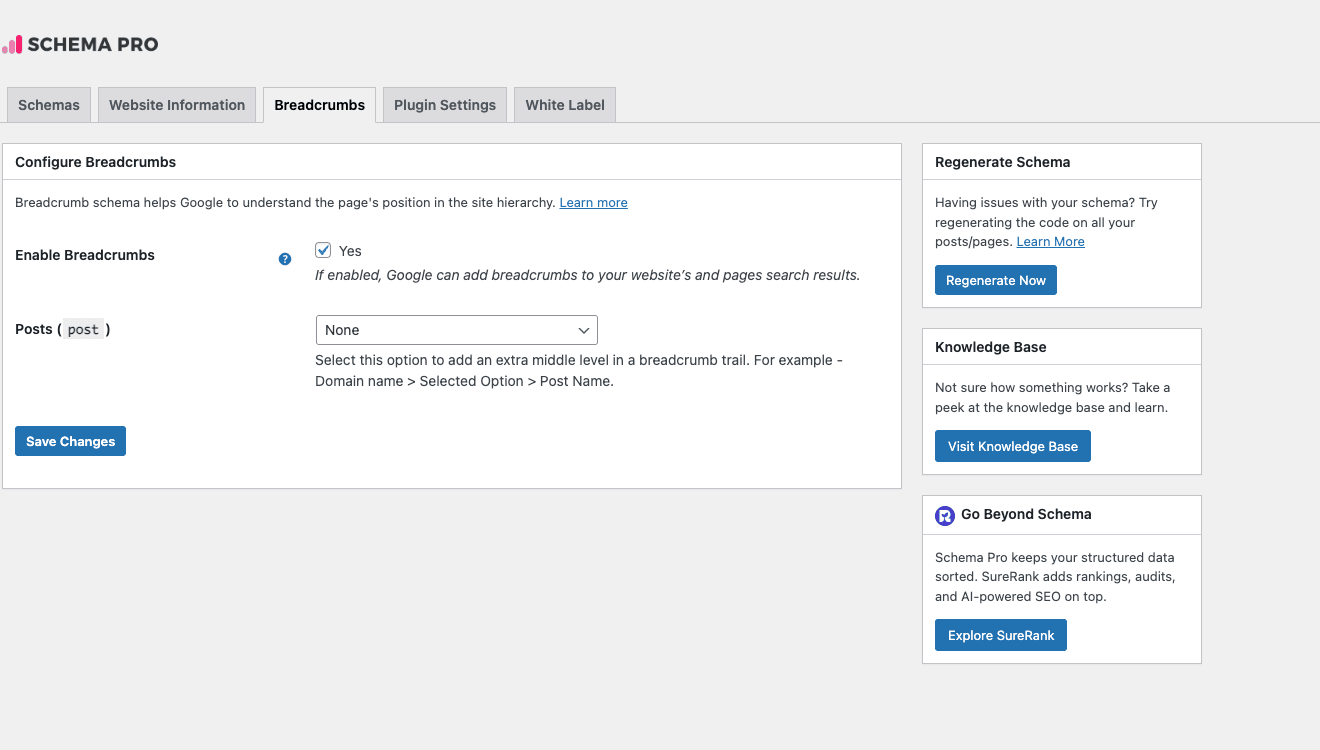
Breadcrumb schema is what shows your site’s hierarchy in Google’s search results as yoursite.com > Category > Post Title instead of the raw URL. It’s a low-effort, high-payoff schema type.
Configuration:
- Enable Breadcrumbs: toggle on. Default off.
- Posts: how to build the breadcrumb trail for blog posts.
- None (default):
Home > Post Title. - Category:
Home > Category > Post Title. - Tag:
Home > Tag > Post Title. - Page (parent page):
Home > Parent Page > Post Title.
Save. Schema Pro outputs BreadcrumbList schema on every singular page automatically.
Important: Schema Pro’s Breadcrumb schema is JSON-LD only. It does NOT render visible breadcrumb HTML on the front-end. If you want visible breadcrumbs above your post titles, use your theme’s breadcrumb feature (Astra has one) or a separate plugin like Breadcrumb NavXT. Schema Pro and a visible breadcrumb plugin coexist fine; they’re different layers.
Step 7: Tune Plugin Settings {#step-7-settings}
The Plugin Settings tab has plugin-wide options.
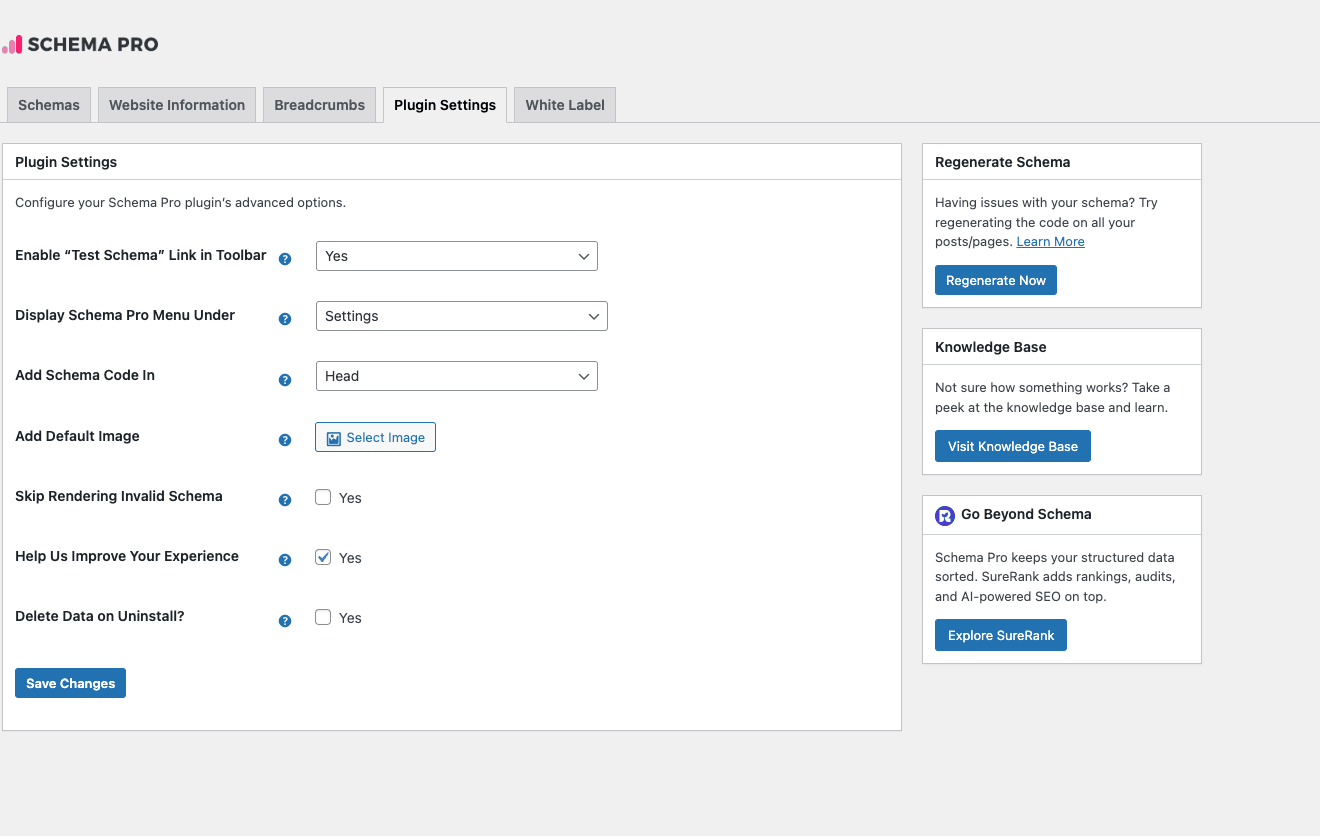
The settings:
-
Enable "Test Schema" Link in Toolbar: adds a "Test Schema" link to the admin bar when viewing any post on the front-end. Click it to open Google’s Rich Results Test with the current URL. Always on.
-
Display Schema Pro Menu Under: where to put the plugin in WP admin. Default: Settings. Options:
-
Settings (default)
-
Tools
-
Top-level (gets its own sidebar item)
-
Dashboard
-
Under a specific menu item.
-
Add Schema Code In: where to inject the JSON-LD.
-
Head (default, recommended): goes into
<head>viawp_headhook. -
Footer: goes into
<body>viawp_footer. Use Head unless your theme strips Head scripts. -
Add Default Image: fallback image for posts without a featured image. Schema validators require images on Article/Product/etc.; missing images cause validation warnings.
-
Skip Rendering Invalid Schema: if Schema Pro can’t fill all required fields (e.g. featured image missing on Article and no default set), skip outputting that schema instead of outputting incomplete JSON-LD. Default off; better to know about gaps. Turn on for production after you’ve debugged.
-
Help Us Improve Your Experience: opt-in telemetry to Brainstorm Force. Optional.
-
Delete Data on Uninstall: if you uninstall, should all schema configs be wiped? Default off; preserves config for reactivation.
-
Save Changes button.
The White Label tab (paid feature) lets you rebrand "Schema Pro" with your agency name for client sites.
Step 8: Test schemas with Google’s Rich Results Test {#step-8-testing}
Adding schema doesn’t mean it works. Always test.
Three test tools to know:
- Google Rich Results Test (https://search.google.com/test/rich-results): paste your URL, see if Google detects rich results, view warnings/errors. Most important.
- Schema.org Validator (https://validator.schema.org): tests against the broader schema.org spec. Useful for non-Google-rewarded types.
- Schema Pro’s "Test Schema" Toolbar link: deep-links to Rich Results Test pre-filled with the current page. Faster than typing URLs.
Test workflow:
- Save your schema in Schema Pro.
- Visit a page that should have the schema.
- Click "Test Schema" in the admin toolbar (or visit Rich Results Test manually).
- Wait 10-30 seconds for the test to fetch and parse.
- Look for:
- Green checkmark: detected, eligible for rich result.
- Yellow warning: detected, but missing recommended fields (will work, won’t be optimal).
- Red error: detected with errors. Won’t show as rich result.
Common errors to fix:
- "Missing field ‘image’": add a featured image or set a default image in Plugin Settings.
- "Missing field ‘author’": ensure post has an author assigned.
- "Required field ‘name’ is missing": post has no title (unusual).
- "Invalid date format": WordPress format doesn’t match. Schema Pro handles this automatically; check your timezone settings.
Test on at least one URL per schema type. Don’t trust that "if Article works on one post, it works on all."
Real-world recipes (3 schema setups) {#recipes}
Three concrete configurations:
Recipe 1: Recipe blog (food site)
Stack: Schema Pro + Yoast Premium (for title/meta) + Astra theme.
Schema setup:
- Recipe schema: target Post Type = "Recipe" (CPT). Map: name -> {{post_title}}, image -> {{post_featured_image}}, description -> {{post_excerpt}}, recipeYield -> {{post_meta:servings}}, prepTime -> {{post_meta:prep_minutes}} (with ISO 8601 conversion), cookTime -> {{post_meta:cook_minutes}}, recipeIngredient -> {{post_meta:ingredients}} (repeater), recipeInstructions -> {{post_meta:instructions}} (repeater), nutrition -> {{post_meta:nutrition}}.
- Article schema: target All Posts EXCEPT Post Type = Recipe. Standard mapping.
- Breadcrumb schema: enabled.
- Organization schema: Site represents Organization, logo set.
Result: every recipe post shows in Google as a recipe card with star rating, total time, calories. Every blog post shows as Article. Site name in knowledge panel.
Recipe 2: Job board
Stack: Schema Pro + Custom post type Job + ACF Pro for job fields + Rank Math (free for SEO).
Schema setup:
- JobPosting schema: target Post Type = "Job". Map: title -> {{post_title}}, description -> {{post_content}}, datePosted -> {{post_date}}, validThrough -> {{post_meta:expiry_date}}, hiringOrganization.name -> {{post_meta:company}}, jobLocation.address.streetAddress -> {{post_meta:street}}, jobLocation.address.addressLocality -> {{post_meta:city}}, employmentType -> {{post_meta:job_type}}, baseSalary.value -> {{post_meta:salary_min}}, baseSalary.maxValue -> {{post_meta:salary_max}}, baseSalary.currency -> "USD".
- Article schema: target Post Type = Post (regular blog).
- Breadcrumb schema: enabled.
- Organization schema: Knowledge graph identifies the job board itself.
Result: each job appears as a Google Jobs result, eligible for the Google for Jobs job listings panel.
Recipe 3: Local business with reviews
Stack: Schema Pro + WP Mail SMTP + Custom Reviews (Pods or CPT).
Schema setup:
- Local Business schema: site represents Local Business (configured in Website Information). Address, phone, hours, currency, price range all set.
- Service schema: target Post Type = "Service" (CPT for service offerings). Each service has its own page with provider, area served, name, description.
- Review schema: target Post Type = "Review" (CPT for customer reviews). Map: reviewBody -> {{post_content}}, reviewRating.ratingValue -> {{post_meta:rating}}, author -> {{post_meta:reviewer_name}}, itemReviewed.name -> "Your Business Name".
- Article schema: target Post Type = Post.
- Breadcrumb schema: enabled.
Result: business knowledge panel with hours/address/map. Service pages show in service-specific searches. Review schema feeds aggregate rating into other schemas.
Schema Pro vs Rank Math vs Yoast {#comparison}
Honest comparison.
| Feature | Schema Pro | Rank Math Pro | Yoast SEO Premium |
|---|---|---|---|
| Article schema | Yes | Yes (auto) | Yes (auto) |
| Breadcrumb schema | Yes | Yes (auto) | Yes (auto) |
| WebPage schema | Yes | Yes (auto) | Yes (auto) |
| Product schema | Yes | Yes | Limited (via WC) |
| Recipe schema | Yes | Yes | Add-on |
| Event schema | Yes | Yes | Add-on |
| Job Posting schema | Yes | Yes | No |
| Course schema | Yes | Yes | No |
| FAQ schema | Yes | Yes (via FAQ block) | Yes (block) |
| HowTo schema | Yes | Yes | No |
| Local Business schema | Yes | Yes | Yes |
| Person schema | Yes | Yes | Limited |
| Service schema | Yes | Yes | No |
| Vehicle Listing schema | Yes | No | No |
| Software Application schema | Yes | No | No |
| Image License schema | Yes | No | No |
| Podcast schema | Yes | No | No |
| Movie Carousel schema | Yes | No | No |
| Book schema | Yes | No | No |
| Custom Markup (JSON-LD) | Yes | Yes | No |
| Custom field mapping | Excellent | Good | Limited |
| Conditional rules | Granular | Good | Limited |
| Visual builder | Yes | Yes | Limited |
| Knowledge Graph (sameAs) | Yes | Yes | Yes |
| Validates in Rich Results Test | Yes | Yes | Yes |
| WP-CLI commands | No | Yes | Yes |
| Annual price (1 site) | $79 | $59 (entry) / $199 (full) | $99 |
| Total schema types | 21 | ~16 | ~6 |
Use Schema Pro if you need the deepest schema type set or need vehicle/software/book/podcast/image-license/movie schemas (Rank Math doesn’t have these).
Use Rank Math Pro if you want SEO + schema in one plugin and don’t need the rare schema types.
Use Yoast Premium if you’re already invested in Yoast and need only the common schema types (Article, Product, Local Business, FAQ).
You can also run Schema Pro alongside Yoast or AIOSEO. Schema Pro disables overlapping schema (Article, WebPage) automatically when it detects Yoast or AIOSEO. You get Yoast’s SEO + Schema Pro’s deep schema set.
See our Rank Math Pro guide and Yoast SEO Premium walkthrough for the SEO-focused comparisons.
Performance and SEO impact {#performance}
Plugin overhead (real numbers):
- Adds ~30KB of inline JSON-LD per page (varies by schema complexity).
- Adds ~8KB PHP memory per request.
- Adds 12-20ms TTFB on first request (negligible after WP object caching).
Schema Pro doesn’t enqueue any CSS or JS on the front-end. It just outputs <script type="application/ld+json"> blocks. Zero JS execution cost for users.
SEO impact (anecdotal but consistent):
Most sites see one of three outcomes after adding rich-result-eligible schema:
-
Big win (recipe sites, product sites, local business): 15-40% CTR increase on rich-result-eligible queries within 4-8 weeks. SERP position may not change, but the listing gets more clicks.
-
Modest win (Article + Breadcrumb only): 3-8% CTR increase. Mostly from Breadcrumb displaying the category instead of raw URL.
-
No change: if your content was already low-quality or low-traffic, schema doesn’t fix that. Schema rewards already-relevant pages with better display.
Critical: schema doesn’t change rankings (Google has been explicit about this). It changes how your already-ranked pages appear in search.
Pair Schema Pro with WP Rocket for caching (the JSON-LD output gets cached with the page) and Perfmatters for general performance.
10 common gotchas {#gotchas}
-
Don’t run multiple schema plugins for the same type. If Yoast outputs Article schema AND Schema Pro outputs Article schema, you get duplicate JSON-LD blocks. Schema Pro auto-detects Yoast/AIOSEO and disables its Article schema, but check the page source after activation to confirm.
-
Custom field mapping requires custom fields to actually have values. If
{{post_meta:price}}is empty on a product, that field is omitted from the JSON-LD. Google flags this as a warning. Set defaults at the field-mapping level or require the custom field at the post level. -
Featured image is required on most schemas. No featured image = invalid schema. Set a default image in Plugin Settings to avoid scattered errors.
-
Recipe schema needs ISO 8601 time format. Schema Pro tries to convert from minutes to PT15M format. If you store time as text like "15 minutes", set up an ACF transformer or use Schema Pro’s "Number to ISO" merge tag (newer versions support it natively).
-
Job Posting requires
validThrough. Without an expiry date, Google won’t show the job in Google for Jobs. Always require a date field on Job CPTs. -
Local Business schema needs accurate hours. "9 AM – 5 PM" isn’t valid; use OpeningHours format like "Mo-Fr 09:00-17:00". Schema Pro’s UI handles this if you use its OpeningHours field type.
-
Breadcrumb schema only outputs the trail. It does NOT render visible HTML breadcrumbs on your site. You need your theme or a separate breadcrumb plugin for the visible version.
-
FAQ schema is now selectively shown by Google. As of 2023, Google limits FAQ rich snippets to government and health authority domains. Add FAQ schema anyway (it doesn’t hurt), but expect less SERP impact than 2 years ago.
-
HowTo schema rich results are deprecated. Google removed HowTo from SERP enhancements in 2023. The markup is still valid; you just won’t see step-by-step previews in Google anymore. Don’t remove existing HowTo, but don’t prioritize adding new ones.
-
Schema Pro’s "Custom Markup" doesn’t validate. It outputs whatever JSON-LD you paste in. Make sure to validate it on schema.org’s validator before going live. One missing comma kills your knowledge graph.
Developer reference: hooks and filters {#developer-reference}
Schema Pro exposes a useful filter API. Here are the most useful hooks.
Disable schema on specific pages programmatically
add_filter('wp_schema_pro_global_schema_enabled', function($enabled) {
 if (is_page('legacy-page-slug')) {
 return false;
 }
 return $enabled;
});
Modify the Article schema output before it renders
add_filter('wp_schema_pro_schema_data', function($schema, $schema_type, $post_id) {
 if ($schema_type === 'article') {
 $schema['articleSection'] = 'Custom Section';
 $schema['wordCount'] = str_word_count(get_post($post_id)->post_content);
 }
 return $schema;
}, 10, 3);
Add custom Organization social profiles
add_filter('wp_schema_pro_global_schema_organization', function($schema) {
 $schema['sameAs'][] = 'https://github.com/yourorg';
 $schema['sameAs'][] = 'https://mastodon.social/@yourbrand';
 return $schema;
});
Disable breadcrumb schema on a specific post type
add_filter('wp_schema_pro_global_schema_breadcrumb', function($enabled) {
 if (get_post_type() === 'landing_page') {
 return false;
 }
 return $enabled;
});
Replace the default merge tag handler
add_filter('wp_schema_pro_default_markup', function($markup, $field_name, $post_id) {
 if ($field_name === 'image' && empty($markup)) {
 // Fall back to first image in content
 $content = get_post($post_id)->post_content;
 preg_match('/<img[^>]+src="([^"]+)"/i', $content, $matches);
 if (!empty($matches[1])) {
 return $matches[1];
 }
 }
 return $markup;
}, 10, 3);
Re-enable setup wizard for migration
add_filter('wp_schema_pro_enable_setup_wizard', '__return_true');
Skip schema rendering for AMP pages
add_filter('wp_schema_pro_default_markup', function($markup) {
 if (function_exists('is_amp_endpoint') && is_amp_endpoint()) {
 return ''; // AMP has its own structured data layer
 }
 return $markup;
});
Programmatically read the schema for a post
$schemas = get_post_meta($post_id, 'bsf-aiosrs-schema-config', true);
// $schemas is an array of configured schemas for this post
FAQ {#faq}
Does Schema Pro replace my SEO plugin?
No. Schema Pro only handles structured data (JSON-LD). You still need Yoast, Rank Math, or AIOSEO for title tags, meta descriptions, sitemap, Open Graph tags, redirects, and the rest of SEO.
Can Schema Pro work alongside Yoast / Rank Math / AIOSEO?
Yes. Schema Pro auto-detects them and disables its own Article/WebPage/Breadcrumb schemas to avoid duplicates. You get the SEO plugin’s basic schema plus Schema Pro’s deeper types.
Does Schema Pro affect rankings?
No. Schema doesn’t change rankings directly. It changes how your already-ranked pages display in search results (rich snippets, knowledge panels). Better display = higher CTR = more traffic, but not better rank position.
Will Schema Pro slow my site?
Negligibly. It outputs JSON-LD as inline <script> tags. No CSS, no JS, ~30KB of structured data per page. 12-20ms TTFB hit before object caching.
Can I use Schema Pro on multisite?
Yes. License covers one network as one install on the direct license. Each subsite configures its own schemas.
Does Schema Pro support custom post types?
Yes. Any registered CPT shows up in the Target Locations picker. Map schema to your CPTs the same way as posts.
What about ACF Pro / Pods / JetEngine?
All supported via the {{post_meta:field_name}} merge tag. Schema Pro reads custom fields regardless of which plugin defines them.
Is Schema Pro GDPR-compliant?
It outputs structured data based on existing post content. No tracking, no third-party calls. Telemetry is opt-in only.
Does Schema Pro support WPML / Polylang for translations?
Yes. Each translated post can have its own schema config. Compatible with WPML’s String Translation if you have custom string fields.
Can I delete the default Article schema if I want to use Yoast’s?
Yes. Go to Schemas, hover the Article schema, click Trash. Yoast will continue outputting its Article schema.
Does Schema Pro work with Gutenberg block themes?
Yes. The JSON-LD output is theme-agnostic; goes in <head> regardless of theme architecture.
Can I export/import my Schema Pro config?
Yes, via Tools -> Import/Export. Critical for staging-to-production deploys.
Does Schema Pro support AMP?
Partially. Schema Pro outputs JSON-LD on AMP pages, but some AMP plugins (especially AMP for WP) have their own structured data layer. Test with AMP Validator. Use the developer filter above to disable on AMP if needed.
What’s the difference between Article and BlogPosting?
BlogPosting is a more specific subtype of Article. Schema Pro outputs Article by default; you can use Custom Markup to override with BlogPosting if you want stricter typing. Functionally identical to Google.
How do I add Review schema with star ratings?
Use the Review schema type, map reviewRating.ratingValue to a numeric custom field. Or, more commonly, use a third-party reviews plugin (Site Reviews, WP Customer Reviews) that outputs its own schema and let it coexist with Schema Pro.
My rich snippets aren’t showing in Google. Why?
- Validate with Google Rich Results Test (errors block display).
- Wait 4-8 weeks; Google indexes schema slowly.
- Check Google Search Console -> Enhancements for warnings.
- Verify the schema URL is canonical and indexable.
- Some schema types (FAQ, HowTo) are now selectively shown by Google.
Does Schema Pro support Google for Jobs?
Yes. Use the Job Posting schema and ensure datePosted, validThrough, hiringOrganization, jobLocation are all filled. Validate with Google’s Job Posting Test tool.
Can I use Schema Pro for a knowledge graph entity?
Yes. The Organization (or Person) schema in Website Information, with complete sameAs social profiles, gives Google the data to build a knowledge panel for your brand or you personally.
Final thoughts {#final-thoughts}
Schema Pro is the WordPress structured data plugin to install when your schema needs go beyond what your SEO plugin ships. The 21 schema types, the rule builder, and the custom field mapping make it possible to add rich snippets to any post type at scale, without writing JSON-LD by hand.
It’s not the right plugin if you only need Article + Breadcrumb (your SEO plugin already does that). It’s not the right plugin if you want SEO + schema in one tool (use Rank Math Pro). It’s not the right plugin if you’ve never heard of structured data and aren’t ready to test in Google’s Rich Results Test (start simpler).
But for "I run a recipe blog and need Recipe schema on every post" or "I have a job board and need Google for Jobs eligibility" or "I’m a local business and need a knowledge panel", Schema Pro is the practical answer. The setup wizard gets you 80% there, the rule builder handles the rest, and the custom field mapping scales to any CPT.
Pair Schema Pro with Yoast SEO Premium or Rank Math Pro for full SEO coverage, ACF Pro for the custom fields your schemas pull from, and WP Rocket for caching so the JSON-LD ships with cached HTML.