


Running an appointment business on WordPress used to mean wiring three plugins together: a calendar, a payment gateway, and an email tool. Then you’d spend a weekend making the front-end widget look like it belonged on the same site. BookingPress Pro packages all of that into a single plugin with one dashboard, one front-end widget, and a Vue-powered admin that doesn’t feel like a 2014 WordPress page. This is the long version of how to set it up, what each panel actually does, and how to extend it with code when the default behaviour isn’t enough.
Table of contents
- What BookingPress Pro is, and who it’s for
- Key features at a glance
- The dashboard, calendar, and admin Vue app
- Building your first set of services
- Staff members, schedules, and commission
- The front-end booking widget
- Customers and the My Bookings page
- Payments, deposits, and gateways
- Coupons and discounts
- Email notifications and reminders
- Add-on modules: what’s a toggle and what’s its own plugin
- Installation and first-day setup
- Real-world use cases
- Developer reference: shortcodes, hooks, and REST API
- Performance, compatibility, and gotchas
- Pricing and licensing
- BookingPress vs Amelia vs Bookly
- FAQ
- Final thoughts
What BookingPress Pro is, and who it’s for
BookingPress is an appointment booking plugin built by Repute Infosystems, the team behind several Vue-based WordPress admin extensions. The free core handles the basics: services, time slots, a customer-facing booking widget, and PayPal payments. The Pro plugin is the part where the product. It adds staff members with their own schedules, multiple payment gateways including Stripe, deposit payments, coupon management, recurring bookings, group bookings, service extras, commission tracking for staff, ICS calendar export, reports, an Elementor widget, and a heap of smaller niceties like SMS/WhatsApp placeholders in email templates and bulk import/export of appointments.
If you run a salon, a clinic, a coaching practice, a tutoring service, a yoga studio, a freelance consultancy, a car detailer, a vet, a tattoo parlour, a barbershop, an immigration office, a photographer’s studio, a small dental practice, or basically any business where people schedule a slot of your time, BookingPress fits the shape. The pricing model also helps: a single-site licence covers unlimited services, unlimited staff, unlimited bookings, and unlimited customers, so it doesn’t tax you for growing.
It’s worth being clear about who it’s not for. If you sell hotel rooms, event tickets, or rental equipment with multi-day windows and inventory rules, you want a booking plugin built for inventory: Modern Events Calendar for events, or something WooCommerce-based for rentals. BookingPress is squarely about appointments: a slot, a service, a person, optionally a price.
Key features at a glance
- Service catalogue. Each service has a duration, price, buffer time before/after, min/max capacity, and an optional category. Services can carry images and rich descriptions, which the front-end widget displays during the picking step.
- Staff members with individual schedules. Once the Staff Member add-on is on, every booking can be assigned to a person. Each person sets their own working hours, breaks, and days off, plus per-service prices that override the catalogue when relevant.
- Front-end booking widget. Drop the
[bookingpress_form]shortcode into any page and customers get a five-step booking flow: pick a service, pick a staff member (optional), pick a date, pick a time, fill in details, pay. - Payments out of the box. PayPal Standard ships in the free core. The Pro plugin adds Stripe, plus webhooks, plus a "pay on site" cash option and a "pay later" link the customer can use after the appointment is approved.
- Deposits. Charge a percentage or a fixed amount up front and collect the rest on the day. Configurable per service.
- Coupon management. Percentage or fixed-amount discounts, optional service restriction, expiry dates, and usage limits.
- Group bookings. A single customer can book multiple seats in the same slot, useful for group classes or family appointments.
- Recurring appointments. Customers can book a daily, weekly, or monthly series in one go (Pro module).
- Service extras. Sell add-ons attached to a service. A haircut booking can offer a beard trim as a $10 extra.
- Commission tracking. Per-staff commission as a percentage or fixed amount, with a Reports view that breaks down earnings.
- Email notifications. A library of templates (booking approved, booking pending, reminder N hours before, payment received, refund issued, rescheduled) with merge placeholders for the customer, service, staff, and company details.
- Customer portal. Customers can log in, view past and upcoming appointments, reschedule, cancel, or rebook from a
[bookingpress_my_appointments]page. - Reports and exports. A reports view filtered by service, staff, customer, or date range, with CSV export.
The dashboard, calendar, and admin Vue app
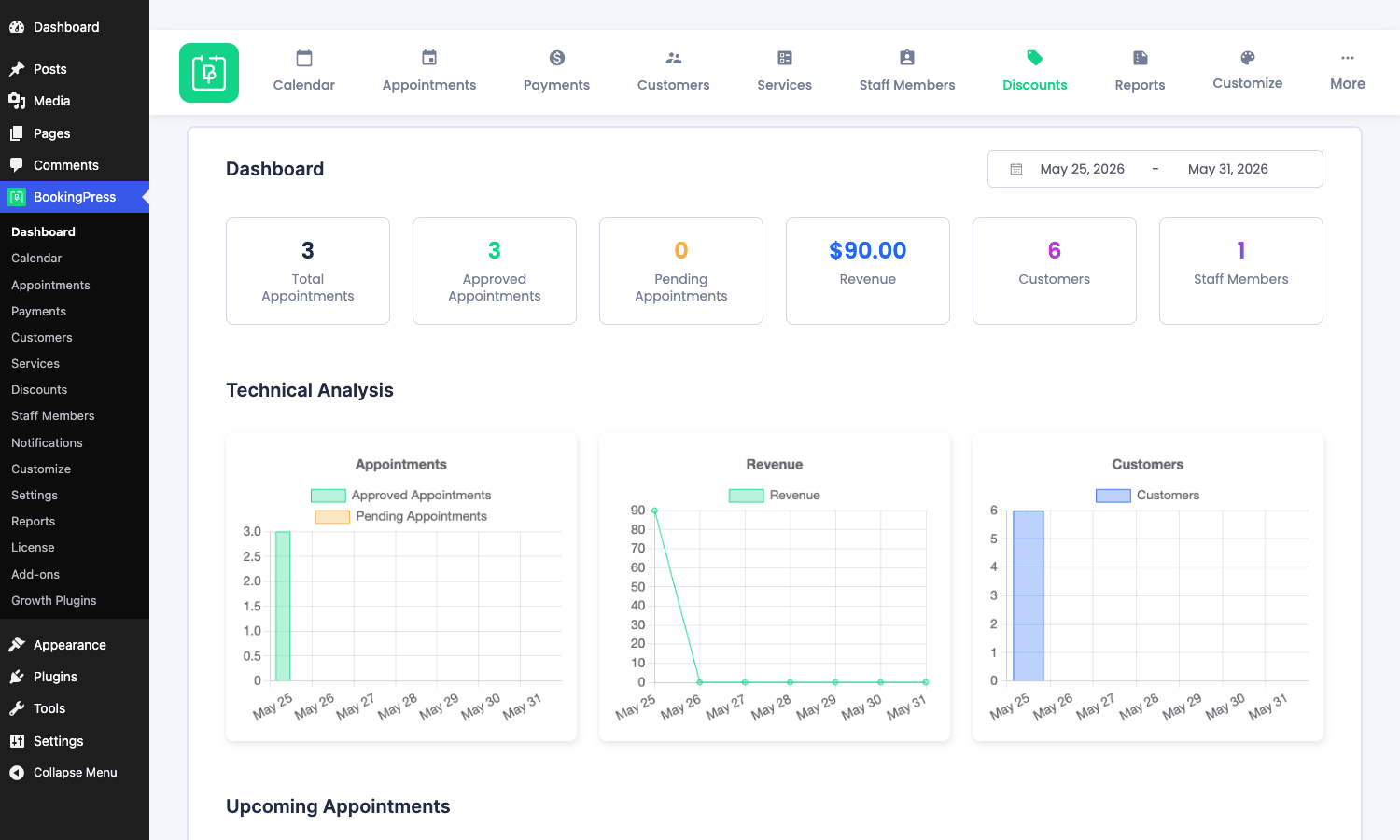
When you click into BookingPress, the first thing you see is the Dashboard. It’s a Vue single-page app, not a normal WordPress admin screen, so navigating between panels feels instant and the action sidebar at the top stays put. The Dashboard shows total appointments, upcoming appointments, total revenue, and a chart of bookings by date range. There’s a "Today’s appointments" panel listing each booking with the service, staff, customer, time, and current status, and a "Latest appointments" feed of recently created bookings regardless of date.
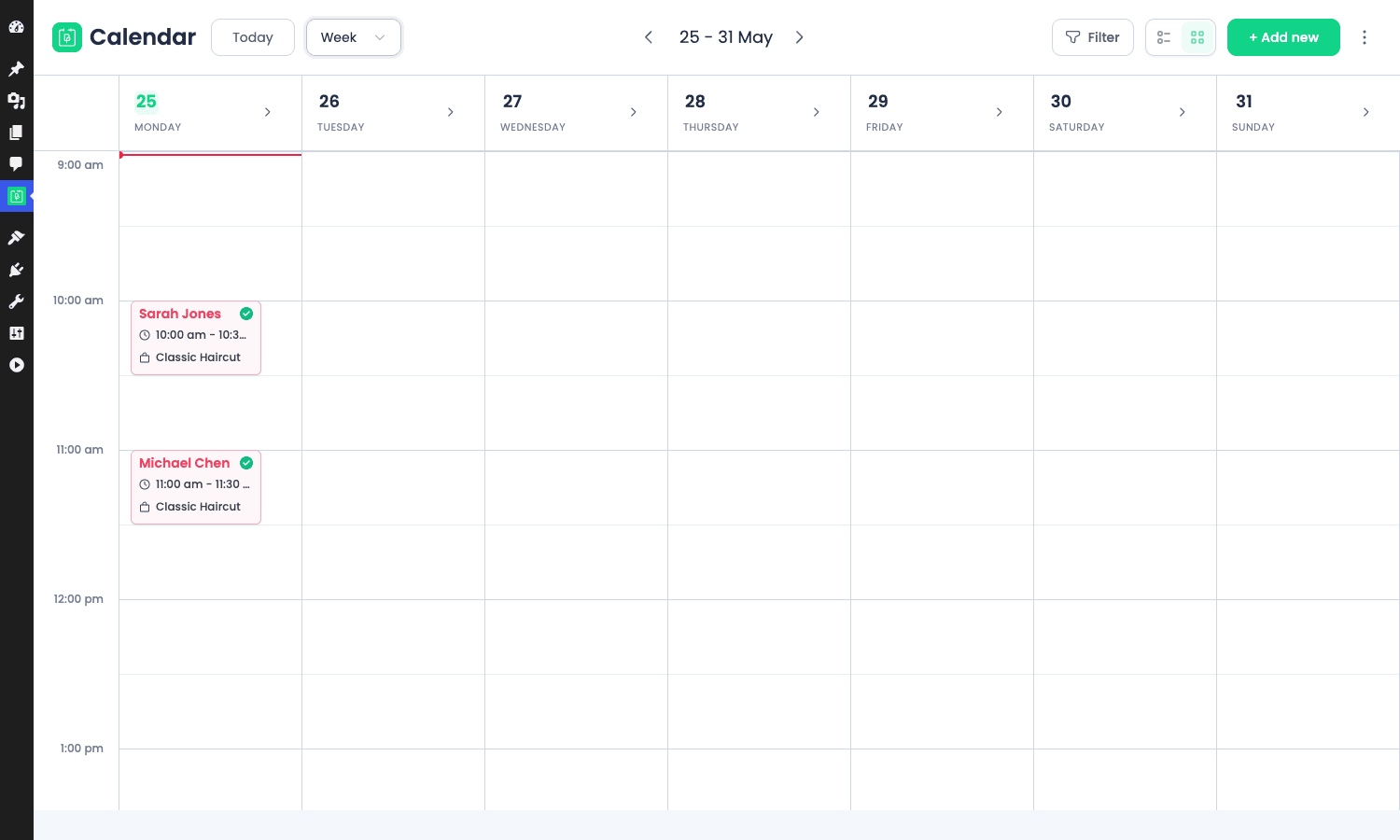
The Calendar view is a full month/week/day calendar (think Google Calendar but inside WordPress) and it’s the panel I end up living in. Each booked slot is a coloured card with the customer name, service, and staff initials. You can drag an appointment from one slot to another to reschedule, click a card to open the edit modal, or click an empty slot to create a new booking. Filters in the top bar let you scope by staff, service, or status.
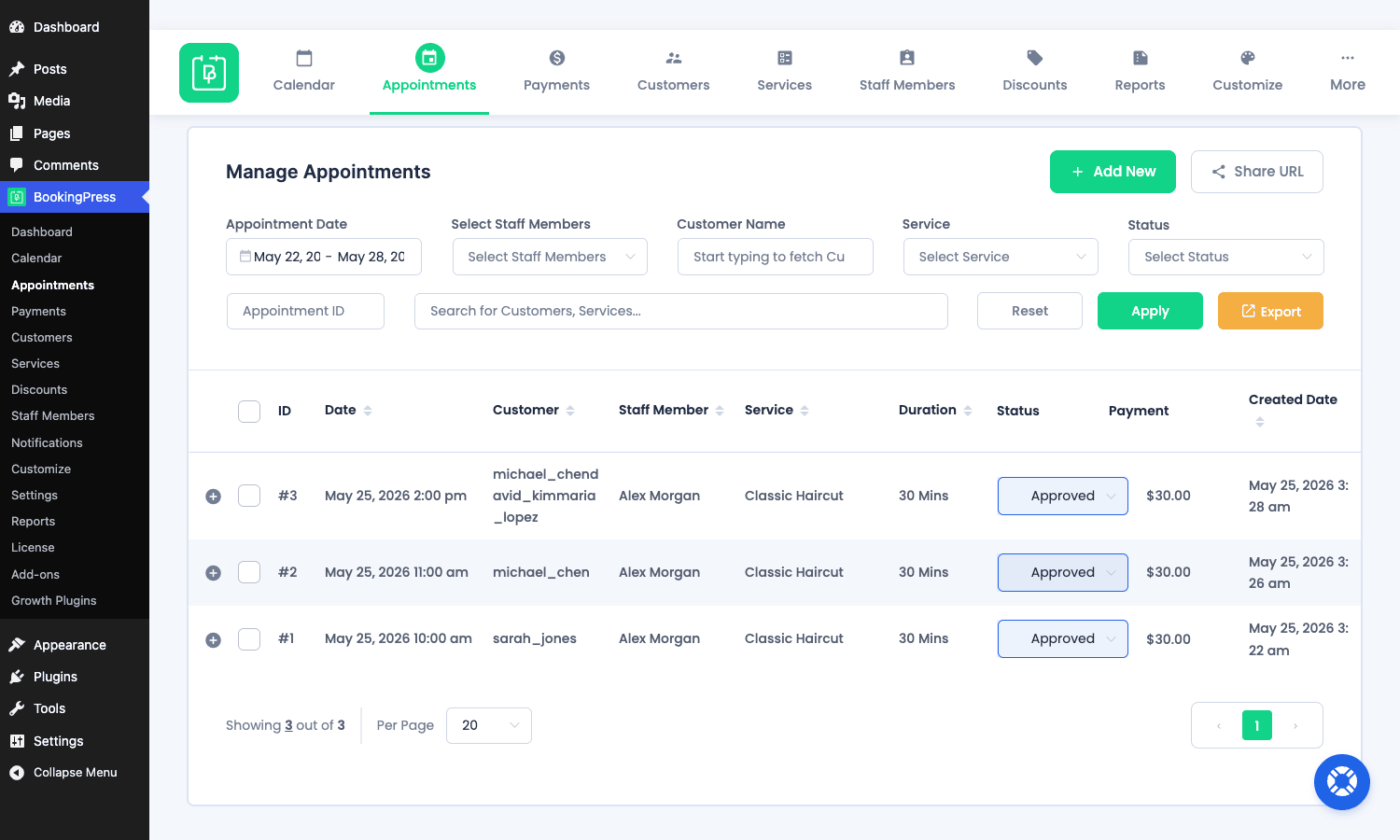
The Appointments page is the same data in list form, with sortable columns and a status filter. Bulk actions let you mark several appointments as Completed at once, or send approval emails in batch. The Pro plugin also adds an Export button that dumps the filtered set to CSV, and an Import button for migrating from a previous tool.
Payments is a similar list scoped to the payment table, with columns for the gateway, amount, currency, and transaction ID. Click a row to see the gateway’s raw response (useful when you need to figure out why a Stripe charge looked off).
Customers shows everyone who has ever booked. Each customer has a profile page with their full booking history, total spend, contact info, and any WordPress user that was provisioned alongside their first booking.
Building your first set of services
Services live at BookingPress -> Services. Click Add New and you get a Vue dialog with a long form. The fields you care about on day one are:
- Service Name and Category. Category is optional and only matters if you want to group services on the front-end widget.
- Price. A flat number in your store’s currency. If you charge variable per-staff prices, leave this and override per staff later.
- Duration. In minutes. A 30-minute haircut is
30. There’s a separate "duration unit" dropdown if you really want hours, but minutes is sensible. - Buffer time before/after. This is the gap the calendar leaves between bookings, which is invaluable for cleaning between massages, setup between meetings, or just breathing room.
- Min/max capacity. If you allow group bookings, this is how many people can share one slot. Most services are 1/1.
- Image. Shown in the front-end widget. Square images look best.
- Description. Plain text or HTML, shown as a tooltip on the front-end picker.
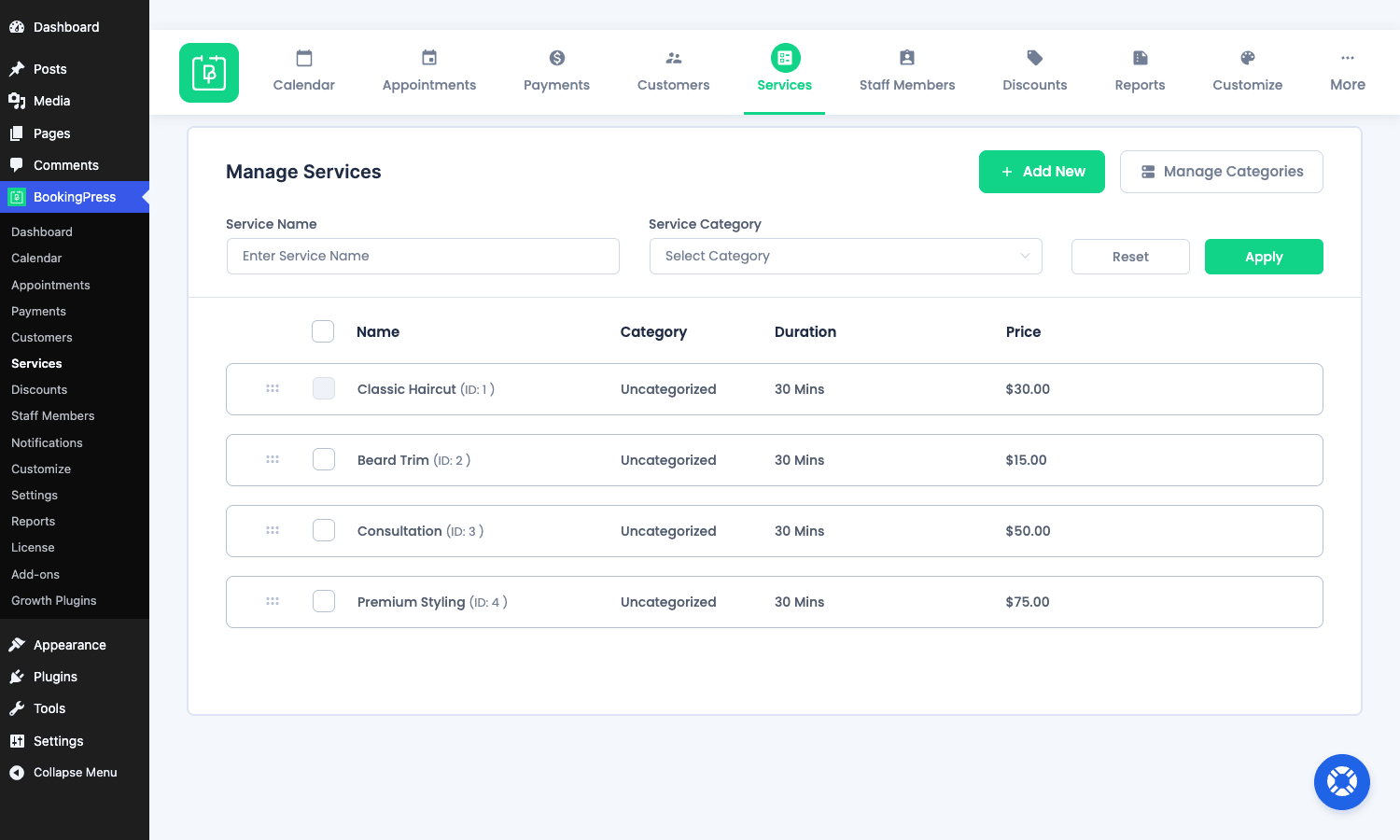
Save, and the service is live on the front-end immediately. There’s no "publish" step.
Each service also has a tab for Special Days: dates when this specific service has different hours from your normal schedule. A salon might run shorter hours on bank holidays, for instance. Those overrides cascade to all staff offering the service unless a staff member sets their own special day for the same date.
The Extras tab (Pro, Service Extra module on) lets you attach paid add-ons to a service. A "Haircut" service might have "Add a beard trim ($15)" and "Add hair-wash ($10)" as extras. Customers can multi-select these during booking, the prices roll up into the total, and the payment is collected as one charge. Extras also support quantity (e.g. "bottles of water, quantity selector") and per-extra duration if the add-on extends the slot.
Staff members, schedules, and commission
Once you activate the Staff Member add-on at BookingPress -> Add-ons, a new Staff Members menu item appears. Each staff entry has:
- Profile basics. Name, email, phone, photo, bio, and a visibility flag (Public staff show up in the front-end picker; Private staff are admin-only).
- WordPress user link. Either pick an existing WP user or create one inline. The user gets a
bookingpress_staffmembercapability and can log into wp-admin to see their own bookings. - Assigned services. Which services this person delivers. You can override the catalogue price here so "Haircut" is $30 in general but $40 with the senior stylist.
- Default work hours. A weekly schedule with start, end, and unlimited breaks per day. Days off are toggled per weekday.
- Special days. Date-specific overrides, same as the service-level ones but scoped to the person.
- Capacity per service. Override the service’s min/max for this staff member.
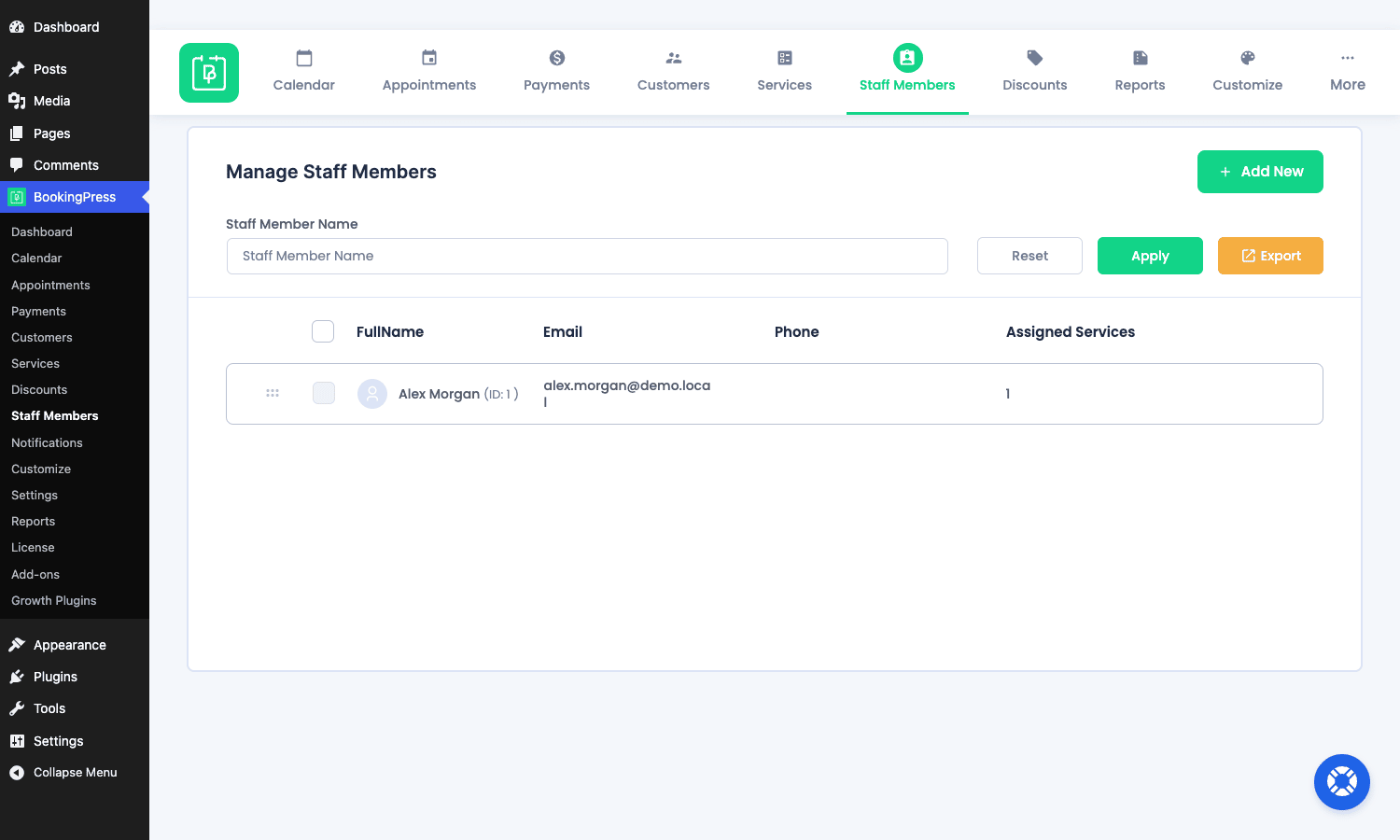
With the Staff Commission module on, each staff record gains a Commission tab. You can set a fixed amount per booking, a percentage of the service price, or a mix. Commission lines show up in the Reports panel under "Staff earnings," and you can export the report to CSV for payroll. The commission engine doesn’t pay anyone automatically (no payout integration), it just tracks earnings so you can pay outside the plugin.
The front-end widget gets a new step once staff exist: customers pick which person they want, or pick "Any available." When they pick "Any available," BookingPress fills the slot with whichever staff member is free at that time, which is the right default for businesses where one person is interchangeable with another.
The front-end booking widget
The front-end widget is the whole point of the plugin. It’s powered by a Vue app that runs inside the page, makes its requests against /wp-json/bookingpress-app/v1/, and progressively reveals each step.
Drop this shortcode on any page:
[bookingpress_form]
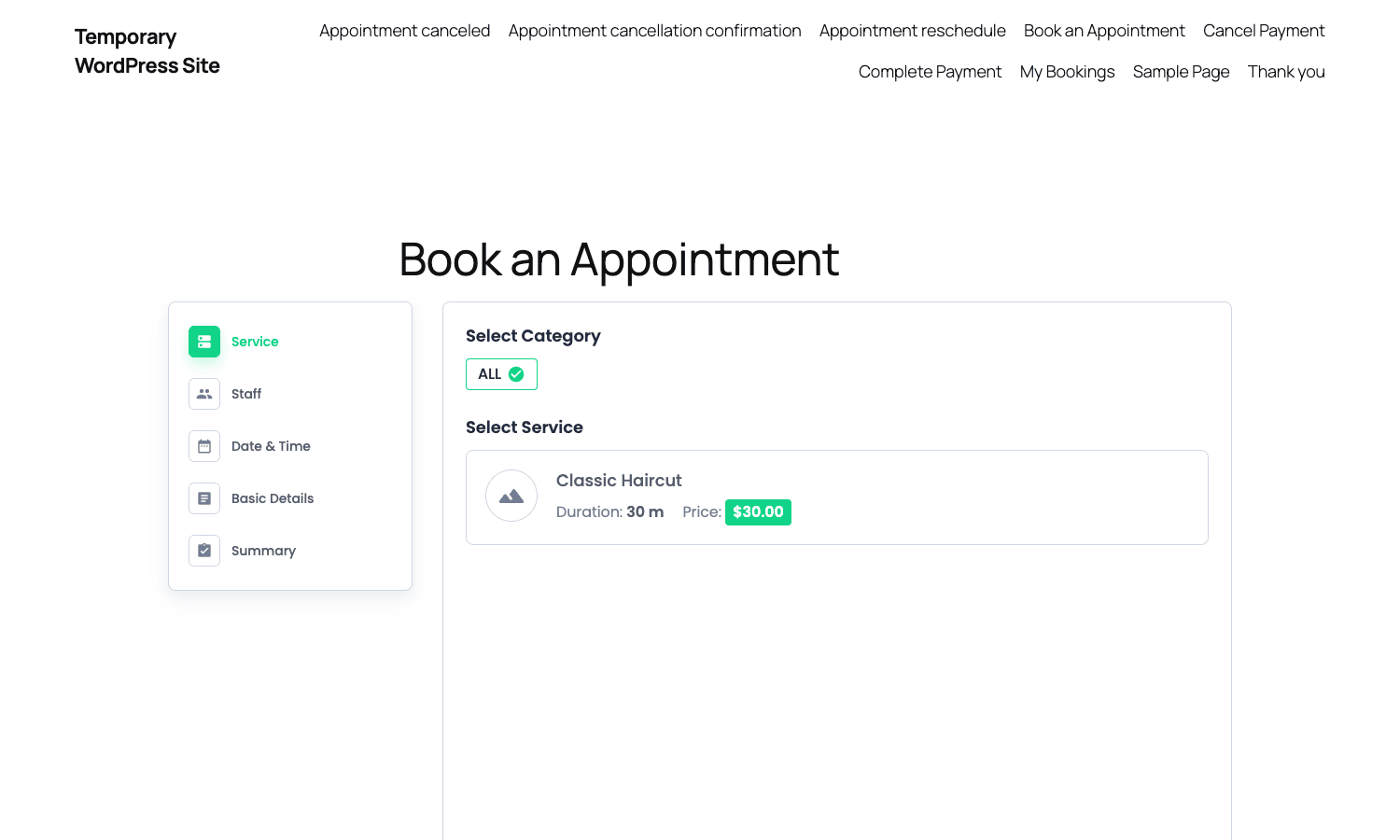
A "Book an Appointment" page is created automatically on activation, so you usually don’t have to do this yourself. The widget walks customers through:
- Category and service. If you have categories, customers pick one first; otherwise they go straight to services. Each service shows the title, price, duration, and image (when set).
- Staff (if staff is on). Either "Any available" or a specific person, with their photo and bio.
- Date. A month calendar with disabled dates greyed out (days off, holidays, fully-booked days).
- Time slot. Available start times for the chosen date, computed from the staff member’s schedule minus existing bookings minus buffer time.
- Personal info. Name, email, phone, optional custom fields, optional captcha. If you’ve enabled "create WP user," the booking also creates a WordPress account.
- Summary and pay. Final price breakdown, optional coupon entry, optional deposit toggle, and gateway choice.
There’s also a popup variant: [bookingpress_form_popup] opens the same flow inside a modal that you trigger from a button. Useful when you want to keep the booking out of the main page flow, like a "Book now" sticky button on a landing page.
The widget inherits the theme’s font and colour palette by default, but the Customize panel inside the admin lets you override colours, typography, spacing, button styles, and a few layout flags (steps stacked vs. side-by-side, calendar style, time-slot button style). Anything you can’t tweak in the panel you can override with custom CSS, and the widget’s CSS uses scoped classes (bpa-form-step, bpa-time-slot, etc.) so theme styles rarely leak in.
Customers and the My Bookings page
The customer-facing flip side of the admin Customers list is the [bookingpress_my_appointments] shortcode. Drop it on a page (BookingPress creates "My Bookings" automatically) and any logged-in customer sees their upcoming and past bookings, with buttons to reschedule, cancel, rebook, or pay a pending balance.
Reschedule fires the same date-and-time picker as the original booking. Cancel checks your cancellation policy (set in Settings -> Customers; minimum hours before the slot, refund behaviour) and either refunds automatically through the original gateway, marks the appointment for manual refund, or denies the cancellation if the cutoff has passed. There’s also a delete-account shortcode ([bookingpress_delete_account]) for GDPR-style erasure requests.
Underneath, customers are stored in their own wp_bookingpress_customers table (not just as WP users), so the data model survives a WP user deletion. The Pro plugin can optionally provision a WP user on first booking, which is how the "My Bookings" page knows who’s logged in, but you can run BookingPress fully decoupled from WP users if you prefer.
Payments, deposits, and gateways
Settings -> Payment Settings is the panel for payment behaviour. You configure:
- Default currency and symbol position.
- Enabled gateways. Toggle on/off, set test vs live keys, configure webhook URLs (the plugin pre-fills these). Stripe and PayPal are the headline two. There’s also a "Pay on site" option (the customer reserves the slot but pays in person on the day) and a "Direct bank transfer" with manual confirmation.
- Deposit payment (when the module is on). Percent or fixed amount, with a per-service override on the service form. The remaining balance is collected via the
[bookingpress_complete_payment]shortcode link the customer gets by email after the appointment is approved. - Refund policy. Whether to auto-refund on cancellation, whether to allow partial refunds, what the cutoff window is.
For Stripe specifically, you’ll want to add the webhook endpoint shown in the panel to your Stripe dashboard so the plugin gets paid-event callbacks. Without that, payments still work via the synchronous flow, but failed-charge updates and refund webhooks won’t sync back. The plugin uses Stripe’s Payment Intents API, so SCA (Strong Customer Authentication) for European cards is handled correctly.
If your store uses WooCommerce Stripe Payment Gateway for other parts of your site, the two coexist without stepping on each other. BookingPress’s Stripe integration is independent of WooCommerce and uses its own keys, so you can run the salon’s bookings on one Stripe account and the e-commerce shop on another if that’s how your business is structured.
Coupons and discounts
Coupons get their own admin menu once the Coupon Management module is active. They behave like WooCommerce coupons but scoped to BookingPress bookings:
- Discount type. Percentage or fixed amount.
- Service restriction. Apply globally or only to specific services.
- Customer restriction. Specific customers (useful for win-back), or unlimited.
- Validity window. Start and end dates.
- Usage limits. Max total uses, max per customer.
- One-time-use codes. Generate single-use codes for marketing pushes.
The front-end widget gets a "Have a coupon?" input on the summary step. Apply, and the total updates in place.
Email notifications and reminders
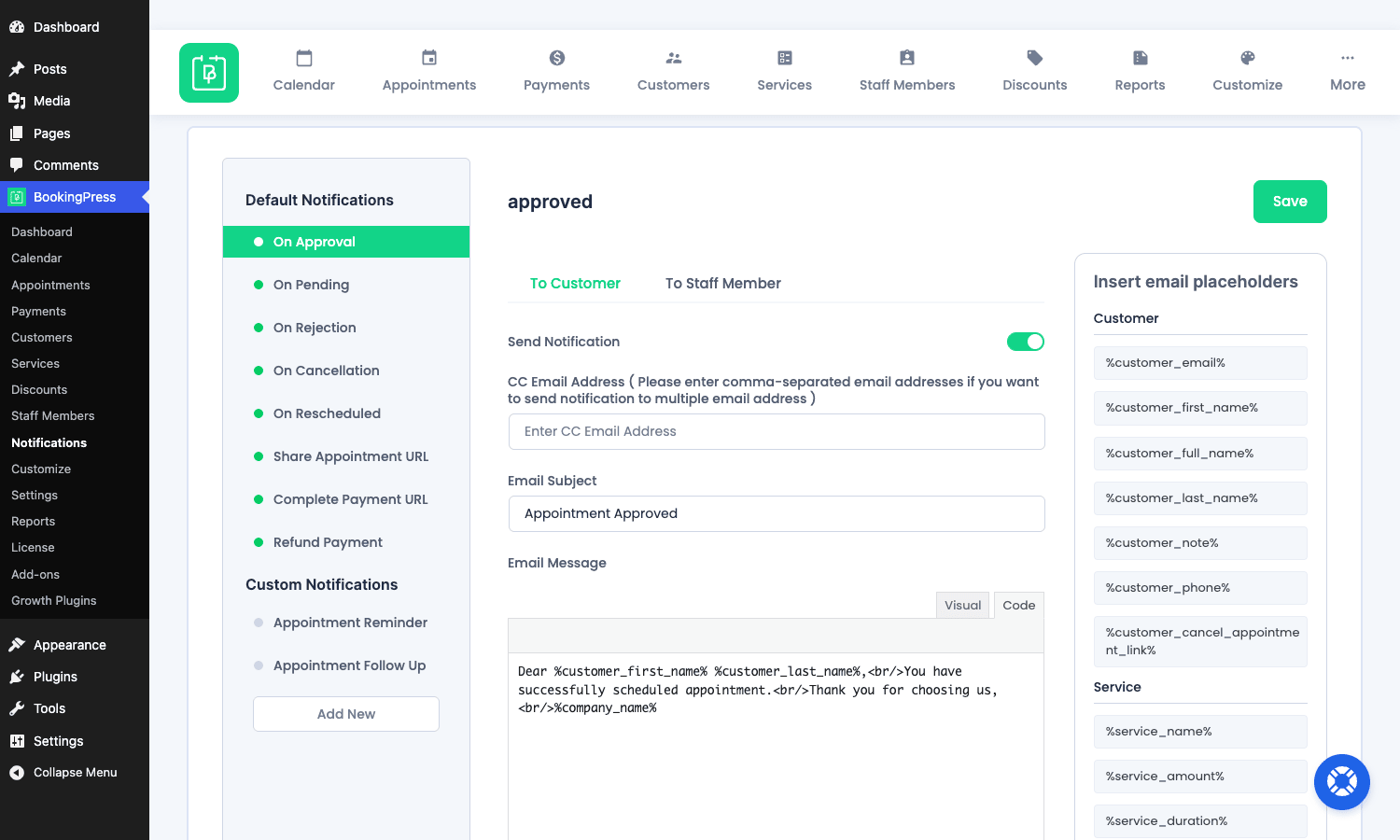
Notifications -> Email Notifications is where the templates live. Each notification type has its own template with a subject, body (HTML editor), and a list of available placeholders. The shipped templates are:
- Approved appointment (to customer / to admin / to staff)
- Pending appointment
- Cancelled appointment
- Rescheduled appointment
- Reminder N hours/days before
- Payment received
- Refund issued
- New customer registration
Placeholders are HTML-entity-escaped shortcodes such as [bookingpress_appointment_service], [bookingpress_appointment_datetime], [bookingpress_appointment_customername], [bookingpress_company_name], and a few dozen more. You can drop them anywhere in the subject or body and they get replaced when the email is sent. The HTML editor also has a "Insert placeholder" picker that lists all available tokens, so you don’t have to memorise the names.
Reminders are cron-driven. BookingPress registers a bookingpress_send_reminder_emails event that runs hourly by default. If WP-Cron is unreliable on your host (it usually is once traffic drops at night), set up a real OS-level cron job that pings wp-cron.php every five minutes. The plugin will pick up reminder rows that have passed their send time and dispatch them.
Add-on modules: what’s a toggle and what’s its own plugin
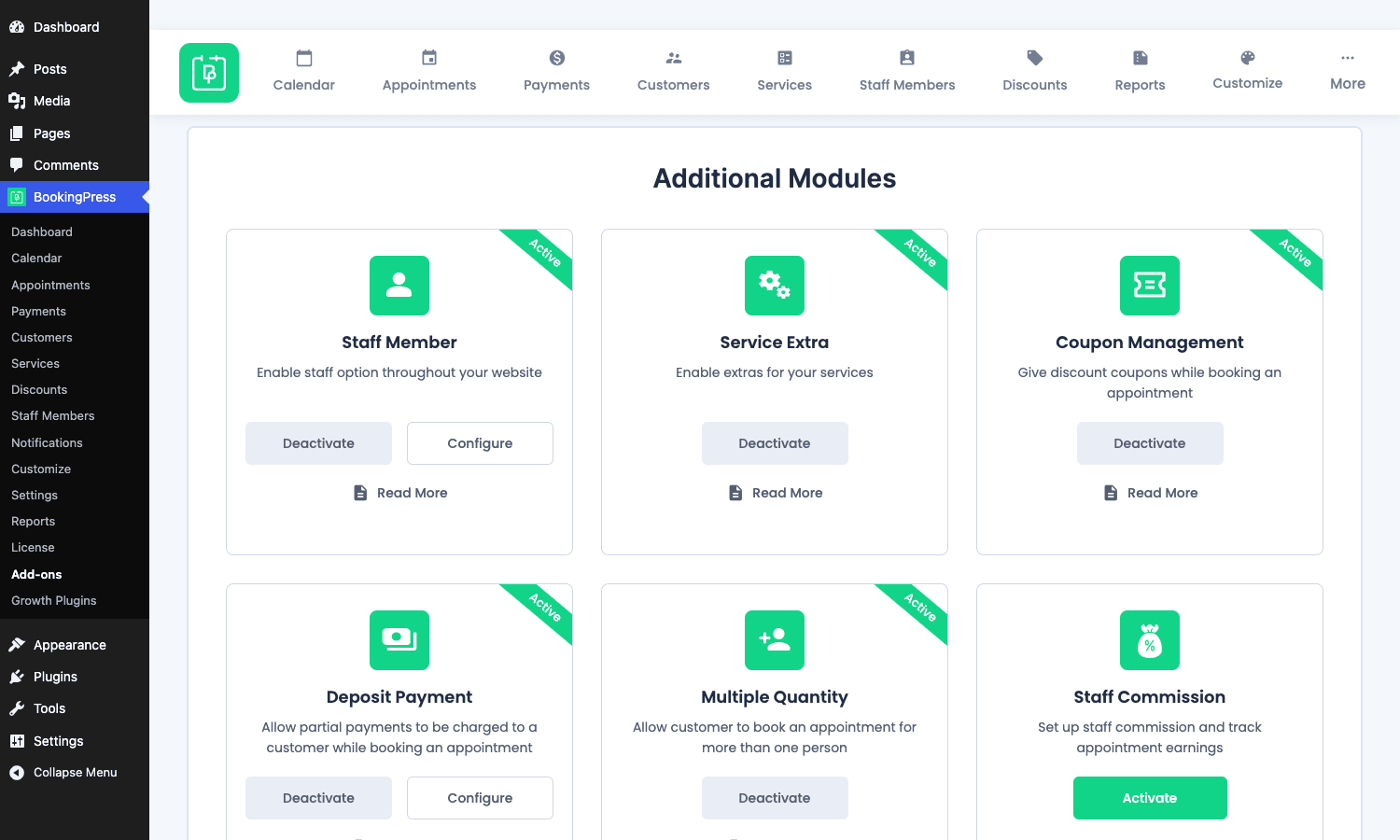
This trips up new users so it’s worth being explicit. BookingPress’s "add-ons" page lists six bundled modules that ship inside the Pro plugin itself. Toggle them on, no separate download, no extra licence:
- Staff Member: multi-staff with schedules
- Service Extra: paid add-ons per service
- Coupon Management: discount codes
- Deposit Payment: partial upfront payment
- Multiple Quantity: group bookings (the internal name is "Bring Anyone With You")
- Staff Commission: earnings tracking per staff
There are also a handful of separately-distributed add-on plugins from Repute Infosystems that install via the same Add-ons panel (it auto-fetches from their repo): Google Calendar two-way sync, Zoom integration, Twilio SMS, WhatsApp notifications, Mailchimp/Brevo customer sync, WooCommerce integration (book during checkout), recurring appointments, and waiting-list management. Those each install as their own plugin file but show up inside the same Vue UI.
When something doesn’t seem to be there, check the Add-ons panel first. Most "missing" features are just a toggle away.
Installation and first-day setup
Both the free core and the Pro plugin must be active. The order matters: install the free BookingPress core from the WordPress.org plugin directory first, then the bookingpress-appointment-booking-pro plugin. The Pro plugin extends the free one and refuses to activate without it.
The fastest path to a working booking page is:
- Upload and activate the free core, then the Pro plugin from Plugins -> Add New -> Upload.
- Go to BookingPress -> Settings -> General and set your time zone, time format, and default currency.
- Open Services and create at least one service. Save.
- Open Add-ons and activate "Staff Member." A Staff Members menu item appears.
- Open Staff Members, add yourself (or whoever delivers the service), assign the service, set your weekly hours. Save.
- Open Settings -> Payment Settings and configure at least one gateway (or enable "Pay on site" for a no-payment flow).
- Visit the auto-created "Book an Appointment" page on the front-end. The widget should load with your service and staff member.
- Make a test booking with a real email so you can see the customer notification.
The whole flow takes about twenty minutes for a simple setup. Adding a logo, configuring email templates with your branding, and customising the widget colours is another half hour. Setting up Stripe with webhooks adds maybe fifteen minutes.
There’s no setup wizard hand-holding you through this. The first time you click into the Dashboard, it’s empty. The plugin assumes you know what an appointment booking system is and gets out of your way, which is either refreshing or frustrating depending on your taste.
Real-world use cases
Five flavours of business that BookingPress fits cleanly:
1. A two-stylist salon. Two staff records, six services (haircut, colour, blow-dry, etc.), shared back-room schedule. The Staff Member, Service Extra (for treatments), and Deposit modules are all useful. Customers book online, the salon collects 25% deposit at booking and the rest in person. Reminders go out 24 hours before by email and (with the Twilio add-on) by SMS.
2. A solo coach with paid 1:1 calls. One staff record (themselves), three services (30-min intro call, 60-min strategy call, 90-min deep-dive). Stripe takes the full payment up front. The Zoom add-on auto-creates a meeting URL and embeds it in the confirmation email so the coach never has to send a link manually.
3. A clinic with multiple practitioners. Six to ten staff records, each with their own working hours. Services are scoped to specific practitioners ("Dr. Patel does only initial consults; Dr. Sharma does follow-ups"). The Staff Commission module tracks per-practitioner earnings. The recurring-appointments add-on lets patients book a weekly slot for twelve weeks in one go.
4. A tutoring service. A handful of tutors, each with their own subjects. Group classes (5–8 students per slot) use the Multiple Quantity module so several students book one slot. Parents pay per child via the deposit module, which lets them pay 50% on booking and 50% after the first session.
5. A car detailer or mobile service. Single "staff" record (or one per vehicle), services are different detail packages with durations from 60 minutes to 6 hours. Long buffer time (30 min) between bookings for travel. Stripe up front since the operator doesn’t want to chase payment after the job. Customers book through a popup widget on the home page so the booking step doesn’t break the landing-page narrative.
Developer reference: shortcodes, hooks, and REST API
This section is for the half of the audience that wants to extend the plugin rather than just configure it. BookingPress exposes a healthy amount of surface area, and the hook names follow a consistent convention so once you’ve learnt a few you can usually guess the others.
Shortcodes
The full set of front-end shortcodes:
| Shortcode | Purpose |
|---|---|
[bookingpress_form] |
The five-step booking widget |
[bookingpress_form_popup] |
Same widget, modal popup variant |
[bookingpress_my_appointments] |
Customer dashboard listing their bookings |
[bookingpress_appointment_reschedule] |
Reschedule landing page (used in customer emails) |
[bookingpress_appointment_cancellation_confirmation] |
Cancellation confirmation page |
[bookingpress_complete_payment] |
Pay-balance landing page |
[bookingpress_retry_payment] |
Retry a failed payment |
[bookingpress_delete_account] |
GDPR-style customer self-erasure |
[bookingpress_appointment_calendar_integration] |
Add-to-calendar (.ics) button |
There are also short merge-tag shortcodes that work inside post content, email templates, and the "Customize" headline blocks: [bookingpress_company_name], [bookingpress_company_phone], [bookingpress_company_address], [bookingpress_company_website], [bookingpress_company_avatar], and per-appointment merges like [bookingpress_appointment_service], [bookingpress_appointment_customername], [bookingpress_appointment_datetime].
REST API
The widget talks to a REST namespace at /wp-json/bookingpress-app/v1/. The notable endpoints:
| Route | Method | Purpose |
|---|---|---|
/appointment/create |
POST | Create a booking |
/appointment/fetch |
GET | List bookings (filtered) |
/appointment/update-status |
POST | Change a booking’s status |
/appointment/reschedule |
POST | Reschedule a booking |
/appointment/can_reschedule |
GET | Pre-flight check |
/customer |
GET/POST | List or create customers |
/customer/create |
POST | Explicit create endpoint |
/customer/fetch_wp_users |
GET | Search WP users (used in admin) |
/calendar |
GET | Calendar data for the admin view |
/dates |
GET | Available dates for a service+staff combo |
/time |
GET | Available time slots for a date |
/coupon/apply |
POST | Apply a coupon to a pending booking |
/coupon/remove |
POST | Remove a coupon |
/addons/activate |
POST | Toggle a bundled module on |
/addons/deactivate |
POST | Toggle a bundled module off |
These are namespaced and cookie-authenticated for admin calls. The widget-side calls (date, time, customer create, appointment create) accept anonymous requests because by design the booking flow doesn’t require a logged-in user.
If you wanted to build a mobile app or a headless front-end against BookingPress, this is your entry point. You’d hit /dates to populate a calendar, /time to populate slot buttons, then POST /appointment/create with the customer details and chosen slot.
Hooks: filters
The plugin exposes roughly 675 unique filters. A handful that come up often:
// Force a longer slot interval for a specific service (e.g. 45-min slots for service ID 12).
add_filter( 'bookingpress_modify_service_timeslot', function( $duration, $service_id ) {
 if ( 12 === (int) $service_id ) {
 return 45;
 }
 return $duration;
}, 10, 2 );

// Override max capacity dynamically (e.g. cap a yoga class at 8 on weekends).
add_filter( 'bookingpress_retrieve_capacity', function( $capacity, $service_id ) {
 if ( in_array( (int) date( 'N' ), array( 6, 7 ), true ) ) {
 return min( $capacity, 8 );
 }
 return $capacity;
}, 10, 2 );

// Hide already-booked slots from the picker instead of showing them disabled.
add_filter( 'bookingpress_change_hide_already_booked_slot_for_service', '__return_true' );

// Mutate appointment fields before they hit the DB (e.g. enforce uppercase customer names).
add_filter( 'bookingpress_modify_appointment_booking_fields_before_insert',
 function( $fields, $posted ) {
 if (! empty( $fields['bookingpress_customer_firstname'] ) ) {
 $fields['bookingpress_customer_firstname'] = strtoupper( $fields['bookingpress_customer_firstname'] );
 }
 return $fields;
 }, 10, 2 );

// Recalculate the paid amount on the fly (e.g. add a credit-card surcharge).
add_filter( 'bookingpress_adjust_paid_amount', function( $amount, $gateway ) {
 if ( 'stripe' === $gateway ) {
 return $amount * 1.029 + 0.30;
 }
 return $amount;
}, 10, 2 );
The naming is consistent: bookingpress_modify_* for value-mutating filters, bookingpress_retrieve_* for getter-style filters, bookingpress_change_* for boolean toggles. Once you see the pattern, you can usually find what you need by grepping the plugin folder.
Hooks: actions
About 526 unique action hooks. The ones you’ll hit most:
// Fire after a successful booking. Use this to push to a CRM, Slack, Zapier, anything external.
add_action( 'bookingpress_after_book_appointment',
 function( $booking_id, $entry_id, $gateway_data ) {
 wp_remote_post( 'https://hooks.zapier.com/your-hook/', array(
 'body' => array(
 'booking_id' => $booking_id,
 'entry_id' => $entry_id,
 'gateway' => is_array( $gateway_data )? $gateway_data['gateway']?? '' : '',
 ),
 ) );
 }, 10, 3 );

// Fire after a reschedule.
add_action( 'bookingpress_after_rescheduled_appointment', function( $reschedule_id ) {
 error_log( 'Booking rescheduled: '. $reschedule_id );
} );

// Fire after a new customer is created (use to sync to email lists).
add_action( 'bookingpress_after_create_new_customer', function( $customer_id ) {
 global $wpdb;
 $email = $wpdb->get_var( $wpdb->prepare(
 "SELECT bookingpress_user_email FROM {$wpdb->prefix}bookingpress_customers WHERE bookingpress_customer_id = %d",
 $customer_id
 ) );
 // Push to Mailchimp / Brevo / FluentCRM here.
} );

// Fire before sending the upcoming-appointment reminder.
add_action( 'bookingpress_before_send_upcoming_appointment_status_notification',
 function( $appointment_id, $entry_id ) {
 // Last-minute decision: skip the reminder if the appointment is fewer than 2 hours away.
 }, 10, 2 );
Database tables
BookingPress creates its own tables with the bookingpress_ prefix: bookingpress_appointment_bookings, bookingpress_customers, bookingpress_services, bookingpress_staffmembers, bookingpress_payments, bookingpress_coupons, bookingpress_extra_services, and a few support tables for form fields, settings, holidays, and notifications. If you write reports or integrations that read directly from the database, those are the targets.
Elementor widget
The Pro plugin ships an Elementor widget at core/widgets/bookingpress-pro-elementor-widget. Drop it onto any Elementor page and you get the same booking form as the shortcode, with widget-level controls for service preselection, staff preselection, and a few cosmetic options. If you use Elementor Pro, this gives you a cleaner way to put the booking form inside a custom layout than dropping the raw shortcode into a text widget.
Performance, compatibility, and gotchas
Some honest observations from running BookingPress on a few sites.
Asset weight. The Vue admin is heavy because it’s a Vue app, not because the plugin is poorly built. The admin bundle is around 400KB minified, which is normal for a Vue admin and only loads on BookingPress admin pages. On the front-end, the booking widget loads its own Vue bundle plus a CSS file (~250KB total) only on pages where the shortcode is used. Conditional asset loading is the right behaviour; nothing is enqueued site-wide. If you care about Core Web Vitals, put the booking widget on a dedicated page so the rest of your site stays light. Tools like WP Rocket can defer the Vue bundle without breaking the form, since the widget initialises on DOMContentLoaded and doesn’t need synchronous loading.
WP-Cron reliability. Reminders are WP-Cron-driven, so on quiet sites where WP-Cron only runs when someone visits a page, reminders can fire late. Switch to a real OS cron job for production sites: disable WP-Cron in wp-config.php with define( 'DISABLE_WP_CRON', true ); then schedule wget -q -O- https://yoursite.com/wp-cron.php every five minutes from your host’s cron.
Theme conflicts. The widget plays nicely with most themes because its CSS is scoped. The two cases I’ve hit problems with are themes that aggressively reset * { box-sizing: content-box } (anything based on Genesis from years ago does this) and themes that wrap shortcode output in wpautop paragraphs that break the Vue mount. Both are fixable: for the box-sizing one, add a CSS rule to your child theme; for wpautop, wrap the shortcode in a <div> or use a Gutenberg shortcode block.
Translations and RTL. The plugin is fully translatable via .po/.mo files in /languages/. The widget supports RTL out of the box. The admin Vue strings are in JS, so adding a new translation means updating the JS i18n object as well as the PHP strings; the included translations cover the major European and Asian locales already.
Time zone handling. Each customer’s appointment is stored in the site’s WP time zone (Settings -> General). The front-end widget can detect the visitor’s time zone and display slots in their local time, then convert back to your time zone on save. The bookingpress_appointment_change_date_to_store_timezone filter is where this happens; if your business is genuinely timezoneless (you sell at one physical location), you can turn off the detection in Settings -> Customize and avoid the conversion noise entirely.
Page builders. The shortcode works in Elementor, Beaver Builder, Gutenberg, and Bricks without modification. There’s a dedicated Elementor widget if you want richer controls. For Gutenberg, the shortcode block is the canonical home; the plugin doesn’t ship a native Gutenberg block.
Multi-language sites. Polylang and WPML both work with the front-end shortcode (you’d put the page on each language version and let the language plugin handle it). The admin Vue strings always render in the site default locale, which is fine because the admin is for staff, not customers.
Pricing and licensing
BookingPress Pro is sold by Repute Infosystems under tiered single/multi/unlimited-site licences with annual support and updates. Available as a GPL-licensed download via BookingPress Pro on GPL Times, which is the option I tend to recommend when a friend is building a booking site on a tight budget. You get the full plugin including every add-on module, no per-site lock-in, and you can decide later whether the value justifies an official subscription for vendor support. The plugin runs the same in either case; the practical difference is whether you raise support tickets with the vendor or solve issues yourself with the docs and the open code.
If you specifically need vendor support tickets and direct upgrade-channel updates, buy a licence directly from the BookingPress site. For everything else, the GPL-licensed version does the job.
BookingPress vs Amelia vs Bookly
These three are the realistic shortlist for a serious appointment plugin on WordPress, and which one wins depends on what you value.
Amelia Pro is the prettiest of the three out of the box and has the most polished front-end widget. It also has the more enterprise-leaning feature set (multi-location, event ticketing baked in, packages of multiple appointments). If you want the cleanest customer experience with the least configuration, Amelia is the easiest sell. I wrote a full breakdown over on the Amelia Pro WordPress appointment booking review if you want the long version.
Bookly Pro is the oldest of the three and has the largest add-on ecosystem. There are dozens of Bookly add-ons for everything from Google Calendar sync to invoicing to staff cabinets. The trade-off is that the admin feels its age and the front-end widget is the most generic-looking of the three. If you need a feature that doesn’t exist in the core, Bookly probably has an add-on for it. The Bookly Pro appointment booking WordPress walkthrough covers it in detail.
BookingPress sits in between. It’s newer than Bookly so the admin is modern, but it lacks Amelia’s ticketing/packages dimension. Pricing is the most competitive of the three (unlimited features at the entry tier rather than gated by add-ons), and the Vue admin is genuinely pleasant to use day-to-day. If you’re optimising for monthly cost and admin UX, BookingPress is the pick. If you want maximum polish, Amelia. If you want maximum extensibility through third-party add-ons, Bookly.
Same plugin codebase as the official builds, no functionality is held back.
FAQ
Does BookingPress work with WooCommerce?
Yes, via the WooCommerce add-on (separately installable from the Add-ons panel). With it on, bookings can be added to a WooCommerce cart and checked out through any WooCommerce gateway, which is useful if you already accept payments through WooCommerce and want one unified order history. Without it on, BookingPress handles payments through its own Stripe/PayPal integrations.
Can customers reschedule themselves?
Yes. The [bookingpress_my_appointments] page has a Reschedule button on each upcoming appointment. It opens the same date-and-time picker as the original booking. You can disable rescheduling globally in Settings, restrict it to certain services, or require a minimum lead time (e.g. "no rescheduling within 24 hours").
How does it handle time zones for remote bookings?
The widget can detect the visitor’s browser time zone and display slots in their local time. Save converts back to the site’s WP time zone. The Pro plugin handles DST correctly for both ends. If you only serve local customers, you can disable time-zone detection in Settings -> Customize and the widget always shows your store time.
Can I export the appointments data?
Yes, two ways. The Appointments page has a CSV export of the filtered set. The Pro plugin also has a full Import/Export panel under Settings that exports appointments, customers, services, and staff together for migration.
Does it support recurring appointments?
Yes, via the Recurring Appointments add-on (installable from Add-ons). Customers can book a daily, weekly, fortnightly, or monthly series in one transaction. Cancelling a recurring booking can cancel the whole series or just one instance.
What’s the difference between the free version and Pro?
Free covers a single staff/single service model with PayPal payments and basic notifications. Pro adds the Staff Member module (multi-staff), Stripe, deposits, coupons, group bookings, recurring, commission tracking, service extras, the Elementor widget, advanced reporting, and import/export. The Pro plugin requires the free plugin to be active alongside it.
Will it slow down my site?
Not on pages that don’t use the booking shortcode. Assets are loaded conditionally only where the form appears. The widget itself is a Vue app and adds ~250KB to pages that include it, which is normal for a feature of this scope. If you really need lower weight on the booking page, you can defer the script with a caching plugin without breaking the form.
Can I sell multiple appointments as a package?
Not natively. BookingPress doesn’t have an "appointment package" concept (Amelia does). The closest workaround is to set up a service called "5-session package" priced at the bundle price, then track usage manually in the customer notes. A native packages module would be a welcome addition.
Does it integrate with Google Calendar?
Yes, via the Google Calendar Sync add-on (in the Add-ons panel). Two-way sync: bookings appear on the staff member’s Google Calendar, and events on that calendar block out availability so customers can’t double-book.
Final thoughts
BookingPress Pro is the kind of plugin that punches above its price tag. The Vue admin is the headline feature for me: it’s genuinely faster to use than the older WordPress-table-based booking plugins, and once you’ve worked in it for a week you don’t want to go back. The pricing is the second draw: unlimited services and staff at the entry tier, without the per-feature unlocks that some competitors use to push you up the pricing ladder. The toggleable add-on modules (staff, deposits, coupons, recurring, extras, commission) cover the realistic feature surface of an appointment business, and the hook surface area means developers can shape behaviour without forking the plugin.
It’s not without rough edges. The lack of native appointment packages is a gap. There’s no setup wizard, so the empty-state Dashboard can feel intimidating on day one if you’ve never used a booking plugin before. The Vue admin assets are chunky on slow connections (though they’re scoped to BookingPress admin pages, so it doesn’t affect your visitors). And the reminder system relies on WP-Cron, which means you should plumb in a real cron job for any production site.
If you’re starting from zero and need a booking system on a WordPress site this week, install both plugins, walk the 8-step setup above, and you’ll be taking real bookings tomorrow morning. The customer-facing widget is good enough out of the box that you can defer customising the colours and email templates until after you’ve got a few real bookings in to see what your customers actually care about. The licence picked up from BookingPress Pro on GPL Times gives you every Pro module and every payment gateway from day one, so you’re not boxed in by tier limits while you figure out which features you actually need.