

Most service businesses cobble together their booking process with a contact form, a shared Google Calendar, and a lot of back-and-forth emails. That works until it doesn’t. Amelia Pro replaces that whole chain with a single WordPress plugin that handles scheduling, payments, staff calendars, reminders, and customer self-service in one place.
This is a hands-on walkthrough. I’ve gone through the plugin source (a 30 MB, fully namespaced PHP codebase), tested the booking flow end-to-end, and explored every major feature. By the end, you’ll know whether Amelia Pro fits your specific setup and what to watch out for before you commit.
Table of Contents
- What is Amelia Pro?
- Key features
- How it works for users
- Installation and setup
- Real-world use cases
- Developer reference
- Performance, compatibility, and gotchas
- Pricing and licensing
- FAQ
- Final thoughts
What is Amelia Pro?
Amelia is a WordPress booking plugin built by Melograno Ventures, launched originally on Envato’s CodeCanyon and now also available as a standalone product at wpamelia.com. It’s designed for businesses where time is the product: hair salons, physiotherapy clinics, personal trainers, tutors, tattoo artists, lawyers, photographers, yoga studios, wedding planners, and anyone else who sells scheduled access to a person or a place.
The plugin covers two primary booking models.
Appointments are the classic one-to-one (or one-to-small-group) model: a customer picks a service, picks a staff member (or lets Amelia assign one), picks a time slot, and pays. The complete flow happens without anyone on the business side having to intervene. The appointment is in the calendar, the payment is captured, the confirmation emails are out, and both the customer’s and the employee’s calendars are updated, all within the same request.
Events are group bookings: a workshop, a cooking class, a guided tour, a webinar, a fitness class. You set a schedule, a capacity, optional ticket tiers, and customers buy spots. Amelia handles waiting lists when an event fills up and automatically upgrades waitlisted customers when a cancellation opens a spot.
Beyond those two models, Amelia Pro adds:
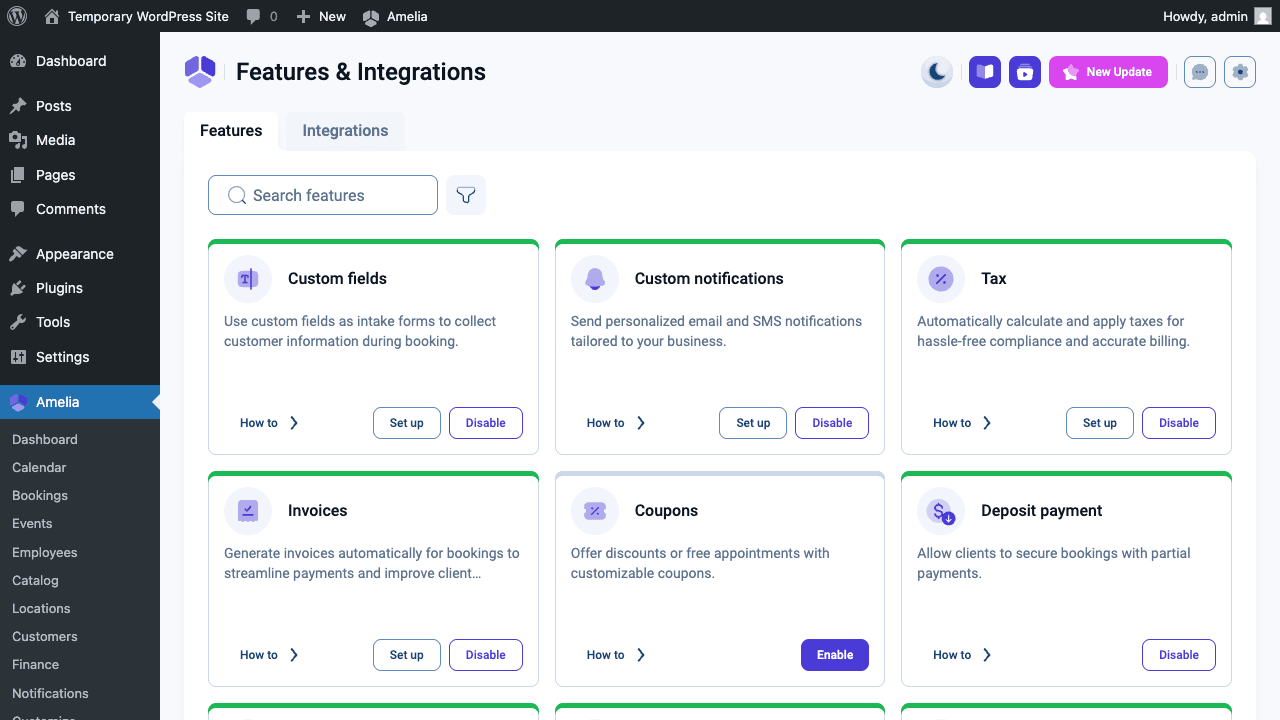
- Packages: bundles of multiple appointments sold as one purchase, redeemed individually over time
- Coupons: discount codes with expiry dates, usage limits, and service restrictions
- Custom booking form fields: extra questions (text, dropdown, file upload, date picker) added to any service or event form
- Multiple business locations: each with its own Google Maps address and its own set of staff
- Six payment gateways: Stripe, PayPal, Mollie, Razorpay, Square, and Barion, plus a WooCommerce bridge and manual on-site payment
- Three calendar integrations: two-way Google Calendar, Apple Calendar (iCloud), and Outlook
- Zoom and Google Meet: automatic meeting creation at booking time
- Email, SMS, and WhatsApp notifications: templated per event type (confirmed, cancelled, rescheduled, reminder)
- Customer and employee front-end cabinets: self-service portals where customers manage their bookings and staff manage their own availability
Amelia runs as a Vue.js single-page application on both the admin side and the customer-facing booking form. It manages its own set of 24-plus custom database tables rather than using WordPress’s post types, which means booking data is stored and queried independently from your content.
Key features
- Appointment booking. Services, employees, and locations combine to produce available time slots. You control duration, buffer time before and after each slot (for setup/cleanup), preparation time, and per-service capacity (minimum and maximum customers per slot).
- Events. Group sessions with configurable schedules, recurring options, ticket tiers, and per-event capacity. Events support a waiting list that promotes customers automatically.
- Packages. Sell a bundle of sessions as a single purchase. A "5 massage sessions" or "10 yoga classes" package is purchased once and the credit is redeemed appointment by appointment. Package credits have configurable expiry periods.
- Staff management. Each employee is linked to a WordPress user. You assign them services, locations, working hours by day, specific days off, and optional holiday schedules. Staff can also manage their own availability from the front-end employee cabinet.
- Locations. Full multi-location support with addresses for display and optional Google Maps embeds. Different staff can be assigned to different locations.
- Payment gateways. Stripe (card and Apple/Google Pay), PayPal, Mollie, Razorpay, Square, Barion, WooCommerce as a payment bridge, and on-site/cash collection. Multiple gateways can be active simultaneously, customer-selectable at checkout.
- Partial deposits. Accept a fixed amount or percentage upfront at booking and collect the balance in person or via a follow-up payment link.
- Calendar integrations. Two-way Google Calendar sync keeps employee calendars in sync. Apple Calendar and Outlook work the same way. Booking a slot in Amelia blocks time in the staff member’s personal calendar; external calendar events automatically block availability in Amelia.
- Zoom and Google Meet. Connect a Zoom account and Amelia auto-creates a meeting for every virtual appointment, populating the join link in both the confirmation email and the staff calendar event.
- Email notifications. Templates per booking state: pending, approved, cancelled, rescheduled, upcoming reminder (configurable lead time), follow-up. Each template has its own recipient list (customer, employee, admin).
- SMS notifications. Via Amelia’s own SMS service (credits system) or an external Twilio account. Same per-state template system as email.
- WhatsApp notifications. Available for the same events as SMS. Customers who opt in get WhatsApp messages instead of SMS.
- Customer cabinet. Front-end portal showing upcoming and past bookings, with links to reschedule or cancel within your policy window.
- Employee cabinet. Front-end portal for staff to view their schedule, block personal days off, connect their personal calendar, and update their profile.
- Coupons. Discount codes with percentage or fixed discounts, minimum booking amount requirements, usage limits, date windows, and scoping to specific services, events, or packages.
- Custom fields. Add extra questions to the booking form: text input, textarea, select dropdown, checkbox, date picker, address, or file upload. Fields can be tied to specific services or globally visible.
- 10 Gutenberg blocks. Embed any part of Amelia on any page: step booking wizard, service catalog, search, events list, events calendar, catalog booking, customer cabinet, employee cabinet.
- REST API. complete REST routes covering every entity. The admin SPA uses these routes directly, so everything accessible in the UI is accessible via API.
- Reports and exports. CSV exports for appointments, events, and customer data, filterable by date, service, employee, and status.
- Invoice generation. Amelia can generate PDF invoices per payment.
- QR codes. Optional QR code per appointment for check-in workflows.
How it works for users
The customer booking experience is handled entirely by Amelia’s Vue.js frontend, embedded on a page via a Gutenberg block. The full flow takes around 45 seconds for a first-time customer.
The booking wizard
Step 1: Service selection. If you’re using the catalog view, the customer arrives at a styled grid of services showing name, price, duration, and a short description. Clicking a service card begins the booking flow for that service. With the step wizard, service selection is the first step, followed by category filtering if you have many services grouped.
Step 2: Staff and location. If your business has multiple employees or locations, the customer selects a preference here. You can skip this step entirely if you want Amelia to auto-assign to the next available employee, which simplifies the form and avoids customers gaming availability to always book the same person.
Step 3: Date and time. Amelia renders a monthly calendar. Dates without available slots are visually grayed out. Clicking an available date reveals a grid of time slots for that day. If you’ve enabled timezone detection, the slots appear in the customer’s local timezone with the offset shown. Blocked-out time from Google Calendar or Outlook appears as unavailable without explaining why.
Step 4: Details and payment. First name, last name, email, phone. Then any custom fields you’ve configured for this service. If payment is required, the payment form appears. For Stripe, the card element renders inline (no redirect). PayPal briefly redirects to PayPal and returns. After payment, the confirmation screen shows the booking summary and the confirmation email fires simultaneously.
Step 5: Confirmation and calendar. The confirmation email includes an .ics calendar file attachment so the customer can add the appointment to their own calendar with one click. If Zoom is connected, the email includes the join URL.
Admin-side view
Admins and managers see all bookings in three views: a calendar view (day, week, or month), a list view for filtering and bulk actions, and the appointments table.
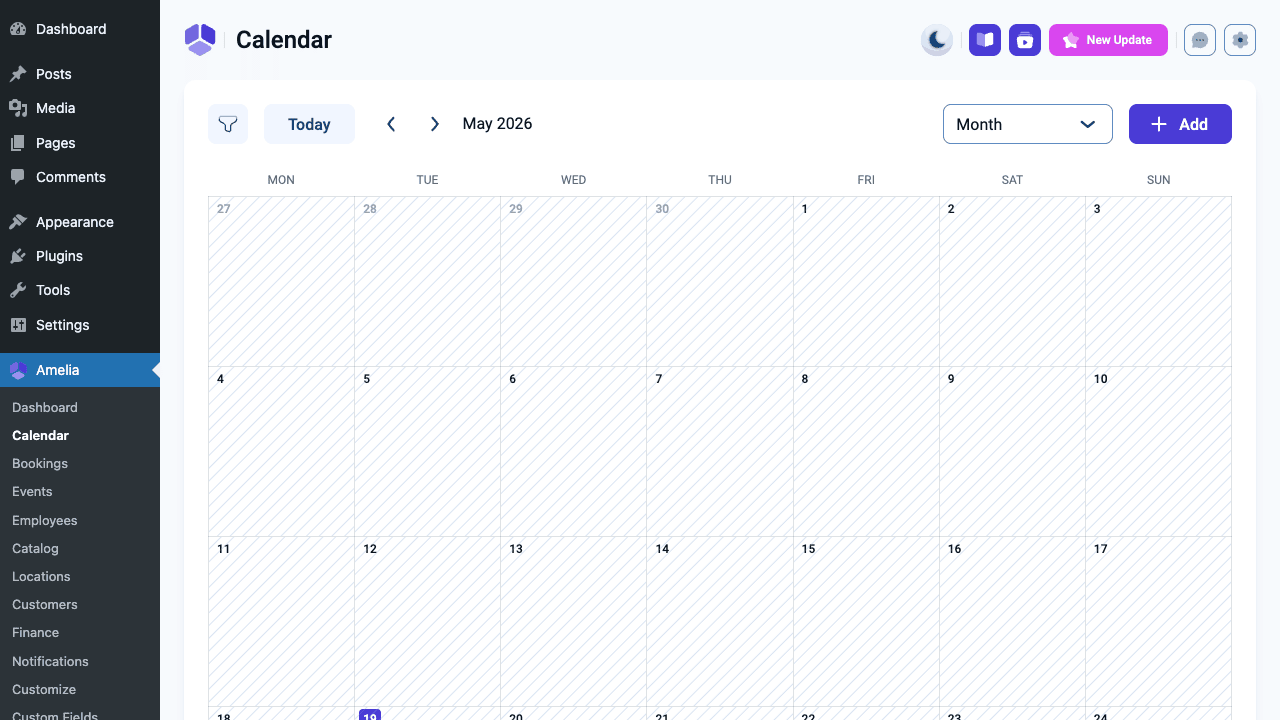
From any view you can:
- Approve or reject pending bookings
- Reschedule by dragging in the calendar view or editing the time in the form
- Add notes (internal, not visible to the customer)
- Mark payment as collected manually
- Cancel with optional refund trigger
Cancellation from the admin side triggers the cancellation notification templates immediately. Rescheduling triggers the rescheduled templates.
The customer cabinet
Once a customer has booked, they can access the customer cabinet at any URL where you’ve placed the amelia/customer-cabinet block. They log in with their email and the password Amelia sent (or one they set). The cabinet shows upcoming appointments with reschedule and cancel buttons, past appointments, and their profile data. The reschedule button opens the same booking calendar so they pick a new slot themselves, with no admin needed.
This self-service capability is the single biggest time-saver for busy service businesses. Every cancellation or reschedule that goes through the cabinet is one less phone call.
Installation and setup
Amelia installs like any other plugin (upload via Plugins > Add New, or SFTP to wp-content/plugins/). On first activation it creates its database tables and seeds the default notification templates.
General settings
Go to Amelia > Settings > General. Key settings here:
- Company details. Name, phone, and address, used in notification templates.
- Appointment status. "Approved" means all bookings are immediately confirmed. "Pending" means every booking waits for admin approval before the customer gets a confirmed notification. Pending is useful for high-value services where you need to vet the customer first.
- Default country and currency. Currency affects how prices display and what the payment gateways expect.
- Time slot step. The granularity of the booking grid: 15 minutes shows 9:00, 9:15, 9:30; 30 minutes shows 9:00, 9:30. Match this to your shortest service duration.
- Minimum advance booking time. Prevents last-minute bookings you can’t prepare for. Set to "2 hours" and no one can book the 3:00 PM slot at 1:30 PM.
- Maximum advance booking period. Prevents bookings too far into the future. A 6-month window is common for most service businesses.
- Cancel/reschedule policy. Define how many hours before the appointment a customer can still cancel or reschedule through the cabinet.
Services and categories
Go to Amelia > Services. Create categories first to group related services (Hair, Skin, Nails; or Consultation, Procedure, Follow-up).
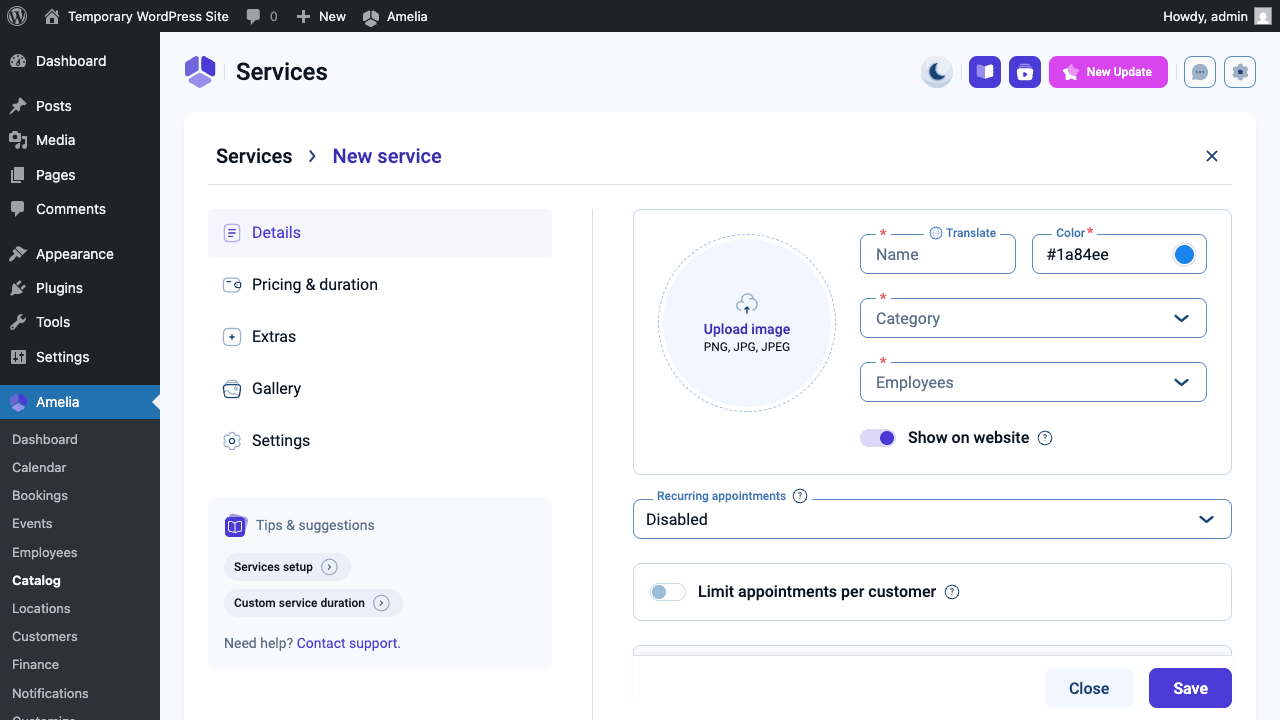
For each service:
- Duration. Hours and minutes. This is the actual session length.
- Buffer time. Before and after. Time Amelia blocks that gap without showing it as bookable. Use it for setup, cleanup, or travel between appointments.
- Capacity. Minimum and maximum customers per slot. A personal training session is 1/1. A small group fitness class might be 3/8 (at least 3, at most 8).
- Price. The base price. Individual employees can have a price modifier if they charge more than the base rate.
- Extras. Optional add-ons shown during booking (e.g., "Extended session +30 min, +$25"). Each extra has its own duration and price, which Amelia adds to the total and blocks into the calendar.
- Gallery. Service photos shown in catalog view.
- Description. Short text shown in catalog and on the booking form.
Employees
Go to Amelia > Employees. Link each employee to a WordPress user account.
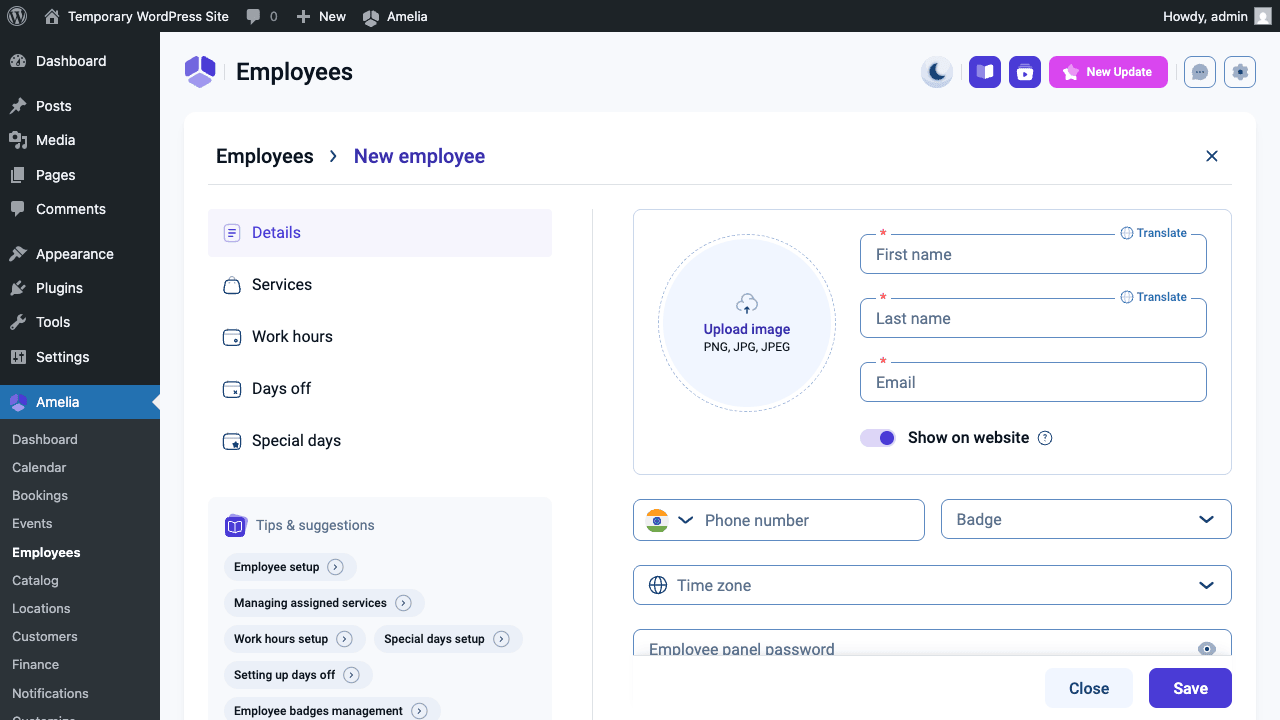 For each employee you configure:
- Services assigned. Which services this employee can perform. They only appear as available for those services.
- Locations. Which locations this employee works at.
- Working hours. By day of week. Each day can have multiple working periods (morning and afternoon, for example). Amelia only offers slots during these windows.
- Days off. One-time or recurring date-specific blocks. Useful for vacation and public holidays.
- Special days. Override the regular working hours on specific dates (working different hours on a conference day, for instance).
- Service pricing modifier. If this employee charges more or less than the service’s base price, set it here.
Locations
Go to Amelia > Locations. Add addresses with optional photos. These appear on the booking form when the customer selects a location. For virtual businesses or Zoom-based services, the location name is purely descriptive; the actual meeting link comes from the Zoom integration.
Payment configuration
Go to Amelia > Settings > Payments. The settings panel also covers currency display, price separators, and decimal places.
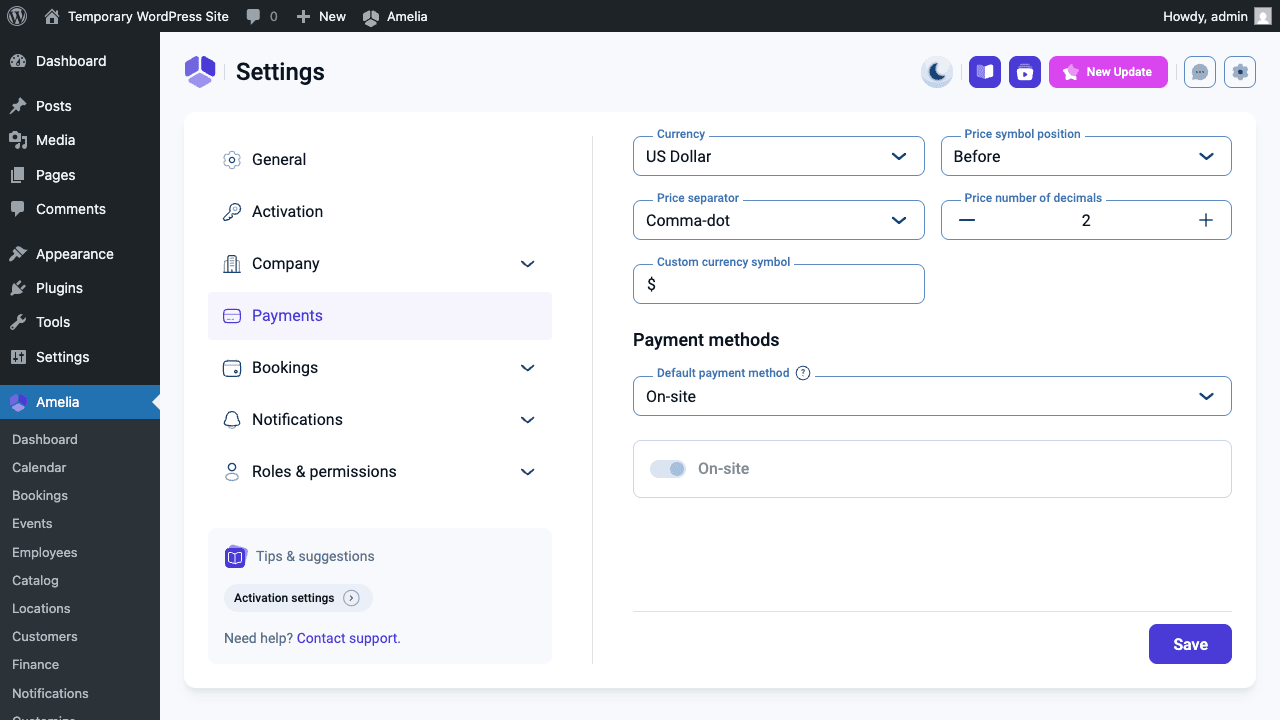 Toggle on any gateway you want to accept. For Stripe, paste your publishable and secret keys from the Stripe dashboard. For PayPal, you’ll need a PayPal app Client ID and Secret (created in the PayPal developer console). For WooCommerce, just toggle it on and any active WooCommerce payment method becomes available.
You can enable multiple gateways simultaneously. The customer sees a payment method selector at checkout. Useful if you want to accept both Stripe card payments and PayPal.
Notifications
Go to Amelia > Notifications. The template system covers every booking state, with toggle switches to enable or disable each.
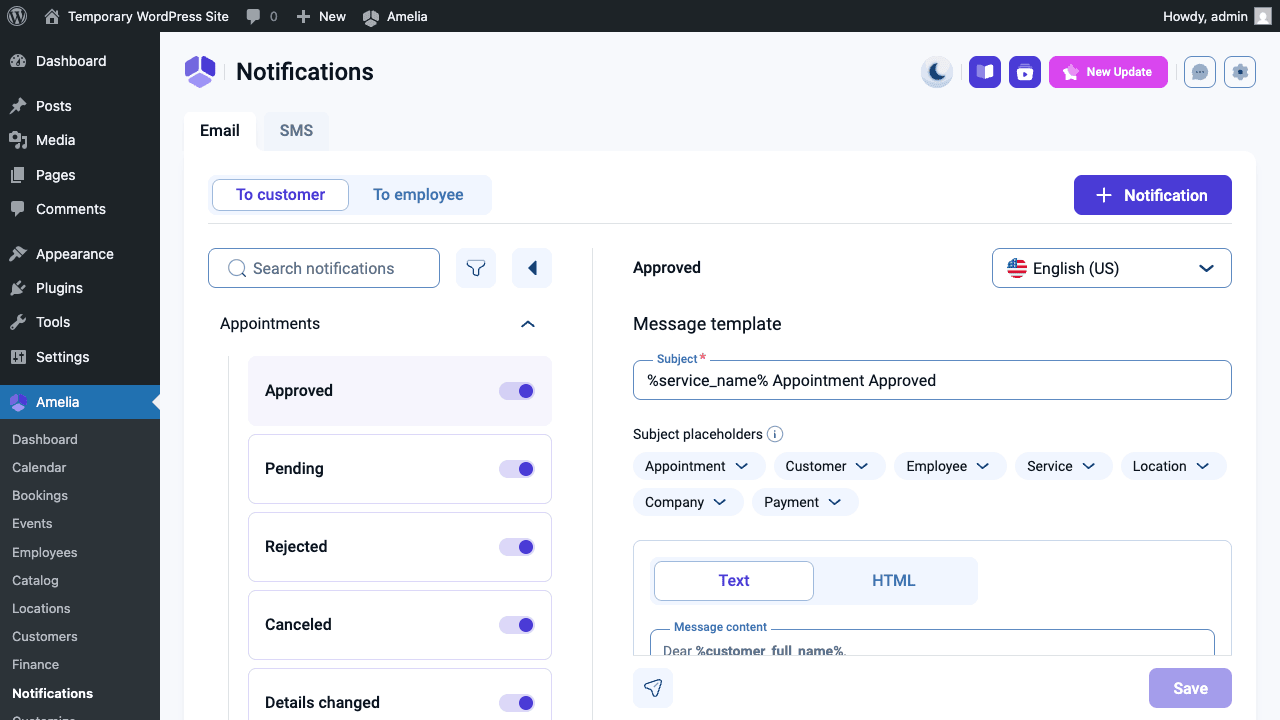 The default templates cover every booking state. Each template has:
- Subject line (email) or message prefix (SMS/WhatsApp)
- Body with dynamic placeholders:
%customer_full_name%,%service_name%,%appointment_start_date%,%appointment_start_time%,%employee_full_name%,%appointment_cancel_url%,%appointment_reschedule_url%, and many more - Recipients: customer, employee, and/or admin
- For reminders: how many hours/days before the appointment to send
The email template editor is basic HTML with a toolbar. If you want to match your brand exactly, switch to the raw HTML tab and paste your own markup. Placeholders work in HTML mode too.
Embed on a page
Create a new page, add the Amelia Step Booking block, configure it (pre-select a service or category, show/hide staff selection), and publish. Link to that page from your nav. That’s the customer-facing booking entry point.
For businesses with a large service catalog, the Amelia Catalog block works better as the landing page; customers browse services and choose, then the booking flow starts for whichever service they clicked.
Real-world use cases
Personal trainer or fitness studio. Create one service per session type: 30-minute intro session, 60-minute coaching, online session via Zoom. Use packages to sell a "10 sessions" bundle at a discounted per-session rate. Configure Zoom integration so remote clients get an automatic meeting link in their confirmation. Set up a reminder SMS 24 hours before each session. Use the employee cabinet so your trainers can block off their own personal days without calling you.
Hair salon or beauty clinic. Multiple staff, multiple services, each person with their own specialization. Let clients pick their preferred stylist or auto-assign. Use custom fields to ask "What’s your hair type?" before the appointment so the stylist arrives prepared. Add extras like "Conditioning treatment +$20" or "Root touch-up +$15" that clients self-select during booking. Sync each stylist’s Amelia schedule to their personal Google Calendar so they have one view of their day.
Medical or dental clinic. Set appointments to "Pending" so a receptionist reviews and confirms each booking. Use custom fields for health intake questions (allergies, current medications, reason for visit). File upload fields work for submitting photos or documents in advance. Connect each practitioner’s calendar to Outlook. Use the notification system to send appointment reminders reducing no-shows.
Photography studio. Services for headshots, family sessions, engagement shoots, and event coverage. Add extras: "Rush editing +$150", "Additional location +$50". Accept a 30% deposit at booking with the balance due at the session. Use the follow-up email template (fires 24 hours after the appointment) to send a link to your delivery platform or a satisfaction survey. Package multiple mini-sessions for a repeat-client discount.
Workshop or class host. Switch to Events for anything where multiple people book the same time slot. A ceramics workshop runs Saturday at 2 PM, capacity 12. Ticket tiers: Early Bird at $45 (available for the first two weeks), Standard at $60. Enable a waiting list. Create a recurring version for weekly sessions. Connect Zoom if it’s online; include the join link in the confirmation template. The Events Calendar block on your website shows upcoming workshops that customers can browse by date.
Escape room or activity venue. Services per room or activity, capacity set to the group size (e.g., minimum 2, maximum 8 for an escape room). Buffer time of 15 minutes after each session for reset. Accept full payment upfront. Use the QR code feature to generate a check-in code per booking that your front desk staff can scan. Locations for each room if you want separate room calendars.
Tutoring or coaching platform. One teacher might offer different services: SAT Prep, College Essay Coaching, Math Fundamentals. Use packages for course bundles. Custom fields ask the student’s grade level and area of focus. Run multiple tutors as employees, each assigned to the subjects they teach. The student books once, and if they buy a 10-session package, they reschedule individual sessions themselves through the customer cabinet without contacting you each time.
Developer reference
Amelia’s codebase uses the AmeliaBooking namespace and a command-handler architecture inspired by CQRS. Business logic is in src/Application/Commands/, domain models in src/Domain/, and WordPress-specific infrastructure in src/Infrastructure/WP/. Hooks fire at the application command layer, giving you clean data objects rather than raw SQL rows.
Action hooks
The before/after pattern is consistent throughout. The before_ hook fires before the database write, useful for side effects you want to run only if the operation will succeed. The after_ hook fires after the write completes, with the final saved data.
Appointment lifecycle:
// Fires before an appointment is written. $appointmentData is the raw payload,
// $serviceArray is the full service object, $paymentData contains payment intent info.
add_action('amelia_before_appointment_added', function($appointmentData, $serviceArray, $paymentData) {
 // Example: validate customer against an external CRM blocklist
 if (my_crm_is_blocked($appointmentData['bookings'][0]['customer']['email'])) {
 wp_die('Bookings from this account are not accepted.');
 }
}, 10, 3);

// Fires after the appointment is saved. $appointmentArray is the complete saved record.
add_action('amelia_after_appointment_added', function($appointmentArray, $serviceArray, $paymentData) {
 // Push to an external CRM or webhook
 wp_remote_post('https://example.com/webhooks/booking-created', [
 'body' => json_encode($appointmentArray),
 'headers' => ['Content-Type' => 'application/json'],
 'timeout' => 5,
 'blocking' => false,
 ]);
}, 10, 3);
Status changes:
add_action('amelia_after_appointment_status_updated', function($appointmentArray, $status) {
 // Notify a Slack channel when admin manually approves a booking
 if ($status === 'approved') {
 $customer = $appointmentArray['bookings'][0]['customer'];
 my_slack_post('#new-bookings', sprintf(
 'Approved: %s %s for %s at %s',
 $customer['firstName'],
 $customer['lastName'],
 $appointmentArray['service']['name'],
 $appointmentArray['bookingStart']
 ));
 }
}, 10, 2);
Rescheduling and cancellation:
add_action('amelia_after_booking_rescheduled', function($oldAppointment, $newAppointment, $newStart) {
 // Log the reschedule in a custom audit table
 global $wpdb;
 $wpdb->insert($wpdb->prefix. 'my_booking_audit', [
 'appointment_id' => $oldAppointment['id'],
 'action' => 'rescheduled',
 'old_start' => $oldAppointment['bookingStart'],
 'new_start' => $newStart,
 'timestamp' => current_time('mysql'),
 ]);
}, 10, 3);

add_action('amelia_after_booking_canceled', function($bookingArray) {
 // Free a package credit when a booking is cancelled
 my_package_credit_refund($bookingArray['customerId'], $bookingArray['packageId']?? null);
});
Payment hooks:
add_action('amelia_after_payment_added', function($paymentArray) {
 // $paymentArray has keys: id, amount, currency, gateway, status, dateTime, customerId
 if ($paymentArray['amount'] > 500) {
 // Flag high-value payments for review
 my_flag_for_review($paymentArray['id'], 'High value booking');
 }
});

add_action('amelia_after_payment_refunded', function($paymentArray, $amount) {
 // Sync the refund to your accounting plugin
 my_accounting_refund($paymentArray['id'], $amount, $paymentArray['currency']);
}, 10, 2);
Event hooks:
// Fires when a new event is created in the Amelia admin panel.
add_action('amelia_after_event_added', function($eventArray) {
 // Announce new events to your newsletter list
 if ($eventArray['show'] === true) {
 my_newsletter_broadcast([
 'subject' => 'New event: '. $eventArray['name'],
 'date' => $eventArray['periods'][0]['periodStart'],
 'url' => get_permalink(get_option('amelia_events_page_id')),
 ]);
 }
});
Custom field hooks:
// Fires after a custom field is created (e.g., a new booking form question).
add_action('amelia_after_cf_added', function($customFieldArray) {
 // Sync the new field to an external form builder or CRM schema
 my_crm_add_field($customFieldArray['label'], $customFieldArray['type']);
});
Filter hooks
Filters modify data in transit: before writes or before data is returned to the frontend.
Modify time slot availability:
// Intercept the slot calculation props before Amelia queries availability.
add_filter('amelia_before_get_timeslots_filter', function($props) {
 // Example: block all Friday afternoon slots for staff ID 3 in July
 $date = new DateTime($props['startDateTime']);
 if ($date->format('N') === '5' && $date->format('m') === '07') {
 if (in_array(3, $props['providerIds']?? [])) {
 // Remove the problematic provider from the query
 $props['providerIds'] = array_diff($props['providerIds'], [3]);
 }
 }
 return $props;
});

// Modify the returned time slot array before it reaches the booking form.
add_filter('amelia_get_timeslots_filter', function($resultData, $props) {
 // Remove slots during a company-wide blackout period
 $blackout_start = strtotime('2026-12-24');
 $blackout_end = strtotime('2026-12-27');

 foreach ($resultData as $date => $slots) {
 $ts = strtotime($date);
 if ($ts >= $blackout_start && $ts <= $blackout_end) {
 unset($resultData[$date]);
 }
 }
 return $resultData;
}, 10, 2);
Modify data before notifications fire:
// $resultData contains the booking result just before notifications, calendar sync, etc.
add_filter('amelia_before_post_booking_actions_filter', function($resultData) {
 // Inject a loyalty points calculation into the result
 // (you can use a custom placeholder in your notification templates via Amelia's template system)
 $customerId = $resultData['appointment']['bookings'][0]['customerId']?? null;
 if ($customerId) {
 $resultData['loyaltyPoints'] = my_loyalty_calculate($customerId);
 }
 return $resultData;
});
Override settings dynamically:
// Serve different settings per logged-in user without touching the Amelia UI.
add_filter('amelia_get_settings_filter', function($settings) {
 if (is_user_logged_in()) {
 $user = wp_get_current_user();
 // Corporate users see a different company address
 if (in_array('corporate_client', $user->roles)) {
 $settings['company']['address'] = get_option('my_corporate_address');
 }
 }
 return $settings;
});
Gutenberg blocks
Amelia registers ten Gutenberg blocks. Every block accepts props to pre-filter what the customer sees.
| Block name | Purpose |
|---|---|
amelia/step-booking |
Multi-step booking wizard, most common embed |
amelia/catalog-booking |
Browse services catalog first, then book |
amelia/catalog |
Read-only service catalog (no booking form) |
amelia/search |
Search bar with service/employee/location/date filters |
amelia/events |
Read-only events list |
amelia/events-list-booking |
Events list with inline booking |
amelia/events-calendar-booking |
Monthly calendar showing event dates with booking |
amelia/customer-cabinet |
Customer self-service portal |
amelia/employee-cabinet |
Staff scheduling portal |
amelia/step-booking-button |
A button that opens the booking form in a lightbox |
Each block has block settings for scoping: pre-selecting a service ID, a category, an employee, or a location. This means you can embed a service-specific booking widget right on a service landing page without showing the full catalog.
Elementor Pro users get Amelia’s Elementor widget equivalents: the same functionality in a drag-and-drop widget format, configurable from the Elementor panel.
REST API endpoints
Amelia’s REST routes sit under /wp-json/amelia/v1/. The namespace is separate from the standard WP REST API. Routes are organized by entity:
GET /wp-json/amelia/v1/bookings # list appointments
POST /wp-json/amelia/v1/bookings # create appointment
GET /wp-json/amelia/v1/bookings/{id} # single appointment
PUT /wp-json/amelia/v1/bookings/{id} # update appointment
GET /wp-json/amelia/v1/events # list events
POST /wp-json/amelia/v1/events # create event
GET /wp-json/amelia/v1/payments # list payments
GET /wp-json/amelia/v1/users/customers # list customers
GET /wp-json/amelia/v1/entities/services # all services for frontend init
GET /wp-json/amelia/v1/settings # read settings
POST /wp-json/amelia/v1/settings # update settings
GET /wp-json/amelia/v1/timeslots # available slots query
Authentication uses standard WordPress cookies (nonce for browser-based requests) or Application Passwords for external API consumers. The Amelia admin SPA uses all these routes directly, so every action you take in the UI is an API call you can replicate externally.
A simple appointment creation via the API:
$response = wp_remote_post(rest_url('amelia/v1/bookings'), [
 'headers' => [
 'Content-Type' => 'application/json',
 'X-WP-Nonce' => wp_create_nonce('wp_rest'),
 ],
 'body' => json_encode([
 'type' => 'appointment',
 'serviceId' => 5,
 'providerId' => 2,
 'locationId' => 1,
 'bookingStart'=> '2026-06-15 10:00:00',
 'bookings' => [[
 'customer' => [
 'firstName' => 'Jane',
 'lastName' => 'Doe',
 'email' => 'jane@example.com',
 'phone' => '+15550001234',
 ],
 ]],
 ]),
]);
Custom database tables
Amelia manages its own schema of 24-plus tables, all prefixed with wp_amelia_. This is worth knowing because direct queries against these tables are reliable and fast for reporting use cases.
| Table | What’s in it |
|---|---|
wp_amelia_appointments |
Core appointment records: service ID, employee ID, location ID, start/end, status, buffer times |
wp_amelia_customer_bookings |
Per-customer record for each appointment (one appointment can have multiple customers if capacity > 1) |
wp_amelia_events |
Event definitions |
wp_amelia_events_periods |
Recurring schedule entries for each event |
wp_amelia_events_tickets |
Ticket tiers per event |
wp_amelia_packages |
Package definitions |
wp_amelia_packages_customers |
Which customers have active packages |
wp_amelia_packages_customers_services |
Credit usage: which appointments have consumed credits from which package |
wp_amelia_payments |
Payment transactions with gateway, amount, currency, and status |
wp_amelia_coupons |
Coupon codes with rules and usage tracking |
wp_amelia_custom_fields |
Custom booking form field definitions |
wp_amelia_notifications |
Notification template records |
wp_amelia_locations |
Location definitions |
For a quick report of all appointments this month with customer and service names:
SELECT
 DATE(a.bookingStart) AS date,
 TIME(a.bookingStart) AS time,
 s.name AS service,
 CONCAT(u.firstName, ' ', u.lastName) AS employee,
 CONCAT(c.firstName, ' ', c.lastName) AS customer,
 p.amount,
 p.gateway
FROM wp_amelia_appointments a
JOIN wp_amelia_customer_bookings cb ON cb.appointmentId = a.id
JOIN wp_amelia_users c ON c.id = cb.customerId
JOIN wp_amelia_services s ON s.id = a.serviceId
JOIN wp_amelia_users u ON u.id = a.providerId
LEFT JOIN wp_amelia_payments p ON p.customerBookingId = cb.id
WHERE a.bookingStart >= CURDATE() - INTERVAL 30 DAY
ORDER BY a.bookingStart;
The wp_amelia_users table stores both customers and employees separately from WordPress users, keyed by type.
Working with other plugins
WooCommerce. Set Amelia’s payment gateway to WooCommerce and every booking creates a WooCommerce order. This lets you use WooCommerce’s payment gateway ecosystem (including regional gateways, buy-now-pay-later options, and Apple/Google Pay via Stripe for WooCommerce). Bookings appear in WooCommerce order reports. This is a good choice if you’re already heavily invested in WooCommerce and want booking revenue in the same reporting view. Note that Amelia and WooCommerce Bookings are independent plugins solving similar problems; running both on the same site is possible but creates a confusing admin experience. Pick one.
FluentCRM. No official integration is built in, but the amelia_after_appointment_added action makes it straightforward to create or update FluentCRM Pro contacts when a booking comes in. From there, FluentCRM’s automation sequences can send a post-session follow-up, a rebooking reminder three weeks later, or a loyalty offer after five appointments.
Gravity Forms. Amelia has its own custom fields system, so you don’t need Gravity Forms just to add questions to the booking form. But if your business already has complex intake forms in Gravity Forms (medical history, liability waivers, detailed project briefs), you can run both: Amelia handles scheduling, Gravity Forms handles detailed intake after the booking is confirmed, and you link them via the booking ID passed as a hidden field in the Gravity Forms confirmation redirect URL.
Elementor Pro. Amelia registers Elementor widgets for each of its front-end components. If your site is built with Elementor Pro, you can drag the booking form widget, catalog widget, or cabinet widget into any Elementor template just like a native Elementor widget. The widget settings mirror the Gutenberg block settings.
Performance, compatibility, and gotchas
JavaScript load time. Amelia’s booking form is a full Vue.js SPA. On a cold load, the JS bundle adds 300-600ms of parse and execute time. On a properly configured server (OPcache enabled, a performance plugin handling CSS/JS minification, a CDN for static assets) is not noticeable to users. On a slow shared host with no optimization, it can feel sluggish. Test on your actual server before measuring the impact.
WooCommerce Bookings vs. Amelia. The question comes up often. WooCommerce Bookings treats bookable services as WooCommerce products. This is ideal if booking is just one product type in a broader WooCommerce store. Amelia is a dedicated scheduling system with deeper staff management, its own calendar integrations, its own notification engine, and a purpose-built UX. If your entire business is service-based and you’re not primarily an e-commerce store, Amelia is the stronger choice.
No-show management. Amelia doesn’t have native no-show tracking as a status. "No-show" has to be handled by manually setting the appointment status to a custom state or tracking it externally. For businesses where no-shows are a real operational problem, the combination of SMS reminders and the cancellation policy window in the cabinet goes a long way, but there’s no built-in deposit-forfeiture flow.
No built-in SMS gateway. Amelia’s SMS notifications use its own credit-based service, or you can configure a Twilio account. The official Amelia documentation on SMS notifications covers the setup steps clearly. Either way, SMS costs are separate from the plugin license.
Database growth. Every booking creates rows in at least three tables. At 50 bookings a day, the database stays manageable indefinitely. At high volume (a platform serving many businesses), the events_periods and customer_bookings_to_events_periods tables grow rapidly if you have many recurring events. Archiving or deleting old event periods that are years in the past is worth adding to a WP-Cron maintenance routine.
Timezone edge cases. Amelia’s timezone handling is more careful than most booking plugins, but testing across timezones before launch is time well spent. Book a test appointment from a VPN set to a different timezone and verify that both the confirmation email and the Google Calendar event show the correct local times on both ends.
WP-Cron reliability. Reminder and follow-up notifications fire via WordPress’s WP-Cron. On shared hosting where WP-Cron isn’t triggered reliably (because there’s no real traffic to activate it), reminders can be late or missed. The WordPress developer documentation on WP-Cron explains how to replace the pseudo-cron with a real server cron job, which is worth doing before any booking-heavy deployment.
PHP and server requirements. PHP 7.4 minimum, PHP 8.x fully supported. The codebase uses typed properties and strict namespacing, so older PHP versions produce fatal errors at activation. MySQL 5.7 or MariaDB 10.2 minimum for the database schema.
Multisite. Amelia works on WordPress Multisite, but each sub-site runs a completely independent Amelia installation with its own tables and configuration. There’s no network-wide shared service catalog or cross-site staff management.
Email deliverability. Amelia sends notifications through wp_mail(). If your WordPress SMTP isn’t configured properly, confirmation emails land in spam or don’t arrive at all. Configure a transactional email service (Postmark, Mailgun, Amazon SES, Resend) via WP Mail SMTP or a similar plugin before you go live with booking.
Conflict diagnosis. The most common source of conflicts is other plugins loading Vue.js or React instances that interfere with Amelia’s global state. If the booking form loads as a blank white box, open the browser developer console. If you see JavaScript errors mentioning Vue or Cannot read properties of undefined, start by deactivating other plugins in a staging environment to isolate the conflict.
License key for updates. The official Amelia plugin checks for a license key to deliver automatic updates through the WordPress updater. the GPL-licensed version you install manually won’t receive auto-updates through WP-Admin, so you’ll update manually. That’s a tradeoff worth knowing upfront.
Pricing and licensing
Amelia Pro is commercial software. Official pricing at wpamelia.com starts around $79/year for a single site license and goes up to $399/year for unlimited sites. All Pro plans include every feature described in this article: events, packages, the full payment gateway library, all three calendar integrations, Zoom and Meet, SMS, WhatsApp, and priority support with access to update releases.
Set up a local WordPress instance or a staging environment, install the plugin, run through the full booking flow with a Stripe test key, and see exactly how it fits your workflow before committing.
FAQ
Does Amelia work without WooCommerce?
Yes. Amelia has its own payment processing through Stripe, PayPal, Mollie, Razorpay, Square, and Barion. WooCommerce is one of several available gateways, not a requirement.
Can customers book without creating an account?
Yes by default. Amelia creates a guest customer record from the name and email the customer provides. The same email address on future bookings links back to the same customer. The Customer Cabinet (the self-service portal) requires a password, which Amelia sends in the confirmation email and the customer activates on first cabinet login.
Can I take a deposit instead of full payment upfront?
Yes. Per-service, you can require a fixed dollar amount or a percentage of the total as a deposit at booking. The remaining balance shows in Amelia as outstanding, and you collect it in person or by sending a payment link.
Does Amelia work with page builders?
Yes. It ships Elementor widgets for all its front-end components. For WPBakery, Divi, or Beaver Builder, you can use a Custom HTML element with the legacy shortcode, or use the Gutenberg block on any page and export to your builder’s format.
Is there a waiting list for appointments?
For events, yes; the waiting list feature is built in and promotes customers automatically when a spot opens. For one-to-one appointments, native waitlisting isn’t included. You can approximate it by setting appointment status to "Pending" and using the amelia_after_appointment_added hook to send a custom "you’re on the waiting list" email while you manually review and approve.
Can employees see and manage their own bookings?
Yes. Each staff member gets access to the Employee Cabinet (a front-end portal) where they see their schedule, block personal days off, connect their personal calendar (Google, Apple, or Outlook), and update their contact info. They can’t see other employees’ data.
How many services and employees can I add?
There’s no enforced limit. Amelia is deployed at businesses with hundreds of services and dozens of employees. At scale, the main performance variable is the time slot query, which calculates availability across all active employees for a service. Enabling the Amelia performance cache (under Settings > Performance) reduces this to near-instant for high-traffic booking pages.
Can I export booking data?
Yes. The Reports section in the Amelia admin lets you export appointments, events, and customer records to CSV. You can filter by date range, service, employee, location, and booking status before exporting. For deeper reporting or integration with a BI tool, direct SQL queries against the wp_amelia_* tables are reliable and performant.
Final thoughts
Amelia Pro is one of the most complete appointment booking plugins available for WordPress. It covers the full stack that a real service business needs: staff scheduling with personal calendar sync, payment processing through multiple gateways, automated notifications across email and SMS and WhatsApp, customer self-service, a developer API with consistent before/after hooks, and front-end embedding through Gutenberg or Elementor.
The things worth weighing: it’s heavier than a simple form-based solution, the Vue.js booking form adds meaningful load time on under-optimized servers, and businesses already deeply embedded in WooCommerce should decide whether they want Amelia as a parallel system or integrated through WooCommerce payments before committing to a setup.
For service businesses that want proper scheduling software and are tired of managing their calendar through email chains and Google Sheets, Amelia is the kind of tool that tends to pay for itself quickly. A single cancelled no-show reduced per week or a weekend’s worth of bookings handled without a receptionist covers the annual license cost inside a month.