

Most WordPress event plugins were designed in an earlier era. They handle a calendar, maybe a ticket, and call it a day. Eventin Pro is one of the newer ones, and it shows: the admin is a single-page Vue app, tickets can be free or paid or RSVP-only, Zoom and Google Meet are wired in for online events, and a phone-based QR scanner handles check-in at the door. If you’re running real-world meetups, paid conferences, online sessions, or a mix of all three on a WordPress site, this is the kind of plugin you want to know about.
I spent an afternoon poking through the code and the admin UI, and this article is the long version of what I found. There’s a beginner walkthrough up top (what each tab does, how to publish your first event), then a developer section with hooks, shortcodes, REST endpoints, and a few code snippets, then some honest notes on what to watch out for.
Table of Contents
- What is Eventin Pro?
- Key features
- How it works (for users)
- Installation and setup
- A tour through the admin tabs
- Online events: Zoom, Google Meet, Microsoft Teams
- Real-world use cases
- Developer reference
- Performance, compatibility, and gotchas
- How Eventin Pro compares to other WordPress event plugins
- Pricing and licensing
- Frequently asked questions
- Final thoughts
What is Eventin Pro?
Eventin Pro is a premium WordPress event-management plugin from Themewinter, the studio behind several long-running event themes and event-related plugins. It sits on top of a free base plugin called Eventin (also sometimes referred to by its WordPress.org slug, wp-event-solution), and adds the features most paid use-cases need: recurring events, direct Stripe and PayPal checkout, online event integrations with Zoom and Google Meet, an RSVP module, a multi-vendor marketplace mode, BuddyBoss group binding, custom PDF certificates, role-based access control, and outbound webhooks for automation.
The product page lists it as a "Simple and Easy to use Event Management Solution." That’s underselling it. Once you open the admin and start clicking around, it’s clearly trying to be a full event-platform replacement, not just a calendar with a ticket button.
A few things that distinguish it from older WordPress event plugins:
- The admin is a Vue SPA. Tab switching is instant, no full-page reloads, no PHP form posts. Once you start using it you really feel the difference compared to plugins that still render
wp-list-tablepages. - The event create flow is a four-step wizard (Basic Info, Tickets, Schedule, Advanced) rather than a tall metabox-heavy edit screen.
- Payments don’t have to go through WooCommerce. Eventin Pro can take Stripe or PayPal directly. WooCommerce is still supported, and on real stores it’s usually still the easier choice because of tax, coupons, and accounting plugins, but the option to bypass it is useful for sites that don’t want a Woo install just to sell ten tickets.
- The mobile check-in app is a real native app, not a hand-rolled QR scanner inside an admin page. Door staff scan tickets on their phone, the server marks the attendee as checked in via the REST API.
If you’ve used Modern Events Calendar or The Events Calendar Pro you’ll recognise the category. Eventin Pro is the most modern entrant of the three, and it shows in the UI more than anywhere else.
Key features
Here are the headline features I’d care about as a buyer:
- Multi-step event editor. A four-step wizard (Basic Info, Tickets, Schedule, Advanced) covers everything from event banner to ticket variations to per-day schedule sessions, with sensible defaults.
- Free, paid, and donation-style tickets with variations. VIP, Standard, Early Bird, whatever you need. Each variation has its own stock count, sale start/end dates, and access rules. Global capacity caps total seats across all ticket types.
- In-person, online, and hybrid events. Pick a location for in-person, attach a Zoom/Google Meet/Microsoft Teams/Webex link for online, do both for a hybrid.
- Recurring events. Daily, weekly, monthly, or custom patterns. The recurring engine produces actual event instances (not just a calendar overlay), so each instance has its own attendees and tickets.
- Multi-day events with schedules. A schedule is its own object you build separately and attach to the event. Sessions per day, room/track, speaker assignment.
- Speakers and organizers as first-class entities. They’re not just custom fields. Each gets a profile page with bio, photo, social links, and is reusable across events.
- QR-code tickets with PDF download. Tickets are emailed as PDFs. The QR encodes attendee + event + ticket IDs.
- Mobile QR check-in. Door staff use the Eventin scanner app on a phone or tablet to scan tickets and mark attendance.
- Direct Stripe and PayPal checkout, plus WooCommerce. Pick the payment path that fits the rest of your site.
- RSVP module. Free events that need a yes/no headcount without a checkout flow.
- Multi-vendor event marketplace via Dokan. Other vendors on your site can create and sell their own events, you take a commission.
- Online-meeting integrations. Zoom (free) and Google Meet (Pro) are first-party. Microsoft Teams and Webex links can be attached manually per event.
- Custom PDF certificates. Design a certificate for attendees, the plugin emails the PDF after the event.
- AI event content generator. A small AI helper writes descriptions and marketing copy for new events.
- Role-based access control. Add custom roles, scope what each role can see and edit inside the Eventin admin.
- Outbound webhooks. Send
event_created,attendee_registered, and similar events to any webhook URL for Zapier/Make/n8n-style automation. - FluentCRM, MailPoet, and Mailchimp wiring. Push attendees into a CRM list automatically on registration.
- Elementor widgets and Gutenberg blocks. Drop event listings, schedules, speaker carousels, countdown timers, and ticket forms anywhere on a page.
- Vue admin SPA. Snappy, single-page, no full reloads.
That’s the marketing bullet list. The interesting stuff is in how some of it works under the hood, which we’ll get to.
How it works (for users)
If you’ve never touched Eventin Pro, here’s the mental model. The plugin gives you an admin menu item called "Eventin." Click it and you’re in a single-page Vue app with its own internal navigation. The left side of the admin still belongs to WordPress, the rest is the Eventin SPA.
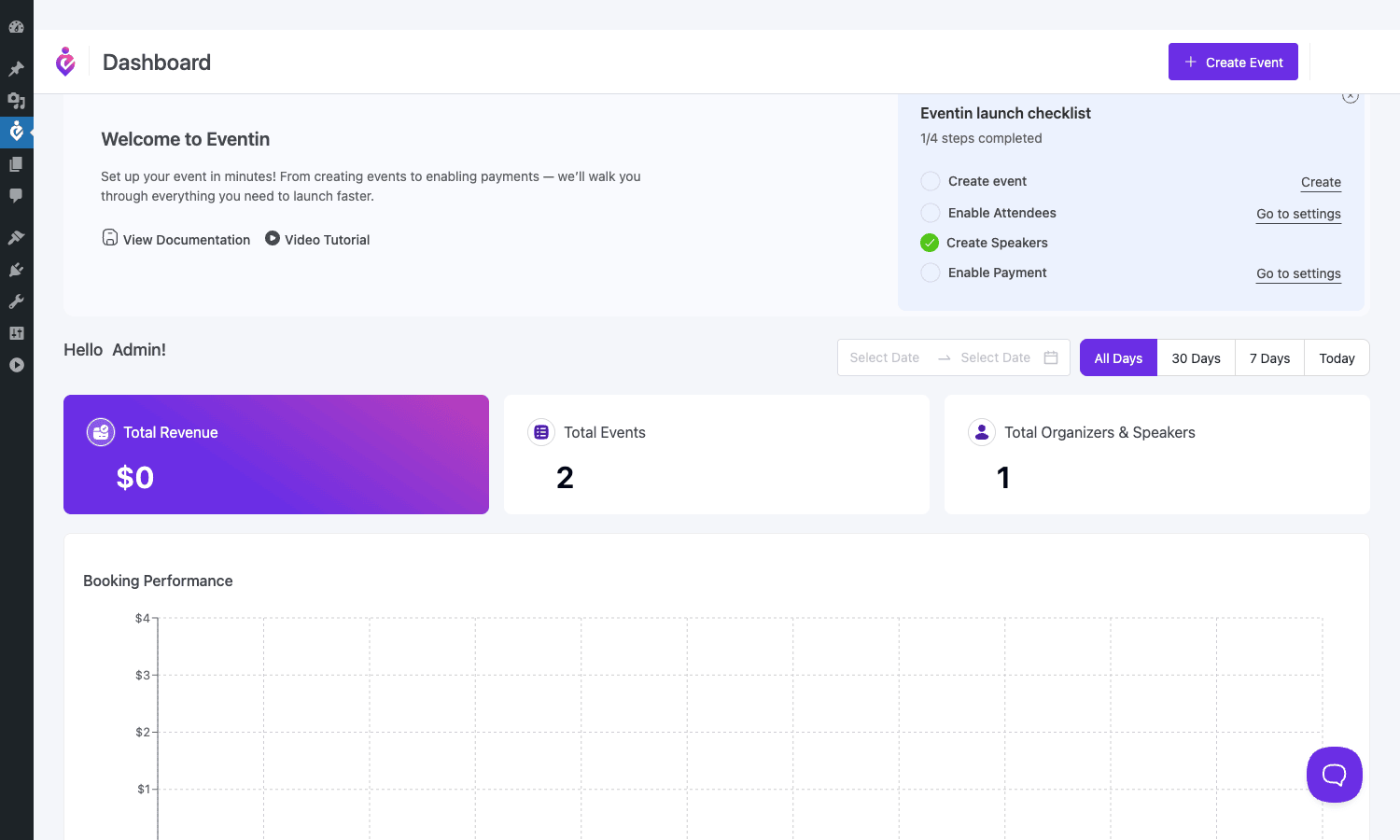
The dashboard greets you with a four-step launch checklist (Create event, Enable Attendees, Create Speakers, Enable Payment) and three top-level metric cards. From here every other section of the plugin is one click away in the left admin sub-menu: Events, Bookings, Speaker & Organizer, Schedules, Template Builder, Settings, Extensions, Shortcodes, License.
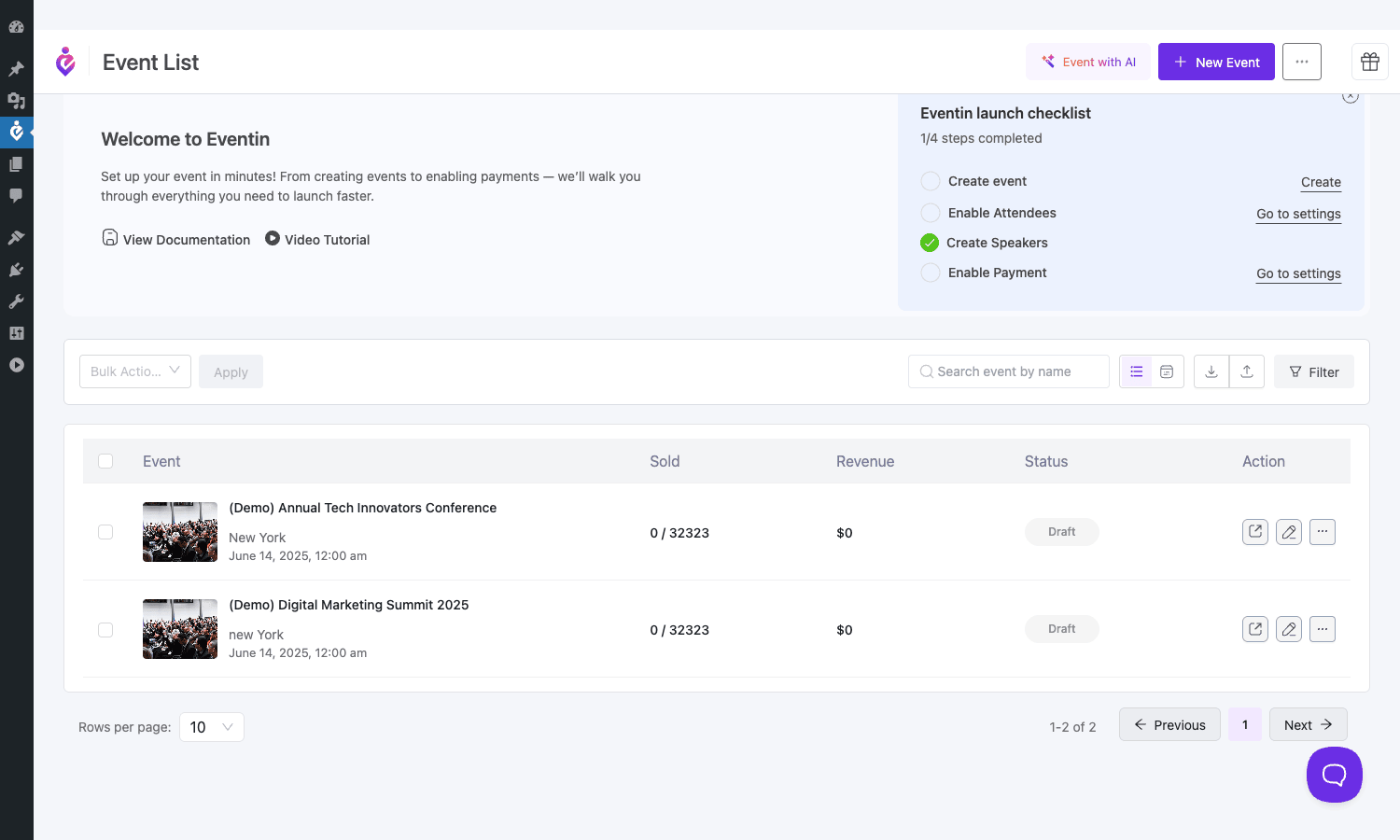
When you click Events you land on the event list. Each row shows the event banner, name, location, date, sold-vs-capacity count, revenue, status, and quick-action buttons.
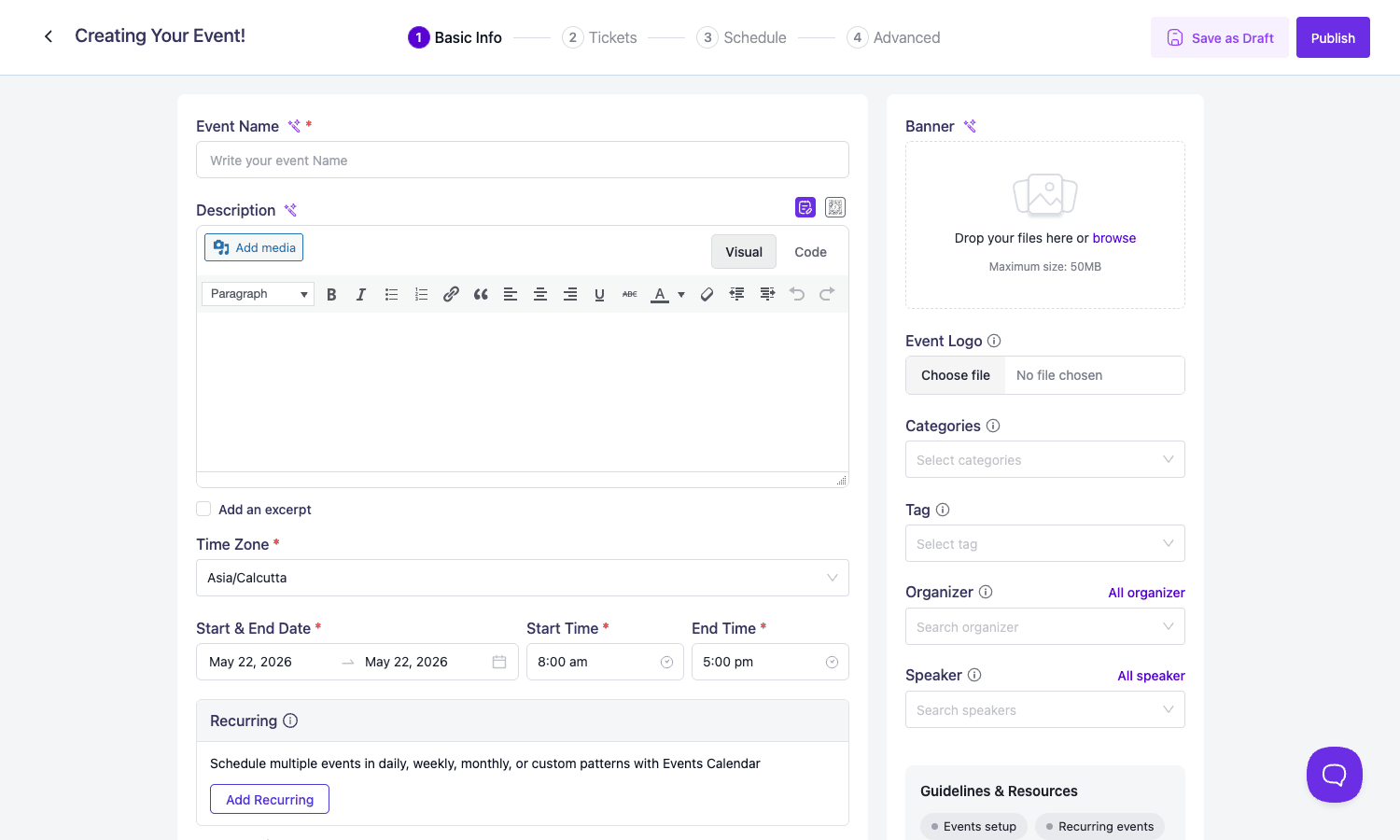
Click "New Event" and you’re inside the four-step wizard. The first step is Basic Info: name, description with a full rich-text editor, banner image, event logo, categories, tags, time zone, start/end dates, start/end times, organizer, speaker. Below that is a "Recurring" panel where you can attach a recurrence pattern if the event repeats. The right column has the file upload areas, and the sticky header at the top shows your progress through the wizard.
Step two is Tickets. This is where most of the variation happens. You can keep it simple with one free ticket, or add multiple variations (VIP, Standard, Early Bird, etc), or toggle Global Capacity on if you’d rather have a single stock pool shared across all ticket types. There’s also an optional visual seat map for ticketed events where seat selection matters.
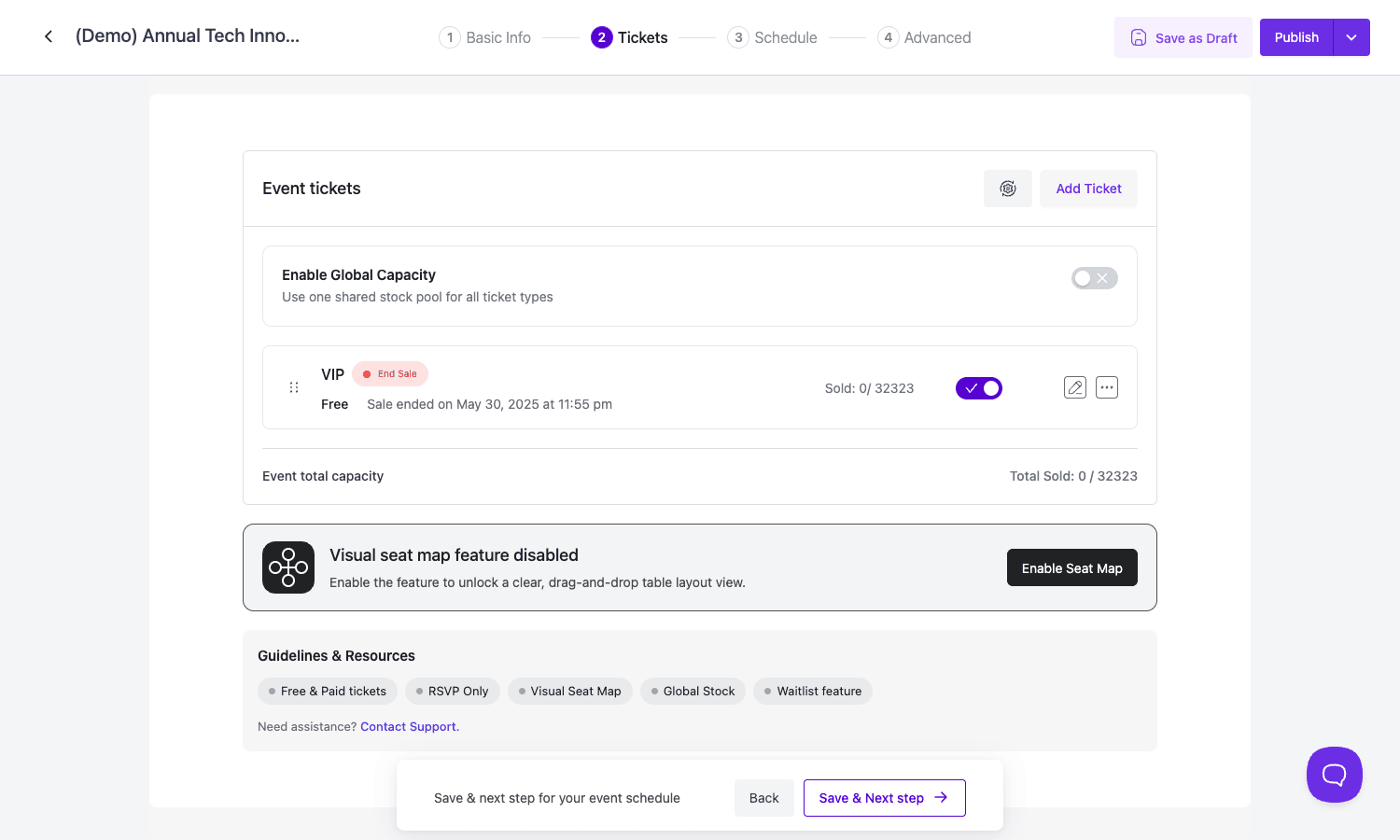
Step three is Schedule. If your event has multiple sessions across one or more days, you build a "schedule" (with its own list page in the admin) and attach it here. The schedule is a separate object you can reuse for recurring instances.
Step four is Advanced: SEO description, registration controls, attendee-form fields, certificate selection, email reminder schedule. Hit Publish and the event is live.
Once attendees register, they show up under the Attendees tab on the event detail page, each with a ticket ID, QR code, payment status, and check-in time slot. Bulk-export is available, bulk-import too on the Pro tier.
So the user-side mental model is small: dashboard, list of events, click into one and edit its wizard, set up tickets, watch attendees roll in. Everything else is configuration that lives in Settings.
Installation and setup
The first-time setup looks more involved than it actually is. Here’s the ordered path:
- Install the free Eventin plugin first. Eventin Pro is an add-on, not a standalone plugin. Go to
Plugins -> Add New, search "Eventin", install the one by Themewinter (slugwp-event-solution), activate it. - Install Eventin Pro. Upload the Pro zip via
Plugins -> Add New -> Upload Plugin, activate. - Activate the license. Open
Eventin -> Settings -> License(or the License tab in the admin sub-menu) and paste the key from your purchase. - Open
Eventin -> Settings. Three places matter on first launch:
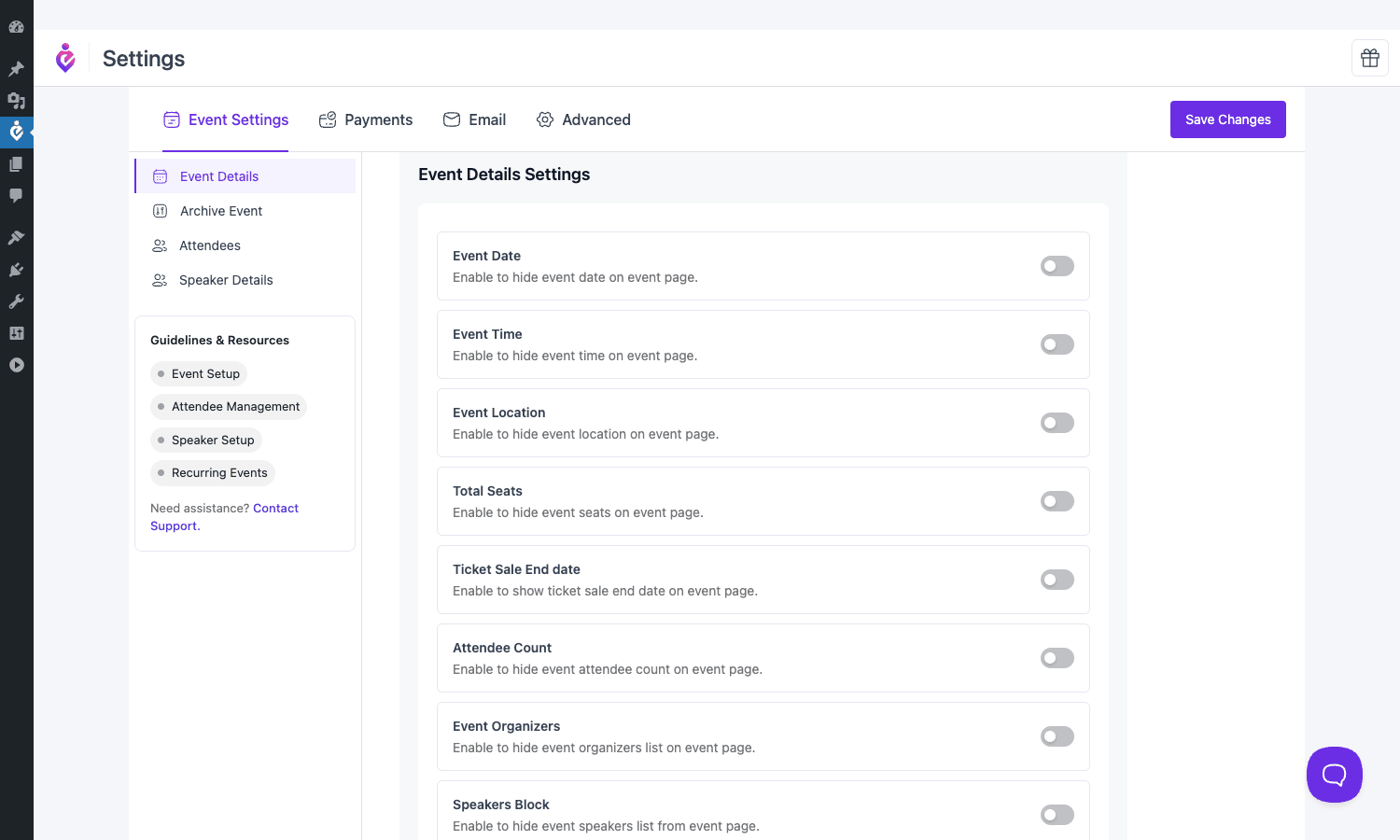
- Event Settings -> Event Details controls which fields appear on the public event page (Event Date, Time, Location, Total Seats, Ticket Sale End date, Attendee Count, Organizers, Speakers).
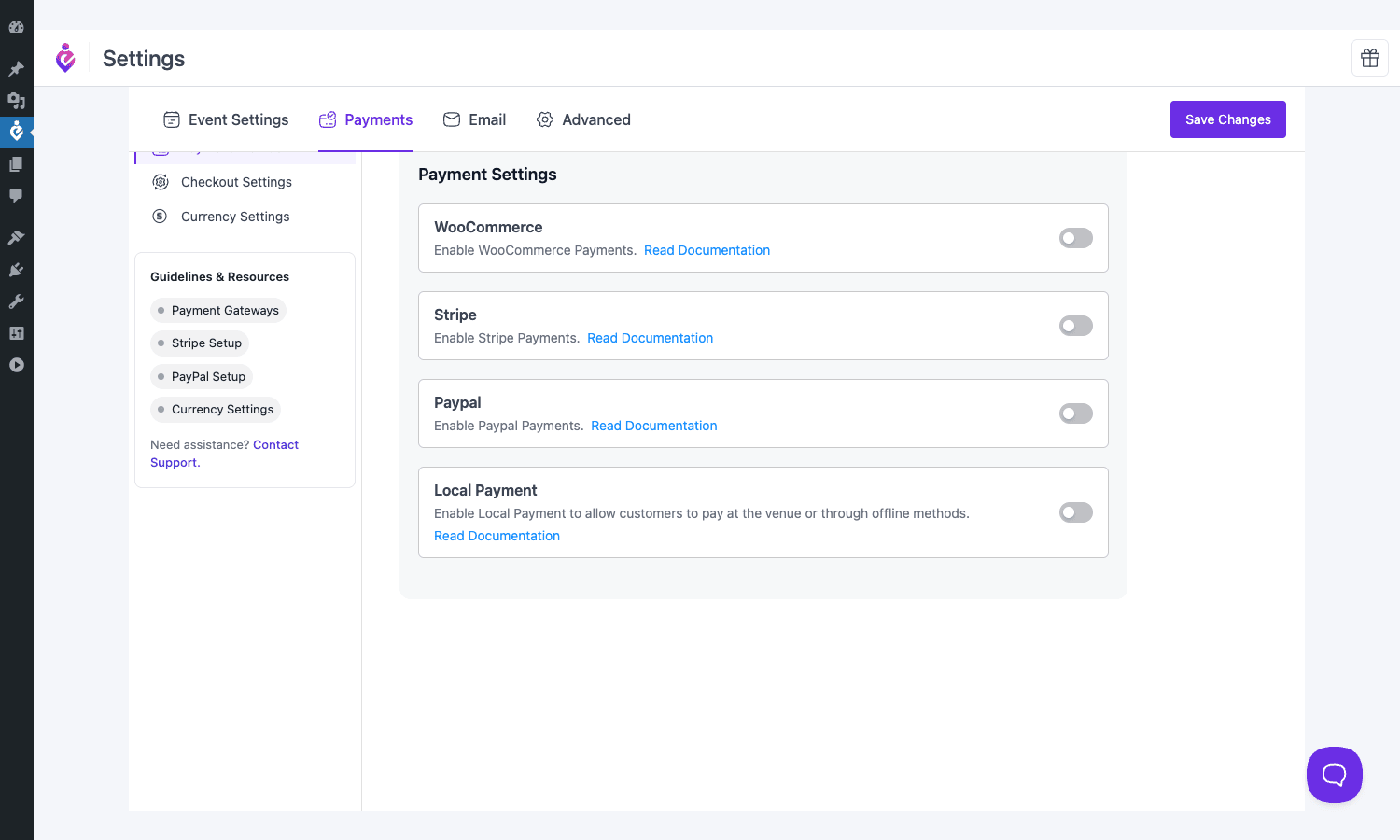
- Payments -> Payment Settings turns WooCommerce, Stripe, PayPal, or Local Payment on. Pick one (or several). If you go with direct Stripe, paste your publishable + secret keys on the Stripe Setup panel.
- Email controls the reply-to address and the templates for confirmation, reminder, and certificate emails.
The Payments tab is the one new users miss most often. By default no gateway is enabled, so the registration form will hit a dead end. Open it before publishing your first paid event.
- Configure your first event.
Eventin -> Events -> New Event. Step through the wizard, hit Publish. - Embed the event somewhere visible. Eventin auto-creates an event archive at
/events/(the slug is configurable in Settings -> Advanced -> Slug). You can also drop an event listing widget on your homepage with Elementor, Gutenberg, or one of the[etn_pro_*]shortcodes.
That’s it for the minimum viable setup. From there everything else (speakers, organizers, certificates, RSVP forms, recurring patterns) is optional.
A tour through the admin tabs
A quick guided tour of the parts of the admin that aren’t obvious from screenshots.
The dashboard
Sits at wp-admin/admin.php?page=eventin#/dashboard. Three top cards (Total Revenue, Total Events, Total Organizers & Speakers), a launch checklist, and a "Booking Performance" line chart that shows ticket sales by day. Useful as a status board. There’s also a per-event quick-jump dropdown on the right.
Events
The whole CRUD surface for events. The list supports search by name, filter by category/status, bulk actions (delete, archive), and CSV import/export. Each row has three quick actions: view public page, edit, more (duplicate, share, etc).
The wizard inside an event has the four steps already mentioned. A couple of things worth flagging:
- Time zone is per-event, not per-site. A site in Europe/London can host a New York event with America/New_York as the event zone, and confirmation emails will render times correctly for the attendee.
- The banner image and event logo are separate. The banner is the public hero image, the logo is the small mark that appears next to the event name in lists and emails.
- Categories and tags are real WordPress taxonomies, so you can use them for filtering on the public archive without any extra setup.
Bookings
The order list for paid events. Filter by event, ticket type, payment status, date range. Export to CSV. If you ran the event through WooCommerce, the bookings here mirror the Woo order list, so you don’t have to bounce between admins.
Speakers and Organizers
Two custom post types under one menu item. Each speaker has a photo, bio, social links, designation, company. Each organizer similar. You assign them to events from the Basic Info step.
Schedules
A schedule is a multi-session, multi-day plan for one event. You build it separately and attach it during the event wizard. Each schedule entry has a date, start/end time, room/track, topic, description, and one or more assigned speakers. The public schedule view supports both tabbed (per-day) and list layouts via the speaker-style shortcode or Elementor widget.
Template Builder
Lets you swap out the public event detail page, the speaker card, and the schedule layout for one of the bundled templates (Style 1, 2, 3) or a custom one. Useful if your theme doesn’t play nicely with the default markup.
Settings (Event, Payments, Email, Advanced)
We covered Event and Payments above. The Email tab is where you customise the confirmation, reminder, certificate, and cancellation emails. Each has its own subject and body with merge tags like {event_name}, {attendee_name}, {ticket_id}, {event_date}, {join_link} (online events).
Advanced exposes the slug (/events/ by default), webhook configuration, domain registration (the field is for license-side domain tracking, not site DNS), and Role & Access Control. There’s also a Primary Color and Secondary Color setting that drives the brand colours on the public event page without you having to touch CSS.
Extensions
Toggles for the bundled modules: Dokan multi-vendor, BuddyBoss integration, Certificate Builder, RSVP Module, Seat Map, Automation. Each is off by default. Turn on what you need.
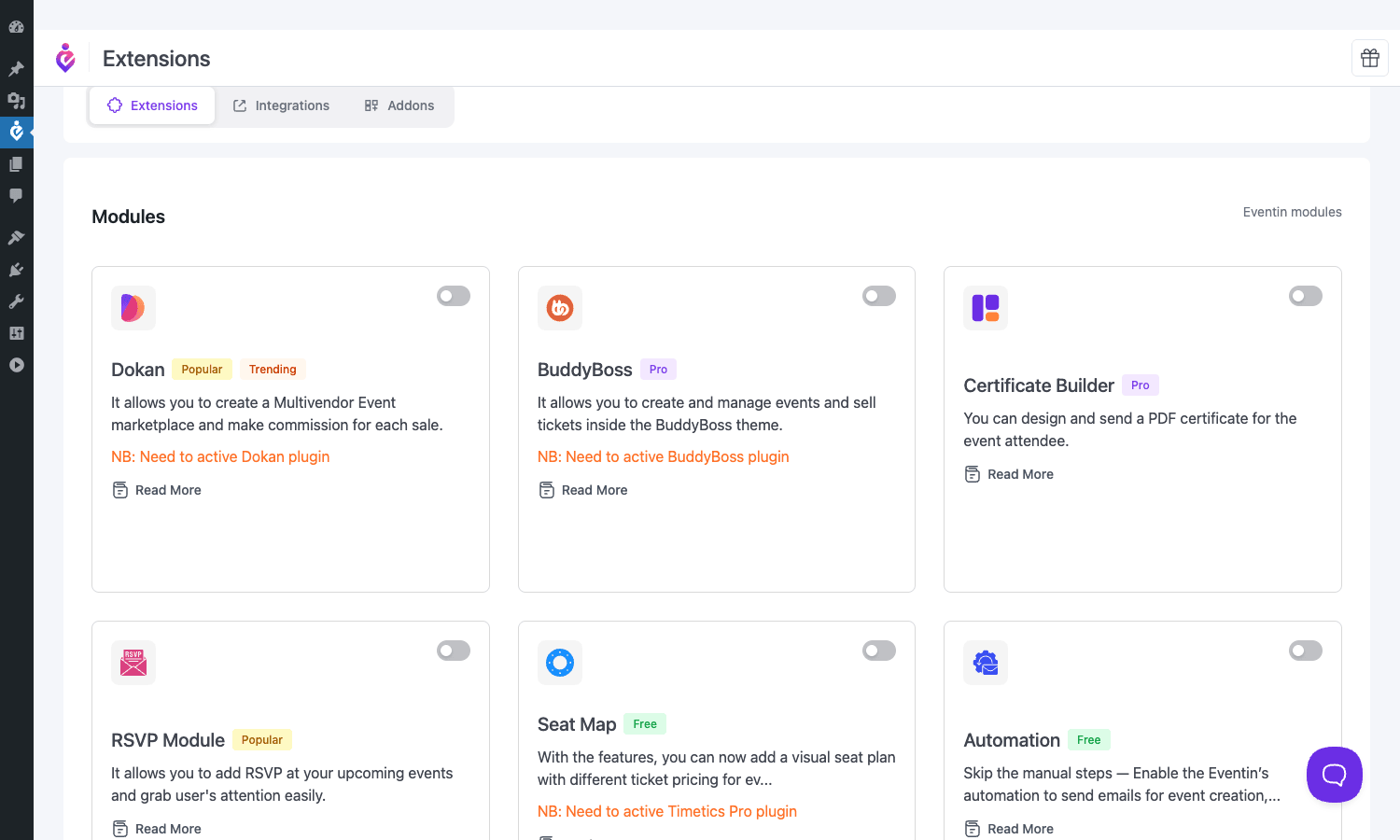
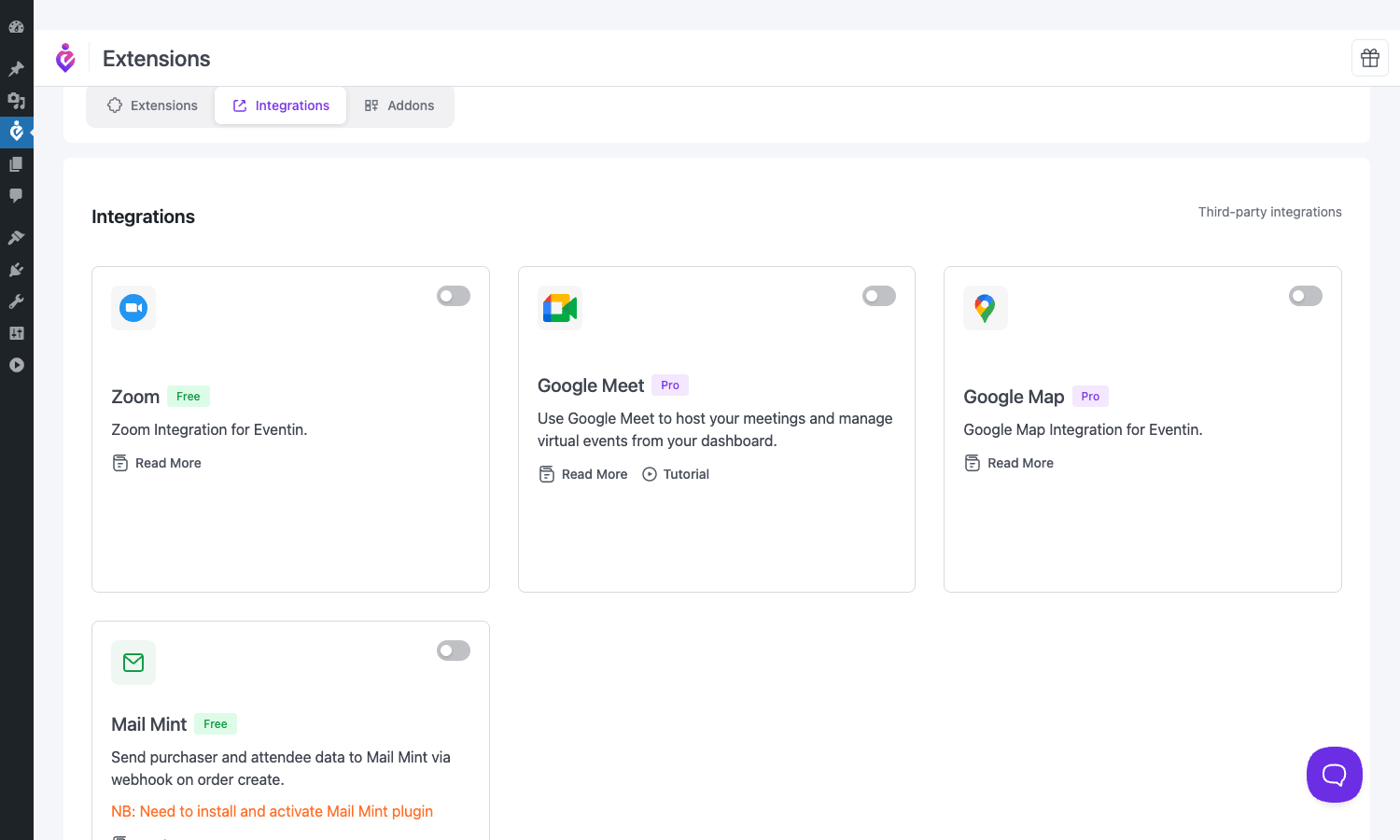
The next tab over is Integrations, which is where Zoom, Google Meet, Google Map, and Mail Mint live as separate toggles. Same UX, different category.
Shortcodes
A reference catalog of every shortcode the plugin exposes ([etn_pro_events_classic], [etn_pro_speakers_sliders], etc.) with a preview pane. Handy if you’re working in the Classic Editor or in a theme without Elementor/Gutenberg widgets.
License
Standard key entry, activation, deactivation. The free version doesn’t need a license.
About Us
Themewinter promo, ignore.
Online events: Zoom, Google Meet, Microsoft Teams
This is the feature most people buy Eventin Pro for, so it deserves its own section.
When you create an event, the Basic Info step has an "Event Type" picker: In-Person, Online, or Hybrid. Pick Online, and a "Meeting Platform" dropdown appears with Zoom, Google Meet, Microsoft Teams, Webex, and Custom Link as options.
For Zoom and Google Meet, you have to first connect the integration in Eventin -> Extensions -> Integrations. Zoom needs an API key + secret pair from the Zoom Marketplace (or the Server-to-Server OAuth flow on newer accounts). Google Meet uses Google’s standard OAuth consent screen, you authorize Eventin, and from then on it creates Meet rooms on your behalf when you publish a new online event. The created Meet link is auto-attached to the event and dropped into every confirmation email.
For Microsoft Teams and Webex, the plugin doesn’t speak the API directly. You generate the meeting link in Teams/Webex and paste it into the event. Eventin then attaches it to attendee confirmations.
The "Custom Link" option is what you use for Jitsi, Whereby, BigBlueButton, or anything else. Just paste the URL.
A nice detail: the join link is gated. It’s only in confirmation emails sent to paid attendees, not in the public event page. So you can publish the event listing without leaking the meeting URL.
For recurring online events, every instance gets its own join link if you’re using Zoom or Google Meet via the API. That’s what you want for a weekly cohort, otherwise everyone in week three would still be using the link from week one.
Real-world use cases
A few situations where Eventin Pro lines up well:
Small paid conference
You’re running a one-day paid conference with three ticket types (Early Bird, Standard, VIP) and a couple of dozen sessions across two tracks. Eventin Pro handles all of it: the wizard, the schedule builder, the per-track session view, the QR-code PDF tickets, the mobile check-in app, and the post-event certificate email. Stripe direct (no WooCommerce) is fine for this scale.
Recurring online cohort
You teach a four-week cohort that meets every Tuesday at 7pm. Create the event once, attach a weekly recurrence, connect Google Meet, and each Tuesday a new Meet link is generated and emailed to the cohort. You can charge once for the whole cohort or per-session via separate ticket variations.
Free meetup with RSVP
You run a monthly local meetup. No money changes hands, you just want to know how many people are coming so the venue isn’t a problem. Turn on the RSVP module, attach an RSVP form to the event, and you get a list of names and emails for each instance.
Multi-vendor event marketplace
You run a portal site where other organisers list and sell their own events. Turn on the Dokan extension, vendors get an event-create form on their Dokan dashboard, and you take a per-sale commission via Dokan’s standard payout flow. This used to require a separate add-on, now it’s built in.
Online community on BuddyBoss
You run a BuddyBoss community and want each Group to have its own events. The BuddyBoss extension wires events to groups, so a group’s events appear on the group page and only group members see private events.
Membership site that hosts members-only webinars
Use Eventin Pro for the event detail page and the Zoom link, then gate registration behind a membership plugin like WooCommerce Memberships or Restrict Content Pro. Members get the join link, non-members hit a paywall.
Developer reference
Eventin Pro exposes a healthy number of hooks for customisation, a eventin/v2 REST namespace for headless work, and over twenty shortcodes for embedding pieces of the plugin in your own templates. Here’s the parts you’ll touch most often.
REST API
All Pro endpoints live under the eventin/v2 namespace. The free plugin’s endpoints are under eventin/v1. A few selected routes:
GET /wp-json/eventin/v1/events
POST /wp-json/eventin/v1/events
GET /wp-json/eventin/v1/events/{id}
PUT /wp-json/eventin/v1/events/{id}
DELETE /wp-json/eventin/v1/events/{id}

GET /wp-json/eventin/v1/attendees
POST /wp-json/eventin/v1/attendees
GET /wp-json/eventin/v1/attendees/{id}

GET /wp-json/eventin/v2/webhook
POST /wp-json/eventin/v2/webhook

POST /wp-json/eventin/v2/rsvp-registration
GET /wp-json/eventin/v2/rsvp/export
POST /wp-json/eventin/v2/rsvp/import

GET /wp-json/eventin/v2/access-control/roles
POST /wp-json/eventin/v2/access-control/{role}
The mobile check-in app uses these endpoints over HTTPS with a per-user application password. You can build the same flow yourself if you want a custom kiosk.
Action hooks
Pro fires its own actions on top of the free plugin’s. The interesting ones:
do_action( 'eventin-pro/before_load' );
do_action( 'eventin-pro/after_load' );

do_action( 'eventin_create_etn', $event_id ); // event created
do_action( 'eventin_update_etn', $event_id ); // event updated
do_action( 'eventin_delete_etn', $event_id ); // event trashed
do_action( 'eventin_restore_etn', $event_id ); // event restored
do_action( 'eventin_event_deleted', $event_id ); // event hard-deleted

do_action( 'eventin_order_completed', $order ); // Stripe order paid
do_action( 'eventin_order_status_failed', $order ); // payment failed
do_action( 'eventin_order_refund', $order ); // refunded

do_action( 'eventin_rsvp_created', $event, $data );
do_action( 'eventin_rsvp_before_delete', $snapshot );

do_action( 'etn_webhook_process_delivery', $webhook, $args );
do_action( 'etn_assign_event_to_group', $event_id, $group_id, $action );

do_action( 'etn_pro_ticket_qr', $attendee_id, $event_id );
do_action( 'etn_pro_ticket_id', $attendee_id, $event_id );
Two practical examples.
Log every new attendee to a third-party system
Suppose you want to push every new ticket purchase to a Slack channel, with attendee name, event name, and ticket type.
add_action( 'eventin_order_completed', 'gpl_notify_slack_on_ticket', 10, 1 );

function gpl_notify_slack_on_ticket( $order ) {
 if (! is_object( $order ) ) {
 return;
 }
 $payload = wp_json_encode( array(
 'text' => sprintf(
 ':tada: New ticket: %s for %s ($%s)',
 esc_html( $order->customer_name?? 'Anonymous' ),
 esc_html( $order->event_title?? 'Unknown event' ),
 esc_html( $order->total?? '0.00' )
 ),
 ) );

 wp_remote_post( 'https://hooks.slack.com/services/T000/B000/XXX', array(
 'body' => $payload,
 'headers' => array( 'Content-Type' => 'application/json' ),
 'timeout' => 5,
 ) );
}
Auto-archive an event two days after it ends
A bit of bookkeeping that’s worth automating.
add_action( 'eventin_create_etn', 'gpl_schedule_event_archive', 10, 1 );

function gpl_schedule_event_archive( $event_id ) {
 $end_date = get_post_meta( $event_id, 'etn_end_date', true );
 if (! $end_date ) {
 return;
 }
 $when = strtotime( $end_date. ' +2 days' );
 if ( $when &&! wp_next_scheduled( 'gpl_archive_event', array( $event_id ) ) ) {
 wp_schedule_single_event( $when, 'gpl_archive_event', array( $event_id ) );
 }
}

add_action( 'gpl_archive_event', function ( $event_id ) {
 wp_update_post( array(
 'ID' => (int) $event_id,
 'post_status' => 'draft',
 ) );
} );
Filter hooks
The ones you’ll reach for most:
apply_filters( 'etn/attendee/default_avatar', $url );
apply_filters( 'etn/speakers/avatar', $url );
apply_filters( 'etn_single_event_content_title', $title );
apply_filters( 'etn_event_organizers_title', $label );
apply_filters( 'etn_event_location_title', $label );
apply_filters( 'etn_event_tag_list_title', $label );
apply_filters( 'etn_event_related_event_title', $label );
apply_filters( 'etn_event_attendee_list_buttn_text', $text );
apply_filters( 'eventin_pro/shortcode_option', $option );
apply_filters( 'eventin_dokan_event_listing_post_statuses_front', $statuses );
Change the "Organizer:" label on event pages
Useful for multi-language sites that translate the public-facing strings:
add_filter( 'etn_event_organizers_title', function ( $label ) {
 return __( 'Hosted by:', 'my-theme' );
} );
Use a custom default avatar for speakers without a photo
add_filter( 'etn/speakers/avatar', function ( $url ) {
 return get_stylesheet_directory_uri(). '/assets/speaker-placeholder.svg';
} );
Show draft Dokan events in the vendor frontend
By default Dokan only shows publish status in the vendor’s event list. Add draft and pending for in-progress events:
add_filter( 'eventin_dokan_event_listing_post_statuses_front', function ( $statuses ) {
 return array( 'publish', 'pending', 'draft' );
} );
Shortcodes
A representative slice of the Pro shortcode set (there are about 25 in total):
[etn_pro_events_classic] - list of upcoming events, classic card layout
[etn_pro_events_sliders] - slider/carousel of events
[etn_pro_events_tab] - tabbed event listing
[etn_pro_calendar_standard] - full calendar widget
[etn_pro_countdown event_id="123"] - countdown to a specific event
[etn_pro_speakers_classic] - speaker grid
[etn_pro_speakers_sliders] - speaker carousel
[etn_pro_schedules_tab] - schedule tabbed by day
[etn_pro_schedules_list] - flat list of all sessions
[etn_pro_ticket_form event_id="123"] - embed the ticket purchase form
[etn_pro_attendee_list event_id="123"] - public attendee list (if enabled)
[etn_pro_dashboard] - front-end organizer dashboard
[etn_rsvp_form] - RSVP form for free events
[etn_pro_add_calendar event_id="123"] - "Add to Calendar" button (Google/Apple/Outlook)
[etn_event_recurring] - recurring-event handler
Most accept attributes like event_id, limit, category, style, order_by. The Shortcodes admin page in the plugin has a live preview that builds the attribute string for you.
Outbound webhooks
Webhooks let you push events out of Eventin to anywhere. Go to Eventin -> Settings -> Advanced -> Webhooks, add a URL, pick which events should trigger it (event created, attendee registered, payment completed, RSVP received, etc.), and Eventin POSTs a JSON payload to that URL every time the event fires. Useful for Zapier/Make-style automation if you don’t want to write any PHP.
The webhook payload is signed with your domain’s salt, so you can verify it server-side before processing.
If you’d rather use a dedicated WordPress automation plugin, this is also where things like FluentCRM Pro come in. Eventin Pro can push attendees directly to a FluentCRM list, no webhook glue required.
Custom post types
Eventin registers a handful of CPTs you can query in your own templates:
etn– the event itselfetn-speaker– speaker profilesetn-organizer– organizer profilesetn-schedule– schedulesetn-attendee– registered attendees
A simple WP_Query for the next five upcoming events:
$upcoming = new WP_Query( array(
 'post_type' => 'etn',
 'posts_per_page' => 5,
 'meta_key' => 'etn_start_date',
 'orderby' => 'meta_value',
 'order' => 'ASC',
 'meta_query' => array(
 array(
 'key' => 'etn_start_date',
 'value' => current_time( 'Y-m-d' ),
 'compare' => '>=',
 'type' => 'DATE',
 ),
 ),
) );
You can build your own event listing this way without using the bundled widgets, useful when the theme has very specific markup requirements.
Performance, compatibility, and gotchas
The Vue admin SPA is fast, but it ships its own JS bundle of a few hundred KB. That’s noticeable if you open wp-admin/admin.php?page=eventin on a slow connection, less so once the bundle is cached. Front-end performance is fine, the public event page is mostly server-rendered.
A few things to actually watch for:
- Don’t forget Settings -> Payments. This is the most common "why doesn’t my event sell tickets" issue. WooCommerce, Stripe, and PayPal are all off by default. Open the tab, flip one on, save.
- Time zones. Eventin stores event times in the event’s own timezone, not the site timezone. If you mix this with WP-Cron jobs that assume site time, things can drift. Always test reminder emails against an event in a non-site timezone.
- Recurring + Pro is the heaviest combo. A daily recurrence for a year generates 365 event instances. The admin handles it, but the database now has 365 events in the
etnpost type. Use weekly or monthly patterns where possible. - Zoom rate limits. If you publish ten recurring events at once and Zoom is your meeting platform, the API can rate-limit you. Stage them.
- WooCommerce vs direct Stripe. Pick one path and stick to it per event. Running an event through both at the same time confuses inventory.
- The schedule object is reusable across instances. That’s good for recurring events but it means changing the schedule retroactively updates every past instance too. For a one-off, fine. For a series, careful.
- PDF generation uses TCPDF. It works fine on shared hosting in normal cases. If you’re on a tight memory limit, generating tickets for 5,000 attendees in one batch can OOM. The mobile app generates tickets on demand instead, which sidesteps this.
- Caching plugins. Exclude the
/checkout/-style URLs and any page with[etn_pro_ticket_form]from page-cache rules. If you’ve already got something like WP-Optimize Premium configured, add the exclusion under Advanced Rules. Most performance plugins know how to handle WooCommerce cart pages but not custom ticket forms. - Shortcodes inside Gutenberg blocks. The
[etn_pro_*]shortcodes work inside a Shortcode block, but a few of them assume they’re rendered in a normalthe_contentcontext. If you’re using a builder, prefer the Eventin Elementor widgets or Gutenberg blocks instead.
The plugin keeps up with current WordPress and PHP versions and tested cleanly against the modern PHP releases in my own environment.
How Eventin Pro compares to other WordPress event plugins
We’ve covered a few other event plugins in detail on this blog, so let’s place Eventin Pro on the map.
- FooEvents for WooCommerce is the most obvious competitor. FooEvents treats every ticket as a WooCommerce product, so it inherits the entire Woo ecosystem (coupons, tax, shipping, accounting) for free. Eventin’s direct-Stripe path is leaner and easier when you don’t already have WooCommerce, but if you do, FooEvents fits more naturally. FooEvents’ check-in app is also very good. Eventin wins on online-event integrations (Zoom/Meet baked in), recurring events, RSVP, and the Vue admin.
- The Events Calendar Pro is the most established calendar-first plugin. It has the deepest community of theme integrations and a polished calendar view. For ticketing you need its sibling Event Tickets Plus. Eventin Pro is one plugin instead of two, has a nicer admin in my opinion, and the Zoom/Meet wiring is much more directly integrated. The Events Calendar Pro is the safer choice if your priority is calendar layouts and theme compatibility.
- Modern Events Calendar is the closest match in feature surface. Recurring events, online events, schedules, speakers, tickets. The trade-off is largely UI. Modern Events Calendar’s admin still feels like a 2018 WordPress plugin. Eventin Pro’s admin is the same year as Stripe Dashboard. If that matters to you (and you’d be surprised how much it matters to event organisers who edit events daily), Eventin Pro is the easier sell.
- Eventbrite (SaaS) and Hopin/RingCentral Events. If you want zero WordPress involvement, those are fine. Eventin Pro is for the case where you want to own the registration flow on your own domain, control the design, and not pay per-ticket commission.
- WP Event Manager is the closest free competitor. It’s a fine plugin but loses to Eventin Pro on every paid feature: no Zoom/Meet, no recurring, no QR check-in app, no multi-vendor.
The summary version: Eventin Pro is the strongest pick when you want a modern single-plugin event platform with online events baked in, you don’t already have a heavy WooCommerce setup you’d rather extend, and you care about the admin UX.
Pricing and licensing
Themewinter sells Eventin Pro through their own site as a yearly subscription with tiers for one site, three sites, ten sites, and unlimited. The free Eventin plugin from WordPress.org covers basic events and ticketing for free, but most of what makes the Pro plugin worth using (Zoom/Meet, recurring, RSVP module, Dokan, certificate builder, mobile check-in app, access control) is paywalled.
Buying through GPL Times gives you the same plugin code, the same bundled license that the plugin auto-activates on install, and no per-site limit.
The plugin’s own author publishes the free version on WordPress.org under GPL, which makes the paid bits redistributable under the same terms.
Frequently asked questions
Does Eventin Pro need WooCommerce?
No. Stripe and PayPal can both run directly through the plugin without WooCommerce. WooCommerce is still supported as a checkout backend if you prefer it (or if you already run a Woo store).
Can I sell tickets in multiple currencies?
Yes. The Payments settings include a currency selector and per-event override. For multi-currency checkout, the WooCommerce path is more flexible (it inherits Woo’s currency switchers like Aelia or the Woo Multi Currency family), but the direct-Stripe path supports the base currency you set in settings.
Does the QR-code check-in work offline?
The mobile check-in app caches the attendee list for the event when you sign in, so the actual scan-and-match step works offline. The "mark as checked in" sync happens when the device gets connectivity back. Useful at venues with patchy Wi-Fi.
Can attendees buy multiple tickets for friends?
Yes. The ticket form supports a quantity field, and you can collect a separate attendee form per ticket (Pro feature). Each attendee then gets their own QR-coded ticket emailed to the address they enter.
Does it work with Elementor or Gutenberg?
Both. Eventin Pro registers Elementor widgets for every public-facing piece (events listing, schedules, speakers, countdown timers, ticket form) and ships a corresponding set of Gutenberg blocks. Pick the one your theme/site uses.
Can I use a custom email service like Mailgun or Postmark for ticket emails?
Use a transactional email plugin (the wordpress.org plugin "WP Mail SMTP" or one of its commercial cousins) to route all outgoing email through your transactional service. Eventin’s emails go through wp_mail() like every other plugin, so an SMTP layer transparently picks them up.
Is the public event page SEO-friendly?
Yes. Eventin registers events as a CPT (etn), so they appear in your sitemap automatically. The single event template uses semantic HTML and includes JSON-LD Event schema by default. If you want full control, the Yoast SEO Premium and Rank Math SEO Pro integration treats event pages as regular posts so you can override title/description per event.
Can I export attendees to a CSV?
Yes, from the event detail page Attendees tab. Bulk CSV import is also supported (Pro only), which is useful if you’ve already collected registrations elsewhere and want to bring them into Eventin to issue tickets.
What happens to recurring events when I edit a single instance?
Each instance is a real post in the etn CPT. Editing one instance only edits that instance. The recurrence pattern is on the parent and generates new instances going forward.
Does Eventin Pro work with multilingual plugins?
Yes. The plugin’s strings are translation-ready (text domain eventin-pro), and the CPTs play nicely with WPML and TranslatePress (and Polylang Pro, if that’s your stack) for content translation. WPML’s String Translation handles the admin strings, TranslatePress handles them visually on the public side.
Is there a Zapier integration?
There’s no first-party Zapier app, but the outbound webhook system covers the same ground. Point a webhook at a Zapier "Catch Hook" trigger and Zaps fire on every event. The bundled FluentCRM and Mailchimp integrations also handle the most common "add new attendee to a CRM list" use-case directly, no Zapier needed.
Final thoughts
Eventin Pro is the WordPress event plugin I’d reach for first today if I were setting up a fresh events site. The combination of a Vue admin that doesn’t feel like 2015 WordPress, in-the-box Zoom and Google Meet, recurring events that actually work as instances, a real mobile check-in app, and the option to bypass WooCommerce for direct Stripe is rare. Most older event plugins do two or three of those things well and ignore the rest.
It’s not perfect. The first-launch experience can leave new users stuck on the Payments tab if they don’t know to go enable a gateway. The bundled JS admin is a few hundred KB so you wouldn’t pick this for a "must stay under 1MB" performance project. The Dokan and BuddyBoss integrations are nice but feel less mature than the core event-management surface. If your priority is a deeply themed calendar UI rather than ticketing, The Events Calendar Pro still wins on that one axis.
But for everyone running real events on WordPress (small conferences, online cohorts, recurring meetups, hybrid events), Eventin Pro covers a lot of ground in one plugin. If you’re event-curious, install it on a staging site, walk through the four-step wizard, and you’ll know within an hour whether it fits your workflow.