

WordPress has shipped a shortcode and a Video block for years. They play files. That’s about it. Once you want chapters, a custom skin, an email opt-in before playback, or a chart that shows how far viewers actually watched, you need a real video plugin. Presto Player Pro is one of the better-known options in that bracket, and the goal of this post is to walk through what it does, who it’s for, and how it holds up in practice.
What follows is the long version of what I found.
Table of contents
- What is Presto Player Pro?
- Core features at a glance
- How it works for end users
- Installation and first-time setup
- Walking through the admin
- Real-world use cases
- Developer reference: hooks, filters, REST API
- Performance, compatibility, and gotchas
- Pricing and licensing
- Frequently asked questions
- Final thoughts
What is Presto Player Pro?
Presto Player is a WordPress video plugin from the Presto Player team (now part of the Awesome Motive group, which also owns MonsterInsights and OptinMonster). It started life as a Plyr-based wrapper around the WordPress video block and grew into a full media platform with its own Media Hub custom post type, Gutenberg blocks, settings dashboard, and integrations.
Free Presto Player gives you a polished player with poster images, captions, and the four most common sources: native upload, YouTube, Vimeo, and audio. Presto Player Pro is the paid extension that adds the things that turn a video player into a marketing or learning tool:
- Chapters with thumbnails
- Timed overlays (CTAs that pop up at a specific second)
- Email opt-in gates (lock the rest of a video behind a subscribe form)
- Bunny.net Stream integration (host the actual files on a CDN with signed URLs)
- Private self-hosted videos
- Player presets (apply a brand and behavior to dozens of videos at once)
- Custom branding (logo, brand color, hide the Presto badge)
- Per-video analytics
- LMS integrations for LearnDash, LifterLMS, and MemberPress
It also makes the free Presto Player on WordPress.org substantially more useful, because Pro extends the same settings page rather than putting itself in a separate menu.
Pro is sold per site, with Personal, Business, and Agency tiers.
Core features at a glance
Here’s the high-level feature set, written for people who skim before they read.
- Multi-source support. A single Presto Player block can host a self-hosted MP4, a YouTube URL, a Vimeo URL, an audio MP3, or a Bunny.net Stream video. Same skin, same controls, same analytics.
- Branded player UI. Set a brand color, drop in a logo, choose where it appears, hide the Presto badge. Every player on the site picks up the brand instantly.
- Chapters with timestamps. Add named segments with
mm:ssstart times. The scrubber shows tick marks and a thumbnail-style chapter list under the player. Skipping around long videos becomes pleasant. - Timed CTAs and overlays. Attach a button (or HTML block) that appears at a specific time and disappears at another. Useful for "sign up here" pinned at 90 seconds, or "next lesson" at the end.
- Email opt-in gates. Block playback after N seconds until the viewer submits an email. The address gets pushed to Mailchimp, ConvertKit, ActiveCampaign, FluentCRM Pro, MailerLite, MailPoet Premium, Mailster, AWeber, or a generic webhook.
- Bunny.net Stream integration. Connect a Bunny library, upload from the WordPress admin, and Presto handles signed playback URLs so you don’t burn your origin bandwidth on a viral video.
- Per-video analytics. Total views, average watch time, completion percentage, and a drop-off chart that shows where viewers leave. Useful and not intrusive.
- Presets. A preset is a saved bundle of player settings (color, autoplay rules, overlays, chapters, controls). Applying a preset to a new video is one click.
- Gutenberg block and shortcode. The native interface is the Presto Player block in Gutenberg. There’s also a
[presto_player id="x"]shortcode if you publish via the classic editor or via a builder. An Elementor widget ships too. - LMS-aware playback. When integrated with an LMS, Presto can mark a lesson complete once viewers hit the configured threshold (say, 90% watched).
- Performance-minded. JS is loaded only when a player exists on the page. There’s a setting to load scripts dynamically per page and another to disable AJAX progress tracking if you don’t need it.
That’s a lot. Most people use a quarter of it. The trick is the quarter is different for every site, which is why the all-in-one approach works.
How it works for end users
If you’re publishing the videos, here’s the day-to-day flow.
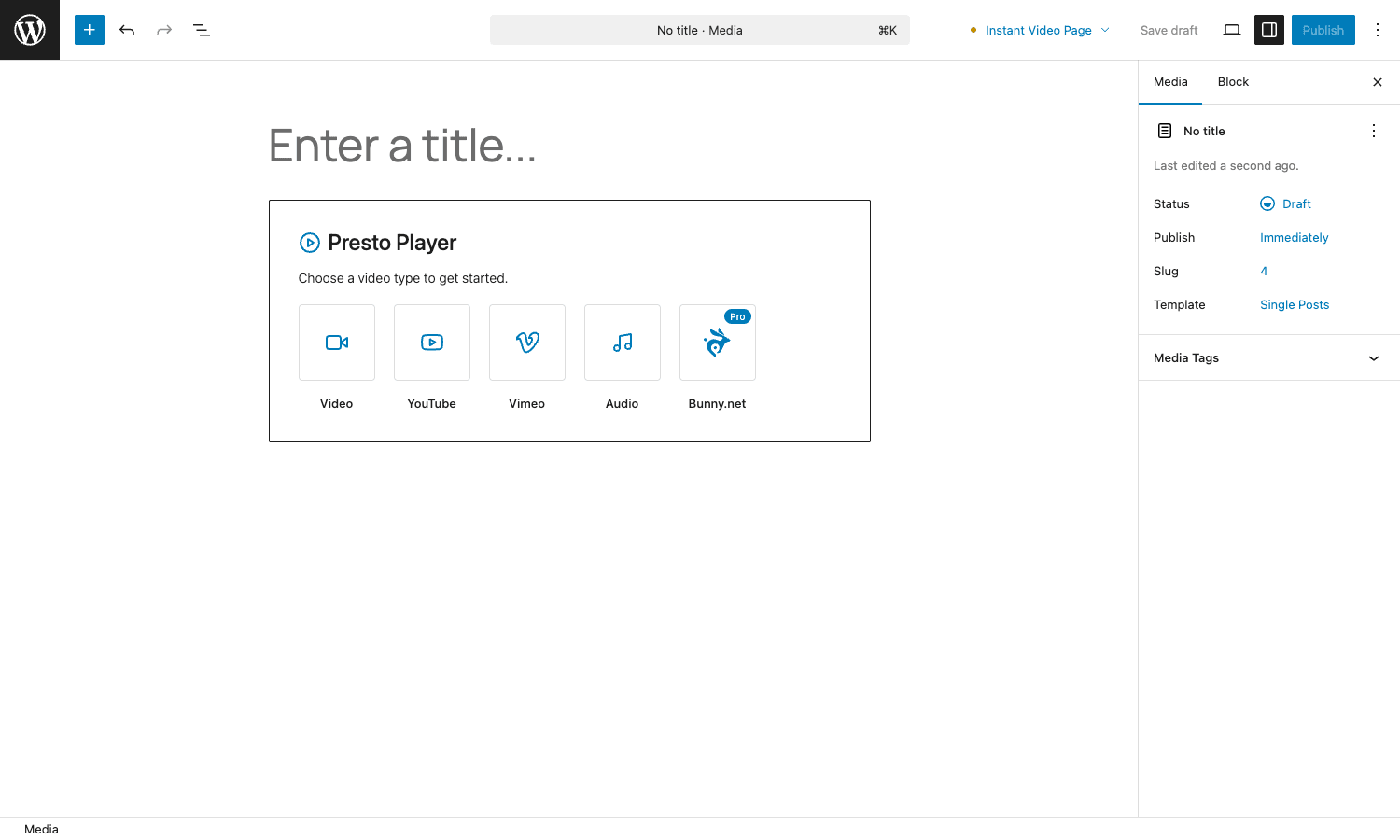
You open a post or page, click the plus, search "Presto Player", and insert the block. The block immediately asks "what type of video do you want?" with five tiles: Video, YouTube, Vimeo, Audio, and Bunny.net (the last one wears a Pro badge). You pick one, paste a URL or upload a file, and Presto fetches the metadata.
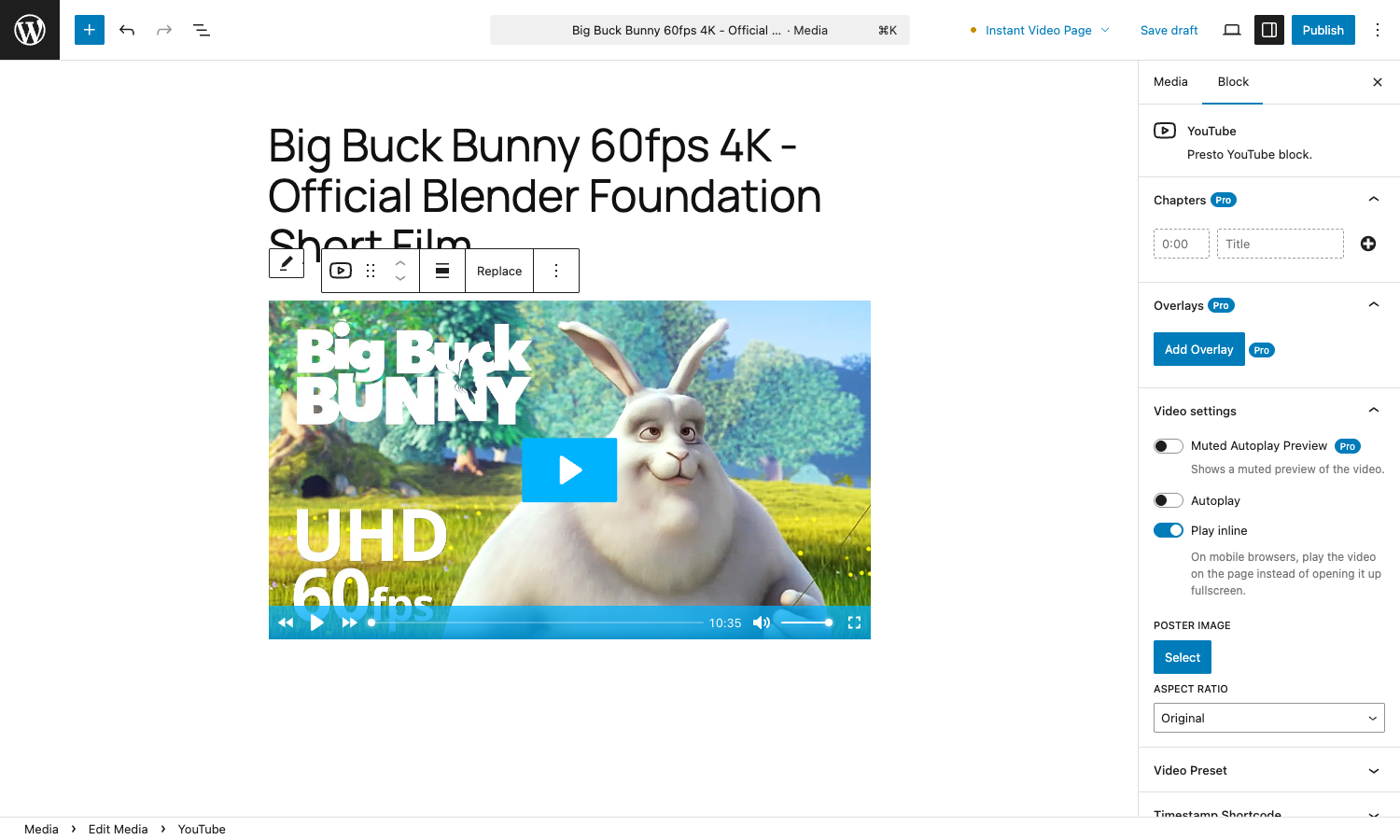
From there, the right-hand sidebar fills with collapsible panels: Chapters, Overlays, Video settings, Video Preset, Timestamp Shortcode, Global Player Branding, Advanced. Each one is independent. You can add chapters without ever touching overlays, or vice versa.
A few specifics worth knowing:
- Chapters are timestamps, not edits. You’re not re-encoding the video. You’re adding markers that say "0:00 intro, 1:42 setup, 4:55 troubleshooting" and the player overlays those.
- Overlays are HTML. You can put a heading and a button, or a full custom design.
- The Email Capture overlay is its own type. You set the second at which playback pauses, choose the form fields, and pick which mailing list it pushes to.
- The block is reusable. Add a video to the Media Hub once and you can reference the same player on multiple posts with a
[presto_player id]shortcode. Edit the source once, every embed updates.
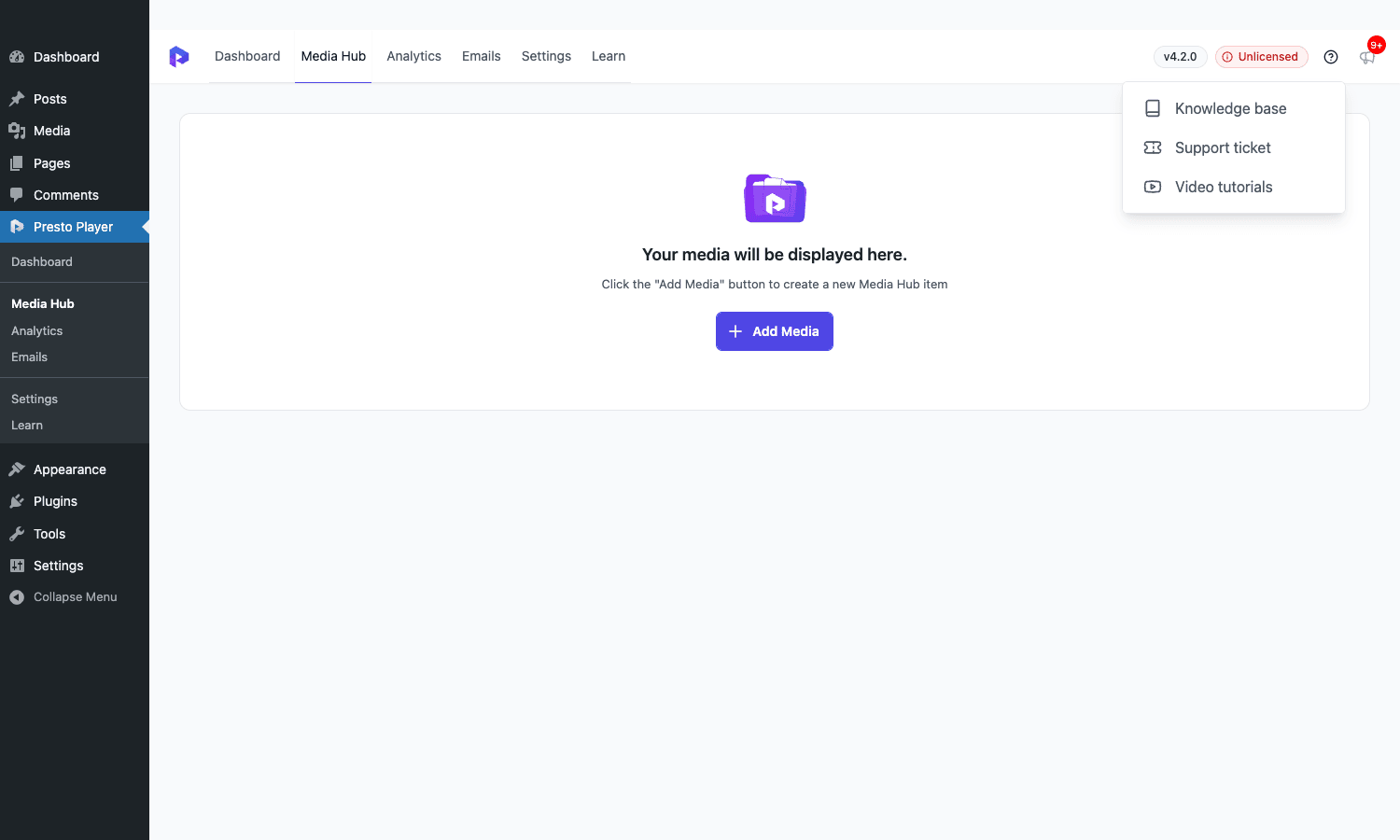
The Media Hub is the bit people miss on the first install. It’s a custom post type that stores your videos as standalone objects, decoupled from the post they’re embedded on. If you put the same training video on five landing pages, the Media Hub keeps that to one source of truth.
Installation and first-time setup
- Download the zip and upload it via
Plugins -> Add New -> Upload Plugin. - Activate it. If the free Presto Player core isn’t already on the site, the Pro plugin’s activation hook installs it automatically.
- Visit
Presto Player -> Dashboard. The first run shows a guided setup screen. Click Exit Guided Setup if you’d rather poke around manually, otherwise step through to set your brand color, logo, and default preset. - Set your brand. Go to
Presto Player -> Settings -> General -> Brandingand pick a brand color, upload a logo, set the max width, decide if you want to hide the Presto badge. - Connect at least one integration. If you plan to collect emails, go to
Settings -> Integrations -> Email Captureand connect Mailchimp, ConvertKit, FluentCRM, or whichever provider you use. - Create a Preset (Settings -> General -> Presets). The first preset becomes the default for new videos.
- Drop a Presto Player block into a test post and verify playback on the front end.
That’s it for the install. The first video usually takes another five minutes if you’re adding chapters and a CTA. By the third video the muscle memory kicks in.
Walking through the admin
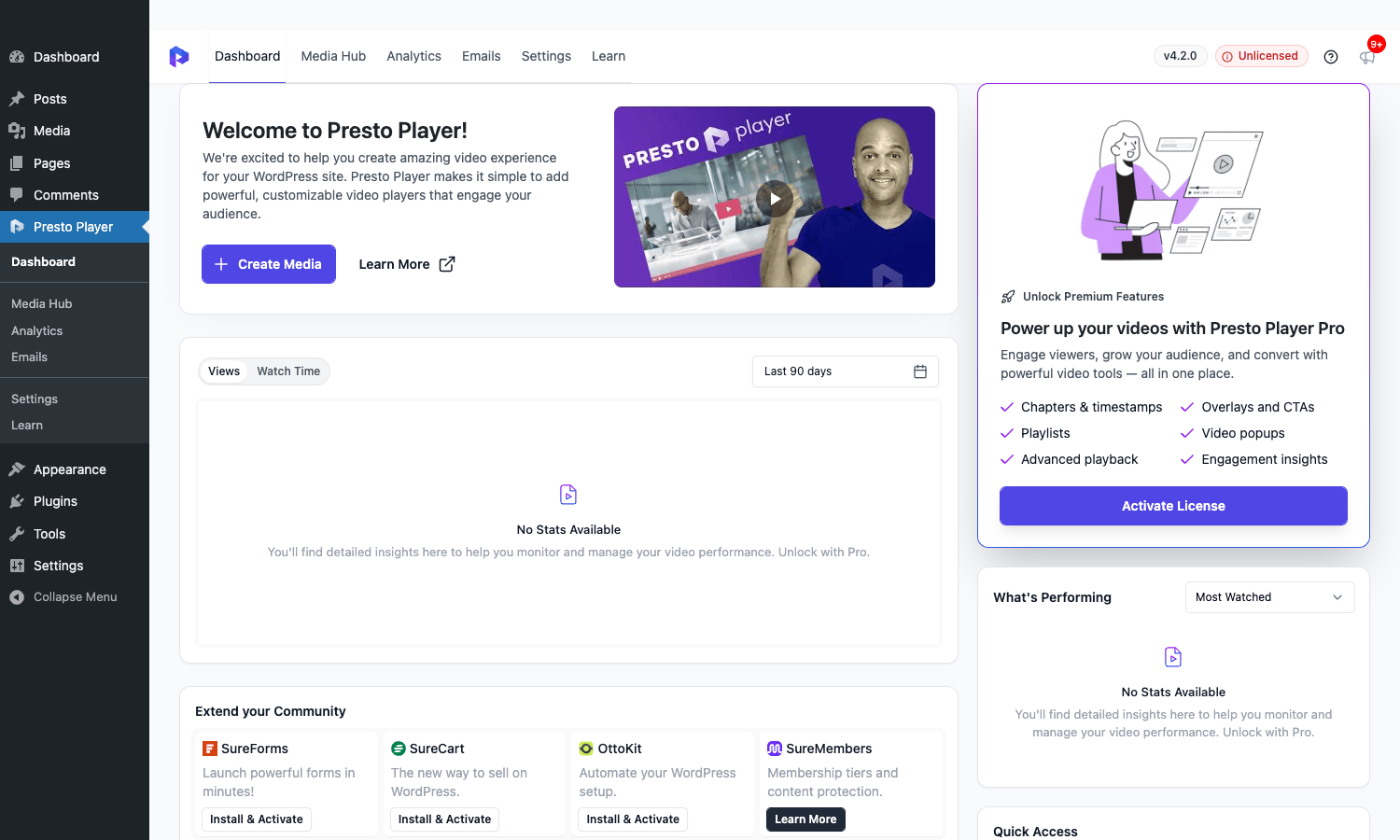
Presto Player Pro has a single top-level menu item (Presto Player) with seven sub-tabs: Dashboard, Media Hub, Analytics, Emails, Settings, Learn. Most of your time will be split between Media Hub (where the videos live), Settings (where the brand and integrations live), and the post editor (where you actually use the blocks).
Dashboard
The dashboard summarizes how many videos you’ve published, total views, total watch time, recent submissions, and links to docs. It’s not a place you’ll spend a lot of time but it’s a decent landing pad after a deploy.
Media Hub
The Media Hub tab lists every reusable player you’ve created. Each entry is a custom post (the pp_video_block CPT under the hood) and clicking Add Media opens the Gutenberg editor with the Presto Player block pre-inserted. This is the cleanest way to build a video once and reference it from multiple places.
A few useful Media Hub workflows:
- Make every training video a Media Hub entry, then embed by ID on the LMS lessons. Updating the video source updates all lessons.
- Save a "course intro" Media Hub entry with email capture and chapters, then put it on the marketing page and the dashboard.
- Use the Media Hub as the canonical source of truth for which videos you have. Counting "videos on the site" by scanning posts is unreliable; counting Media Hub entries is exact.
Settings: Branding
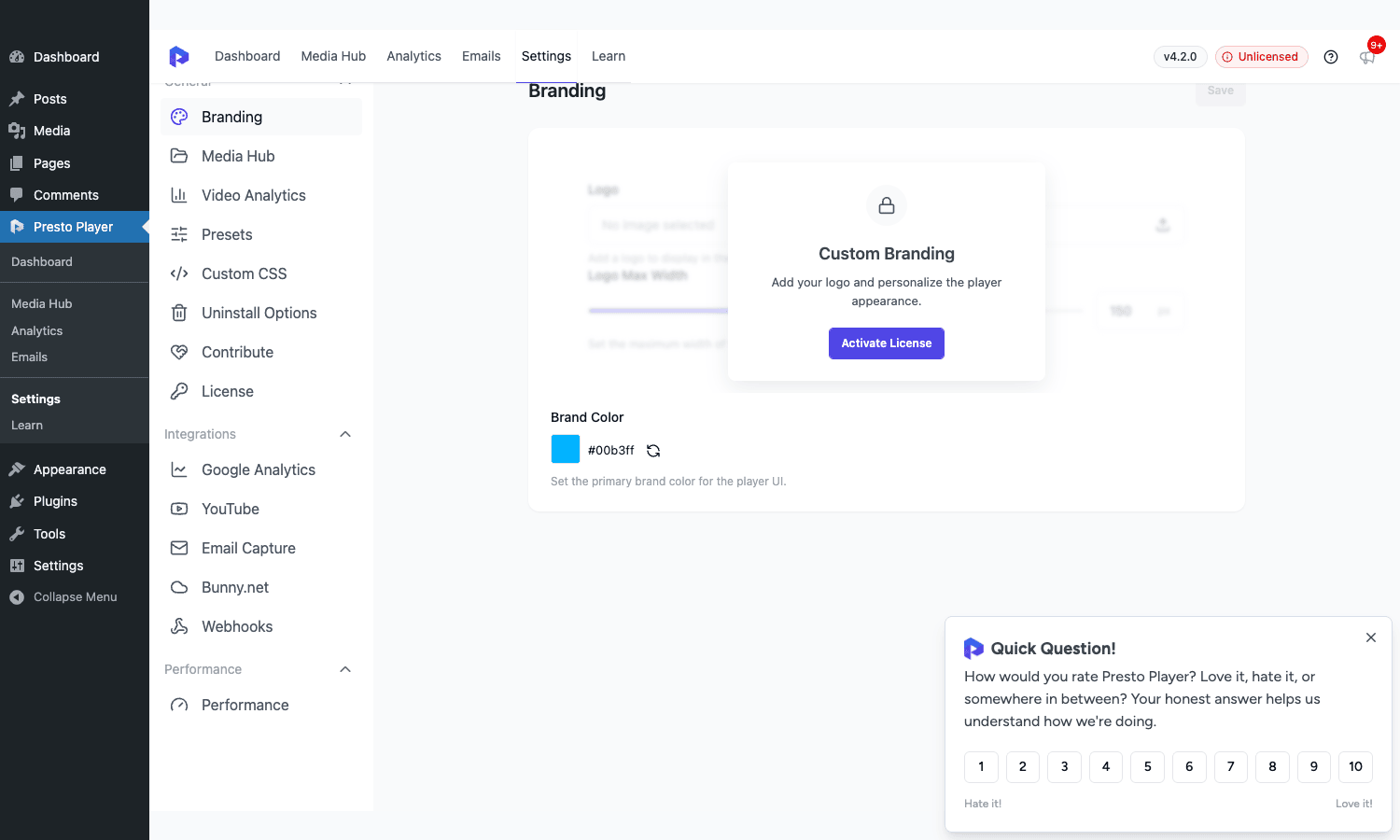
Set the brand color (the play button, scrubber fill, and CTA accent all inherit this), upload a logo for the corner of the player, set a logo max width, and optionally hide the Presto badge. The "Hide the Presto branding" toggle is the one most users flip first, and it’s a Pro feature.
Settings: Presets
A preset is a named bundle of player defaults: colors, controls visible, autoplay rules, mobile behavior, chapter style, overlay style. You can assign one preset as the default for video and another for audio. Inside the editor, you can override the preset per block.
This is the feature that scales the plugin. Without presets, every new video would need its branding configured by hand. With presets, you tweak one record and 200 videos pick up the change next render.
Settings: Custom CSS
A little textarea where you paste CSS that only loads with the player. Useful for "make the chapter list slightly smaller on mobile" style tweaks that don’t deserve a full child-theme stylesheet.
Settings: Integrations
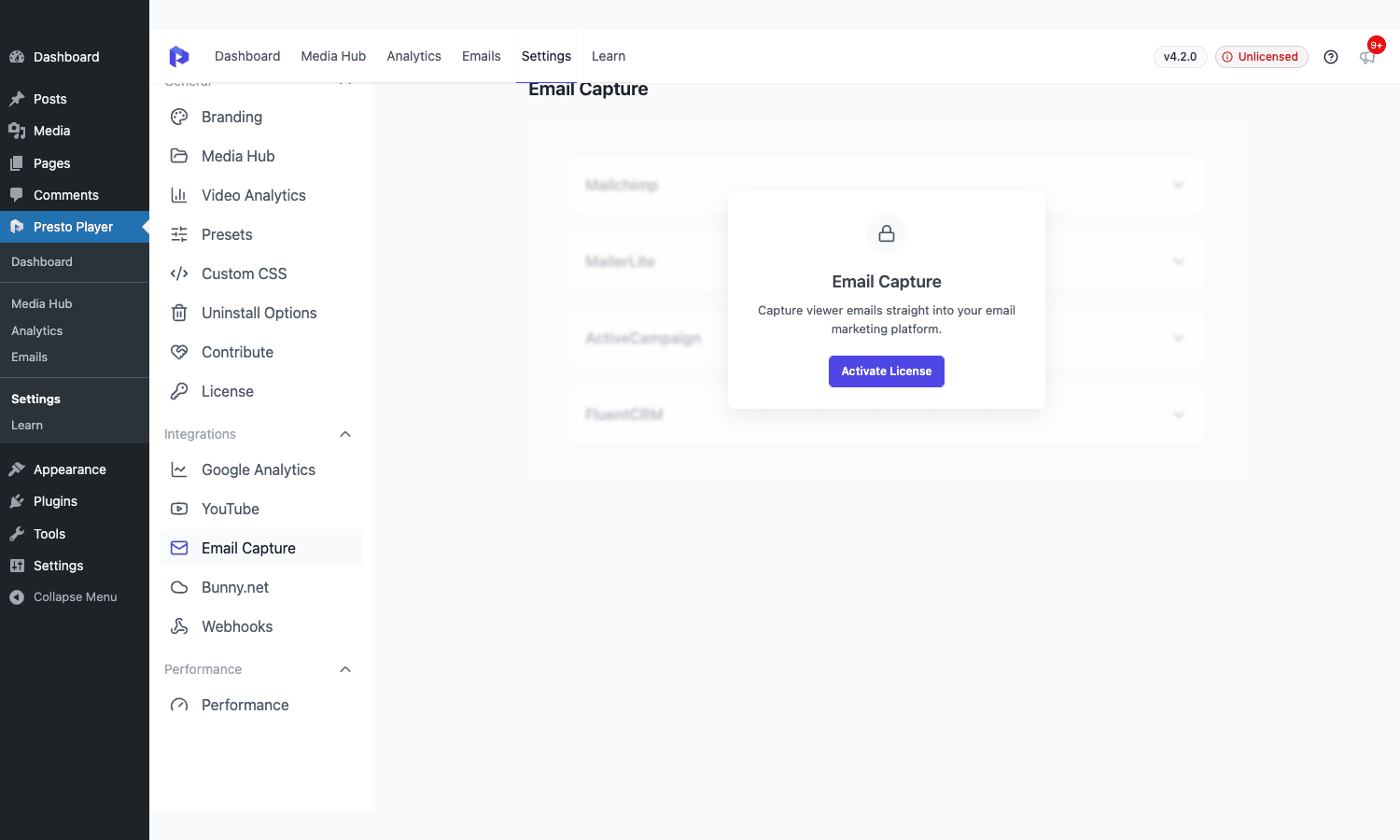
Three integration families ship in Pro: Google Analytics (push play, pause, complete events to GA4), YouTube (use a YouTube API key for higher quotas), Email Capture, Bunny.net, and Webhooks.
Email Capture is the integration most people will actually configure. You pick a provider, paste the API key, and the gating overlay starts pushing submissions to that list automatically.
Settings: Performance
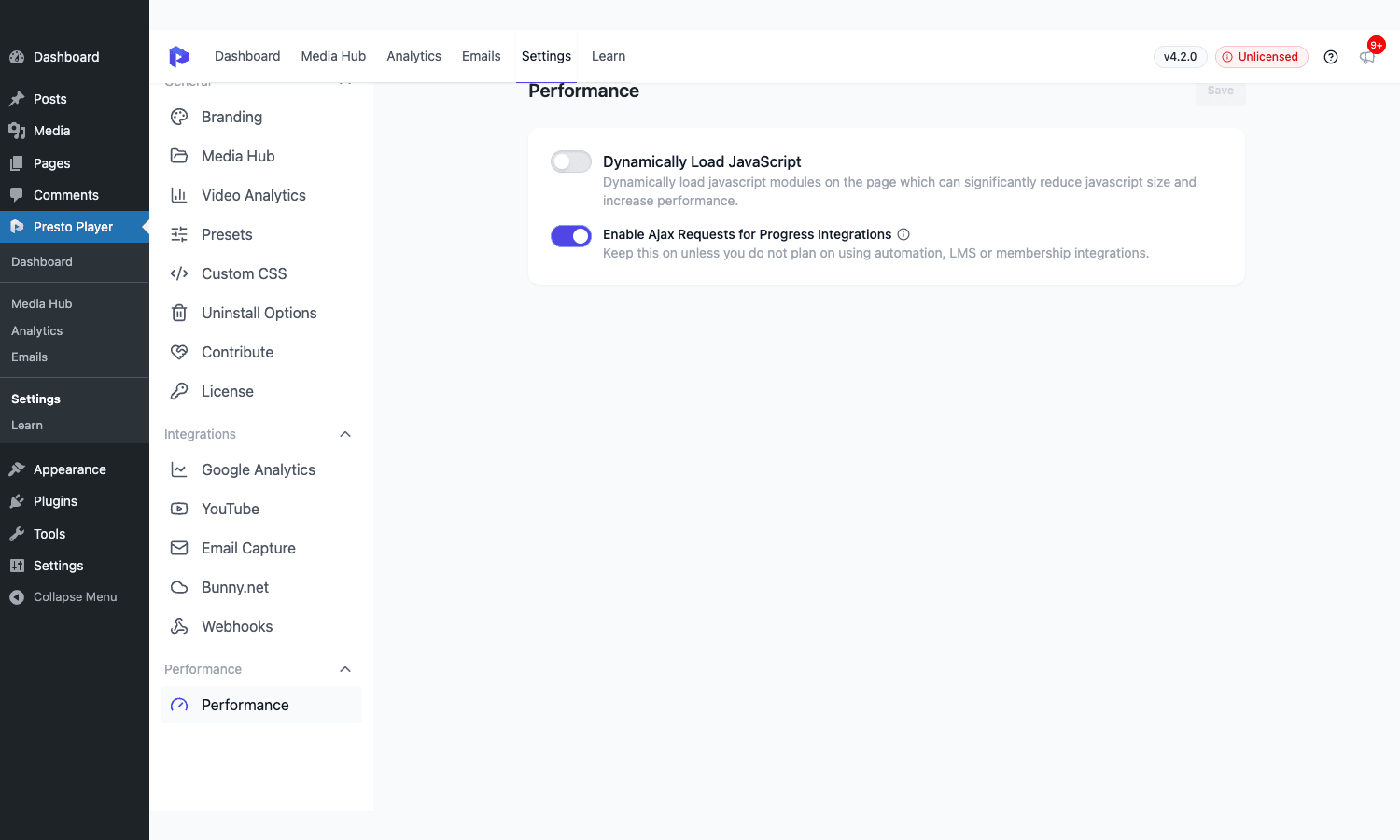
Two toggles that punch above their weight:
- Dynamically Load JavaScript. Loads the player runtime per page that actually uses it. Saves the homepage from carrying 60-80 KB of JS it doesn’t need.
- Enable Ajax Requests for Progress Integrations. Keep this on if you use Presto with an LMS or course plugin; that’s the channel that reports "this lesson is complete". Turn it off only on sites that don’t use any LMS integration.
Settings: Bunny.net and Webhooks
If you use Bunny.net Stream for hosting, paste your API key and storage zone here. The Bunny block then lets you upload directly from the WordPress admin to your library, pick from existing videos, and Presto generates short-lived signed URLs for playback. Webhooks lets you POST player events (play, pause, completion) to an arbitrary URL so you can build your own automations.
Analytics
The Analytics tab shows total views, total watch time, average completion, and per-video breakdowns. Each video has a drop-off chart that visualizes the percentage of viewers still watching at each point. If you’ve published video before, you already know that drop-off curve says more about your content than any other metric. Presto exposes it without making you wire up a third-party tool.
Emails
The Emails tab is the inbox for the email-capture overlay. Every submission lands here as a pp_email_submission post with the captured fields, the video it was captured from, and the timestamp. There’s an export-to-CSV button for taking submissions off-site.
Real-world use cases
Here are the scenarios where I’d actually reach for Presto Player Pro on a client site.
Course videos that mark lessons complete
You’re running courses on LearnDash, Tutor LMS Pro, MasterStudy LMS PRO, or Sensei Pro. You want lessons to mark complete only when the student has actually watched. Presto sits on top of the LMS and emits a "complete" signal when the viewer hits 90% (or whatever threshold). It saves you the awkward "I clicked next, where’s my certificate?" support ticket.
Free-to-paid funnel videos
You publish a marketing video on a landing page. The first 30 seconds is the pitch. Anyone who’s still watching at 30 seconds gets the email gate, with copy that says "Want the next 12 minutes? Drop your email." Email goes straight into FluentCRM Pro, and your nurture sequence does the rest. This is the textbook use case for Presto Pro and the reason most marketing teams buy it.
Sales explainer with CTAs
Long product tour videos benefit from chapter markers. Viewers skip to the part they care about. You drop a "Start free trial" overlay at the timestamp where the value is most clear. Conversion data shows where in the video viewers convert, which informs the next edit.
YouTube reuse without YouTube chrome
You already have the videos on YouTube. Embedding them directly shows YouTube branding, suggested-video grids, and ads. Presto wraps the same YouTube video in your branded player, hides the YouTube chrome where possible, adds chapters and overlays you wouldn’t get on YouTube, and tracks playback under your own analytics. You keep YouTube as the file store but the on-site experience belongs to you.
Member-only lessons with private hosting
You sell access to a video library. You don’t want the file URLs to leak. With Bunny.net Stream + Presto’s signed URLs, viewers can play the video but can’t right-click and save the source. The signed URL expires (default two hours, configurable via a filter), so a scraped URL goes dead quickly.
Replacing a generic embed plugin for video
EmbedPress Pro is great if you embed many things (Google Docs, Twitter, OpenStreetMap, etc.). It’s broad. Presto Player Pro is narrow: it does video really well and ignores everything else. If video is the only embed you care about and you want chapters / analytics / CTAs, Presto is the right tool. If you embed maps, slides, and tweets too, keep EmbedPress.
Developer reference: hooks, filters, REST API
The Pro plugin is PSR-4 namespaced under PrestoPlayer\Pro. The bootstrap lives in presto-player-pro.php, the entry class is PrestoPlayer\Pro\Plugin, and Pro feature modules live under inc/Services/. Here’s the developer surface, with realistic examples.
Filter: change how long Bunny signed URLs last
Presto signs Bunny.net Stream URLs with a default expiry of two hours. If your viewers tend to pause and come back days later (a long lesson, say), bump the window.
add_filter( 'presto_player_bunny_token_expires', function ( $seconds ) {
 return 6 * HOUR_IN_SECONDS;
} );
Don’t push this much higher than a few hours. Long-lived signed URLs are easier to share around the internet.
Filter: gate who can connect a Bunny account
By default, the Bunny CDN admin endpoints require upload_files and edit_posts. On a larger team, you might want only an explicit role to manage Bunny credentials.
add_filter( 'presto_player_bunny_connect_permissions', function ( $allowed, $request ) {
 return current_user_can( 'manage_options' );
}, 10, 2 );
The same presto_player_bunny_read_permissions and presto_player_bunny_upload_permissions filters exist for the read and upload endpoints respectively.
Filter: block analytics for staff
If your team watches every video twice while editing posts, their views drown out real signal. Block their IP from the analytics endpoint.
add_filter( 'presto_player_analytics_block', function ( $block, $ip, $video_id ) {
 $staff_ips = array( '203.0.113.10', '203.0.113.11' );
 return in_array( $ip, $staff_ips, true )? true : $block;
}, 10, 3 );
When the filter returns true, the visit is silently dropped from the analytics aggregate.
Filter: change the analytics aggregation window
The analytics dashboard shows the last 30 days by default. Some sites want a rolling 90.
add_filter( 'presto_player_analytics_time_period', function ( $older_than ) {
 return strtotime( '-90 days' );
} );
Filter: validate email opt-ins before saving
When a viewer submits the email gate, you can add server-side validation. Reject role-based addresses, disposable domains, anything.
add_filter( 'presto_player/pro/forms/validation', function ( $errors ) {
 $email = isset( $_POST['email'] )? sanitize_email( wp_unslash( $_POST['email'] ) ) : '';
 $blocked_domains = array( 'mailinator.com', 'guerrillamail.com' );
 foreach ( $blocked_domains as $domain ) {
 if ( str_ends_with( $email, '@'. $domain ) ) {
 $errors['email'] = __( 'That email provider isn\'t supported.', 'my-theme' );
 break;
 }
 }
 return $errors;
} );
Action: react to a new opt-in
After a successful submission, Presto fires presto_player/pro/forms/save with the data, preset, the saved post object, and a $created boolean. Use it to push to a third-party CRM your team uses that isn’t in the built-in integrations list.
add_action( 'presto_player/pro/forms/save', function ( $data, $preset, $post, $created ) {
 if (! $created ) {
 return; // duplicate submission, skip
 }
 wp_remote_post( 'https://hooks.example.com/presto-new-lead', array(
 'body' => wp_json_encode( array(
 'email' => $data['email']?? '',
 'video_id' => $post->post_parent?? 0,
 'preset' => $preset->id?? null,
 ) ),
 'headers' => array( 'Content-Type' => 'application/json' ),
 ) );
}, 10, 4 );
Filter: gate the export endpoint
The email-submission CSV export endpoint is locked to users who can export by default (Editors and Administrators). Tighten that to Administrators only.
add_filter( 'presto_player_export_permissions_check', function () {
 return current_user_can( 'manage_options' );
} );
REST API surface
Pro registers everything under the presto-player/v1 namespace. Useful endpoints include:
/presto-player/v1/email-submissions— list captured opt-ins (admin only)./presto-player/v1/analytics/*— query view counts and watch-time aggregates./presto-player/v1/bunny/*— list / upload to your Bunny library./presto-player/v1/mailchimp/*,/fluent-crm/*,/active-campaign/*— read connection status, list available lists, push opt-ins./presto-player/v1/webhooks— register and trigger webhooks.
To call any of these from JavaScript on a logged-in page, use the standard wp.apiFetch:
wp.apiFetch( { path: '/presto-player/v1/email-submissions?per_page=20' } ).then( ( submissions ) => {
 console.log( submissions );
 } );
The endpoints respect nonces from wp_create_nonce( 'wp_rest' ) and the per-route capability filters listed above.
Blocks registered by Pro
presto-player/playlist— Pro Hubs / playlist player.presto-player/bunny— Bunny.net Stream source.presto-player/private-self-hosted— private self-hosted video with signed URLs.
Free core registers the rest (Video, YouTube, Vimeo, Audio, Media Hub embed).
Custom post types
pp_video_block(free core) — the Media Hub video record.pp_email_submission(Pro) — a captured email opt-in. Not publicly queryable but available via REST aspresto-email-submissionfor authorized users.
Shortcode
[presto_player id="123"] embeds a Media Hub player by ID. Useful for classic editor and page builders that don’t render Gutenberg blocks directly.
Programmatic embeds in templates
If you’re inside a custom page template and want to embed a Media Hub video by ID without a shortcode:
$video_id = 123;
echo do_blocks( '<!-- wp:presto-player/reusable-edit {"id":'. absint( $video_id ). '} /-->' );
That renders the same block the editor produces, including all preset overrides.
Performance, compatibility, and gotchas
Presto Player Pro is decently lean for what it does, but there are real-world things worth knowing.
What it loads on the page
When the Dynamically Load JavaScript toggle is on (Settings -> Performance), Presto skips its bundle on pages with no player. On pages with a player, it loads its Web Component runtime (the wrapper around Plyr) and the per-block CSS. That bundle is somewhere in the 60-90 KB compressed range, which is below the YouTube embed iframe and similar to other modern players.
If you also run a caching plugin like WP-Optimize Premium for general site performance, Presto plays well with it. Defer the player script if you really want to squeeze first paint and aren’t relying on autoplay-on-load.
MSE and modern browsers
For HLS (HTTP Live Streaming) playback from Bunny.net, Presto relies on Media Source Extensions in the browser. MSE is supported across all current Chrome, Firefox, Safari, and Edge versions, so this isn’t a real constraint unless you support truly ancient browsers.
Plyr under the hood
The actual player rendering is done by Plyr, an open-source HTML5 video library. Presto Player extends Plyr with its own Web Components, branding, chapter scrubber, and overlays. If you’ve used Plyr before, the keyboard shortcuts and accessibility behavior will be familiar.
Captions and tracks
Self-hosted videos and Bunny.net videos both accept VTT caption tracks. Multiple languages work. YouTube and Vimeo use the platform’s own captions, so language selection there depends on whether the original creator uploaded translations. Bunny needs crossorigin=anonymous set for caption track CORS, which Presto handles automatically when tracks are present.
Cloudflare and signed URLs
If you proxy Bunny through Cloudflare and you’ve enabled aggressive caching, the signed URL trick can backfire. Cloudflare caches a signed URL once and serves it to everyone until expiry. Either set the cache key to include the full query string (which most defaults do) or disable Cloudflare caching for the Bunny hostname.
LMS integration order
If a video is hosted via Bunny and gates a LearnDash lesson, set up Bunny first, then the LMS integration. Otherwise the LMS hook fires before Presto knows the playback source and you’ll see "lesson complete" trigger early.
Custom post type visibility
pp_email_submission posts are private and don’t show up in search or feeds. Don’t worry about indexing them by mistake. If you query pp_video_block (the Media Hub posts) on the front end, those are public by design.
Conflicts to watch for
Most "the video doesn’t play" issues we’ve seen come from shortcode-style markup being rewritten by a theme or page builder. If your theme uses the classic wp_video_shortcode API for embeds, the Presto block ignores it (different block name), but a theme that aggressively rewrites HTML in the_content filters can break the player. The fix is usually one filter priority bump.
Pricing and licensing
Presto Player Pro is sold from prestoplayer.com on three tiers (Personal, Business, Agency) with renewal-based pricing. Lifetime licenses come up in promos.
For our purposes, Presto Player Pro is licensed GPL on the GPL Times store, which means you pay once for the GPL-licensed version, install on as many sites as you maintain, and get the same plugin you’d get from prestoplayer.com. The catch is that updates don’t ship automatically from the vendor’s update server; you re-download the latest zip from your GPL Times dashboard when a new version drops. For agencies that maintain dozens of sites, that’s the trade-off most teams already make to avoid stacking per-site license fees.
There’s no free-only mode of Presto Player Pro. The Pro side requires the free Presto Player to be active alongside it. The plugin tries to install the free core for you if it isn’t present, but if your site has restrictive plugin install permissions, drop both zips in by hand.
Frequently asked questions
Does Presto Player Pro work without the free Presto Player?
No. Pro extends the free core. The plugin header says Requires Plugins: presto-player. The Pro activation hook tries to install the free core if it’s missing, so in practice you just install Pro and the free side appears automatically.
Can I use it with YouTube videos only, or do I have to self-host?
You can use it with YouTube only. The plugin wraps YouTube playback in its own UI, so chapters, CTAs, and analytics work even when the file lives on YouTube. The downside is YouTube imposes some constraints (you can’t fully hide YouTube’s logo, for example).
Does the email gate work on mobile?
Yes. The overlay is responsive, the input fields work on touch keyboards, and submissions sync to whichever integration is connected. Test it on your own phone before launching to be sure the form copy fits the viewport.
How accurate is the watch-time data?
Pretty accurate. Presto fires playback progress events to its own analytics endpoint while the video plays. Browser extensions that block analytics will block these too, so the absolute numbers are slightly under reality, but the shape (the drop-off curve) is honest. If you want to cross-check, hook the GA4 integration on and compare.
Can I A/B test which overlay converts better?
Pro supports presets per video. You can clone a preset, change the CTA copy, and apply each to half your traffic via your usual A/B testing tool (or by publishing two different pages). Native A/B testing inside a single Presto video isn’t part of the current plugin as I tested it; the closest thing is the GA4 event stream which you can split-test downstream.
Does it support podcast / audio?
Yes. Audio is one of the five built-in sources. You can drop an MP3, add chapters, gate it behind an email opt-in, and track listening just like video.
What happens to my videos if I deactivate the plugin?
Player markup falls back to the WordPress core and shortcodes where possible. Chapters, overlays, CTAs, and the Media Hub editor disappear from the front end. The data isn’t deleted; reactivate and everything comes back.
Can I migrate from FV Player, Video.js, or another video plugin?
There’s no automated importer. The realistic path is: identify the Media Hub-style canonical videos, recreate them in Presto’s Media Hub, then swap embed shortcodes on each post. Worth doing in batches if you have hundreds of posts.
Final thoughts
Presto Player Pro is one of those plugins that quietly raises the floor for what "video on a WordPress site" can look like. It doesn’t try to replace YouTube as a host. It doesn’t replace your LMS. It does the slice in between, the player surface itself, the data about who watched, and the moment of conversion attached to that watch, and it does it well.
If you publish more than a couple of videos a month, especially if any of them are gated, chaptered, or tied to a course, the price is one of the easier yeses in the WordPress plugin world. If you embed one or two YouTube videos a year, free Presto Player or the built-in WordPress Video block is plenty.
I’d reach for it over a generic embed tool whenever video is the main event on a page. It’s also a good first plugin to install if you’re rebuilding a sales site and want analytics out of the box without wiring up a third-party tag manager. The branding panel, the chapter timeline, and the email-gate-into-FluentCRM flow together do more for a content marketing site than any single page-builder add-on I can think of.