

Your products look great on your store. Sharp photos, decent descriptions, prices that make sense. And Google Shopping has absolutely no idea any of them exist.
That gap is the whole problem. A raw WooCommerce store speaks WooCommerce. Google Merchant Center, Facebook’s catalog, Bing, eBay, Pinterest, the price-comparison engines, they all want a structured product feed in a very specific shape, with very specific attribute names, refreshed on a schedule. WooCommerce doesn’t produce that file on its own. CTX Feed is the plugin that does. It reads your catalog, maps each product to the attributes a channel demands, and writes a feed file the channel can fetch and trust.
I’ve set up Merchant Center feeds the hard way (hand-built spreadsheets, a cron job, and a lot of swearing at rejected items), and I’ve set them up with a feed plugin doing the mapping for me. The second way is so much less painful that I rarely go back. This is a long, honest look at what CTX Feed does, where it shines, where it bites, and a full developer reference for the people who want to hook into the feed lifecycle.
CTX Feed installs like any other WordPress plugin and runs alongside WooCommerce. Activate it next to WooCommerce and the "CTX Feed" menu appears in your admin sidebar. That’s the only setup ceremony there is, so I’m not spending a section on it.
Table of Contents
- What is CTX Feed?
- Why a product feed is a separate thing from your store
- Key features
- How the Make Feed builder maps your products to a channel
- Category mapping and attribute mapping: where most feeds break
- Dynamic Attributes, Advance Filter, and the WP Options feed
- Keeping feeds fresh: scheduling, batching, and caching
- When Google Merchant Center rejects your products
- Don’t submit your store categories as the channel category
- Real-world setups I’d actually use this for
- CTX Feed vs the other WooCommerce feed plugins
- Developer reference: the feed hook lifecycle
- Pricing and licensing
- FAQ
- Final thoughts
What is CTX Feed?
CTX Feed is a WooCommerce product-feed generator built by WebAppick. Its one job is to read your store’s products and write a correctly structured feed file for an external marketing channel, then keep that file fresh. You give the channel the feed URL once, and the channel pulls it on its own schedule.
It started life as a free wordpress.org plugin under a different name and grew into the Pro version that store owners actually run in anger. The free base still exists and handles basic feeds for the major merchants. The Pro version is the one this review is about, because the features that make feeds correct (category mapping, attribute mapping, conditional rules, scheduled auto-updates) live there.
Here’s the mental model that helped me. Your store is the source of truth for products. A channel like Google Merchant Center is a separate database that needs its own copy of those products, described in its own vocabulary. CTX Feed is the translator and the courier. It translates WooCommerce product into Google product, writes it to a file, and that file is what the channel reads.
It supports more than a hundred merchant templates out of the box. Google Shopping, Google Local Inventory Ads, Facebook and Instagram catalog, Bing, eBay, Pinterest, Idealo, and a long tail of comparison and affiliate channels, each with its own pre-filled attribute map. You’re not memorizing Google’s spec. You’re picking "Google Shopping" from a dropdown and adjusting the rows that matter to your store.
You can grab CTX Feed Pro on GPL Times and have every Pro panel (category mapping, dynamic attributes, scheduled feeds) unlocked on a real WooCommerce install, which is the only way to see whether the mapping UI fits the way your catalog is structured.
Why a product feed is a separate thing from your store
Skip this section if you’ve run a Merchant Center feed before. If you haven’t, the next few paragraphs will save you a week of confused rejections.
When you sell on Google Shopping, you are not sending traffic from a button on your site. You are submitting a catalog to Google. Google stores its own copy of every product, with attributes like id, title, description, link, image_link, price, availability, condition, brand, gtin, and google_product_category. Google then decides, on its side, when and where to show each product.
The catalog Google holds has to match your live store closely. Same price. Same availability. Same image. If the feed says one thing and your product page says another, Google disapproves the item and it stops showing. That matching requirement is the whole reason feed generation is fiddly: it isn’t a one-time export, it’s an ongoing sync.
A feed plugin sits in the middle and does three jobs. It maps your WooCommerce fields to the channel’s attribute names. It writes the file in the channel’s required format. And it regenerates that file on a schedule so the channel’s copy never drifts too far from your real prices and stock.
You might be wondering whether running a feed plugin slows your store front-end. It doesn’t. Feeds generate server-side on WP-Cron and get written to a file on disk. A shopper loading a product page never touches the feed generator. More on that under scheduling.
Key features
Rather than dump the marketing list, here’s what actually moves the needle when you’re trying to get products approved and selling.
- 100+ merchant templates. Pick a country, pick a channel, and CTX Feed pre-fills the attribute map for that channel. The dropdown includes Google Shopping, Google Local Inventory Ads, Google Product Review, Facebook and Instagram, Bing, Pinterest, eBay, Idealo, custom templates, and more.
- 7 output file types. XML, CSV, TSV, TXT, XLS, XLSX, and JSON. Google and Facebook usually want XML; some comparison engines want CSV or TXT. You choose per feed.
- Category Mapping. Map each of your store categories to the channel’s official taxonomy (for example Google’s product category tree) without touching your real store categories. This is the single most rejection-prone field, and it’s a Pro feature.
- Attribute Mapping. Merge several WooCommerce attributes into one channel attribute, so a tidy
colorormateriallands in the feed even when your store keeps that data spread across fields. - Dynamic Attributes. Build a feed attribute value from conditional rules. If/then logic on product data, evaluated at generation time.
- Advance Filter. Include or exclude products by condition (out of stock, below a price, in a category) so your feed carries only what you want advertised.
- WP Options feed. Generate a feed from any WordPress post type, not just WooCommerce products. Handy if you run a custom catalog alongside your shop.
- Scheduled auto-updates. Each feed has its own refresh interval, run on WP-Cron, so the channel’s copy stays current with your prices and stock.
- Reads identifiers from Yoast and Germanized. CTX Feed pulls GTIN and MPN from Yoast WooCommerce SEO and WooCommerce Germanized when those fields are filled, so you don’t re-enter them. Brand comes from a product attribute or CTX Feed’s own brand field.
The honest caveat: most of the features that make a feed correct rather than merely present are Pro. The free base gets you a generated file; Pro gets you the mapping and automation that keep it approved. I’ll be clear about which is which as we go.
How the Make Feed builder maps your products to a channel
The whole plugin revolves around one screen: CTX Feed » Make Feed. This is where you build a feed from scratch, and it’s worth walking every control because the defaults aren’t always what you want.
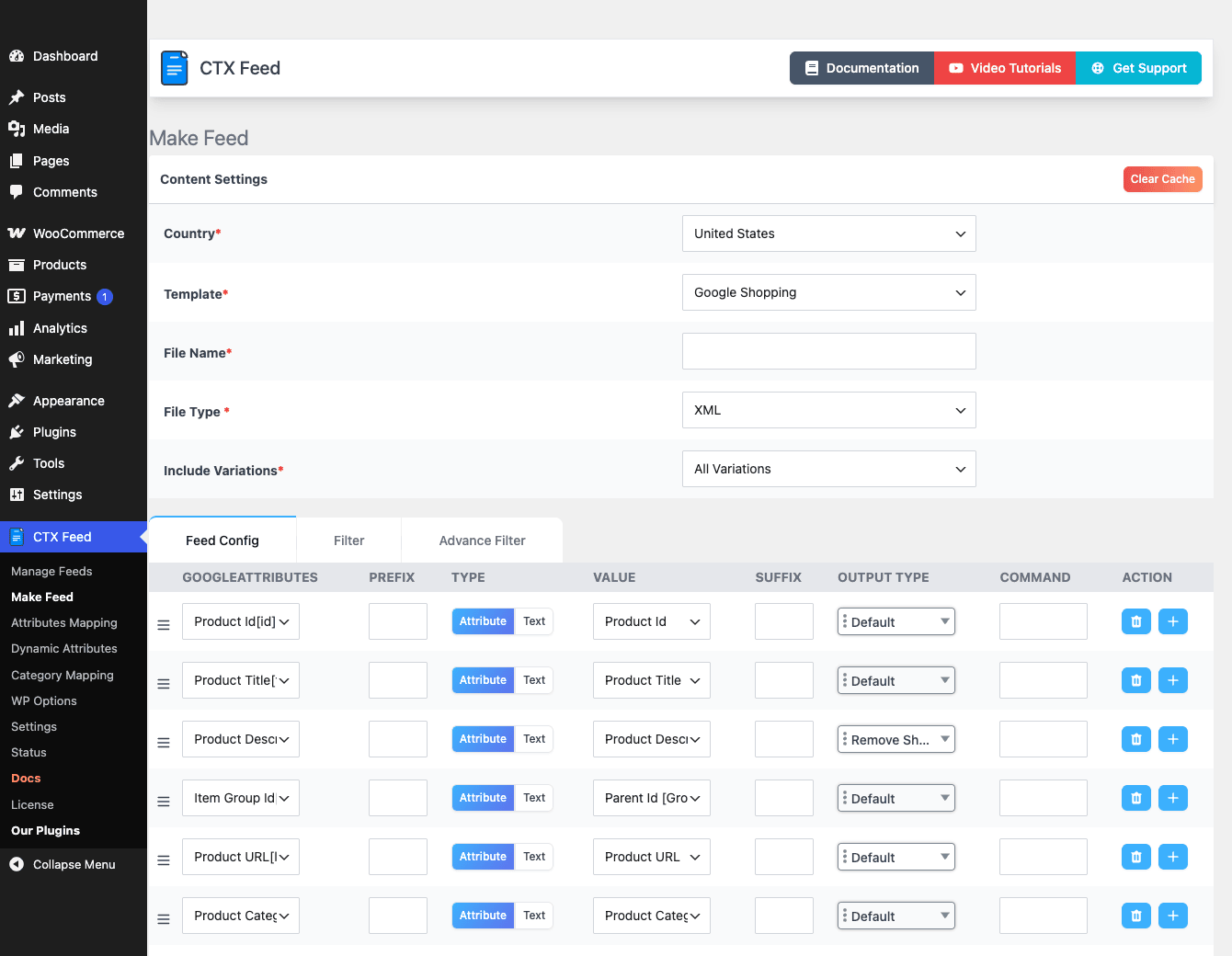
The top of the page sets the feed’s identity:
- Country. Pick the target country first. It filters the template dropdown to the channels available there.
- Template. This is the merchant. Choose "Google Shopping" and the attribute table below pre-fills with Google’s required fields. Choose Facebook and it changes. This dropdown is the 100+ merchant templates in action.
- File Name. What the feed file is called on disk. It becomes part of the public feed URL, so keep it readable (
google-shoppingbeatsfeed1). - File Type. XML, CSV, TSV, or TXT are surfaced here for most channels (XLS, XLSX, and JSON are also supported under the hood). Google Shopping wants XML; pick the format your channel’s docs ask for.
- Include Variations. Toggle this on if you sell variable products and want each variation as its own line item. Google treats each variation as a separate sellable item tied together by
item_group_id, so for variable catalogs this is almost always on.
Below that sits the attribute mapping table, the real heart of the screen. Each row is one channel attribute on the left and a source on the right:
- The left column is the channel attribute:
id,title,description,link,image_link,price,availability,condition,item_group_id,google_product_category, and so on. The template decides which rows appear. - The right side picks the source. You choose Attribute (pull from a WooCommerce field like product title, SKU, regular price) or Text (a static value you type, for example a fixed
brand). - Prefix / Suffix let you wrap the value. Add a tracking parameter to
link, or stick a brand name in front of everytitle. - Output Type transforms the value. Options like "Remove Shortcodes" and "Strip Tags" clean up a
descriptionthat has builder shortcodes or HTML you don’t want in the feed. - Command applies further conditional handling to the row.
Tip: the "Strip Tags" and "Remove Shortcodes" output types on the description row are not optional in practice. If you run a page builder, your raw product description is full of shortcodes and markup, and Google will reject or mangle a description that carries them. Set those on day one.
Across the top of the Make Feed page are three tabs: Feed Config (everything above), Filter, and Advance Filter. Filter handles basic inclusion rules; Advance Filter (Pro) is the conditional include/exclude engine I cover further down.
Once you save, the feed appears under CTX Feed » Manage Feeds. That screen lists every feed with its public feed URL, last-update time, and product count, plus buttons to regenerate, download, edit, or delete. There’s also an Import Feed File option to bring a saved feed config in from another site, which is the fastest way to clone a working setup onto a second store. You hand the feed URL from this screen to Google Merchant Center, and Google takes it from there.
Category mapping and attribute mapping: where most feeds break
If a feed gets rejected, the cause is usually one of two screens, and both deserve their own walk-through.
Category Mapping (CTX Feed » Category Mapping, a Pro feature) maps each of your store categories to the channel’s required category. Google maintains its own product taxonomy with thousands of categories, and your store category "Mugs" is not the same as Google’s "Home & Garden > Kitchen & Dining > Tableware > Drinkware > Mugs". The mapping screen is a simple table: your store category on the left, the channel category you select on the right.
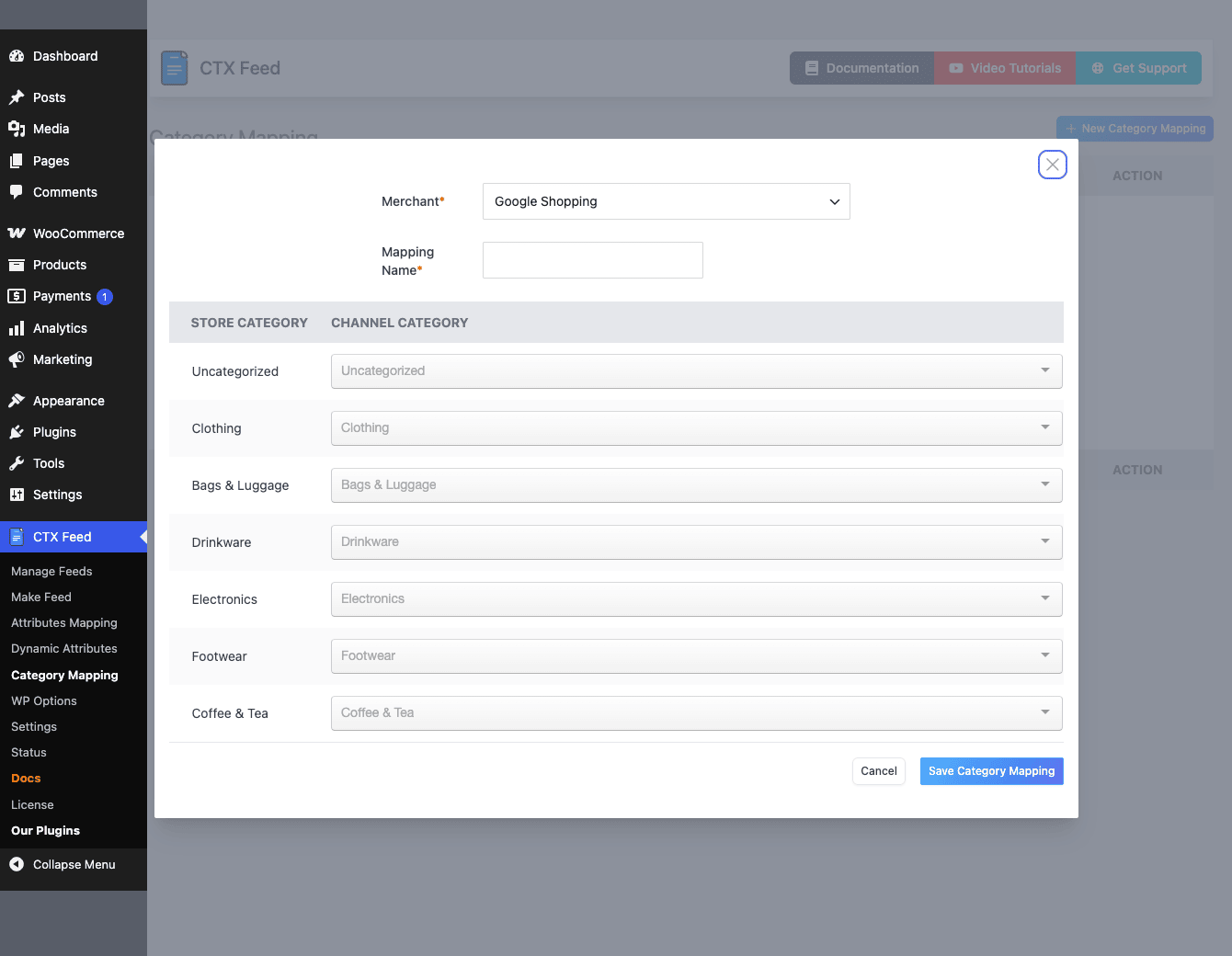
The thing I appreciate here is that it does not change your real store categories. Your shop stays organized the way your customers expect. The mapping only applies inside the feed. So "Drinkware" on your site can become Google’s official drinkware taxonomy node in the feed without anyone on your storefront noticing.
Attribute Mapping (CTX Feed » Attributes Mapping, also Pro) solves a messier problem. Real stores rarely keep product data tidy. One product’s color lives in a global attribute, another’s lives in a custom field, a third has it baked into the title. Attribute Mapping lets you merge multiple WooCommerce product attributes into a single channel attribute, so the feed’s color or material column is consistent even when your underlying data isn’t.
Heads-up: these two screens are where the time goes. Building the feed itself takes minutes. Mapping a few hundred store categories to Google’s taxonomy, and reconciling your attribute mess into clean channel fields, is the part that actually determines whether your products get approved. Budget for it.
Dynamic Attributes, Advance Filter, and the WP Options feed
Three more Pro tools round out the mapping toolkit, and each one earns its place.
Dynamic Attributes (CTX Feed » Dynamic Attributes) build a brand-new attribute value from conditional rules. The pattern is if/then: if the product is in category X and costs over Y, then output Z for this attribute. I’ve used this kind of feature to set a custom_label for ad campaigns (tagging "clearance" or "bestseller" items so Google Ads can bid on them differently) without touching the products themselves. It’s a small feature with a big payoff once you run shopping campaigns seriously.
Advance Filter (the third tab on Make Feed, Pro) is your include/exclude engine. You set conditions, and only products that match make it into the feed. Common uses: exclude out-of-stock items, exclude products under a minimum margin, or build a feed that carries only one category. Running separate feeds for separate campaigns is much cleaner than submitting one giant feed and fighting Google’s filters on their side.
WP Options feed (CTX Feed » WP Options) is the odd one out, in a good way. It generates a feed from any WordPress post type, not only WooCommerce products. If you’ve built a custom catalog as a custom post type, or you want to feed posts or a non-Woo data source to a channel, this is the escape hatch. Most stores won’t need it. The ones that do are very glad it exists.
Keeping feeds fresh: scheduling, batching, and caching
A feed that’s correct today and stale next week is worse than no feed, because Google will start disapproving items for price and stock mismatches. Scheduling is what keeps the channel’s copy honest, and it’s all configured under CTX Feed » Settings.
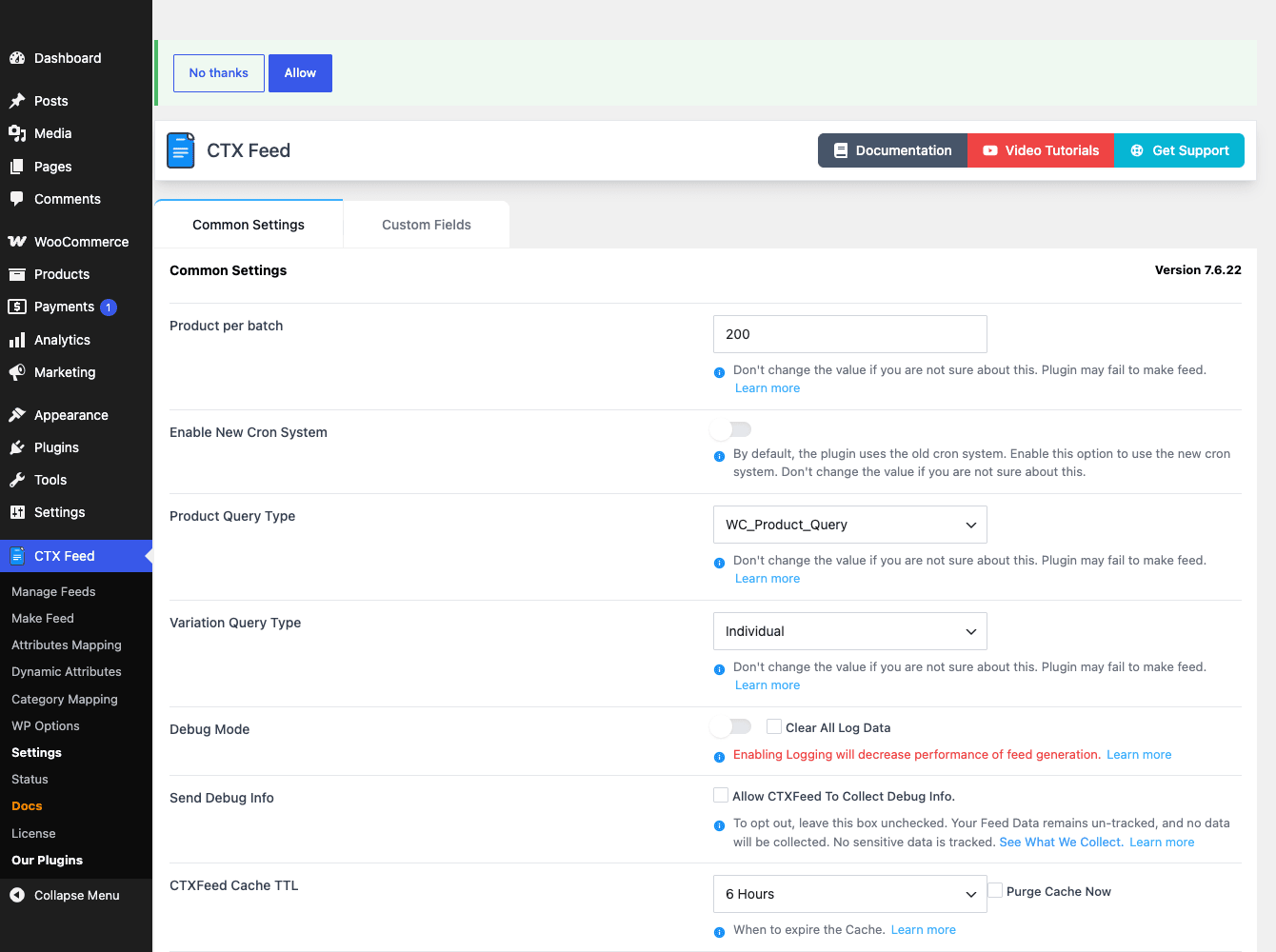
The Common Settings tab is short but every option matters:
- Product per batch (default
200). Feeds generate in batches so a big catalog doesn’t try to render in one PHP request and time out. Each batch processes 200 products by default. On a small store you can raise it; on cheap shared hosting with a large catalog, lower it if generation keeps failing partway. - Enable New Cron System (off by default). CTX Feed ships with two scheduling engines. The old cron runs unless you flip this on. If your scheduled feeds aren’t refreshing reliably, toggling the new cron system is the first thing to try.
- Product Query Type (
WC_Product_Queryby default). How the plugin queries your catalog. The default uses WooCommerce’s own product query, which is the safe choice for most stores. - Variation Query Type (
Individualby default). Controls how variations are pulled. Leave it on Individual unless you have a specific reason and a very large variable catalog. - Debug Mode. Turns on detailed logging. Useful when a feed is failing, but the setting itself warns that logging slows generation. Turn it on to diagnose, then turn it back off.
- Send Debug Info. Opt-in telemetry to WebAppick, off by default. Leave it off unless support asks.
- CTXFeed Cache TTL (default
6 Hours). CTX Feed caches feed data to speed up regeneration, and the cache lives for 6 hours by default. There’s a Purge Cache Now button right there for when you’ve made a change and want it reflected immediately rather than waiting for the next cycle.
There’s also a Custom Fields tab in Settings, where you register custom product fields so they become available as sources in the Make Feed attribute table. If your products store data in custom meta (a third-party plugin’s fields, ACF, your own meta), this is how you expose that data to the feed mapping.
Each individual feed sets its own auto-update interval when you build it. So your fast-moving feed can refresh every few hours while a stable catalog feed refreshes daily. Match the interval to how often that data actually changes.
Note: scheduled generation runs on WP-Cron, which only fires when your site gets traffic. On a low-traffic store, WP-Cron can lag. If your feeds aren’t refreshing on time, wire WordPress up to a real server cron job hitting wp-cron.php on a schedule. That single change fixes most "my feed is stale" complaints.
When Google Merchant Center rejects your products
This is the section I wish someone had handed me on day one. CTX Feed generates a clean file, but Google still judges the contents, and a handful of rejections account for almost everything. Here’s how to read them and what to fix in the plugin.
"Mismatched value (price)." The feed price doesn’t match the price on your landing page. This is the most common disapproval, and on a tax-inclusive or multi-currency store it’s almost guaranteed if you map the wrong price. Map the price your customer actually sees, including or excluding tax to match your display, and if you run currency switching, feed the price in the currency Google expects for that target country.
"Missing value (gtin / brand / mpn)." Google increasingly disapproves items without unique product identifiers. CTX Feed can read GTIN and MPN from Yoast SEO Premium‘s WooCommerce identifiers and from Germanized, but only if those fields are actually filled in on the product. Brand you map from a product attribute or CTX Feed’s own brand field. Fill them, then map those rows in Make Feed.
"Invalid value (google_product_category)." You submitted a category Google doesn’t recognize, usually because you mapped your raw store category straight into the field. Fix it in Category Mapping. The next section is entirely about why this one matters.
"Image too small / generic image." The image_link row is pointing at a placeholder or a tiny thumbnail. Make sure it maps to the full product image, not a resized variant.
Tip: Google Merchant Center’s diagnostics page tells you the exact attribute and the exact products affected. Read it, fix the matching row in Make Feed or the matching entry in Category Mapping, hit Purge Cache Now, regenerate the feed from Manage Feeds, then let Google re-fetch. Don’t guess. The diagnostics are specific, and the fix is almost always one row in the mapping table.
Don’t submit your store categories as the channel category
Let me single out the failure mode I see most, because it’s the one that quietly tanks an entire campaign.
Don’t map your raw WooCommerce store categories into google_product_category and call it done. It is the single most common reason a Merchant Center account gets a wall of "invalid category" disapprovals, and the reason is simple: your store’s category names are yours, invented for your shoppers, and Google’s taxonomy is a fixed published list with thousands of exact nodes. "Mens Tees" on your site is meaningless to Google. It wants "Apparel & Accessories > Clothing > Shirts & Tops".
The cost of getting this wrong isn’t abstract. Disapproved items don’t show in Shopping at all, so you’re paying for the rest of your catalog to carry the dead weight while a chunk of your products earn nothing. Worse, a high disapproval rate can flag the whole account for review, and a Merchant Center suspension takes real time and back-and-forth to lift. I’ve watched a store lose a week of peak-season Shopping traffic to a suspension that started as a lazy category mapping.
The fix takes an afternoon, not a week. Open Category Mapping, and for each store category, pick the closest official Google taxonomy node from the channel category selector. You don’t have to map every leaf perfectly on the first pass. Map your top sellers’ categories first, regenerate, and watch the disapprovals drop. Then work down the long tail. Because CTX Feed keeps this mapping separate from your real store categories, you can be precise for the feed without reorganizing your shop and confusing your customers. That separation is the feature that makes doing this right actually painless.
Real-world setups I’d actually use this for
Features are abstract. Here’s where CTX Feed earns a spot in a real stack.
If you run a clothing store, you live and die by variations and identifiers. You’d turn on Include Variations so every size and color is its own line item tied by item_group_id, fill in GTINs (and let CTX Feed read them from Yoast), and lean hard on Category Mapping to hit Google’s apparel taxonomy. Apparel has the strictest identifier requirements, so this is the persona that benefits most from the mapping screens.
If you run a print shop or made-to-order business, you probably don’t have GTINs at all, because your products are custom. Here you’d set a static identifier_exists value and use Dynamic Attributes to flag the custom items, so Google stops demanding identifiers your products legitimately can’t have.
If you sell across Google, Facebook, and a comparison engine, you’d build three separate feeds from the same catalog, each with its own template and its own output format (XML for Google, XML for Facebook, maybe CSV for the comparison engine). Manage Feeds lists all three side by side, each on its own refresh schedule.
If you run a large seasonal catalog, you’d use Advance Filter to carve out a "clearance" feed and a "core" feed, set the clearance feed to refresh often during a sale, and let the core feed refresh daily. Separate feeds beat one giant feed with channel-side filters every time.
If you run a multi-currency store, this is your danger zone. You’d map the customer-facing price per target country and verify it against the landing page before submitting, because price mismatch is the rejection that hits multi-currency stores hardest.
CTX Feed vs the other WooCommerce feed plugins
The WooCommerce feed space has three real options worth comparing: CTX Feed, WooCommerce Google Product Feeds, and Google’s own "Google Listings & Ads". They solve overlapping problems differently.
| Plugin | Channel coverage | Output formats | Mapping depth | Best for |
|---|---|---|---|---|
| CTX Feed | 100+ merchant templates | 7 (XML/CSV/TSV/TXT/XLS/XLSX/JSON) | Category + attribute + dynamic + advance filter | Stores feeding several channels with messy data |
| WooCommerce Google Product Feeds | Google-family focused | XML/CSV oriented | Field mapping, lighter category tooling | Google-only stores wanting a focused tool |
| Google Listings & Ads | Google only (direct sync) | No file, direct API sync | Google’s own attribute mapping | Stores that only sell on Google and want first-party sync |
The numbers that matter: CTX Feed ships 100+ merchant templates against Google Listings & Ads’ single channel, so if you advertise on Facebook, Bing, or a comparison engine alongside Google, the others leave you to find another tool. CTX Feed writes 7 distinct output file types where the Google-only options effectively give you one path each. Its default 200-product batch size and 6-hour cache TTL are tuned for big catalogs that need to generate without timing out, where Google’s direct-sync approach hides those controls entirely.
Where I’d be fair to the alternatives: if you genuinely only sell on Google and never plan to expand, Google Listings & Ads syncs directly through Google’s API with no file to host, which is one fewer moving part. CTX Feed’s breadth is exactly the wrong trade if you’ll only ever use one channel. But the moment a second channel enters the picture, the multi-template, multi-format approach wins, and it’s not close.
Developer reference: the feed hook lifecycle
This is where CTX Feed gets interesting for developers. There’s no shortcode, no custom post type, no WP-CLI command, and no block. The real developer surface is a generous set of action and filter hooks fired around the feed lifecycle and the per-product value pipeline. If you’ve ever needed to transform a value the UI can’t express, or trigger something the moment a feed regenerates, this is your entry point.
A quick note on storage so the hooks make sense. A feed’s config isn’t a post; it’s a wp_option named wf_feed_<feedname>, and global settings live in woo_feed_settings. The generated feed itself is a physical file written under wp-content/uploads/.../woo-feed/. So when you hook the lifecycle, you’re hooking a process that reads options and writes a file, not one that touches a CPT.
The generation lifecycle actions
A full feed build fires a pair of actions around it, each receiving the feed config array:
add_action( 'before_woo_feed_generate_feed', function ( $info ) {
    // $info is the feed config array for the feed about to generate.
    error_log( 'CTX Feed: starting generation for ' . $info['filename'] );
}, 10, 1 );

add_action( 'after_woo_feed_generate_feed', function ( $info ) {
    // Runs after the whole feed finishes building.
}, 10, 1 );
Because feeds build in batches (remember the default 200-per-batch setting), there are batch-level actions too, each receiving the config:
add_action( 'before_woo_feed_generate_batch_data', function ( $config ) {
    // Fires before each batch of products is processed.
}, 10, 1 );

add_action( 'after_woo_feed_generate_batch_data', function ( $config ) {
    // Fires after each batch.
}, 10, 1 );
And around per-product data collection:
add_action( 'before_woo_feed_get_product_information', function ( $config ) {
    // Before the plugin gathers data for a product.
}, 10, 1 );
There’s also a product-loop pair. Note the first argument is an array placeholder, with the feed rules and config following:
add_action( 'woo_feed_before_product_loop', function ( $items, $feedRules, $config ) {
    // $items is an array placeholder; $feedRules holds the mapping.
}, 10, 3 );
The hook you actually want: after the file is saved
If your goal is "the feed just regenerated, now ping the channel or log it", this is the one. It fires after the feed file is written to disk and carries four arguments:
add_action( 'ctx_feed_after_save_feed_file', function ( $status, $feed_info, $should_update_last_update_time, $auto ) {
    if ( ! $status ) {
        return; // generation failed, don't notify.
    }
    // Example: ping Google Merchant Center to re-fetch, or post to Slack.
    wp_remote_post( 'https://hooks.example.com/feed-updated', array(
        'body' => array(
            'feed' => $feed_info['option_value']['feedrules']['filename'],
            'auto' => $auto ? 'scheduled' : 'manual',
        ),
    ) );
}, 10, 4 );
That $auto flag is genuinely useful: it tells you whether the regeneration was a scheduled cron run or a manual click, so you can notify only on one or the other.
There are also config-lifecycle actions around saving feeds, if you need to react when a feed is created or edited:
add_action( 'woo_feed_after_insert_config', function () {
    // A new feed config was just saved.
} );

add_action( 'woo_feed_after_update_config', function () {
    // An existing feed config was updated.
} );
The per-product filter family
This is the big surface, and it’s where most real customization happens. CTX Feed exposes a woo_feed_filter_product_* filter for nearly every value it pulls from a product. With one exception (price, below), they all share the same three-argument shape: the value, the $product object, and the feed $config.
Rewrite a title to prepend the brand:
add_filter( 'woo_feed_filter_product_title', function ( $name, $product, $config ) {
    $brand = get_post_meta( $product->get_id(), '_brand', true );
    return $brand ? $brand . ' ' . $name : $name;
}, 10, 3 );
Force an availability value based on stock:
add_filter( 'woo_feed_filter_product_availability', function ( $status, $product, $config ) {
    return $product->is_in_stock() ? 'in stock' : 'out of stock';
}, 10, 3 );
Append a UTM parameter to the product link:
add_filter( 'woo_feed_filter_product_link', function ( $permalink, $product, $config ) {
    return add_query_arg( 'utm_source', 'google_shopping', $permalink );
}, 10, 3 );
The same family covers woo_feed_filter_product_image, _product_type, _product_sku_id, _product_tags, _product_status, _product_visibility, _product_quantity, _product_weight, _product_width, _product_parent_title, and _product_feature_image. Treat those as the same three-arg signature. Two relatives carry an extra trailing argument: woo_feed_filter_product_tax passes a fourth $taxes array, and the category separator lives under the slightly different name woo_feed_filter_category_separator (default ' > '). Register either with three args and you’re fine; just don’t assume the longer signature.
The price exception. woo_feed_filter_product_price carries extra trailing arguments internally. Register it with three args and just read the price and product; don’t assume the longer signature:
add_filter( 'woo_feed_filter_product_price', function ( $price, $product, $config ) {
    // Round to a clean .99 if you want, or convert currency here.
    return $price;
}, 10, 3 );
Condition, statuses, and settings defaults
Set the default product condition (the literal default is new):
add_filter( 'woo_feed_product_condition', function ( $condition, $product, $config ) {
    // Mark refurbished items.
    return has_term( 'refurbished', 'product_cat', $product->get_id() )
        ? 'refurbished'
        : $condition; // $condition defaults to 'new'
}, 10, 3 );
Control which post statuses are eligible for the feed:
add_filter( 'woo_feed_product_statuses', function ( $statuses ) {
    return $statuses; // e.g. restrict to 'publish' only
}, 10, 1 );
Add default settings keys:
add_filter( 'woo_feed_settings_extra_defaults', function ( $defaults ) {
    $defaults['my_custom_key'] = 'value';
    return $defaults;
}, 10, 1 );
A few more filters exist (woo_feed_parsed_rules, woo_feed_product_type_separator, woo_feed_filter_dropdown_attributes, and an input-securing filter) for finer control over rule parsing and the attribute dropdown. They’re there if you need them; reach for the documented ones above first.
Integration filters
CTX Feed reads unique identifiers from other plugins through dedicated filters. It pulls GTIN, ISBN, and MPN from Yoast WooCommerce SEO (via filters like yoast_gtin13_attribute_value and yoast_mpn_attribute_value) and from WooCommerce Germanized (woo_feed_filter_wc_germanized_gtin and _mpn). For multilingual stores it integrates with WPML and WCML through woo_feed_wcml_price and wpml_current_language, so a translated, currency-converted feed is possible when those plugins are active.
About the REST API (read this before you build on it)
CTX Feed registers a REST namespace, ctxfeed/v1, with controllers for Make Feed, merchant info, products, categories, settings, and more. It is an internal, auth-gated admin API that powers the plugin’s React-based admin UI, not a public store-data API. Every route’s permission callback rejects non-admins. Don’t build a storefront, a headless integration, or any external service on ctxfeed/v1. If you need product data outside wp-admin, use the WooCommerce Store API or the official WooCommerce REST API, which are designed and authenticated for that. The CTX Feed namespace exists to serve its own admin screens, full stop.
For the official attribute reference and the channel spec, WebAppick keeps documentation on the WordPress.org plugin page and Google publishes the authoritative product data specification every feed has to satisfy. For the hook and filter APIs themselves, the WordPress developer reference is the canonical source.
Pricing and licensing
CTX Feed comes in a free base on wordpress.org and the Pro version this review covers. The free version generates feeds for the major merchants with manual generation. Pro is what adds Category Mapping, Attribute Mapping, Dynamic Attributes, Advance Filter, the WP Options feed, scheduled auto-updates, and the wider set of merchant templates. In short, free gets you a file; Pro gets you a file that stays correct and current on its own.
Pro is sold by WebAppick as a yearly license that covers updates and support. If you’d rather own the plugin through the GPL store, CTX Feed Pro is available on GPL Times with the same Pro feature set, so you can wire up real category mapping and scheduled feeds on your store without metering features.
A fair note on the trade-off: a feed plugin is genuinely the kind of tool where the Pro features aren’t upsell padding. Category Mapping and price-aware attribute mapping are the difference between an approved catalog and a wall of Merchant Center disapprovals. If you’re serious about Shopping, the mapping tools are the point, not a nice-to-have.
FAQ
Does CTX Feed slow down my store front-end?
No. Feeds generate server-side on WP-Cron and get written to a file on disk. A shopper loading a product page never triggers feed generation, so there’s no front-end performance cost. The only load happens during scheduled generation, which runs in the background in batches.
My scheduled feed isn’t refreshing on time. What’s wrong?
Almost always WP-Cron. WordPress’s cron only fires when your site gets a visitor, so a low-traffic store can lag. Set up a real server cron job to hit wp-cron.php on a schedule, and try toggling "Enable New Cron System" in Settings. Those two fixes resolve the large majority of stale-feed complaints.
How big a catalog can it handle?
Large ones, but generation time scales with catalog size because it processes in batches of 200 products by default. A catalog in the tens of thousands will take real minutes to build and can strain cheap shared hosting. Lower the batch size if generation fails partway, and set realistic refresh intervals rather than regenerating a huge feed every hour.
Why does Google keep rejecting my products for price mismatch?
Because the feed price doesn’t match your landing-page price, which is common on tax-inclusive or multi-currency stores. Map the exact price the customer sees, matching your tax display, and feed the correct currency per target country. This is a configuration issue in your price mapping, not a bug in the plugin.
Do I need Yoast for GTIN and MPN?
Not strictly, but it helps. CTX Feed can read GTIN and MPN from Yoast WooCommerce SEO and from Germanized if those fields are filled (brand comes from a product attribute or CTX Feed’s own brand field). If you don’t use either, you can still set those attributes manually in Make Feed or store them in a custom field and map it. Either way, missing identifiers are a growing rejection cause, so fill them.
What’s the real difference between free and Pro?
Free generates basic feeds for major merchants with manual generation. Pro adds the parts that keep a feed correct and automated: Category Mapping, Attribute Mapping, Dynamic Attributes, Advance Filter, the WP Options feed, and scheduled auto-updates. For a store actually running Shopping campaigns, the Pro features are the ones doing the work.
Can I generate a feed from something other than WooCommerce products?
Yes, with the Pro WP Options feed, which builds a feed from any WordPress post type. It’s there for custom catalogs and non-Woo data sources. Most stores won’t need it, but if you’ve built a custom post type catalog, it’s the tool for the job.
Which output format should I pick?
It depends on the channel. Google Shopping and Facebook generally want XML; some comparison engines and affiliate networks want CSV or TXT. CTX Feed supports XML, CSV, TSV, TXT, XLS, XLSX, and JSON, so pick whatever your channel’s documentation specifies. When in doubt for Google, choose XML.
Can I run separate feeds for separate campaigns?
Yes, and you should. Build one feed per channel and even per campaign segment, each with its own template, format, and refresh schedule, all listed under Manage Feeds. Use Advance Filter to carve out a "clearance" or "category-specific" feed. Separate, focused feeds are far easier to manage than one giant feed filtered on the channel’s side.
Is the ctxfeed/v1 REST API something I can build an integration on?
No. It’s an internal, auth-gated admin API that powers the plugin’s own React admin screens, and every route blocks non-admins. For external or headless product data, use the official WooCommerce REST API or Store API instead.
Final thoughts
CTX Feed does one job and does it without drama: it turns a WooCommerce catalog into a feed that Google, Facebook, Bing, and a hundred other channels can actually read and trust. The Make Feed builder is approachable enough that a store owner can get a Google Shopping feed live in an afternoon, and the mapping screens are deep enough that the same store won’t drown in Merchant Center rejections a week later.
My honest take after living in the admin: the free base is a fine way to get a file, but the Pro mapping tools are where the value is, because correctness is the entire game with product feeds. Category Mapping alone will save you from the most common reason Shopping campaigns underperform. The developer hooks are a pleasant surprise too, with a clean lifecycle and a ctx_feed_after_save_feed_file action that makes "feed regenerated, now do something" trivial.
It isn’t flashy, and it doesn’t need to be. If you sell on WooCommerce and you want those products to show up where buyers are searching, CTX Feed is the translator between your store and the channels, and it’s a good one. Set up the category mapping properly, match your prices to what shoppers see, fill in your identifiers, and let it run.