

If you’ve spent any time with Elementor, you know the editor itself is great. You also know there’s a wall around it. Anything you build inside Elementor only displays inside an Elementor page, section, or template slot. Want that lovely promo bar in a widget area? You can’t. Want it injected before every blog post via before_post? You can’t. Want a custom layout for the Tutorials category archive on a site that doesn’t have Elementor Pro’s Theme Builder? Also no.
AnyWhere Elementor Pro punches a door through that wall. It is the plugin that takes whatever you design with Elementor and lets you place it anywhere on the WordPress site: in widgets, in PHP hooks, on custom post type singles, on category and tag archives, in shortcodes, and inside other templates. This article walks through everything it does, who it’s for, and how to wire it up correctly.
Table of contents
- What is AnyWhere Elementor Pro?
- Key features
- How it works (for users)
- Installation and setup
- Insertion methods explained
- Conditional display and the Rules tab
- Real-world use cases
- Developer reference
- Performance, compatibility, and gotchas
- Pricing and licensing
- Frequently asked questions
- Final thoughts
What is AnyWhere Elementor Pro?
AnyWhere Elementor Pro is a WordPress plugin from Webtechstreet (WP Vibes). It introduces a new custom post type called Dynific Global Templates (the brand was refreshed from AnyWhere Elementor in a recent update; the store still sells it under the AnyWhere name and the codebase keeps the ae_pro_ prefix everywhere). Each Dynific Template is an Elementor design you build once and then insert in a dozen different places on the site.
The plugin sits between Elementor and WordPress. Elementor draws the design. AnyWhere Elementor Pro decides where that design appears on the front end.
There are two big pieces. The first is the insertion engine: shortcodes, widgets, PHP hooks, single post layouts, archive layouts, 404 and search templates. The second is the rules engine: each template can be scoped by post type, by category or tag, by user role, by login state, by specific post IDs, by URL, and by other conditions, so the same design can show in one place and stay hidden elsewhere.
The reason this matters is that it overlaps with Elementor Pro’s Theme Builder feature, but it doesn’t need Elementor Pro. The free Elementor plugin plus AnyWhere Elementor Pro gets you most of what the Theme Builder offers, plus a few things the Theme Builder doesn’t (widget-area insertion and hook injection on a much finer-grained map). For sites where Elementor Pro is overkill, this is a budget-friendly alternative. For sites that already run Elementor Pro, it’s a complement that fills the gaps the Theme Builder leaves.
Key features
- Shortcode insertion with
[INSERT_ELEMENTOR id="123"]. Any Elementor template you save in the Dynific Templates list gets a ready-to-paste shortcode shown right on the edit screen. - PHP code insertion for theme developers. The same edit screen shows a
do_shortcode()call you can paste into a theme file, a custom plugin, or a code snippet. - Widget area insertion. Drop a Dynific Templates widget into any sidebar, footer column, or widgetized region in your theme. The widget picks which template to render.
- Hook injection. Pick from a curated list of theme action hooks (Astra has 45+, GeneratePress has 30+, others vary) or type any custom WordPress action name. The plugin attaches your template to that hook automatically.
- Single post templates for any post type. Apply an Elementor design to every Post, Page, Product, or custom post type single without touching the theme. Auto Apply turns it into a global override; off, it stays opt-in per post.
- Archive templates for categories, tags, custom taxonomies, custom post type archives, author archives, date archives, and search results. Build the archive once, point it at the taxonomy, done.
- Conditional display rules. Each template has a Rules tab that scopes the display by post type, taxonomy term, selected or excluded post IDs, user role, author, login state, and other conditions.
- Render modes. Each template knows what kind of layout it is (Single Post Template, Taxonomy Archive Template, Post Type Archive Template, 404 Template, Search Template, Block Layout, Author Archive, Date Archive, or Normal). The mode changes which fields appear and how WordPress routes to it.
- ACF, Pods, and JetEngine integration. Dedicated widgets for Advanced Custom Fields (Repeater, Flexible Content, Gallery, single fields, group fields), Pods custom fields, and JetEngine dynamic content. Build your CPT designs against real custom-field data without switching tools.
- WooCommerce support. Custom single product layouts, archive product layouts, my-account, cart, and checkout designs, all editable from inside Elementor.
- Bundled theme integrations. Out of the box hook maps for Astra, GeneratePress, OceanWP, Hestia, Page Builder Framework, Storefront, Genesis, and Twenty Seventeen.
- 38 modules. Each widget group can be turned off if you don’t need it, so the site only loads what you use.
How it works (for users)
You design a template inside Elementor. You set a render mode and (optionally) a usage area, save it, and the plugin takes care of placing it. That’s the whole loop. The rest is choosing which placement makes sense for what you’re trying to do.
Imagine three concrete cases.
Case one. A 50%-off banner that should appear above every blog post for two weeks. You build the banner as a Dynific Template. Render mode stays on Normal. Usage Area is set to astra_entry_before (if you’re on Astra) or loop_start (if you’re on a custom theme with no bundled hook map). The plugin attaches the banner to that hook. Two weeks later you trash the template and the banner disappears everywhere.
Case two. A custom layout for product reviews on a tech blog. You build the layout with title, featured image, ACF rating field, pros and cons accordion, related products. Render mode is Single Post Template, Post Type is Reviews, Auto Apply is on. Every Review post on the site now renders with that layout. Old posts, new posts, all of them.
Case three. The archive page for the Tutorials category. You build a grid layout with cover images, excerpt, and read-time. Render mode is Taxonomy Archive Template. Taxonomy is Categories. Preview Term is Tutorials. Auto Apply is on. Visiting /category/tutorials/ shows the new layout. Other categories keep their default theme layout because the rule scopes this template to one specific term.
The Edit Template screen exposes all this in two tabs. General sets the render mode and the placement options for that mode. Rules sets conditional display.
Installation and setup
Install the way you install any premium WordPress plugin.
- Make sure Elementor (the free plugin from wordpress.org) is already installed and active. AnyWhere Elementor Pro depends on Elementor; it does not require Elementor Pro.
- Download the AnyWhere Elementor Pro zip from your account.
- In WordPress admin, go to Plugins, Add New, Upload Plugin. Upload the zip and activate.
- After activation a new menu item appears in the WordPress sidebar called Dynific Templates. Click it to see the templates list (empty on first install).
- Open Dynific Templates, Settings. Activate or deactivate any of the 38 modules. Most sites can safely leave the default selection. If you don’t use WooCommerce, deactivate the Woo modules to skip loading them. If you don’t use ACF, deactivate the ACF modules.
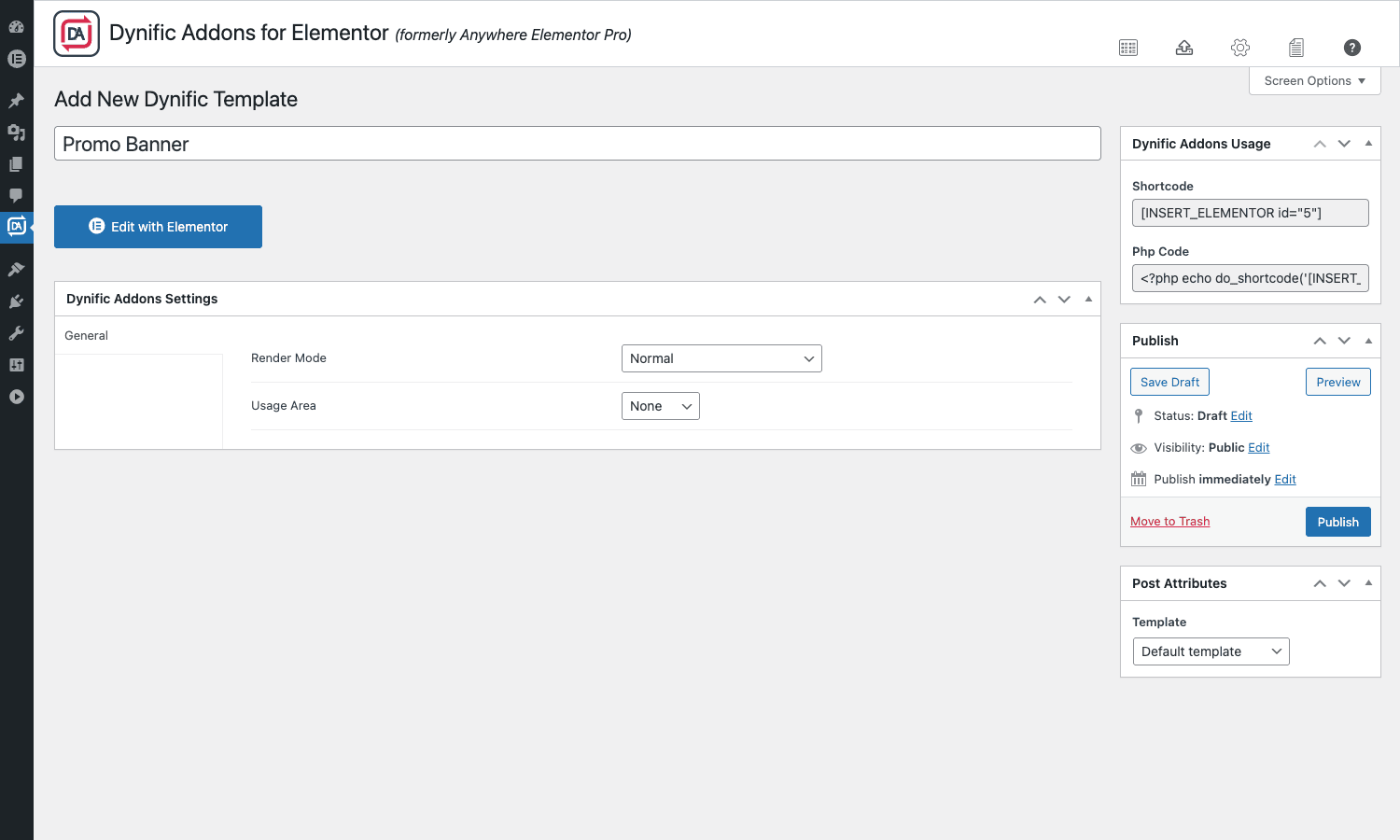
- Click Add New Dynific Template. Give it a name, hit Publish, then click Edit with Elementor.
- Design what you want.
Save your work, set the render mode and usage details on the General tab back in the WordPress edit screen, and you’re done.
Insertion methods explained
This is where the plugin earns its name. Six different insertion methods, each suited to a different need.
Shortcode
Every template gets a shortcode auto-generated by the plugin. It looks like [INSERT_ELEMENTOR id="123"]. The ID matches the template’s post ID. You’ll see the exact shortcode in the Dynific Addons Usage panel on the right side of the edit screen, ready to copy.
Drop the shortcode into a page or post body, inside a Shortcode block in Gutenberg, inside a text widget, inside a third-party plugin’s "rich content" field, anywhere shortcodes get parsed. The template renders wherever the shortcode lives.
PHP code
Same edit screen. Just below the shortcode you’ll see a PHP one-liner like <?php echo do_shortcode('[INSERT_ELEMENTOR id="123"]');?>. Paste that into a theme file, a custom plugin, or a Code Snippets block. This is the option for theme developers who want to call the template from a template tag like single.php or a hook callback.
Widget area
Once activated, the plugin registers a Dynific Templates widget. Open Appearance, Widgets, drag the widget into any registered sidebar (the WP standard widget areas plus anything your theme adds: footer columns, header bars, sidebar, before-content blocks). Pick the template from the dropdown. Done.
This is the cleanest path for theme-defined widget areas. No template editing, no hook lookups.
Hook injection
This is the one I use most. On the General tab, change the Render Mode to Normal and set the Usage Area to the action hook where you want the template to appear. The list is populated by your active theme.
On Astra you’ll see options like astra_html_before, astra_header, astra_main_header_bar_top, astra_content_top, astra_entry_before, astra_entry_after, astra_footer_content_top, astra_archive_header. 45+ named hooks in total. On GeneratePress you’ll see generate_inside_container, generate_before_content, generate_after_content, generate_footer_widgets, and others. Pick one and the plugin attaches your template to that hook with the right priority.
If your theme isn’t bundled and you don’t see useful hooks in the dropdown, set Usage Area to Custom. A text box appears. Type any WordPress action name: wp_head, wp_footer, the_content, get_header, get_footer, loop_start, loop_end, woocommerce_before_main_content, comments_template, even custom hooks from other plugins. The template fires whenever that action fires.
This is the killer feature. WordPress is full of action hooks, your theme adds dozens more, every active plugin adds a handful. AnyWhere Elementor Pro turns the entire hook surface into placement slots for Elementor designs.
Single post template
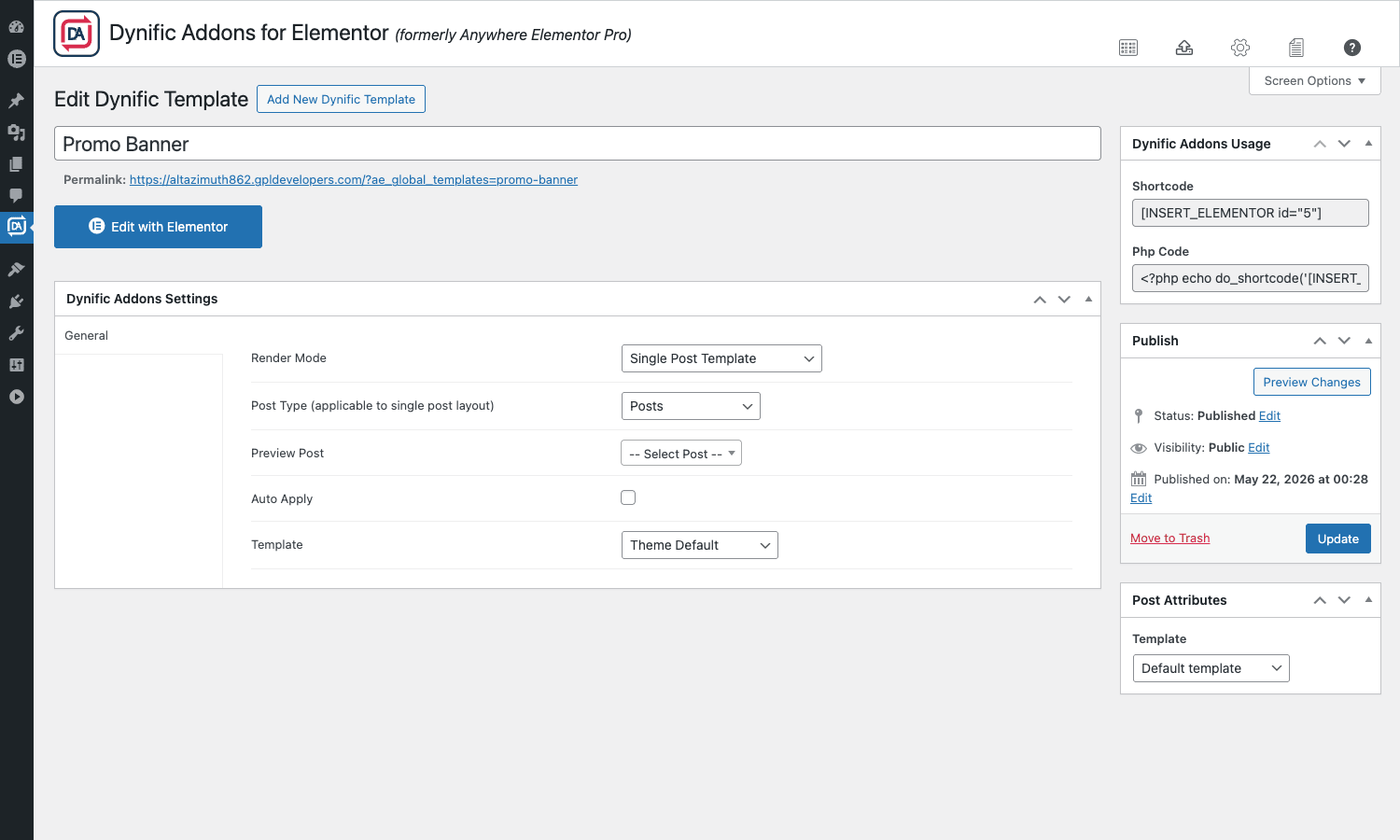
Set Render Mode to Single Post Template. The General tab swaps to show Post Type, Preview Post, Auto Apply, and Template Style. Pick the post type (Posts, Pages, or any registered CPT). Pick a Preview Post so the Elementor editor has real content to render against. Set Template Style (Theme Default keeps your theme’s header and footer; Canvas removes them for a full-bleed layout; Header/Footer renders the theme chrome but lets AnyWhere control everything in between).
Auto Apply matters. If it’s on, every post of the chosen post type renders with this template. If it’s off, the template is opt-in per post via a meta field on each post.
Picking Auto Apply ON for the Posts post type is how you globally redesign every blog post on the site. Off is how you opt in selectively for a handful of posts.
Archive template
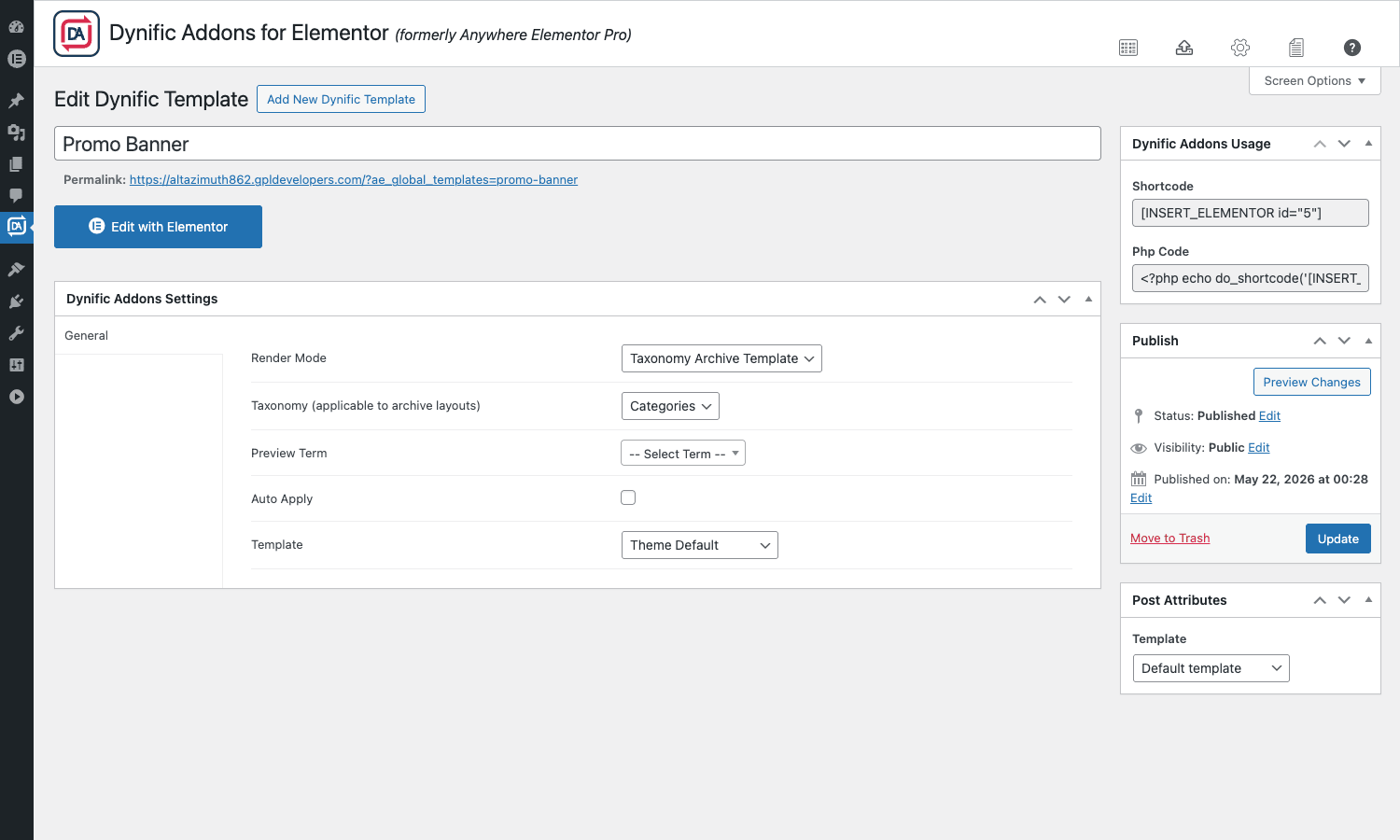
Set Render Mode to Taxonomy Archive Template. Pick the taxonomy (Categories, Tags, or any custom taxonomy). Pick a Preview Term so the editor renders real content. Auto Apply rules: on means every term archive uses this layout; off means it’s opt-in.
The same flow extends to Post Type Archive Template (e.g., the main shop page for a custom CPT), 404 Template, Search Template, Author Archive, and Date Archive. Each renders the layout for that specific WordPress query.
Block layout
A template marked as Block Layout doesn’t display anywhere on its own. It’s a reusable building block that other templates can include via shortcode or as a sub-template. This is how you keep things DRY. Build your CTA once as a Block Layout; reference it from five different page layouts. Edit the block once and all five pages reflect the change.
Conditional display and the Rules tab
The Rules tab is the conditional engine. It scopes any template to a subset of pages, posts, or visitors.
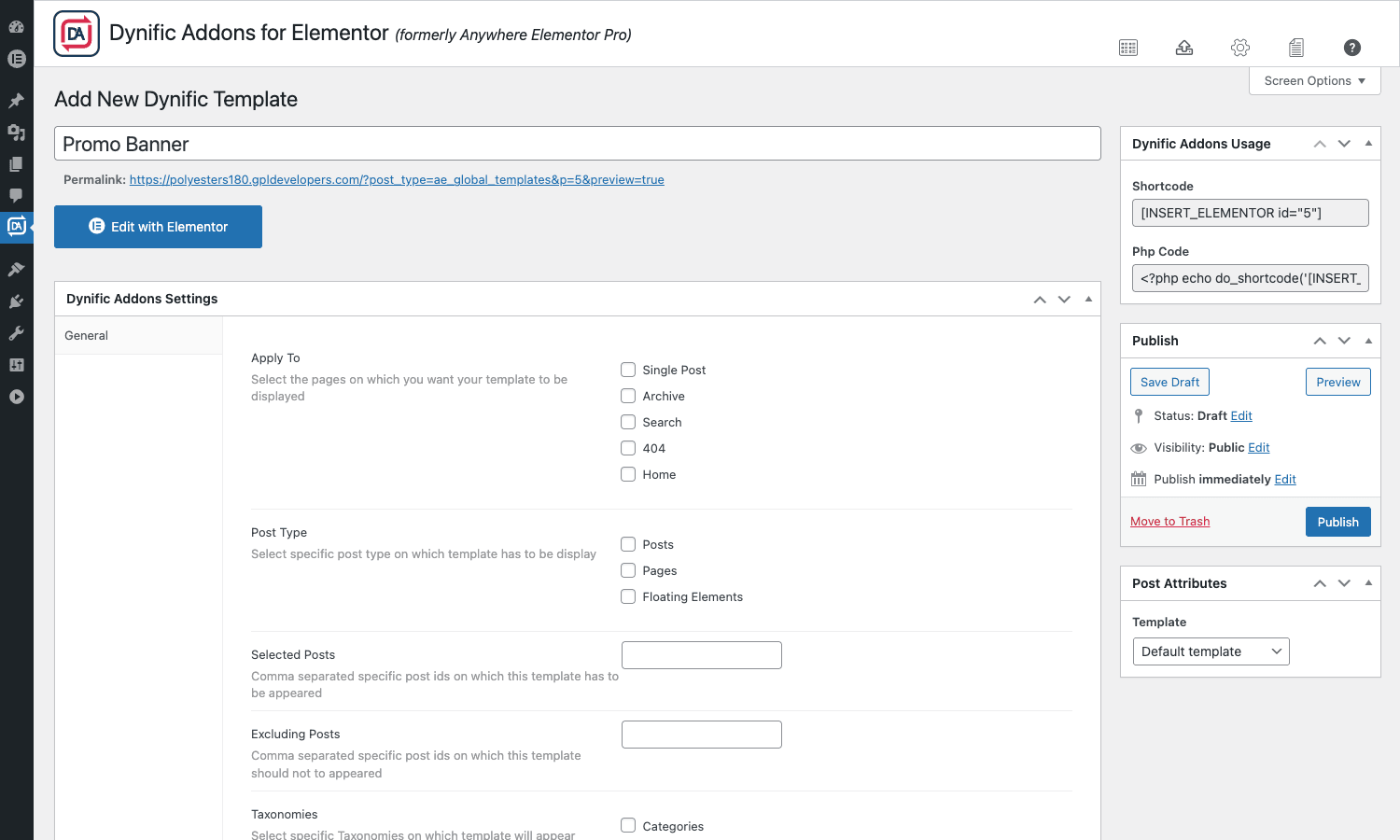
The fields you’ll meet:
- Apply To. Five checkboxes: Single Post, Archive, Search, 404, Home. This is the broad page-type filter. Tick Single Post + Archive if you want the template to show on both kinds of pages; tick none and the template never displays (handy as a soft mute without deleting the template).
- Post Type. Restricts the display to certain post types. Posts, Pages, custom post types, and Floating Elements (a special pseudo-post-type for floating buttons).
- Selected Posts. A comma-separated list of specific post IDs. The template only displays on those posts. Useful when you want a banner only on five specific pages.
- Excluding Posts. The inverse. The template displays everywhere it normally would, except on these specific IDs.
- Taxonomies + Terms. Limit by category, tag, or custom taxonomy. Pick the taxonomy from a dropdown, then pick specific terms.
- User Roles. Show the template only to logged-in users of specific roles (Administrator, Editor, Subscriber, Customer, etc.). Or invert it: show to everyone EXCEPT certain roles.
- Login state. Show only to logged-in users, or only to logged-out users.
- Authors. Restrict by post author.
The rules combine with an AND relationship. So a template with Apply To = Single Post + Post Type = Posts + Taxonomy = Categories + Term = Reviews + User Role = Subscriber will only show on single Posts that are in the Reviews category to logged-in Subscribers. Specific enough.
This is more granular than Elementor Pro’s Theme Builder display conditions, and it’s the reason agencies often pair AnyWhere with Elementor Pro instead of choosing between them.
Real-world use cases
A few patterns I’ve put into production using AnyWhere Elementor Pro.
Site-wide promotional banner. A retail client runs four campaigns a year. Each campaign has its own banner. I build the banner in Elementor as a Dynific Template, hook it to astra_body_top, set rules to Apply On = Single Post + Archive + Home, and exclude two specific landing pages by ID. When the campaign ends I switch the template to Draft and the banner vanishes site-wide without touching the theme.
Custom layout for an Events CPT. Without Elementor Pro‘s Theme Builder, you cannot natively design a single-event layout in Elementor. With AnyWhere, you create a template, set Render Mode to Single Post Template, pick Events as the post type, set Auto Apply on. Every event detail page now uses the template. ACF fields like Event Date, Venue, Speaker are rendered through AE’s ACF widgets.
Mega menu in the header. Build the mega menu as a Dynific Template (Block Layout render mode). Reference its shortcode from a Custom HTML widget inside the theme’s primary navigation, or drop it directly into a wp_nav_menu_items filter callback via the PHP code snippet shown on the edit screen.
Archive grid for a Knowledge Base CPT. Render Mode is Post Type Archive Template, Post Type is kb_article, Auto Apply is on. The default /knowledge-base/ archive page now renders with a custom grid: 3 columns, cards with icons and excerpts, search bar at the top, category filter chips. Visitors hit one URL and see the Elementor design.
Author bio at the bottom of every post. Render Mode = Normal, Usage Area = astra_entry_after (or the_content with a small priority tweak). Rules scope to Apply To = Single Post + Post Type = Posts. The bio appears after every blog post body, before comments, just like a magazine site. Editing one template updates the bio everywhere.
Sticky cart button on mobile WooCommerce. A template with a single Add to Cart button hooked to wp_footer with CSS that pins it to the screen bottom on mobile only. Rules scope to Apply To = Single Post + Post Type = Product. Mobile shoppers always have a one-tap buy button.
404 page with a search box and popular posts. Render Mode = 404 Template. Build the layout once. Every time someone hits a dead URL on the site they land on your custom design instead of the theme’s stock 404. Better UX, lower bounce.
Headers and footers without Elementor Pro. Two templates. One Render Mode = Normal hooked to wp_body_open for the header, one Render Mode = Normal hooked to wp_footer for the footer. Combined with the Astra or GeneratePress hook map you can fully replace the theme’s header and footer for the cost of one plugin instead of the full Elementor Pro Theme Builder.
Developer reference
Under the hood AnyWhere Elementor Pro is built around a single custom post type (ae_global_templates) and a small registry of filters that let you bend its behavior from a child theme or a custom plugin.
Register custom hook positions for your theme
If your theme isn’t in the bundled list (Astra, GeneratePress, OceanWP, Hestia, Page Builder Framework, Storefront, Genesis, Twenty Seventeen), the Usage Area dropdown only shows None and Custom. You can expose your theme’s hooks through the ae_pro_filter_hook_positions filter.
add_filter( 'ae_pro_filter_hook_positions', function( $hook_positions ) {
 $hook_positions['my_theme_before_header'] = 'My Theme: Before Header';
 $hook_positions['my_theme_after_header'] = 'My Theme: After Header';
 $hook_positions['my_theme_before_footer'] = 'My Theme: Before Footer';
 $hook_positions['my_theme_sidebar_top'] = 'My Theme: Sidebar Top';
 return $hook_positions;
} );
The keys are the actual action names that fire in your theme. The values are the human labels that show up in the Usage Area dropdown.
Resolve a template ID at runtime
Use ae_template_filter to override which template the plugin chooses for a particular query. This is handy when you want to A/B test two designs.
add_filter( 'ae_template_filter', function( $template_id ) {
 if ( is_singular( 'product' ) && wp_get_referer() && false!== strpos( wp_get_referer(), 'utm_campaign=spring' ) ) {
 return 5532; // Spring campaign product layout
 }
 return $template_id; // default
} );
Render any template programmatically
You don’t need the shortcode. Call do_shortcode directly from PHP. This is the canonical way to drop a template into a custom theme tag or a hook callback.
function my_inject_promo_after_first_paragraph( $content ) {
 if (! is_single() ||! in_the_loop() ||! is_main_query() ) {
 return $content;
 }
 $promo = do_shortcode( '[INSERT_ELEMENTOR id="123"]' );
 $paragraphs = explode( '</p>', $content );
 if ( count( $paragraphs ) > 1 ) {
 $paragraphs[0].= '</p>'. $promo;
 }
 return implode( '</p>', $paragraphs );
}
add_filter( 'the_content', 'my_inject_promo_after_first_paragraph' );
This injects the template after the first paragraph of every single post. AnyWhere on its own can’t choose "after the first paragraph" as a placement, so this pattern fills the gap.
Extend cache TTL for heavy templates
Template rendering is cached for a day by default. For a template with expensive dynamic content (a custom WP_Query, an external API call), bump it up or strip it down.
add_filter( 'aepro/transient/expiry', function( $seconds ) {
 if ( is_admin() ) {
 return 0; // never cache in admin
 }
 return HOUR_IN_SECONDS; // refresh hourly on the front end
} );
Set the value to 0 to disable caching entirely. Useful while debugging a template that’s not picking up changes.
Register a custom post source for the Post Blocks widget
Post Blocks is one of the heavier widgets in the plugin: it pulls a grid of posts with filters, pagination, and ACF data. By default it understands every public post type. You can extend it with a custom source.
add_filter( 'aepro/post-blocks/custom-source', function( $sources ) {
 $sources['featured_products'] = 'Featured Products';
 return $sources;
} );

add_filter( 'aepro/featured_products/custom-source-query', function( $args, $settings ) {
 $args['post_type'] = 'product';
 $args['meta_key'] = '_featured';
 $args['meta_value'] = 'yes';
 $args['posts_per_page'] = 8;
 return $args;
}, 10, 2 );
Now when a content editor adds a Post Blocks widget to a template, they see a Featured Products option in the source dropdown that pulls products with the _featured meta set.
Modify the archive title
By default the Archive Title widget pulls the WordPress core archive title. Customize it with ae_get_the_archive_title.
add_filter( 'ae_get_the_archive_title', function( $title ) {
 if ( is_category() ) {
 return 'All articles in '. single_cat_title( '', false );
 }
 if ( is_tag() ) {
 return 'Posts tagged: '. single_tag_title( '', false );
 }
 return $title;
} );
Add classes to dynamic calendar entries
The Dynamic Calendar widget renders a calendar grid with one cell per post. Style or annotate individual cells with the aepro/dynamic-calendar/post-class filter.
add_filter( 'aepro/dynamic-calendar/post-class', function( $classes, $post_id ) {
 if ( has_term( 'webinar', 'event_type', $post_id ) ) {
 $classes[] = 'is-webinar';
 }
 if ( get_post_meta( $post_id, '_sold_out', true ) ) {
 $classes[] = 'is-sold-out';
 }
 return $classes;
}, 10, 2 );
Drop your CSS in the child theme stylesheet and webinar dates show one color, sold-out events show another.
Toggle template-resolution debug
When a template isn’t rendering and you’re not sure why, turn on the debug overlay. The plugin prints which template ID it resolved (or didn’t resolve) for the current query.
add_filter( 'aepro/template_debug', '__return_true' );
Remember to remove this before shipping; it prints in the front end HTML.
Per-post template override
Auto Apply ties a Single Post Template to the entire post type. To override on a per-post basis (different layout for one specific post), set the post meta ae_post_template to the template’s post ID.
update_post_meta( 12345, 'ae_post_template', 5532 );
The Helper class checks this meta before falling back to the global Auto Apply template, so per-post overrides win.
Performance, compatibility, and gotchas
The plugin is reasonably light. The base load is a few hundred KB of admin scripts, the front end only loads CSS/JS for widgets that actually render on the current page (Elementor’s standard conditional loading applies). The 38 modules can each be turned off from Settings, Modules, which is the first thing to do if you only use a subset.
Caching matters. Template renders are stored in WordPress transients for 24 hours by default. A change in the Elementor editor invalidates that cache on save. A change to the underlying data (a new post in a query the template runs) does not auto-invalidate; the transient TTL has to expire. Drop the TTL via the aepro/transient/expiry filter on sites where freshness matters.
Compatibility is broad. The plugin works with Elementor (free) and Elementor Pro side by side. It plays nicely with Essential Addons for Elementor, Premium Addons Pro, and the Crocoblock Jet family (JetElements, JetEngine, JetWooBuilder) since none of them touch the template post type or the hook map. ACF Pro, Pods, and JetEngine are deeply integrated, with dedicated widgets that read custom fields out of the box.
A few gotchas worth knowing:
Hook positions are theme-dependent. If you switch themes, the hook list changes. A template attached to astra_entry_before won’t render on GeneratePress because that hook doesn’t exist there. Set Usage Area to Custom and use a WordPress core hook like the_content or loop_start if you want theme-independent placement.
Auto Apply takes precedence. If you turn on Auto Apply for a Single Post Template on Posts, every blog post inherits that template. Old posts that had a custom layout via the per-post meta still win because per-post meta overrides global Auto Apply, but new posts you create after that point will all use the global template unless you set a different per-post override.
Shortcodes execute in widget text. The plugin adds do_shortcode to the widget_text filter, so [INSERT_ELEMENTOR] works in classic Text widgets. It does NOT run inside Gutenberg blocks without a Shortcode block wrapper. Use the Shortcode block in Gutenberg or the dedicated Dynific Templates widget.
Block Layout doesn’t auto-display. Marking a template as Block Layout means it ONLY appears where you reference it. Don’t expect it to show up on the front end just because you published it.
Cache invalidation with custom field changes. ACF and Pods data changes don’t always invalidate the template render cache. If an editor updates a custom field and the front end doesn’t reflect it, either edit the template (forces a save and cache flush) or run delete_transient against the relevant key. Long-term fix: set aepro/transient/expiry to a shorter TTL.
ACF Repeater V2 vs V1. Two widgets in the ACF group cover repeaters. The V2 widget adds Group Field support and is the active one. Migrate older designs off the V1 widget when you touch them; the V2 widget is what the vendor maintains.
Template not rendering on the front end? Three things to check. One, the post is published, not draft. Two, the Rules tab doesn’t have all the Apply To checkboxes unchecked (an empty Rules set means "show on nothing"). Three, the Usage Area or Render Mode is set correctly. The aepro/template_debug filter (above) prints the resolution path in the front end HTML.
Pricing and licensing
Webtechstreet sells AnyWhere Elementor Pro on a tiered annual model, plus a lifetime option. The Personal tier covers a single site, Business covers a small handful, and Lifetime removes the renewal entirely. Compared to the Elementor Pro Theme Builder, AnyWhere is significantly cheaper as a standalone, and it does most of the same work plus widget-area and hook injection that Elementor Pro doesn’t do.
You can install it on as many sites as you want and the codebase is identical to the vendor’s commercial release. Updates come through the GPL Times store as the vendor ships new releases.
Support is community-driven on the GPL-licensed version (no direct vendor ticket queue), which is fine for most installs since the plugin has been around for years and most edge cases are documented or solvable from the source. If you need direct vendor support, buy through Webtechstreet.
Frequently asked questions
Do I need Elementor Pro to use AnyWhere Elementor Pro?
No. The free version of Elementor (from wordpress.org) is enough. AnyWhere Elementor Pro adds the Theme-Builder-style features that Elementor Pro provides natively, plus a few extras (widget-area insertion, hook injection). Many sites run AnyWhere instead of Elementor Pro for that reason.
Does it conflict with Elementor Pro’s Theme Builder?
No. The two work side by side. If you assign a Single Post Template via both Elementor Pro’s Theme Builder and AnyWhere Elementor Pro for the same post type, one will win based on filter priority. Pick one or the other for any given placement to avoid surprises. Many agencies use Elementor Pro’s Theme Builder for headers and footers and AnyWhere for the dozens of smaller hook-based insertions.
What’s the difference between this and Beaver Themer?
Beaver Themer does for Beaver Builder what AnyWhere Elementor Pro does for Elementor. Both are template-placement engines tied to their respective page builders. If you’re on Elementor, AnyWhere is the equivalent. If you’re on Beaver Builder, Beaver Themer is the equivalent.
Can it replace the Astra Pro Custom Layouts feature?
For most use cases, yes. Astra Pro‘s Custom Layouts module lets you build a Gutenberg or Elementor layout and pin it to a theme location. AnyWhere does the same thing with a much wider list of hook positions and additional render modes for archives, 404, search, author, and date pages. If you only need header and footer hooks, Astra Pro Custom Layouts is fine. If you need conditional injection across many hook positions on many post types, AnyWhere is the heavier hitter.
How does it handle WPML and multilingual sites?
The plugin includes a WPML compatibility module that registers template strings for translation and supports per-language templates. If you build a single-post template in English and translate the strings, WPML will serve the translated version when the visitor’s language is set accordingly. For per-language template variations (e.g. a different layout entirely for French readers), use the Rules tab plus a WPML hook to set a per-language Render Mode override.
Does it work with WooCommerce single product pages?
Yes. Set Render Mode to Single Post Template and pick Product as the post type. Auto Apply replaces the theme’s default product page with your custom Elementor design. The plugin’s Woo modules give you dedicated widgets for product title, price, add-to-cart button, image gallery, related products, reviews, and so on. You can build a product page without Elementor Pro’s WooCommerce Builder.
Can I export a template from one site to another?
Yes. The Dynific Templates list (and individual edit screens) support WordPress’s standard export/import via Tools, Export, choosing the Dynific Templates post type. Or use the plugin’s Import/Export module to export templates as JSON with their meta intact, then import on another site. ACF fields referenced by widgets need to exist on the destination site, otherwise widgets fall back to empty.
How do I clear the template render cache?
Three ways. One, edit and save the template in WordPress (any save flushes its transient). Two, set the aepro/transient/expiry filter to 0 to disable caching. Three, in a hurry, run wp transient delete --all on WP-CLI; the next page load rebuilds the cache.
Does the plugin add a lot of database tables?
No. It uses the existing wp_posts and wp_postmeta tables. The custom post type lives alongside Posts and Pages. Each template stores its settings in postmeta. No custom tables means no migration headaches.
What happens if I deactivate the plugin?
All your Dynific Templates remain in the database as ae_global_templates posts. Front-end placements stop rendering because the shortcode handler and hook bindings are gone. Reactivating the plugin restores everything. No data is lost on deactivation.
Final thoughts
If your relationship with Elementor has ever been "the editor is great, but I wish I could put this thing in that other place," AnyWhere Elementor Pro is the answer. It treats every WordPress hook, every widget area, every archive query as a placement slot for Elementor designs. That’s a real expansion of what Elementor can do.
Two audiences get the most out of it. People who run Elementor (free) and don’t want the upgrade tax for Theme Builder. And people who already run Elementor Pro and want finer-grained placements than the Theme Builder gives them, especially the widget-area and arbitrary-hook injection that Elementor Pro doesn’t natively support.
The plugin is mature, the hook coverage for the major themes is genuinely impressive, the developer API is clean enough to extend, and the per-template Rules tab is one of the most flexible conditional engines I’ve used. The trade-offs are the usual ones: caching takes some thought, the brand transition from AnyWhere to Dynific can throw you off the first time you open the admin, and a few of the modules duplicate features you might already have from other addon packs (Essential Addons, Premium Addons Pro). Turn off the duplicate modules and the footprint stays small.
For a budget-friendly route into long-form Elementor template work, this plugin. Five minutes from there, you’ll know whether it fits your workflow.
External references worth bookmarking:
- Plugin’s WordPress.org listing for change logs and the free version.
- Elementor’s introduction to templates and the template library for the foundation everything in this plugin builds on.
- WordPress core action reference for understanding which hooks are available and when they fire.