

If you run a service business and you have ever tried to take bookings through a contact form, you know the pattern. Customer asks for an appointment, you check your calendar, email back with available times, customer picks one, you write it on a sticky note, and somehow half the time the appointment ends up doublebooked or forgotten. The whole back-and-forth is the bottleneck. What you really want is a calendar on your website where customers see the actual open slots, pick one, pay for it, and the appointment is yours without you typing a single email.
WooCommerce Bookings does exactly that. It bolts a real booking engine onto WooCommerce, lets you turn any product into a bookable slot (with hourly, daily, or custom-length options), enforces availability rules, takes payments, and syncs everything to your Google Calendar. This is a guide for two readers. If you are a small-business owner who is comparing booking plugins and wants to know what WooCommerce Bookings actually does, the first half walks you through every step of setting up your first bookable product. If you are a developer building a custom booking flow for a client, the second half covers the hooks, custom post types, REST endpoints, and template overrides you will need.
Table of Contents
- What is WooCommerce Bookings?
- Key features
- How it works (for users)
- Installation and setup
- Step-by-step: create your first bookable product
- Real-world use cases
- Developer reference
- Performance, compatibility, and gotchas
- Pricing and licensing
- FAQ
- Final thoughts
What is WooCommerce Bookings?
WooCommerce Bookings is the official WooCommerce extension for selling time-based or date-based products. Instead of a product that ships in a box, a bookable product is a slot in time. Customers pick a date or time window, the plugin checks your availability rules, applies any time-based pricing, and creates a real WooCommerce order. From your side, every booking shows up in the admin like any other WC order, plus it lives on a dedicated booking calendar you can filter by product, resource, or person.
Made by WooCommerce (now owned by Automattic), the plugin sits on top of standard WooCommerce, so you get the entire cart, checkout, tax, shipping (where applicable), payment gateway, and customer-account ecosystem for free. Bookings inherit refunds, coupons, abandoned-cart flows, and any analytics integration you have. That is its biggest advantage over standalone booking SaaS: the booking is just another product, and a booking event is just another order.
The plugin handles a remarkable range of booking models. Daily bookings (a hotel room rental for three nights). Hourly bookings (a one-hour tutoring session). Fixed blocks (every appointment is exactly 30 minutes). Custom blocks (you decide). Bookings with multiple "persons" (a yoga class for up to ten people). Bookings with "resources" (a salon with three chairs and you pick the chair when you book). Bookings with confirmation (each one needs admin approval before payment is taken). Cancellable bookings with a cancellation window. The same plugin handles a boat rental, a doctor’s appointment, an event ticket, and a vacation rental.
Key features
- Multiple booking durations. Fixed blocks (1 hour, 30 minutes), customer-defined (drag the slider for hours or nights), or daily (whole-day rentals).
- Per-product availability rules. Specify which days of the week, which time ranges, which dates the product is bookable. Stack rules with priority (e.g. blackout dates, holiday rates, off-season closures).
- Store-wide availability. Open hours for the whole store. Per-product rules then override or combine with those defaults.
- Resources. A bookable product can require a specific shared resource (a chair, a meeting room, a piece of equipment). Multiple resources mean parallel bookings.
- Persons. A booking can have multiple "person types" (adults, children) with separate counts, pricing, and max-people limits per booking.
- Buffer periods. Time between bookings to clean up, reset, travel.
- Confirmation required. Bookings sit in pending status until you approve them, then payment is captured.
- Cancellable bookings. Customers can cancel before a deadline you set, optionally with a refund.
- Time-based pricing rules. Charge more on weekends, peak season, late evenings. Or discount by length (10% off bookings of 5+ days).
- Calendar admin view. Day / month / schedule views with all bookings filtered by product or resource.
- Google Calendar two-way sync. Pushes bookings into a Google Calendar and prevents double-booking when external events block availability.
- My Account integration. Customers see their bookings in their WC account page.
- Bulk actions. Multi-booking cancel, confirm, send notification, reschedule.
- REST API endpoints. Native API for products, slots, availability, and bookings.
- 6 starter templates. Tutoring, Tourist Activity, Equipment Rental, Hair Salon, Boat Cruise, Room Rental. Each pre-fills sensible booking duration, availability, and product copy so you go from zero to taking bookings in a few clicks.
How it works (for users)
The mental model is simple. Each thing you offer (a tutoring session, a kayak rental, a hotel room, a haircut) becomes a "bookable product". A bookable product is a normal WooCommerce product with the type set to "Bookable product" instead of "Simple". The product editor gains a Booking section with tabs for General, Resources, Availability, Costs, Persons, and Export.
When customers visit that product on your site, they see a date or time picker instead of a price+add-to-cart. They choose a slot, click "Book", land in the cart, pay, and the order shows up in your admin under WooCommerce → Orders AND under Bookings → All Bookings (with a wc_booking post that tracks the slot itself).
The plugin ships six starter templates that pre-fill almost everything for the most common use cases:
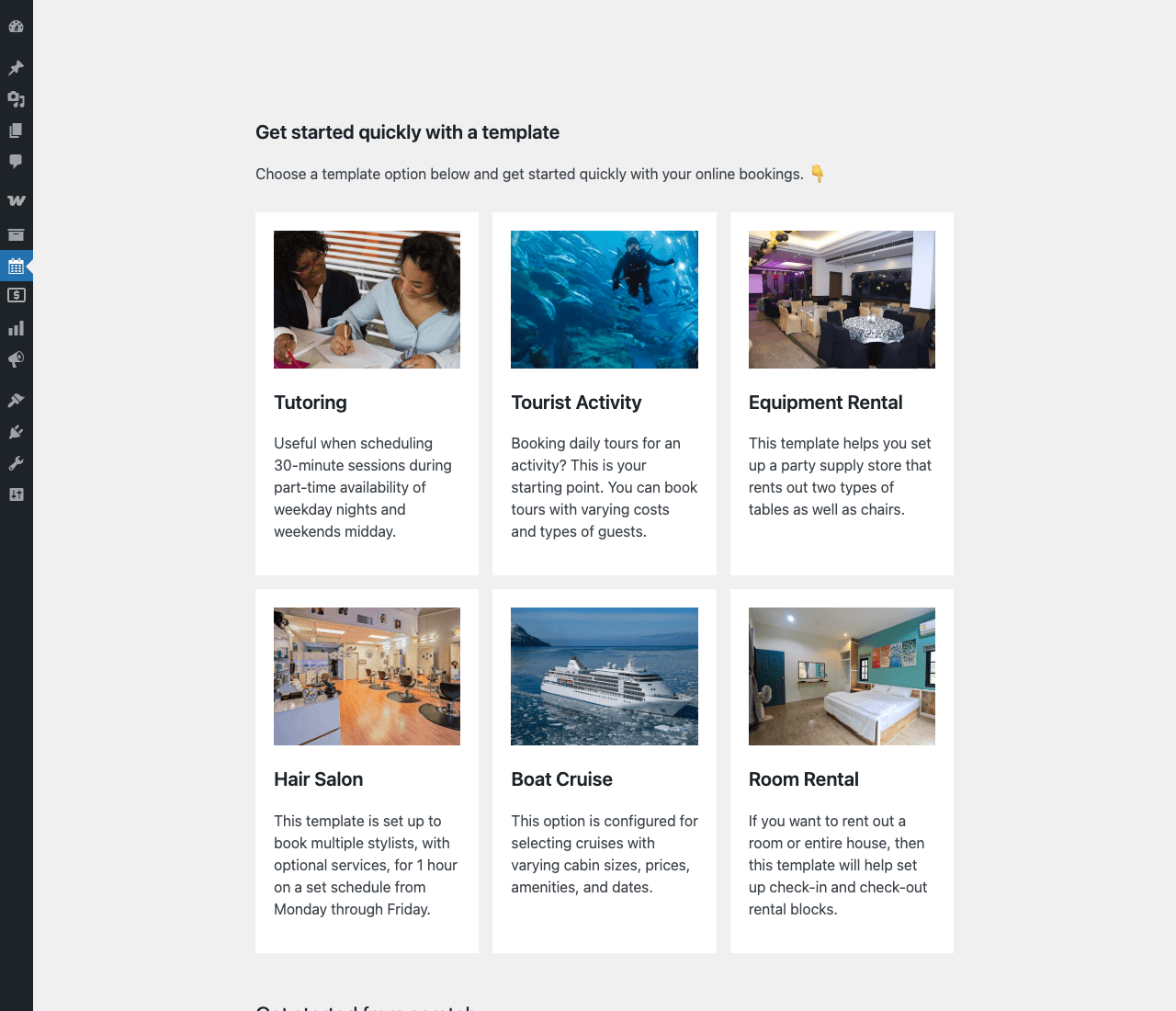
Pick the template closest to what you sell, click it, and the plugin creates a draft bookable product with sensible defaults (block size, availability, pricing). For an HR consultant taking 30-minute discovery calls, the Tutoring template is the right starting point. For a kayak rental, Equipment Rental. For a hotel, Room Rental. You can always edit further, but the template gets you 80% there in one click.
After picking a template, the product editor opens with a "Product data" metabox at the bottom, where the booking-specific tabs live. The General tab is where you set the core slot mechanics:
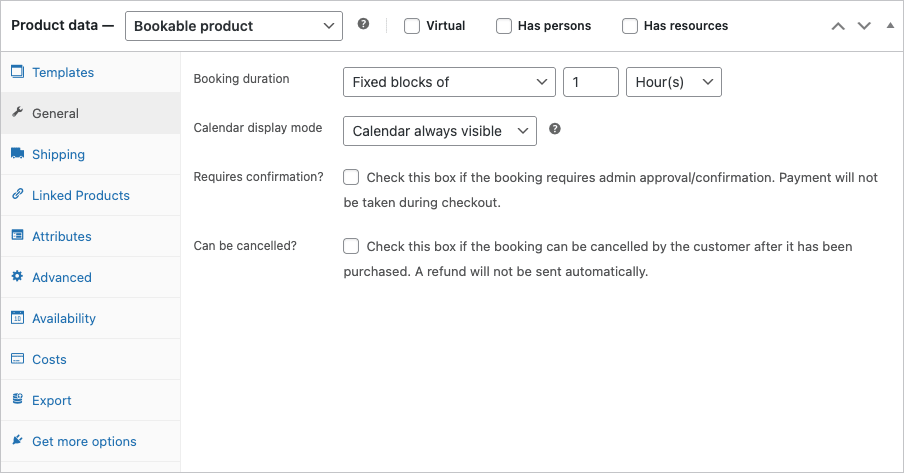
Here you decide whether bookings are fixed-block (every booking is exactly 1 hour, or 30 minutes, or 1 day), customer-defined (the customer drags a duration slider), or daily/nightly. You set whether the calendar is always visible on the product page or only after clicking. You choose whether admin needs to approve each booking before payment is taken, and whether customers can cancel after they have booked.
The Availability tab is where the schedule lives. This is the most powerful surface in the plugin:
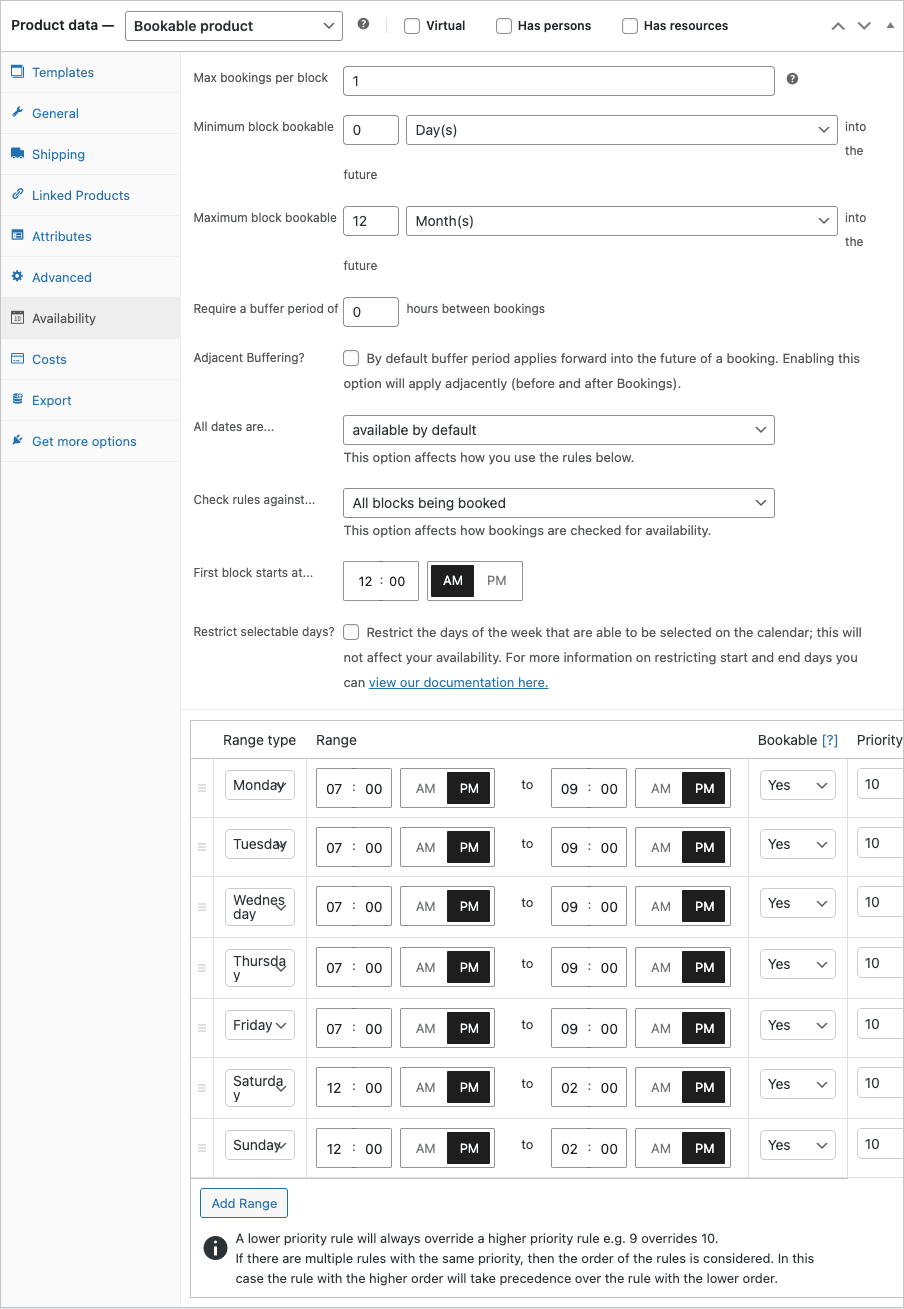
You decide the maximum bookings per slot, the lookahead window (how many days into the future are bookable), buffer periods between bookings, and then a list of "Range" rules. Each rule says "this day type / date range is bookable from X to Y". You can stack rules with priority. Lower priority overrides higher (so priority 9 wins over 10), which sounds backwards until you read it twice. The default rule template is "Mon-Fri 7am-9pm, Sat-Sun 12pm-2pm" but you change those to whatever your actual schedule is.
For the entire store, there is a separate Settings → Store Availability screen for blanket open hours that all bookable products inherit:
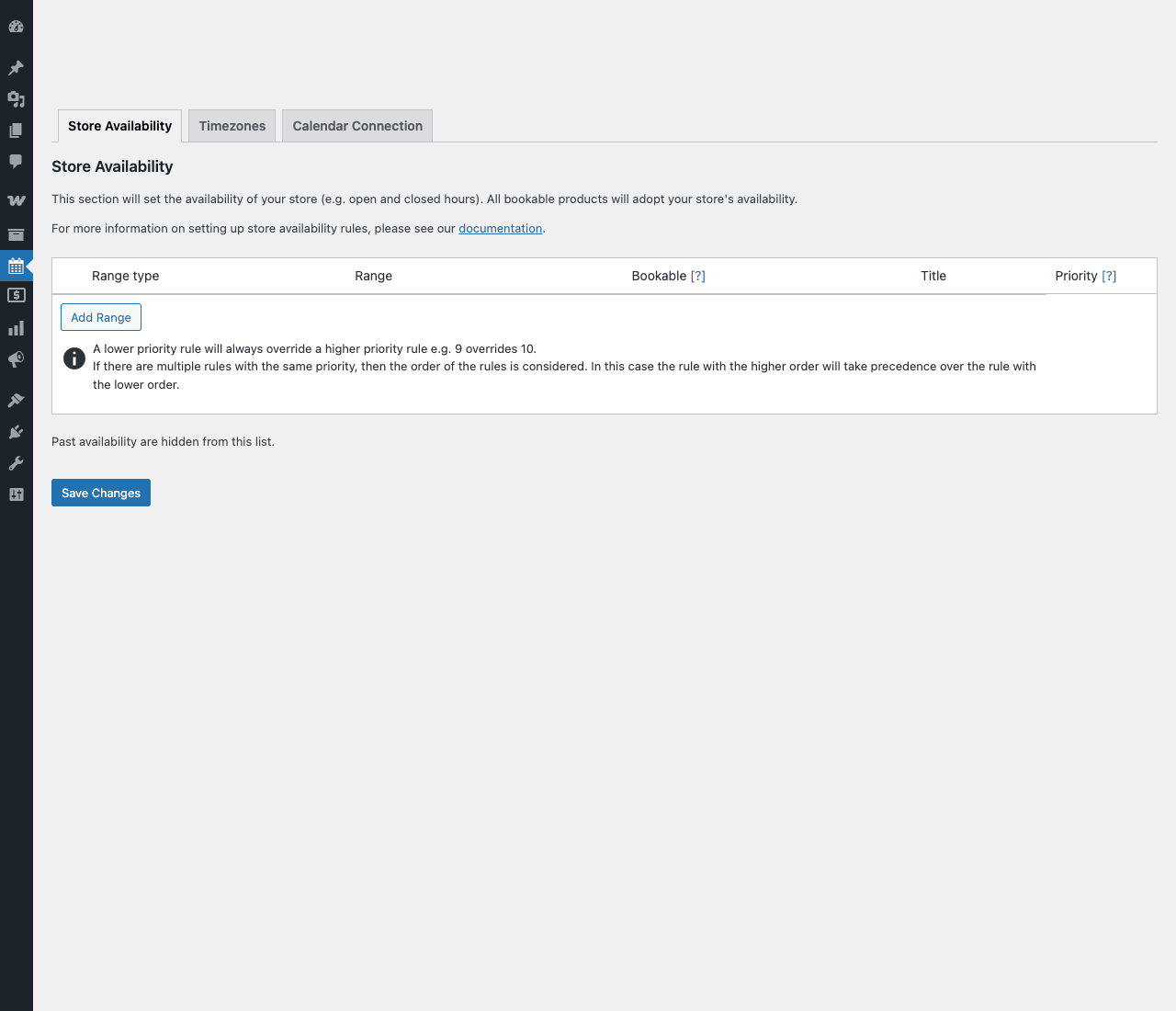
This is the rule of last resort. If you have 12 bookable products and they all share the same office hours, set them once at the store level and your per-product rules can stay empty.
The Calendar view under Bookings → Calendar is the operator-facing dashboard. Day, Month, and Schedule views show every booking across every bookable product, color-coded by status:
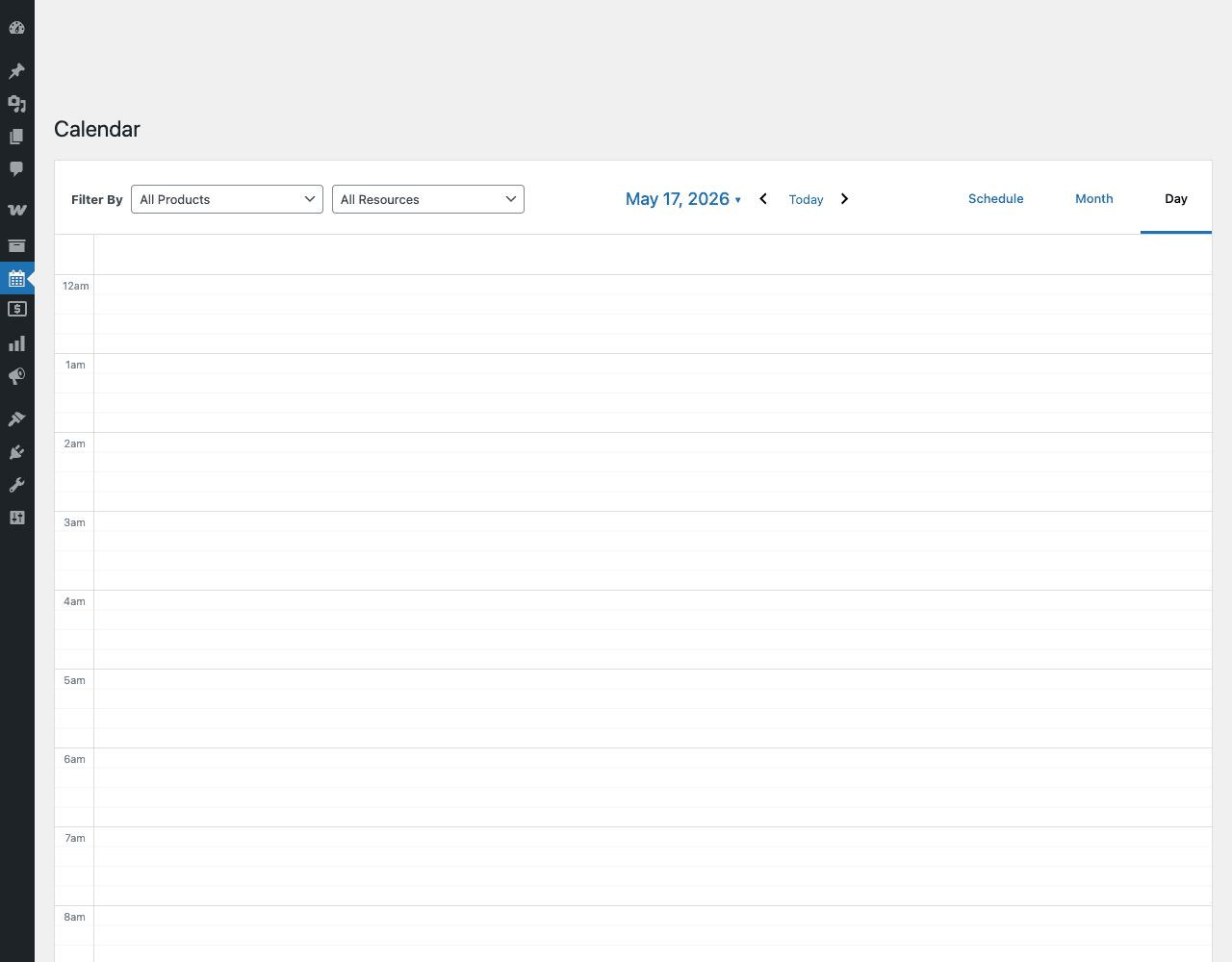
This is what most operators leave open during the workday. The filter dropdowns let you narrow to one product (e.g. just the "1-hour tutoring" slots) or one resource (e.g. just chair 3 at the salon). Click any booking to open the underlying wc_booking post and see the order, customer, time range, and notes.
That is the entire workflow. Customer picks a slot, pays, you see it on the calendar.
Installation and setup
WooCommerce Bookings requires a working WooCommerce install. If you do not have it, install WooCommerce first from the WordPress.org plugin repository.
Step 1: Install WooCommerce Bookings. In WordPress admin, go to Plugins → Add New → Upload Plugin, choose the woocommerce-bookings.zip file, click Install Now, then Activate Plugin. A "Bookings" menu appears in the admin sidebar.
Step 2: Set the store timezone. This step is easy to skip and painful when it goes wrong. Go to WP Settings → General and set your site’s timezone to a city near you (not UTC or a fixed offset). The plugin reads this for every availability calculation. If a customer in another timezone books a 9am slot, the plugin needs to know what "9am" means in YOUR local time.
Step 3: Set store-wide availability. Go to Bookings → Settings → Store Availability. Add a Range for each day of the week your store is open. For a typical M-F 9-5 business, add seven ranges: Monday 9am-5pm, Tuesday 9am-5pm, etc. For a 24/7 business, leave the table empty and per-product rules will govern.
Step 4: Decide on the timezone display. Under Bookings → Settings → Timezones, you can choose whether bookings display in your store’s timezone or the customer’s timezone. For a local-only service (hair salon, in-person tutoring), pick store. For remote services (online consultations, virtual lessons), pick customer.
Step 5: Connect to Google Calendar (optional but recommended). Under Bookings → Settings → Calendar Connection, follow the prompts to authorize Google. Once connected, the plugin pushes new bookings to your selected Google Calendar and reads back any external events to block availability automatically.
Step 6: Create your first bookable product. This is where the real work starts. Click Bookings → Add Product, pick a template from the six starter templates, and edit the resulting draft.
That is the install. The next section walks the bookable product creation in detail.
Step-by-step: create your first bookable product
Let me walk through the simplest useful example: Priya, a freelance UX consultant, wants to offer one-hour discovery calls. Customers should be able to book a Tuesday or Thursday slot between 1pm and 5pm, pay $150, and get an automatic confirmation email.
Step 1: Pick the template. From Bookings → Add Product, click the "Tutoring" template card. The plugin creates a new draft product called "Tutoring" pre-set as Bookable with sensible defaults: 30-minute blocks, weekday availability.
Step 2: Rename and price the product. Change the title to "Discovery call with Priya". Set the regular price to $150 in the right sidebar. Add a short description so customers know what they are booking ("A 60-minute video call to talk through your design challenge. We will end with a one-page summary you can share with your team.").
Step 3: Configure the General tab. Scroll down to the "Product data" metabox. Under General:
- Booking duration: Change "Fixed blocks of 30 Minute(s)" to "Fixed blocks of 1 Hour(s)" because Priya runs hour-long calls.
- Calendar display mode: Leave at "Calendar always visible" so customers see the picker without clicking.
- Requires confirmation: Uncheck. Priya wants instant booking; payment goes through automatically. (Leave checked if you want to manually approve every booking before the customer pays.)
- Can be cancelled: Check. Allow customers to cancel up to 24 hours before. Set the cancellation window in the field that appears.
Step 4: Configure Availability. Click the Availability tab on the left of the Product data metabox.
- Max bookings per block: Set to 1 (one customer per slot, since Priya can only have one call at a time).
- Minimum block bookable: Leave at 0 (customers can book any future slot).
- Maximum block bookable: Set to 12 (so customers can book up to 12 weeks ahead).
- Buffer period: Set to 0.5 (Priya wants 30 minutes between calls).
- Restrict selectable days: Leave unchecked.
- Range table: Delete the default Monday-Sunday rows. Add two rows: Tuesday 1pm-5pm, Thursday 1pm-5pm. Both with Bookable=Yes and Priority=10.
Step 5: Set the cost. Click the Costs tab. The "Block cost" should be $150 (the price per hour). You can also set base costs, conditional cost adjustments ("Add $50 if booking is on Friday"), or discounts for longer bookings.
Step 6: Publish. Click Publish in the top right. The product is now live at https://yoursite.com/product/discovery-call-with-priya/.
Step 7: Test. Open the product page in an incognito tab. You should see Priya’s product photo (if you added one), the description, and a calendar widget showing the next 12 weeks of Tuesday and Thursday afternoons. Click an open slot, click "Book", and you land in the WooCommerce cart with the booking ready to checkout.
Step 8: Manage the bookings. When a customer completes checkout, the booking appears in two places:
WooCommerce → Ordersas a regular order with the booking line item.Bookings → All Bookingsand on theBookings → Calendarview as a wc_booking record.
You can email the customer, reschedule, cancel, or refund from either screen.
The whole flow took maybe twenty minutes of clicking. The plugin handles availability, conflicts, timezones, calendar sync, payment, and customer notifications without further code. That is the strength of "bookings are just WooCommerce products".
Real-world use cases
WooCommerce Bookings adapts to a surprising range of businesses. Some patterns I have seen:
1. A yoga studio with class schedules. Anika runs in-person yoga classes (max 12 people per class). Each class is a "Person" booking, so the same time slot can hold up to 12 customers. She sets max bookings per block = 12 and creates one bookable product per class type ("Morning Vinyasa", "Evening Restorative"). The Availability tab handles the weekly schedule (Mon/Wed/Fri 7am, Tue/Thu 6pm). When a class fills, the slot greys out automatically.
2. A vacation rental cottage. Vikram rents a country cottage. Bookings are daily, minimum 2 nights, maximum 14. He sets Booking duration = Customer defined units, Unit = Day(s), Min = 2, Max = 14. The product page shows a date-range calendar where guests drag from check-in to check-out. He uses Costs to charge a weekend premium and Buffer Period of 1 day so he has time to clean between stays.
3. A hair salon with three chairs. Maya runs a salon with three stylists. Each stylist is a Resource. A customer booking a haircut picks a stylist on the product page (a dropdown next to the calendar). Booking duration is fixed at 45 minutes. When stylist A is booked at 2pm, stylists B and C are still bookable at 2pm. Resources made the multi-stylist scheduling work without a separate product per stylist.
4. A community garden plot rental. Raj runs a community garden. Plots are bookable for whole growing seasons (March-October). He uses Daily bookings with a Range rule that blocks the off-season months. Buffer Period = 7 days (so plots are not double-booked across overlapping seasons). Customers pay once, the plot is theirs for the whole window.
5. A photo studio with a "studio + photographer" combo. Sara rents her studio. Customers can book "studio only" (no photographer) or "studio + photographer" (her time included). Two bookable products that share the studio Resource. Booking the combo product also reserves the studio for the same window, so a "studio only" booking cannot overlap.
6. Online classes / consultations. Vikram (different Vikram) teaches Python online. Each session is a 90-minute Zoom call. He sets Booking duration = Fixed blocks of 90 minutes, integrates with Google Calendar so the Zoom event is auto-created via Google Meet, and uses Time-based pricing to charge a premium for evening slots.
Developer reference
The rest of this guide is for developers extending WooCommerce Bookings. You should be familiar with WooCommerce hooks and the WC_Product class before going further.
Custom post types
The plugin registers four custom post types:
wc_booking. One post per booking record. Stores start time, end time, customer ID, status (unpaid, pending-confirmation, confirmed, cancelled, complete, in-cart). Linked to the WooCommerce order via the_wc_booking_order_item_idand_wc_booking_product_idmeta.bookable_person. A "person type" (Adult, Child, Senior). Attached to a bookable product via meta.bookable_resource. A shared resource (chair 1, room A, equipment X). Attached to bookable products by meta.bookable_team_member. Optional team-member-as-resource model (Pro feature in newer versions).
Both bookable products themselves use the standard WooCommerce product post type, with the product type term booking from the product_type taxonomy. To query bookable products:
$bookable_products = wc_get_products( [
 'type' => 'booking',
 'status' => 'publish',
 'limit' => -1,
] );
The core data classes
// Read a booking.
$booking = new WC_Booking( $booking_id );
$start_time = $booking->get_start(); // Unix timestamp (UTC)
$end_time = $booking->get_end();
$product_id = $booking->get_product_id();
$status = $booking->get_status();
$customer = $booking->get_customer(); // WP_User

// Update a booking.
$booking->set_status( 'confirmed' );
$booking->set_start( strtotime( '2026-06-01 14:00:00' ) );
$booking->save();

// Read a bookable product.
$product = wc_get_product( $product_id ); // WC_Product_Booking
$duration_type = $product->get_duration_type(); // 'fixed' or 'customer'
$duration = $product->get_duration(); // 60 (minutes)
$has_resources = $product->has_resources();
$resources = $product->get_resources(); // array of WC_Product_Booking_Resource
$persons = $product->get_person_types(); // array of WC_Product_Booking_Person_Type
Action hooks worth knowing
// Fires after a booking is created (manual or from cart).
add_action( 'woocommerce_bookings_created_manual_booking', function( $booking ) {
 // $booking is a WC_Booking object.
 error_log( 'New manual booking: ' . $booking->get_id() );
} );

// Fires when a customer cancels their own booking.
add_action( 'woocommerce_bookings_cancelled_booking', function( $booking_id ) {
 // Custom side-effect: revoke a Zoom link, notify a team member, etc.
 do_my_post_cancel_cleanup( $booking_id );
} );

// Fires after Google Calendar client refreshes.
add_action( 'woocommerce_bookings_update_google_client', function( $client ) {
 // Hook to add custom Google API scopes or logging.
}, 10, 1 );

// Status transition hooks (WooCommerce booking statuses).
add_action( 'woocommerce_booking_pending-confirmation_to_confirmed', function( $booking_id ) {
 // A pending booking was just confirmed by an admin.
} );

add_action( 'woocommerce_booking_confirmed_to_cancelled', function( $booking_id ) {
 // A confirmed booking was cancelled.
} );

add_action( 'woocommerce_booking_paid_to_complete', function( $booking_id ) {
 // The booking's start time passed and it auto-transitioned to complete.
} );
Filter hooks for cost and availability
// Modify the calculated booking cost (before tax, after rules).
add_filter( 'woocommerce_bookings_calculated_booking_cost', function( $cost, $product, $data ) {
 // Apply a loyalty discount for returning customers.
 if ( is_user_logged_in() && get_user_meta( get_current_user_id(), 'loyalty_tier', true ) === 'gold' ) {
 $cost = $cost * 0.9;
 }
 return $cost;
}, 10, 3 );

// Filter the days that show as booked on the calendar.
add_filter( 'woocommerce_bookings_booked_day_blocks', function( $blocks, $product ) {
 // Block a specific maintenance day across all products.
 $blocks[] = strtotime( '2026-07-04' ); // July 4th closure
 return $blocks;
}, 10, 2 );

// Change the default bookings-per-page on the My Account page.
add_filter( 'woocommerce_bookings_my_bookings_per_page', function() {
 return 20; // default is 10
} );

// Rename the "Bookings" tab on the customer's My Account page.
add_filter( 'woocommerce_bookings_my_account_bookings_title', function() {
 return 'My Appointments';
} );

// Slug for the My Account bookings endpoint (URL).
add_filter( 'woocommerce_bookings_account_endpoint', function() {
 return 'appointments'; // /my-account/appointments/ instead of /my-account/bookings/
} );

// Apply multiple cost rules per block (instead of just the first match).
add_filter( 'woocommerce_bookings_apply_multiple_rules_per_block', function() {
 return true;
} );
REST API endpoints
The plugin registers two REST namespaces:
wc-bookings/v1/ (legacy):
GET /wc-bookings/v1/products/<id>/slots
GET /wc-bookings/v1/bookings
POST /wc-bookings/v1/bookings
GET /wc-bookings/v1/bookings/<id>
PUT /wc-bookings/v1/bookings/<id>
DELETE /wc-bookings/v1/bookings/<id>
GET /wc-bookings/v1/products/<id>/availability
wc-bookings/v2/ (newer):
GET /wc-bookings/v2/google-calendar/connect
GET /wc-bookings/v2/google-calendar/calendars
POST /wc-bookings/v2/google-calendar/sync
GET /wc-bookings/v2/availability/date-overrides
POST /wc-bookings/v2/availability/date-overrides
There is also a Store API endpoint registered under wc/store/v1/bookings/products/<id>/slots, which the block-based cart and checkout use for the customer-facing date picker. Authenticate with WooCommerce REST API keys (wp-admin → Settings → WooCommerce → Advanced → REST API).
Example: fetch available slots for a product in the next 30 days:
curl -u ck_...:cs_... \
 "https://yoursite.com/wp-json/wc-bookings/v1/products/123/slots?min_date=2026-06-01&max_date=2026-07-01"
Response:
{
 "records": [
 { "date": "2026-06-02", "available": 8, "booked": 0 },
 { "date": "2026-06-03", "available": 4, "booked": 4 }
 ]
}
Templates and overrides
Like other WooCommerce extensions, WC Bookings templates can be overridden in your theme. The plugin’s templates live at wp-content/plugins/woocommerce-bookings/templates/. To override, copy the file to your theme:
wp-content/themes/your-theme/woocommerce-bookings/booking-form/date-picker.php
wp-content/themes/your-theme/woocommerce-bookings/booking-form/time-picker.php
wp-content/themes/your-theme/woocommerce-bookings/emails/admin-new-booking.php
wp-content/themes/your-theme/woocommerce-bookings/myaccount/my-bookings.php
The plugin will pick up the override automatically. This is how you customize the calendar widget, the booking emails, and the My Account view without touching plugin core.
Creating a booking programmatically
Sometimes you need to create a booking without going through the cart (e.g. importing from a legacy system, syncing from a third-party calendar). The minimum viable booking:
$booking = new WC_Booking();
$booking->set_product_id( $bookable_product_id );
$booking->set_resource_id( $resource_id ); // optional
$booking->set_user_id( $customer_id );
$booking->set_start( strtotime( '2026-06-15 14:00:00' ) );
$booking->set_end( strtotime( '2026-06-15 15:00:00' ) );
$booking->set_all_day( false );
$booking->set_status( 'confirmed' );
$booking->save();

// Optionally attach to an existing WC order.
$booking->set_order_id( $order_id );
$booking->set_order_item_id( $order_item_id );
$booking->save();

do_action( 'woocommerce_bookings_created_manual_booking', $booking );
WP-CLI usage
WooCommerce Bookings does not register custom CLI commands, but standard wp post commands work because everything is a custom post type:
# List the 20 most recent bookings.
wp post list --post_type=wc_booking --post_status=any --posts_per_page=20 --fields=ID,post_status,post_date

# Get a specific booking's metadata (start/end timestamps, customer ID, etc).
wp post meta list <booking_id>

# Bulk-cancel all in-cart bookings older than 1 hour (stale carts).
wp eval '
$ids = get_posts([
 "post_type" => "wc_booking",
 "post_status" => "in-cart",
 "date_query" => [["before" => "1 hour ago"]],
 "fields" => "ids",
 "posts_per_page" => -1,
]);
foreach ($ids as $id) {
 wp_update_post(["ID" => $id, "post_status" => "wc-cancelled"]);
}
echo count($ids) . " cancelled\n";
'

# Create a bookable product from CLI (rare but useful for seeding).
wp wc product create --name="Discovery Call" --type=booking --user=1
Custom booking status
You can register a new booking status (e.g. "rescheduled") with register_post_status and the WC Booking filters:
add_action( 'init', function() {
 register_post_status( 'wc-rescheduled', [
 'label' => _x( 'Rescheduled', 'booking', 'my-theme' ),
 'public' => true,
 'exclude_from_search' => false,
 'show_in_admin_all_list' => true,
 'show_in_admin_status_list' => true,
 'label_count' => _n_noop(
 'Rescheduled <span class="count">(%s)</span>',
 'Rescheduled <span class="count">(%s)</span>',
 'my-theme'
 ),
 ] );
} );

add_filter( 'get_wc_booking_statuses', function( $statuses ) {
 $statuses[] = 'rescheduled';
 return $statuses;
} );
Performance and caching
Booking availability calculations involve checking every existing booking against every requested slot. On a site with hundreds of bookings, this can become slow. The plugin caches slot results in WordPress transients keyed by product and date range. Two filters help:
// Disable the slot cache (debug only).
add_filter( 'woocommerce_bookings_use_slot_cache', '__return_false' );

// Change the cache duration (default 3 hours).
add_filter( 'woocommerce_bookings_slot_cache_duration', function() {
 return HOUR_IN_SECONDS; // 1 hour
} );
If you use a page-caching plugin (like WP Rocket), exclude bookable product pages from full-page cache. The date picker reads live availability via AJAX, but the rendered product page itself shows server-side state that goes stale immediately when a customer in another tab books.
Compatibility hooks for related products
If you sell WooCommerce Subscriptions (recurring billing) and Bookings together, every booking purchase can also include a recurring subscription. The combined product type is "Bookable subscription" and behaves as both. Most theming on the customer side is identical; on the dev side, you check wcs_is_subscription_product() AND $product->is_type( 'booking' ) to detect the combo.
For sites that need a frontend search/filter UI for bookable products (e.g. "show all tutoring services available Saturday afternoon"), pair WC Bookings with FacetWP or SearchWP and a custom meta_query.
Performance, compatibility, and gotchas
WooCommerce Bookings is a heavy plugin by WooCommerce standards. It needs to be because its problem domain (slot availability across multiple dimensions of product/resource/person/time) is inherently complex. With that complexity come gotchas worth knowing in advance.
Performance considerations:
- Bookable product pages should be excluded from full-page caching. The calendar widget needs server-fresh availability data on every load. WP Rocket has a "Never cache URLs" setting where you can add
/product/your-bookable-slug/patterns. - The slot cache transient is a real win. Leave it on in production. Only disable for debugging.
- Avoid registering more than a few hundred Range rules per product. Each rule is evaluated for every requested slot. If you need date-overrides for an entire year of complex pricing, use the global availability rules instead.
- The Bookings → Calendar admin view can be slow if you have thousands of bookings. Filter by product or resource to narrow.
Compatibility caveats:
- WC Bookings requires a recent WooCommerce version (currently 9.8+). On older WC versions the plugin will refuse to activate.
- Combining bookable products with WC Subscriptions works, but combining with WooCommerce Memberships for member-only booking discounts requires some glue code (a custom hook on
woocommerce_bookings_calculated_booking_costthat checkswc_memberships_is_user_active_member()). - The Google Calendar sync uses Google’s OAuth flow and needs a publicly reachable redirect URI. It does not work on localhost (
yoursite.local) without ngrok or a tunneling solution. Develop the sync on a staging environment with a real domain. - Block-based cart and checkout (the new default in WooCommerce) supports bookable products as of WC Bookings 2.0+, but some niche features (multi-quantity bookings with person types) may have rendering quirks. Test thoroughly.
- The plugin does not natively send SMS reminders. Pair it with a notification plugin or use the
woocommerce_booking_pending-confirmation_to_confirmedaction hook to integrate Twilio or similar.
Common gotchas:
- Timezone confusion. This is by far the most common issue. Set your WordPress timezone correctly (city-based, not offset-based). Decide Bookings → Settings → Timezones explicitly. Test a booking from a different timezone before launch.
- The "priority" field on availability rules is backwards. Lower numbers win. Priority 9 beats Priority 10. This bites every new admin at least once.
- The Calendar view requires JavaScript and a populated availability cache. A blank calendar usually means the cache is empty (visit a product page once to prime it) or a JS console error (open dev tools).
- Bookings have their own status separate from the order status. A WC order can be "completed" while the underlying booking is "cancelled" if the customer cancelled after payment. Always check booking status, not just order status, when triggering side effects.
- Forgetting to set a buffer period leads to back-to-back bookings. If you offer 1-hour sessions, you probably want 15-30 minutes between them. Set Buffer Period explicitly.
- The starter template uses Mon-Fri 7am-9pm by default, which is almost certainly not your actual schedule. Always edit the Availability tab after creating from a template.
Pricing and licensing
WooCommerce Bookings is sold by Woo as an annual-license-per-site extension. There is no "Pro" version, the plugin itself is the paid extension. License tiers are by site count (1 site / 5 sites / 25 sites), and the license unlocks support and automatic updates from woocommerce.com.
The plugin is GPL-licensed (the WordPress license requires it). The license sold by Woo is a support/update license, not a use license. After install, you can use it on any number of sites; the license only gates support and the update channel.
Because of GPL, the same plugin file is legally redistributable. Same plugin, same features, no Woo support channel.
If your business depends on bookings, the official license is worth considering once you are past the prototype stage, because the support team at Woo is responsive and the Bookings plugin gets ongoing updates as WooCommerce core evolves.
FAQ
Q: Do I need WooCommerce to use WooCommerce Bookings?
Yes. Bookings is a WooCommerce extension. It adds a "Bookable product" type to WC and reuses WC’s cart, checkout, payment, and order management. Without WooCommerce, the plugin will refuse to activate.
Q: Can I use Bookings without a payment processor?
Yes. You can set bookings to require admin confirmation and offer "Cash on Delivery" or a similar zero-cost gateway. The customer books, you call them, you take payment offline, you manually confirm. The Bookings calendar still works as your operator dashboard.
Q: Does Bookings work with the block-based cart and checkout?
Yes. Modern versions of WooCommerce Bookings support the block-based cart and checkout that WooCommerce ships by default. The date picker renders inside the block flow.
Q: Can the same time slot accept multiple bookings?
Yes, in two ways. (1) Set "Max bookings per block" greater than 1, so the same product can be booked N times at the same slot (good for fixed-capacity classes). (2) Use Resources, where each resource can be booked separately at the same time (good for multi-room / multi-stylist setups).
Q: How do persons work?
Persons are additional charge-able units per booking. A yoga class booking might be "1 booking, 2 adults, 1 child", priced as adult $20 + adult $20 + child $10. The Person types are defined per product, can have separate min/max limits, and can affect availability (e.g. a class booking with 12 max-people will close as soon as 12 people total have booked, regardless of order count).
Q: Can customers reschedule their own bookings?
The default flow lets customers cancel (if the product allows it). Rescheduling requires admin involvement unless you add a third-party reschedule plugin or build a custom flow on top of the REST API.
Q: Does Bookings integrate with Zoom or Google Meet?
Not natively. The Google Calendar sync will create Google Meet links automatically if you configure Calendar to do that. For Zoom, use a third-party automation tool (Zapier, Make) listening on the woocommerce_bookings_created_manual_booking webhook.
Q: Can I take recurring bookings (every Tuesday for 8 weeks)?
Not directly in a single transaction. The customer can book each Tuesday individually, OR you can combine WC Bookings with WC Subscriptions for a recurring auto-billing pattern, OR a third-party plugin extends Bookings with recurring-booking flows.
Q: How does WooCommerce Bookings compare to Amelia, BookingPress, or Bookly?
WC Bookings’s advantage is that it lives inside WooCommerce, so every WC feature (coupons, taxes, payment gateways, analytics, customer accounts) applies. Standalone booking plugins are often simpler to set up but you give up that ecosystem. If you already use WooCommerce for anything else (selling physical products, digital downloads, subscriptions), WC Bookings is the natural choice.
Final thoughts
WooCommerce Bookings is the kind of plugin you keep underestimating until you actually need it. On paper it is "the WC extension that lets you sell appointments". In practice it covers a remarkable range of business models, from a yoga studio’s class schedule to a vacation rental’s daily availability to a salon’s resource-per-stylist booking flow. The starter templates do most of the cognitive work for you. The Availability tab handles the edge cases.
For a beginner the path is short. Install the plugin, set your store timezone, pick a starter template, edit a few fields, publish. You will be taking real bookings in under an hour.
For a developer the plugin is a well-designed WooCommerce extension. The hooks are named consistently (woocommerce_bookings_* for plugin-specific, woocommerce_booking_*_to_* for status transitions). The data model uses standard custom post types you can query with WP_Query. The REST API gives you read and write access to bookings and availability without screen-scraping. Templates are overridable in the theme. Most of the heavy lifting (cost calculation, slot resolution, calendar sync) lives in classes you can extend rather than monkey-patch.
The places where WC Bookings is not the right answer: if you do not run WooCommerce at all, a standalone booking SaaS is simpler. If you need recurring auto-rebooking out of the box, look at Amelia or BookingPress. If you need group-event ticketing with reserved seats (theatre, sports), look at The Events Calendar Pro plus Event Tickets Plus instead.
For everything else, WC Bookings is the boring-good default. Spin up a staging site, install WooCommerce, install Bookings, pick the template that matches what you sell, and you will be taking real customer bookings the same afternoon.
Useful external references:
- WooCommerce Bookings official documentation covers every setting and tab in detail.
- WooCommerce REST API reference describes the booking endpoints in the wc-bookings namespace.
- WooCommerce code reference for WC_Booking, WC_Product_Booking, and related classes.