

A customer is standing at your counter with a twenty in their hand, and your WooCommerce store has no idea they exist.
That gap is the whole problem. You spent months building a WooCommerce shop, your products, your stock counts, your customer list, your tax rules, all of it living in one place. Then someone walks into your physical store, buys two of the same items off the shelf, pays cash, and that sale vanishes into a separate till app or a paper notebook. Your online stock is now wrong. Your sales reports only tell half the story. Your best repeat buyer doesn’t show up in your customer list because she only ever shops in person.
Point of Sale for WooCommerce closes that gap. It’s a WooCommerce POS, a self-hosted cash register that runs on the same WordPress install as your online shop, so a counter sale and a website order land in the exact same place. Same catalog, same inventory, same customer records, same order screen. I’ve set this up on a real store, and the thing that sold me wasn’t a feature, it was the absence of one: there is no second system to reconcile at the end of the day.
This is a long, honest walk through how it works at the register, how you set up the registers, outlets, grids, and receipts, how cash reconciliation keeps you from getting robbed quietly, and a full developer reference with the hooks and REST surface that power it. Whether you run a single coffee shop or a chain of outlets, by the end you’ll know whether this fits your counter.
Table of Contents
- What Point of Sale for WooCommerce is, and who it’s for
- How a sale works at the register
- Setting up registers, outlets, and grids
- Outlets and multi-store selling
- Receipts, barcodes, and hardware
- Cash management and end-of-day
- Staff roles and the register team
- Who runs a WooCommerce POS
- Developer reference
- Don’t skip register sessions and cash reconciliation
- WooCommerce POS vs cloud POS (Square, Shopify POS, Lightspeed)
- Performance, compatibility, and reliability
- Pricing and licensing
- FAQ: WooCommerce POS
- Final thoughts
What Point of Sale for WooCommerce is, and who it’s for
Point of Sale for WooCommerce is an in-store register built by Actuality Extensions, sold on the official WooCommerce marketplace. It plugs into your existing WooCommerce store and adds a full-screen register app your staff use to ring up walk-in sales at the counter.
The key word is same. This is not a connector that syncs two systems on a schedule and hopes they agree. The register reads and writes the same WooCommerce data your online shop uses. When a clerk sells the last blue hoodie in store, the website immediately shows it out of stock. When a regular gives her email at the till, she joins the same customer list as your online buyers. When you look at your WooCommerce orders screen, the in-person sales and the online sales sit in one list.
That single-source design is the reason to pick it. You get one catalog to maintain, one inventory to trust, and one set of reports that actually reflects your whole business.
Here’s who it fits well:
- A single shop that also sells online. A boutique, a bookstore, a bakery. You already run WooCommerce for the website; now the counter feeds the same store.
- A multi-location retailer. It supports multiple outlets (physical stores) and multiple registers per outlet, so a small chain can run every till off one WordPress install.
- A market-stall or pop-up seller who wants a real register at events without paying a monthly platform fee for the privilege.
- A hybrid brand that does most of its volume online but opens a flagship or does in-person markets and refuses to keep two separate ledgers.
And here’s who it does not fit. If you have no WooCommerce store and just want a standalone till in the cloud with nothing to maintain, a hosted service like Square is genuinely easier to start with. This plugin assumes you already run, or want to run, WooCommerce. It’s a register for WooCommerce, not a register that happens to talk to it.
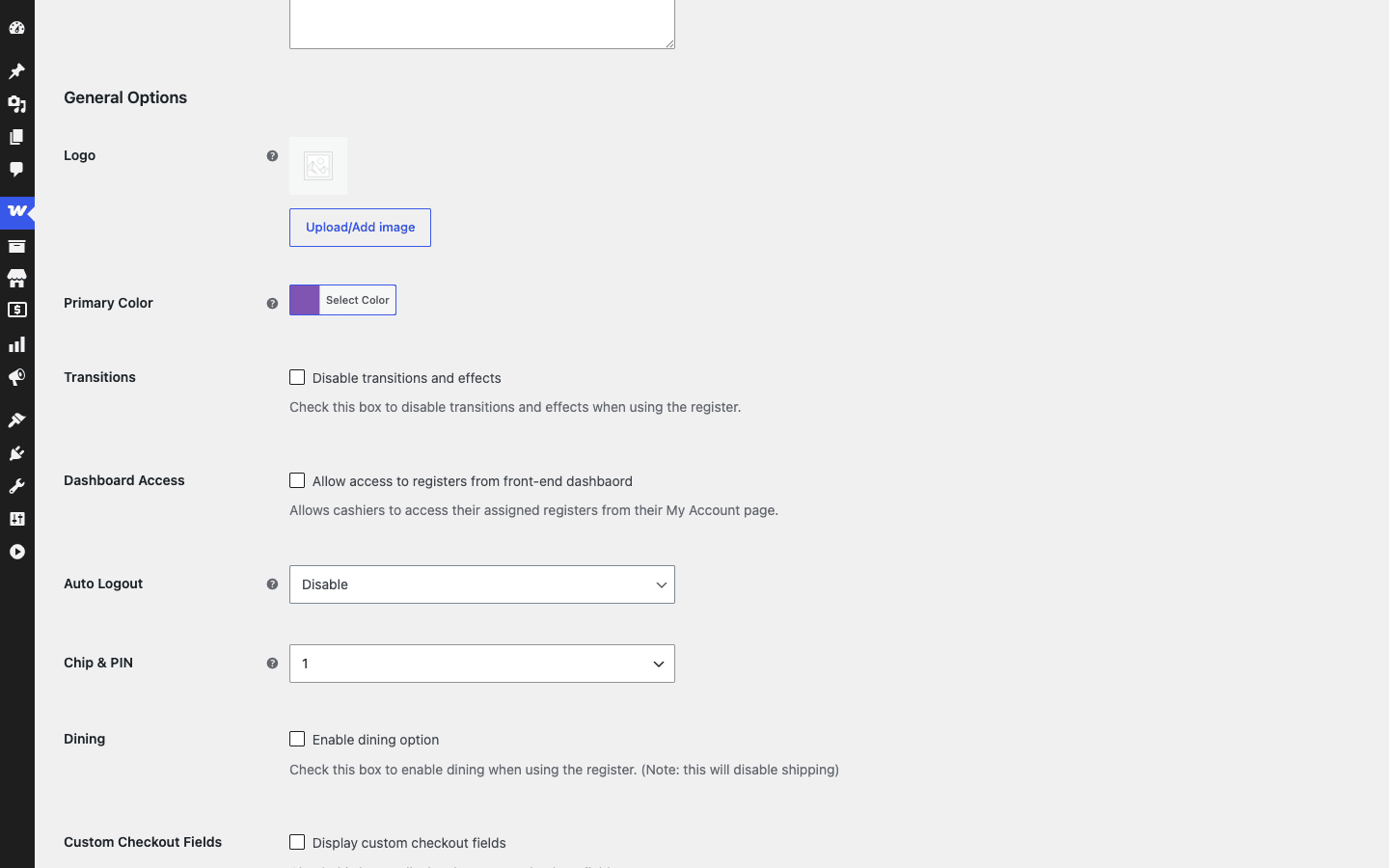
The plugin requires WooCommerce, and it runs on PHP 7.4 and up. Once it’s active, you get a Point of Sale section in the WordPress admin with list screens for your Registers, Outlets, Grids, Receipts, and Sessions, plus an analytics view. The register app itself is a JavaScript single-page app that loads full-screen for cashiers; the admin is where you, the owner or manager, configure everything that app uses.
The short version: if your physical sales and your online sales should live in one place, this is the plugin that makes that happen without a monthly bill.
How a sale works at the register
Let me walk through a single counter sale start to finish, because the flow is where you decide whether your staff will actually like using this.
A clerk opens the register app full-screen on the till computer or tablet. The first thing they do at the start of a shift is open a session with a starting cash amount, the float in the drawer (more on sessions later, this is the part people skip and regret). Once the session is open, the register is live.
The screen is split the way every cashier expects: a product area on one side, a running cart on the other, with the total at the bottom. To add an item, the clerk has two paths.
Tap a product tile. The product area shows a grid of buttons, your fast-movers laid out as tappable tiles. One tap drops the item in the cart. This is the path for a coffee shop where the menu is small and the staff know it cold.
Search or scan. For a deeper catalog, the clerk types a product name or SKU into the search box, or scans a barcode with a handheld scanner. The matching product pops into the cart. By default the register opens in a search-products mode, so a busy clerk can just start typing the moment a customer puts something on the counter.
Then they pick a customer. They can attach the sale to an existing WooCommerce customer (search by name or email), create a new one on the spot, or leave it as a Guest sale if the buyer doesn’t want to be tracked. Attaching a customer is what builds that single shared customer list over time, and it’s what lets you see that the person buying coffee every morning is the same person who ordered beans online last month.
Now payment. The clerk hits pay and chooses a method. The plugin ships its own POS payment options: cash, cheque, BACS (bank transfer), and a chip-and-pin option for card terminals, plus a Stripe integration for card payments. For a cash sale, the clerk enters the amount tendered and the register shows the change to give back. No mental math, no mistakes when it’s busy.
The sale is committed as a real WooCommerce order. Stock drops. The customer’s order history updates. And the clerk finishes by handing over a receipt: printed to a receipt printer, emailed to the customer, or both, using the receipt template you designed.
Note: the live full-screen register is a cashier-facing app, gated behind a logged-in register user, so I’m describing the flow here rather than pasting a screenshot of it. What you can see below is the output of a sale, the receipt, which is the part the customer walks away with.
That’s the loop. Open session, add items by tap or scan, pick a customer or Guest, take payment, give change, print or email the receipt. A trained clerk runs it in seconds. The reason it feels fast is that the register app fetches products and customers through POS-optimized REST endpoints (I’ll get into those in the developer section), so search results come back quickly even on a big catalog.
Setting up registers, outlets, and grids
This is where the plugin shows its depth, and where you’ll spend your setup time. Point of Sale for WooCommerce models your physical store as a set of objects in the WordPress admin, and understanding the five of them is the whole mental model.
Under the hood, each one is a WooCommerce-style custom post type, so they behave like familiar admin list screens with add/edit forms:
| Object | Post type | What it represents |
|---|---|---|
| Register | pos_register |
A single till / checkout terminal config |
| Outlet | pos_outlet |
A physical store location |
| Grid | pos_grid |
A tappable product/category tile layout |
| Receipt | pos_receipt |
A printed/emailed receipt template |
| Session | pos_session |
One till shift: open float, sales, counted close |
You build them roughly in this order: an outlet (the store), a grid (the button layout), a receipt (what prints), then a register that ties those together, and sessions get created on the fly each shift.
The register is the hub. A register record is the configuration for one till. When you create or edit a register, you tell it which outlet it belongs to, which grid (or grids) it shows, which payment gateways are available at this till, and which receipt template it prints. You also set its behavior: the default customer for walk-ins, and the default mode the screen opens in (search-products is the sensible default for most counters).
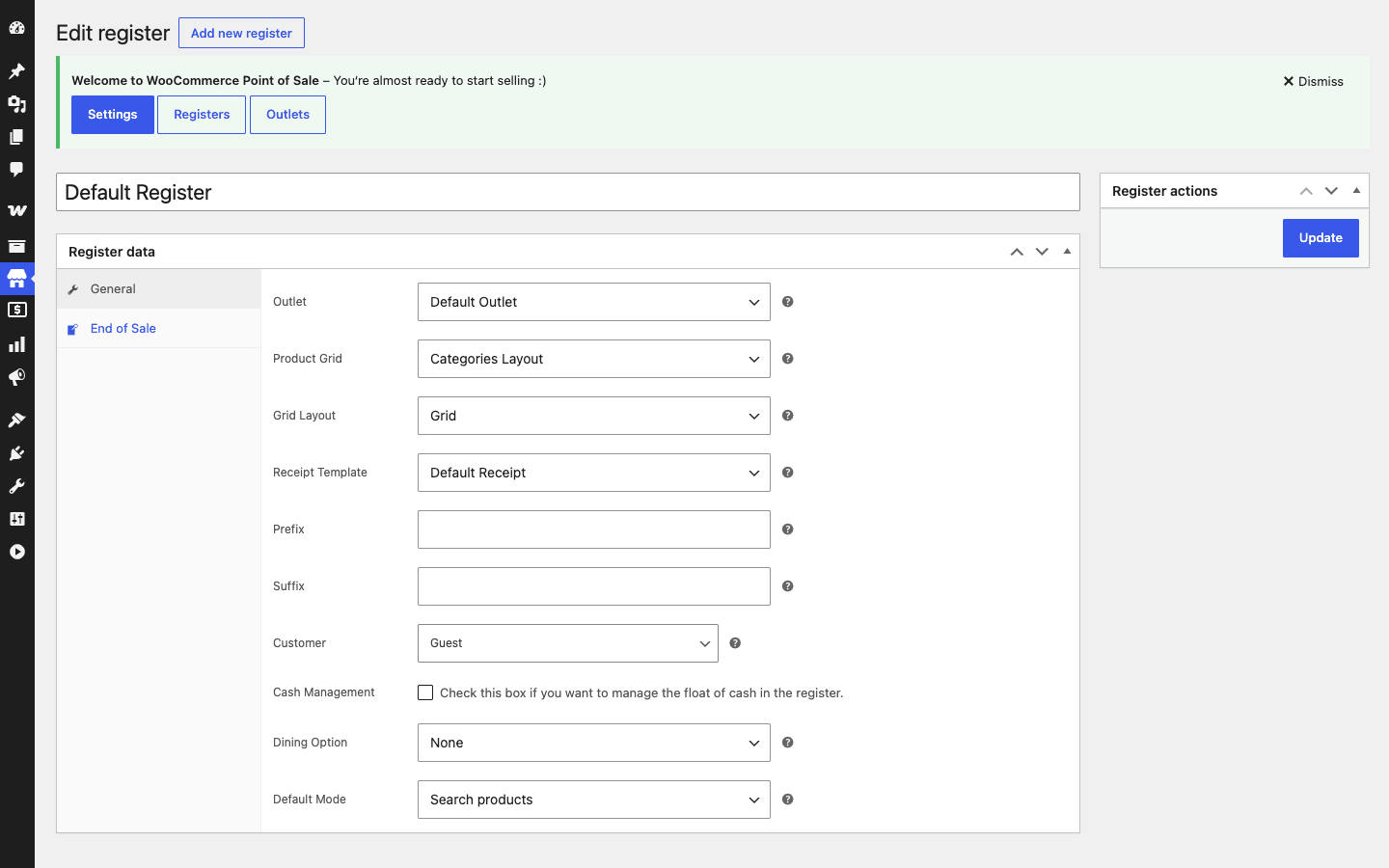
A couple of register settings are worth calling out because they’re easy to miss and they matter operationally.
Order number prefix and suffix. You can add a prefix or suffix to the order numbers generated at this register. If you run several registers or outlets, this is how you keep their orders visually distinct in your WooCommerce order list (for example a SHOP- prefix for the storefront till). It’s a small thing that saves a lot of squinting at reports later.
Default customer. Set a default customer that walk-in sales attach to when the clerk doesn’t pick anyone. Many shops point this at a generic "Walk-in" customer so guest sales still roll up somewhere sensible.
Default mode. As mentioned, the register can open in a search-products mode so the clerk’s cursor is ready in the search box. If your catalog is small and you sell mostly off the grid, you might prefer it open on the tiles instead.
Now the grids. A grid is a layout of product and category tiles, the buttons your clerk taps. You build a grid in the admin and arrange tiles for the products you sell most. You have two broad approaches:
- Category-driven tiles. Add category tiles so a clerk taps "Hot Drinks," sees the drinks, taps the one they want. Good for a structured menu with sub-groups.
- A custom grid layout. Hand-place individual product tiles in the exact arrangement that matches your physical counter or your busiest items. Good for a fixed menu where speed beats flexibility.
You can build more than one grid and assign different grids to different registers, which is how a multi-counter shop gives each till the layout that suits it. The grid system is also one of the most extensible parts of the plugin for developers, with hooks that fire when a grid loads and when individual tiles render (again, see the developer section).
One more option to know about: the dining option. The register supports a dining-style mode, useful if you’re a cafe or quick-service spot where an order is "for here" versus "to go." If you run a hospitality counter, this pairs naturally with a dedicated front-of-house ordering tool like Orderable for the online side, so your in-store register and your takeaway ordering both feed the same WooCommerce store.
Heads-up: spend real time on the grid before go-live. A clerk who has to search for every single item during a lunch rush will hate the register, and they’ll blame the plugin. A well-built grid of your twenty top sellers makes the whole thing feel instant.
Outlets and multi-store selling
An outlet is a physical location. If you have one shop, you have one outlet and you can mostly forget about this. If you have two or twenty, outlets are how the plugin keeps them straight.
Each outlet (pos_outlet) holds the details of a real-world store: its name, address, and contact information. Those details aren’t just labels. They flow onto the receipts printed at that location, so a customer’s receipt shows the correct branch address, phone number, and any extras you add like WiFi details or social handles. A receipt from your downtown store and a receipt from your mall kiosk can carry the right address each.
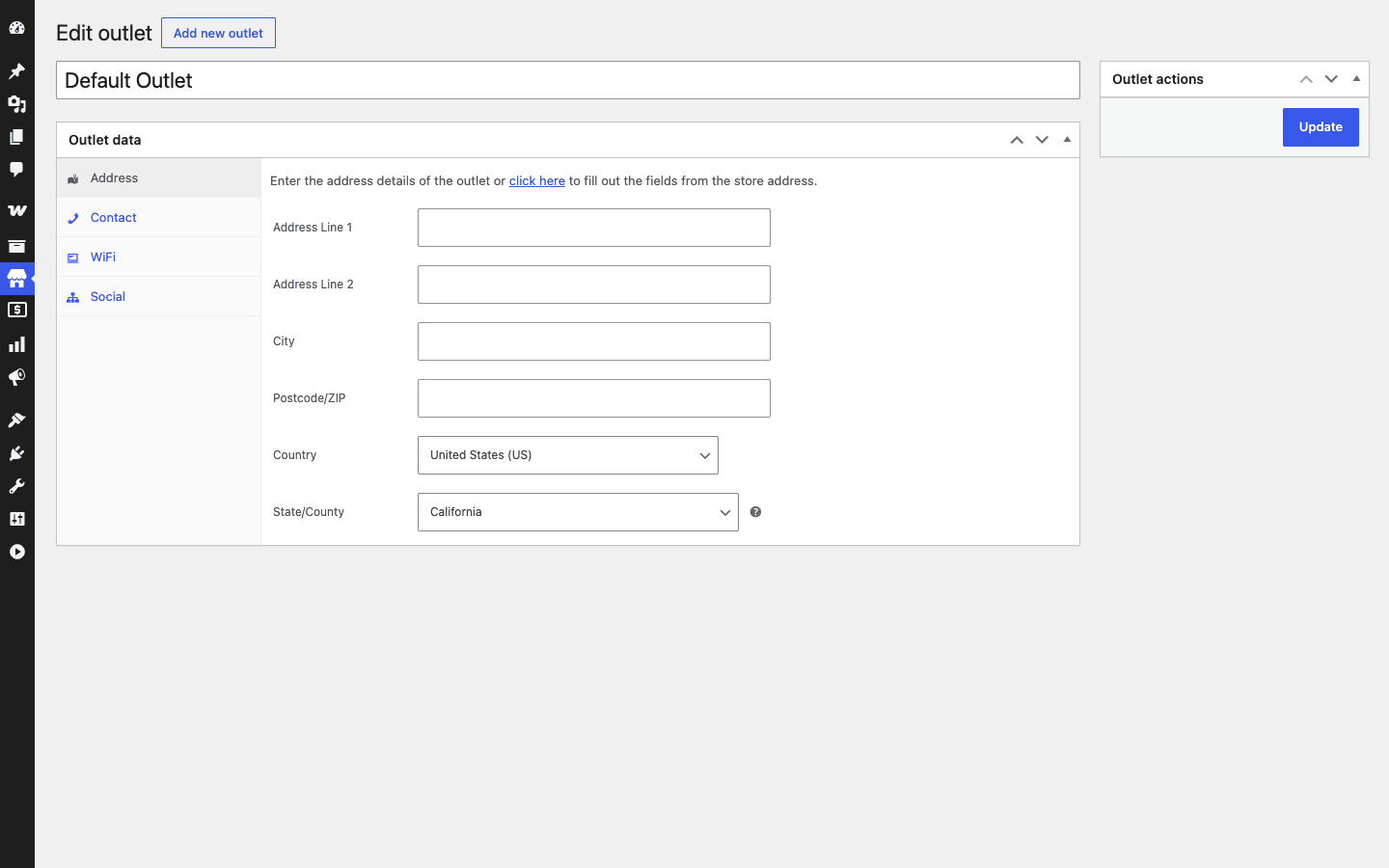
The multi-outlet model is straightforward in practice. You create an outlet per location, then create registers and assign each register to its outlet. A register knows which outlet it belongs to, which means every sale rung on that till is associated with that location. When you look at sessions and reports, you can tell which outlet and which till did what.
Where this shines: a growing retailer. Say you start with one shop, do well, and open a second. You don’t stand up a second system or a second WooCommerce install. You add an outlet, add its registers, and the new store sells from the same catalog and the same stock pool (assuming you manage stock centrally) with sales landing in the same order list. Your reporting stays unified because it was never split.
The catch: stock in this model is your WooCommerce stock, which is store-wide by default. WooCommerce on its own doesn’t track separate physical stock counts per location, it tracks one stock number per product. So "we have 4 of this in the downtown store and 2 in the mall store" is not something base WooCommerce or this plugin models as two independent counts out of the box; you’re tracking one pooled number. For many small chains that’s fine (you reorder centrally anyway). If you genuinely need per-location stock as separate ledgers, that’s a heavier inventory problem and you’d want to evaluate whether your stock workflow supports it before you lean on outlets for that. I’d rather tell you that up front than let you discover it after launch.
For keeping that single stock pool accurate across both your online orders and your counter sales, a bulk-editing tool helps. I lean on Smart Manager for WooCommerce to fix stock counts in a spreadsheet-style grid when a delivery comes in, rather than editing products one at a time. The register reads whatever WooCommerce says the stock is, so keeping that number honest is the whole game.
Receipts, barcodes, and hardware
A receipt is the thing the customer leaves with, and it’s the most physical, most branded touchpoint your register has. Point of Sale for WooCommerce gives you a real receipt template system rather than a fixed format you can’t change.
Receipts are their own object type (pos_receipt), and you design them in the admin with a live preview. As you adjust the template, you see what the printed slip will look like. You control what shows: your logo and store header, the outlet’s address and contact details, the line items and totals, tax, the payment method and change given, and a footer message (a returns policy, a thank-you, your social handles). Because the outlet details feed in automatically, the same template prints the right branch info at each location.
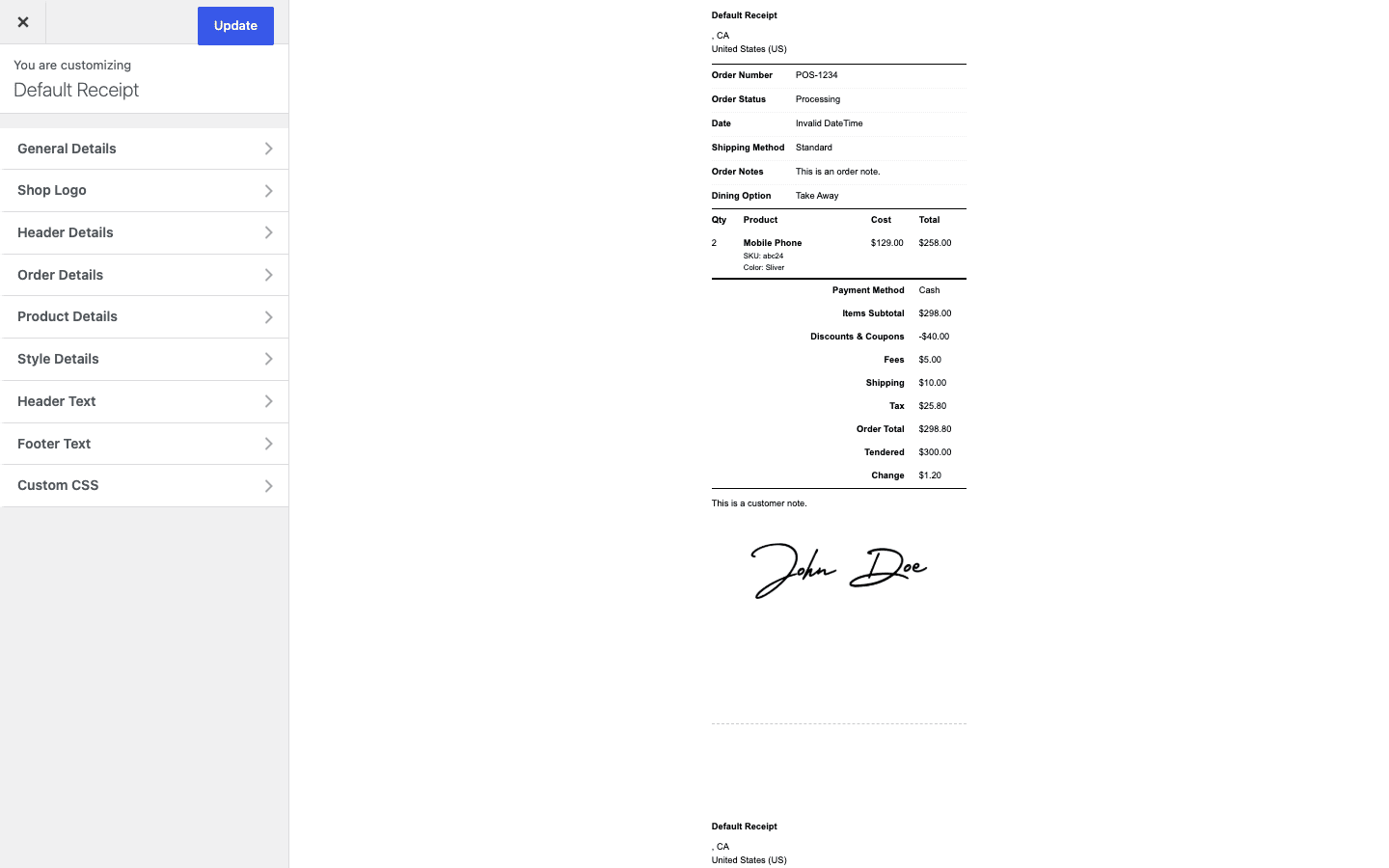
You assign a receipt template to a register, so different tills can print different receipts if you need that. Receipts can be printed to a receipt printer at the counter and emailed to the customer when they hand over an address.
Now barcodes. This is the half of the hardware story that often decides whether a real shop can use a POS at all. The plugin handles barcodes in both directions:
- Generate and print barcode labels. For products that don’t come with a manufacturer barcode, you can generate barcodes and print labels to stick on your stock. The admin includes barcode label options so you can produce the labels you’ll scan.
- Scan to add. At the register, a handheld barcode scanner reads a product’s barcode and the matching item drops straight into the cart. For a shop with hundreds of SKUs, scanning is far faster and far less error-prone than searching by name.
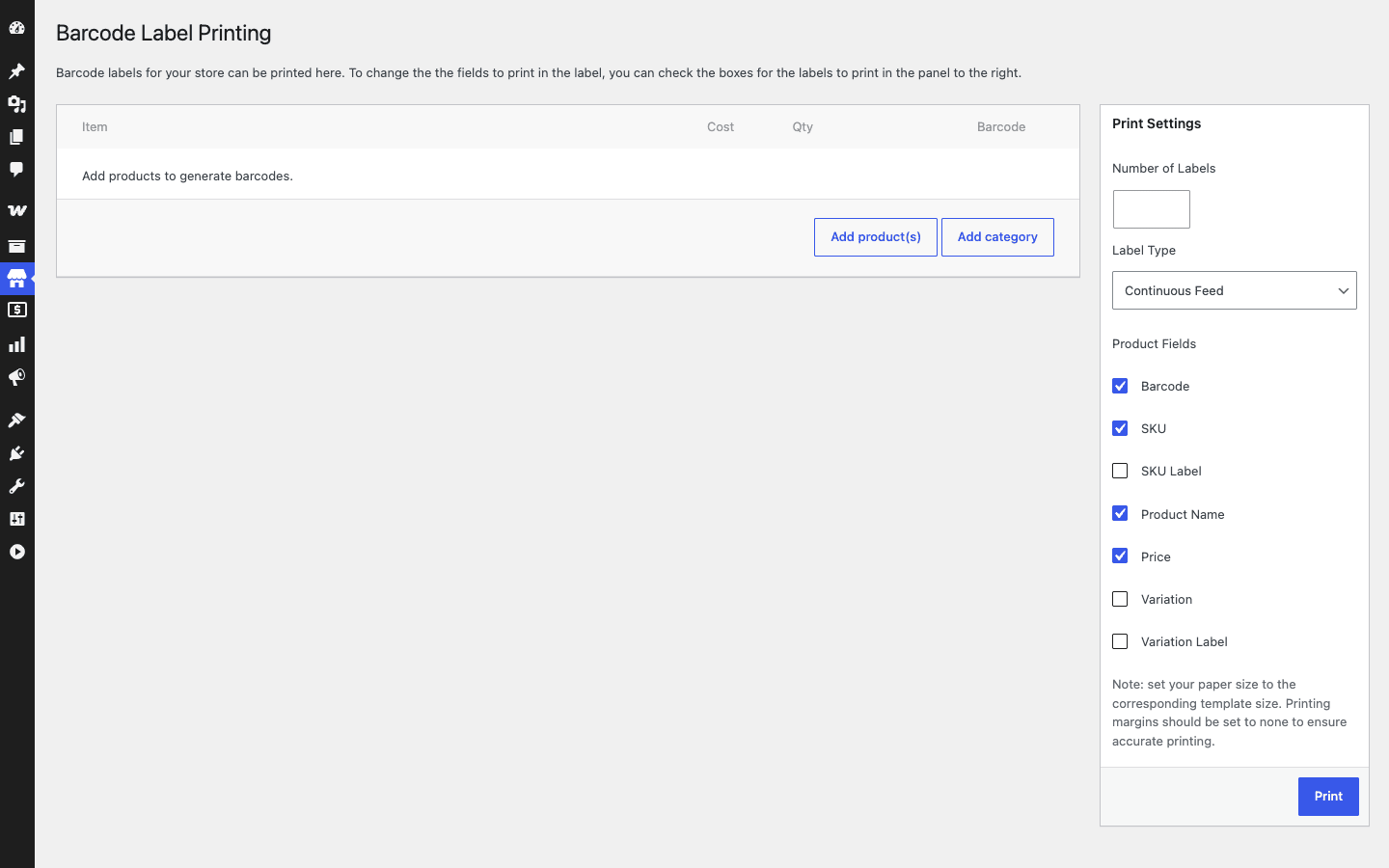
On hardware generally. The register runs in a web browser, which is a strength: it works on a regular PC, a Mac, or a tablet, no proprietary terminal required. For the physical peripherals, a standard USB barcode scanner behaves like a keyboard (it "types" the code into the search box), which is why scanning works without special drivers. A receipt printer prints the receipt template. A cash drawer typically opens off the receipt printer the way most retail setups wire it.
Tip: before you buy hardware, test the exact scanner and printer model you’re considering against a trial of the register. Barcode scanners are mostly plug-and-play because they emulate a keyboard, but receipt printers and cash drawers vary, and "works with our store" is something you want to confirm with your specific devices, not assume. Borrow or buy one of each, run a few test sales, then commit to a full kit.
If you also need formal tax invoices (some B2B customers and some jurisdictions require them, and a POS receipt is not the same document), pair the register with an invoicing plugin like WooCommerce PDF Invoices. The receipt is the quick slip the customer takes from the counter; a PDF invoice is the accounting document. They serve different purposes and it’s worth having both.
Cash management and end-of-day
If you take cash, this section is the most important one in the article. A register that can’t tell you whether the drawer balances is not a register, it’s a calculator.
Point of Sale for WooCommerce handles cash through sessions and cash management. Here’s the cycle.
Open the session with a float. At the start of a shift, the clerk opens a session and enters the starting cash in the drawer, the float (say 100 in small notes and coins for change). This creates a pos_session record tied to that register and that clerk.
Ring sales during the shift. Every sale rung during that open session is attached to it. Cash sales add to the expected cash. Card sales don’t touch the drawer.
Record cash in and cash out. Real shops move cash that isn’t a sale. You pay a delivery driver out of the till, you drop a float from another drawer, you take petty cash for milk. The plugin lets you record those cash-in and cash-out movements so the expected drawer total stays accurate. Without this, every non-sale cash movement would make the drawer look "wrong" at close.
Close and count. At the end of the shift, the clerk closes the session and counts the physical cash in the drawer. The plugin compares the counted amount against what it expected (float, plus cash sales, plus cash in, minus cash out). If they match, great. If they don’t, you have a discrepancy, and now you can actually see it.
Read the end-of-day report. Closing a session produces an end-of-day report. This is your daily reconciliation: what was sold, by what payment method, what cash should be in the drawer, what was counted, and where the gap is if there is one. There’s a developer hook (wc_pos_end_of_day_report) that fires with the session, so you can extend or pipe that report somewhere if you want to.
Why this matters: a short till is the single most common way a retail business bleeds money without noticing. Five dollars off here, ten there, no session to pin it to, and at the end of the month you’re hundreds down with no idea why. Sessions turn "the drawer feels light" into "session 47, Tuesday evening, clerk Dana, short by 12." That’s the difference between a vague worry and an answerable question.
I’ll come back to this in the anti-pattern section below, because the failure mode here is so common and so costly that it deserves its own warning.
Staff roles and the register team
You should not give your counter staff your WordPress admin password. That’s not a register, that’s a liability. Point of Sale for WooCommerce adds dedicated user roles for exactly this reason.
The plugin registers two roles:
- Register clerk (
register_clerk). This is the cashier role. A register clerk can log in to operate the register, ring sales, open and close their sessions, and do the day-to-day counter work, without having the keys to your whole WordPress site. They can’t edit your theme, install plugins, or change your prices. - Outlet manager (
outlet_manager). A step up. An outlet manager oversees a location, which in practice means more visibility and control over the registers and sessions at their outlet than a clerk has, while still not being a full site administrator.
There’s also a pos_manager capability concept the plugin uses internally to gate POS management features, so access to the configuration side is controlled rather than wide open.
The practical setup is one login per person. Give each clerk their own register_clerk account. Don’t share a single "cashier" login across the whole team. The reason is accountability: sales and sessions attribute to the user who rang them, so when you read the end-of-day report and see a discrepancy, it’s tied to a real person and a real shift. A shared login throws that away. If three people used the same account, a short till tells you nothing about who was on it.
Note: the moment of truth for any role system is the principle of least privilege. A clerk needs to ring sales and manage their own drawer, nothing more. An outlet manager needs to see their location. Only you, as the administrator, need the full site. Set it up that way from day one and you’ll never have to walk back an over-permissioned account after something goes wrong.
This is also a quiet security win over a sticky-note-and-shared-password setup. New hire starts, you create a clerk account. They leave, you deactivate it. No password rotation across the team, no wondering who still knows the login.
Who runs a WooCommerce POS
Let me make this concrete with the kinds of shops I’d actually recommend this to, because "in-store register for WooCommerce" can mean a lot of different counters.
The coffee shop. You sell a tight menu: a dozen drinks, a few pastries, some retail bags of beans. You build a grid of tappable tiles for the whole menu, so a barista rings a flat white and a croissant in two taps. The dining option flags "for here" versus "to go." Cash and card both go through the register, the drawer reconciles at close, and the beans you sell over the counter draw down the same stock as the beans you ship online. No second system.
The boutique clothing store. You have hundreds of SKUs across sizes and colors, far too many for tiles. Here the register lives on search and barcode scanning: a customer brings a dress to the counter, the clerk scans the tag, it’s in the cart. The shared inventory is the real prize, because when that last size-medium sells in store, your website stops offering it, and you’ve avoided the classic "sorry, the site was wrong, we don’t actually have it" refund email.
The market stall and pop-up. You do weekend markets and the occasional pop-up. You want a real register, not a shoebox of cash, but you refuse to pay a monthly platform fee for something you use twelve days a year. A self-hosted WooCommerce POS on a laptop or tablet is exactly this. Set up an outlet for the event, ring sales, and the cash management gives you a clean end-of-day count even at a folding table.
The multi-outlet retailer. You’ve got three shops. Each is an outlet, each has one or two registers, and all of them run off one WordPress install with one catalog. Order-number prefixes keep each store’s sales distinguishable in your reports. Outlet managers oversee their own locations, clerks ring sales, and head office sees everything in one WooCommerce dashboard.
The hybrid online-first brand. You’re mostly an online store, but you opened a flagship, or you do in-person markets, or you sell at your warehouse. The register lets the physical side feed the same store you already run, so your "real" sales numbers finally include the in-person revenue instead of treating it as a rounding error in a spreadsheet.
What ties all five together is the same thing: these are businesses that already live in WooCommerce and don’t want a parallel universe for their counter. If that’s you, you’re the target buyer.
Developer reference
This is the part I care about most, because a register you can’t extend is a register you’ll outgrow. Point of Sale for WooCommerce exposes a real wc_pos_ hook family and a REST surface that powers the register app. Everything below is from the plugin’s actual code; I’ve kept the argument counts honest so your callbacks have the right signatures.
A quick orientation first. The plugin’s core objects are five custom post types: pos_register, pos_outlet, pos_grid, pos_receipt, and pos_session. It adds two user roles, register_clerk and outlet_manager. It has no WP-CLI commands of its own and no shortcodes (it’s a register app, not a content-output plugin), and it registers no custom taxonomies. I’m telling you what it doesn’t have so you don’t go hunting for a CLI command that isn’t there.
Lifecycle and grid hooks
The grid is the most extensible surface, which makes sense, it’s the part shop owners most often want to customize. Several actions fire around grid creation, loading, and tile rendering.
wc_pos_new_pos_grid fires when a new grid is created, passing the grid ID and the grid object (2 args). Handy for logging or for setting defaults on every new grid:
add_action( 'wc_pos_new_pos_grid', 'myshop_on_new_grid', 10, 2 );
function myshop_on_new_grid( $grid_id, $grid ) {
    // Record who created which grid, for an audit trail.
    error_log( sprintf( 'POS grid %d created by user %d', $grid_id, get_current_user_id() ) );
}
wc_pos_grid_options_save fires when a grid’s options are saved, with the post ID and the grid (2 args). Use it to persist your own custom grid setting alongside the built-in ones:
add_action( 'wc_pos_grid_options_save', 'myshop_save_grid_extra', 10, 2 );
function myshop_save_grid_extra( $post_id, $grid ) {
    if ( isset( $_POST['myshop_grid_accent'] ) ) {
        update_post_meta( $post_id, '_myshop_grid_accent', sanitize_hex_color( $_POST['myshop_grid_accent'] ) );
    }
}
wc_pos_grid_loaded fires with the grid object (1 arg) when a grid loads, and wc_pos_before_grid_tile_html fires as individual tiles render (3 args: the tile ID, the tile, and the grid object). Together they let you inject markup or behavior into the register’s product grid.
Reporting and cash hooks
The end-of-day report is the hook most stores will reach for, because it’s the natural place to push your daily numbers into accounting or a Slack channel. wc_pos_end_of_day_report fires with the session ID and the session object (2 args) when a session’s report is generated:
add_action( 'wc_pos_end_of_day_report', 'myshop_end_of_day', 10, 2 );
function myshop_end_of_day( $session_id, $session ) {
    // Email the night's reconciliation to the owner when a till closes.
    $owner = get_option( 'admin_email' );
    wp_mail(
        $owner,
        'Till closed: session ' . $session_id,
        'End-of-day report is ready for session ' . $session_id . '.'
    );
}
On the cash side, wc_pos_cash_management_order_status filters the order status used for cash-management entries, so you can align cash movements with whatever order-status workflow your store runs. And wc_pos_fetch_order_statuses and wc_pos_fulfilled_order_statuses filter which order statuses the register considers when fetching and when treating an order as fulfilled:
add_filter( 'wc_pos_fulfilled_order_statuses', 'myshop_fulfilled_statuses' );
function myshop_fulfilled_statuses( $statuses ) {
    // Treat a custom "collected" status as fulfilled at the counter.
    $statuses[] = 'wc-collected';
    return $statuses;
}
Display, setup, and gateway icon filters
wc_pos_display_product_attributes filters the product attributes shown in the register for a product (1 arg). If you want the register to surface a custom attribute (a shelf location, an allergen note), this is the seam:
add_filter( 'wc_pos_display_product_attributes', 'myshop_pos_attributes' );
function myshop_pos_attributes( $product_attributes ) {
    // Add a shelf-location attribute so clerks can find stock fast.
    $product_attributes['shelf'] = __( 'Shelf', 'myshop' );
    return $product_attributes;
}
The first-run setup wizard is gated by wc_pos_enable_setup_wizard, which returns true by default. Return false to suppress the wizard on a managed install where you provision registers programmatically:
add_filter( 'wc_pos_enable_setup_wizard', '__return_false' );
The POS payment gateways expose icon filters, wc_pos_cash_icon, wc_pos_bacs_icon, and wc_pos_chip_and_pin_icon, each returning an icon string you can override to match your branding. There are also wc_pos_contact_url and wc_pos_docs_url filters if you need to repoint the plugin’s help links, and a family of wc_pos_get_pos_*_data filters (wc_pos_get_pos_register_data, _outlet_data, _grid_data, _receipt_data, _session_data, each 3 args) for shaping the data the plugin loads for each object.
For lifecycle work, wc_pos_installed fires (0 args) when the plugin is installed, and wc_pos_after_register_post_type fires (0 args) after the post types register. There are matching delete actions, wc_pos_delete_register, wc_pos_delete_outlet, wc_pos_delete_grid, wc_pos_delete_receipt, and wc_pos_delete_session, each passing the relevant ID (1 arg), so you can clean up related data when an object is removed.
The REST surface that powers the register
Here’s the architectural bit worth understanding. The register is a JavaScript single-page app, and it talks to your store over REST through the plugin’s own REST namespace, wc-pos. The controllers subclass WooCommerce’s own REST controllers, so they reuse WooCommerce’s request and response logic, but they register their routes under wc-pos rather than the core wc/v3 namespace.
There are eight of them in the plugin’s includes/api/ directory: controllers for products, product variations, product categories, customers, coupons, orders, order refunds, and users. Each exposes POS-optimized routes, including lightweight /ids and /totals routes, for example wc-pos/products, wc-pos/products/ids, and wc-pos/products/totals. The /ids routes let the register fetch just the identifiers it needs to populate search quickly, and the /totals routes give the register fast totals without dragging back full objects. That’s why register search feels snappy even on a large catalog: it’s not loading whole product records when it only needs a list.
The practical takeaway for a developer: because these controllers subclass WooCommerce’s REST controllers, the request and response shapes feel familiar if you already know the WooCommerce REST API, you’re just hitting them under the wc-pos namespace instead of wc/v3. The official WooCommerce REST API docs are the right reference for the base behavior the POS controllers build on, and the standard WordPress hooks documentation covers how to wire the wc_pos_ actions and filters above into a child theme or a small companion plugin.
One honest gap: there’s no documented public function like a pos_get_setting() getter for reading the plugin’s settings programmatically. Settings live in the admin Settings screen and the main WC_POS class. So if you need a setting value in code, you’re reading it the way you’d read any WordPress option rather than calling a published helper. Plan around that rather than expecting a tidy settings API.
Don’t skip register sessions and cash reconciliation
Here’s the mistake that costs real money, and I’ve watched it happen.
A shop gets the register working and staff start ringing sales. But nobody opens a session at the start of the shift, and nobody counts the drawer at the end. Sales go through, receipts print, customers leave happy. On the surface the register looks fine. It isn’t.
The problem: with no session, there is no end-of-day report, and with no counted close, there’s nothing to compare the drawer against. So when the till runs short, and over weeks it will, you have no way to see it, let alone explain it. A clerk pocketing a twenty a day, or just making honest change errors during a rush, looks identical to a perfectly balanced day, because you’re never checking the balance. You can’t tie a discrepancy to a shift, a register, or a person, because the record that would let you was never created. By month-end the trail is cold.
The fix is boring and it works:
- One
register_clerklogin per person. Never a shared cashier account. Sales and sessions attribute to a real user, so a discrepancy points at a shift. - A session per shift. Open with the float counted, close with the drawer counted. Make it as non-negotiable as locking the door.
- Read the end-of-day report nightly. Not weekly, nightly. A small daily gap is a conversation; a large monthly mystery is a loss you’ll never recover.
Reconciliation is the difference between a register and a cash box with extra steps. The plugin gives you sessions and an end-of-day report; using them every shift protects your money and your trust in your own staff. Skip it and you’ve bought a fast way to ring sales and a slow way to lose money.
WooCommerce POS vs cloud POS (Square, Shopify POS, Lightspeed)
This is the comparison most buyers are actually weighing, so let me be specific and fair about it.
The hosted POS services, Square, Shopify POS, Lightspeed, are genuinely good products and they’re easier to start with. You sign up, plug in a reader, and you’re selling in an afternoon. The trade is ongoing cost and ownership. They’re SaaS, which means a monthly subscription (paid tiers commonly run from roughly $60 to $90 a month, on top of any free starter plan), and most of them take a cut of every card transaction, typically somewhere around 2.6% plus roughly $0.10 per swipe (rates vary by provider, plan, and region, so treat those as ballparks, not quotes). On real volume, a 2.6% cut on every sale adds up to far more than any one-time software cost over a few years.
Point of Sale for WooCommerce is the other model: a self-hosted plugin you buy once and run on your own WooCommerce store. There’s no monthly platform fee for the POS software itself and no per-transaction platform cut taken by the POS vendor. Your card processor still charges you (Stripe, your bank, whoever), but that’s your processor’s fee, not a tax layered on top by the register. And critically, you own the data. Your sales, customers, and stock live in your WordPress database, not on a platform you rent.
Here’s the head-to-head as I see it:
| Self-hosted WooCommerce POS | Cloud POS (Square / Shopify / Lightspeed) | |
|---|---|---|
| Software cost | One-time license | Monthly subscription, ongoing |
| Per-transaction platform cut | None from the POS itself | Typically around 2.6% + a few cents per swipe |
| Data ownership | Yours, in your WordPress database | On the vendor’s platform |
| Online + in-store inventory | One shared WooCommerce stock pool | Separate platform, syncs to your site |
| Customer list | One shared WooCommerce customer list | The platform’s customer system |
| Setup effort | Higher (you run WooCommerce) | Lower (sign up and go) |
| Hardware | Standard browser + USB scanner/printer | Often the vendor’s own hardware |
On the countables, Point of Sale for WooCommerce gives you 5 core register objects (register, outlet, grid, receipt, session), 5 POS payment methods at the counter (cash, cheque, BACS, chip-and-pin, and Stripe), 2 staff roles (register clerk and outlet manager), multi-outlet support, barcode scanning and label printing, and one shared inventory and customer database with your online store. That last one is the structural advantage no bolt-on cloud connector fully matches, because there’s nothing to sync, it’s the same data.
Where the cloud option genuinely wins: if you have no website, no WooCommerce, and no appetite to run either, the hosted services are simpler and that simplicity is worth paying for. They also tend to have slicker first-party hardware and built-in payment processing you don’t have to wire up.
Where this plugin wins: if you already run WooCommerce (or want to), the math tilts hard toward self-hosting as your volume grows, because you stop paying a percentage of every sale to a platform forever, and you keep your data. For card payments specifically, wiring up WooCommerce Stripe gives you a clean processor at the counter and online, with Stripe Terminal hardware available for in-person card-present sales.
Against other WooCommerce POS plugins (YITH POS, Oliver POS, Hike and friends), I won’t pretend there’s a single winner. This one is the long-running Actuality option sold on the official WooCommerce marketplace, and its strengths are the depth of the register grid, the session and cash-management model, and multi-outlet support, rather than winning a raw feature-count war. If those three things matter to your shop, it’s a strong pick.
Performance, compatibility, and reliability
A register has a reliability bar that a blog plugin doesn’t. If your contact form is slow, someone waits. If your register stalls mid-sale, there’s a line of customers and an annoyed clerk. So let’s talk honestly about what to plan for.
It needs WooCommerce. This is the first compatibility fact and the most important. Point of Sale for WooCommerce is an extension of WooCommerce, not a standalone app. No WooCommerce, no register. It runs on PHP 7.4 and up, so any reasonably current host is fine.
The register leans on live REST calls. The full-screen register app fetches products, customers, and totals over REST as the clerk works. That’s what makes it fast, but it also means the register wants a stable network connection. On a flaky shop WiFi that drops every few minutes, you’ll feel it: a search that hangs, a sale that won’t commit. My strong recommendation is to wire the till computer with Ethernet, or at minimum put it on solid, dedicated WiFi with good signal at the counter, not the same congested guest network your customers are streaming on. Test your real network at the counter under load before go-live, not just from the back office where the signal is strong.
Plan for connection hiccups. Because the register depends on that live connection, you should understand its behavior when the connection wobbles before you’re depending on it during a Saturday rush. Run a few sales, then deliberately interrupt the network and see what happens, so there are no surprises on day one. I’d rather you discover the edge in a test than at the counter.
Hardware compatibility. As covered earlier, the browser-based design is forgiving: a USB barcode scanner emulates a keyboard and generally "just works," and the register prints to a receipt printer. Cash drawers usually trigger off the receipt printer. The variability is in specific printer and drawer models, so confirm your exact devices against a trial rather than buying a full kit blind.
HPOS and order storage. WooCommerce has moved toward High-Performance Order Storage (HPOS) for orders. Since this plugin writes real WooCommerce orders, your orders, in-store and online, live in whatever order storage your WooCommerce uses. Run a current WooCommerce, keep the plugin updated, and test on a staging copy after any major WooCommerce update, the same hygiene you’d apply to any payment-touching extension.
Keep the catalog lean for register speed. Register search reads your WooCommerce products. A tidy catalog (clean SKUs, sensible categories, no thousands of orphaned draft products) keeps search fast and the grid manageable. If your product table is a mess, the register will surface that mess. A periodic cleanup pays off at the counter, and a bulk editor makes that cleanup a five-minute job instead of a weekend.
Bottom line on reliability: treat the till like the critical piece of infrastructure it is. Wired network, tested hardware, a clean catalog, and a staging copy for updates. Do that and it’s dependable. Skip the network planning and you’ll blame the plugin for what is really a WiFi problem.
Pricing and licensing
The pricing story is the whole pitch, so it’s worth being clear about the model rather than chasing numbers that go stale.
Point of Sale for WooCommerce is sold as a self-hosted WooCommerce extension. You pay for a license, and you run it on your own WooCommerce store. There is no monthly SaaS subscription for the POS software, and there is no per-transaction cut taken by the POS vendor on your sales. Compare that to a hosted register that charges every month and skims a percentage off every card swipe forever, and the long-run difference on real volume is substantial. You’re trading a one-time software cost for the recurring platform fees you’d otherwise pay indefinitely.
Just as important: you own your data. Your sales history, your customer list, your stock, all of it sits in your WordPress database on your hosting. You’re not renting access to your own numbers, and you’re not locked into a platform that can change its terms or its pricing on you.
You can get Point of Sale for WooCommerce through the Point of Sale for WooCommerce listing on GPL Times, and running it on a test store is the fastest way to see whether the register grid and session model match how your counter actually works before you wire up real hardware. For the official feature breakdown straight from the source, the WooCommerce.com product page lays out what the extension covers.
Tip: when you’re costing this out, don’t compare it to a cloud POS on the sticker price of month one. Compare the total over two or three years including the per-transaction fees a hosted service takes. That’s where a self-hosted register on WooCommerce tends to come out clearly ahead for any shop doing meaningful card volume.
FAQ: WooCommerce POS
Does the WooCommerce POS work offline?
Plan for it needing a connection. The register is a web app that fetches products, customers, and totals over live REST calls, so it expects a working network at the counter. If your shop WiFi is unreliable, that’s a real consideration, not a footnote. The honest answer is to wire the till with Ethernet or put it on solid dedicated WiFi, and to test how it behaves when the connection drops before you depend on it during a rush. Don’t assume a SaaS-style fully offline mode; verify the behavior with your own setup first.
Do I need special hardware to use it?
No, and that’s a genuine strength. The register runs in a normal web browser, so a regular PC, Mac, or tablet is enough to start. You can add retail hardware as you grow: a USB barcode scanner (which acts like a keyboard, so it generally needs no drivers), a receipt printer, and a cash drawer that opens off the printer. You can absolutely begin with just a computer and add peripherals once you know the register fits your workflow.
Can I use my existing card reader?
It depends on the reader. The plugin ships POS payment options including cash, cheque, BACS, a chip-and-pin option, and a Stripe integration. If you process cards with Stripe, the Stripe route (including Stripe Terminal hardware for card-present sales) is the cleanest path. If your current reader is tied to a different processor’s proprietary app, it may not drop into this register directly, so check how your specific reader connects before assuming it carries over. For most stores, standardizing on Stripe at the counter and online is the simplest answer.
Can I run multiple registers and multiple outlets?
Yes. The plugin models outlets (physical locations) and registers (individual tills) as separate objects, and you can create multiple of each. A multi-location retailer sets up an outlet per store and assigns registers to each, all running off one WordPress install with one shared catalog. Order-number prefixes per register help keep each till’s sales distinguishable in your WooCommerce order list.
Are my in-store and online stock the same?
Yes, and that’s the core reason to choose this over a disconnected till. The register reads and writes the same WooCommerce stock as your website. Sell the last unit in store and the website shows it out of stock immediately. The one nuance: WooCommerce tracks one stock number per product by default, not separate counts per physical location, so multi-outlet stores share a single pooled stock figure rather than independent per-store ledgers out of the box. For many small chains that’s fine; if you need true per-location stock, evaluate your inventory workflow before relying on it.
Can I scan barcodes at the register?
Yes. You can scan existing product barcodes with a handheld scanner to add items to the cart, and for products without a barcode you can generate and print barcode labels from the admin. Scanning is far faster and less error-prone than searching by name once you’re past a few dozen SKUs, so for a boutique or a shop with deep stock, the barcode workflow is the one to set up.
Are there monthly fees?
No monthly platform fee for the POS software, and no per-transaction cut taken by the plugin. It’s a self-hosted extension you license and run on your own WooCommerce, which is the main thing that sets it apart from cloud registers that charge every month and skim a percentage of each card sale. You’ll still pay your own payment processor’s normal fees (that’s between you and Stripe or your bank), but those aren’t an extra layer added by the register.
How does it handle taxes for different locations?
It uses WooCommerce’s tax system, since sales are real WooCommerce orders. That means your existing WooCommerce tax rules apply at the counter the same way they apply online. If you need different tax handling per location, you’re configuring that through WooCommerce’s tax settings rather than a separate POS tax engine. For most single-jurisdiction shops this is straightforward; if you operate across regions with genuinely different tax rules per outlet, plan your WooCommerce tax configuration carefully and test it with real sales before go-live.
Can a clerk operate the register without being a site admin?
Yes, and they should be. The plugin adds a register clerk role for cashiers and an outlet manager role for location oversight, neither of which is a full WordPress administrator. Give each cashier their own register clerk login so sales and sessions attribute to a real person. This keeps your admin locked down and makes your end-of-day reconciliation actually meaningful.
Is it hard to set up?
Honestly, harder than signing up for a hosted service, and I won’t pretend otherwise. You need WooCommerce running, and you’ll spend real time building grids, configuring registers, and designing receipts before the first sale. The payoff is no monthly fee, full data ownership, and one unified store. If you already run WooCommerce, the setup is very manageable; if you’re starting from zero with no website, weigh whether you want to run WordPress at all before committing.
Final thoughts
I came into this expecting a bolt-on till that loosely talks to WooCommerce, and that’s not what this is. The thing that stuck with me is the single-source design: a counter sale and a website order are the same kind of record, in the same place, drawing down the same stock and the same customer list. There’s no sync job to babysit and no second set of numbers to reconcile, because there’s only one set of numbers.
It’s not the path of least resistance. A hosted register is easier to start, and if you have no website and no interest in running WordPress, that’s the honest recommendation. But if you already live in WooCommerce, Point of Sale for WooCommerce lets your physical counter feed the store you already trust, without a monthly platform fee and without handing your data to someone else’s server. The grid takes effort to build well, the network needs planning, and the discipline of opening and closing sessions is on you. Do those three things and you’ve got a real register that pays no rent.
For a shop that’s tired of treating in-person sales as a footnote, that’s a trade worth making.