

Run the math on your last busy Friday. A third-party delivery app skims somewhere between 15% and 30% off the top of every single order it sends you. On a restaurant where the food cost already eats half the ticket and rent eats a chunk of what’s left, handing a third of the order value to an app is the difference between a good night and a break-even one. That’s the problem Orderable is built to solve: it turns your own WooCommerce site into a proper online ordering system, so the order, the customer, and the margin all stay with you.
I’ve set up online ordering for a couple of small food businesses, and the honest truth is that "just use WooCommerce" doesn’t cut it. A standard WooCommerce shop is built to sell t-shirts, not to take a lunch rush. It has no concept of "we’re closed on Mondays", no pickup-vs-delivery toggle, no time slots, no kitchen view. Orderable fills exactly that gap. This is a long, honest walk through what it does, where it shines, where it’s fiddly, and the full developer surface underneath.
Table of Contents
- What is Orderable?
- Why a restaurant needs more than a plain shop
- Building your menu layout
- Delivery, pickup, and order timing (the part that protects your kitchen)
- The Live Order View: your kitchen dashboard
- Product addons and cart bumps
- Table ordering with QR codes
- Tips, receipts, and the rest of the checkout
- Multi-location and timed products
- Orderable vs WooCommerce vs a menu plugin vs the apps
- Who it’s for: four real setups
- Don’t open delivery without order caps
- Installation and setup
- Developer reference
- Compatibility and the gotchas
- Troubleshooting
- FAQ
- Final thoughts
What is Orderable?
Orderable is a WordPress plugin that bolts a full restaurant and local-ordering system onto WooCommerce. It comes in two pieces: a free base plugin called "Orderable – Restaurant & Food Ordering System", and Orderable Pro, the paid extension that adds the features a real food business actually needs. Pro requires the free base, and the two run side by side. It’s made by the team at Orderable (the same people behind Iconic, a long-running WooCommerce shop), so it’s built by folks who understand the cart, not outsiders bolting onto it.
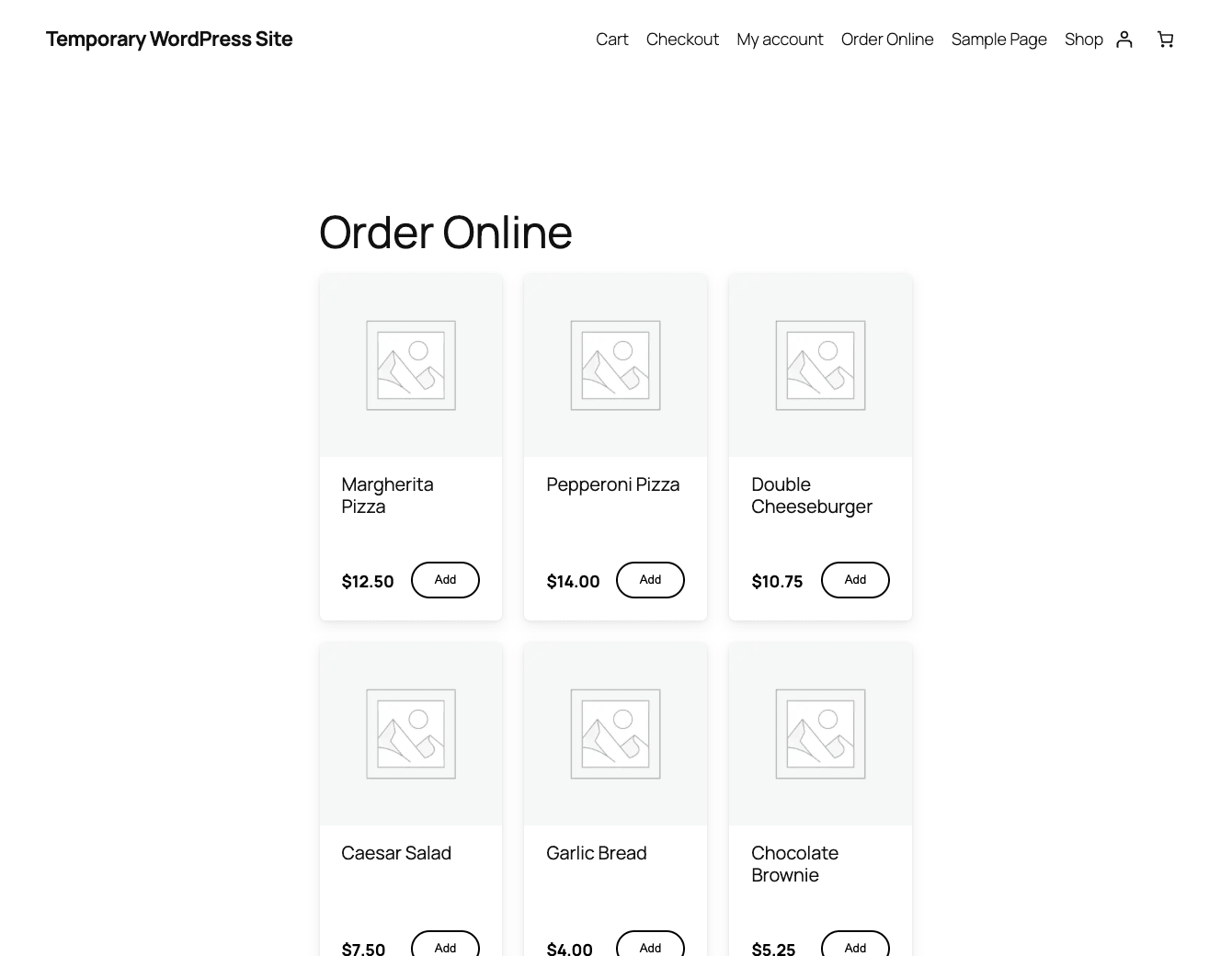
Here’s what it is at a practical level. Instead of WooCommerce’s standard shop-and-cart flow, Orderable renders your products as a menu: a clean grid of items with quick add-to-cart buttons and a side cart that slides in, so a hungry customer can build an order in a few taps. On top of that sits everything a takeaway or cafe needs: delivery and pickup as separate services, open hours, time slots, lead times, holidays, tipping, product addons (think "extra cheese" or "choose your size"), a live kitchen dashboard, table ordering by QR code, and support for multiple locations.
You can grab Orderable Pro from GPL Times and have the menu, time slots, table ordering, and the kitchen view running on your own WooCommerce install in an afternoon, which is the whole point: own the ordering relationship instead of renting it from an app.
The short version: if WooCommerce is the cash register, Orderable is the front-of-house and the kitchen pass stapled on top.
Why a restaurant needs more than a plain shop
Skip this section if you’ve already run a food site. If you haven’t, this is the bit that explains why Orderable exists at all.
A normal WooCommerce checkout assumes a few things that are flat-out wrong for food. It assumes the customer can buy any time, day or night. It assumes a single fulfillment method (shipping). It assumes the thing being sold doesn’t go cold. And it assumes you have unlimited capacity, because a t-shirt warehouse doesn’t care if 200 orders land in the same five minutes.
A kitchen cares about every one of those.
You need to be able to say "we open at 11, last delivery order at 9, closed Mondays". You need pickup and delivery to be different experiences with different fees and different timing. You need to stop taking 8pm orders when the kitchen is already 40 minutes behind. And you need the order to show up somewhere a cook can read it, not buried in the WooCommerce orders list next to a refund request.
Orderable’s whole design is shaped around those constraints. Once you see it that way, the feature list stops looking like a grab bag and starts looking like a checklist of everything a plain shop gets wrong.
Building your menu layout
The menu is the heart of the plugin, and it’s a custom post type. Orderable registers a CPT called orderable_layouts (it shows up as "Product Layouts" in the admin), and each layout is a reusable arrangement of your products: how the cards look, what gets shown on each card, which categories appear and in what order. You build a layout, then drop it onto any page with the [orderable] shortcode, or place it through the block/page builder.
That separation is smart. Your menu layout isn’t welded to one page. You can have a "Full Menu" layout on /menu/, a stripped "Lunch Specials" layout on the homepage, and both pull from the same WooCommerce products.
Inside a layout you decide the category grouping, whether items show as a grid or a list, and how the quick-add behaves. Items with options (a pizza that needs a size, a burrito that needs fillings) open a small modal instead of dropping straight into the cart, so the customer picks before they commit.
Tip: put the menu on a dedicated page rather than replacing your shop page. Keep /shop/ for anything non-food (merch, gift cards) and send hungry visitors to the Orderable menu page. Two audiences, two layouts, no compromise.
Two more menu-shaping tools matter here. Product Labels is a taxonomy (orderable_product_label) that lets you tag items with badges like "Vegan", "Spicy", or "New", and those badges render right on the menu card. And there’s a filter, orderable_hidden_categories, that lets you pull whole categories out of the menu view programmatically, which is handy when you sell something through WooCommerce that shouldn’t appear on the food menu.
There are a few extra shortcodes for finer control. [orderable_add_to_cart] drops a single product’s add button anywhere (great for a "featured dish" on the homepage), and [orderable_addons] surfaces an addon group on its own. I’d reach for the main [orderable] layout shortcode 90% of the time and keep the others for one-off placements.
Delivery, pickup, and order timing (the part that protects your kitchen)
This is where Orderable Pro stops being a nicer product grid and starts being genuinely hard to replace. WooCommerce ships with shipping zones. It does not ship with "open hours", "pickup vs delivery", "time slots", or "you can’t order for a time we’re closed". Orderable adds all of it.
Delivery and pickup are two distinct services. A customer picks one at checkout, and each can have its own rules. Pickup might be available all day with a 15-minute lead time; delivery might run on the hour with a fee and a postcode check. Under the hood the service type flows through a filter, orderable_get_service_type, so the order itself carries whether it was delivery or pickup, and your code (or a notification) can branch on it.
Open hours and time slots are the core of order timing. You set your trading hours, and Orderable generates bookable time slots from them. A customer ordering at 6:40pm sees the next available slots, not a free-for-all. This is where the plugin earns its place: no plain shop can tell a customer "the earliest delivery is 7:15".
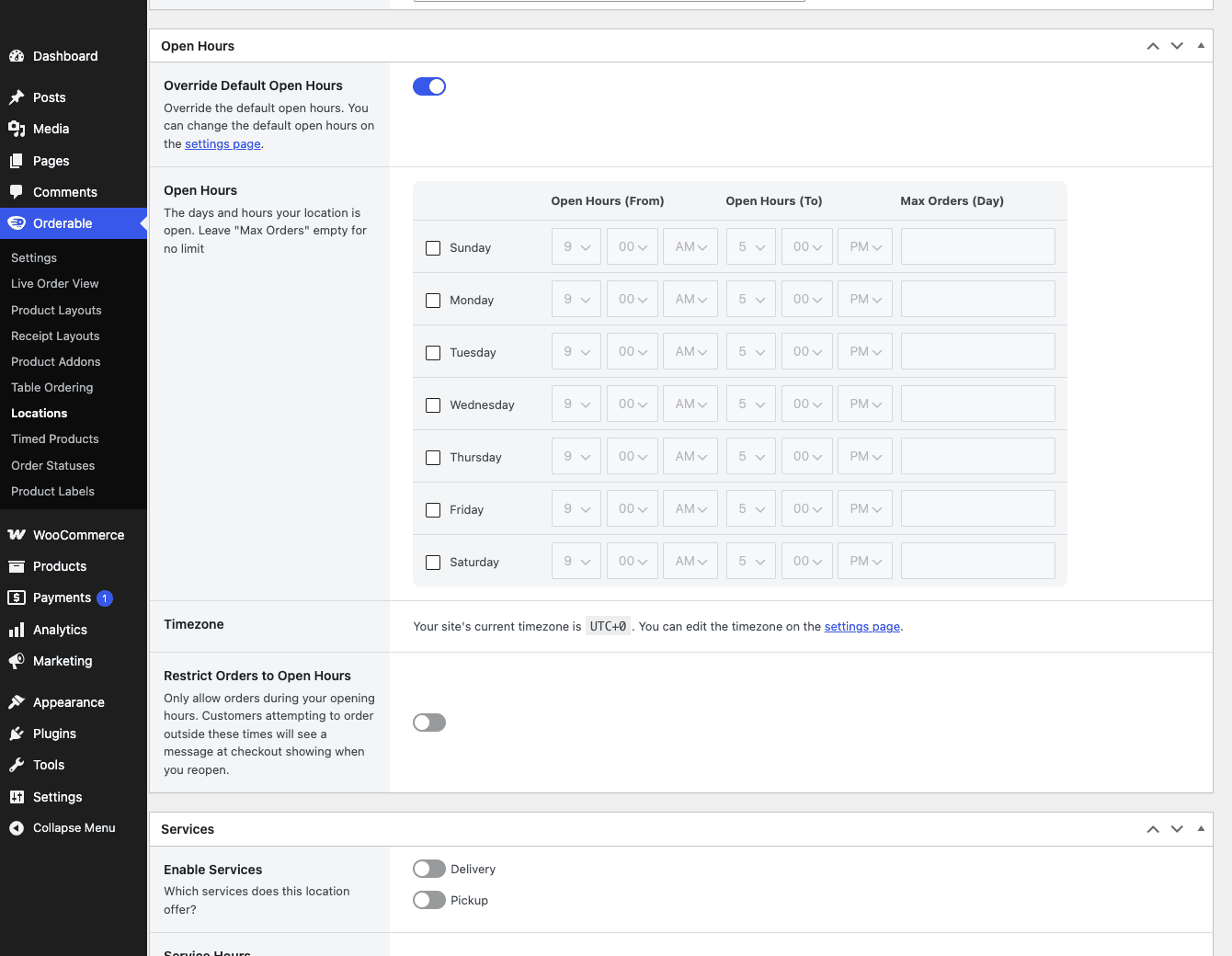
Lead time is the buffer between "order placed" and "earliest fulfillment". If your kitchen needs 30 minutes minimum, you set a 30-minute lead time and Orderable refuses to offer a slot sooner than that. It’s exposed to developers as the orderable_location_get_lead_time filter, so you can compute it dynamically (longer on weekends, shorter on a quiet Tuesday).
Holidays and closed days matter more than they sound. Forgetting to mark a public holiday closed means taking orders for food you won’t cook, which means refunds and a one-star review. Orderable lets you set holiday dates per location so the slots simply don’t appear on those days.
And then there’s the capacity control I care about most: max orders per day and per-slot order limits. You can cap how many orders the kitchen will accept in a given slot or across a whole day. When the cap is hit, that slot closes. The day cap runs through the orderable_get_max_orders_for_day filter. I’ll come back to why this one feature is the thing that separates a smooth Friday from a disaster, in the anti-pattern section below.
Heads-up: time slots, lead times, and capacity caps all depend on accurate server time and a working WordPress cron. If your slots look wrong, check the site’s timezone in Settings » General and confirm cron is firing before you blame the plugin.
The Live Order View: your kitchen dashboard
The Live Order View is the feature I’d demo first to a skeptical restaurant owner. It’s a real-time dashboard at WooCommerce » Orders with the orderable_live_view flag, and it shows incoming orders as cards a cook can actually read: items, quantities, addons, the requested time, delivery or pickup. New orders pop in without a page refresh.
Why this matters: the default WooCommerce orders screen is a finance tool. It’s columns and statuses and bulk actions, fine for an accountant, useless for someone holding a spatula. The Live Order View is built for the pass. You glance at it, you see what’s coming, you tap to move an order along.
Pair it with custom order statuses, a Pro feature backed by the orderable_status CPT. Out of the box WooCommerce gives you "processing" and "completed", which tells a kitchen nothing. With Orderable you can define statuses like "In the kitchen", "Ready for pickup", or "Out for delivery", and those flow into the customer’s notifications too, so the person waiting on their order actually knows where it is.
The catch: the Live Order View is a browser dashboard, not a printer driver and not a POS. If you want a physical ticket to print in the kitchen automatically, you’ll pair it with a print solution or design a Receipt Layout (more on those below) and print from the browser. It shows you the orders beautifully. It doesn’t push them to a thermal printer on its own.
Product addons and cart bumps
Food is rarely one SKU. A pizza has a size and toppings. A coffee has milk options. A meal deal bundles a main, a side, and a drink. Orderable handles this with Product Addons, a Pro feature built on the orderable_addons CPT.
Addons are reusable groups you attach to products. You build an addon group once (say "Pizza size" with Small, Medium, Large and a price delta on each), then attach it to every pizza. Change the price of "Large" in one place and it updates everywhere. That reuse is the difference between a maintainable menu and a nightmare of per-product option editing.
Addons can be required or optional, single-choice or multi-select, and they can carry price modifiers. The selections show up on the menu card modal, in the cart, on the order, and on the kitchen view, so the cook sees "Large, extra mushrooms, no onions" exactly as the customer entered it.
Cart bumps are the upsell layer. These are the "add a drink for $2?" prompts that nudge the customer toward a bigger ticket at the moment of ordering. Done with a light touch they genuinely lift average order value. Done heavily they annoy people, so I’d add one bump, maybe two, and stop.
Tip: model your meal deals as a product with a multi-select addon group rather than as separate line items. It keeps the cart clean and the kitchen ticket readable, and the discount math lives in one place.
Table ordering with QR codes
Here’s a feature that surprised me by how complete it is. Orderable Pro does dine-in table ordering through the orderable_tables CPT. You create tables, generate a QR code per table, and stick the code on the table. A customer scans it, the menu opens already tied to that table, they order from their phone, and the order lands in the Live Order View tagged with the table number.
For a busy cafe or a bar that doesn’t want to hire more floor staff, this is real. No app for the customer to download, no hardware beyond a printed QR sticker. The phone they already have is the ordering terminal.
There are matching shortcodes for the locator side of things if you run a more complex setup: [orderable_store_locator], [orderable_store_mini_locator], and [orderable_store_postcode_locator] let a customer find or pick a store, which pairs naturally with the multi-location features.
Where this shines: a single-room cafe where one person is making coffee and the orders self-serve into a queue. Where it doesn’t: a full-service restaurant that wants split checks, course timing, and server-assigned tabs. Orderable does table ordering, not full POS table management. Know which one you need before you promise it to anyone.
Tips, receipts, and the rest of the checkout
Tipping is first-class here, which matters in markets where gratuity is expected. Orderable Pro adds a tip step to the checkout with preset options you configure (percentages, fixed amounts, or both), and there’s a [orderable_tip] shortcode plus a orderable_get_tip_options_prepared filter for shaping the presets in code.
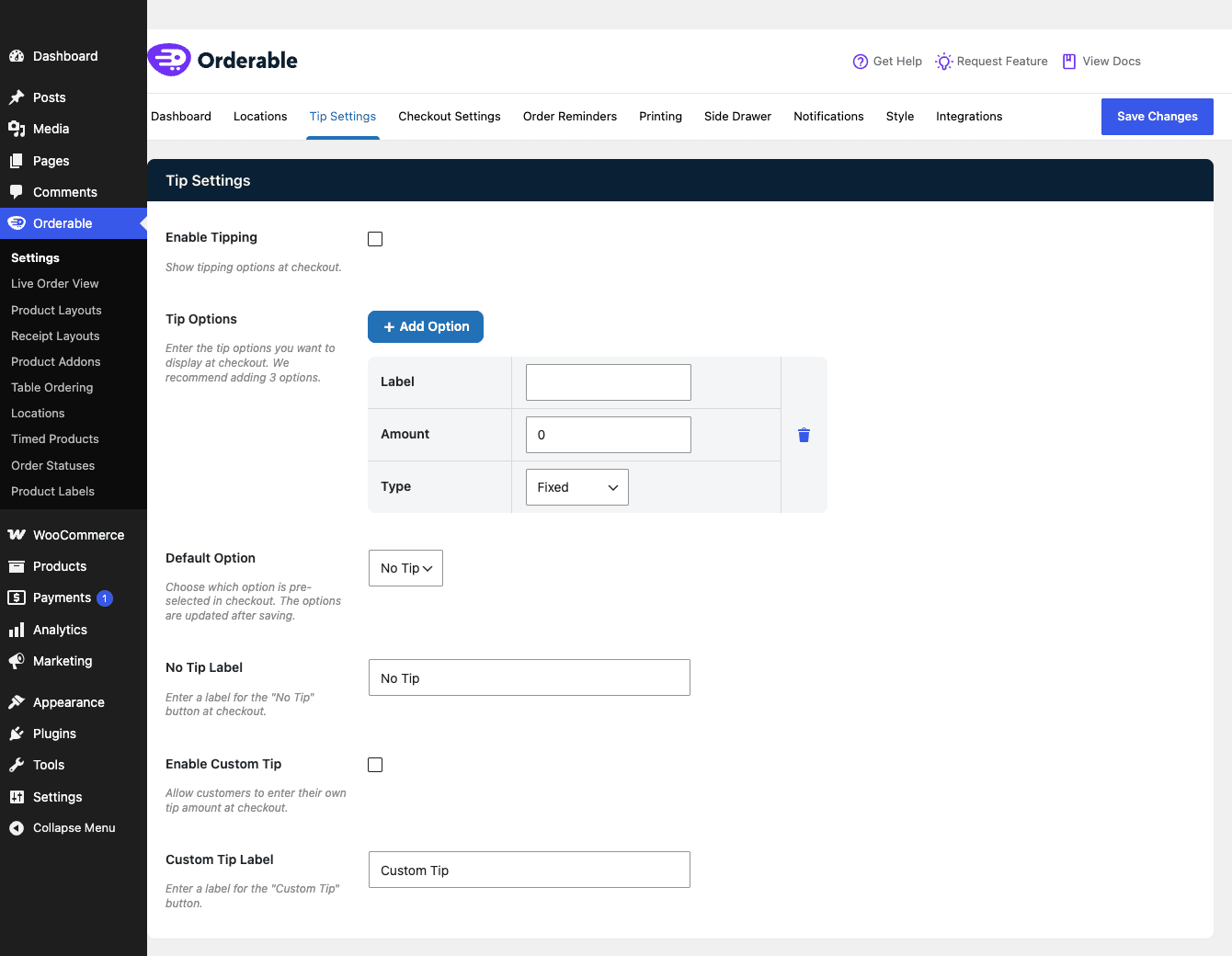
A word of caution that I’ll expand on later: tips and delivery fees both interact with WooCommerce’s tax engine, and the correct tax treatment of a tip is not the same everywhere. Set this up deliberately, not by accident.
Receipt Layouts are the other half of the checkout story. Backed by the orderable_receipt CPT and built with dedicated Gutenberg blocks, a Receipt Layout is a designer for the printed or emailed ticket. You lay out what the kitchen copy shows versus what the customer copy shows, drag in the order details, the timing, the address, and print or attach it. For anyone who’s ever squinted at a default WooCommerce email trying to figure out what to cook, this is a relief.
The checkout itself, in Pro, can run as a block-based checkout (there’s a checkout-pro/blocks build registered) that uses the WooCommerce Store API under the hood, which is the modern WooCommerce checkout path rather than the legacy shortcode checkout. Payments run through whatever WooCommerce gateway you already use. If you’re picking one, the official WooCommerce Stripe gateway is the path of least resistance for cards, and Orderable doesn’t fight it because it doesn’t replace the payment layer at all.
Multi-location and timed products
Multi-location is the feature that takes Orderable from "one cafe" to "small chain". It’s built on the orderable_locations CPT, and each location gets its own open hours, time slots, lead time, holidays, and delivery rules. A customer picks (or is matched to) a location, and the menu, timing, and fulfillment all follow that location.
This is genuinely hard to build by hand, and Orderable exposes the machinery to developers: there are filters around location selection (orderable_multi_location_selected_location), availability (orderable_multi_location_is_location_available), and the per-location service-hour lifecycle (orderable_location_service_hour_inserted, orderable_location_save_data). If you run three branches with different hours, this is the part you can’t replicate with shipping zones.
Timed Products is the clever one. Backed by the timed_prod_condition CPT, it shows or hides products based on the time of day. The classic use is a breakfast menu that vanishes at 11am and a dinner menu that appears at 5pm, automatically, without anyone toggling anything. Set the condition once and the menu reshapes itself through the day.
Note: Timed Products lean on the same time/cron foundation as time slots. On a sleepy shared host where cron only fires when someone visits the site, time-sensitive transitions can lag. If precision matters, wire up a real server cron instead of relying on WordPress pseudo-cron.
Orderable vs WooCommerce vs a menu plugin vs the apps
Let’s put numbers on it, because "Orderable is better" is a meaningless thing to say.
| Option | What you actually get | The cost |
|---|---|---|
| Third-party delivery apps | Discovery, a delivery fleet, zero setup | 15% to 30% commission on every order, plus you don’t own the customer data |
| Plain WooCommerce | A cart and a checkout | 0 order modes for food (no pickup/delivery split, 0 time slots, 0 order caps) |
| A generic restaurant-menu plugin | A pretty menu display | Often display-only: 0 real order timing, 0 kitchen view, weak or no capacity caps |
| Orderable Pro | Menu, 3 order modes, timing, kitchen view, addons | A flat yearly license, you keep 100% of the order value minus your gateway fee |
The concrete differences worth quoting:
- Order modes: plain WooCommerce gives you 1 (ship it). Orderable gives you 3: delivery, pickup, and dine-in via table QR.
- Surface area: Orderable registers seven custom post types plus a product-label taxonomy (layouts, receipts, addons, tables, locations, timed products, statuses) and 8 shortcodes. A menu plugin is usually 1 shortcode and a CSS file.
- Capacity control: Orderable has per-slot and per-day order caps. WooCommerce has 0. This is the single feature that keeps a kitchen alive on a Friday.
- Commission: the apps take 15% to 30% per order, forever. Orderable is a yearly license, which on any meaningful order volume is paid back in days, not months.
The honest trade-off: the apps bring you discovery, new customers who’d never have found your site. Orderable brings you nothing new on its own. So the smart play for most places isn’t "delete the apps", it’s "use the apps for discovery, then convert your regulars to ordering direct where the margin lives". Orderable is how you make that direct channel good enough that people actually use it.
Who it’s for: four real setups
If you run a pizzeria, the addon system is your friend. Build size and topping groups once, attach them to every pizza, and the menu modal handles the rest. Turn on delivery with a postcode check and a 30-minute lead time, and you’ve replaced a phone-and-paper workflow with something the kitchen can read.
If you run a coffee shop doing pickup, skip delivery entirely. Set pickup-only with short time slots and a tight lead time, slap QR codes on the tables, and let people order from their seat or order ahead on the way in. The Live Order View becomes your queue. No floor staff taking orders, no app.
If you run a bakery doing local delivery, this is where holidays and day caps earn their keep. You can only bake so many cakes a day, so set a per-day order cap, mark the days you’re closed, and let customers order for a future slot. The capacity cap stops you from promising 40 birthday cakes you physically cannot make.
If you run a multi-location chain, the Locations CPT is the whole reason you’re here. Each branch carries its own hours and delivery rules, the customer picks a branch, and everything downstream follows. Add a store locator shortcode so people find their nearest spot, and you’ve got a genuine multi-branch ordering system on one WordPress install.
Don’t open delivery without order caps
Here’s the mistake I’ve watched a real food business make, and it cost them money and a chunk of trust in one evening.
They launched online ordering with delivery turned on, no per-slot cap, no per-day cap, and a lead time set to basically zero so everything read as "ASAP". It worked beautifully for a week. Then a local Facebook post went semi-viral on a Friday at 7pm.
Orders flooded in with no ceiling. The system happily accepted forty of them inside ten minutes, all promised "as soon as possible". The kitchen, which could comfortably push maybe eight orders in that window, fell an hour behind almost instantly. Customers who’d been told "ASAP" started calling. Food that did go out went out cold. Several orders were refunded. The reviews the next morning were brutal, and not one of them was about the food.
Every piece of that was preventable, and Orderable ships the prevention. Set realistic per-slot and per-day order caps so the system closes a slot once the kitchen is full; the day cap is exactly what orderable_get_max_orders_for_day controls. Set an honest lead time through the open-hours config (and orderable_location_get_lead_time if you want it dynamic) so the earliest promised slot is one the kitchen can actually hit. And mark your holidays and closed days so you never accept an order for a day you aren’t cooking.
The temptation is to leave the caps wide open because a cap feels like turning away money. It’s the opposite. An order you can’t fulfill on time isn’t revenue, it’s a refund plus a bad review plus a customer who orders from the app next time. Capacity limits aren’t a restriction on your business. They’re the thing that keeps Friday from eating it.
Installation and setup
Getting Orderable running is genuinely quick, and most of the time goes into thinking about your hours and menu, not clicking.
- Install both plugins. Upload and activate the free Orderable base first, then Orderable Pro. Pro will not run without the base, so the order matters. Go to Plugins » Add New » Upload Plugin for each zip. You’ll need WooCommerce already active, and PHP 7.4 or newer on the host.
- Run the onboarding. On first activation Orderable walks you through the basics (store type, services, currency). You can change every choice later under Orderable » Settings, so don’t overthink it here.
- Set your service hours and timing. Open Orderable » Settings, find the service hours and timing tab, and enter your open hours, slot length, lead time, and holidays. This is the step that actually protects your kitchen, so spend time here.
- Configure delivery and pickup. In the delivery and pickup tab, turn on the services you offer, set fees, and (for delivery) define your area, by postcode or zone. The toggle for each service makes it appear at checkout.
- Build a Product Layout. Under Orderable » Product Layouts, create a layout, choose your categories and card style, and save. This is your menu’s appearance.
- Place the menu. Create a page (call it "Menu" or "Order Online"), drop in the
[orderable]shortcode, and publish. Visit it on the front end and you should see your products as an ordering menu with a side cart. - Add addons and labels. Build any Product Addons you need (sizes, extras), attach them to products, and tag items with Product Labels for the "Vegan"/"Spicy" badges.
- Open the Live Order View. Place a test order, then open the Live Order View under your orders screen to confirm it appears in real time.
That’s the core loop. Table ordering, multi-location, receipts, and tipping are all opt-in on top of this base.
Developer reference
Orderable is a well-hooked plugin, and the developer surface is bigger than the admin lets on. A few important facts to set expectations first.
There is no custom REST API. Orderable does not register an orderable/v1 namespace or any custom REST routes. Its dynamic front-end runs on WordPress admin-ajax, and the block-based Pro checkout talks to the WooCommerce Store API rather than a bespoke endpoint. If you’re planning a mobile app against it, you’ll be working through admin-ajax and the standard WooCommerce APIs, not an Orderable REST layer.
There is no WP-CLI command. Don’t go looking for wp orderable; it isn’t there. Bulk operations go through the WordPress and WooCommerce CLI for the underlying posts and orders.
With that out of the way, here’s the hook surface worth knowing.
Action hooks around the menu card
The menu card fires a family of actions you can hook to inject content, all with the same 2-argument signature ( $product, $args ):
add_action( 'orderable_before_product_card', function ( $product, $args ) {
    if ( $product->is_on_sale() ) {
        echo '<span class="badge-deal">Deal</span>';
    }
}, 10, 2 );
The same ( $product, $args ) shape applies to orderable_before_product_hero, orderable_after_product_hero, orderable_before_product_title, orderable_before_product_description, and orderable_before_product_actions. So if you want a custom note right above the add-to-cart button on every card:
add_action( 'orderable_before_product_actions', function ( $product, $args ) {
    if ( has_term( 'spicy', 'orderable_product_label', $product->get_id() ) ) {
        echo '<p class="heat-note">Contains chili</p>';
    }
}, 10, 2 );
Checkout hooks
The checkout exposes a couple of action points. orderable_checkout_payment fires in the payment section and takes no arguments:
add_action( 'orderable_checkout_payment', function () {
    echo '<p class="pay-note">Card and cash on delivery accepted.</p>';
} );
There’s also orderable_checkout_header for the top of the checkout, useful for a "we’re open until 9pm" banner.
Filters for timing and capacity
The timing system is where the most useful filters live. Service type is a 2-argument filter:
add_filter( 'orderable_get_service_type', function ( $type, $order ) {
    // $type is 'delivery' or 'pickup' for this order.
    return $type;
}, 10, 2 );
Lead time is a single-argument filter, so you can make the kitchen buffer dynamic:
add_filter( 'orderable_location_get_lead_time', function ( $lead_time ) {
    // Longer buffer on weekends.
    if ( in_array( (int) date( 'w' ), [ 0, 6 ], true ) ) {
        return 45;
    }
    return $lead_time;
} );
The per-day order cap is a 2-argument filter (the default value, then the day timestamp):
add_filter( 'orderable_get_max_orders_for_day', function ( $max, $timestamp ) {
    // Cap Fridays harder than other days.
    if ( 'Fri' === date( 'D', $timestamp ) ) {
        return 60;
    }
    return $max;
}, 10, 2 );
Hiding categories from the menu is a single-argument filter:
add_filter( 'orderable_hidden_categories', function ( $hidden_categories ) {
    $hidden_categories[] = 'merch'; // keep t-shirts off the food menu
    return $hidden_categories;
} );
And the tip presets are a single-argument filter that takes (and returns) an array:
add_filter( 'orderable_get_tip_options_prepared', function ( $options ) {
    // $options is the prepared array of tip presets.
    return $options;
} );
The wider hook family
Beyond the ones above, Orderable exposes a larger set of filters for the location and timing internals: orderable_location_get_slots, orderable_location_get_open_hours, orderable_location_get_open_days, orderable_location_get_holidays, orderable_get_time_slots_for_zone, orderable_get_orders_remaining_for_time_slot, orderable_get_orders_remaining_for_date, orderable_get_service_hours, orderable_get_products_by_category, and orderable_get_accordion_data. There are also loyalty hooks (orderable_loyalty_rewards_product_points, orderable_loyalty_rewards_product_message) and nutritional/allergen hooks (orderable_nutritional_info_nutrient_fields, plus orderable_after_allergen_info_fields and orderable_before_allergen_info_fields). I haven’t pinned the exact argument count for every one of these, so check the signature in the source before you hook them. The point is the surface is broad: most of what you’d want to customize has a hook waiting.
There are also lifecycle actions worth knowing for advanced work: orderable_init on plugin init, orderable_location_object_init and orderable_location_save_data for the multi-location flow, and orderable_before_create_custom_tables / orderable_after_create_custom_tables around the install routine that builds Orderable’s custom tables.
Storage model
Layouts, receipts, addons, tables, locations, timed-product conditions, and order statuses are all custom post types, so they live in wp_posts and wp_postmeta and back up with everything else. Service hours and time-slot data appear to use custom database tables (the orderable_before_create_custom_tables / orderable_after_create_custom_tables actions and the orderable_location_service_hour_inserted hook point to a dedicated schema), so a full backup needs the database, not just the uploads folder. Plugin-wide settings sit in the orderable_settings option.
Shortcodes, recapped
Eight shortcodes ship: [orderable] (the menu layout), [orderable_addons], [orderable_add_to_cart], [orderable_store_locator], [orderable_store_mini_locator], [orderable_store_postcode_locator], [orderable_tip], and a helper [orderable-open-hours] for showing opening times. There are also Gutenberg blocks for the Pro checkout (checkout-pro/blocks) and the receipt designer (receipt-layouts/blocks).
Compatibility and the gotchas
Orderable sits on top of WooCommerce, so its compatibility story is mostly WooCommerce’s compatibility story, with a few food-specific wrinkles.
Themes. It works with any properly built WooCommerce theme. Because the menu renders through a shortcode and the checkout uses standard WooCommerce templates (or the block checkout), a theme that handles WooCommerce well handles Orderable well. I’ve had the cleanest results on lightweight WooCommerce-first themes; a fast, well-supported option like Flatsome gives the menu room to breathe without fighting the plugin’s styles. Heavily opinionated themes that restyle every WooCommerce element are where you’ll spend time on CSS.
Multivendor. This surprised me: Orderable ships integration hooks for both Dokan and WCFM, the two big WooCommerce multivendor plugins (there are dokan_dashboard_* and wcfm_* hooks in the source). So a food marketplace where each vendor runs their own menu and hours is on the table, not just a single restaurant.
Loyalty. There are loyalty/points hooks (orderable_loyalty_rewards_*), so it can hand off to a points plugin and award or message points on orders.
Payments. Orderable doesn’t touch the payment layer. Any WooCommerce gateway works, because the order is a normal WooCommerce order under the skin.
The gotchas, honestly:
- Cron and time accuracy. This is the big one. Time slots, lead times, day caps, and timed products all depend on correct site time and a cron that actually fires. On budget shared hosting where cron only runs on a page visit, time-based transitions can lag. Set the timezone correctly and use a real server cron if timing precision matters.
- Tax on tips and delivery fees. WooCommerce taxes these according to your configuration, and the right answer varies by region. Test it against real numbers before launch.
- The block checkout. If you’re on the Pro block-based checkout, any other plugin that injects into the legacy shortcode checkout may not appear. Confirm your gateway and any checkout add-ons support the WooCommerce block checkout (Store API), or use the classic checkout.
Troubleshooting
Time slots aren’t showing, or show the wrong times. Almost always a timezone or cron problem. Check Settings » General for the correct site timezone, confirm your open hours are saved on the right location, and verify WordPress cron is running. A lead time longer than your remaining open window will also correctly show no slots near closing.
Pro features are missing after install. Confirm the free Orderable base is active. Pro depends on it, and if the base is deactivated, the Pro features quietly disappear. Reactivate the base, then Pro.
The menu page is blank or unstyled. Make sure the page actually contains the [orderable] shortcode and that you’ve built and assigned a Product Layout. A layout with no categories selected renders nothing. Also clear any caching plugin after building the menu so a stale cached page isn’t being served.
Orders aren’t appearing in the Live Order View. The Live Order View shows Orderable-placed orders. A test order created manually in the admin won’t behave like a front-end order. Place a real order through the menu to test.
Addons aren’t appearing on a product. Addon groups have to be attached to the product (or its category) after you create them. Building the group isn’t enough; check the product’s Orderable settings to confirm the group is assigned.
Checkout fee or tip math looks off. Revisit your WooCommerce tax settings for fees and the tip line specifically. This is configuration, not a bug, and it’s the most common "the totals are wrong" report.
FAQ
Does Orderable replace my POS or till system?
No, and it’s important to be clear about that. Orderable is online ordering plus a kitchen-facing order view. It takes orders from the web, shows them on the Live Order View, and can design receipts, but it isn’t a point-of-sale system with cash drawer integration, table-tab management, or in-house terminal billing. If you need a full POS, run Orderable alongside one rather than expecting it to be one.
Can Orderable manage my delivery drivers and route them?
No. Orderable handles taking the delivery order, the delivery fee, the area check, and the timing. It does not do driver dispatch, live GPS tracking, or route optimization. If you run your own drivers you’ll manage them outside the plugin; if you want routing, that’s a separate piece of software.
What’s the difference between the free Orderable and Orderable Pro?
The free base gives you the core menu layout, add-to-cart, the side cart, and basic delivery and pickup. Pro adds the features a real food business leans on: time slots and order timing, holidays and open-hours scheduling, advanced layout options, product addons, table ordering by QR, multi-location, receipt layouts, timed products, custom order statuses, cart bumps, and the block-based checkout. For a hobby menu the free version is fine. For an operating restaurant, Pro is the version you actually want.
Will time slots and capacity caps work reliably on cheap shared hosting?
Mostly, with one caveat. The timing engine relies on accurate server time and a working cron. On shared hosts where WordPress cron only fires when someone visits the site, time-sensitive transitions (a breakfast menu flipping to lunch, a slot closing) can lag by however long it is between visits. The fix is a real server cron job. If you’re on managed WooCommerce hosting this is usually handled for you.
Does it work with my theme?
If your theme handles WooCommerce properly, yes. The menu is a shortcode and the checkout uses standard WooCommerce templates or the block checkout, so a clean WooCommerce theme works with minimal fuss. Themes that aggressively restyle WooCommerce may need some CSS adjustment on the menu and side cart.
Can I run more than one restaurant or branch on one site?
Yes, that’s exactly what the multi-location feature is for. Each location carries its own open hours, time slots, lead time, holidays, and delivery rules, and customers pick or get matched to a location. You can add a store locator shortcode so people find their nearest branch.
Which payment gateways does it support?
Any WooCommerce gateway, because Orderable doesn’t replace the payment layer. Orders are normal WooCommerce orders, so Stripe, PayPal, cash on delivery, and the rest all work the same as they would on a standard store. The block checkout does require gateways that support the WooCommerce Store API.
Does Orderable have a REST API or a WP-CLI command?
No on both. There’s no custom orderable/v1 REST namespace; the dynamic front-end uses admin-ajax and the block checkout uses the WooCommerce Store API. And there’s no wp orderable CLI command. For automation you work through WordPress and WooCommerce’s own APIs against the underlying posts and orders.
Is it really worth it versus just using a delivery app?
It depends on what the app is doing for you. If the app is bringing genuinely new customers who’d never find you otherwise, that discovery has value. But for your existing regulars, every order through an app costs you 15% to 30%. Moving those orders to your own Orderable menu keeps that margin, plus you own the customer relationship and data. Most places do best using both: apps for discovery, Orderable for the direct orders.
Where do I get it, and what does it cost?
Orderable Pro is a yearly license from the vendor, and it’s also available as a GPL download on GPL Times. The cost is modest next to commissions: even a handful of orders moved off a commission-charging app in a month usually covers the whole license. Whichever route you take, remember Pro needs the free Orderable base installed alongside it.
Final thoughts
I came into this expecting another "pretty menu" plugin and came away thinking Orderable is one of the few WordPress products that genuinely understands food businesses. The menu layout is nice, sure. But the parts that matter are the unglamorous ones: open hours, time slots, lead times, holidays, and the order caps that stop a viral Friday from torching your kitchen. Those are the features that separate a toy from a tool, and Orderable has all of them.
It’s not a POS, it won’t dispatch your drivers, and the timing features will only ever be as reliable as your host’s cron. I’d want every restaurant owner to hear those limits before they buy. (On the POS point: if you also want an in-store register that rings up walk-in sales against this same WooCommerce catalog and stock, our WooCommerce POS guide covers one.) But within its lane, taking direct online orders on your own site without renting your margin to an app, it’s the most complete option I’ve used on WooCommerce.
If you’re tired of watching a third of every order disappear into a commission, set up Orderable Pro on your WooCommerce store, spend an afternoon on your hours and menu, and start keeping what your kitchen earns. For deeper configuration, the Orderable documentation and the WooCommerce developer docs are both worth a bookmark, and the WordPress plugin handbook covers the hook patterns shown above.