

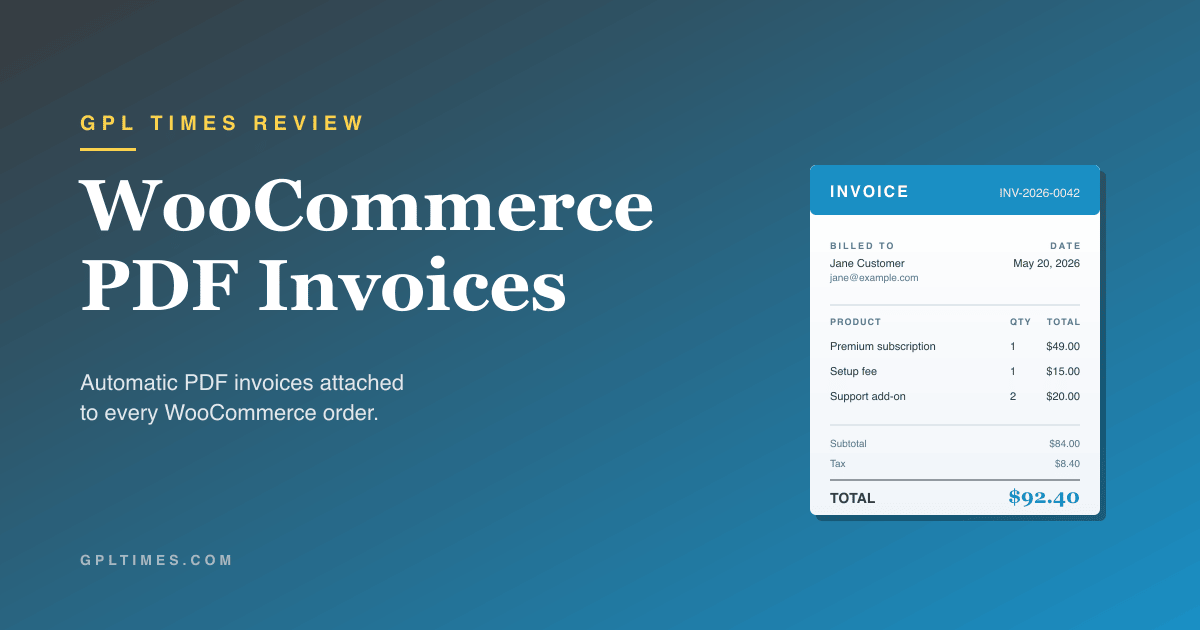
If you run a WooCommerce store, your customers expect to receive an invoice after every purchase. Tax authorities in most countries actually require it. WooCommerce out of the box does not include this feature, which surprises a lot of new store owners. The order confirmation email has the order details, but it is not a proper invoice document, and there is no PDF attached.
WooCommerce PDF Invoices is the plugin that closes this gap. It generates a PDF invoice for every order, attaches it to the order confirmation email, and gives customers a download link in their My Account page. Once configured, the entire workflow happens automatically.
This review covers what the plugin does, how it works, how to install it, what the settings mean, and where.
Table of contents
- What WooCommerce PDF Invoices does
- Core features
- How invoices are generated and delivered
- How to install and configure the plugin
- Settings explained, screen by screen
- How to customize the invoice template
- Admin functions for existing orders
- Developer hooks and filters
- Common use cases
- Performance, storage, and compatibility
- Pricing and licensing
- Frequently asked questions
- Who should install this plugin
What WooCommerce PDF Invoices does
WooCommerce PDF Invoices is a WooCommerce extension. It does one job well: it generates a proper PDF invoice for every order on your store and delivers it to the customer.
After you install and activate the plugin, every new order automatically gets an invoice number, an invoice PDF, and that PDF gets attached to the customer’s order email. The customer can also download their invoice from the My Account page. The shop admin can regenerate, email, or download the invoice from the order edit screen at any time.
The plugin is built by Andrew Benbow at Chrome Orange, sold through the official WooCommerce marketplace. It works with the latest WooCommerce versions, supports the new HPOS order storage, integrates with WPML for multilingual stores, and ships with three template variants you can switch between or customize.
Core features
These are the features that matter for a real store.
Automatic PDF generation
When an order reaches a configurable status (default is Completed), the plugin generates a PDF invoice. The PDF includes order number, invoice number, billing and shipping addresses, line items, prices, taxes, totals, and your store information.
Auto-attached to order email
The generated PDF is automatically attached to the WooCommerce email that fires for the trigger status. Customer receives one email with the order confirmation and the invoice PDF attachment.
Customer download from My Account
The customer’s My Account → Orders page shows a Download Invoice link next to each order, in addition to the standard "View" link. One click downloads the PDF.
Configurable invoice numbers
Invoice numbers are separate from order numbers. You can set a prefix (e.g. "INV-"), a suffix, a starting number, and even reset the sequence annually for tax compliance.
Three built-in templates
The plugin ships with three templates: a default with full pricing, an alternate layout, and a no-prices template suitable for proforma invoices. Switch between them in settings.
Template override via theme
For full customization, copy a template file into your active theme’s woocommerce/pdf-invoice/ folder and edit it. The plugin auto-detects theme overrides and uses them instead of the bundled templates.
Translatable headings
Every header text on the invoice ("Invoice", "Order Details", "Product", "Quantity", "Tax", "Total") is filterable and translatable. WPML and Polylang are supported for multilingual stores.
Admin bulk regenerate
A bulk regenerate tool lets you regenerate all invoices at once. Useful after a template change or invoice number migration.
How invoices are generated and delivered
The flow is mostly invisible to you once configured, but it helps to understand what happens behind the scenes.
Trigger: order status change
The plugin watches for WooCommerce order status transitions. By default, when an order moves to Completed status, the plugin fires. You can change the trigger to Processing, Refunded, or any custom status registered on your store.
PDF generation
When the trigger fires, the plugin loads the active template (PHP file in templates/), populates it with order data, and renders it to a PDF using TCPDF or DOMPDF (your choice in settings). The resulting PDF is saved to wp-content/uploads/woocommerce_pdf_invoice/ with a filename pattern like invoice-INV-1234.pdf.
Email attachment
The plugin hooks into WooCommerce’s woocommerce_email_attachments filter. When WooCommerce sends the order email for the trigger status, the PDF path is added to the attachments array. The email goes out with the PDF.
Storage and security
The PDFs live in wp-content/uploads/woocommerce_pdf_invoice/ but are NOT publicly accessible. The customer-facing download link is gated through WordPress’s download handler, which verifies the user has access before serving the file.
Customer download
The customer download URL is something like /?wpi_download=order-1234. The plugin checks the requesting user’s order ownership before streaming the PDF.
How to install and configure the plugin
Five steps to a working installation.
Step 1: Install WooCommerce
WooCommerce must be active before WooCommerce PDF Invoices. The plugin won’t activate on a site without WooCommerce.
Step 2: Upload and activate the plugin
In WP admin → Plugins → Add New → Upload Plugin, choose the zip file, install, and activate.
Step 3: Navigate to WooCommerce → PDF Invoice
A new "PDF Invoice" link appears in the WooCommerce admin menu. Click it to open the settings page.
Step 4: Configure the basics
The defaults work for most stores. The three settings I always check on a new install:
- When to create the invoice: set this to whatever status counts as "paid" on your store (Completed by default, Processing if you fulfill before payment confirmation)
- PDF Generator: TCPDF is the bundled default; DOMPDF is the modern alternative. Try both if one renders incorrectly on your host
- Attach PDF to email: leave on "Attach PDF to email" unless you specifically only want the My Account download link
Step 5: Test on a real order
Place a test order on your store, mark it Completed, and verify the customer email arrives with the PDF attached. Open the PDF, confirm the layout looks correct, and confirm the customer can also download it from My Account.
Settings explained, screen by screen
The plugin’s settings live under WooCommerce → PDF Invoice with three tabs.
PDF Settings tab
This is the main configuration page (the screenshot above). Here you control:
- PDF Debugging: enable detailed logs to troubleshoot generation issues. Leave off in production.
- PDF Generator: TCPDF (older, more compatible) or DOMPDF (newer, better CSS support). DOMPDF is usually the right pick.
- When to create the invoice: which order status fires the generation. Common choices are Completed (default) or Processing.
- Thank You page display: whether to show a Download Invoice link on the post-purchase Thank You page. Useful for customers who want immediate access without checking their email.
- Attach PDF Invoice to email: how the invoice arrives. Options are "Attach PDF to email" (recommended), "Include download link in email", or "None" (My Account only).
- Invoice download URL format: the URL pattern for the download link. Default works fine.
There are also fields for invoice number sequencing (prefix, suffix, starting number, annual reset) and customization options (company logo, VAT number, custom headings).
Admin Functions tab
This tab gives you bulk operations and admin tools.
Functions here:
- Send test email with PDF attachment: drop in your email, click the button, the plugin sends a sample PDF to verify the email pipeline works.
- Create Invoices for Past Orders: generate PDFs for orders that existed before you installed the plugin. Useful for backfilling history.
- Create and Email Invoices for Past Orders: same as above but also emails the customer their invoice. Use with caution if your customers might be confused by an unexpected invoice email weeks after their purchase.
- Delete Invoice Information: wipes all invoice metadata and PDFs. Marked as dangerous because it’s irreversible.
- Fix Invoice Dates: corrects invoice dates if they were generated with a wrong timezone or after a date-related plugin change.
The "confirm" word requirement on the destructive functions is a nice touch and prevents accidental clicks.
Help and Customisation tab
This is a built-in documentation index linking to the developer’s help articles on common topics.
The links go to external help articles but cover most common tasks: installation, template customization, hook reference, translation, security, and bulk export.
How to customize the invoice template
Default templates work for most stores but you’ll likely want to customize at least the logo, company info, and footer text. Three levels of customization, from simplest to most involved.
Level 1: Settings-based branding
The PDF Settings tab has fields for:
- Company logo image (upload via Media Library, plugin embeds it on the invoice header)
- Custom headings text (override "Invoice", "Order Details", column headers)
- VAT/Tax ID field that appears on the invoice
- Footer text for terms, payment notes, return policy
This covers 70% of stores’ branding needs without touching code.
Level 2: Template file override in your theme
For deeper changes, copy the plugin’s templates/template.php to your active theme as wp-content/themes/<your-theme>/woocommerce/pdf-invoice/template.php. Edit the copy. The plugin auto-detects the theme override and uses it.
Template files are plain PHP with HTML markup that gets rendered to PDF. Variables like $order, $invoice_number, $invoice_date, and $company_info are available. Standard HTML and inline CSS work; the PDF renderer (TCPDF or DOMPDF) handles the conversion.
Level 3: Custom CSS via the template
Add <style> blocks inside your template file for custom typography, colors, layout grid. DOMPDF supports most modern CSS; TCPDF is more restricted. If you’re doing heavy custom styling, switch to DOMPDF in settings.
Custom fonts
The plugin ships with several standard fonts (Helvetica, Times, Courier, plus DejaVu Sans for Unicode coverage). To add a custom font, follow the docs in Help and Customisation → Customization → Using a True Type font. Place the .ttf file in the right directory and register it; the template then uses font-family: YourFont.
Admin functions for existing orders
The plugin doesn’t only handle new orders. Three admin features make it useful retroactively.
Backfilling invoices for past orders
If you install the plugin on a store with 500 existing orders, those orders won’t have invoices. Admin Functions → Create Invoices for Past Orders generates PDFs for all eligible past orders in one click. Type "confirm" in the safety field, click the button, and the plugin queues the work.
Per-order regeneration from the order edit screen
Each WooCommerce order’s edit screen gets a "PDF Invoice" meta box with three buttons: Generate Invoice (if not already created), Re-Generate Invoice (overwrite the existing PDF), and Email Invoice to Customer (send the PDF as a standalone email). Useful when a customer reports their PDF arrived corrupted or they need a fresh copy after editing the order.
Bulk export of all invoices
For accountants who need a year’s worth of invoices in one zip, the Bulk Exporting PDFs option lets you select a date range and download a zip of all invoices in that range. Pair with WP-Optimize Premium for compression if file size is a concern.
Developer hooks and filters
The plugin exposes around 44 apply_filters hooks, all prefixed with woocommerce_pdf_invoice_ or woocommerce_pdf_invoices_. Here are the ones I’ve actually used.
Change the invoice filename
add_filter( 'woocommerce_pdf_invoice_filename', function ( $filename, $order ) {
 $year = date( 'Y', strtotime( $order->get_date_created() ) );
 $number = $order->get_order_number();
 return "invoice-{$year}-{$number}.pdf";
}, 10, 2 );
Useful for organizing PDFs by year or matching your accountant’s naming convention.
Change the storage directory
add_filter( 'woocommerce_pdf_invoice_pdf_upload_dir', function ( $dir ) {
 return '/var/www/invoices/'; // outside wp-content
} );
Common when you want invoices on a separate disk or backed up by a different process than the main uploads.
Override the invoice number
add_filter( 'woocommerce_pdf_invoices_set_invoice_number', function ( $number, $order ) {
 // Use the order's billing country in the invoice number prefix
 $country = $order->get_billing_country();
 return $country. '-'. $number;
}, 10, 2 );
Useful for stores that bill internationally and want per-country invoice sequences.
Change paper size per order
add_filter( 'woocommerce_pdf_invoice_paper_size', function ( $size, $order ) {
 // Use Letter for US customers, A4 for everyone else
 if ( $order->get_billing_country() === 'US' ) {
 return 'LETTER';
 }
 return 'A4';
}, 10, 2 );
Change the invoice document title
add_filter( 'woocommerce_pdf_invoice_doc_title', function ( $title, $order ) {
 if ( $order->get_total() == 0 ) {
 return 'Free Order Receipt'; // no "Invoice" for $0 orders
 }
 return $title;
}, 10, 2 );
Filter which order types get invoices
add_filter( 'woocommerce_pdf_invoice_ignore_order_types', function ( $ignored ) {
 $ignored[] = 'shop_subscription'; // skip subscription renewals (they get their own invoices elsewhere)
 return $ignored;
} );
Customize column widths in the line items table
add_filter( 'woocommerce_pdf_invoices_get_column_widths', function ( $widths ) {
 // widths in mm; default totals 180mm for A4
 return [
 'product' => 80, // wider product name
 'qty' => 20,
 'priceex' => 30,
 'tax' => 20,
 'totalinc' => 30,
 ];
} );
Override the customer’s account download button label
add_filter( 'woocommerce_pdf_my_account_button_label', function ( $label ) {
 return 'Download Receipt'; // change from "Download Invoice"
} );
Common use cases
Five concrete scenarios where this plugin.
Tax-compliant invoicing for an EU store
EU regulations require an invoice for every B2B sale and most B2C sales. With WooCommerce PDF Invoices configured to fire on Processing status, every paid order gets an invoice attached to the customer email. The Customisation tab supports adding a VAT number field that appears on the invoice, satisfying the requirement.
Proforma quotes before payment
Set up two templates: the default template (with prices) for Completed orders, and the no-prices template for Pending Payment orders. Use the woocommerce_pdf_invoice_template_id filter to switch templates based on order status. Customer gets a proforma quote before paying and a proper invoice after.
Monthly accountant export
Schedule a monthly bulk export of all invoices from the past month. Zip them, email the zip to your accountant. Pair with a backup plugin like UpdraftPlus to also archive invoices to cloud storage. Your accountant gets a tidy bundle without ever logging into your WP admin.
Custom branding for a subscription business
For a recurring revenue business, every renewal invoice should look like the original. Set up a custom template in your theme that matches your brand. Combine with WooCommerce Subscriptions and every renewal automatically generates a branded invoice. Customers stay reminded of the brand even on autopay.
Multilingual invoicing for an international store
A French customer receives a French invoice; an English customer receives an English invoice. With WPML active and the plugin’s WPML integration enabled, invoice headings, footers, and field labels are pulled from the WPML translation memory based on the customer’s language. Same template, three languages, no extra plugins.
Performance, storage, and compatibility
Storage usage
PDFs average 50-150 KB each. A store with 10,000 orders ends up using around 1 GB for invoices. Plan disk space accordingly. If you’re on a tight host, consider mounting the invoice directory to a separate volume via the woocommerce_pdf_invoice_pdf_upload_dir filter.
Performance impact
Generating a PDF takes 200-500 ms on a typical host, less if you use DOMPDF instead of TCPDF. This happens asynchronously after the order status change, not during checkout, so the customer never waits. Page load times are unaffected.
Caching plugins
The plugin works fine with WP Rocket-style page caches because the customer download URL is dynamic. Don’t cache /?wpi_download=* URLs.
WooCommerce extensions compatibility
Confirmed working with:
- WooCommerce Subscriptions (renewals get their own invoices)
- WooCommerce Bookings (booking orders get invoices)
- WooCommerce Memberships (membership purchases get invoices)
- WPML, Polylang, TranslatePress (multilingual invoices)
- Sequential Order Numbers Pro (invoice number respects custom order sequences)
Known limitations
- The PDF generator (DOMPDF and TCPDF) is not a full browser. Complex CSS, Flexbox, modern features won’t render exactly like in your browser. Test the PDF output carefully.
- Large product images embedded in invoices increase PDF file size dramatically. Use product thumbnails, not full-size images.
- The bulk regenerate process is heavy. For 10,000+ invoices, run it during a maintenance window and monitor host CPU.
Pricing and licensing
WooCommerce PDF Invoices is sold by Chrome Orange through the official WooCommerce marketplace. The current price is typically a one-time fee for a single site with one year of updates; multi-site and lifetime tiers are available. Pricing changes occasionally; check woocommerce.com/products/pdf-invoices/ for current numbers.
Use it on staging environments and side projects. For production stores where you want direct support from Chrome Orange, buy a direct license.
Frequently asked questions
Does this plugin work with the new WooCommerce HPOS order storage?
Yes. The plugin has been updated to support High-Performance Order Storage, which became the WC default in 2024.
Can I customize the invoice template without touching code?
Partially. The Customisation tab in settings handles logo, company info, headings, and footer. For layout changes or column adjustments, you need to copy the template file to your theme and edit the PHP.
Will customers get the invoice if their order is just Processing, not Completed?
Configurable. By default the plugin waits for Completed. Change the trigger status in PDF Settings → "When to create the invoice" to fire on Processing or any other status you choose.
Can I have different templates for different products?
Not via the UI, but you can switch templates per order using the woocommerce_pdf_invoice_template_id filter. Detect the product type or category in the order and return a different template ID.
Does it support PDF/A for archival compliance?
The default PDF output is not PDF/A but can be converted. Some tax authorities require PDF/A for long-term archival. You’d need to post-process the generated PDFs through a tool like Ghostscript for true PDF/A compliance.
What happens to invoices if I deactivate the plugin?
The PDFs remain in wp-content/uploads/woocommerce_pdf_invoice/ until you manually delete them. Invoice numbers and dates stored as order meta also persist. Reactivating the plugin restores all functionality without data loss.
Can I generate an invoice for a manually-created order?
Yes. The order edit screen has a "PDF Invoice" meta box with Generate Invoice button. Works the same for orders you created via the WC admin and orders placed by customers.
How are PDFs secured against unauthorized access?
The PDFs are stored outside the public path of normal media access. Customer downloads go through a gated handler that verifies the user owns the order. Direct URL access to the PDF file returns 404 for non-owners. Admins with manage_woocommerce capability can download any invoice.
Does this support multiple currencies on one site?
Yes. The invoice template uses the order’s currency, so a store with multi-currency support shows the right currency on each invoice automatically.
Can the invoice include a payment link for unpaid orders?
Not built in, but you can add a payment link in the template by accessing $order->get_checkout_payment_url(). Add it to your custom template’s footer for orders with status pending or on-hold.
Who should install this plugin
Install WooCommerce PDF Invoices if any of these apply:
- Your tax authority requires invoices for every sale.
- Customers ask for receipts or invoices and you’ve been creating them manually.
- You run an EU-based store and need VAT-compliant invoicing.
- You’re a B2B store where customers expect a professional invoice document.
- Your accountant needs a year-end zip of all invoices.
- You sell subscriptions and want every renewal to have a proper invoice.
Skip it only if your store sells digital downloads to consumers in a jurisdiction without invoice requirements, and your customers are happy with the WC default order email as a receipt.
Install, configure the trigger status, send a test order, and you have a complete invoice workflow in under 15 minutes.