

The first time a client asked me to raise prices on roughly 800 products before a New Year sale, I did it the dumb way. I opened each product in the WooCommerce editor, clicked into the price field, typed the new number, hit Update, waited for the page to reload, and moved on to the next one. I gave up around product 60, opened phpMyAdmin, and started writing raw UPDATE SQL against wp_postmeta. That worked, right up until I fat-fingered a WHERE clause and zeroed out the sale price on every product in the store. I spent that evening restoring a database backup instead of watching the fireworks.
I was wrong about how this work should be done, and Smart Manager is the tool that finally fixed it for me. Smart Manager for WooCommerce takes your whole store, products, orders, customers, coupons, subscriptions, any post type really, and drops it into an Excel-like grid where you click a cell, type, and save. No page reloads. No SQL. And when you need to change 5,000 prices at once, there is a bulk-edit panel for that instead of a loop you babysit for an hour.
This is a long, honest walk through what the plugin does, where it shines, where it bites, and a full developer reference with the hooks I confirmed in the source. Whether you run a 200-product shop or a 100,000-SKU catalog, by the end you’ll know exactly when this thing pays off and when it’s overkill.
Table of Contents
- What is Smart Manager?
- The Excel-grid model, and why it matters
- The dashboards: products, orders, customers, and anything else
- Inline editing
- Bulk Edit in depth
- Advanced Search and the AI natural-language search
- Export, scheduled export, and CSV import
- Duplicate, Delete, and Undo
- Saved Views and custom columns
- Access Privileges: delegating store work safely
- Integrations: Subscriptions, Bookings, Memberships, ACF
- Installation and setup
- Developer reference: hooks and filters
- Troubleshooting the problems people actually hit
- Compatibility: HPOS, hosting, multisite, PHP
- Don’t run a catalog-wide bulk edit without an undo plan
- Smart Manager vs the default WooCommerce admin vs WP Sheet Editor
- Pricing and licensing
- FAQ
- Is Smart Manager worth it?
What is Smart Manager?
Smart Manager is a WooCommerce and WordPress data-management plugin built by StoreApps, the team behind WooCommerce Smart Coupons and Affiliate for WooCommerce. It gives you a single admin screen, an Excel-like sheet, where you can view and edit every record of a given type at once. Products, orders, coupons, customers, subscriptions, blog posts, pages, and any custom post type you’ve registered all get their own grid.
It ships in two flavors. There’s a free Lite version on the WordPress.org plugin repository, and a Pro version sold as a downloadable plugin. The Pro download is a single codebase that contains both the free and premium functionality, so there’s no separate base plugin to install first. The Lite tier covers inline editing (capped at three pending edits before it nags you to save), search and filters, adding records, a product CSV import, and the stock log. Pro is where the real power lives: true bulk editing of unlimited records, a background updater for huge batches, undo, scheduled exports, AI search, and role-based access.
If you’ve used a spreadsheet, you already understand most of the interface. The mental shift is realizing that this grid is your live store. Edit a price in the sheet, save, and that’s the real product price on the storefront a second later. There’s no preview-then-commit step on inline edits, which is both the best and most dangerous thing about it. More on the dangerous part later.
The vendor claims it’s trusted by over 18,000 stores and built to handle catalogs north of 100,000 records. I can’t audit the install count, but I can tell you the architecture is clearly built for volume, and the background updater (which I’ll cover in detail) is the reason it doesn’t fall over on big jobs. Every screenshot in this review comes from the Pro plugin, Smart Manager for WooCommerce, running against a real WooCommerce install.
The Excel-grid model, and why it matters
Here’s the core idea, and it’s worth slowing down on because everything else follows from it.
WooCommerce’s native admin is built around the single record. One product, one edit screen, one save. That’s fine when you’re adding a product. It’s miserable when you’re maintaining a catalog, because maintenance is almost always a batch operation: mark these 40 products on sale, change the tax class on everything in one category, bump every supplier’s prices by 8 percent, flip 200 pending orders to processing.
Smart Manager replaces the one-record-at-a-time model with a grid. Every row is a record. Every column is a field. You scroll, you sort, you filter, you click a cell and type. It feels like Google Sheets pointed at your database.
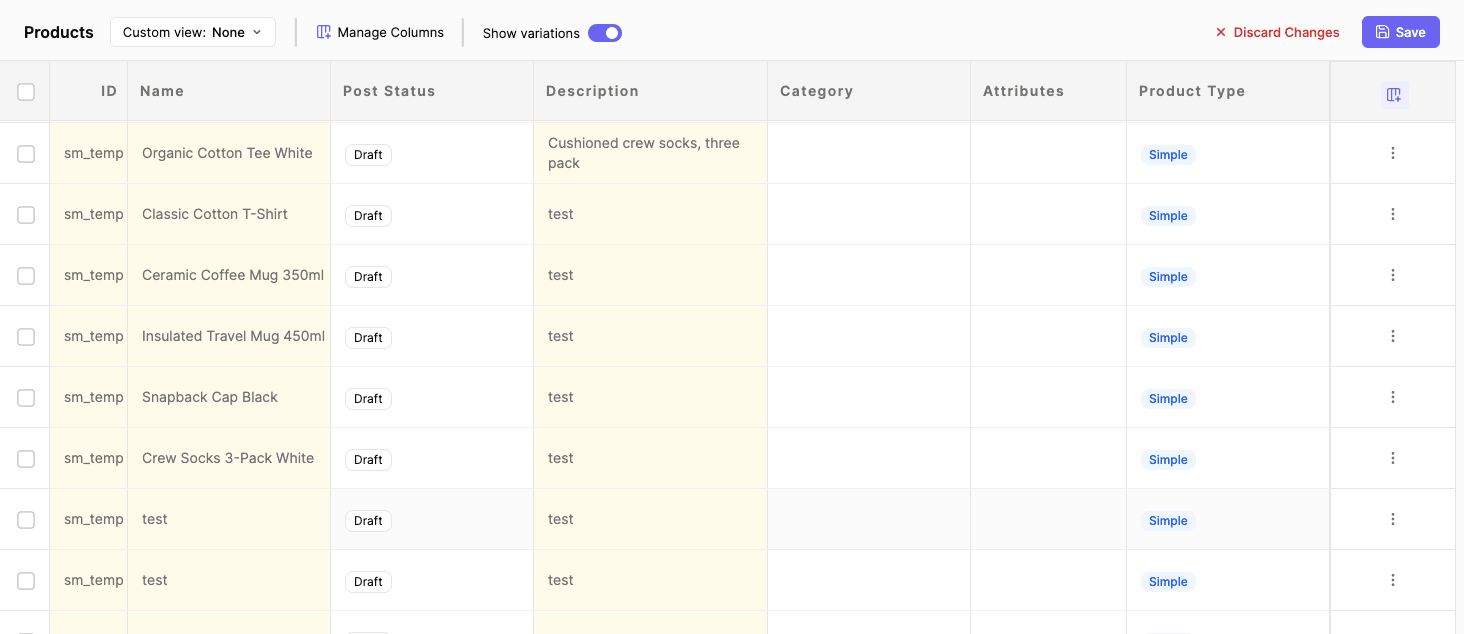
The payoff is that you stop thinking in page loads. In the native admin, editing 50 products means 50 page loads in and 50 saves out, call it 100 round trips and a few minutes of waiting. In Smart Manager, those 50 edits happen in one screen and commit in one save. The time saved is not subtle once your catalog gets past a few hundred items.
There’s a learning curve, and I won’t pretend otherwise. The first time you open a products grid with 40 columns, it’s a wall of data. The trick is to immediately use Manage Columns and Saved Views to hide everything you don’t need, which I’ll get to. Once the grid shows only the six or seven columns you actually edit, the density becomes the feature instead of the obstacle.
The dashboards: products, orders, customers, and anything else
A "dashboard" in Smart Manager is just the grid scoped to one data type. You switch between them from the dropdown at the top of the screen, and the plugin builds the list from every registered post type on your site plus a Users dashboard.
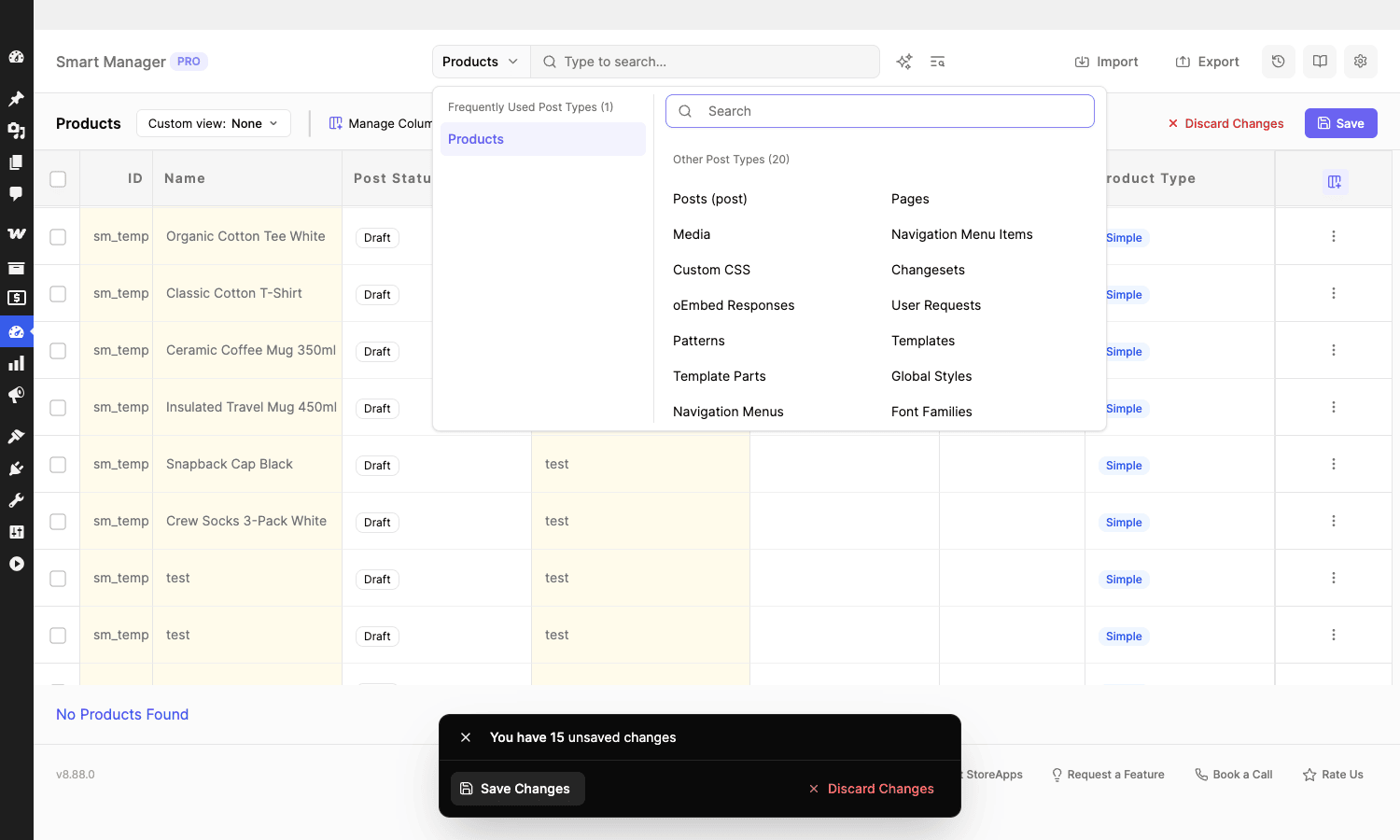
The ones you’ll use most:
- Products. Simple, variable, variations, grouped, and external products, with columns for price, sale price, stock, SKU, categories, tags, attributes, tax class, featured image, and every custom field. Toggle Show Variations to expand variable products into their child rows inline.
- Orders. Every order with status, billing and shipping details, line items, totals, and customer. You can change order status in bulk, edit addresses, and (in Pro) add or remove line items. Smart Manager is HPOS-aware, so it reads from the high-performance order tables when you’ve enabled them.
- Customers / Users. All WordPress users with their roles, meta, and (for customers) lifetime value, total purchases, and last order. You can change roles and reset passwords from the grid.
- Coupons. Amount, type, expiry, usage limits, restrictions. Bulk-expire a batch of campaign coupons in seconds.
- Subscriptions. If WooCommerce Subscriptions is active, you get a dashboard for recurring records with status, next payment date, and the subscription items.
- Posts and Pages. Yes, you can bulk-edit blog content. Flip 30 drafts to published, find-and-replace a phrase across post content, reassign authors.
- Any custom post type and taxonomy. Events, courses, listings, portfolio items, whatever your theme or other plugins register. The grid adapts its columns to that type’s fields.
That last point is the quiet superpower. Smart Manager doesn’t only manage WooCommerce data. It’s a general-purpose editor for anything in wp_posts, wp_users, and their meta tables. I’ve used it to clean up a messy custom "team member" CPT on a brochure site that had nothing to do with e-commerce.
Inline editing
Inline editing is the bread and butter. Double-click any cell, and it becomes editable. Text fields turn into a small text input. Number fields can use a numeric stepper. Date fields open a date picker. Status fields and taxonomy fields show a dropdown. Description fields open a full rich-text editor with the same TinyMCE toolbar you get in the post editor, media button included.
Edited cells get a soft yellow highlight so you can see at a glance what you’ve changed but not yet saved. A floating bar tells you how many unsaved changes are pending, and nothing is written to the database until you hit Save. That gives you a small safety margin: you can review your pending edits, or hit Discard Changes to throw them all away before they commit.
A few things I appreciate after living in this grid:
- Tab and Enter move you around like a spreadsheet. Enter commits the cell and drops down a row. Tab moves right. You can fill a column quickly without reaching for the mouse.
- Image columns show thumbnails. The featured image column renders an actual preview, so you’re not staring at attachment IDs. You can swap a featured image inline by picking from the media library.
- Variations expand inline. For a variable product, the Show Variations toggle pulls the child variations into the grid as their own rows, so you can edit per-variation price and stock without opening the product.
The free tier limits you to three pending inline edits before it prompts you to save and upgrade. In Pro that limit is gone, so you can stage dozens of inline edits and commit them in one go. For light touch-ups, inline editing is genuinely faster than anything else I’ve used in WordPress.
Bulk Edit in depth
Inline editing is for surgical changes. Bulk Edit is for "change this field on a few thousand records at once," and it’s the feature that justifies the price for most stores.
You select rows (or choose to apply to all items in the store, even ones not currently loaded in the view), open Bulk Edit, and build one or more actions. Each action is a field plus an operation plus a value.
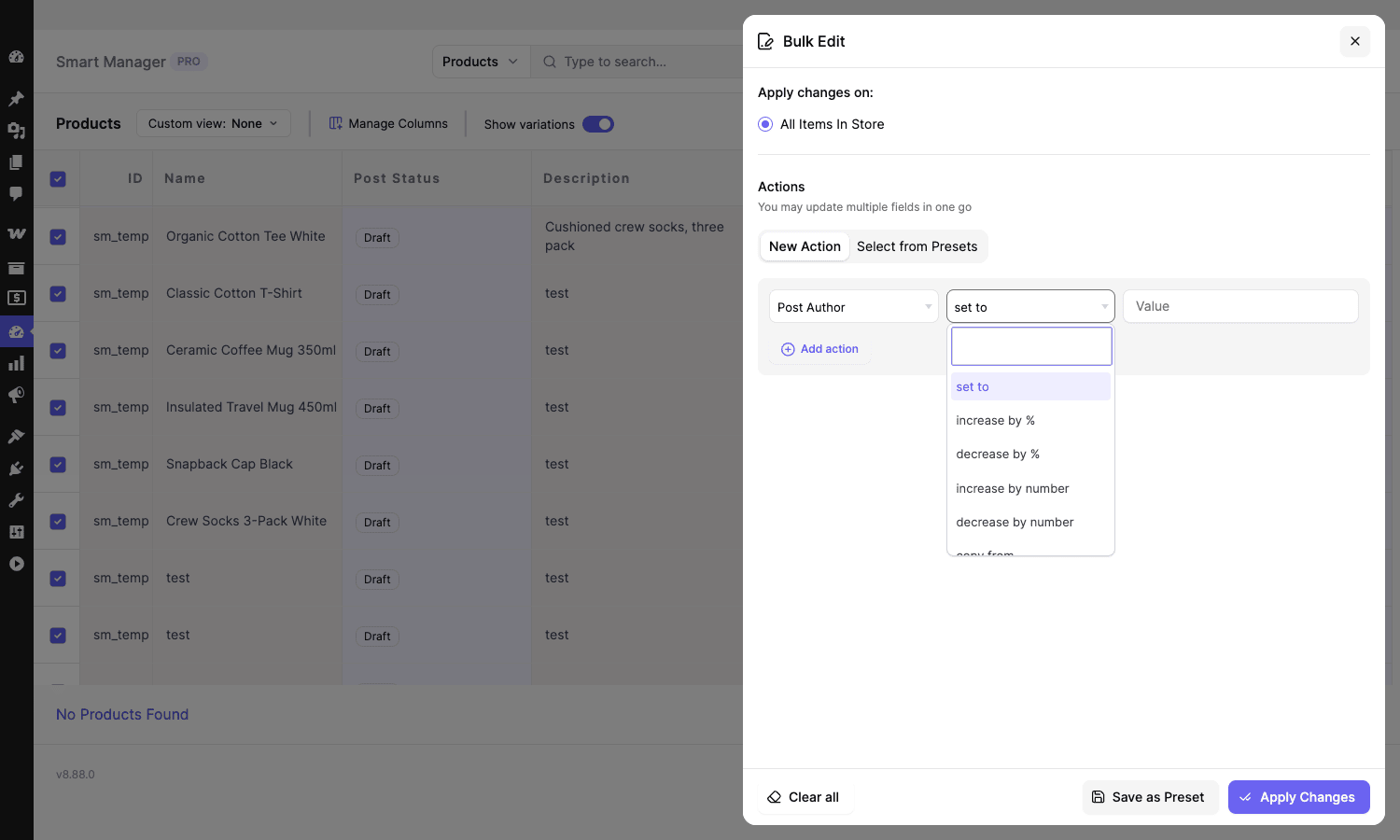
The operations available depend on the field type, but the common ones are:
- Set to. Overwrite the field with a fixed value. Set tax class to "reduced rate" on a category.
- Increase by % and decrease by %. Bump every regular price up 8 percent, or cut sale prices 15 percent.
- Increase by number and decrease by number. Add a flat 5 to a price, or subtract stock.
- Find and replace. Swap a string inside a text field. Replace an old brand name in product titles.
- Append and prepend. Add text to the start or end of a field.
- Copy from. Copy a value from one field into another, or from one record into others. This is how you assign the attributes of one product to many.
You can stack multiple actions in a single Bulk Edit run, so "increase regular price 10 percent AND set tax status to taxable AND append (Clearance) to the title" all happen in one pass. You can also save a Bulk Edit as a preset and reuse it later, which is gold for recurring promotions.
The piece that makes large jobs survivable is the background updater. When you bulk-edit a small selection, the change runs immediately. When you target tens of thousands of records, Smart Manager hands the job to a background process (built on Action Scheduler) that chews through the records in batches while you go do something else. It even auto-adjusts the batch size based on what your server can handle, so a shared host gets smaller batches than a dedicated box. You can stop a running background process if you change your mind. This is the difference between a bulk edit that completes and one that times out at record 4,000 and leaves your catalog half-changed.
Advanced Search and the AI natural-language search
Bulk editing the right records depends on selecting the right records, and that’s where Advanced Search comes in. It’s a condition builder, the kind you’d recognize from an email-marketing segment editor or a database query tool.
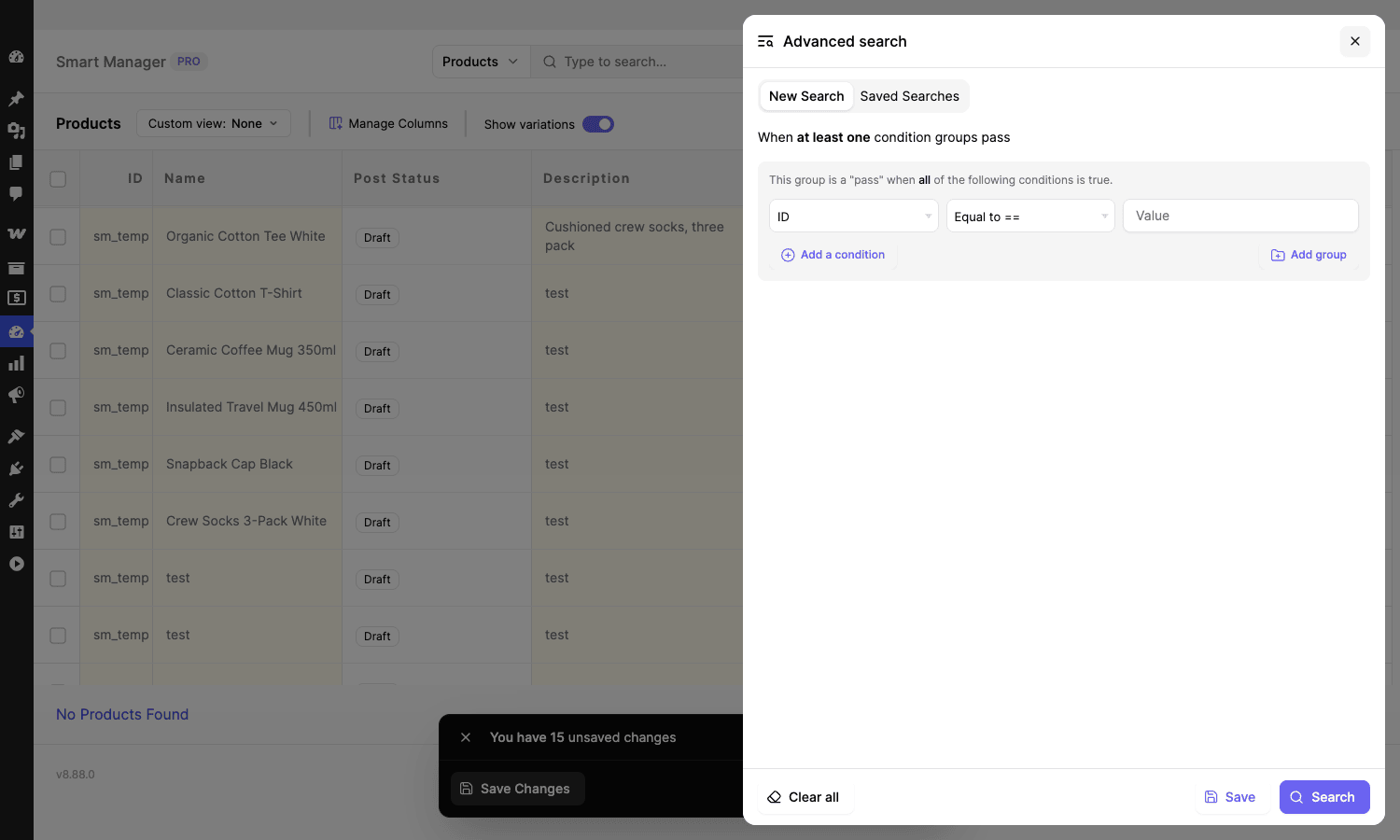
Each condition is a field, an operator (equal to, not equal, greater than, less than, contains, is empty, and so on), and a value. You group conditions and choose whether a group passes when ALL conditions match or when AT LEAST ONE matches. Nest groups and you can express things like "products in the Clearance category with stock greater than 0 AND (price less than 20 OR sale price is set)." You can save these searches and reuse them across sessions, and saved searches work on every dashboard, not just products.
On top of that, Pro adds an AI-powered search on the Products dashboard. Click the sparkle icon, type a plain-English request like "show me out-of-stock products under 10 dollars added this month," and it translates that into the structured search conditions for you. Under the hood it calls Cohere’s API, and here’s the honest catch: you supply your own Cohere API key in the settings, and the feature won’t do anything until you do. The plugin shows a "configure AI Integration settings" prompt if you click the AI search without a key. So treat the AI search as a convenience layer on top of the regular condition builder, not a magic box you get for free. When it works, it’s a nice shortcut for non-technical staff who don’t want to learn the operator syntax. When the translation is slightly off, you fall back to fixing the conditions by hand, which you could have built directly anyway.
Export, scheduled export, and CSV import
Smart Manager exports whatever you’re looking at. Filter the grid down to the records you want, choose your columns, and export to CSV. Because the export respects your active search and visible columns, you get exactly the slice you asked for instead of a giant dump you have to clean up in Excel.
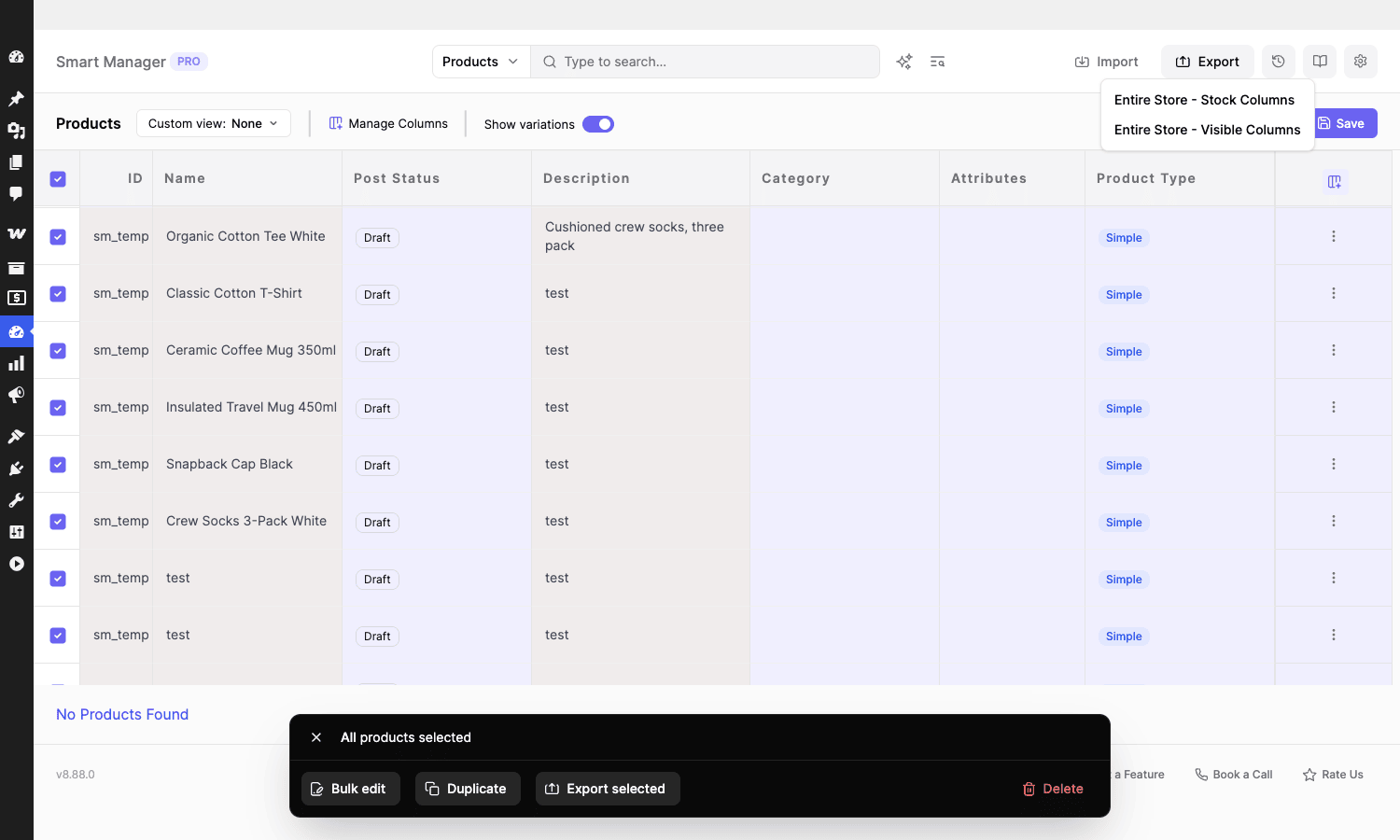
There are quick presets like "Entire Store, Stock Columns" and "Entire Store, Visible Columns," plus the filtered export for anything more specific. Pro adds scheduled exports: set up an orders export to run automatically on an interval and drop a CSV file for backups, reporting, or feeding another system. The generated files are kept for a default of 30 days before they’re cleaned up, and that retention window is filterable for developers who need longer or shorter.
On the way in, Smart Manager includes a product CSV import that can create new products or update existing ones by SKU. If a row has no SKU, the importer can auto-generate one, with a configurable maximum length. It’s not trying to replace a full migration tool, but for "here’s a spreadsheet of 300 new products from my supplier," it does the job from the same screen you do everything else.
Duplicate, Delete, and Undo
Three operations that sound mundane and save real time.
Duplicate clones one, many, or all records. The obvious use is spinning up a new product from a similar one so you don’t rebuild every field, but it works on any post type. Duplicating based on a filter ("clone all products tagged seasonal") is faster than WooCommerce’s per-product duplicate link.
Delete removes records in bulk, with the choice to move them to trash (recoverable) or delete permanently. Permanent deletion can also clean up the attached media, so you’re not left with orphaned images bloating your uploads folder. There’s a setting to allow viewing and editing trashed records, which is off by default to keep the grid clean.
Undo is the feature I wish every WordPress plugin had. Smart Manager records bulk and inline operations as named Tasks, and you can roll a Task back. Made a price change you regret? Open the Tasks history, find that operation, and revert it. It’s not a substitute for backups (I’ll be blunt about that in the anti-pattern section), but it’s a fast first line of defense against the "oops, wrong field" mistake that bulk editing makes so easy to commit. Pro also tracks product changes that happen outside Smart Manager, from the regular admin, third-party plugins, or the REST API, so the change log isn’t blind to edits made elsewhere.
Saved Views and custom columns
A products grid can have dozens of columns, and you don’t want to scroll past 30 fields to reach the two you actually edit. Smart Manager’s answer is custom views.
Use Manage Columns to show, hide, and reorder columns, and rename column titles so "post_title" reads as "Product Name" for the staffer who’ll use it. Then save that arrangement as a Custom View. You might keep a "Pricing" view with just name, regular price, sale price, and tax class, and a separate "Inventory" view with name, SKU, stock, backorders, and stock status. Switch between them from the Custom View dropdown.
Pro ships several predefined views to get you started: Product Stock, Product Price List, Draft Products, Expired Coupons, Unattached Media, Customers, and Pending for Shipping Orders. These are the layouts most stores end up building anyway, so it’s a sensible head start. Views also tie into Access Privileges, which is where they get genuinely useful for teams.
Access Privileges: delegating store work safely
By default, Smart Manager is an administrator tool. But a lot of the work it speeds up (updating stock, processing orders, fixing customer addresses) is exactly the work you want to hand to a store manager or a support agent without giving them the keys to the whole admin.
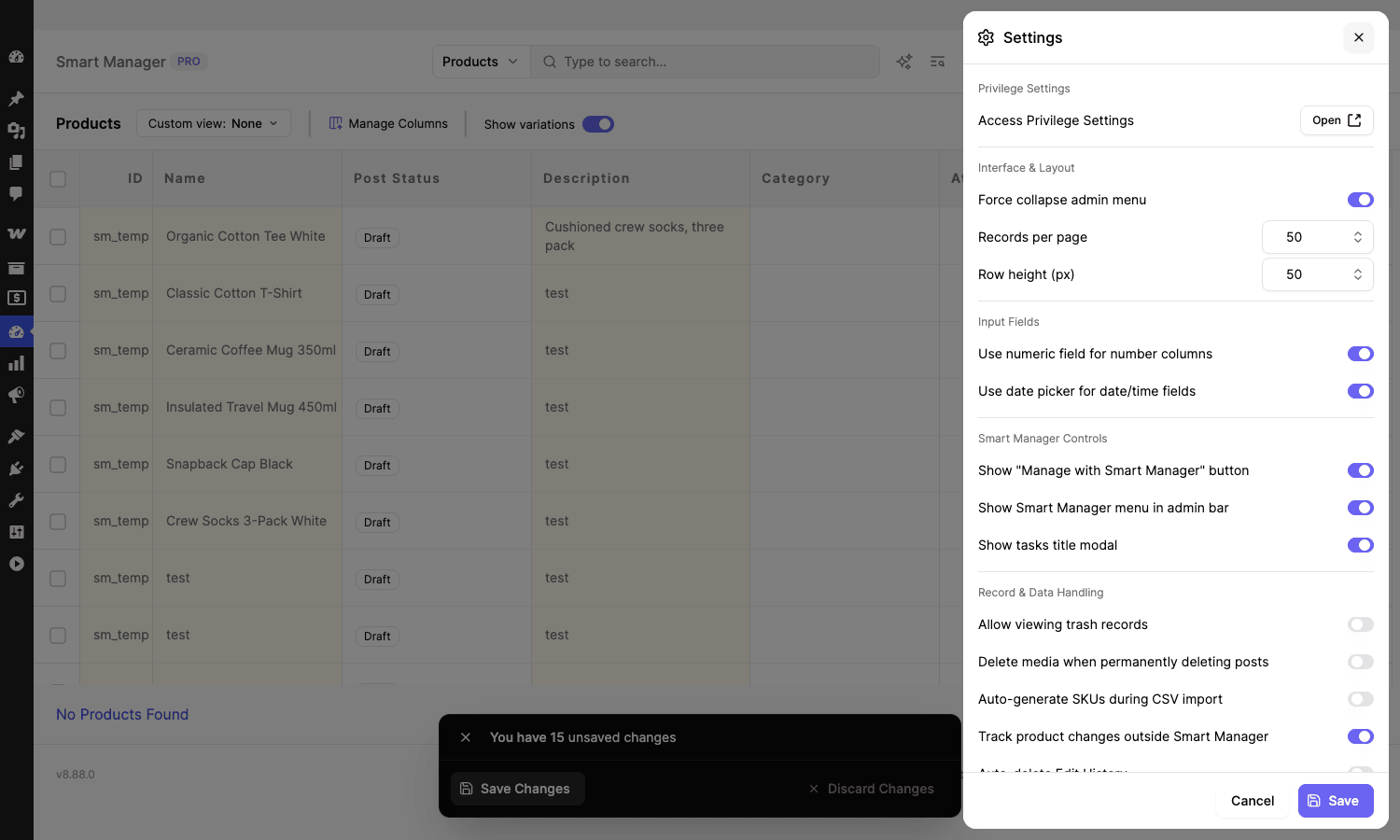
Access Privileges (a Pro feature, opened from Settings) let you grant specific roles or even specific user emails access to specific dashboards and views. You can give your warehouse person the Products dashboard with an Inventory view and nothing else. Your support team gets Orders and Customers but never touches Products pricing. This is the right way to scale store operations across a team, and it’s the safeguard I lean on hardest, because handing someone an unrestricted Smart Manager grid is handing them the ability to overwrite every order in the store in two clicks.
The settings screen itself is worth a tour. Beyond access, you’ll find records-per-page and row-height controls, toggles for numeric inputs and date pickers, the "Manage with Smart Manager" button that appears on the native product list, whether the Smart Manager menu shows in the admin bar, and the data-handling switches: allow viewing trash records, delete media on permanent delete, auto-generate SKUs on import, and track product changes made outside the plugin.
Integrations: Subscriptions, Bookings, Memberships, ACF
Smart Manager reads custom fields automatically, so most plugins "just work" in the grid, their meta shows up as columns you can edit. But several integrations go deeper than that:
- WooCommerce Subscriptions gets a dedicated subscriptions dashboard, and editing a subscription product’s price can optionally update existing active subscriptions, not just new ones. If you sell recurring plans, this saves a painful manual reconciliation. I covered the recurring-billing side of things in the WooCommerce Subscriptions review if you want the deeper context on how subscriptions store their data.
- WooCommerce Bookings records become editable in the grid, so you can bulk-manage bookable resources and availability.
- WooCommerce Memberships plans and user memberships show up as their own data, so you can inline-edit membership status and plan assignments.
- Advanced Custom Fields has explicit support: ACF field groups and fields map into the grid as proper, editable columns rather than raw serialized meta. If your products carry ACF data, this alone can justify the plugin.
- Smart Coupons, Affiliate for WooCommerce, Cost of Goods, Product Add-Ons, Min/Max Quantities, Yoast SEO, Rank Math, Germanized, LifterLMS, TutorLMS, Pods, and Meta Box all expose their fields cleanly. The vendor lists 50-plus compatible plugins, and the recurring-coupon angle pairs nicely with the WooCommerce Smart Coupons review if you manage a lot of discount codes.
The pattern here is consistent: if a plugin stores its data in standard WordPress meta or taxonomies, Smart Manager can edit it. The named integrations just add nicer column handling on top.
Installation and setup
Getting started is quick. Here are the exact steps.
- In WP admin, go to Plugins, Add New, Upload Plugin and upload the Smart Manager Pro zip. Activate it. Because the download is a single codebase, you don’t need to install a separate free plugin first.
- Make sure WooCommerce is active if you want the store dashboards. Smart Manager works on plain WordPress too, but the products, orders, coupons, and subscriptions grids depend on WooCommerce.
- A new Smart Manager menu item appears in the admin sidebar (with a performance-style dashicon). Click it to open the grid.
- Use the dashboard dropdown at the top to pick the data type you want to manage. It defaults to Products on a WooCommerce store.
- Open Settings (the gear icon) and set your defaults: records per page, row height, and the data-handling toggles. If you plan to delegate work, set up Access Privileges here.
- If you want the AI search, paste your Cohere API key into the AI Integration section of the settings. Skip this if you’ll use the regular Advanced Search.
- Click Manage Columns, hide the fields you don’t use, and save a Custom View. This single step does more for day-to-day usability than anything else.
That’s it. There’s no wizard and no required onboarding. The plugin shows an occasional feedback prompt and an upgrade nudge in Lite, but nothing blocks you from working.
Developer reference: hooks and filters
Smart Manager is heavier on filters than actions, and it deliberately does not expose a public REST API of its own (its admin operations run over authenticated AJAX). What it does give you is a solid set of sm_* and sa_sm_* hooks for shaping which dashboards exist, how searches are built, and how bulk operations behave. Everything below is confirmed in the plugin source. No invented hooks.
Add or remove dashboards. The sm_active_dashboards filter receives the array of available dashboards keyed by post type. Use it to hide a noisy CPT from the dropdown or relabel one.
add_filter( 'sm_active_dashboards', function ( $dashboards ) {
    // Hide the oEmbed cache CPT from the Smart Manager dropdown.
    unset( $dashboards['oembed_cache'] );
    return $dashboards;
} );
Control which saved views a user sees. sm_accessible_views filters the views available in the current context, which pairs well with Access Privileges.
add_filter( 'sm_accessible_views', function ( $views ) {
    if ( ! current_user_can( 'manage_woocommerce' ) ) {
        // Limit shop managers to the inventory view only.
        return array_filter( $views, fn( $v ) => $v['name'] === 'Inventory' );
    }
    return $views;
} );
Filter the Users dashboard query. sa_sm_users_where lets you modify the SQL WHERE clause for the Users grid, handy for hiding internal accounts.
add_filter( 'sa_sm_users_where', function ( $where, $req_params ) {
    global $wpdb;
    // Never surface the system/service account in the Users dashboard.
    $where .= $wpdb->prepare( " AND {$wpdb->users}.user_email != %s", 'system@example.com' );
    return $where;
}, 10, 2 );
Tune the auto-generated SKU length on import. sa_sm_sku_max_length caps the length of SKUs the importer generates for rows that arrive without one.
add_filter( 'sa_sm_sku_max_length', function ( $max_length ) {
    return 12; // shorter SKUs to match an external ERP's schema
} );
Change how long scheduled-export files are kept. sa_sm_scheduled_export_file_expiration_days defaults to 30.
add_filter( 'sa_sm_scheduled_export_file_expiration_days', function ( $days ) {
    return 7; // purge export CSVs after a week to save disk
} );
Shape the copy-from source rows in a bulk edit. sm_batch_update_copy_from_ids filters the data used when an action copies values from other records.
add_filter( 'sm_batch_update_copy_from_ids', function ( $data ) {
    // Inspect or remap the source rows before the copy runs.
    return $data;
} );
Mutate a search rule group before it’s parsed. sm_before_search_string_process gives you the raw rule group prior to query building.
add_filter( 'sm_before_search_string_process', function ( $rule_group ) {
    // Force a tenant scope onto every advanced search on a multi-store install.
    return $rule_group;
} );
Customize the AI search system prompt. sm_advanced_search_cohere_ai_system_prompt controls the instruction text sent to Cohere for the natural-language search.
add_filter( 'sm_advanced_search_cohere_ai_system_prompt', function ( $prompt, $context ) {
    return $prompt . ' Always treat prices as USD.';
}, 10, 2 );
Hook into search and update lifecycle. A few action hooks let you run code at the right moment:
// Fires after advanced-search processing finishes.
add_action( 'sm_advanced_search_processing_complete', function () {
    // Log search usage, warm a cache, etc.
} );

// Fires after a term (taxonomy) update from an inline or bulk edit.
add_action( 'sm_after_update_post_term', function ( $args ) {
    // Re-sync a search index when categories change in bulk.
} );

// Fires before Smart Manager settings are saved.
add_action( 'sa_sm_before_settings_update', function ( $settings ) {
    // Audit or veto a settings change.
} );
Control which columns get HTML-escaped in the grid. sa_sm_escaped_html_columns defaults to escaping post excerpt and content; extend it for custom HTML fields.
add_filter( 'sa_sm_escaped_html_columns', function ( $cols ) {
    $cols[] = 'posts_my_custom_html_field';
    return $cols;
} );
There are more (sm_data_model, sm_get_custom_cols, sm_col_model_for_export, sm_default_inline_update, sm_posts_where, sm_modified_advanced_search_operators, and the sm_search_* family for the query builder), but the set above covers the extension points most projects actually need. For the underlying WooCommerce data structures these hooks operate on, the official WooCommerce developer documentation is the canonical reference, and if you wire up the AI search the Cohere API docs explain the model and prompt format.
Troubleshooting the problems people actually hit
These are the real friction points, with the fix for each.
A bulk edit on a huge catalog times out or stalls. This is almost always a batch-size or server-limit issue. Smart Manager’s background updater should pick up large jobs automatically and auto-tune the batch size, but a very restrictive shared host can still choke. If a job stalls, stop the background process, confirm WP-Cron is actually running (some hosts disable it), and re-run. For genuinely enormous jobs, run them during off-peak hours.
A column you expected is missing. Smart Manager builds columns from the fields it detects. If a custom field or ACF field isn’t showing, it usually means no record yet has a value for that field (so the plugin hasn’t detected the column), or the field is stored in a non-standard way. Add a value to one record, reload the grid, and the column appears. For ACF, make sure the field group is assigned to the post type you’re viewing.
Undo isn’t available for the change I want to revert. Undo works on operations Smart Manager recorded as Tasks. Edits made entirely outside the plugin won’t have a Task to roll back unless you’ve enabled "Track product changes outside Smart Manager" in settings. And undo is not infinite history, it’s per-Task, so revert sooner rather than later. None of this replaces a database backup.
Scheduled export files disappeared. They’re cleaned up after 30 days by default. If you need them longer, raise the value with the sa_sm_scheduled_export_file_expiration_days filter, or pull the file into external storage as part of your backup routine.
Orders look wrong or missing after enabling HPOS. Smart Manager reads from the high-performance order tables when HPOS is on, but if you toggled HPOS without running WooCommerce’s data sync, the order tables themselves may be incomplete. Let WooCommerce finish its order sync (under WooCommerce, Settings, Advanced, Features) before trusting the orders grid.
The grid is slow to load on a big store. Cut the records-per-page value in settings, hide columns you don’t need with a Custom View, and make sure object caching is in place. Loading 200 fully-rendered rows with 40 columns each is a lot of DOM; loading 50 rows with 7 columns is not.
A fatal error on activation. Usually a PHP version mismatch (it needs PHP 7.0 or newer) or a conflict with another plugin that hijacks the same admin AJAX actions. Activate it on a staging copy first, check the error log for the offending file, and deactivate plugins one at a time to isolate the conflict.
Compatibility: HPOS, hosting, multisite, PHP
Smart Manager requires WordPress 5.0 or newer and PHP 7.0 or newer, and WooCommerce 3.0 or newer for the store dashboards. It’s declared compatible with WooCommerce High-Performance Order Storage, so it works whether you’re on the legacy posts-based order storage or the newer custom order tables. It’s WPML compatible for multilingual stores, and the vendor states it’s GDPR-ready in that the plugin itself collects no personal data.
On hosting: it runs fine on shared hosting for normal use, but big background bulk edits lean on WP-Cron and PHP execution limits, so a managed WooCommerce host or a VPS gives noticeably smoother large-batch performance. The auto-tuning batch size helps the plugin behave on weaker servers, but physics is physics, editing 100,000 records is faster on a box with more memory and a longer max execution time.
On multisite: it works per-site, installed network-wide or per-site, and the dashboards scope to each subsite’s data. There’s no cross-network super-grid; you manage each store from its own admin.
The known conflict pattern is other plugins that aggressively filter the same WordPress admin AJAX or that register columns with clashing keys. In practice I’ve rarely hit one, but if your admin AJAX is already crowded, test on staging.
Don’t run a catalog-wide bulk edit without an undo plan
Here’s the failure mode that will cost you real money, and I’ve lived it. Bulk Edit makes it trivially easy to change thousands of records, which means it makes it trivially easy to wrongly change thousands of records. A find-and-replace with a slightly-too-broad match string, a percentage increase applied to the wrong field, an "apply to all items in store" toggle left checked when you meant to target a selection: any of these can rewrite your entire catalog’s prices or SKUs in one click, and the storefront reflects it instantly.
The damage isn’t theoretical. Wrong prices mean you sell at a loss or scare off buyers until you notice. Overwritten SKUs break the fulfillment and accounting integrations that match orders by SKU. Mangled titles tank your search rankings until you fix and reindex. And because the change hit the live database, every cached page, feed, and connected system starts serving bad data within minutes.
So build the discipline before the bulk edit. First, take a fresh database backup, an actual backup, not "I’ll rely on undo." Smart Manager’s undo is a great first response, but it reverts recorded Tasks, not arbitrary state, and you don’t want to find its limits during a live incident. Second, narrow your selection with Advanced Search and look at the row count before you run anything. If you expected 40 products and the grid says 4,000, stop. Third, run the edit on a small selection first, confirm the result on the storefront, then apply it to the full set. Fourth, name your Tasks clearly so that if you need to roll back, you can find the exact operation fast. Five minutes of caution beats an evening restoring a backup while your store sells at the wrong price. Ask me how I know.
Smart Manager vs the default WooCommerce admin vs WP Sheet Editor
Three honest comparisons, with numbers.
Versus the default WooCommerce admin. This isn’t close for batch work. Raising the price 8% on 100 products in the native admin means roughly 100 edit-screen loads and 100 saves, call it 200 page loads and several minutes of clicking and waiting. The same change in Smart Manager is one Advanced Search, one Bulk Edit action set to "increase by 8%", and one save, so you go from around 200 round trips to about 3 user actions. WooCommerce’s built-in Quick Edit and the limited Bulk Edit dropdown on the products list can change a handful of fields (price, stock status, a couple of others), but they can’t touch custom fields, can’t do percentage math, can’t find-and-replace, and don’t exist at all for orders, customers, or arbitrary post types.
Versus WP Sheet Editor. WP Sheet Editor is the closest direct competitor, also a spreadsheet-style editor. Both handle 100,000-plus records via background processing, both do inline and bulk editing, both export to CSV. The practical differences: WP Sheet Editor sells its post-type support as separate add-ons (products, orders, users, posts each historically gated), so the all-in price climbs as you add data types, whereas Smart Manager Pro covers products, orders, customers, coupons, subscriptions, and any CPT in one license. Smart Manager also ships the AI natural-language search and named-Task undo, which WP Sheet Editor doesn’t match feature-for-feature. If you only ever edit products, the two are roughly even; if you manage orders, customers, and custom data too, the single-license breadth tilts toward Smart Manager.
Versus the cheaper bulk-edit plugins. The budget WooCommerce bulk-edit plugins (the various sub-$50/yr "advanced bulk edit" tools) typically cover product fields only and stop there. They tend to lack a true background updater, so a 50,000-record job that Smart Manager completes in the background will time out or run for an uncomfortably long time on the cheaper tool. They also rarely offer order management, role-based access, or undo. You can save maybe $40/yr to $60/yr going budget, and for a tiny single-product-type store that might be the right call. For a real catalog with orders and a team, the gap in reliability and scope shows up the first time a big job fails halfway.
The takeaway: for a 20-product hobby shop, the native admin is fine and Smart Manager is overkill. Somewhere past a few hundred products, or the moment you need to bulk-manage orders and customers too, the time saved pays back the license many times over.
Pricing and licensing
Smart Manager comes in a free Lite version and a paid Pro version. Lite (on WordPress.org) gives you inline editing capped at three pending edits, search and filters, adding records, the product CSV import, and the stock log. It’s genuinely useful for light editing and a fair way to learn the interface.
Pro is licensed annually and tiered by the number of sites you can activate on, typically a single-site tier, a multi-site tier for agencies, and a higher tier for more installs. The annual fee includes updates and support for the term. Pro is where you get unlimited bulk editing, the background updater, undo, scheduled exports, AI search, Access Privileges, the deeper Subscriptions and Bookings and Memberships integrations, and the predefined custom views. Pick the tier by how many client or production sites you’ll run it on.
You can get Smart Manager for WooCommerce from GPL Times as the full Pro plugin, which is the quickest way to get the bulk-edit and background-updater features onto a real store and try a percentage price change against your own catalog. It’s the same StoreApps Pro download, delivered through the GPL store with the docs intact.
FAQ
How many products can Smart Manager actually handle?
The vendor designs it for catalogs over 100,000 records, and the background updater is the reason that claim holds up. Small selections edit instantly; massive jobs hand off to a batched background process that auto-tunes its batch size to your server. The real limit is your hosting, not the plugin. On weak shared hosting, very large jobs are slower and lean harder on WP-Cron, so schedule them off-peak.
Does it work with HPOS and the new order tables?
Yes, it’s declared HPOS-compatible and reads from whichever order storage you’ve enabled. The one gotcha: if you switched on HPOS without letting WooCommerce finish syncing existing orders into the new tables, the orders grid can look incomplete. Finish the sync first, then trust the grid.
How accurate is the AI search, and do I need to pay extra for it?
The AI search translates plain English into the structured search conditions, and you bring your own Cohere API key (so any AI usage cost is between you and Cohere, not StoreApps). Accuracy is good for clear requests and gets shakier with ambiguous ones, at which point you fall back to fixing the generated conditions by hand. Treat it as a shortcut for staff who don’t want to learn the operator syntax, not as a replacement for the regular Advanced Search.
Can I undo a bulk edit I regret?
Yes, within limits. Smart Manager records operations as named Tasks and lets you revert them, which covers the common "wrong field" mistake well. But undo reverts recorded Tasks, not arbitrary database state, and edits made entirely outside the plugin only roll back if you’ve enabled outside-change tracking. Always take a real backup before a big run; undo is a fast first response, not a safety net you bet the store on.
Does it edit custom fields and ACF?
Yes. Standard custom fields appear as editable columns automatically, and ACF has explicit support so field groups and fields map to proper columns instead of raw serialized meta. If a custom field column doesn’t appear, give one record a value for it and reload, the plugin detects columns from existing data.
Can I schedule exports to run automatically?
In Pro, yes. Set an orders export to run on an interval for backups or reporting. Generated CSV files are kept 30 days by default, and that retention is adjustable with a filter for developers. If you need them archived longer, copy them to external storage.
Can I give staff access without making them administrators?
Yes, that’s exactly what Access Privileges in Pro are for. Grant specific roles or user emails access to specific dashboards and views, so a warehouse user sees only the inventory products grid and support sees only orders and customers. I’d treat this as mandatory before letting anyone but an admin near the grid, because an unrestricted grid can overwrite live orders in two clicks.
Does it manage Subscriptions, Bookings, and Memberships?
Yes, each gets dedicated handling in Pro. Subscriptions get their own dashboard and can optionally update existing active subscriptions when you change a subscription product’s price. Bookings and Memberships records become editable in the grid. Beyond those, it reads the custom fields of most WooCommerce extensions automatically.
What’s the real difference between Lite and Pro?
Lite is for light inline editing (three pending edits at a time), search, adding records, and product CSV import. Pro adds unlimited bulk editing, the background updater for huge batches, undo, scheduled exports, AI search, Access Privileges, deeper integrations, and predefined views. If you only ever tweak a few products by hand, Lite is fine. The moment you need to change many records at once or manage orders and customers in bulk, you want Pro.
Will it slow down my store’s front end?
No. Smart Manager is an admin-only tool; it doesn’t add anything to your storefront’s front-end load. The only performance consideration is the admin grid itself, which you keep snappy by limiting records-per-page and hiding unused columns.
Is Smart Manager worth it?
If you maintain a real WooCommerce catalog, this is one of those tools that quietly reshapes how you work. The first time you change 2,000 prices in one pass instead of one product at a time, or flip a backlog of orders to processing from a single grid, the per-record-page-load workflow starts to feel absurd. The Excel-grid model is the right model for store maintenance, and StoreApps has had years to round off the edges.
It’s not for everyone. A 20-product shop won’t feel the pain it solves, and the dense grid asks for a little patience up front before you’ve trimmed it down with custom views. The AI search needs your own API key to do anything, which is worth knowing before you get excited about it. And the same power that saves you an evening can cost you one if you bulk-edit carelessly, so respect the undo-and-backup discipline.
But for catalog-heavy stores, agencies juggling many sites, and anyone who’s ever opened phpMyAdmin to do something WordPress should have made easy, Smart Manager is the rare plugin I’d install on day one of a new project. Try a percentage price change against your own products and you’ll understand the appeal in about thirty seconds.