

Most "best-selling" themes earned the title years ago and have been coasting on it ever since. Enfold is the rare one that’s still on the bestseller list after more than a decade and still actively, carefully maintained.
That longevity is the whole story. The Enfold theme, built by Kriesi and sold on ThemeForest, has racked up a quarter of a million sales by being the dependable, build-anything business theme that doesn’t break on the next WordPress update and doesn’t tank your PageSpeed score. It ships its own drag-and-drop page builder (the Avia Layout Builder), a deep options panel, a stack of one-click demos, and a genuinely unusual commitment to accessibility. I spent a day living in it on a sandbox, and this is the honest review: where Enfold still shines, where its age shows, the one structural caveat to understand before you commit, and who should actually buy it in a world full of newer themes.
Table of Contents
- What is the Enfold theme?
- Setting up your first Enfold site
- The Avia Layout Builder
- A tour of the Theme Options panel
- Demos: one-click starter sites
- Accessibility: Enfold’s quiet superpower
- Performance: how an old theme stays fast
- WooCommerce, portfolio, and the bundled extras
- Who Enfold is for
- Don’t do this: Enfold mistakes to avoid
- Enfold vs the alternatives
- Developer reference: hooks, options API, child theme
- Troubleshooting common Enfold issues
- Performance, compatibility, and gotchas
- Pricing and licensing
- FAQ
- Final thoughts
What is the Enfold theme?
Enfold is a premium multipurpose WordPress theme by Kriesi, one of the most respected single-author shops on ThemeForest. It’s pitched as a flexible business and portfolio theme, but in practice people use it for everything: corporate sites, agencies, shops, blogs, one-pagers, and landing pages.
What sets it apart from a "just a theme" is that it’s self-contained. The page builder, the options, and the demos all ship inside the theme; there’s no separate companion plugin you must install and keep in sync (a refreshing contrast to themes that break the moment their "core" plugin is deactivated). Everything is built on Kriesi’s own Avia framework, which has been refined over years rather than bolted together.
That framework is the quiet reason Enfold has lasted. Single-author themes often fade when the author moves on; Avia has instead been continuously maintained and modernized through WordPress’s biggest shifts (the move to PHP 7+, the block editor, Core Web Vitals) without forcing a disruptive rewrite on existing sites. For a business or agency, that track record is worth as much as any feature: a theme you build a client on in 2026 has a strong chance of still updating cleanly years from now, which is not something you can say about every trendy theme on the market. Buying Enfold is partly buying that maintenance history.
Three things define Enfold once you start using it: the Avia Layout Builder (a real drag-and-drop builder with dozens of content elements), a famously deep Theme Options panel that lets you control the design without code, and an unusually serious approach to accessibility. It also bundles the premium LayerSlider plugin, so you’re not buying a slider separately.
If you’ve been around WordPress a while, Enfold is the theme you’ve seen on countless business sites without realizing it. You can get the Enfold theme from GPL Times and have it running on a staging site in minutes, since there’s no core-plugin dance to do first.
Setting up your first Enfold site
Before the deep dive, here’s the realistic first hour, because Enfold’s setup is genuinely simpler than themes that lean on a separate core plugin.
- Upload and activate the theme. Go to Appearance » Themes » Add New » Upload Theme, upload the Enfold zip, and activate. Upload the child theme too (you’ll use it for any code). There’s no required companion plugin to chase, the builder and options are already there.
- Activate the bundled plugins you want. Enfold prompts you to install its recommended plugins, most notably LayerSlider (bundled) for advanced sliders, plus WooCommerce if you’re adding a shop. None are mandatory for the core theme to work.
- Import a demo (on a fresh install). From the Enfold demo importer, pick the demo closest to your project, business, agency, shop, one-pager, and import it. You get pages, ALB layouts, theme options, and sample content, a designed starting point rather than a blank slate.
- Set your brand. Replace the logo and set your colors and fonts under General Styling. Enfold applies these globally, so the whole site shifts at once.
- Build or edit a page with the Avia Layout Builder. Open a page, switch to the Advanced Layout Editor, and drag in elements: a color section, a few columns, a heading, a button. The frontend editor lets you do this live on the page.
- Turn on performance. Before launch, visit the Performance section of Theme Options and enable CSS/JS file merging and compression. This is the step people skip, and it’s the difference between a fast Enfold site and an average one.
Note: every step above assumes a fresh or staging install. Adding Enfold to an existing site? Skip the demo import (it overwrites options and adds content) and build your pages manually. The full process, with screenshots for each step, is in the official Enfold documentation, which is unusually thorough for a theme.
The Avia Layout Builder
The heart of Enfold is the Avia Layout Builder (ALB), and it’s the reason the theme has stayed relevant. It’s a true drag-and-drop builder with both a backend editor and a frontend live editor, and it ships with around 77 content elements, no separate page-builder plugin required.
Rather than list all 77, here’s how they group, because that’s how you’ll actually think about them:
- Structure: color sections, full-width and contained rows, and a flexible column grid (halves, thirds, quarters, and custom splits) that nests, so you can build genuinely complex layouts.
- Content: headings, text blocks, buttons and button rows, special headings with a rotating headline, tables, notification boxes, promo boxes, icon boxes, icon lists, icon grids, numbers/counters, progress bars, charts, a tabs/toggles (accordion) set, and social-share buttons.
- Business: dedicated team-member, testimonial, and timeline elements, the common "show off the company" blocks a corporate or agency site needs, built in rather than borrowed from an add-on pack.
- Media: image, image with before/after slider, image hotspots, galleries (standard, horizontal, masonry), a content slider, a full slideshow, a logo carousel, Lottie animations, audio and video, and Google or Leaflet (OpenStreetMap) maps.
- Dynamic: blog post sliders, magazine and masonry post grids, portfolio grids, a built-in contact form, a Mailchimp signup, an Instagram feed, countdowns, and a "custom layout" element for reusable blocks.
- WooCommerce: product grids, lists, and sliders, plus single-product elements (price, info, button, tabs, upsells, reviews) for building custom shop pages.
A built-in contact form and a built-in slider are bigger deals than they sound. On many theme stacks those are two more plugins to install, update, and reconcile; in Enfold they’re elements you drop onto a page.
The editing experience is split two ways, and it’s worth knowing both. The backend editor shows your layout as a stack of labeled element blocks inside the WordPress editor, fast and reliable, good for structure-heavy pages. The frontend live editor lets you build directly on the rendered page, seeing the result as you go. You can switch between them, and the "Default Editor / Advanced Layout Editor" toggle at the top of the page also lets you flip between Enfold’s builder and the standard WordPress editor per page.
Each element opens a settings popup with tabbed controls, typically Content, Styling (colors, spacing, borders), and Advanced (custom IDs/classes, screen visibility, animations). That’s where the real flexibility lives: most elements have responsive controls, so you can set a different column stack or font size on mobile, and many support entrance animations. There’s also a template mechanism, save a section or a whole layout as a reusable template and drop it into other pages, which is how you keep a consistent design across a site without rebuilding blocks by hand.
The honest caveat, up front: ALB content is stored as av_ shortcodes ([av_section], [av_textblock], [av_one_half], and so on). That’s how almost every shortcode-based builder works, but it means if you ever switch away from Enfold, your built pages turn into visible shortcode soup until you rebuild them. This isn’t unique to Enfold, but it’s the single most important thing to understand: choosing a builder-theme like this is a longer-term commitment than choosing a block-native theme. More on managing that in the mistakes section.
A tour of the Theme Options panel
Enfold’s reputation for "you can change anything without code" comes from its Theme Options panel, reached from the Enfold menu in your admin. It’s a big, organized panel with a left-hand list of sections:
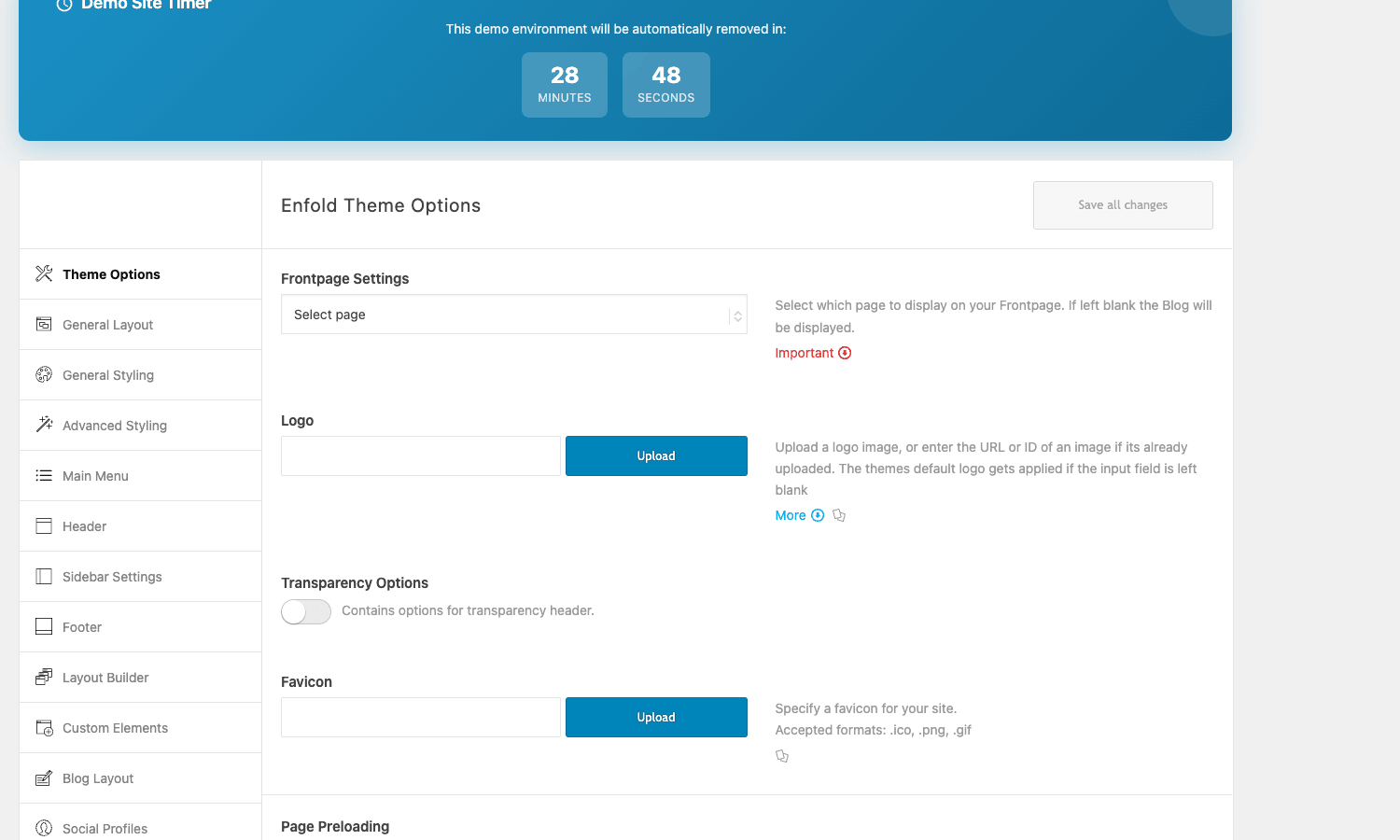
The sections you’ll spend time in:
- General Layout sets the big structural choices: stretched vs boxed vs framed, where the logo and menu sit (top header or a left/right sidebar menu, a genuinely unusual option), the maximum content width, and the content/sidebar ratio.
- General Styling and Advanced Styling drive colors and fonts globally, with separate color sets for the logo area, main content, alternate sections, and footer, so a page can alternate light and dark bands cleanly.
- Header controls the layout, sticky/shrinking behaviour, transparency, and the social/secondary bar.
- Main Menu, Footer, Sidebar Settings, Blog Layout, and Social Profiles each get their own section.
- Layout Builder and Custom Elements let you toggle and tune the ALB itself and the elements it offers.
- A Performance section (covered below) and an Import/Export area for backing up your options round it out.
Tip: the panel has a lot of toggles, and the easiest mistake is fiddling with Advanced Styling colors before you’ve set the basics. Set your layout (stretched/boxed), your logo, and your two or three brand colors first, then leave the rest until you have a reason to touch it.
A few of these sections punch above their weight. General Layout alone lets you put the entire main menu in a left or right sidebar instead of a top header, a layout most themes don’t offer at all, which is handy for portfolio and creative sites. Header includes a transparent-header option (the header sits over a full-width hero until you scroll) and a shrinking sticky header. And the separate color sets in General Styling (logo area, main content, alternate area, footer) are what let Enfold sites alternate light and dark bands down the page without custom CSS, the kind of control that normally means hand-writing styles.
It’s a no-nonsense, slightly old-school options panel, not a flashy live customizer, and that’s fine: it’s fast, it’s searchable, and it’s been doing this job reliably for years.
Demos: one-click starter sites
You rarely want to start from a blank page, and Enfold ships a library of around 30 one-click demo sites, business, agency, shop, restaurant, photography, one-pager, and more. Each imports a full design: pages, ALB layouts, theme options, and sample content, so you go from "fresh theme" to "site that looks designed" in one step.
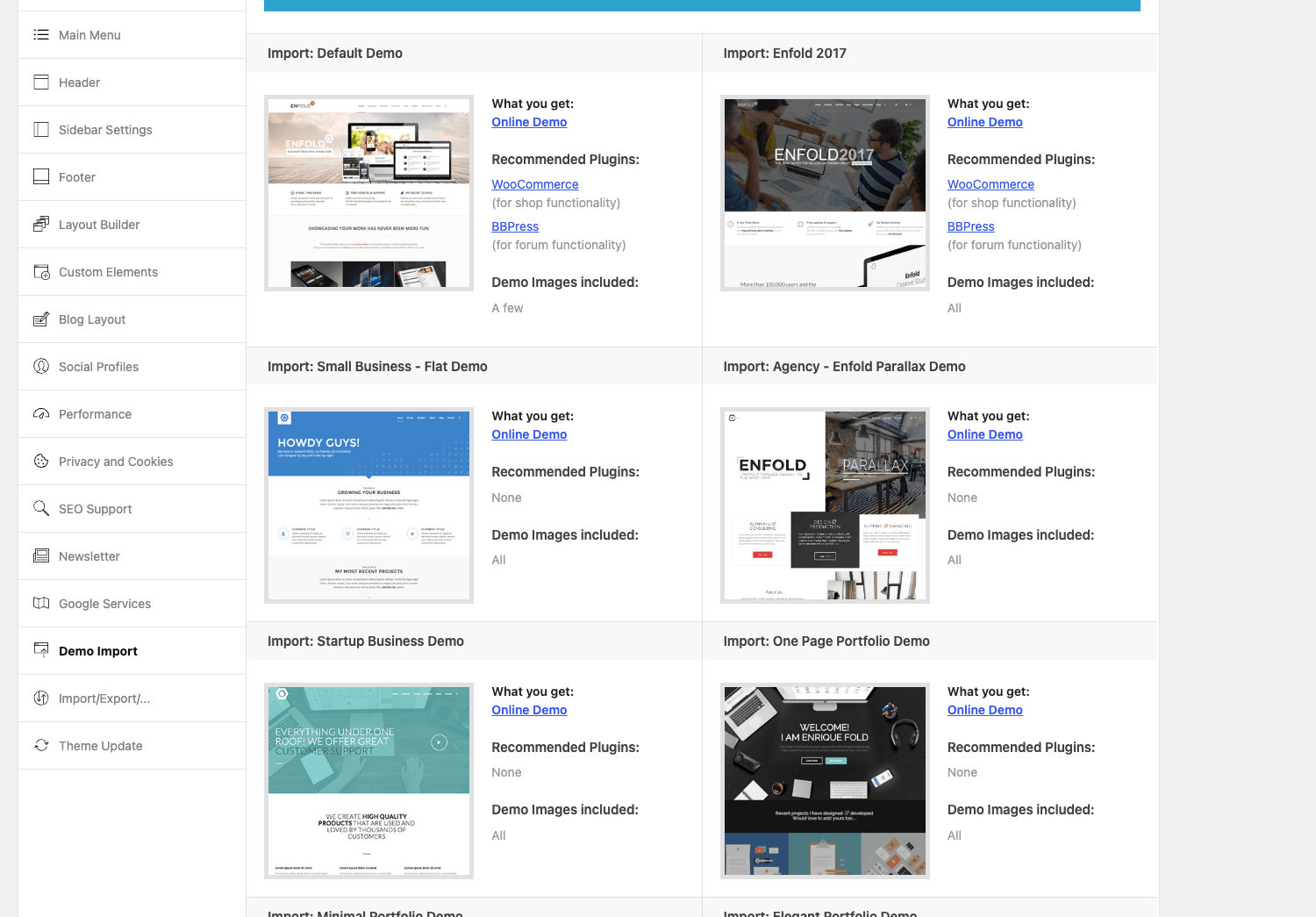
You import them from Theme Options under Demo Import, where each entry shows a preview, the recommended plugins it needs (a shop demo expects WooCommerce, for instance), and whether demo images are included. Pick the closest match to your project, click to download and import, and you’re editing a designed site rather than building from zero.
Enfold’s demo count is smaller than the 80-to-600 some rivals advertise, and honestly that’s not a weakness. Thirty well-built, genuinely distinct demos beat hundreds of near-identical ones you have to wade through. The Enfold demos are clean and business-focused rather than flashy, which matches who buys the theme.
The import is sensible about your existing setup, too: you can typically choose to import a full demo or just its pages, and because the demos are built with the same ALB elements you’ll edit afterwards, there’s no "magic" layout you can’t change. Whatever the demo did, you can open in the Avia Layout Builder and rework, which is not true of every theme’s starter sites, where the demo content is sometimes a locked black box. Starting from an Enfold demo and editing your way out is a legitimate, fast workflow.
Heads-up: import a demo only on a fresh or staging install. The importer adds pages and content and applies theme options, which on a live site means burying your real content and overwriting settings you’d tuned. It’s a setup step, not something to run on production.
Accessibility: Enfold’s quiet superpower
Here’s the thing almost no theme review mentions, and it might be Enfold’s most underrated feature: it takes accessibility seriously. The theme ships a dedicated accessibility layer (you’ll find an Accessibility section under Theme Extensions) with real WCAG-minded features, proper ARIA attributes, keyboard navigation, and screen-reader text baked into the templates.
Why this matters more every year: accessibility is increasingly a legal requirement, not a nice-to-have. In the US, ADA-related web accessibility lawsuits run into the thousands annually; in the EU, the European Accessibility Act raises the bar for commercial sites. A theme that gives you a head start on WCAG compliance is doing real, billable work for you, and most premium themes simply don’t.
Enfold’s approach has two real parts. First, an Accessibility Conformance Level selector in Theme Extensions where you pick the WCAG level you’re targeting (Disabled / A / AA / AAA) and the theme adjusts its output accordingly, a single, honest dial rather than a maze of toggles. Second, and more important, the theme templates genuinely ship the underlying markup that makes accessibility possible: proper ARIA attributes throughout (aria-label, aria-hidden, aria-expanded, and friends), labeled navigation, and screen-reader-only helper text, the unglamorous plumbing that decides whether a screen-reader user can actually use your menu and forms. Kriesi is refreshingly candid in the panel itself that this is a starting point, not a guarantee of legal compliance, and it points you to the free WP Accessibility plugin for further hardening. Starting from a theme that ships real ARIA markup plus a conformance dial still puts you far ahead of one that ships neither.
Where this shines: government, education, healthcare, and any business that can’t afford an accessibility complaint. If compliance is on your radar at all, Enfold’s built-in accessibility features are a genuine, concrete reason to choose it over a flashier theme that ignores the topic. It won’t make your site magically compliant (your content, your images’ alt text, and your plugins still matter), but it removes a whole category of theme-level problems that you’d otherwise pay a developer to fix.
Performance: how an old theme stays fast
The fair worry about a feature-rich, decade-old multipurpose theme is bloat. Enfold answers it better than you’d expect.
It uses conditional asset loading, only loading the CSS and JavaScript for the elements actually present on a page, so a simple page doesn’t drag in the styles for a product slider it never shows. On top of that, the Performance section of Theme Options lets you merge and compress your CSS and JS files into combined, minified bundles, and it leans on lazy loading for images throughout. Pair that with a caching plugin like WP Rocket and a feature-rich Enfold site can score well on Core Web Vitals.
It’s worth understanding what those Performance toggles actually do, because they’re the difference-maker. File merging combines Enfold’s many small CSS and JS files into a handful of bundles, cutting the number of HTTP requests; compression minifies them; and the dynamic stylesheet approach means your option-driven styles (colors, fonts, spacing) are written to a generated CSS file rather than inlined on every page. Enfold also defers and lazy-loads where it can. The result is a theme that, properly configured, behaves more like a lean modern theme than the heavyweight its feature list implies, but only once you’ve switched these on, which is why the setup checklist above makes a point of it.
The honest framing: performance is a setting you have to switch on, not a guarantee. Out of the box Enfold is reasonable; with the merge/compress options enabled and a sensible (not slider-stuffed) homepage, it’s genuinely fast. That it gives you those controls at all, rather than shipping one monolithic stylesheet, is why a theme this old hasn’t aged into a performance liability.
WooCommerce, portfolio, and the bundled extras
Enfold isn’t a WooCommerce-first theme the way some shop themes are, but it’s a fully capable one. It styles the shop, cart, and checkout, and the ALB includes WooCommerce elements (product grids, lists, sliders, and single-product blocks) so you can design custom shop and product pages rather than living with the defaults. For a content site with a shop attached, or a modest store, it’s more than enough; for a 5,000-SKU catalog with heavy filtering, a dedicated shop theme like WoodMart is the more specialized tool.
Beyond the shop, Enfold ships a proper portfolio content type with its own archive and single templates, a built-in contact form element (no Contact Form 7 required for simple forms), and the bundled premium LayerSlider plugin for advanced animated sliders. If you want to lean into LayerSlider, our LayerSlider guide covers it; for most pages, Enfold’s own slideshow and content-slider elements are enough.
It also integrates cleanly with the plugins people actually run: Advanced Custom Fields, The Events Calendar, Gravity Forms, WPML, Yoast and Rank Math, Relevanssi, bbPress, and more each get dedicated compatibility code, so you’re not gambling on conflicts. Some of these go beyond "doesn’t conflict" into native elements: with The Events Calendar active, Enfold adds an upcoming-events and an events-countdown element to the builder, so you design event listings with the same drag-and-drop tools as everything else. That ACF integration is more useful than it sounds, too, Enfold can pull ACF field values into ALB elements with its dynamic element, so a developer can build a custom-fields-driven layout that an editor fills in safely, without touching the design.
There’s also a genuinely thorough GDPR and cookie-consent layer. Enfold ships Cookiebot integration plus a set of privacy elements (av_privacy_*) that gate Google Maps, reCAPTCHA, tracking scripts, and web fonts behind explicit consent, and render accept/decline buttons and cookie-info blocks. For an EU-facing business, that consent-gating built into the theme is a real, billable piece of compliance work you’re not assembling from separate plugins, and it pairs naturally with the accessibility focus above.
A small but telling detail: Enfold registers its portfolio as a proper custom post type with its own taxonomy and templates, rather than faking it with categories. That means a portfolio is a first-class content type you can query, filter, and theme, which matters if your business site doubles as a showcase. Combined with the magazine and masonry post-grid elements, Enfold handles content-heavy sites (blogs, news, portfolios) as comfortably as it handles a corporate brochure site.
Where Enfold stands on the block editor
Worth addressing head-on, because it’s the question every prospective buyer has in 2026: Enfold is a builder-theme from the shortcode era, and the Avia Layout Builder is its primary editing model, not the WordPress block editor. Enfold does include Gutenberg integration (you can use blocks, and switch a page to the standard editor with the per-page toggle), but the theme’s design power lives in the ALB.
The honest read: if you’re betting your whole workflow on a block-only, full-site-editing future, Enfold is not that theme, and you’d be happier with a block-native theme. If you want a mature, proven, build-anything system today and you’re comfortable committing to its builder, Enfold delivers that now, with a decade of stability behind it. If you want that same build-anything philosophy with a much larger pre-built library, BeTheme is the other heavyweight worth a look. Neither answer is wrong; they’re different bets. Just make the bet knowingly.
Who Enfold is for
Rather than a generic feature list, here’s where I’d reach for Enfold, by the kind of site you’re building:
- If you build business and corporate sites: this is Enfold’s home turf. The clean demos, the deep-but-sane options, and the reliability make it a safe, fast foundation for client work.
- If you’re a freelancer or small agency: the self-contained nature (no core-plugin dependency), the options backup, and the maturity mean fewer surprises on handoff. You learn it once and reuse it across clients.
- If accessibility or compliance matters: Enfold’s built-in WCAG-minded features are a real, concrete advantage. Government, education, healthcare, and EU commercial sites should shortlist it for this alone.
- If you want one theme that does everything without a plugin pile: builder, slider, contact form, portfolio, and shop are all in the box.
- If you’re a developer who wants stability: a mature framework, ~688 filters, and a clean child-theme setup make it predictable to extend.
It’s a weaker fit if you’re committed to a block-native, no-shortcode future (the ALB is shortcode-based), or if you want the absolute newest design trends, Enfold’s aesthetic is timeless-bordering-on-conservative, which is a feature for business sites and a limitation for cutting-edge creative ones.
Don’t do this: Enfold mistakes to avoid
Here’s the section I wish every new Enfold user read first, because these mistakes cost time and sometimes lock-in pain.
Don’t build everything in the ALB without a plan to stay. Because ALB content is av_ shortcodes, switching themes later turns your pages into shortcode soup. That’s fine if you’re committing to Enfold for the long haul (most people do), but go in with eyes open, and for content that must outlive any theme (long-form articles), consider keeping it in plain blocks rather than ALB elements.
Don’t edit the parent theme. Enfold updates regularly, and any change you make to the parent theme’s files is wiped on the next update. Use the Enfold child theme for custom CSS, PHP snippets, and template overrides. This one bites people on every theme.
Don’t leave the performance options off. Out of the box, Enfold doesn’t merge and compress your assets, you have to enable it in the Performance section. Skipping that step is the most common reason someone says "Enfold is slow." Turn on file merging/compression, enable lazy loading, and add a caching plugin.
Don’t import a demo onto a live site. It adds content and overwrites your theme options. Import on a fresh or staging install, then migrate. On an existing site, build your pages manually instead.
Don’t stuff the homepage with sliders. Conditional asset loading keeps simple pages lean, but a homepage with three LayerSliders and a dozen animated elements will be heavy no matter how good the theme is. Restraint above the fold is the cheapest performance win there is.
A little discipline at setup, child theme for code, performance options on, demos on staging, saves you the cleanup later.
Enfold vs the alternatives
Enfold competes with a handful of heavyweight themes, so here’s an honest comparison with real numbers.
| Theme | Typical price | Page builder | Demos | Standout |
|---|---|---|---|---|
| Enfold | ~$59 one-time | Avia Layout Builder (77 elements) | ~30 | Accessibility, stability |
| WoodMart | ~$59 one-time | Elementor + WPBakery | 80+ | WooCommerce depth |
| Avada | ~$69 one-time | Fusion Builder | 90+ | Widest general kit |
| Divi | ~$89/year | Divi Builder | 200+ | Visual editing |
Avada is the only theme that outsells Enfold, and it’s even more of an everything-tool with more demos, but it’s heavier and its Fusion Builder is its own world. Enfold is leaner and more focused.
Divi (from Elegant Themes) has the slickest visual editing and 200+ layouts, but it’s a yearly subscription (~$89/year) versus Enfold’s one-time ~$59, so over three years that’s roughly $267 against $59, and Divi is also shortcode-based with the same switch-away caveat. Divi wins on pure visual-editing polish; Enfold wins on cost-over-time, accessibility, and the smaller-but-cleaner options model. Neither is "better", they’re aimed at slightly different buyers, with Divi leaning visual-first and Enfold leaning structured-and-stable.
WoodMart is the better pick if you’re specifically building a serious store; Enfold is the better pick for a business or content site that happens to have a shop. And if you’d rather use Elementor than a theme’s own builder, a lightweight theme plus Elementor is a valid alternative path, you trade Enfold’s all-in-one convenience for builder flexibility.
The honest summary: at ~$59 one-time, with a capable 77-element builder, ~30 clean demos, real accessibility, and a decade of stable maintenance, Enfold is the safe, no-drama choice for business and agency sites. Pick Avada for the widest kit, Divi for visual editing (if you accept the subscription), WoodMart for a dedicated store, and Enfold when you want flexible-but-dependable.
Developer reference: hooks, options API, child theme
Enfold looks like a no-code theme, but the Avia framework underneath is deeply extensible, roughly 688 avf_ filters plus a stack of ava_/avia_ action hooks, an options API, and a proper child theme. If you build client sites, this is what lets you customize cleanly instead of hacking the parent.
Read any theme option in code with avia_get_option(), so your custom code respects what the client set in Theme Options:
$logo = avia_get_option( 'logo' );
if ( ! empty( $logo ) ) {
    // do something with the configured logo
}
Filter the logo with avf_logo (handy for a different logo on specific templates):
add_filter( 'avf_logo', function ( $logo ) {
    if ( is_page( 'landing' ) ) {
        return get_stylesheet_directory_uri() . '/images/landing-logo.svg';
    }
    return $logo;
}, 10, 1 );
Trim the Google fonts the theme makes available with avf_available_google_fonts, useful when you want to cut the font list down for performance:
add_filter( 'avf_available_google_fonts', function ( $fonts ) {
    // remove a font you don't use to shorten the list
    unset( $fonts['Droid Sans'] );
    return $fonts;
} );
Hook template points like ava_after_main_title to inject markup without overriding a template, for example, dropping a notice or breadcrumb extension right after the page title:
add_action( 'ava_after_main_title', function () {
    if ( is_singular( 'product' ) ) {
        echo '<div class="my-shipping-note">Free shipping on orders over $50</div>';
    }
} );
Use avf_header_setting_filter to adjust header behaviour, and explore the broader set: with ~688 filters available, the pattern holds, if you can see it on the front-end, there’s almost certainly a hook to change it. Advanced developers can even register their own ALB elements against the Avia shortcode API, so an agency can add a bespoke element to the builder for a client rather than hard-coding a one-off, though that’s a deeper undertaking than the everyday filter work most sites need.
For anything structural, copy the relevant template into the Enfold child theme (the standard WordPress theme child-theme approach) and edit it there. Because Enfold updates often, the child theme isn’t optional politeness, it’s the only way your customizations survive an update. The Avia framework’s templates live in predictable paths, so overriding a single element or layout part is straightforward once you find it.
Troubleshooting common Enfold issues
The problems people actually hit, with fixes.
The site looks slow. Almost always because the Performance options are off. Go to Enfold Theme Options, enable CSS/JS file merging and compression, turn on lazy loading, and add a caching plugin. Then re-test; the difference is usually dramatic.
My styling changes don’t show up. Enfold caches its merged CSS. After changing options or moving the site, purge Enfold’s CSS (there’s a "delete dynamic stylesheet/CSS" action in the Performance/Tools area) and clear your caching plugin and any CDN. The same merged-CSS that makes it fast needs regenerating when things change.
A page shows raw [av_...] shortcodes. Either the ALB is disabled for that post type, or you switched the editor in a way that didn’t convert the content. Make sure the Advanced Layout Editor is active for the page, and don’t paste ALB shortcodes into a plain block without the builder active.
The Advanced Layout Builder won’t open / I’m stuck in the block editor. Use the "Default Editor / Advanced Layout Editor" toggle at the top of the page editor to switch modes. If a page was started in Gutenberg, switching to ALB may prompt you; confirm it on a draft, not a live page.
Demo import fails or times out. Demos are larger imports; raise PHP max_execution_time and memory on a stingy host, make sure required plugins are active, and import on a fresh/staging site. A partial import is usually a timeout, retry after bumping limits.
Fonts or Google services aren’t loading as expected. Enfold loads Google Fonts and has a Google Services section in Theme Options. If you’re seeing fallback fonts or want to self-host for privacy/GDPR, check that section, and remember you can trim the font list in code with the avf_available_google_fonts filter shown earlier. Fewer font requests is also a small performance win.
A header style change didn’t take effect. Header layout, transparency, and sticky behaviour are split across the Header section of Theme Options and per-page header settings (a page can override the global header). If a change isn’t showing, check whether that specific page has an override set before assuming the global setting is broken.
Updates won’t apply on a GPL copy. Enfold’s automatic updates run through a Kriesi/Envato registration. On a GPL copy you update by uploading the new theme files manually. It works, it’s just a manual step.
Performance, compatibility, and gotchas
A few honest notes after living in it.
The ALB is shortcode-based. This is the structural trade-off. It’s powerful and self-contained, but it ties your content to the theme. Worth it for most, but know it going in.
Requirements are modest. Enfold needs a current PHP version (7.4+) and recent WordPress. It’s a mature, well-tested codebase, so compatibility surprises are rare.
It plays well with major plugins. Dedicated integration code for ACF, The Events Calendar, Gravity Forms, WPML, Yoast, Rank Math, Relevanssi, and more means fewer conflicts than a generic theme.
LayerSlider is bundled but separate. It’s a real premium plugin included with the theme; keep it updated alongside Enfold.
The admin is mature, not modern. The options panel is functional and fast rather than flashy. If you want a live visual customizer for everything, the ALB frontend editor covers page building, but the global options are a classic settings panel.
Pricing and licensing
Enfold is sold on ThemeForest as a one-time purchase, around $59 for the regular license, which includes six months of support (extendable) and lifetime updates through your Envato account. That one-time model is a real advantage over subscription themes; over a few years it’s dramatically cheaper than a renew-every-year alternative like Divi.
A regular license covers a single end product (one site). Updates run through your Envato/Kriesi registration on a paid copy.
This is where the GPL route helps. The Enfold theme on GPL Times is the same theme under the GPL, with the bundled LayerSlider, so you get the full kit. It’s the quickest way to put it on a staging site, import a demo, and try the Avia Layout Builder and the performance options on real content before you commit. Test the speed with the merge/compress options on, that’s where you’ll see whether Enfold fits how you build.
FAQ
Does Enfold need a separate page builder plugin?
No. The Avia Layout Builder is built into the theme, with around 77 content elements and both backend and frontend editing. There’s no companion "core" plugin to install and keep in sync either, which is a real reliability advantage. The premium LayerSlider plugin is bundled for advanced sliders, but the everyday builder is part of the theme.
Is Enfold good for WooCommerce?
Yes, it’s fully WooCommerce-capable, styles the shop and includes WooCommerce elements in the builder for custom shop and product pages. But it’s a general multipurpose theme, not a shop-specialist. For a content or business site with a store attached it’s great; for a large, filter-heavy catalog a dedicated shop theme like WoodMart is the more specialized choice.
What happens to my pages if I switch away from Enfold later?
This is the key thing to understand. Pages built with the Avia Layout Builder are stored as av_ shortcodes, so if you change themes, those pages show raw shortcodes until you rebuild them. It’s true of any shortcode-based builder. Plan to stay on Enfold (most do), and keep must-outlive-the-theme content in plain blocks.
Is Enfold actually accessible?
It takes accessibility unusually seriously for a premium theme: ARIA attributes, keyboard navigation, skip links, screen-reader text, and a dedicated accessibility section in Theme Extensions. It gives you a real head start on WCAG compliance at the theme level. Your content and any plugins still affect overall compliance, but Enfold removes a whole class of theme-level barriers.
Is Enfold slow?
Only if you leave the performance options off. Enfold uses conditional asset loading (it only loads CSS/JS for elements on the page), and its Performance settings let you merge and compress files and lazy-load images. With those on and a caching plugin, it’s fast; with them off, it’s average. Enable them as a setup step.
How many demos does Enfold include, and can I import just one page?
Around 30 complete demo sites across business, agency, shop, and creative niches. You can import a full demo (pages, options, content) or, in many cases, individual demo pages. Import on a fresh or staging install, since it applies theme options and adds content.
Is it a one-time purchase or a subscription?
A one-time ThemeForest purchase (around $59 regular license) with lifetime updates and six months of included support. No mandatory annual renewal, a meaningful cost advantage over subscription themes like Divi.
Can I use Elementor with Enfold instead of the Avia builder?
You can run Elementor alongside Enfold, but you’d be layering one builder on a theme that already has its own, which usually causes more friction than it’s worth. If you specifically want Elementor, a lightweight theme built for it is the cleaner path. Enfold’s value is the all-in-one Avia builder; fighting that defeats the point.
Is Enfold developer-friendly?
Very. The Avia framework exposes roughly 688 avf_ filters plus action hooks, an avia_get_option() helper to read settings in code, and a standard child theme. You can change almost any markup or behaviour with a filter rather than a template override, and customizations in the child theme survive updates.
Does Enfold work with WPML and SEO plugins?
Yes. It ships dedicated compatibility code for WPML (multilingual), Yoast SEO, Rank Math, Relevanssi (search), ACF, Gravity Forms, and The Events Calendar, among others, so the common plugin stack works without conflicts.
Final thoughts
Enfold is the theme equivalent of a reliable workhorse: not the flashiest in the stable, but the one that’s still running strong after a decade while trendier options came and went. Its appeal is the combination, a capable built-in builder, a deep options panel, clean demos, genuine accessibility, and tunable performance, wrapped in a mature framework that doesn’t break.
It’s honest about its trade-offs. The ALB ties your content to the theme, the design language is timeless rather than cutting-edge, and you have to switch the performance options on yourself. None of those are dealbreakers for its core audience; they’re the character of a theme built for dependability over novelty.
If you build business or agency sites, care about accessibility, or just want one theme that does everything without a plugin pile, put Enfold on a staging site, import a demo, and spend an hour in the Avia Layout Builder with the performance options enabled. That hour will tell you whether its build-anything-and-keep-it-running philosophy is the one your projects need.