

You have fifty articles ready to publish and no clear way to make them look like a real publication instead of a default blog. Every free theme drops your posts into a single sad column. The magazine themes on the marketplace look identical to each other. And the moment you reach for a page builder plugin to fix the layout, your once-snappy site starts loading like it’s wading through mud, because now every homepage is three hundred stacked widgets rendered on the fly.
That is the exact spot the Newspaper theme by tagDiv was built for. It is a news, magazine, and blog theme that carries its own front-end drag-and-drop builder and a big cloud library of pre-designed blocks and full homepages, so one publisher can assemble a professional, ad-ready content site without bolting a separate page builder plugin onto it.
I’ve set up a lot of content sites over the years, on generic themes with Elementor, on block themes, and on purpose-built magazine themes like this one. This is a long, honest walk through what Newspaper actually gives you, where it shines, where it will frustrate you, and what I’d want a friend to warn me about before I committed a real publication to it.
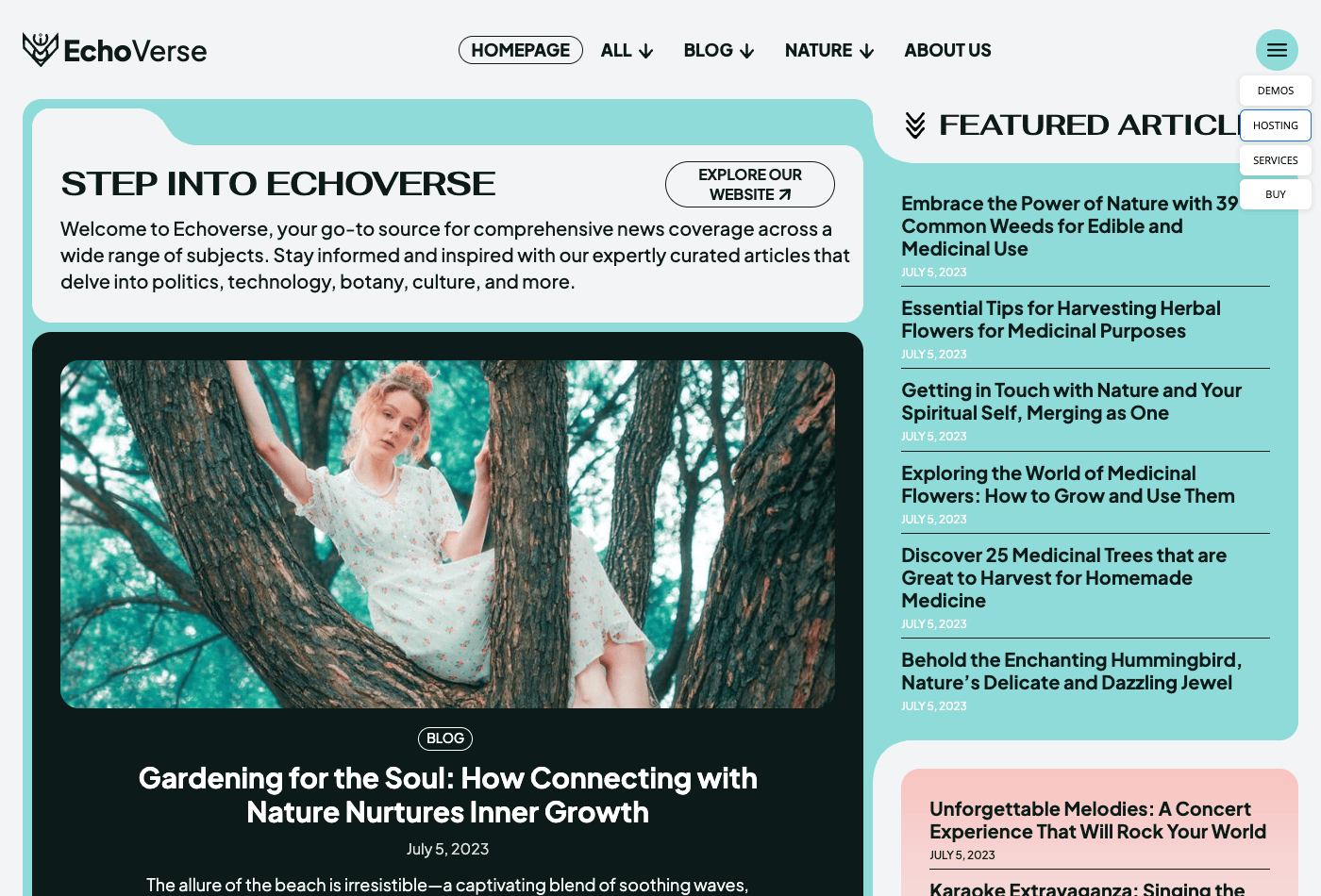
Table of Contents
- What the Newspaper theme actually is
- Installation and first setup
- The tagDiv Composer builder
- The Cloud Library: 575 blocks and 134 prebuilt homepages
- Global styling with the Website Manager
- Reviews, WooCommerce, and the extras
- Who the Newspaper theme is for (and who should skip it)
- Don’t import a full demo onto your live site
- Speed, lock-in, and the honest gotchas
- Newspaper vs a page builder plus a generic theme
- Customizing Newspaper (for developers)
- FAQ
- Final thoughts
What the Newspaper theme actually is
Newspaper by tagDiv is a premium WordPress theme, and it is one of the best-selling news and magazine themes ThemeForest has ever listed. The official description is refreshingly plain: "Premium WordPress template, clean and easy to use." That undersells it a bit, but the honesty is nice.
Here is the thing that makes it different from a normal theme. Most themes give you a look and then send you off to find a page builder if you want to arrange your homepage. Newspaper ships with its own front-end builder, called tagDiv Composer, plus a cloud library of ready-made designs. You are not gluing three products together. You install one theme and get the layout engine, the design library, and the front-end styling in a single package.
Under the hood, tagDiv calls its framework "wp-booster." You’ll see files prefixed tagdiv- and td_ all through the theme, and that framework is what powers the fast-rendering magazine modules. You don’t need to touch any of it, but it’s worth knowing the theme is built on a purpose-made engine rather than a generic starter.
Where it fits: this is a content-site theme first. News portals, online magazines, niche blogs, review sites, and anything with a lot of articles that needs category-driven layouts. It also handles WooCommerce and bbPress out of the box (more on that later), so a news site can run a shop or a forum on the side without a second theme.
It also plays nicely with the block editor. The theme declares support for align-wide and align-full, so Gutenberg’s wide and full-width blocks render correctly inside your post content. You just won’t build your homepage with Gutenberg here. That job belongs to Composer.
If you want the short version: Newspaper is a design-and-layout system disguised as a theme. The writing happens in WordPress. The look happens in tagDiv Composer. And most of the heavy design work is already done for you in the cloud library.
Installation and first setup
Installing the theme is the normal WordPress dance, but the important part comes right after activation, so let me walk the whole thing.
Step 1: Install and activate the theme. Go to Appearance » Themes » Add New, upload the theme zip, and activate it. Nothing on your front end will look dramatically different yet, because the design magic lives in the plugins that come next.
Step 2: Install the bundled plugins. As soon as the theme is active, Newspaper shows a notice pointing you to Appearance » Install Plugins (the TGM installer at themes.php?page=td_plugins). This is where the real setup happens. The required companions are:
- tagDiv Composer, the front-end drag-and-drop builder.
- tagDiv Cloud Library, which brings in the pre-designed templates and the built-in Reviews system.
- tagDiv Social Counter, an optional social-follower counter block.
Heads-up: these plugins are pulled from tagDiv’s own servers at cloud.tagdiv.com, not from the WordPress.org repository. That’s an unusual "External Source" install, and it means the download depends on tagDiv’s servers being reachable. In practice it works fine, and it’s how tagDiv keeps the builder and the cloud designs in sync. Just don’t be surprised when the installer fetches from an external URL.
Once tagDiv Composer and tagDiv Cloud Library finish installing, your admin menu grows two new items: Cloud templates and Reviews. That’s your signal the design system is live.
Step 3: Install the optional extras you actually need. The same installer offers a long list of optional plugins. WooCommerce (if you’re going to sell anything), plus tagDiv’s own add-ons: tagDiv Mobile Theme, tagDiv Newsletter, tagDiv Opt-In Builder, tagDiv Shop, and tagDiv Standard Pack. There are also per-demo "PRO" content packs (things named App Find PRO, Coaching PRO, Real Estate PRO, Doctors PRO, and so on) that carry the sample content for specific demos. Only install the ones that match what you’re building. You do not need all of them, and skipping the ones you won’t use keeps the install lean.
Tip: don’t install every optional plugin "just in case." Each one adds weight. Start with Composer and Cloud Library, add WooCommerce only if you’re selling, and add a demo’s PRO pack only if you plan to import that exact demo.
That’s the whole setup. Two required plugins, an optional list you can mostly ignore, and you’re ready to design.
The tagDiv Composer builder
Here is where Newspaper stops feeling like a theme and starts feeling like a design tool. tagDiv Composer is a front-end, live-preview page builder. You open any post or page, click Edit with tagDiv Composer, and you’re dropped into a full-screen editor that shows your real page with an editing panel on the left.
It’s tagDiv’s own builder, not Elementor and not WPBakery. That matters, and I’ll come back to what it means for lock-in later, but for now just know the elements you place are tagDiv’s, and they behave like magazine modules rather than generic layout widgets.
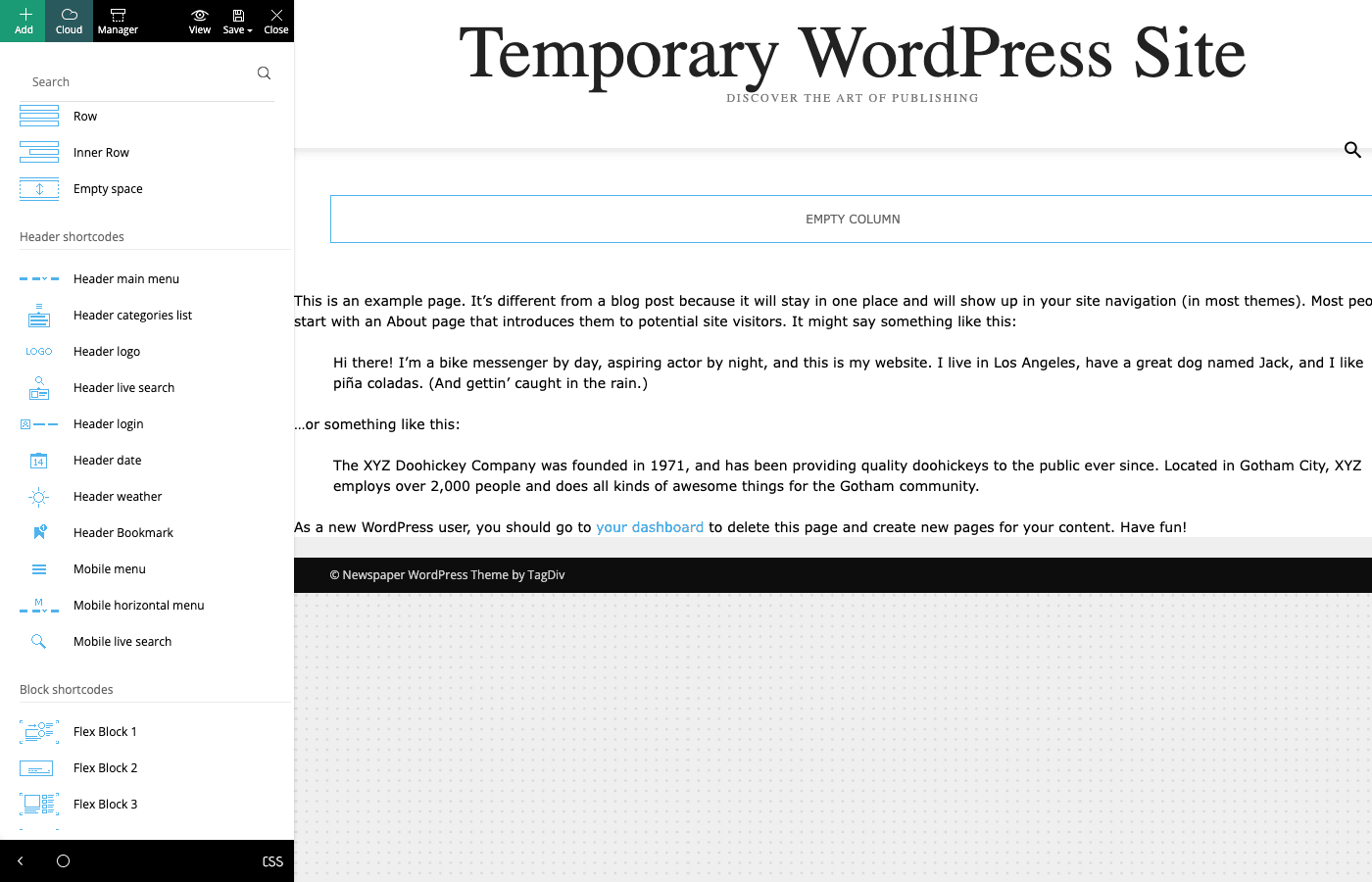
The top toolbar keeps things simple: Add, Cloud, Manager, View, Save, and Close. When you first open the builder, the left panel greets you with three choices: Add Element, Load Template, and Website Manager. Those three cover the whole workflow. Place elements by hand, drop in a ready-made template, or set your global styles.
The Add Element library is where you assemble a layout. It’s grouped into a few families:
- Structure: Row, Inner Row, and Empty space. You build the skeleton of a page with rows, split rows into columns, and use empty-space blocks to control vertical rhythm.
- Header shortcodes: these are the pieces of a site header. Header main menu, Header categories list, Header logo, Header live search, Header login, Header date, Header weather, and Header Bookmark, plus mobile-specific ones like Mobile menu, Mobile horizontal menu, and Mobile live search. You literally compose your header out of these.
- Block shortcodes: the star of the show. These are the "Flex Block" modules (Flex Block 1, Flex Block 2, Flex Block 3, and a whole family beyond). A Flex Block is a post-loop module. You point it at a category, a tag, or an author, and it pulls those posts into a magazine grid or list, with configurable columns, image sizes, excerpts, and meta.
Those Flex Blocks are the reason a Newspaper homepage looks like a real publication. Instead of manually placing article cards, you drop a Flex Block, tell it "show the latest six posts from the Politics category as a two-column grid," and it stays current forever. New posts flow in automatically.
One honest note on vocabulary: tagDiv calls these elements "shortcodes" in the UI, but they are not Gutenberg blocks and they are not the plain WordPress shortcodes you’d paste into a post. They’re Composer’s internal element system. If you’ve used Gutenberg and expect these to show up in the block inserter, they won’t. They live in Composer only.
The editing experience itself is comfortable. You get undo and redo, a desktop and mobile preview toggle so you can check responsive behavior as you go, and a Save button that writes the layout back to the page. Because it’s a live front-end builder, what you see while editing is genuinely what visitors will see. There’s no "preview in a new tab and hope" step.
You might be wondering whether this is hard to learn if you’ve never touched a page builder. It’s a moderate curve, honestly. The concepts (rows, columns, Flex Blocks pointed at categories) are simple, but there are a lot of settings on each block, and tagDiv’s naming isn’t always intuitive. Give yourself an afternoon with a throwaway page and you’ll be fine.
The Cloud Library: 575 blocks and 134 prebuilt homepages
If the builder is the engine, the Cloud Library is the reason you’d buy this theme over a hundred others. This is the headline feature, and it’s a big one.
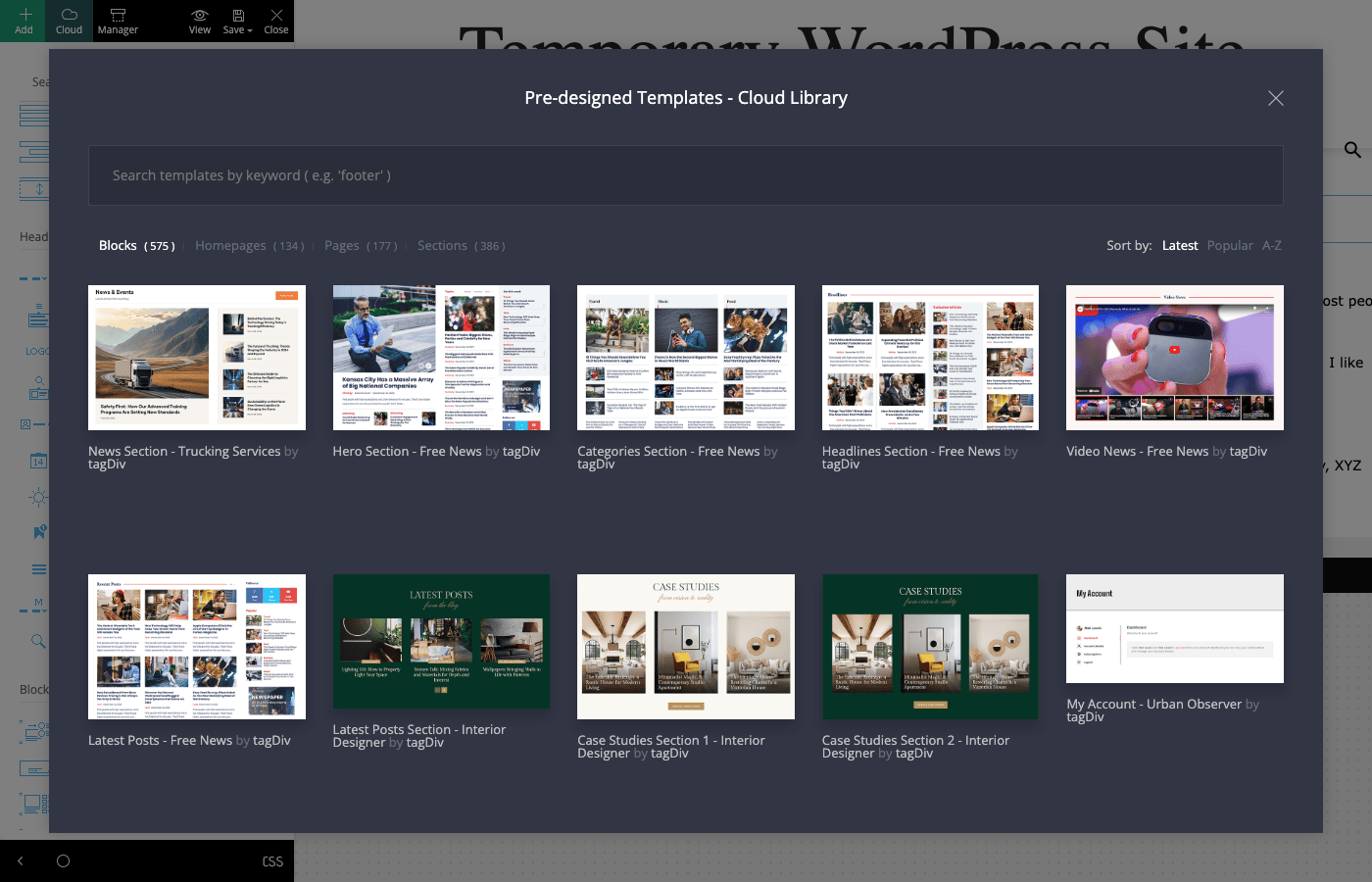
Click the Cloud button in Composer and you open the "Pre-designed Templates – Cloud Library" modal. It’s a searchable design library hosted by tagDiv, organized into tabs. When I counted them in a live install, the numbers were substantial:
- Blocks: 575. Individual pre-designed modules (a hero section, a category strip, a video row, a headlines block).
- Homepages: 134. Complete, ready-to-import front pages.
- Pages: 177. Full inner-page designs (about, contact, author, and so on).
- Sections: 386. Reusable chunks that sit between a single block and a full page.
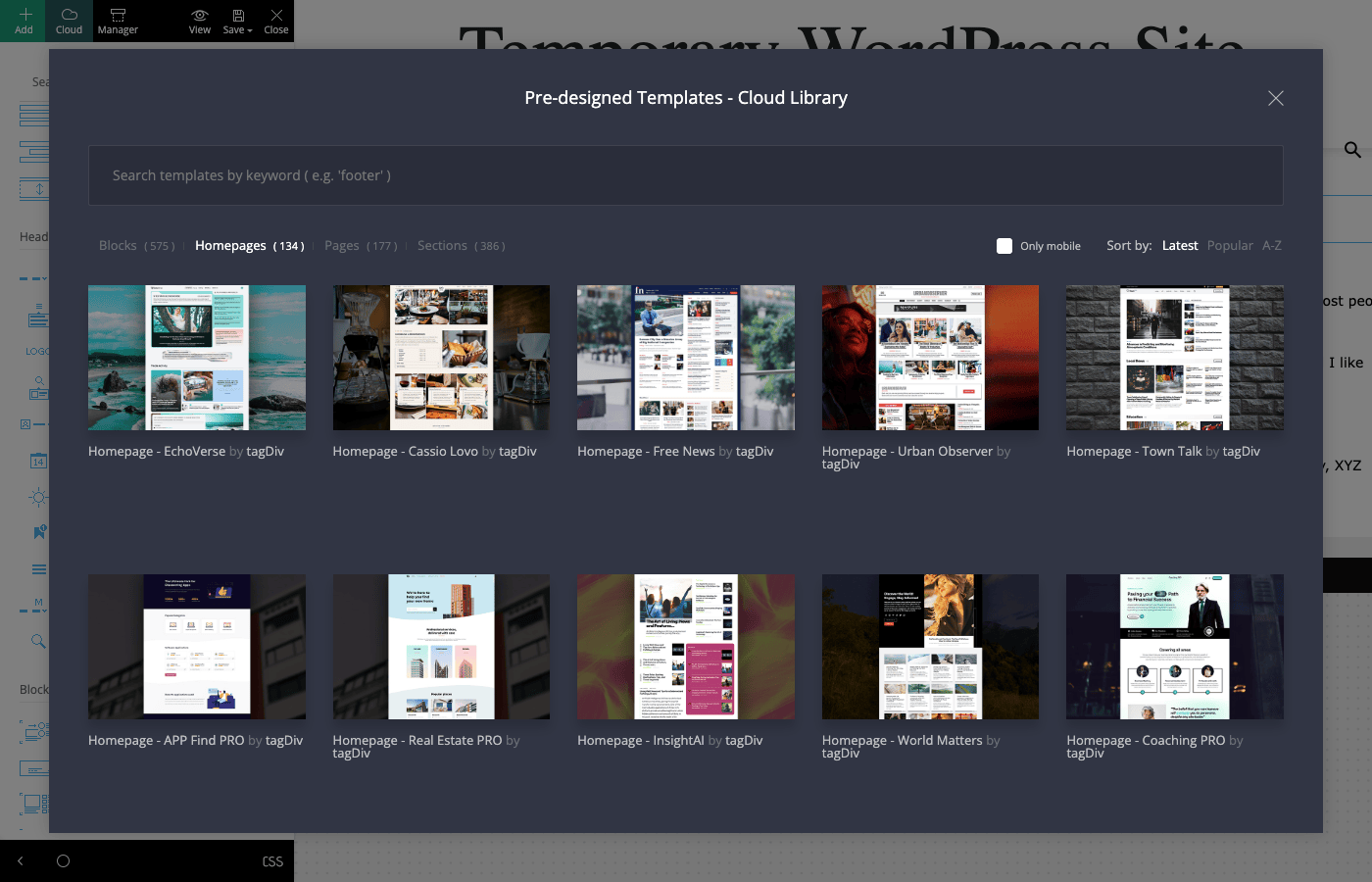
You can search the library by keyword and sort by Latest, Popular, or A-Z. The Homepages tab even has an Only mobile filter so you can preview how a design behaves on phones before you commit. Each template’s detail view gives you real options: Import header, Import footer, Live preview, and Mobile Live preview. The live preview opens the actual tagDiv demo site so you can click around a fully populated version before importing anything.
The named designs are varied and current. In the Homepages tab I saw demos like EchoVerse, Cassio Lovo, Free News, Urban Observer, Town Talk, InsightAI, World Matters, App Find PRO, Real Estate PRO, and Coaching PRO. On the Blocks side there were things like Hero Section – Free News, News Section – Trucking Services, Categories Section, Headlines Section, Video News, and Latest Posts. There’s genuinely a lot to work from.
The workflow this enables is what makes Newspaper feel fast to work with. You have two paths:
- Import a whole homepage. Pick a demo you like, import it, then swap the placeholder categories for your real ones and the dummy posts for yours. In an afternoon you have a designed front page.
- Assemble from parts. Start with a blank page and drop in individual cloud blocks and sections, mix and match a hero from one demo with a category grid from another, and stitch together something unique. This is the path I prefer, because it avoids the demo-import mess I’ll warn you about shortly, and you end up with a layout that isn’t a carbon copy of every other Newspaper site.
Where this shines: you don’t need a designer. A non-coder can import a professional homepage and have it looking like a legitimate publication the same day. That’s a real advantage over "here’s a blank theme, good luck."
The catch is that the library lives in the cloud, so it depends on tagDiv’s service being up and your license being valid. It’s not a folder of files sitting on your server. For the vast majority of users this is fine, but it’s a dependency worth naming.
Global styling with the Website Manager
Once your layout is in place, you’ll want site-wide control over fonts, colors, and the header and footer. In Newspaper, that lives in the Website Manager, which you reach from inside Composer.
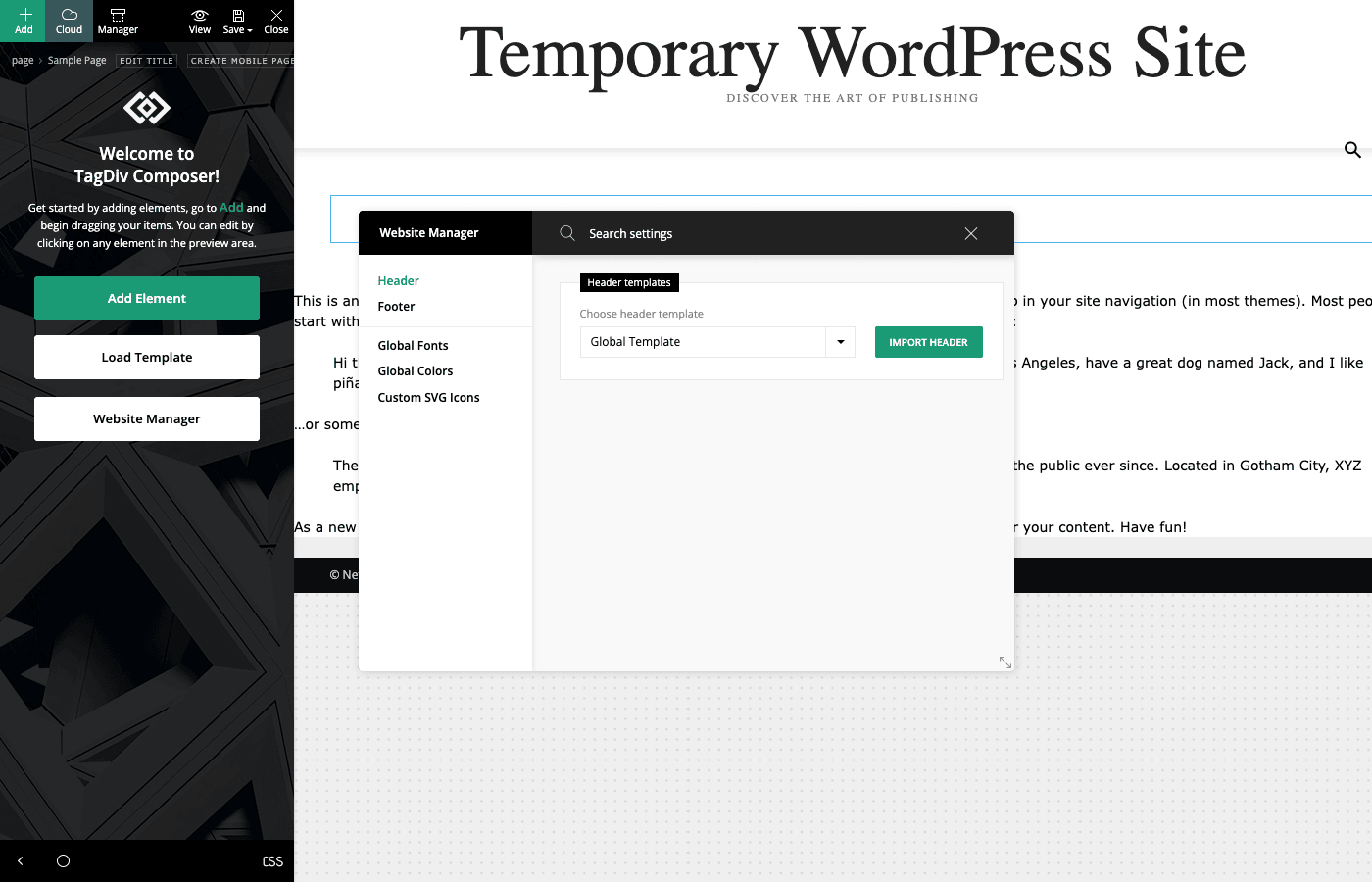
The Website Manager is the theme’s global control room. It gives you:
- Header templates. Choose your global header design, or import one from the cloud. Set it once and every page uses it.
- Footer templates. Same idea for the footer.
- Global Fonts. Define your typography site-wide so you’re not restyling headings page by page.
- Global Colors. Set your brand palette once and reuse it across blocks.
- Custom SVG Icons. Upload and manage your own SVG icons for use in the design.
One accuracy note, because older guides get this wrong. If you’ve read a tutorial from a few years back, it probably tells you to find a big top-level "Theme Panel" menu for all your global options. This build doesn’t work that way. The global settings live in the Website Manager inside Composer and in the standard WordPress Customizer, not in a separate legacy Theme Panel. If you go hunting for a "Theme Panel" menu item and can’t find it, that’s why. Look in the Website Manager instead.
I actually like this arrangement better than the old sprawling options page. Setting your header, fonts, and colors in the same tool where you design your pages keeps everything in one mental place. You’re not jumping between an admin settings screen and a front-end builder.
Tip: set your Global Fonts and Global Colors before you build out many pages. If you define them up front, every block you add inherits them, and you skip a lot of per-block restyling later.
Reviews, WooCommerce, and the extras
Newspaper bundles a few systems that would normally be separate plugins, and they’re genuinely useful for the audience the theme targets.
The built-in Reviews system is the standout. Through the tagDiv Cloud Library plugin, the theme adds a native review and rating engine. It registers a tdc-review custom post type (you’ll see it as a Reviews menu), a Criteria taxonomy for multi-criteria ratings, and even a Reviews » Emails area. That means you can run star-rating review posts (products, movies, gadgets, restaurants) with multiple scored criteria per review, without installing a separate reviews plugin.
If you run an affiliate or review site, this is a big deal. A lot of people pay for a dedicated reviews plugin to get exactly this, and Newspaper folds it in. You get consistent, structured review posts with per-criteria scoring baked into the same design system as the rest of your site.
WooCommerce support is real, not an afterthought. The theme ships its own WooCommerce template overrides (archive-product.php and single-product.php) and declares add_theme_support('woocommerce'). On top of that, tagDiv Composer exposes hooks so you can build the shop archive and the single-product page with the builder itself. So your news site can also run a store, and the shop pages match the rest of your design instead of looking like a bolted-on WooCommerce default.
bbPress support is declared too, so if you want a community forum alongside your articles, the theme styles it out of the box. That’s a nice touch for membership-style publications or fan communities. The theme also ships BuddyPress styling (a dedicated stylesheet), so a BuddyPress social community renders cleanly as well, though that one is bundled CSS rather than a declared theme feature.
Beyond those, the optional tagDiv plugins fill specific gaps. tagDiv Newsletter and tagDiv Opt-In Builder handle email capture and subscriber forms. tagDiv Mobile Theme is an optional plugin for a dedicated mobile experience. tagDiv Standard Pack and tagDiv Shop extend the block and commerce options. None of these are required. Add them only when you have a concrete need.
One honest correction on a feature people expect. AMP is not built into the theme. For accelerated mobile pages you install a separate AMP plugin; the theme’s optional Mobile Theme integrates with the free "Official AMP for WP" plugin from the WordPress repository rather than rendering AMP itself. So if AMP is a hard requirement for you, treat it as an extra piece you add and configure, not something the theme package does on its own.
As for ads and monetization: Newspaper is popular with ad-heavy publishers, and the block system is flexible enough to place ad units where you want them in your layouts. I’m going to be careful here and not quote specific "ad spot" numbers, because the theme package itself doesn’t carry a fixed ad-management module with a set count. Treat ad placement as something you handle through the block layout and your ad plugin of choice.
Who the Newspaper theme is for (and who should skip it)
Let me be direct about fit, because this theme is fantastic for some people and the wrong call for others.
If you’re a solo blogger or niche news publisher, Newspaper is a shortcut to looking established. You want a magazine front page with a featured slider, category blocks, and a trending sidebar, and you don’t want to hire a designer. Import a cloud homepage, point the Flex Blocks at your categories, and you’re done. This is probably the sweet spot.
If you run a small newsroom or online magazine that publishes several posts a day, the category-driven Flex Blocks are exactly what you need. Your homepage stays current automatically as you publish, and you can build distinct section pages (Sports, Tech, Opinion) that each pull their own content. The big-grid homepages in the cloud library were designed for exactly this volume.
If you run an affiliate or review site, the built-in multi-criteria Reviews system plus WooCommerce means you can score products, publish structured reviews, and sell, all in one theme. That combination is hard to beat without stacking three plugins.
If you’re a non-coder, the whole point of the cloud library is you. Import a full prebuilt homepage, swap in your own posts and categories, and you have a designed site without writing a line of code or wrestling a blank builder canvas.
For contrast, here’s a quick fit table:
| If you are… | Newspaper is… | Because |
|---|---|---|
| A niche news blogger | A strong yes | Magazine front page without a designer |
| A daily-publishing newsroom | A strong yes | Category Flex Blocks stay current automatically |
| An affiliate / review site | A strong yes | Built-in multi-criteria Reviews plus WooCommerce |
| A Gutenberg or Elementor loyalist | A maybe | Composer is a different, proprietary builder to learn |
| A tiny brochure site | Probably overkill | A simple block theme is less overhead |
Who should honestly skip it? Two groups. First, if you want a lightweight, standards-first site you can migrate off easily later, Newspaper’s proprietary builder is lock-in you may not want (I’ll explain the mechanics in the next sections). Second, if you already live and breathe Gutenberg or Elementor and don’t want to learn another builder, the switch might annoy more than it helps. And if you’re only publishing a handful of pages rather than a content-heavy site, a simpler theme carries less baggage.
If you’re weighing magazine themes against each other, it’s worth comparing Newspaper with Soledad, another popular magazine and blog theme that leans more on the WordPress Customizer and standard demos. The two solve similar problems with different philosophies, and which one fits depends on how much you value the all-in-one cloud library versus a lighter, more standards-based approach.
Don’t import a full demo onto your live site
This is the single most expensive mistake people make with this theme, and it has nothing to do with design quality.
Here’s the trap. You browse the Cloud Library, you find a gorgeous homepage (say EchoVerse or Free News), and you hit import on your live production site. It does exactly what you asked. It brings in the demo’s menus, its widgets, and in some cases it rewrites your homepage and settings with the demo’s placeholder posts. Now your real readers are staring at "Gardening for the Soul" dummy articles, your carefully built menu is gone, and Google is busy indexing a dozen demo URLs that will haunt your search results for months.
Cleaning that up by hand takes the better part of a day. The SEO mess (indexed placeholder posts, broken internal links) lingers far longer than the layout took to import. Money, time, and reader trust, all dented, and the design itself was never the problem.
Here’s what people miss: a Cloud Library import is a content operation, not a coat of paint. It writes to your database.
The fix is boring and it works. Import demos on a staging copy or a fresh install first, never straight onto production. Or, better for most people, import only the specific blocks and sections you actually need onto a new draft page, rather than importing the whole site. Preview it, confirm your existing menus and homepage are untouched, then push the finished layout live.
Always keep a backup before any import. And if a placeholder demo post ever does slip onto production, redirect or delete it and resubmit your sitemap so search engines drop it quickly.
The Cloud Library is the best thing about this theme. Just treat that Import button like the loaded one it is.
Speed, lock-in, and the honest gotchas
Every theme review that only lists strengths is useless. Here’s where I’d push back if you asked me over coffee.
Speed is a "depends on you" story. The wp-booster framework renders magazine modules efficiently, and a clean Newspaper site can score well on Core Web Vitals. But the theme gives you enough rope to hang your performance. If you cram a homepage with twenty Flex Blocks, three sliders, and heavy ad units, it will be slow, and no theme can save you from that. Discipline on the homepage matters more than the theme’s raw efficiency.
Pair it with caching. For a content-heavy news site, a cache plugin isn’t optional, it’s the difference between a fast site and a struggling one. I’d run WP Rocket alongside Newspaper to handle page caching, file optimization, and lazy loading, so your Flex Block homepages serve from static HTML instead of rebuilding on every visit. Keep an eye on the Core Web Vitals metrics (LCP, INP, CLS) as you add blocks, and pull back if a page starts to drag.
SEO needs a real plugin. Newspaper is a design theme, not an SEO tool. It won’t manage your titles, meta descriptions, schema, or sitemaps. For a news site where search traffic is the whole game, I’d add Rank Math to handle article schema, breadcrumbs, and metadata. The theme handles the look; the SEO plugin handles being found.
The lock-in is the big one. This is the honest gotcha that people don’t take seriously until it’s too late. tagDiv Composer is proprietary. The layouts you build are stored as tagDiv’s own shortcodes and block data. If you ever decide to move to a different theme, those layouts do not come with you. Your posts and pages (the actual written content) are safe, but every homepage, section page, and Composer-built layout has to be rebuilt from scratch on the new theme. This is the price of the all-in-one convenience, and it’s real. Go in with eyes open.
Updates can touch your design. Because so much lives in the Composer and cloud plugins, keep backups before major updates, and test on staging if the site is important. This is standard practice, but it matters more here than on a plain theme.
The learning curve is moderate, not trivial. I called it an afternoon earlier and I stand by that, but plan for it. There are a lot of block settings, and the terminology (Flex Blocks, shortcodes that aren’t shortcodes, the Website Manager) takes a beat to click.
None of these are dealbreakers for the right project. They’re the trade-offs you accept for getting an entire magazine design system in one theme.
Newspaper vs a page builder plus a generic theme
The real question most people are actually asking is this: should I buy Newspaper, or should I take a generic theme and add Elementor Pro (or another page builder) to it? Fair question. Let me put numbers on it.
With Newspaper, you get one product that includes the theme, the front-end builder (tagDiv Composer), and the cloud design library with 575 blocks, 134 prebuilt homepages, 177 full pages, and 386 reusable sections. There’s one front-end builder that ships with the theme, so there’s no separate page builder plugin to load on top. And on GPL Times it’s a one-time purchase with $0/month recurring cost, versus a page builder’s yearly license renewal.
With the generic-theme-plus-builder route, you’re assembling two products. A theme for the look, and something like Elementor Pro for the layout, which lists at about $59 a year for a single site. You load a full page builder on every request (Elementor typically adds on the order of 100 KB of extra CSS and JavaScript per page before you’ve placed a single widget), you keep paying that yearly license, and you still have to design your magazine layouts (post grids, category strips, sliders) mostly from scratch, because a generic page builder doesn’t ship with 134 news homepages ready to go.
Here’s the side-by-side:
| Use case | Newspaper | Generic theme + page builder |
|---|---|---|
| Products to buy | One (theme + builder + library) | Two (theme + builder plugin) |
| Ready-made news designs | 575 blocks, 134 homepages, 177 pages, 386 sections | Build magazine layouts yourself |
| Front-end builders loaded | One, ships with the theme | Separate plugin loaded on every page |
| Recurring cost | $0/month, one-time on GPL Times | About $59/year license renewal |
| Magazine post modules | Built-in Flex Blocks by category/tag | Requires an add-on or custom widgets |
The honest counter you need to hear: that convenience comes with lock-in. Because tagDiv Composer is proprietary, its shortcodes and block data do not port to another theme or builder. If you build with Elementor and later switch themes, your Elementor layouts can travel with you (Elementor is a plugin, not tied to one theme). If you build with tagDiv Composer and later leave Newspaper, your layouts stay behind. Plain Gutenberg content is even more portable than either.
So the trade is convenience and a huge head start versus portability. If you’re committing to a long-lived publication and want the fastest path to a professional magazine site, Newspaper wins on value and speed. If you value being able to pick up your layouts and walk to a different theme someday, the builder-plus-generic-theme route keeps more doors open. Both are valid. Just know which one you’re choosing.
Customizing Newspaper (for developers)
Let me set expectations honestly before you go looking for a big filter API. Newspaper is a design and framework theme, not a hook-heavy developer platform. Most of your customization will happen inside tagDiv Composer, in the Cloud Library, and in a standard child theme, not through a large set of WordPress filters. If you’re a developer expecting fifty documented action hooks, this isn’t that kind of theme, and pretending otherwise would waste your time.
That said, the framework does expose a handful of real template-injection points. These are the verified action hooks tagDiv fires:
tdc_headertdc_footertdc_sidebartdc_woo_single_producttdc_woo_archive_producttd_config
The two WooCommerce ones are the most practically useful, because they let you inject content into builder-made shop templates. Say you want a trust badge or a shipping note on every single-product page:
add_action( 'tdc_woo_single_product', function () {
    if ( ! function_exists( 'is_product' ) || ! is_product() ) {
        return;
    }
    echo '<p class="my-shipping-note">Free shipping on orders over $50.</p>';
} );
Or you might add a promo strip across every WooCommerce archive (shop and category listings):
add_action( 'tdc_woo_archive_product', function () {
    echo '<div class="my-archive-banner">New arrivals every Friday.</div>';
} );
The child theme is where real customization belongs. Editing the parent theme directly is a mistake, because a theme update wipes your changes. A child theme keeps your CSS and PHP overrides safe across updates. WordPress documents the pattern well in the official child theme guide. A minimal child theme functions.php that loads the parent styles then your own looks like this:
add_action( 'wp_enqueue_scripts', function () {
    $parent = 'newspaper-style';
    wp_enqueue_style(
        $parent,
        get_template_directory_uri() . '/style.css'
    );
    wp_enqueue_style(
        'newspaper-child',
        get_stylesheet_directory_uri() . '/style.css',
        array( $parent ),
        wp_get_theme()->get( 'Version' )
    );
} );
From a child theme you can also override the WooCommerce templates the theme ships, by copying woocommerce/single-product.php into your child theme’s matching path and editing your copy.
Be clear about what’s not here, so you don’t go looking for it. The theme itself does not register a custom post type (the tdc-review review CPT comes from the tagDiv Cloud Library plugin, not the theme). It does not register add_shortcode elements (those "shortcodes" are Composer’s element system). There’s no WP-CLI integration and no documented public REST API. Gutenberg wide and full-width alignment is supported for your post content, but the page building itself happens in Composer, not the block editor.
For most developers, that means your toolkit here is: a child theme for CSS and PHP, the six action hooks above for template injection, WooCommerce template overrides, and custom blocks inside Composer. It’s a smaller surface than a developer-first framework theme, but it’s enough for the customizations a real publication actually needs.
FAQ
Do I need a page builder plugin like Elementor with the Newspaper theme?
No. Newspaper ships with its own front-end builder, tagDiv Composer, plus the Cloud Library of pre-designed blocks and homepages. That’s the whole point of the theme. Adding a second page builder on top would just add weight and confusion. Build your layouts in Composer and skip the extra plugin.
Is the tagDiv Composer builder easy to learn if I’ve never used a page builder?
Mostly, with an honest caveat. The core ideas (rows, columns, and Flex Blocks that pull posts by category) are simple, and importing a cloud homepage means you barely have to build from scratch. But there are a lot of settings on each block, and tagDiv’s naming isn’t always obvious. Budget an afternoon on a throwaway page and you’ll be comfortable. It’s a moderate curve, not a steep one.
Will my layouts move with me if I switch away from Newspaper later?
This is the trade-off to understand up front. Your written posts and pages are standard WordPress content and stay safe. But the layouts you build in tagDiv Composer are stored as tagDiv’s proprietary shortcodes, and those do not port to another theme or builder. If you leave Newspaper, you’ll rebuild your homepages and section layouts on the new theme. That lock-in is the price of the all-in-one convenience.
How many prebuilt homepages and blocks does the Cloud Library actually include?
In a current install I counted 575 Blocks, 134 Homepages, 177 Pages, and 386 Sections in the Cloud Library, all searchable and sortable by Latest, Popular, or A-Z. Real named demos include EchoVerse, Free News, Urban Observer, Town Talk, and Coaching PRO, among many others. The numbers grow over time as tagDiv adds designs, since the library is cloud-hosted.
Does the Newspaper theme include AMP support?
Not built in. For AMP you add a separate AMP plugin; the theme’s optional Mobile Theme integrates with the free "Official AMP for WP" plugin rather than shipping AMP itself. If accelerated mobile pages are a must-have for you, plan for that as an extra piece you install and configure, not something included in the theme package.
Can I run a shop or a forum on the same site?
Yes. The theme supports WooCommerce out of the box (it ships its own product archive and single-product templates), and you can even build the shop pages with Composer using the WooCommerce hooks. It also supports bbPress, so a community forum is styled without extra work. A news site can add a store or a forum without switching themes.
Is Newspaper good for SEO?
The theme gives you a clean, fast-rendering foundation, but it is not an SEO plugin and won’t manage your titles, meta, schema, or sitemaps. For a news site where search is the main traffic source, pair it with a dedicated SEO plugin like Rank Math to handle article schema and metadata. The theme provides the structure; the plugin handles the optimization.
Will the Newspaper theme slow down my site?
It doesn’t have to, but it can if you overload it. The wp-booster framework renders efficiently, and a disciplined homepage performs well. Stuff a front page with a dozen Flex Blocks, multiple sliders, and heavy ads, though, and it will drag. Run a caching plugin, keep homepages reasonable, and watch your Core Web Vitals as you add blocks. Performance here is as much about your choices as the theme’s.
What’s the safest way to try a demo design without wrecking my site?
Never import a full demo onto a live production site. Either import on a staging copy first, or import only the specific blocks and sections you need onto a fresh draft page rather than the whole demo. Keep a backup before any import. A Cloud Library import writes to your database (menus, widgets, sometimes placeholder posts), so treat it as a content operation, not a quick style swap.
Which plugins do I actually need after installing the theme?
Two are required: tagDiv Composer (the builder) and tagDiv Cloud Library (the templates and Reviews system). The optional tagDiv Social Counter and the various demo PRO packs and add-ons are only worth installing when you have a specific need for them. Add WooCommerce if you’re selling. Skipping the extras you won’t use keeps the site lighter.
Final thoughts
After spending real time in it, my take on Newspaper is simple: it’s one of the fastest ways to stand up a genuinely professional-looking news or magazine site, and the Cloud Library is the reason. Getting 575 blocks and 134 homepages plus a front-end builder in a single theme, instead of stitching a generic theme to a separate page builder and designing everything yourself, is a serious head start. For a solo blogger, a small newsroom, or a review site, that value is hard to argue with.
It isn’t the theme for everyone. The proprietary Composer means real lock-in, so if portability matters more to you than convenience, keep that firmly in mind. And the demo-import trap is a genuine footgun on a live site. But if you go in knowing the trade-offs, treat the Import button carefully, pair the theme with caching and an SEO plugin, and stay disciplined about homepage weight, you’ll end up with a content site that looks like it cost far more than it did.
A quick note on getting it: the Newspaper theme on GPL Times is delivered under GPL as a one-time purchase, so there’s no yearly renewal on your calendar, and it’s the same theme package tagDiv ships. If you hit a snag setting up the builder or the cloud plugins, tagDiv’s own support forum is an active place to search for answers. Start with one throwaway homepage, learn the Flex Blocks, then commit your real content once the layout feels right.