


I’ve tried to sell "build your own" things on WooCommerce four times. A PC builder where the customer picks a CPU, motherboard, GPU, case and PSU. A salad bowl where you pick base, two proteins, three toppings, dressing. A bouquet builder with stem counts. And an office furniture kit where the desk has 14 finish options and the chair has another 9. Every one of those started with me opening the WooCommerce Bundles documentation, getting halfway through, and realising bundles weren’t the right tool. Bundles ship a fixed combination at a discount. Configurators let the customer assemble the combination themselves. Not the same problem.
So I’ve worked around it with the WooCommerce Add-ons extension (good for one short list, falls over once you need conditional logic between fields), YITH Product Add-Ons (similar), a Gutenberg block plus a cart_item_data filter (which works until you need price aggregation per option), and once a fully hand-rolled set of variable products with 600+ variations (don’t). What I should have done was install WooCommerce Composite Products on day one.
This is the long walkthrough I wish I’d had three years ago. What Composite Products actually is, how it differs from Product Bundles (the most common confusion), how to model a real configurator from zero, the conditional-logic engine that’s the real differentiator, the developer reference with hooks worth knowing, and the bits that genuinely annoyed me.
Table of Contents
- What is WooCommerce Composite Products?
- Composite Products vs Product Bundles: the bundle-vs-configurator confusion
- How the data model works under the hood
- Key features at a glance
- Installation and the first hour
- Configuring a PC builder from zero, end to end
- Conditional logic between slots: the real differentiator
- Pricing math: how the totals roll up and where you’ll trip
- The "fork" question: when to use one composite vs multiple variable products
- Real-world use cases
- Developer reference: hooks, filters, classes, REST
- What it doesn’t do: save-for-later, configurable shipping per slot, customer-side templates
- Performance, compatibility, and the gotchas
- Pricing and licensing
- FAQ
- Final thoughts
What is WooCommerce Composite Products?
WooCommerce Composite Products is a premium WooCommerce extension that adds a new product type called composite. A composite product is a parent product that wraps a set of components (people call them slots). Each component is a chooser: pick one (or several) product from a list of allowed children. The customer’s selections become individual line items in the cart, and the composite’s total price is the sum of whatever they picked, with optional per-slot discounts and modifiers.
The extension was originally built by SomewhereWarm, the same shop behind WooCommerce Product Bundles. Automattic acquired the SomewhereWarm catalogue, so the plugin now ships under the WooCommerce brand and is maintained by the WooCommerce team. The Author: header in the plugin file reads WooCommerce, and the plugin URI points at woocommerce.com/products/composite-products/.
If you’ve ever bought a custom laptop on the Dell website, or built a Subway sandwich on a kiosk, you’ve used the same mental model Composite Products gives you. The product is the configurator. The slots are the questions. The components are the answers.
The Composite Products extension on GPL Times is the same WooCommerce build, delivered as a downloadable zip so you can use it on a store you actually own without an Automattic subscription.
Composite Products vs Product Bundles: the bundle-vs-configurator confusion
This is the number-one question I get when someone asks me which Woo extension to install. They look at the marketing pages, see "build your own" on both, and pick whichever they read about first. Then they get stuck.
Here’s the short version. Product Bundles is for fixed combinations. You decide ahead of time that the "Camera Starter Kit" is a body + 50mm lens + strap + bag, and the customer buys it as one product at a discounted price. Some variation is possible (the lens slot might allow a choice between 50mm and 35mm), but the bundle is fundamentally a packaged offer.
Composite Products is for configurable products where the customer drives the assembly. Pick any CPU from 12, pick any motherboard from 8, pick a GPU and a case and a PSU. The price isn’t a fixed bundle discount, it’s an aggregate of whatever they picked. The product itself doesn’t exist until the customer builds it.
Two practical tests that have saved me from picking the wrong one:
- "Could I sell this without the buyer making choices?" If yes, it’s probably a bundle. If the buyer must make choices for the product to exist as a sellable thing, it’s a composite.
- "Do the children have meaningful prices of their own?" If the children are mostly there to be packaged together at a discount, that’s a bundle. If each child has a price that gets added up, that’s a composite.
WooCommerce sells Product Bundles and Composite Products as separate extensions for exactly this reason. There’s a more detailed walkthrough on the Product Bundles plugin in our store if you read it and decide that’s actually the right tool. No shame, half the time it is.
How the data model works under the hood
Skip this section if you don’t write PHP. If you do, the data model matters because it’s what every customization will touch.
A composite product is a WooCommerce post of post_type=product with the product taxonomy term composite. WooCommerce loads the right class based on that term, which in this case is WC_Product_Composite (extends WC_Product). The component definitions live in two post-meta keys on the parent:
_bto_datastores the components themselves. Serialized PHP, one entry per slot, with the slot title, description, query type (assigned products vs taxonomy categories vs all products), the list of assigned product IDs, sort order, defaults, the per-slot discount, thepriced_individuallyflag, theoptionalflag, min/max quantity, and a few display switches._bto_scenario_datastores the conditional rules. Same idea, serialized PHP per scenario with the conditions list and the actions to take when those conditions match.
The _bto_ prefix is a fossil from when this plugin was called "Build Your Own" before it was renamed Composite Products. Nobody at WooCommerce has touched the key names because doing so would break every site that’s been live for a decade. So you’ll keep seeing bto_data in the database, in hook names (woocommerce_composite_component_admin_html but also add_bto_group in the admin JS), and in the form field names (bto_data[1][title]). That’s normal. The underlying WC_Product class on developer.woocommerce.com is what WC_Product_Composite extends, so the core meta API (get_meta, update_meta_data) works on composites exactly like any other product.
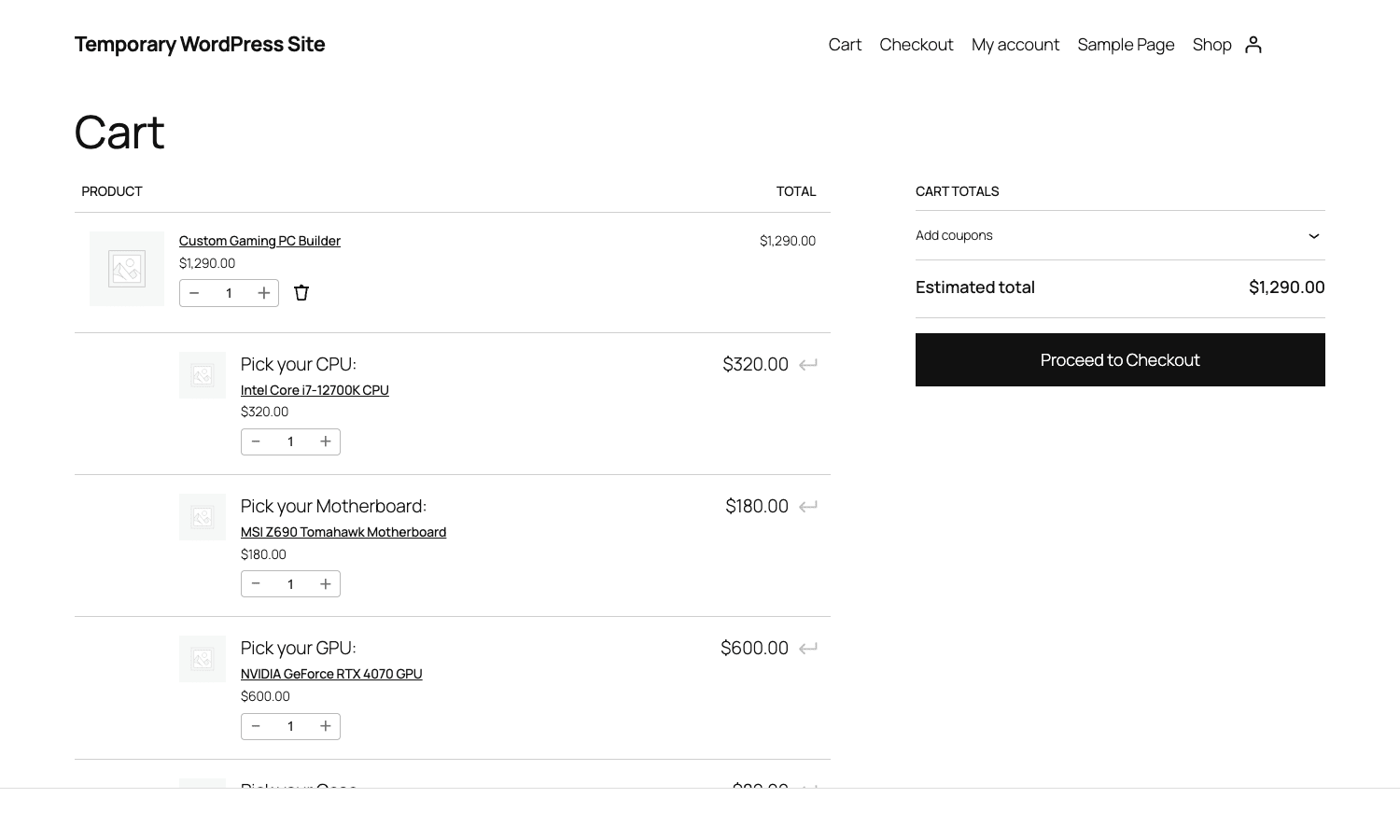
When the customer adds the configured composite to the cart, each chosen child product becomes its own line item, plus one extra "container" line item for the parent composite. The relationship is stored in cart item meta: every child carries a composite_parent key with the parent’s cart hash, and the parent carries a composite_children key with an array of child hashes. WooCommerce treats them as independent line items for everything (price, tax, stock decrement) except cart-item display and order-item editing, where the composite UI groups them back together.
That’s the whole architecture. Once you’ve got that, every hook in the developer reference makes sense.
Key features at a glance
Rather than dump the full marketing list, here’s what actually moves the needle on a real configurator project.
- Component slots. The signature feature. You can add as many as you want, name them, populate each one with assigned products or a taxonomy category, and choose how the options are presented (dropdown, thumbnails, radio buttons, hidden).
- Conditional logic across slots. Composite Products calls these Scenarios. Pick a CPU + motherboard combination that doesn’t exist, and you can have the plugin hide the impossible options or hide whole components. Real configurator behaviour, not just a list of toggles.
- Per-slot pricing modifiers. Each slot can have its own discount (percentage off the assigned child price), can be priced individually or merged into the parent, and can present prices as absolute or as relative deltas to a default.
- Quantity per slot. Min/max quantity per slot, plus a global composite quantity. So "pick three toppings out of these eight" works without writing code.
- Multiple layout templates. Single-page (all slots on one screen), progressive (next slot reveals as the previous one is answered), or multi-page (next/back navigation between slots). Layout per product, not site-wide.
- Variable child products work. Components can be assigned simple, variable, subscription, or composite (yes, nested) products. Variable children expose their attribute selectors inline so the customer picks the variation right inside the slot (and if you’ve set up color swatches with Variation Swatches and Photos, those swatches render correctly inside the composite slot too).
- Per-slot shipping logic. Composite-wide vs per-slot shipped flag. Lets you bill the whole kit as one package or have each component ship from its own warehouse.
- Component image and description overrides. Each slot can carry its own image, title, and description for display, overriding the child product’s own.
- Edit-in-cart. Customer can click their composite line in the cart, change the picks, and re-add it. A small thing, but rare in WooCommerce land.
- REST API support. Composite definitions are exposed on the products REST endpoint, with extra
composite_componentsandcomposite_scenariosfields. Useful for headless / mobile checkout flows. - Analytics integration. Composite-specific report endpoints in WC Analytics, so you can see revenue per composite and which slots customers configure most.
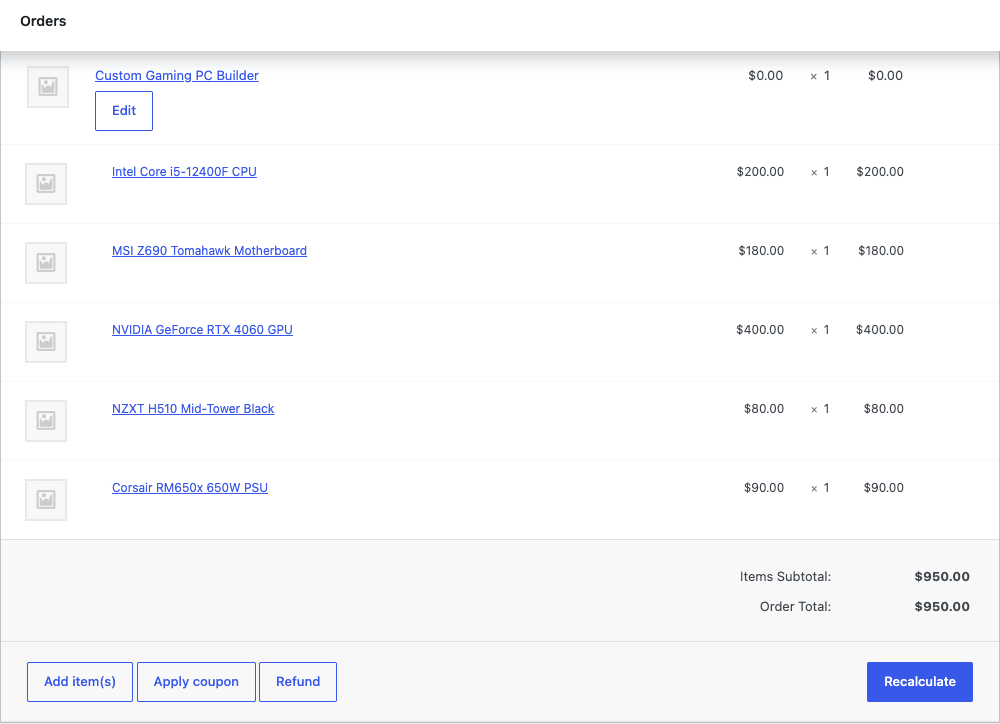
- Order editing. Admin can open an order and reconfigure the composite line, repicking components. Component swaps re-calculate totals without breaking the rest of the order.
Most of those are on by default; you get them just by setting product type to "Composite product".
Installation and the first hour
Installation is the boring WooCommerce way. Plugins -> Add New -> Upload the woocommerce-composite-products.zip, activate. The plugin requires WooCommerce 8.2 or newer and PHP 7.4 minimum. No setup wizard, no onboarding tour. You’re meant to go straight to Products -> Add New and pick "Composite product" from the product-type dropdown.
That dropdown is where the first surprise lives. The new product type is just called "Composite product" in the UI (the internal slug is composite, not composite_product as you might guess from WC_Product_Composite). Pick it, and three new tabs appear on the standard product data box: Components, Scenarios, and (if you have variations enabled) Attributes-style configuration for layout overrides.
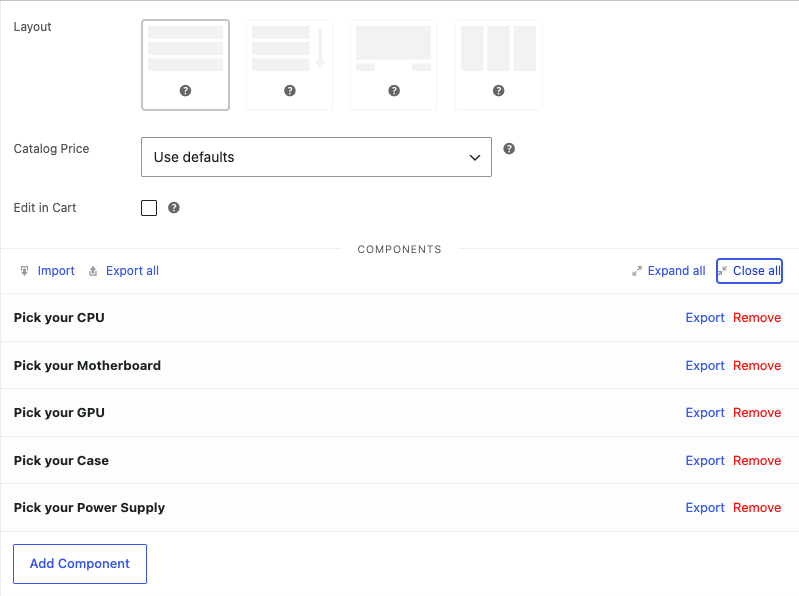
You can save the product as a draft with zero components, but it won’t be useful. The actual work happens in the Components tab. Click "Add Component", give it a name (this becomes the slot label on the front-end), pick a query type, then assign products. That’s the loop. Add slot, configure slot, repeat.
A word of warning for your first hour. The component editor reuses the WooCommerce product-data tab styling, so the controls look identical to the regular General / Inventory / Shipping tabs. They aren’t. The Components tab has its own state, its own AJAX endpoints, and its own validation. If you find yourself looking for an option that isn’t there, it’s because you’re on the wrong tab. The Components tab is the one with the layout-template strip at the top.
Configuring a PC builder from zero, end to end
I built one of these for this article. Let me walk through the exact steps so you have a concrete example, not just abstract talk.
Step 1: create the children first. A composite parent points at existing products. So before you create the composite, you need the children to exist. I created eleven simple products for the PC builder: three CPUs (Intel i5-12400F at $200, Intel i7-12700K at $320, AMD Ryzen 5 7600X at $250), two motherboards (MSI Z690 Tomahawk at $180, Gigabyte B660 Aorus at $130), two GPUs (RTX 4060 at $400, RTX 4070 at $600), two cases (NZXT H510 at $80, Corsair 4000D at $90), and two PSUs (Corsair RM650x at $90, RM750x at $110). Each one is a regular simple product with a regular price. No special tagging needed.
Step 2: create the composite parent. Products -> Add New, title "Custom Gaming PC Builder", set the product-type dropdown to Composite product. Save.
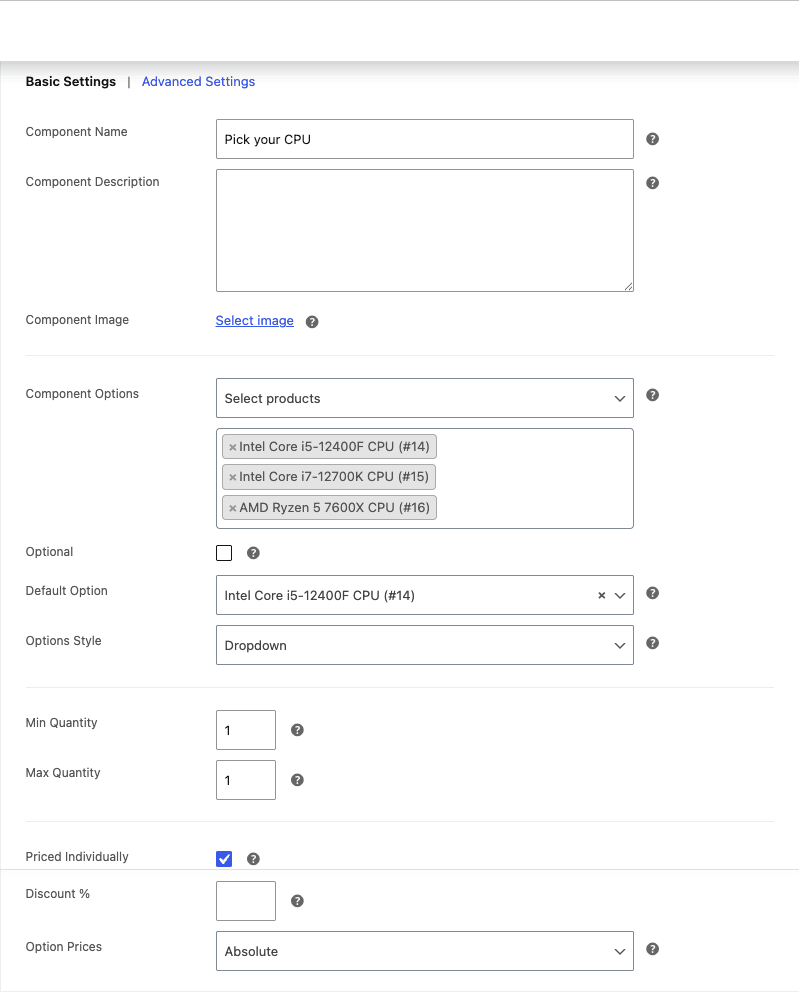
Step 3: add the five slots. Click into the Components tab and click "Add Component" five times. Name them "Pick your CPU", "Pick your Motherboard", "Pick your GPU", "Pick your Case", "Pick your Power Supply". The order you add them is the order the customer sees them on the front-end. You can drag-reorder later.
Step 4: assign products to each slot. Expand the first slot. In the Component Options field, change the query type to "Select products" (the default), then start typing each child product name. The select2 widget fetches them via AJAX. Pick the three CPUs for the first slot. Repeat for the other four slots with the right children.
Step 5: enable "Priced Individually" on every slot. This is the most common gotcha. By default, components are treated as "free in container". The customer sees $0 next to each option because the composite is supposed to have its own catalogue price. For a true configurator you want the composite price to be the sum of the picks, so you have to tick "Priced Individually" on each slot. (Yes, every slot, individually. There’s no "tick all" shortcut. This bit me.)
Step 6: set a default per slot if you want. Optional. Useful when you want the composite to show a starting price before the customer touches anything. Pick the most popular child as the default for each slot.
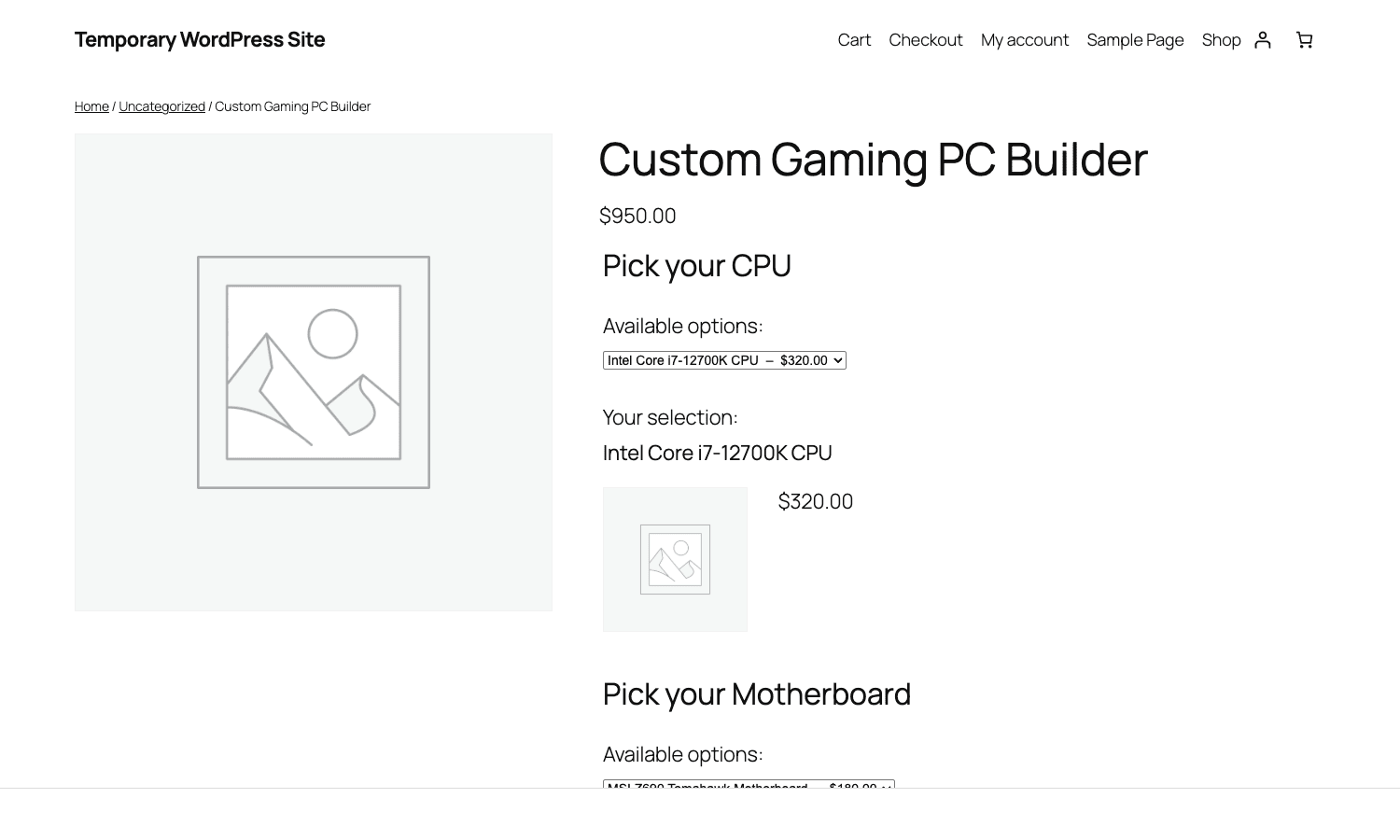
Step 7: publish, view on front-end. The composite renders as a regular WooCommerce product page with the slots stacked below the title. As the customer picks options, the displayed total updates in real time. Add to Cart only enables once every required slot is answered.
Here’s what the customer sees mid-flow:
And here’s the cart, which is where the line-item breakdown becomes useful for both the customer and your support team:
That’s a working configurator in under an hour. No code.
Conditional logic between slots: the real differentiator
This is what separates Composite Products from the cheaper "product add-ons" plugins and is the reason I’d pay for it. A configurator that lets you pick any option in any slot is a fancy multi-select. A configurator that enforces compatibility between slots is a real product builder.
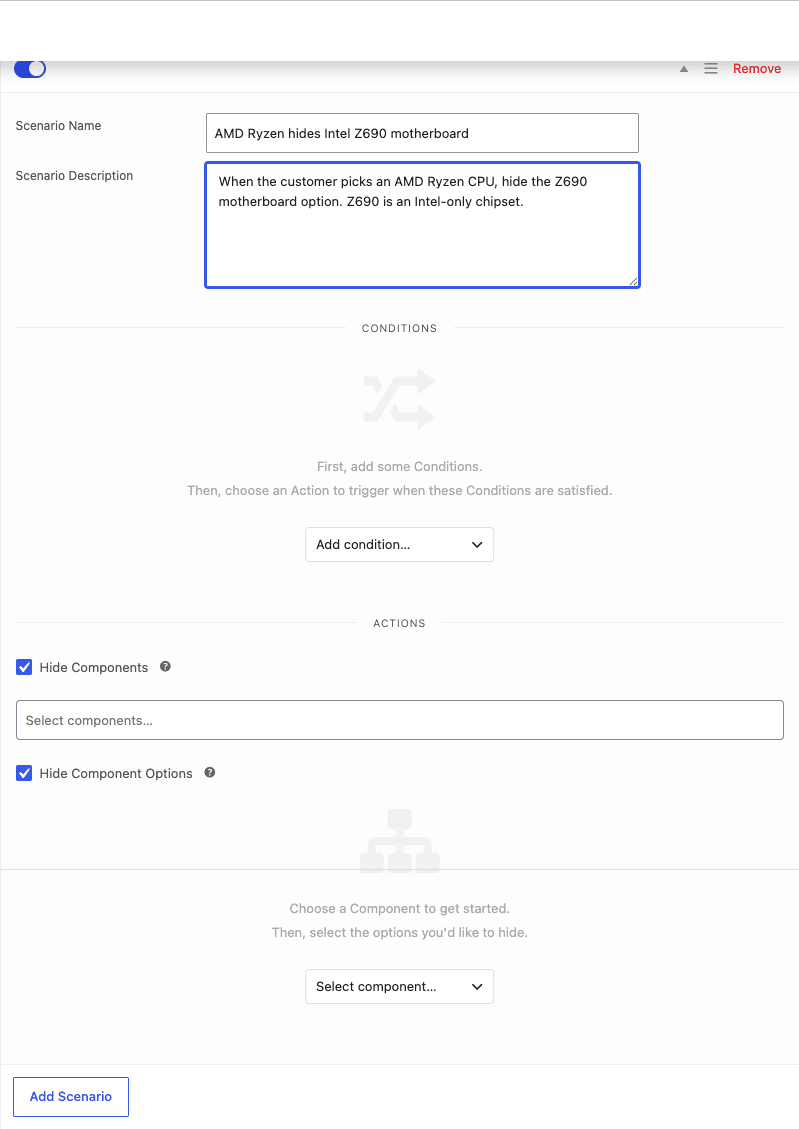
Composite Products calls this Scenarios. A scenario is a set of conditions plus a set of actions. When the customer’s current selection matches the conditions, the actions fire. Conditions look at "which option is currently selected in which component". Actions are "hide these components entirely" or "hide these options from these other components".
Here’s the realistic example for the PC builder. The MSI Z690 motherboard only takes Intel CPUs. If the customer picks the AMD Ryzen 7600X, the Z690 should disappear from the motherboard slot. In Scenarios that’s one row: condition = "CPU slot has AMD Ryzen 7600X selected", action = "hide Z690 option in Motherboard slot".
You can chain scenarios. A bouquet builder I worked on had nine. "Premium ribbon" needed the "Premium vase" so a scenario hid all non-premium vases when the premium ribbon was chosen. "Sympathy theme" disabled all bright colour palettes. "Anniversary card" added a name-engraving slot. Every one of these was a Scenario in the admin UI, not a code-level customization.
A few things worth knowing about scenarios:
- The conditions panel only shows up after you’ve added at least one condition. Click "Add condition" and pick the component + the option that triggers the rule. Then the right side reveals an Actions area where you tick what should happen.
- Multiple conditions are AND, not OR. "CPU is AMD Ryzen 7600X and Motherboard is B660" both have to be true for the action to fire. If you want OR, you create two separate scenarios with the same action.
- Actions can hide whole components. Useful for "if the user picks the Pre-built option, hide the entire Custom Components section". Lets you have two completely different configurator paths inside one product.
- The conditions evaluate client-side AND server-side. The front-end JS hides the options live as the customer changes the selection, and on Add to Cart the validation hooks (
woocommerce_composite_component_add_to_cart_validation) re-check server-side so you can’t bypass it via direct cart-add POST.
The one limitation I keep running into: scenarios can’t reference variation attributes within a child product. If your CPU slot allows a variable product (e.g., "Intel i7 with cooler / without cooler"), you can write a scenario that fires when "Intel i7" is picked, but not one that fires only when "Intel i7 with cooler" is picked. Workaround: model the variations as separate simple products inside that slot, not as variations.
Pricing math: how the totals roll up and where you’ll trip
The pricing is correct out of the box. That sentence sounds boring but it’s the reason I gave up on hand-rolling configurators with cart_item_data filters. Getting taxes, discounts, and partial currency rounding right across an aggregated total is a nightmare. Composite Products handles it.
Here’s how the total is calculated:
- Each component option, if Priced Individually, contributes the child product’s price (regular or sale price, whichever applies, with the child’s own tax setup respected).
- The component’s per-slot discount (a percentage) is applied to that contribution.
- The component’s quantity multiplies the result.
- All components’ contributions are summed.
- The composite parent’s own catalogue price, if set, is added to the sum (not replaced; so think of it as a base configuration fee, not a price).
- WooCommerce tax engine sees each line item individually, so per-product tax rates and exemptions still work on the children.
Some of this you can override. The filter woocommerce_composited_product_price_string lets you reshape the price string per option (e.g., show "+$320" instead of "$320"). The filter woocommerce_composited_product_discount lets you change the per-component discount at runtime. The filter woocommerce_composite_update_price_meta is your hook to inject custom price logic during the parent’s price-meta refresh.
The trip-ups I see most often:
- Showing relative prices. Default is absolute ("Intel i7-12700K, $320"). Most configurators are nicer when you show deltas ("Intel i7-12700K +$120" relative to the baseline i5). Switch the per-slot Options Style to "Relative to default" and set a default option per slot.
- Composite is on sale but children aren’t. If you set a sale price on the parent composite, that price is the base fee, not a discount on the aggregate. The aggregate is calculated and then the base fee is added in. To discount the aggregate you need a per-slot discount or a WooCommerce-wide coupon. People assume parent sale-price = aggregate discount; it isn’t.
- Tax-inclusive vs tax-exclusive display. If you switch the WooCommerce "Display prices in shop" between inc/excl tax, the composite re-renders prices for each option, not just the parent. That’s the correct behaviour, but on a 12-component composite with 50 options it adds work to every page load. Cache it.
The composite total updates live on the front-end via a debounced JS handler that fires on every option change. The JS bundle that does this isn’t tiny. I counted 487 KB minified on a configurator with 10 components and lots of conditional rules. If you’re on a slow connection, the price flicker is noticeable. There’s a hook woocommerce_composite_script_dependencies for swapping in a leaner build, but I’d start by deferring the script through your performance plugin.
The "fork" question: when to use one composite vs multiple variable products
I get asked this a lot. You’re modelling a product line that has, say, two main forks (e.g., "Gaming PC" vs "Office PC", or "Vegan bowl" vs "Meat bowl") and inside each fork there are slots. Do you build one giant composite with scenarios that hide the wrong slots for each fork, or do you build two separate composites and link them?
My rule of thumb: two composites whenever the customer’s mental model treats them as different products. A Gaming PC and an Office PC aren’t a single product the customer’s configuring, they’re two products the customer’s choosing between. Two composites. Use the related products section to cross-sell.
One composite when the forks are configuration paths inside a single buying decision. A salad bowl is one product, but the customer picks "build-your-own" vs "chef’s pick"; that’s two paths inside one composite, handled with scenarios that hide the build-your-own slots when chef’s pick is selected.
There’s a third option people forget: a composite that wraps another composite. You can put a composite as a child option in another composite’s slot. That gets you nested configurators (Gaming PC Builder slot 1 = "PC Type", which is itself a composite that picks the case fork, which then drives a different motherboard list). Powerful, also the fastest way to ship something the customer can’t figure out. Use sparingly.
Real-world use cases
Five concrete configurators I’ve shipped or seen shipped using Composite Products.
1. Custom-built PC store. Five slots, around 80 children total. Scenarios that enforce chipset/CPU compatibility. The killer feature here was the per-slot image override; the CPU thumbnails are stock vendor photos which look terrible next to the rest of the store, so each slot’s option list overrode the images with cleaner shots.
2. Salad bowl / build-your-own meal kit. Six slots: base, two proteins, three toppings, one dressing. Min/max quantity per slot was crucial ("pick exactly 3 toppings"). Component-level pricing was zero on most options because the bowl had a flat price, but two premium proteins added $4. Done via per-slot Discount %.
3. Bouquet builder. Stem-count quantity, flower-type slot, vase slot, ribbon slot, card slot. Scenarios for theme consistency (sympathy = no bright colours). Edit-in-cart was a hard requirement because customers liked to tweak after seeing the running total.
4. Office furniture kit. Desk (15 finish + 3 dimension variants), chair (9 colour variants), monitor arm (optional), drawer unit (optional). Optional slots were important here; the customer needs to be able to skip the drawer unit and still check out. The "Optional" flag on a component handles this; if the slot is optional and unanswered, it doesn’t add to the cart.
5. Subscription box configurator. Used WooCommerce Subscriptions as the children with All Products for WooCommerce Subscriptions enabling subscription children inside a composite. Customer picks the box contents this month, the box ships monthly. Pricing aggregates per slot. Compatibility caveat: pure subscription products as children work, but you can’t mix subscription and non-subscription children inside the same composite cleanly without writing code.
Developer reference: hooks, filters, classes, REST
This is the section your developer is reading. The plugin exposes more than 200 filters and 80 actions across both admin and front-end, but in practice you’ll only ever touch a handful. Here are the ones I reach for.
Reading and writing a composite programmatically
The WC_Product_Composite class extends WC_Product. You can hydrate one from an existing product:
$composite = wc_get_product( $product_id );
if ( $composite instanceof WC_Product_Composite ) {
 foreach ( $composite->get_components() as $component_id => $component ) {
 // $component is a WC_CP_Component
 $title = $component->get_title();
 $option_ids = $component->get_options(); // array of child product IDs
 $is_optional = $component->is_optional();
 $is_individual = $component->is_priced_individually();
 }
}
Creating a composite from code is rarely useful (you’d usually do it in the admin), but if you’re seeding test data with WP-CLI you’d do this:
$composite = new WC_Product_Composite();
$composite->set_name( 'Custom Gaming PC Builder' );
$composite->set_status( 'publish' );
$composite->set_regular_price( 0 );
$composite_id = $composite->save();
// Components live in _bto_data post meta, serialized.
update_post_meta( $composite_id, '_bto_data', array(
 1 => array(
 'title' => 'Pick your CPU',
 'query_type' => 'product_ids',
 'assigned_ids' => array( 14, 15, 16 ),
 'priced_individually' => 'yes',
 'optional' => 'no',
 'quantity_min' => 1,
 'quantity_max' => 1,
 ),
 //... more components
) );
Adjusting prices and option labels
// Tag the cheapest option in each slot with a "Recommended" badge in the price string.
add_filter( 'woocommerce_composited_product_price_string', function ( $price_string, $composited_product, $component ) {
 $options = $component->get_options();
 if ( empty( $options ) ) {
 return $price_string;
 }
 $cheapest_id = $composited_product->get_id();
 foreach ( $options as $opt_id ) {
 $opt = wc_get_product( $opt_id );
 if ( $opt && (float) $opt->get_price() < (float) wc_get_product( $cheapest_id )->get_price() ) {
 $cheapest_id = $opt_id;
 }
 }
 if ( $composited_product->get_id() === $cheapest_id ) {
 $price_string = '<span class="cp-rec">Recommended</span> '. $price_string;
 }
 return $price_string;
}, 10, 3 );
Validating a composite before add-to-cart
The validation hook is the one to know about. It fires server-side after the customer hits Add to Cart and after all client-side scenarios have run. Standard WordPress Plugin API hooks apply, the filter is added with add_filter() and runs in the order of priority you set.
add_filter( 'woocommerce_composite_component_add_to_cart_validation', function ( $is_valid, $product_id, $component_id, $component, $quantity, $variation_id, $variations, $cart_item_data, $composite_id ) {
 // Example: enforce that PSU wattage covers GPU power draw.
 // Read the GPU choice from $cart_item_data['composite_data'] and look up its wattage.
 // Return false with wc_add_notice() to block the add.
 if ( $component_id === 'psu_slot' && /* power math fails */ false ) {
 wc_add_notice( 'The selected PSU does not provide enough wattage for the chosen GPU.', 'error' );
 return false;
 }
 return $is_valid;
}, 10, 9 );
Customizing cart-item display
// Append the component title to the cart-item name so customers see "CPU: Intel i7" instead of just "Intel i7".
add_filter( 'woocommerce_composited_cart_item_name', function ( $name, $cart_item, $cart_item_key ) {
 if ( isset( $cart_item['composite_data'] ) && isset( $cart_item['composite_data']['component_title'] ) ) {
 $name = $cart_item['composite_data']['component_title']. ': '. $name;
 }
 return $name;
}, 10, 3 );
REST API
The plugin extends the WooCommerce REST API. GET /wp-json/wc/v3/products/<id> on a composite returns an extra composite_components array with each slot’s id, title, query_type, options, and pricing flags. There’s also a composite_layout field exposing the layout template name.
For headless storefronts that build their own configurator UI, this is the entry point. You read the composite definition, render slots in your front-end framework of choice, post the chosen ids back to the cart endpoint with the right composite_data payload. The expected payload shape is documented in class-wc-cp-rest-api.php if you’re going down that road. The official Composite Products documentation on woocommerce.com covers the user-facing side; the developer-facing patterns mostly live in the source.
Other hooks worth knowing
woocommerce_composite_components. Runs on the front-end before any component is rendered. Use it to wrap the entire configurator in a custom container or inject a progress bar.woocommerce_composite_component_query_args. Filters the WP_Query used to fetch the options for a slot. Useful if you want to filter out-of-stock options globally without setting them per-slot.woocommerce_composited_cart_item_data. Modify what gets saved to cart item meta when a configured composite is added. The hook to look at when you need to persist a custom field (like an engraving text) per component.woocommerce_composite_add_to_cart_form_settings. Controls front-end JS behaviour (which fields update live, animation timings). Don’t touch this unless the default behaviour is genuinely wrong for your layout.
The composite line item in an order keeps the full configuration intact, so even months later you can open an order and see exactly what the customer chose:
What it doesn’t do: save-for-later, configurable shipping per slot, customer-side templates
Three things I keep wishing this plugin had, and don’t.
Save and resume. A customer who builds a 12-slot configuration and gets distracted has to start over. There’s no "save my config" button. The workaround is the WooCommerce "save for later" add-on for the cart, which lets the customer move the configured composite to a wishlist before checkout. That works, but only after the customer’s already added to cart. A "save my draft configuration" flow before add-to-cart needs a separate plugin or hand-rolled code that posts the composite_data payload to a custom post type.
Per-slot shipping zones. Composite-wide shipping is fine. "Ship the whole kit as one box." Per-slot shipping ("the GPU ships separately because it’s in our other warehouse") is partially supported via the "Shipped Individually" flag on each slot, which makes each component an independent shippable line. But WooCommerce shipping zones still apply at the cart level, so you can’t have one slot ship from warehouse A and another from warehouse B with different rates without writing custom shipping logic. For most stores this doesn’t matter; for marketplaces it does.
Customer-side templates. Stripe Subscriptions has a "save customer’s last config as a template" pattern. You can’t easily do that here. If a returning customer wants to re-buy the exact PC they built three months ago, they have to rebuild it. The composite line in their order history doesn’t double as a "rebuy" button. Some sites I’ve worked on patched this by adding a custom shortcode that reads the previous order and pre-populates the composite via URL parameters. Useful, not built in.
These aren’t blockers, they’re inconveniences. Worth knowing before you tell a stakeholder "yes Composite Products does that".
Performance, compatibility, and the gotchas
Composite Products is heavier than the average WooCommerce extension. That’s not a criticism, it’s the price of doing real configurator math. Things to be aware of:
- JS payload. As mentioned, the front-end script bundle is around 487 KB minified for a configurator with 10 components and 4 scenarios. Most of that is the composite price calculator and the scenario evaluator. You can defer or async it via your performance plugin without breaking it; the script is queued under
wc-composite-products-add-to-cartand readswoocommerce_composite_script_dependenciesfor its prereqs. - AJAX option fetching. When a slot has more than the threshold number of options (default 50, filterable via
woocommerce_composite_admin_component_options_ajax_threshold), the option list switches from inline to lazy-loaded via AJAX. This is good for performance but breaks if you have a flaky admin-ajax responder; check your hosting’s admin AJAX latency before assuming the plugin is slow. - Variation expansion. If a slot’s children are variable products and the customer hasn’t picked the variation yet, the front-end has to render every variation’s attribute selector. With 12 variable children and 8 variations each, that’s a lot of HTML. Switch the slot to "thumbnails" layout to defer the variation form until the customer expands the option.
- Compatibility with WooCommerce Subscriptions. Works, with caveats. A composite where the parent is a subscription and the children aren’t will charge the parent’s recurring fee + the children’s one-time prices on the first payment, then only the parent’s fee on subsequent renewals. A composite where the children are subscriptions and the parent isn’t will treat each child’s subscription independently. Neither is wrong, both can surprise you. Read the docs before deploying.
- Compatibility with Smart Coupons and other coupon plugins. Generally fine. The composite presents to the coupon engine as multiple line items (parent + children), and the coupon’s "applies to" filter behaves correctly per line. The only gotcha I’ve hit: a coupon set to "applies to products" with the parent composite selected will discount the parent’s base fee, not the aggregate. To discount the aggregate, set the coupon to apply to specific categories that the children belong to.
- Compatibility with AutomateWoo. Works. AutomateWoo’s "items in order" trigger fires for the composite container line and each child. If you want to trigger an email only once per composite purchase, filter on the parent’s product type.
- Caching. Object caching is fine. Page caching on the composite product page is fine as long as you exclude the price-calculator AJAX endpoints (default
/wc-ajax/wc_cp_get_composite_summaryand friends) from the cache. Most full-page-cache plugins do this automatically because they excludewc-ajaxpatterns by default; verify if you’re using a hand-rolled cache.
Pricing and licensing
The official WooCommerce pricing for Composite Products is a yearly subscription, billed per store. That gets you the zip, updates, and access to the WooCommerce.com support desk. There’s no free version.
If you don’t need WooCommerce.com’s support and you’re comfortable with self-supported deployments, Composite Products on GPL Times is the same release, packaged as a downloadable zip. The plugin is GPL-licensed, so the redistribution is legal; you don’t get the official support channel, but every hook, filter, REST endpoint, and admin screen is identical to the WooCommerce.com build. For staging sandboxes, agency builds, or stores where the dev team supports themselves, that’s been my answer for years.
The same store carries the related extensions you’ll probably need at some point: Product Bundles for fixed-combination products, WooCommerce Subscriptions for recurring billing, and the Stripe Payment Gateway for the payments side.
FAQ
Can I make a slot conditional on a previous slot’s choice?
Yes, via Scenarios. Add a scenario with a condition like "CPU slot has Intel i7 selected", action "hide Motherboard slot AMD-only options". The hide is enforced both client-side (live update as the customer changes) and server-side (the add-to-cart validation hook re-checks before adding). The only thing scenarios can’t do is reference variation attributes of a child product; if your child is a variable product, conditions can match the parent child but not specific variations of it.
Why is my composite product showing as out of stock when the components are in stock?
The composite container’s stock status aggregates from the components. If any required component slot has all its options out of stock, the whole composite is marked out of stock. If a slot is optional, its stock doesn’t affect the parent. Most often this is a single child that’s been silently depleted; check each slot’s option list for stock indicators. There’s a woocommerce_composited_product_availability_text filter if you want to override the displayed availability per slot.
Does Composite Products work with WooCommerce Subscriptions?
Yes, but read this carefully. A composite parent can be a subscription, with simple children. A composite parent can be simple, with subscription children (you’ll need All Products for WooCommerce Subscriptions so non-subscription products can act as subscription-able). A composite that mixes subscription and non-subscription children is technically allowed but produces a single subscription order with renewable + non-renewable lines, which is fiddly. For most subscription configurators, make the parent the subscription and keep children simple.
Can the customer save their configuration and come back to it?
Not out of the box. The cart persistence handles "I added to cart, closed the browser, came back" because WooCommerce stores the cart in the session. But "I built a configuration but didn’t add to cart" is lost. Workaround: a wishlist plugin that lets the customer add the configured composite to a wishlist, which preserves the composite_data payload.
Why don’t variations show up in component slots?
You’re probably looking at the Product Options field with the query type set to "Select products". That field lists the variable product as a whole, not each variation. When you select the variable product, all of its variations are exposed inline in the front-end slot via the standard variation-form HTML. If you want individual variations to appear as separate options, you have to either set the slot’s query type to "Select categories" (and put the variations in a category) or model the variations as separate simple products.
Can I have a composite product where some slots are required and others are optional?
Yes. The "Optional" checkbox per slot controls this. If a slot is optional, the customer can leave it unanswered and still add to cart. The composite’s price won’t include the optional slot’s contribution. Useful for upsells ("add a carrying case for $40") or modular configurators where some choices are genuinely optional.
How many components and options can a single composite handle?
There’s no hard limit, but the practical ceiling on the front-end is around 15 components with 50 options each before the JS payload and price-recalculation latency become user-visible. I’ve seen 25-component configurators that work, just slowly. If you need that many slots, consider the multi-page layout (one slot per page with next/back navigation) which only renders the active slot, making the page much lighter.
Does the price update live or only after Add to Cart?
Live. As the customer changes any option, the displayed total updates within ~200 ms (debounced). The recalculation is client-side; the server isn’t queried per change. The composite’s stored _price meta gets updated only on parent product save, so if you’re reading the price programmatically outside the cart context, use the live calculation method (WC_Product_Composite::get_price()) which forces a fresh aggregate.
Final thoughts
I sat down to write this expecting to find half-a-dozen real gripes. I found three (no save-and-resume, no per-slot shipping zones, no customer-side templates), and they’re all the kind of thing you can live with or extend yourself.
What I came away appreciating, beyond the conditional-logic engine that’s genuinely a step above every other configurator plugin I’ve used, is how much of the boring stuff is just right. The cart line-item layout, the order admin reconfigure flow, the way variable children expose variations inside the slot without breaking, the per-slot tax handling. None of these are flashy. All of them are the difference between a configurator that ships and a configurator that limps along until you rebuild it.
If you’re modelling a "build your own" product on WooCommerce, this is the tool. Bundles is for packaged combinations, Add-ons is for short single-product extras, Composite Products is for configurators. Don’t conflate them, don’t try to fake one with the other. Pick the right tool first, build your slots, write a couple of scenarios for the impossible combinations, and ship.
And don’t start with all 12 components on day one. Model the 3 that gate everything else. The CPU drives the motherboard. The motherboard drives the case form factor. Get those three working with scenarios, validate with a real customer, then add the next 9.