

If you sell on WooCommerce and want to offer kits, "build your own" packages, or simple bulk discounts on combinations of products, you reach for WooCommerce Product Bundles (or its sibling Mix and Match when shoppers fill a box with any combination they choose). It’s the original bundle extension built by Manos at SomewhereWarm, now maintained by Automattic/WooCommerce, and it powers more "buy these N products together" pages on real stores than any other plugin in the WooCommerce.com marketplace.
This article walks through everything Product Bundles does: the three pricing modes (per-item, static, percentage discount), the bundled-item configuration (min/max quantity, optional flag, shipped individually, priced individually), the three add-to-cart layouts (standard, tabular, grid), the front-end behavior shoppers see, the developer hook surface, REST API extensions, WP-CLI commands, and the gotchas that bite teams the first time they deploy bundles. Whether you want to build a photography starter kit, a wholesale 10-pack, a "build your own salad" page, or a make-it-your-own gift basket, Product Bundles is the extension for it.
Table of contents
- What WooCommerce Product Bundles actually does
- The three pricing modes
- Installing and creating a first bundle
- Per-item bundle configuration
- Add-to-cart layouts: standard, tabular, grid
- How the front end behaves for shoppers
- Cart and order behavior
- Bundle stock: rolled-up inventory
- Real-world use cases
- Developer reference: hooks and filters
- REST API extensions
- WP-CLI commands
- Bundle Sells: a separate upsell feature
- Analytics: the Bundles report
- Compatibility and gotchas
- Pricing and licensing
- FAQ
- Final thoughts
What WooCommerce Product Bundles actually does
Product Bundles adds a new product type to WooCommerce: "Product bundle". A bundle is a parent product that groups one or more existing simple, variable, or subscription children into a single shoppable unit with one SKU, one product page, and one add-to-cart action. The children are still inventory-tracked individually, so stock and revenue attribution stay correct even when shoppers buy them as part of a bundle.
What distinguishes bundles from WooCommerce’s built-in "grouped product" is configuration depth. A grouped product is essentially a list of children that link to their own pages and add to cart separately. A bundle is a single product with one configurator, optional children, min/max quantities per child, per-bundle discounts, and the option to lock children into the cart so shoppers can’t remove just one part. Grouped products are for catalog organization; bundles are for kits and "buy these together" SKUs.
The plugin also ships a related feature called Bundle Sells, which is closer to a cross-sell or upsell than a bundle. We’ll cover that separately at the bottom.
The three pricing modes
The pricing model you pick for a bundle decides how Woo computes the total and what shoppers see. The Bundled Products tab on each child item gives you the Priced Individually checkbox; combine that with the bundle’s own regular price and you get the three practical modes.
-
Static price bundle. The bundle has its own fixed regular price (set in General > Regular price). None of the children are priced individually. The bundle page shows one price; children appear as included items with no price label. Use this when you want to sell a "Photographer Starter Kit for ₹999" without the math ever varying.
-
Per-item priced bundle. Each child has Priced Individually ticked. The bundle has no regular price of its own. The total updates live as the shopper toggles optional children or adjusts quantities; the price the shopper sees is the sum of selected children, optionally with a per-child percentage discount applied. Use this for "build your own X" pages where the price genuinely depends on what they choose.
-
Percentage-discount bundle. A hybrid. Children are priced individually, but each child also has a Discount % field set under Advanced Settings. The total is the sum of selected children minus each child’s percentage. The shopper sees both the strikethrough original price per child and the discounted bundle total. Use this for "buy these 4 together and save 10%" promotions.
A fourth pattern you’ll see in the wild is assembled product: a virtual-physical bundle where the children are physical-shipped but the parent has its own SKU, fulfillment workflow, and the children’s individual SKUs don’t appear on packing slips. We’ll cover the Shipped Individually flag below; it’s how you control whether the bundle ships as one parcel or as separate shipments.
Installing and creating a first bundle
Installation is the standard WooCommerce extension flow.
Plugins -> Add New -> Upload Plugin -> woocommerce-product-bundles.zip -> Install Now -> Activate. There’s no setup wizard. The plugin adds a new product type and a Bundled Products tab to the product editor on activation. It also adds a "Bundles" submenu under Analytics for sales reporting.
To create a bundle:
- Go to
Products -> Add New(or the new Products experience). - Set the Product data dropdown to Product bundle.
- Fill in the title, description, image, and category as you would for any product.
- Click the Bundled Products tab in the Product data box.
- Search for existing simple, variable, or subscription products and click Add to add them as children.
- Configure layout, item grouping, min/max bundle size, and per-item options. We’ll go deeper on each below.
- Click Publish.
The Bundled Products tab looks like this:
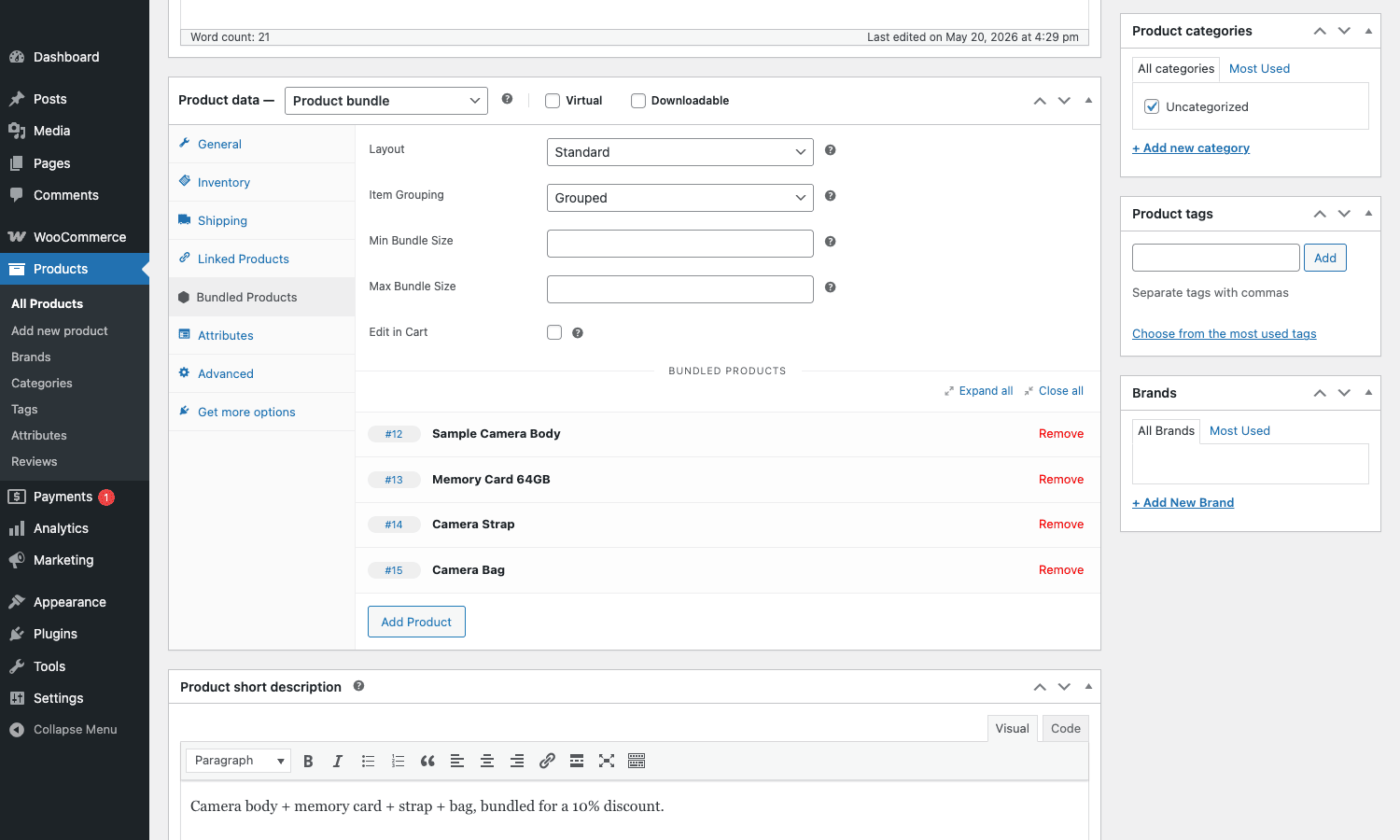
Once you have the children added, expand each one (Expand all) to see its per-item settings. Min/Max Quantity, Default Quantity, Optional, Shipped Individually, Priced Individually all live under each bundled item’s Basic and Advanced Settings panels.
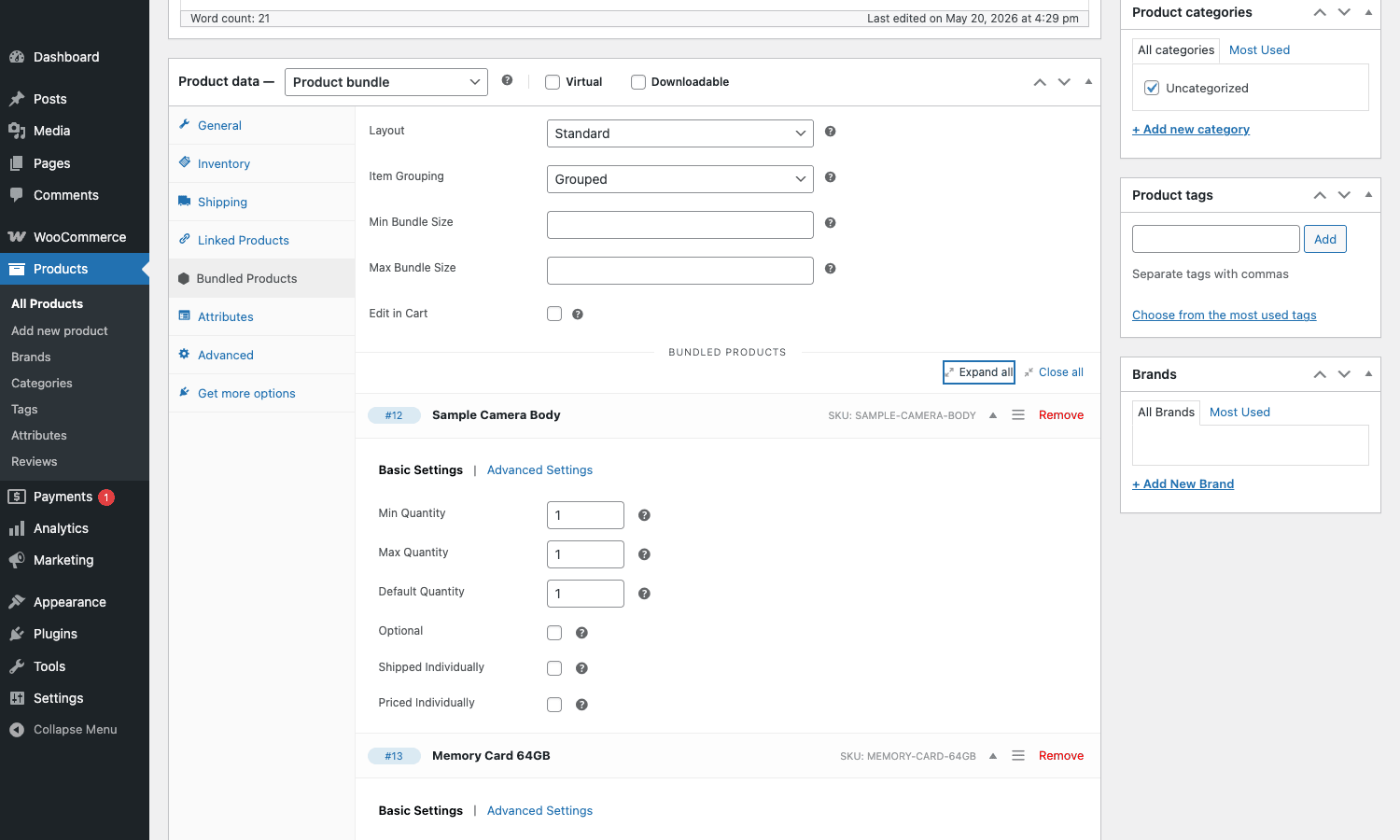
That single screen is where 80% of bundle behavior is configured. Most teams over-think bundles before they touch the plugin and then realize the actual control surface is small and obvious.
Per-item bundle configuration
Each child in a bundle has its own set of switches. Here’s what each one does, in plain terms.
- Default Quantity. The number of this item the bundle starts with when the shopper lands on the page. For required children, set this equal to Min Quantity. For optional children, you can set this to 0 so they don’t auto-add.
- Min Quantity. The minimum a shopper must include. Set to 0 to make the item optional in combination with the Optional checkbox, or to 1 to make it required.
- Max Quantity. The maximum a shopper can include. Set to 1 to lock to a single unit; leave blank to allow unlimited.
- Optional. When checked, the bundle page shows an "Add" checkbox next to the item. The shopper can leave it unchecked and complete the bundle without that child. Without this flag, the child is always included.
- Shipped Individually. When checked, the child ships as its own line item (its own packing slip entry, its own dimensions). When unchecked, the parent bundle ships as one assembled unit and the children disappear from shipping calculations. Important for shipping cost accuracy.
- Priced Individually. Already covered above; controls whether this child’s price is added to the bundle total or absorbed into the bundle’s own regular price.
- Discount %. Only relevant when Priced Individually is on. Subtracts a percentage from the child’s regular price before adding to the bundle total.
- Override Title / Description. Replace the child’s catalog title/description with bundle-specific copy. Useful when the same physical product appears in multiple bundles with different framing ("Strap (Black)" in one kit, "Strap (Pro)" in another).
- Override Stock Status / Visibility. Hide the child completely from the bundle UI (still part of the order behind the scenes) or set it to a fixed stock status independent of the catalog item’s own stock.
The combination of Optional + Min Quantity + Max Quantity is what gives you "Pick 2 of these 5 toppings" patterns. The combination of Priced Individually + Discount % is what gives you bulk discount packs.
Add-to-cart layouts: standard, tabular, grid
The Layout dropdown under the Bundled Products tab has three choices, and each renders the front-end product page differently.
- Standard. The default. Children render as a vertical stack below the bundle’s main info. Each row has the child name, optional thumbnail, optional description, and a quantity input. This is what most shoppers see and what works best for kits with fewer than 6 children.
- Tabular. Children render in an HTML table with Name / Description / Price / Quantity columns. Better for bundles with 6+ children where shoppers benefit from scanning side-by-side. Common on B2B/wholesale stores.
- Grid. Children render as cards in a CSS grid. Each card has the thumbnail, name, price, and an "Add" or quantity input. Best for visual bundles like recipe ingredients or gift basket items.
You can override the layout per bundle, so a small kit can use Standard and a 12-item wholesale pack can use Tabular. Theme developers can override the underlying template (/woocommerce/single-product/bundled-item.php) and any of the layout-specific partials to match a custom design.
How the front end behaves for shoppers
A live bundle page shows the bundle’s main image, title, and description like any other product, then the child configurator below it. Here’s the Photographer Starter Kit we built for the screenshots:
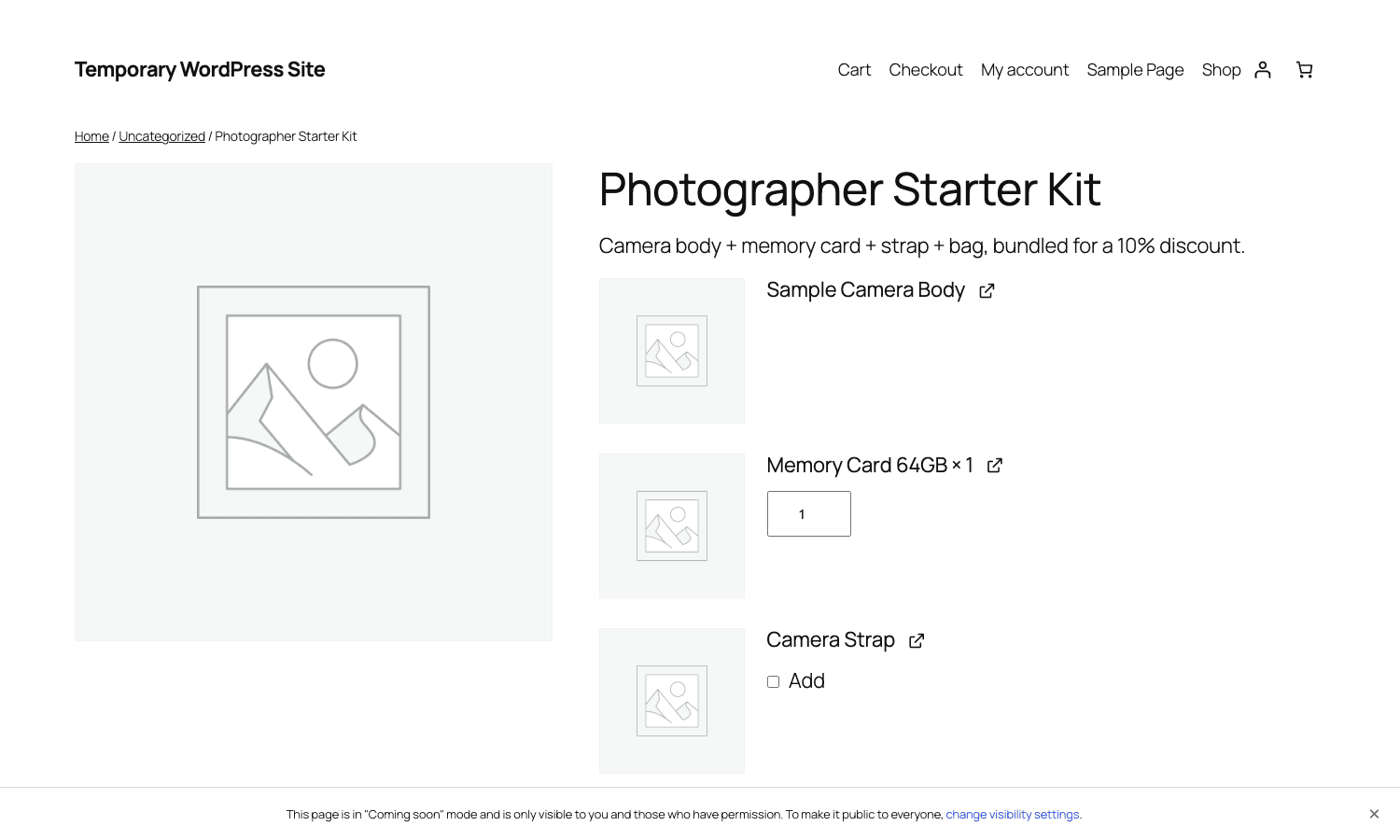
Required children (Min Quantity ≥ 1) show their name and quantity input, but no checkbox. Optional children show an "Add" checkbox; the shopper ticks it to include the item. Variable children show their variation attribute dropdowns inline so the shopper can pick a colour or size before adding the bundle.
The price updates live as the shopper toggles optional children or changes variation attributes. The Add to Cart button stays disabled until the bundle satisfies its rules (min bundle size, all required attributes selected for variable children, etc). When the bundle is valid, clicking Add to Cart adds the bundle as a single line item in the cart with all children listed underneath the parent.
The plugin handles edge cases well: out-of-stock children show as unavailable inside the bundle without breaking the bundle itself; insufficient stock for one child caps that child’s quantity input instead of blocking the entire bundle; variable children that don’t match a valid combination get flagged before the bundle can be added.
Cart and order behavior
In the cart, a bundle renders as a parent row with each child indented underneath. The parent shows the bundle’s title and the rolled-up price. Children show their name, the configured quantity, and (if Priced Individually) their per-line price.
By default, bundles are not editable in the cart, which means the shopper has to remove the whole bundle and re-add it to change anything. This is the right default for most stores. If you want shoppers to be able to change quantities or swap variations from the cart itself, tick Edit in Cart in the Bundled Products tab. That switches the cart rendering to include the original configurator inline, with an Update button.
Orders work the same way. The order edit screen in WP admin shows the parent line and indented children. WooCommerce emails (order confirmation, completed order) render the bundle as one block. WooCommerce PDF Invoices and most third-party packing-slip plugins respect the bundle structure too.
You can find the bundle metadata on each order item via wc_pb_is_bundle_container_order_item() and wc_pb_is_bundled_order_item(). If you’re integrating with an ERP or fulfillment service, these helpers are what you use to map the bundle structure into your downstream system.
Bundle stock: rolled-up inventory
One of the better-designed parts of the plugin is how it handles stock. Bundles don’t have their own stock; they inherit it from their children. The plugin computes a rolled-up stock quantity per bundle by walking each child, multiplying by the per-bundle quantity, and taking the minimum.
For a Photographer Starter Kit with 1× Camera Body, 1× Memory Card, 1× Strap, 0-1× Bag:
- If you have 50 camera bodies, 200 memory cards, 100 straps, and 30 bags, the bundle’s available stock is min(50, 200, 100) = 50, because the bag is optional and doesn’t constrain the bundle.
- If you set Memory Card’s quantity to 2 per bundle, the bundle’s available stock is min(50, 100, 100) = 50 (limited by camera body / strap; memory card supports 100 bundles at 2× = 200 cards used).
- When a shopper buys 5 bundles, the plugin decrements 5 from camera body, 10 from memory card, 5 from strap. The bundle product itself doesn’t track its own stock count.
You can see this rolled-up stock on the Inventory tab of the bundle product. The plugin recalculates it on a background queue when child stock changes; large stores with hundreds of bundles can configure the queue interval to avoid excess re-calc on stock updates.
If a child runs out, the bundle’s available stock drops to 0 (or to the next constraint). The plugin can be configured to hide the bundle from the shop or to show it as out of stock; that’s a per-bundle Inventory tab setting.
Real-world use cases
A few patterns Product Bundles is uniquely good at:
-
"Buy this kit" packages. A camera body + memory card + strap + bag bundled with a small kit discount, sold as a single SKU. Standard layout, all children required, static or percentage-discount pricing. This is the canonical use case and what most photography stores, electronics resellers, and outdoors brands set up.
-
"Build your own X" configurators. A salad page with required base (lettuce) + 1-3 optional toppings (cheese, croutons, olives) + 1 required dressing. Each child has Min/Max set to enforce the choose-N rules. Priced individually so the total updates live.
-
Bulk discount packs. A 6-pack of beer, a 12-pack of coffee bags, a wholesale 10-pack of cosmetics. One child product, set to Quantity 6 / 12 / 10, with a Discount % applied. The bundle SKU is your wholesale SKU; the child SKU is the retail one. Inventory stays attributed to the child.
-
Assembled products. A custom PC build, a piece of furniture that ships as one box but is internally a parent + N components. Children flagged as not Shipped Individually so the bundle ships as one parcel. Useful for ERP integrations that need to know which components are inside.
-
Subscription bundles. When combined with WooCommerce Subscriptions, you can sell a bundle that contains subscription products. The bundle becomes a subscription product itself, with the children billed as part of the recurring charge. Common pattern for coffee subscriptions ("a bag a month, choose from these 5 roasts") or meal kits.
-
Gift baskets and configurable hampers. Especially good with the Grid layout. The shopper sees a tile for each available item, ticks the ones they want, and lands at a single configured price.
Each pattern uses the same per-item flags in a slightly different combination. Once you internalize Min/Max + Optional + Priced Individually + Discount %, you can express almost every "bundle of X" UX requirement without writing code.
Developer reference: hooks and filters
Product Bundles has a deep hook surface, far more action and filter hooks than the average WooCommerce extension. Most of them sit under one of three namespaces: woocommerce_bundle_* (parent-level), woocommerce_bundled_item_* (child-level), and wc_pb_* (plugin-wide). Here are the ones developers actually reach for.
Filtering the bundle price
To override how a bundle’s price is rendered on the product page or in the cart, use woocommerce_bundle_empty_price_html (when no children are selected) or woocommerce_get_price_html on the bundle product. For per-child price changes, use woocommerce_bundled_item_price_html.
add_filter( 'woocommerce_bundle_empty_price_html', function( $price, $bundle ) {
 return '<span class="bundle-empty-price">Configure your kit to see price</span>';
}, 10, 2 );
Auto-adding a child item
If you want a child item added to the bundle programmatically (for example, a free gift when a bundle qualifies for a promotion), the woocommerce_auto_add_bundled_items filter lets you return an array of child IDs to auto-attach to a bundle’s cart line.
add_filter( 'woocommerce_auto_add_bundled_items', function( $items, $bundle, $cart_item_data ) {
 if ( $bundle->get_id() === 16 && WC()->cart->get_cart_contents_total() > 1000 ) {
 $items[] = array( 'product_id' => 99, 'quantity' => 1 );
 }
 return $items;
}, 10, 3 );
Pre-validation hook
woocommerce_bundle_before_validation fires before the plugin validates a bundle add-to-cart submission. Use it to inject custom validation rules, like "no more than 3 of these mutually-exclusive children".
add_action( 'woocommerce_bundle_before_validation', function( $bundle, $stamp ) {
 $premium_count = 0;
 foreach ( $stamp as $bundled_item_id => $config ) {
 $item = $bundle->get_bundled_item( $bundled_item_id );
 if ( has_term( 'premium', 'product_cat', $item->item_data['product_id'] ) ) {
 $premium_count += intval( $config['quantity'] );
 }
 }
 if ( $premium_count > 3 ) {
 wc_add_notice( 'You can pick at most 3 premium items in this bundle.', 'error' );
 }
}, 10, 2 );
Customizing bundled item rendering
woocommerce_bundled_item_details fires inside the loop that renders each child on the bundle product page. Hook in to add custom badges, swatches, or descriptions.
add_action( 'woocommerce_bundled_item_details', function( $bundled_item, $bundle ) {
 if ( $bundled_item->is_priced_individually() && $bundled_item->get_discount() ) {
 echo '<span class="bundle-savings-badge">Save ' . esc_html( $bundled_item->get_discount() ) . '%</span>';
 }
}, 20, 2 );
Toggling bundle stock recalc
wc_pb_async_stock_sync (boolean filter) controls whether stock rolls up in the background or synchronously on save. Turn it off for stores with few bundles where instant accuracy matters more than save-time performance.
add_filter( 'wc_pb_async_stock_sync', '__return_false' );
Cart permalink for shareable configurations
woocommerce_bundle_cart_permalink_args lets you customize the URL parameters used when generating shareable cart URLs for a pre-configured bundle. Combine with the URL-to-cart pattern and you can let influencers share a pre-built bundle link.
add_filter( 'woocommerce_bundle_cart_permalink_args', function( $args, $bundle ) {
 $args['ref'] = isset( $_GET['ref'] ) ? sanitize_text_field( $_GET['ref'] ) : '';
 return $args;
}, 10, 2 );
There are dozens more, every aspect of price formatting, cart rendering, order export, and admin UI has a filter. The full list is in the plugin’s class-wc-bundled-item.php and class-wc-pb-cart.php. If you have a question of the form "can I change behaviour X when a bundle does Y", the answer is almost always yes via a filter.
REST API extensions
The plugin extends the WooCommerce REST API in two ways.
First, it adds custom fields to the standard wc/v3/products/<id> endpoint when the product is a bundle. The new fields are:
bundle_layout(get/update),standard,tabular, orgridbundle_add_to_cart_form_location(get/update),default,before_tabs,after_summarybundle_editable_in_cart(get/update), booleanbundle_item_grouping(get/update),parent,grouped,noindentbundle_min_size/bundle_max_size(get/update), integersbundle_price(get), the computed bundle price as a stringbundle_stock_status/bundle_stock_quantity(get), rolled-up inventorybundle_virtual/bundle_sold_individually_context(get/update), flagsbundled_by(get), array of parent bundle IDs containing this productbundled_items(get/update), the full array of child configurations
The bundled_items array is the important one. Each child is represented as an object with bundled_item_id, product_id, menu_order, and a settings array containing every per-item flag (quantity_min, quantity_max, quantity_default, optional, shipped_individually, priced_individually, discount, etc.).
curl -X POST https://example.com/wp-json/wc/v3/products
 -u ck_xxx:cs_xxx
 -H "Content-Type: application/json"
 -d '{
 "name": "Photographer Starter Kit",
 "type": "bundle",
 "sku": "starter-kit",
 "bundled_items": [
 {"product_id": 12, "quantity_default": 1, "quantity_min": 1, "quantity_max": 1, "discount": "10"},
 {"product_id": 13, "quantity_default": 1, "quantity_min": 1, "quantity_max": 2, "discount": "5"},
 {"product_id": 14, "quantity_default": 1, "quantity_min": 0, "quantity_max": 1, "optional": true},
 {"product_id": 15, "quantity_default": 0, "quantity_min": 0, "quantity_max": 1, "optional": true}
 ]
 }'
This is exactly the call I made via the browser to seed the demo bundle for the screenshots in this article.
Second, the order line item endpoints expose bundle metadata so you can identify which line is a bundle parent and which lines are bundled children. Look for the _bundled_items key on the parent and _bundle_cart_key on each child in the line item meta.
WP-CLI commands
The plugin registers a wp wc bundle subcommand group via class-wc-pb-cli.php. The two most useful commands:
# Rebuild the rolled-up stock for every bundle in the catalog.
wp wc bundle sync_stock --user=1

# Check whether the plugin's DB sync task queue is in a good state.
wp wc bundle task_status --user=1
You typically run these after a bulk migration (importing a CSV of bundles from another store) or after a database restore where the bundled_items table can fall out of sync with the parent products. Run wp wc bundle sync_stock first; it walks every bundle and recomputes stock from current child levels.
Bundle Sells: a separate upsell feature
The plugin includes a related but distinct feature called Bundle Sells. It’s not the same thing as a bundle, and it’s worth being clear about the difference so it doesn’t confuse you.
A bundle is a parent product that contains children. A bundle-sell is a small "buy together" offer that appears on a regular non-bundle product page suggesting related products at a discount. It renders as a section on the product page with each related product listed, a percentage discount applied, and an "Add to Cart" button that adds all the suggested items at once.
You configure Bundle Sells on the Linked Products tab of any product (not just bundles). Add the IDs of related products and set a per-sell discount %. The plugin renders a "Frequently Bought Together"-style section underneath the main product info.
Use Bundle Sells when:
- You don’t want to commit to a single SKU for the combo but want to encourage the multi-buy.
- The combination changes seasonally and you want flexibility per child product.
- You want classic Amazon-style "Frequently Bought Together" UX without a dedicated bundle product.
Use Bundles when:
- You want a dedicated landing page for the kit.
- You want one SKU on the order.
- You need the rolled-up stock calculation.
- You need configurable child quantities, optional children, or variable children.
Most stores use both: Bundles for the headline kits, Bundle Sells for opportunistic cross-promotions on regular products.
Analytics: the Bundles report
The plugin adds a Bundles report under Analytics -> Bundles in the WooCommerce admin. It mirrors the standard Products report but with bundle-aware metrics: bundles sold, bundled items sold, net sales attributable to bundles, and per-bundle drilldown.
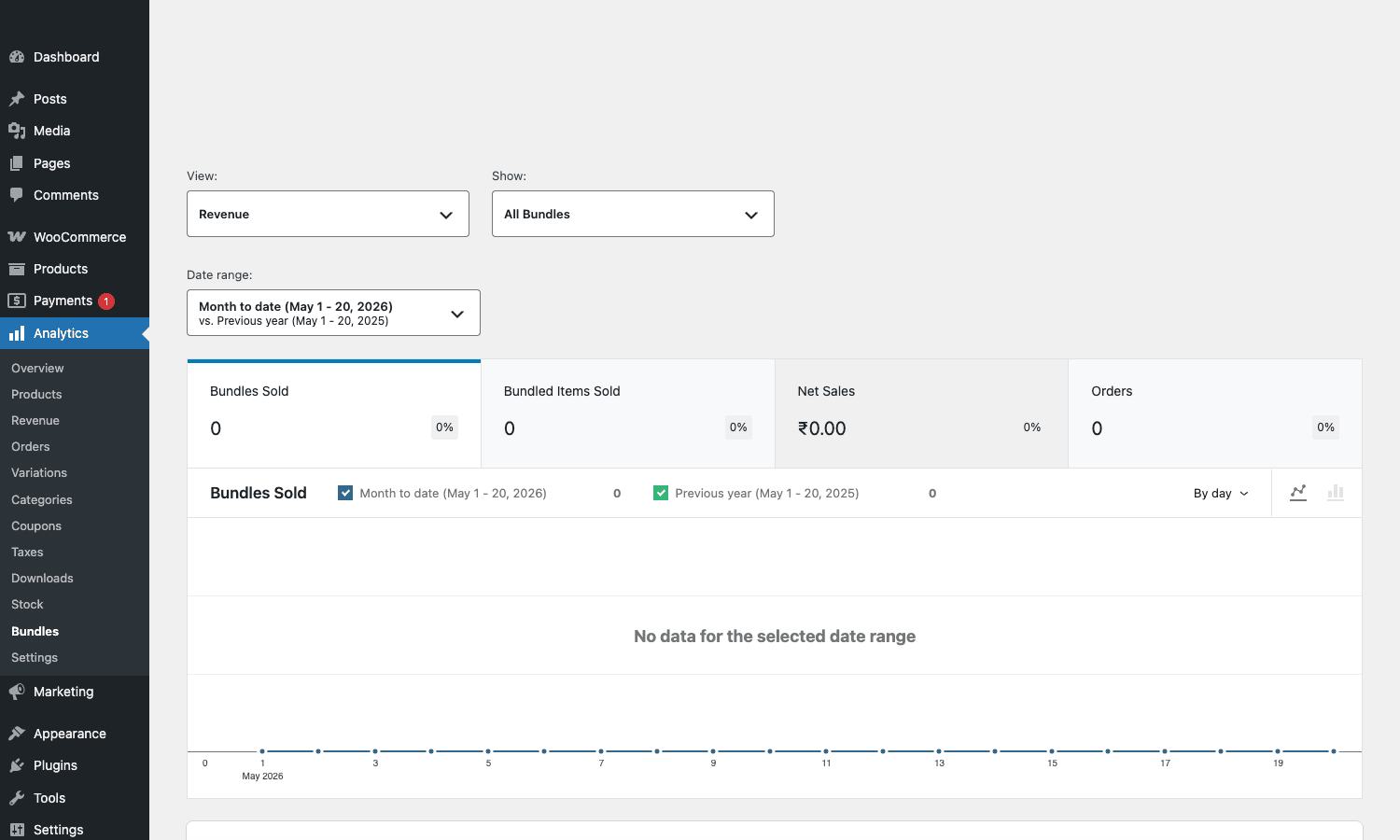
The key distinction in this report is that "Bundled Items Sold" is not the same as "Bundles Sold". A bundle containing 3 children, sold 10 times, gives you 10 Bundles Sold and 30 Bundled Items Sold. Track both numbers if you want to understand the average kit size shoppers are buying.
The report also has a Stock view (under Show) that surfaces bundles low on rolled-up inventory before the children themselves hit reorder thresholds. Useful for catching kit-availability issues earlier than the standard low-stock report would.
If you use the WooCommerce admin sidebar, the products list also surfaces bundles alongside other product types so you can scan stock and prices across the catalog:
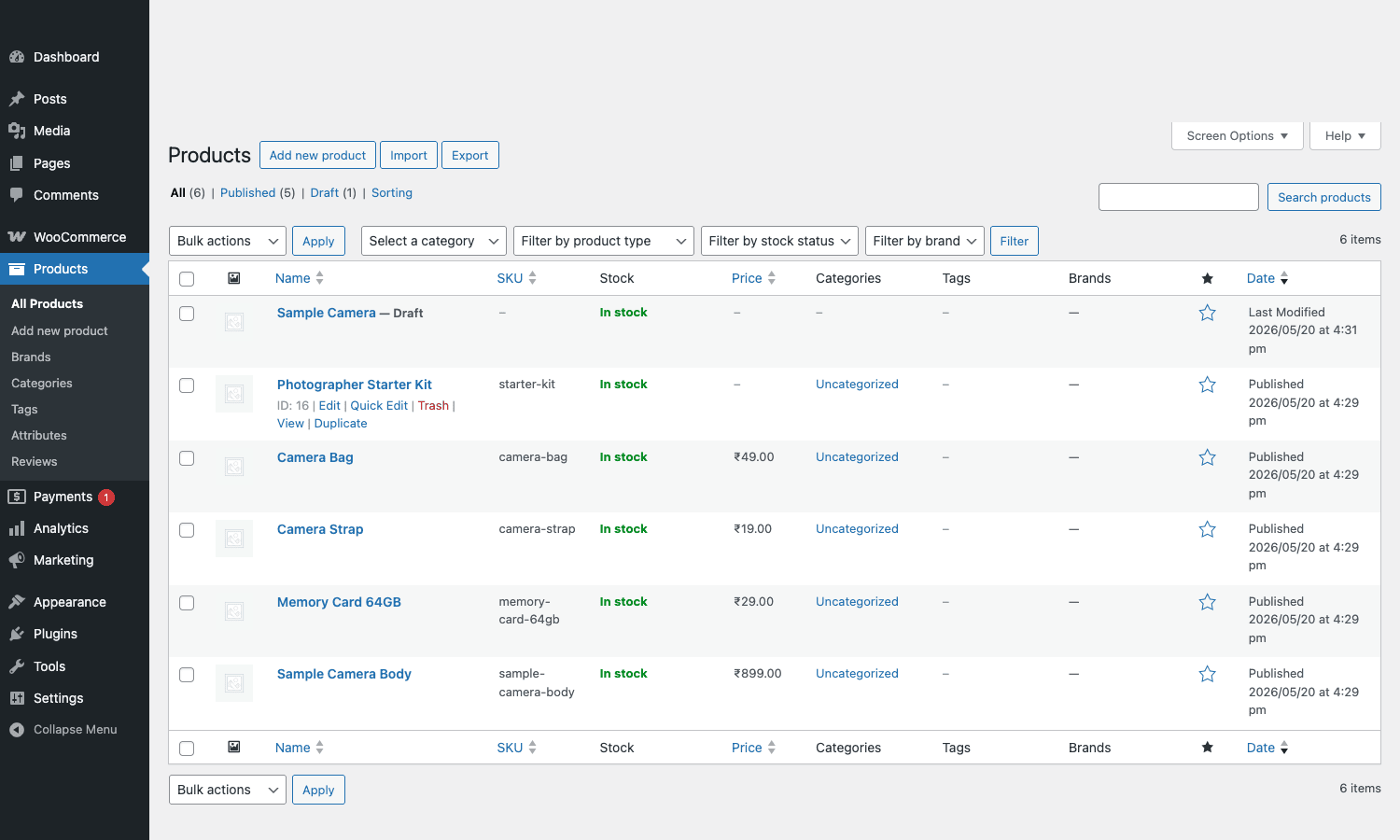
You can filter by product type if Bundles are noisy in the list, but most stores find it convenient that bundles and simple products coexist in one screen.
Compatibility and gotchas
A few things to know before you build production bundles.
- Cart and Checkout blocks. Modern WooCommerce stores use the Cart and Checkout blocks instead of the legacy shortcodes. Product Bundles supports both, with full bundle rendering in the block-based cart. If you’re on a fresh install, you’re fine. If you migrated from shortcodes, swap to blocks early so the bundle UI matches your visual design system.
- Variable children. Bundles work with variable products. The shopper picks an attribute (size, colour) inside the bundle configurator. If you set Min Quantity > 0 on a variable child, the shopper has to select a valid variation before adding the bundle.
- WooCommerce Subscriptions. Bundles + Subscriptions = a "subscription bundle" product type. The bundle becomes a recurring product; all children are billed together. There are edge cases around per-child renewal cycles (you can’t have one child renew monthly and another annually within the same bundle), so check the Subscriptions documentation when designing the catalog.
- Coupons. Bundles work with coupons but the math can be surprising. A 10% coupon on a bundle applies to the bundle total, not to each child. If you also have a per-child Discount %, the coupon stacks on top. Test coupon scenarios in staging before launch.
- Min Bundle Size enforcement. "Min Bundle Size" at the bundle level is separate from per-child Min Quantity. Min Bundle Size counts the total number of items across all children. If you want "shopper must pick at least 3 items out of these 8 toppings", Min Bundle Size is what you set. If you want "always include 1 of this specific child", that’s per-child Min Quantity.
- Optional vs Min Quantity 0. These look similar but behave differently. Optional adds an explicit "Add" checkbox the shopper has to tick. Min Quantity 0 just lets the default quantity drop to zero without showing a checkbox. Pick Optional for clearer UX.
- Stock notification edge cases. When a bundle is out of stock because one constrained child ran out, the plugin’s low-stock notification fires for the child but not for the bundle. If you want to surface the bundle going out of stock to merchandising, hook
woocommerce_bundle_stock_quantity_changedand send a custom alert. - Imports and exports. Bundles export to the WooCommerce CSV but the bundled_items column is JSON-encoded. CSV imports of bundles work but you have to format the column carefully. For bulk migrations, use the REST API instead, much less brittle than CSV.
- Performance with very large bundles. If you have 50+ children in a single bundle, the bundle page can take ≥1s extra to render because each child runs its own price query. Either denormalize with caching, or break the bundle into smaller bundles, or contact WooCommerce support, there are known optimizations for high-child bundles that they can enable per store.
- Cart drawer / mini cart compatibility. Theme mini-cart implementations vary. Test the cart drawer with a bundle inside before launch; some themes don’t render the indented children correctly. If you see issues, override the
cart/mini-cart.phptemplate to include the bundle children block.
None of these are blockers. They’re the kind of things you find out the first time you ship a bundle, and they’re all fixable in code or with config. Knowing them upfront saves you the post-launch fire drill.
Pricing and licensing
WooCommerce sells Product Bundles directly on woocommerce.com. It’s $99/year for one site, $149/year for five sites. Renewal pricing is the same as initial. The license entitles you to plugin updates and Automattic’s official support for the duration of the term.
The plugin is GPL-licensed, which means once you have a copy, you can install it on any number of sites without legal risk. What you don’t get from a non-official source is the official update channel and direct vendor support.
For an in-house WooCommerce store, the official license is the safer choice. For agencies running many client stores or for development/staging environments where the cost adds up fast, the GPL Times license model makes sense.
FAQ
Is Product Bundles the same as WooCommerce Composite Products?
No. Composite Products is a related but separate extension by Automattic for more complex configurators (think "build your own PC" with required slots that the shopper has to fill from a curated component list). Bundles is for kits and packs; Composite is for component-style products. The two extensions can coexist; some stores use Composite at the configurator level and Bundles at the kit level.
Can a bundle contain a bundle?
Not directly. A child of a bundle must be a simple, variable, or subscription product. If you need nested bundles, you typically duplicate the inner bundle’s children at the outer level. Composite Products handles nesting more cleanly if you genuinely need it.
Does Product Bundles work with variable products?
Yes. Variable products can be children. The shopper picks the variation inside the bundle. Min/Max quantity, optional, and pricing flags all work on variable children. The bundle reads stock from the selected variation.
How does shipping work for bundles?
Each child can be flagged Shipped Individually (default off). If unchecked, the bundle is treated as one shipping line item using the bundle’s own dimensions/weight (which you set in the General tab). If checked per child, the children ship separately with their own shipping calculations. Most kits use one or the other consistently, mixing on the same bundle gets confusing for shoppers and packers.
Can I sell digital or downloadable bundles?
Yes. Set the bundle as Virtual/Downloadable like any other product. Children that are Downloadable will surface their download links to the customer after purchase. Useful for "bundle of three ebooks" or "course kit with PDFs and video".
Will Product Bundles slow down my store?
For a typical bundle (3-6 children), the impact is negligible. For very large bundles (20+ children) or stores with hundreds of bundles, the rolled-up stock calculation and the bundle product page rendering can add noticeable load. The plugin’s async stock sync mostly mitigates this. Pair Bundles with a serious caching plugin like WP Rocket and the front-end stays fast.
Does Bundles work with the Cart and Checkout blocks?
Yes, fully. Bundles render correctly in the block-based cart with each child indented under the parent. The Store API exposes bundle structure for headless and PWA implementations.
Can I migrate from another bundle plugin?
Yes. The REST API and CSV import accept bundle data. The pragmatic path is to write a small migration script that reads bundles from the old plugin and POSTs them to the WC REST API with the right bundled_items array. We do this routinely for client migrations and it takes a few hours of scripting per store.
Final thoughts
Product Bundles is the kind of WooCommerce extension that doesn’t get talked about much because it’s so reliable. Most "build your own X" pages, kit SKUs, and bulk-discount packages on WooCommerce stores run on this plugin, and they keep running for years without intervention.
The configuration model is dense, Min Quantity, Max Quantity, Default Quantity, Optional, Shipped Individually, Priced Individually, Discount %, plus the parent-level layout, item grouping, min/max bundle size, and edit-in-cart, but once you map the flags to the patterns ("kits = required + static", "salads = optional + min/max", "wholesale = priced individually + discount"), the plugin disappears into the store and you stop thinking about it.
The hook surface is what makes Product Bundles a dev favourite. Every render decision, every price calculation, every cart behaviour has a filter behind it. If your kit needs to behave slightly differently from the plugin’s defaults, the answer is almost certainly a 5-line filter, not a fork.
If you’re running a WooCommerce store and you have anything that resembles "buy these together" or "build your own X" in your roadmap, Product Bundles is the default answer.