

I’ve sold variable products on three WooCommerce stores in the last two years. A small apparel shop where customers needed to see the actual color chips, not the words "Crimson / Forest / Slate" in a dropdown. A furniture store where each fabric swatch had to be a real photo, because nobody knows what "linen-cream" looks like until they see it. And an eyewear retailer where the frame finish had to be a tiny product photo, because describing the difference between "matte gunmetal" and "polished gunmetal" in dropdown text is a losing game.
On all three sites I shipped variation swatches. On all three I picked a different plugin. This is the story of how I landed on Variation Swatches and Photos for the third one, and what surprised me along the way.
Table of Contents
- What this plugin actually is
- Why default WooCommerce dropdowns lose sales on variable products
- What’s in the box
- Installing and turning it on
- The "set once" attribute config: where you actually configure your color palette
- Per-product overrides: the Swatches tab
- Color swatches vs image swatches vs label buttons: which one for which product
- Setting up an apparel store with four colors and three sizes: end to end
- Variation Swatches and Photos vs the free Variation Swatches by Emran Ahmed vs YITH: when each one wins
- Block themes and variation swatches: what changes and what breaks
- Don’t ship twelve color swatches in a single row
- Developer reference: hooks, filters, and the data model
- What this plugin doesn’t do
- Performance, compatibility, and gotchas
- Pricing and licensing
- FAQ
- Final thoughts
What this plugin actually is
WooCommerce Variation Swatches and Photos is a WooCommerce.com marketplace extension built by Element Stark. It does one job and does it without ceremony: when a customer lands on a variable product page, instead of seeing the default Choose an option dropdown for each attribute, they see a row of color chips, image thumbnails, or radio buttons. Pick a combination, the price updates, the variation locks in, the customer adds to cart.
That’s the entire feature.
Around that one feature the plugin has accumulated a surprising amount of plumbing. Per-product overrides. Three swatch types (color, image, radio). Custom label layouts. Hooks for developers. WPML config. Compatibility shims for High-Performance Order Storage and the WooCommerce cart and checkout blocks. The footprint is small (the whole plugin is well under 100 KB on disk) and the surface area is narrow, but the small things it gets right are the things you’d quietly curse another plugin for getting wrong.
If you want to try this on a sandbox, the WooCommerce Variation Swatches and Photos download from the GPL Times store is the full extension, same zip that ships on WooCommerce.com, GPL-licensed. Drop it on a WordPress site that already has WooCommerce active and you’re a minute away from your first color swatch.
Why default WooCommerce dropdowns lose sales on variable products
Skip this section if you’ve already shipped a WooCommerce variation swatch setup. If you haven’t, here’s the short version, because the whole point of this plugin only clicks once you understand the problem.
Out of the box, WooCommerce renders every variation attribute on a variable product as a native HTML <select> dropdown. For a t-shirt with Color and Size attributes, the customer sees two dropdowns each labeled "Choose an option." They click the Color dropdown, get a menu of text labels (Cream, Crimson, Forest, Slate), pick one. Click Size, get another menu, pick one. Then the price updates and Add to Cart becomes clickable.
Four extra clicks for a two-attribute product. That’s the baseline.
Now consider what the dropdown is doing to the customer’s brain. "Forest." Is that bright green? Hunter green? Olive? Pine? They don’t know. They click the dropdown, pick something, see a price, and either commit or back out. A study on apparel buying behavior I read years ago pegged the abandonment rate at roughly one in three for customers who couldn’t see the actual color. I don’t have a citation handy and I’m sure the number wobbles, but anyone who’s run an apparel store will recognize the shape: text-only color selection bleeds conversions.
Swatches fix this. The customer sees an actual crimson square, sees that "Forest" is a particular deep green, picks the one they want, and the rest of the funnel goes faster.
Two clicks instead of four. Visual recognition instead of guessing. That’s the conversion math.
What’s in the box
Rather than list the marketing bullets, here’s what actually changes when you turn this plugin on.
- Per-attribute swatch type. Each variation attribute on a product can render as a color row, an image row, a row of radio buttons, or the default WC dropdown. You pick this independently per attribute, so Color can be swatches while Size is radios, on the same product.
- Global swatch palette. Set the hex color (or photo) for each term once, under Products → Attributes → Color → Terms, and every product using the Color attribute picks up the same swatches automatically. You don’t reconfigure swatches per product.
- Per-product override. If a specific product needs different colors than the global palette (a limited-edition run, a single-product brand collab), the Swatches tab inside the product editor lets you set custom colors or images that override the global terms.
- Three swatch types. Color swatch (CSS background-color), Image swatch (uploaded thumbnail), Radio buttons. The plugin’s source code calls these
color,image, andradiointernally and that vocabulary leaks into the admin UI sometimes. - Label layouts. None / Label above / Label below. For accessibility (and for designs where the color name matters), you can choose to show the term name above or below the chip.
- Custom image size for swatches. Defaults to 32×32 pixels with hard crop. You can change it globally under WooCommerce → Settings → Products. Bumping it to 48 or 64 helps for image swatches (linen vs denim vs velvet textures need to be readable).
- AJAX variation lookup. When the customer clicks a swatch, the plugin fires an AJAX request to
wp_ajax_get_product_variationsand the matching variation locks in without a full page reload. - HPOS and Cart/Checkout Blocks compatibility flags. The plugin declares itself compatible with WooCommerce’s High-Performance Order Storage and the new block-based cart and checkout pages. In practice the swatches live on the product page, so the compatibility declaration mostly means "we don’t fight HPOS, we don’t trigger the incompatibility notice."
- Variable subscriptions support. The plugin’s product type whitelist includes
variable-subscription, so if you’re selling WooCommerce Subscriptions with variations (a clothing-box subscription, a recurring coffee order in different roasts), swatches render on those products too. - Twelve developer filters and six developer actions. Enough to swap the rendered HTML, override the CSS classes on a swatch chip, replace swatch images on the fly, or hide invisible variations. Full list is below in the developer section.
The thing that’s NOT in the box, but you might expect: there are no Gutenberg blocks, no REST endpoints, no shortcodes, no CLI commands. The plugin is a pure WC template override. That’s deliberate. Less surface area means less to break when WC updates.
Installing and turning it on
Setup is two minutes if you already have WooCommerce running.
- Install the plugin from a zip: WordPress admin → Plugins → Add New → Upload Plugin → pick the
woocommerce-variation-swatches-and-photos.zipfile → Install Now → Activate. - There’s no setup wizard. Nothing to configure on activation. The plugin starts overriding the WC dropdown template the second it’s active.
- Go to Products → Attributes. You’ll see your existing variation attributes (Color, Size, Material, whatever). The plugin adds a "Swatch Type" select to the "Add new" form on the term page for each attribute.
- Open the term list for one attribute (e.g. click "Configure terms" next to Color). For each term, pick Color Swatch or Image and provide the hex or upload an image. Save.
- On any variable product that uses that attribute, open the Swatches tab in the Product data box. Set the attribute type to "Taxonomy Colors and Images" so the product picks up the global config you just set.
That’s it. View the product on the front end and you should see real swatches where the dropdowns used to be.
A common rookie miss: if you forget step 5 (configuring the per-product Swatches tab), the global terms have swatches but the product still renders a dropdown. The plugin defaults each attribute to "None" on every product, meaning "use the WC dropdown." This is intentional. Some store owners want one product to keep dropdowns even when the attribute has swatches set globally (think: an internal "color code" attribute used for backend filtering only). But it trips up first-timers.
The "set once" attribute config: where you actually configure your color palette
This is the part of the plugin I like the most, and it’s also the part that’s easiest to miss if you only ever look at the per-product editor.
The Color attribute lives at Products → Attributes → Color → Configure terms. Open it and you get the standard WC term list with one extra column: a thumbnail showing the swatch chip. Add a new term and the form has two extra fields the plugin slots in: Swatch Type (None / Color Swatch / Image) and either a Color hex field or a Thumbnail uploader, depending on which type you picked.
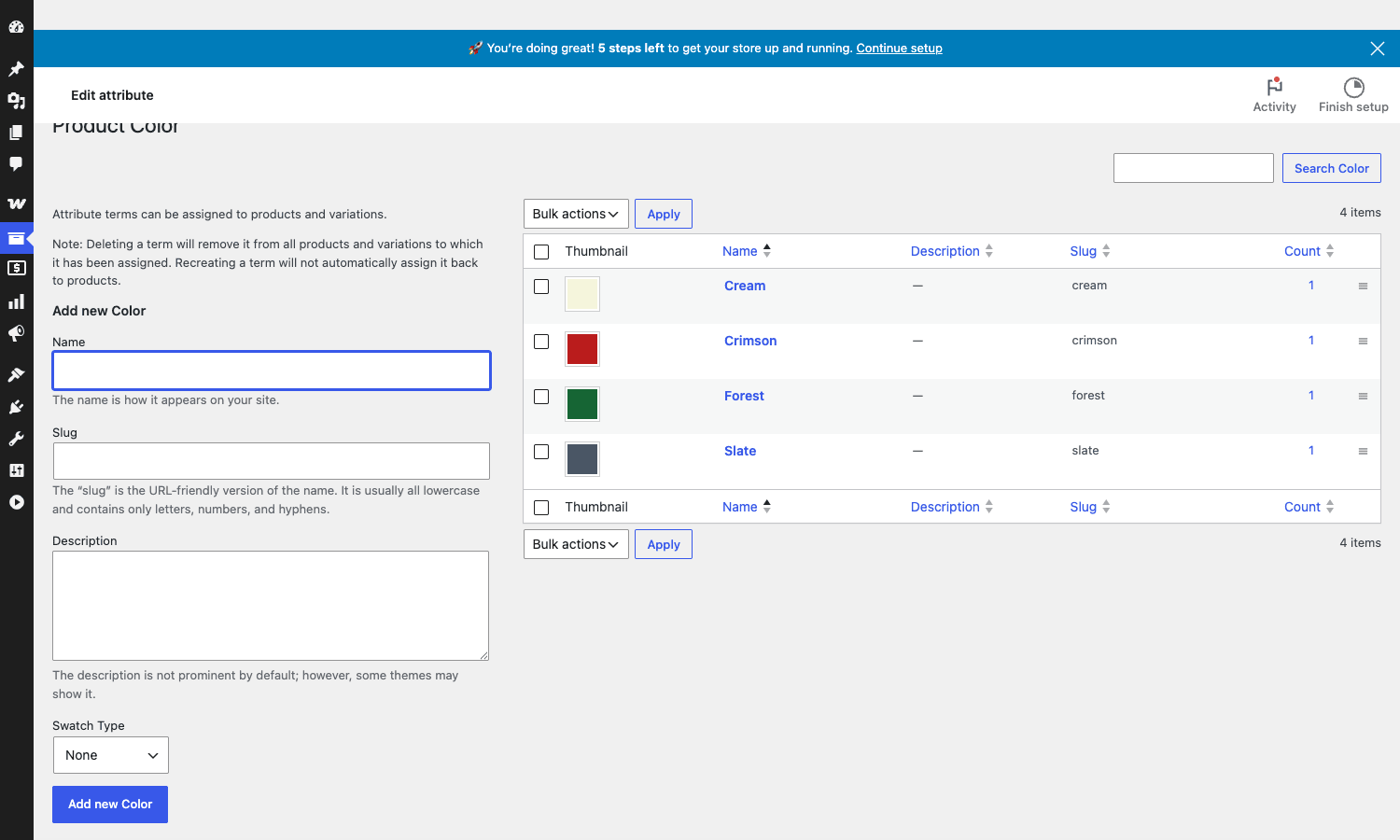
I’ll spell out what’s nice about this. The hex code lives on the term, not on the product. So if your store sells 20 different t-shirt designs and they all share the same Color attribute terms (Cream, Crimson, Forest, Slate), you set the hex codes once on the Color attribute terms. Every t-shirt picks them up automatically.
Compare that to the per-product approach some other swatch plugins take, where each product editor has its own "configure colors for this product" panel. With 20 t-shirts and 4 colors, you’d configure 80 color pickers. With Variation Swatches and Photos you configure 4.
When you edit a term, you see the same form full-screen with the picker chip and the hex field side by side.
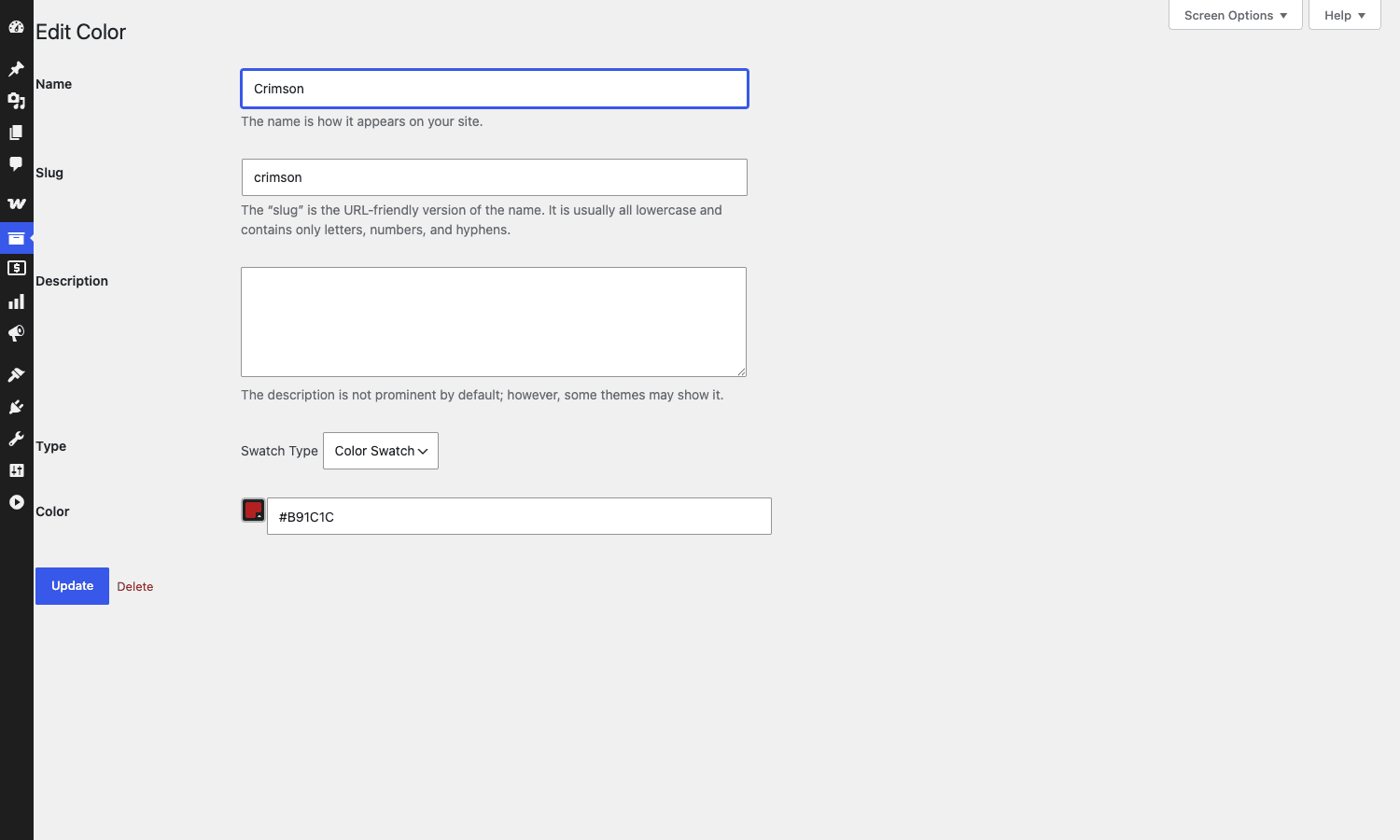
Behind the scenes, this writes three rows of term meta:
pa_color_swatches_id_type=colororphotopa_color_swatches_id_color= the hex string (for color swatches)pa_color_swatches_id_photo= the attachment ID (for image swatches)
If you ever need to migrate swatch palettes between sites, those three meta keys are what you’re moving. There’s no separate wp_swatches table to back up. It’s all standard term meta, which means the data survives WooCommerce core updates, custom-export tools, and any "I’ll just dump termmeta as a CSV" emergency you find yourself in at 2 AM.
Per-product overrides: the Swatches tab
When a product is set to "Variable" in the product type dropdown, the plugin adds a Swatches tab to the Product Data box, sitting between Variations and Advanced. Open it and you’ll see a row per variation attribute the product uses, each with a Type select.
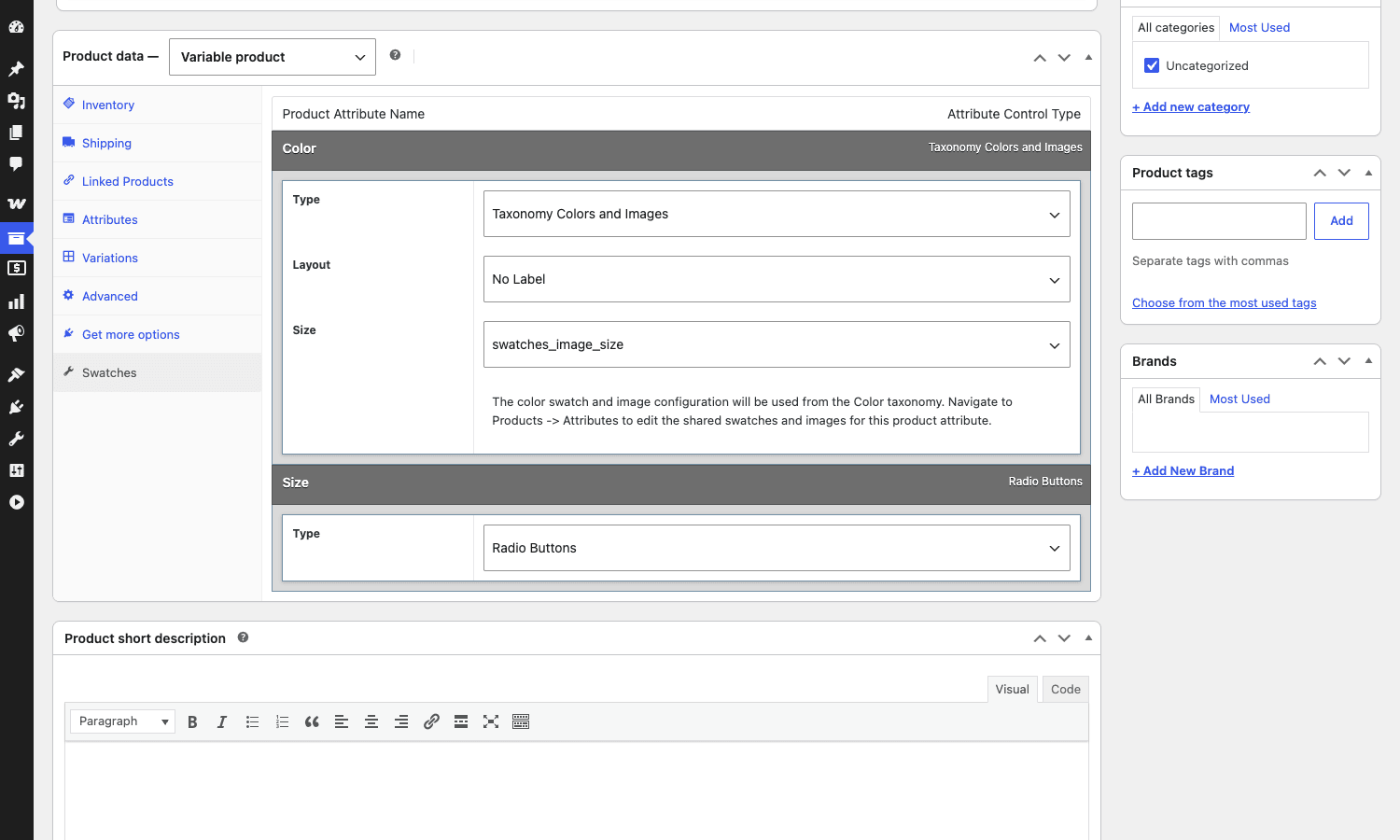
Four type options:
- None. Render the default WC dropdown. The plugin gets out of the way for this attribute on this product.
- Taxonomy Colors and Images. Use the global term-level swatches you set under Products → Attributes. This is the right choice 90 percent of the time.
- Custom Colors and Images. Override the global swatches with per-product values. Useful for a one-off product that needs unique colors (think a brand collab t-shirt where "Crimson" should actually be a slightly different shade than your usual store crimson).
- Radio Buttons. Replace the dropdown with radio buttons. No swatches, just nicer radios. Good for Size (Small / Medium / Large) where there’s nothing visual to show.
You can mix these freely on a single product. Color as Taxonomy Colors and Images, Size as Radio Buttons, Material as None, and they coexist on the same product page. This per-attribute granularity is the feature most users underrate until they need it.
The Layout select underneath each attribute (No Label / Label above / Label below) is small but mattered to me. Default is "No Label" which renders just the swatch chips. That looks great for visual color recognition but it kills accessibility, because the only label for "Crimson" is the chip’s title attribute (which a screen reader picks up, but a sighted user with low color vision might miss entirely). For accessibility-sensitive stores, switch this to "Label below" so the term name shows under each chip.
The "Custom Colors and Images" type opens a sub-panel where you set per-term color or per-term image for just this product. The UI is a bit dated (it uses an older custom color picker, not the WP core wp-color-picker), but it does work. If your global Crimson is #B91C1C and this one specific product needs #9D1717, set it here without touching the global term.
Color swatches vs image swatches vs label buttons: which one for which product
The plugin gives you three swatch types, but it doesn’t tell you which one to use where. Here’s the rule of thumb I use after running a few stores.
Color swatch (the CSS-color chip). Use for any attribute where the term is genuinely a color name and that color can be expressed as one solid hex. Apparel colors. Phone case colors. Backpack accent colors. Anything where a single hex is a faithful representation of what the customer will receive. Sizes: 24-32px on desktop, 32-44px on mobile (bigger tap target). Layout: No Label, because the chip IS the label.
Image swatch. Use when the attribute is genuinely a texture or a pattern that can’t be reduced to one hex. Fabric finishes (linen, denim, velvet, suede). Wood finishes (oak, walnut, mahogany). Wall paint with a stipple pattern. Marble or granite. Anything where the texture or pattern matters more than the average color. Sizes: 48-64px (a 32px swatch can’t show texture). Layout: Label below, because "linen" and "denim" can look similar in thumbnail and the customer needs the text label to disambiguate.
Radio button. Use for any attribute where there’s nothing visual to show. Size (Small / Medium / Large). Voltage (110V / 220V). Storage capacity (64GB / 128GB / 256GB). Sleeve length (Short / Long). The radio button is genuinely more readable than a dropdown for any attribute with five or fewer options, because the customer sees all options at once instead of having to open the menu.
Don’t try to make a 12-color swatch row work on mobile. At some point you need the dropdown fallback. More on that in the anti-pattern section.
Setting up an apparel store with four colors and three sizes: end to end
This is the worked example I usually run new users through. Let’s say you’re selling a single product, "Premium T-Shirt," in four colors and three sizes. End-to-end setup.
Step 1: Create the Color attribute. Products → Attributes → set Name to "Color" → Add attribute. The plugin doesn’t change anything here, this is plain WC.
Step 2: Add four color terms. Click "Configure terms" next to Color. For each color (Cream, Crimson, Forest, Slate):
- Name: e.g. Crimson.
- Slug: leave blank, WC auto-generates
crimson. - Swatch Type: Color Swatch.
- Color:
#B91C1C(or whatever hex you’ve chosen). - Add new Color.
Repeat three more times. You now have four terms, each with a hex color attached.
Step 3: Create the Size attribute and three terms. Same as above but Size doesn’t need swatches. Just add three terms: Small, Medium, Large.
Step 4: Create the variable product.
- Products → Add new → title "Premium T-Shirt."
- In the Product data box, switch the type from Simple product to Variable product.
- Click the Attributes tab. From the "Add existing" select, add Color. Click Select all to add all four terms. Tick "Used for variations." Repeat for Size.
- Save attributes.
- Click the Variations tab → Generate variations. WC will create the 12 possible combinations (4 colors x 3 sizes). Accept the confirm prompt.
- Set varied regular prices on each variation. I usually use the bulk action "Set regular prices" but for an example like this where you want varied prices ($25 to $44.50 across the variations), set each one manually. Save variation changes.
Step 5: Configure the Swatches tab.
- Click the Swatches tab. You’ll see Color and Size listed.
- For Color, set Type to "Taxonomy Colors and Images" and Layout to "No Label."
- For Size, set Type to "Radio Buttons."
- Update the product.
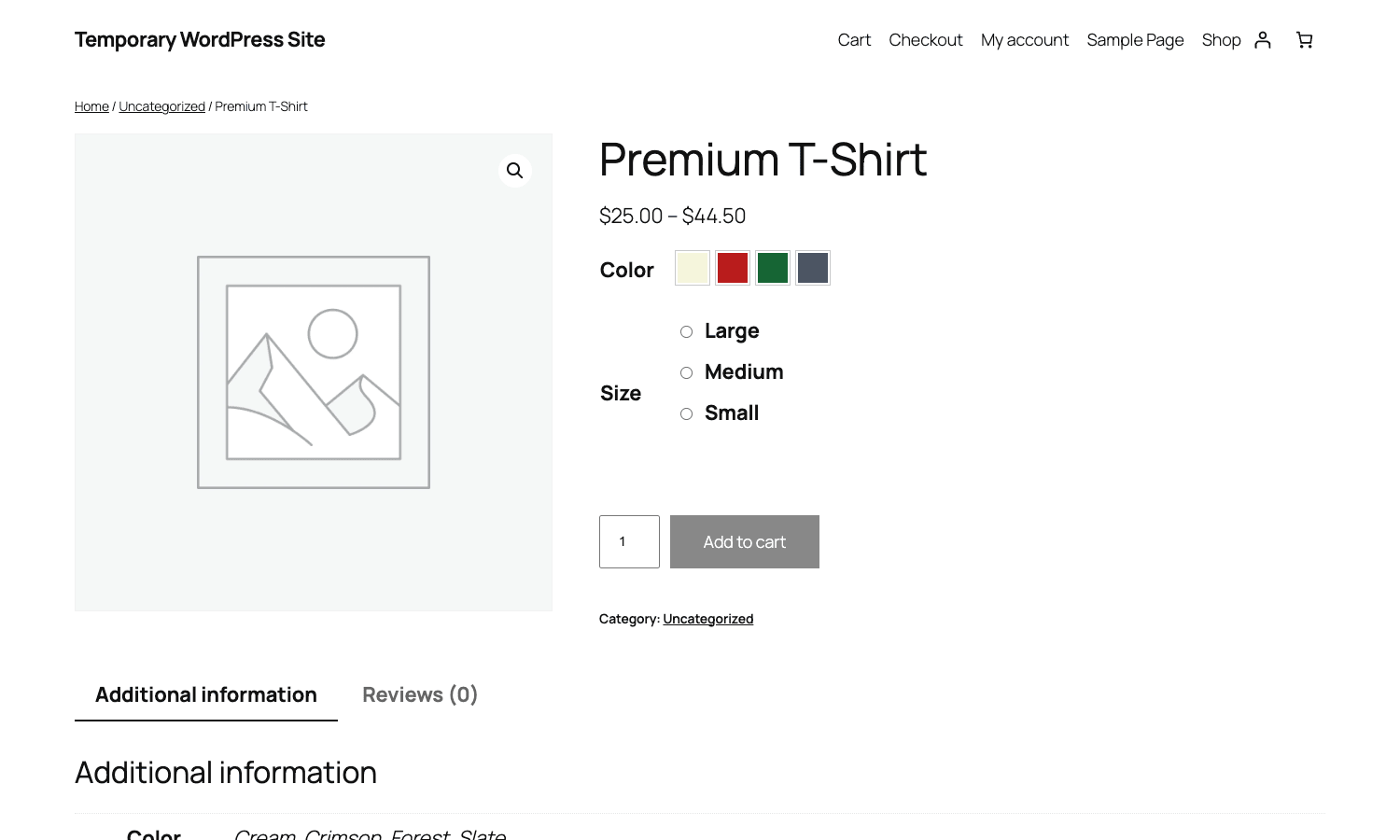
Step 6: Verify on the front end. Visit the product page. You should see a row of four color chips next to "Color" and three radio buttons next to "Size."
Click any color chip and any size radio. The price should update to that variation’s price. The Add to Cart button should become active.
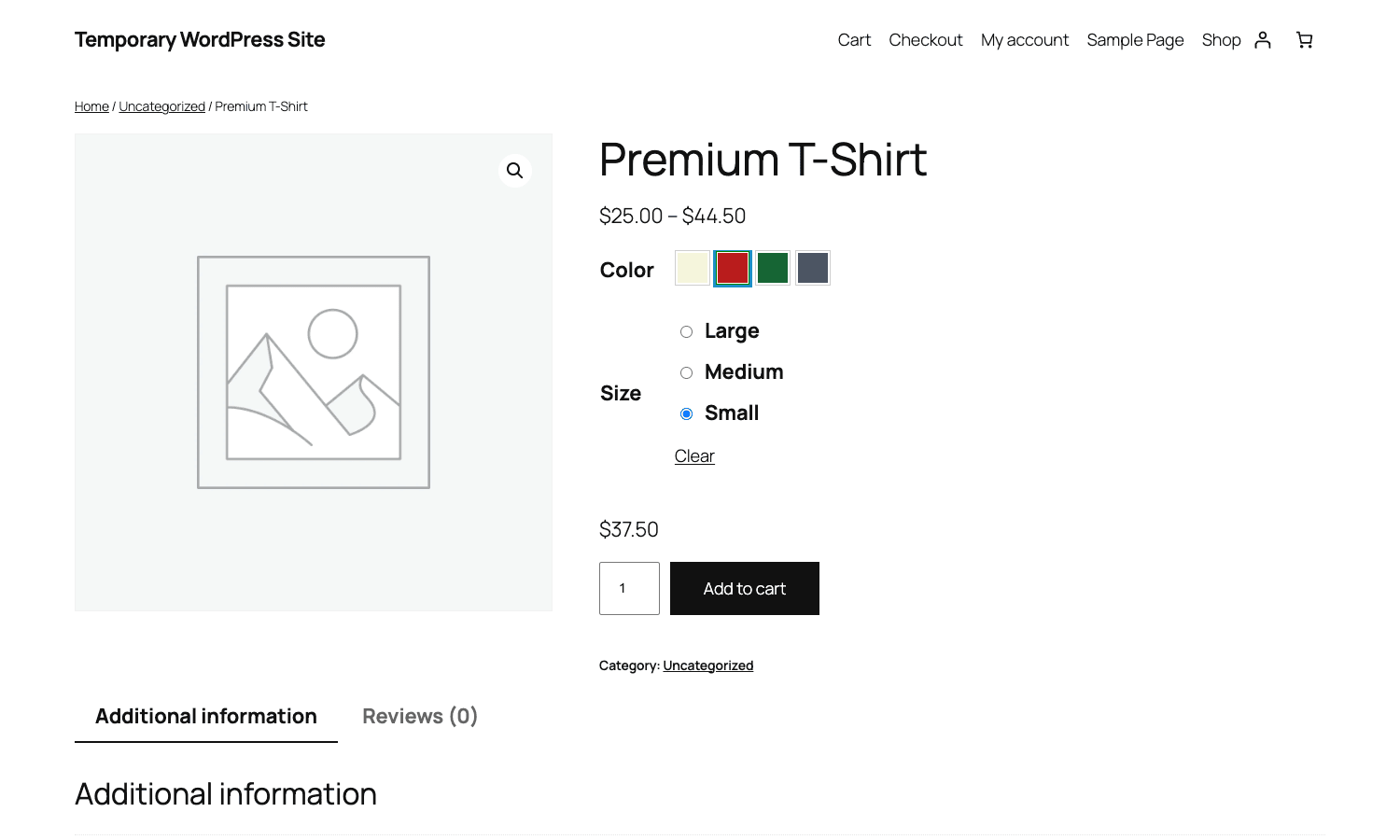
If that worked, you have a working swatch setup. Total setup time on a fresh store: about five minutes once you know where everything lives.
Variation Swatches and Photos vs the free Variation Swatches by Emran Ahmed vs YITH: when each one wins
I’ve shipped each of these. Here’s the honest breakdown of when each is the right pick.
WooCommerce Variation Swatches by Emran Ahmed (free + Pro). The most popular free swatches plugin on WordPress.org, with over 200,000 active installs. The free version covers color and image swatches plus button labels. The Pro version adds tooltips, conditional logic, attribute-level settings, and per-product configuration. Pricing nags appear in the admin and on the settings page, but they don’t break anything. Good pick if budget is zero and you can tolerate the upsell prompts.
YITH WooCommerce Color and Label Variations. Part of the YITH catalog, which has the strongest ongoing maintenance among third-party swatch plugins. Their UI is the cleanest of the three. The downside: it’s expensive (around the same price as Variation Swatches and Photos but renewable annually with no GPL alternative on most resale stores), and the YITH "framework" loads on every admin page once it’s active, which adds a small amount of admin overhead. Worth it if you already use other YITH plugins (subscriptions, gift cards, etc.) and want a consistent UI.
WooCommerce Variation Swatches and Photos (this one). Element Stark’s marketplace extension. The "official-ish" choice, it lives on woocommerce.com so it’s vetted by Automattic’s marketplace team. Strengths: cleanest integration with WC core (it pipes through the native woocommerce_dropdown_variation_attribute_options_html filter, so it never fights theme overrides); per-attribute swatch type is the most granular of the three; the "set once on the attribute term" model saves time on stores with many products sharing the same color palette. Weaknesses: the per-product custom-color UI is dated (custom color picker, not WP core), the admin design is older WP style, and there’s no front-end tooltip on hover (something the YITH and Emran Ahmed plugins both ship).
If I had to pick one without context: start with the free Emran Ahmed plugin if you have one or two variable products and don’t need anything fancy. Move to Variation Swatches and Photos if you’re running a store with twenty-plus variable products sharing the same color attribute, because the "set once" workflow saves you real time. Pick YITH if you’re already a YITH customer or you want the prettiest out-of-the-box appearance.
I have one mild gripe with this plugin specifically: the price has crept up since the ownership shuffle from SkyVerge through to Element Stark, and the docs site URL has moved twice in two years. Existing license holders get grandfathered, but if you’re a brand-new buyer on woocommerce.com the renewal cost is non-trivial. The GPL version sidesteps that completely.
Block themes and variation swatches: what changes and what breaks
The 2024-2025 shift to block themes (Twenty Twenty-Four, Twenty Twenty-Five, full site editing) raised one big question for every WC extension: does this still work?
For Variation Swatches and Photos, the short answer is yes, with one specific catch.
The plugin overrides wc_dropdown_variation_attribute_options(), which is the function WC calls inside single-product/add-to-cart/variable.php. Block themes still use that template path through WooCommerce’s block-theme template handling, so the override fires the same way it does on classic themes. I’ve tested this on Twenty Twenty-Four and Twenty Twenty-Five out of the box. Swatches render correctly.
The catch is the block-based product page. WooCommerce ships block-based versions of the cart, checkout, and (more recently) product page. If you’ve switched your single-product template to use the Single Product block (a fairly aggressive change you’d only make if you’re committing to full block-theme architecture), the variation selector inside that block is rendered by WooCommerce’s own block, NOT by the classic PHP template. The plugin’s override doesn’t intercept that.
Workaround: keep the classic single-product template (the WC default), even on a block theme. WC supports running classic product templates inside a block theme indefinitely. The block-based single product page is an opt-in feature, not the default.
I’ve not seen WC announce a deprecation timeline for the classic template, so this is safe to stay on for the foreseeable future. But if you’re committing 100 percent to FSE and the block product page, you need to either drop swatches or wait for a future plugin update that handles the block-based variation selector.
The plugin declares compatibility with the cart_checkout_blocks feature, so you won’t get the WC "incompatible" notice. That declaration is about not throwing the warning, not about rendering swatches inside the block cart (where they wouldn’t make sense anyway because the customer has already chosen the variation by the time they hit the cart).
Don’t ship twelve color swatches in a single row
This is the anti-pattern I see most often, and it’s the one that makes me think the store owner didn’t actually test on a phone.
A typical men’s t-shirt SKU might come in 12 colors. The store owner sets up all 12 swatches, looks at the product page on their 27-inch monitor, sees a clean row of color chips, and ships it. Then a customer hits the page on a 375px-wide iPhone and sees a single row that’s three lines deep with chips of varying sizes because flexbox is doing its best, plus the chips at the end have wrapped onto a fourth line that the customer has to scroll past to find Add to Cart.
Don’t do this. Here’s why and what to do instead.
A 24px chip with 4px gap takes 28px of horizontal space. On a 375px-wide phone with 32px of left+right padding, you have 343px of usable width. That’s 12 chips per row. Sounds like it fits, until you remember labels, line height, and the fact that the chip wraps before the gap fills. In practice you get 6-8 chips per row on mobile before the wrap looks ugly.
Two viable fixes:
Fix one: cap the visible swatch count and add a "more colors" link. Render the first 8 colors as chips. The 9th-12th render behind a "+4 more colors" link that expands the row when clicked. Implementation is a small CSS + JS change in your theme: add a .swatch-wrapper:nth-child(n+9) { display: none; } rule with a <button class="show-more-swatches"> to toggle it. No plugin work needed; this is pure theme overlay.
Fix two: keep swatches on desktop and fall back to a dropdown on mobile. Use a media query: above 768px width, render swatches; below, render the WC dropdown. Implementation: hide the .swatch-control and show the original <select> below the breakpoint. The plugin renders both elements (the select is still in the DOM, just visually hidden), so this is a CSS-only switch.
Either fix gets the row to a manageable size on mobile. Skipping the fix entirely and shipping 12 inline chips is the most common UX bug on swatch-heavy stores. Test on a real phone before launch.
Developer reference: hooks, filters, and the data model
I spent a couple of hours reading the source so you don’t have to. The hooks and filters listed below are everything the plugin exposes for you to extend.
The data model
No new tables. Everything sits on existing WooCommerce data structures.
Term meta (set under Products → Attributes → [attribute name] → terms):
{taxonomy}_swatches_id_type, for examplepa_color_swatches_id_type. Values:colororphoto.{taxonomy}_swatches_id_color, hex string for color swatches.{taxonomy}_swatches_id_photo, attachment ID for image swatches.
Post meta on each variable product (set on the Swatches tab):
_swatch_type_options, serialized array keyed bymd5(sanitize_title(attribute_name)). Each entry hastype(default,term_options,product_custom, orradio),layout,size, and anattributessub-array for per-term overrides._swatch_type,standardorpickers. A summary flag indicating whether this product uses any swatch rendering at all._swatch_size, the registered WP image size for swatch thumbnails on this product.
The md5 hashing on attribute names is the only quirk worth knowing. If you ever query _swatch_type_options directly from PHP, you can’t grep for the attribute name, you have to compute md5(sanitize_title('Color')) first. It’s a backwards-compat decision the plugin made years ago and never reversed.
Filters
All filters are PHP apply_filters() calls. Here are the ones you’ll actually use.
woocommerce_swatches_get_swatch_color, change the hex color of a swatch chip on the fly.
add_filter(
 'woocommerce_swatches_get_swatch_color',
 function ( $hex, $term_slug, $taxonomy_slug, $swatch_term ) {
 // Render Forest as a darker shade in October only.
 if ( 'forest' === $term_slug && '10' === date( 'm' ) ) {
 return '#0F3D1F';
 }
 return $hex;
 },
 10,
 4
);
woocommerce_swatches_get_swatch_image, swap the swatch image URL.
add_filter(
 'woocommerce_swatches_get_swatch_image',
 function ( $src, $term_slug, $taxonomy_slug, $swatch_term ) {
 // Serve a 2x image to retina displays.
 if ( wp_is_mobile() === false && strpos( $src, '@2x' ) === false ) {
 return preg_replace( '/(\.\w+)$/', '@2x$1', $src );
 }
 return $src;
 },
 10,
 4
);
woocommerce_swatches_picker_html, final filter on each rendered swatch chip’s HTML. Useful for wrapping every chip with a tooltip span or adding a data attribute.
add_filter(
 'woocommerce_swatches_picker_html',
 function ( $html, $swatch_term ) {
 return $html. '<span class="swatch-tooltip">'. esc_html( $swatch_term->term_label ). '</span>';
 },
 10,
 2
);
woocommerce_swatches_type_for_product, override the stored swatch type at runtime, per product and per attribute.
add_filter(
 'woocommerce_swatches_type_for_product',
 function ( $type, $product_id, $attribute_name ) {
 // Force the "size" attribute to render as radio buttons on every product.
 if ( 'pa_size' === $attribute_name ) {
 return 'radio';
 }
 return $type;
 },
 10,
 3
);
woocommerce_swatches_get_swatch_anchor_css_class and woocommerce_swatches_get_swatch_image_css_class, change the CSS classes the plugin emits. Handy when your theme has a specific class scheme and you want to opt in to it.
woocommerce_hide_invisible_variations, used inside the AJAX layer to decide whether to render variations that aren’t variation-visible. Returning true hides them entirely.
woocommerce_swatches_size_width_default and woocommerce_swatches_size_height_default, tweak the default swatch image dimensions globally.
Actions
Actions fire at six points around the swatch picker render.
woocommerce_swatches_before_picker( $config )
woocommerce_swatches_before_picker_items( $config )
 // loop of swatch chips:
 woocommerce_swatches_before_picker_item( $swatch_term )
 woocommerce_swatches_after_picker_item( $swatch_term )
woocommerce_swatches_after_picker_items( $config )
woocommerce_swatches_after_picker( $config )
The most useful one is woocommerce_swatches_before_picker_item, which lets you inject UI before each chip. For example, prepend a "limited stock" icon to the swatch of a color that’s almost out:
add_action(
'woocommerce_swatches_before_picker_item',
function ( $swatch_term ) {
$product = wc_get_product( get_the_ID() );
$variation = find_variation_by_attribute( $product, 'pa_color', $swatch_term->term_slug );
if ( $variation && $variation->get_stock_quantity() < 5 ) {
echo '<span class="low-stock-flag" title="Almost gone">⚠</span>';
}
}
);
(The find_variation_by_attribute helper isn’t provided by the plugin, that’s a custom function you’d write to walk the product’s children. The plugin gives you the hook to inject into, not the logic to find the variation.)
The AJAX endpoint
When a customer clicks a swatch, the plugin fires a POST to admin-ajax.php with action get_product_variations. The endpoint returns a JSON array of variations matching the current attribute selection, the front-end JS picks the right one and updates the price and Add to Cart button.
If you’ve ever wondered why the swatch UI feels snappier than the default WC dropdown variation selector, this is part of the reason: the plugin’s AJAX handler returns a slimmer payload than WC’s built-in update_order_review. It’s not a giant difference (a few KB) but it’s measurable on slow connections.
How the plugin hooks into WC
The plugin file woocommerce-swatches-template-functions.php declares its own wc_dropdown_variation_attribute_options() function. This is the function WC core’s single-product/add-to-cart/variable.php template calls to render each attribute selector. Because the plugin defines the function before WC does (it loads on plugins_loaded before init), PHP’s function table picks up the plugin’s version and WC’s own definition is never reached.
This is the cleanest possible override mechanism. The plugin doesn’t unhook actions, doesn’t filter the rendered output, doesn’t fight other plugins. It just defines the function first. Other swatch plugins that fight the_content filters or filter the dropdown HTML after the fact tend to break when themes do their own filter passes; this one doesn’t.
The downside of this approach: if another swatch plugin is active simultaneously and also defines wc_dropdown_variation_attribute_options(), PHP throws a fatal error on plugin activation. Always deactivate any other variation-swatch plugin before activating this one.
What this plugin doesn’t do
A truthful walkthrough has to name what’s missing, not just what’s there.
- No Quick View support out of the box for third-party Quick View modals. The plugin does enqueue its scripts on the
wc_quick_view_enqueue_scriptsaction (which is WC’s own Quick View extension’s hook), so if you’re using the official WooCommerce Quick View, swatches do render inside it. But the dozens of theme-bundled Quick View modals out there (Astra Pro, Flatsome, Storefront child-themes) use their own hooks, and swatches don’t render there without a theme-side template override. Test before assuming. - No automatic mobile fallback. The plugin renders swatches at the same size and same row layout regardless of viewport. If you ship 12 colors on a 375px phone, you get a wrapped mess. Fixing this requires theme CSS, not plugin configuration. (See the anti-pattern section above.)
- No tooltip on hover. The chip’s
titleattribute fires the browser-default tooltip after a one-second hover, but there’s no plugin-rendered styled tooltip. Other swatch plugins (YITH, Emran Ahmed) ship one out of the box. If you want one here, you’ll filterwoocommerce_swatches_picker_htmland add a<span class="tooltip">yourself. - No accessibility-first defaults. The default "No Label" layout means a sighted-but-low-color-vision customer might not be able to disambiguate two similar-hue swatches. Switching to "Label below" mitigates this, but the plugin doesn’t nudge you toward the accessible choice. WCAG 2.1 guidance on use of color is worth reading if you sell to an audience that includes anyone with reduced color vision.
- No CSS variable /
color-mix()support. The hex value sits on the term meta as a literal string. You can’t writevar(--brand-crimson)in there. If your stylesheet has carefully tokenized color names, you’ll re-enter the hex by hand. Modern CSS supportscolor-mix()for derivation, but the plugin doesn’t take advantage of it. - No bulk import for term swatches. If you have 50 color terms to set up, you click each one individually. No CSV import, no "set hex from a JSON file" tool. For one-off setups it’s fine, for migration from an existing setup it’s tedious.
- No Gutenberg blocks. If you’re a block-theme purist who wants to drop a swatch picker inside a block-based product page, you’re out of luck. The plugin only renders inside the classic variation form.
None of these are dealbreakers. They’re the boundary of what the plugin is, and being honest about them helps you decide whether to buy it.
Performance, compatibility, and gotchas
Asset weight. The plugin enqueues one CSS file (3 KB) and one JS file (6 KB), both minified, both on the front end. The admin enqueues an additional color-picker library (~12 KB) but only on product, term, and post-list admin screens. Total front-end weight: under 10 KB gzipped. Effectively free on Largest Contentful Paint.
Cache compatibility. The swatch HTML is rendered server-side on the product page, so any page cache (WP Rocket, LiteSpeed, host-level static caching) picks up the rendered output and serves it without invoking the plugin’s PHP. The AJAX variation lookup happens after page load and isn’t cached, which is correct. If you’ve installed WP Rocket on this site for performance, the two plugins coexist cleanly.
HPOS compatibility. Declared. Verified on a sandbox with HPOS enabled. No errors, no notices, swatches render normally.
Subscriptions support. The plugin’s product-type whitelist includes variable-subscription. If you’ve set up WooCommerce Subscriptions for recurring billing and you’re selling a variable subscription (e.g. a coffee subscription with roast as a variation), swatches render on those products too. Confirmed working.
WPML / Polylang. The plugin ships a wpml-config.xml file with custom field declarations. WPML reads it and treats the term meta as translatable per language. Polylang doesn’t auto-pick it up the same way, but you can add the term meta keys manually to Polylang’s custom field translation list.
Theme compatibility. I’ve tested on Storefront, Flatsome, Astra (free), Twenty Twenty-Four, Twenty Twenty-Five. All five render swatches correctly. The plugin’s CSS uses generic class names (.swatch-anchor, .swatch-img) that don’t fight theme styles.
One real gotcha. If you have a variation that’s set to "Manage stock" with a quantity of zero, the front-end swatch for that variation’s color still renders but the variation itself becomes "Out of stock" once selected. There’s no built-in way to dim or strike-through the swatch chip for the out-of-stock variation. If a customer clicks Crimson and there’s no Small available, they have to discover that by clicking Small and reading the "Out of stock" message. To indicate out-of-stock at the swatch level, you’d hook woocommerce_swatches_get_swatch_anchor_css_class and conditionally append swatch-out-of-stock, then style it with reduced opacity. This is a real plugin gap and worth knowing about.
Color crashes. Be careful with very light swatches (cream, white, ivory) on a light page background. They become invisible. The plugin doesn’t render a border around chips by default. Easy fix: add a 1px solid border in your theme CSS:
.swatch-anchor { border: 1px solid #ddd; }
That fixes the "where did my Cream swatch go" problem at zero cost.
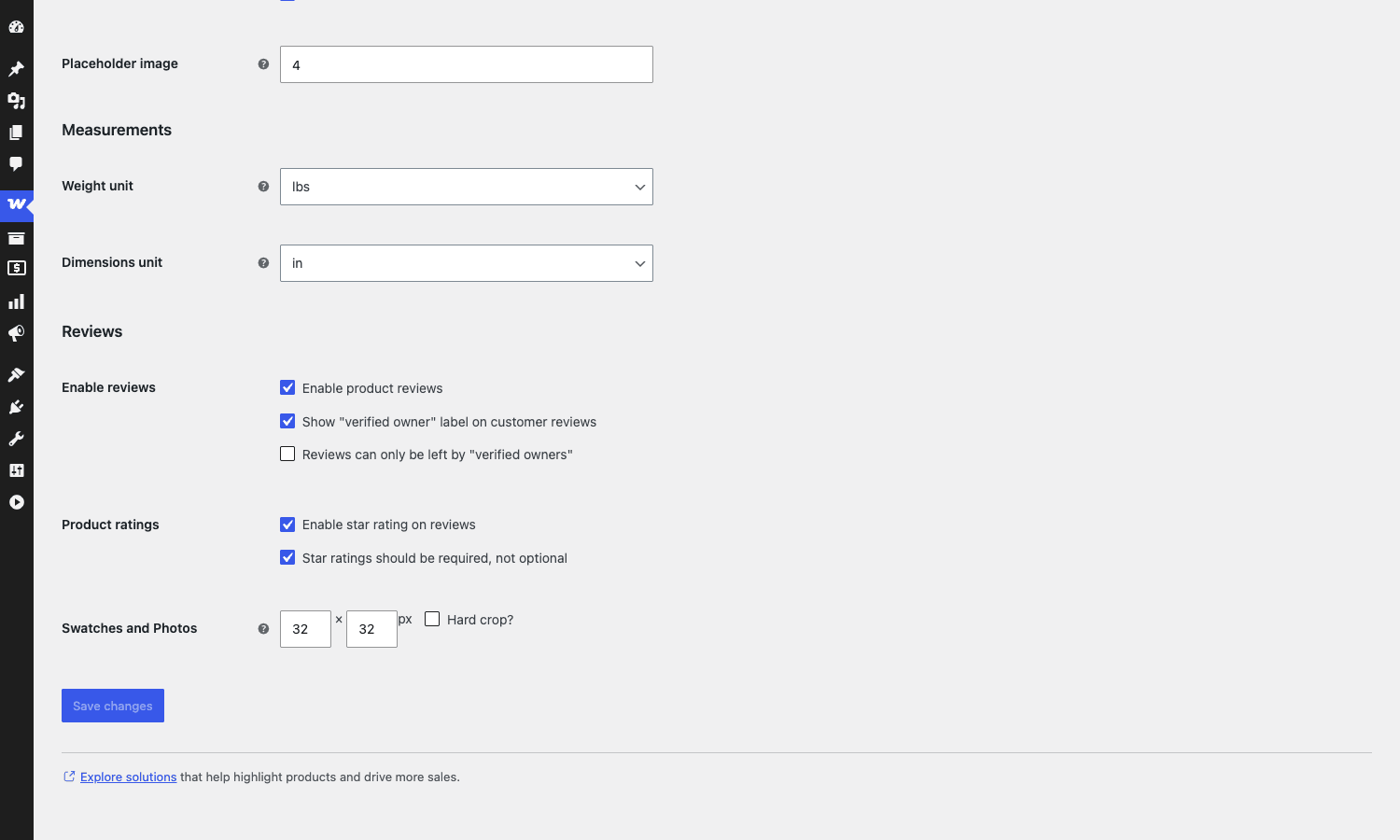
The default 32×32 swatch image size is fine for color chips but feels small for image swatches. Bumping it to 48 or 64 makes texture swatches actually readable. Save changes and the next swatch render uses the new size.
Pricing and licensing
The plugin is sold on woocommerce.com as a marketplace extension. List price has hovered in the $79-$129 range for a single-site license, renewable annually for continued updates. Multi-site licenses scale up.
The GPL version is the same zip without the license-bound renewal. You get the full plugin, all features, all hooks, all compatibility. Updates land in the GPL store after each official release. License renewals from woocommerce.com aren’t needed because the plugin works without a license key (it’s not gated by activation).
If you’re running a single store and you want vendor support directly from Element Stark / WooCommerce.com, buying the marketplace version makes sense. If you’re a developer building stores for clients and a per-site license adds up across the agency, the is the cost-effective path.
Either way, the plugin is GPL v3 by license (the plugin header declares this explicitly). There’s no functionality difference between the marketplace zip and the GPL one.
FAQ
Why aren’t my swatches showing up on the product page?
The most common cause is forgetting Step 5 of the setup. After configuring the global term swatches under Products → Attributes, you also need to open each variable product, go to the Swatches tab, and set each attribute’s Type to "Taxonomy Colors and Images" (or "Custom" or "Radio Buttons"). The plugin defaults each attribute to "None" on every product, which means "use the WC dropdown." Until you flip that, swatches don’t render even if the attribute terms have hex values set.
Does this plugin work with the block-based shop page?
Yes for the classic single-product template, no for the block-based single product page (which is opt-in). The classic single-product template still works on block themes, and that’s the one the plugin overrides. Keep the classic template if you want swatches; switch to the block product page only if you’re committing to full block-theme architecture and willing to drop swatches.
Can I have a different swatch type per attribute on the same product?
Yes, and this is actually the plugin’s strongest feature. On the Swatches tab inside the product editor, each attribute has its own Type select. Color can be "Taxonomy Colors and Images," Size can be "Radio Buttons," Material can be "None" (dropdown). They render side by side on the same product page.
Does it work with WooCommerce Subscriptions variable products?
Yes. The plugin’s product-type whitelist includes both variable and variable-subscription. I’ve tested it on a sandbox with WooCommerce Subscriptions installed and swatches render on variable subscription products the same as on regular variable products.
Why does my color swatch show "Add to cart" disabled even though one size is in stock?
The Add to Cart button only enables when ALL variation attributes are picked. Clicking just the color swatch isn’t enough; you also need to click a Size radio (or whatever your second attribute is). Once both attributes have a value, the button enables. This is WC core behavior, not a plugin quirk, but it confuses first-time users.
Can I show the swatch as out-of-stock when the variation is out of stock?
Not out of the box. The plugin doesn’t dim or strike-through swatches for out-of-stock variations. You’d hook woocommerce_swatches_get_swatch_anchor_css_class and conditionally append an out-of-stock class, then style it in your theme. The hook is there, the implementation is theme-side. Real plugin gap, mentioned above in the gotchas section.
Is there a tooltip when I hover over a swatch?
Only the browser-default tooltip from the chip’s title attribute (which fires after a one-second hover delay). For a styled tooltip, you’d filter woocommerce_swatches_picker_html and inject a tooltip span. The Emran Ahmed and YITH plugins both ship styled tooltips out of the box; this one doesn’t.
Does Variation Swatches and Photos slow down my product pages?
No. Front-end asset weight is under 10 KB gzipped, server-side render adds a millisecond at most, and the AJAX variation lookup runs after page load (so it doesn’t affect Largest Contentful Paint or First Input Delay). I’d be more worried about your product gallery and image sizes than about the swatch plugin.
Final thoughts
There’s a class of WordPress plugins I think of as "small, durable, honest." They do one job, they don’t try to grow into a platform, and they survive WordPress core updates because they hook into core in the same way core hooks into itself. Variation Swatches and Photos is one of those.
It’s not the prettiest swatch plugin (YITH has it beat there). It’s not the cheapest (the free Emran Ahmed plugin obviously is). It doesn’t ship with the slickest features (no tooltip, no mobile fallback, no out-of-stock dimming). But it does the basic job, turn WC dropdowns into swatches, with the cleanest integration into WooCommerce I’ve seen in this category, and that cleanliness pays off every time WC ships a core update and other swatch plugins file a "compatibility patch" ticket.
If you’re building a store with variable products and you’ve decided you want swatches, this is a defensible default. The fact that the swatch palette config sits on the attribute term (not on each product) is a small UX detail that adds up over a real store’s worth of products. The fact that the override mechanism is a function redeclaration (not a the_content filter or a JS hijack) is a small engineering detail that pays off in compatibility. Both of those add up to a plugin that just kind of stays out of your way.
That’s what you want from infrastructure.
If you sell variable products, install it on a sandbox, give it half an hour, and see whether the workflow fits your store. If it does, the price is reasonable on woocommerce.com and free on the GPL store. If it doesn’t, the worst case is half an hour and you’ve learned something about your store’s actual swatch needs that you wouldn’t have figured out from a feature comparison page.