


It’s 9:47 on a Tuesday and a consultant I know is staring at her inbox. Seven email threads, each one a slow-motion negotiation about a 30-minute call. "Does Thursday at 2 work?" "Sorry, can we do 3?" "Actually I’m in a different timezone, is that 3 your time or mine?" She has not done any actual consulting yet. She has spent forty minutes scheduling consulting. That whole mess is the problem Timetics Pro is built to delete. It turns your WordPress site into a booking page where someone picks a slot, pays if you charge, and lands on your calendar with a Google Meet link already attached. No back-and-forth.
This is a long, honest walkthrough of what Timetics Pro does, where it shines, where it’s still a bit rough, and a full developer reference with the hooks, REST endpoints, and shortcodes I pulled straight out of the source. Whether you take 1:1 calls, run group classes with limited seats, or schedule a team of staff across services, by the end you’ll know exactly what this plugin can and can’t do for you.
Table of Contents
- What Timetics Pro is
- Creating a meeting: duration, availability, buffers, staff
- Seat and group booking
- The booking flow and the frontend calendar
- Payments: Stripe, WooCommerce, PayPal
- Google Calendar, Meet, Zoom, and Outlook sync
- Staff and multi-host scheduling
- Customers, attendees, emails, and reminders
- The admin dashboard and reports
- Installation and setup
- Developer reference: hooks, REST, shortcodes
- Don’t take bookings before you lock down timezones
- Troubleshooting the problems people actually hit
- Compatibility, hosting, and performance
- Timetics vs Amelia vs BookingPress vs Calendly
- Pricing and licensing
- FAQ
- Is Timetics Pro the right scheduler for you?
What Timetics Pro is
Timetics Pro is a self-hosted appointment and seat booking plugin for WordPress, built by Arraytics. Think Calendly, but the booking page lives on your own domain and the data stays in your own database. It ships in two parts: a free base plugin called "Timetics" on the WordPress.org plugin repository, and a Pro add-on that layers on the paid features. The Pro plugin will not run on its own. It expects the free base to be installed and active, and it hooks into it.
The free tier is more generous than most. It already gives you unlimited appointments, unlimited bookings, unlimited team members, Google Meet links on every booking, Google Calendar two-way sync, and Stripe payments. That’s a real booking system with no caps, which is unusual. The Pro layer adds the things that turn a personal scheduler into a business tool: seat booking, Zoom, Outlook calendar, PayPal, SMS and WhatsApp reminders, recurring appointments, FluentCRM and Zapier and Pabbly automation, plus export and import.
The admin is a React single-page app. When you open the Timetics menu in wp-admin, you’re not looking at the usual stack of WordPress settings tables. You get a fast, modern interface built with Ant Design components, all talking to a REST API under the hood. I’ll be honest, that’s both the best and the most annoying thing about Timetics. It feels great to use. It’s also a little fragile. More than once during testing the panel threw an "Oops! Something went wrong" error that a hard refresh fixed. We’ll come back to that in troubleshooting.
The whole thing is built around one custom post type, timetics-appointment, which Timetics calls a "meeting." A meeting is a bookable thing: a 30-minute discovery call, a yoga class with 12 seats, a tax consultation that costs $150. Everything else (bookings, customers, staff, the calendar) revolves around meetings.
Creating a meeting: duration, availability, buffers, staff
This is where you’ll spend most of your setup time, so it’s worth walking through carefully. Under Timetics -> Meetings, you hit Add New and pick a meeting type. The three types are One-to-One (a single attendee per slot, the classic 1:1 call), One-to-Many (a group session where many people book the same slot), and a seat-plan meeting (a group event with a visual seat map, Pro only).
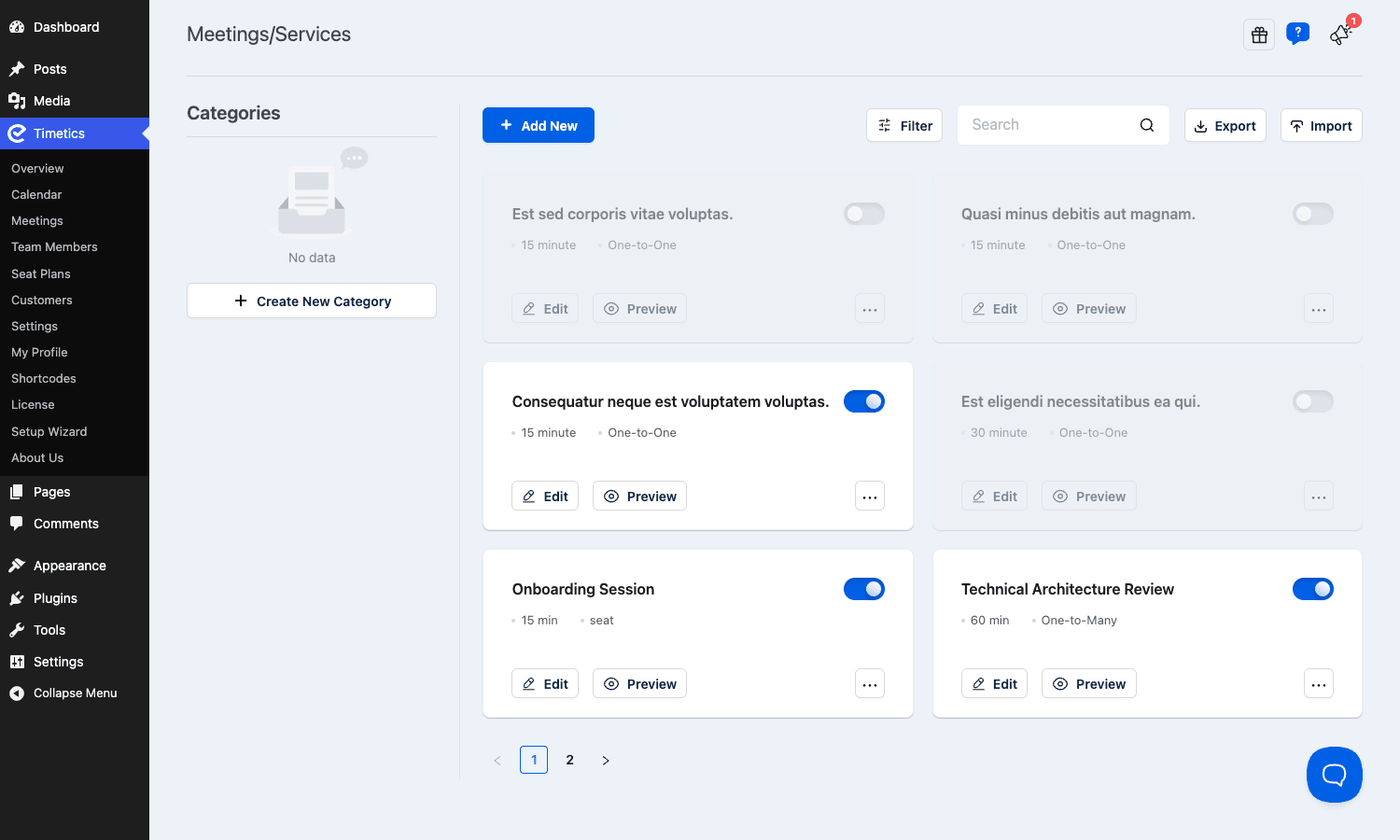
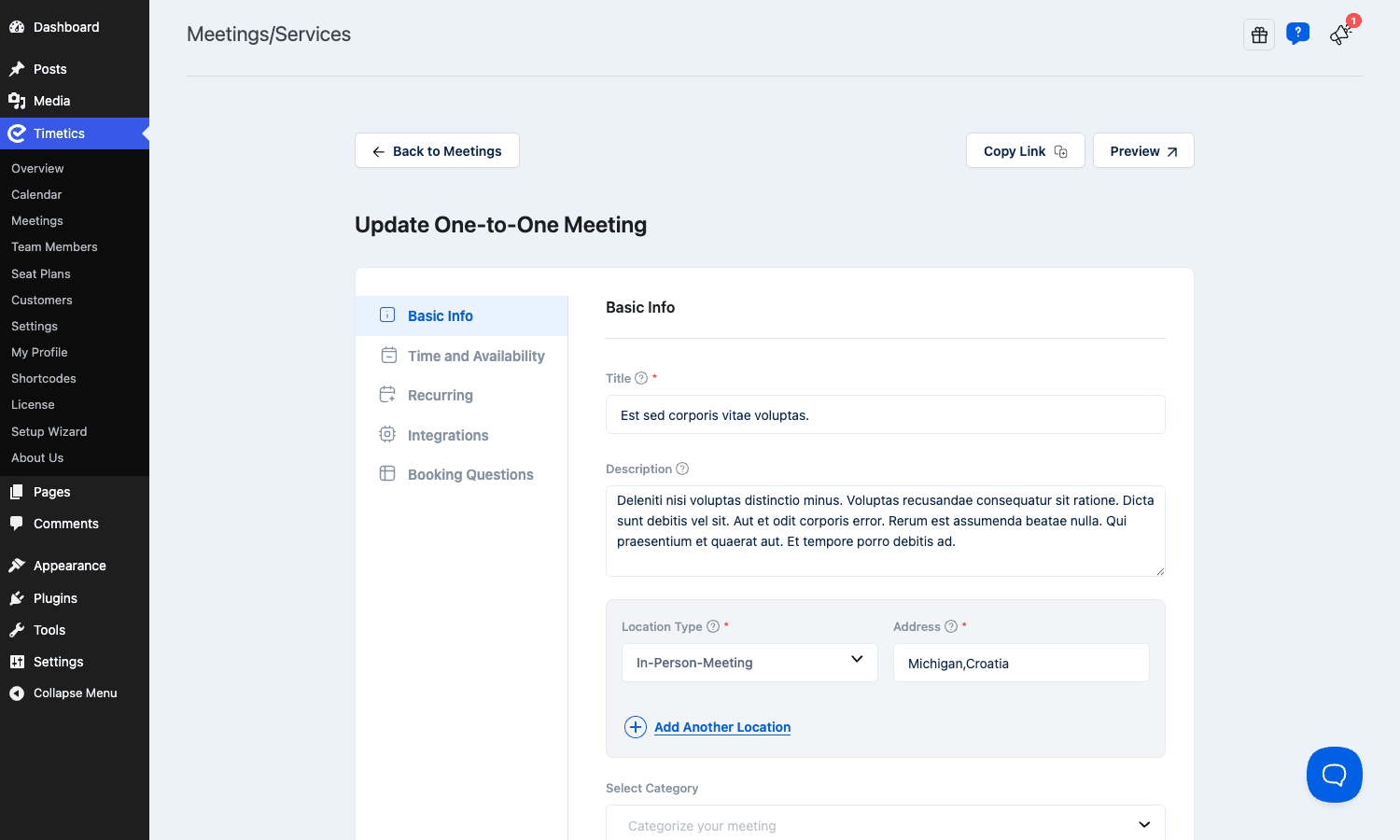
The meeting editor splits into tabs: Basic Info, Time and Availability, Recurring, Integrations, and Booking Questions.
Basic Info is the obvious stuff. Title, description, location type, price, and a category. The location type is more useful than it looks. You can set a meeting to In-Person (and add a physical address, even multiple addresses), or to an online type that auto-generates a Google Meet or Zoom link. You can also stack several location options on one meeting and let the customer choose.
Time and Availability is the heart of it, and it’s the screen I’d want you to look at hardest before you buy.
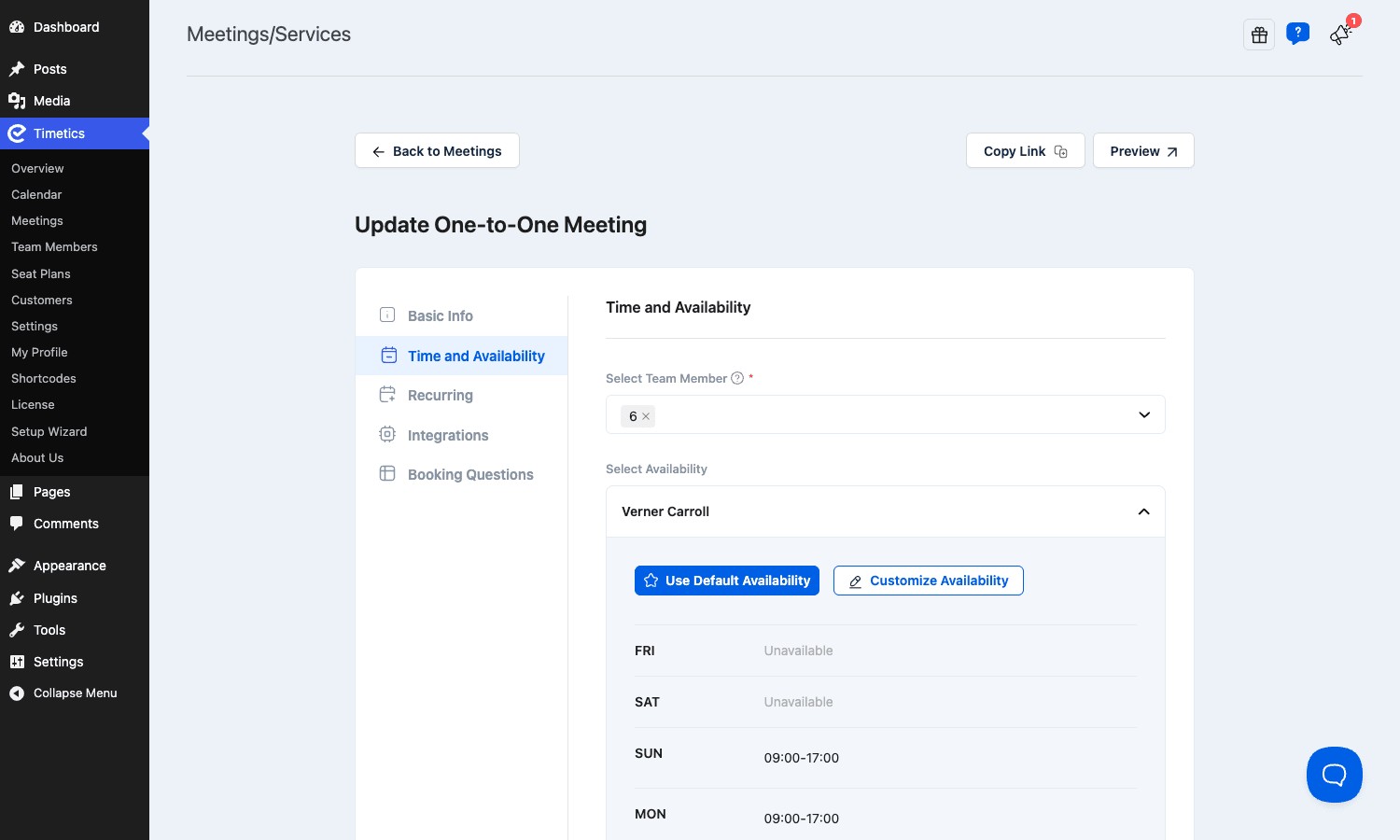
You assign one or more team members to the meeting, and each team member has their own availability. You can either inherit their default weekly schedule ("Use Default Availability") or override it just for this meeting ("Customize Availability"). The weekly grid lets you set hours per day, mark days unavailable, and define a meeting date range so a meeting only becomes bookable inside a window (say, a course that opens for booking in September). There’s a meeting timezone, and crucially, buffer time before and after each booking. Buffers are the unsung hero of any scheduler. Set a 10-minute buffer after a call and Timetics won’t let two clients book back-to-back with no breathing room. Without buffers you end up sprinting between calls all day.
Recurring (Pro) lets a meeting repeat on a schedule, which is handy for standing weekly sessions. Booking Questions is a customizable intake form. You add fields the customer fills out at booking time (phone number, "what do you want to cover", a file upload), and that data attaches to the booking. Integrations at the meeting level lets you flip which calendar or conferencing tool this specific meeting uses.
One thing I appreciate: the per-meeting availability model means a single staff member can offer a free 15-minute intro call with wide availability AND a paid 90-minute deep dive with much tighter availability, off the same calendar, without double-booking themselves. A lot of cheaper plugins force one availability per person.
Seat and group booking
This is the feature that separates Timetics from the pack of 1:1 schedulers, and it’s the reason the "Seat Booking" sits right in the plugin’s tagline.
A One-to-Many meeting is the simple version: one time slot, many attendees, a capacity number. Think a webinar or a group coaching call where you cap it at 20 people. When 20 have booked, the slot closes.
The seat-plan meeting is the fancy version. Under Timetics -> Seat Plans you get a visual canvas editor where you draw an actual seating layout: rows, sections, individual seats, even a background image of your venue. Each seat can carry its own label and its own price (front row costs more than the back). On the frontend, the customer sees the seat map and clicks the exact seat they want, the way you’d pick a seat for a flight or a concert. There’s undo/redo in the editor, minimum and maximum ticket quantity per booking, and the seat map is responsive on mobile.
Timetics also integrates its seat plan with Eventin, Arraytics’ event ticketing plugin, if you have both installed. If you already run Eventin Pro for event ticketing, the seat plan can drive Eventin’s checkout. That’s a nice touch if you already run other Arraytics plugins and want one seat-map tool feeding both your events and your bookings.
Here’s my honest take: the seat-map editor is genuinely impressive for a booking plugin, but it has a learning curve. Generating seats, labeling them, and getting the canvas to fit nicely took me a few tries. If all you need is "cap this class at 12," skip the seat map entirely and use a One-to-Many meeting with a capacity. Reach for the seat plan only when seat selection actually matters to your customers.
The booking flow and the frontend calendar
From the visitor’s side, booking is clean and feels familiar to anyone who’s used Calendly. You publish a meeting and embed it on a page, and the customer sees a two-panel layout: meeting details on the left (host, duration, location, a timezone selector) and a date picker on the right.
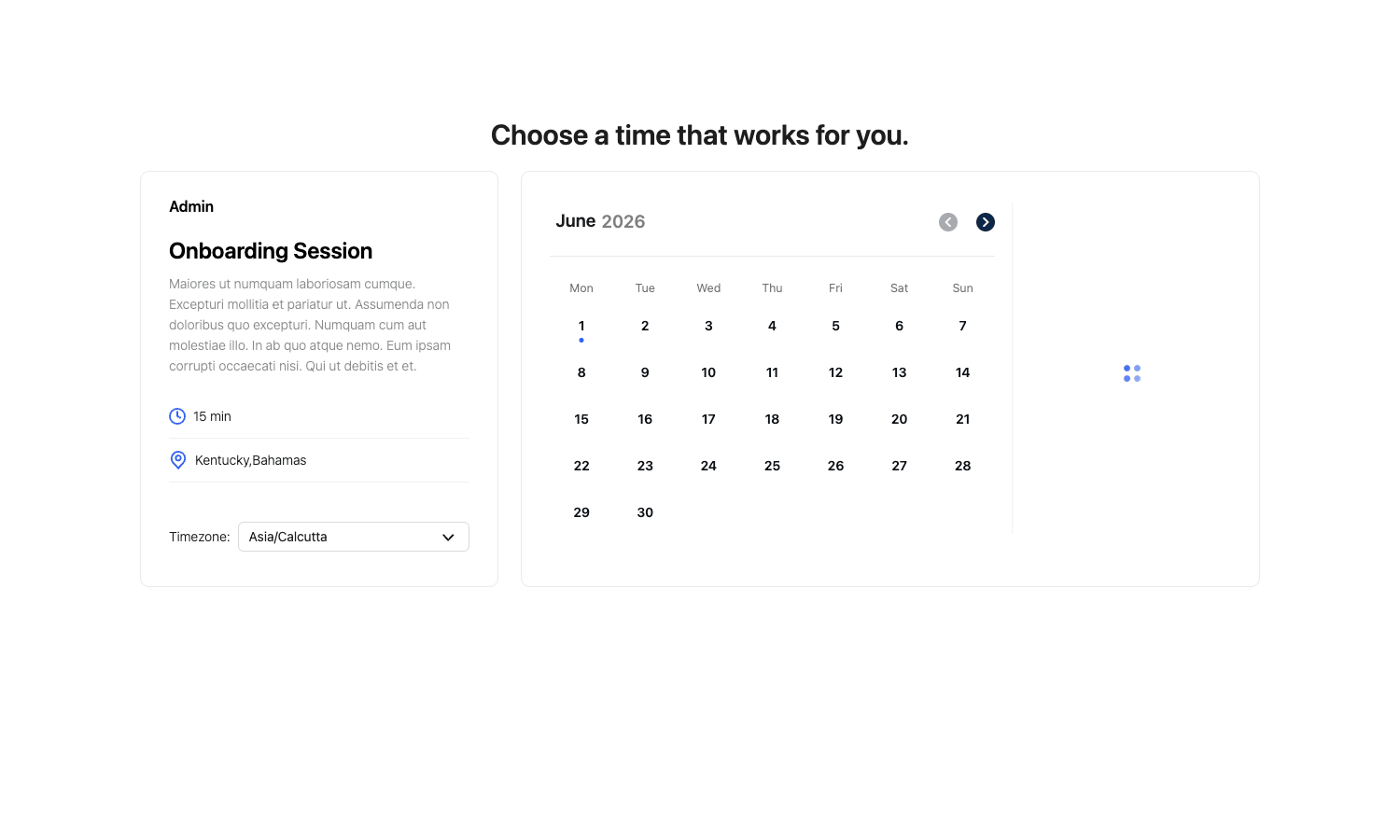
Pick a date, the available time slots appear, pick a slot, fill out the booking questions, pay if there’s a price, done. The customer gets a confirmation email with an "Add to Calendar" link, and if the meeting is online, the conferencing link is already in there.
The timezone selector on that left panel deserves a callout. It defaults to the visitor’s detected timezone and shows slots converted to their local time, while you, the host, still see everything in your own. This is the single biggest source of booking chaos in a global business, and Timetics handles it at the display layer so a client in London and a client in Sydney both see correct times. (It is not foolproof, and I’ll explain the failure mode in the anti-pattern section, because getting timezones wrong costs you no-shows and trust.)
You drop the booking form onto a page with a shortcode. The main one is [timetics-booking-form id='123'] where the id is the meeting’s post ID. There’s also [timetics-meeting-list limit='6' show_filter='true'] to show a filterable grid of all your meetings, [timetics-category id='5'] to list meetings in one category, and [timetics-user-dashboard] which gives a logged-in customer their own page of upcoming and past bookings. The user dashboard shortcode is underrated. Drop it on a "My Bookings" page and your repeat clients can manage their own appointments without emailing you.
Payments: Stripe, WooCommerce, PayPal
Money is where a booking plugin earns or loses your trust, so let’s be specific about what’s actually wired up. Under Timetics -> Settings -> Payment you get four toggles: Stripe, Local Payment, WooCommerce, and PayPal.
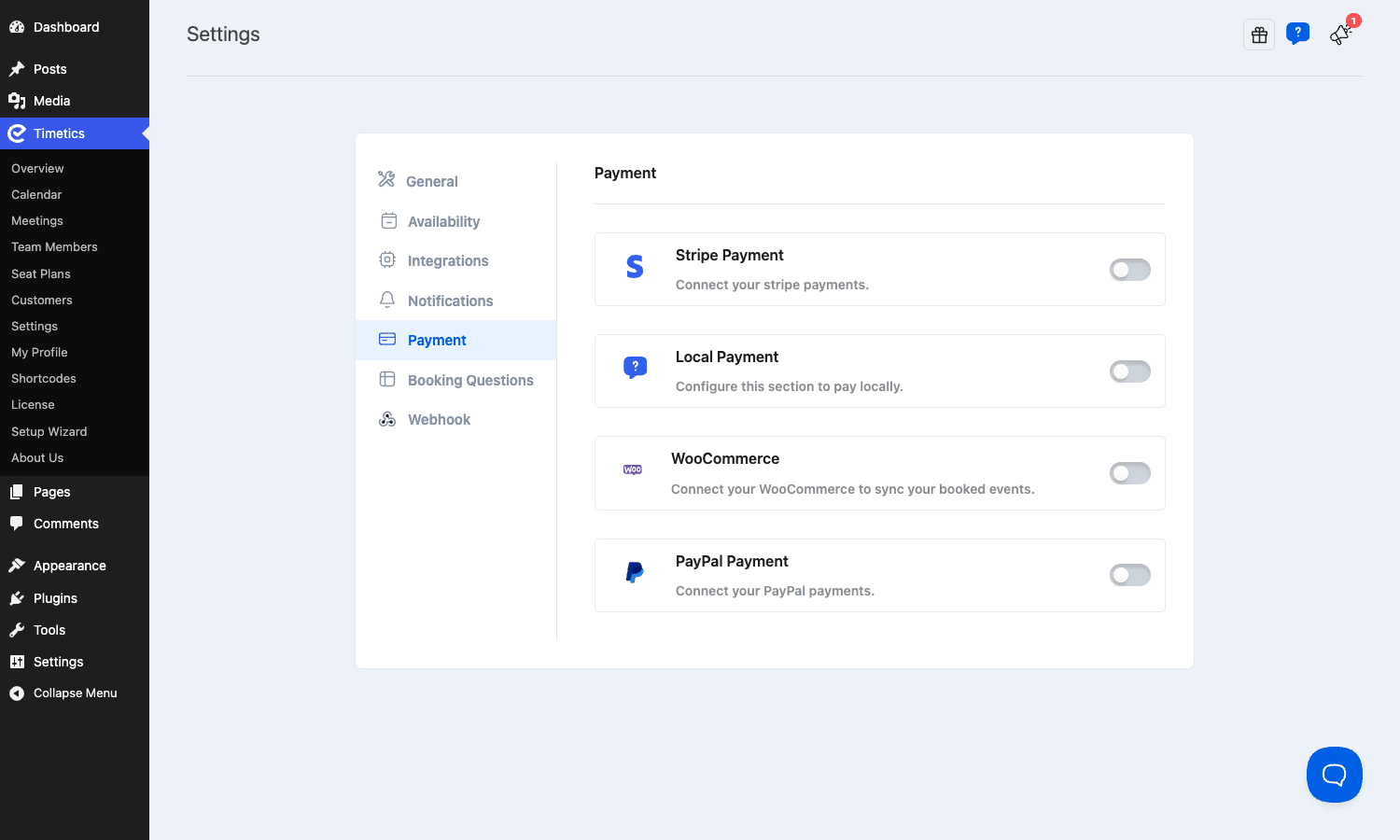
Stripe is available in the free version, which is rare and generous. You connect your Stripe keys, and the booking flow charges the card at the moment of booking using a payment intent (so it plays nicely with Strong Customer Authentication and 3D Secure). In the source this runs through /bookings/{id}/payment-intent, a dedicated REST endpoint that creates the intent server-side.
PayPal is Pro only. It went through a few bug-fix releases (live credentials and multi-currency had issues at one point that have since been patched), so test a real PayPal transaction before you go live.
WooCommerce is the interesting one. Instead of charging through Timetics directly, you hand the booking off to WooCommerce as a cart item, and WooCommerce handles checkout and payment with whatever gateways you already use. That means if you’ve already got a tuned WooCommerce setup with your preferred gateways, tax rules, and order management, your bookings flow into the same orders list as everything else you sell. This is the route I’d pick for any store that’s already running WooCommerce. One booking system, one orders screen, one set of payment gateways.
Local Payment is pay-on-arrival: the booking is confirmed without an online charge, useful for "pay at the clinic" or "pay cash on the day" businesses.
A small but real gotcha: you can only sensibly run one money path at a time. Don’t toggle Stripe AND WooCommerce both on for the same meeting and expect a clean experience. Pick the gateway story that matches your business and stick to it.
Google Calendar, Meet, Zoom, and Outlook sync
This is the glue that makes the whole thing actually save you time, and Timetics covers more ground here than its price suggests.
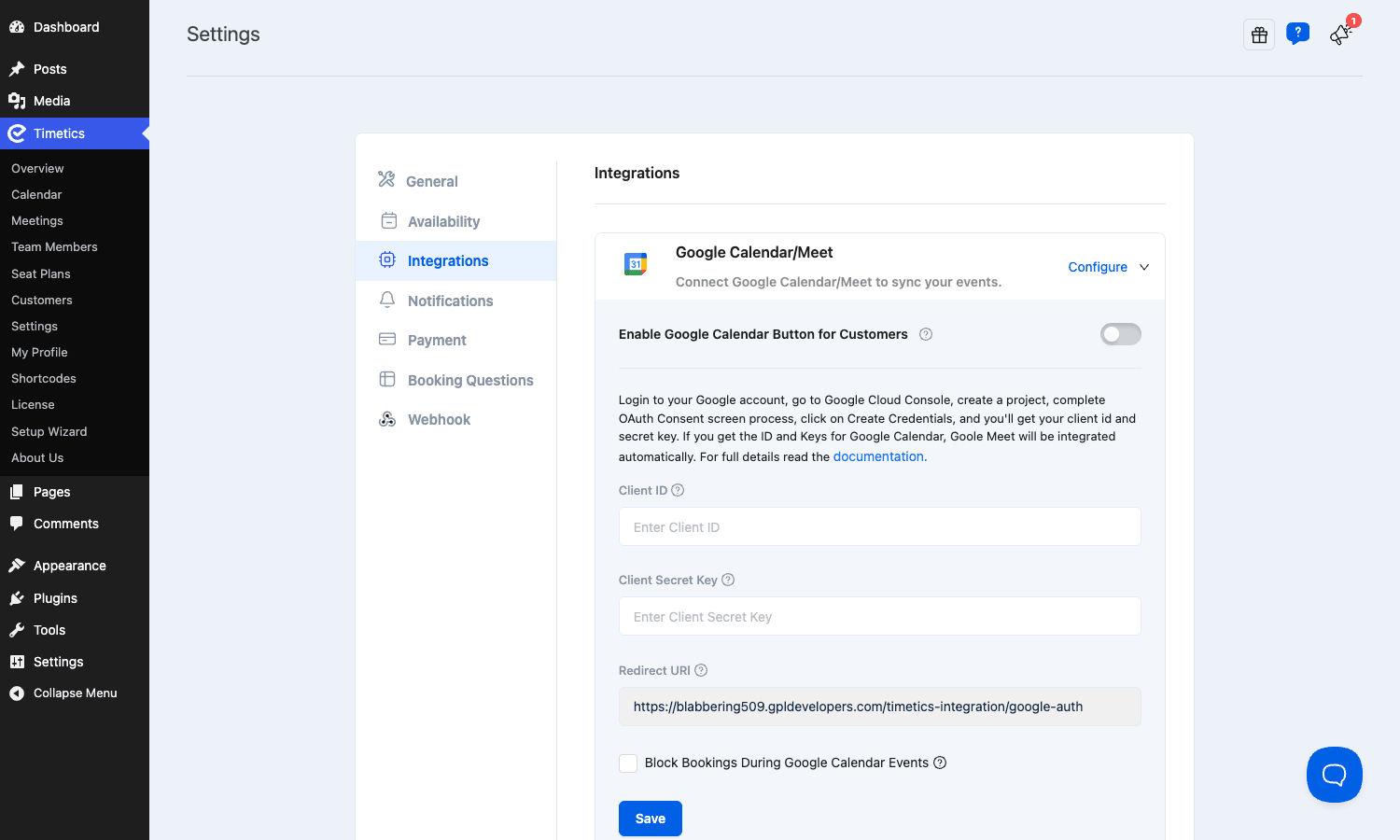
Google Calendar two-way sync is in the free version. You create a project in the Google Cloud Console, run through the OAuth consent screen, generate a Client ID and Client Secret, and paste them into Timetics. Once connected, new bookings push into your Google Calendar, and (this is the two-way part) events already on your Google Calendar block out those times in Timetics so nobody can book over your dentist appointment. There’s a "Block Bookings During Google Calendar Events" checkbox that controls exactly that behavior.
Google Meet comes free with the Google Calendar connection. Once your Google account is linked, every online meeting auto-generates a Meet link and drops it into the confirmation. You don’t configure Meet separately; it rides along on the calendar integration.
Zoom is Pro. Worth knowing: recent versions moved Zoom out of the core Pro plugin into a separate "Timetics Zoom Addon" that you install on top, and it supports both Server-to-Server OAuth and standard OAuth apps. So if you specifically need Zoom, budget a few extra minutes to grab and configure that addon.
Outlook calendar (Pro) gives Microsoft 365 / Outlook users the same kind of two-way sync as Google, with an "Add to Outlook Calendar" button for customers. Outlook sync has historically been the flakiest integration (the changelog shows several auth and syncing fixes over time), so if your whole team is on Microsoft, test it thoroughly before committing.
There’s also iCal export and Apple Calendar support for the "add to my calendar" flows, plus webhook-based automation through Zapier, Pabbly, and FluentCRM. If you run email automation, piping new bookings into FluentCRM Pro means a booking can trigger a welcome sequence or tag the contact automatically. (I’ve written more about that side of things in our FluentCRM email marketing walkthrough.)
Staff and multi-host scheduling
Under Timetics -> Team Members you add staff, each as a real WordPress user with their own role, email, and availability. A staff member can host multiple meeting types, and a single meeting can have multiple staff assigned to it.
The multi-host model handles two patterns. The first is "any available staff": a salon offers a haircut meeting, three stylists are attached, and the customer just books the next open slot regardless of who’s free. The second is "pick your person": the customer chooses a specific stylist, and only that person’s availability shows. Timetics supports both, and the choice happens at the meeting level.
Each staff member’s availability is independent, so your senior consultant can work Tuesday through Thursday while a junior covers Monday and Friday, and the booking calendar merges them correctly. Staff can also be given access to their own dashboard so they manage their own bookings without you handing out full admin. There are filters in the source for staff roles and speaker roles, so developers can extend who counts as a bookable host.
The honest caveat: Timetics is not a full team-management suite. There’s no commission tracking, no payroll, no per-staff revenue split out of the box. If you’re running a 30-stylist salon and need staff to take their cut at the till, you’ll be reaching for additional tooling. For a handful of consultants or a small services team, the staff model is more than enough.
Customers, attendees, emails, and reminders
Every person who books becomes a customer record. Under Timetics -> Customers you get a searchable table with name, email, phone, and booking count, plus export and import.
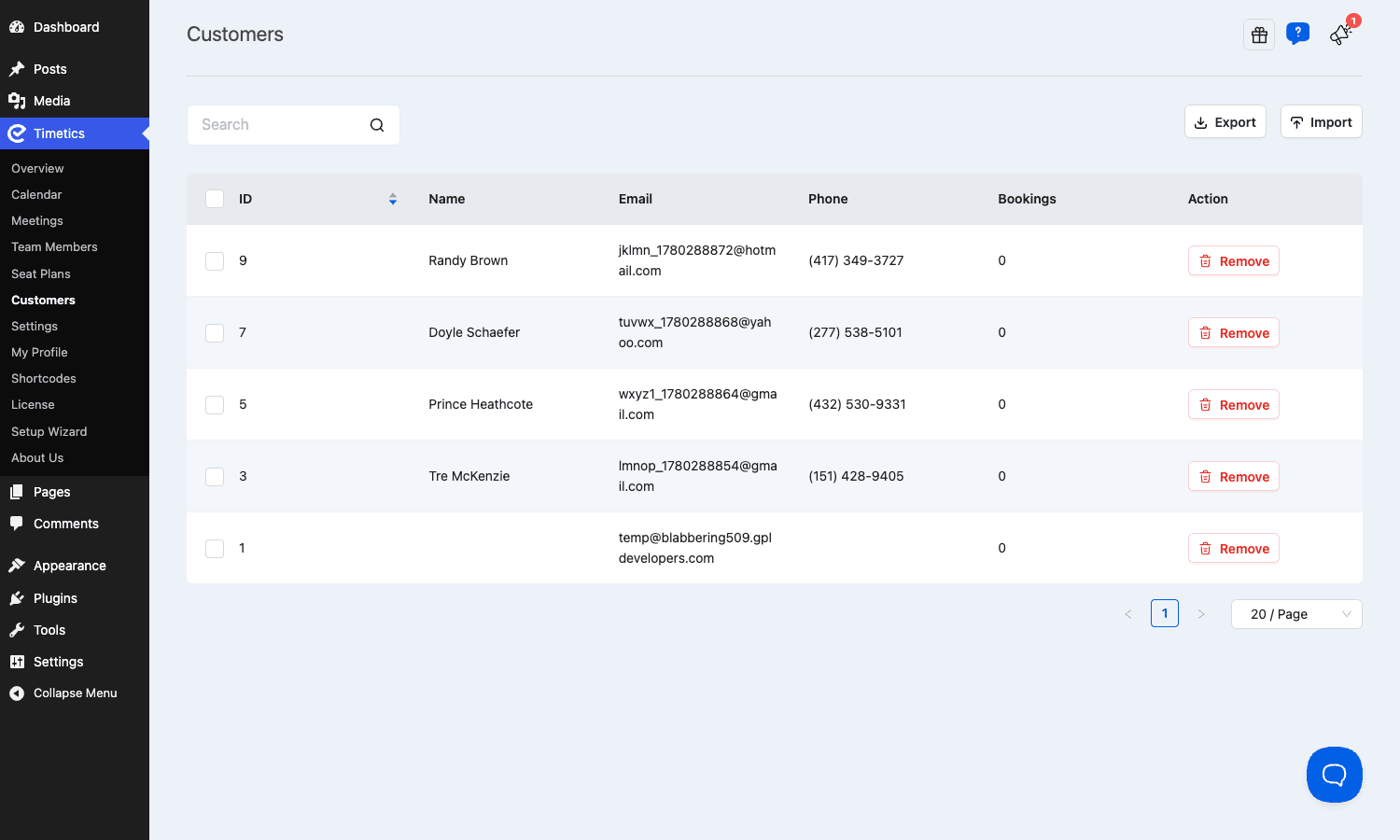
Customers are stored as WordPress users under the hood (a migration in a past release moved attendee data into the WP users table), which means your booking data isn’t trapped in some isolated custom table you can never query. It’s in the place WordPress developers expect it.
Notifications are configured under Settings -> Notifications. Out of the box Timetics sends booking confirmations and reminders by email, with customizable templates that have header and footer hooks for branding. Pro adds SMS reminders via Twilio and WhatsApp reminders, which is the single best lever you have against no-shows. A text two hours before an appointment genuinely changes show-up rates. If you charge for your time, the no-show reduction alone can justify the cost.
Important reality check on email: Timetics sends through WordPress’s wp_mail(). That means the deliverability of your confirmations and reminders is only as good as your server’s email setup, which on most shared hosts is "bad." I’ll come back to this, because relying on raw wp_mail for booking confirmations is a mistake that quietly costs you customers.
The admin dashboard and reports
The Timetics dashboard gives you an at-a-glance overview: total bookings, total revenue, and total customers for the current month, plus a booked-versus-cancelled chart and an upcoming-bookings list. You can switch the period on each card. It’s not a deep analytics suite, it’s a "how’s business this month" snapshot, and for most solo operators and small teams that’s exactly the right amount of reporting. There’s a dedicated reports REST endpoint feeding it, so the numbers are computed server-side rather than guessed in the browser.
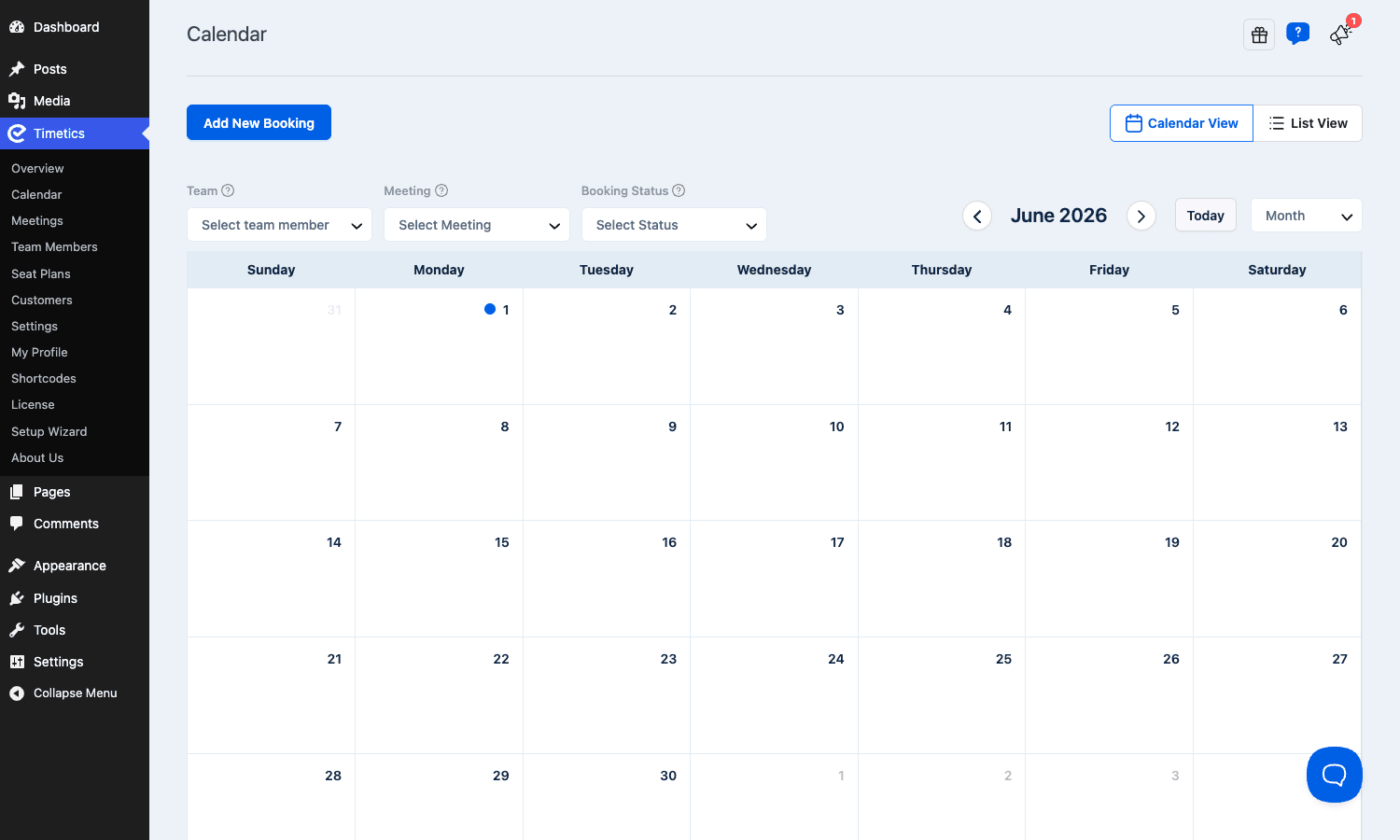
The Calendar view (under Timetics -> Calendar) is more operationally useful day to day. It’s a month grid with filters for team member, meeting, and booking status, and you can create, edit, and delete bookings right on the calendar. You can also flip to a List View when you’d rather see bookings as a table. This is where front-desk staff will live.
Installation and setup
Here’s the exact order to stand it up without tripping over the free-base dependency.
- Install and activate the free Timetics plugin first (from the WordPress.org repository, or upload the zip under Plugins -> Add New -> Upload).
- Install and activate Timetics Pro on top of it. Pro will not function without the free base active; if you deactivate the free plugin, Pro stops working (there was an activation bug around this in an early release, since fixed).
- Activate your license under Timetics -> License so Pro updates and premium features unlock. Licensing runs through Appsero.
- Run the Setup Wizard (it’s in the Timetics submenu) to set your timezone, currency, and first availability.
- Create your first meeting under Meetings -> Add New.
- Connect a calendar under Settings -> Integrations and a gateway under Settings -> Payment if you charge.
- Create a WordPress page and drop in
[timetics-booking-form id='YOUR_MEETING_ID'], then publish and test a booking yourself end to end.
The whole thing genuinely can be live in well under an hour once the calendar OAuth is sorted (the Google Cloud Console step is the slowest part, and it’s Google’s fault, not the plugin’s).
Developer reference: hooks, REST, shortcodes
Now the part developers care about. Everything below I pulled directly from the plugin source, so these are real, not invented. Timetics exposes a wide action and filter surface, a full REST API under timetics/v1, and four shortcodes.
The REST API
All endpoints live under the timetics/v1 namespace and require the manage_timetics capability (or appropriate auth) plus a valid nonce. The core resources:
GET/POST   /wp-json/timetics/v1/appointments
GET/PUT/DEL /wp-json/timetics/v1/appointments/{id}
GET        /wp-json/timetics/v1/appointments/search
GET        /wp-json/timetics/v1/appointments/filter
POST       /wp-json/timetics/v1/appointments/{id}/duplicate
GET        /wp-json/timetics/v1/appointments/export
POST       /wp-json/timetics/v1/appointments/import

GET/POST   /wp-json/timetics/v1/bookings
GET/PUT/DEL /wp-json/timetics/v1/bookings/{id}
PUT        /wp-json/timetics/v1/bookings/{id}/payment
POST       /wp-json/timetics/v1/bookings/{id}/payment-intent
GET        /wp-json/timetics/v1/bookings/search
GET        /wp-json/timetics/v1/bookings/entries
GET        /wp-json/timetics/v1/bookings/payment_methods

GET        /wp-json/timetics/v1/customers/{id}/bookings
GET/POST   /wp-json/timetics/v1/staffs
GET/POST   /wp-json/timetics/v1/customers
GET        /wp-json/timetics/v1/services
GET        /wp-json/timetics/v1/reports
GET/POST   /wp-json/timetics/v1/settings
GET        /wp-json/timetics/v1/booking-calendars
There are also internal controllers for stripe, woocommerce, addons, and a faker route used to generate dummy data in a test environment. The React admin is just a client for all of this, which means you can build your own integrations, a mobile app, or a custom front end against the same API the official UI uses.
A quick example of creating a booking from your own code via the REST API:
$response = wp_remote_post( rest_url( 'timetics/v1/bookings' ), [
    'headers' => [
        'X-WP-Nonce'   => wp_create_nonce( 'wp_rest' ),
        'Content-Type' => 'application/json',
    ],
    'body' => wp_json_encode( [
        'meeting_id'  => 123,
        'staff_id'    => 7,
        'customer'    => [ 'name' => 'Ada Lovelace', 'email' => 'ada@example.com' ],
        'start_date'  => '2026-07-01',
        'start_time'  => '10:00',
        'timezone'    => 'Europe/London',
    ] ),
] );
Action hooks
Timetics fires actions at every meaningful lifecycle point. The most useful for custom logic:
// Run something whenever a booking is created.
add_action( 'timetics_after_booking_create', function ( $booking_id, $booking ) {
    // e.g. push the booking into your own CRM or accounting tool.
    my_crm_create_deal( $booking );
}, 10, 2 );

// React to a booking being scheduled (slot confirmed on the calendar).
add_action( 'timetics_after_booking_schedule', function ( $booking_id ) {
    error_log( "Timetics booking {$booking_id} scheduled" );
} );

// Clean up when a booking is deleted.
add_action( 'timetics_after_booking_delete', function ( $booking_id ) {
    my_crm_close_deal( $booking_id );
} );

// Hook a payment event.
add_action( 'timetics_booking_payment', function ( $booking_id, $payment ) {
    // custom receipt logic, etc.
}, 10, 2 );
Other actions worth knowing include timetics_meeting_after_insert (fires after a meeting is saved), timetics_new_event_email and timetics_booking_notification (notification dispatch), timetics_email_header / timetics_email_footer (brand your emails), timetics_new_seats (seat-plan creation), timetics_webhook_process_delivery (webhook delivery), and the admin-namespaced actions like timetics/admin/booking/make_payment, timetics/admin/refund/create_item, timetics/admin/customer/create_item, timetics/admin/staff/create_item, and timetics/admin/license/activate.
Filters
The filter surface is where you bend behavior without forking the plugin:
// Add or remove payment methods on the booking form.
add_filter( 'timetics_payment_methods', function ( $methods ) {
    // Drop PayPal site-wide, for example.
    unset( $methods['paypal'] );
    return $methods;
} );

// Adjust the bookable time slots for a meeting before they render.
add_filter( 'timetics_booking_slot', function ( $slots, $meeting_id ) {
    // e.g. hide slots inside your lunch break regardless of availability.
    return array_filter( $slots, fn( $s ) => $s['start'] !== '13:00' );
}, 10, 2 );

// Change the default plugin settings.
add_filter( 'timetics_default_settings', function ( $settings ) {
    $settings['currency'] = 'GBP';
    return $settings;
} );

// Filter the data localized into the React admin (advanced).
add_filter( 'timetics_admin_localize_data', function ( $data ) {
    return $data;
} );
Other notable filters: timetics_currency, timetics_booking_schedule, timetics_schedule_data_for_selected_date, timetics_validate_recurring_booking, timetics_meeting_data, timetics_staff_roles, timetics_speaker_roles, and the settings filters for each integration (timetics/admin/settings/google_calendar, /zoom, /paypal, /outlook_calendar, /zapier_webhook, /pabbly_webhook, /fluentcrm_webhook, /twillo_messaging).
Shortcodes
[timetics-booking-form id='123']                        // single meeting booking calendar
[timetics-meeting-list limit='6' show_filter='true']    // filterable grid of meetings
[timetics-category id='5']                               // meetings in one category
[timetics-user-dashboard]                                // logged-in customer's bookings
The timetics-appointment custom post type is public and has its own archive, so each meeting also has a standalone permalink you can link to directly, without embedding the shortcode anywhere.
Don’t take bookings before you lock down timezones
I want to spend real words here because this is the failure mode that bites people hardest, and it’s invisible until it costs you.
Here’s how it goes wrong. You set up Timetics, your server’s PHP timezone is UTC (the default on a lot of hosts), your WordPress site timezone is set to a city, and your own availability is entered in a third timezone in your head. A client in another country books what they think is 3pm their time. Your calendar shows a different hour. One of you shows up to an empty Meet room. Now you’ve burned a slot, lost the revenue, and worse, the client thinks you stood them up. That’s not a hypothetical, it’s the single most common booking complaint across every scheduler on the market, Timetics included.
The fix is discipline, not magic. Before you take a single live booking: set your WordPress timezone under Settings -> General to an actual city (not a UTC offset, because offsets don’t handle daylight saving), set the same timezone in the Timetics setup wizard, and confirm each staff member’s availability is entered in a timezone you’ve deliberately chosen. Then run a test booking as a customer in a different timezone (change your browser or OS timezone, or ask a friend abroad) and verify the slot lands on your calendar at the hour you expect. Do this before launch, every time.
The money math is brutal. If you charge $150 a session and timezone confusion causes two no-shows a month, that’s $300 plus the hit of looking unreliable. Five minutes of testing is the cheapest insurance you’ll buy. Timetics converts timezones correctly at the display layer, but it can only work with the ones you give it. Garbage in, missed appointments out.
Troubleshooting the problems people actually hit
The React admin shows "Oops! Something went wrong." This is the most common one. The SPA occasionally drops into an error state, usually after a navigation or a stale session. The fix is almost always a hard refresh (Ctrl/Cmd + Shift + R). If it persists, clear any page-cache or object-cache plugin for wp-admin and make sure your REST API isn’t being blocked by a security plugin. The admin is entirely REST-driven, so anything that breaks /wp-json/ breaks Timetics.
Google Calendar sync stops working after a while. OAuth tokens expire. If sync silently stops, go back to Settings -> Integrations, disconnect, and reconnect Google. Also double-check that the Redirect URI in your Google Cloud project exactly matches the one Timetics shows (it’s listed right there in the integration panel). A trailing-slash mismatch is enough to break the handshake.
Booking confirmation emails never arrive. This is almost never a Timetics bug. It’s wp_mail() plus a host that doesn’t authenticate outbound mail. Install an SMTP plugin and route email through a real provider. See the next section.
The payment gateway won’t connect. For Stripe, confirm you’re pasting the keys for the right mode (test vs live) and that your site is on HTTPS, which Stripe requires. For PayPal, test a small live transaction; PayPal live credentials and multi-currency had bugs in older releases.
Availability slots don’t show on the frontend. Three usual causes: the meeting is set to disabled (toggle it on in the meetings list), no staff is assigned to the meeting, or the meeting’s date range hasn’t started yet. Check all three.
Seat map looks broken or zoomed wrong. The canvas editor has had several responsiveness fixes. If a seat plan renders oddly, re-open it in the editor, use the fit-to-screen control, and re-save. Clearing the page cache afterward helps because the seat map is rendered client-side.
Booking shows as Pending and never confirms. Check Settings -> General -> Approval Status. If it’s set to "Pending," every booking waits for manual approval by design. Switch it to "Approved" for instant confirmation, or keep "Pending" if you want to vet bookings first.
Don’t rely on wp_mail for booking confirmations
A short companion to the troubleshooting above, because it matters enough to repeat. Timetics confirmations and reminders go out through wp_mail(). On a default shared host, those emails frequently land in spam or vanish entirely, because the mail isn’t authenticated (no SPF, DKIM, or DMARC alignment). A booking confirmation that never arrives is functionally a no-show waiting to happen: the customer isn’t sure the booking worked, doesn’t get a reminder, and doesn’t show. Pair Timetics with an SMTP plugin like WP Mail SMTP Pro and route mail through a real provider (we walk through that in our guide to fixing WordPress email). For the highest-value reminders, turn on Timetics Pro’s Twilio SMS or WhatsApp reminders, which don’t depend on email deliverability at all.
Compatibility, hosting, and performance
The free base requires WordPress 5.2+ and PHP 7.3+; the Pro plugin wants PHP 7.4+. In practice you’ll want PHP 8.0 or higher on modern hosting. Both halves declare compatibility through recent WordPress 6.x releases.
The React admin is heavier in the browser than a typical settings page, so a low-powered admin device will feel it, but it has no impact on your visitors. The frontend booking calendar enqueues its own assets only on pages where a Timetics shortcode is present, so it doesn’t slow down the rest of your site. If you run a page caching plugin like WP Rocket, exclude the booking pages and the REST API from cache so availability stays live.
It’s translation-ready and tested with WPML and Loco Translate, with both timetics and timetics-pro text domains. On multisite, treat it as a per-site plugin (each site has its own meetings, staff, and bookings). Known friction points are mostly the integration auth flows (Google and Outlook OAuth) rather than core conflicts; it coexists fine with the usual SEO, security, and commerce plugins.
Timetics vs Amelia vs BookingPress vs Calendly
This is the comparison most buyers actually want, so here are concrete numbers, not adjectives.
Calendly is the SaaS incumbent, and the math is the whole story. Calendly’s paid plans run roughly $10 to $20 per user per month, billed forever. For a 3-person team that’s around $360 to $720 every single year, with your booking data sitting on Calendly’s servers. Timetics is a one-time purchase you self-host, and even the free Timetics tier already does 1:1 scheduling with Google Meet and Stripe at $0/month. If you’re a solo operator, free Timetics genuinely competes with a $144/year Calendly seat. The trade-off: Calendly is zero-maintenance and Timetics is a WordPress plugin you have to host and update.
Amelia is the closest WordPress competitor and a strong one. Amelia’s lifetime license sits in the few-hundred-dollar range and it’s polished, with employees, services, packages, and events. Where Timetics pulls ahead is the visual seat-map booking (Amelia has group events but no per-seat selection canvas) and the more generous free tier. Amelia’s appointment booking plugin leans harder into salon/clinic workflows like packages and extras; Timetics leans toward modern 1:1 scheduling plus seats. Both two-way sync with Google. Pick Amelia for service businesses with packages and add-ons; pick Timetics for Calendly-style scheduling and seated events.
BookingPress is the budget option with a huge addon catalog (40+ paid extensions). Its base is cheap, but the addon model means the price climbs fast once you want SMS, group bookings, or specific gateways, each often a separate purchase. Timetics bundles more into the single Pro tier: Zoom, Outlook, PayPal, SMS/WhatsApp, recurring, and seat booking all come with Pro rather than as 6 separate addons. If you’d need 4+ BookingPress addons, Timetics usually works out cheaper and simpler to manage.
The integration count tells a similar story: Timetics ships with Google Calendar/Meet, Zoom, Outlook, iCal/Apple, Stripe, PayPal, WooCommerce, Twilio, WhatsApp, FluentCRM, Zapier, and Pabbly. That’s a wider native integration spread than most plugins at this price, and notably wider than the free competitors.
Pricing and licensing
Timetics has a genuinely useful free version on WordPress.org (unlimited appointments, bookings, and staff, plus Google Meet, Google Calendar two-way sync, and Stripe). The Pro tiers from Arraytics are licensed per number of sites, typically a single-site personal license, a multi-site professional/business license, and an agency/unlimited tier, with annual and lifetime options. Higher tiers add more activations and longer support windows rather than locking away features. Pro across all tiers unlocks seat booking, Zoom, Outlook, PayPal, SMS/WhatsApp, recurring appointments, export/import, and the automation integrations.
You can get the full Pro plugin through Timetics Pro on GPL Times, which is the quickest way to get the complete seat-booking and integration feature set running on a real WordPress install so you can wire up your own meetings, staff, and gateways exactly as we walked through here. It’s the same Pro plugin, delivered through the GPL store.
FAQ
Does Timetics support Google Calendar two-way sync?
Yes, and it’s in the free version. New bookings push to your Google Calendar, and existing Google Calendar events block out those times in Timetics so customers can’t book over them. The catch is the setup: you have to create your own project in the Google Cloud Console and generate OAuth credentials, which is the fiddliest part of the whole plugin. Budget 15 to 20 minutes for that step the first time.
Do I need WooCommerce to take payments?
No. Stripe works directly in the free version with no WooCommerce required, and PayPal works in Pro. WooCommerce is one option, and it’s the best one if you already run a Woo store, because bookings then land in your existing orders list with your existing gateways. If you don’t run WooCommerce, don’t install it just for Timetics; use Stripe directly.
Can it handle group classes and seat selection, not just 1:1 calls?
Yes, this is a core strength. One-to-Many meetings cap a slot at a capacity (great for webinars and group coaching). Pro adds a visual seat-map editor for true seat selection, where customers pick a specific seat from a layout. Be aware the seat-map editor has a learning curve; for simple capacity limits, a One-to-Many meeting is much faster to set up.
How does Timetics handle timezones?
It detects the visitor’s timezone and shows them slots in their local time, while you see bookings in your own. It works well, but only if you’ve set your WordPress and Timetics timezones to real cities (not UTC offsets) and tested a booking from a different timezone before launch. Timezone misconfiguration is the number one cause of booking no-shows, so don’t skip the test.
Will reminders actually get delivered?
Email reminders go through WordPress’s wp_mail(), which on most shared hosts has poor deliverability. Pair Timetics with an SMTP plugin so confirmations don’t land in spam. For the reminders that matter most, use Pro’s Twilio SMS or WhatsApp reminders, which bypass email entirely and have far better open rates.
Does it auto-create Zoom and Google Meet links?
Google Meet links generate automatically once you connect Google Calendar (free). Zoom is Pro and now requires installing a separate Timetics Zoom Addon, which supports both Server-to-Server OAuth and standard OAuth. Once connected, online meetings get the conferencing link added to the confirmation automatically.
Can different staff have different schedules?
Yes. Each team member has independent availability, and a meeting can either pool several staff ("book whoever’s free") or let the customer choose a specific person. Availability can also be customized per meeting, so one person can offer a free intro call with wide hours and a paid deep-dive with tight hours off the same calendar.
What’s the real difference between free and Pro?
Free covers solo 1:1 scheduling completely: unlimited meetings and bookings, Google Meet, Google Calendar sync, and Stripe. Pro adds seat booking, Zoom, Outlook, PayPal, SMS/WhatsApp reminders, recurring appointments, export/import, and the FluentCRM/Zapier/Pabbly automation hooks. If you’re a solo coach taking calls, free might be all you need. If you run classes, charge through PayPal, or want SMS reminders, that’s Pro.
What happens to my data if I uninstall?
Bookings, meetings, and customers live as standard WordPress posts and users in your database, so they’re yours and they’re queryable. Timetics ships an uninstall.php, so a full delete (not just deactivate) will clean up plugin data. If you want to keep your booking history, export your meetings, bookings, and customers (Pro has JSON/CSV export) before uninstalling.
Is Timetics Pro the right scheduler for you?
After living in the admin for a while, here’s my honest read. Timetics Pro is the most credible self-hosted answer to Calendly I’ve used on WordPress, and it’s the seat-booking feature that makes it stand out from the 1:1-only crowd. The free tier alone is unusually generous, and Pro adds exactly the things a real business needs: SMS reminders, Zoom and Outlook, PayPal, recurring bookings, and that seat map.
It’s not flawless. The React admin can stumble into an error state that needs a refresh, the Outlook and seat-map features have rough edges, and like every scheduler it lives or dies on timezone discipline and email deliverability you have to set up yourself. None of those are dealbreakers, they’re "know before you go live" items.
If you’re a solo consultant taking calls, start with the free version and only upgrade when you hit a wall. If you run group classes, seated events, a small services team, or you want bookings flowing into WooCommerce orders, Pro is well worth it and undercuts a Calendly subscription within the first year. You can pick up the full plugin from Timetics Pro on GPL Times and have a working booking calendar on your site this afternoon.