

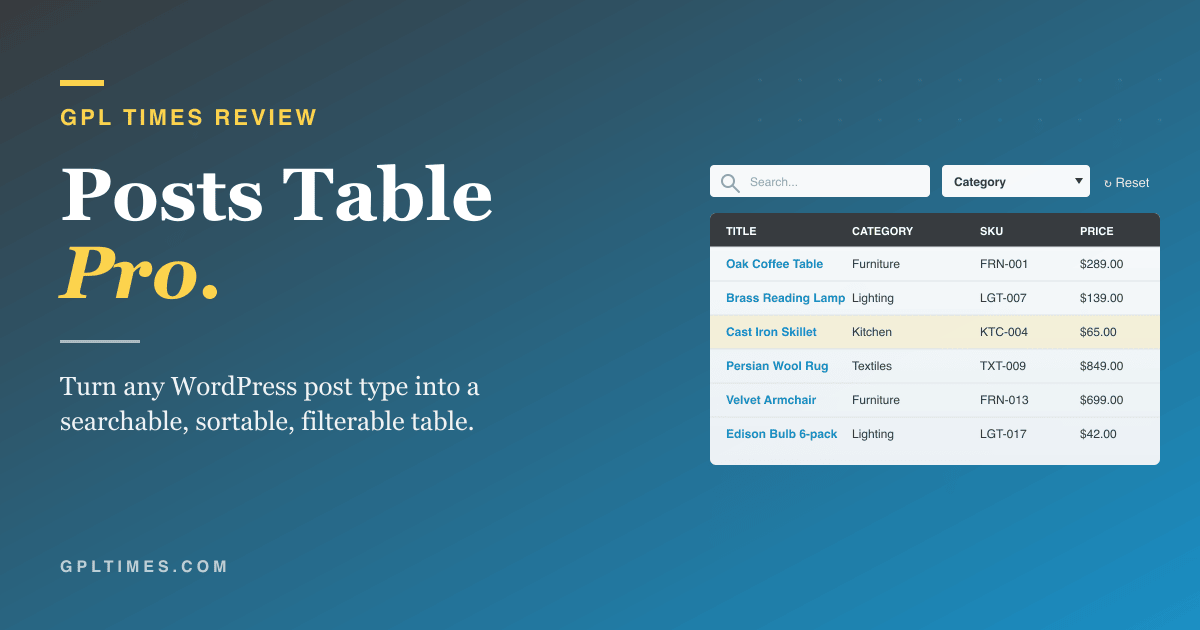
A client called me last spring. They had 800 plumbing parts on a WooCommerce site, and their customers (mostly contractors) hated the default shop grid. "It’s a catalog, not a window display," one trade buyer told them on a survey. They wanted a table. Searchable. Sortable. Filterable by fitting size, material, brand. Inline. No clicking into a product page just to see the SKU.
I’d been here before. A podcast directory with 200 episodes where listeners wanted columns for guest + date + length + tags. A research-paper repository where the request was author + year + topic. An internal staff intranet where the team list had to filter by department. Every time, the same conversation. Every time, the same tools failing. The default WooCommerce shop layout is useless past 50 SKUs. TablePress wants you to retype your post titles into a separate database. wpDataTables is powerful and I respect it, but the learning curve eats two days. The native [products] shortcode? Try wiring up a search box to that.
Posts Table Pro is what I keep coming back to. One shortcode. Point it at any post type. It pulls the data straight from the post fields, post meta, taxonomies, and custom-field plugins like ACF and Pods. Then it renders a real data table with a search bar, filter dropdowns, sortable columns, and pagination. No data duplication. No spreadsheet import. The table is the live post list.
This is a long walkthrough. The first half is for site owners who want a catalog or directory and don’t care how it works. The second half is for developers who need to know which filters fire, what’s cached, where the WP_Query happens, and how to extend the column types. By the end you’ll know whether Posts Table Pro fits the job you have, and what it definitely does not do.
Table of Contents
- What is Posts Table Pro?
- How the table actually renders (the 60-second mental model)
- Key features at a glance
- Installation and the first table
- The shortcode that does everything: a tour of the attributes you’ll actually use
- The five-step table builder UI
- Catalog-mode for WooCommerce: when a table beats the default shop grid
- Hidden gem: filtering by ACF custom fields without writing PHP
- Lazy-load vs paginated vs everything-at-once: the performance decision tree
- Posts Table Pro vs wpDataTables vs Ninja Tables: when each one wins
- Don’t ship a 5,000-row table without lazy-load
- Real-world use cases
- Developer reference: hooks, filters, classes
- What Posts Table Pro doesn’t do
- Performance, compatibility, and the gotchas I’ve actually hit
- Pricing and licensing
- FAQ
- Final thoughts
What is Posts Table Pro?
Posts Table Pro is a WordPress plugin by Barn2 Plugins (Barn2 Media Ltd) that takes any WordPress post type and renders it as an interactive HTML table on the front end. You drop in a shortcode, point it at the post type and the columns you want, and the plugin does the rest. Search box, column filters, sorting, pagination, responsive collapse, the lot.
It’s not a spreadsheet plugin. There’s no cell-by-cell editing. The data comes from your real WordPress content. The plugin is, in plain English, a smart query + render layer.
Three things separate it from the generic "table builder" category:
- It reads live post data. If you publish a new product or post that matches the table’s query, it shows up automatically. No re-import.
- It speaks custom post types and custom taxonomies out of the box. ACF, Pods, Meta Box, and Toolset custom fields are first-class column types.
- It’s shortcode-first. The whole table is configured by attributes, not a sprawling settings panel. The settings panel exists for global defaults, but the per-table config lives where you paste the table.
Barn2 has been shipping this plugin for years. It’s stable, well-supported, and the official documentation at barn2.com is genuinely good (more on that under "criticism" later, because some of the deeper KB articles are behind a customer-account paywall, which is friction when you’re debugging in production).
You can get Posts Table Pro from Posts Table Pro on GPL Times if you want a copy to install on a staging site and try every column type against real data.
How the table actually renders (the 60-second mental model)
Skip ahead if you don’t care. If you’re a developer about to ship this on a busy site, read this section, it’ll save you a debugging session.
When a page containing [posts_table] loads, here’s what actually happens.
- WordPress hits the shortcode handler in
Table_Shortcode::do_shortcode(). - The shortcode attributes are merged with the global defaults (the ones you set on the Posts Table -> Settings page) via
apply_filters( 'posts_table_site_default_args', $defaults ). - A
WP_Queryis built from the merged args: post_type, status, meta_query, tax_query, posts_per_page, orderby, and so on. - The query runs. The result set is the row list.
- For each row, every requested column is resolved through a
Post_*data class (Post_Title,Post_Excerpt,Post_Custom_Field,Post_Custom_Taxonomy, etc.). Each cell value passes through a filter likeapply_filters( 'posts_table_data_title', $value, $post )so you can override it. - The rendered HTML is cached per-table (if you enable caching) using the table’s args hash as the key.
- The HTML ships to the browser with a small JS bundle that wires up sorting, search, and filtering using a React-powered DataViews engine (Barn2 rebuilt this in version 4, moving away from the older DataTables.js).
There’s a lazy-load mode for tables over a configurable row threshold (default 500) where the initial response only includes the page-1 rows, and subsequent pages are fetched over the REST API. That’s the thing that lets a 5,000-row table not break the page.
That mental model is enough to debug 90 percent of the issues that come up. If a column shows empty, you either named the column wrong, the filter on that column has overridden the value, or the meta key actually doesn’t exist on the post.
Key features at a glance
Here’s what actually moves the needle on a real catalog or directory site. Not the full marketing list.
- One shortcode, any post type.
[posts_table post_type="book"]is a complete table. Add columns and filters as attributes when you need them. - Built-in column types. Title, Image, Excerpt, Author, Date, Categories, Tags, Status, ID, Content. Each is a real PHP class you can extend.
- Custom-field columns.
cf:meta_keysyntax pulls any post meta. Works for ACF text, number, image, repeater, file, URL, and date fields. - Custom taxonomy columns.
tax:taxonomy_slugpulls term names with optional links to the taxonomy archive. - Filter dropdowns. Above the table, by category, tag, custom taxonomy, year, month, day, author, or any registered custom-field filter.
- Inline search. Hits the post title, content, excerpt, SKU, and (optionally) custom fields. Configurable via filters.
- Sortable columns. Click any column header. Server-side sort URL by default; client-side fast-sort for small tables.
- Lazy-load mode for large datasets. Paginate over REST instead of loading all rows on first render.
- Responsive control. Columns collapse into a child row on small screens, or you can hide specific columns by breakpoint.
- Cache toggle. Per-table HTML cache, keyed by the args hash. Flushes when posts are saved (via the standard
save_postaction). - Block + shortcode. Both a Gutenberg block ("Post Table") and the classic shortcode. The block is a thin wrapper that emits the shortcode.
- Table builder UI. A five-step wizard at Posts Tables -> Add New that walks you through Create -> Refine -> Columns -> Search & Sort -> Ready.
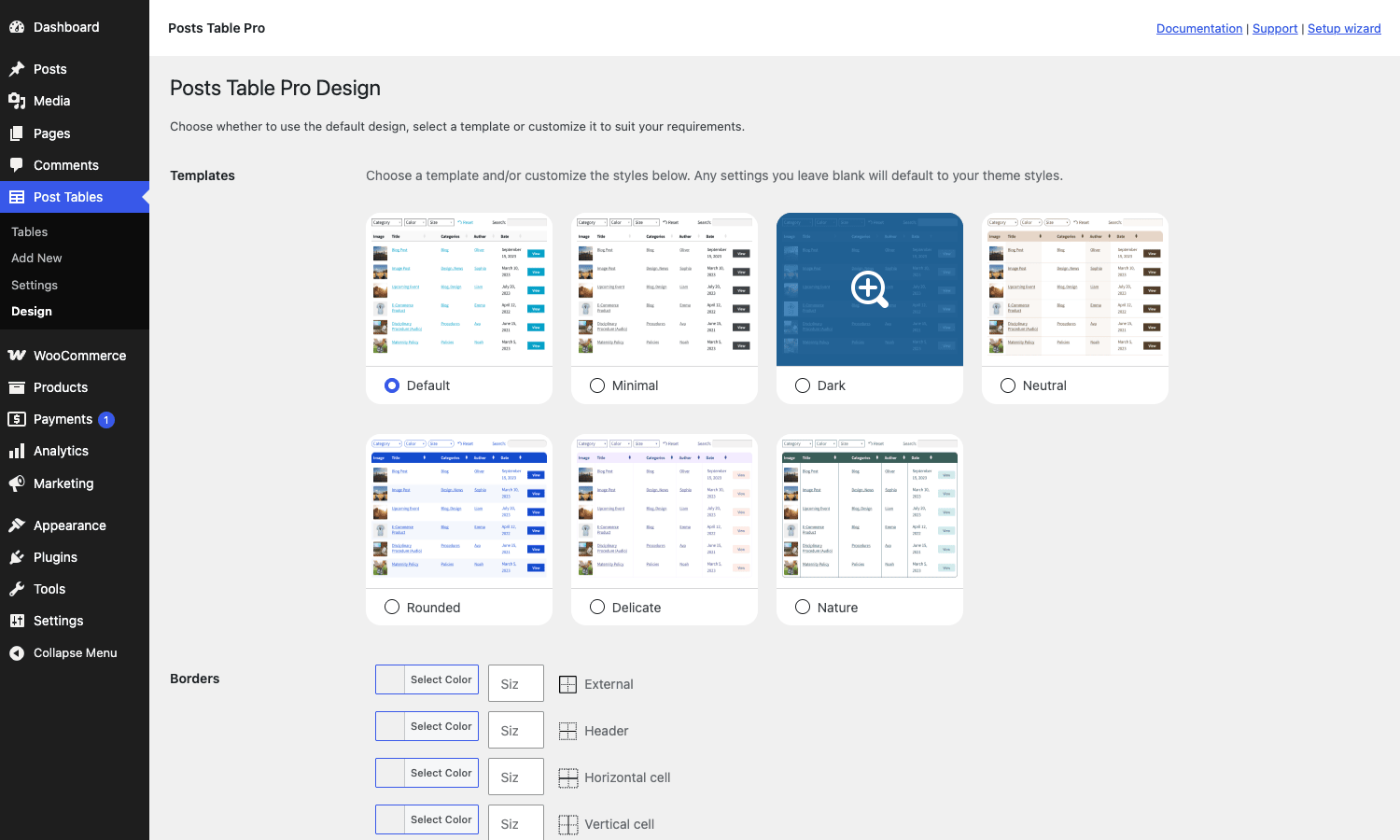
- Seven design templates (Default, Minimal, Dark, Neutral, Rounded, Delicate, Nature) plus custom border / color overrides on the Design page.
- REST endpoint (
/wp-json/posts-table-pro/v1/...) used by the lazy-load and search. You can hit it yourself for headless setups. - FacetWP and SearchWP integration. If you already have one of these installed, the plugin defers to them for filtering / search. If your filtering needs go beyond what Posts Table Pro exposes, Search & Filter Pro is the standalone alternative I usually pair with this for richer filter UI.
- WPML and Polylang support out of the box (the plugin’s
wpml-config.xmldeclares the shortcode attributes as translatable). - Password Protected Categories add-on hook (a sibling Barn2 plugin) so members-only categories integrate cleanly.
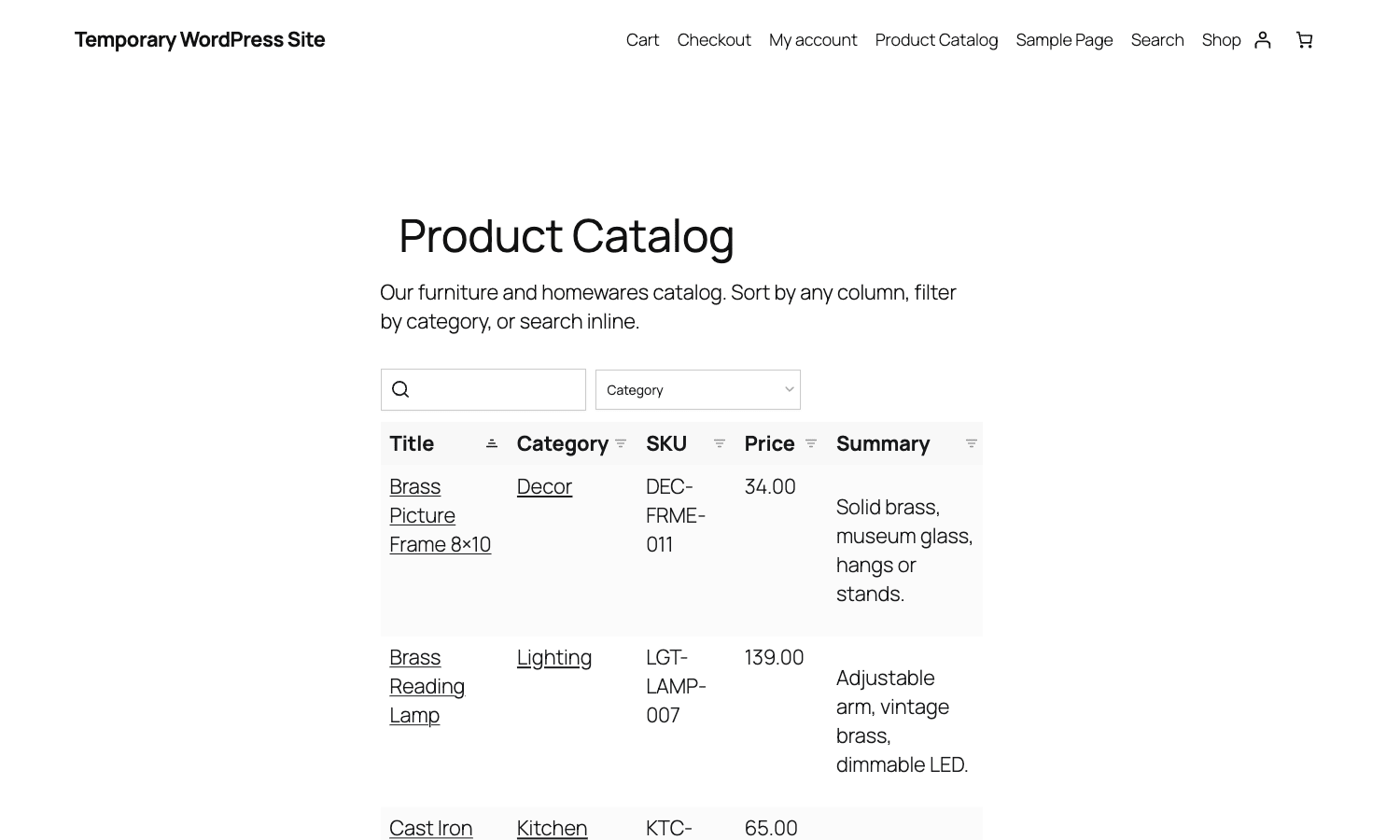
The screenshot above is the front-end catalog page I built in five minutes on a fresh WooCommerce install: 20 furniture and homeware products rendered as a sortable, filterable table with title, category, SKU, price, and summary columns.
Installation and the first table
The install flow is normal-plugin-stuff. Upload the zip from Plugins -> Add New -> Upload Plugin, activate, and you’ll see a new top-level menu called Post Tables in the WordPress sidebar.
A first table takes about 90 seconds:
-
Create a new WordPress page (or post). Call it whatever fits, "Product Catalog" works.
-
Drop this shortcode into the content area:
[posts_table post_type="product" columns="title,categories,sku,price" filters="categories"] -
Publish, view the page.
That’s it. The plugin will pull every published product, render the four columns, add a search box at the top and a category filter dropdown next to it. Sorting is enabled on every column by default.
A few real-world adjustments you’ll make on the second pass:
- Set
rows_per_page="25"(default is 25, but if your design needs 50 say so explicitly). - Add
sort_by="title" sort_order="asc"for an alphabetical default. - Add
lazy_load="true"if the table has more than a few hundred rows. - Customize column headers with
columns="title:Product Name,sku:Item Number,price:Price"syntax. The bit after the colon is the rendered header. - For ACF custom fields use
cf:meta_key:Header Label. For taxonomies usetax:taxonomy_slug:Header.
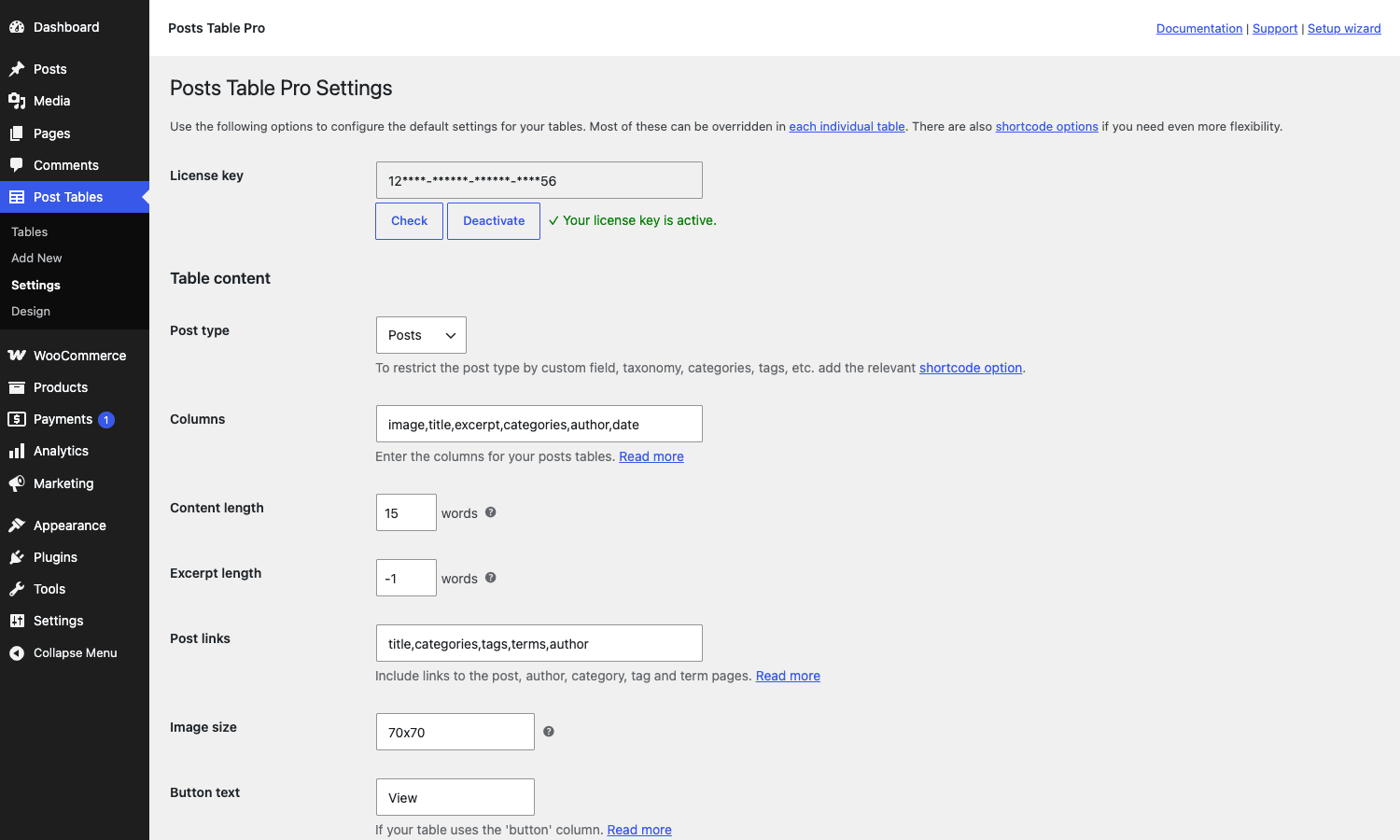
The settings page (Posts Tables -> Settings) is where you put the defaults for all tables on the site, things like image size, content length, button text, and the license key. Setting these here saves you typing them into every shortcode.
The shortcode that does everything: a tour of the attributes you’ll actually use
The [posts_table] shortcode has 60+ attributes. You’ll use maybe a dozen. Here are the ones worth memorising.
Query attributes (what content goes in the table):
post_type="product"(orpost,page, your CPT slug, or comma-separated for multiple types).status="publish,draft"(defaultpublish; mixed status is useful for member-only or staff-only tables).category="news,reviews"(comma-separated term slugs).tag="sale,featured".term="taxonomy:slug1,slug2"(custom taxonomy term filter).cf="meta_key:value"(custom-field filter; supports>,<,LIKEsyntax).author="3,5,12"(user IDs).year="2026"/month="5"/day="14"(date filters).include="123,456"/exclude="789"(explicit ID lists).post_limit="500"(total cap; default 500. Bump for big catalogs or set to-1for all).
Column attributes (what shows up in each row):
columns="title,categories,sku,price". Each comma-separated value is a column slug. Built-in slugs includetitle,image,excerpt,content,categories,tags,author,date,date_modified,id,status,button.cf:meta_key:Headerfor any custom field.tax:taxonomy:Headerfor any custom taxonomy.image_size="80x80"for the image column. Accepts a registered size name or pixel dimensions.content_length="15"(words) for the content column.links="title,categories,tags,terms,author"to control which columns are links to their permalinks / archives.
Filter and search attributes (the controls above the table):
filters="categories,tags,tax:product_cat"adds filter dropdowns for those facets.search_box="top"(orbottom,both,false).search_on_click="true"makes every cell a click-to-filter. Useful for tag-cloud tables, terrible for catalogs where the cell text is the data.reset_button="true"adds a one-click "clear all filters" button.
Behaviour attributes:
rows_per_page="25"initial page size.paging_type="numbers"(orsimple,simple_numbers,full_numbers).sort_by="title"initial sort column.sort_order="asc"ordesc.lazy_load="true"for tables that won’t fit in memory.cache="true"enables the per-table cache.responsive_control="inline"(orchild_row,modal) for how hidden columns appear on mobile.
A real-world product-catalog shortcode looks like:
[posts_table post_type="product" columns="image,title,tax:product_cat:Category,cf:_sku:SKU,cf:_regular_price:Price,excerpt" filters="tax:product_cat" rows_per_page="25" sort_by="title" sort_order="asc" reset_button="true" lazy_load="true"]
Six columns, one filter dropdown, alphabetical by title, 25 per page, reset button, lazy-loaded if it gets big. Pop that in a page, you have a working catalog.
The five-step table builder UI
If you don’t want to memorize the attribute names, Posts Table Pro 4.0 added a wizard at Post Tables -> Add New. Five steps:
- Create. Name the table, pick the content type from a dropdown of all registered post types on the site.
- Refine. Filter the rows. All products, or a specific category, or specific manually-picked items.
- Columns. Add and reorder the columns. Each row is a draggable card with an edit pencil and a remove X.
- Search & Sort. Toggle the search box, choose which columns are sortable, pick the default sort.
- Ready. Get the shortcode to paste into a page, or pick the Gutenberg block instead.
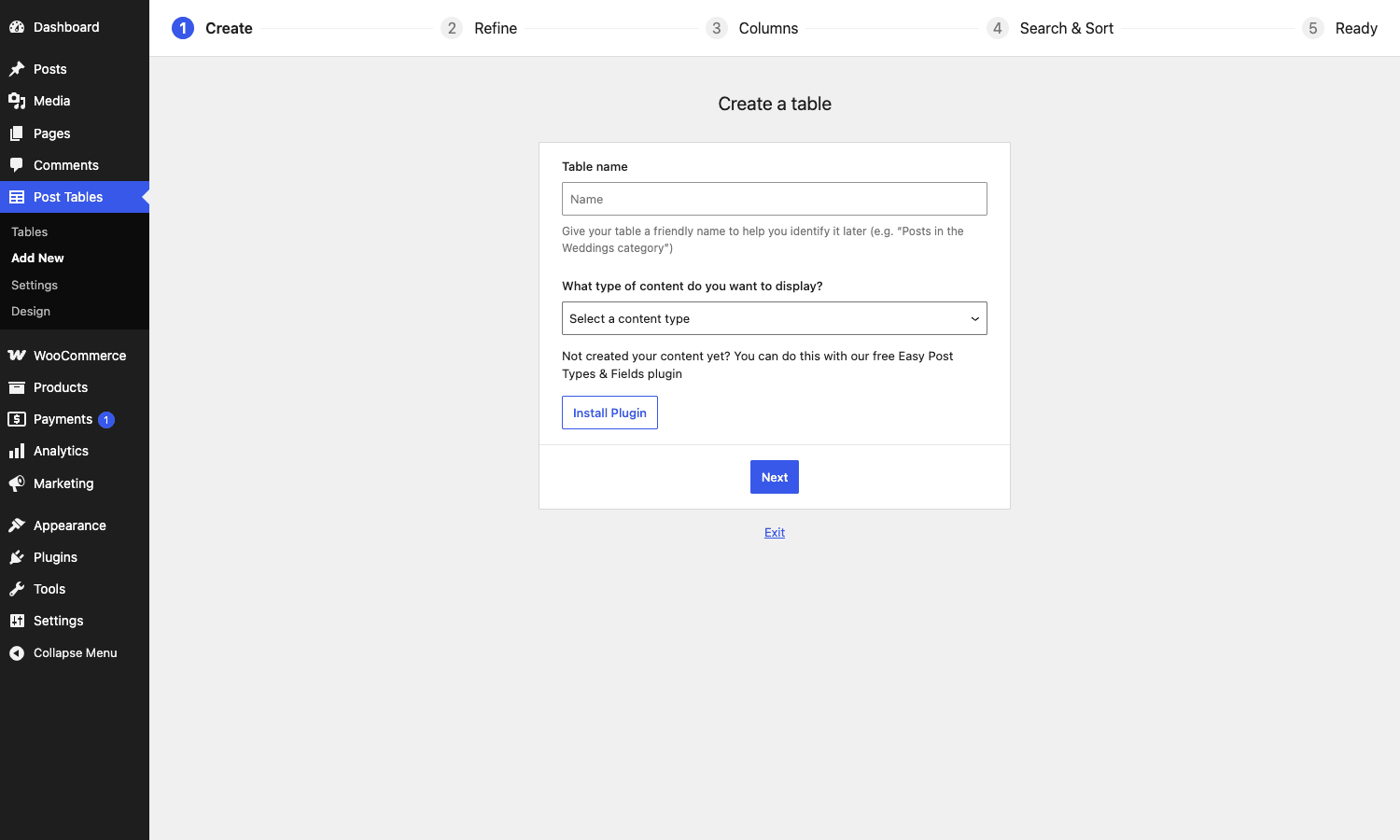
Once you’ve built a few tables through the UI, you’ll switch to writing shortcodes by hand because it’s faster. The wizard is mostly for first-time setup and for non-technical users who’ll panic at the sight of cf:_regular_price.
Step 3, the Columns step, is where most people spend their time:
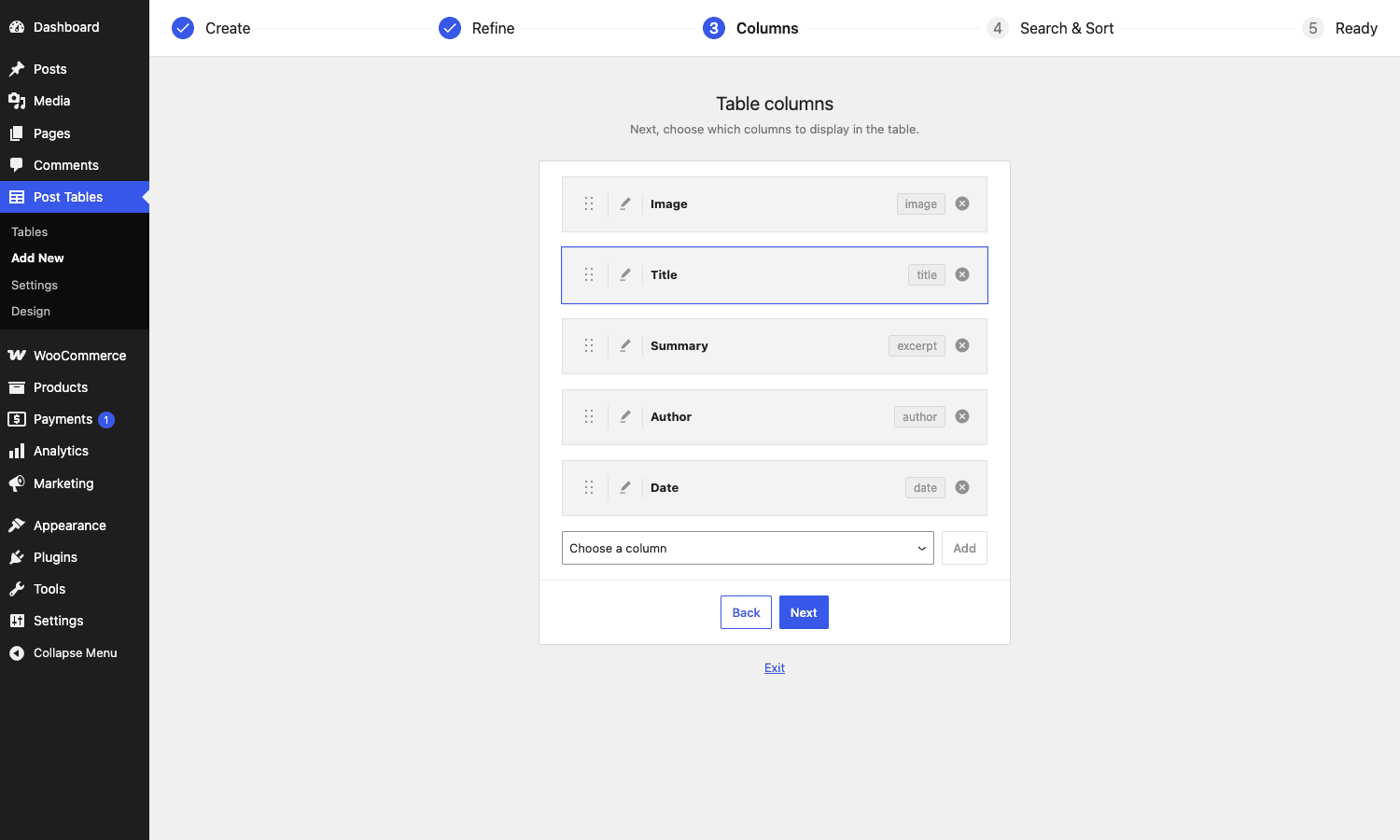
Drag handles on the left, edit pencil to rename the header, X to remove, "Choose a column" dropdown to add a new one.
Catalog-mode for WooCommerce: when a table beats the default shop grid
This is the use case Barn2 markets the plugin for, and it’s the strongest fit. WooCommerce’s default shop archive is great when you have ~30 hero products that benefit from large card images. It falls apart at scale, and there’s a specific kind of WooCommerce store where it falls apart immediately.
The store-types where you want a table over a grid:
- B2B and trade. Buyers know what they want. They search by SKU, sort by price, filter by spec. They will not scroll through 800 cards.
- Industrial / parts catalogs. Plumbing fittings, electrical components, automotive parts. Customers want the part number visible inline, not on the next page.
- Restaurant menus and one-click order pages. Often run on WooCommerce so you get payments and cart logic, but the layout has to be a menu, not a shop.
- Single-line-item professional services. "Choose your hour package" is one row, not a card.
- Wholesale price lists. Need a printable, scannable, table-shaped view.
For these, the workflow is:
- Build the WooCommerce products normally. SKU, regular price, sale price, categories, attributes, all your usual data.
- Create a page called "Order Form" or "Catalog" or whatever fits the business.
- Drop the
[posts_table post_type="product"...]shortcode in. - Optionally make this your shop archive by changing WooCommerce -> Settings -> Products -> Shop page to the new page. Or leave the default shop alone and link to the table from the menu.
A small but important note: Posts Table Pro’s universal [posts_table] shortcode handles WooCommerce products as a custom post type. It pulls SKU and price via the cf:_sku and cf:_regular_price syntax because those are stored as post meta. Barn2 also sells a dedicated WooCommerce Product Table plugin that adds an add-to-cart button column, variation-as-row support, image gallery columns, and other WC-specific niceties. If you need front-end-add-to-cart from the table, that’s the upgrade path. If you just need a scannable list with a "View" button linking to the product page, the regular Posts Table Pro is fine.
Hidden gem: filtering by ACF custom fields without writing PHP
This is the feature that keeps converting people from wpDataTables. You wire up ACF Pro to your post type. You add a "Topic" field, a "Year" field, a "Format" field. You publish 200 posts.
Without Posts Table Pro, exposing those fields as filterable, searchable columns on the front end is a project. You either build a custom shortcode that runs a meta_query, or you wire up FacetWP, or you accept that ACF data is admin-only.
With Posts Table Pro, you write:
[posts_table post_type="research_paper" columns="title,cf:topic:Topic,cf:year:Year,cf:format:Format" filters="cf:topic,cf:year,cf:format"]
That’s it. Each cf: filter becomes a dropdown above the table whose options are all the distinct values of that meta key in your published posts. Click "Year: 2026" and the table filters to 2026 papers. Click "Topic: Climate" on top of that, and they stack as an AND condition.
ACF repeater fields work too, via posts_table_acf_repeater_field_value filter (more on hooks below). ACF relationship fields render as a comma-separated list of linked post titles. ACF date fields are formatted using the field’s display format, with a configurable filter (posts_table_custom_field_stored_date_format) for non-standard storage.
The thing I appreciate here is that you don’t have to register the meta key as filterable anywhere. The plugin introspects the published posts, finds the distinct values, and builds the dropdown. New value in a new post? Next page-load, it’s in the dropdown.
Lazy-load vs paginated vs everything-at-once: the performance decision tree
This is the question that decides whether your table is fast or whether it kills your TTFB.
Three render modes, decision tree:
Everything-at-once (lazy_load="false", default for tables with < 500 rows).
- All rows ship in the initial HTML response.
- Client-side sort and filter are instant after the page loads.
- Initial HTML is heavier. For 200 rows that’s fine. For 2,000 rows you’re shipping a fat HTML doc.
- Use when: row count < ~500 AND you want instant client-side interaction.
Lazy-load mode (lazy_load="true").
- Only the visible page (first
rows_per_pagerows) is in the initial HTML. - Subsequent pages, search, sort, and filter changes hit a REST endpoint and re-render the table body.
- Initial response is small. Network roundtrip on every interaction.
- Use when: row count > 500 OR when the table is below the fold and you want fast initial render.
Cached mode (cache="true").
- Independent of the two above. Caches the rendered HTML keyed by the args hash.
- First visit pays the query cost. Every subsequent visit gets cached HTML.
- Invalidates when any post in the queried type is saved (via
save_post). - Use when: traffic is high enough that the same table renders many times AND the post type doesn’t change every five minutes.
The cutoff for switching to lazy-load is ptp_lazy_load_size, defaulting to 500 rows. You can override:
add_filter( 'ptp_lazy_load_size', function() {
 return 200; // Trigger lazy-load above 200 rows on this site
} );
In practice I set lazy-load explicitly per-table via the shortcode attribute. The filter is for sites with dozens of tables where the default needs to be different.
On a site where the table is a B2B catalog viewed by signed-in users only, I also flip on a backend object cache (Redis or Memcached) so the underlying WP_Query doesn’t re-run on every paginated REST hit. Posts Table Pro itself doesn’t manage that, it’s just WordPress query caching, but the combination matters.
Posts Table Pro vs wpDataTables vs Ninja Tables: when each one wins
I get this question a lot. Three plugins in the same broad category, three different sweet spots.
Posts Table Pro wins when the data is already in WordPress as posts, products, or a CPT. You don’t want to duplicate it. You want a live front-end view that updates when you publish a new entry. Catalogs, directories, knowledge bases, member lists, document repositories.
wpDataTables wins when the data is somewhere else, in a Google Sheet, an Excel file, a MySQL database, a CSV, a JSON feed. wpDataTables pulls from any of those sources, can write back to them, and pairs the tables with charts. It’s the heavy-lifting plugin for data dashboards. The learning curve is real, and the column-edit UX is more like configuring a spreadsheet than writing WordPress. If you want a hands-on comparison, wpDataTables review walks through the same shape of question with screenshots.
Ninja Tables Pro wins when you want a manual, hand-built table that doesn’t connect to any post type. Static price comparisons, comparison charts, schedules. The UI is great for typing data into cells, the responsive controls are best-in-class, and the styling templates are more modern than Posts Table Pro’s defaults. But if your data is in WordPress posts, you’re copying it twice. See the Ninja Tables Pro review for the full picture.
I keep all three in my toolbox. The decision is almost always determined by where the data lives. Don’t pick the table plugin first and then decide where to store the data. Decide where the data needs to live (a post type, a spreadsheet, or hand-typed cells), and the right plugin follows.
A fourth option, WP Table Manager by JoomUnited, is for the Excel-style use case where you want the table to behave like a spreadsheet (cell formulas, conditional formatting, real-time edits). Different mental model entirely. Covered in a separate WP Table Manager walkthrough.
Don’t ship a 5,000-row table without lazy-load
This is the section I wish someone had written six years ago when I was about to push a B2B catalog with 4,200 SKUs to production with lazy_load="false".
What happens, exactly:
The initial HTML response is roughly 4 KB per row, give or take, depending on column count. For 4,200 rows that’s ~17 MB of HTML. Gzipped, maybe 2-3 MB. On a fast desktop with fiber you’ll see a 1-2 second TTFB. Fine.
On a mobile network with average 4G, that same response takes 8-12 seconds to download. The browser then has to parse and layout 4,200 table rows, which on a mid-range Android device runs the main thread for another 3-4 seconds. Your Largest Contentful Paint is north of 12 seconds. Cumulative Layout Shift is fine because everything renders at once, but the page is functionally unusable for that period.
I shipped it. The bounce rate on the catalog page hit 78 percent within an hour. The client emailed me. I rolled it back, set lazy_load="true", redeployed. Bounce rate returned to the site average of 41 percent within a day.
The fix is one attribute. Just set it.
If your table is below 500 rows, lazy-load is overkill, the initial HTML is fine. Above 1,000, set it without thinking. Between 500 and 1,000 is a judgement call based on how chatty your columns are (a content-heavy column with 100-word excerpts is much fatter than a SKU + price + button).
There’s also a global toggle on the settings page that switches all tables to lazy-load above a threshold. I don’t recommend it. Per-table control is better because some of your tables (a 50-row team directory on the About page) genuinely don’t need it and clientside interaction feels faster.
Real-world use cases
These are the catalogs and directories I’ve shipped with Posts Table Pro in the last two years. Patterns that worked.
B2B parts catalog. 800 plumbing fittings. Columns: SKU, title, fitting size (ACF), material (ACF), category, price, View button. Filters: category, material, fitting size. Lazy-load on. Cache off (prices change weekly). Wholesale customers reported a 3x increase in time-on-page versus the previous default WooCommerce shop layout.
Podcast episode directory. 240 episodes as a custom post type. Columns: title, guest (ACF), date, length (ACF), tags. Filters: tags, year. Search box. The whole page is one shortcode. Sortable by date by default. Listeners can find an old guest in two clicks.
Research paper library. 130 papers as a CPT. Columns: title, author, year (ACF), topic (ACF), download link (ACF URL field rendered as a button). Filters: year, topic. Search includes the abstract field via the posts_table_search_fields filter (see Developer reference below). University librarians loved it because the search is finally good.
Internal staff directory. ~60 employees as a CPT. Columns: photo, name, role, department, email, Slack. Filters: department. Hidden from search engines via noindex. Replaces a Confluence page.
Member resource library behind a membership plugin. Posts Table Pro queries a CPT that’s restricted to logged-in members. Free preview row in the table for non-members. Combining this with a membership plugin for the access control side is the cleanest pattern I’ve found.
Restaurant menu. WooCommerce products as menu items. Columns: image, name, description, price, allergens (ACF text), Add to Cart button. Filters: meal category. Replaces a static PDF that nobody printed.
The common thread: live WordPress data, structured fields, customers who need to find one row out of many.
Developer reference: hooks, filters, classes
The plugin is hookful in the right places. Here’s the developer surface area, with the snippets I actually reach for.
Filtering the query args
Want to programmatically restrict every table to published-in-the-last-year posts? Or inject a meta_query based on the current user?
add_filter( 'posts_table_args', function( $args, $instance ) {
 // Limit all tables to posts from the past 365 days
 $args['date_query'] = [ [ 'after' => '1 year ago' ] ];
 return $args;
}, 10, 2 );
posts_table_args fires after the shortcode attributes are merged with defaults and the WP_Query args are built. The $instance is the Posts_Table object so you can read its shortcode atts for conditional logic.
Modifying a specific column’s output
Each column passes its rendered value through posts_table_data_{column}. For the title:
add_filter( 'posts_table_data_title', function( $title, $post ) {
 if ( get_post_meta( $post->ID, '_featured', true ) === '1' ) {
 return '<span class="featured-badge">FEATURED</span> '. $title;
 }
 return $title;
}, 10, 2 );
The same pattern works for posts_table_data_author, posts_table_data_date, posts_table_data_price, posts_table_data_excerpt, posts_table_data_content, posts_table_data_categories, posts_table_data_tags, posts_table_data_button, and custom fields via posts_table_data_custom_field_{meta_key}.
Customising the button column
The button column adds a "View" link to each row. Customise the text and class:
add_filter( 'posts_table_button_column_button_text', function( $text, $post ) {
 return $post->post_type === 'product'? 'Buy now' : 'Read more';
}, 10, 2 );

add_filter( 'posts_table_button_column_button_class', function( $class ) {
 return 'btn btn-primary'; // Bootstrap-style class
} );
Changing the searchable fields
By default, Posts Table Pro searches the post title, content, excerpt, and SKU (for WooCommerce). To extend to a custom field, use the SearchWP integration filter, or for built-in search, hook in via:
add_filter( 'posts_table_run_in_search', function( $run, $search_term, $instance ) {
 // Force a custom search implementation for one specific table
 if ( $instance->get_arg( 'post_type' ) === 'research_paper' ) {
 // Custom search logic that includes the 'abstract' meta key
 }
 return $run;
}, 10, 3 );
Adjusting the minimum search-term length
The default minimum is 3 characters. For SKU-driven catalogs where 2-character SKUs are valid:
add_filter( 'posts_table_minimum_search_term_length', function() {
 return 1; // Search fires from the first keystroke
} );
Disabling frontend scripts on specific pages
Posts Table Pro enqueues its JS / CSS on every page by default (because shortcodes can appear in content, sidebars, and footers, and the plugin can’t know in advance). On a site where the table appears only on a few pages:
add_filter( 'posts_table_load_frontend_scripts', function( $load ) {
 if ( is_singular() &&! has_shortcode( get_post()->post_content, 'posts_table' ) ) {
 return false;
 }
 return $load;
} );
This is a useful Lighthouse-score win on content-heavy sites where 90 percent of pages don’t have a table.
Overriding the data object for a column
Every column has a data class (Post_Title, Post_Excerpt, Post_Custom_Field, etc.). The filter posts_table_table_data_object lets you swap the class for a custom one:
add_filter( 'posts_table_table_data_object', function( $data, $column_id, $args ) {
 if ( $column_id === 'cf:_price' ) {
 return new My_Custom_Price_Column( $args );
 }
 return $data;
}, 10, 3 );
Useful if you need full control over how a meta value is formatted (currency, fractional units, locale-specific decimals).
Caching: when the cache is keyed by
The per-table cache uses Table_Cache::get_cache_key(), which hashes the merged shortcode args plus the queried post type’s last-modified time. So if you change a shortcode attribute, the cache busts. If you save any post in the queried type, the cache busts. If you change a custom field on a post, the cache does bust because that triggers save_post.
There’s no manual "clear cache" button. If you need one, the table cache uses transients under the _transient_ptp_table_cache_* namespace. A quick utility script:
add_action( 'admin_init', function() {
 if ( isset( $_GET['ptp_clear_cache'] ) && current_user_can( 'manage_options' ) ) {
 global $wpdb;
 $wpdb->query( "DELETE FROM {$wpdb->options} WHERE option_name LIKE '_transient_ptp_table_cache_%'" );
 $wpdb->query( "DELETE FROM {$wpdb->options} WHERE option_name LIKE '_transient_timeout_ptp_table_cache_%'" );
 }
} );
Visit /wp-admin/?ptp_clear_cache=1 as an admin to nuke all table caches.
REST endpoint
The lazy-load and search use /wp-json/posts-table-pro/v1/table under the hood. You can hit it yourself for headless setups or custom AJAX integrations. The endpoint accepts the same args as the shortcode, returns JSON with rows, total, headers. There’s a nonce required for authenticated requests; for public tables it’s open.
Classes worth knowing
For deeper extension:
Barn2\Plugin\Posts_Table_Pro\Plugin, the bootstrap and DI container.Posts_Table, the per-shortcode instance. Holds the args, runs the query.Table_Query, wraps theWP_Queryand exposes the results.Table_Columns, column registry. Add a custom column type by registering a class with this.Table_Cache, the transient-backed cache layer.Search_Handler, the AJAX / REST search controller.Frontend_Scripts, enqueues the JS / CSS and localises the params object.
The PSR-4 autoloader makes all of these accessible if you need to subclass.
What Posts Table Pro doesn’t do
Equally important to what it does. If you need any of these, you’re using the wrong plugin or you need an add-on.
- It does not edit data. No inline cell editing, no front-end forms. The table is read-only by default. For inline edits you need a separate Barn2 add-on (Frontend Editor) or a different plugin entirely.
- It does not import from spreadsheets. The data must already exist as posts in WordPress. Use wpDataTables or import via a CSV-to-CPT importer first.
- It does not write to external sources. No Google Sheets writeback. No database connection beyond the WordPress database.
- It does not generate charts. Tables only. Pair with a charting plugin if you need both.
- It does not handle add-to-cart natively for WooCommerce. Use Barn2’s dedicated WooCommerce Product Table for that. Posts Table Pro can include a "View" button column that links to the product page, but the add-to-cart logic is the Product Table plugin’s specialty.
- It does not group rows. Each row is one post. No collapsible row groups. If you need that, you’re looking at wpDataTables or a custom Gutenberg block.
- It does not export to CSV or PDF. No download button. If you need that, the DataTables.js fork it used to depend on had this; the React-based v4 engine doesn’t ship it. There’s no first-party export.
Performance, compatibility, and the gotchas I’ve actually hit
Some of these are obvious. Some are not. All of them have bitten me.
Compatibility. Posts Table Pro works with all major page builders (Elementor, Bricks, Divi, Beaver Builder, Oxygen) because it’s a shortcode. Drop it in a Text widget, a Shortcode widget, or the Code block in Gutenberg. With Elementor Pro, the Shortcode widget is the cleanest way. The styling pulls from your theme’s typography by default but the table layout is opinionated, expect to override a few CSS rules.
Theme conflicts. Themes that ship aggressive table CSS (Astra, GeneratePress, Kadence) sometimes fight Posts Table Pro’s table styles. The fix is usually one rule. Add it to your child theme:
.gpltb-table-wrap table.data-table {
 /* Reset theme table styles inside Posts Table Pro */
 border-collapse: separate!important;
 border-spacing: 0!important;
}
Cache plugins. WP Rocket caches Posts Table Pro pages fine in standard page-cache mode. If you have search functionality on the table, you’ll want to exclude the AJAX endpoint from cache (it shouldn’t be cached anyway because the URL changes on every search). For the static initial render, the WP Rocket cache is a real performance win on a busy table page.
Permalinks. Make sure your permalinks aren’t on "Plain" or the REST endpoints fail silently. Anything other than Plain works.
Multisite. The license is per-site by default. Barn2’s licensing allows multisite networks but the license key has to be activated on each subsite, which is friction.
Custom field column showing empty. 90 percent of the time this is because the meta key starts with an underscore (it’s "private" by WordPress convention) but you wrote it without. cf:_sku works. cf:sku doesn’t. The leading underscore matters.
Variations not showing. Out of the box, Posts Table Pro shows the variable parent product, not the variations. If you need variations as separate rows, that’s a WooCommerce Product Table feature, not Posts Table Pro.
The styling defaults to Barn2’s neutral grey which is fine on Hello and Kadence but fights themes with strong design systems. Either pick a different design template from the Design page, or override with your child theme’s CSS.
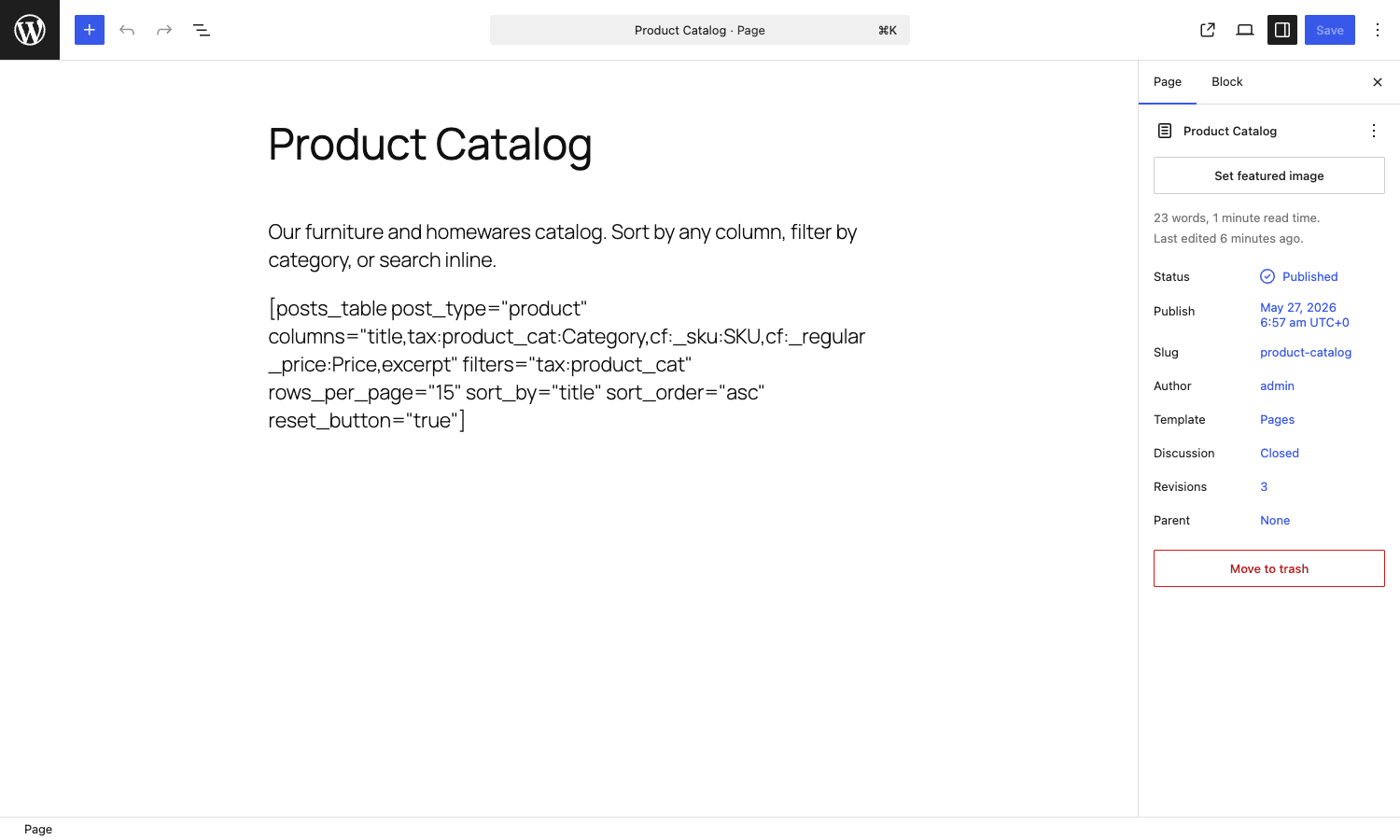
The block editor experience is fine but the block is just a thin wrapper. There’s no live preview in the editor, you see the raw shortcode and you preview the page to see the rendered table. Acceptable but not as polished as a native block-builder. The shortcode renders fine when wrapped in a regular Paragraph or Shortcode block:
Documentation friction. Barn2’s KB at barn2.com/kb-categories/posts-table-pro-kb/ is well-organised and the articles are good. But some of the deeper customisation articles require a customer account to access, which I’ve found frustrating when debugging at 11 PM. The free official article on barn2.com is enough for 80 percent of cases. For the last 20 percent, you’ll be reading the plugin source, and the plugin source is well-named so that’s workable.
The admin upgrade prompt. The Posts Table Pro settings page has a sidebar promoting "Password Protected Categories" and other Barn2 plugins. It’s not aggressive but it’s persistent. Once you’re licensed, it’s part of the furniture.
Pricing and licensing
Posts Table Pro is sold commercially by Barn2 on barn2.com with single-site, multi-site, and unlimited-site tiers, plus a yearly renewal for updates and support.
It’s GPL-licensed (the plugin headers say License: GPL-3.0) which is why the GPL distribution model on GPL Times is legitimate. You get the same plugin zip as the official Barn2 distribution. If you want to wire up a catalog on a staging site this afternoon to see whether the column types and filters cover your use case, Posts Table Pro on GPL Times is the quickest path to a working install.
For commercial production sites where you need direct Barn2 support, the official store is still the right answer.
FAQ
Why are my custom-field columns showing empty?
Almost always the meta key. WooCommerce meta keys start with an underscore (_sku, _regular_price, _stock_quantity), and Posts Table Pro will only find them if the underscore is in the shortcode (cf:_sku). Without the underscore, you’re looking up a different key that doesn’t exist. The other common cause is that the meta value is stored as a serialized array (an ACF repeater, for instance) and needs a custom filter to render. Use posts_table_data_custom_field_{key} to format it.
Can the table show variable product attributes (Color: Blue, Size: Large)?
You can show the parent variable product with an attribute column (tax:pa_color), but not individual variations as separate rows. For variations-as-rows you need Barn2’s WooCommerce Product Table plugin, which is a separate product specifically for WooCommerce catalogs.
Why doesn’t the search bar find a post I know exists?
A few possibilities, in order of likelihood. (1) The search term is shorter than the minimum length (default 3 characters), bump it with posts_table_minimum_search_term_length. (2) The data lives in a custom field that isn’t in the searchable fields. By default the search hits title, content, excerpt, and SKU. Add custom fields via the SearchWP integration or a custom filter. (3) Lazy-load is enabled but the REST endpoint is 404ing, check permalinks aren’t set to Plain.
Does Posts Table Pro work with WooCommerce variations as separate rows?
No. The base plugin shows the variable parent product as one row. For variation-as-row you need the dedicated WooCommerce Product Table plugin (also by Barn2). Different product, same vendor.
How do I add an Add-to-Cart button column?
The universal [posts_table] shortcode has a button column that links to the product page, but it doesn’t ship a working add-to-cart button. For that, you want WooCommerce Product Table from Barn2 (which adds a real Add-to-Cart column with quantity + variation pickers inline) or you write a custom column class that hooks the WooCommerce add-to-cart URL.
Can I make the entire row clickable?
Yes. Set links="title" in the shortcode and use a small bit of JS to extend the click target to the whole row:
document.querySelectorAll('table.data-table tbody tr').forEach(row => {
 const link = row.querySelector('.col-title a');
 if (link) {
 row.style.cursor = 'pointer';
 row.addEventListener('click', e => {
 if (e.target.tagName!== 'A') link.click();
 });
 }
});
Does Posts Table Pro slow down my whole site?
Only pages that have the shortcode. The frontend bundle (JS + CSS) is enqueued by default on every page, which adds a small fixed cost. Use the posts_table_load_frontend_scripts filter to limit enqueue to pages that actually have a table. That’s a real performance win on content-heavy sites.
Can the table be cached at the page level by a cache plugin?
Yes for the initial render. The search, filter, and lazy-load paginate hit a REST endpoint that should not be cached and is correctly marked as such. Most page-cache plugins respect this. WP Rocket, LiteSpeed Cache, and W3 Total Cache handle it fine.
Is Posts Table Pro AJAX-only or does it work without JavaScript?
Without JS, you still get the rendered table (server-side render). Sorting via URL parameters works (the column headers are real <a> tags with ?orderby= query strings). Search and filtering require JS. So it’s progressively enhanced, the table is functional without JS but the interactivity is reduced.
Final thoughts
Posts Table Pro lives in the spot where a generic "table plugin" doesn’t fit but a custom-coded query loop is overkill. If your data is already a WordPress post type and your customers want to scan it, search it, filter it, and sort it, this is the path of least resistance.
I keep it installed across about a dozen sites, in catalogs, directories, and resource libraries. It’s predictable. It does not surprise me in production. The development surface area (hooks, filters, classes) is enough that I’ve never had to fork it, and the team at Barn2 ships updates regularly.
If you’re evaluating it, the things to test on day one are: (1) does it show your custom-field columns correctly, with the right meta key syntax; (2) is the styling close enough to your theme that you only need a small CSS override; (3) is your row count over the lazy-load threshold, and if so does the REST endpoint return results on your hosting setup; (4) is there an existing add-on (FacetWP, SearchWP, the Barn2 Product Table) that overlaps with what you need.
If those four check out, you have your catalog or directory in a day, not a week. That’s the value proposition. It’s not flashy, it’s just the right shape of plugin for a really common job.