

The first time I really looked at a WordPress site’s network tab and counted enqueued files, I had this oh-no moment that I think most performance work starts with. The home page of an agency client was pulling in seventeen plugin stylesheets. None of them, not a single one, was actually used on the home page. It was a brochure layout with a hero, three cards, and a footer. But because the site also had a contact form, a custom slider on the /services page, an Instagram feed on /about, a popup builder for the newsletter, and an old AMP fallback that nobody had turned off, every one of those plugins’ CSS rode along on every request.
That site loaded WP Rocket. It had Cloudflare in front. It had image lazy loading. The cache hit rate was a respectable 92 percent. And the home page was still pulling in 480 KB of CSS, 70 percent of which the browser parsed and discarded.
This is the gap. Caching plugins skip PHP. CDNs skip origin trips. Image optimizers shrink pixels. None of them solve the "this page is loading a hundred KB of CSS it doesn’t use" problem, because that CSS is what your theme and your plugins ask WordPress to enqueue. Removing it means knowing, per page, what to remove.
Asset CleanUp Pro by Gabe Livan is the WordPress plugin built specifically for this job. You give it a URL, it shows you every single CSS file and JS file that WordPress is about to load on that URL, with the source (theme, plugin, core, third-party). You tick the ones the page doesn’t actually need. Save. Done. The rule is stored in the database and survives plugin updates, theme switches, and WordPress core updates.
I want to walk through what it actually does, where it’s smart, where it’s clunky, and the gotchas that took me a week to figure out the first time I deployed it on a live store.
Table of Contents
- What Asset CleanUp Pro actually is
- Why per-page asset pruning matters more than people think
- Key features without the marketing
- Installation and the first hour
- A guided tour of the admin
- The "test mode" workflow: how to safely prune assets without breaking the front-end
- Manual per-page pruning vs bulk regex rules
- Asset CleanUp Pro vs WP Rocket vs Perfmatters: when each one wins
- Pruning a real WooCommerce cart page: a walkthrough
- Don’t disable jQuery globally
- Developer reference: hooks, filters, storage
- Performance, compatibility, and gotchas
- Pricing and licensing
- FAQ
- Final thoughts
What Asset CleanUp Pro actually is
Asset CleanUp Pro is a WordPress plugin by Gabe Livan (the smaller author handle on the site is "Madalin Soft") that scans every page on your site, figures out which CSS files and which JavaScript files WordPress is about to enqueue for that page, and lets you turn individual ones off. The off-switch is per URL or per page type, not site-wide. So you can say "WooCommerce’s cart stylesheet should load on the cart page and only on the cart page" without writing PHP.
The free version is on the WordPress.org repo as "Asset CleanUp: Page Speed Booster". The Pro version (what we’re walking through here) ships as a downloadable zip and adds bulk regex rules, the Plugins Manager, position changes, user-role-targeted exceptions, local-fonts hosting, critical CSS generation, and WPML/Polylang sync. The Pro plugin can run as a standalone install, no free version required, because the constant WPACU_PRO_NO_LITE_NEEDED is set inside the bootloader. So you don’t need both.
A small thing that took me a while to internalize: this is not a caching plugin. It does not generate static HTML. It does not skip PHP. It runs INSIDE the WordPress request, hooks into wp_print_styles and wp_print_scripts, looks at every queued asset, compares against your stored rules, and dequeues the matches before the browser ever sees them. So it pairs with a caching plugin instead of replacing one. (More on the pairing later.)
The Pro license key is built into the GPL Times distribution, so you don’t have to enter one. The license page just says "active" and the bulk-rules feature lights up on first run.
Why per-page asset pruning matters more than people think
Skip this section if you’ve already cut your WordPress bundle in half through dequeue plugins or hand-rolled wp_dequeue_style calls. If you haven’t, here’s the short version that justifies the rest of the article.
A typical WordPress install enqueues roughly 25 to 40 CSS and JS files on the front-end home page out of the box. Add five plugins, you’re at 60. Add ten plugins (which is below average), you’re at 90 or more.
Two things drive this:
-
Plugins enqueue assets unconditionally. Most plugin developers hook into
wp_enqueue_scriptsand callwp_enqueue_stylewithout checking what page is being rendered. From their perspective that’s defensive: someone might use their shortcode on any page. From the visitor’s perspective it means a contact form plugin’s CSS rides along on every page even though /contact is the only one with a form. -
WordPress core itself enqueues a lot. The block library, classic themes shims, dashicons, jQuery (still), wp-i18n, comment-reply, embed scripts, and a dozen more. Most of these are necessary for the editor and the admin. None of them are necessary on a static product page where there’s no comment thread and no embedded media.
So the page that should load 60 KB of CSS loads 400. The page that should load three JS files loads twelve. The browser’s main thread spends a measurable amount of time parsing CSS rules that match zero elements on the page, parsing JS that never runs, and re-running the layout engine to apply styles that have no effect. Core Web Vitals notices. LCP and INP both creep up.
The fix is conceptually simple: don’t load what you don’t use. The reason it’s not the default is that no plugin can safely decide for you, automatically, which assets your specific page actually needs. So you do it manually. Asset CleanUp’s job is to make that manual job tolerable, by showing you every enqueued file in one screen and letting you tick the ones to skip.
Key features without the marketing
Here’s what actually moves the needle, in order of how often I reach for each.
- Per-page asset list with per-URL save. Every enqueued CSS and JS file on a given URL, grouped by source (From Plugins / From Themes / WordPress Core / External 3rd Party). Tick to unload. Saves to the post’s meta. Survives plugin updates.
- Bulk regex rules. Unload an asset matching a URL pattern (e.g. "unload Contact Form 7 CSS on every URL that doesn’t match
/contact/"). One rule, hundreds of pages covered. Pro-only. - Plugins Manager. Unload an entire plugin (not just its CSS/JS, but its PHP execution) on specific URLs. Useful when a plugin only needs to run on one page but otherwise hooks into every request. Pro-only.
- Test mode. Apply unload rules only for logged-in admins. Visitors still see the un-pruned site. Lets you preview the effect of your changes safely. Critical safety net.
- Async / defer attributes on JS. Add
asyncordeferto any script tag, including third-party ones, without filter code. - Position changes. Move a CSS file from
<head>to bottom of body, or a JS file the other way. Pro-only. Useful for fonts and analytics. - Combine and minify CSS / JS. Concatenate and strip whitespace. Honestly, with HTTP/2 the combine part is a marginal win. The minify part still matters.
- Local fonts. Replace Google Fonts links with locally-hosted copies. Pro-only.
- Critical CSS generation. Generate above-the-fold CSS per page template. Pro-only.
- User-role-targeted exceptions. A rule that only applies to logged-out visitors, or only to subscribers, etc. Pro-only.
- Preload CSS / JS. Add
<link rel="preload">for high-priority assets, again per-URL. - WPML / Polylang sync. When you set a rule on the English version of a post, the translated versions inherit it automatically. Pro-only.
The Pro-only features matter mostly when you’re running a site with hundreds of URLs. On a five-page brochure you can do everything by hand in the Lite version. On a thousand-product WooCommerce store, the bulk regex rules pay for themselves on day one.
Installation and the first hour
The plugin ships as a single zip. Upload via Plugins → Add Plugin → Upload Plugin, activate, and you’ll see a new top-level menu item "Asset CleanUp Pro" in the admin sidebar.
The first time you open it, you get an onboarding screen with three tabs (How it works / Benefits of a Fast Website / Start Optimization). Skip past it. Go directly to Settings.
The single most important setting is hidden one or two clicks deep: Settings → Plugin Usage Preferences → "Assets Retrieval" method. It defaults to "Direct" which uses a normal HTTP request to fetch the asset list. If your server has a firewall, a redirect loop, or any kind of internal-request restriction, this fails with a 500. In that case switch to "WP Remote POST" or fall back to the "Manage in Front-end" overlay. I’ve had this bite me on a host that blocked self-referential requests at the firewall; switching to WP Remote POST fixed it in 30 seconds.
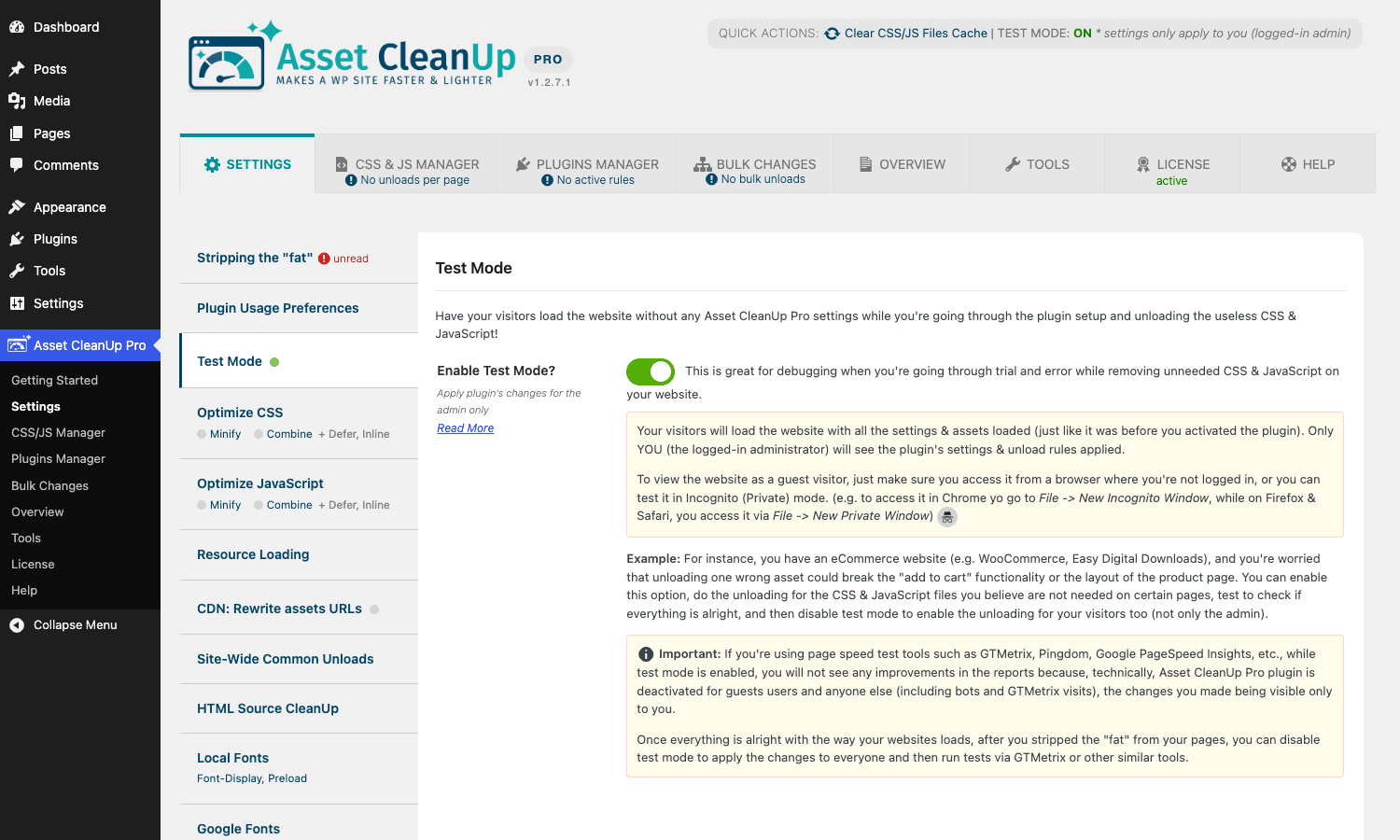
The second thing I always enable on a new install is Test Mode under Settings → Test Mode. Flip the toggle on. From that moment, your unload rules only affect you (and other logged-in admins). Visitors see the site exactly as it was. This is the only sane way to make changes on a live site without accidentally breaking the front-end for everyone.
Now visit any page on the front-end while logged in, then come back to CSS & JS Manager in the admin menu. You’re on the picker:
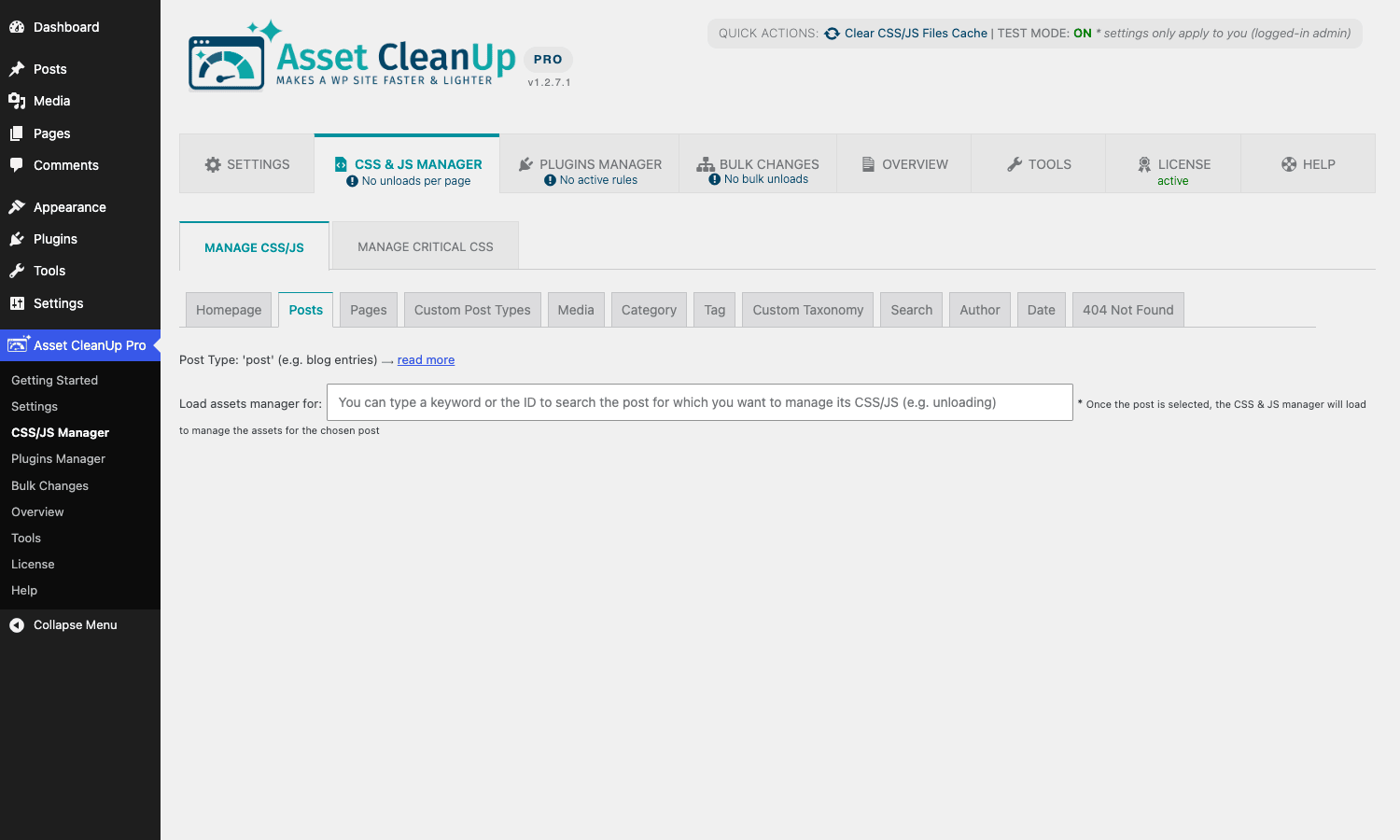
Each tab (Homepage / Posts / Pages / Custom Post Types / Media / Category / Tag / Custom Taxonomy / Search / Author / Date / 404 Not Found) routes you to the asset list for that surface. Pick Posts, search for the post you want to prune, and the manager loads the full list of enqueued files for that single URL.
That first hour is mostly: enable test mode, pick a page, look at the asset list, get genuinely surprised at how many files are loading, and start ticking. You’ll catch yourself muttering "what does this even do" a lot. That’s normal.
A guided tour of the admin
Asset CleanUp Pro has nine top-level pages under its menu. Here’s what each does and the realistic use case.
Getting Started
The onboarding screen. Three tabs of marketing copy and a video. Skip after the first read.
Settings
The biggest screen in the plugin and the one with the worst UX. There are eight sub-tabs in the left column (Strip the "fat" / Plugin Usage Preferences / Test Mode / Optimize CSS / Optimize JavaScript / Resource Loading / CDN, Rewrite assets URLs / Site-Wide Common Unloads / HTML Source Cleanup / Local Fonts / Google Fonts), each with its own forest of options.
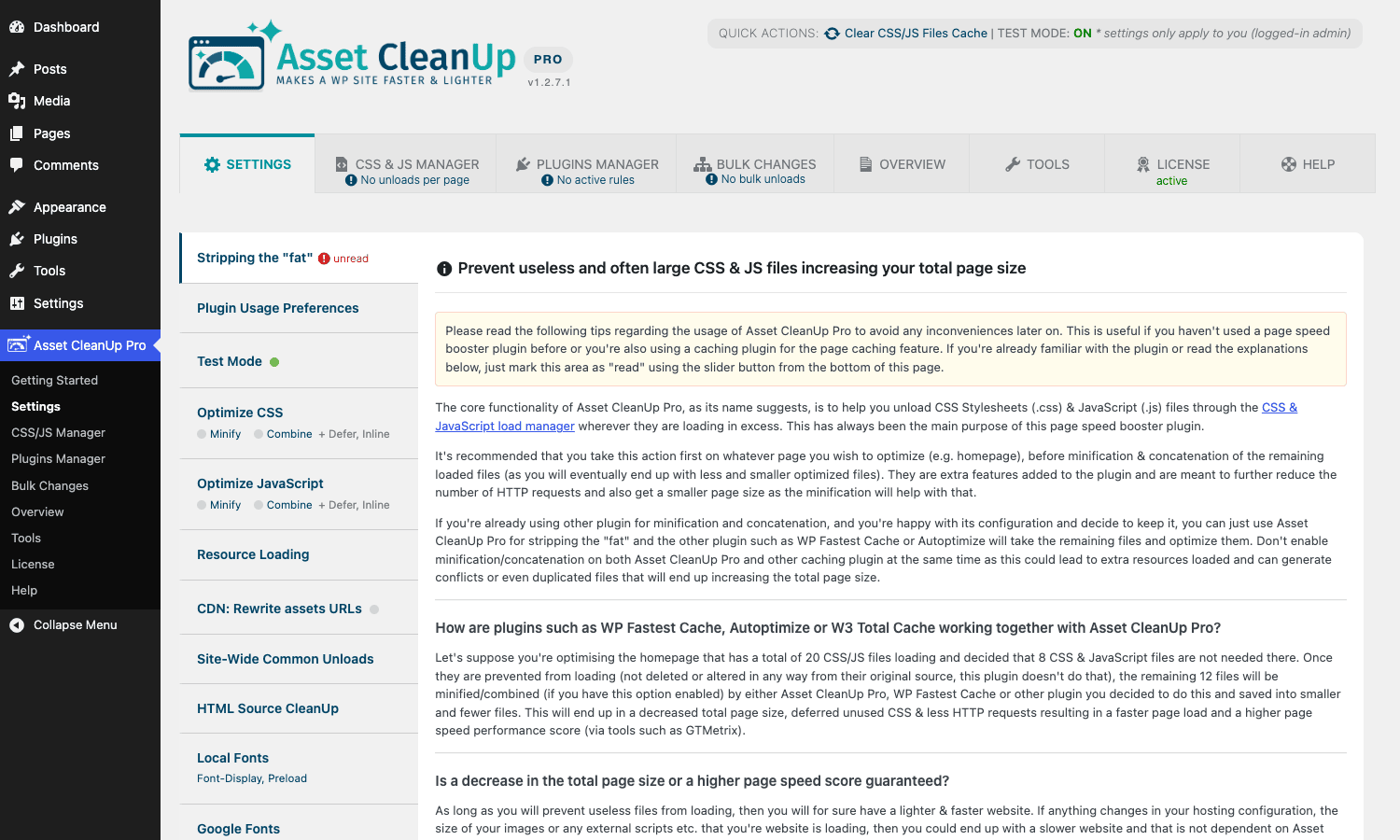
The "Strip the fat" panel is the place to disable things like emoji scripts, oEmbed, wp-embed.min.js, dashicons on the front-end, the Comment Reply script if you don’t use threaded comments, the WordPress block library if you don’t use blocks. These are site-wide toggles and they’re safe to flip on most sites.
The Optimize CSS and Optimize JavaScript sub-tabs are where the file optimization (combine / minify) lives:
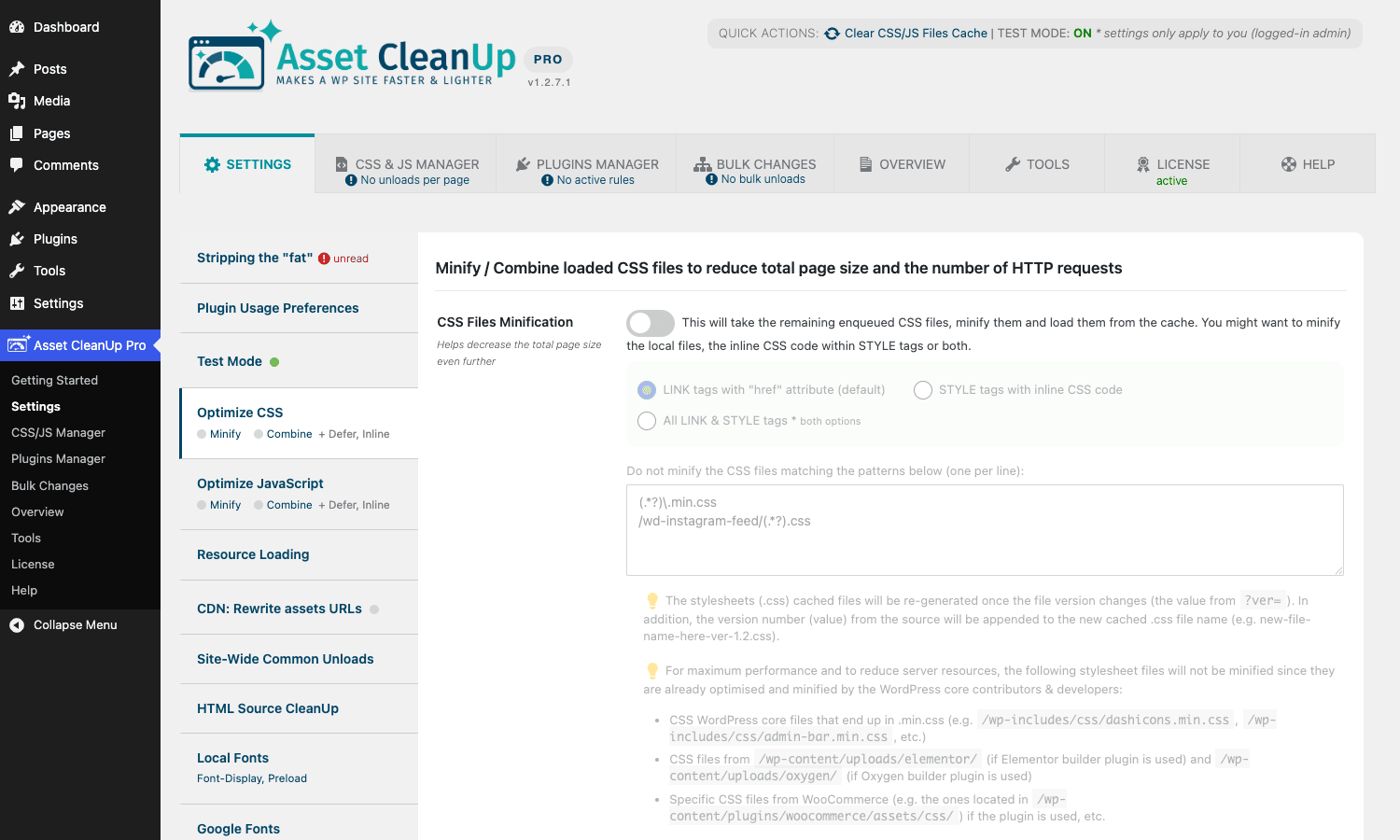
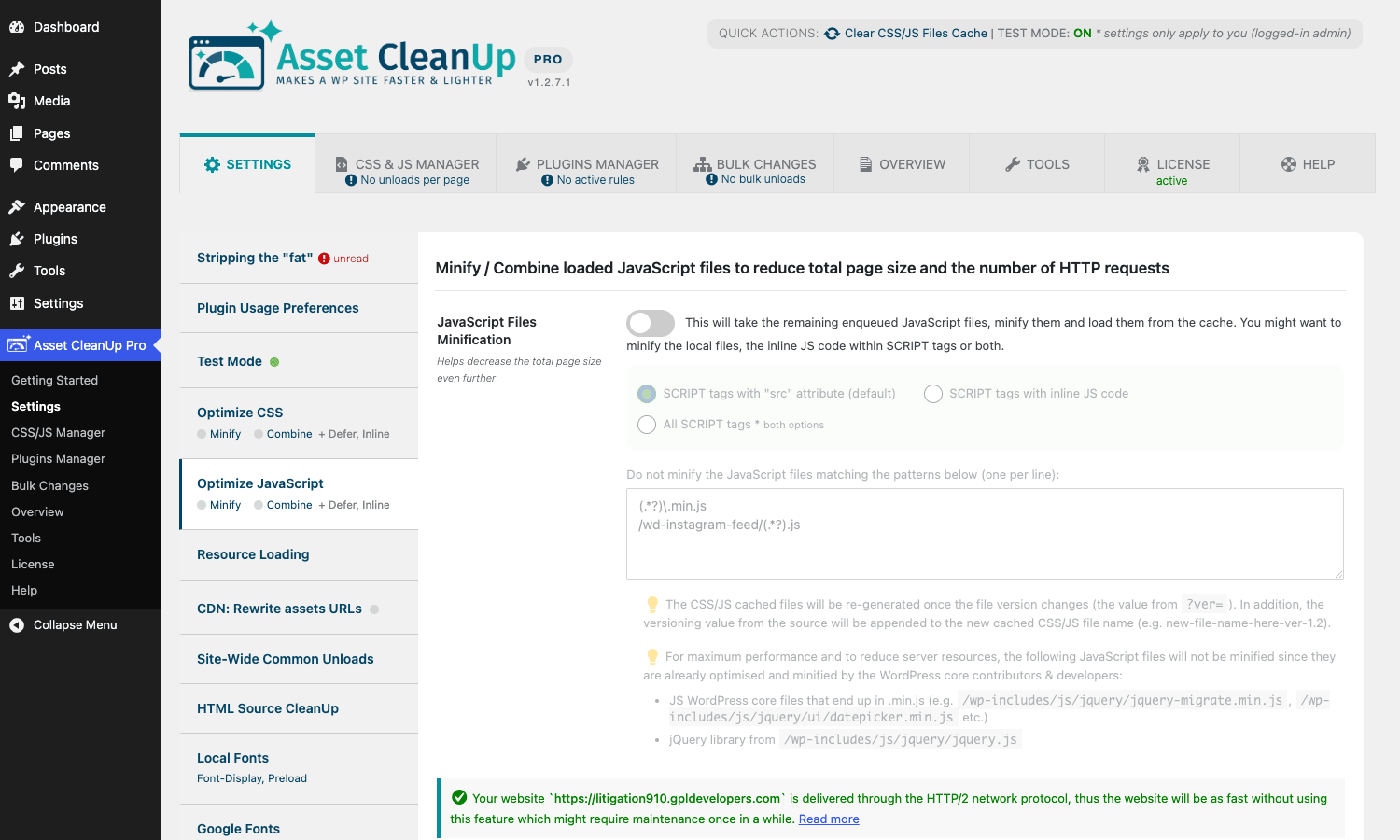
Honestly, if you already have WP Rocket or another full-stack performance plugin handling minify and combine, leave Asset CleanUp’s versions off and let WP Rocket do that part. The dequeue side of Asset CleanUp is its strength. The combine/minify is competent but redundant when paired with a bigger plugin.
CSS & JS Manager
The signature surface. The picker (image above) lets you pick a page type. After picking, you get the full asset list for the chosen URL:
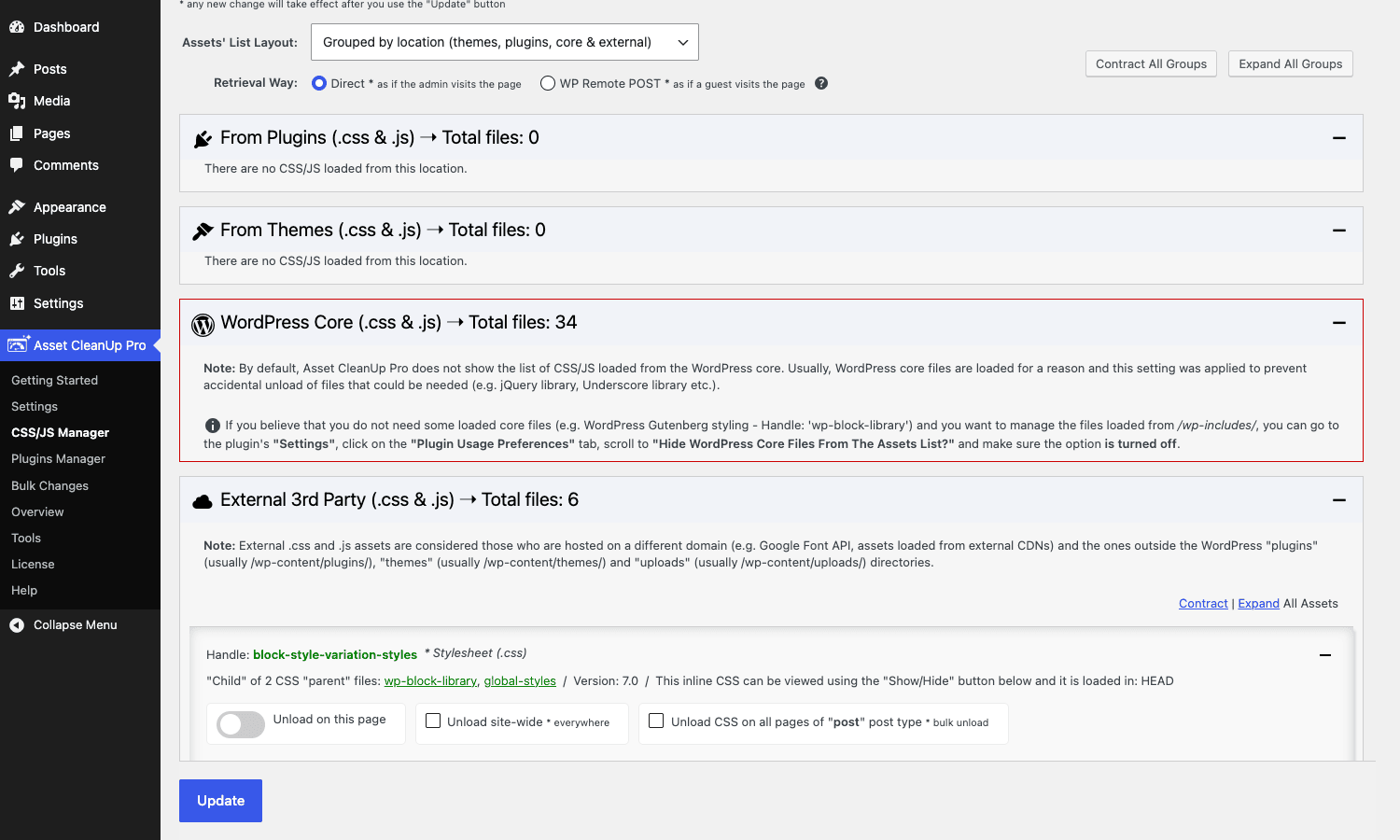
Notice the four sections: From Plugins, From Themes, WordPress Core, External 3rd Party. The WordPress Core section on this demo site already lists 34 files. The first time you see "34 core files just on a single blog post" it changes how you think about WordPress out-of-the-box weight.
Drilling into the External 3rd Party section, each row shows the handle, the file URL, the size, and the unload controls:
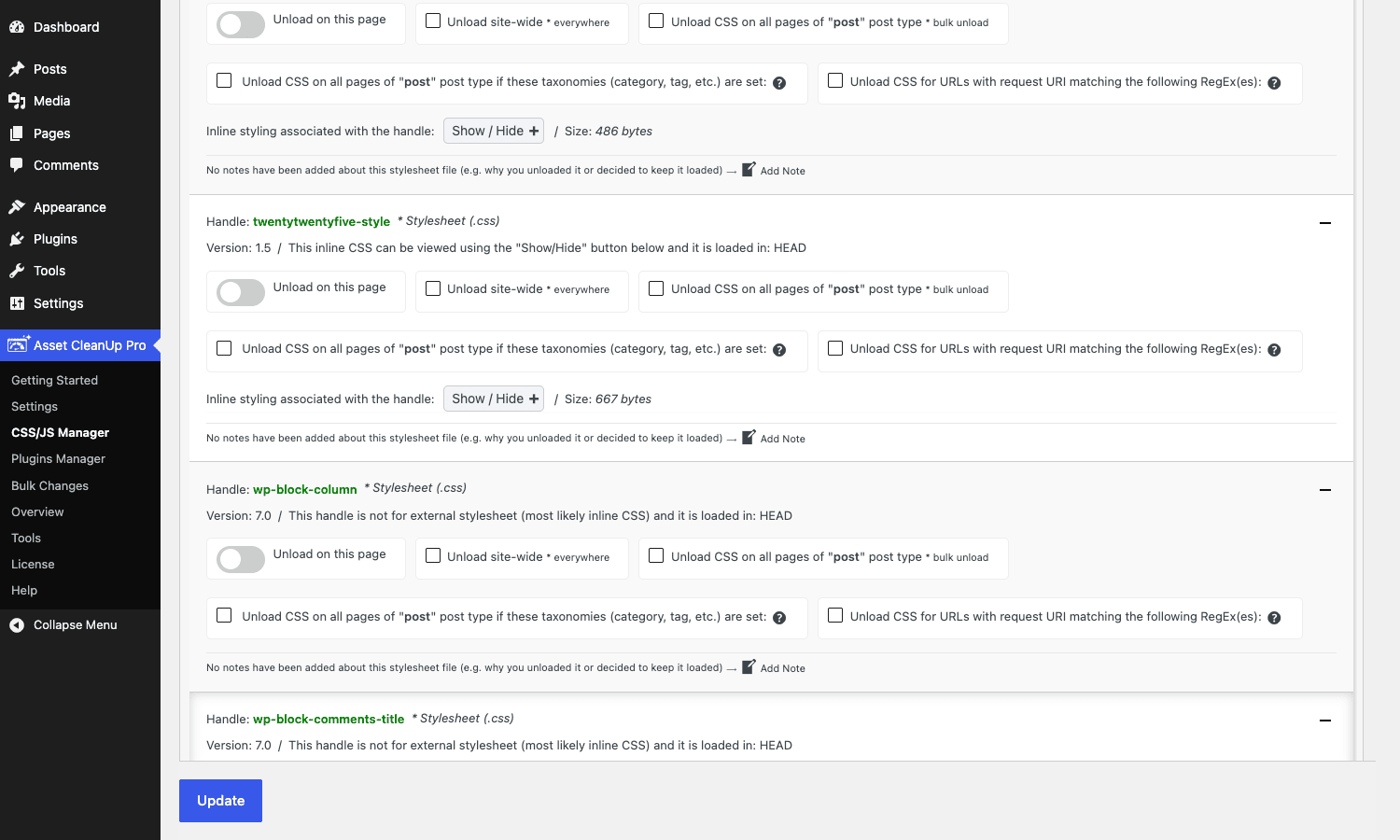
For each handle you can pick: Unload on this page (current URL only), Unload everywhere (site-wide), Unload on all posts of "post" type (the current post type), or Unload on this page + match RegEx (the current URL pattern). The last option is what makes bulk pruning tolerable: tick "match RegEx", set a pattern like ^/blog/.*$, and the rule covers your entire blog without per-post work.
Plugins Manager
A Pro-only feature that takes things a step further. Instead of unloading just the CSS/JS that a plugin enqueues, it unloads the entire plugin’s PHP execution for matching URLs. The plugin’s hooks don’t fire, its cookies don’t get set, its action callbacks don’t run.
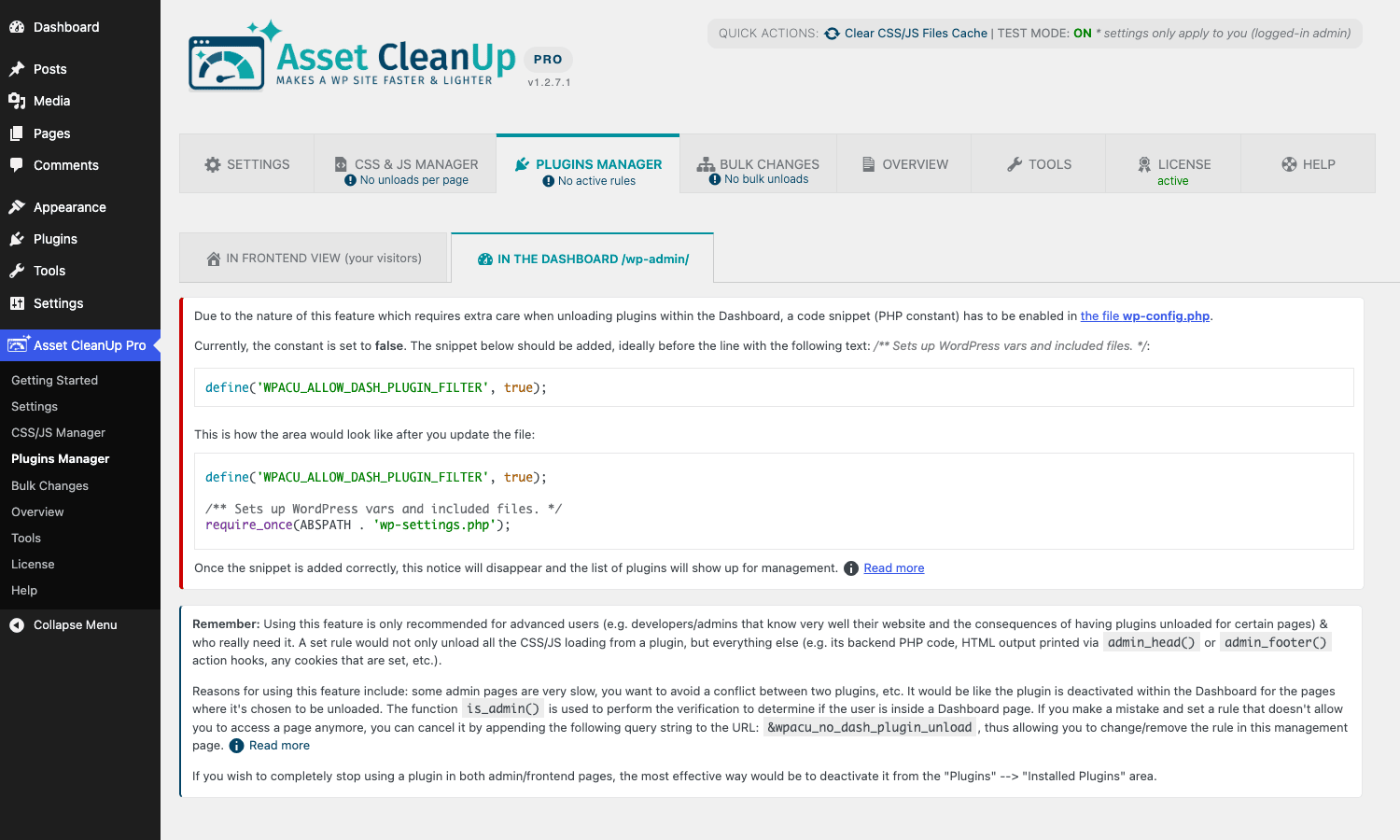
The warning text at the top is real. This is heavier-handed than dequeueing assets. If you tell the Plugins Manager to disable, say, your popup-builder plugin on every URL except /, then on every other page that plugin’s action hooks won’t fire. If anything elsewhere relies on those hooks (admin AJAX from the editor, REST endpoints, scheduled cron events), they’ll silently stop working.
I use it sparingly. The two cases I find it genuinely useful for: (1) disabling a heavy contact-form-like plugin on every URL except the one page that hosts the form, and (2) disabling a social-share plugin everywhere except blog posts. For anything stateful (memberships, e-commerce, search) leave it alone and stick to the CSS/JS-only Asset Manager.
Bulk Changes
A read-only view of every bulk rule currently in place, separated into six tabs (Bulk Unloaded / RegEx Unloads / RegEx Load Exceptions / Preloaded CSS/JS / Defer & Async / Updated CSS/JS positions). You can’t add new rules from this page, just review and delete. Adding a rule still happens from the per-page asset list. This split confused me for a while; I expected the "Bulk Changes" page to be where you create rules, not where you audit them.
Overview
A high-level summary of every asset that’s currently being modified, anywhere on the site. Useful for "what did I change three months ago and forget about" audits.
Tools
Five sub-tabs: Reset / System Info / Storage Info / Debugging / Import & Export.
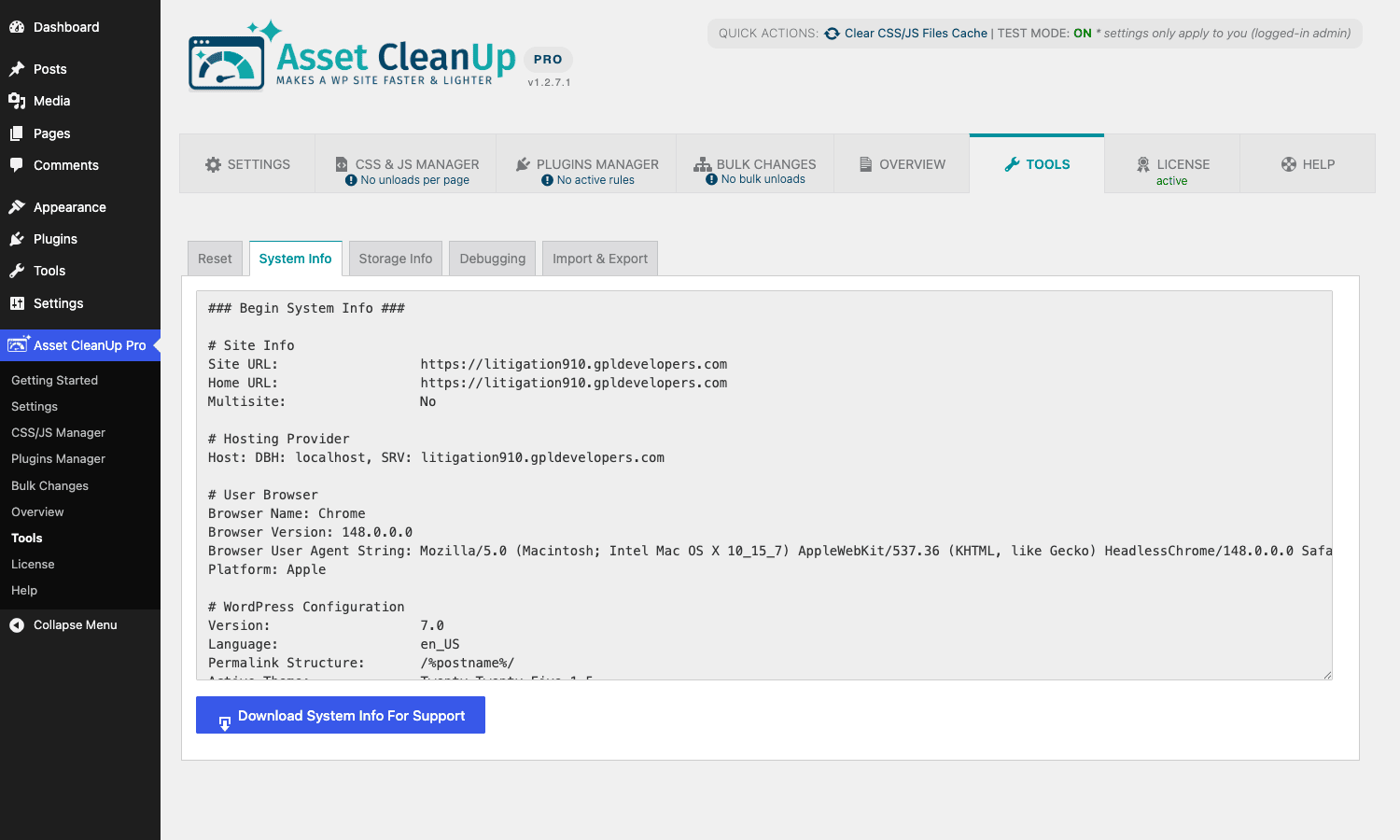
System Info is the screen to copy from when you open a support ticket. It dumps PHP version, MySQL version, active theme, active plugins, server info, and Asset CleanUp’s own configured state into a text block. Import & Export is genuinely useful: you can export your full rule-set as JSON and import it on a staging site, which makes "test on staging, deploy to prod" much less painful than recreating two hundred rules by hand.
License
For the GPL Times distribution this just shows "active" and the version. Nothing to do here.
Help
Links to the vendor documentation at assetcleanup.com. Open in a new tab; the docs cover almost everything but skew technical.
The "test mode" workflow: how to safely prune assets without breaking the front-end
This is the workflow I follow on every site, every time, and it has saved me from at least three potentially embarrassing "the entire front-end is unstyled" deployments.
- Enable Test Mode in Settings before doing anything else. While Test Mode is on, your unload rules only apply to logged-in admins. Visitors see the un-pruned site.
- Open the page you want to prune in two browser tabs. One logged-in (where your rules apply), one in a private/incognito window (where they don’t, because Test Mode hides them from visitors). Both should look identical at this point.
- Make a small change. Unload one or two CSS files at most. Save.
- Reload both tabs and visually compare. The admin tab should now show whatever the change broke (a missing button hover, an unstyled form, a misaligned hero). The incognito tab should still be perfect.
- If the admin tab looks wrong, un-tick whatever you just unloaded. Save again. The change is undone in seconds.
- If the admin tab looks fine, run the same comparison on mobile. Tools like Chrome DevTools’ mobile emulation are good enough. The annoying truth is that mobile breakpoints often need different CSS than desktop, and the admin tab on desktop won’t catch them.
- Repeat with the next file. One file at a time, every time.
- Once you’re confident, disable Test Mode. The rules now apply to visitors too.
Don’t skip step 6. The biggest gotcha I’ve hit is unloading a CSS file that turned out to contain the mobile hamburger menu styles. On desktop everything looked fine. The first mobile visitor next morning got a hamburger icon that didn’t open anything when tapped.
Also: don’t disable an asset based on the page editor preview alone. Visit the front-end logged out, on mobile, with cache cleared, every time. The editor preview is a special render path and it doesn’t load the same assets.
Manual per-page pruning vs bulk regex rules
There are two ways to remove an asset from a page, and the choice between them is the single biggest workflow decision you’ll make.
Manual per-page means you open the CSS & JS Manager, navigate to a specific URL, find the file, tick the box for "unload on this page". The rule is stored as post meta on that single post (_wpassetcleanup_no_load is the meta key). It’s exact, scoped, and easy to debug because you can see in the database which post has which rule. If you want to confirm an asset is genuinely unused before unloading, the Chrome DevTools Coverage tab is the right tool to verify what percentage of a CSS or JS file the browser actually executed on a given page.
Bulk regex means you write a regex pattern like ^/blog/(?!2026/05/wp-rocket-review).*$ and the unload rule applies to every URL that matches. Stored globally in wpacu_global_unload_rules keyed by rule ID. Powerful, but a missed escape or a typoed character class can disable an asset across your entire site in one click.
The rule I follow:
- Fewer than 20 affected URLs: do it manually. Less risk, easier to undo.
- More than 20 affected URLs: write a regex rule but test it against ten URL samples first. The plugin has a tester field where you can paste a URL and see if your pattern matches.
- Different rules for different segments of your URL space: use regex rules with load-exceptions. "Unload Contact Form 7 everywhere" plus "load it as exception on
/contact/" is one rule pair that beats two hundred per-page exceptions.
Don’t trust a bulk regex rule until you’ve tested it against ten URL samples. One missed escape and you’ve disabled an asset across the whole site. The plugin gives you the tester field for a reason. Use it every single time.
A real example I run on most WooCommerce sites: WooCommerce’s product styles (woocommerce-general, woocommerce-smallscreen, woocommerce-inline) are not needed on the cart page or the checkout page (those have their own dedicated stylesheets). So one rule unloads woocommerce-general site-wide, and a load-exception loads it back on ^/shop/, ^/product-category/, and ^/product/. That’s three patterns covering thousands of URLs.
Asset CleanUp Pro vs WP Rocket vs Perfmatters: when each one wins
This is the question I get asked the most by clients, so let me lay it out honestly.
WP Rocket is a full-stack caching and performance plugin. Page cache, browser cache, GZIP, lazy load, RUCSS (Remove Unused CSS), delay JS, critical CSS, database cleanup, CDN integration, all in one toggle-driven dashboard. WP Rocket’s RUCSS feature is the most direct competitor to Asset CleanUp’s reason for existing: it sends your page to WP Rocket’s cloud, gets back the CSS that’s actually used above the fold, and serves only that. It’s automated. You don’t tick anything. It just works for 80 percent of cases.
Perfmatters is a lightweight performance plugin with a script manager that’s the closest match to Asset CleanUp’s per-page asset list. Perfmatters’ script manager is, in my opinion, prettier than Asset CleanUp’s. It also has a beautiful disable-by-URL panel and a "delay JS" feature similar to WP Rocket’s.
Asset CleanUp Pro is purpose-built for one thing: per-URL CSS/JS pruning, done by hand with the safety nets of test mode and bulk regex rules. It does not cache. It does not generate static HTML. It does not optimize images.
So when does each one win?
- WP Rocket wins on the "I want to make my site faster and I don’t want to think about it" scenario. RUCSS handles 80 percent of the unused-CSS problem automatically. If your site is a typical blog or magazine with relatively similar page templates, RUCSS plus delay JS often gets you most of the win without per-page work. You can stop reading here and just buy WP Rocket.
- Perfmatters wins on the "I want a script manager AND a bunch of lightweight tweaks (disable XML-RPC, kill heartbeat, remove emoji scripts) in one plugin" scenario. The script manager is great. The overall feature surface is friendlier than Asset CleanUp’s.
- Asset CleanUp Pro wins on the "I have a site with weird, irregular page templates and I need exact control" scenario. WooCommerce stores with multiple custom product types. Sites that use a different page builder on different parts of the site. Sites where RUCSS produces visual regressions that you can’t otherwise debug. Asset CleanUp’s per-page asset list is the most precise tool for this and the bulk regex system handles "Contact Form 7 except on /contact/" in one rule rather than two hundred per-page exceptions.
I run WP Rocket on most sites by default. I add Asset CleanUp Pro on sites where I’ve spent a week chasing visual regressions caused by WP Rocket’s RUCSS and need a precise scalpel. The two plugins coexist fine. Just don’t have both of them trying to minify and combine CSS at the same time. Pick one.
Pruning a real WooCommerce cart page: a walkthrough
To make this concrete, here’s what the cleanup of an actual WooCommerce cart page looks like. The starting state on a typical WC store: the cart page loads roughly 18 CSS files and 22 JS files. The cart page renders, what, a table and two buttons.
Step 1. With Test Mode on, navigate to /cart/ and copy the URL. Go to CSS & JS Manager → Pages, search for "Cart", click into the cart page’s asset list.
Step 2. Look at the External 3rd Party section. On most stores I find: Contact Form 7’s CSS (cart has no form), WPForms’s CSS (same), Smash Balloon’s Instagram CSS (no embeds), Elementor’s icon font (theme doesn’t use it on cart), a chat widget’s full stylesheet (3 KB used out of 60). Tick "unload on this page" for each.
Step 3. Look at the From Plugins section. Yoast’s wp-seoanalysis.css shows up on the cart page even though Yoast’s per-post panel doesn’t render to visitors. Unload. Same with most SEO plugins.
Step 4. Look at the From Themes section. Most themes include some global JS bundle that runs on every page. If your cart template is simple, you can often unload the theme’s "advanced" JS bundle (carousel, animations, parallax) since the cart has none of those.
Step 5. WordPress Core. Be more careful here. Comment-reply.min.js is safe to unload because cart pages don’t have comments. wp-embed.min.js is safe because there are no embeds. wp-block-library CSS is borderline (depends on whether your cart template uses any blocks). jQuery is not safe (WooCommerce uses jQuery on the cart for the quantity update AJAX). Do not touch it.
Step 6. Save. Reload the cart page in a private window. Add a product to cart, change the quantity, remove it, re-add it. Click checkout. Try a coupon. Verify the entire flow works.
The result on a typical store: 18 CSS files down to 6. 22 JS files down to 9. About 200 KB of un-minified CSS and 150 KB of JS removed from the cart page. LCP improves noticeably. INP improves more, because there’s less JS for the browser to parse before responding to clicks.
Step 7. Take the rule you just made for Contact Form 7 (unload on cart) and turn it into a bulk regex rule: "unload Contact Form 7 CSS everywhere where URL does not match ^/contact/$". That single rule replaces what would have been thirty per-page unloads.
Don’t disable jQuery globally
This is the anti-pattern I see most often from people new to per-page asset pruning, and it’s the one that does the most damage when it goes wrong.
The thinking is: "jQuery is bloat. Modern WordPress doesn’t need it. My theme is built on vanilla JS. Let me unload jQuery site-wide and see what happens."
What happens, almost always: half your plugins silently break.
Here’s the issue. jQuery in WordPress is the most-depended-on script across the entire plugin landscape. WooCommerce uses it for cart AJAX. Contact Form 7 uses it for form validation. Gravity Forms uses it. Elementor uses it for the editor and some front-end widgets. The Customizer uses it. Half the "modal popup" plugins depend on it. Every paginated comment thread that uses Ajax depends on it. And critically, almost none of those plugins announce the dependency in a way you can see from the front-end. They just break in subtle ways: a "loading…" spinner that spins forever, a form that posts but doesn’t show a success message, a quantity field that doesn’t update the cart total.
You’ll find out about it from your support inbox three days later when someone complains they can’t check out.
If you’re absolutely sure no plugin on your site uses jQuery (which you can verify by running console.log(jQuery) in the front-end browser console and watching for "undefined" errors as you click through), then OK, unload it. Otherwise leave it alone. The 30 KB of gzipped jQuery is not the thing slowing your site down. The unused 200 KB of CSS is. Go after that.
The same logic applies to wp-i18n and wp-hooks (the WordPress block editor’s internationalization and hook system). Half the modern plugins use them. The savings from unloading them are minor and the risk is enormous.
If you must dequeue jQuery on a single specific page where you’re certain nothing uses it (e.g. a marketing landing page that doesn’t use any WordPress plugins beyond the cache), do it per-page, not site-wide. The blast radius of a per-page mistake is one URL. The blast radius of a site-wide mistake is everything.
Developer reference: hooks, filters, storage
Asset CleanUp exposes a real surface area for developers. Here’s the relevant inventory.
All of Asset CleanUp’s runtime work is built on top of WordPress’s own wp_dequeue_style and wp_dequeue_script APIs. The plugin is essentially a database-backed UI for those two functions, plus a per-URL match layer. If you’re already comfortable writing dequeue calls in functions.php, you can think of Asset CleanUp as the persistence and matching layer for those calls.
Settings filter
The single most useful filter. Mutate the settings array at runtime, without going through the admin UI.
add_filter( 'wpacu_settings', function( $settings ) {
 // Force test mode on for staging environments
 if ( defined( 'WP_ENV' ) && WP_ENV === 'staging' ) {
 $settings['test_mode'] = 1;
 }
 return $settings;
} );
This is how I keep test mode permanently on for the staging site while making sure production has it off.
Filter the unload list at runtime
If you want a programmatic rule that depends on something the admin UI can’t express (e.g. "unload Contact Form 7 CSS for visitors from country X"), use these:
add_filter( 'wpacu_filter_styles_list_unload', function( $list ) {
 // $list is an array of style handles to unload
 if ( function_exists( 'my_geo_lookup' ) && my_geo_lookup() === 'FR' ) {
 $list[] = 'contact-form-7';
 }
 return $list;
} );

add_filter( 'wpacu_filter_scripts_list_unload', function( $list ) {
 // Same idea for JS
 if ( is_singular( 'product' ) ) {
 $list[] = 'comment-reply'; // No comments on products
 }
 return $list;
} );
The matching pair wpacu_filter_styles_list_load_exception and wpacu_filter_scripts_list_load_exception let you ADD a handle back even if a site-wide rule would remove it.
Bypass the plugin entirely
If you have a debug situation and want to skip Asset CleanUp for a specific request:
add_filter( 'wpacu_plugin_no_load', '__return_true' );
Or pass ?wpacu_no_load=1 in the URL. Both bypass Asset CleanUp’s processing entirely so you can see what the unmodified asset list looks like. Useful for "did Asset CleanUp break this, or was it always broken" debugging.
Cache flush hooks
When Asset CleanUp clears its cache, it fires actions you can hook into to clear other caches in lockstep:
add_action( 'wpacu_clear_cache_before', function() {
 error_log( 'Asset CleanUp about to clear cache' );
} );

add_action( 'wpacu_clear_cache_after', function() {
 // Tell your CDN to purge as well
 if ( function_exists( 'cloudflare_purge_everything' ) ) {
 cloudflare_purge_everything();
 }
} );
Settings save hook
If you need to react to a setting change (audit logging, etc.):
add_action( 'wpacu_before_save_settings', function( $new_settings ) {
 // $new_settings is the array about to be persisted
 error_log( 'Asset CleanUp settings changed by user '. get_current_user_id() );
} );
WP-CLI command
Pro ships a single CLI command for updating the plugin:
wp wpacu update
That’s it. No wp wpacu list-rules or wp wpacu add-rule (which would be genuinely useful additions). Bulk rule management still happens via the admin UI.
Storage layout
If you ever need to debug "where did my rule go", these are the database locations.
| What | Where |
|---|---|
| Plugin settings | wpassetcleanup_settings option (JSON) |
| Per-post unload rules | _wpassetcleanup_no_load post meta (JSON) |
| Per-post load exceptions | _wpassetcleanup_load_exceptions post meta (JSON) |
| Per-post extra options | _wpassetcleanup_page_options post meta (JSON) |
| Site-wide bulk unloads | wpassetcleanup_global_unload option (JSON) |
| Bulk regex rules | wpassetcleanup_global_unload_regex option (JSON) |
| Pro license key | wpassetcleanup_pro_license_key option |
A per-post rule wins over a global rule wins over a no-rule (load default). So debugging a missing CSS goes "check the post meta first, then the global option, then the theme’s enqueue".
Per-page meta box context filters
If you want the asset list meta box to appear in a different position on the post editor screen:
add_filter( 'wpacu_asset_list_meta_box_context', function() { return 'side'; } );
add_filter( 'wpacu_asset_list_meta_box_priority', function() { return 'low'; } );
I rarely change these. The default ("advanced" context, "high" priority) is fine.
Performance, compatibility, and gotchas
The plugin’s own overhead is real but small. It hooks into wp_enqueue_scripts at priority 100000 and walks the global wp_styles / wp_scripts registries, then runs the queued handles through the stored rule set. On a site with 80 enqueued handles and 50 stored rules, that’s well under 10 ms per uncached request. On cache hits the plugin’s PHP doesn’t run at all.
A few real gotchas:
- Page caching needs a flush after rule changes. If you have WP Rocket or LiteSpeed Cache in front, your unload rule won’t take effect on cached pages until the cache is purged. The plugin does fire
wpacu_clear_cache_afterafter its own internal cache clear, but it doesn’t automatically purge external page caches unless you wire that up. - Some plugins enqueue at unusual times. A small number of plugins enqueue assets inside
the_contentfilter (rather thanwp_enqueue_scripts). Asset CleanUp catches those too, but only in versions 1.2 and later. - The asset list view requires AJAX from your server to itself. If your firewall blocks self-referential requests, the admin will show a 500 error in the asset list view. Switch to "WP Remote POST" in Settings → Plugin Usage Preferences as a workaround. If even that fails, use "Manage in Front-end" overlay mode.
- Block themes (full site editing) work but the section grouping is weird. Block themes register so many "block library" stylesheets that the WordPress Core section can show 30 or 40 entries. They’re real assets; the listing isn’t wrong, it just looks alarming.
- Don’t unload
wp-i18neven if you’re an English-only site. Modern Gutenberg plugins rely on it for client-side translation hooks. The Asset CleanUp changelog notes that the 1.2.6.7 release added a smarter unload-replacement forwp-i18nthat keeps key functions alive, so unloading it doesn’t break the console anymore. But the safer default is "leave it". - The Plugins Manager (unload entire plugin) is heavier than dequeueing assets. Read the warning text. Don’t use it for plugins that have stateful behavior (e-commerce, membership, search).
- Multisite works. As of 1.2.6.8 each subsite gets its own cache directory, so cache clears on one subsite don’t touch others. Settings are per-subsite. The license is single (no per-subsite license keys).
- Compatibility with image-optimization plugins is fine. Asset CleanUp doesn’t touch images, only CSS and JS. So pairing with WP Smush Pro or Imagify is a no-op.
Pricing and licensing
The official Asset CleanUp Pro license sells for around $59/year for a single site on the vendor’s site (gabelivan.com), with multi-site bundles at higher tiers. The Pro features (bulk regex rules, plugins manager, local fonts, critical CSS, user-role exceptions) are gated behind the license.
The Asset CleanUp Pro zip available on GPL Times is the same Pro distribution the vendor sells, redistributed under GPL with the license activation pre-baked. You install it, you activate it, and every Pro feature lights up immediately. No license key entry. No subscription billing. The download link on the product page gives you the current release; future versions are pulled the same way.
That said, the vendor’s premium support and the live update channel are not part of the GPL distribution. If you need fast vendor support on a complex setup, the official license is worth paying for. If you just want the working plugin with every Pro feature unlocked, the GPL version covers it.
FAQ
Why is my front-end broken after disabling a CSS file?
Because you unloaded a file the page actually needed. The fix is to re-enable that file in the admin and try the next one instead. Disable in small batches (one file per save) and reload the front-end after each save. The whole reason Test Mode exists is to let you do this without affecting real visitors.
Does Asset CleanUp work with Elementor and other page builders?
Yes, with one caveat. Elementor enqueues a lot of its own CSS and JS, and a chunk of it is conditional (only loaded if a specific widget is used on the page). Asset CleanUp shows you the full list as enqueued, but unloading something Elementor needs at render time can break the layout. The safer pattern is to use Elementor’s own "Improved Asset Loading" feature first (which removes a lot of unused Elementor CSS automatically) and only then use Asset CleanUp for the leftovers.
How does Asset CleanUp interact with WP Rocket’s "Remove Unused CSS" feature?
WP Rocket’s RUCSS handles the same problem automatically by generating inline-critical-CSS-per-page. They can coexist but you should pick which one handles unused-CSS removal. If you’re letting WP Rocket do RUCSS, leave Asset CleanUp’s "Optimize CSS" combine/minify off, and use Asset CleanUp only for the JS dequeue side and the plugins-manager use cases. If you want Asset CleanUp to do everything, disable RUCSS in WP Rocket.
Can I disable assets on category archives without per-archive rules?
Yes. The CSS & JS Manager has a "Category" tab where you set rules per-category (e.g. "everything in the /reviews/ category should not load the comment-reply script"). For taxonomies in general, the "Custom Taxonomy" tab covers them. You don’t have to write a rule per archive URL.
Why does my disabled asset come back after a plugin update?
It shouldn’t, unless the plugin author renamed the handle. Asset CleanUp matches by handle, not file path. If a plugin updates and renames contact-form-7 to cf7-frontend, your old unload rule (which targets the old handle) stops matching. Rename it. This is rare but happens. The fix is to revisit the asset list after any major plugin upgrade and confirm your rules still match the handles you expect.
Does it slow down the admin?
Slightly. The CSS & JS Manager’s per-page asset list view loads the front-end of the chosen URL via AJAX to discover the enqueued handles, so the load time of that admin screen is roughly the load time of the front-end page. On a slow site that’s slow. On a fast site it’s fine. Outside that one screen the admin isn’t affected.
Can I export my rules and import them on staging?
Yes. Tools → Import & Export. The export is a JSON blob with all your stored rules (per-page unloads, bulk regex rules, site-wide settings). Import on staging, test, then promote to production by exporting again from staging and importing on prod.
Does it work on multisite?
Yes. Each subsite has its own settings, rules, and cache. The license is shared across the network. Cache clears on one subsite don’t affect the others as of the recent multisite improvements.
Final thoughts
Asset CleanUp Pro is a precision tool for the asset-bloat problem, not an automatic one. If you have a site where WP Rocket’s RUCSS is doing a great job already, you don’t strictly need it. If you have a site where RUCSS is producing weird visual regressions you can’t track down, or where you need to surgically disable a plugin’s footprint on specific URLs, this is the right tool and there isn’t a great substitute.
The admin UI is dated. The Settings page has too many tabs. The Plugins Manager surface is intimidating until you’ve used it for a week. The documentation skews technical and assumes you know what wp_register_style does. None of that is a dealbreaker. It just means the learning curve is real, and the first hour you spend with the plugin will feel slower than the first hour with WP Rocket.
What it gets right, and what no other plugin gets quite as right, is the per-URL asset list. Open one screen, see every single CSS file and JS file the page is about to load, grouped by source, with the size next to each. That view changes how you think about WordPress page weight. Once you’ve seen 34 WordPress Core files and 18 plugin files on a blog post that should load 8, you can’t un-see it. From that point on, the cleanup work feels obvious. You just need a tool that lets you make the unload decisions one ticket at a time, with a safety net.
That’s what Asset CleanUp Pro is. The page-speed pruning workflow it enables is the cleanest implementation I’ve used in the WordPress plugin market, and the bulk regex system is what makes it scale past a five-page brochure. Get the Asset CleanUp Pro from GPL Times, turn on Test Mode the moment you activate it, and start ticking. Your LCP will thank you.
If you’re putting together a broader performance stack, the companion reads to this one are the WP Rocket walkthrough (the cache layer that runs in front of this), the Perfmatters guide (a friendlier-UI alternative to Asset CleanUp for simpler sites), and the WP Smush Pro image optimization piece (which handles the image side that Asset CleanUp deliberately ignores).