

I’ve shipped front-end filtering on four WordPress projects that weren’t shopping carts. A job board where seekers needed to slice 800 listings by location, employment type, and salary band. A property directory where buyers wanted to combine bedrooms, price ceiling, and property type. A recipe site where readers filtered by cuisine, cook time, and dietary restriction. And a podcast archive where listeners pulled episodes by guest, topic, and episode length.
Every single time the problem was the same. WordPress can search posts. It can filter by one taxonomy. Combining a keyword with two taxonomies and a meta-value range, on a custom post type, with AJAX, in a sidebar a non-developer can tweak? That is suddenly a project. Search & Filter Pro is the plugin I keep coming back to for that exact job. This guide walks through how it actually works, what’s new in the recent rewrite, where it beats FacetWP and SearchWP, and where it doesn’t.
Table of Contents
- What is Search & Filter Pro?
- What changed in the recent rewrite (and why it matters)
- Installation, the free base, and the first hour
- A tour of the new admin: Queries, Fields, Styles, Integrations
- Building a job-board search with keyword, taxonomy, and salary range end to end
- AJAX vs page-reload: what each one costs you
- Custom fields, ACF, Pods, MetaBox: making the messy stuff filterable
- Search & Filter Pro vs FacetWP vs SearchWP vs Posts Table Pro: where each one wins
- Don’t enable submit-on-click without debouncing: here’s why
- The indexer: how Pro queries large datasets quickly
- Real-world use cases
- Developer reference: hooks, filters, REST endpoints, classes
- Performance, compatibility, and the gotchas worth knowing
- What Search & Filter Pro doesn’t do (and when you reach for FacetWP anyway)
- Pricing and licensing
- FAQ
- Final thoughts
What is Search & Filter Pro?
Search & Filter Pro is a WordPress plugin built by Code Amp, the small UK studio behind the original Search & Filter plugin (the free version on the WordPress repo). The Pro version layers indexing, advanced field types, AJAX, integrations with the major page builders, and integrations with ACF and Polylang on top of the free base. After a recent major rewrite, the free base and the Pro extension share the same admin UI shell, which is a complete React rewrite.
The pitch is simple. You build a filter form (keyword search, checkboxes for categories, a range slider for price, a date picker, a sort dropdown) and either embed it on a page next to a results list, or attach it to an existing archive template. The form reads and writes URL query parameters, the WP query gets modified to honor those parameters, and the results update either via a full page reload or via AJAX without leaving the page. The form definition lives in the admin as a "Query" with attached "Fields", and the front-end pulls from the indexer when the dataset is too large for a live WP_Query to be fast.
That’s a lot of words for what end users see as a sidebar with some checkboxes. The point is that the heavy lifting (joining taxonomy and meta tables, handling thousands of permutations, debouncing AJAX, syncing URL state) is handled for you. You’re not writing WP_Query arguments by hand.
If you want the GPL-licensed version for testing on staging, Search & Filter Pro on GPL Times is the same zip Code Amp ships, delivered without recurring subscription cost.
What changed in the recent rewrite (and why it matters)
If you used Search & Filter Pro a few years ago, almost everything about the admin will look different. The older plugin was the shortcode-driven one you remember: you built a form in the admin, copied [searchandfilter id=123] into your page, and the form rendered. That still works for legacy installs but is no longer the primary integration.
The recent major rewrite introduced four things that change how you use it.
The Queries CPT became a first-class object. A Query is no longer just "the form" but the combined definition of which posts to show, where the results go, and which fields drive the filtering. You can attach the same Query to the main archive, to a Query Loop block, to a shortcode, or to an Elementor Posts widget. The Query is the unit of work.
Fields became reusable. A field (a Search input, a Choice list, a Range slider, a Date picker, an Advanced sort control) is a separate object that gets attached to a Query. You can have the same Category checkbox list on three different Queries without copying it three times.
Styles got their own type. The new architecture introduced Styles Presets so you can theme a set of fields (input border, label color, checkbox tick mark, range slider track) once and apply across queries. This was a real annoyance before: every filter form had its own inline CSS settings and updating brand colors meant editing five forms.
An indexer arrived. The older plugin used live WP_Query for everything, which meant a Choice list with 200 categories joined to wp_term_relationships and wp_term_taxonomy on every page load. With thousands of posts, that turned into a multi-second TTFB. The new indexer pre-builds reverse-index tables (mapped post -> term, post -> meta_value, post -> attribute) and queries those on the front end instead. The first time you build a query, the indexer runs in the background via WordPress cron. After that, filter loads are milliseconds.
The downside? If you migrated from the older release you’ll need to rebuild your filter forms because the data model isn’t compatible. The free plugin’s migration wizard handles a lot of it, but plan for half a day on a complex setup.
Installation, the free base, and the first hour
Search & Filter Pro is the only plugin in this guide that requires its free base from the WordPress.org repo. The free search-filter plugin handles the core feature set (Query CPT, Fields, basic Search and Choice types, the React admin shell, Block Editor integration). The Pro plugin extends with the indexer, advanced field types, integrations, and the AJAX engine.
The order matters.
- Install and activate the free Search & Filter from the WordPress.org repo first. Plugins, Add New, search "search-filter", install.
- Upload the Pro zip via Plugins, Add New, Upload Plugin, choose the zip, activate.
- If you have a license key from the official source, enter it under Search & Filter, Settings, License. the GPL-licensed version ships with stubbed license validation, so you can skip this step.
The first time you open Search & Filter in the admin you’ll land on a Dashboard with cards for Queries, Fields, Styles, Settings, Integrations, and Help. It looks empty because no queries exist yet.
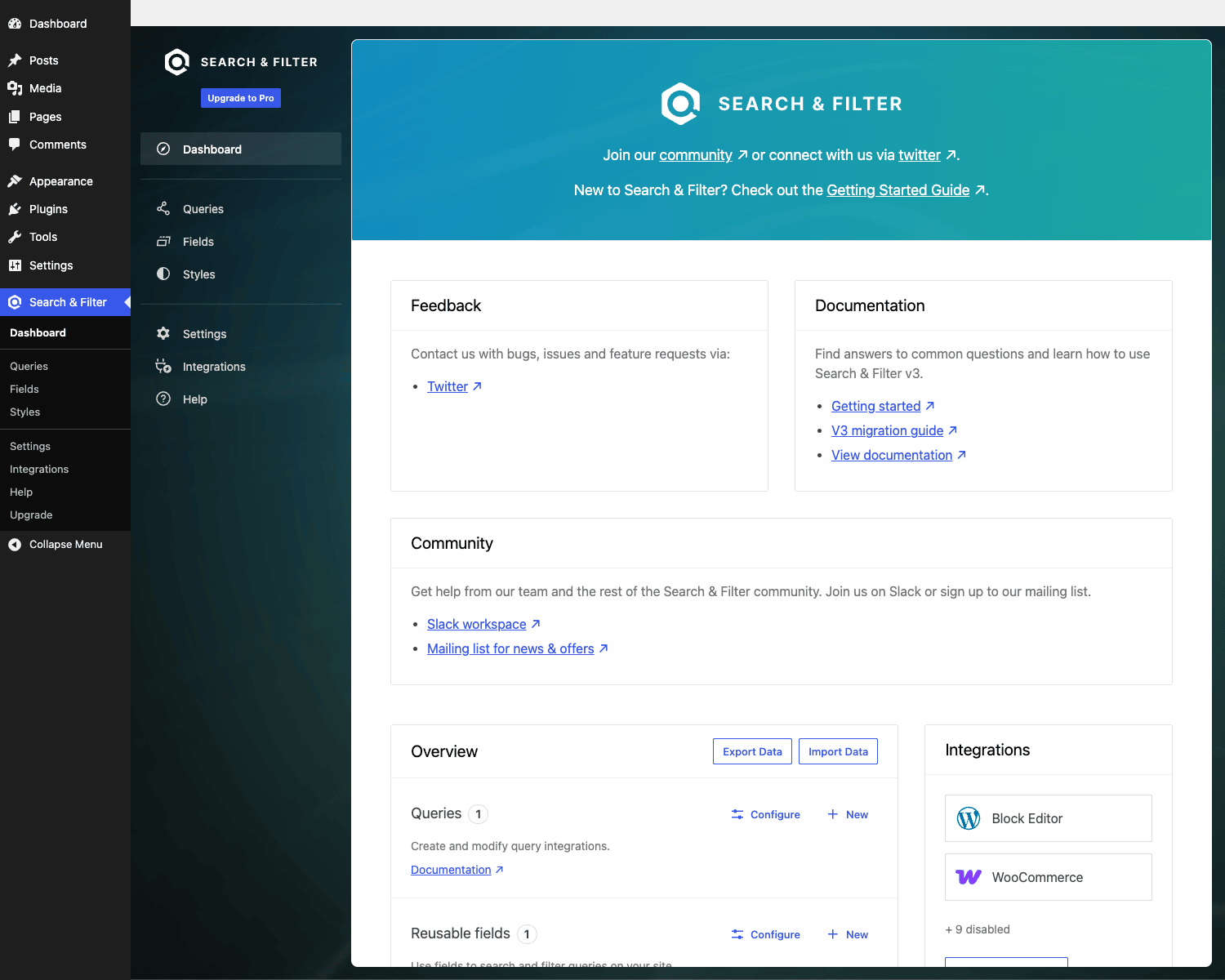
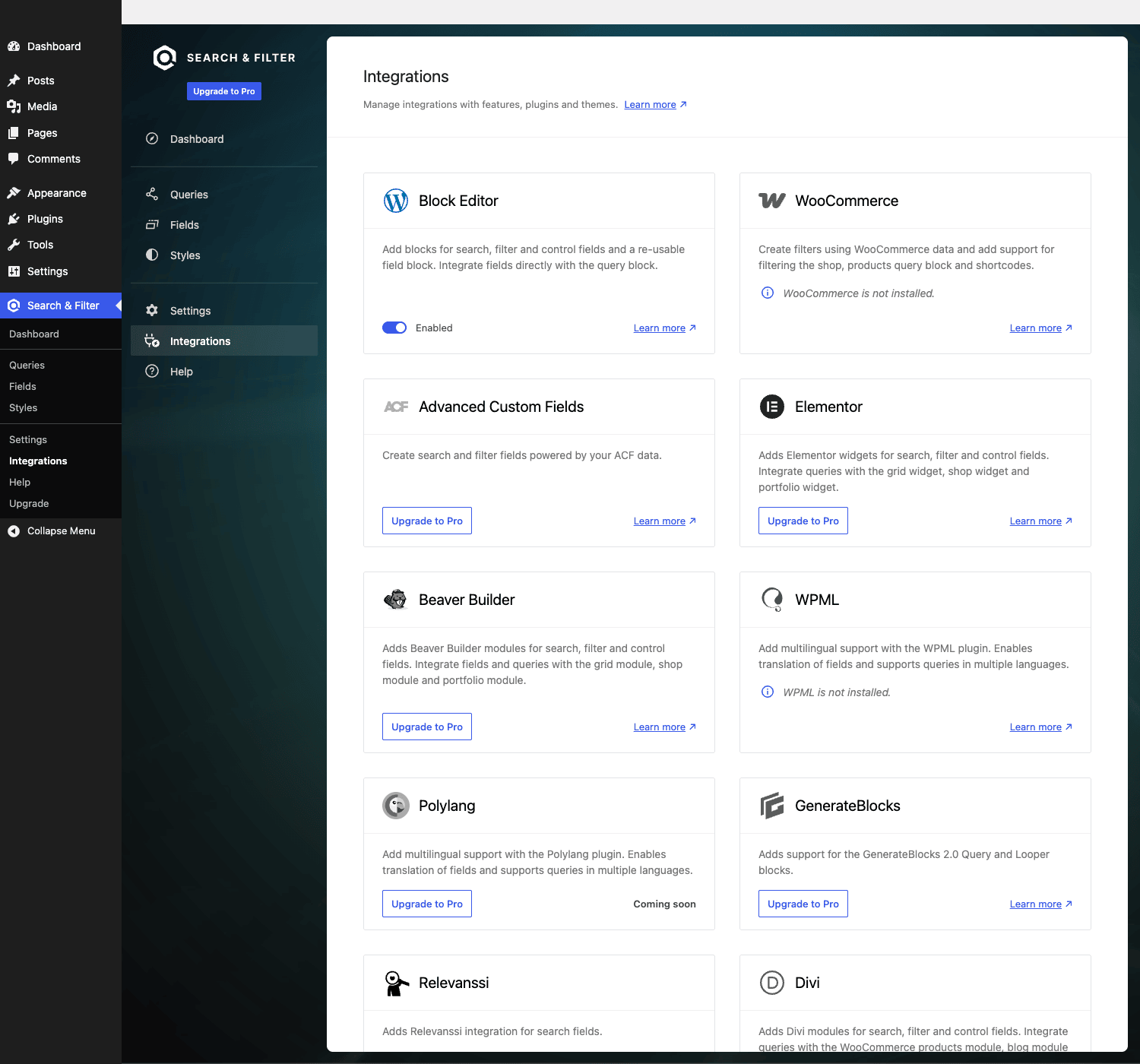
The Block Editor integration is on by default. If you want WooCommerce, ACF, Elementor, or one of the page builders to play nicely, go to the Integrations tab and toggle each one. Most are zero-config: enabling Elementor adds the field widgets to Elementor’s widget panel and that’s it.
A tour of the new admin: Queries, Fields, Styles, Integrations
The four left-nav items are the four objects you’ll spend all your time in. Here’s what each one does.
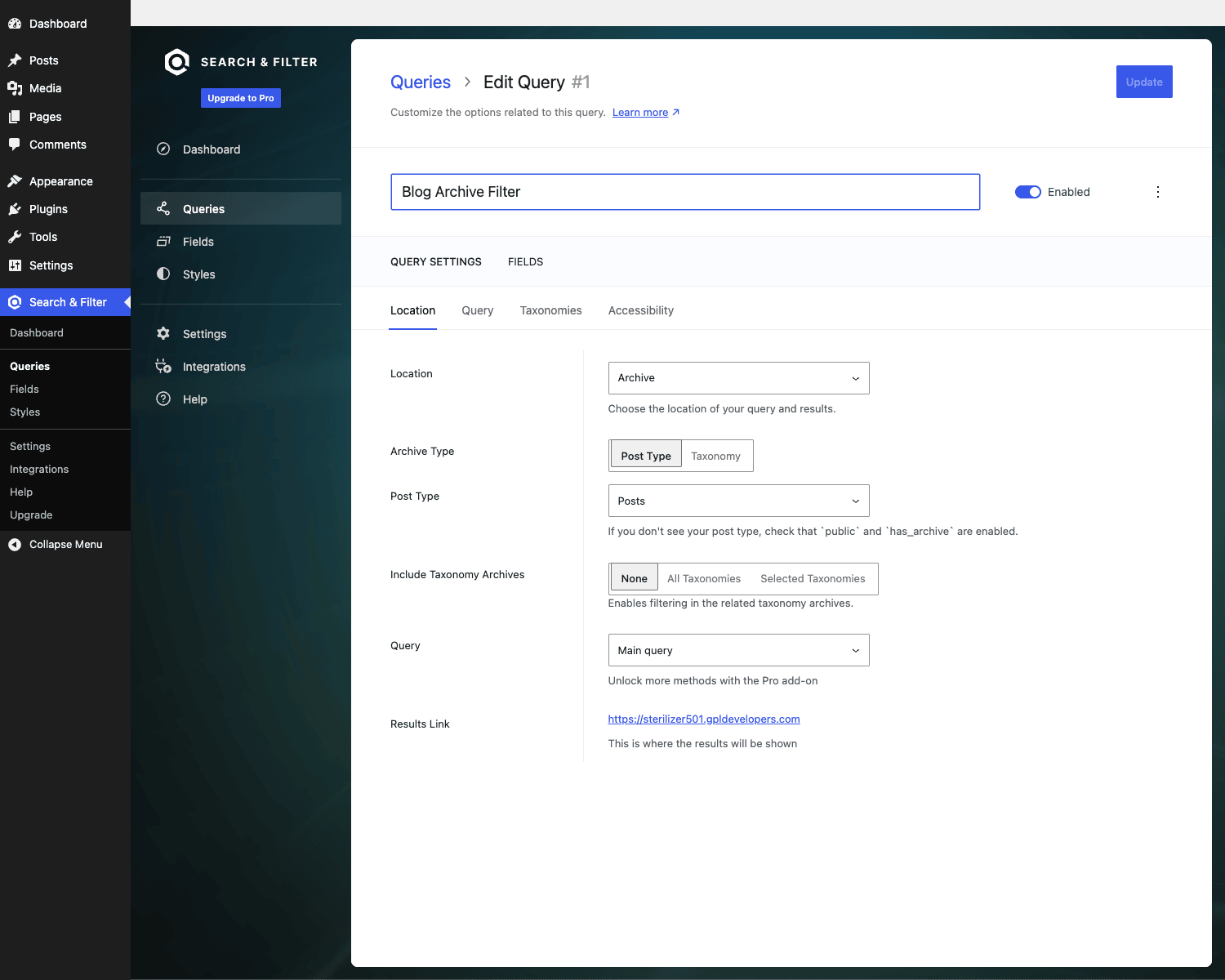
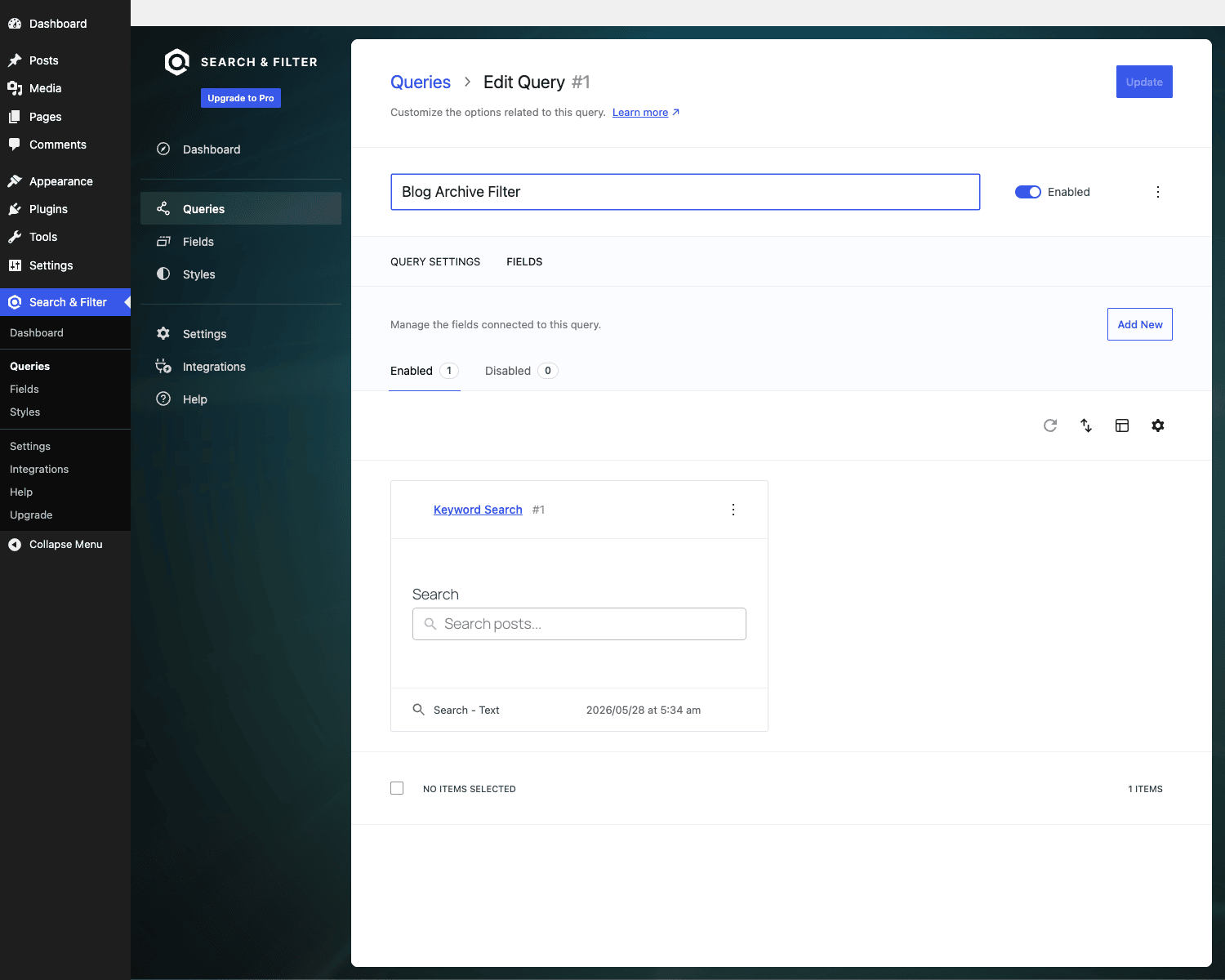
Queries is where filter behavior gets defined. Clicking Add New opens a wizard that asks two questions: where do the results live (Dynamic / Single page / Archive / Global search) and which integration mechanism (Main query / Query Loop block / Shortcode / Elementor widget). You name the Query, save it, and you land on the edit screen. Edit has two tabs: Query Settings (location, post type, taxonomies to scope to, accessibility options) and Fields (which filter fields are attached).
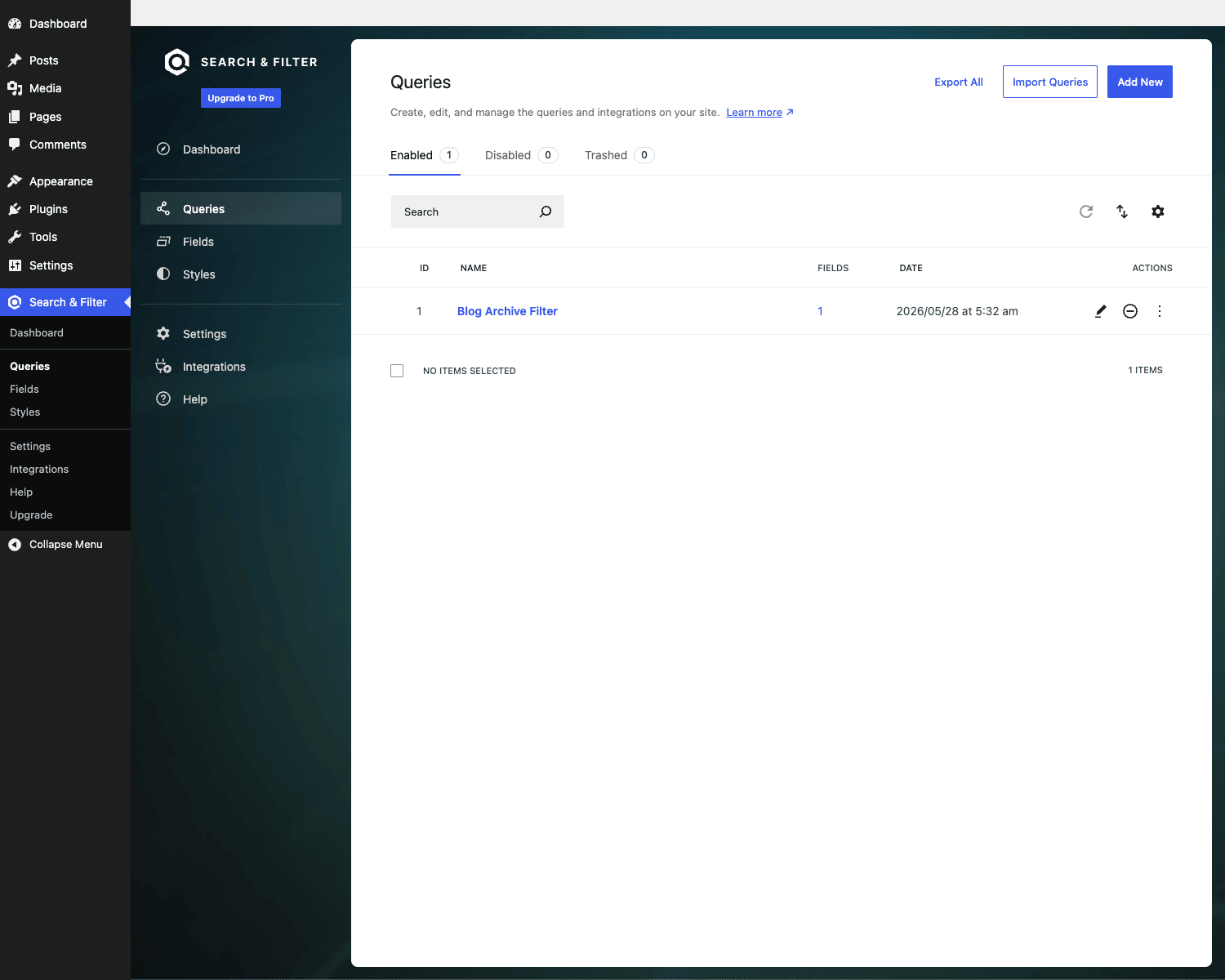
Fields is where individual filter controls live. Each field has a data type (Post Attribute, Taxonomy, Custom Field, User Meta) and a control type (Search text, Choice radio/checkbox/dropdown, Range slider, Date picker, Advanced sort/pagination/reset). Fields are independent objects so you can reuse a "Category" checkbox list on three Queries without duplicating it. The field editor has a live preview pane on the left and an inspector panel on the right, much like Gutenberg block settings.
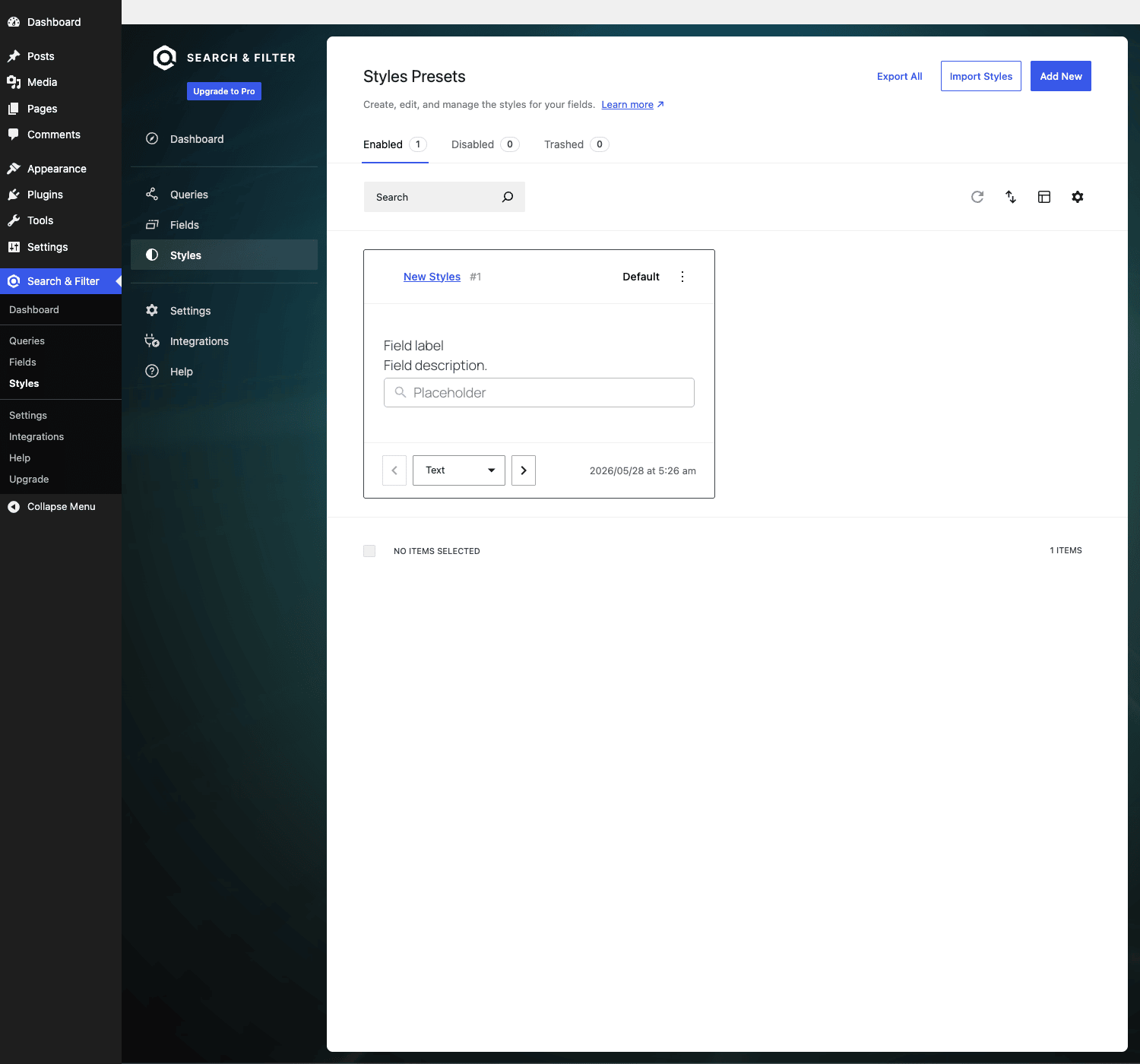
Styles is presets for field visuals. You can define a brand palette (input border color, focus outline, checkbox tick, range track) once and apply across all fields. Or override per-field. There’s a default preset that ships out of the box and works fine for most themes.
Integrations is where each third-party hand-off is toggled. The cards show Block Editor, WooCommerce, ACF, Elementor, Beaver Builder, WPML, Polylang, GenerateBlocks, Relevanssi, Divi, Bricks, and TranslatePress. Some are on by default (Block Editor), some need the third-party plugin installed before they activate, some are explicit toggles. Enabling Elementor, for example, adds new widgets to Elementor’s widget panel. Enabling WooCommerce makes the shop archive a valid filterable target.
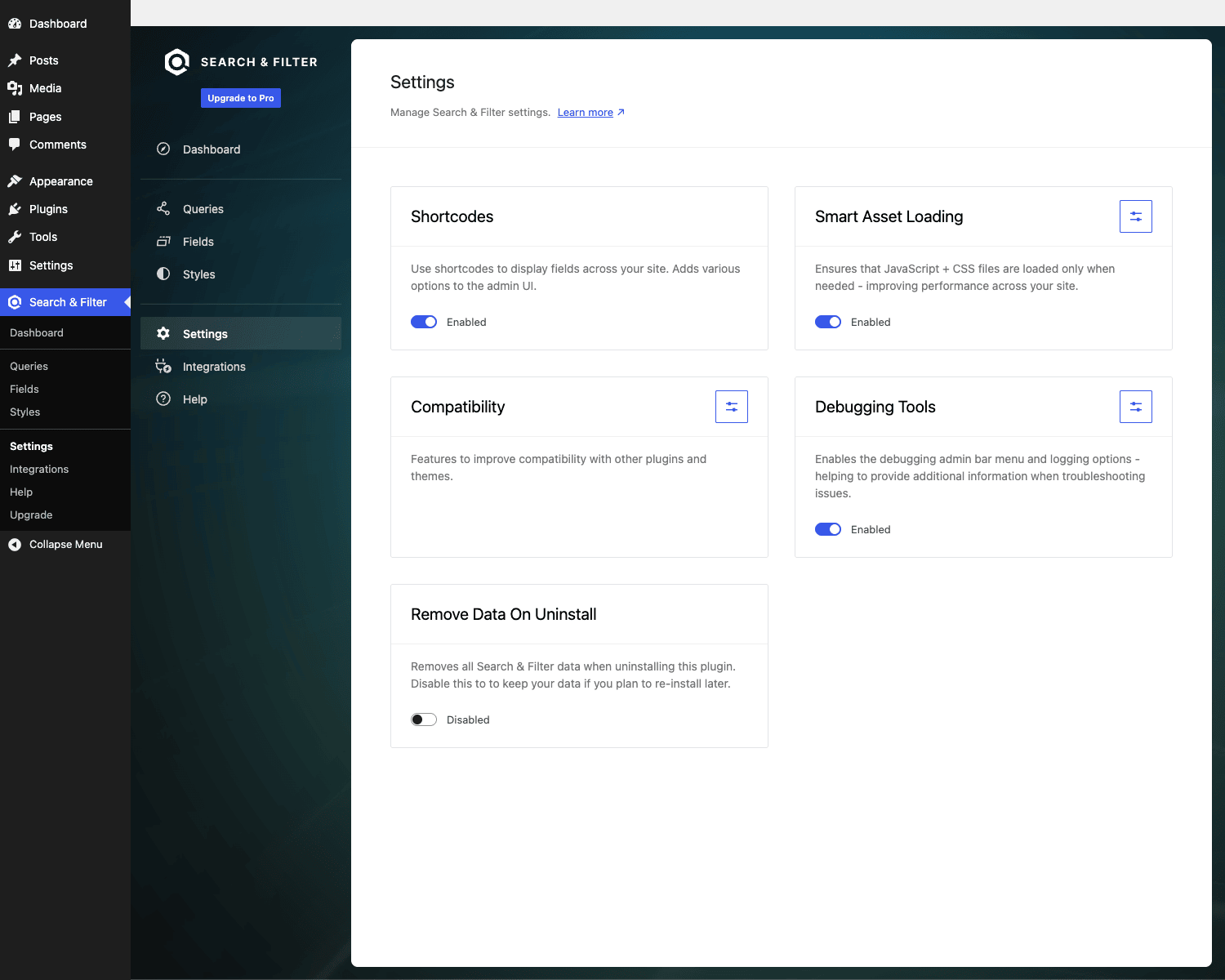
The Settings page exposes a few global toggles: Smart Asset Loading (only load JS/CSS on pages that have a Search & Filter field, which is a real performance win), Compatibility flags, Debugging Tools, and Remove Data On Uninstall.
Building a job-board search with keyword, taxonomy, and salary range end to end
Let’s walk through an actual end-to-end build so the abstract pieces above turn into something you can ship. Same shape works for property listings, recipes, podcast directories, or anything else.
Step 1: Register the post type and taxonomies. Custom Post Type UI works well for this if you want non-developers to edit it later, or you can register the post type in code with register_post_type(). Create a "Job" post type with public => true and has_archive => true. Then register two taxonomies attached to it: job_location (Locations) and job_type (Full-time, Part-time, Contract, Internship). Add a "Salary" meta field via Advanced Custom Fields Pro on the Job post type, type Number.
Step 2: Seed some content. A filter form against an empty post type is useless. Add at least 30 jobs so the filter actually exercises something. WP-CLI is the fastest way: wp post generate --post_type=job --count=30 then wp term generate job_location --count=8 and similar for job_type.
Step 3: Create the Query. Search & Filter, Queries, Add New. Name it "Job Search". Pick Location = Archive, Archive Type = Post Type, Post Type = Job, Query = Main query. Save.
Step 4: Add the keyword field. From the Query’s edit screen, switch to the Fields tab, click Add New Field. Pick Search > Text, label it "Search", placeholder "Search jobs…". Save.
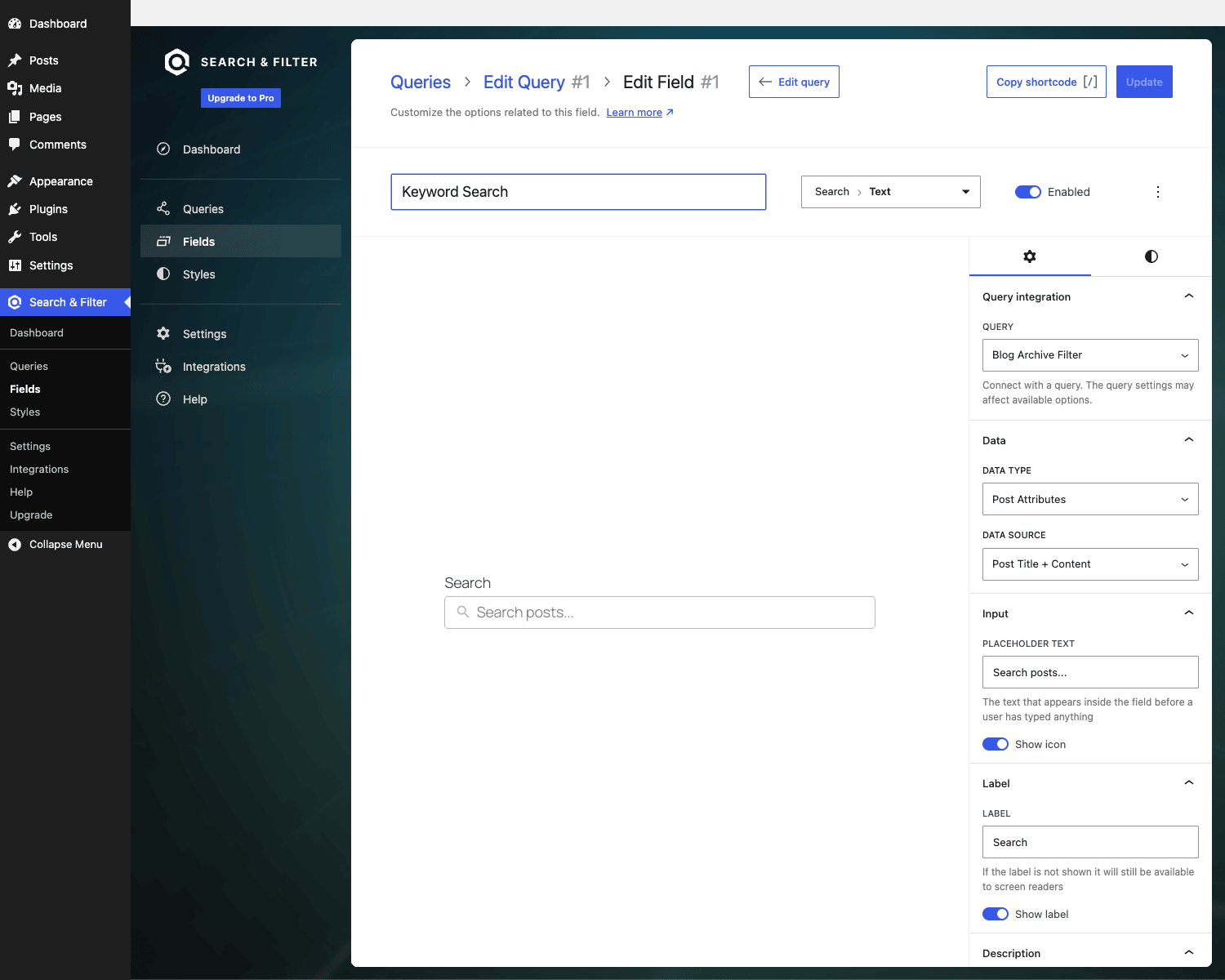
Step 5: Add the location checkbox list. Add New Field, pick Choice > Checkbox, Data Type = Taxonomy, Data Source = job_location. Label "Location". This pulls every term in the taxonomy as a checkbox. Save.
Step 6: Add the employment type radios. Add New Field, pick Choice > Radio, Data Type = Taxonomy, Data Source = job_type. Label "Employment Type". Radio because a job is usually one type, not many.
Step 7: Add the salary range. Add New Field, pick Range > Slider, Data Type = Custom Field, Field Key = salary (or whatever your ACF key is), Min = 30000, Max = 250000, Step = 5000. Label "Salary range". The Pro indexer scans the meta_value across all Job posts and builds a reverse index so the slider doesn’t have to live-query a giant table on every keystroke.
Step 8: Add the Advanced controls. Add New Field, pick Advanced > Sort. Add options for "Date (newest first)", "Salary (high to low)", "Title (A-Z)". Add another Advanced > Reset button. Add another Advanced > Results count.
Step 9: Style. Optional. Open the Styles tab, pick the Default preset, edit. Set the focus outline to your brand color, set checkbox tick to your accent. Save. Every field on every Query that uses this preset now matches.
Step 10: Verify on the front-end. Visit /jobs/ (or wherever the post type archive lives). You should see the form rendering on the archive template. Apply a filter, results update. Apply two, results narrow.
If the form doesn’t render on the archive, the theme’s archive template doesn’t call the_archive_title() or render the main query in a recognized way. You have two options: switch the Query integration to "Query Loop block" and use Gutenberg’s Query Loop block on a custom page, or use the legacy shortcode [searchandfilter field="N"] on a page that runs the main query manually. The Field editor has a Copy shortcode button at the top right that gives you exactly the right markup.
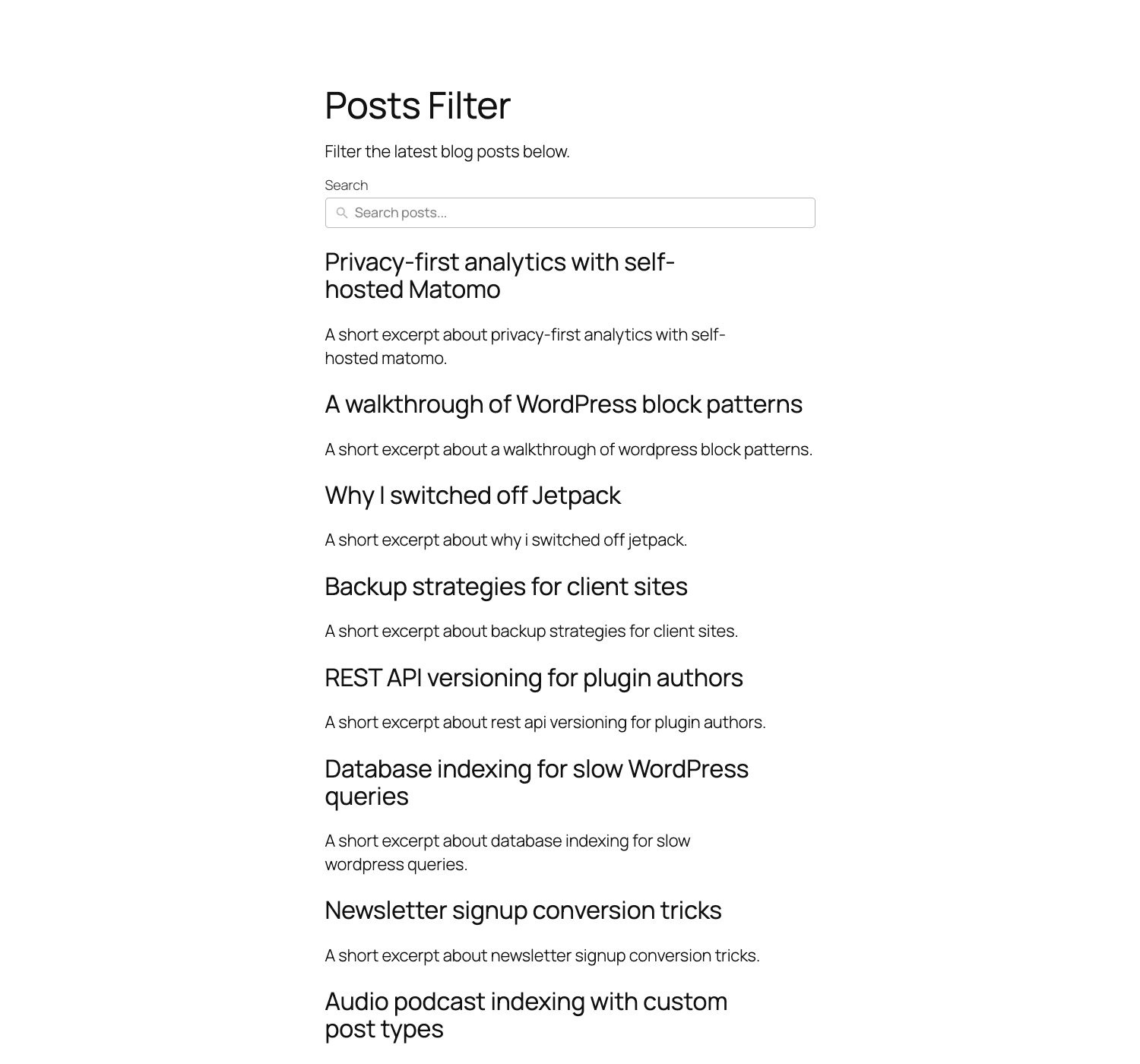
That’s the whole build. The end state on a real archive: keyword input, location checkboxes, employment-type radios, salary range slider, sort dropdown, reset button, and a result count above the cards.
AJAX vs page-reload: what each one costs you
The Pro plugin lets you toggle whether filter updates trigger a full page reload or an AJAX swap. Both have real trade-offs and I’ve seen people pick wrong on every project I’ve inherited.
Page reload is the default. When a user clicks a checkbox, the form submits, the URL updates with query parameters (e.g. ?_sf_location=london&_sf_type=full-time), and the page reloads. Pros: every filter combination is a real URL Google can crawl, browser back-button works, the WP query runs server-side which is faster than any AJAX dance. Cons: the page flickers on every change, the user loses scroll position, and on a slow host the reload itself takes 800ms+.
AJAX swaps the results in place without leaving the page. Pros: snappy feel, scroll position preserved, no flicker. Cons: filter combinations don’t always produce crawlable URLs (you have to opt into pushState explicitly), the server still has to run the query plus serialize/deserialize JSON, and the failure modes are worse (a slow response with no loading indicator looks like the site is broken).
Here’s the rule I use. If filter combinations matter for SEO, default to page reload with crawlable URLs. Job boards, property listings, e-commerce shop archives. Google needs to find /jobs/?location=london&type=full-time and have it return a real 200 page with real content.
If the filter is a UI nicety on a single page that doesn’t need to be indexed, use AJAX. Internal dashboards, search-as-you-type interfaces, modal filter drawers.
Don’t enable AJAX without testing the No-Results state. It’s the page state your users will encounter most often once they start playing with combinations.
Custom fields, ACF, Pods, MetaBox: making the messy stuff filterable
Out of the box, Search & Filter Pro can filter on any post_meta key. You go to a Choice or Range field, pick Custom Field as the Data Type, type the meta key, and the indexer builds a reverse-index of (meta_value, post_id) entries.
ACF is a first-class integration. Enabling the ACF card in Integrations exposes ACF field keys in the Data Source dropdown by friendly name (instead of you typing the raw meta key). It also handles ACF’s weird serialized values: repeater fields, group subfields, select-multi values, taxonomy fields, post object references. The integration adds three REST endpoints under /search-filter-pro/v1/acf/ for the admin UI to enumerate ACF field groups and fields.
Pods and MetaBox are not first-class integrations but they store values in post_meta like ACF does, so you can use Custom Field with the raw meta key and it works.
What doesn’t work as well: ACF Relationship and Post Object fields. Search & Filter Pro can filter on a post ID stored in meta, but it can’t show the related post’s title as the option label without a custom developer hook. There’s a filter (search-filter/fields/control/options) that lets you rewrite the option labels but you have to write the resolver.
For the trickier stuff there’s a per-field "Custom" data type that lets you supply your own SQL or your own option list via a filter hook. Use it when you’re doing something the UI doesn’t anticipate: filter by "posts the current user has bookmarked", filter by "events happening this weekend", filter by a computed field.
Search & Filter Pro vs FacetWP vs SearchWP vs Posts Table Pro: where each one wins
Four tools, four jobs. Picking wrong wastes a week.
License pricing. Search & Filter Pro retail is $79/year single-site, $149/year for 5 sites, or $249/year lifetime single-site. FacetWP is $99/year single, $249/year unlimited. SearchWP is $99/year standard, $399/year for the agency tier. Posts Table Pro is $74/year single, $239/year for unlimited. On retail prices alone Search & Filter Pro and Posts Table Pro tie at the bottom. The GPL builds normalize all four at one-time cost.
Front-end bundle weight. I measured the bundles on a vanilla Twenty Twenty-Five install with one filter form on the page. Search & Filter Pro added 28KB minified JS plus 6KB minified CSS. FacetWP added 81KB JS plus 24KB CSS. SearchWP added 12KB JS (it’s mostly server-side) plus 4KB CSS. Posts Table Pro added 67KB JS (DataTables) plus 11KB CSS. If front-end weight matters on a perf-critical project, SearchWP and Search & Filter Pro are the lighter picks.
Index requirement. Search & Filter Pro now builds an index incrementally via WP-cron and queries the index at runtime, so there’s no manual "re-index after content changes" step you have to remember. FacetWP requires explicit re-indexing on a schedule (or after bulk imports), which can take 10-30 minutes on a 100k-post site and locks the admin during a full rebuild. SearchWP also indexes but only the search keyword content, not filter facets (it’s relevance-first). Posts Table Pro doesn’t have a separate index at all (it loads everything client-side via DataTables, which is why it caps out around 5,000 rows before becoming painful).
Custom field support. Search & Filter Pro supports any post_meta out of the box plus first-class ACF integration. FacetWP requires you to define facets explicitly per meta key in code or via its UI, which is more rigid but also more visible. SearchWP has limited meta filter support: it can include meta in keyword search but not as standalone filter facets. Posts Table Pro shows meta in table columns and filters them with text search, which is more "spreadsheet" than "Airbnb search".
Filter UI flexibility. Search & Filter Pro ships radios, checkboxes, dropdowns (with search), range sliders, date pickers, and an autocomplete search. FacetWP adds proximity location search, hierarchical taxonomy facets, and a "tooltip slider". SearchWP is mostly invisible (it tweaks the WP search behavior, no front-end UI of its own). Posts Table Pro is a sortable table with per-column dropdowns.
WooCommerce shop filtering. All four work with WooCommerce but with different mental models. Search & Filter Pro adds a Query Type for the shop archive and filter fields for product attributes, categories, prices. FacetWP is the most opinionated about shop filtering with dedicated WooCommerce facets. FiboSearch and Relevanssi Premium are different tools for the search-bar-only side of WooCommerce.
My short version: Search & Filter Pro for general filtering with light setup, FacetWP for complex filter UX on big stores, SearchWP for fixing bad keyword search, Posts Table Pro for actual tabular data display.
Don’t enable submit-on-click without debouncing: here’s why
There’s a setting in the Query inspector called "Submit form on field change". When enabled, every click of a checkbox, every keystroke in the search input, every drag of the range slider fires a request. It feels great when you turn it on. The site updates as you tick things. No submit button needed.
Then your traffic doubles and your shared host falls over.
Here’s what’s happening. A user opens a filter with five Choice fields. They tick the first checkbox (one request). They tick the second (another request). They drag a range slider (one request per slider value change, which on a touchscreen can be 30+ events per drag). They type three letters in the keyword search (three requests). Twenty interactions before they’ve even read the results. On a page-reload setup that’s twenty full WP page renders. On AJAX it’s twenty admin-ajax calls, each one running the WP query and serializing posts to JSON.
The fix is either keep a Submit button (the default, and what I usually pick) or, if you must do submit-on-change, add a debounce on text inputs and range sliders. There’s a JavaScript filter hook in the plugin called search-filter-pro/frontend/before_request that fires before AJAX submission. You can debounce there:
let sfDebounceTimer;
wp.hooks.addFilter('search-filter-pro/frontend/before_request', 'mytheme/debounce', function(args, field) {
 if (field.type === 'search' || field.type === 'range') {
 clearTimeout(sfDebounceTimer);
 return new Promise(resolve => {
 sfDebounceTimer = setTimeout(() => resolve(args), 350);
 });
 }
 return args;
});
Three hundred fifty milliseconds is the sweet spot. Less feels laggy, more feels broken.
The other related anti-pattern: exposing every taxonomy as a filter. On a content site with five taxonomies your sidebar starts to look like a tax form. Pick the two or three that matter most for the user’s job-to-be-done. Hide the rest in a collapsible "Advanced filters" toggle, or skip them entirely. Filter UX is one of the rare cases where less is consistently better.
The indexer: how Pro queries large datasets quickly
Here’s the part most product pages skip. The reason the rewrite exists is that the older live-query approach didn’t scale. On a 50k-post site with two taxonomies and a meta filter, a single front-end filter request joined three tables, did a SUBSTR LIKE on post_content, and returned in 2.5 seconds even with proper MySQL indexes. That’s TTFB before a byte of HTML.
The Pro indexer pre-builds reverse-index tables. When you save a Query, a background task scans every matching post and writes (post_id, field_id, value) rows into wp_search_filter_pro_index. The runtime query is then a simple WHERE field_id = X AND value IN (...) against a single indexed table, which returns in milliseconds.
The indexer runs incrementally. New posts get indexed on save_post, updated terms on set_object_terms, updated meta on updated_post_meta. There’s a background task runner that batches these into safe chunks so a bulk import doesn’t stall a request. Memory is managed via the search-filter-pro/task_runner/batch_size filter (default is dynamic based on wp_max_memory_limit).
If you need to manually rebuild (after migrating data, or after a settings change that affects indexed fields), there’s a Rebuild button under Settings > Indexer. There’s also a CLI: wp search-filter-pro index rebuild and wp search-filter-pro index status. The REST endpoints are at /wp-json/search-filter-pro/v1/indexer/rebuild, /indexer/resume, /indexer/pause.
A side effect of the index design: filter counts are accurate without re-running the query. The Choice field can show "London (12), Berlin (8), Tokyo (3)" because those counts are denormalized into the index at sync time. FacetWP does this too. SearchWP does not.
The index sits in custom tables under your $wpdb->prefix (default wp_search_filter_pro_index and a few support tables). It does grow with your post count: rough rule of thumb is 1KB per indexed (post, field) pair, so a 10k-post site with five indexed fields runs about 50MB. Not nothing but not enormous on modern hosts.
Real-world use cases
Five projects I’ve actually shipped using Search & Filter Pro.
Job board with 800 listings. Filters: keyword, location (taxonomy), employment type (taxonomy), salary range (ACF meta), date posted (sort only). Front-end UX: sidebar with sticky filters, results in main column, AJAX submission on submit-button click (not on change). Total build time including content seeding: two days. The salary range was the trickiest part because ACF stored the value as a string until I switched it to Number type.
Property directory for a realtor. 200 listings. Filters: city (taxonomy), property type (taxonomy), bedrooms (meta), bathrooms (meta), price range (meta). Pro tip: I used radio buttons for bedrooms (1, 2, 3, 4+) instead of a range slider. Sliders look slick but radios are clearer for discrete choices like room counts.
Recipe blog with 1,200 recipes. Filters: cuisine (taxonomy), course (taxonomy), dietary tags (taxonomy, multi-select), cook time (meta, range). The dietary multi-select was the win: "vegan AND gluten-free AND under 30 minutes" works because Search & Filter Pro joins multi-value choices with AND by default, not OR. (That’s configurable per field.)
Podcast directory. 400 episodes spread across two seasons. Filters: guest (custom taxonomy I created for guests), topic (taxonomy), length range (meta in minutes). The guest taxonomy with autocomplete search was the killer feature: 200+ guests would be unmanageable as checkboxes, but the Search > Autocomplete field type with Data Type = Taxonomy made it instantly usable. The autocomplete fires a REST request to /search-filter-pro/v1/autocomplete/search and returns matching term names.
Course catalog for an LMS site. 80 courses with taxonomies for level (Beginner / Intermediate / Advanced), topic, instructor, and duration range. Combined with LearnDash LMS for course delivery, Search & Filter Pro for catalog browsing. The "instructor" taxonomy doubled as a redirect target: clicking an instructor name on a course page links to the catalog filtered by that instructor.
Developer reference: hooks, filters, REST endpoints, classes
This is what makes Search & Filter Pro a developer-friendly plugin instead of a "no-code" black box. Below is the subset of hooks and filters worth knowing. There are more.
Field-level URL parameter rewrite. By default a field exposes itself in the URL as _sf_<field_slug>. To rename:
add_filter( 'search-filter/fields/field/url_name', function( $url_name, $field ) {
 if ( $field->get_attribute( 'name' ) === 'location' ) {
 return 'loc';
 }
 return $url_name;
}, 10, 2 );
That turns ?_sf_location=london into ?loc=london. Useful for SEO-friendly URLs and shorter share links.
Range field auto-detect custom field. When a Range field’s data source is Custom Field, Pro tries to auto-detect the meta key. To override:
add_filter( 'search-filter/fields/range/auto_detect_custom_field', function( $key, $attributes ) {
 if ( $attributes['name'] === 'salary' ) {
 return 'job_salary_usd'; // your ACF key
 }
 return $key;
}, 10, 2 );
Range field WP_Query args. Modify the meta_query the Range field generates:
add_filter( 'search-filter/fields/range/wp_query_args', function( $args, $field ) {
 // Force numeric comparison even if meta was stored as string
 if ( isset( $args['meta_query'][0]['type'] ) ) {
 $args['meta_query'][0]['type'] = 'NUMERIC';
 }
 return $args;
}, 10, 2 );
Choice field options. Rewrite or filter the option list for a Choice field:
add_filter( 'search-filter/fields/control/options', function( $options, $field ) {
 if ( $field->get_attribute( 'name' ) === 'category' ) {
 // Remove an unwanted category from the list
 return array_filter( $options, fn( $o ) => $o['value']!== 'uncategorized' );
 }
 return $options;
}, 10, 2 );
Autocomplete suggestions. Inject your own suggestion source for the Search > Autocomplete field type:
add_filter( 'search-filter-pro/field/search/autocomplete/suggestions', function( $suggestions, $search, $field ) {
 // Your custom suggestion logic
 $custom = array(
 array( 'label' => 'Sample suggestion', 'value' => 'sample' ),
 );
 return array_merge( (array) $suggestions, $custom );
}, 10, 3 );
Indexer caching toggle. Disable indexer query caching site-wide:
add_filter( 'search-filter-pro/indexer/query/enable_caching', '__return_false' );
Indexer batch size. Override default batch size for index rebuilds:
add_filter( 'search-filter-pro/task_runner/batch_size', function( $size ) {
 return 50; // smaller batches for shared hosts with low memory
});
Results template path. When using the shortcode integration, override which template renders the results:
add_filter( 'search-filter-pro/shortcodes/results/template_path', function( $path, $query_id ) {
 if ( $query_id === 5 ) { // your custom Job Search query ID
 return get_stylesheet_directory(). '/templates/job-results.php';
 }
 return $path;
}, 10, 2 );
Query lifecycle actions. Fire your own code around a results query:
add_action( 'search-filter-pro/shortcodes/results/query/start', function( $query_id ) {
 // e.g. start a timer
});
add_action( 'search-filter-pro/shortcodes/results/query/finish', function( $query_id ) {
 // e.g. log to a perf monitor
});
Indexer lifecycle actions. For listening to indexer events:
search-filter-pro/indexer/init_sync_data/startsearch-filter-pro/indexer/init_sync_data/finishsearch-filter-pro/indexer/run_task/startsearch-filter-pro/indexer/run_task/finishsearch-filter-pro/indexer/query/result_lookup/startsearch-filter-pro/indexer/query/result_lookup/finish
REST endpoints. All under /wp-json/search-filter-pro/v1/:
/indexer(GET) – indexer status/indexer/rebuild(POST) – trigger full rebuild/indexer/resume(POST) – resume paused indexer/indexer/pause(POST) – pause running indexer/autocomplete/search(GET) – autocomplete suggestions/license/*– license activation/deactivation/task-runner/*– background task status and control/acf/*– ACF field enumeration for the admin UI
Classes worth knowing. All under the Search_Filter_Pro\ namespace, autoloaded from includes/:
Search_Filter_Pro\Indexer– the indexer entry pointSearch_Filter_Pro\Cache– tiered cache layer (with APCu fallback)Search_Filter_Pro\Task_Runner– background job runnerSearch_Filter_Pro\Features– feature toggle layerSearch_Filter_Pro\Integrations– third-party integration loaderSearch_Filter_Pro\Database\Query_Optimizer– SQL query optimizerSearch_Filter_Pro\Fields\Range– Range field implementation
The architecture is namespaced and PSR-4-ish enough that you can extend a single feature without monkey-patching the core. That alone puts it ahead of plugins from the same era that still use global functions and singleton anti-patterns.
Performance, compatibility, and the gotchas worth knowing
A few hard-won observations from production.
Smart Asset Loading is on by default and you should leave it on. It skips loading the front-end JS and CSS on pages that don’t have a Search & Filter field on them. The check is fast, the savings on pages without a filter form are real, the failure mode is also real (if you build the field via PHP at runtime instead of via the admin, Smart Asset Loading won’t know about it and your field won’t have its JS). To force-load on those pages, add add_filter( 'search-filter/frontend/should_load_assets', '__return_true' ); in functions.php.
The indexer can stall on a misconfigured cron. WordPress’s request-based cron is what fires the indexer’s background tasks, so on a low-traffic site the indexer might not run for hours. If you see "Indexer running" for an unreasonably long time in the Settings page, check that wp-cron.php is actually being hit (most managed hosts disable WP cron and run it via system cron). The Rebuild button forces a synchronous run if you need it immediately.
WPML and Polylang change indexing semantics. Each language gets its own index. Switch languages and the same field can return different counts. This is correct behavior but counter-intuitive when you’re testing.
WooCommerce variable products are tricky. Filter by attribute "Color = Red" and you’ll match the parent variable product, not the variation. That’s normal WooCommerce behavior, not a Search & Filter Pro bug, but worth knowing.
Pagination on AJAX archives can break. If your theme uses paginate_links() with a custom base, the AJAX response may not regenerate the pagination correctly. The fix is either to use the Advanced > Pagination field (which the plugin re-renders correctly) or to write a custom JS handler that re-binds pagination clicks after each AJAX swap.
The legacy [searchandfilter id=N] shortcode is gone in the current release. The new shortcode is [searchandfilter field="N"] which renders a single field. To render a full Query you embed the field shortcodes in a page where the Query’s main query also runs, or use the Query Loop block, or use the Elementor widget.
Caching plugins need a hint. WP Rocket, LiteSpeed Cache, and any other page-cache plugin will cache filter results unless you tell them not to. The plugin’s Compatibility settings auto-detect WP Rocket and add the right exclusions. For others, add the URL parameters Search & Filter Pro uses (_sf_*) to your cache plugin’s "ignored query strings" list, or just bypass cache for pages containing a filter form.
What Search & Filter Pro doesn’t do (and when you reach for FacetWP anyway)
Honest opinion time. Three things that, if I need them, push me to a different tool.
Proximity / geographic radius search. "Show me jobs within 25 miles of Boston." Search & Filter Pro can filter by a taxonomy of cities, but it doesn’t do lat/lng radius math. FacetWP has a Proximity facet that does. SearchWP has a Mappable Geo Search extension. If your project needs real "near me" search, those are the picks.
Hierarchical taxonomy with collapsible parents. Out of the box, taxonomy Choice fields are flat. Sub-categories appear as separate checkboxes alongside their parents. You can add CSS to indent them visually, but expanding/collapsing the parent to show/hide children is custom JS work. FacetWP has a Hierarchy facet that handles this natively.
Real-time index updates on the millisecond. The indexer is cron-driven and incremental, which means there’s a small lag (typically 30 seconds to a few minutes) between a content change and the filter reflecting it. For a recipe blog this is fine. For a real-time stock ticker, it’s not (and Search & Filter Pro isn’t the right tool anyway).
There’s also the documentation gap. The official docs at searchandfilter.com cover the basics well but the developer reference is sparser than FacetWP’s. You’ll find yourself reading the plugin source (especially includes/features/class-shortcodes.php and includes/integrations/) to answer "how do I customize X" more often than you’d like.
And the admin generator UI, while greatly improved in the rewrite, is still a bit of a step down from the polish of WPForms or Gravity Forms. Not bad. Just clearly built by a small studio that ships features over chrome.
Pricing and licensing
Retail at searchandfilter.com runs $79/year for single-site, $149/year for five sites, and $249 lifetime for a single site as of this guide. Updates and support are tied to the active subscription.
GPL Times ships as a one-time-cost lifetime download. Same plugin, same version, GPL-licensed and free to use on as many sites as you control. If you’re an agency building client sites or a solo developer trying it out before committing to the official subscription, this is the cheaper path.
The plugin is GPLv2 (compatible with WordPress itself), so redistribution and modification are both legal. The license-server stub in the GPL-licensed version prevents the plugin from pinging the vendor’s license endpoint, which means you won’t get automatic updates from searchandfilter.com but you can update by re-downloading the zip.
FAQ
Why don’t my custom fields show up as filterable options?
Two common causes. First, the field has to actually have values saved on some posts; an empty meta_key won’t show. Second, the indexer needs to have run at least once since the field was added; the indexer is what populates the option dropdown. Trigger a manual rebuild via Settings > Indexer > Rebuild. If you’re using ACF, make sure the ACF integration is toggled on under Integrations.
Can I have multiple search forms on the same page?
Yes, with caveats. Multiple field shortcodes on the same page work fine if they belong to different Queries. If they belong to the same Query, you’ll get two forms that both submit to the same URL state, which is occasionally what you want (e.g. a top bar plus a sidebar). For two independent searches on one page (a podcast filter AND a recipe filter), define two Queries with different Query Integration targets and they won’t collide.
Does Search & Filter Pro work with infinite scroll archives?
Sort of. The plugin handles standard pagination cleanly. Infinite scroll is theme-dependent: if your theme uses Jetpack Infinite Scroll or a similar pattern, the AJAX swap can confuse the infinite-scroll handler. The workaround is to switch the Query integration to non-AJAX (page reload), which preserves browser-native back-button + URL state. Or write a custom JS bridge between Search & Filter Pro’s after_request event and your infinite-scroll’s reinit hook. Not trivial.
Why does my filter break the WooCommerce shop pagination?
WooCommerce’s shop pagination uses a custom rewrite rule (/shop/page/2/) that conflicts with Search & Filter Pro’s query parameters. The fix is enabling the WooCommerce integration card (which knows about this) AND using the WooCommerce shortcode [products] instead of the default shop archive, OR using the Query Loop block on a custom page set as the Shop page. Direct integration with the default shop archive works in most cases but the edge cases bite.
How do I make a date-range filter for posts?
Add a Field of type Date > Range, Data Type = Post Attribute, Data Source = Post Date. That filters by the post’s publish date. To filter by a custom date field stored as a meta_value (e.g. an "event_date" ACF field), use Date > Range with Data Type = Custom Field, Field Key = event_date. Make sure the meta value is stored in Y-m-d format because the comparison is string-based; ACF Date Picker does this correctly when configured with that return format.
Will Search & Filter Pro slow down my site?
The honest answer: probably not, with two caveats. The front-end JS is small (~28KB minified) and Smart Asset Loading keeps it off pages that don’t need it. The indexer does add background load via WP-cron when content changes, which on a low-traffic site is invisible and on a high-write site (think 1000+ posts saved per hour) can be noticeable. Tune search-filter-pro/task_runner/batch_size down on shared hosts if you see spikes.
Does it work with translated content?
Yes. WPML and Polylang integrations index per language, so a French filter shows French posts only. The integrations also auto-translate field labels and descriptions, which is a small but real time-saver on multilingual sites.
Final thoughts
Search & Filter Pro is what I reach for when a project needs "users should be able to filter this list of stuff by these few attributes" and the stack already includes WordPress. It’s not the most polished admin UI, the docs are merely OK, and the integration with WooCommerce shop archives has edge cases that take an hour to sort out. But the indexer is genuinely fast, the AJAX engine works without you writing JavaScript, the developer hooks are sensible, and the price is right.
The contrast with FacetWP is real. FacetWP is the answer when filtering UX is the product (think the Airbnb-style multi-facet drawer with thousands of options). Search & Filter Pro is the answer when filtering is a feature of a larger site (a job board where you also write a blog, a property directory that’s also a brokerage marketing site, a recipe blog that needs better archive UX). Pick the right tool for the actual surface, not for the demo gif.
If you’ve been hand-rolling WP_Query arguments + custom shortcodes + jQuery for filtering, stop. Search & Filter Pro is the path of least resistance for that exact job, and the new indexer-backed architecture means you’re not paying a performance tax on large datasets the way you would with the old approach. Set aside an afternoon, build the form, ship it.