


A friend runs three coastal cottages on the Konkan coast. For the longest time her "booking system" was a Google Sheet, a WhatsApp group, and an Airbnb calendar she had to remember to cross-check every morning. The double-bookings she hit were not even the worst part. The worst part was guests asking for "the 4-night family rate" and her doing the math by hand on a sticky note.
That, more or less, is the gap JetBooking is built for. Not appointment slots, not single-hour reservations. Multi-day stays on a per-unit calendar, with their own pricing rules, with sync back out to the OTAs (online travel agencies) the host already lives inside. It’s a Crocoblock plugin that hooks into Elementor or Bricks Builder, reads/writes iCal, charges through WooCommerce, and gives you a real backend for managing the bookings instead of guessing from a spreadsheet.
I’ve spent the last few months poking at it on two different client sites, and a third I’m half-running myself. Here’s what JetBooking actually does, where it’s strong, where it falls apart, and the small set of code hooks worth knowing if you’re going to extend it.
Table of Contents
- What JetBooking is, exactly
- Where it fits, and where it does not
- The booking model: units, instances, orders
- Setup, in the order that actually works
- Pricing rules: per-day, per-week, seasonal
- Check-in / check-out rules and buffer days
- iCal sync with Airbnb, Booking.com, Google Calendar
- The bookings dashboard
- Building the front-end with Elementor or Bricks
- Developer reference: hooks, filters, examples
- One real scenario: a three-cottage rental site
- Performance, gotchas, and the things that bit me
- Pricing and how to get it
- Final thoughts
What JetBooking is, exactly
JetBooking is a calendar-availability plugin from Crocoblock, the same team behind JetEngine and JetSmartFilters. It assumes you have a list of bookable units (cottages, rooms, kayaks, photo studios, conference rooms) and that each one needs its own calendar of "this date is taken, this date is free." Visitors land on a unit’s page, pick a check-in and a check-out date in a single calendar widget, fill in a booking form, and pay. JetBooking writes the reservation to a custom database table, blocks those dates on the calendar, and (if you’ve wired it up) sends an iCal update out to your Airbnb listing.
The internals are not a black box, which I appreciate. Bookings live in a real custom table called jet_apartment_booking (with a sister jet_apartment_booking_apartments table and an audit-trail jet_apartment_booking_logs table). There’s a clean PHP namespace, JET_ABAF, and a sensible set of do_action and apply_filters hooks. You can extend it without reverse-engineering anything. I’ll show concrete code further down.
It is sold as a plugin per site or as part of Crocoblock’s all-plugin subscription. Either way, you get the GPL source, so once it’s on your machine it stays yours.
Where it fits, and where it does not
JetBooking is not the right plugin for every booking case. Worth being clear about that upfront, because the line between "booking" and "booking" depends on the model:
- Vacation rentals, holiday cottages, B&Bs, glamping pods. Yes, exactly the target. Check-in date, check-out date, blocked range in between, nightly rate with a seasonal markup. JetBooking is honestly built for this.
- Hotel rooms with limited inventory per room type. Yes, with caveats. You’ll model each room as a separate "unit", or use the multi-unit "instance count" approach where one CPT post represents "5 identical deluxe doubles" and the inventory drains as nights book.
- Equipment rental (paddleboards, e-bikes, camera gear). Yes. Same multi-day model, just swap "cottage" for "drone".
- Appointment-style booking: haircut at 3pm, 30-minute consult at 11. No. Use Bookly or Amelia. JetBooking does not really do "time slots within a single day."
- Event ticketing with seat selection. No, that’s its own category.
- Plain Gutenberg sites with no page builder. Mostly no. JetBooking expects either Elementor or Bricks for the front-end widgets. You can in theory use the shortcodes outside a builder, but you give up most of the layout flexibility. Don’t go in expecting it to behave like a builder-agnostic plugin.
Being explicit about that boundary is worth a thousand words of marketing copy. JetBooking is not a generic booking plugin. It’s a vacation-rental-shaped tool. Knowing that going in saves a week of pain.
The booking model: units, instances, orders
This is the part that confuses every JetBooking newcomer for the first hour, including me. The plugin’s vocabulary has three nouns and they all sound similar.
A booking instance post type is the CPT whose posts represent the bookable units. If you’re renting cottages, you might have a custom post type called cottage, with posts called "The Almond House", "Driftwood Cabin", "Goa Studio #2". Each post has its own calendar. You tell JetBooking, "the booking instance post type is cottage" in the General settings, and from then on each cottage post gets a calendar.
A booking order post type is the CPT where each completed booking lives as a post. You can leave it pointed at the default jet_booking CPT or wire it to your own. Most people use the default and never look at it again. Behind the scenes the booking ALSO writes a row to the custom jet_apartment_booking table; the post is mostly for object-oriented metadata access.
A booking is the row in the jet_apartment_booking table. ID, unit (apartment_id), check_in_date, check_out_date, status, related_order (if WooCommerce). That’s the data you actually query.
I keep accidentally setting the wrong CPT in the booking-instance picker on first setup and then wondering why my cottage pages don’t show a calendar. Ten minutes lost, every single project. Set the booking-instance post type FIRST. Save. Reload. Then build pages.
Setup, in the order that actually works
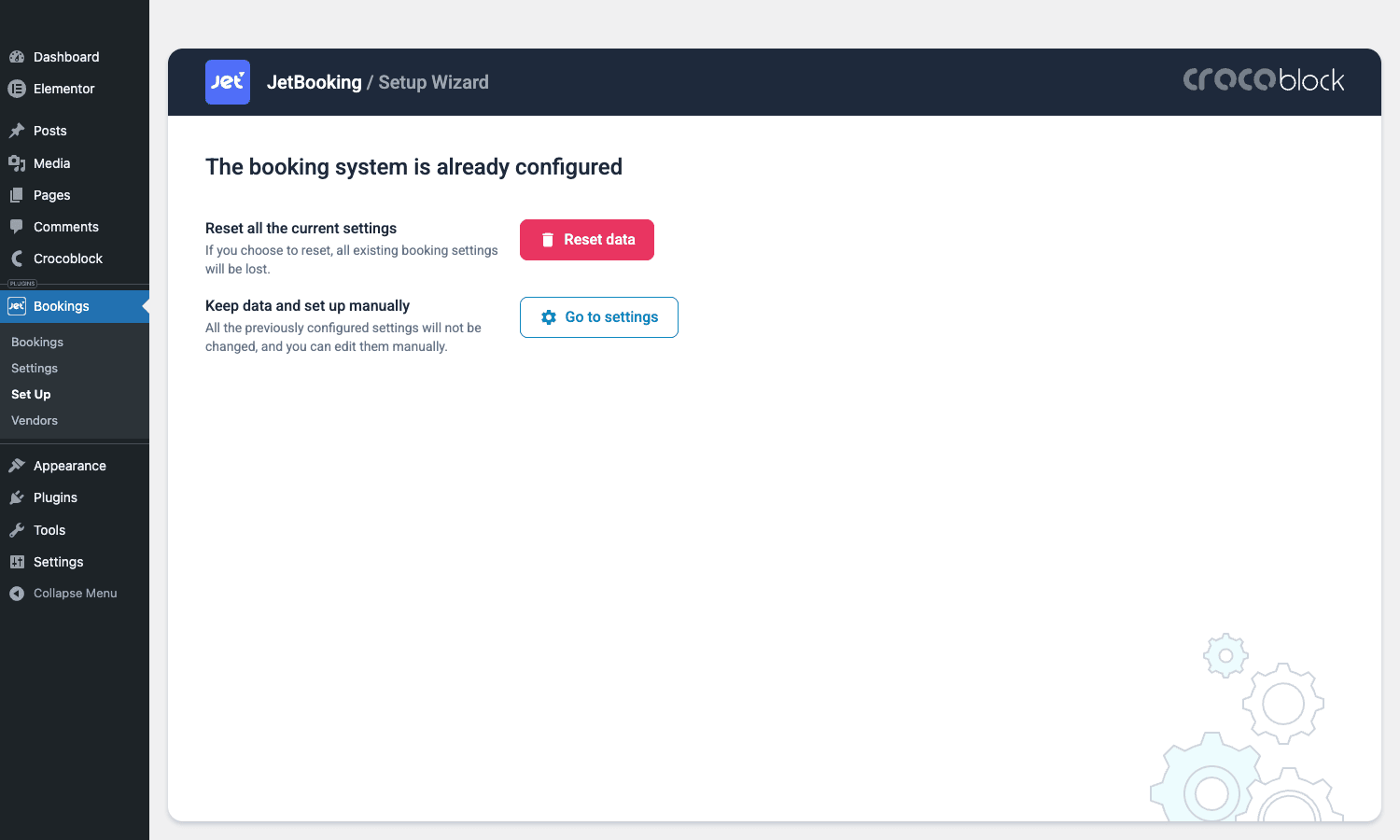
After installing the plugin, JetBooking drops you into a setup wizard. The first time, that wizard is genuinely helpful. The second time, on an already-configured site, the wizard says "The booking system is already configured" and offers you either a destructive Reset data or a friendlier Go to settings. Worth knowing so you don’t nuke a client’s bookings out of muscle memory.
Once you’re past the wizard, the real settings live under Bookings -> Settings. Seven sub-tabs, in this order: General, Labels, Advanced, Configuration, Schedule, Workflows, Tools.
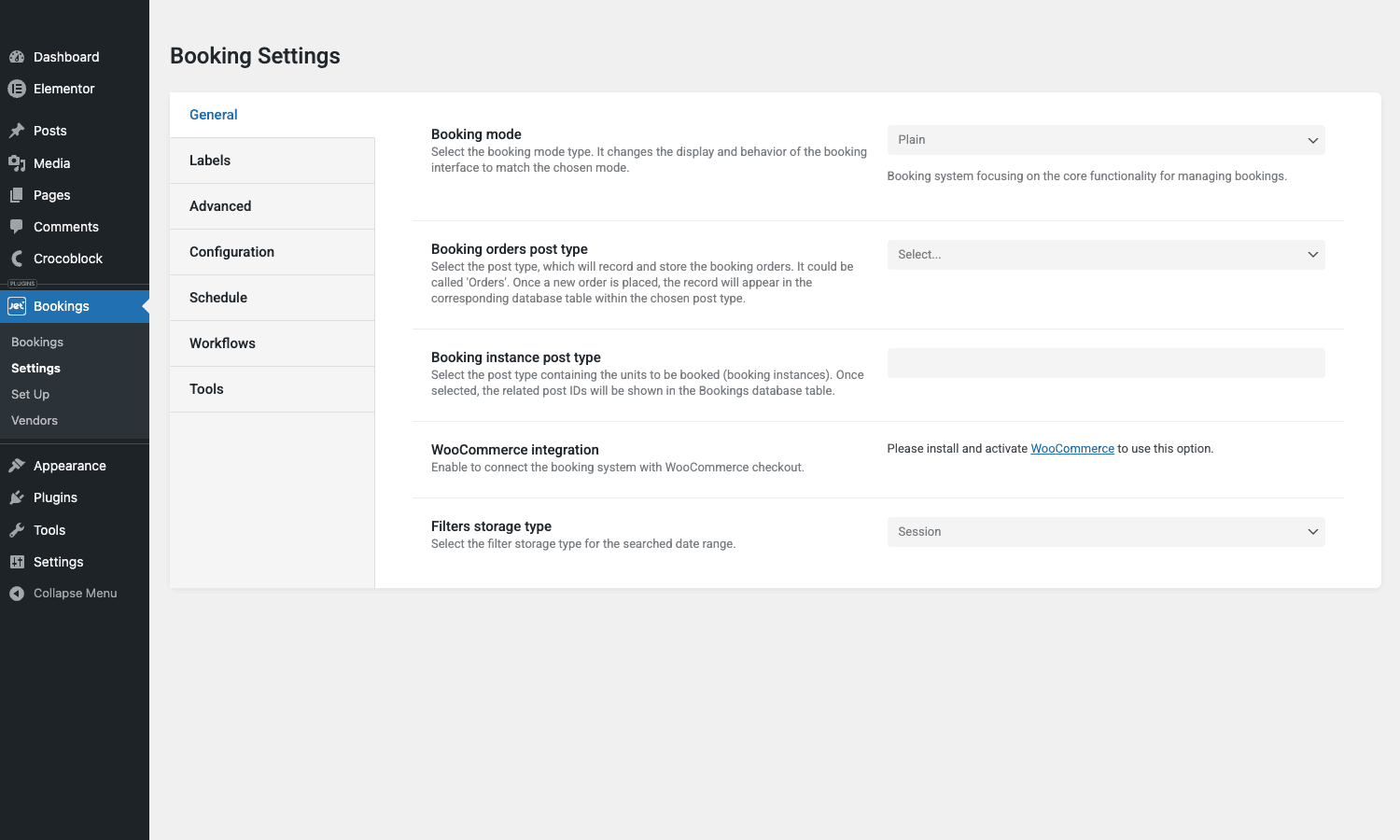
The order I actually configure them in:
- General first. Pick a Booking mode (Plain is fine for most rentals, advanced modes are for multi-vendor or sub-bookings). Pick your booking-orders post type and the booking-instance post type. Decide if you’re integrating with WooCommerce, and if yes, install Woo first because the toggle is hidden until Woo is active.
- Schedule next. This is where you set globally allowed check-in / check-out weekdays, minimum and maximum stay length, and buffer days between bookings. If your cottages need a "Saturday to Saturday only" rule, this is the panel.
- Labels. Rename "Check In" to "Arrival", "Apartment" to "Cottage", "Book" to "Reserve now". Boring, important.
- Configuration. This is where price-per-period rules live. Per-day, per-week, per-month, seasonal. Set the base rates here.
- Advanced and Workflows. Workflows are the email + automation pieces (notify customer, notify admin, send the iCal token after payment). I leave them till last.
- Tools. Has the iCal import / export and the calendar-feed URL generator.
That ordering matters because Schedule rules feed into Configuration rules, which feed into Workflow conditions. Setting them in the reverse direction means redoing work.
Pricing rules: per-day, per-week, seasonal
JetBooking handles rental pricing the way real rental hosts think about it, which is not "one rate per night, forever." It supports four overlapping price models:
- Per-day base rate. "₹4,500 per night by default."
- Per-week / per-month overrides. "If the booking is 7 nights or longer, the per-night price drops to ₹3,800." Useful for digital-nomad-style monthly stays.
- Seasonal pricing. "Christmas week is ₹9,000 per night. Monsoon is ₹3,000." Date ranges, layered on top of the base rate.
- Per-unit overrides. Each cottage post can have its own base price meta field, so the Almond House at ₹6,000/night and the Driftwood Cabin at ₹4,500 coexist.
The pricing engine resolves them in a defined order (per-unit -> seasonal -> per-period -> base), and exposes the result via a jet-booking/booking-total-price filter so you can hijack it. Add a 5% cleaning fee, apply a coupon, add tax. We’ll do this below in the developer section.
What it does not do natively: tiered pricing by guest count, last-minute discount sliders, or dynamic-pricing-by-occupancy. Those need a small custom filter (3-5 lines) and again, that’s covered below.
Check-in / check-out rules and buffer days
This is where the plugin.gpltimes.com/wordpress-plugins/bookly-pro-appointment-booking-wordpress/”>Bookly fall flat.
Allowed check-in days. Pick the weekdays a guest is allowed to start a stay. Common patterns: "Saturday only" for weekly cottages, "Friday or Monday" for short breaks, "any day" for a regular B&B.
Allowed check-out days. Same idea for departure. Often a mirror of check-in.
Minimum stay length. "At least 3 nights." Cuts the one-night fly-bys that aren’t worth the cleaning turnover.
Maximum stay length. "No more than 28 nights." Useful for jurisdictions where 30+ nights flip a unit to a "long-let" tax category.
Buffer days. This is the sleeper feature. You set "1 buffer day after every checkout", and the calendar automatically blocks the day between bookings for the cleaning crew. No more guest-A-checks-out-Tuesday-noon-and-guest-B-checks-in-Tuesday-3pm chaos.
The buffer-days setting saved me about four hours of double-booking debugging on the friend’s villa rental site, because the previous attempt with a different plugin had no concept of "the cleaner needs a day". The number of times I have explained "yes, the calendar deliberately blocks that one day in the middle, it’s a feature not a bug" is now embarrassing.
iCal sync with Airbnb, Booking.com, Google Calendar
Here’s the thing about hosting on multiple platforms: every OTA (Airbnb, Booking.com, Vrbo) speaks iCalendar, the same .ics feed format that Google Calendar and Apple Calendar use. JetBooking speaks it both directions.
Export. Each unit gets its own JetBooking-hosted .ics URL, something like https://yoursite.com/?jet-booking-ical=<unit_id>&token=<secret>. You paste that into Airbnb’s "Import calendar from another platform" field, and Airbnb pulls down your blocked dates every couple of hours.
Import. Conversely, you give JetBooking a URL pointing at Airbnb’s outbound iCal for the same property. JetBooking polls it on a WP-Cron schedule (twice an hour by default, configurable) and writes the imported dates as blocked time on your unit.
Result: somebody books your cottage on Airbnb, the dates show as unavailable on your WordPress site within an hour. Somebody books on your WordPress site, Airbnb sees the block within an hour. There’s still a small window in which a true double-book could land, the way there always is with iCal polling. The official mitigation is to also impose a buffer day, which collapses the realistic conflict window.
I’d describe the iCal sync as "good enough for serious rentals", which is honestly the bar. Channel-manager-grade real-time sync (Smoobu, Hostfully, Lodgify) costs ₹4,000+ a month and locks you into a SaaS. JetBooking’s polled iCal sync is included, and for a 1-3 unit operator it’s the sensible tier.
The bookings dashboard
Once you have actual bookings, you live inside the Bookings admin page. Three view modes in the top right: List, Calendar, Timeline. The list view is a sortable table with the columns that matter: ID, Instance (which unit), Check In, Check Out, Related Order (Woo order ID with a link), Status, Actions.
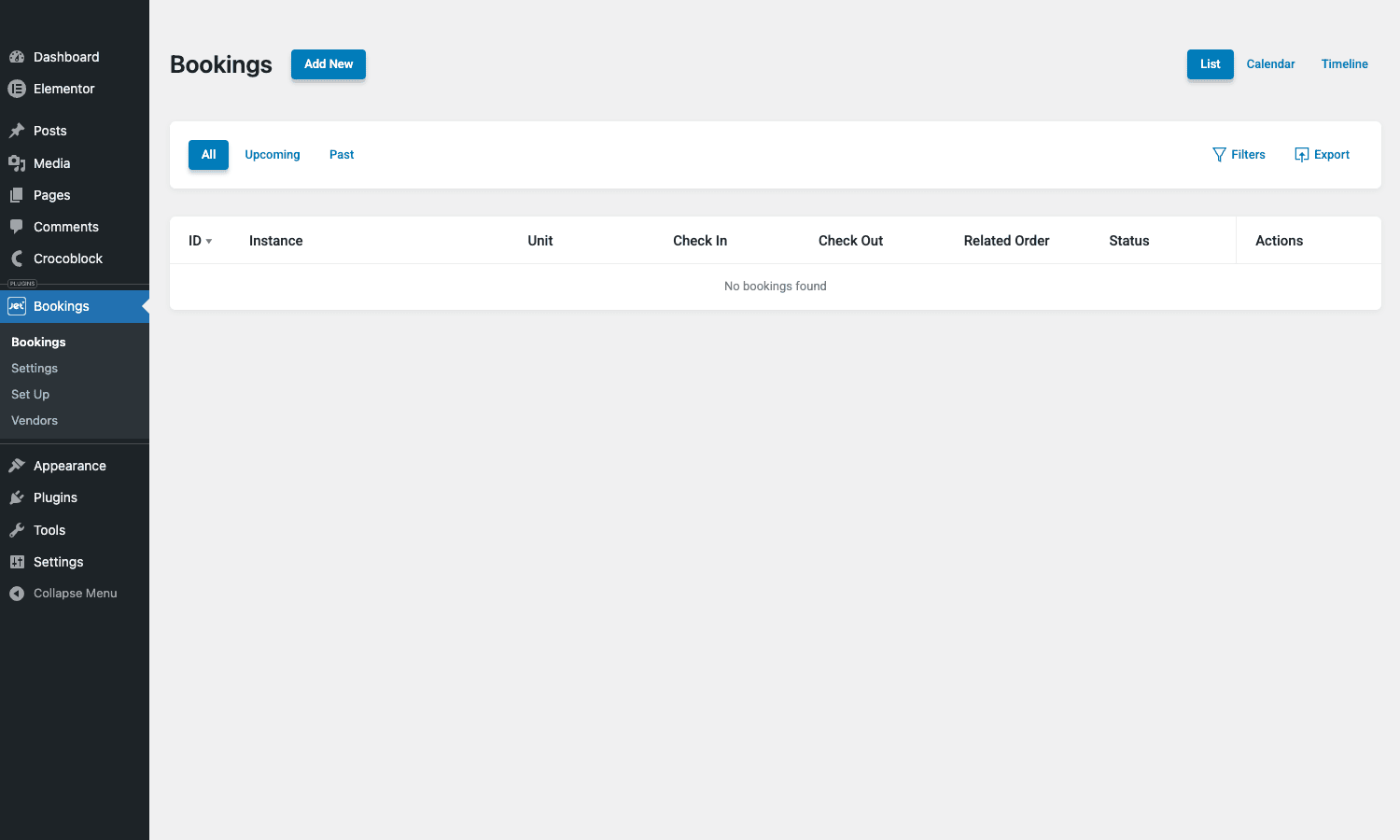
The Calendar view is a month grid with reservations as colored bars. The Timeline view is the Gantt-style layout I find most useful when you have 5+ units: each unit is a row, the horizontal axis is time, and each booking is a colored block you can grab to see details. If you’re running more than three units in parallel, switch to Timeline and stay there.
Above the table: a Past tab filter, a Filters dropdown (date range, status, unit), and an Export button that emits CSV. CSV export matters more than you’d think: bookkeepers want it for monthly P&L, and you also want it as a manual backup just in case.
Two things I wish were better:
- No bulk-edit for status. If twelve bookings need to flip from "pending" to "confirmed" you click each one. Workflow rules can paper over this, but there’s no select-all dropdown.
- The empty state literally says "No bookings found" with no call to action. On a freshly installed site this can make a developer think the integration isn’t working. It’s working. You just have zero bookings.
Building the front-end with Elementor or Bricks
This is where JetBooking shows its Crocoblock heritage. Inside Elementor or Bricks, you drop widgets onto your single-cottage template:
- Booking Form widget. The big date-picker calendar. Click a start date, click an end date, it auto-detects the range and shows the calculated total price live. This is the centerpiece.
- Booking Calendar widget. A read-only calendar showing which dates are taken, in case you want a "view availability" element separate from the booking form.
- Booking Price widget. Renders the current calculated price for the selected range. Updates live as the user changes dates.
- Custom-fields widgets. Number of guests, extra requests, add-ons. These pipe into the booking form submission.
- Filter widgets (JetSmartFilters integration). On a listing page that shows all your cottages, visitors pick a date range and the grid filters down to only the cottages free for those dates. This is the killer feature for multi-unit sites.
In Bricks the equivalent elements live under the JetBooking namespace in the elements panel. Both builders also get dynamic tags for booking data (e.g. {booking_price_total}, {booking_check_in}) and conditional visibility based on unit availability.
If you’re using Elementor Pro for your theme builder, you’ll build one Single template for the cottage CPT, drop the booking form widget into it, and have a working booking page in about fifteen minutes. That’s not marketing, that’s what actually happens.
Developer reference: hooks, filters, examples
Time for the part most reviews skip. Here’s the small set of hooks I’ve actually used, with realistic code.
Send a Slack notification when a booking is created
add_action( 'jet-booking/db/booking-inserted', function( $booking_id, $booking_data ) {

 // $booking_data has: apartment_id, check_in_date, check_out_date,
 // status, related_order, etc.
 $unit_title = get_the_title( $booking_data['apartment_id'] );
 $check_in = date( 'M j', $booking_data['check_in_date'] );
 $check_out = date( 'M j', $booking_data['check_out_date'] );

 $message = sprintf(
 ':palm_tree: New booking for *%s*: %s to %s (order #%d).',
 $unit_title,
 $check_in,
 $check_out,
 intval( $booking_data['related_order'] )
 );

 wp_remote_post( 'https://hooks.slack.com/services/T000/B000/XXXX', [
 'headers' => [ 'Content-Type' => 'application/json' ],
 'body' => wp_json_encode( [ 'text' => $message ] ),
 ] );

}, 10, 2 );
This fires after the booking row is committed to jet_apartment_booking. The two args are the new ID and the inserted data array. I use this exact pattern (Slack, then a separate one for the in-house Telegram bot) on the friend’s rental site.
Add a flat cleaning fee to every booking’s total
add_filter( 'jet-booking/booking-total-price', function( $total, $booking_data, $apartment_id ) {

 // Add a flat 750 INR cleaning fee, only for stays of 7 nights or less.
 $check_in = intval( $booking_data['check_in_date'] );
 $check_out = intval( $booking_data['check_out_date'] );
 $nights = max( 0, ( $check_out - $check_in ) / DAY_IN_SECONDS );

 if ( $nights > 0 && $nights <= 7 ) {
 $total += 750;
 }

 return $total;

}, 10, 3 );
Three-argument filter. The cleaning fee only applies to short stays so weekly rentals don’t get penalized. Hosts love this kind of nudge toward longer bookings.
React when a booking is cancelled
add_action( 'jet-booking/actions/cancel-booking/cancelled', function( $booking_id, $booking ) {

 // Notify the cleaning crew that the date is now free again.
 $unit_title = get_the_title( $booking->get( 'apartment_id' ) );
 $check_in = date( 'M j', $booking->get( 'check_in_date' ) );

 wp_mail(
 'cleaning-crew@example.com',
 'Cancellation: '. $unit_title,
 sprintf( 'Booking #%d for %s on %s has been cancelled. Date is open.',
 $booking_id, $unit_title, $check_in
 )
 );

}, 10, 2 );
The cancelled event fires after JetBooking has freed the dates in the DB. Sibling action jet-booking/actions/cancel-booking/invalid-booking fires when the cancel call hit a booking that didn’t exist or was already cancelled; useful for logging suspicious traffic.
Suppress the "Reserved" status label for some units
add_filter( 'jet-booking/accommodation-status/show-reserved-label', function( $show, $apartment_id ) {

 // Hide the "Reserved" badge on these two staging units.
 $staging_units = [ 412, 413 ];

 if ( in_array( intval( $apartment_id ), $staging_units, true ) ) {
 return false;
 }

 return $show;

}, 10, 2 );
Small but handy. The "Reserved" label is what the front-end shows when a date range is held but not yet paid for; I sometimes want it hidden on units that are in pre-launch QA.
Override the booking-price period label in Bricks dynamic tags
add_filter( 'jet-booking/bricks-views/dynamic-tags/booking-price/period', function( $period_label, $price, $apartment_id ) {

 // Render "per night" instead of the default "per day".
 if ( $period_label === 'per day' ) {
 return 'per night';
 }

 return $period_label;

}, 10, 3 );
These tiny copy filters add up. "Per night" reads more naturally on a vacation-rental site than "per day".
Other hooks worth knowing
jet-booking/db/before-booking-deleteruns right before a booking row is removed. Use it to archive the row to your own audit table if you don’t trust soft-deletes.jet-booking/db/booking-updatedfires after any UPDATE to a booking row. Same shape asbooking-inserted.jet-booking/assets/beforeand/assets/afterare action hooks that wrap the front-end CSS/JS enqueue. Use them to dequeue JetBooking assets on pages that don’t need them.jet-booking/assets/configlets you inject your own JS config keys into the front-end JetBooking JS object. Useful for passing site-specific tokens to a child theme script.jet-booking/compatibility/translate-labelsis the hook the multilingual integration (WPML, Polylang) uses to localize UI strings.
The full list of do_action and apply_filters calls in the plugin is about 40 entries; the ones above are the load-bearing ones for 90% of customization.
One real scenario: a three-cottage rental site
Forget bullet-list "use cases" for a second. Here’s how an actual setup runs.
The site has three cottages, each with its own name, photos, and amenities. Each cottage is a post in a cottage custom post type. Single-cottage template is built in Elementor Pro, listing template uses the same theme builder + JetSmartFilters for the search-by-date grid.
JetBooking’s booking-instance CPT is set to cottage. WooCommerce is active because the host wants Razorpay for the down payment and PayPal for international guests, and WooCommerce gives both. JetBooking’s WooCommerce integration is toggled on, which means a booking submission becomes a WooCommerce order; the order’s status drives the booking’s status.
Pricing rules: ₹4,500 base nightly. Per-week rate (7+ nights) drops to ₹3,800. Christmas / New Year’s: ₹9,000, set as a seasonal rule. Almond House has a ₹6,000 per-unit override because it’s larger and the host knows it.
Schedule rules: minimum 2 nights, maximum 21 nights, 1-day buffer after checkout, any-day check-in and check-out (the host wants flexibility).
Workflows: on booking creation, email guest + email admin. On payment success, change the JetBooking status to "confirmed", trigger a Slack message via the booking-inserted hook (code above), and write the iCal feed file. Cron pulls Airbnb’s iCal for all three cottages every 30 minutes; outbound iCal URL pasted into Airbnb’s settings for each.
Front-end: single-cottage template has hero, gallery, amenity list, JetBooking date-picker, calculated price, booking form. Listing page has a date-range filter at the top (JetSmartFilters), grid of cottages below, each card showing "available" or "booked" for the selected range.
Total build time, with copy already written and photos already in place: about two and a half days, including a slow morning chasing why the booking-instance picker wasn’t saving (it was, I’d been clicking save on a different sub-tab). Once it shipped, the host’s manual booking workload dropped to twenty minutes a week. The iCal sync to Airbnb and Booking.com handled the rest.
That’s one specific story. The point isn’t that JetBooking is magic. The point is that the boring stack of "good CPT model + good calendar widget + good iCal + WooCommerce checkout" composes into something useful when each piece does its job. You don’t need a SaaS for this.
Performance, gotchas, and the things that bit me
A few things I wish I’d known going in.
The booking instance picker silently swallows wrong selections. If you point it at a CPT that doesn’t exist or that has zero posts, the calendar will just render blank on the front end and the back end won’t warn you. Fix: always create at least one CPT post before flipping the picker.
WooCommerce is "optional" but really isn’t if you want payment. Without Woo, JetBooking can capture the form submission and write the booking row, but there’s no native payment step. You can wire Stripe directly in the Pro tier; for everything else you need WooCommerce. Plan for it.
The price filter is per-night, not per-stay. When you write a jet-booking/booking-total-price filter, the value you receive is the total, not the nightly. Read the variable name; don’t assume.
iCal sync interval is a WP-Cron job. That means it relies on traffic to fire. If you have a low-traffic site you’ll want a real cron entry on the server hitting wp-cron.php, otherwise sync will lag. Standard WP-Cron caveat, just worth saying out loud.
Custom DB tables don’t replicate with naive duplicate-site plugins. Use WP Migrate or wp db export directly, not the free duplicators that only know about WP’s core tables. I’ve watched a developer lose 80 bookings to a "Duplicator copies everything" assumption.
The plugin assumes one currency. If you’re running multi-currency on Woo, JetBooking will quote prices in the store’s base currency in the date picker. You can hack around it with the price-total filter, but native multi-currency is not in the box.
Translation is a two-step. UI strings translate via the standard .mo files. The custom Labels you set in Booking Settings (e.g. you renamed "Apartment" to "Cottage") need translating through the JetBooking jet-booking/compatibility/translate-labels hook. Easy to miss.
None of these are dealbreakers; they’re the kind of thing every plugin has, and JetBooking is more honest about most of them in its docs than the average WordPress plugin is.
Pricing and how to get it
JetBooking on Crocoblock sells three ways:
- Single-plugin license. Roughly $43/year for one site. Includes the Pro features (Stripe direct, advanced workflows) and a year of updates.
- Crocoblock All-Inclusive subscription. Roughly $199/year for unlimited sites, including every other Jet plugin (JetEngine, JetSmartFilters, JetElements, JetMenu, the lot) plus the Kava theme.
- Lifetime All-Inclusive. Roughly $899 one-time for unlimited sites, all plugins, all updates forever.
If you’re building one rental site and likely won’t touch another, the single license is fine. If you’re building anything Crocoblock-stack-shaped (custom post types, dynamic Elementor templates, advanced filtering), the All-Inclusive subscription is almost certainly the better value because JetEngine alone justifies it.
Because it’s GPL, there’s also the GPL-club route. Same source, same hooks, same upgrade later if you decide to.
Final thoughts
If your booking problem looks like "an appointment slot", JetBooking is not your tool. Look at appointment-focused alternatives.
If your booking problem looks like "a unit has a calendar of days it’s free and days it’s booked, and a guest needs to grab a range" then JetBooking is the most coherent option I’ve used on WordPress. The pricing engine handles the per-night / per-week / seasonal split the way real hosts think about pricing. The iCal sync is good enough to keep a multi-OTA listing honest without paying SaaS-tier money. The hook surface is small enough to learn in an afternoon and broad enough to actually customize the parts you care about. And because it slots into the rest of the Crocoblock stack, the same plugin that gives you the date picker also gives you the search-by-date filter on your listings page through JetSmartFilters, the same dynamic-tag system you use for the rest of your site.
That last part is the real reason it’s hard to leave once you’re in. If you’re already on Elementor or Bricks, already running JetEngine for custom post types, already filtering with JetSmartFilters, JetBooking is the natural shape of "and we also need a calendar of availability". The other booking plugins, even the good ones, all need a separate mental model. JetBooking just extends the one you’re already using.
For a host with three cottages, two photographers, and a WhatsApp group full of "is the cabin free over Diwali?" messages, that’s enough to be worth the install.