

If you run a salon, a clinic, a coaching practice, a consultancy, a yoga studio, a tutoring service, or any business where customers book time slots with specific staff, you need an appointment plugin. The default WordPress install gives you contact forms and a Calendar widget; that’s not booking. The WordPress ecosystem has converged on Bookly as the standard answer.
Bookly handles the entire scheduling flow: customer picks service and staff member, picks a date and time from the available slots, enters their details, optionally pays online, and gets emailed a confirmation. Behind the scenes, the staff calendar updates, the customer record gets created, the payment is captured, and the appointment shows up in the admin Calendar. All inside WordPress, no external SaaS.
This article walks through what Bookly PRO actually does, the free vs Pro split, the booking flow, staff and service management, payments and notifications, the 40+ addon ecosystem, the developer hooks, and how it stacks up against Amelia, Booknetic, and WooCommerce Bookings.
Table of contents
- What Bookly is
- Free Bookly vs Bookly PRO
- Installation and setup wizard
- The dashboard and calendar
- Services and categories
- Staff members and schedules
- The customer booking flow
- Customizing the booking form
- Payments: Stripe, PayPal, WooCommerce
- Notifications: email and SMS
- Calendar sync: Google, Outlook, iCal
- Settings and admin tools
- The addon ecosystem
- Developer reference: hooks and filters
- Real-world use cases
- Bookly vs Amelia vs Booknetic vs WC Bookings
- Performance, compatibility, gotchas
- Pricing and licensing
- FAQ
- Final thoughts
What Bookly is
Bookly is a WordPress plugin by Nota-Info that adds full appointment scheduling to a WordPress site. The free version lives on WordPress.org with limited capabilities (one staff member, five services); Bookly PRO is the paid add-on that unlocks unlimited staff, unlimited services, and the full configuration depth. Beyond Pro, there’s a marketplace of 40+ specialized add-ons (Stripe integration, Google Calendar sync, SMS notifications, recurring appointments, multiple locations, packages, etc).
The core proposition: customers visit your site, see a booking form, pick service + staff + date + time, pay (optional), and confirm. You see the appointment in WordPress admin immediately, the customer gets confirmation emails, and the staff calendar updates so the slot is no longer bookable.
The plugin is one of the most-installed in its category. It powers a meaningful share of WordPress sites with online booking, especially in beauty, wellness, healthcare, education, and consultancy. The community is large, the documentation is extensive, and the addon ecosystem covers almost every booking-related requirement you can think of.
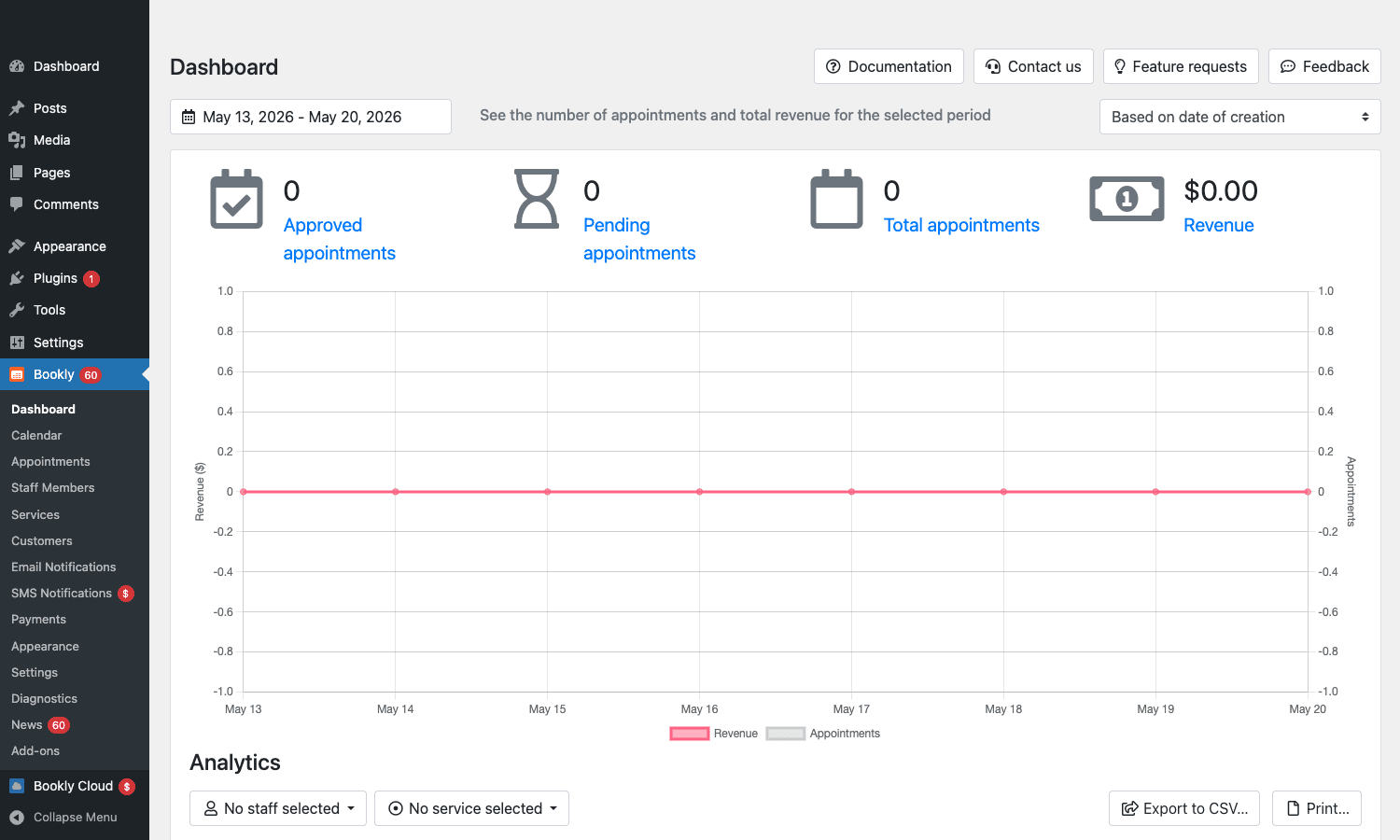
The dashboard above is the landing screen after setup: appointment counts, revenue chart, time-range picker, and the Bookly admin submenu with Calendar, Appointments, Staff, Services, Customers, Notifications, Payments, Settings.
Free Bookly vs Bookly PRO
Bookly has a freemium model with a free core plus the Pro add-on plus 40+ specialized add-ons.
Free Bookly (WordPress.org):
- One staff member (only).
- Up to 5 services.
- Basic booking form (4-step).
- Email notifications.
- WooCommerce payment integration (free).
- PayPal payment integration.
- Calendar view (single staff).
For a solo practitioner with a small service catalog, free is enough. As soon as you have multiple staff or more than 5 services, you need Pro.
Bookly PRO adds:
- Unlimited staff members.
- Unlimited services.
- Service categories.
- Custom fields on the booking form.
- Recurring appointments.
- Coupons and discounts.
- Service taxes.
- Group bookings (multiple customers per slot).
- Waiting list (when slots are full).
- Special hours (per-day overrides).
- Holidays and time off.
- Multi-language booking form.
- Customer cabinet (self-service customer area).
- Compound services (multi-stage services).
- Chain appointments (back-to-back bookings).
- Custom statuses.
- Per-staff service hours.
- Customer information per-staff.
- Buffer time between appointments.
- Configurable date/time formats.
Pro is what you need to run any service business with more than one staff member or a handful of services. The price-to-value math is good: $89 one-time gets you 95% of what most service businesses need.
Installation and setup wizard
Bookly is installed in two parts: the free Bookly plugin from WordPress.org, then the Bookly PRO add-on on top. Both need to be active.
Plugins -> Add New -> Search "Bookly" -> Install -> Activate. Then Plugins -> Add New -> Upload Plugin -> bookly-addon-pro.zip -> Install -> Activate.
On first activation, the Initial Setup wizard launches. It walks through:
- Basic settings, site time format (12h/24h), week start day, time zone.
- Add staff member, name, email, photo, working hours.
- Add service, name, duration, price, category.
- Booking form page, where to embed the
[bookly-form]shortcode (auto-creates a page). - Test booking, try the form yourself.
- Finish, go to the admin dashboard.
You can skip any step and configure it later in the admin. The wizard exists to make sure you have a working booking form within 5 minutes of install, not to lock you into a specific config.
After setup, the Bookly menu appears in WP admin with: Dashboard, Calendar, Appointments, Staff Members, Services, Customers, Email Notifications, SMS Notifications, Payments, Appearance, Settings, Add-ons.
The dashboard and calendar
The Dashboard shows the high-level metrics: approved appointments, pending appointments, total appointments, revenue, all for a configurable date range with a chart.
The Calendar view is the operational center. It looks like Google Calendar, week, day, month views, but with each appointment as a clickable block showing customer name, service, staff, status.
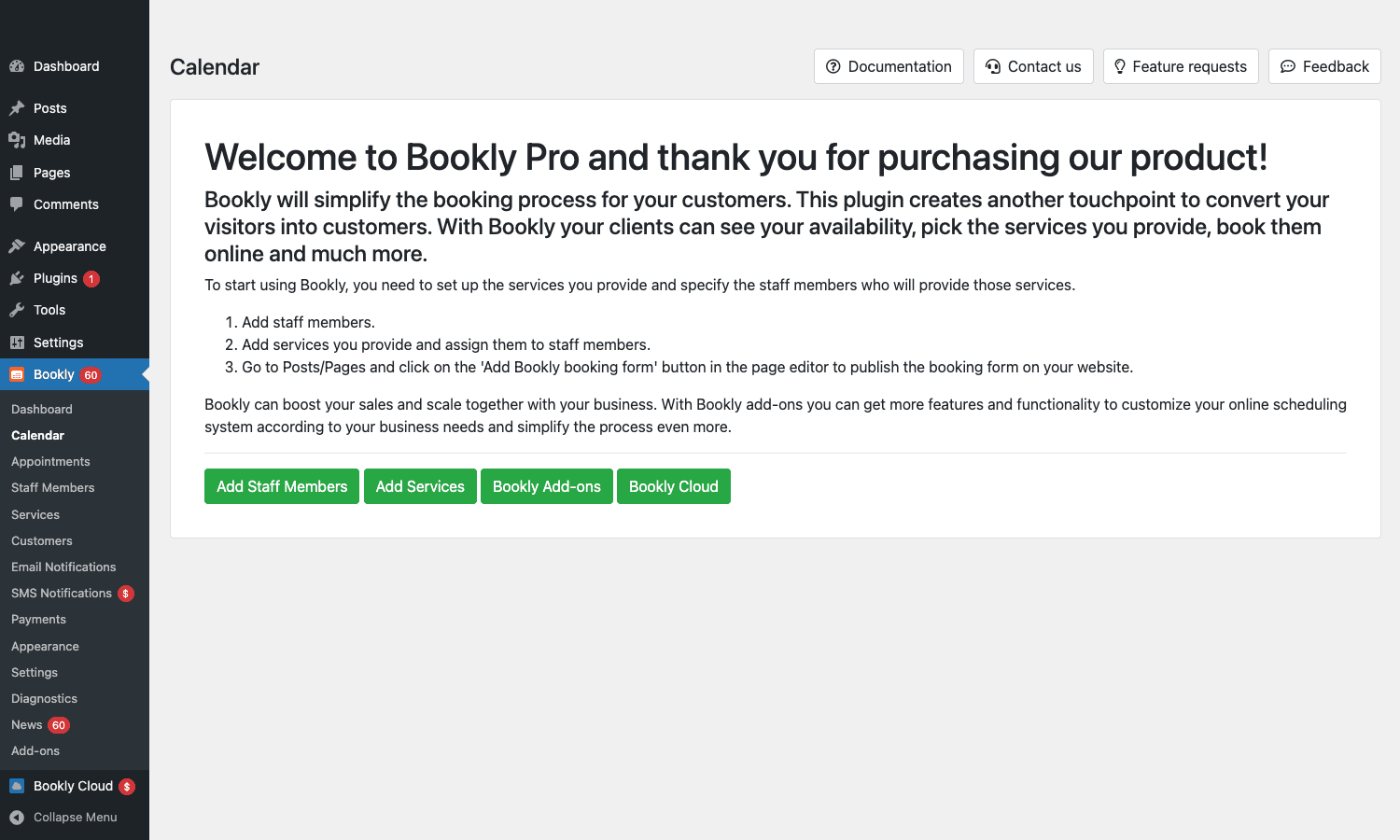
Per-appointment actions from the calendar:
- Click an appointment, opens detail panel with customer info, payment status, ability to change time/staff/service, send notification, mark as completed or cancelled.
- Drag to move, change the appointment time by dragging.
- Right-click, quick context menu (delete, duplicate, change status).
- Filter by staff, show only one staff’s calendar.
- Filter by service, show only specific services.
- Switch view, week, day, month, agenda (list).
For a multi-staff business, the staff filter is what you’ll use most: each staff sees only their own bookings; the owner sees all.
Services and categories
Services are the things customers book. Each service has:
- Name and category. Organize services into categories ("Haircuts", "Color", "Treatments" for a salon).
- Duration. In minutes. The booking grid uses this to compute available slots.
- Price. Currency-agnostic at the plugin level; pricing per-service.
- Capacity. Max customers per slot (1 for one-on-one, higher for group classes).
- Padding time. Before/after buffers for prep/cleanup.
- Color. Visual differentiation on the calendar.
- Visibility. Public, private (admin-only), or hidden.
- Image. Optional service image shown on the booking form.
- Description. Shown to customers on the booking form.
- Min and max time in advance. "Can book 2 hours in advance, up to 60 days in the future".
- Tax rate (Pro). Per-service tax handling.
- Staff assignment. Which staff members offer this service.
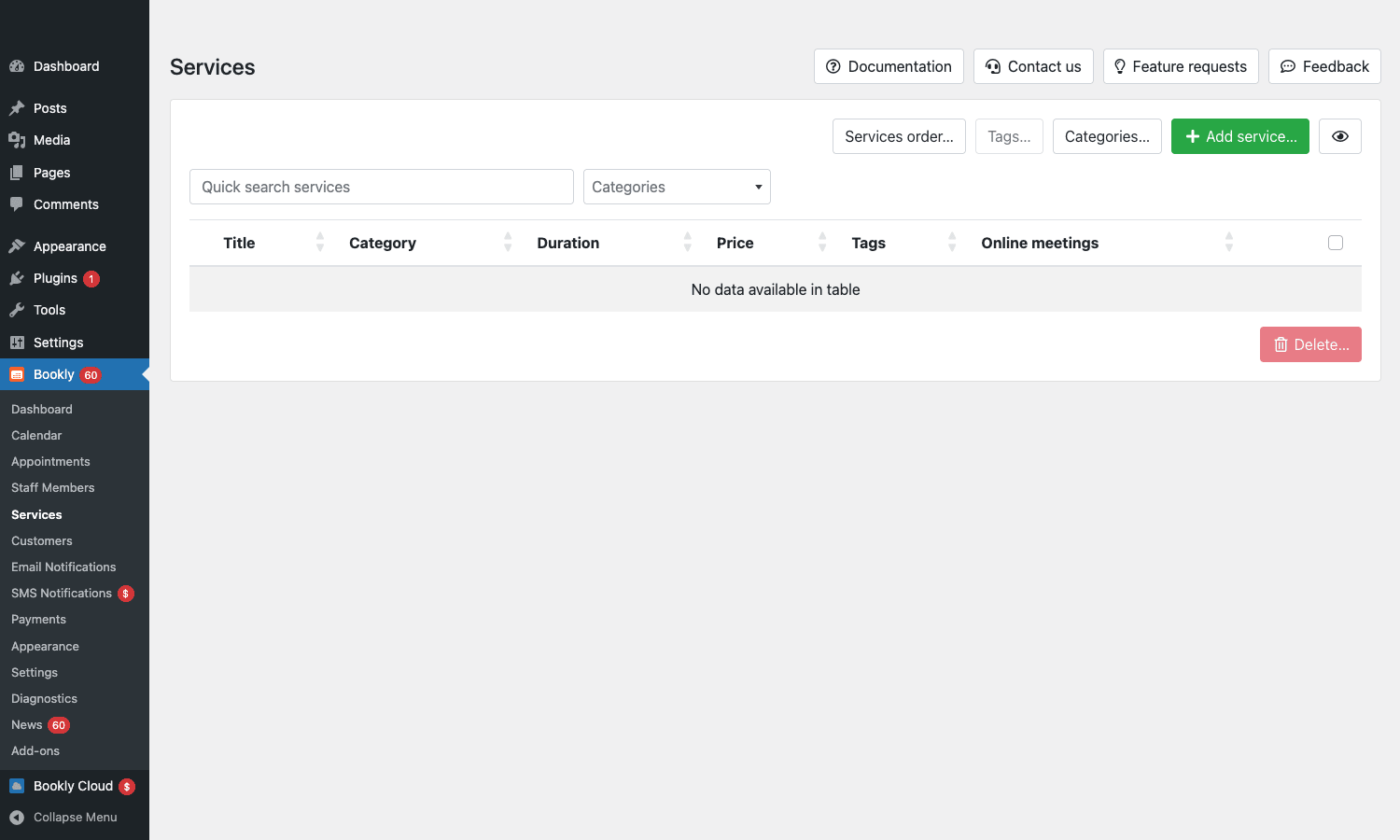
The services screen is where most of the day-to-day catalog editing happens. Adding a new service is a 30-second task; configuring duration, price, and capacity is the main work.
Staff members and schedules
Each staff member is a separate record with:
- Name and photo.
- Email (used for staff notifications and as a unique ID).
- WP user account (optional, link the staff to a WP user for self-service login).
- Position and bio.
- Working hours per day of week (e.g., Monday 9-5, Tuesday off, etc).
- Break times within the day.
- Days off (vacation, holidays).
- Special hours (one-off overrides for specific days).
- Services offered (which services this staff can perform).
- Capacity per service (some staff handle group sessions, others 1:1).
- Per-service pricing (one stylist charges $80 for a haircut, another charges $120).
- Per-service duration (a 30-minute massage with one therapist, 45 minutes with another).
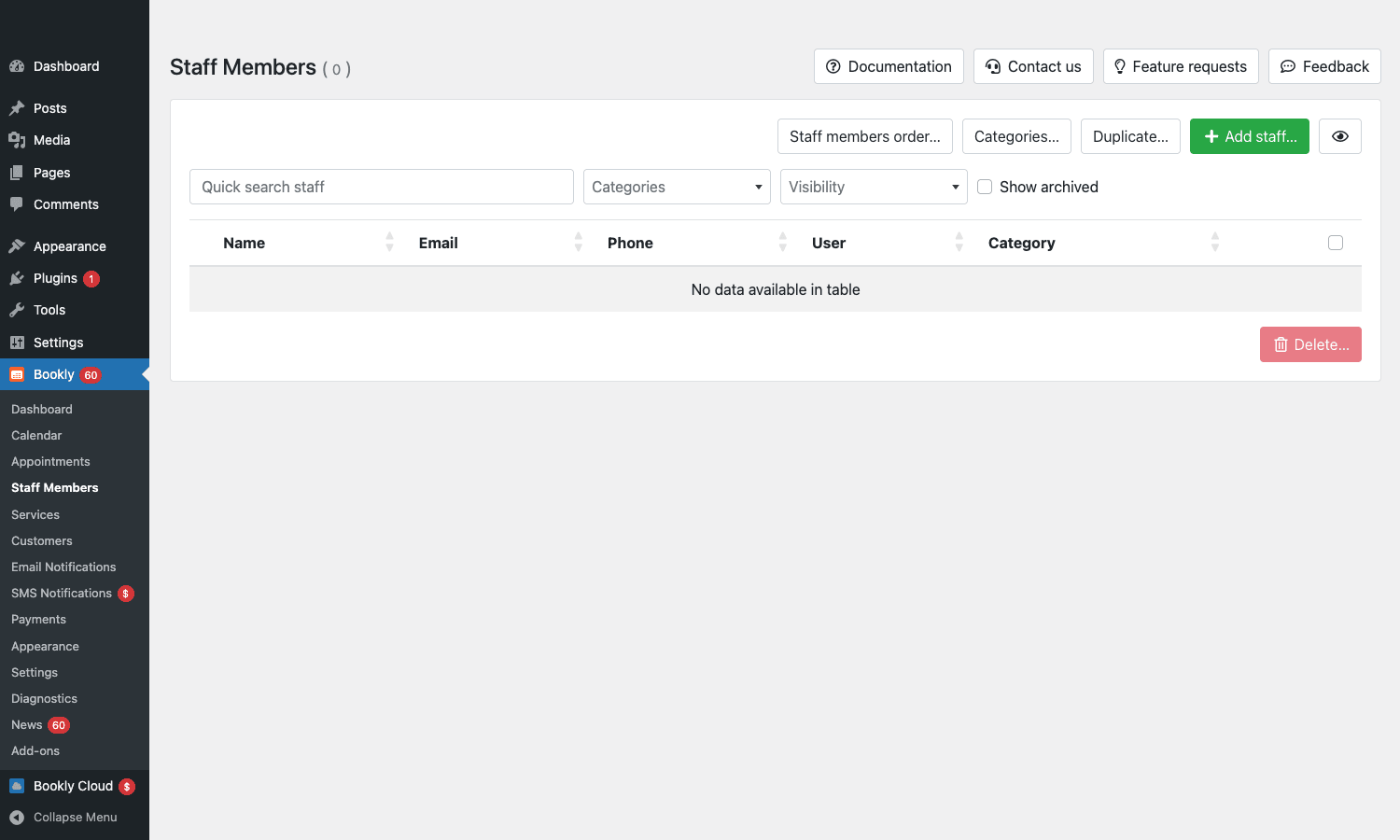
The per-staff configuration is what makes Bookly suitable for multi-employee businesses. A salon with 5 stylists each with different schedules, different services, different prices, different durations is straightforward in Bookly.
The customer booking flow
The [bookly-form] shortcode renders the customer-facing booking form. Default flow is 5 steps:
- Service selection. Customer picks a service from the catalog. If categories are enabled, they pick a category first, then a service.
- Date and time. A calendar shows available slots based on the selected service’s duration, staff availability, capacity. Customer picks a date and time.
- Customer details. Name, email, phone, plus any custom fields. New customer creates an account; returning customer logs in or uses cached info.
- Confirmation. Summary of the booking with terms acceptance.
- Payment (if enabled). Stripe, PayPal, WooCommerce checkout, or "pay locally".
- Thank You. Confirmation with calendar download (.ics), share link, "Add another" CTA.
Each step is configurable: hide it, reorder it, customize the field set, change the visual layout. The plugin’s Appearance settings let you reshape the form for different business models:
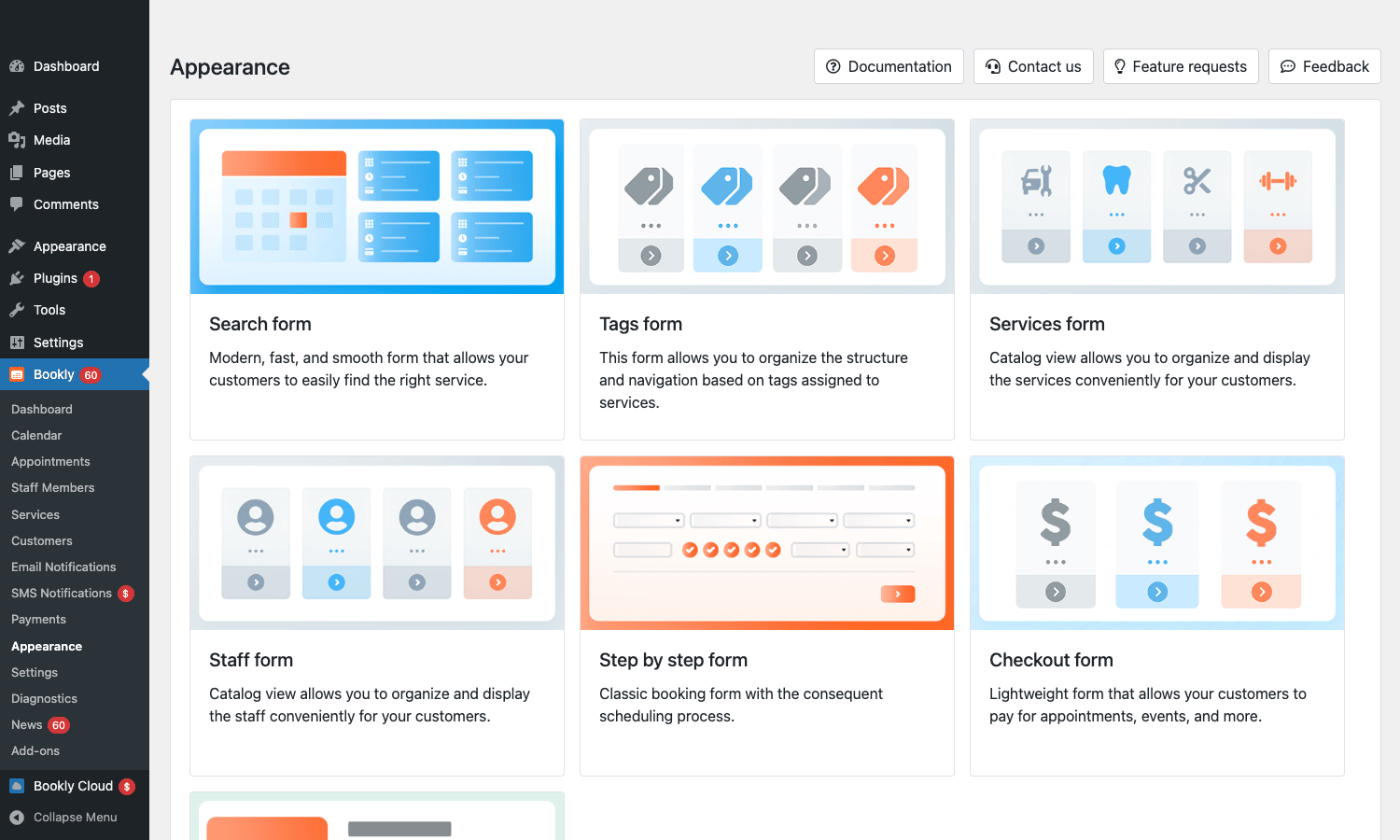
The Appearance section is where you pick between different form layouts (Search form vs Step-by-step form vs Services form vs Staff form) and configure colors, fonts, button styles. The step-by-step form is the default; the others are alternative UX patterns for specific business types.
Customizing the booking form
The customization controls in Bookly PRO are deep:
- Custom fields (Pro). Add any number of custom fields to the booking form: text, dropdown, radio, checkbox, textarea, file upload (with addon). Save to appointment meta. Useful for "Special requests", "Allergies", "Pet name", whatever your business needs.
- Conditional fields. Show fields only when certain other fields have specific values.
- Service/staff selection logic. Default to first staff alphabetically, by random rotation, or by configured "preferred staff" rules.
- Skip steps for simple bookings (e.g., a single-service business doesn’t need the service-selection step).
- Pre-fill from URL parameters.
?service_id=12&staff_id=3to land customers on a specific service/staff pre-selected. - Multiple booking forms with different configurations on different pages.
The "skip steps" pattern is the most underused power feature. If your business has only 3 services and 2 staff, removing the category step and starting with service+staff selected by default cuts the funnel from 5 steps to 3, which measurably improves completion rate.
Payments: Stripe, PayPal, WooCommerce
Bookly supports multiple payment methods:
- Stripe. Direct integration (with the Stripe addon). Customer enters card on the booking form; payment captures on confirmation.
- PayPal Standard. Free Bookly supports basic PayPal. Pro PayPal addon adds PayPal Pro (direct card payments through PayPal API).
- WooCommerce. Hand off the appointment to WooCommerce as a product purchase. The customer goes through WC checkout, completes payment, and the WC order triggers the appointment confirmation in Bookly.
- Authorize.Net (with addon). Direct card processing.
- Square (with addon). Square API integration for businesses already on Square POS.
- Mollie (with addon). European payment options.
- 2Checkout (with addon).
- Pay locally. No online payment; customer pays in person at the appointment.
Configure under Payments. Each gateway has its own credentials and settings. Most businesses use Stripe + Pay locally as a starter, Stripe handles cards online, Pay locally handles walk-ins or cash payments.
Refunds work through the original payment gateway. Bookly tracks payment status (paid, pending, refunded) on each appointment.
Notifications: email and SMS
Bookly fires notifications at every appointment lifecycle event:
- Customer confirmation, sent on booking.
- Customer reminder, 24 hours before, 1 hour before (configurable cadence).
- Customer follow-up, N hours/days after the appointment.
- Staff notification, sent to the staff member on new booking.
- Admin notification, sent to the admin on new booking.
- Status change, customer notified when appointment status changes (approved, cancelled, rescheduled).
- Custom triggers, configure additional notifications for specific events.
Each notification has a template (subject + body) you can edit with merge tags: {customer_name}, {service_name}, {appointment_date}, {appointment_time}, {staff_name}, {total_price}, dozens more.
SMS notifications (Pro addon) work through Twilio, Nexmo (Vonage), or a few other providers. Cost is per-SMS at the provider’s rates. SMS reminders especially are conversion-relevant: customers who get a 24-hour SMS reminder are dramatically less likely to no-show.
iCal calendar attachments are added to confirmation emails so the customer can one-click add the appointment to their phone calendar.
Calendar sync: Google, Outlook, iCal
Two-way calendar sync (Pro addons) lets staff manage their schedule from Google Calendar or Outlook instead of (or in addition to) Bookly admin.
Google Calendar sync:
- New appointments in Bookly appear in the staff’s Google Calendar.
- Events created directly in Google Calendar block the staff’s availability in Bookly.
- Cancellations and reschedules sync both ways.
- Setup via OAuth: each staff connects their Google account in the staff profile.
Outlook sync: Same as Google but with Microsoft 365. Common in B2B-heavy businesses where staff already use Outlook.
iCal feed: Read-only export. Each staff gets an iCal URL they can subscribe to in any calendar app.
For multi-staff businesses, two-way sync is essential. Without it, staff have to context-switch between Bookly admin and their own calendar; with it, they only look at their own calendar.
Settings and admin tools
The Settings page covers global plugin behavior across multiple tabs.
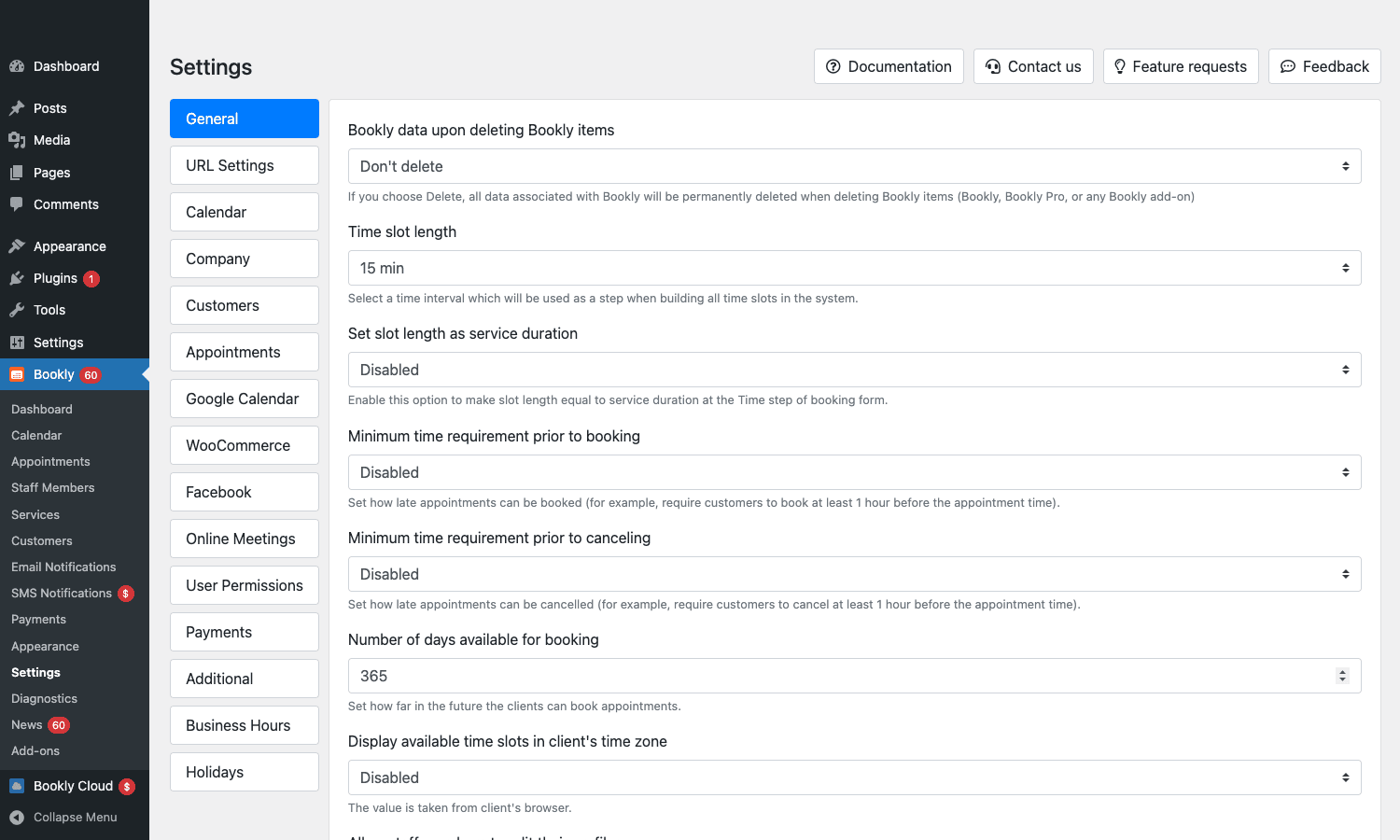
The tabs cover:
- General, basic plugin behavior, currency, time zone, week start.
- Company, your business info shown in emails and the booking form.
- Calendar, appointment statuses, default colors, calendar behavior.
- Cancel / Reschedule, customer-side cancellation rules (how far in advance, fees, etc).
- Customers, customer-account features, GDPR options.
- Notifications, global notification toggles, sender info.
- Online Meetings, Zoom/Google Meet/Skype integration for virtual appointments.
- Payments, payment gateway config.
- Cart, multi-service cart behavior.
- Holidays, site-wide non-bookable days.
- Files, file upload settings (with the Files addon).
- Live Chat / SMS, third-party communication integrations.
The Holidays setting is the one most businesses configure and forget, set the dates the business is closed (Christmas, New Year, public holidays in your region) and Bookly automatically blocks them from being booked.
The addon ecosystem
Bookly has 40+ official add-ons, sold separately at $9-39 each. The most-installed:
- Stripe, direct Stripe integration (vs going through WooCommerce).
- PayPal Pro, direct PayPal API integration.
- Authorize.Net, Square, Mollie, 2Checkout, PayFast, additional payment gateways.
- SMS Notifications, Twilio/Nexmo integration.
- Google Calendar, two-way sync.
- Outlook Calendar, two-way sync.
- iCal, calendar feed export.
- Zoom, auto-create Zoom meetings for virtual appointments.
- Google Meet, Skype, alternative video meeting providers.
- Files, file uploads on booking form.
- Tasks, per-appointment task lists.
- Recurring Appointments, booking series (weekly, monthly).
- Compound Services, multi-step services with multiple staff.
- Chain Appointments, book back-to-back services with the same staff.
- Group Bookings, multiple customers per slot.
- Waiting List, fill cancellations automatically.
- Special Hours, per-day schedule overrides.
- Multiply Appointments, book one customer for multiple slots at once.
- Locations, multi-location businesses.
- Service Schedule, per-service custom hours.
- Service Extras, add-ons during booking (e.g., "add gift wrap" $5).
- Packages, bundle multiple services at a discount.
- Coupons, discount codes.
- Customer Information, staff-specific customer notes.
- Custom Statuses, beyond Approved/Pending/Cancelled.
- Multisite, single Bookly across a WordPress network.
- Custom Fields, extended field types beyond Pro defaults.
- Tasks, per-appointment to-dos.
- Ratings & Reviews, let customers rate completed appointments.
- Service Cards, visual service catalog.
- Mailchimp / MailerLite / ActiveCampaign, subscribe customers to lists.
You don’t need all of these. Most businesses use 4-6 addons that match their specific needs (e.g., Stripe + Google Calendar + SMS + Zoom for a coaching business).
Developer reference: hooks and filters
Bookly exposes a moderate hook surface. The patterns developers reach for:
Hooking into appointment lifecycle events
// Fires when an appointment is created.
add_action( 'bookly_customer_appointment_saved', function( $appointment ) {
 $appointment_id = $appointment->getId();
 $customer_id = $appointment->getCustomerId();
 $service_id = $appointment->getServiceId();
 do_action( 'mycrm_sync_appointment', $appointment_id, $customer_id );
} );

// Fires when status changes (approved, cancelled, etc).
add_action( 'bookly_appointment_status_changed', function( $appointment, $old_status, $new_status ) {
 if ( $new_status === 'cancelled' ) {
 do_action( 'mycrm_log_cancellation', $appointment->getId() );
 }
}, 10, 3 );
Customizing email content
add_filter( 'bookly_appointment_email_codes', function( $codes, $appointment ) {
 // Add custom merge codes available in email templates.
 $codes['my_promo_code'] = 'WELCOME10';
 return $codes;
}, 10, 2 );
Customizing the booking form data
add_filter( 'bookly_form_data_updated', function( $form_data, $form_id ) {
 // Modify form data before it's saved to the appointment.
 return $form_data;
}, 10, 2 );
Restricting booking based on conditions
// Block bookings on specific dates conditionally.
add_filter( 'bookly_filter_day_off', function( $is_day_off, $date, $staff_id ) {
 // Force every Friday off for staff 3.
 if ( $staff_id == 3 && date( 'N', strtotime( $date ) ) == 5 ) {
 return true;
 }
 return $is_day_off;
}, 10, 3 );
Custom payment gateway
The Pro plugin’s payment gateway system is extensible: subclass Bookly\Lib\Payment\Gateway and register via bookly_pro_payment_gateways filter. Used by the various third-party gateway addons. Building your own is a 100-line effort for a typical REST-based payment API.
The hook surface is documented at booking-wp-plugin.com. For most "I want to customize behavior X" questions, the answer is a filter or action that already exists.
Real-world use cases
A few patterns Bookly handles well:
-
Salon / spa. Multi-stylist, multiple services per stylist, walk-in vs appointment, sometimes group services (manicure parties). Bookly + Stripe + SMS + Compound Services covers it all.
-
Medical / dental clinic. Multiple doctors, multi-step appointments (consultation then procedure), GDPR-strict customer data handling, intake forms. Bookly + Custom Fields + Files + GDPR-compliant configuration.
-
Personal training / fitness. Group classes with capacity limits, individual PT sessions, recurring appointments. Bookly + Group Bookings + Recurring Appointments.
-
Consultancy / coaching. Virtual meetings (Zoom integration), payment upfront, optional follow-ups. Bookly + Stripe + Zoom + Recurring.
-
Tutoring / education. Multiple subjects, multi-staff, packages (5 lessons for $200). Bookly + Packages + Coupons + WooCommerce for the package purchase.
-
Home services (plumber, electrician, cleaner). Multi-location, travel time between bookings, customer addresses captured. Bookly + Locations + Custom Fields + Special Hours.
-
Yoga / studios. Group classes, drop-in single sessions, monthly memberships. Pair Bookly with Restrict Content Pro for the membership gating around the booking access.
Bookly vs Amelia vs Booknetic vs WC Bookings
The four major WordPress booking solutions.
Bookly PRO has the largest addon ecosystem and the most-installed user base. Best for businesses that need specific features (Zoom, locations, packages, etc) covered by individual addons. UI is functional but not modern.
Amelia has the cleanest UI of the four. Slightly fewer addons but the core feature set is complete. Higher learning curve for the customization options. Best for businesses that prioritize UX polish.
Booknetic is newer, modern UI, comparable features to Amelia. Smaller community but actively growing. Good for new installs that don’t have existing investment in the older plugins.
WooCommerce Bookings is from Automattic. Tightly integrated with WooCommerce, every appointment is a WC order, every customer is a WC customer. Best for stores that already run on WooCommerce and want bookings alongside physical products.
The honest take:
- New service business with no existing WP setup: Amelia or Booknetic for modern UI.
- Existing WordPress site that just needs bookings: Bookly. Largest community, most documentation, most addons.
- Already running WooCommerce for retail: WooCommerce Bookings to stay in one ecosystem.
You pick one and stick with it. Migrating between booking plugins is a manual rebuild, each one has its own data model.
Performance, compatibility, gotchas
- WP-Cron dependency. Email and SMS reminders run on WP-Cron. On low-traffic sites WP-Cron may not fire reliably. Configure a real OS-level cron job for guaranteed reminder delivery.
- Time zone confusion. Bookly uses the WordPress time zone setting. If your business operates in a different time zone than the WP install (e.g., dev site on UTC, business in EST), set the WP time zone correctly or you’ll see appointments at wrong times.
- Slot calculation under load. The available-slot calculation is database-heavy. Large practices with hundreds of staff and thousands of historical appointments can see slow slot rendering. Configure database indexes (Bookly has helper SQL) and use a serious caching plugin.
- WooCommerce checkout integration. If using WC for payment, the WC cart blocks need to be disabled (the legacy shortcode-based cart/checkout works better with Bookly).
- Page caching breaks the booking form. WP Rocket or any page-caching plugin must exclude the page with the
[bookly-form]shortcode from caching. - Mobile keyboard handling. Date/time pickers behave differently across mobile browsers. Test the booking form on iOS Safari and Android Chrome before launch.
- Buffer time math. Padding before/after services accumulates. A 30-minute service with 10 minutes padding each side actually blocks 50 minutes of staff time. Configure padding intentionally; it affects throughput.
- Auto-approval risk. By default, new bookings are auto-approved. For businesses where every booking needs review, change the default status to "pending" in Settings.
- Free version limits. If you exceed the 5-service or 1-staff free limits without Pro installed, the booking form silently breaks. Either commit to Pro or stay within the free limits.
None of these are dealbreakers; they’re the kind of issues you find during the first month of production use. Address them in staging and they don’t recur.
Pricing and licensing
Bookly’s pricing is split:
- Free Bookly, WordPress.org, free.
- Bookly PRO add-on, $89 one-time, includes 6 months of updates and support. Renewal $25/year for extended support.
- Additional addons, $9-39 each per addon.
- Bookly Cloud, $9/month for the hosted version (use Bookly without managing WordPress).
For a single-site service business buying 4-6 addons, total Bookly cost is around $200 one-time. Compare to Calendly ($10/user/month) which is $120/year per user; Bookly’s one-time pricing makes sense for businesses with predictable longterm use.
The plugin is GPL-licensed. Reasonable for agencies running multiple booking-driven client sites or for businesses that want every addon without per-addon fees.
FAQ
Do I need the free Bookly plus Bookly PRO, or just Bookly PRO?
Both. Bookly PRO is an add-on that extends the free Bookly plugin. Install both, activate both.
Can customers create accounts?
Yes. Bookly has its own customer database (separate from WP users) plus an option to create WP users for customers. Customers can return, see their booking history, manage upcoming appointments through the customer cabinet.
Does it work with Elementor / Divi / Bricks?
Yes. The [bookly-form] shortcode works in any page builder. There’s no dedicated Elementor widget for Bookly Pro (the free version has one), but the shortcode renders correctly inside any builder.
Can customers reschedule their own appointments?
Yes, with the customer cabinet enabled. Customers log into a private area and reschedule or cancel within the rules you configure (e.g., "minimum 24 hours notice").
Will it slow down my site?
The booking form itself loads JS/CSS, but only on the page with the shortcode. Other pages are unaffected. The form’s responsiveness depends on the size of your services/staff database; for typical businesses it’s instant.
Can I have different time zones for different staff?
Yes, with the Multi-Currency / Time Zone configuration. Useful for distributed coaching businesses with staff across regions.
Does it support deposits (partial payment)?
Yes, via the Deposit Payments addon. Customer pays a deposit at booking, the rest at the appointment.
Can I run multiple booking forms on one site?
Yes. Multiple pages, each with [bookly-form] and different configurations (different services pre-selected, different forms). Useful for businesses with distinct service lines.
Does Bookly support virtual appointments via Zoom?
Yes, with the Zoom addon. Bookly auto-creates a Zoom meeting on booking and includes the join link in the confirmation email.
Final thoughts
Bookly has been the standard WordPress booking plugin for years for a reason. The combination of core depth + addon coverage + WordPress-native architecture is hard to beat. Newer entrants like Amelia and Booknetic have cleaner UIs, but Bookly’s ecosystem advantage compounds: when you need a feature, there’s almost always an existing addon for it.
The right mental model: Bookly is to WordPress appointment scheduling what WooCommerce is to e-commerce. It’s the default. There are competitors with arguments in their favor, but if you’re starting fresh and don’t have a strong reason to pick otherwise, Bookly is the safe choice.
The big practical advantage is the addon ecosystem. As your business grows, you can add capabilities one at a time: start with the core, add Stripe when you want online payments, add Google Calendar sync when staff complain about context-switching, add SMS notifications when you want to reduce no-shows, add Zoom when you start virtual appointments. Each addition is a one-time purchase, not a recurring subscription.